display LINCOLN MKT 2019 Owners Manual
[x] Cancel search | Manufacturer: LINCOLN, Model Year: 2019, Model line: MKT, Model: LINCOLN MKT 2019Pages: 575, PDF Size: 4.66 MB
Page 370 of 575
Displaying the Clock
Press and release the button todisplay the clock.
Selecting the Audio Modes
Press and release the button toscroll through available audiosystem modes.
Using Seek
Press and release the togglebutton upward or downward toselect the next or previous storedradio frequency station, satellite radiochannel or CD track.
USB PORT
WARNING: Driving while distractedcan result in loss of vehicle control, crashand injury. We strongly recommend thatyou use extreme caution when using anydevice that may take your focus off theroad. Your primary responsibility is the safeoperation of your vehicle. We recommendagainst the use of any hand-held devicewhile driving and encourage the use ofvoice-operated systems when possible.Make sure you are aware of all applicablelocal laws that may affect the use ofelectronic devices while driving.
The USB port allows you to plug in mediaplaying devices, memory sticks and chargedevices, if supported.
MEDIA HUB
WARNING: Driving while distractedcan result in loss of vehicle control, crashand injury. We strongly recommend thatyou use extreme caution when using anydevice that may take your focus off theroad. Your primary responsibility is the safeoperation of your vehicle. We recommend
367
MKT (TP4) , enUSA, Edition date: 201803, Second-Printing
Audio SystemE265278 E265035 E265273 E201595
Page 374 of 575
Action and DescriptionMenu ItemItem
This bar displays icons and messages pertaining to current system activities including climatesettings, voice commands and phone functions such as text messages.Status BarA
This button is available on the main screens. Pressing it takes you to the home screen view.HomeB
This shows the current time. You can set the clock manually or have it controlled by the vehicle'sGPS location. See Settings (page 436).ClockC
This displays the current outside temperature.Outside TemperatureD
You can touch any of the buttons on this bar to select a feature.Feature BarE
The touchscreen allows you quick access toall of your comfort, navigation,communication and entertainment options.Using the status and feature bar you canquickly select the feature you want to use.
Note:Your system is equipped with a featurethat allows you to access and control audiofeatures for 10 minutes after you switch theignition off (and no doors open).
The Status Bar
Additional icons also display in the status bardepending on market, vehicle options andcurrent operation. If a feature is not active,the icon does not display. Certain icons maymove to the left or right depending on whatoptions are active.
371
MKT (TP4) , enUSA, Edition date: 201803, Second-Printing
SYNC™ 3
Page 376 of 575
DescriptionItemCallout
This shows the temperature the driver selects through the climate control system.Driver TemperatureA
When you activate the heated steering wheel option on the touch screen, this icondisplays. It only displays when there is not a physical button for the heated steeringwheel.
Heated steering wheelB
(If equipped)
When the passenger's temperature has been adjusted and is no longer linked to thedriver's temperature, it displays here. If Dual is turned off and the temperatures arelinked, the passenger's temperature does not display.
Passenger TemperatureC
This icon displays when your phone's microphone is muted. A caller cannot hear you.Microphone MuteD
This icon displays when the audio system is muted.MuteE
This icon appears when SYNC 3 receives a software update. Pressing the icon showsmore details about the new software.DownloadF
This icon appears if a Wi-Fi network is connected.Wi-FiG
An available Wi-Fi network is within range.Wi-Fi in RangeH
This icon displays the phone signal strength and the roaming signal strength.Signal StrengthI
This icon displays when you receive a text message on your phone.Text MessageJ
This icon displays when 911 Assist is set to off and your phone is connected to SYNC.911 Assist OffK
This icon displays when a phone call is active.In-CallL
373
MKT (TP4) , enUSA, Edition date: 201803, Second-Printing
SYNC™ 3
Page 378 of 575
FunctionsFeature Bar Item
Connect and control SYNC 3 compatible apps running on your iphoneor android device. Also, access built-in additional features such asSiriusXM Traffic and Travel Link (if equipped).
Apps
If your vehicle is a hybrid, plug-in hybrid, or electric this is also whereyour settings and power information is located.
You can customize your system with various settings for the touch-screen display, feature preferences, and how you want to interactwith your vehicle.
Settings
Cleaning the Touchscreen
You can remove fingerprints with a dry,clean, soft cloth.
If dirt or fingerprints are still on the screen,apply a small amount of alcohol to the clothand try to clean it again.
Note: Do not use detergent or any type ofsolvent to clean the touchscreen.
Note:Do not pour or spray alcohol onto thetouchscreen.
Using Voice Recognition
Using voice commands allows you to keepyour hands on the wheel and focus on whatis in front of you. The system providesfeedback through audible tones, prompts,questions and spoken confirmationsdepending on the situation and the chosenlevel of interaction (voice settings).
The system also asks short questions(confirmation prompts) when it is not sure ofyour request or when there are multiplepossible responses to your request.
When using voice commands, words andicons may appear in the status bar indicatingthe status of the voice command session.See Using Voice Recognition (page 386).
Accessing and Adjusting ModesThrough Your Vehicle InformationDisplay (If Equipped)
Depending on your vehicle and selectedoptions you may be able to control some ofthe SYNC 3 features on your informationdisplay.
You can make the following adjustmentsusing the information display SYNC 3 screen:
375
MKT (TP4) , enUSA, Edition date: 201803, Second-Printing
SYNC™ 3
Page 379 of 575
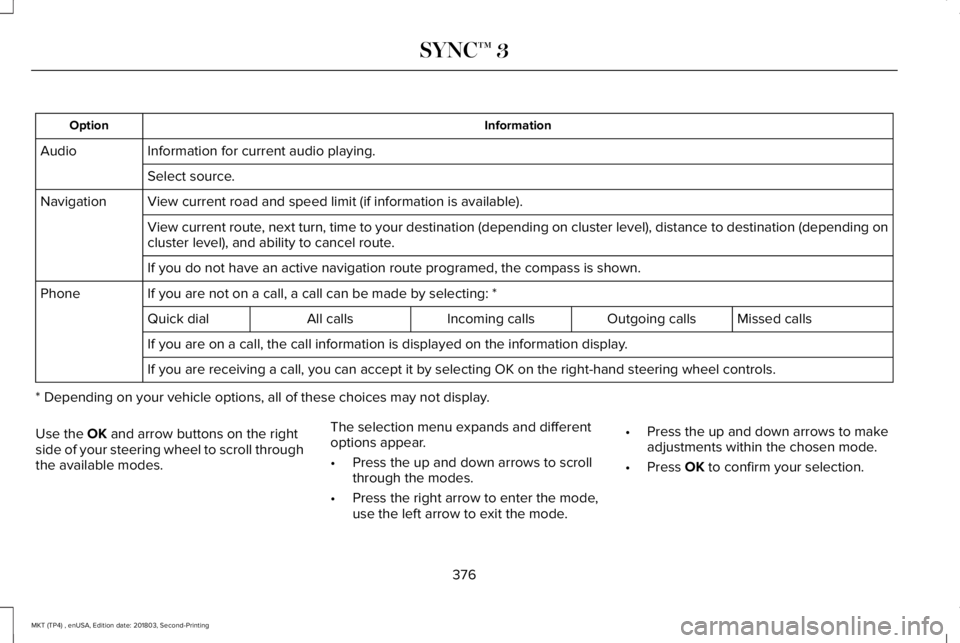
InformationOption
Information for current audio playing.Audio
Select source.
View current road and speed limit (if information is available).Navigation
View current route, next turn, time to your destination (depending on cluster level), distance to destination (depending oncluster level), and ability to cancel route.
If you do not have an active navigation route programed, the compass is shown.
If you are not on a call, a call can be made by selecting: *Phone
Missed callsOutgoing callsIncoming callsAll callsQuick dial
If you are on a call, the call information is displayed on the information display.
If you are receiving a call, you can accept it by selecting OK on the right-hand steering wheel controls.
* Depending on your vehicle options, all of these choices may not display.
Use the OK and arrow buttons on the rightside of your steering wheel to scroll throughthe available modes.
The selection menu expands and differentoptions appear.
•Press the up and down arrows to scrollthrough the modes.
•Press the right arrow to enter the mode,use the left arrow to exit the mode.
•Press the up and down arrows to makeadjustments within the chosen mode.
•Press OK to confirm your selection.
376
MKT (TP4) , enUSA, Edition date: 201803, Second-Printing
SYNC™ 3
Page 380 of 575
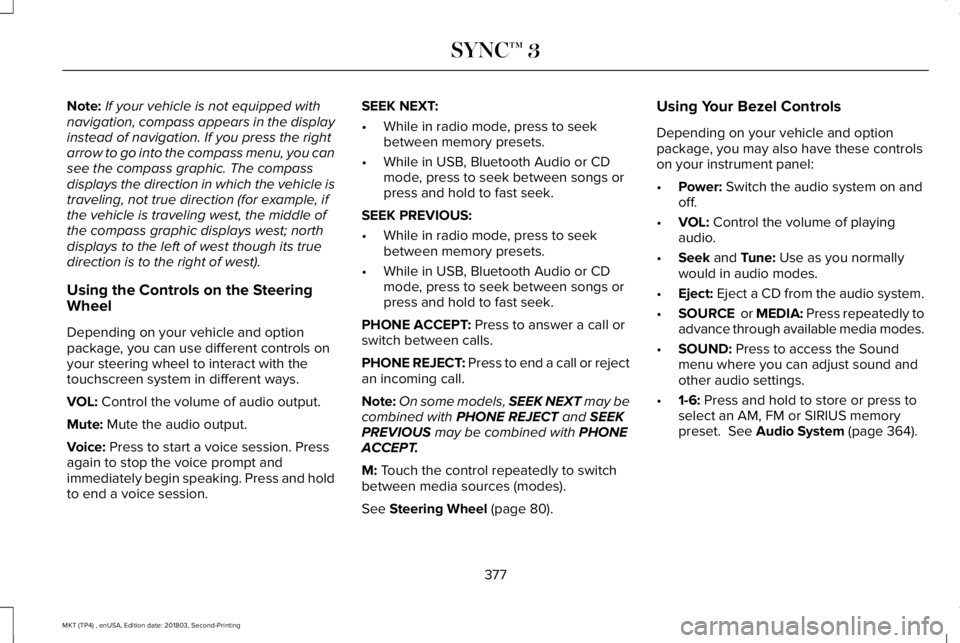
Note:If your vehicle is not equipped withnavigation, compass appears in the displayinstead of navigation. If you press the rightarrow to go into the compass menu, you cansee the compass graphic. The compassdisplays the direction in which the vehicle istraveling, not true direction (for example, ifthe vehicle is traveling west, the middle ofthe compass graphic displays west; northdisplays to the left of west though its truedirection is to the right of west).
Using the Controls on the SteeringWheel
Depending on your vehicle and optionpackage, you can use different controls onyour steering wheel to interact with thetouchscreen system in different ways.
VOL: Control the volume of audio output.
Mute: Mute the audio output.
Voice: Press to start a voice session. Pressagain to stop the voice prompt andimmediately begin speaking. Press and holdto end a voice session.
SEEK NEXT:
•While in radio mode, press to seekbetween memory presets.
•While in USB, Bluetooth Audio or CDmode, press to seek between songs orpress and hold to fast seek.
SEEK PREVIOUS:
•While in radio mode, press to seekbetween memory presets.
•While in USB, Bluetooth Audio or CDmode, press to seek between songs orpress and hold to fast seek.
PHONE ACCEPT: Press to answer a call orswitch between calls.
PHONE REJECT: Press to end a call or rejectan incoming call.
Note:On some models, SEEK NEXT may becombined with PHONE REJECT and SEEKPREVIOUS may be combined with PHONEACCEPT.
M: Touch the control repeatedly to switchbetween media sources (modes).
See Steering Wheel (page 80).
Using Your Bezel Controls
Depending on your vehicle and optionpackage, you may also have these controlson your instrument panel:
•Power: Switch the audio system on andoff.
•VOL: Control the volume of playingaudio.
•Seek and Tune: Use as you normallywould in audio modes.
•Eject: Eject a CD from the audio system.
•SOURCE or MEDIA: Press repeatedly toadvance through available media modes.
•SOUND: Press to access the Soundmenu where you can adjust sound andother audio settings.
•1-6: Press and hold to store or press toselect an AM, FM or SIRIUS memorypreset. See Audio System (page 364).
377
MKT (TP4) , enUSA, Edition date: 201803, Second-Printing
SYNC™ 3
Page 381 of 575
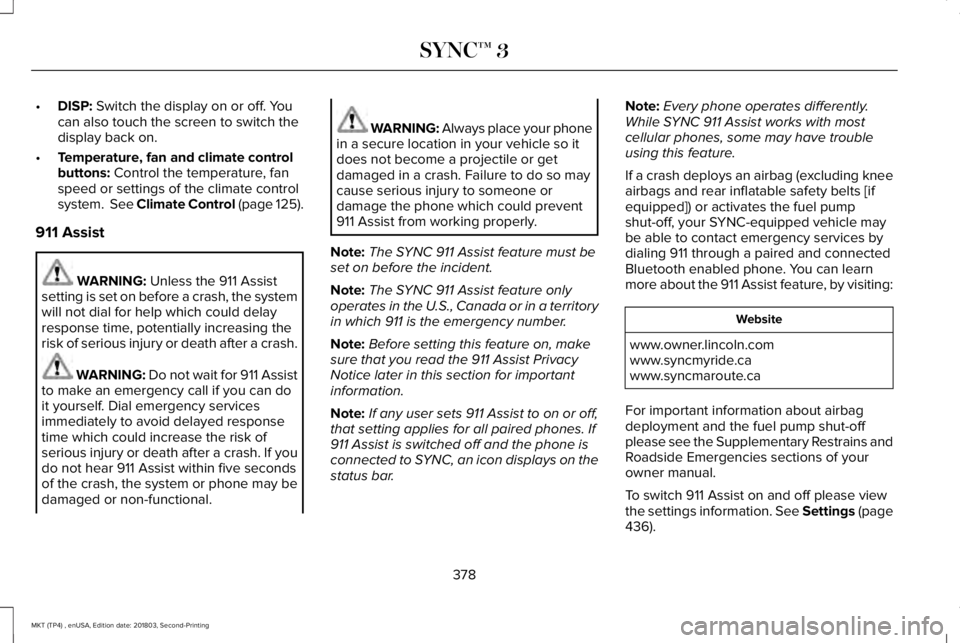
•DISP: Switch the display on or off. Youcan also touch the screen to switch thedisplay back on.
•Temperature, fan and climate controlbuttons: Control the temperature, fanspeed or settings of the climate controlsystem. See Climate Control (page 125).
911 Assist
WARNING: Unless the 911 Assistsetting is set on before a crash, the systemwill not dial for help which could delayresponse time, potentially increasing therisk of serious injury or death after a crash.
WARNING: Do not wait for 911 Assistto make an emergency call if you can doit yourself. Dial emergency servicesimmediately to avoid delayed responsetime which could increase the risk ofserious injury or death after a crash. If youdo not hear 911 Assist within five secondsof the crash, the system or phone may bedamaged or non-functional.
WARNING: Always place your phonein a secure location in your vehicle so itdoes not become a projectile or getdamaged in a crash. Failure to do so maycause serious injury to someone ordamage the phone which could prevent911 Assist from working properly.
Note:The SYNC 911 Assist feature must beset on before the incident.
Note:The SYNC 911 Assist feature onlyoperates in the U.S., Canada or in a territoryin which 911 is the emergency number.
Note:Before setting this feature on, makesure that you read the 911 Assist PrivacyNotice later in this section for importantinformation.
Note:If any user sets 911 Assist to on or off,that setting applies for all paired phones. If911 Assist is switched off and the phone isconnected to SYNC, an icon displays on thestatus bar.
Note:Every phone operates differently.While SYNC 911 Assist works with mostcellular phones, some may have troubleusing this feature.
If a crash deploys an airbag (excluding kneeairbags and rear inflatable safety belts [ifequipped]) or activates the fuel pumpshut-off, your SYNC-equipped vehicle maybe able to contact emergency services bydialing 911 through a paired and connectedBluetooth enabled phone. You can learnmore about the 911 Assist feature, by visiting:
Website
www.owner.lincoln.comwww.syncmyride.cawww.syncmaroute.ca
For important information about airbagdeployment and the fuel pump shut-offplease see the Supplementary Restrains andRoadside Emergencies sections of yourowner manual.
To switch 911 Assist on and off please viewthe settings information. See Settings (page436).
378
MKT (TP4) , enUSA, Edition date: 201803, Second-Printing
SYNC™ 3
Page 386 of 575
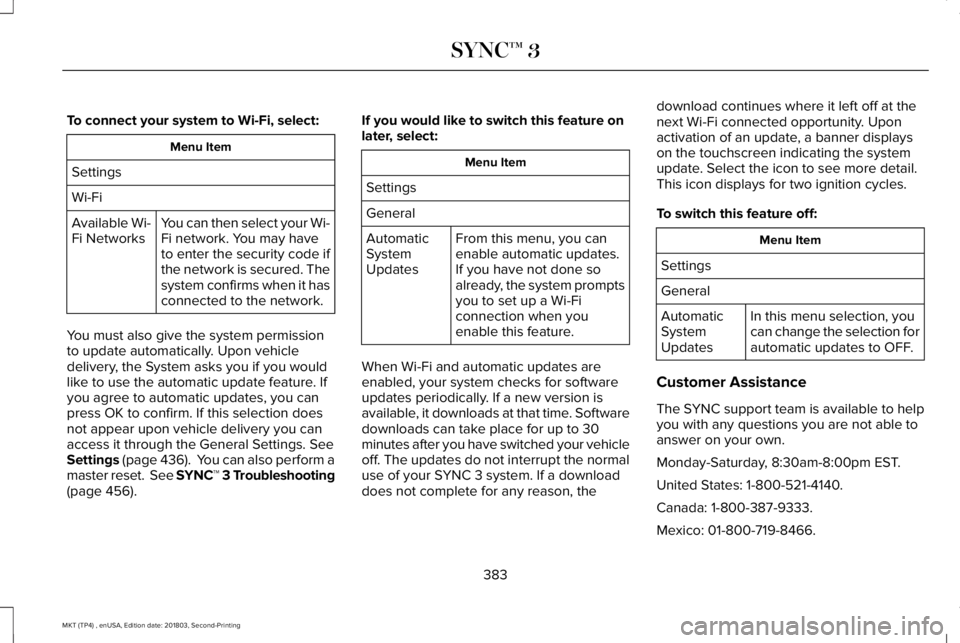
To connect your system to Wi-Fi, select:
Menu Item
Settings
Wi-Fi
You can then select your Wi-Fi network. You may haveto enter the security code ifthe network is secured. Thesystem confirms when it hasconnected to the network.
Available Wi-Fi Networks
You must also give the system permissionto update automatically. Upon vehicledelivery, the System asks you if you wouldlike to use the automatic update feature. Ifyou agree to automatic updates, you canpress OK to confirm. If this selection doesnot appear upon vehicle delivery you canaccess it through the General Settings. SeeSettings (page 436). You can also perform amaster reset. See SYNC™ 3 Troubleshooting(page 456).
If you would like to switch this feature onlater, select:
Menu Item
Settings
General
From this menu, you canenable automatic updates.If you have not done soalready, the system promptsyou to set up a Wi-Ficonnection when youenable this feature.
AutomaticSystemUpdates
When Wi-Fi and automatic updates areenabled, your system checks for softwareupdates periodically. If a new version isavailable, it downloads at that time. Softwaredownloads can take place for up to 30minutes after you have switched your vehicleoff. The updates do not interrupt the normaluse of your SYNC 3 system. If a downloaddoes not complete for any reason, the
download continues where it left off at thenext Wi-Fi connected opportunity. Uponactivation of an update, a banner displayson the touchscreen indicating the systemupdate. Select the icon to see more detail.This icon displays for two ignition cycles.
To switch this feature off:
Menu Item
Settings
General
In this menu selection, youcan change the selection forautomatic updates to OFF.
AutomaticSystemUpdates
Customer Assistance
The SYNC support team is available to helpyou with any questions you are not able toanswer on your own.
Monday-Saturday, 8:30am-8:00pm EST.
United States: 1-800-521-4140.
Canada: 1-800-387-9333.
Mexico: 01-800-719-8466.
383
MKT (TP4) , enUSA, Edition date: 201803, Second-Printing
SYNC™ 3
Page 388 of 575
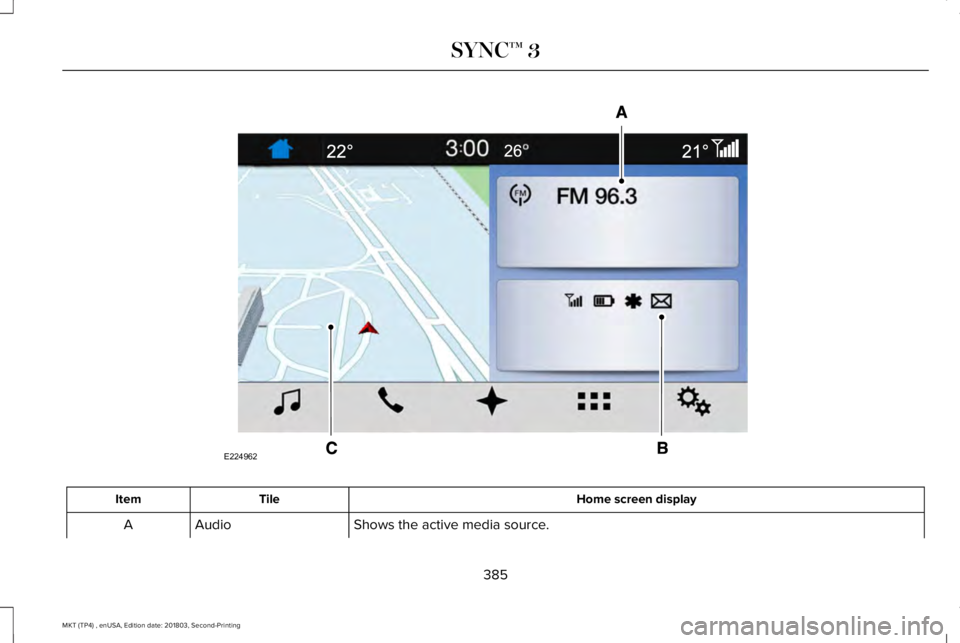
Home screen displayTileItem
Shows the active media source.AudioA
385
MKT (TP4) , enUSA, Edition date: 201803, Second-Printing
SYNC™ 3E224962
Page 389 of 575
Home screen displayTileItem
If your vehicle does not have navigation, this space contains the compass.
The name of the connected phone appears on the screen. The status of the phone featuresalso appear. This includes signal strength, battery charge, text messaging and roaming.PhoneB
This map displays your current location or current route in real time.Navigation *CWhen you have navigation active, you also see the next turn and the length of time anddistance to your destination.If your vehicle does not have navigation, this space contains the audio information.
* If equipped.
You can touch any of the feature displays toaccess that feature.
Anytime you select the home button, thesystem returns you to this screen.
USING VOICE RECOGNITION
The SYNC 3 system allows you to use voicecommands, to control features like audio andclimate controls. By using voice commands,you can keep your hands on the wheel andyour eyes on the road.
You can access each feature controlled bySYNC 3 through a variety of commands.
To activate the SYNC 3 voicecommands push the voice buttonon the steering wheel and wait forthe prompt.
___ is a dynamic listing, meaning that it canbe the name of anything, such as artist, thename of contact or number. The context andthe description of the command tell you whatto say for this dynamic option.
There are some commands that work forevery feature, these commands are:
386
MKT (TP4) , enUSA, Edition date: 201803, Second-Printing
SYNC™ 3E142599