display LINCOLN MKT 2019 Workshop Manual
[x] Cancel search | Manufacturer: LINCOLN, Model Year: 2019, Model line: MKT, Model: LINCOLN MKT 2019Pages: 575, PDF Size: 4.66 MB
Page 198 of 575
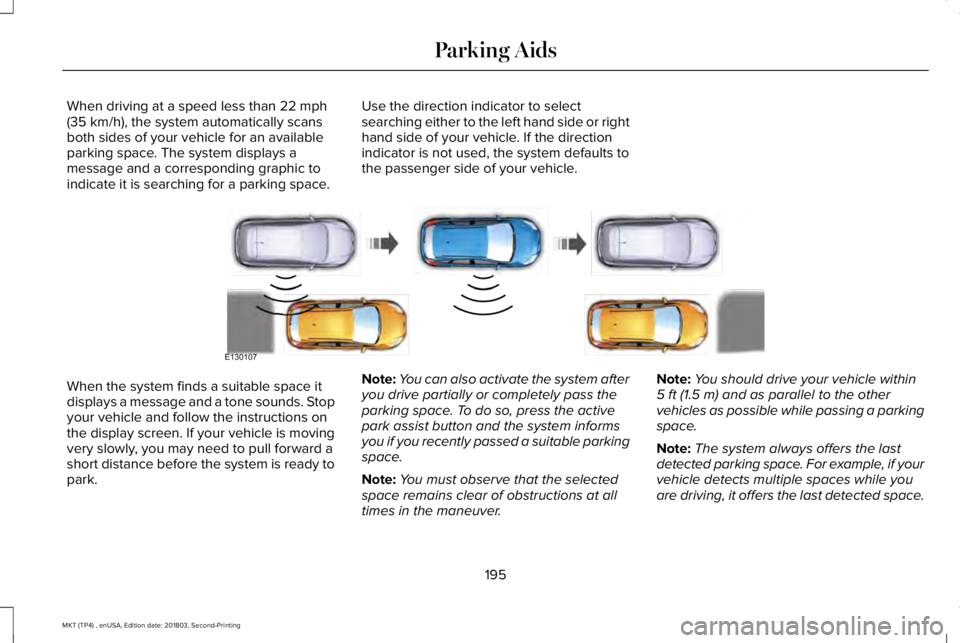
When driving at a speed less than 22 mph(35 km/h), the system automatically scansboth sides of your vehicle for an availableparking space. The system displays amessage and a corresponding graphic toindicate it is searching for a parking space.
Use the direction indicator to selectsearching either to the left hand side or righthand side of your vehicle. If the directionindicator is not used, the system defaults tothe passenger side of your vehicle.
When the system finds a suitable space itdisplays a message and a tone sounds. Stopyour vehicle and follow the instructions onthe display screen. If your vehicle is movingvery slowly, you may need to pull forward ashort distance before the system is ready topark.
Note:You can also activate the system afteryou drive partially or completely pass theparking space. To do so, press the activepark assist button and the system informsyou if you recently passed a suitable parkingspace.
Note:You must observe that the selectedspace remains clear of obstructions at alltimes in the maneuver.
Note:You should drive your vehicle within5 ft (1.5 m) and as parallel to the othervehicles as possible while passing a parkingspace.
Note:The system always offers the lastdetected parking space. For example, if yourvehicle detects multiple spaces while youare driving, it offers the last detected space.
195
MKT (TP4) , enUSA, Edition date: 201803, Second-Printing
Parking AidsE130107
Page 199 of 575
Note:If driven above approximately 22 mph(35 km/h), the display screen shows amessage to alert you to reduce your vehiclespeed.
Automatic Steering into Parking Space
Note:If vehicle speed exceeds 6 mph(9 km/h) or the maneuver is interrupted, forexample driver input is detected, the systemswitches off and you need to take full controlof your vehicle.
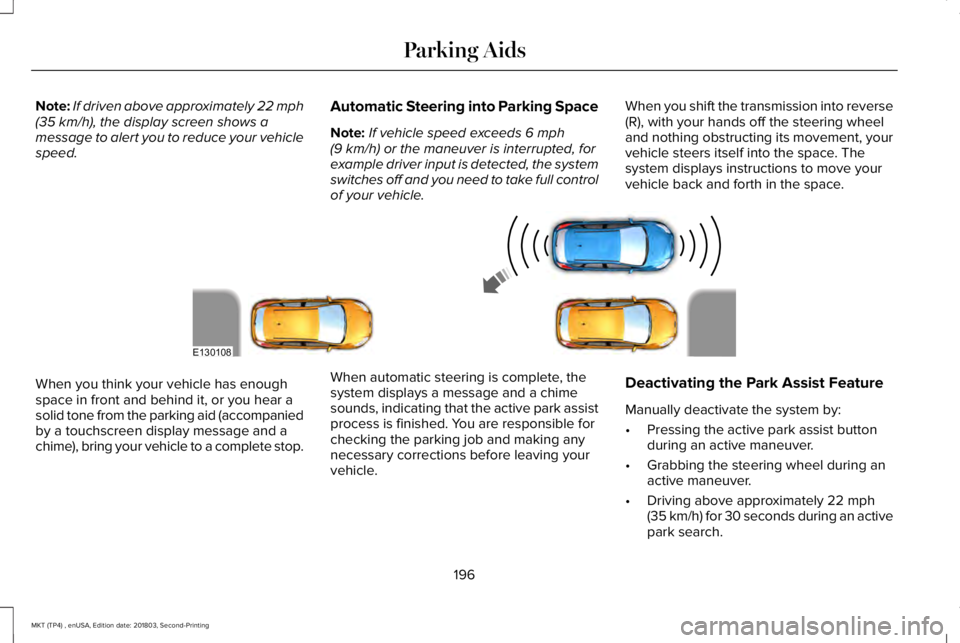
When you shift the transmission into reverse(R), with your hands off the steering wheeland nothing obstructing its movement, yourvehicle steers itself into the space. Thesystem displays instructions to move yourvehicle back and forth in the space.
When you think your vehicle has enoughspace in front and behind it, or you hear asolid tone from the parking aid (accompaniedby a touchscreen display message and achime), bring your vehicle to a complete stop.
When automatic steering is complete, thesystem displays a message and a chimesounds, indicating that the active park assistprocess is finished. You are responsible forchecking the parking job and making anynecessary corrections before leaving yourvehicle.
Deactivating the Park Assist Feature
Manually deactivate the system by:
•Pressing the active park assist buttonduring an active maneuver.
•Grabbing the steering wheel during anactive maneuver.
•Driving above approximately 22 mph(35 km/h) for 30 seconds during an activepark search.
196
MKT (TP4) , enUSA, Edition date: 201803, Second-Printing
Parking AidsE130108
Page 200 of 575
•Driving above 6 mph (9 km/h) duringautomatic steering.
•Switching off the traction control system.
Certain vehicle conditions can alsodeactivate the system, such as:
•Traction control has activated.
•There is an anti-lock brake systemactivation or failure.
If a problem occurs with the system, awarning message displays accompanied bya tone. Occasional system messages mayoccur in normal operation. For recurring orfrequent system faults, contact an authorizeddealer to have your vehicle serviced.
Troubleshooting the System
The system does not look for a space
The traction control system may be off.
The transmission is in reverse (R). Your vehicle must be moving forward to detect a parking space.
The system does not offer a particular space
The sensors may be covered. For example, with snow, ice or dirt. Covered sensors can affect the system's functionality
There is not enough room in the parking space for your vehicle to safely park.
There is not enough space for the parking maneuver on the opposite side of the parking space.
The parking space is farther than 5 ft (1.5 m) or closer than 16 in (40 cm) away.
Your vehicle is going faster than 22 mph (35 km/h).
You may have recently disconnected or replaced the battery. After a battery disconnect, the vehicle must be driven on a straight road fora short period of time.
197
MKT (TP4) , enUSA, Edition date: 201803, Second-Printing
Parking Aids
Page 202 of 575
REAR VIEW CAMERA
WARNING: The rear view camerasystem is a reverse aid supplement devicethat still requires the driver to use it inconjunction with the interior and exteriormirrors for maximum coverage.
WARNING: Objects that are close toeither corner of the bumper or under thebumper, might not be seen on the screendue to the limited coverage of the camerasystem.
WARNING: Use caution when therear cargo door is ajar. If the rear cargodoor is ajar, the camera will be out ofposition and the video image may beincorrect. All guidelines disappear whenthe rear cargo door is ajar. Failure to followthis instruction could result in personalinjury.
WARNING: Reverse your vehicleslowly. Failure to follow this instructioncould result in the loss of control of yourvehicle, personal injury or death.
WARNING: Do not switch the camerafeatures on or off when your vehicle ismoving.
The rear view camera system provides avideo image of the area behind your vehicle.During operation, lines appear in the displaywhich represent your vehicle’s path andproximity to objects behind your vehicle.
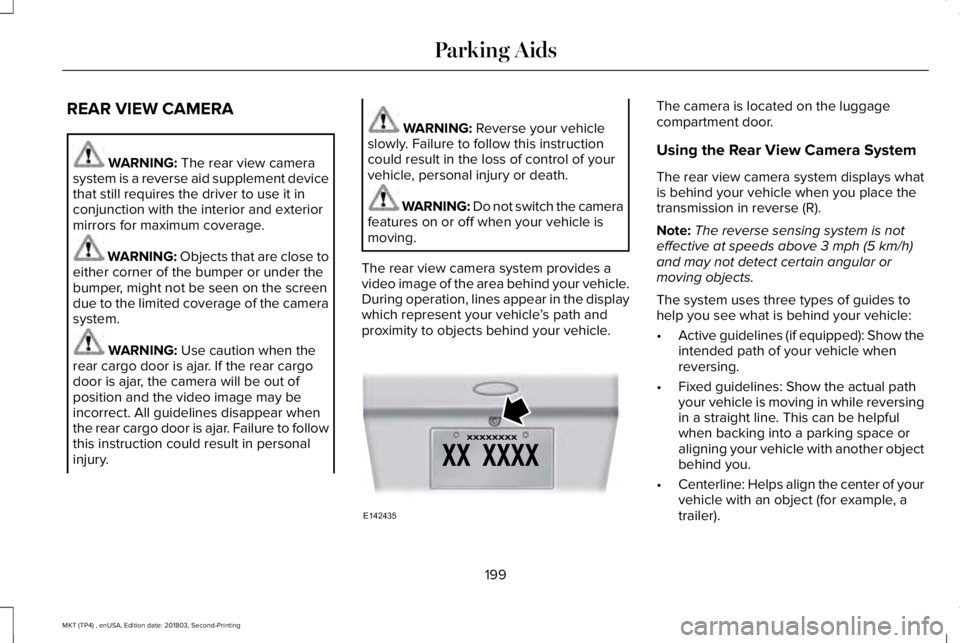
The camera is located on the luggagecompartment door.
Using the Rear View Camera System
The rear view camera system displays whatis behind your vehicle when you place thetransmission in reverse (R).
Note:The reverse sensing system is noteffective at speeds above 3 mph (5 km/h)and may not detect certain angular ormoving objects.
The system uses three types of guides tohelp you see what is behind your vehicle:
•Active guidelines (if equipped): Show theintended path of your vehicle whenreversing.
•Fixed guidelines: Show the actual pathyour vehicle is moving in while reversingin a straight line. This can be helpfulwhen backing into a parking space oraligning your vehicle with another objectbehind you.
•Centerline: Helps align the center of yourvehicle with an object (for example, atrailer).
199
MKT (TP4) , enUSA, Edition date: 201803, Second-Printing
Parking AidsE142435
Page 203 of 575
Note:When towing, the camera only seeswhat you are towing. This might not provideadequate coverage as it usually providesduring normal operation and some objectsmay not be seen. In some vehicles, theguidelines disappear when you connect thetrailer tow connector.
The camera may not operate correctly underthe following conditions:
•Nighttime or dark areas if one or bothreverse lamps are not operating.
•Mud, water or debris obstructs thecamera's view. Clean the lens with a soft,lint-free cloth and non-abrasive cleaner.
•The rear of your vehicle is hit ordamaged, causing the camera to becomemisaligned.
Active Guidelines (If Equipped)
Note:Active guidelines are only shown withfixed guidelines while your vehicle is inreverse (R).
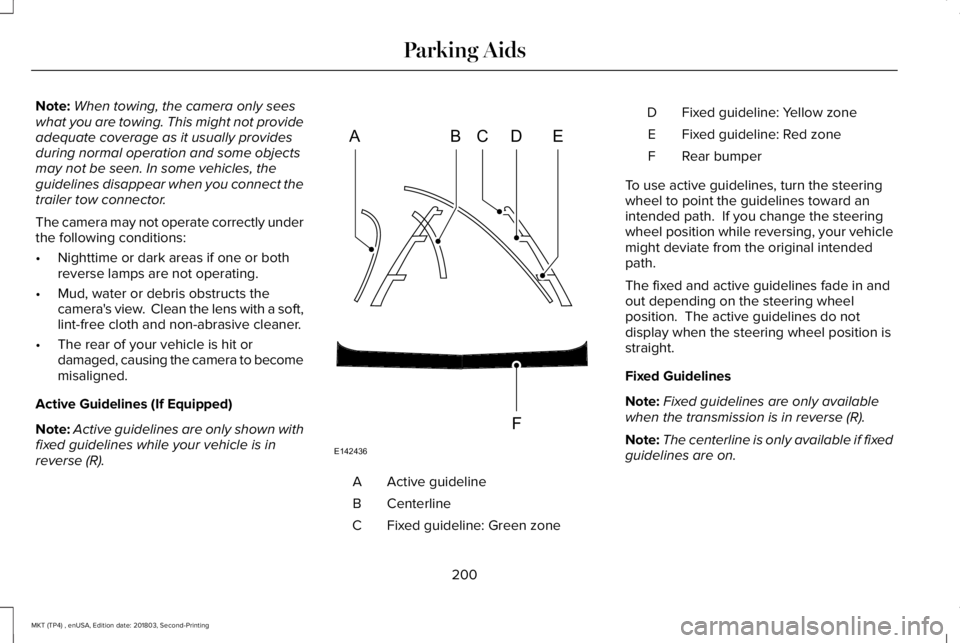
Active guidelineA
CenterlineB
Fixed guideline: Green zoneC
Fixed guideline: Yellow zoneD
Fixed guideline: Red zoneE
Rear bumperF
To use active guidelines, turn the steeringwheel to point the guidelines toward anintended path. If you change the steeringwheel position while reversing, your vehiclemight deviate from the original intendedpath.
The fixed and active guidelines fade in andout depending on the steering wheelposition. The active guidelines do notdisplay when the steering wheel position isstraight.
Fixed Guidelines
Note:Fixed guidelines are only availablewhen the transmission is in reverse (R).
Note:The centerline is only available if fixedguidelines are on.
200
MKT (TP4) , enUSA, Edition date: 201803, Second-Printing
Parking AidsABCD
F
E
E142436
Page 204 of 575
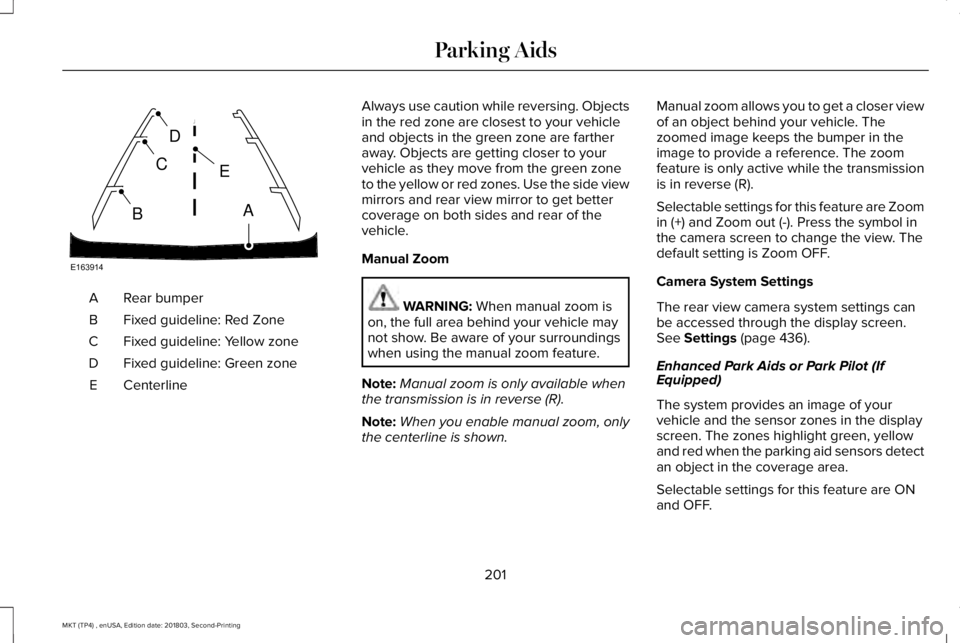
Rear bumperA
Fixed guideline: Red ZoneB
Fixed guideline: Yellow zoneC
Fixed guideline: Green zoneD
CenterlineE
Always use caution while reversing. Objectsin the red zone are closest to your vehicleand objects in the green zone are fartheraway. Objects are getting closer to yourvehicle as they move from the green zoneto the yellow or red zones. Use the side viewmirrors and rear view mirror to get bettercoverage on both sides and rear of thevehicle.
Manual Zoom
WARNING: When manual zoom ison, the full area behind your vehicle maynot show. Be aware of your surroundingswhen using the manual zoom feature.
Note:Manual zoom is only available whenthe transmission is in reverse (R).
Note:When you enable manual zoom, onlythe centerline is shown.
Manual zoom allows you to get a closer viewof an object behind your vehicle. Thezoomed image keeps the bumper in theimage to provide a reference. The zoomfeature is only active while the transmissionis in reverse (R).
Selectable settings for this feature are Zoomin (+) and Zoom out (-). Press the symbol inthe camera screen to change the view. Thedefault setting is Zoom OFF.
Camera System Settings
The rear view camera system settings canbe accessed through the display screen.See Settings (page 436).
Enhanced Park Aids or Park Pilot (IfEquipped)
The system provides an image of yourvehicle and the sensor zones in the displayscreen. The zones highlight green, yellowand red when the parking aid sensors detectan object in the coverage area.
Selectable settings for this feature are ONand OFF.
201
MKT (TP4) , enUSA, Edition date: 201803, Second-Printing
Parking AidsE163914
A
E
D
C
B
Page 205 of 575
Rear Camera Delay
When shifting the transmission out of reverse(R) and into any gear other than park (P), thecamera image remains in the display until:
•Your vehicle speed reachesapproximately 6 mph (10 km/h).
•You shift your vehicle into park (P).
Selectable settings for this feature are ONand OFF. The default setting for the rearcamera delay is OFF.
202
MKT (TP4) , enUSA, Edition date: 201803, Second-Printing
Parking Aids
Page 206 of 575
PRINCIPLE OF OPERATION
Cruise control lets you maintain a set speedwithout keeping your foot on the acceleratorpedal. You can use cruise control when yourvehicle speed is greater than 20 mph(30 km/h).
USING CRUISE CONTROL
WARNING: Do not use cruise controlon winding roads, in heavy traffic or whenthe road surface is slippery. This couldresult in loss of vehicle control, seriousinjury or death.
WARNING: When you are goingdownhill, your vehicle speed couldincrease above the set speed. The systemdoes not apply the brakes.
To help the system to maintain the set speedwhen going downhill, downshift to a lowergear.
Your vehicle speed could decrease belowthe set speed when driving uphill.
Note:The system cancels if your vehiclespeed drops below 10 mph (16 km/h) underthe set speed when driving uphill.
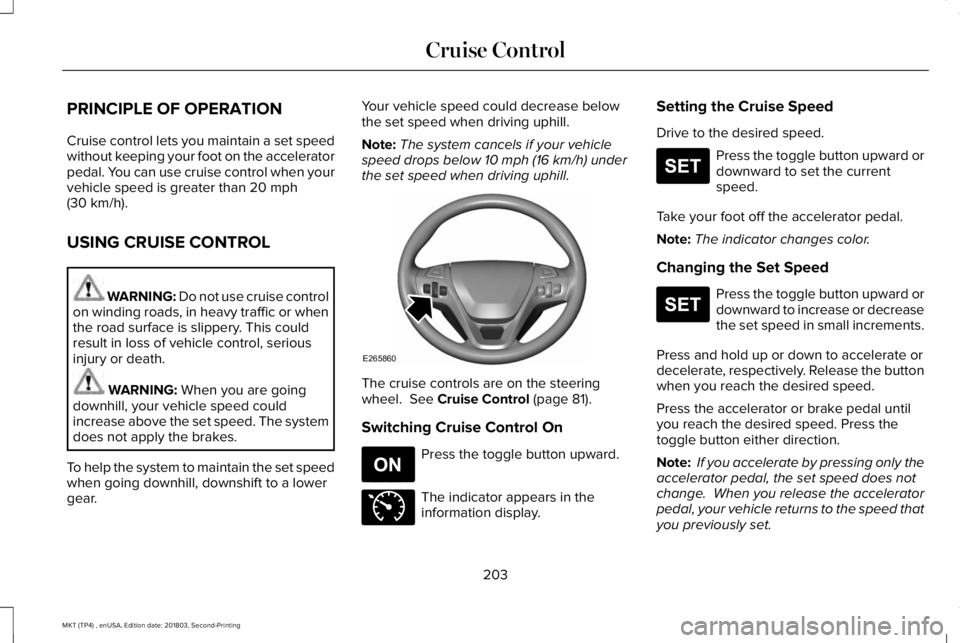
The cruise controls are on the steeringwheel. See Cruise Control (page 81).
Switching Cruise Control On
Press the toggle button upward.
The indicator appears in theinformation display.
Setting the Cruise Speed
Drive to the desired speed.
Press the toggle button upward ordownward to set the currentspeed.
Take your foot off the accelerator pedal.
Note:The indicator changes color.
Changing the Set Speed
Press the toggle button upward ordownward to increase or decreasethe set speed in small increments.
Press and hold up or down to accelerate ordecelerate, respectively. Release the buttonwhen you reach the desired speed.
Press the accelerator or brake pedal untilyou reach the desired speed. Press thetoggle button either direction.
Note: If you accelerate by pressing only theaccelerator pedal, the set speed does notchange. When you release the acceleratorpedal, your vehicle returns to the speed thatyou previously set.
203
MKT (TP4) , enUSA, Edition date: 201803, Second-Printing
Cruise ControlE265860 E265296 E71340 E265306 E265306
Page 208 of 575
WARNING: Adaptive cruise controlis not a crash warning or avoidancesystem.
Note:It is your responsibility to stay alert,drive safely and be in control of the vehicleat all times.
The system adjusts your vehicle speed tomaintain the set gap between you and thevehicle in front of you in the same lane. Youcan select four gap settings.
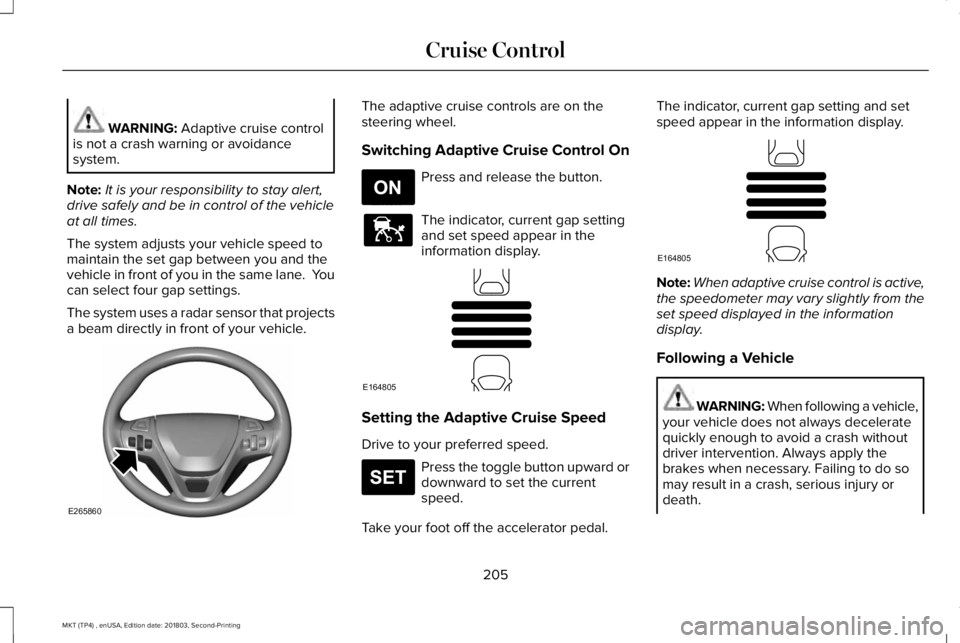
The system uses a radar sensor that projectsa beam directly in front of your vehicle.
The adaptive cruise controls are on thesteering wheel.
Switching Adaptive Cruise Control On
Press and release the button.
The indicator, current gap settingand set speed appear in theinformation display.
Setting the Adaptive Cruise Speed
Drive to your preferred speed.
Press the toggle button upward ordownward to set the currentspeed.
Take your foot off the accelerator pedal.
The indicator, current gap setting and setspeed appear in the information display.
Note:When adaptive cruise control is active,the speedometer may vary slightly from theset speed displayed in the informationdisplay.
Following a Vehicle
WARNING: When following a vehicle,your vehicle does not always deceleratequickly enough to avoid a crash withoutdriver intervention. Always apply thebrakes when necessary. Failing to do somay result in a crash, serious injury ordeath.
205
MKT (TP4) , enUSA, Edition date: 201803, Second-Printing
Cruise ControlE265860 E265296 E144529 E164805 E265306 E164805
Page 209 of 575
WARNING: Adaptive cruise controlonly warns of vehicles detected by theradar sensor. In some cases there may beno warning or a delayed warning. Youshould always apply the brakes whennecessary. Failure to do so may result in acrash, serious injury or death.
When a vehicle ahead of you enters thesame lane or a slower vehicle is ahead in thesame lane, the vehicle speed adjusts tomaintain a preset gap distance. A vehiclegraphic appears in the information display.
Note:When you are following a vehicle andyou switch on a direction indicator, adaptivecruise control may provide a small temporaryacceleration to help you pass.
Note:The brakes may emit noise whenapplied by the system.
Your vehicle maintains a consistent gap fromthe vehicle ahead until:
•The vehicle in front of you accelerates toa speed above the set speed.
•The vehicle in front of you moves out ofthe lane you are in.
•Your vehicle speed falls below 12 mph(20 km/h).
•You set a new gap distance.
The system applies the brakes to slow yourvehicle to maintain a safe gap distance fromthe vehicle in front. The system only applieslimited braking. You can override the systemby applying the brakes.
If the system determines that its maximumbraking level is not sufficient, an audiblewarning sounds when the system continuesto brake. A red warning bar displays on thewindshield and you must take immediateaction.
Setting the Gap Distance
You can decrease or increase the distancebetween your vehicle and the vehicle in frontby pressing the gap control.
Press the toggle button upward ordownward to set gap distance.
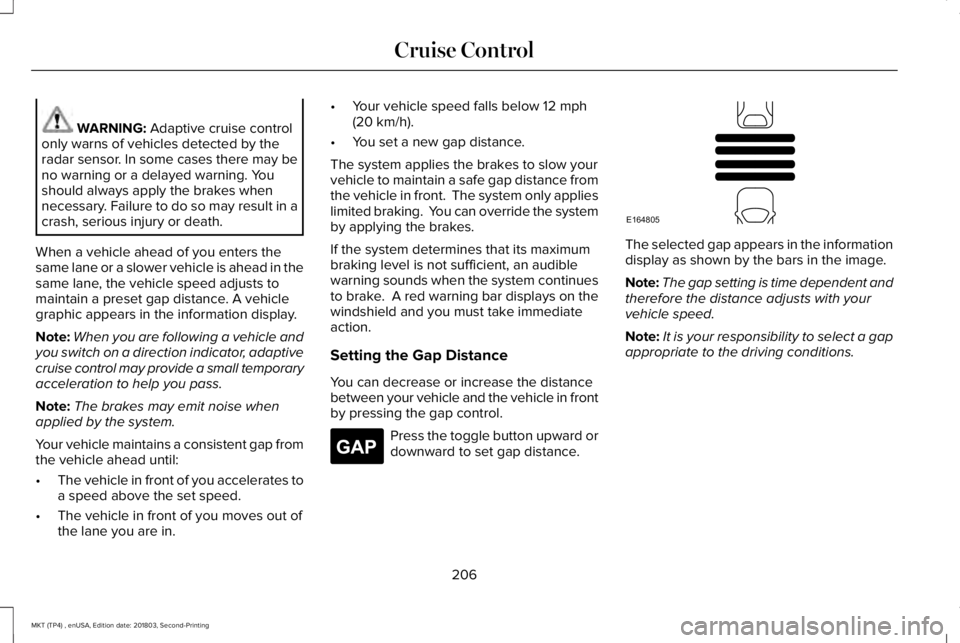
The selected gap appears in the informationdisplay as shown by the bars in the image.
Note:The gap setting is time dependent andtherefore the distance adjusts with yourvehicle speed.
Note:It is your responsibility to select a gapappropriate to the driving conditions.
206
MKT (TP4) , enUSA, Edition date: 201803, Second-Printing
Cruise ControlE265275 E164805