ECO mode LINCOLN MKT 2019 Repair Manual
[x] Cancel search | Manufacturer: LINCOLN, Model Year: 2019, Model line: MKT, Model: LINCOLN MKT 2019Pages: 575, PDF Size: 4.66 MB
Page 378 of 575
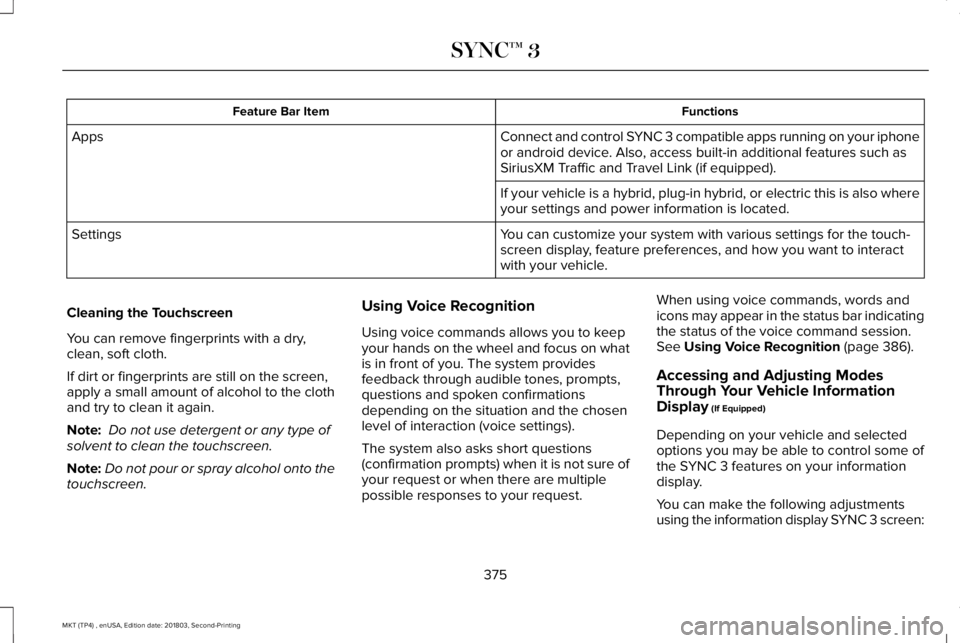
FunctionsFeature Bar Item
Connect and control SYNC 3 compatible apps running on your iphoneor android device. Also, access built-in additional features such asSiriusXM Traffic and Travel Link (if equipped).
Apps
If your vehicle is a hybrid, plug-in hybrid, or electric this is also whereyour settings and power information is located.
You can customize your system with various settings for the touch-screen display, feature preferences, and how you want to interactwith your vehicle.
Settings
Cleaning the Touchscreen
You can remove fingerprints with a dry,clean, soft cloth.
If dirt or fingerprints are still on the screen,apply a small amount of alcohol to the clothand try to clean it again.
Note: Do not use detergent or any type ofsolvent to clean the touchscreen.
Note:Do not pour or spray alcohol onto thetouchscreen.
Using Voice Recognition
Using voice commands allows you to keepyour hands on the wheel and focus on whatis in front of you. The system providesfeedback through audible tones, prompts,questions and spoken confirmationsdepending on the situation and the chosenlevel of interaction (voice settings).
The system also asks short questions(confirmation prompts) when it is not sure ofyour request or when there are multiplepossible responses to your request.
When using voice commands, words andicons may appear in the status bar indicatingthe status of the voice command session.See Using Voice Recognition (page 386).
Accessing and Adjusting ModesThrough Your Vehicle InformationDisplay (If Equipped)
Depending on your vehicle and selectedoptions you may be able to control some ofthe SYNC 3 features on your informationdisplay.
You can make the following adjustmentsusing the information display SYNC 3 screen:
375
MKT (TP4) , enUSA, Edition date: 201803, Second-Printing
SYNC™ 3
Page 379 of 575
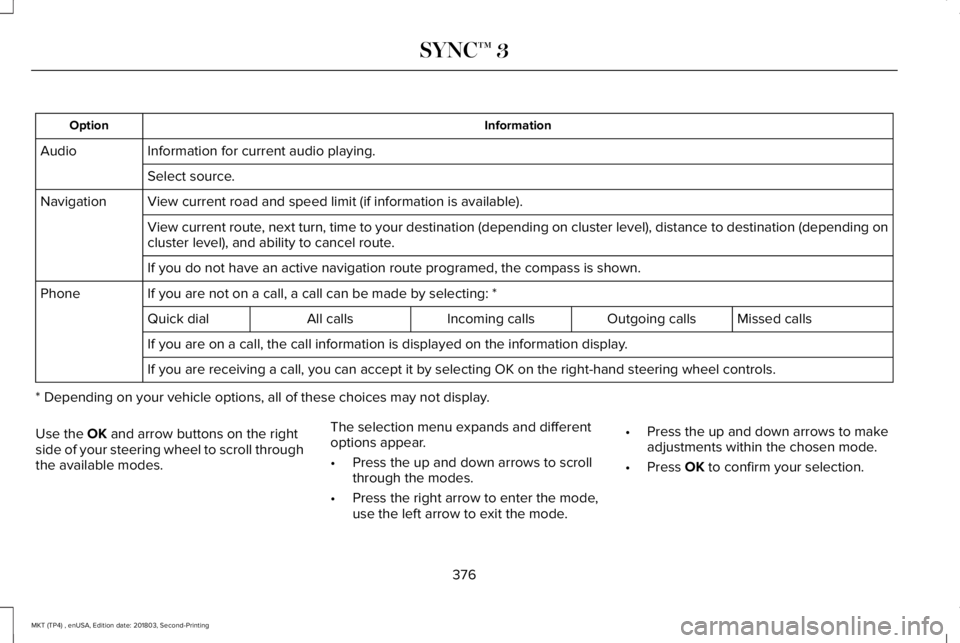
InformationOption
Information for current audio playing.Audio
Select source.
View current road and speed limit (if information is available).Navigation
View current route, next turn, time to your destination (depending on cluster level), distance to destination (depending oncluster level), and ability to cancel route.
If you do not have an active navigation route programed, the compass is shown.
If you are not on a call, a call can be made by selecting: *Phone
Missed callsOutgoing callsIncoming callsAll callsQuick dial
If you are on a call, the call information is displayed on the information display.
If you are receiving a call, you can accept it by selecting OK on the right-hand steering wheel controls.
* Depending on your vehicle options, all of these choices may not display.
Use the OK and arrow buttons on the rightside of your steering wheel to scroll throughthe available modes.
The selection menu expands and differentoptions appear.
•Press the up and down arrows to scrollthrough the modes.
•Press the right arrow to enter the mode,use the left arrow to exit the mode.
•Press the up and down arrows to makeadjustments within the chosen mode.
•Press OK to confirm your selection.
376
MKT (TP4) , enUSA, Edition date: 201803, Second-Printing
SYNC™ 3
Page 380 of 575
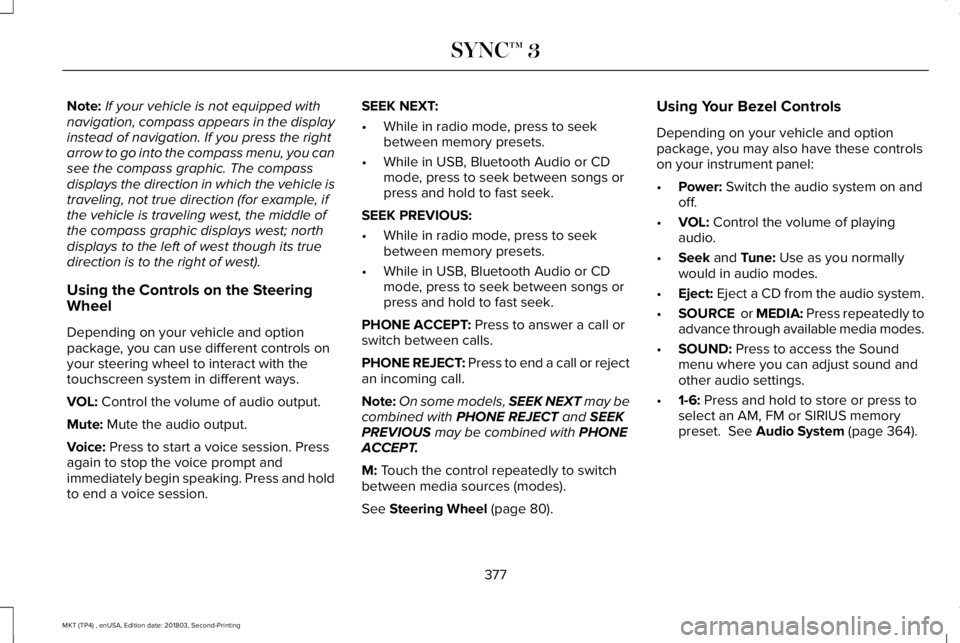
Note:If your vehicle is not equipped withnavigation, compass appears in the displayinstead of navigation. If you press the rightarrow to go into the compass menu, you cansee the compass graphic. The compassdisplays the direction in which the vehicle istraveling, not true direction (for example, ifthe vehicle is traveling west, the middle ofthe compass graphic displays west; northdisplays to the left of west though its truedirection is to the right of west).
Using the Controls on the SteeringWheel
Depending on your vehicle and optionpackage, you can use different controls onyour steering wheel to interact with thetouchscreen system in different ways.
VOL: Control the volume of audio output.
Mute: Mute the audio output.
Voice: Press to start a voice session. Pressagain to stop the voice prompt andimmediately begin speaking. Press and holdto end a voice session.
SEEK NEXT:
•While in radio mode, press to seekbetween memory presets.
•While in USB, Bluetooth Audio or CDmode, press to seek between songs orpress and hold to fast seek.
SEEK PREVIOUS:
•While in radio mode, press to seekbetween memory presets.
•While in USB, Bluetooth Audio or CDmode, press to seek between songs orpress and hold to fast seek.
PHONE ACCEPT: Press to answer a call orswitch between calls.
PHONE REJECT: Press to end a call or rejectan incoming call.
Note:On some models, SEEK NEXT may becombined with PHONE REJECT and SEEKPREVIOUS may be combined with PHONEACCEPT.
M: Touch the control repeatedly to switchbetween media sources (modes).
See Steering Wheel (page 80).
Using Your Bezel Controls
Depending on your vehicle and optionpackage, you may also have these controlson your instrument panel:
•Power: Switch the audio system on andoff.
•VOL: Control the volume of playingaudio.
•Seek and Tune: Use as you normallywould in audio modes.
•Eject: Eject a CD from the audio system.
•SOURCE or MEDIA: Press repeatedly toadvance through available media modes.
•SOUND: Press to access the Soundmenu where you can adjust sound andother audio settings.
•1-6: Press and hold to store or press toselect an AM, FM or SIRIUS memorypreset. See Audio System (page 364).
377
MKT (TP4) , enUSA, Edition date: 201803, Second-Printing
SYNC™ 3
Page 384 of 575
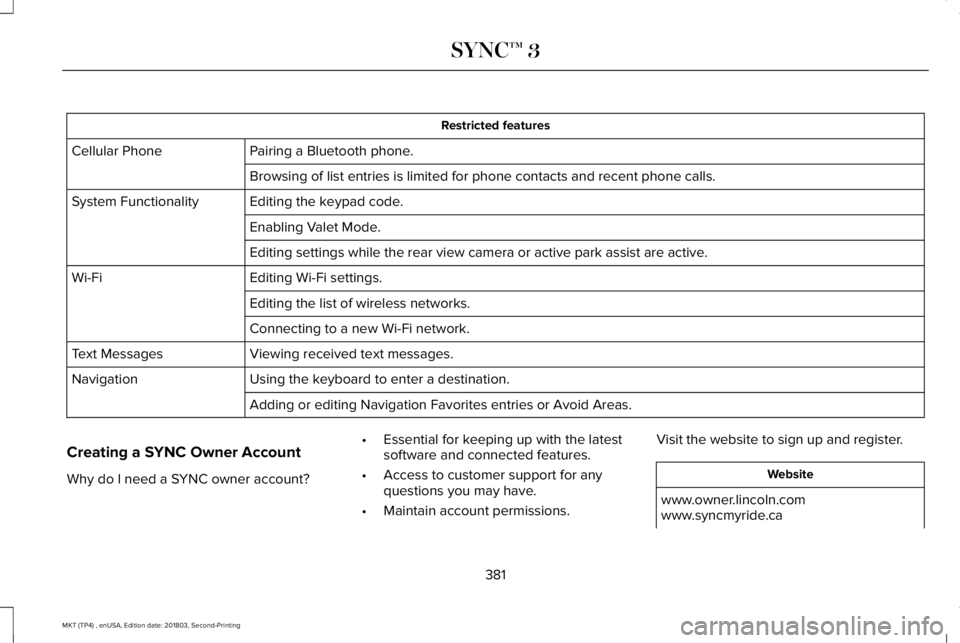
Restricted features
Pairing a Bluetooth phone.Cellular Phone
Browsing of list entries is limited for phone contacts and recent phone calls.
Editing the keypad code.System Functionality
Enabling Valet Mode.
Editing settings while the rear view camera or active park assist are active.
Editing Wi-Fi settings.Wi-Fi
Editing the list of wireless networks.
Connecting to a new Wi-Fi network.
Viewing received text messages.Text Messages
Using the keyboard to enter a destination.Navigation
Adding or editing Navigation Favorites entries or Avoid Areas.
Creating a SYNC Owner Account
Why do I need a SYNC owner account?
•Essential for keeping up with the latestsoftware and connected features.
•Access to customer support for anyquestions you may have.
•Maintain account permissions.
Visit the website to sign up and register.
Website
www.owner.lincoln.comwww.syncmyride.ca
381
MKT (TP4) , enUSA, Edition date: 201803, Second-Printing
SYNC™ 3
Page 398 of 575
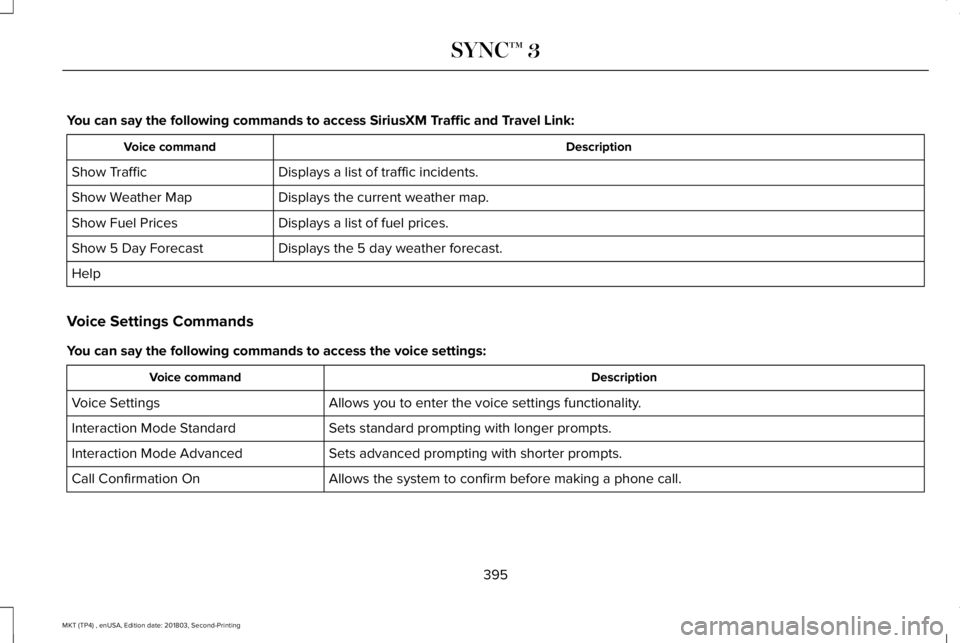
You can say the following commands to access SiriusXM Traffic and Travel Link:
DescriptionVoice command
Displays a list of traffic incidents.Show Traffic
Displays the current weather map.Show Weather Map
Displays a list of fuel prices.Show Fuel Prices
Displays the 5 day weather forecast.Show 5 Day Forecast
Help
Voice Settings Commands
You can say the following commands to access the voice settings:
DescriptionVoice command
Allows you to enter the voice settings functionality.Voice Settings
Sets standard prompting with longer prompts.Interaction Mode Standard
Sets advanced prompting with shorter prompts.Interaction Mode Advanced
Allows the system to confirm before making a phone call.Call Confirmation On
395
MKT (TP4) , enUSA, Edition date: 201803, Second-Printing
SYNC™ 3
Page 404 of 575
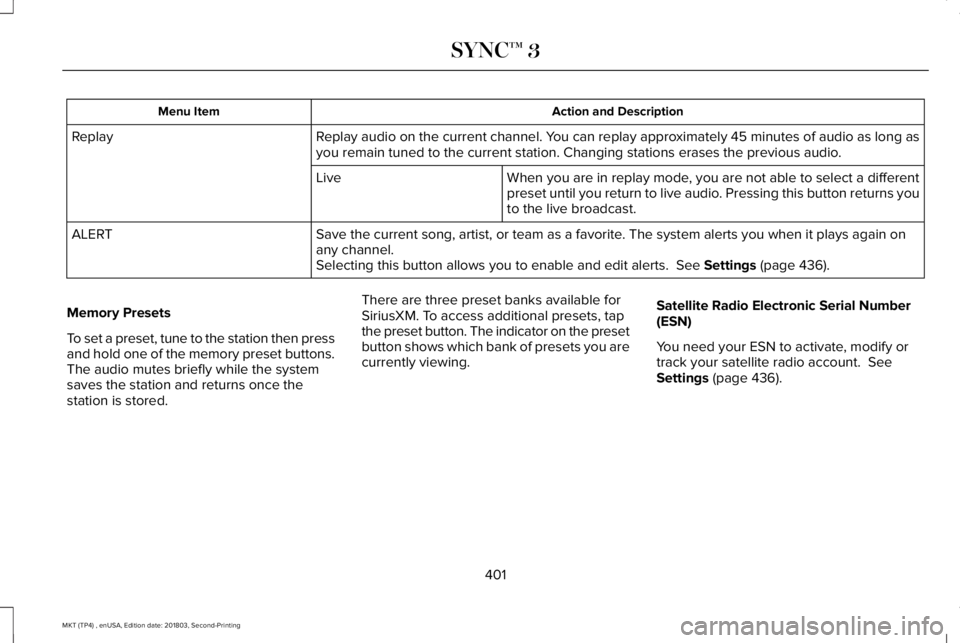
Action and DescriptionMenu Item
Replay audio on the current channel. You can replay approximately 45 minutes of audio as long asyou remain tuned to the current station. Changing stations erases the previous audio.Replay
When you are in replay mode, you are not able to select a differentpreset until you return to live audio. Pressing this button returns youto the live broadcast.
Live
Save the current song, artist, or team as a favorite. The system alerts you when it plays again onany channel.ALERT
Selecting this button allows you to enable and edit alerts. See Settings (page 436).
Memory Presets
To set a preset, tune to the station then pressand hold one of the memory preset buttons.The audio mutes briefly while the systemsaves the station and returns once thestation is stored.
There are three preset banks available forSiriusXM. To access additional presets, tapthe preset button. The indicator on the presetbutton shows which bank of presets you arecurrently viewing.
Satellite Radio Electronic Serial Number(ESN)
You need your ESN to activate, modify ortrack your satellite radio account. SeeSettings (page 436).
401
MKT (TP4) , enUSA, Edition date: 201803, Second-Printing
SYNC™ 3
Page 407 of 575
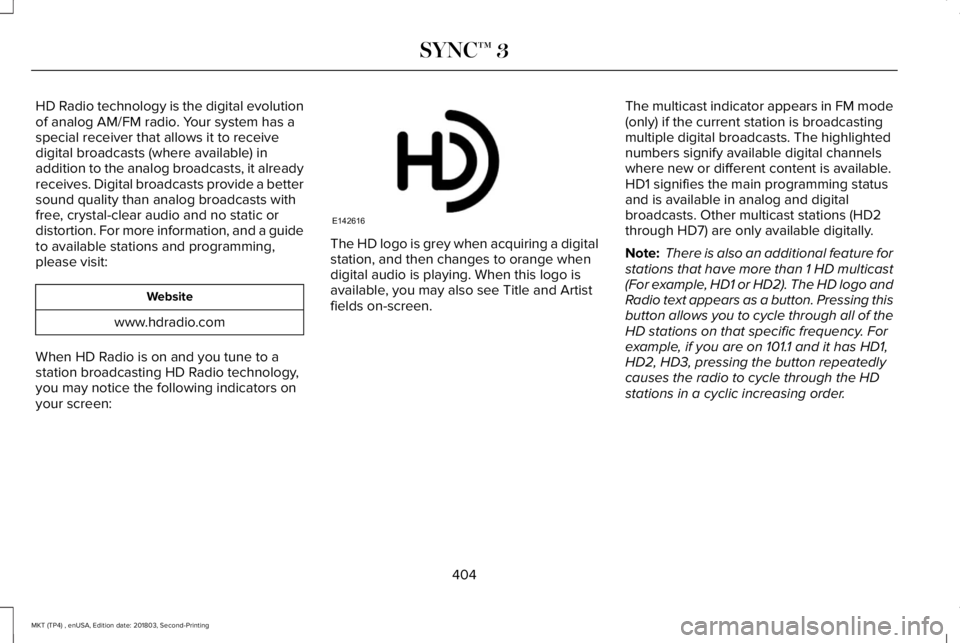
HD Radio technology is the digital evolutionof analog AM/FM radio. Your system has aspecial receiver that allows it to receivedigital broadcasts (where available) inaddition to the analog broadcasts, it alreadyreceives. Digital broadcasts provide a bettersound quality than analog broadcasts withfree, crystal-clear audio and no static ordistortion. For more information, and a guideto available stations and programming,please visit:
Website
www.hdradio.com
When HD Radio is on and you tune to astation broadcasting HD Radio technology,you may notice the following indicators onyour screen:
The HD logo is grey when acquiring a digitalstation, and then changes to orange whendigital audio is playing. When this logo isavailable, you may also see Title and Artistfields on-screen.
The multicast indicator appears in FM mode(only) if the current station is broadcastingmultiple digital broadcasts. The highlightednumbers signify available digital channelswhere new or different content is available.HD1 signifies the main programming statusand is available in analog and digitalbroadcasts. Other multicast stations (HD2through HD7) are only available digitally.
Note: There is also an additional feature forstations that have more than 1 HD multicast(For example, HD1 or HD2). The HD logo andRadio text appears as a button. Pressing thisbutton allows you to cycle through all of theHD stations on that specific frequency. Forexample, if you are on 101.1 and it has HD1,HD2, HD3, pressing the button repeatedlycauses the radio to cycle through the HDstations in a cyclic increasing order.
404
MKT (TP4) , enUSA, Edition date: 201803, Second-Printing
SYNC™ 3E142616
Page 411 of 575
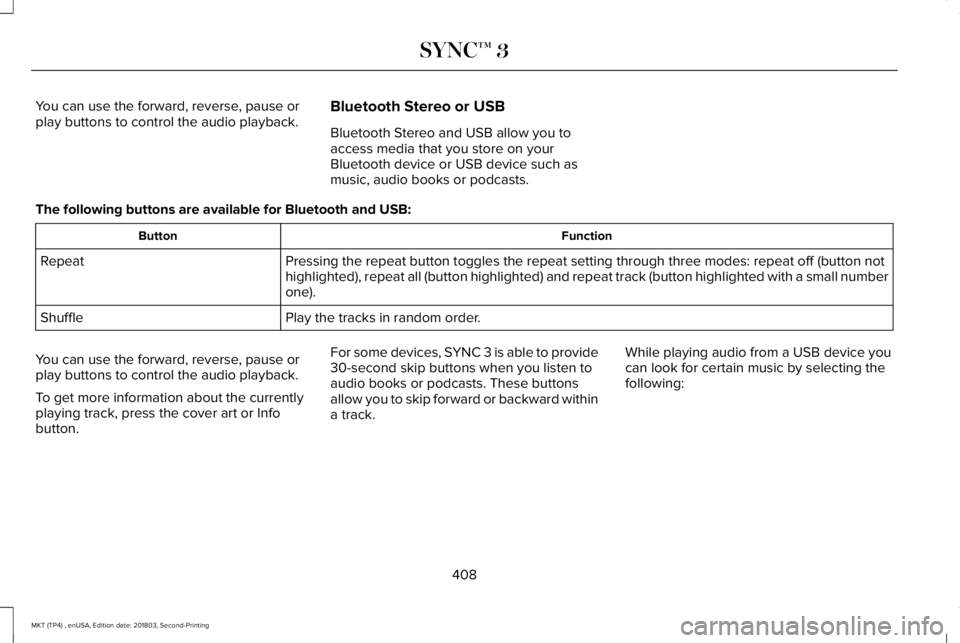
You can use the forward, reverse, pause orplay buttons to control the audio playback.Bluetooth Stereo or USB
Bluetooth Stereo and USB allow you toaccess media that you store on yourBluetooth device or USB device such asmusic, audio books or podcasts.
The following buttons are available for Bluetooth and USB:
FunctionButton
Pressing the repeat button toggles the repeat setting through three modes: repeat off (button nothighlighted), repeat all (button highlighted) and repeat track (button highlighted with a small numberone).
Repeat
Play the tracks in random order.Shuffle
You can use the forward, reverse, pause orplay buttons to control the audio playback.
To get more information about the currentlyplaying track, press the cover art or Infobutton.
For some devices, SYNC 3 is able to provide30-second skip buttons when you listen toaudio books or podcasts. These buttonsallow you to skip forward or backward withina track.
While playing audio from a USB device youcan look for certain music by selecting thefollowing:
408
MKT (TP4) , enUSA, Edition date: 201803, Second-Printing
SYNC™ 3
Page 416 of 575
Passenger heated and climatecontrolled seats:H
Touch the heated seat icon toadjust the heated seat off and on(if equipped).
Touch the climate-controlled seaticon to adjust theclimate-controlled seat off and on(if equipped).
Fan speed: Touch up or down toincrease or decrease the volumeof air circulated in your vehicle.
I
Rear: A pop up appears on thescreen to display the rear controloptions.
J
Touch the power icon to switch therear climate control functions offand on.
Touch Rear Control to allow therear seat passengers to adjust therear climate settings. Touch itagain to prevent the rear seatpassengers from adjusting thesettings. Rear Controlautomatically turns off when youuse the touchscreen to adjust therear climate settings.
If your vehicle has automaticclimate controls, select Auto toconnect the rear climate settingsto the Auto settings of the driver.
Touch the up and down arrows toadjust the temperature.
Manual airflow distributioncontrols: Select these controlsindividually or together to directthe air flow to the desired area.
K
Panel: Distributes air through theinstrument panel vents.
Floor: Distributes air through thedemister vents, floor vents and rearseat floor vents.
A/C: A pop-up appears on thescreen to display the airconditioning options.
L
MAX A/C: Touch to cool yourvehicle with recirculated air. Touchagain for normal A/C operation.MAX A/C distributes air throughinstrument panel vents and mayhelp reduce odors from enteringyour vehicle. MAX A/C is moreeconomical and efficient thannormal A/C mode.
A/C: Touch to switch the airconditioning on or off. Use A/Cwith recirculated air to improvecooling performance andefficiency. A/C engagesautomatically in MAX A/C, defrostand footwell/defrost.
Recirculated air: Touch to switchthe recirculated air on or off whichmay reduce the amount of timeneeded to cool down the interiorand help reduce odors fromreaching the interior. Recirculated
413
MKT (TP4) , enUSA, Edition date: 201803, Second-Printing
SYNC™ 3
Page 417 of 575
air also engages automaticallywhen you select MAX A/C. You canengage this manually in any airflowmode except defrost. It may alsoturn off in all airflow modes exceptMAX A/C to reduce fog potential.
Driver heated and climatecontrolled seats:M
Touch the heated seat icon toadjust the heated seat off and on(if equipped).
Touch the climate-controlled seaticon to adjust theclimate-controlled seat off and on(if equipped).
PHONE
WARNING: Driving while distractedcan result in loss of vehicle control, crashand injury. We strongly recommend thatyou use extreme caution when using anydevice that may take your focus off theroad. Your primary responsibility is the safeoperation of your vehicle. We recommendagainst the use of any hand-held devicewhile driving and encourage the use ofvoice-operated systems when possible.Make sure you are aware of all applicablelocal laws that may affect the use ofelectronic devices while driving.
Hands-free calling is one of the main featuresof the system. Once you pair your cell phone,you can access many options using thetouchscreen or voice commands. While thesystem supports a variety of features, manyare dependent on your cell phone’sfunctionality.
Pairing Your Cell Phone for the FirstTime
Pair your Bluetooth enabled phone with thesystem before using the functions inhands-free mode.
Switch on Bluetooth on your device to beginpairing. See your phone’s manual ifnecessary.
To add a phone, select:
Menu Item
Add a Bluetooth Device
1. Follow the on-screen instructions.
2. A prompt alerts you to search for thesystem on your phone.
3. Select your vehicle on your phone.
4. Confirm that the six-digit numberappearing on your phone matches thesix-digit number on the touchscreen.
5. The touchscreen indicates when thepairing is successful.
414
MKT (TP4) , enUSA, Edition date: 201803, Second-Printing
SYNC™ 3