ESP LINCOLN MKZ 2013 Service Manual
[x] Cancel search | Manufacturer: LINCOLN, Model Year: 2013, Model line: MKZ, Model: LINCOLN MKZ 2013Pages: 474, PDF Size: 3.79 MB
Page 340 of 474
GENERAL INFORMATION
WARNING
Driving while distracted can
result in loss of vehicle control,
accident and injury. Ford strongly
recommends that drivers use extreme
caution when using any device or
feature that may take their focus off
the road. Your primary responsibility
is the safe operation of the vehicle.
We recommend against the use of any
handheld device while driving,
encourage the use of voice-operated
systems when possible and that you
become aware of applicable state
and local laws that may affect use of
electronic devices while driving. Note:
Some features are not available
while the vehicle is moving.
Note: Your system is equipped with a
feature that allows you to access and
control audio features for 30 minutes
after the ignition has been turned off
(as long as no doors are opened).
This system uses a four-corner
strategy to provide quick access to
vehicle features and settings. The
comprehensive touchscreen provides
easy interaction with your cellular
phone, multimedia, climate control
and navigation system. The corners
display any active modes within those
menus, such as your phone being
connected or the climate
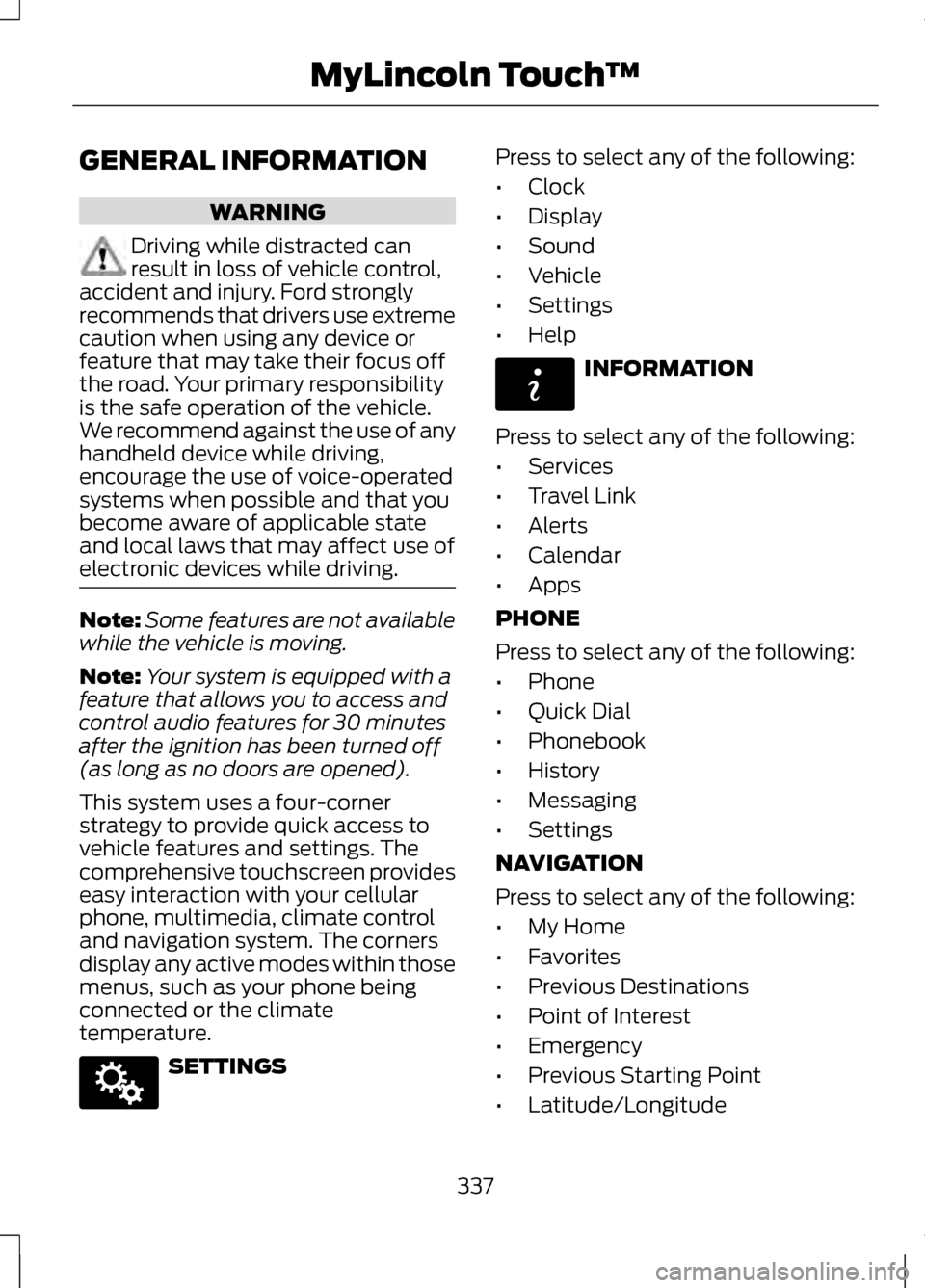
temperature. SETTINGS Press to select any of the following:
•
Clock
• Display
• Sound
• Vehicle
• Settings
• Help INFORMATION
Press to select any of the following:
• Services
• Travel Link
• Alerts
• Calendar
• Apps
PHONE
Press to select any of the following:
• Phone
• Quick Dial
• Phonebook
• History
• Messaging
• Settings
NAVIGATION
Press to select any of the following:
• My Home
• Favorites
• Previous Destinations
• Point of Interest
• Emergency
• Previous Starting Point
• Latitude/Longitude
337
MyLincoln Touch
™E142607 E142608
Page 343 of 474
Safety Information
WARNING
Driving while distracted can
result in loss of vehicle control,
accident and injury. Ford strongly
recommends that drivers use extreme
caution when using any device or
feature that may take their focus off
the road. Your primary responsibility
is the safe operation of the vehicle.
We recommend against the use of any
handheld device while driving,
encourage the use of voice-operated
systems when possible and that you
become aware of applicable state
and local laws that may affect use of
electronic devices while driving. When using SYNC:
•
Do not operate playing devices if
the power cords or cables are
broken, split or damaged. Carefully
place cords and cables where they
cannot be stepped on or interfere
with the operation of pedals, seats,
compartments or safe driving
abilities.
• Do not leave playing devices in the
vehicle during extreme conditions
as it could cause them damage.
See your device's user guide for
further information. •
Do not attempt to service or repair
the system. See your authorized
dealer.
• For your safety, some SYNC
functions are speed-dependent
and cannot be performed when
the vehicle is traveling at speeds
greater than 3 mph (5 km/h).
Make sure that you review your
device's user guide before using it with
SYNC.
Speed-Restricted Features
Some features of this system may be
too difficult to use while the vehicle is
in motion so they are restricted from
being modified unless the vehicle is
not moving. Some examples of these
are listed below:
• Screens that are too crowded with
information, such as Point of
Interest (POI) reviews and ratings,
SIRIUS Travel Link sports scores,
movie times, ski conditions, etc.
• Any action that requires using a
keyboard, such as entering a
navigation destination or editing
information.
• All lists are limited so the user can
view fewer entries (e.g., phone
contacts, recent phone call
entries).
Listed below are more specific
features that can only be modified
while the vehicle is not moving:
340
MyLincoln Touch
™
Page 347 of 474
You can make selections from the
menu by using the OK button. The
selection menu expands and you are
allowed different options.
•
Press the up and down arrows to
scroll through the modes.
• Press the right arrow to enter the
mode.
• Press the left or right arrows to
make adjustments within the
chosen mode.
• Press OK to confirm your selection.
Note: If your vehicle is not equipped
with Navigation, Compass appears in
the display instead of Navigation. If you
press the right arrow to go into the
Compass menu, you can see the
compass graphic. The compass
displays the direction in which the
vehicle is traveling, not true direction
(i.e., if the vehicle is traveling west, the
middle of the compass graphic displays
west; north displays to the left of west
though its true direction is to the right
of west).
Using Voice Recognition
This system helps you control many
features using voice commands. This
allows you to keep your hands on the
wheel and focus on what is in front of
you. The system provides feedback
through audible tones, prompts,
questions and spoken confirmations
depending on the situation and the
chosen level of interaction (voice
settings). The system also asks short questions
(confirmation prompts) when it is not
sure of your request or when there are
multiple possible responses to your
request.
When using voice commands, words
and icons may also appear in the
lower left status bar indicating the
status of the voice session (i.e.,
listening, success, failed, paused or
try again).
How to Use Voice Commands with
Your System
Press the voice icon; after the
tone, speak your command
clearly.
What Can I Say?
To access the available voice
commands for the current session, do
one of the following:
• During a voice session, press the
help icon (?) in the lower left
status bar of the screen.
• Say "What can I say?" for an
on-screen listing of the possible
voice commands associated with
your current voice session.
• Press the voice icon. After the tone,
say "Help" for an audible list of
possible voice commands.
344
MyLincoln Touch
™E142599
Page 350 of 474
Voice Settings
Voice settings allow you to customize
the level of system interaction, help
and feedback. The system defaults
to standard interaction which uses
candidate lists and confirmation
prompts as these provide the highest
level of guidance and feedback.
•
Interaction Mode: Novice mode
provides more detailed interaction
and guidance while the advanced
mode has less audible interaction
and more tone prompts.
• Confirmation Prompts:
These
are short questions the system
asks when it is not sure of your
request or when there are multiple
possible responses to your request.
If turned off, the system simply
makes a best guess as to what you
requested and you may still
occasionally be asked to confirm
settings.
• Phone and Media Candidate
Lists:
Candidate lists are lists of
possible results from your voice
commands. The system creates
these lists when it has the same
confidence level of several options
based on your voice command. To access these settings using the
touchscreen:
1. Press the Settings icon, Settings,
then Voice Control.
2. Select from the following:
• Interaction Mode
• Confirmation Prompts
• Media Candidate Lists
• Phone Candidate Lists
• Voice Control Volume.
To access these settings using voice
commands:
1. Press the voice icon; after the tone
sounds, the system says "Please
say a command". Another tone
sounds to let you know the system
is listening.
2. Say any of the following commands: Voice Settings Using Voice Commands
"Interaction mode novice"
"Interaction mode advanced" "Confirmation prompts on"
"Confirmation prompts off" "Phone candidate lists on"
347
MyLincoln Touch
™
Page 369 of 474
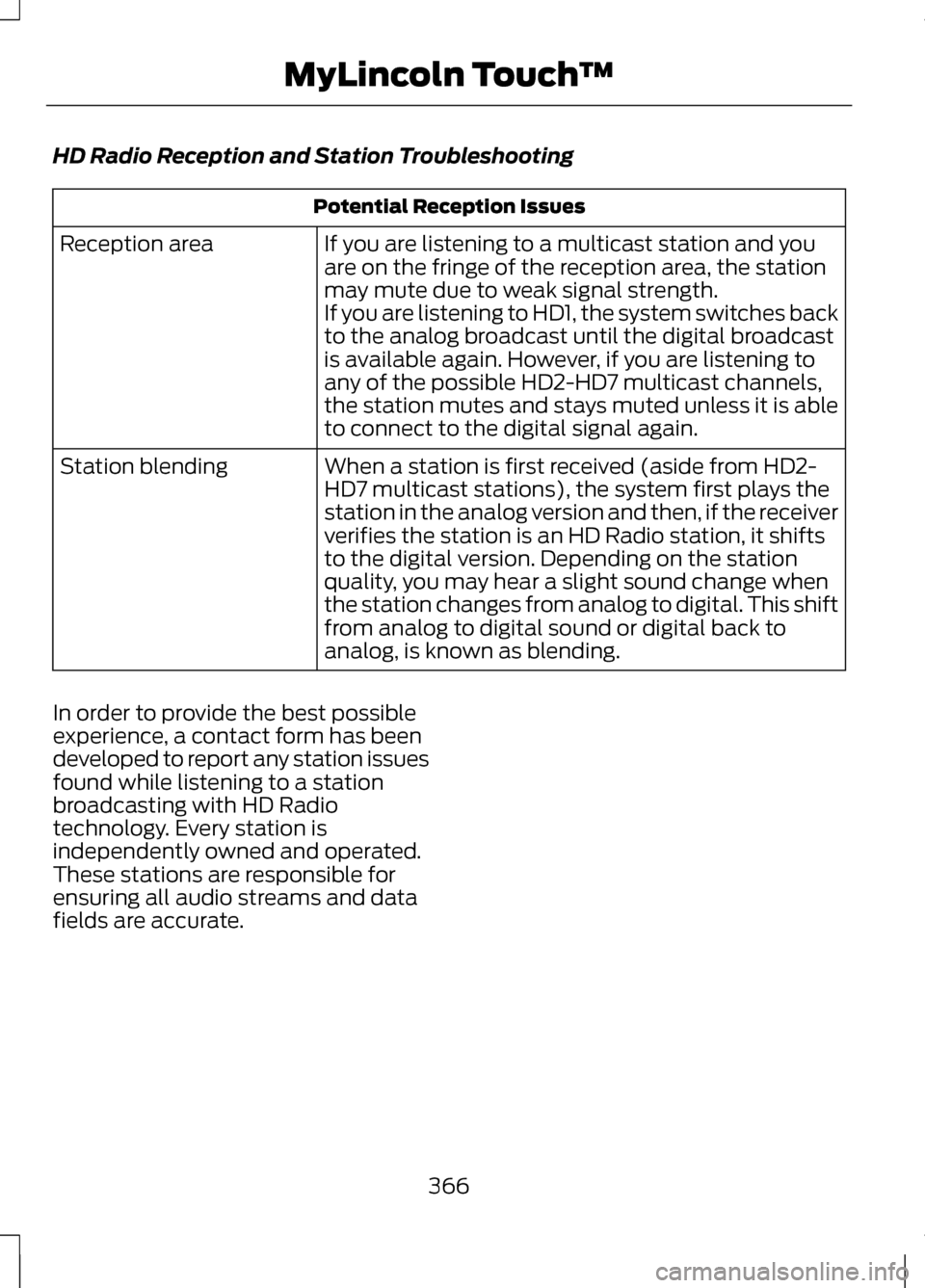
HD Radio Reception and Station Troubleshooting
Potential Reception Issues
If you are listening to a multicast station and you
are on the fringe of the reception area, the station
may mute due to weak signal strength.
If you are listening to HD1, the system switches back
to the analog broadcast until the digital broadcast
is available again. However, if you are listening to
any of the possible HD2-HD7 multicast channels,
the station mutes and stays muted unless it is able
to connect to the digital signal again.
Reception area
When a station is first received (aside from HD2-
HD7 multicast stations), the system first plays the
station in the analog version and then, if the receiver
verifies the station is an HD Radio station, it shifts
to the digital version. Depending on the station
quality, you may hear a slight sound change when
the station changes from analog to digital. This shift
from analog to digital sound or digital back to
analog, is known as blending.
Station blending
In order to provide the best possible
experience, a contact form has been
developed to report any station issues
found while listening to a station
broadcasting with HD Radio
technology. Every station is
independently owned and operated.
These stations are responsible for
ensuring all audio streams and data
fields are accurate.
366
MyLincoln Touch
™
Page 371 of 474
HD Radio Technology manufactured
under license from iBiquity Digital
Corp. U.S. and foreign patents. HD
Radio and the HD and HD Radio logos
are proprietary trademarks of iBiquity
Digital Corp. Ford Motor Company and
iBiquity Digital Corp. are not
responsible for the content sent using
HD Radio technology. Content may
be changed, added or deleted at any
time at the station owner's discretion.
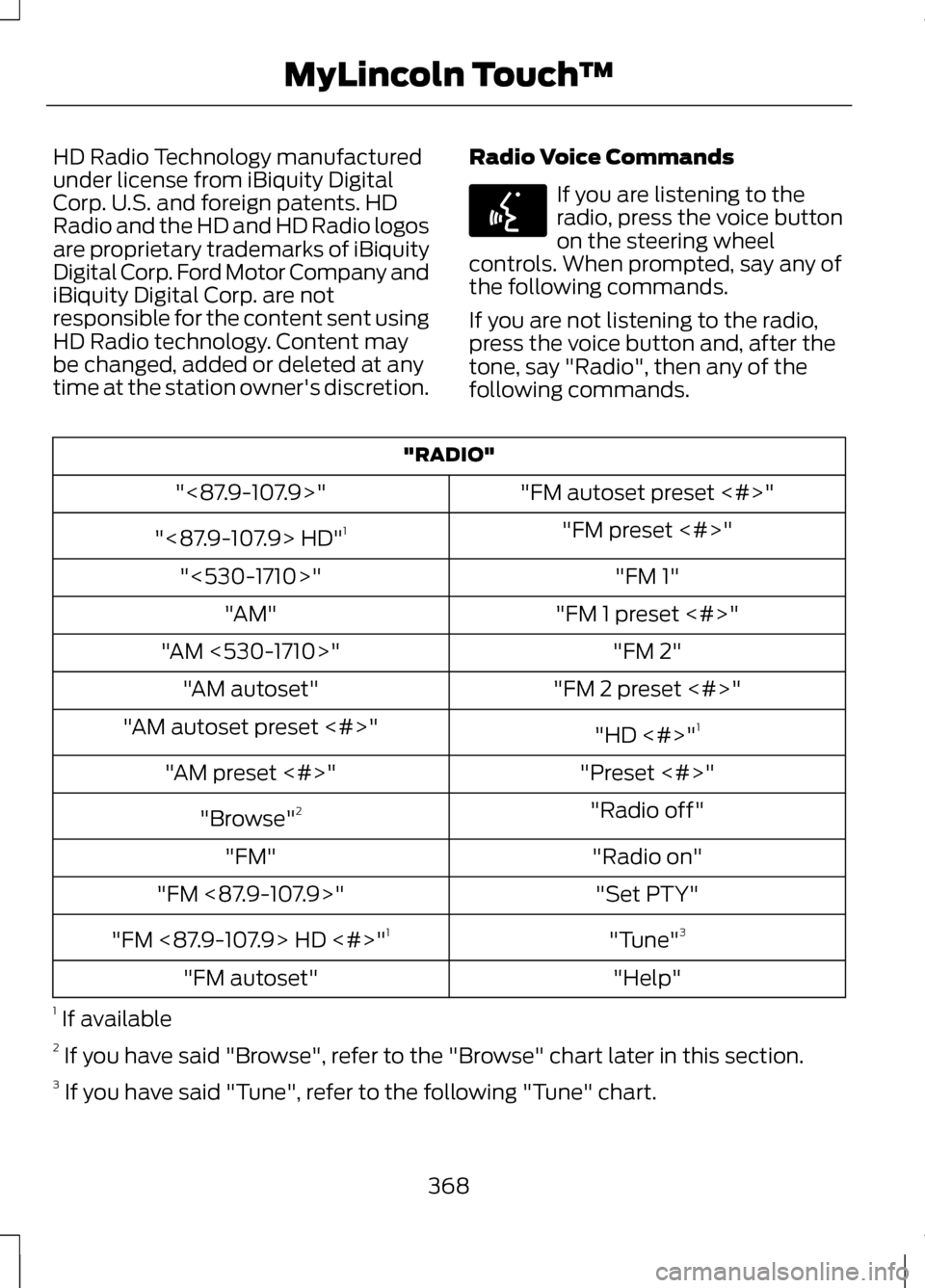
Radio Voice Commands If you are listening to the
radio, press the voice button
on the steering wheel
controls. When prompted, say any of
the following commands.
If you are not listening to the radio,
press the voice button and, after the
tone, say "Radio", then any of the
following commands. "RADIO"
"FM autoset preset <#>"
"<87.9-107.9>"
"FM preset <#>"
"<87.9-107.9> HD" 1
"FM 1"
"<530-1710>"
"FM 1 preset <#>"
"AM"
"FM 2"
"AM <530-1710>"
"FM 2 preset <#>"
"AM autoset"
"HD <#>"1
"AM autoset preset <#>"
"Preset <#>"
"AM preset <#>"
"Radio off"
"Browse" 2
"Radio on"
"FM"
"Set PTY"
"FM <87.9-107.9>"
"Tune"3
"FM <87.9-107.9> HD <#>" 1
"Help"
"FM autoset"
1 If available
2 If you have said "Browse", refer to the "Browse" chart later in this section.
3 If you have said "Tune", refer to the following "Tune" chart.
368
MyLincoln Touch
™E142599
Page 374 of 474
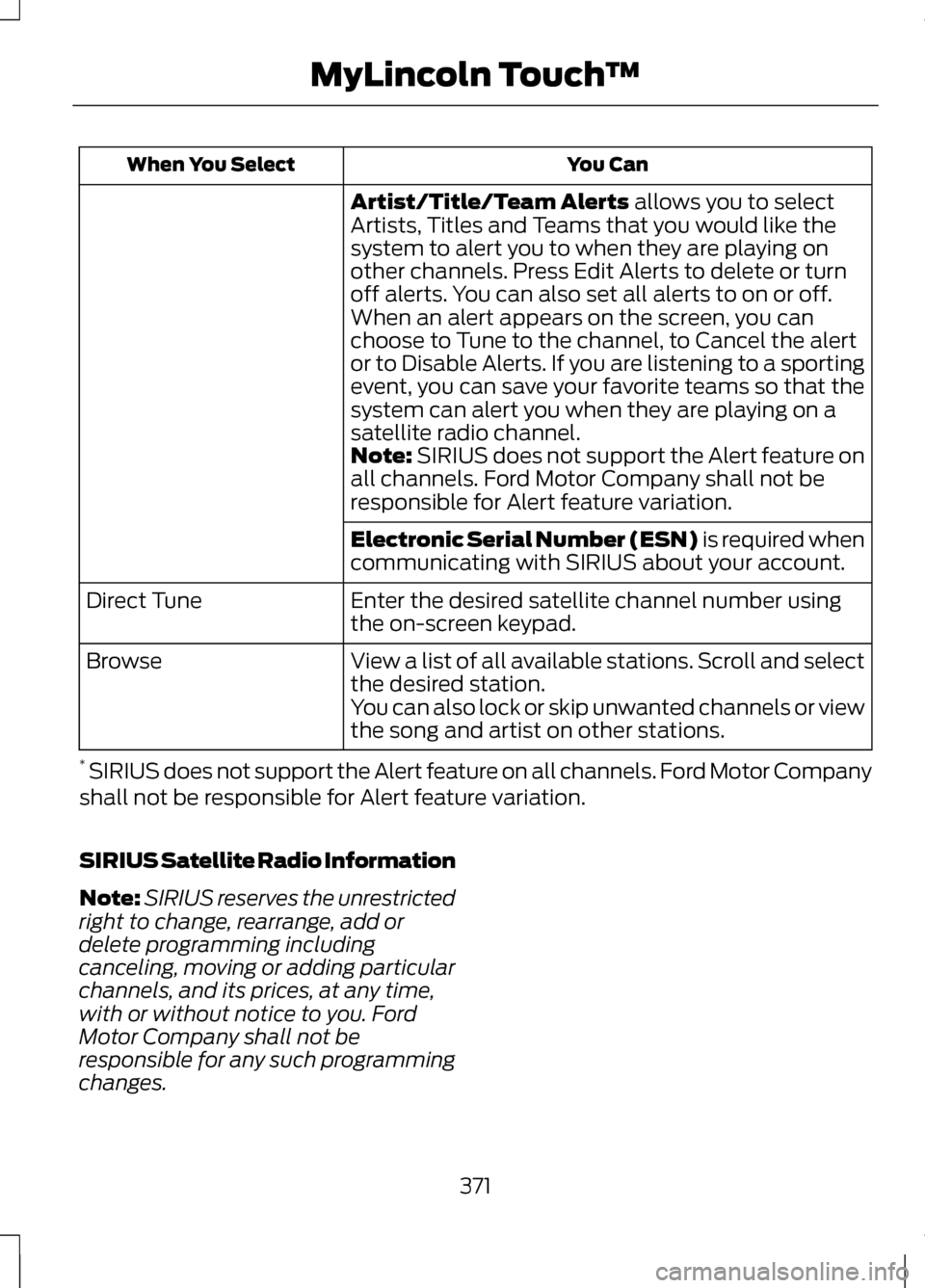
You Can
When You Select
Artist/Title/Team Alerts allows you to select
Artists, Titles and Teams that you would like the
system to alert you to when they are playing on
other channels. Press Edit Alerts to delete or turn
off alerts. You can also set all alerts to on or off.
When an alert appears on the screen, you can
choose to Tune to the channel, to Cancel the alert
or to Disable Alerts. If you are listening to a sporting
event, you can save your favorite teams so that the
system can alert you when they are playing on a
satellite radio channel.
Note:
SIRIUS does not support the Alert feature on
all channels. Ford Motor Company shall not be
responsible for Alert feature variation.
Electronic Serial Number (ESN) is required when
communicating with SIRIUS about your account.
Enter the desired satellite channel number using
the on-screen keypad.
Direct Tune
View a list of all available stations. Scroll and select
the desired station.
Browse
You can also lock or skip unwanted channels or view
the song and artist on other stations.
* SIRIUS does not support the Alert feature on all channels. Ford Motor Company
shall not be responsible for Alert feature variation.
SIRIUS Satellite Radio Information
Note: SIRIUS reserves the unrestricted
right to change, rearrange, add or
delete programming including
canceling, moving or adding particular
channels, and its prices, at any time,
with or without notice to you. Ford
Motor Company shall not be
responsible for any such programming
changes.
371
MyLincoln Touch
™
Page 388 of 474
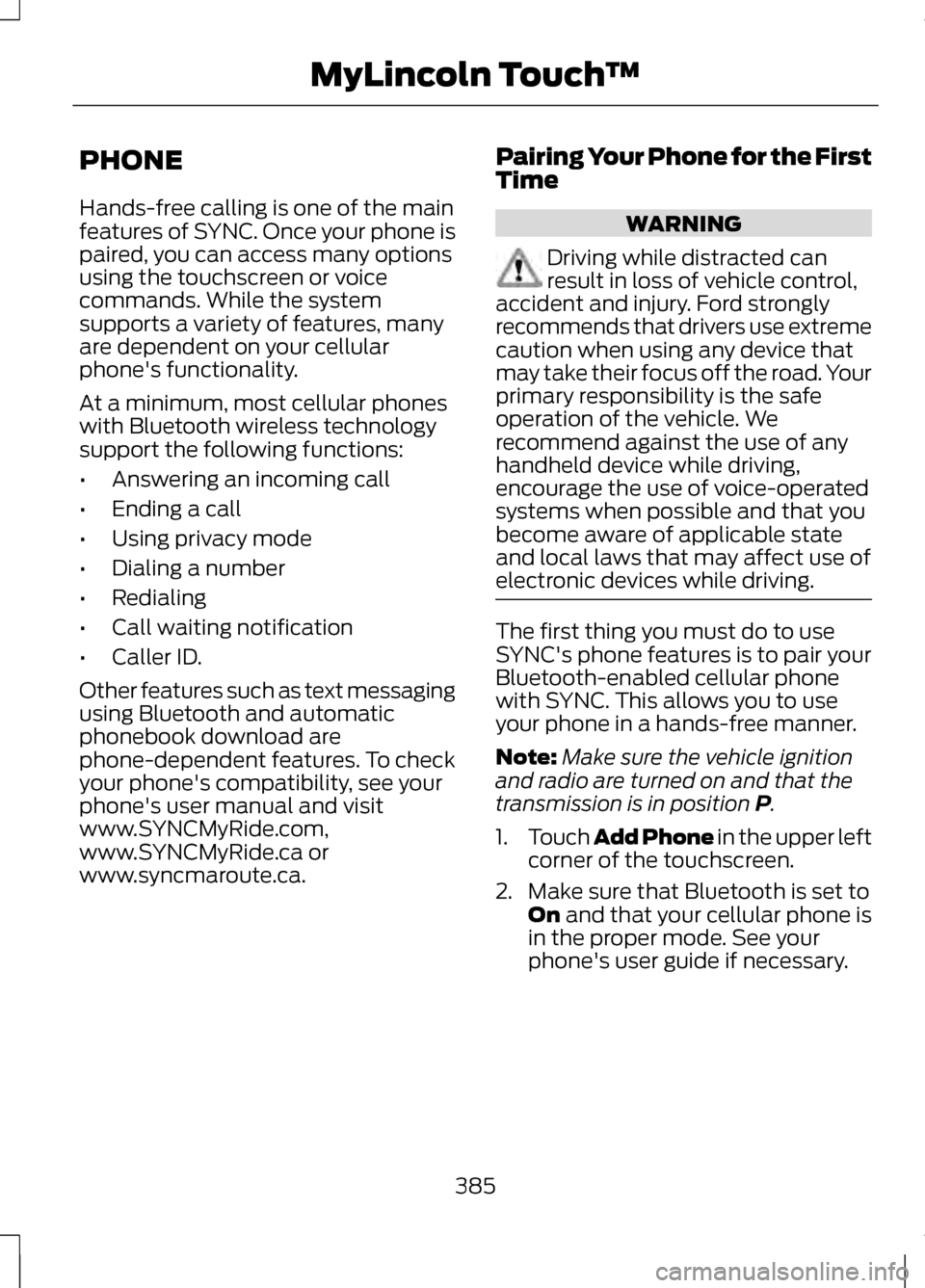
PHONE
Hands-free calling is one of the main
features of SYNC. Once your phone is
paired, you can access many options
using the touchscreen or voice
commands. While the system
supports a variety of features, many
are dependent on your cellular
phone's functionality.
At a minimum, most cellular phones
with Bluetooth wireless technology
support the following functions:
•
Answering an incoming call
• Ending a call
• Using privacy mode
• Dialing a number
• Redialing
• Call waiting notification
• Caller ID.
Other features such as text messaging
using Bluetooth and automatic
phonebook download are
phone-dependent features. To check
your phone's compatibility, see your
phone's user manual and visit
www.SYNCMyRide.com,
www.SYNCMyRide.ca or
www.syncmaroute.ca. Pairing Your Phone for the First
Time WARNING
Driving while distracted can
result in loss of vehicle control,
accident and injury. Ford strongly
recommends that drivers use extreme
caution when using any device that
may take their focus off the road. Your
primary responsibility is the safe
operation of the vehicle. We
recommend against the use of any
handheld device while driving,
encourage the use of voice-operated
systems when possible and that you
become aware of applicable state
and local laws that may affect use of
electronic devices while driving. The first thing you must do to use
SYNC's phone features is to pair your
Bluetooth-enabled cellular phone
with SYNC. This allows you to use
your phone in a hands-free manner.
Note:
Make sure the vehicle ignition
and radio are turned on and that the
transmission is in position P.
1. Touch Add Phone in the upper left
corner of the touchscreen.
2. Make sure that Bluetooth is set to On
and that your cellular phone is
in the proper mode. See your
phone's user guide if necessary.
385
MyLincoln Touch
™
Page 396 of 474
Note:
The driver is ultimately
responsible for the safe operation of
the vehicle, and therefore, must
evaluate whether it is safe to follow
the suggested directions. Any
navigation features are provided only
as an aid. Make your driving decisions
based on your observations of local
conditions and existing traffic
regulations. Do not follow the route
suggestions if doing so would result in
an unsafe or illegal maneuver, if you
would be placed in an unsafe situation,
or if you would be directed into an area
that you consider unsafe. Maps used
by this system may be inaccurate
because of errors, changes in roads,
traffic conditions or driving conditions.
Note: When you connect, the service
uses GPS technology and advanced
vehicle sensors to collect the vehicle's
current location, travel direction and
speed to help provide you with the
directions, traffic reports, or business
searches you request. Further, to
provide the services you request and
for continuous improvement, the
service may collect and record call
details and voice communications. For
more information, see SYNC Services
Terms and Conditions at
www.SYNCMyRide.com. If you do not
want Ford or its service providers to
collect the vehicle travel information
or other information identified in the
Terms and Conditions, do not activate
or use the service. SYNC Services uses advanced vehicle
sensors, integrated GPS technology
and comprehensive map and traffic
data, to give you personalized traffic
reports, precise turn-by-turn
directions, business search, news,
sports, weather and more. For a
complete list of services, or to learn
more, please visit
www.SYNCMyRide.com.
Connecting to SYNC Services
Using Voice Commands
1. Press the voice button.
2. When prompted, say "Services".
This initiates an outgoing call to
SYNC Services using your paired
and connected Bluetooth-enabled
cellular phone.
3. Once you are connected to the service, follow the voice prompts
to request the desired service, such
as "Traffic" or "Directions". You
can also say "What are my
choices?" to receive a complete
list of available services from
which to choose.
4. Say "Services" to return to the Services main menu or for help,
say "Help".
Connecting to SYNC Services
Using the Touchscreen
If your vehicle is equipped with
Navigation, press the Information
button.
If your vehicle is not equipped with
Navigation, press the green tab on
your touchscreen.
393
MyLincoln Touch
™
Page 399 of 474
"SERVICES"
"Route summary" "Services"
"Update route" "Help"
SIRIUS Travel Link (If Equipped) WARNING
Driving while distracted can
result in loss of vehicle control,
accident and injury. Ford strongly
recommends that drivers use extreme
caution when using any device or
feature that may take their focus off
the road. Your primary responsibility
is the safe operation of the vehicle.
We recommend against the use of any
handheld device while driving,
encourage the use of voice-operated
systems when possible and that you
become aware of applicable state
and local laws that may affect use of
electronic devices while driving. Note:
In order to use SIRIUS Travel
Link, your vehicle must be equipped
with navigation and your navigation SD
card must be in the SD card slot. Note:
A paid subscription is required
to access and use these features. Go
to www.siriusxm.com/travellink for
more information.
Note: Visit www.siriusxm.com/traffic#
and click on Coverage map and details
for a complete listing of all traffic areas
covered by SIRIUS Travel Link.
Note: Neither SIRIUS nor Ford is
responsible for any errors or
inaccuracies in the SIRIUS Travel Link
services or its use in vehicles.
SIRIUS Travel Link (if activated) can
help you locate the best gas prices,
find movie listings, get current traffic
alerts, access the current weather
map, get accurate ski conditions and
scores to current sports games.
Press the Information button, select
Sirius Travel Link, then choose from
any of the following services: You Can
When You Select
Identify traffic incidents on your route, nearby your
vehicle's current location or near any of your favorite
places (if programmed).
Traffic On Route
Traffic Nearby
View fuel prices at stations close to your vehicle's
location or on an active navigation route.
Fuel Prices
396
MyLincoln Touch
™