display LINCOLN MKZ 2014 Owners Manual
[x] Cancel search | Manufacturer: LINCOLN, Model Year: 2014, Model line: MKZ, Model: LINCOLN MKZ 2014Pages: 468, PDF Size: 4.49 MB
Page 348 of 468
• Eject: Eject a CD from theentertainment system.
• SOURCE: Touch the word
repeatedly to see all available
media modes. The screen does not
change, but you see the media
change in the lower left status bar.
• SOUND: Touch the word to
access the Sound menu where you
can adjust settings such as: Bass,
Treble, Midrange, Balance and
Fade, DSP (Digital Signal
Processing), THX Deep Note
Demo, Occupancy Mode and
Speed Compensated Volume.
(Your vehicle may not have all of
these sound options.)
• Hazard flasher: Switch the hazard flashers off and on.
Cleaning the Touchscreen
Display
Use a clean, soft cloth such as one
used for cleaning glasses. If dirt or
fingerprints are still visible, apply a
small amount of alcohol to the cloth.
Do not pour or spray alcohol onto the
display. Do not use detergent or any
type of solvent to clean the display.
Support
The SYNC support team is available
to help you with any questions you are
not able to answer on your own.
Monday-Saturday, 8:30am-9:00pm
EST.
Sunday, 10:30am-7:30pm EST.
In the United States, call:
1-800-392-3673. In Canada, call: 1-800-565-3673.
Times are subject to change due to
holidays.
Safety
Information
WARNING
Driving while distracted can
result in loss of vehicle control,
crash and injury. We strongly
recommend that you use extreme
caution when using any device that
may take your focus off the road. Your
primary responsibility is the safe
operation of your vehicle. We
recommend against the use of any
hand-held device while driving and
encourage the use of voice-operated
systems when possible. Make sure you
are aware of all applicable local laws
that may affect the use of electronic
devices while driving.
• Do not attempt to service or repair the system. See an authorized
dealer.
• Do not operate playing devices if the power cords or cables are
broken, split or damaged. Place
cords and cables out of the way,
so they do not interfere with the
operation of pedals, seats,
compartments or safe driving
abilities.
345
MyLincoln Touch™
Page 351 of 468
access the information independently
of Ford Motor Company and Ford of
Canada. For further privacyinformation, see the sections on 911
Assist, Vehicle Health Report, and
Traffic, Directions and Information.
Accessing and Adjusting Modes through Your Vehicle Information
Display
E156609
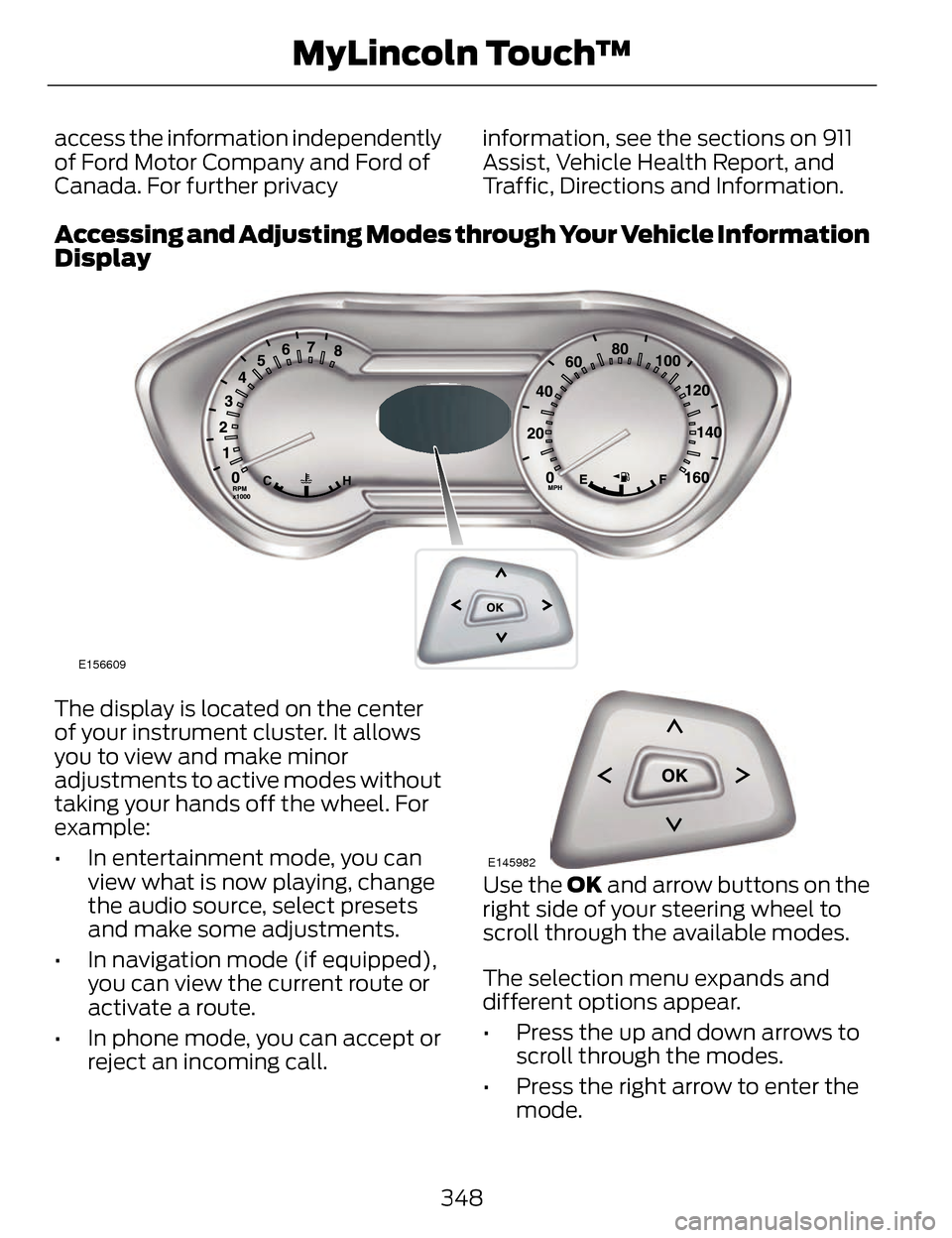
The display is located on the center
of your instrument cluster. It allows
you to view and make minor
adjustments to active modes without
taking your hands off the wheel. For
example:
• In entertainment mode, you can
view what is now playing, change
the audio source, select presets
and make some adjustments.
• In navigation mode (if equipped), you can view the current route or
activate a route.
• In phone mode, you can accept or reject an incoming call.
E145982
Use the OK and arrow buttons on the
right side of your steering wheel to
scroll through the available modes.
The selection menu expands and
different options appear.
• Press the up and down arrows to scroll through the modes.
• Press the right arrow to enter the mode.
348
MyLincoln Touch™
Page 352 of 468
• Press the left or right arrows tomake adjustments within the
chosen mode.
• Press OK to confirm your selection.
Note: If your vehicle is not equipped
with Navigation, Compass appears in
the display instead of Navigation. If you
press the right arrow to go into the
Compass menu, you can see the
compass graphic. The compass
displays the direction in which the
vehicle is traveling, not true direction
(for example, if the vehicle is traveling
west, the middle of the compass
graphic displays west; north displays
to the left of west though its true
direction is to the right of west).
Using Voice Recognition
This system helps you control many
features using voice commands. This
allows you to keep your hands on the
wheel and focus on what is in front of
you. The system provides feedback
through audible tones, prompts,
questions and spoken confirmations
depending on the situation and the
chosen level of interaction (voice
settings).
The system also asks short questions
(confirmation prompts) when it is not
sure of your request or when there are
multiple possible responses to your
request.
When using voice commands, words
and icons may appear in the lower left
status bar indicating the status of the
voice session (such as Listening,
Success, Failed, Paused or Try Again). How to Use Voice Commands with
Your System
E142599
Press the voice icon. After the
tone, speak your command
clearly.
These commands can be said at any
time during a voice session
"Cancel"
"Exit"
"Go back"
"List of commands" "Main menu""Next page"
"Previous page"
"What can I say?" "Help"
What Can I Say?
To access the available voice
commands for the current session, do
one of the following:
• During a voice session, press the help icon (?) in the lower left
status bar of the screen.
• Say, "What can I say?" for an on-screen listing of the possible
voice commands associated with
your current voice session.
• Press the voice icon. After the tone, say, "Help" for an audible list of
possible voice commands.
349
MyLincoln Touch™
Page 354 of 468
•Interaction Mode: Novice mode
provides detailed interaction and
guidance while the advanced
mode has less audible interaction
and more tone prompts.
• Confirmation Prompts: The
system uses these short questions
to confirm your voice request. If
turned off, the system simply
makes a best guess as to what you
requested. The system may still
occasionally ask you to confirm
settings.
• Phone and Media Candidate
Lists: Candidate lists are lists of
possible results from your voice
commands. The system creates
these lists when it has the same
confidence level of several options
based on your voice command.
To access these settings using the
touchscreen:
1. Press the Settings icon > Settings
> then Voice Control.
2. Select from the following:
• Interaction Mode
• Confirmation Prompts
• Media Candidate Lists
• Phone Candidate Lists
• Voice Control Volume.
To access these settings using voice
commands: 1. Press the voice icon. Wait for the
prompt "Please say a command".
Another tone sounds to let you
know the system is listening.
2. Say any of the following commands:
Voice settings using voice
commands
"Confirmation prompts off"
"Confirmation prompts on"
"Interaction mode advanced" "Interaction mode novice"
"Media candidate lists off" "Media candidate lists on"
"Phone candidate lists off" "Phone candidate lists on" "Help"
Using Voice Commands with the
Touchscreen Options
Your voice system has a dual mode
feature which allows you to switch
between using voice commands and
making on-screen selections. This is
available only when the system
displays a list of candidates generated
during a voice session. For example,
when entering in a street address or
trying to call a contact from the phone
you paired to the system.
351
MyLincoln Touch™
Page 355 of 468
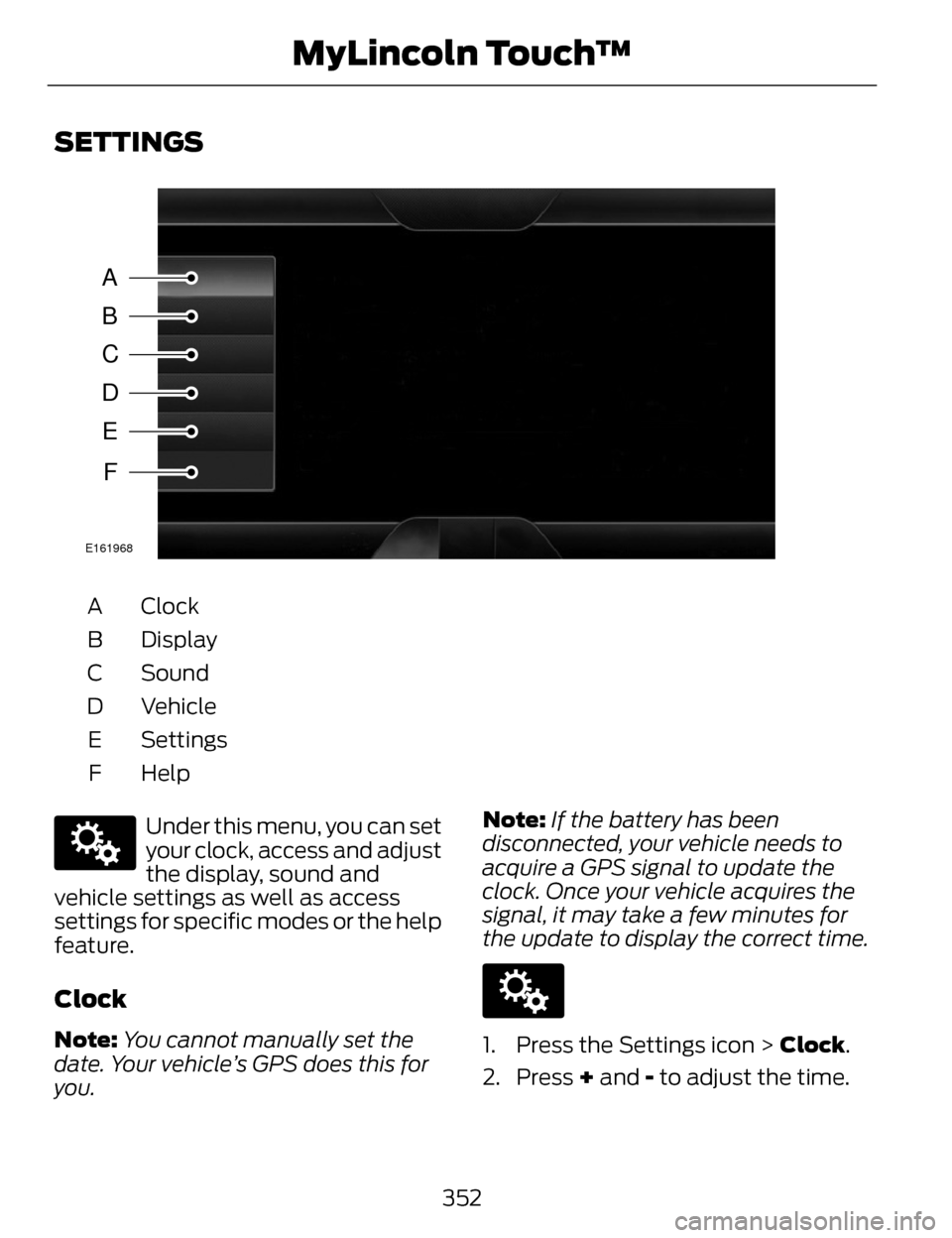
SETTINGS
A
B
C
D
E
F
E161968
Clock
A
Display
B
Sound
C
Vehicle
D
Settings
E
HelpF
E142607
Under this menu, you can set
your clock, access and adjust
the display, sound and
vehicle settings as well as access
settings for specific modes or the help
feature.
Clock
Note: You cannot manually set the
date. Your vehicle’s GPS does this for
you. Note:
If the battery has been
disconnected, your vehicle needs to
acquire a GPS signal to update the
clock. Once your vehicle acquires the
signal, it may take a few minutes for
the update to display the correct time.
E142607
1. Press the Settings icon > Clock.
2. Press + and - to adjust the time.
352
MyLincoln Touch™
Page 356 of 468
From this screen, you can also make
other adjustments such as 12-hour or
24-hour mode, activate GPS time
synchronization and have the system
automatically update new time zones.
You can also turn the outside air
temperature display off and on. It
appears at the top center of the
touchscreen, next to the time and
date.
The system automatically saves any
updates you make to the settings.
Display
You can adjust the touchscreen
display through the touchscreen or by
pressing the voice button on your
steering wheel controls and when
prompted, say, "Display settings".
E142607
Press the Settings icon >
Display, to access and make
adjustments using the
touchscreen.
• Brightness allows you to make
the screen display brighter or
dimmer.
• Auto DIM, when set to On, lets
you use the Auto Dim Manual
Offset feature.
• Mode allows you to set the screen
to a certain brightness or have the
system automatically change
based on the outside light level, or
turn the display off.
• If you select AUTO or NIGHT,
you have the options of turning
the display's Auto Dim feature
on or off and changing the Auto
Dim Manual Offset feature. •
Auto Dim Manual Offset allows
you to adjust screen dimming as
the outside lighting conditions
change from day to night.
• Edit Wallpaper
• You can have your touchscreen
display the default photo or
upload your own.
Uploading Photos for Your Home
Screen Wallpaper
Note: You cannot load photos directly
from your camera. You must access
the photos either from your USB mass
storage device or from an SD card.
Note: Photographs with extremely
large dimensions (such as 2048 x
1536) may not be compatible and
appear as a blank (black) image on the
display.
Your system allows you to upload and
view up to 32 photos.
E142607
To access, press the Settings
icon > Display > Edit
Wallpaper, and then follow
the system prompts to upload your
photographs.
Only the photograph(s), which meets
the following conditions, display:
• Compatible file formats are as follows: .jpg, .gif, .png, .bmp
• Each file must be 1.5 MB or less.
• Recommended dimensions: 800 x 384
353
MyLincoln Touch™
Page 358 of 468
• Rear Camera Delay
• Visual Park Aid Alert
• Guidelines.
You can find more information on the
rear view camera in another chapter.
See Rear View Camera (page 194).
Enable Valet Mode
Note: If the system locks, and you
need to reset the PIN, enter 3681 and
the system unlocks.
Valet mode allows you to lock the
system. No information is accessible
until the system is unlocked with the
correct PIN.
E142607
1. Press the Settings icon > Vehicle > Enable Valet Mode.
2. When prompted, enter a four-digit PIN.
After you press Continue, the system
locks until you enter the PIN again.
Settings
Access and adjust system settings,
voice features, as well as phone,
navigation and wireless settings.
System
E142607
Press the Settings icon >
Settings > System , then
select from the following:
System
Select to have the touchscreen display in English,
Spanish or French.
Language
Select to display units in kilometers or miles.
Distance
Select to display units in Celsius or Fahrenheit.
Temperature
Adjust the volume of voice prompts from the
system.
System Prompt Volume
Select to have the system beep to confirm choices
made through the touchscreen.
Touch Screen Button
Beep
Select to have the system beep to confirm button
choices made through the climate or audio system.
Touch Panel Button
Beep
355
MyLincoln Touch™
Page 359 of 468
System
Have the touchscreen keyboard display in QWERTY
or ABC format.
Keyboard Layout
Install any downloaded applications or view the
current software licenses.
Install Applications
Select to restore factory defaults. This erases all
personal settings and personal data.
Master Reset
Voice Control
E142607
Press the Settings icon >
Settings > Voice Control,
then select from the
following:
Voice control
Standard interaction mode provides more detailed
interaction and guidance. Advanced mode has less
audible interaction and more tone prompts.
Interaction Mode
Have the system ask you short questions if it has
not clearly heard or understood your request.
*Confirmation PromptsCandidate lists are possible results from your voice
commands. The system simply makes a best guess
at your request with these turned off.
Media Candidate Lists
Candidate lists are possible results from your voice
commands. The system simply makes a best guess
at your request with these turned off.
Phone Candidate Lists
This allows you to adjust the system’s voice volume
level.
Voice Control Volume
* Even with confirmation prompts turned off, the system may occasionally ask
you to confirm settings
356
MyLincoln Touch™
Page 361 of 468
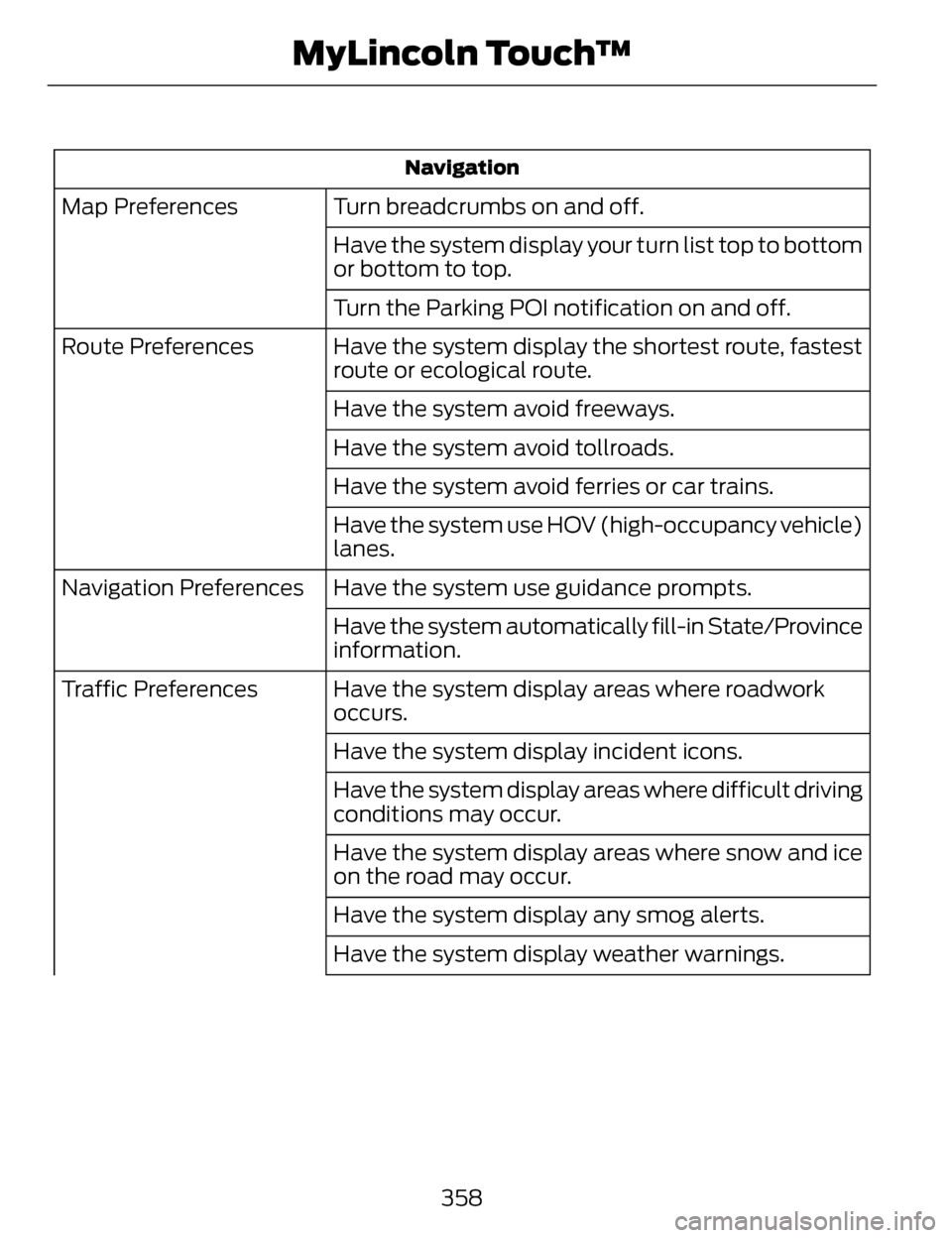
Navigation
Turn breadcrumbs on and off.
Map Preferences
Have the system display your turn list top to bottom
or bottom to top.
Turn the Parking POI notification on and off.
Have the system display the shortest route, fastest
route or ecological route.
Route Preferences
Have the system avoid freeways.
Have the system avoid tollroads.
Have the system avoid ferries or car trains.
Have the system use HOV (high-occupancy vehicle)
lanes.
Have the system use guidance prompts.
Navigation Preferences
Have the system automatically fill-in State/Province
information.
Have the system display areas where roadwork
occurs.
Traffic Preferences
Have the system display incident icons.
Have the system display areas where difficult driving
conditions may occur.
Have the system display areas where snow and ice
on the road may occur.
Have the system display any smog alerts.
Have the system display weather warnings.
358
MyLincoln Touch™
Page 362 of 468
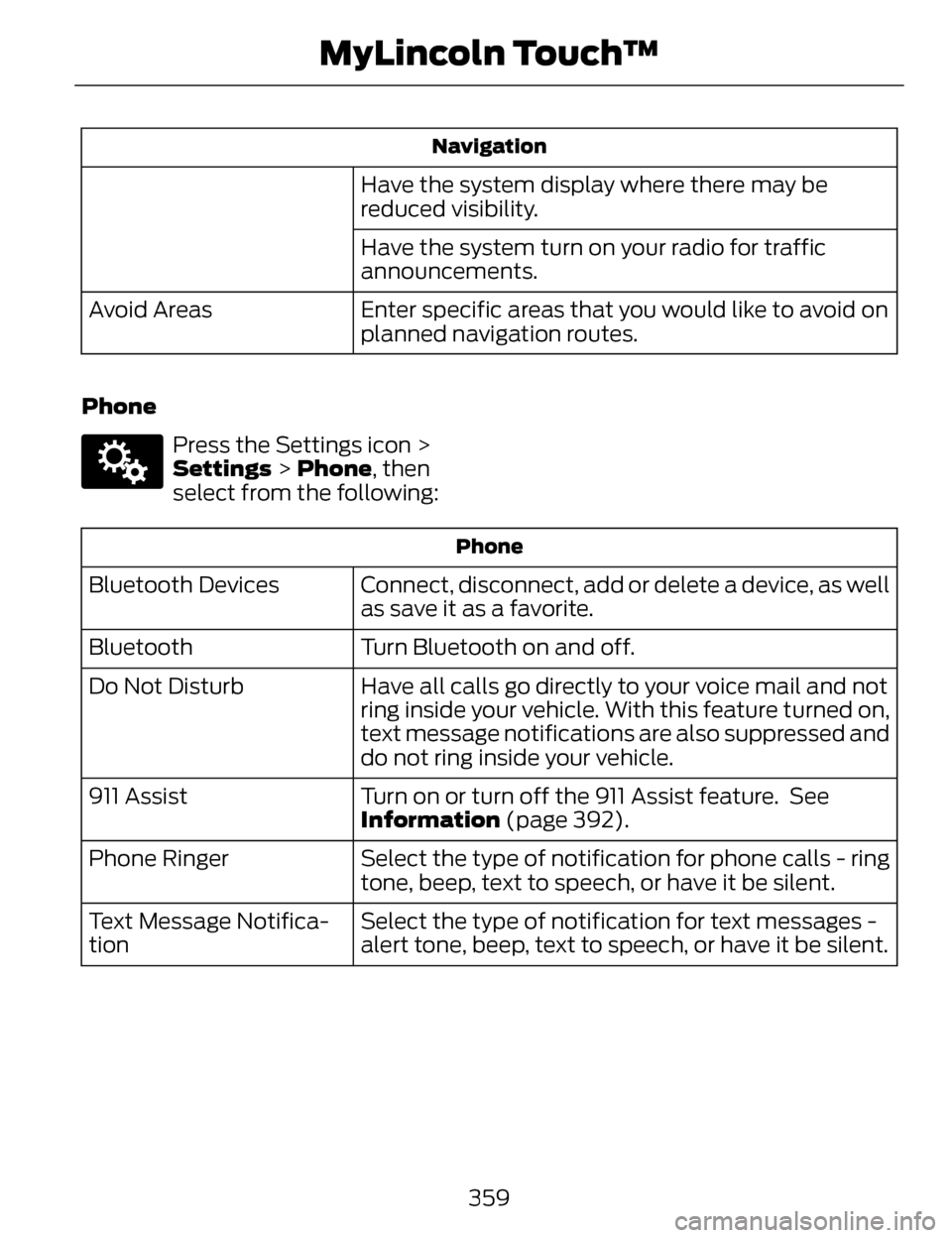
Navigation
Have the system display where there may be
reduced visibility.
Have the system turn on your radio for traffic
announcements.
Enter specific areas that you would like to avoid on
planned navigation routes.
Avoid Areas
Phone
E142607
Press the Settings icon >
Settings > Phone, then
select from the following:
Phone
Connect, disconnect, add or delete a device, as well
as save it as a favorite.
Bluetooth Devices
Turn Bluetooth on and off.
Bluetooth
Have all calls go directly to your voice mail and not
ring inside your vehicle. With this feature turned on,
text message notifications are also suppressed and
do not ring inside your vehicle.
Do Not Disturb
Turn on or turn off the 911 Assist feature. See
Information (page 392).
911 Assist
Select the type of notification for phone calls - ring
tone, beep, text to speech, or have it be silent.
Phone Ringer
Select the type of notification for text messages -
alert tone, beep, text to speech, or have it be silent.
Text Message Notifica-
tion
359
MyLincoln Touch™