ignition LINCOLN NAVIGATOR 2015 Manual PDF
[x] Cancel search | Manufacturer: LINCOLN, Model Year: 2015, Model line: NAVIGATOR, Model: LINCOLN NAVIGATOR 2015Pages: 475, PDF Size: 5.13 MB
Page 386 of 475
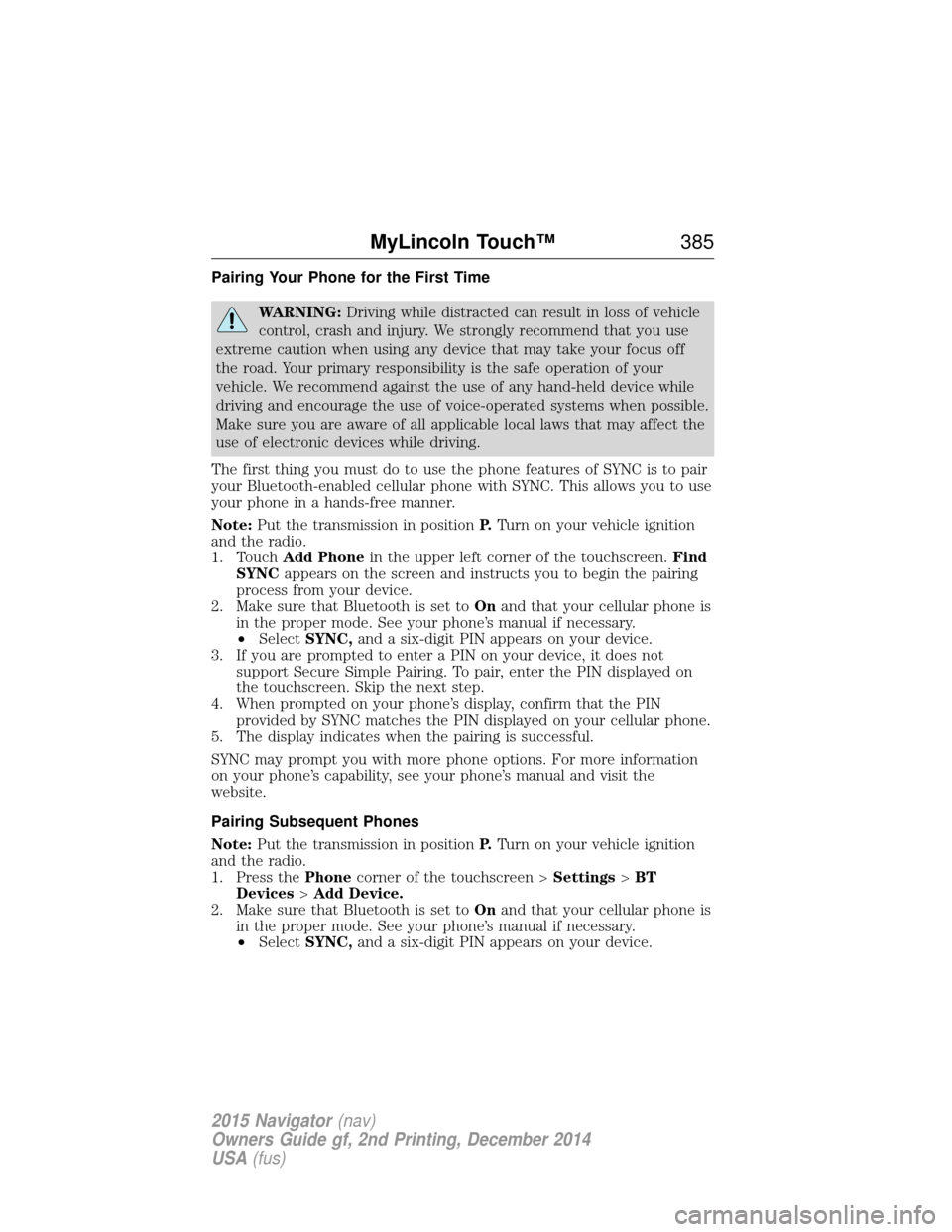
Pairing Your Phone for the First Time
WARNING:Driving while distracted can result in loss of vehicle
control, crash and injury. We strongly recommend that you use
extreme caution when using any device that may take your focus off
the road. Your primary responsibility is the safe operation of your
vehicle. We recommend against the use of any hand-held device while
driving and encourage the use of voice-operated systems when possible.
Make sure you are aware of all applicable local laws that may affect the
use of electronic devices while driving.
The first thing you must do to use the phone features of SYNC is to pair
your Bluetooth-enabled cellular phone with SYNC. This allows you to use
your phone in a hands-free manner.
Note: Put the transmission in position P.Turn on your vehicle ignition
and the radio.
1. Touch Add Phone in the upper left corner of the touchscreen. Find
SYNC appears on the screen and instructs you to begin the pairing
process from your device.
2. Make sure that Bluetooth is set to Onand that your cellular phone is
in the proper mode. See your phone’s manual if necessary.
• Select SYNC, and a six-digit PIN appears on your device.
3. If you are prompted to enter a PIN on your device, it does not support Secure Simple Pairing. To pair, enter the PIN displayed on
the touchscreen. Skip the next step.
4. When prompted on your phone’s display, confirm that the PIN provided by SYNC matches the PIN displayed on your cellular phone.
5. The display indicates when the pairing is successful.
SYNC may prompt you with more phone options. For more information
on your phone’s capability, see your phone’s manual and visit the
website.
Pairing Subsequent Phones
Note: Put the transmission in position P.Turn on your vehicle ignition
and the radio.
1. Press the Phonecorner of the touchscreen > Settings>BT
Devices >Add Device.
2. Make sure that Bluetooth is set to Onand that your cellular phone is
in the proper mode. See your phone’s manual if necessary.
• Select SYNC, and a six-digit PIN appears on your device.
MyLincoln Touch™ 385
2015 Navigator(nav)
Owners Guide gf, 2nd Printing, December 2014
USA (fus)
Page 409 of 475
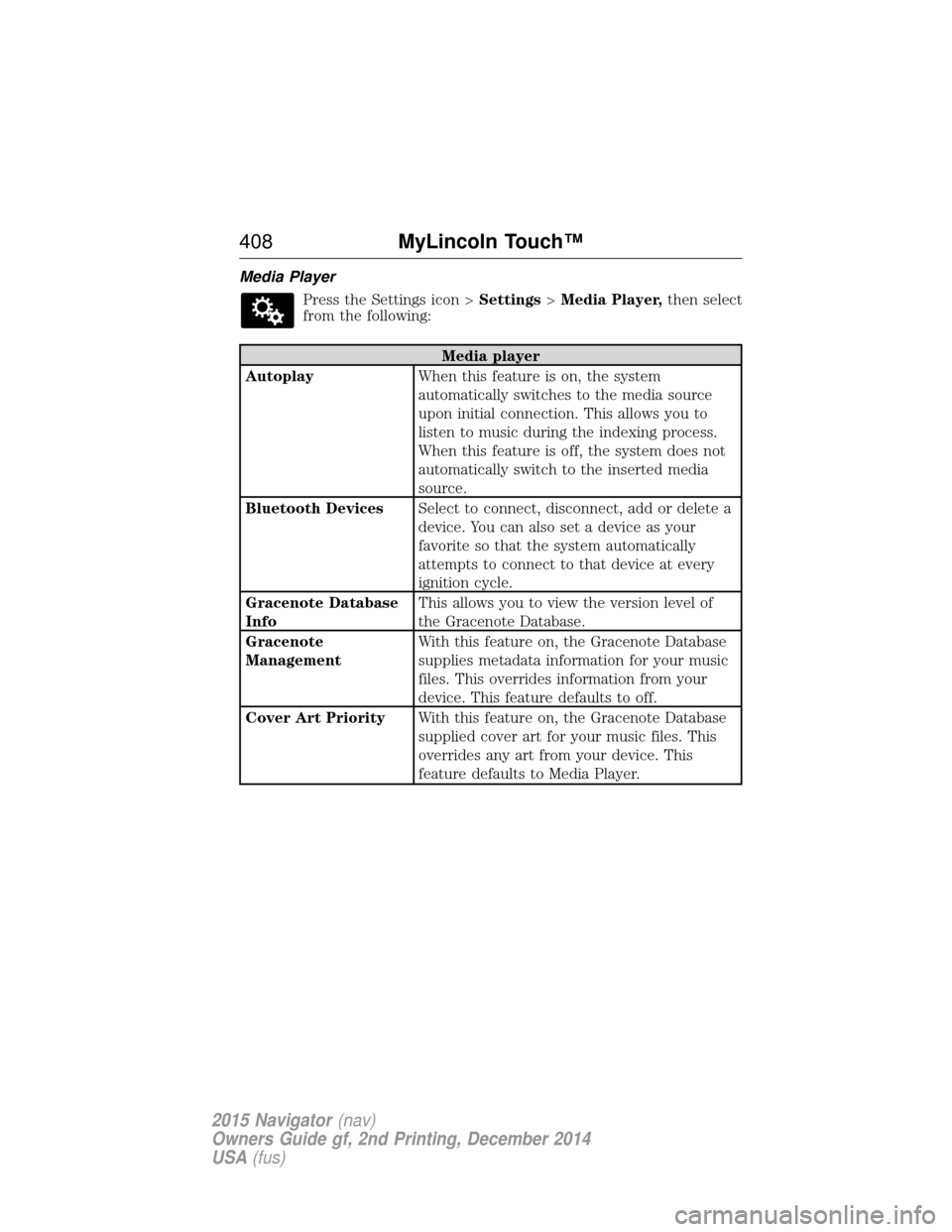
Media PlayerPress the Settings icon > Settings>Media Player, then select
from the following:
Media player
Autoplay When this feature is on, the system
automatically switches to the media source
upon initial connection. This allows you to
listen to music during the indexing process.
When this feature is off, the system does not
automatically switch to the inserted media
source.
Bluetooth Devices Select to connect, disconnect, add or delete a
device. You can also set a device as your
favorite so that the system automatically
attempts to connect to that device at every
ignition cycle.
Gracenote Database
Info This allows you to view the version level of
the Gracenote Database.
Gracenote
Management With this feature on, the Gracenote Database
supplies metadata information for your music
files. This overrides information from your
device. This feature defaults to off.
Cover Art Priority With this feature on, the Gracenote Database
supplied cover art for your music files. This
overrides any art from your device. This
feature defaults to Media Player.
408MyLincoln Touch™
2015 Navigator(nav)
Owners Guide gf, 2nd Printing, December 2014
USA (fus)
Page 472 of 475
How to use voice commands ...361
I
Ignition .......................................327
Illuminated visor mirror .............98
Inspection/maintenance (I/M)
testing ........................................171
Instrument panelcleaning ...................................289
cluster ......................................100
lighting up panel and interior..89
Intelligent Access Key ................54
J
Jack ............................................318 positioning ...............................318
storage .....................................318
Jump-starting your vehicle ......244
K
Keyless entry system autolock .....................................68
keypad .......................................74
locking and unlocking doors ....75
programming entry code .........74
L
Lamps ..........................................87 autolamp system .................88–89
bulb replacement
specifications chart ................282
daytime running light ...............89
headlamps .................................87
headlamps, flash to pass ..........87
instrument panel, dimming .....89
interior lamps ...........................91
replacing bulbs ...............281–282 Lane change indicator
(see Turn signal) ........................91
LATCH anchors ...........................22
Liftgate ........................................70
Lights, warning and indicator ..100
Listening to music ....................364
Loading instructions .................220
Load limits .................................213
Locks
autolock .....................................68
childproof ..................................33
doors ..........................................67
Lubricant specifications ...........328
Lug nuts ....................................325
M
Making and receiving calls .......386
MAP DVD - Loading and
Unloading ..................................386
Map icons ..................................426
Map mode ..................................424
Map preferences .......................422
Map updates ......................359, 428
Master lighting switch ................87
Message center warning messages ...................111
Mirrors ...................................94, 96 programmable memory ............55
side view mirrors (power) .......94
signal ...................................95–96
Moon roof ....................................98
Motorcraft® parts .............284, 333
MyFord Touch™ system ..........352
MyKey ..........................................60
Index 471
2015 Navigator(nav)
Owners Guide gf, 2nd Printing, December 2014
USA (fus)