light LINCOLN NAVIGATOR 2017 Owners Manual
[x] Cancel search | Manufacturer: LINCOLN, Model Year: 2017, Model line: NAVIGATOR, Model: LINCOLN NAVIGATOR 2017Pages: 532, PDF Size: 3.9 MB
Page 323 of 532
Note:
The tire pressure monitoring system
indicator light will illuminate when the spare
tire is in use. To restore the full function of
the monitoring system, all road wheels
equipped with tire pressure monitoring
sensors must be mounted on this vehicle.
If you get a flat tire while driving, do not apply
the brake heavily. Instead, gradually
decrease your speed. Hold the steering
wheel firmly and slowly move to a safe place
on the side of the road.
Have a flat serviced by an authorized dealer
in order to prevent damage to the system
sensors See Tire Pressure Monitoring
System (page 313). Replace the spare tire
with a road tire as soon as possible. During
repairing or replacing of the flat tire, have
the authorized dealer inspect the system
sensor for damage.
Dissimilar Spare Wheel and Tire
Assembly Information WARNING
Failure to follow these guidelines could
result in an increased risk of loss of
vehicle control, injury or death. If you have a dissimilar spare wheel and tire,
then it is intended for temporary use only.
This means that if you need to use it, you
should replace it as soon as possible with a
road wheel and tire assembly that is the
same size and type as the road tires and
wheels that were originally provided by Ford.
If the dissimilar spare tire or wheel is
damaged, it should be replaced rather than
repaired.
A dissimilar spare wheel and tire assembly
is defined as a spare wheel and tire assembly
that is different in brand, size or appearance
from the road tires and wheels and can be
one of three types:
1. T-type mini-spare: This spare tire begins
with the letter T for tire size and may have
Temporary Use Only molded in the sidewall.
2.
Full-size dissimilar spare with label on
wheel: This spare tire has a label on the
wheel that states: THIS WHEEL AND TIRE
ASSEMBLY FOR TEMPORARY USE ONLY When driving with one of the dissimilar spare
tires listed above, do not:
•
Exceed
50 mph (80 km/h).
• Load the vehicle beyond maximum
vehicle load rating listed on the Safety
Compliance Label.
• Tow a trailer.
• Use snow chains on the end of the
vehicle with the dissimilar spare tire.
• Use more than one dissimilar spare tire
at a time.
• Use commercial car washing equipment.
• Try to repair the dissimilar spare tire.
Use of one of the dissimilar spare tires listed
above at any one wheel location can lead to
impairment of the following:
• Handling, stability and braking
performance.
• Comfort and noise.
• Ground clearance and parking at curbs.
• Winter weather driving capability.
• Wet weather driving capability.
• All-wheel driving capability.
320
Navigator (TB5) Canada/United States of America, enUSA, First Printing Wheels and Tires
Page 326 of 532
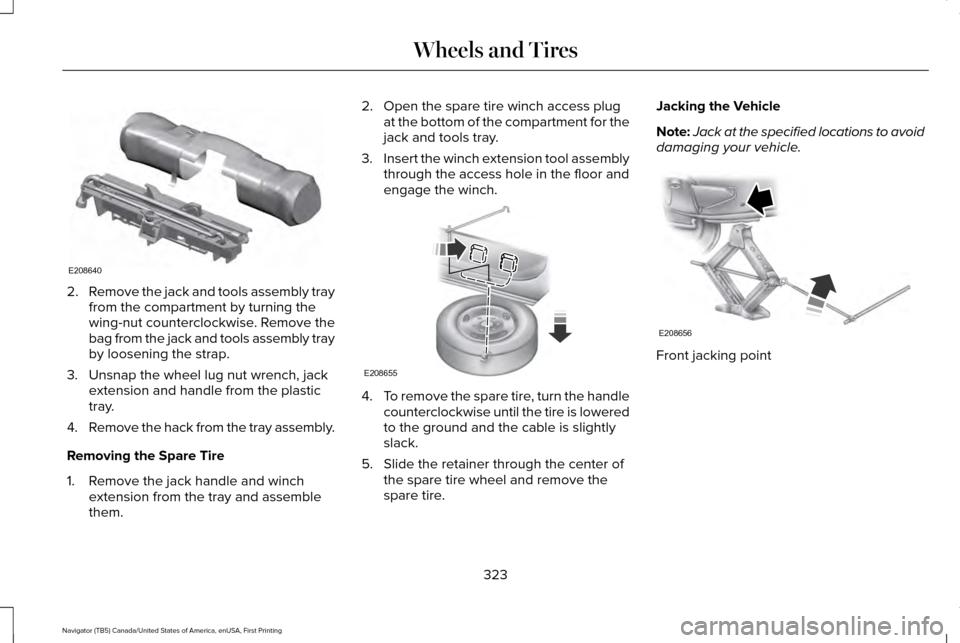
2.
Remove the jack and tools assembly tray
from the compartment by turning the
wing-nut counterclockwise. Remove the
bag from the jack and tools assembly tray
by loosening the strap.
3. Unsnap the wheel lug nut wrench, jack extension and handle from the plastic
tray.
4. Remove the hack from the tray assembly.
Removing the Spare Tire
1. Remove the jack handle and winch extension from the tray and assemble
them. 2. Open the spare tire winch access plug
at the bottom of the compartment for the
jack and tools tray.
3. Insert the winch extension tool assembly
through the access hole in the floor and
engage the winch. 4.
To remove the spare tire, turn the handle
counterclockwise until the tire is lowered
to the ground and the cable is slightly
slack.
5. Slide the retainer through the center of the spare tire wheel and remove the
spare tire. Jacking the Vehicle
Note:
Jack at the specified locations to avoid
damaging your vehicle. Front jacking point
323
Navigator (TB5) Canada/United States of America, enUSA, First Printing Wheels and TiresE208640 E208655 E208656
Page 343 of 532
Do not expose discs to direct sunlight or heat
sources for extended periods.
MP3 and WMA Track and Folder
Structure
Audio systems capable of recognizing and
playing MP3 and WMA individual tracks and
folder structures work as follows:
•
There are two different modes for MP3
and WMA disc playback: MP3 and WMA
track mode (system default) and MP3 and
WMA folder mode.
• MP3 and WMA track mode ignores any
folder structure on the MP3 and WMA
disc. The player numbers each MP3 and
WMA track on the disc (noted by the MP3
or WMA file extension) from T001 to a
maximum of T255. The maximum number
of playable MP3 and WMA files may be
less depending on the structure of the
CD and exact model of radio present. •
MP3 and WMA folder mode represents
a folder structure consisting of one level
of folders. The CD player numbers all
MP3 and WMA tracks on the disc (noted
by the MP3 or WMA file extension) and
all folders containing MP3 and WMA files,
from F001 (folder) T001 (track) to F253
T255.
• Creating discs with only one level of
folders helps with navigation through the
disc files.
If you are burning your own MP3 and WMA
discs, it is important to understand how the
system reads the structures you create. While
various files may be present (files with
extensions other than MP3 and WMA), only
files with the MP3 and WMA extension are
played; other files are ignored by the system.
This enables you to use the same MP3 and
WMA disc for a variety of tasks on your work
computer, home computer and your
in-vehicle system. In track mode, the system displays and plays
the structure as if it were only one level deep
(all MP3 and WMA files play, regardless of
being in a specific folder). In folder mode,
the system only plays the MP3 and WMA files
in the current folder.
AUDIO UNIT - VEHICLES WITH:
PREMIUM AM/FM/CD
WARNING
Driving while distracted can result in
loss of vehicle control, crash and injury.
We strongly recommend that you use
extreme caution when using any device that
may take your focus off the road. Your
primary responsibility is the safe operation
of your vehicle. We recommend against the
use of any hand-held device while driving
and encourage the use of voice-operated
systems when possible. Make sure you are
aware of all applicable local laws that may
affect the use of electronic devices while
driving. 340
Navigator (TB5) Canada/United States of America, enUSA, First Printing Audio System
Page 388 of 532
HD Radio technology is the digital evolution
of analog AM/FM radio. Your system has a
special receiver that allows it to receive
digital broadcasts (where available) in
addition to the analog broadcasts, it already
receives. Digital broadcasts provide a better
sound quality than analog broadcasts with
free, crystal-clear audio and no static or
distortion. For more information, and a guide
to available stations and programming,
please visit:
Website
www.hdradio.com
When HD Radio is on and you tune to a
station broadcasting HD Radio technology,
you may notice the following indicators on
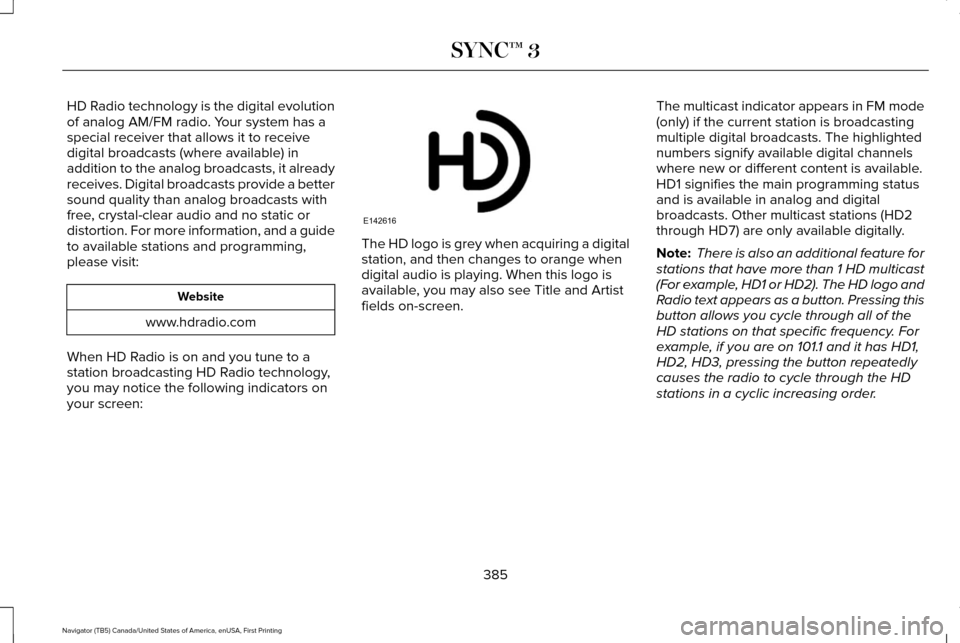
your screen: The HD logo is grey when acquiring a digital
station, and then changes to orange when
digital audio is playing. When this logo is
available, you may also see Title and Artist
fields on-screen.
The multicast indicator appears in FM mode
(only) if the current station is broadcasting
multiple digital broadcasts. The highlighted
numbers signify available digital channels
where new or different content is available.
HD1 signifies the main programming status
and is available in analog and digital
broadcasts. Other multicast stations (HD2
through HD7) are only available digitally.
Note:
There is also an additional feature for
stations that have more than 1 HD multicast
(For example, HD1 or HD2). The HD logo and
Radio text appears as a button. Pressing this
button allows you cycle through all of the
HD stations on that specific frequency. For
example, if you are on 101.1 and it has HD1,
HD2, HD3, pressing the button repeatedly
causes the radio to cycle through the HD
stations in a cyclic increasing order.
385
Navigator (TB5) Canada/United States of America, enUSA, First Printing SYNC™ 3E142616
Page 389 of 532
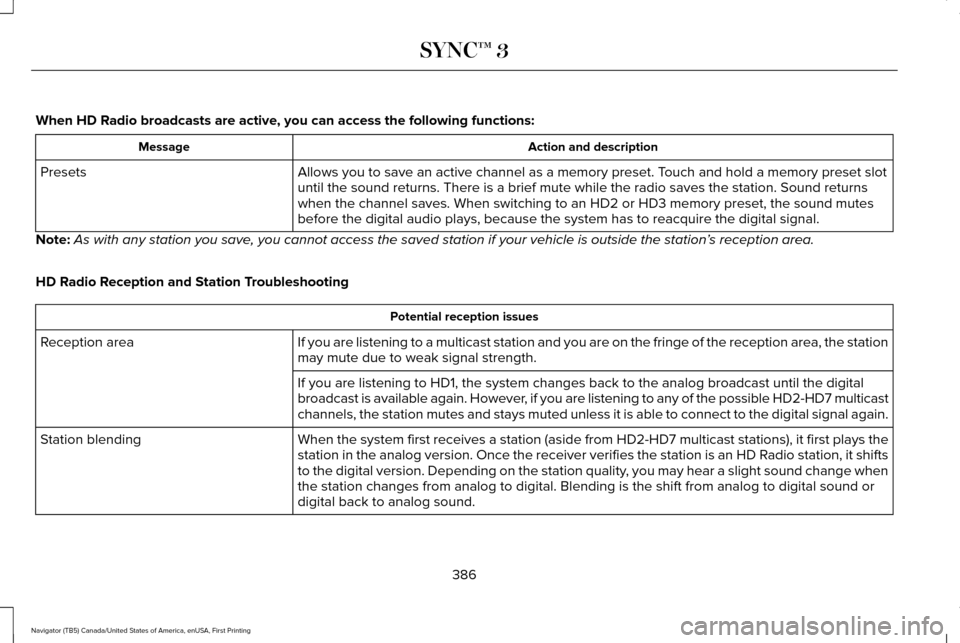
When HD Radio broadcasts are active, you can access the following functions:
Action and description
Message
Allows you to save an active channel as a memory preset. Touch and hold a memory preset slot
until the sound returns. There is a brief mute while the radio saves the\
station. Sound returns
when the channel saves. When switching to an HD2 or HD3 memory preset, t\
he sound mutes
before the digital audio plays, because the system has to reacquire the \
digital signal.
Presets
Note: As with any station you save, you cannot access the saved station if your vehicle is outside the sta\
tion’ s reception area.
HD Radio Reception and Station Troubleshooting Potential reception issues
If you are listening to a multicast station and you are on the fringe of\
the reception area, the station
may mute due to weak signal strength.
Reception area
If you are listening to HD1, the system changes back to the analog broad\
cast until the digital
broadcast is available again. However, if you are listening to any of the possible HD2-HD7 multicast
channels, the station mutes and stays muted unless it is able to connect\
to the digital signal again.
When the system first receives a station (aside from HD2-HD7 multicast \
stations), it first plays the
station in the analog version. Once the receiver verifies the station is\
an HD Radio station, it shifts
to the digital version. Depending on the station quality, you may hear a slight sound change when
the station changes from analog to digital. Blending is the shift from a\
nalog to digital sound or
digital back to analog sound.
Station blending
386
Navigator (TB5) Canada/United States of America, enUSA, First Printing SYNC™ 3
Page 392 of 532
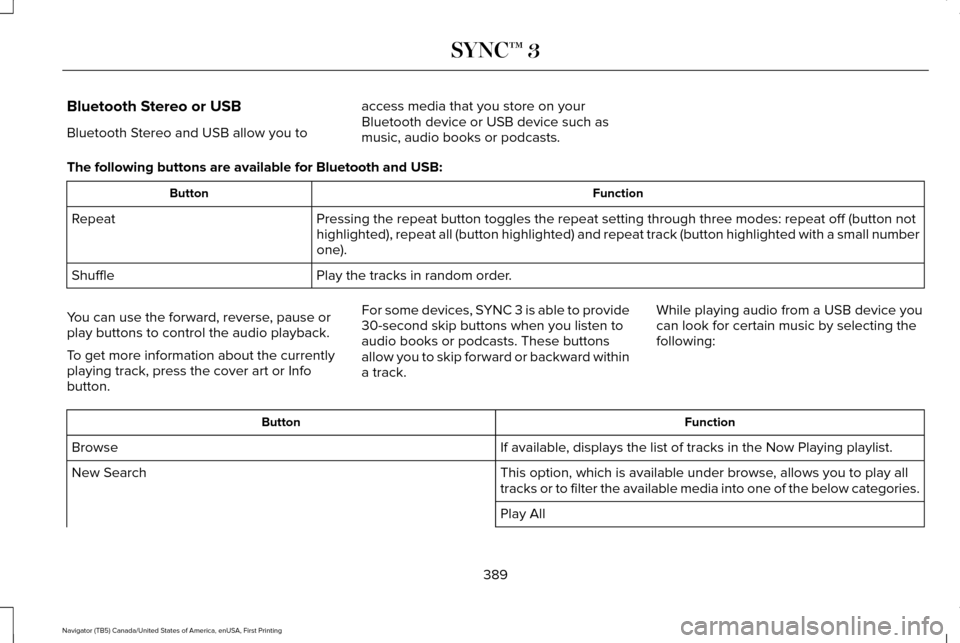
Bluetooth Stereo or USB
Bluetooth Stereo and USB allow you to
access media that you store on your
Bluetooth device or USB device such as
music, audio books or podcasts.
The following buttons are available for Bluetooth and USB: Function
Button
Pressing the repeat button toggles the repeat setting through three mode\
s: repeat off (button not
highlighted), repeat all (button highlighted) and repeat track (butt\
on highlighted with a small number
one).
Repeat
Play the tracks in random order.
Shuffle
You can use the forward, reverse, pause or
play buttons to control the audio playback.
To get more information about the currently
playing track, press the cover art or Info
button. For some devices, SYNC 3 is able to provide
30-second skip buttons when you listen to
audio books or podcasts. These buttons
allow you to skip forward or backward within
a track.
While playing audio from a USB device you
can look for certain music by selecting the
following: Function
Button
If available, displays the list of tracks in the Now Playing playlist.
Browse
This option, which is available under browse, allows you to play all
tracks or to filter the available media into one of the below categories\
.
New Search
Play All
389
Navigator (TB5) Canada/United States of America, enUSA, First Printing SYNC™ 3
Page 396 of 532
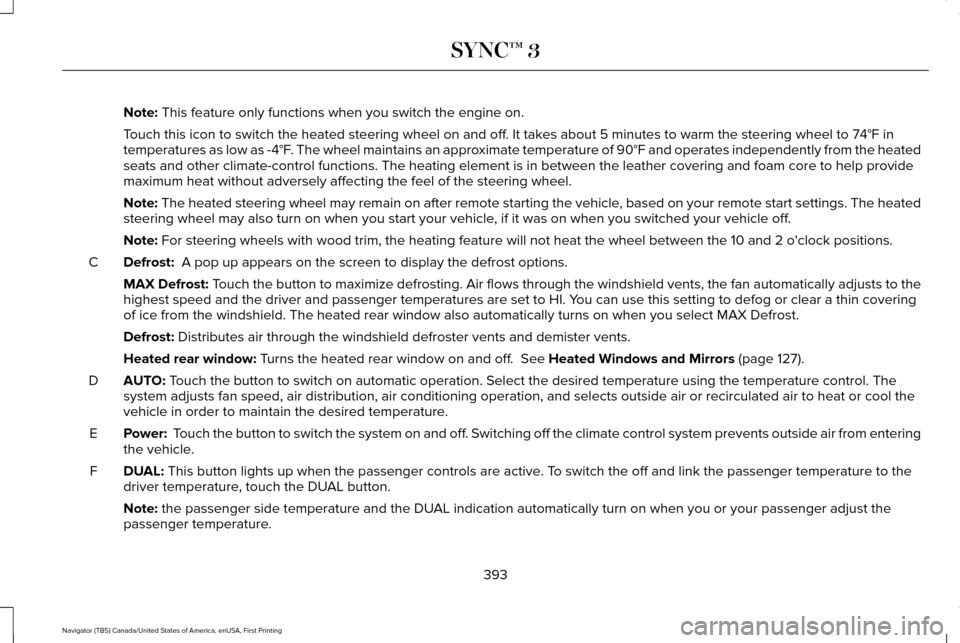
Note: This feature only functions when you switch the engine on.
Touch this icon to switch the heated steering wheel on and off. It takes about 5 minutes to warm the steering wheel to 74°F in
temperatures as low as -4°F. The wheel maintains an approximate temperature of 90°F and operates independently from the heated\
seats and other climate-control functions. The heating element is in bet\
ween the leather covering and foam core to help provide
maximum heat without adversely affecting the feel of the steering wheel.\
Note:
The heated steering wheel may remain on after remote starting the vehic\
le, based on your remote start settings. The heated
steering wheel may also turn on when you start your vehicle, if it was on when you switched your vehicle off.
Note:
For steering wheels with wood trim, the heating feature will not heat t\
he wheel between the 10 and 2 o'clock positions.
Defrost:
A pop up appears on the screen to display the defrost options.
C
MAX Defrost: Touch the button to maximize defrosting. Air flows through the windshield\
vents, the fan automatically adjusts to the
highest speed and the driver and passenger temperatures are set to HI. Y\
ou can use this setting to defog or clear a thin covering
of ice from the windshield. The heated rear window also automatically tu\
rns on when you select MAX Defrost.
Defrost:
Distributes air through the windshield defroster vents and demister vent\
s.
Heated rear window:
Turns the heated rear window on and off. See Heated Windows and Mirrors (page 127).
AUTO:
Touch the button to switch on automatic operation. Select the desired tem\
perature using the temperature control. The
system adjusts fan speed, air distribution, air conditioning operation, \
and selects outside air or recirculated air to heat or cool the
vehicle in order to maintain the desired temperature.
D
Power:
Touch the button to switch the system on and off. Switching off the climate control system prevents outside air from enteri\
ng
the vehicle.
E
DUAL:
This button lights up when the passenger controls are active. To switch the off and link the passenger temperature to the
driver temperature, touch the DUAL button.
F
Note:
the passenger side temperature and the DUAL indication automatically turn on when you or your passenger adjust th\
e
passenger temperature.
393
Navigator (TB5) Canada/United States of America, enUSA, First Printing SYNC™ 3
Page 408 of 532
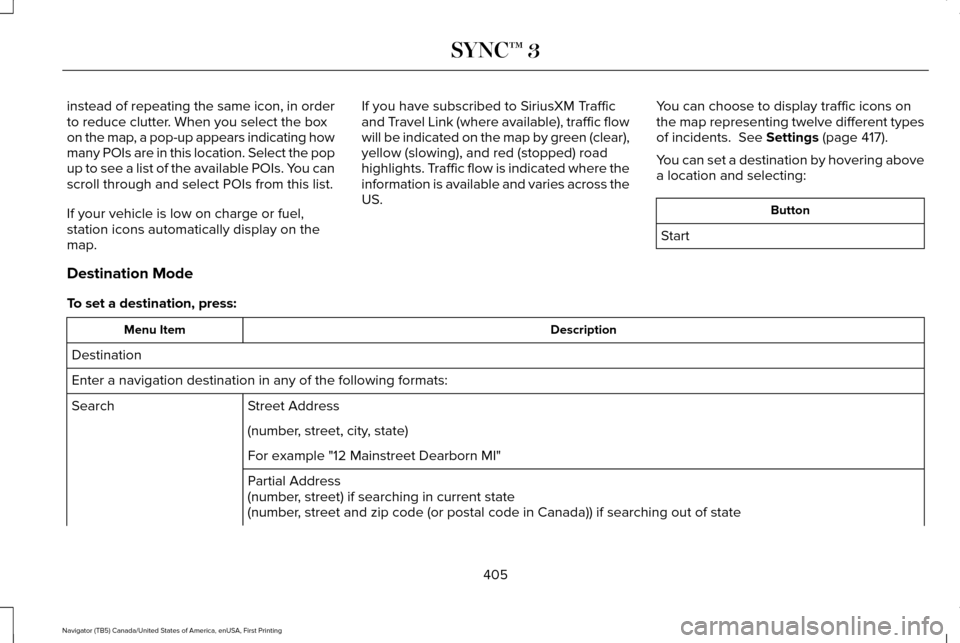
instead of repeating the same icon, in order
to reduce clutter. When you select the box
on the map, a pop-up appears indicating how
many POIs are in this location. Select the pop
up to see a list of the available POIs. You can
scroll through and select POIs from this list.
If your vehicle is low on charge or fuel,
station icons automatically display on the
map.
If you have subscribed to SiriusXM Traffic
and Travel Link (where available), traffic flow
will be indicated on the map by green (clear),
yellow (slowing), and red (stopped) road
highlights. Traffic flow is indicated where the
information is available and varies across the
US.
You can choose to display traffic icons on
the map representing twelve different types
of incidents. See Settings (page 417).
You can set a destination by hovering above
a location and selecting: Button
Start
Destination Mode
To set a destination, press: Description
Menu Item
Destination
Enter a navigation destination in any of the following formats: Street Address
Search
(number, street, city, state)
For example "12 Mainstreet Dearborn MI"
Partial Address
(number, street) if searching in current state
(number, street and zip code (or postal code in Canada)) if searching out of\
state
405
Navigator (TB5) Canada/United States of America, enUSA, First Printing SYNC™ 3
Page 416 of 532
cityseeker (If Equipped)
Note: cityseeker point of interest (POI)
information is limited to approximately 1110
cities (1049 in the United States, 36 in
Canada and 15 in Mexico). cityseeker, when available, is a service that
provides more information about certain
points of interest such as restaurants, hotels
and attractions.
When you have selected a point of interest,
the location and information appear, such as
address, phone number and a star rating.
Press
More Information to see a photo, a
review, a list of services and facilities, the
average room or meal price and the web
address. This screen displays the point of
interest icons. For restaurants, cityseeker can provide
information such as star rating, average cost,
review, handicap access, hours of operation,
and website address.
For hotels, cityseeker can provide
information such as star rating, price
category, review, check-in and checkout
times, hotel service icons and website
address. Hotel service icons include:
•
Restaurant
• Business center
• Handicap facilities
• Laundry
• Refrigerator
• 24 hour room service
• Fitness center
• Internet access
• Pool
• Wi-Fi
Attractions include nearby landmarks,
amusement parks, historic buildings and
more. cityseeker can provide information
such as star rating, reviews, hour of operation
and admission price. SiriusXM Traffic and Travel Link
SiriusXM Traffic and Travel Link is available
on vehicles equipped with navigation and
only in select markets. You must activate and
subscribe to receive SiriusXM Traffic and
Travel Link information. It helps you locate
the best gas prices, find movie listings, get
current traffic alerts, view the weather map,
get accurate ski conditions and see current
sports scores.
See Apps (page 414).
The system calculates a reasonable efficient
route based on available speed limits, traffic,
and road conditions. You may know a local
short cut that is more efficient at a given time
than the route provided by SYNC 3, but you
should expect a slight difference in minutes
or miles with the SYNC 3 route.
Navigation Map Updates
Annual navigation map updates are available
for purchase through your dealership, by
calling 1-866-462-8837 in the United States
and Canada or 01-800-557-5539 in Mexico.
You can also visit:
413
Navigator (TB5) Canada/United States of America, enUSA, First Printing SYNC™ 3E225487
Page 435 of 532
Ambient Lighting (If Equipped)
Tap a color once to active ambient lighting.
This sets the color to the highest intensity.
You can drag the colors up and down to
increase or decrease the intensity.
To switch ambient lighting off, press the
active color once or drag the active color all
the way down to zero intensity. Vehicle
Note:
You vehicle may not have all of these
features.
You can select the following features to
update their settings. Door Keypad Code
Select this button to add or erase a personal
door keypad code. To add or erase a
personal code, you first need to enter the
five-digit factory set code. You can find this
code on the owner's wallet card in the glove
box or from your authorized dealer.
Camera Settings
To make adjustments using the touchscreen, select: Action and Description
Message
Camera Settings
Then select from the following: You can enable or disable this option using the slider.
Rear Camera Delay
You can find more information on the rear-view camera system in the parki\
ng aids chapter of your owner manual.
432
Navigator (TB5) Canada/United States of America, enUSA, First Printing SYNC™ 3