seats LINCOLN NAVIGATOR 2020 Owner's Guide
[x] Cancel search | Manufacturer: LINCOLN, Model Year: 2020, Model line: NAVIGATOR, Model: LINCOLN NAVIGATOR 2020Pages: 622, PDF Size: 6.47 MB
Page 178 of 622
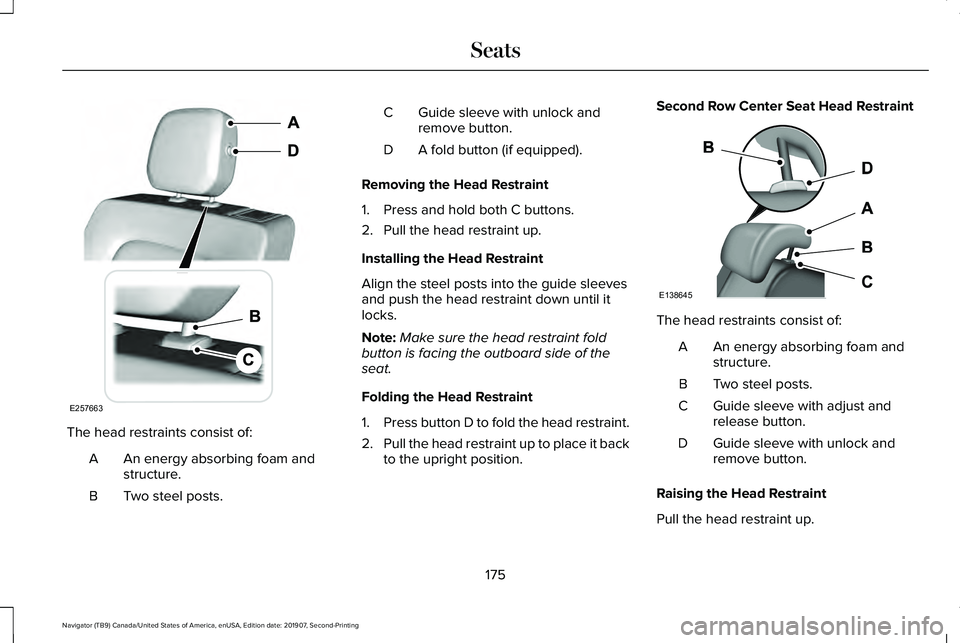
The head restraints consist of:
An energy absorbing foam and
structure.
A
Two steel posts.
B Guide sleeve with unlock and
remove button.
C
A fold button (if equipped).
D
Removing the Head Restraint
1. Press and hold both C buttons.
2. Pull the head restraint up.
Installing the Head Restraint
Align the steel posts into the guide sleeves
and push the head restraint down until it
locks.
Note: Make sure the head restraint fold
button is facing the outboard side of the
seat.
Folding the Head Restraint
1. Press button D to fold the head restraint.
2. Pull the head restraint up to place it back
to the upright position. Second Row Center Seat Head Restraint
The head restraints consist of:
An energy absorbing foam and
structure.
A
Two steel posts.
B
Guide sleeve with adjust and
release button.
C
Guide sleeve with unlock and
remove button.
D
Raising the Head Restraint
Pull the head restraint up.
175
Navigator (TB9) Canada/United States of America, enUSA, Edition date: 201907, Second-Printing SeatsE257663 E138645
Page 179 of 622
Lowering the Head Restraint
1. Press and hold button C.
2. Push the head restraint down.
Removing the Head Restraint
1.
Pull the head restraint up until it reaches
its highest position.
2. Press and hold buttons C and D.
3. Pull the head restraint up.
Installing the Head Restraint
Align the steel posts into the guide sleeves
and push the head restraint down until it
locks.
Third Row Head Restraints
The third row head restraints are
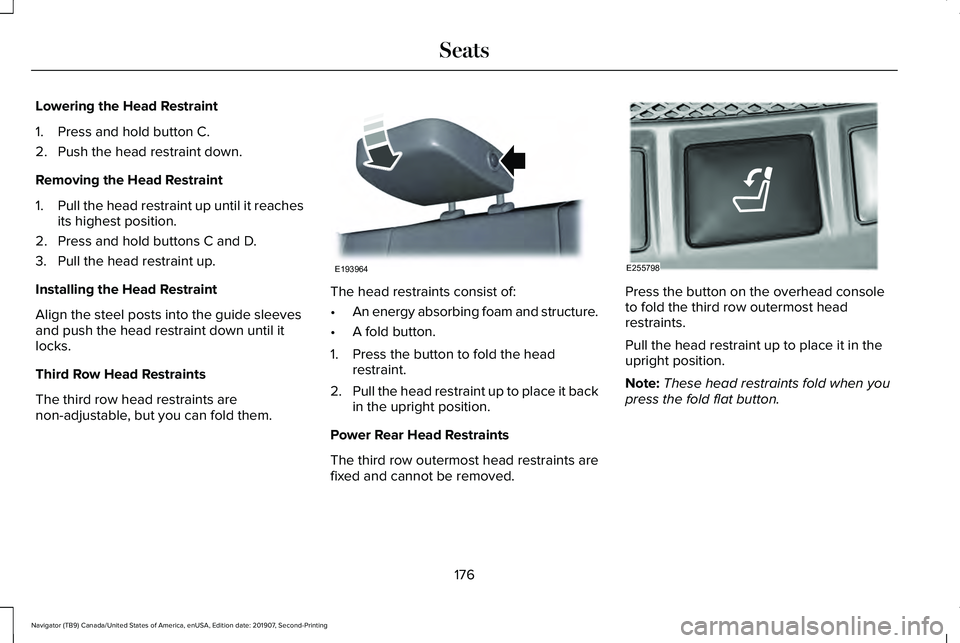
non-adjustable, but you can fold them. The head restraints consist of:
•
An energy absorbing foam and structure.
• A fold button.
1. Press the button to fold the head restraint.
2. Pull the head restraint up to place it back
in the upright position.
Power Rear Head Restraints
The third row outermost head restraints are
fixed and cannot be removed. Press the button on the overhead console
to fold the third row outermost head
restraints.
Pull the head restraint up to place it in the
upright position.
Note:
These head restraints fold when you
press the fold flat button.
176
Navigator (TB9) Canada/United States of America, enUSA, Edition date: 201907, Second-Printing SeatsE193964 E255798
Page 180 of 622
POWER SEATS
WARNING: Do not adjust the driver
seat or seat backrest when your vehicle is
moving. This may result in sudden seat
movement, causing the loss of control of
your vehicle. WARNING:
Do not place cargo or
any objects behind the seatback before
returning it to the original position.
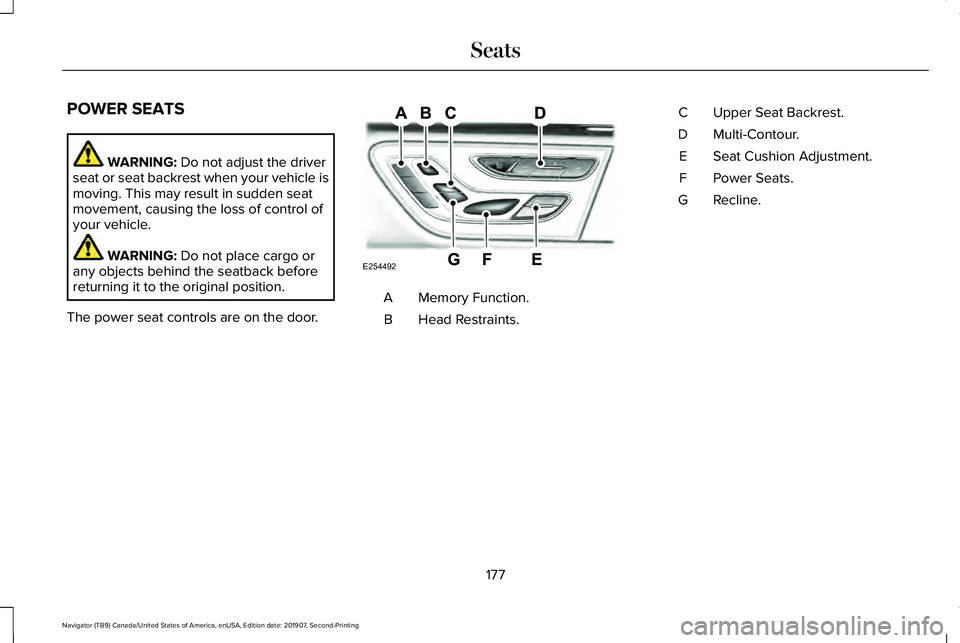
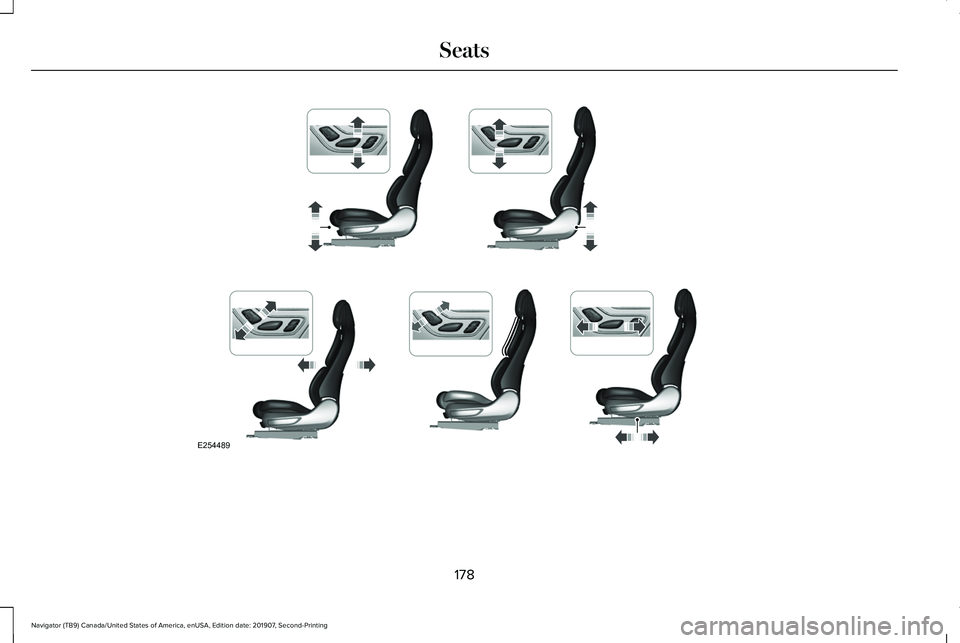
The power seat controls are on the door. Memory Function.
A
Head Restraints.
B Upper Seat Backrest.
C
Multi-Contour.
D
Seat Cushion Adjustment.
E
Power Seats.
F
Recline.
G
177
Navigator (TB9) Canada/United States of America, enUSA, Edition date: 201907, Second-Printing SeatsE254492
Page 181 of 622
178
Navigator (TB9) Canada/United States of America, enUSA, Edition date: 201907, Second-Printing SeatsE254489
Page 182 of 622
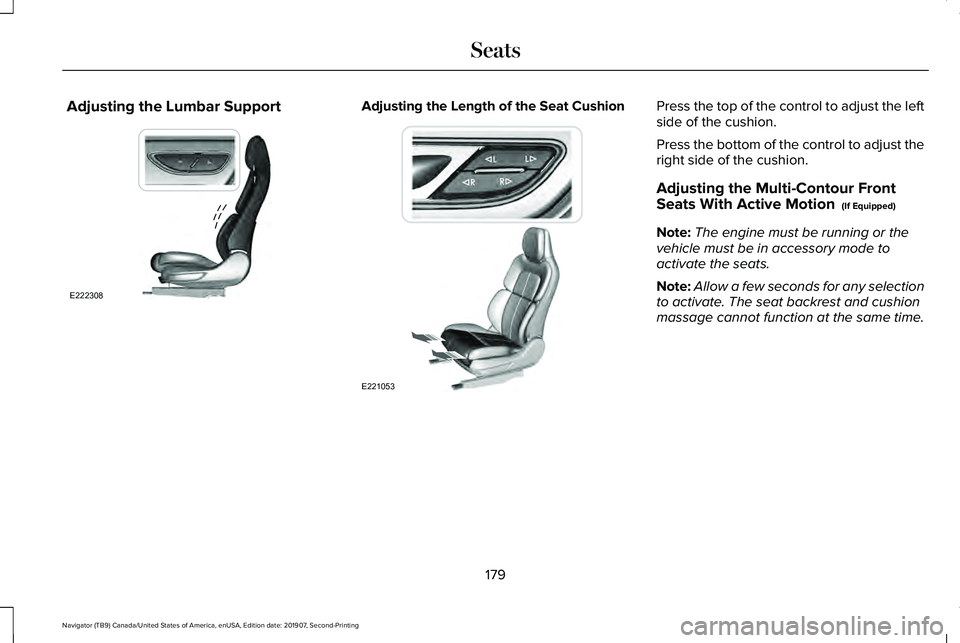
Adjusting the Lumbar Support Adjusting the Length of the Seat Cushion Press the top of the control to adjust the left
side of the cushion.
Press the bottom of the control to adjust the
right side of the cushion.
Adjusting the Multi-Contour Front
Seats With Active Motion (If Equipped)
Note: The engine must be running or the
vehicle must be in accessory mode to
activate the seats.
Note: Allow a few seconds for any selection
to activate. The seat backrest and cushion
massage cannot function at the same time.
179
Navigator (TB9) Canada/United States of America, enUSA, Edition date: 201907, Second-Printing SeatsE222308 E221053
Page 183 of 622
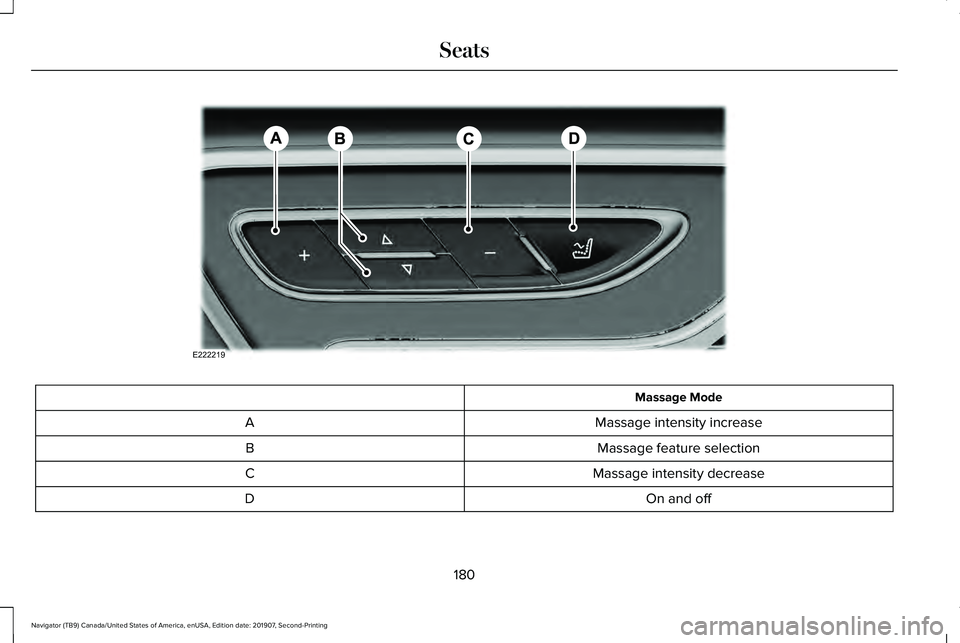
Massage Mode
Massage intensity increase
A
Massage feature selection
B
Massage intensity decrease
C
On and off
D
180
Navigator (TB9) Canada/United States of America, enUSA, Edition date: 201907, Second-Printing SeatsE222219
Page 184 of 622
You can also adjust this feature through the
touchscreen.
Press the Menu Settings icon, then
Vehicle. Choose Multi-Contour
Seats.
When switched on, the system displays
directions for you to adjust the lumbar
settings in your seat or to set the massage
function.
To access and make adjustments to the
lumbar setting:
1. Choose the seat you would like to adjust.
2. Press the + or - to adjust the lumbar intensity.
To access and make adjustments to the
massage setting:
1. Press the Menu Settings icon, then Vehicle. Choose Multi-Contour Seats.
2. Choose the seat you would like to adjust.
3. Press OFF, Low or High. MEMORY FUNCTION WARNING: Before activating the
memory seat, make sure that the area
immediately surrounding the seat is clear
of obstructions and that all occupants are
clear of moving parts. WARNING:
Do not use the memory
function when your vehicle is moving.
Driver Seat Memory
This feature automatically recalls the position
of the following:
• Driver seat.
• Power mirrors.
• Power adjustable foot pedals.
• Power steering column.
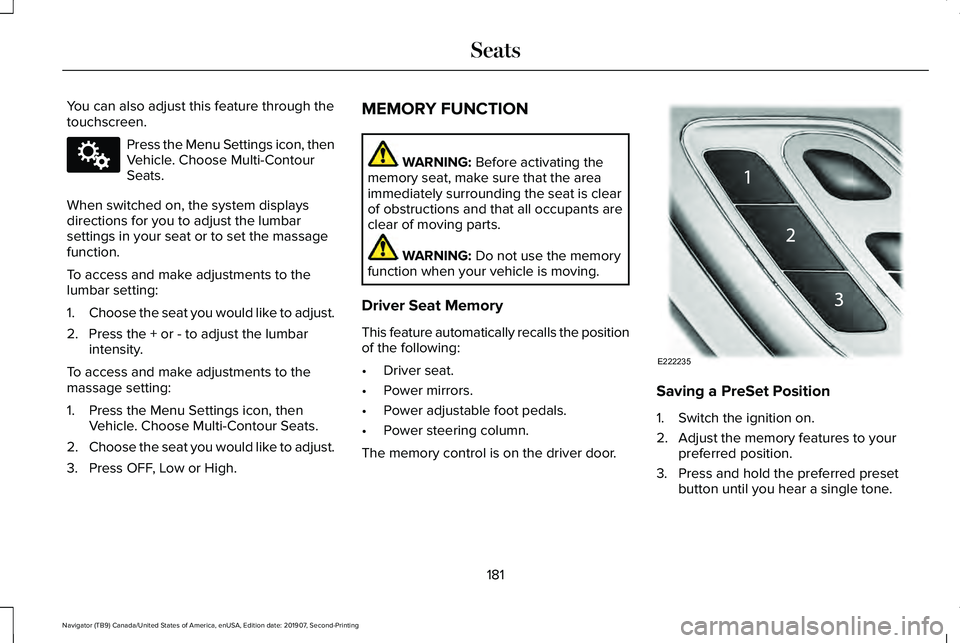
The memory control is on the driver door. Saving a PreSet Position
1. Switch the ignition on.
2. Adjust the memory features to your
preferred position.
3. Press and hold the preferred preset button until you hear a single tone.
181
Navigator (TB9) Canada/United States of America, enUSA, Edition date: 201907, Second-Printing SeatsE142607 E222235
Page 185 of 622
You can save up to three preset memory
positions. You can save a memory preset at
any time.
Recalling a PreSet Position
Press and release the preset button
associated with your preferred driving
position. The memory features move to the
position stored for that preset.
Note:
You can only recall a driver seat preset
memory position when the ignition is off, or
when the transmission is in park (P) or
neutral (N) (and your vehicle is not moving)
if the ignition is on.
You can also recall a preset memory position
by:
• Pressing the unlock button on your
intelligent access key fob if it is linked to
a preset position.
• Unlocking the intelligent driver door
handle if a linked key fob is present.
• Recalling a personal profile in your SYNC
3 menu. Note:
Using a linked remote control to recall
your memory position when the ignition is
off moves the seat to the Easy Entry position.
Note: Pressing any active memory feature
adjustment control (or any memory button)
during a memory recall cancels the
operation.
Easy Entry and Exit Feature
If you enable the easy entry and exit feature,
it automatically moves the driver seat
position rearward up to 2 in (5 cm) when you
switch the ignition off.
The driver seat returns to its previous
position when you switch the ignition on.
You can switch this feature on or off in the
information display.
See Information
Displays (page 133).
Passenger Seat Memory
This feature recalls the position of the
passenger seat. The memory control is on
the passenger door. Saving a PreSet Position
1. Adjust the passenger seat to your
preferred position.
2. Press and hold the preferred preset button until you hear a single tone.
You can save up to three preset memory
positions. You can save a memory preset at
any time.
Recalling a PreSet Position
Press and release the preset button
associated with your preferred position. The
passenger seat features move to the position
stored for that preset. You can recall a
passenger seat preset memory at any time.
182
Navigator (TB9) Canada/United States of America, enUSA, Edition date: 201907, Second-Printing Seats
Page 186 of 622
Personal Profiles
This feature allows you to create multiple
personal profiles enabling users to
personalize vehicle
’s settings. You can
create one profile for each preset memory
seat button along with a guest profile. You
can recall a profile using SYNC 3 or the
preset button you selected when you created
your profile. You can also link a remote
control or mobile device to your profile,
which is used to recall it.
Creating a Personal Profile
Use the SYNC display to create a personal
profile.
1. Switch the ignition on and leave the vehicle in park (P).
2. Select the Personal Profiles button under
Settings.
3. Follow the instructions on the display. Linking a Personal Profile to your Remote
Control or Mobile Device
You can save preset memory positions for
up to three remote controls by assigning a
remote control to a personal profile in your
SYNC 3. You can assign three additional
remote controls set up as Phone as a Key.
See Keys and Remote Controls (page 69).
Use the SYNC display to link a remote
control, mobile device or both to a personal
profile.
1. Switch the ignition on and leave the vehicle in park (P).
2. Select the Personal Profiles button under
Settings.
3. Touch the arrow for the profile you wish to link to a remote control or mobile
device.
4. Select the correct button to link a remote
control, mobile device or both.
5. Follow the instructions on the display. Note:
To successfully link a mobile device,
the mobile device must be present in your
vehicle, and must have previously been
setup as a remote control for your vehicle.
Note: If more than one linked remote control
or intelligent access key is in range, the
memory function moves to the settings of
the first key to initiate a memory recall.
Note: The guest profile consists of existing
settings when there is no driver profile
created. After you create a driver profile, the
guest profile serves as an additional driver
profile.
Note: You cannot link a personalized name,
a memory seat button or a keyfob to a guest
profile.
Personal Settings
Personal profiles allow you to personalize
positional settings such as seats and mirrors,
as well as non-positional settings such as
radio, navigation, driver assist and system
settings.
See SYNC™ 3 (page 472). You
cannot change the menu locations and
settings of those personalized features with
personal profiles.
183
Navigator (TB9) Canada/United States of America, enUSA, Edition date: 201907, Second-Printing Seats
Page 187 of 622
Note:
Non-positional settings are saved to
the active driver profile whenever you
change a setting.
Note: You can save positional settings if you
press and hold a memory seat button. See
Settings (page 513).
Recalling and Changing a Profile
You can recall a profile by:
• Using a remote control or mobile device
that has been linked to a driver profile to
access the remote start feature, press an
unlock button or open the door with the
exterior door handle.
• Pressing a memory seat button that has
been linked to a driver profile.
• Using the Personal Profiles menu on the
SYNC touchscreen.
Note: The recalled profile replaces the
previously active profile. If the active profile
is not your preferred profile, you can change
it using any of the three methods listed. When you switch on the personal profiles
feature:
•
Unlocking a door with a remote control
or mobile device that is not linked to a
driver profile recalls non-positional
settings from the guest profile. It will not
change the positional settings.
• Pressing a memory seat button that is
not linked to a driver profile or has not
been saved to a preset setting recalls
non-positional settings from the guest
profile. It will not change the positional
settings.
• Pressing a memory seat button that is
not linked to a driver profile but has been
saved to a preset setting recalls
non-positional settings from the guest
profile. It recalls the positional settings
that you saved to that memory seat
button.
See
SYNC™ 3 Troubleshooting (page 515). When you switch off the personal profiles
feature:
•
Unlocking a door with a remote control
or mobile device recalls non-positional
settings from the guest profile and still
recalls positional settings from the driver
profile which the keyfob had been linked
to.
• Pressing a memory seat button that has
not been linked to a driver profile or has
not been saved to a preset setting recalls
non-positional settings from the guest
profile. It will not change the positional
settings.
• Pressing a memory seat button that has
been linked to a driver profile or has
saved to a preset setting recalls
non-positional settings from the guest
profile. It recalls the positional settings
that you saved to that memory seat
button.
184
Navigator (TB9) Canada/United States of America, enUSA, Edition date: 201907, Second-Printing Seats