ad blue LINCOLN NAVIGATOR 2022 User Guide
[x] Cancel search | Manufacturer: LINCOLN, Model Year: 2022, Model line: NAVIGATOR, Model: LINCOLN NAVIGATOR 2022Pages: 646, PDF Size: 7.29 MB
Page 328 of 646
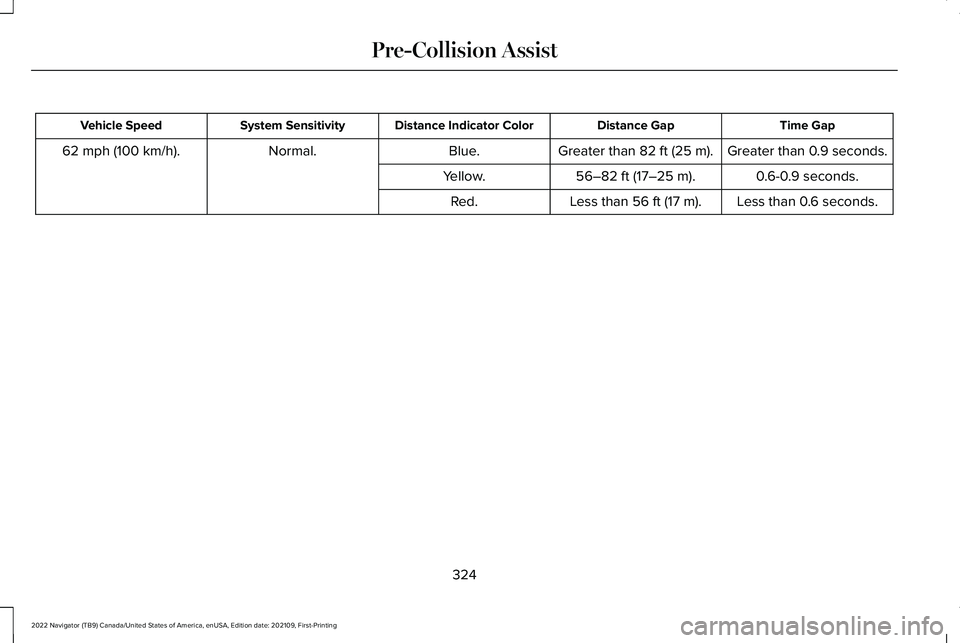
Time Gap
Distance Gap
Distance Indicator Color
System Sensitivity
Vehicle Speed
Greater than 0.9 seconds.
Greater than 82 ft (25 m).
Blue.
Normal.
62 mph (100 km/h).
0.6-0.9 seconds.
56–82 ft (17–25 m)
.
Yellow.
Less than 0.6 seconds.
Less than
56 ft (17 m).
Red.
324
2022 Navigator (TB9) Canada/United States of America, enUSA, Edition date: 202109, First-Printing Pre-Collision Assist
Page 415 of 646
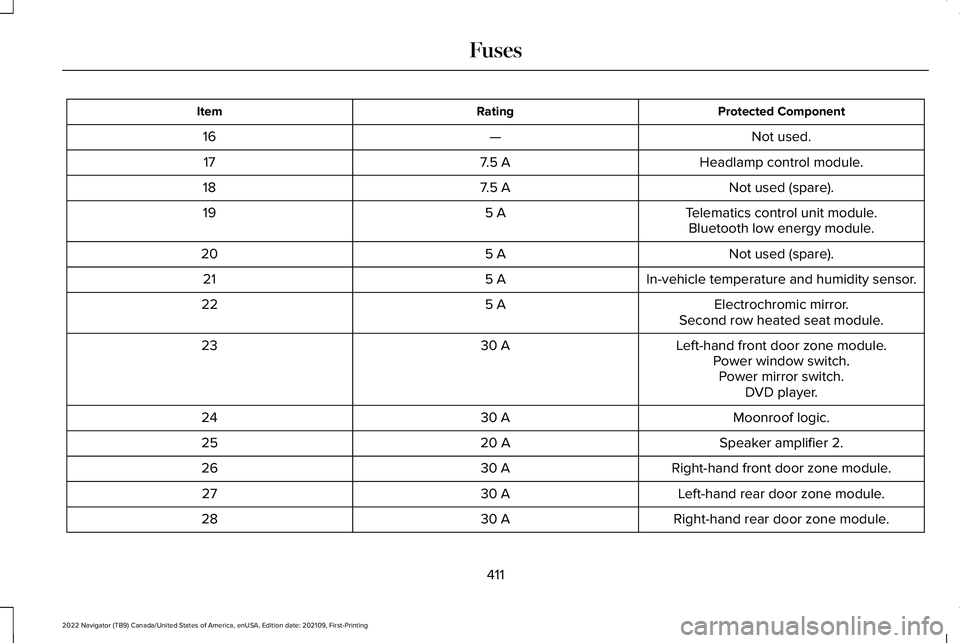
Protected Component
Rating
Item
Not used.
—
16
Headlamp control module.
7.5 A
17
Not used (spare).
7.5 A
18
Telematics control unit module.
5 A
19
Bluetooth low energy module.
Not used (spare).
5 A
20
In-vehicle temperature and humidity sensor.
5 A
21
Electrochromic mirror.
5 A
22
Second row heated seat module.
Left-hand front door zone module.
30 A
23
Power window switch.Power mirror switch. DVD player.
Moonroof logic.
30 A
24
Speaker amplifier 2.
20 A
25
Right-hand front door zone module.
30 A
26
Left-hand rear door zone module.
30 A
27
Right-hand rear door zone module.
30 A
28
411
2022 Navigator (TB9) Canada/United States of America, enUSA, Edition date: 202109, First-Printing Fuses
Page 506 of 646
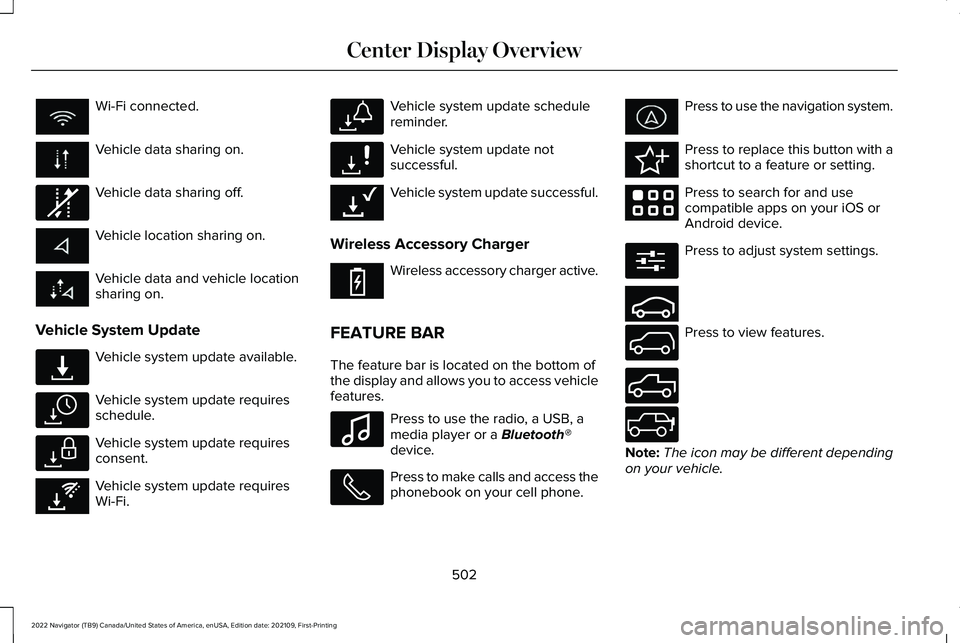
Wi-Fi connected.
Vehicle data sharing on.
Vehicle data sharing off.
Vehicle location sharing on.
Vehicle data and vehicle location
sharing on.
Vehicle System Update Vehicle system update available.
Vehicle system update requires
schedule.
Vehicle system update requires
consent.
Vehicle system update requires
Wi-Fi. Vehicle system update schedule
reminder.
Vehicle system update not
successful.
Vehicle system update successful.
Wireless Accessory Charger Wireless accessory charger active.
FEATURE BAR
The feature bar is located on the bottom of
the display and allows you to access vehicle
features. Press to use the radio, a USB, a
media player or a Bluetooth®
device. Press to make calls and access the
phonebook on your cell phone. Press to use the navigation system.
Press to replace this button with a
shortcut to a feature or setting.
Press to search for and use
compatible apps on your iOS or
Android device.
Press to adjust system settings.
Press to view features.
Note:
The icon may be different depending
on your vehicle.
502
2022 Navigator (TB9) Canada/United States of America, enUSA, Edition date: 202109, First-Printing Center Display Overview E335292 E327789 E327785 E327786 E353217 E327787 E327788 E353218 E353214 E100027 E358432 E353220 E280315 E353210 E335299 E335300 E347104
Page 510 of 646
PHONE PRECAUTIONS
WARNING: Driving while distracted
can result in loss of vehicle control, crash
and injury. We strongly recommend that
you use extreme caution when using any
device that may take your focus off the
road. Your primary responsibility is the safe
operation of your vehicle. We recommend
against the use of any hand-held device
while driving and encourage the use of
voice-operated systems when possible.
Make sure you are aware of all applicable
local laws that may affect the use of
electronic devices while driving.
CONNECTING YOUR PHONE
Go to the settings menu on your device and
switch
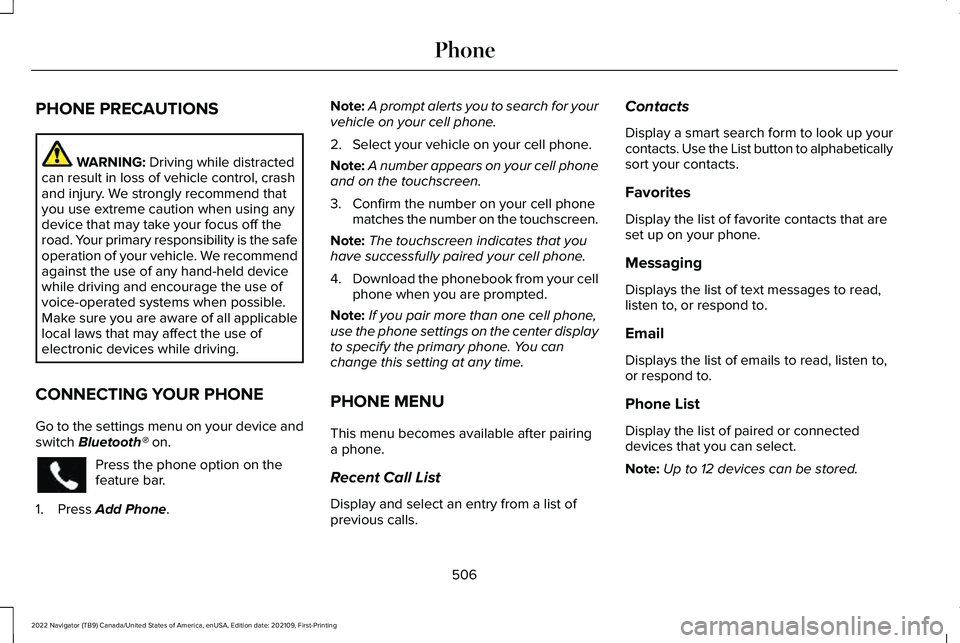
Bluetooth® on. Press the phone option on the
feature bar.
1. Press
Add Phone. Note:
A prompt alerts you to search for your
vehicle on your cell phone.
2. Select your vehicle on your cell phone.
Note: A number appears on your cell phone
and on the touchscreen.
3. Confirm the number on your cell phone matches the number on the touchscreen.
Note: The touchscreen indicates that you
have successfully paired your cell phone.
4. Download the phonebook from your cell
phone when you are prompted.
Note: If you pair more than one cell phone,
use the phone settings on the center display
to specify the primary phone. You can
change this setting at any time.
PHONE MENU
This menu becomes available after pairing
a phone.
Recent Call List
Display and select an entry from a list of
previous calls. Contacts
Display a smart search form to look up your
contacts. Use the List button to alphabetically
sort your contacts.
Favorites
Display the list of favorite contacts that are
set up on your phone.
Messaging
Displays the list of text messages to read,
listen to, or respond to.
Email
Displays the list of emails to read, listen to,
or respond to.
Phone List
Display the list of paired or connected
devices that you can select.
Note:
Up to 12 devices can be stored.
506
2022 Navigator (TB9) Canada/United States of America, enUSA, Edition date: 202109, First-Printing Phone
Page 515 of 646
SWITCHING TEXT MESSAGE
NOTIFICATION ON AND OFF
iOS
1. Go to the settings menu on your cell
phone.
2. Select Bluetooth®.
3. Select the information icon to the right of
your vehicle.
4. Switch text message notification on or off.
Android
1. Go to the settings menu on your cell phone.
2. Select
Bluetooth®.
3. Select the profiles option.
4. Select the phone profile.
5. Switch text message notification on or off.
511
2022 Navigator (TB9) Canada/United States of America, enUSA, Edition date: 202109, First-Printing Phone
Page 516 of 646
CONNECTING A BLUETOOTH®
DEVICE
1.
Make sure Bluetooth® is enabled on your
device.
2. Press Settings on the touchscreen.
3. Press
Connectivity.
4. Press
Bluetooth.
5. Press
Add a Bluetooth Device.
Note: A prompt alerts you to search for your
vehicle on your device.
6. Select your vehicle on your device.
Note: A number appears on your device and
on the touchscreen.
7. Confirm that the number on your device
matches the number on the touchscreen.
Note: The touchscreen indicates that you
have successfully paired your device. The
Bluetooth® word mark and logos are
registered trademarks owned by Bluetooth
SIG, Inc. and any use of such marks by Ford
Motor Company is under license. Other
trademarks and trade names are those of
their respective owners.
PLAYING MEDIA USING
BLUETOOTH® WARNING:
Driving while distracted
can result in loss of vehicle control, crash
and injury. We strongly recommend that
you use extreme caution when using any
device that may take your focus off the
road. Your primary responsibility is the safe
operation of your vehicle. We recommend
against the use of any hand-held device
while driving and encourage the use of
voice-operated systems when possible.
Make sure you are aware of all applicable
local laws that may affect the use of
electronic devices while driving.
Connect your device. Press the audio button on the
feature bar.
Press
Sources.
Press the
Bluetooth® option.
Press to play a track. Press again
to pause the track.
Press to skip to the next track.
Press and hold to fast forward
through the track.
Press once to return to the
beginning of a track. Repeatedly
press to return to previous tracks.
Press and hold to fast rewind through the
track.
512
2022 Navigator (TB9) Canada/United States of America, enUSA, Edition date: 202109, First-Printing Bluetooth®E100027
Page 517 of 646
APP PRECAUTIONS
WARNING: Driving while distracted
can result in loss of vehicle control, crash
and injury. We strongly recommend that
you use extreme caution when using any
device that may take your focus off the
road. Your primary responsibility is the safe
operation of your vehicle. We recommend
against the use of any hand-held device
while driving and encourage the use of
voice-operated systems when possible.
Make sure you are aware of all applicable
local laws that may affect the use of
electronic devices while driving.
APP REQUIREMENTS
When you start an app through the system
for the first time, you could be asked to grant
certain permissions. You can review and
change the permissions that you have
granted at any time when your vehicle is not
moving. We recommend that you check your
data plan before using your apps through the system. Using them could result in
additional charges. We also recommend that
you check the app provider's terms and
conditions and privacy policy before using
their app. Make sure that you have an active
account for apps that you want to use
through the system. Some apps will work
with no setup. Others require you to
configure some personal settings before you
can use them.
ACCESSING APPS
Select the apps option on the
feature bar.
ENABLING APPS ON AN IOS
DEVICE Select the apps option on the
feature bar.
1. Select Mobile Apps Help.
2. Follow the instructions to pair and connect your device via
Bluetooth® or
with a USB cable. 3. Start the apps on your device that you
want to use.
4. Select the app that you want to use on the touchscreen.
Note: Some apps may run through Apple
CarPlay if it is enabled.
Note: Closing an app on your device will
close it on the touchscreen.
Note: For troubleshooting assistance select
Mobile Apps List under Mobile Apps Help.
ENABLING APPS ON AN ANDROID
DEVICE Select the apps option on the
feature bar.
1. Select Mobile Apps Help.
2. Follow the instructions to pair and connect your device via
Bluetooth® or
with a USB cable.
3. Start the apps on your device that you want to use.
4. Select
Find Mobile Apps.
513
2022 Navigator (TB9) Canada/United States of America, enUSA, Edition date: 202109, First-Printing Apps
Page 518 of 646
5. Select the app that you want to use on
the touchscreen.
Note: Some devices may lose the ability to
play music over USB when Mobile Apps are
enabled.
Note: Some apps may run through Android
Auto if it is enabled.
Note: Closing an app on your device will
close it on the touchscreen.
Note: For troubleshooting assistance select
Mobile Apps List under Mobile Apps Help.
SWITCHING APPLE CARPLAY ON
AND OFF
Enabling Apple CarPlay with USB
1. Connect your device to a USB port.
2. Follow the instructions on your device and the touchscreen.
Note: Selecting "Enable Wireless CarPlay"
on your device will prepare the device for
wireless carplay when you re-enter the
vehicle. Enabling Apple CarPlay with Wireless
1. Pair your device to Bluetooth®.
2. Follow the instructions on your device and the touchscreen.
Disabling Apple CarPlay Select the settings option on the
feature bar.
1. Press Phone List.
2. Select your device from the list.
3. Press Disable.
Re-Enabling Apple CarPlay Select the settings option on the
feature bar.
1. Press Phone List.
2. Select your device from the list.
3. Press Connect to Apple CarPlay. SWITCHING ANDROID AUTO ON
AND OFF
Enabling Android Auto with USB
(If
Equipped)
1. Connect your device to a USB port.
2. Follow the instructions on the touchscreen.
Note: Certain features of the system are not
available when you are using Android Auto.
Enabling Android Auto with Wireless
1. Pair your device to
Bluetooth®.
2. Follow the instructions on your device and the touchscreen.
Note: Certain Android Devices do not
support Android Auto Wireless. Please check
your Android OS version for compatibility.
Disabling Android Auto Select the settings option on the
feature bar.
1. Press Phone List.
514
2022 Navigator (TB9) Canada/United States of America, enUSA, Edition date: 202109, First-Printing Apps
Page 615 of 646
ELECTROMAGNETIC
COMPATIBILITY
WARNING: Do not place objects or
mount equipment on or near the airbag
cover, on the side of the front or rear
seatbacks, or in areas that may come into
contact with a deploying airbag. Failure to
follow these instructions may increase the
risk of personal injury in the event of a
crash. WARNING:
Do not fasten antenna
cables to vehicle wiring, fuel pipes and
brake pipes. WARNING: Keep antenna and power
cables at least
4 in (10 cm) from any
electronic modules and airbags.
Note: We test and certify your vehicle to
meet electromagnetic compatibility
legislation. It is your responsibility to make
sure that any equipment an authorized
dealer installs on your vehicle complies with
applicable local legislation and other
requirements. Installation of some
aftermarket electronic devices could
degrade the performance of vehicle
functions, which use radio frequency signals
such as broadcast radio receiver, tire
pressure monitoring system, push button
start,
Bluetooth® connectivity or satellite
navigation. Note:
Any radio frequency transmitter
equipment in your vehicle (such as cellular
telephones and amateur radio transmitters)
must keep to the parameters in the following
illustrations and table. We do not provide
any other special provisions or conditions
for installations or use.
611
2022 Navigator (TB9) Canada/United States of America, enUSA, Edition date: 202109, First-Printing Appendices
Page 624 of 646
Autowipers.......................................................114
Adjusting the Sensitivity of the Rain
Sensor.................................................................115
Autowipers Settings.............................................114
What Are Autowipers..........................................114
B
Battery See: Changing the 12V Battery.......................423
Beginning a Voice Interaction..................504
Blind Spot Assist...........................................303 Blind Spot Assist Indicators.............................
304
Blind Spot Assist Limitations...........................303
How Does Blind Spot Assist Work.................303
What Is Blind Spot Assist..................................303
Blind Spot Assist with Trailer Coverage.....................................................306
Blind Spot Assist with Trailer Coverage Indicators..........................................................307
Blind Spot Assist with Trailer Coverage Limitations.......................................................306
How Does Blind Spot Assist with Trailer Coverage Work..............................................306
What Is Blind Spot Assist with Trailer Coverage.........................................................306 Blind Spot Information System
...................311
Blind Spot Information System –
Troubleshooting..............................................315
Blind Spot Information System With Trailer Coverage..........................................................313
Blind Spot Information System Indicators......................................................315
Blind Spot Information System Limitations.....................................................311
Blind Spot Information System Precautions...................................................311
Blind Spot Information System Requirements..............................................312
Blind Spot Information System – Troubleshooting..........................................315
Blind Spot Information System – Information Messages..........................................................315
Blind Spot Information System With Trailer Coverage......................................................313
Blind Spot Information System With Trailer Coverage Limitations.....................................313
Selecting a Trailer................................................314
Setting a Trailer Length......................................313
What Is Blind Spot Information System with Trailer Coverage..............................................313
Bluetooth®.......................................................512 Body Control Module Fuse Box...............408
Accessing the Body Control Module Fuse
Box.....................................................................408
Identifying the Fuses in the Body Control Module Fuse Box...........................................409
Locating the Body Control Module Fuse Box.....................................................................408
Bonnet Lock See: Opening and Closing the Hood.............414
Booster Seats
..................................................48
Brake Fluid Specification...........................234
Brake Over Accelerator..............................233
Brake Precautions........................................233
Brakes.............................................................233 Anti-Lock Braking System................................233
Brakes – Troubleshooting................................234
Brakes – Troubleshooting..........................234 Brakes – Frequently Asked Questions........235
Brakes – Warning Lamps.................................234
Breaking-In.....................................................385
C
Calculating Payload.....................................337
Calculating the Load Limit..........................337
Canceling the Set Speed...........................276
Capacities and Specifications...................469
620
2022 Navigator (TB9) Canada/United States of America, enUSA, Edition date: 202109, First-Printing Index