display MAZDA MODEL 3 5-DOOR 2017 Owners Manual
[x] Cancel search | Manufacturer: MAZDA, Model Year: 2017, Model line: MODEL 3 5-DOOR, Model: MAZDA MODEL 3 5-DOOR 2017Pages: 612
Page 364 of 612
5–72
Interior Features
Audio System
Gracenote Database (Type B)
When a USB device is connected to this unit and the audio is played, the album name,
artist name, genre and title information are automatically displayed if \
there is a match in
the vehicle's database compilation to the music being played. The information stored in this
device uses database information in the Gracenote music recognition service.
CAUTION
For information related to the most recent Gracenote database which can be used and
how to install it, go to the Mazda Hands Free Website:
http://www.mazdahandsfree.com
Introduction
Music recognition technology and related data are provided by Gracenote
®. Gracenote is the
industry standard in music recognition technology and related content de\
livery. For more
information visit www.gracenote.com.
CD and music-related data from Gracenote, Inc., copyright © 2000 to present Gracenote.
Gracenote Software, copyright © 2000 to present Gracenote. One or more patents owned
by Gracenote apply to this product and service. See the Gracenote website for a non-
exhaustive list of applicable Gracenote patents. Gracenote, CDDB, MusicID, MediaVOCS,
the Gracenote logo and logotype, and the “Powered by Gracenote” logo are either registered
trademarks or trademarks of Gracenote in the United States and/or other countries.
Gracenote® End User License Agreement
This application or device contains software from Gracenote, Inc. of Emeryville, California
(“Gracenote”). The software from Gracenote (the “Gracenote Software”) enables this
application to perform disc and/or file identification and obtain music-related information,
including name, artist, track, and title information (“Gracenote Data”) from online servers
or embedded databases (collectively, “Gracenote Servers”) and to perform other functions.
You may use Gracenote Data only by means of the intended End-User functions of this
application or device.
You agree that you will use Gracenote Data, the Gracenote Software, and Gracenote Servers
for your own personal non-commercial use only. You agree not to assign, copy, transfer or
transmit the Gracenote Software or any Gracenote Data to any third party. YOU AGREE
NOT TO USE OR EXPLOIT GRACENOTE DATA, THE GRACENOTE SOFTWARE, OR
GRACENOTE SERVERS, EXCEPT AS EXPRESSLY PERMITTED HEREIN.
Mazda3_8FL6-EA-16F_Edition2.indb 722016/08/10 17:37:56
Page 365 of 612
5–73
Interior Features
Audio System
You agree that your non-exclusive license to use the Gracenote Data, the Gracenote
Software, and Gracenote Servers will terminate if you violate these restrictions. If your
license terminates, you agree to cease any and all use of the Gracenote Data, the Gracenote
Software, and Gracenote Servers. Gracenote reserves all rights in Gracenote Data, the
Gracenote Software, and the Gracenote Servers, including all ownership rights. Under no
circumstances will Gracenote become liable for any payment to you for any information
that you provide. You agree that Gracenote, Inc. may enforce its rights under this Agreement
against you directly in its own name.
The Gracenote service uses a unique identifier to track queries for statistical purposes. The
purpose of a randomly assigned numeric identifier is to allow the Gracenote service to count
queries without knowing anything about who you are. For more information, see the web
page for the Gracenote Privacy Policy for the Gracenote service.
The Gracenote Software and each item of Gracenote Data are licensed to you “AS IS.”
Gracenote makes no representations or warranties, express or implied, regarding the
accuracy of any Gracenote Data from in the Gracenote Servers. Gracenote reserves the right
to delete data from the Gracenote Servers or to change data categories for any cause that
Gracenote deems sufficient. No warranty is made that the Gracenote Software or Gracenote
Servers are error-free or that functioning of Gracenote Software or Gracenote Servers will
be uninterrupted. Gracenote is not obligated to provide you with new enhanced or additional
data types or categories that Gracenote may provide in the future and is free to discontinue
its services at any time.
GRACENOTE DISCLAIMS ALL WARRANTIES EXPRESS OR IMPLIED,
INCLUDING, BUT NOT LIMITED TO, IMPLIED WARRANTIES OF
MERCHANTABILITY, FITNESS FOR A PARTICULAR PURPOSE, TITLE, AND
NON-INFRINGEMENT. GRACENOTE DOES NOT WARRANT THE RESULTS THAT
WILL BE OBTAINED BY YOUR USE OF THE GRACENOTE SOFTWARE OR ANY
GRACENOTE SERVER. IN NO CASE WILL GRACENOTE BE LIABLE FOR ANY
CONSEQUENTIAL OR INCIDENTAL DAMAGES OR FOR ANY LOST PROFITS OR
LOST REVENUES.
© 2000 to present. Gracenote, Inc.
Updating the database
The Gracenote media database can be updated using USB device.
1. Connect a USB device containing the software for updating Gracenote.
2. Select the icon on the home screen to display the Settings screen.
3. Select the tab and select .
4. Select . The list of the update package stored in the USB device and the version are
displayed.
5. Select the package to use the update.
6. Select .
NOTE
Gracenote can be downloaded from the Mazda Hands-free Website.
Mazda3_8FL6-EA-16F_Edition2.indb 732016/08/10 17:37:57
Page 366 of 612
5–74
Interior Features
Bluetooth®
*Some models.
Bluetooth®*
Bluetooth® Hands-Free outline
When a Bluetooth
® device (mobile phone) is connected to the vehicle's Bluetooth® unit via
radio wave transmission, a call can be made or received by pressing the \
talk button, pick-
up button, or hang-up button on the audio remote control switch, or by o\
perating the center
display. For example, even if a device (mobile phone) is in your coat pocket,\
a call can be
made without taking the device (mobile phone) out and operating it dir\
ectly.
Bluetooth
® audio outline
When a portable audio unit equipped with the Bluetooth
® communication function is paired
to the vehicle, you can listen to music stored on the paired portable au\
dio device from the
vehicle's speakers. It is not necessary to connect the portable audio de\
vice to the vehicle's
external input terminal. After programming, operate the vehicle audio control panel to play/
stop the audio.
NOTE
For your safety , a device can be paired only when the vehicle is parked. If the vehicle
starts to move, the pairing procedure will end. Park the vehicle in a safe place before
pairing.
The communication range of a Bluetooth® equipped device is about 10 meters (32 ft) or
less.
Basic audio operation is available using voice commands even if Bluetoot\
h® is not
connected.
For safety r easons, operation of the center display is disabled while the vehicle is\
being
driven. However, items not displayed in gray can be operated using the commander
switch while the vehicle is being driven.
Mazda3_8FL6-EA-16F_Edition2.indb 742016/08/10 17:37:57
Page 368 of 612
5–76
Interior Features
Bluetooth®
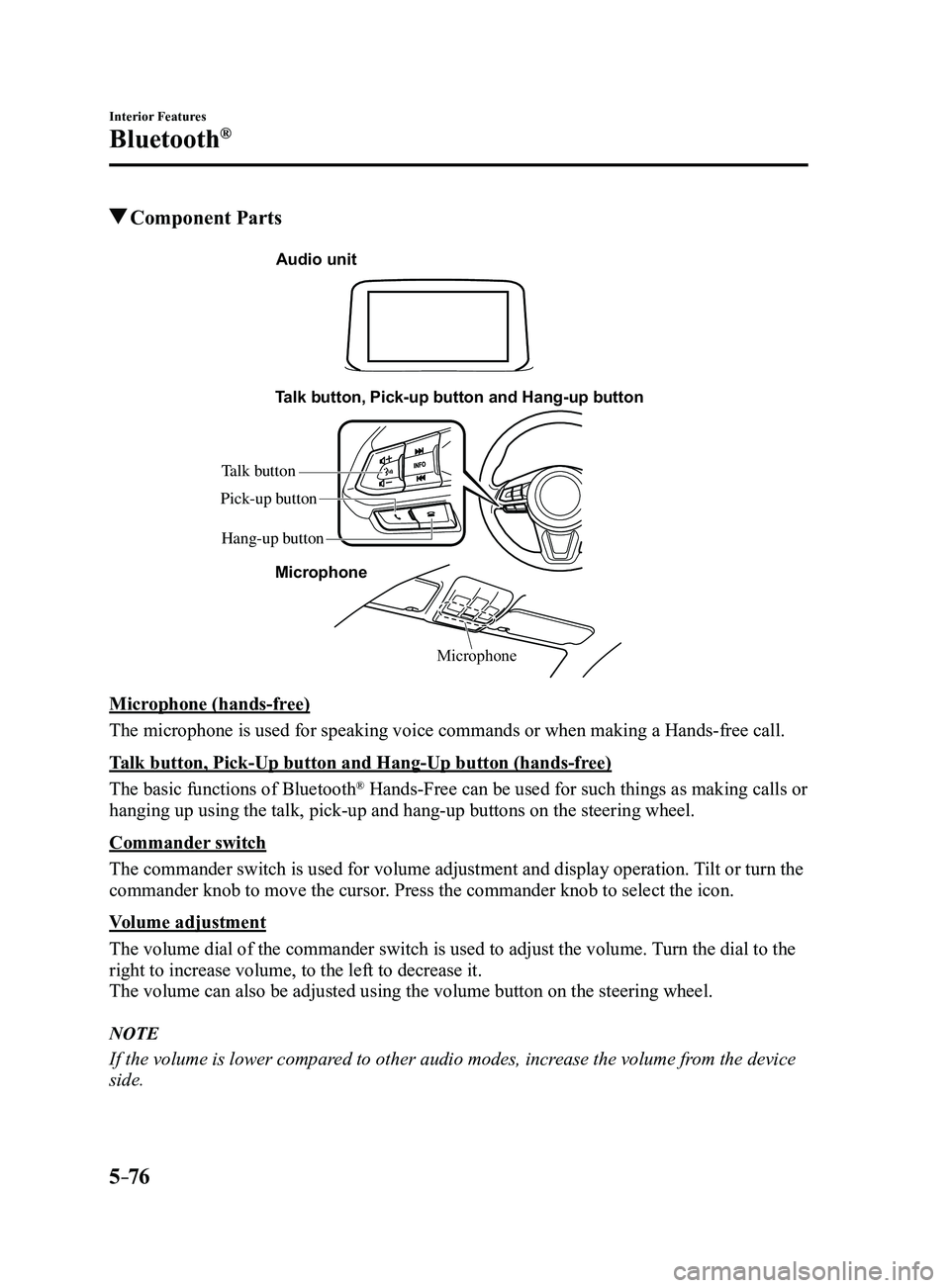
Component Parts
Microphone
Talk button, Pick-up button and Hang-up button
Microphone
Audio unit
Talk button
Hang-up button
Pick-up button
Microphone (hands-free)
The microphone is used for speaking voice commands or when making a Hand\
s-free call.
Talk button, Pick-Up button and Hang-Up button (hands-free)
The basic functions of Bluetooth
® Hands-Free can be used for such things as making calls or
hanging up using the talk, pick-up and hang-up buttons on the steering w\
heel.
Commander switch
The commander switch is used for volume adjustment and display operation\
. Tilt or turn the
commander knob to move the cursor. Press the commander knob to select the icon.
Volume adjustment
The volume dial of the commander switch is used to adjust the volume. Turn the dial to the
right to increase volume, to the left to decrease it.
The volume can also be adjusted using the volume button on the steering \
wheel.
NOTE
If the volume is lower compared to other audio modes, increase the volume from the device
side.
Mazda3_8FL6-EA-16F_Edition2.indb 762016/08/10 17:37:58
Page 369 of 612

5–77
Interior Features
Bluetooth®
Conversation volume and the volume of the voice guidance and ringtone ca\
n each be set in
advance.
1. Select the icon on the home screen to display the Communication screen.
2. Select .
3. Adjust the and the using the slider.
Bluetooth® Preparation
Device pairing
To use Bluetooth
® audio and Hands-Free,
the device equipped with Bluetooth® has
to be paired to the unit using the following
procedure. A maximum of seven devices
including Bluetooth
® audio devices and
hands-free mobile phones can be paired.
NOTE
The Bluetooth® system may not operate
for 1 or 2 minutes after the ignition
is switched to ACC or ON. However,
this does not indicate a problem. If the
Bluetooth
® system does not connect
automatically after 1 or 2 minutes have
elapsed, make sure that the Bluetooth
®
setting on the device is normal and
attempt to reconnect the Bluetooth
®-
enabled device from the vehicle side.
If Bluetooth®-enabled devices are used
in the following locations or conditions,
connection via Bluetooth
® may not be
possible.
The device is in a location hidden
from the center display such as
behind or under a seat, or inside the
glove compartment.
The device contacts or is cover ed by
a metal object or body. The device is set to power-saving
mode. Pairing Procedure
1. Select the icon on the home screen
to display the Settings screen.
2. Select the tab.
3. Select .
4. Turn the Bluetooth® setting on.
5. Select to display the
message and switch to the device
operation.
6. Using your device, perform a search
for the Bluetooth® device (Peripheral
device).
7. Select “Mazda” from the device list
searched by the device.
8. (Device with Bluetooth® version 2.0)
Input the displayed 4-digit pairing code
into the device.
(Device with Bluetooth® version 2.1
or higher)
Make sure the displayed 6-digit code
on the audio is also displayed on the
device, and touch the
.
Connection permission and phonebook
access permission for your mobile
device may be required depending on
the mobile device.
9. If pairing is successful, the functions of
the device connected to Bluetooth® are
displayed.
10. (Devices compatible with Mazda
Email / SMS function)
SMS (Short Message Service)
messages, and E-mail for the device are
downloaded automatically. A download
permission operation for your device
may be required depending on the
device.
Mazda3_8FL6-EA-16F_Edition2.indb 772016/08/10 17:37:59
Page 370 of 612
5–78
Interior Features
Bluetooth®
NOTE
When Call history and messages are
downloaded automatically, each automatic
download setting must be on.
Refer to Communication Settings on page
5-91.
After a device is registered, the system
automatically identifies the device. By
activating Bluetooth
® Hands-Free again, or
by activating Bluetooth® Hands-Free first
after switching the ignition from OFF to
ACC, the device connection condition is
indicated in the center display.
IMPORTANT note about pairing and
automatic reconnection:
If pairing is redone on the same
mobile phone device, first clear
“Mazda” displayed on the Bluetooth
®
setting screen of the mobile device.
When the OS of the device is updated,
the pairing information may be deleted.
If this happens, reprogram the pairing
information to the Bluetooth
® unit. Before you pair your device, make sure
that Bluetooth® is “ON”, both on your
phone and on the vehicle.
Device selection
If several devices have been paired, the
Bluetooth
® unit links the device last
paired. If you would like to link a different
paired device, it is necessary to change the
link. The order of device priority after the
link has been changed is maintained even
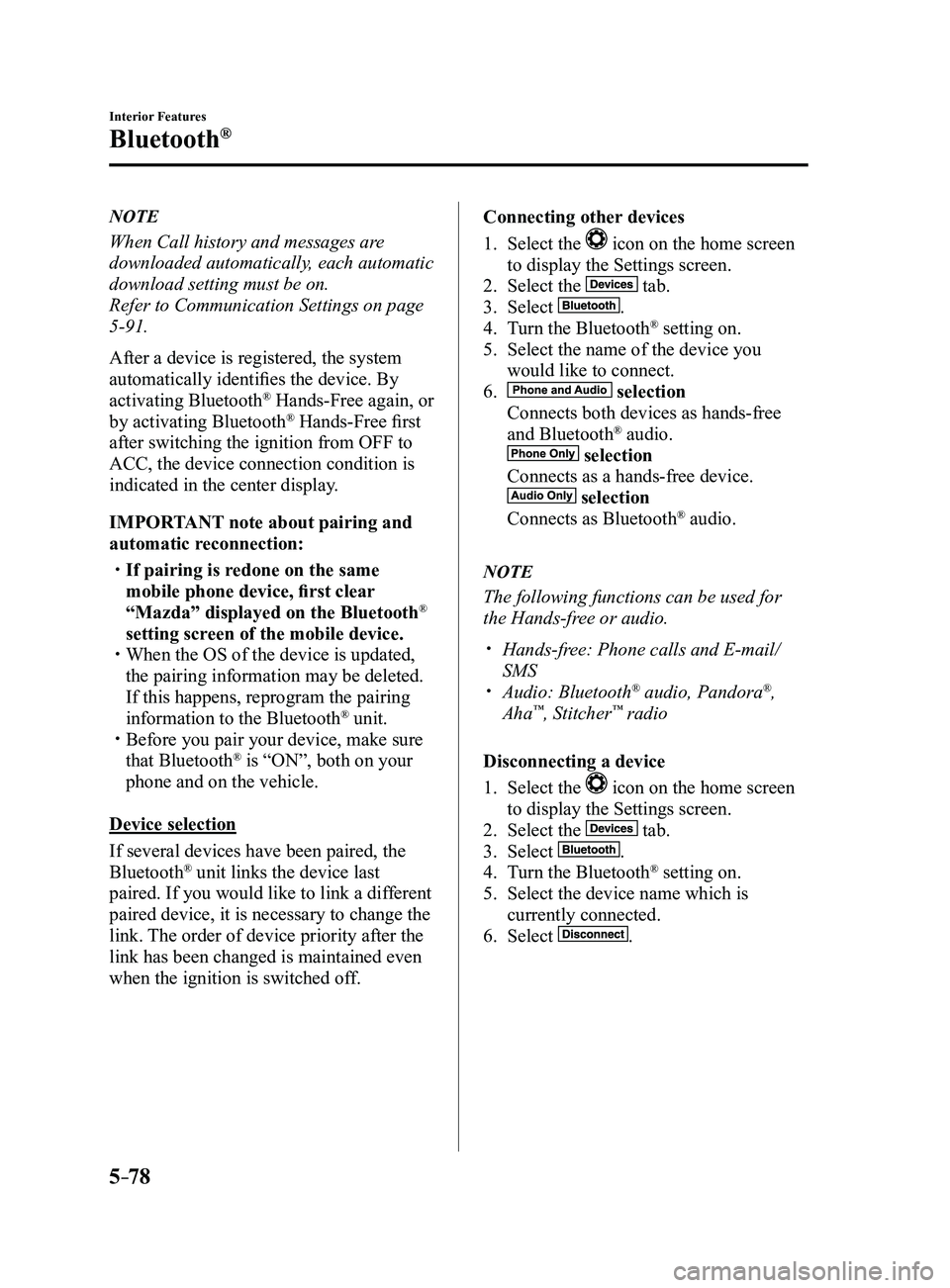
when the ignition is switched off. Connecting other devices
1. Select the icon on the home screen
to display the Settings screen.
2. Select the tab.
3. Select .
4. Turn the Bluetooth® setting on.
5. Select the name of the device you
would like to connect.
6. selection
Connects both devices as hands-free
and Bluetooth® audio.
selection
Connects as a hands-free device.
selection
Connects as Bluetooth® audio.
NOTE
The following functions can be used for
the Hands-free or audio.
Hands-free: Phone calls and E-mail/
SMS Audio: Bluetooth® audio, Pandora®,
Aha™, Stitcher™ radio
Disconnecting a device
1. Select the icon on the home screen
to display the Settings screen.
2. Select the tab.
3. Select .
4. Turn the Bluetooth® setting on.
5. Select the device name which is
currently connected.
6. Select .
Mazda3_8FL6-EA-16F_Edition2.indb 782016/08/10 17:38:00
Page 371 of 612
5–79
Interior Features
Bluetooth®
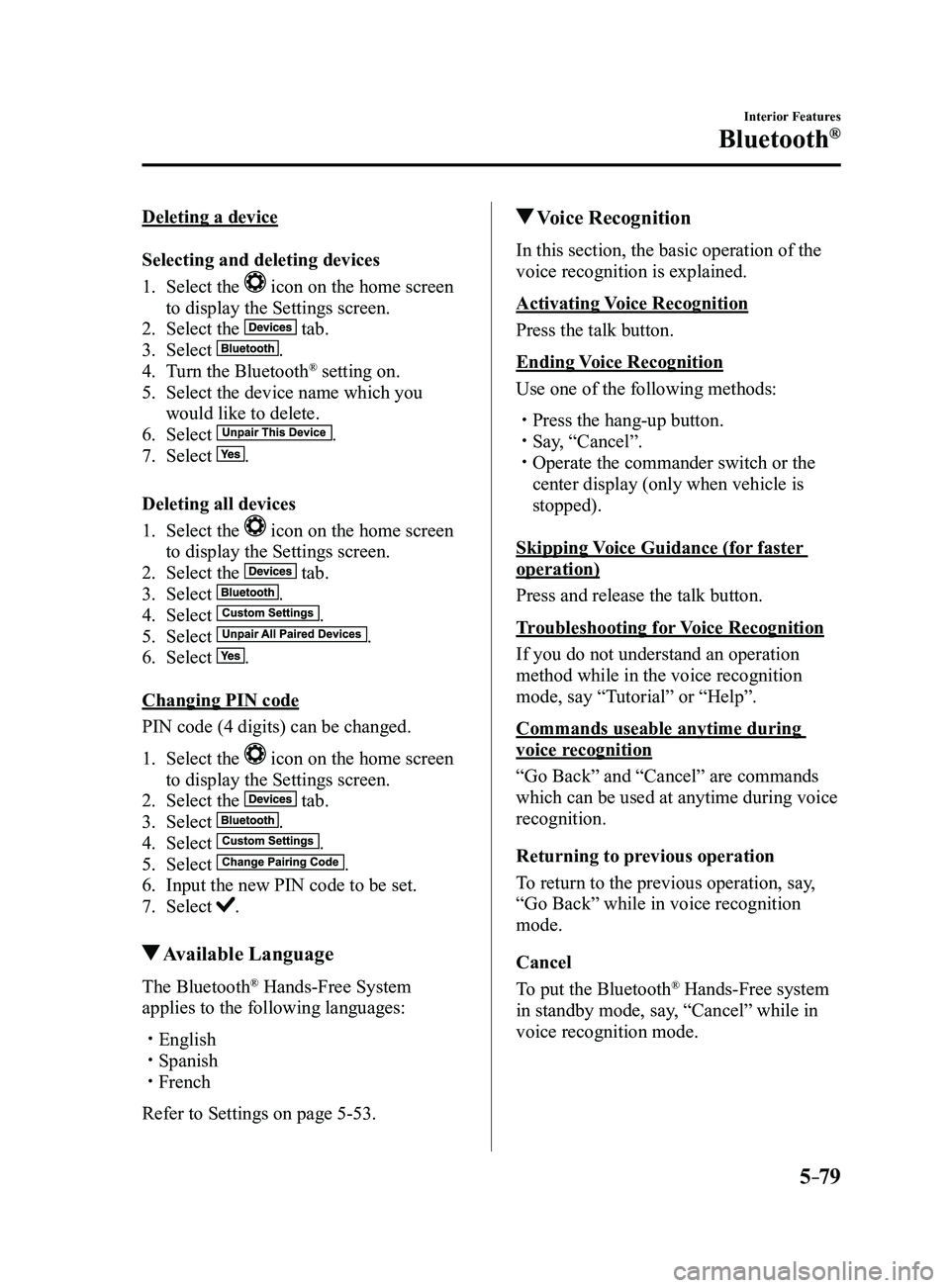
Deleting a device
Selecting and deleting devices
1. Select the icon on the home screen
to display the Settings screen.
2. Select the tab.
3. Select .
4. Turn the Bluetooth® setting on.
5. Select the device name which you
would like to delete.
6. Select .
7. Select .
Deleting all devices
1. Select the icon on the home screen
to display the Settings screen.
2. Select the tab.
3. Select .
4. Select .
5. Select .
6. Select .
Changing PIN code
PIN code (4 digits) can be changed.
1. Select the icon on the home screen
to display the Settings screen.
2. Select the tab.
3. Select .
4. Select .
5. Select .
6. Input the new PIN code to be set.
7. Select .
Available Language
The Bluetooth® Hands-Free System
applies to the following languages:
English Spanish French
Refer to Settings on page 5-53.
Voice Recognition
In this section, the basic operation of the
voice recognition is explained.
Activating Voice Recognition
Press the talk button.
Ending Voice Recognition
Use one of the following methods:
Press the hang-up button. Say, “Cancel”. Operate the commander switch or the
center display (only when vehicle is
stopped).
Skipping Voice Guidance (for faster
operation)
Press and release the talk button.
Troubleshooting for Voice Recognition
If you do not understand an operation
method while in the voice recognition
mode, say “Tutorial” or “Help”.
Commands useable anytime during
voice recognition
“Go Back” and “Cancel” are commands
which can be used at anytime during voice
recognition.
Returning to previous operation
To return to the previous operation, say,
“Go Back” while in voice recognition
mode.
Cancel
To put the Bluetooth
® Hands-Free system
in standby mode, say, “Cancel” while in
voice recognition mode.
Mazda3_8FL6-EA-16F_Edition2.indb 792016/08/10 17:38:01
Page 375 of 612
5–83
Interior Features
Bluetooth®
*Some models.
Bluetooth® Hands-Free*
Making a Call
Phonebook Usage
Telephone calls can be made by saying
the contact name in the downloaded
phonebook or the name of a person whose
phone number has been registered in the
Bluetooth
® Hands-Free. Refer to Import
contact (Download Phonebook).
1. Press the talk button.
2. Wait for the beep sound.
3. Say: “Call XXXXX... (Ex. “John”)
Mobile”.
4. Follow the voice guidance to place the
call.
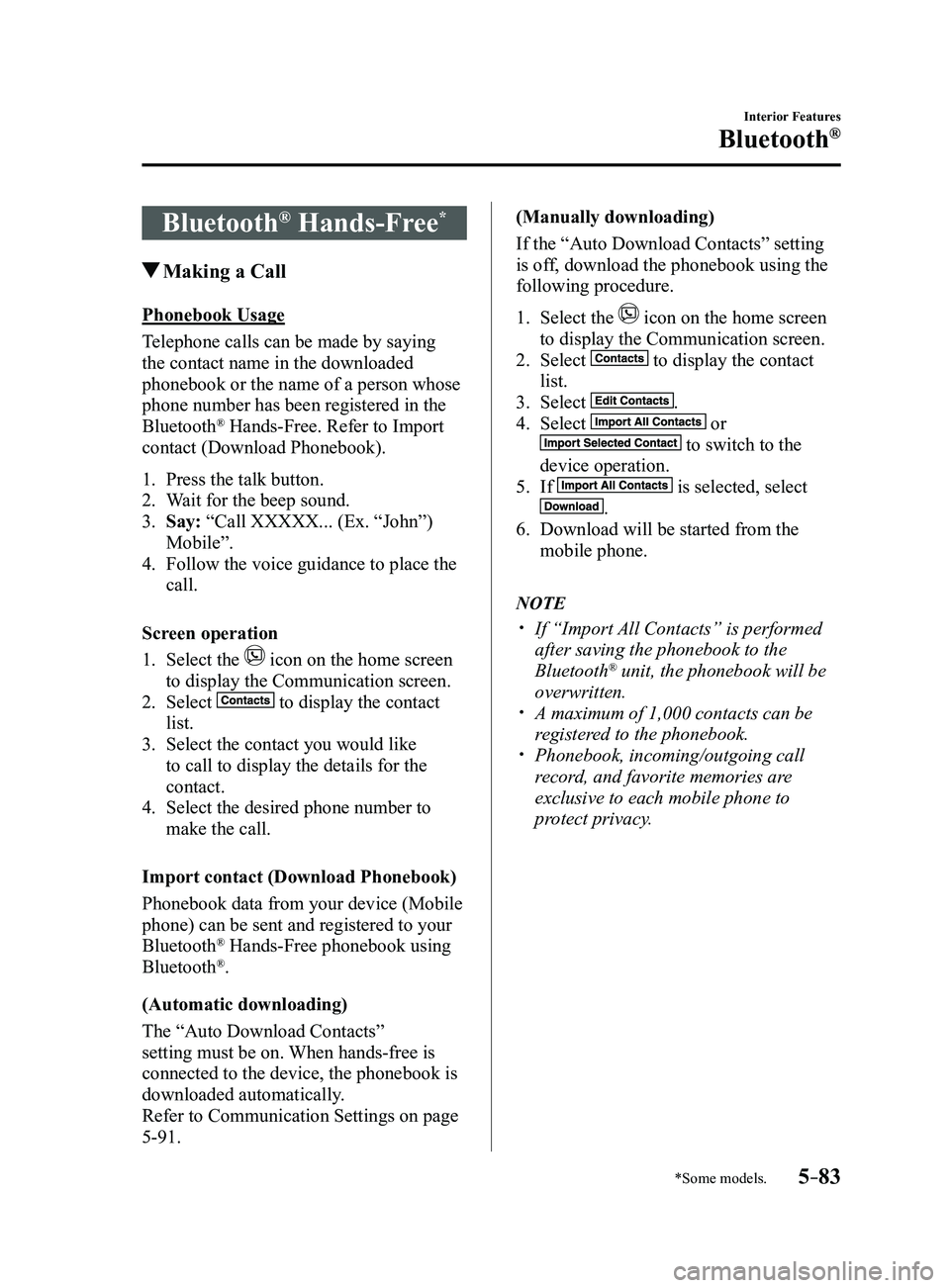
Screen operation
1. Select the icon on the home screen
to display the Communication screen.
2. Select to display the contact
list.
3. Select the contact you would like
to call to display the details for the
contact.
4. Select the desired phone number to
make the call.
Import contact (Download Phonebook)
Phonebook data from your device (Mobile
phone) can be sent and registered to your
Bluetooth
® Hands-Free phonebook using
Bluetooth®.
(Automatic downloading)
The “Auto Download Contacts”
setting must be on. When hands-free is
connected to the device, the phonebook is
downloaded automatically.
Refer to Communication Settings on page
5-91. (Manually downloading)
If the “Auto Download Contacts” setting
is off, download the phonebook using the
following procedure.
1. Select the icon on the home screen
to display the Communication screen.
2. Select to display the contact
list.
3. Select .
4. Select or
to switch to the
device operation.
5. If is selected, select
.
6. Download will be started from the
mobile phone.
NOTE
If “Import All Contacts” is performed
after saving the phonebook to the
Bluetooth® unit, the phonebook will be
overwritten.
A maximum of 1,000 contacts can be
registered to the phonebook. Phonebook, incoming/outgoing call
record, and favorite memories are
exclusive to each mobile phone to
protect privacy.
Mazda3_8FL6-EA-16F_Edition2.indb 832016/08/10 17:38:03
Page 376 of 612
5–84
Interior Features
Bluetooth®
Favorites Contacts
A maximum of 50 contacts can be
registered. It will take less time to make a
call after registering the telephone number.
In addition, you do not have to look for the
person you want to call in the phonebook.
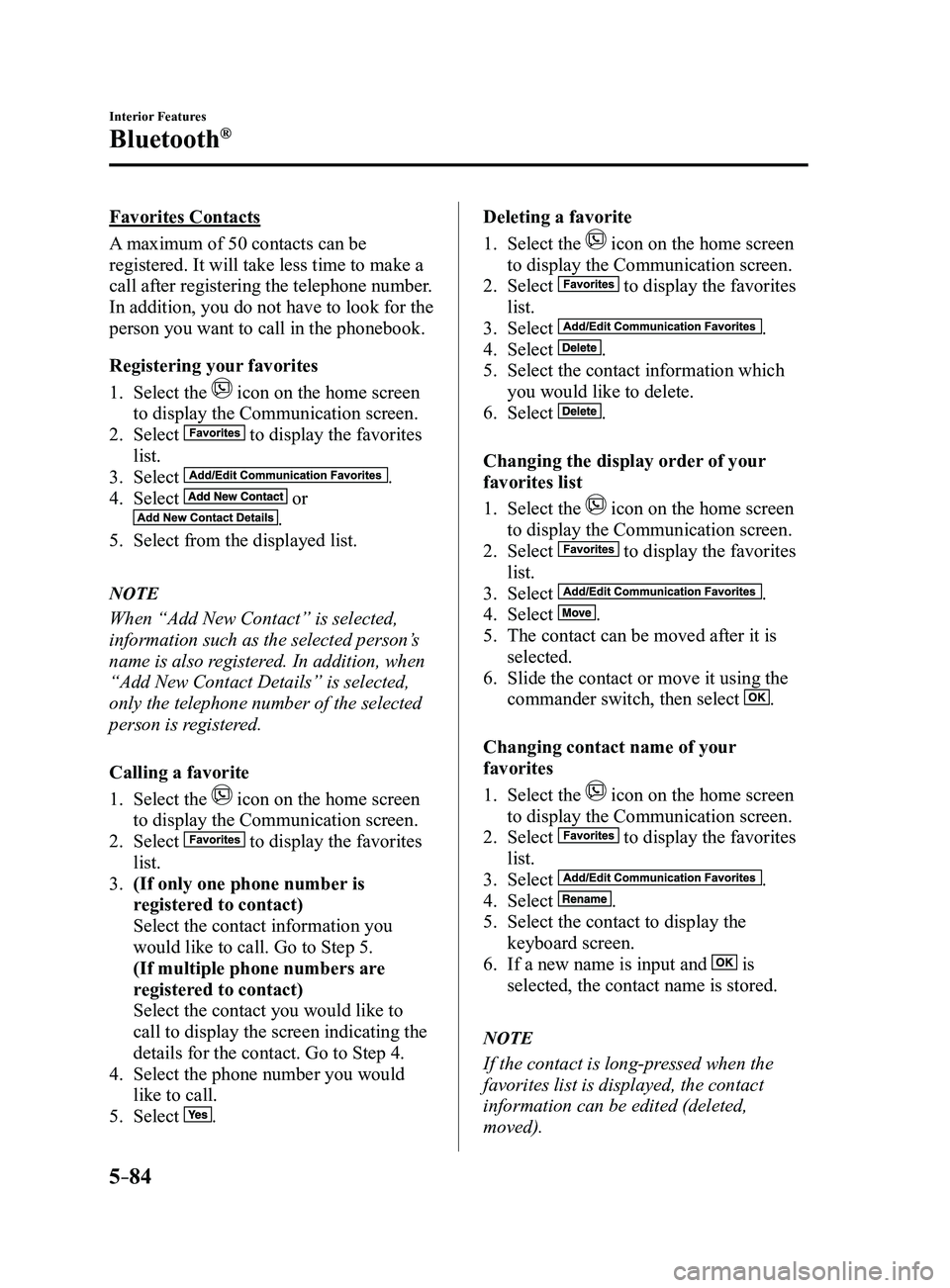
Registering your favorites
1. Select the icon on the home screen
to display the Communication screen.
2. Select to display the favorites
list.
3. Select .
4. Select or
.
5. Select from the displayed list.
NOTE
When “Add New Contact” is selected,
information such as the selected person’s
name is also registered. In addition, when
“Add New Contact Details” is selected,
only the telephone number of the selected
person is registered.
Calling a favorite
1. Select the icon on the home screen
to display the Communication screen.
2. Select to display the favorites
list.
3. (If only one phone number is
registered to contact)
Select the contact information you
would like to call. Go to Step 5.
(If multiple phone numbers are
registered to contact)
Select the contact you would like to
call to display the screen indicating the
details for the contact. Go to Step 4.
4. Select the phone number you would
like to call.
5. Select .
Deleting a favorite
1. Select the icon on the home screen
to display the Communication screen.
2. Select to display the favorites
list.
3. Select .
4. Select .
5. Select the contact information which
you would like to delete.
6. Select .
Changing the display order of your
favorites list
1. Select the icon on the home screen
to display the Communication screen.
2. Select to display the favorites
list.
3. Select .
4. Select .
5. The contact can be moved after it is
selected.
6. Slide the contact or move it using the
commander switch, then select .
Changing contact name of your
favorites
1. Select the icon on the home screen
to display the Communication screen.
2. Select to display the favorites
list.
3. Select .
4. Select .
5. Select the contact to display the
keyboard screen.
6. If a new name is input and is
selected, the contact name is stored.
NOTE
If the contact is long-pressed when the
favorites list is displayed, the contact
information can be edited (deleted,
moved).
Mazda3_8FL6-EA-16F_Edition2.indb 842016/08/10 17:38:04
Page 377 of 612
5–85
Interior Features
Bluetooth®
Telephone Number Input
NOTE
Practice this while parked until you are
confident you can do it while driving in a
non-taxing road situation. If you are not
completely comfortable, make all calls
from a safe parking position, and only
start driving when you can devote your full
attention to driving.
1. Select the icon on the home screen
to display the Communication screen.
2. When is pressed, the dial pad
is displayed.
3. Input the telephone number using the
dial pad.
4. Select to make the call.
Numeral or symbol entry
Use the dial pad.
Long-press the
to input +.
Select to delete the currently input
value.
Long-press
to delete all input values.
Redial Function
Makes a call to the last person called
(latest person on outgoing call record)
from the mobile phone/vehicle.
1. Press the talk button.
2. Wait for the beep sound.
3. Say: “Redial”
Call back Function
Makes a call to the last person who called
your (latest person on incoming call
record) mobile phone/vehicle.
1. Press the talk button.
2. Wait for the beep sound.
3. Say: “Call back” Mobile 911 (U.S.A./Canada only)
If the vehicle is involved in a moderate
to severe collision, a call is made
automatically to 911 from the connected
device. The “Emergency Assistance Call”
setting must be on.
Refer to Communication Settings on page
5-91.
CAUTION
Though the system can be set to
not call 911, doing so will defeat
the purpose of the system. Mazda
recommends that the Mobile 911
system remain activated.
NOTE
Mobile 911 is a secondary function
of the audio entertainment system.
Therefore, the mobile 911 function
does not assure that the call is always
made to 911 after an accident occurs.
A Hands-free device must be paired and
connected. The 911 operator can verify
the vehicle's position information using
the Hands-free device GPS if equipped.
1. If the vehicle is involved in a moderate
to severe collision, notification of the
call to 911 is made via audio and screen
display. To cancel the call, press
or hang-up
button within 10 seconds.
2. If or hang-
up button is not pressed within 10
seconds, the call is made to 911
automatically.
Mazda3_8FL6-EA-16F_Edition2.indb 852016/08/10 17:38:05