Diff MAZDA MODEL MX-5 MIATA 2019 Service Manual
[x] Cancel search | Manufacturer: MAZDA, Model Year: 2019, Model line: MODEL MX-5 MIATA, Model: MAZDA MODEL MX-5 MIATA 2019Pages: 553, PDF Size: 59 MB
Page 271 of 553
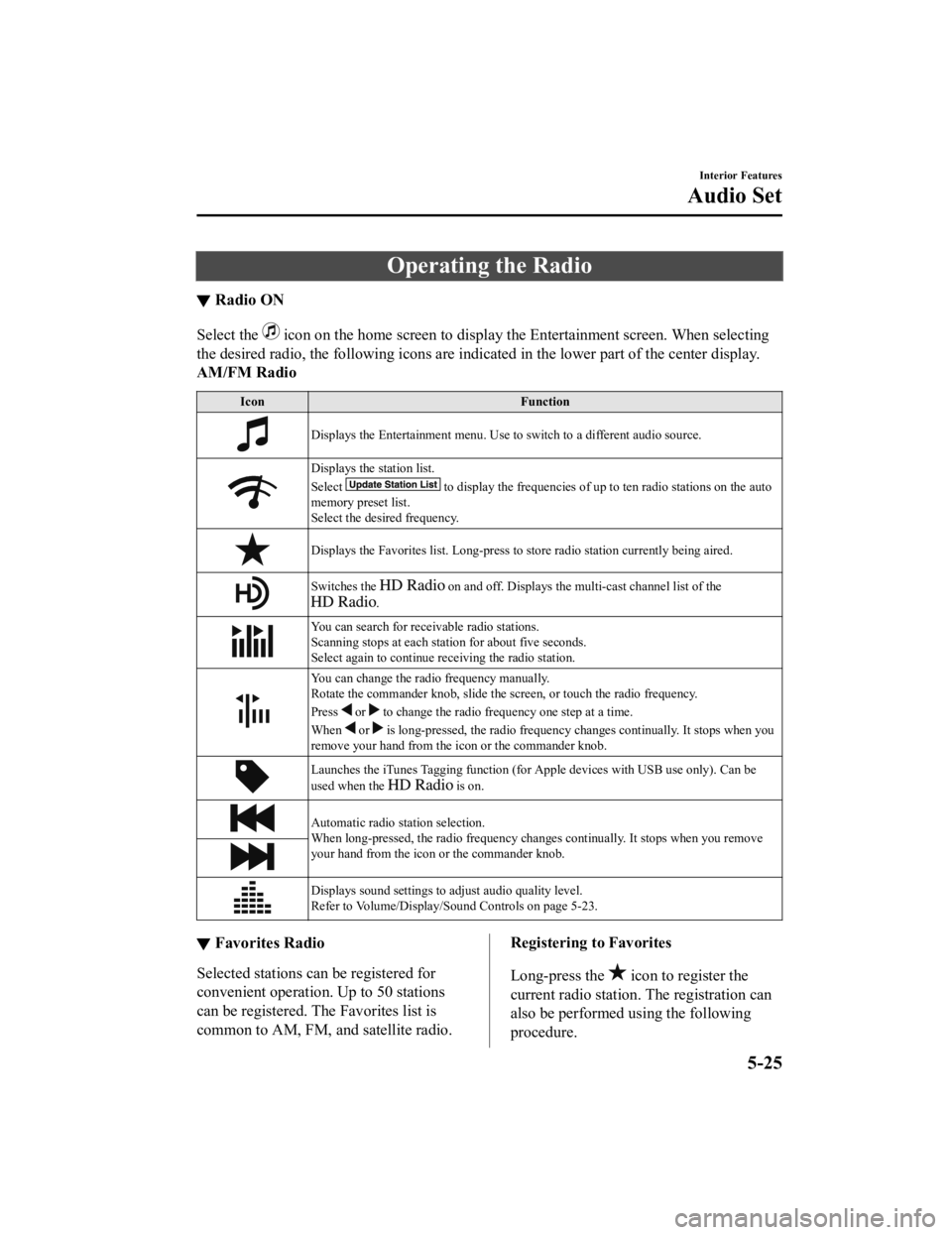
Operating the Radio
▼Radio ON
Select the icon on the home screen to disp
lay the Entertainment screen. When selecting
the desired radio, the following icons are indicated in the low er part of the center display.
AM/FM Radio
Icon Function
Displays the Entertainment menu. Use to switch to a different a udio source.
Displays the station list.
Select
to display the frequencies of up to ten radio stations on the auto
memory preset list.
Select the desired frequency.
Displays the Favorites list. Lon g-press to store radio station currently being aired.
Switches the on and off. Displays the multi-cast ch annel list of the
.
You can search for receivable radio stations.
Scanning stops at each station for about five seconds.
Select again to continue receiving the radio station.
You can change the radio frequency manually.
Rotate the commander knob, slide the screen, or touch the radio frequency.
Press
or to change the radio frequ ency one step at a time.
When
or is long-pressed, the radio frequency changes continually. It s tops when you
remove your hand from the icon or the commander knob.
Launches the iTunes Tagging fun ction (for Apple devices with USB use only). Can be
used when the
is on.
Automatic radio station selection.
When long-pressed, the radio frequency changes continually. It stops when you remove
your hand from the icon or the commander knob.
Displays sound settings to adjust audio quality level.
Refer to Volume/Display/Sound Controls on page 5-23.
▼ Favorites Radio
Selected stations ca
n be registered for
convenient operation. Up to 50 stations
can be registered. The Favorites list is
common to AM, FM, and satellite radio.
Registering to Favorites
Long-press the
icon to register the
current radio station. The registration can
also be performed using the following
procedure.
Interior Features
Audio Set
5-25
MX-5_8GV5-EA-18E_Edition3 2018-7-17 15:48:16
Page 273 of 553

98.3*1, 98.7, 104.3*1, 107.1
*1 Radio stations with good reception
The frequency changes as follows each
time
is pressed.
89.3→98.3→104.3→98.3
NOTE
Only one Genre can be selected.
It may not be possible to receive any
station even if the Genre Seek function is
used.
If a program in the selected genre is not
broadcast to a region, reception is not
possible even if the Genre Seek function
is used.
The Genre Seek function searches for
genre code (program type) which FM
analog broadcasts transmit.
specialty programs (HD2-HD8) cannot
be searched because they are not FM
analog broadcasts.
If radio stations which are selected by
scanning using the Genre Seek function
are
broadcasting stations,
they are changed from analog
broadcasts to
broadcasts
after a few seconds if the reception
conditions are good. The genre is
displayed after the switch, however, the
genre for FM analog broadcasts may
differ.
▼ HD Radio
What is HD Radio™ Technology and
how does it work?
HD Radio™ Technology is the digital
evolution of analog AM/FM radio. Your
radio product has a special receiver which
allows it to receive
digital broadcasts
(where available) in a ddition to the analog
broadcasts it already receives. Digital
broadcasts have better sound quality than
analog broadcasts as digital broadcasts
provide free, crystal clear audio. For more
information, and a guide to available radio
stations and programming, please visit
www.hdradio.com.
Benefits of HD Radio™ Technology
(Information)
The song title, artist name, album name
and genre will appear on the screen when
available by the radio station.
(Multicast)
On the FM radio frequency most digital
stations have “multiple” or supplemental
programs on each FM station.
Listening to HD Radio™ Technology
If
icon turns on by selecting a radio
station which is an
broadcasting
station, the analog broadcast is switched to
an
broadcast automatically after
a few seconds and then received.
If the
broadcast is stopped and
changed to an analog broadcast, press
down
to turn off .
Interior Features
Audio Set
5-27
MX-5_8GV5-EA-18E_Edition3 2018-7-17 15:48:16
Page 274 of 553
Multicast channel selection (FM)
If multi-cast channels are available for an
broadcast currently being
received, the multi-cast channel list is
displayed. Select the desired radio station.
NOTE
If an analog broadcast is received once
and
is received while HD1 is
selected, the audio unit switches to the
station automatically.
When the icon is illuminated, there
could be a noticeable difference in
sound quality and volume when a
change from digital to analog signals
occurs. If the sound quality and volume
become noticeably diminished or cut off,
select the
icon to turn off
( icon is not illuminated).
Once an analog broadcast is received
when HD1 is selected from the Favorite
channels, it is switched to
automatically. If the radio reception
conditions are poor, or HD is off,
switching to
broadcasts is not
possible.
When an HD specialty channel (HD2 to
HD8) is selected from the Favorite
channels, “Signal Lost” is displayed
and no audio is output until
is received. If the radio reception
conditions are poor, “Signal Lost”
continues to be displayed.
If the icon is not illuminated,
information such as song titles of the
station are received, however,
the audio output is analog.
iTunes Tagging (for Apple devices with
USB use only)
By tagging a song currently being aired,
the song can later be purchased from the
iTunes Store. One hundred tags can be
stored. A maximum of 100 tags (for 100
songs) can be stored for later
downloading.
1. Select the
icon. The tag is stored in
the audio unit.
2. Connect the device via the vehicle's
USB. Any stored tag(s) will be sent
automatically to the connected device.
3. Once at home or after parking the
vehicle safely, log onto the iTunes
Store with your device. Your
previously tagged song(s) can now be
easily purchased.
NOTE
Both AM and FM can be
used.
Because iTunes tagging only supports
purchases from the iTunes Store, direct
downloading of music from the vehicle's
audio unit is not possible.
If the available memory for the
connected device is insufficient, the tag
is not sent.
If an error occurs while the tag is being
sent, reconnect the device.
Interior Features
Audio Set
5-28
MX-5_8GV5-EA-18E_Edition3 2018-7-17 15:48:16
Page 276 of 553
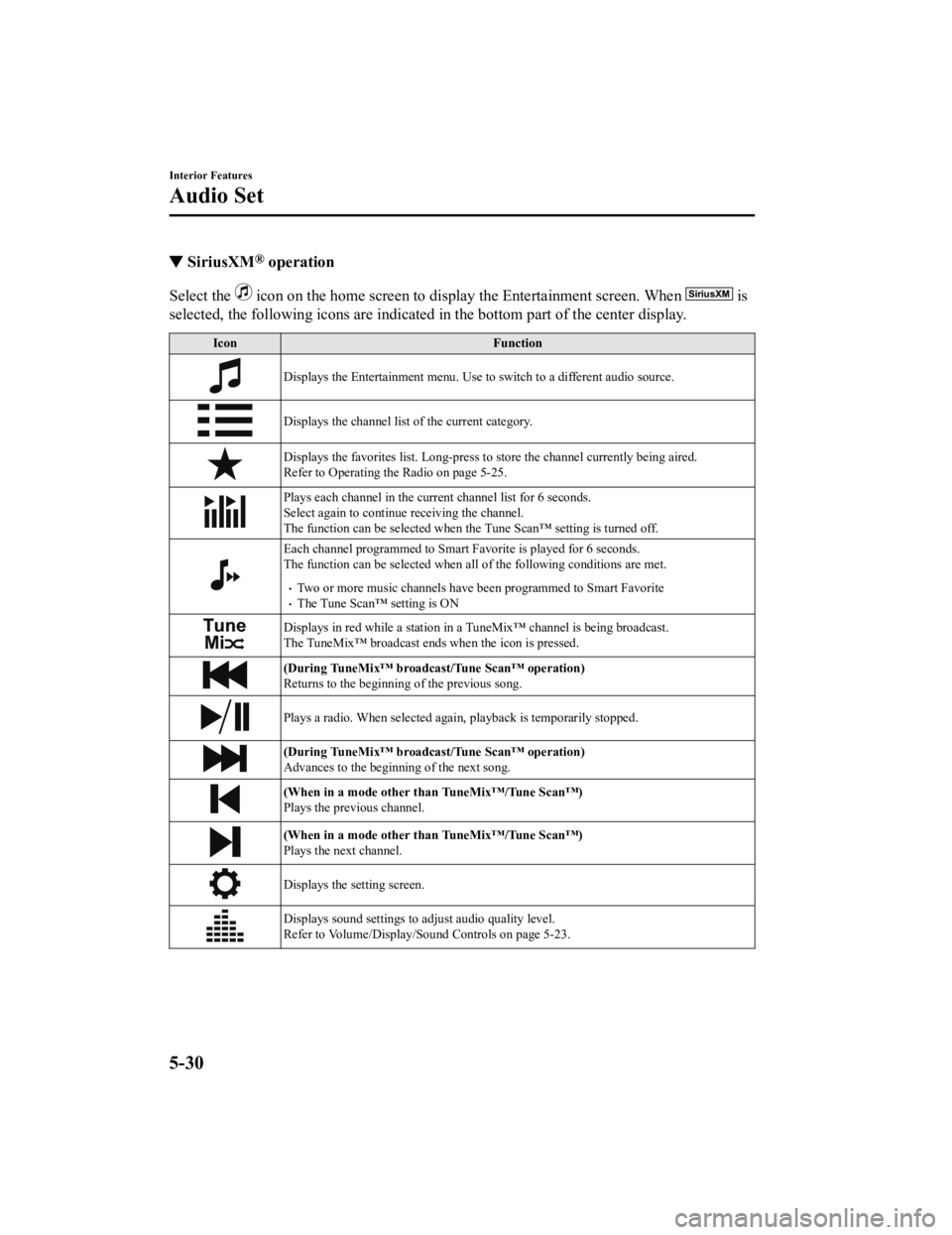
▼SiriusXM® operation
Select the icon on the home screen to display the Entertainment screen. W
hen is
selected, the following icons are indicated in the bottom part of the center display.
IconFunction
Displays the Entertainment menu. Use to switch to a different audio source.
Displays the channel list of the current category.
Displays the favorites list. Long-press to store the channel cu rrently being aired.
Refer to Operating the Radio on page 5-25.
Plays each channel in the curre nt channel list for 6 seconds.
Select again to continue receiving the channel.
The function can be selected when the Tune Scan™ setting is turned off.
Each channel programmed to Smart Favorite is played for 6 secon ds.
The function can be selected when all of the following conditio ns are met.
Two or more music channels have been programmed to Smart FavoriteThe Tune Scan™ setting is ON
Displays in red while a station in a TuneMix™ channel is being broadcast.
The TuneMix™ broadcast ends when the icon is pressed.
(During TuneMix™ broadcast/Tune Scan™ operation)
Returns to the beginning of the previous song.
Plays a radio. When selected aga in, playback is temporarily stopped.
(During TuneMix™ broadcast/Tune Scan™ operation)
Advances to the beginning of the next song.
(When in a mode other than TuneMix™/Tune Scan™)
Plays the previous channel.
(When in a mode other than TuneMix™/Tune Scan™)
Plays the next channel.
Displays the setting screen.
Displays sound settings to adjust audio quality level.
Refer to Volume/Display/Sound Controls on page 5-23.
Interior Features
Audio Set
5-30
MX-5_8GV5-EA-18E_Edition3 2018-7-17 15:48:16
Page 279 of 553

How to use AUX mode
▼Playback
1. Select the icon on the home screen to display the Entertainment screen.
2. Select
to switch to the AUX mode. The following icons are displayed i n the lower
part of the center display.
Icon Function
Displays the Entertainment menu. Use to switch to a different a udio source.
Displays sound settings to adjust audio quality level.
Refer to Volume/Display/Sound Controls on page 5-23.
NOTE
If a device is not connected to the auxiliary jack, the mode does not switch to the AUX
mode.
Adjust the audio volume using the portable audio device, commander switch, or audio
control switch.
Audio adjustments can also be made using the portable audio device's volume setting.
If the connection plug is pulled out from the auxiliary jack while in AUX mode, noise may
occur.
Interior Features
Audio Set
5-33
MX-5_8GV5-EA-18E_Edition3 2018-7-17 15:48:16
Page 280 of 553

How to use USB mode
TypePlayable data
USB mode MP3/WMA/AAC/OGG file
This unit does not support a USB 3.0 device. In addition, other devices may not be
supported depending on the model or OS version.
The recommended capacity of the USB memory is 16 GB or less.
USB devices formatted to FAT32 are supported (USB devices forma tted to other formats
such as NTFS are not supported).
▼ Playback
1. Select the icon on the home screen to display the Entertainment screen.
2. Select
or to switch the USB mode. The following icons are displayed in t he
lower part of the center display.
Icon Function
Displays the Entertainment menu. Use to switch to a different audio source.
Category list is displayed.
Current track list is displayed.
Select a desired track to play it.
Plays the current track repeatedly.
Select it again to play the tracks in the current track list repeatedly.
When selected again, the function is canceled.
Tracks in the current track list are played randomly.
Select it again to cancel.
Starts playing a track similar to the current track using Grace note®'s More Like This™.
Select the desired song from th e category list to cancel More Like This™.
If selected within a few seconds f rom the beginning of a song which has started to play,
the previous song is selected.
If more than a few seconds have e lapsed, the song currently being played is replayed from
the beginning.
Long-press to fast reverse. It st ops when you remove your hand from the icon or the
commander knob.
Track is played. When selected again, playback is temporarily s topped.
Advances to the beginning of the next song.
Long-press to fast forward.
Interior Features
Audio Set
5-34
MX-5_8GV5-EA-18E_Edition3 2018-7-17 15:48:16
Page 287 of 553
When using Apple CarPlay™, please avoid dist raction and use Apple CarPlay™ responsibly.
Stay fully aware of driving conditions and always obey applicable laws.
NOTE
Apple CarPlay™ is provided by Apple® and its use is subject to your agreement to the
Apple CarPlay™ terms of use, which are incl uded as part of the Apple iOS terms of use.
When using Apple CarPlay™, location, speed, and other vehicle data is transferred to
your iPhone
®. For further details, refer to Apple®’s Privacy Policy.
▼Switching to Apple CarPlay™
Connect the iPhone® by inserting the Apple®-genuine connector cord to the USB terminal
indicated by the
mark.
Refer to How to conn ect USB port/Auxiliary jack on page 5-16.
NOTE
When you switch your iPhone® connection from Bluetooth® to the vehicle's USB terminal,
the system switches to Apple CarPlay™. The applications which was being used via
Bluetooth
® connection can be used continuously. Ho wever, the available functions of the
applications us ing Bluetooth
® connection and those on Apple CarPlay™ may differ.
If the iPhone® is connected to the USB te rminal not indicated by the mark, the system
operates in USB mode.
Display of Apple CarPlay™ Screen
Use any of the following methods to display the Apple CarPlay™ screen in the center
display.
Select on the home screen.
Long press on the commander switch.
Select on the home screen, and select from the Applications screen.
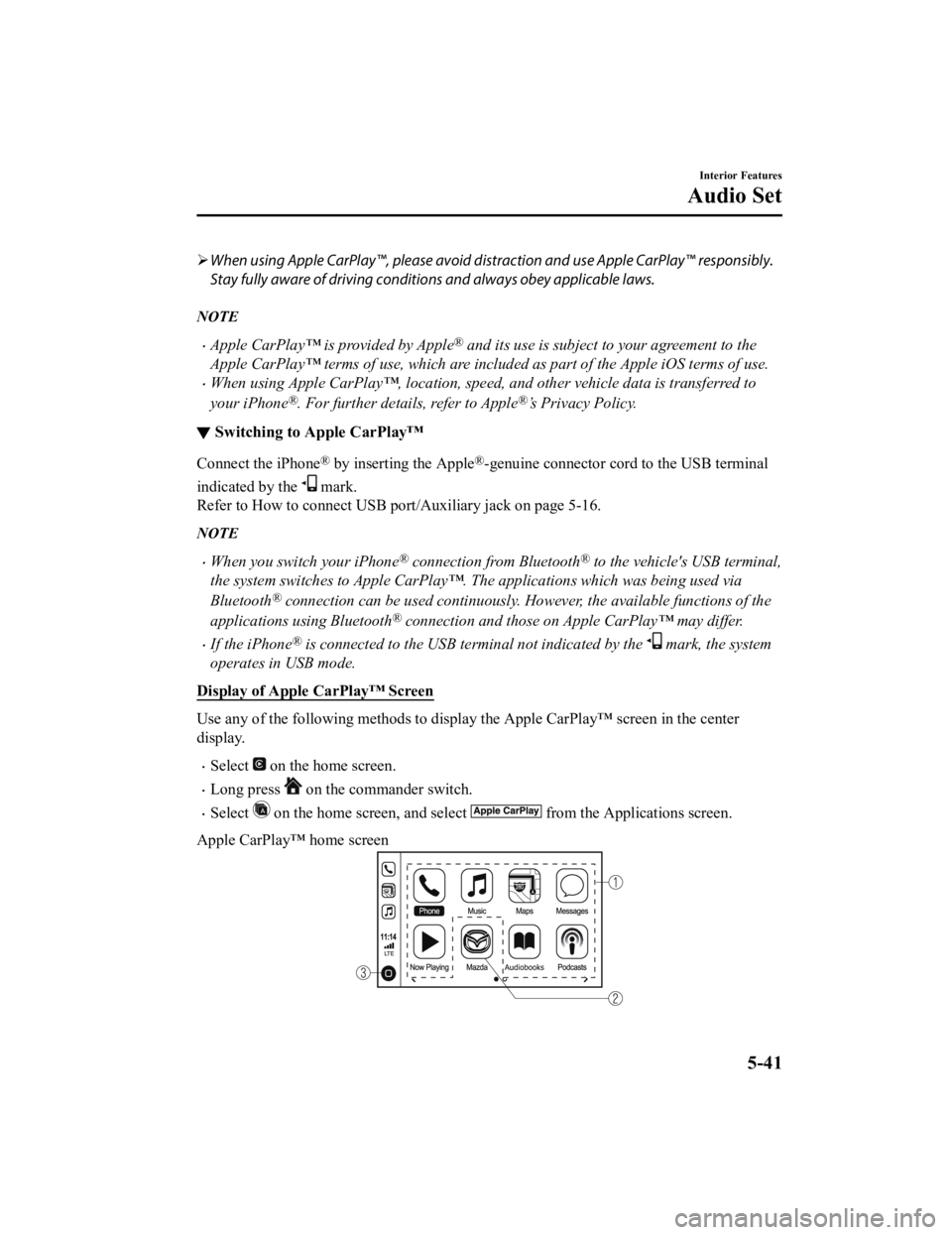
Apple CarPlay™ home screen
Interior Features
Audio Set
5-41
MX-5_8GV5-EA-18E_Edition3 2018-7-17 15:48:16
Page 288 of 553
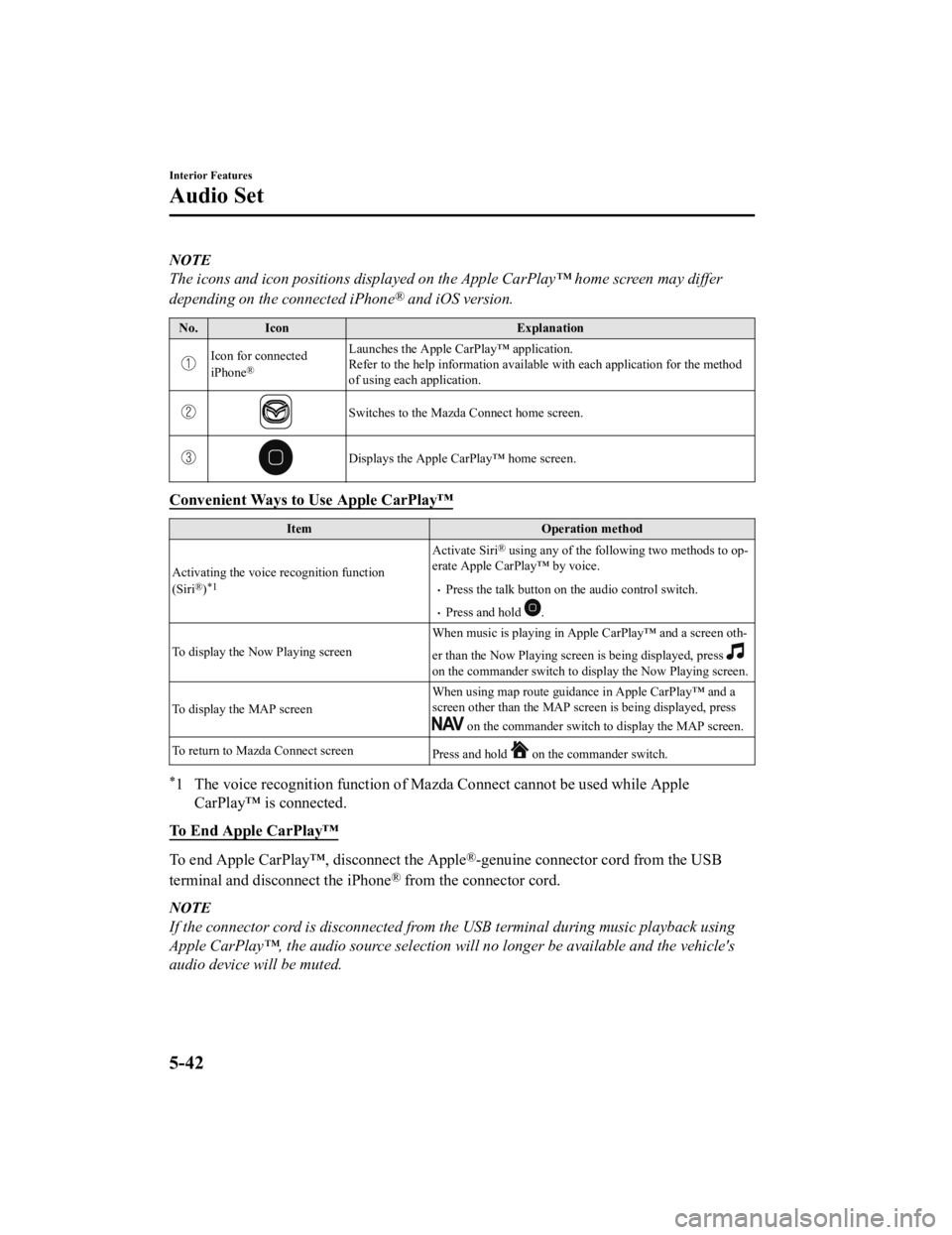
NOTE
The icons and icon positions displayed on the Apple CarPlay™ home screen may differ
depending on the connected iPhone
® and iOS version.
No.Icon Explanation
Icon for connected
iPhone®
Launches the Apple CarPlay™ application.
Refer to the help information available with each application f or the method
of using each application.
Switches to the Mazda Connect home screen.
Displays the Apple CarPlay™ home screen.
Convenient Ways to Use Apple CarPlay™
Item Operation method
Activating the voice recognition function
(Siri
®)*1
Activate Siri® using any of the following two methods to op‐
erate Apple CarPlay™ by voice.
Press the talk button on t he audio control switch.
Press and hold .
To display the Now Playing screen When music is playing in Apple CarPlay™ and a screen oth‐
er than the Now Playing screen is being displayed, press
on the commander switch to disp
lay the Now Playing screen.
To display the MAP screen When using map route guidan
ce in Apple CarPlay™ and a
screen other than the MAP screen is being displayed, press
on the commander switch to display the MAP screen.
To return to Mazda Connect screen Press and hold
on the commander switch.
*1 The voice recognition function of Mazda Connect cannot be used while Apple
CarPlay™ is connected.
To End Apple CarPlay™
To end Apple CarPlay™, disconnect the Apple®-genuine connector cord from the USB
terminal and disconnect the iPhone
® from the conn ector cord.
NOTE
If the connector cord is disconnected from th e USB terminal during music playback using
Apple CarPlay™, the audio source selection will no longer be available and the vehicle's
audio device will be muted.
Interior Features
Audio Set
5-42
MX-5_8GV5-EA-18E_Edition3 2018-7-17 15:48:16
Page 291 of 553
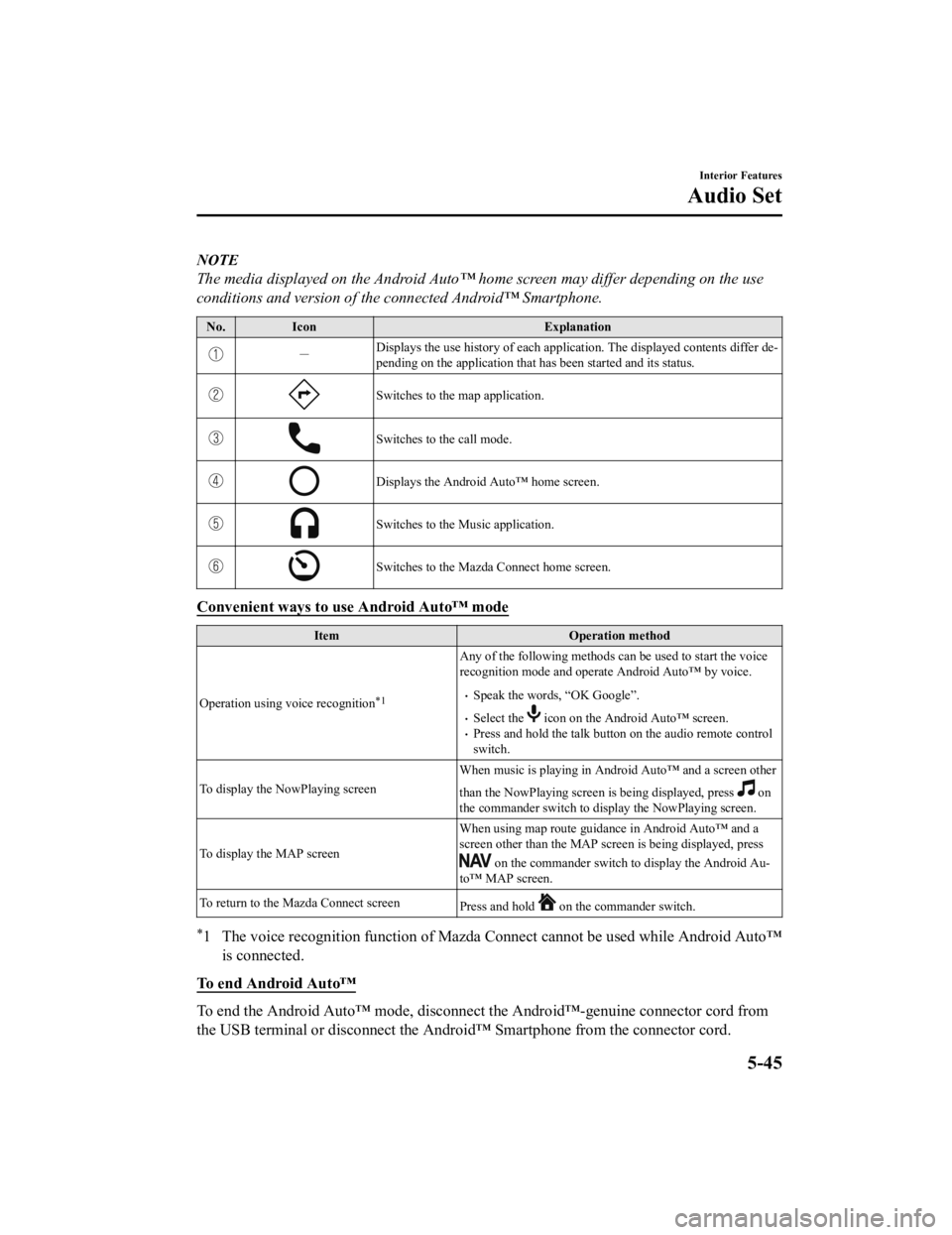
NOTE
The media displayed on the Android Auto™ home screen may differ depending on the use
conditions and version of the connected Android™ Smartphone.
No. Icon Explanation
-Displays the use history of each
application. The displayed contents differ de‐
pending on the application that has been started and its status .
Switches to the map application.
Switches to the call mode.
Displays the Android Auto™ home screen.
Switches to the Music application.
Switches to the Mazda Connect home screen.
Convenient ways to use Android Auto™ mode
ItemOperation method
Operation using voice recognition
*1
Any of the following methods can be used to start the voice
recognition mode and operate Android Auto™ by voice.
Speak the words, “OK Google”.
Select the icon on the Android Auto™ screen.Press and hold the talk butt on on the audio remote control
switch.
To display the NowPlaying screen When music is playing in Android Auto™ and a screen other
than the NowPlaying screen is being displayed, press
on
the commander switch to display the NowPlaying screen.
To display the MAP screen When using map route guidance in Android Auto™ and a
screen other than the MAP screen is being displayed, press
on the commander switch to
display the Android Au‐
to™ MAP screen.
To return to the Mazda Connect screen Press and hold
on the commander switch.
*1 The voice recognition function of Mazda Connect cannot be used while Android Auto™
is connected.
To end Android Auto™
To end the Android Auto™ mode, di sconnect the Android™-genuine connector cord from
the USB terminal or disconnect the Android™ Smartphone from the connector cord.
Interior Features
Audio Set
5-45
MX-5_8GV5-EA-18E_Edition3 2018-7-17 15:48:16
Page 297 of 553

After a device is registered, the system
automatically identifies the device. By
activating Bluetooth
® Hands-Free again,
or by activating Bluetooth
® Hands-Free
first after switching the ignition from OFF
to ACC, the device connection condition
is indicated in the center display.
IMPORTANT note about pairing and
automatic reconnection:
If pairing is redone on the same
mobile phone device, first clear
“Mazda” displayed on the Bluetooth
®
setting screen of the mobile device.
When the OS of the device is updated,
the pairing information may be deleted.
If this happens, reprogram the pairing
information to the Bluetooth
® unit.
Before you pair your device, make sure
that Bluetooth
® is “ON”, both on your
phone and on the vehicle.
▼ Device selection
If several devices have been paired, the
Bluetooth
® unit links the device last
paired. If you would like to link a different
paired device, it is n ecessary to change the
link. The order of device priority after the
link has been changed is maintained even
when the ignition is switched off.
Connecting other devices
1. Select the
icon on the home screen
to display the Settings screen.
2. Select the
tab.
3. Select
.
4. Turn the Bluetooth
® setting on.
5. Select the name of the device you
would like to connect.
6.
selection
Connects both devices as hands-free
and Bluetooth
® audio.
selection
Connects as a hands-free device.
selection
Connects as Bluetooth
® audio.
NOTE
The following functions can be used for
the Hands-free or audio.
Hands-free: Phone calls and
E-mail/SMS
Audio: Bluetooth® audio, Pandora®,
Aha™, Stitcher™ radio
Disconnecting a device
1. Select the
icon on the home screen
to display the Settings screen.
2. Select the
tab.
3. Select
.
4. Turn the Bluetooth
® setting on.
5. Select the device name which is currently connected.
6. Select
.
▼ Deleting a device
Selecting and deleting devices
1. Select the
icon on the home screen
to display the Settings screen.
2. Select the
tab.
3. Select
.
4. Turn the Bluetooth
® setting on.
5. Select the device name which you
would like to delete.
6. Select
.
7. Select
.
Deleting all devices
1. Select the
icon on the home screen
to display the Settings screen.
Interior Features
Audio Set
5-51
MX-5_8GV5-EA-18E_Edition3 2018-7-17 15:48:16