display MERCEDES-BENZ CL CLASS 2010 Owners Manual
[x] Cancel search | Manufacturer: MERCEDES-BENZ, Model Year: 2010, Model line: CL CLASS, Model: MERCEDES-BENZ CL CLASS 2010Pages: 500, PDF Size: 9.32 MB
Page 231 of 500
^
Which number do you want to dial:
Home or work?
\ Home.
^ Smith home.
Dialing.
“Dialed calls” The command “Dialed calls” displays the last
called
phone
numbers and to call one of these
phone numbers.
“Received calls” The command “Received calls” displays the
last calls that came in.
Managing announcement services or
voice mail
You can also use the Voice Control System to
manage your voice mail or recorded
announcement services.
X
Press button ? while a phone call is in
progress.
An acoustic
signal confirms that the system
is activated.
X Say the required digits (“Zero” to “Nine”).
or
X Say the required words “Star” and “Pound”.
X Say the final command “Ok”.
The system dials the number entered. Voice Control System address book
Safety notes
G
Warning!
Please devote your attention first and
foremost to the traffic situation you are in.
Before your journey, please familiarize
yourself with the address book functions.
Only use
the Voice Control System when road
and traffic conditions permit you to do so.
Otherwise you could be involved in an accident in which you or others could be
injured.
COMAND address book overview
The address
book lets you store voice names
in address book entries.
You can dial a phone number from the
address book or start route guidance to a
stored address via the Voice Control System.
In addition to the voice names, the Voice
Control System can also recognize all entries
in the name fields of the address book.
Check address book entries for the following:
R Name entries such as first and last name
are in the correct field.
R Do not use abbreviations or short forms,
e.g. acronyms.
R Avoid unnecessary blanks within the name
R Do not use special characters.
You can improve the voice recognition by
adding a voice name to an address book
entry.
Use a voice name
R with names that are difficult to pronounce
R to differentiate names that sound similar
R with names that are pronounced
significantly different from the way they are
spelled
You can store voice names for up to 50
address book entries. Adressbook operation
You can use the Voice Control System to
R store a name
R select a name
R delete a name
R have the system read the address book to
you Voice Control System address book
229
Control systems
216_AKB; 3; 90, en-US
d2ureepe, Version: 2.11.8.1 2009-05-15T11:47:50+02:00 - Seite 229 Z
Page 233 of 500
the desired entry contains at least one
phone number or one address, the Voice
Control
System
will ask you what you would
like to do. You can either dial the phone
number or calculate the route to the stored
address.
“Read out destination memory” For information on “Read out destination
memory”, see
(
Y
page 223).
“Delete address book” Use the command “Delete address book” to
delete all or individual voice names of the
address
book
entries. Only the voice name is
deleted; the remaining data in the entry are
retained. When the address book entry
contains a voice name only, the entire
address book entry will be deleted.
“Address book” Use this command to open the address book.
“Open entry”
Use the command “Open entry” you can open
any address book entry.
Sample dialog:
\
Open entry.
_ The system displays a numbered list of
entries in the COMAND display.
^ Please select a line number.
\ Number 1.
^ Number 1 accepted.
_ The system opens the first entry from
the list.
When selected entry contains at least
one phone
number or one address, the
Voice Control System will ask you what
you would like to do. You can either
dial the phone number or calculate the
route to the stored address. i
The list is displayed only when the
address book
contains a very small number
of entries. When the address book contains
several entries, the Voice Control System
prompts you to speak a name.
You can also use the commands “Open
John Smith”, “Open Smith John”, or “Open
entry directly. Voice Control System radio
Safety notes
G
Warning!
Please devote your attention first and
foremost to the traffic situation you are in.
Before your journey, please familiarize
yourself with the radio functions.
Only use
the Voice Control System when road
and traffic conditions permit you to do so.
Otherwise you could be involved in an
accident in which you or others could be
injured. Radio operation
You can use the Voice Control System to
R select a station
R find a station
R select a frequency (FM, AM)
R select a category (satellite radio)
R select the wave band (FM, AM or weather
band)
R reading out the Presets
R switch to satellite radio
R switch to HD Radio™
R save a voice name for a station
R delete a station list (voice names only)
R delete a station (voice name only)
R select a channel number (satellite radio) Voice Control System radio
231Control systems
216_AKB; 3; 90, en-US
d2ureepe, Version: 2.11.8.1 2009-05-15T11:47:50+02:00 - Seite 231 Z
Page 234 of 500
The names of all received and stored stations
are available for voice recognition. To
improve voice recognition, you can store a
voice name for a specific speaker.
X
To select the radio or satellite radio
application: Press button ? button on
the multifunction steering wheel.
X Say the command “Radio” or “Satellite
Radio”.
X Press button ?.
X Say one of the radio or satellite radio
commands explained below. Radio commands
For a list of commands, see ( Y page 237).
You can always give the commands for the
radio when
you are listening to the radio, even
if a different application is shown on the
display.
“Help Radio” Using the “Help Radio” command, the Voice
Control System asks “For which radio
functions do you want help?”. It then reads
out a list of topics.
“Help Satellite Radio”
Using the “Help Satellite Radio” command,
the Voice Control System asks “For which
radio functions do you want help?”. It then
reads out a list of topics.
“Help HD Radio”
Using the “Help HD Radio” command, you can
have all the commands for the HD Radio™
read out. Selecting a wave band You can set the wave band with the following
commands:
R
“FM”
R “AM”
R “Weatherband”
“Next station”, “Previous station” The following commands are used to start the
station
search
and to tune in the next station:
R “Next station”
R “Previous station”
“Next Category”, “Previous Category” You can use the following commands to
change the category on satellite radio:
R
“Next Category”
R “Previous Category”
Selecting frequency (FM range) You can select frequencies within the FM
range
(87.9
to 107.9 MHz) directly. The Voice
Control System also recognizes the words
“Frequency”, “Point” and “Megahertz”.
Sample dialog:
\ Ninety five point five megahertz.
The Voice Control System tunes the
radio to frequency FM 95.5.
Selecting frequency (AM range) You can select frequencies within the AM
range (530 to 1710 kHz) directly. Voice
control also recognizes the words
“Frequency” and “Kilohertz”.
Sample dialog:
\
Five hundred and thirty kilohertz.
The Voice Control System tunes the
radio to frequency AM 530. 232
Voice Control System radio
Control systems
216_AKB; 3; 90, en-US
d2ureepe,
Version: 2.11.8.1 2009-05-15T11:47:50+02:00 - Seite 232
Page 249 of 500
Media interface
R
media interface (on)
R UCI (on) USB interface
R
USB
R USB interface Aux
R
audio auxiliary/aux (input)
R auxiliary/aux audio (input)
R video auxiliary/aux (input)
R auxiliary/aux video (input) Voice Control System
troubleshooting
Help function
To support
the user, the Voice Control System
contains an extensive help function.
The help function gives you
R general hints on how to best use the Voice
Control System
R a listing of all available commands Help commands
“Help voice control” Using the command “Help voice control” will
give you information on how to best use the
Voice Control System.
“Help”
X
Press button ? on the multifunction
steering wheel and speak the command
“Help”.
You will receive help for the currently
selected application. When you speak the command “Help” during
a dialog such as after the command “Dial
number”, you will receive help for the next
dialog steps.
You can also call up the help function
specifically for a particular system, for
example using the command “Help
telephone”.
Help window
You can use the help window to view a
selection of
valid commands on the COMAND
display.
The help functions can be switched on or off
via COMAND in the System menu
(Y page 80). Entering digits and spelling
Entering digits R
Digits from “Zero” to “Nine” may be used.
R Speaking phone
numbers in digit blocks of
3 to 5 digits has proven a very reliable
method for the input of phone numbers.
Spelling R
The letters of the English alphabet and the
digits 0 - 9 may be used.
R Speak the letters in blocks of 5 - 7 letters
at a time.
R Speak each individual letter clearly. Voice Control System troubleshooting
247
Control systems
216_AKB; 3; 90, en-US
d2ureepe, Version: 2.11.8.1 2009-05-15T11:47:50+02:00 - Seite 247 Z
Page 252 of 500
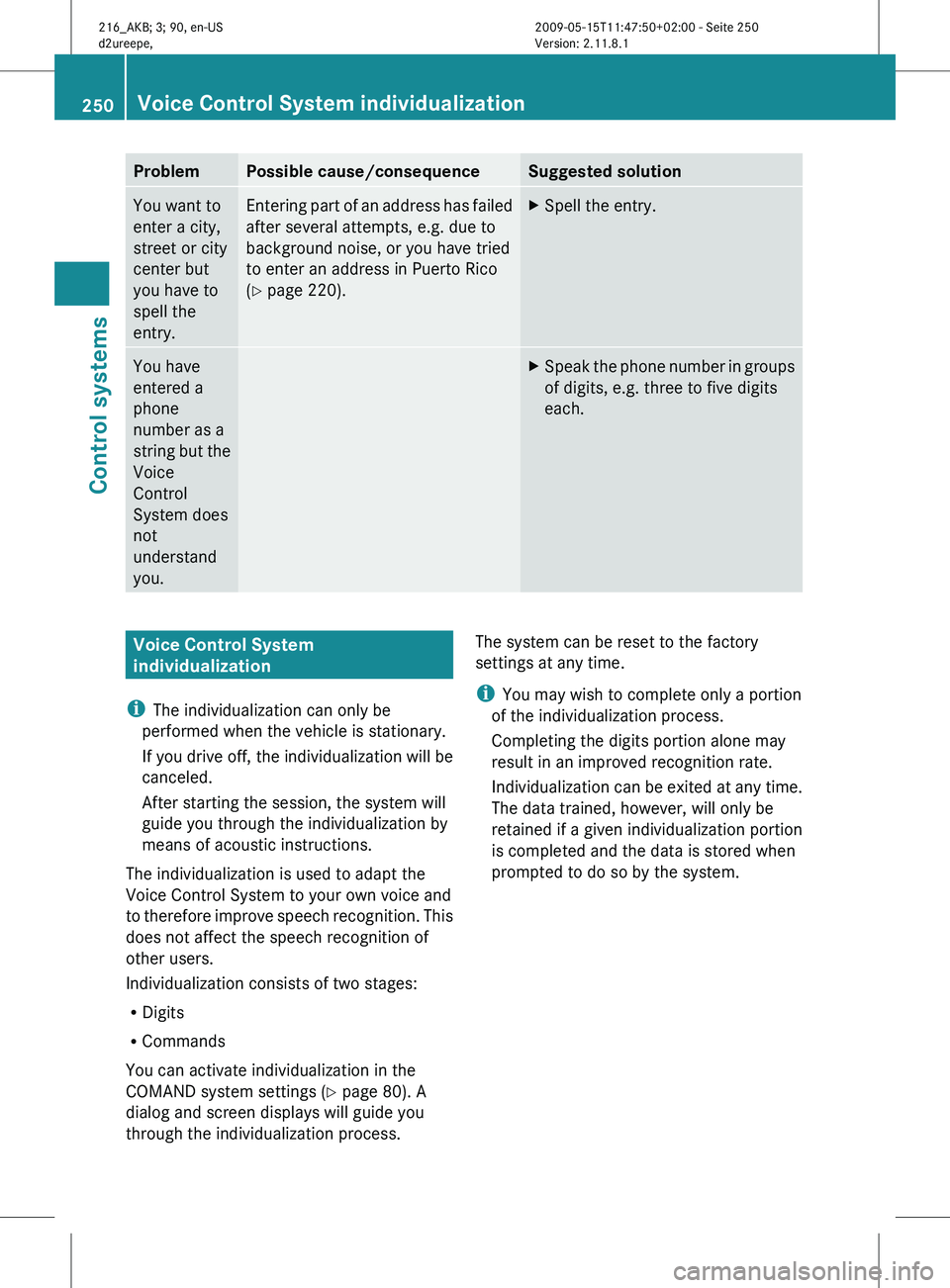
Problem Possible cause/consequence Suggested solution
You want to
enter a city,
street or city
center but
you have to
spell the
entry. Entering part of an address has failed
after several attempts, e.g. due to
background noise, or you have tried
to enter an address in Puerto Rico
(Y page 220). X
Spell the entry. You have
entered a
phone
number as a
string
but
the
Voice
Control
System does
not
understand
you. X
Speak the phone number in groups
of digits, e.g. three to five digits
each. Voice Control System
individualization
i The individualization can only be
performed when the vehicle is stationary.
If you
drive off, the individualization will be
canceled.
After starting the session, the system will
guide you through the individualization by
means of acoustic instructions.
The individualization is used to adapt the
Voice Control System to your own voice and
to therefore improve speech recognition. This
does not affect the speech recognition of
other users.
Individualization consists of two stages:
R Digits
R Commands
You can activate individualization in the
COMAND system settings (Y page 80). A
dialog and screen displays will guide you
through the individualization process. The system can be reset to the factory
settings at any time.
i
You may wish to complete only a portion
of the individualization process.
Completing the digits portion alone may
result in an improved recognition rate.
Individualization can
be exited at any time.
The data trained, however, will only be
retained if a given individualization portion
is completed and the data is stored when
prompted to do so by the system. 250
Voice Control System individualization
Control systems
216_AKB; 3; 90, en-US
d2ureepe,
Version: 2.11.8.1 2009-05-15T11:47:50+02:00 - Seite 250
Page 256 of 500
i
USA only:
This device complies with Part 15 of the
FCC Rules. Operation is subject to the
following two conditions:
1. This device may not cause harmful
interference, and
2.
this device must accept anyinterference received, including
interference that may cause undesired
operation.
Any unauthorized modification to this
device could void the user’s authority to
operate the equipment.
i Canada only:
This device complies with RSS-210 of
Industry Canada. Operation is subject to
the following two conditions:
1. This device may not cause interference, and
2. this device must accept any interference received, including
interference that may cause undesired
operation of the device.
Any unauthorized modification to this
device could void the user’s authority to
operate the equipment.
Important notes on using KEYLESS-GO R
You can also use the SmartKey with
KEYLESS-GO like a normal SmartKey
(Y page 252).
R You can combine KEYLESS-GO functions
with normal SmartKey functions (e.g.
unlocking with KEYLESS-GO and locking
with button &).
R Always carry the SmartKey with you.
R Never store the SmartKey together with
-electronic items
such as a mobile phone
or another SmartKey
- metallic objects such as coins or metal
foil Doing so could impair the function of the
KEYLESS-GO system.
R To lock
or unlock the vehicle, the SmartKey
must be located outside the vehicle within
approximately 3 ft (1 m) of a door or the
trunk.
R When the vehicle has been parked for more
than 72 hours, the KEYLESS-GO function is
deactivated. Pull an outside door handle
and switch on the ignition once to activate
the KEYLESS-GO function.
R If the SmartKey is positioned farther away
from the vehicle, the system may no longer
recognize the SmartKey. The vehicle
cannot be locked or the engine started via
the KEYLESS-GO system.
R If the SmartKey is removed from the vehicle
(e.g. if a passenger exits the vehicle with
the SmartKey)
-when pressing the KEYLESS-GO start/
stop button or trying to lock the vehicle
with the outside door handle the
message Key Not Detected appears in
the multifunction display
- with the engine running, the red message
Key Not Detected appears in the
multifunction display while driving off
Find the SmartKey or change its present
location immediately (e.g. place it on the
front passenger seat or insert it in shirt
pocket).
R If you have started the engine with the
KEYLESS-GO start/stop button, you can
turn it off again by
-pressing the KEYLESS-GO start/stop
button
- inserting the SmartKey into the starter
switch when the vehicle is at a standstill
and the automatic transmission is in park
position P 254
Locking and unlocking
Controls in detail
216_AKB; 3; 90, en-US
d2ureepe,
Version: 2.11.8.1 2009-05-15T11:47:50+02:00 - Seite 254
Page 257 of 500

R
The vehicle could be inadvertently
unlocked if the SmartKey is within 3 ft (1 m)
of the vehicle and
-an outside door handle is splashed with
water
or
- you attempt to clean an outside door
handle
R Remember that the engine can be started
by anyone with a SmartKey that is left
inside the vehicle.
Possibility 1 (One SmartKey in the vehicle,
one SmartKey outside the vehicle):
If you leave the SmartKey behind when
exiting and locking the vehicle, no message
appears in the multifunction display.
Possibility 2 (One SmartKey in the vehicle,
no SmartKey outside the vehicle):
When exiting and trying to lock the vehicle,
the message Key Detected In Vehicle
appears in the multifunction display. The
vehicle will not be locked.
Factory setting X
Global unlocking: Pull an outside door
handle.
Unless you open a door or the trunk within
approximately 40 seconds after unlocking
the vehicle:
R The vehicle will be locked again.
R The anti-theft alarm system will be
rearmed. X
Global locking: Touch outside of a door
handle :.
Selective setting If you frequently travel alone, you may wish
to reprogram the SmartKey. Pulling the
driver’s outside door handle will then only
unlock the driver’s door and the fuel filler flap.
X
Switching on/off: Press and hold buttons
% and & simultaneously for
approximately 6 seconds until the battery
check lamp (Y page 255) flashes twice.
KEYLESS-GO will then function as follows:
X Unlocking driver’s door and fuel filler
flap: Pull the driver’s outside door handle.
X Global unlocking: Pull the outside door
handle on the passenger side.
X Global locking: Touch outside of a door
handle :. Checking SmartKey batteries
Example illustration: SmartKey with KEYLESS-GO
X
Press button & or % on the
SmartKey.
Battery check lamp : comes on briefly to
indicate that the SmartKey batteries are in
order.
If the battery check lamp does not come on
briefly during check, the SmartKey batteries
are discharged.
X Replace the batteries ( Y page 461). Locking and unlocking
255Controls in detail
216_AKB; 3; 90, en-US
d2ureepe, Version: 2.11.8.1 2009-05-15T11:47:50+02:00 - Seite 255 Z
Page 268 of 500
!
Do not move the front passenger seat
completely forward if objects are stored in
the parcel net in the front passenger-side
footwell. Items in the net may be damaged.
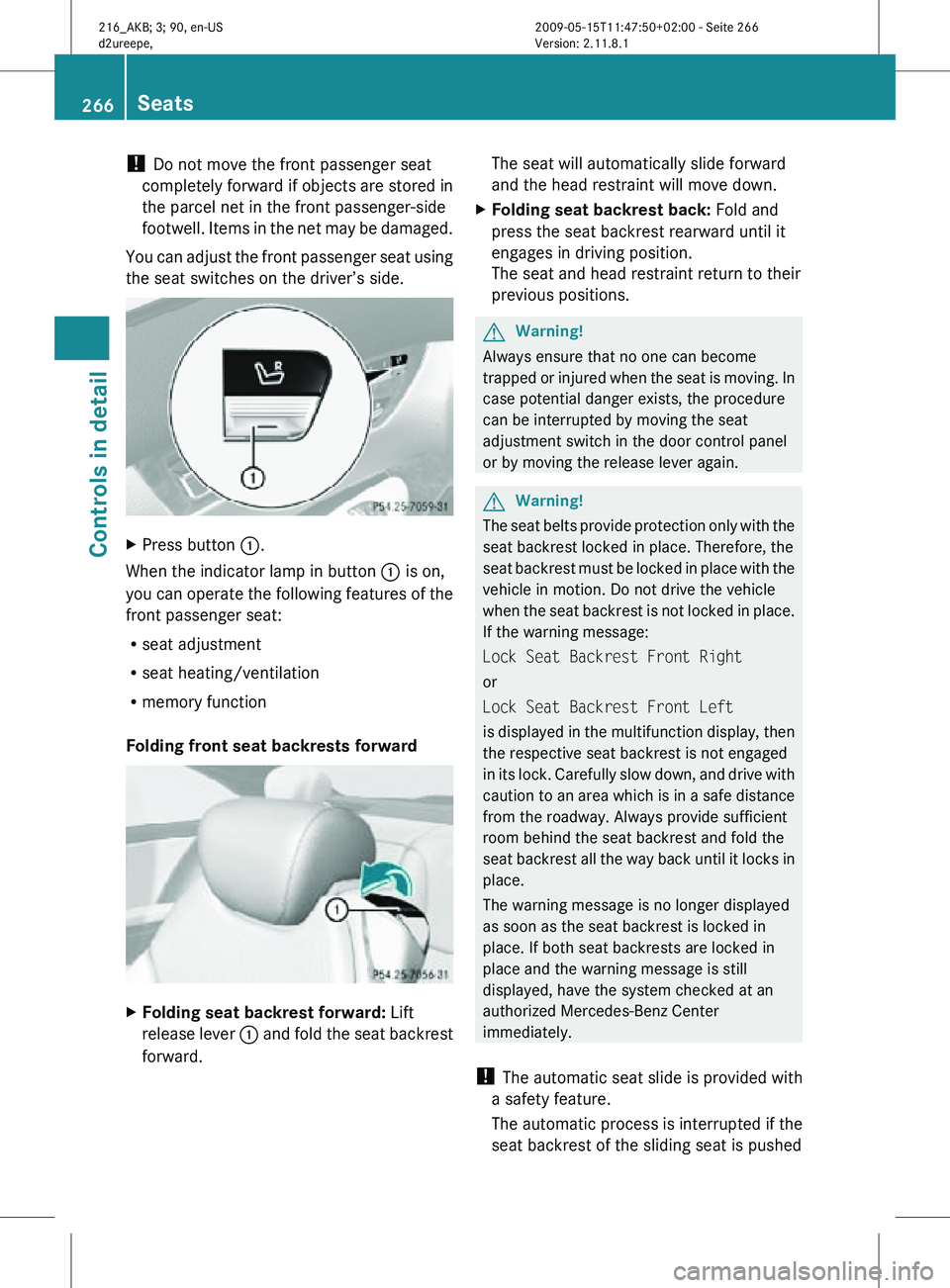
You can adjust the front passenger seat using
the seat switches on the driver’s side. X
Press button :.
When the indicator lamp in button : is on,
you can operate the following features of the
front passenger seat:
R seat adjustment
R seat heating/ventilation
R memory function
Folding front seat backrests forward X
Folding seat backrest forward: Lift
release lever : and fold the seat backrest
forward. The seat will automatically slide forward
and the head restraint will move down.
X Folding seat backrest back: Fold and
press the seat backrest rearward until it
engages in driving position.
The seat and head restraint return to their
previous positions. G
Warning!
Always ensure that no one can become
trapped or injured when the seat is moving. In
case potential danger exists, the procedure
can be interrupted by moving the seat
adjustment switch in the door control panel
or by moving the release lever again. G
Warning!
The seat belts provide protection only with the
seat backrest locked in place. Therefore, the
seat backrest must be locked in place with the
vehicle in motion. Do not drive the vehicle
when the seat backrest is not locked in place.
If the warning message:
Lock Seat Backrest Front Right
or
Lock Seat Backrest Front Left
is displayed in the multifunction display, then
the respective seat backrest is not engaged
in its lock. Carefully slow down, and drive with
caution to an area which is in a safe distance
from the roadway. Always provide sufficient
room behind the seat backrest and fold the
seat backrest all the way back until it locks in
place.
The warning message is no longer displayed
as soon as the seat backrest is locked in
place. If both seat backrests are locked in
place and the warning message is still
displayed, have the system checked at an
authorized Mercedes-Benz Center
immediately.
! The automatic seat slide is provided with
a safety feature.
The automatic process is interrupted if the
seat backrest of the sliding seat is pushed 266
SeatsControls in detail
216_AKB; 3; 90, en-US
d2ureepe,
Version: 2.11.8.1 2009-05-15T11:47:50+02:00 - Seite 266
Page 272 of 500
The seat heating switches from level
2 to level
1 (low) after approximately 10 minutes.
After approximately 20 minutes in level 1, the
seat heating switches off automatically.
X Switch on the ignition.
X Switching on: Press respective seat
heating button : repeatedly until the
desired heating level is set.
One or more red indicator lamps in
respective seat heating button : show the
selected heating level.
X Switching off: Press respective seat
heating button : repeatedly until all
indicator lamps go out.
If there is insufficient voltage the seat heating
switches off automatically.
The seat heating will switch back on again
automatically as soon as sufficient voltage is
available. Multifunction steering wheel
Safety notes
G
Warning!
Do not adjust the steering wheel while driving.
Adjusting the steering wheel while driving
could cause the driver to lose control of the
vehicle.
The electrical steering wheel adjustment
feature can be operated at any time.
Therefore, do not leave children unattended
in the vehicle, or with access to an unlocked
vehicle. A child’s unsupervised access to a
vehicle could result in an accident and/or
serious personal injury.
Make sure
R you can reach the steering wheel with your
arms slightly bent at the elbows
R you can move your legs freely
R all displays (including malfunction and
indicator lamps) on the instrument cluster
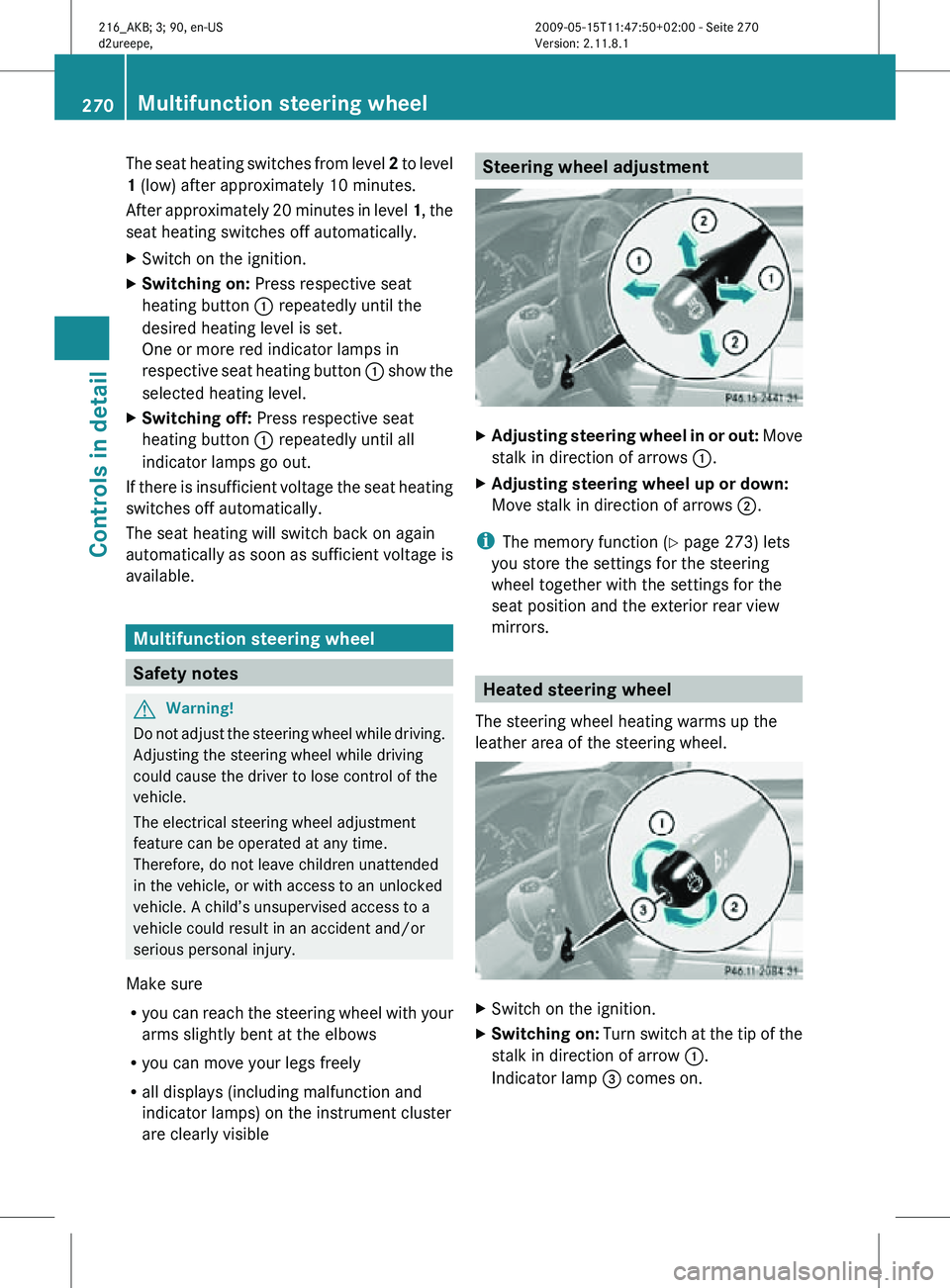
are clearly visible Steering wheel adjustment
X
Adjusting steering wheel in or out: Move
stalk in direction of arrows :.
X Adjusting steering wheel up or down:
Move stalk in direction of arrows ;.
i The memory function (Y page 273) lets
you store the settings for the steering
wheel together with the settings for the
seat position and the exterior rear view
mirrors. Heated steering wheel
The steering wheel heating warms up the
leather area of the steering wheel. X
Switch on the ignition.
X Switching on: Turn switch at the tip of the
stalk in direction of arrow :.
Indicator lamp = comes on. 270
Multifunction steering wheelControls in detail
216_AKB; 3; 90, en-US
d2ureepe,
Version: 2.11.8.1 2009-05-15T11:47:50+02:00 - Seite 270
Page 277 of 500

Exterior lamp switch
1 W
Standing lamps, left
2 X Standing lamps, right
3 $ Off
Daytime running lamp mode
4 c Automatic headlamp mode
Daytime running lamp mode
5 T Parking lamps (also tail lamps,
license plate lamps, side marker
lamps and instrument panel lamps)
6 L Low-beam headlamps or high-beam
headlamps
7 N Front fog lamps
8 R Rear fog lamp
i The exterior lamps (except standing
lamps or parking lamps) go out
automatically when you remove the
SmartKey from the starter switch or open
the driver’s door with the ignition switched
off.
When the parking lamps or the rear fog
lamp are switched on and you remove the
SmartKey from the starter switch and open
the driver’s door, an acoustic signal
sounds.
In addition, the message Please Switch
Off Lights appears in the multifunction
display.
Switch off the parking lamps or the rear fog
lamp manually. !
Failure to switch off the parking lamps
when leaving the vehicle may result in a
discharged battery.
Low-beam headlamps The low-beam headlamps can be switched on
and off with the exterior lamp switch.
X
Switch on the ignition.
X Switching on: Turn the exterior lamp
switch to position L.
The following lamps come on:
R Low-beam headlamps
R Tail lamps
R Parking lamps
R License plate lamps
R Side marker lamps
R Instrument panel lamps
R Green indicator lamp T in the exterior
lamp switch
X Switching off: Turn the exterior lamp
switch to position $.
Automatic headlamp mode The following lamps come on and go out
automatically depending on the brightness of
the ambient light:
R
Low-beam headlamps
R Tail lamps
R Parking lamps
R License plate lamps
R Side marker lamps G
Warning!
If the exterior lamp switch is set to c, the
headlamps will not automatically come on
under foggy conditions.
To minimize risk to you and to others, activate
headlamps by turning exterior lamp switch to
L when driving or when traffic and/or Lighting
275Controls in detail
216_AKB; 3; 90, en-US
d2ureepe, Version: 2.11.8.1 2009-05-15T11:47:50+02:00 - Seite 275 Z