warning MERCEDES-BENZ CL CLASS 2010 Repair Manual
[x] Cancel search | Manufacturer: MERCEDES-BENZ, Model Year: 2010, Model line: CL CLASS, Model: MERCEDES-BENZ CL CLASS 2010Pages: 500, PDF Size: 9.32 MB
Page 187 of 500
i
Do not leave external devices in the
vehicle. Proper function of the device could
be impaired due to excessive
temperatures, for example when exposing
to direct sunlight or when the outside
temperature is extremely low. Mercedes-
Benz does not assume liability for damage
to external devices. :
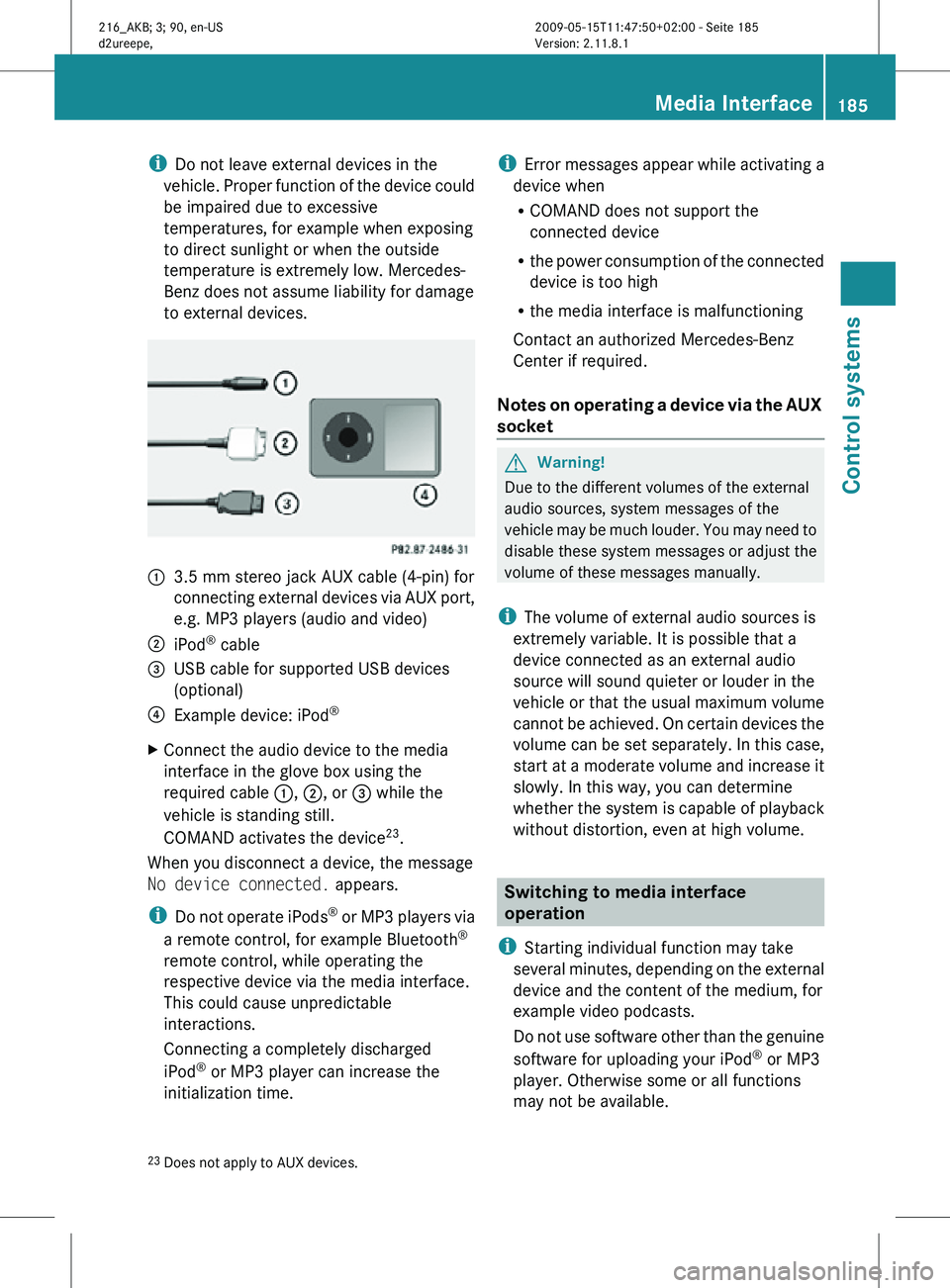
3.5 mm stereo jack AUX cable (4-pin) for
connecting external devices via AUX port,
e.g. MP3 players (audio and video)
; iPod ®
cable
= USB cable for supported USB devices
(optional)
? Example device: iPod ®
X Connect the audio device to the media
interface in the glove box using the
required cable :, ;, or = while the
vehicle is standing still.
COMAND activates the device 23
.
When you disconnect a device, the message
No device connected. appears.
i Do not operate iPods ®
or MP3 players via
a remote control, for example Bluetooth ®
remote control, while operating the
respective device via the media interface.
This could cause unpredictable
interactions.
Connecting a completely discharged
iPod ®
or MP3 player can increase the
initialization time. i
Error messages appear while activating a
device when
R COMAND does not support the
connected device
R the power consumption of the connected
device is too high
R the media interface is malfunctioning
Contact an authorized Mercedes-Benz
Center if required.
Notes on operating a device via the AUX
socket G
Warning!
Due to the different volumes of the external
audio sources, system messages of the
vehicle may be much louder. You may need to
disable these system messages or adjust the
volume of these messages manually.
i The volume of external audio sources is
extremely variable. It is possible that a
device connected as an external audio
source will sound quieter or louder in the
vehicle or that the usual maximum volume
cannot be achieved. On certain devices the
volume can be set separately. In this case,
start at a moderate volume and increase it
slowly. In this way, you can determine
whether the system is capable of playback
without distortion, even at high volume. Switching to media interface
operation
i Starting individual function may take
several minutes, depending on the external
device and the content of the medium, for
example video podcasts.
Do not use software other than the genuine
software for uploading your iPod ®
or MP3
player. Otherwise some or all functions
may not be available.
23 Does not apply to AUX devices. Media Interface
185Control systems
216_AKB; 3; 90, en-US
d2ureepe, Version: 2.11.8.1 2009-05-15T11:47:50+02:00 - Seite 185 Z
Page 192 of 500
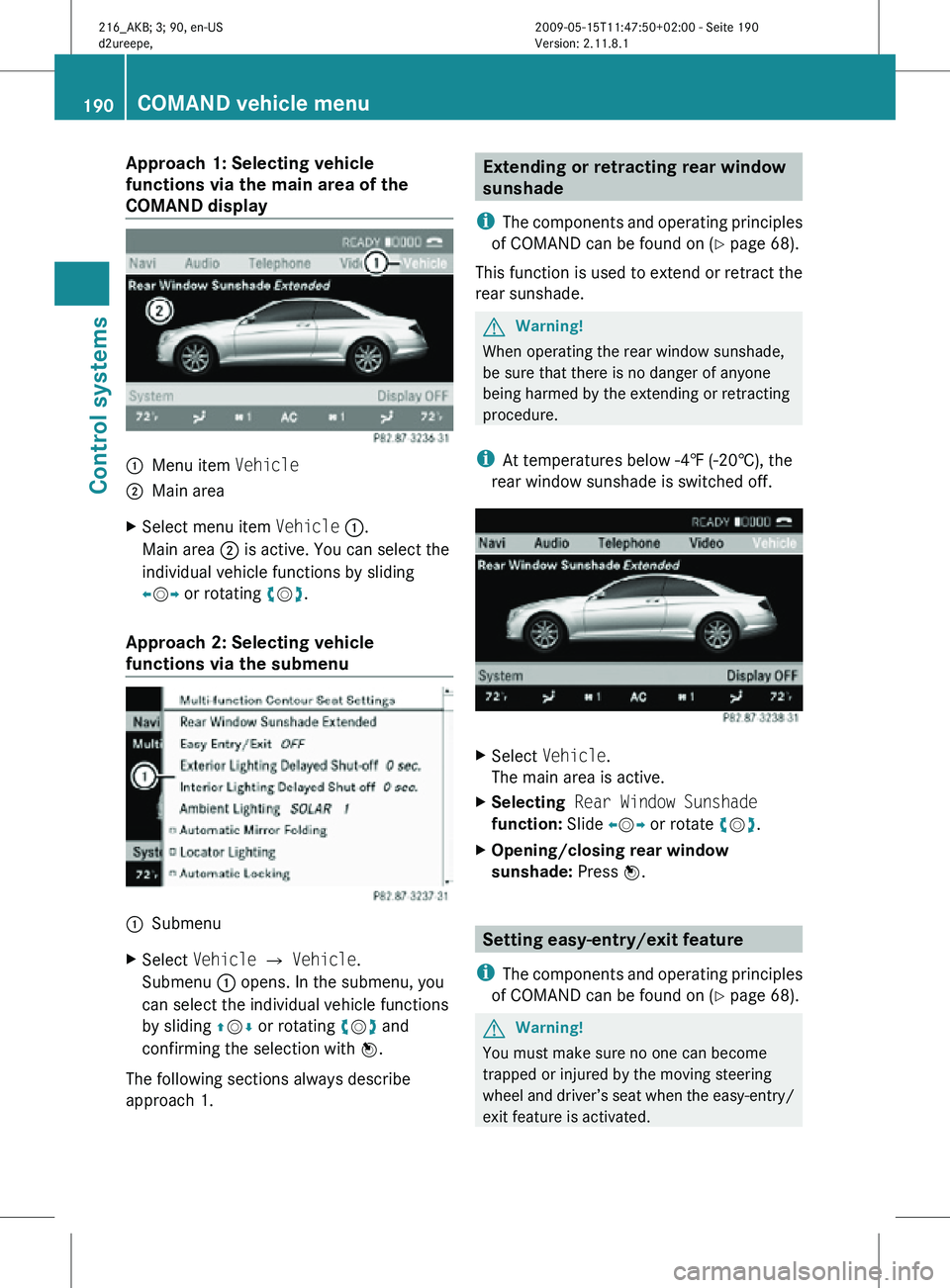
Approach 1: Selecting vehicle
functions via the main area of the
COMAND display
:
Menu item Vehicle
; Main area
X Select menu item Vehicle :.
Main area ; is active. You can select the
individual vehicle functions by sliding
XVY or rotating cVd.
Approach 2: Selecting vehicle
functions via the submenu :
Submenu
X Select Vehicle Q Vehicle.
Submenu : opens. In the submenu, you
can select the individual vehicle functions
by sliding ZVÆ or rotating cVd and
confirming the selection with W.
The following sections always describe
approach 1. Extending or retracting rear window
sunshade
i The components and operating principles
of COMAND can be found on ( Y page 68).
This function is used to extend or retract the
rear sunshade. G
Warning!
When operating the rear window sunshade,
be sure that there is no danger of anyone
being harmed by the extending or retracting
procedure.
i At temperatures below -4‡ (-20†), the
rear window sunshade is switched off. X
Select Vehicle.
The main area is active.
X Selecting Rear Window Sunshade
function: Slide XVY or rotate cVd.
X Opening/closing rear window
sunshade: Press W. Setting easy-entry/exit feature
i The components and operating principles
of COMAND can be found on ( Y page 68). G
Warning!
You must make sure no one can become
trapped or injured by the moving steering
wheel and driver’s seat when the easy-entry/
exit feature is activated. 190
COMAND vehicle menuControl systems
216_AKB; 3; 90, en-US
d2ureepe,
Version: 2.11.8.1 2009-05-15T11:47:50+02:00 - Seite 190
Page 196 of 500
COMAND automatic climate control
Introduction
i The components and operating principles
of COMAND can be found on ( Y page 68).G
Warning!
Follow the recommended settings for heating
and cooling given on the following pages and
pages in the “Controls in detail” chapter.
Otherwise the windows could fog up,
impairing visibility and endangering you and
others.
You can operate the climate control via
COMAND or via the buttons on the climate
control panel (Y page 338).
Some of the special climate control functions
can only be operated via COMAND.
The following climate control functions can
be operated via COMAND:
R Temperature ( Y page 194)
R Air distribution (Y page 195)
R Air volume ( Y page 195)
R Switching off cooling (Æ)
(Y page 196)
R Central climate control (Mono)
(Y page 196)
R Footwell temperature ( Y page 197)
R Air flow from air vents (Y page 197)
The climate control menu is called up via the
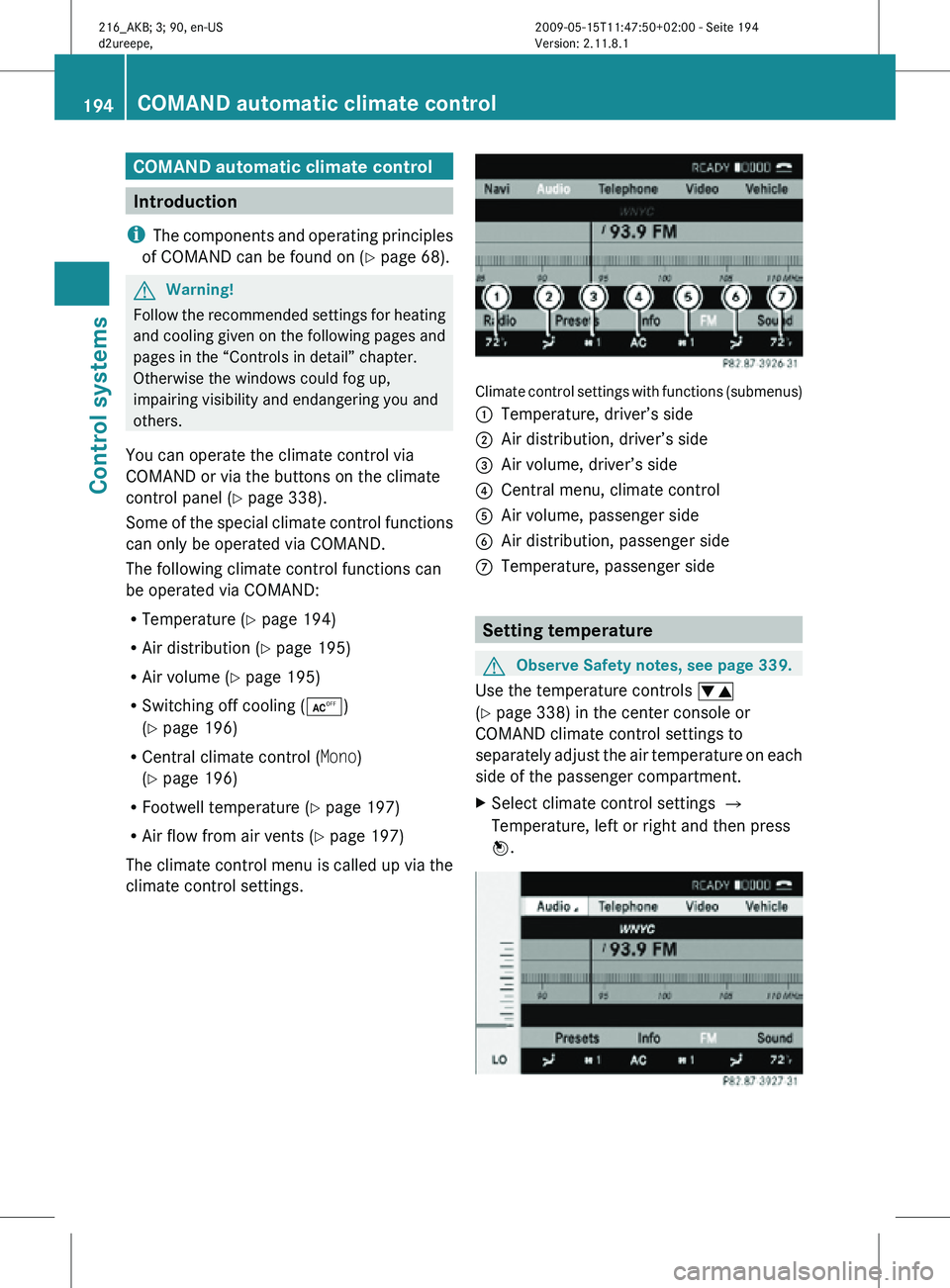
climate control settings. Climate control settings with functions (submenus)
:
Temperature, driver’s side
; Air distribution, driver’s side
= Air volume, driver’s side
? Central menu, climate control
A Air volume, passenger side
B Air distribution, passenger side
C Temperature, passenger side Setting temperature
G
Observe Safety notes, see page 339.
Use the temperature controls w
(Y page 338) in the center console or
COMAND climate control settings to
separately adjust the air temperature on each
side of the passenger compartment.
X Select climate control settings Q
Temperature, left or right and then press
W. 194
COMAND automatic climate controlControl systems
216_AKB; 3; 90, en-US
d2ureepe,
Version: 2.11.8.1 2009-05-15T11:47:50+02:00 - Seite 194
Page 198 of 500

X
Changing air volume: Slide ZVÆ or rotate
cVd.
or
X Switching back to automatic mode:
Rotate cVd and select AUTO.
X Exiting menu: Press W, back button
% in the center console (Y page 69) or
slide XVY.
The setting is saved. Central climate control menu via
COMAND
The central climate control menu is in the
center of the climate control settings. When
the climate control is activated, you will see
AC in the central menu. The following
functions can only be operated in the central
climate control menu via COMAND:
R Deactivating cooling (Æ) (Y page 196)
R Central climate control (Mono)
(Y page 196)
R Footwell temperature ( Y page 197)
R Air flow from air vents (Y page 197)
X Select climate control settings Q Central
menu. Activating/deactivating air
conditioning
The air conditioning is operational while the
engine is running and cools the interior air to
the temperature set by the operator. In addition, the air conditioning dehumidifies
the interior air and helps prevent window
fogging.
i
Condensation may drip out from
underneath the vehicle. This is normal and
not an indication of a malfunction. G
Warning!
If you deactivate the air conditioning, the
vehicle will not be cooled when weather
conditions are warm. The windows can fog up
more quickly. Window fogging may impair
visibility and endanger you and others.
X Select climate control settings Q Central
climate control menu.
X Selecting Æ: Slide ZVÆ or rotate
cVd.
X Confirming selection: Press W.
A checkmark appears when the cooling is
deactivated.
Æ appears in the central menu of the
climate control settings. !
If the air conditioning cannot be activated
again, this indicates that the air
conditioning is losing refrigerant. The
compressor has turned off.
Have the air conditioning checked at the
nearest authorized Mercedes-Benz Center.
Selecting Mono mode Mono is used to adjust the climate zones for
the entire vehicle at the same time. When the
Mono function is switched on and you change
the climate on the driver’s side, these
changes will be carried out in the same
manner for all climate zones.196
COMAND automatic climate controlControl systems
216_AKB; 3; 90, en-US
d2ureepe,
Version: 2.11.8.1 2009-05-15T11:47:50+02:00 - Seite 196
Page 203 of 500
bolsters. This function improves driving
comfort and pleasure.
X
Select seat (Y page 198).
X Selecting Dynamic Seat: Slide XVY or
rotate cVd.
X Confirming selection: Press W.
A scale appears.
You can choose between:
R 0: off
R 1: level 1 (Less lateral support and slow
air pressure build-up in the air chambers
of the seat backrest side bolsters.)
R 2: level 2 (Strong lateral support and fast
air pressure build-up in the air chambers
of the seat backrest side bolsters.) X
Slide ZVÆ or rotate cVd until desired
setting is reached.
X Saving setting: Press W.
Massage
X Select seat (Y page 198).
X Selecting Massage: Slide XVY or rotate
cVd.
X Confirming selection: Press W.
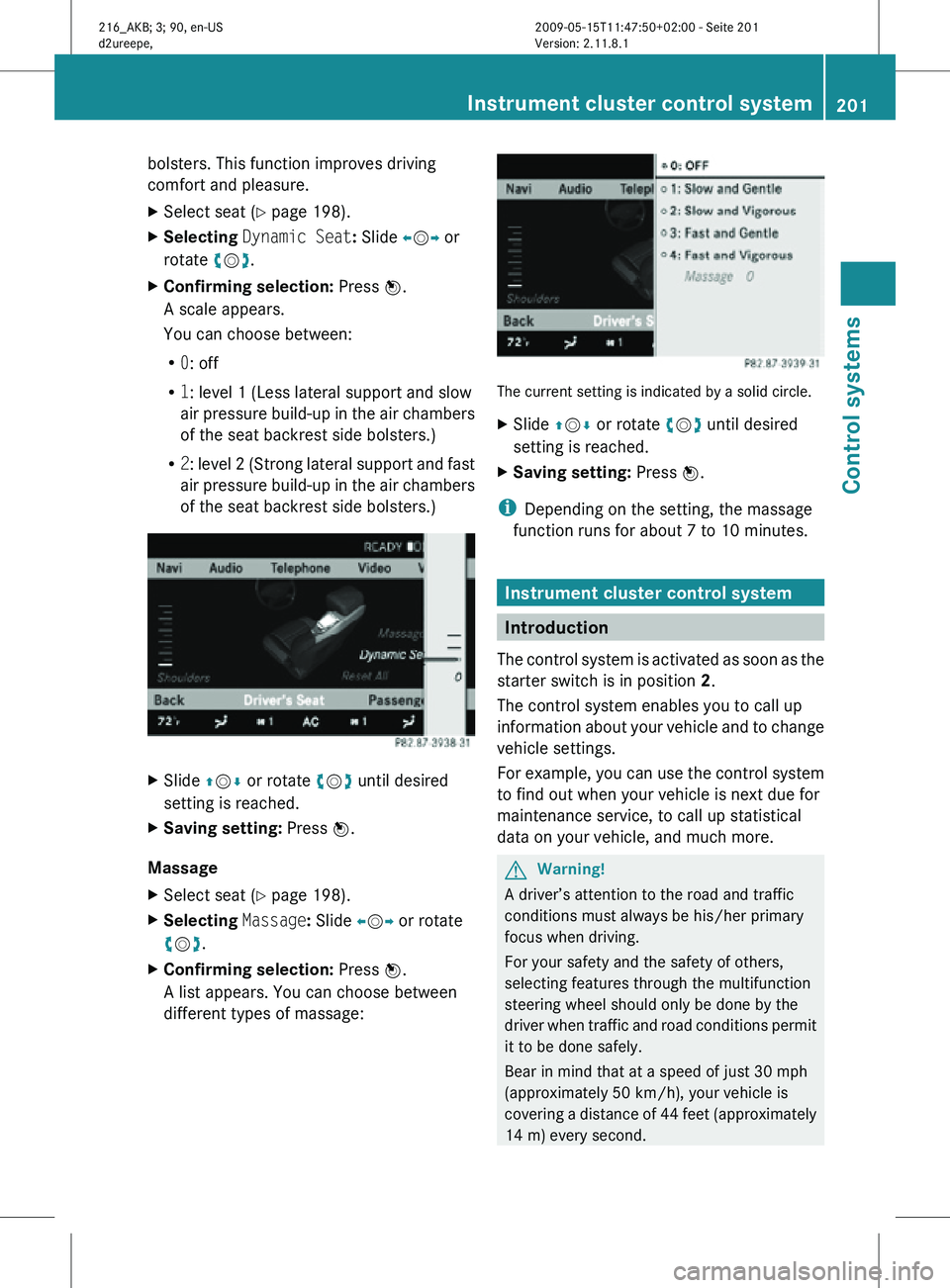
A list appears. You can choose between
different types of massage: The current setting is indicated by a solid circle.
X
Slide ZVÆ or rotate cVd until desired
setting is reached.
X Saving setting: Press W.
i Depending on the setting, the massage
function runs for about 7 to 10 minutes. Instrument cluster control system
Introduction
The control system is activated as soon as the
starter switch is in position 2.
The control system enables you to call up
information about your vehicle and to change
vehicle settings.
For example, you can use the control system
to find out when your vehicle is next due for
maintenance service, to call up statistical
data on your vehicle, and much more. G
Warning!
A driver’s attention to the road and traffic
conditions must always be his/her primary
focus when driving.
For your safety and the safety of others,
selecting features through the multifunction
steering wheel should only be done by the
driver when traffic and road conditions permit
it to be done safely.
Bear in mind that at a speed of just 30 mph
(approximately 50 km/h), your vehicle is
covering a distance of 44 feet (approximately
14 m) every second. Instrument cluster control system
201Control systems
216_AKB; 3; 90, en-US
d2ureepe, Version: 2.11.8.1 2009-05-15T11:47:50+02:00 - Seite 201 Z
Page 211 of 500
The engine oil temperature will be shown in
blue if the engine oil temperature has not yet
reached 176‡ (80†). During this time, avoid
driving at full engine speed.
If the engine reaches the overspeed range in
the manual shift program, you will see
up next
to gear indicator : as a reminder to upshift.
Use buttons : or 9 to select the
following functions in the AMG menu:
R RACETIMER (Y page 209)
R Overall analysis ( Y page 210)
R Lap analysis (Y page 210)
RACETIMER G
Warning!
The RACETIMER feature is only for use on
roads and in conditions where high speed
driving is permitted. Racing on public roads is
prohibited under all circumstances. The driver
is and must always remain responsible for
following posted speed limits.
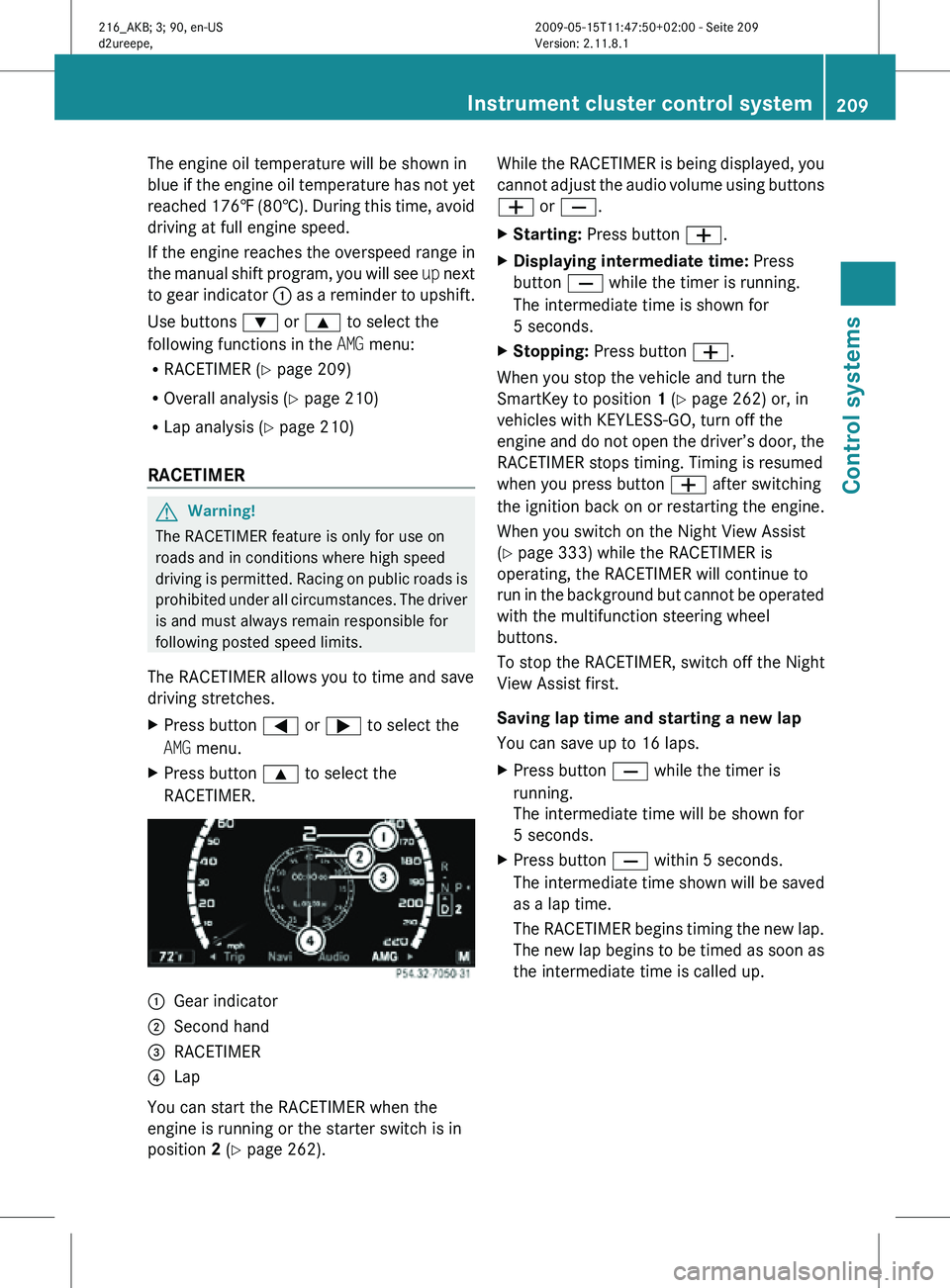
The RACETIMER allows you to time and save
driving stretches.
X Press button = or ; to select the
AMG menu.
X Press button 9 to select the
RACETIMER. :
Gear indicator
; Second hand
= RACETIMER
? Lap
You can start the RACETIMER when the
engine is running or the starter switch is in
position 2 (Y page 262). While the RACETIMER is being displayed, you
cannot adjust the audio volume using buttons
W or X.
X
Starting: Press button W.
X Displaying intermediate time: Press
button X while the timer is running.
The intermediate time is shown for
5 seconds.
X Stopping: Press button W.
When you stop the vehicle and turn the
SmartKey to position 1 (Y page 262) or, in
vehicles with KEYLESS-GO, turn off the
engine and do not open the driver’s door, the
RACETIMER stops timing. Timing is resumed
when you press button W after switching
the ignition back on or restarting the engine.
When you switch on the Night View Assist
(Y page 333) while the RACETIMER is
operating, the RACETIMER will continue to
run in the background but cannot be operated
with the multifunction steering wheel
buttons.
To stop the RACETIMER, switch off the Night
View Assist first.
Saving lap time and starting a new lap
You can save up to 16 laps.
X Press button X while the timer is
running.
The intermediate time will be shown for
5 seconds.
X Press button X within 5 seconds.
The intermediate time shown will be saved
as a lap time.
The RACETIMER begins timing the new lap.
The new lap begins to be timed as soon as
the intermediate time is called up. Instrument cluster control system
209Control systems
216_AKB; 3; 90, en-US
d2ureepe, Version: 2.11.8.1 2009-05-15T11:47:50+02:00 - Seite 209 Z
Page 213 of 500
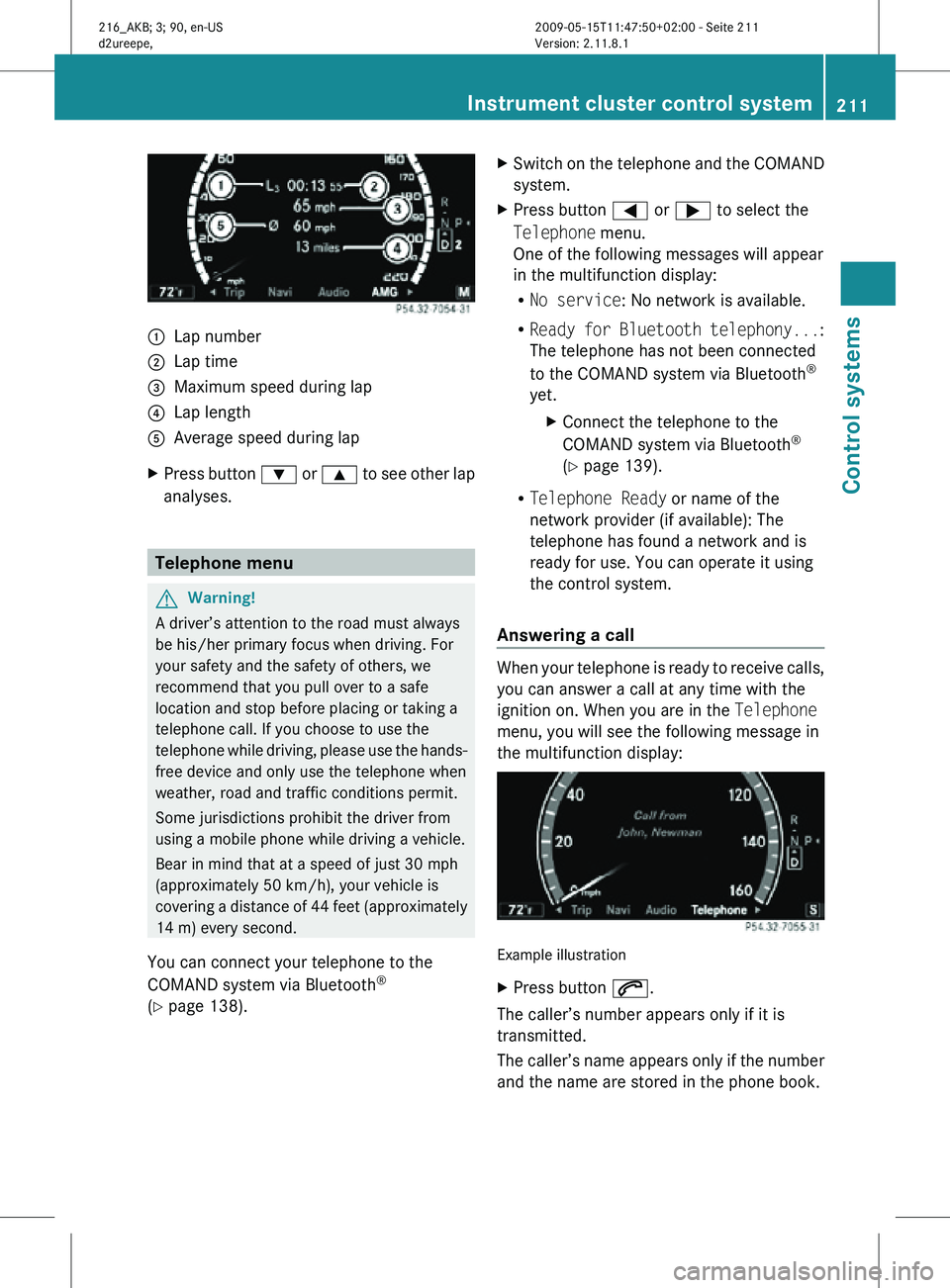
:
Lap number
; Lap time
= Maximum speed during lap
? Lap length
A Average speed during lap
X Press button : or 9 to see other lap
analyses. Telephone menu
G
Warning!
A driver’s attention to the road must always
be his/her primary focus when driving. For
your safety and the safety of others, we
recommend that you pull over to a safe
location and stop before placing or taking a
telephone call. If you choose to use the
telephone while driving, please use the hands-
free device and only use the telephone when
weather, road and traffic conditions permit.
Some jurisdictions prohibit the driver from
using a mobile phone while driving a vehicle.
Bear in mind that at a speed of just 30 mph
(approximately 50 km/h), your vehicle is
covering a distance of 44 feet (approximately
14 m) every second.
You can connect your telephone to the
COMAND system via Bluetooth ®
(Y page 138). X
Switch on the telephone and the COMAND
system.
X Press button = or ; to select the
Telephone menu.
One of the following messages will appear
in the multifunction display:
R
No service: No network is available.
R Ready for Bluetooth telephony... :
The telephone has not been connected
to the COMAND system via Bluetooth ®
yet. XConnect the telephone to the
COMAND system via Bluetooth ®
(Y page 139).
R Telephone Ready or name of the
network provider (if available): The
telephone has found a network and is
ready for use. You can operate it using
the control system.
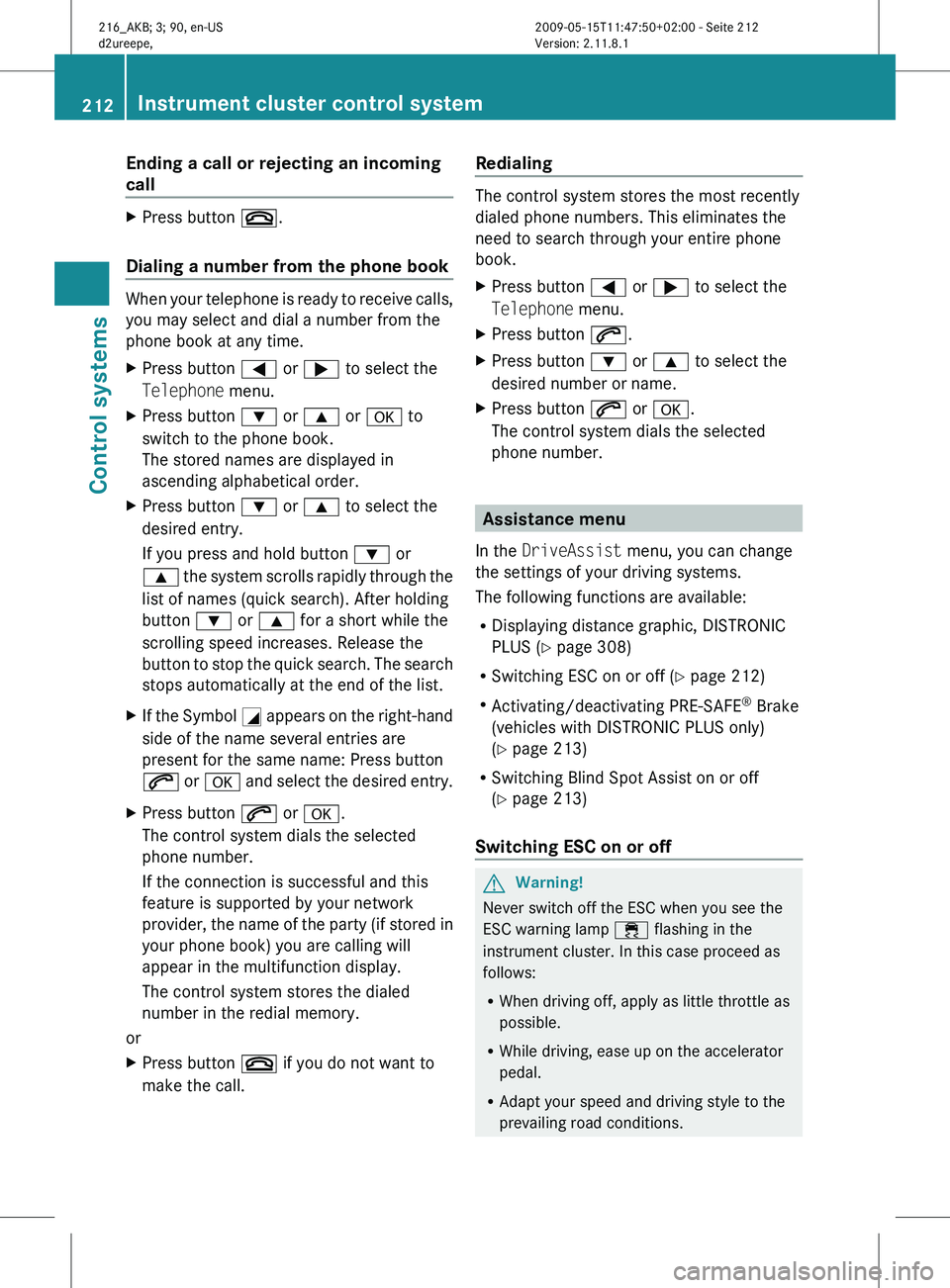
Answering a call When your telephone is ready to receive calls,
you can answer a call at any time with the
ignition on. When you are in the Telephone
menu, you will see the following message in
the multifunction display:
Example illustration
X
Press button 6.
The caller’s number appears only if it is
transmitted.
The caller’s name appears only if the number
and the name are stored in the phone book. Instrument cluster control system
211Control systems
216_AKB; 3; 90, en-US
d2ureepe, Version: 2.11.8.1 2009-05-15T11:47:50+02:00 - Seite 211 Z
Page 214 of 500
Ending a call or rejecting an incoming
call
X
Press button ~.
Dialing a number from the phone book When your telephone is ready to receive calls,
you may select and dial a number from the
phone book at any time.
X
Press button = or ; to select the
Telephone menu.
X Press button : or 9 or a to
switch to the phone book.
The stored names are displayed in
ascending alphabetical order.
X Press button : or 9 to select the
desired entry.
If you press and hold button : or
9 the
system scrolls rapidly through the
list of names (quick search). After holding
button : or 9 for a short while the
scrolling speed increases. Release the
button to stop the quick search. The search
stops automatically at the end of the list.
X If the Symbol G appears
on the right-hand
side of the name several entries are
present for the same name: Press button
6 or a and select the desired entry.
X Press button 6 or a.
The control system dials the selected
phone number.
If the connection is successful and this
feature is supported by your network
provider, the
name of the party (if stored in
your phone book) you are calling will
appear in the multifunction display.
The control system stores the dialed
number in the redial memory.
or
X Press button ~ if you do not want to
make the call. Redialing The control system stores the most recently
dialed phone numbers. This eliminates the
need to search through your entire phone
book.
X
Press button = or ; to select the
Telephone menu.
X Press button 6.
X Press button : or 9 to select the
desired number or name.
X Press button 6 or a.
The control system dials the selected
phone number. Assistance menu
In the DriveAssist menu, you can change
the settings of your driving systems.
The following functions are available:
R Displaying distance graphic, DISTRONIC
PLUS (Y page 308)
R Switching ESC on or off (
Y page 212)
R Activating/deactivating PRE-SAFE ®
Brake
(vehicles with DISTRONIC PLUS only)
(Y page 213)
R Switching Blind Spot Assist on or off
(Y page 213)
Switching ESC on or off G
Warning!
Never switch off the ESC when you see the
ESC warning lamp ÷ flashing in the
instrument cluster. In this case proceed as
follows:
R When driving off, apply as little throttle as
possible.
R While driving, ease up on the accelerator
pedal.
R Adapt your speed and driving style to the
prevailing road conditions. 212
Instrument cluster control system
Control systems
216_AKB; 3; 90, en-US
d2ureepe,
Version: 2.11.8.1 2009-05-15T11:47:50+02:00 - Seite 212
Page 215 of 500
Failure to observe these guidelines could
cause the vehicle to skid. The ESC cannot
prevent accidents resulting from excessive
speed.
For more Information, see ( Y page 59)
X Start the engine.
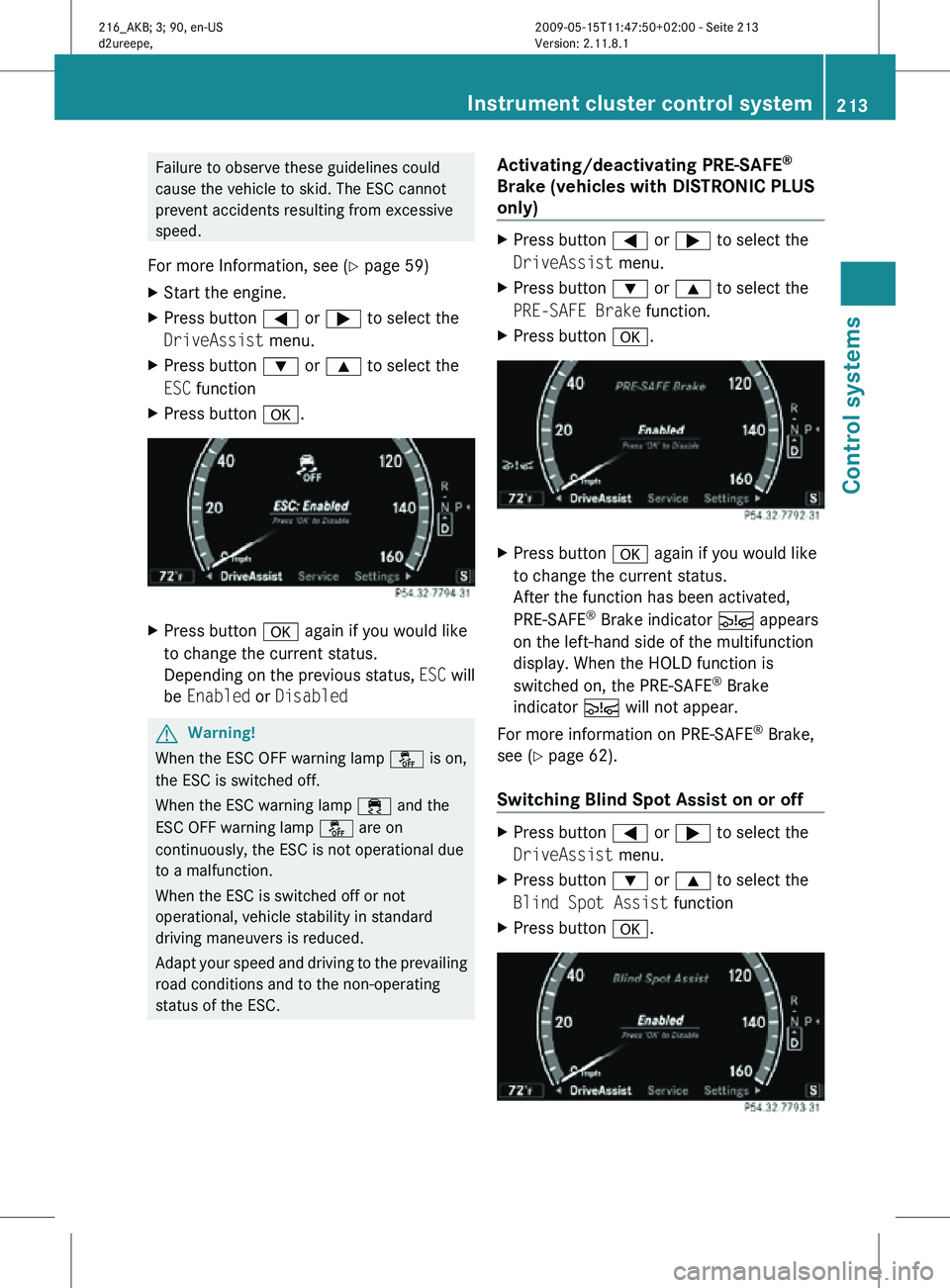
X Press button = or ; to select the
DriveAssist menu.
X Press button : or 9 to select the
ESC function
X Press button a. X
Press button a again if you would like
to change the current status.
Depending on the previous status, ESC will
be Enabled or Disabled G
Warning!
When the ESC OFF warning lamp å is on,
the ESC is switched off.
When the ESC warning lamp ÷ and the
ESC OFF warning lamp å are on
continuously, the ESC is not operational due
to a malfunction.
When the ESC is switched off or not
operational, vehicle stability in standard
driving maneuvers is reduced.
Adapt your speed and driving to the prevailing
road conditions and to the non-operating
status of the ESC. Activating/deactivating PRE-SAFE
®
Brake (vehicles with DISTRONIC PLUS
only) X
Press button = or ; to select the
DriveAssist menu.
X Press button : or 9 to select the
PRE-SAFE Brake function.
X Press button a. X
Press button a again if you would like
to change the current status.
After the function has been activated,
PRE-SAFE ®
Brake indicator Ä appears
on the left-hand side of the multifunction
display. When the HOLD function is
switched on, the PRE-SAFE ®
Brake
indicator Ä will not appear.
For more information on PRE-SAFE ®
Brake,
see ( Y page 62).
Switching Blind Spot Assist on or off X
Press button = or ; to select the
DriveAssist menu.
X Press button : or 9 to select the
Blind Spot Assist function
X Press button a. Instrument cluster control system
213Control systems
216_AKB; 3; 90, en-US
d2ureepe, Version: 2.11.8.1 2009-05-15T11:47:50+02:00 - Seite 213 Z
Page 216 of 500

X
Press button a again if you would like
to change the current status.
Depending on the previous status, Blind
Spot Assist will be Enabled or Disabled
For more information on Blind Spot Assist,
see ( Y page 335). Service menu
In the Service menu the following functions
are available:
R Vehicle status message memory
(Y page 214)
R Checking tire inflation pressure
electronically with the Advanced TPMS
(Y page 377)
R Calling up the maintenance service
indicator display ( Y page 402)
R Checking engine oil level (CL 600 and
CL 65 AMG) ( Y page 370)
Vehicle status message memory Use the vehicle status message memory
function to scan malfunction and warning
messages that may be stored in the system.
Such messages appear in the multifunction
display and are based on conditions or
system status the vehicle’s system has
recorded.
The vehicle status message memory function
only appears if there are any messages
stored.
G
Warning!
Malfunction and warning messages are only
indicated for certain systems and are
intentionally not very detailed. The
malfunction and warning messages are
simply a reminder with respect to the
operation of certain systems. They do not
replace the owner’s and/or driver’s
responsibility to maintain the vehicle’s
operating safety. Have all required
maintenance and safety checks performed on the vehicle. Bring the vehicle to an authorized
Mercedes-Benz Center to address the
malfunction and warning messages.
X Press button = or ; to select the
Service menu.
If conditions have occurred causing status
messages to be recorded, the number of
messages appears in the multifunction
display: 2 Messages.
X Press button : or 9 to select the
Messages function.
X Press button a to confirm.
For malfunction and warning messages,
see “Vehicle status messages in the
multifunction display” ( Y page 414).
X Use button : or 9 to scroll through
the messages.
If you turn the SmartKey in the starter switch
to position 0 and then back to position 2, all
messages will be deleted from the message
memory. Settings menu
In the
Settings menu the following functions
are available:
R Switching daytime running lamp mode on
or off (USA only) (Y page 215)
R Showing or hiding additional speedometer
(Y page 215)
R Selecting speedometer display mode
(Y page 215)
R Switching the radar sensors on or off
(Y page 216) 214
Instrument cluster control systemControl systems
216_AKB; 3; 90, en-US
d2ureepe,
Version: 2.11.8.1 2009-05-15T11:47:50+02:00 - Seite 214