warning MERCEDES-BENZ CL CLASS 2010 Manual PDF
[x] Cancel search | Manufacturer: MERCEDES-BENZ, Model Year: 2010, Model line: CL CLASS, Model: MERCEDES-BENZ CL CLASS 2010Pages: 500, PDF Size: 9.32 MB
Page 219 of 500
Voice Control System introduction
Safety notes
G
Warning!
Only use the Voice Control System when road
and traffic conditions permit you to do so.
Otherwise you could be involved in an
accident in which you or others could be
injured. G
Warning!
Please devote your attention first and
foremost to the traffic situation you are in.
While the system permits hands-free phone
operation, attention
to traffic may be diverted
not only by physical operation of a phone, but
also by the distraction of a phone
conversation while driving. As such, for safety
reasons, we encourage the driver to stop the
vehicle in a safe place before answering or
placing a phone call.
For safety reasons, you should only select a
destination when the vehicle is stationary.
While the navigation system provides
directional assistance, the driver must remain
focused on safe driving behavior, especially
attention to traffic and street signs, and
should utilize the system’s audio cues while
driving.
The navigation system does not supply any
information on stop signs, yield signs, traffic
regulations or traffic safety rules. Their
observance always remains in the driver’s
personal responsibility. Maps do not cover all
areas nor all routes within an area.
Traffic regulations always have priority over
any route recommendations given.
Bear in mind that at a speed of just 30 mph
(approximately 50 km/h), your vehicle is
covering a distance of 44 feet (approximately
14 m) every second. G
Warning!
Navigation announcements are intended to
direct you
while driving without diverting your
attention from the road and driving.
Please always use navigation announcements
instead of consulting the map display for
directions. Consulting the symbols or map
display for directions may cause you to divert
your attention from driving and increase your
risk of an accident. G
Warning!
Please do not use the Voice Control System
in an emergency, as the tone of your voice
may change
in a stressful situation. This could
cause a delay in completing your phone call
in a timely manner. This could distract you in
an emergency situation and cause you to be
involved in an accident. General information
Depending on vehicle equipment, you can
operate the following systems via the Voice
Control System:
R Telephone ( Y page 225)
R Navigation ( Y page 219)
R Address book (Y page 229)
R Audio ( Y page 231) (AM/FM radio,
Satellite radio, CD/DVD changer, MP3
mode (SD
card, USB, Music Register, Media
Interface), AUX)
R Video
You control these systems using spoken
commands. Moreover, controls such as the
buttons on the multifunction steering wheel
(Y page 218) allow you to keep your hands
on the steering wheel.
The Voice Control System recognizes
commands and number sequences,
irrespective of the speaker. To optimize
speech recognition for your voice follow the
individualization process ( Y page 250). Voice Control System introduction
217
Control systems
216_AKB; 3; 90, en-US
d2ureepe, Version: 2.11.8.1 2009-05-15T11:47:50+02:00 - Seite 217 Z
Page 231 of 500
^
Which number do you want to dial:
Home or work?
\ Home.
^ Smith home.
Dialing.
“Dialed calls” The command “Dialed calls” displays the last
called
phone
numbers and to call one of these
phone numbers.
“Received calls” The command “Received calls” displays the
last calls that came in.
Managing announcement services or
voice mail
You can also use the Voice Control System to
manage your voice mail or recorded
announcement services.
X
Press button ? while a phone call is in
progress.
An acoustic
signal confirms that the system
is activated.
X Say the required digits (“Zero” to “Nine”).
or
X Say the required words “Star” and “Pound”.
X Say the final command “Ok”.
The system dials the number entered. Voice Control System address book
Safety notes
G
Warning!
Please devote your attention first and
foremost to the traffic situation you are in.
Before your journey, please familiarize
yourself with the address book functions.
Only use
the Voice Control System when road
and traffic conditions permit you to do so.
Otherwise you could be involved in an accident in which you or others could be
injured.
COMAND address book overview
The address
book lets you store voice names
in address book entries.
You can dial a phone number from the
address book or start route guidance to a
stored address via the Voice Control System.
In addition to the voice names, the Voice
Control System can also recognize all entries
in the name fields of the address book.
Check address book entries for the following:
R Name entries such as first and last name
are in the correct field.
R Do not use abbreviations or short forms,
e.g. acronyms.
R Avoid unnecessary blanks within the name
R Do not use special characters.
You can improve the voice recognition by
adding a voice name to an address book
entry.
Use a voice name
R with names that are difficult to pronounce
R to differentiate names that sound similar
R with names that are pronounced
significantly different from the way they are
spelled
You can store voice names for up to 50
address book entries. Adressbook operation
You can use the Voice Control System to
R store a name
R select a name
R delete a name
R have the system read the address book to
you Voice Control System address book
229
Control systems
216_AKB; 3; 90, en-US
d2ureepe, Version: 2.11.8.1 2009-05-15T11:47:50+02:00 - Seite 229 Z
Page 233 of 500
the desired entry contains at least one
phone number or one address, the Voice
Control
System
will ask you what you would
like to do. You can either dial the phone
number or calculate the route to the stored
address.
“Read out destination memory” For information on “Read out destination
memory”, see
(
Y
page 223).
“Delete address book” Use the command “Delete address book” to
delete all or individual voice names of the
address
book
entries. Only the voice name is
deleted; the remaining data in the entry are
retained. When the address book entry
contains a voice name only, the entire
address book entry will be deleted.
“Address book” Use this command to open the address book.
“Open entry”
Use the command “Open entry” you can open
any address book entry.
Sample dialog:
\
Open entry.
_ The system displays a numbered list of
entries in the COMAND display.
^ Please select a line number.
\ Number 1.
^ Number 1 accepted.
_ The system opens the first entry from
the list.
When selected entry contains at least
one phone
number or one address, the
Voice Control System will ask you what
you would like to do. You can either
dial the phone number or calculate the
route to the stored address. i
The list is displayed only when the
address book
contains a very small number
of entries. When the address book contains
several entries, the Voice Control System
prompts you to speak a name.
You can also use the commands “Open
John Smith”, “Open Smith John”, or “Open
entry directly. Voice Control System radio
Safety notes
G
Warning!
Please devote your attention first and
foremost to the traffic situation you are in.
Before your journey, please familiarize
yourself with the radio functions.
Only use
the Voice Control System when road
and traffic conditions permit you to do so.
Otherwise you could be involved in an
accident in which you or others could be
injured. Radio operation
You can use the Voice Control System to
R select a station
R find a station
R select a frequency (FM, AM)
R select a category (satellite radio)
R select the wave band (FM, AM or weather
band)
R reading out the Presets
R switch to satellite radio
R switch to HD Radio™
R save a voice name for a station
R delete a station list (voice names only)
R delete a station (voice name only)
R select a channel number (satellite radio) Voice Control System radio
231Control systems
216_AKB; 3; 90, en-US
d2ureepe, Version: 2.11.8.1 2009-05-15T11:47:50+02:00 - Seite 231 Z
Page 236 of 500
To select a station:
X
Press button ?, when the system reads
the desired station.
X Canceling the dialog: Press button %.
The dialog is concluded. The system
confirms “Cancel”.
“Delete station” You can use the “Delete station” command to
delete a voice name for a station from the
Presets.
Sample dialog:
\
Delete station.
^ Which station name do you want to
delete?
\ Favorite station 30
.
^ Do you want to delete Favorite
station 30
?
\ Yes.
^ Favorite station 30
deleted.
“Delete station list” You can use the “Delete station list”
command to delete all voice names or
individual ones from the stations of the
Presets.
Sample dialog:
\
Delete station list.
^ Do you want to delete them all?
\ Yes.
^ Are you sure you want to delete all
voice names?
\ Yes.
^ All voice names have been deleted
from the station list.
The system permanently deletes all voice
names in the Presets.
or
^ No The system reads out the list of stations.
When the system reads the station to be
deleted:
X
Press button ?.
The station to be deleted is selected. The
system reads out the selected station
again.
^ Do you want to delete “Favorite
Station 30
”?
\ Yes.
^ Station deleted.
The system deletes the station and reads out
the remaining entries in the Presets.
or
^ No.
The system continues reading the Presets
entry by entry.
“HD Radio on”, “HD Radio off” Use “HD Radio on” or “HD Radio off” to switch
the HD Radio™ on or off.
“Sirius”
Use “Sirius” to switch to SIRIUS XM Satellite
Radio.
Voice Control System CD/DVD
changer/MP3
Safety notes
G
Warning!
Please devote your attention first and
foremost to the traffic situation you are in.
Before your journey, please familiarize
yourself with the audio functions.
Only use
the Voice Control System when road
and traffic conditions permit you to do so.
Otherwise you could be involved in an
accident in which you or others could be
injured.
30 Example for a voice name. 234
Voice Control System CD/DVD changer/MP3
Control systems
216_AKB; 3; 90, en-US
d2ureepe,
Version: 2.11.8.1 2009-05-15T11:47:50+02:00 - Seite 234
Page 259 of 500
Fix whatever is affecting the window before
trying to shut the door.
Automatic central locking
You can switch the automatic central locking
on or off using the COMAND system
(Y page 193).
The doors and the trunk lock automatically
when the vehicle is set into motion.
You can open a locked door from the inside.
Open door only when conditions are safe to
do so.
The doors are designed to unlock
automatically after an accident if the force of
the impact exceeds a preset threshold.
The vehicle locks automatically when the
ignition is switched on and the wheels are
turning at a vehicle speed of above 9 mph
(15 km/h). You could therefore lock yourself
out when the vehicle is pushed or towed or is
on a test stand. Locking and unlocking from the inside
G
Observe Safety notes, see page 51.
You can lock or unlock the vehicle from the
inside using the central locking or unlocking
switch. This can be useful, for example, if you
want to lock the vehicle before starting to
drive.
The central locking or unlocking switch does
not lock or unlock the fuel filler flap or the
interior storage compartments, such as the
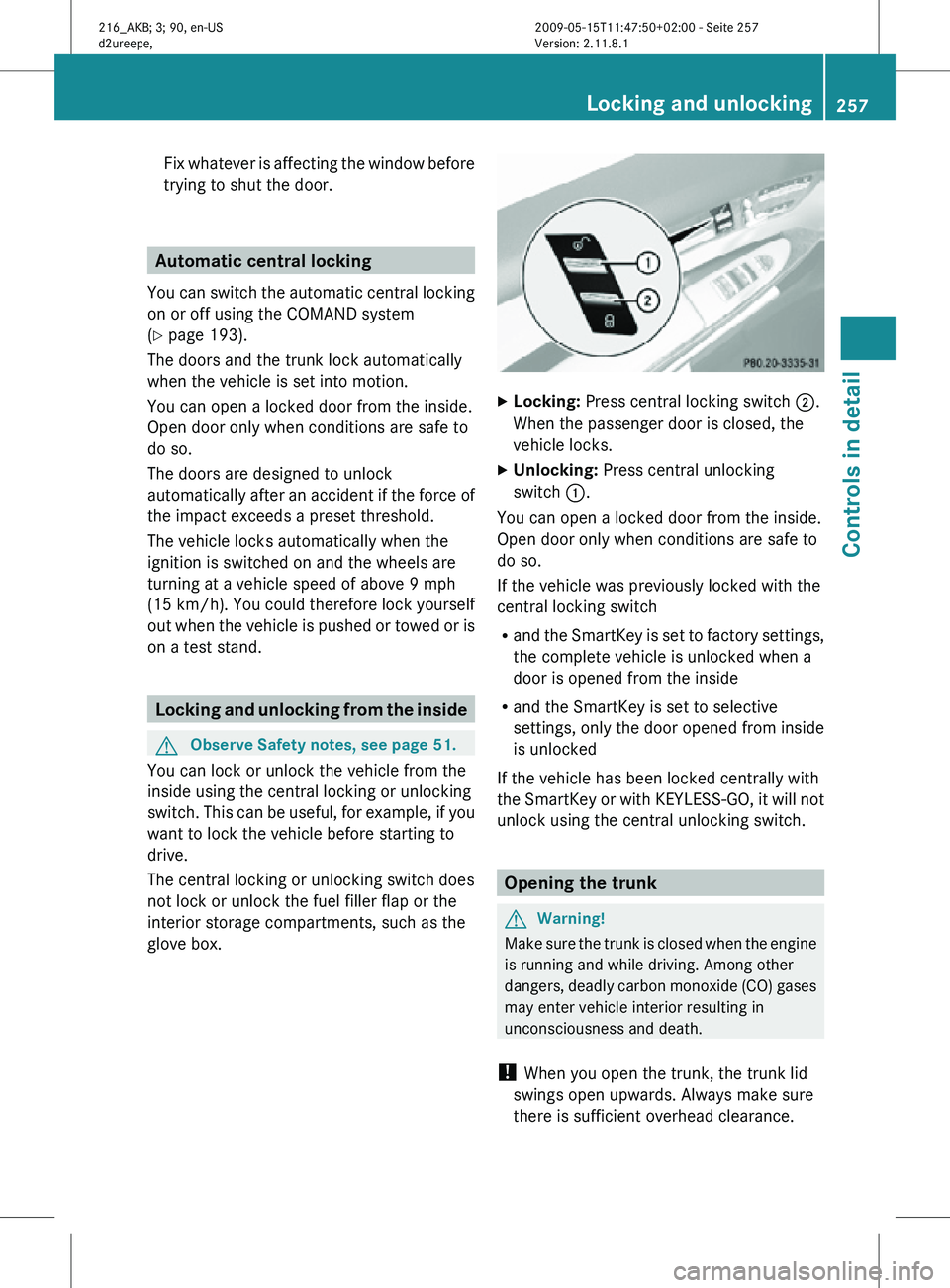
glove box. X
Locking: Press central locking switch ;.
When the passenger door is closed, the
vehicle locks.
X Unlocking: Press central unlocking
switch :.
You can open a locked door from the inside.
Open door only when conditions are safe to
do so.
If the vehicle was previously locked with the
central locking switch
R and the SmartKey is set to factory settings,
the complete vehicle is unlocked when a
door is opened from the inside
R and the SmartKey is set to selective
settings, only the door opened from inside
is unlocked
If the vehicle has been locked centrally with
the SmartKey or with KEYLESS-GO, it will not
unlock using the central unlocking switch. Opening the trunk
G
Warning!
Make sure the trunk is closed when the engine
is running and while driving. Among other
dangers, deadly carbon monoxide (CO) gases
may enter vehicle interior resulting in
unconsciousness and death.
! When you open the trunk, the trunk lid
swings open upwards. Always make sure
there is sufficient overhead clearance. Locking and unlocking
257Controls in detail
216_AKB; 3; 90, en-US
d2ureepe, Version: 2.11.8.1 2009-05-15T11:47:50+02:00 - Seite 257 Z
Page 260 of 500
You can open the trunk when the vehicle is
stationary.
A minimum height clearance of 5.9 ft (1.80 m)
is required to open the trunk lid.
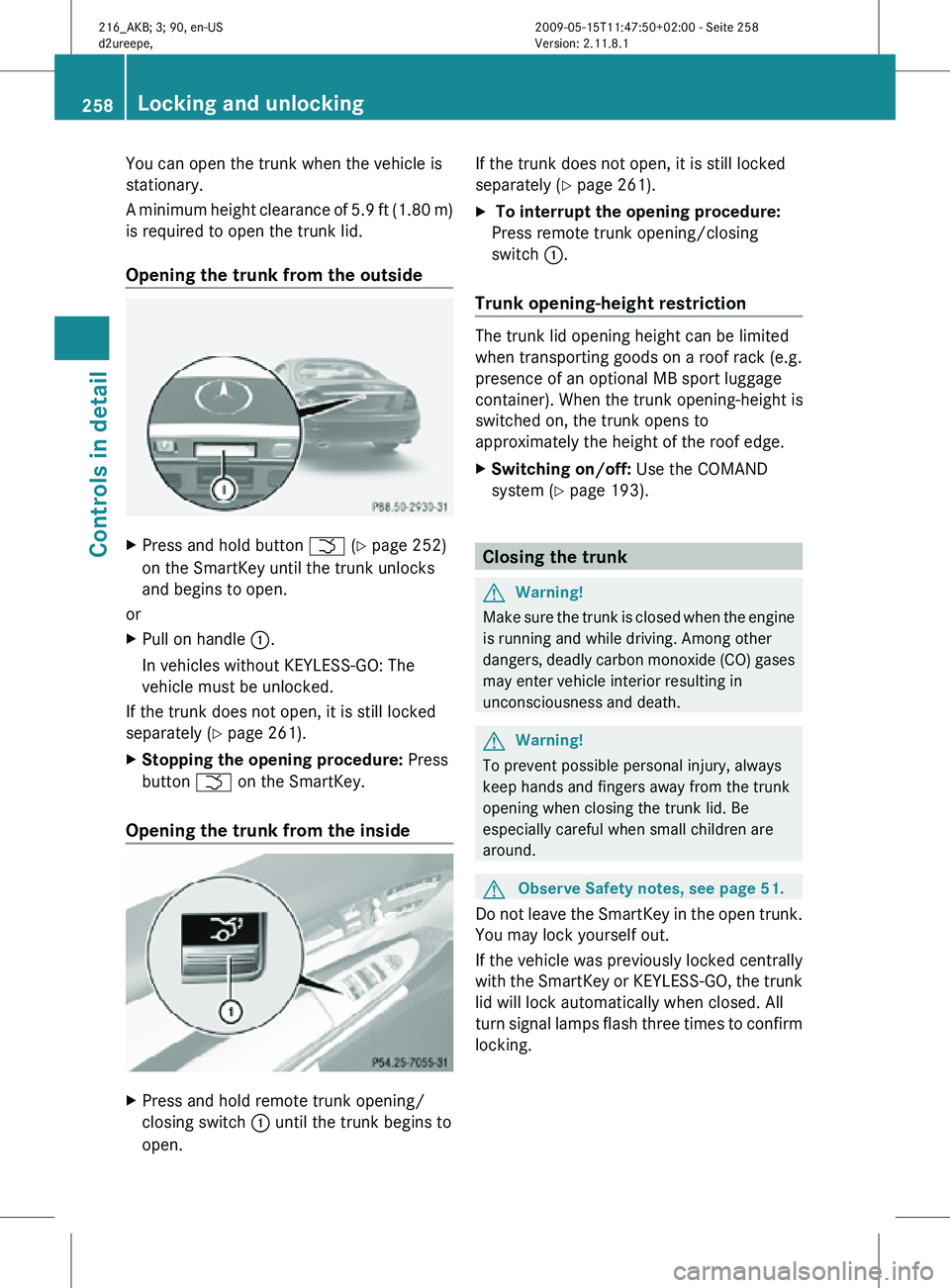
Opening the trunk from the outside
X
Press and hold button F (Y page 252)
on the SmartKey until the trunk unlocks
and begins to open.
or
X Pull on handle :.
In vehicles without KEYLESS-GO: The
vehicle must be unlocked.
If the trunk does not open, it is still locked
separately ( Y page 261).
X Stopping the opening procedure: Press
button F on the SmartKey.
Opening the trunk from the inside X
Press and hold remote trunk opening/
closing switch : until the trunk begins to
open. If the trunk does not open, it is still locked
separately (
Y page 261).
X To interrupt the opening procedure:
Press remote trunk opening/closing
switch :.
Trunk opening-height restriction The trunk lid opening height can be limited
when transporting goods on a roof rack (e.g.
presence of an optional MB sport luggage
container). When the trunk opening-height is
switched on, the trunk opens to
approximately the height of the roof edge.
X
Switching on/off: Use the COMAND
system (Y page 193). Closing the trunk
G
Warning!
Make sure the trunk is closed when the engine
is running and while driving. Among other
dangers, deadly carbon monoxide (CO) gases
may enter vehicle interior resulting in
unconsciousness and death. G
Warning!
To prevent possible personal injury, always
keep hands and fingers away from the trunk
opening when closing the trunk lid. Be
especially careful when small children are
around. G
Observe Safety notes, see page 51.
Do not leave the SmartKey in the open trunk.
You may lock yourself out.
If the vehicle was previously locked centrally
with the SmartKey or KEYLESS-GO, the trunk
lid will lock automatically when closed. All
turn signal lamps flash three times to confirm
locking. 258
Locking and unlockingControls in detail
216_AKB; 3; 90, en-US
d2ureepe,
Version: 2.11.8.1 2009-05-15T11:47:50+02:00 - Seite 258
Page 261 of 500
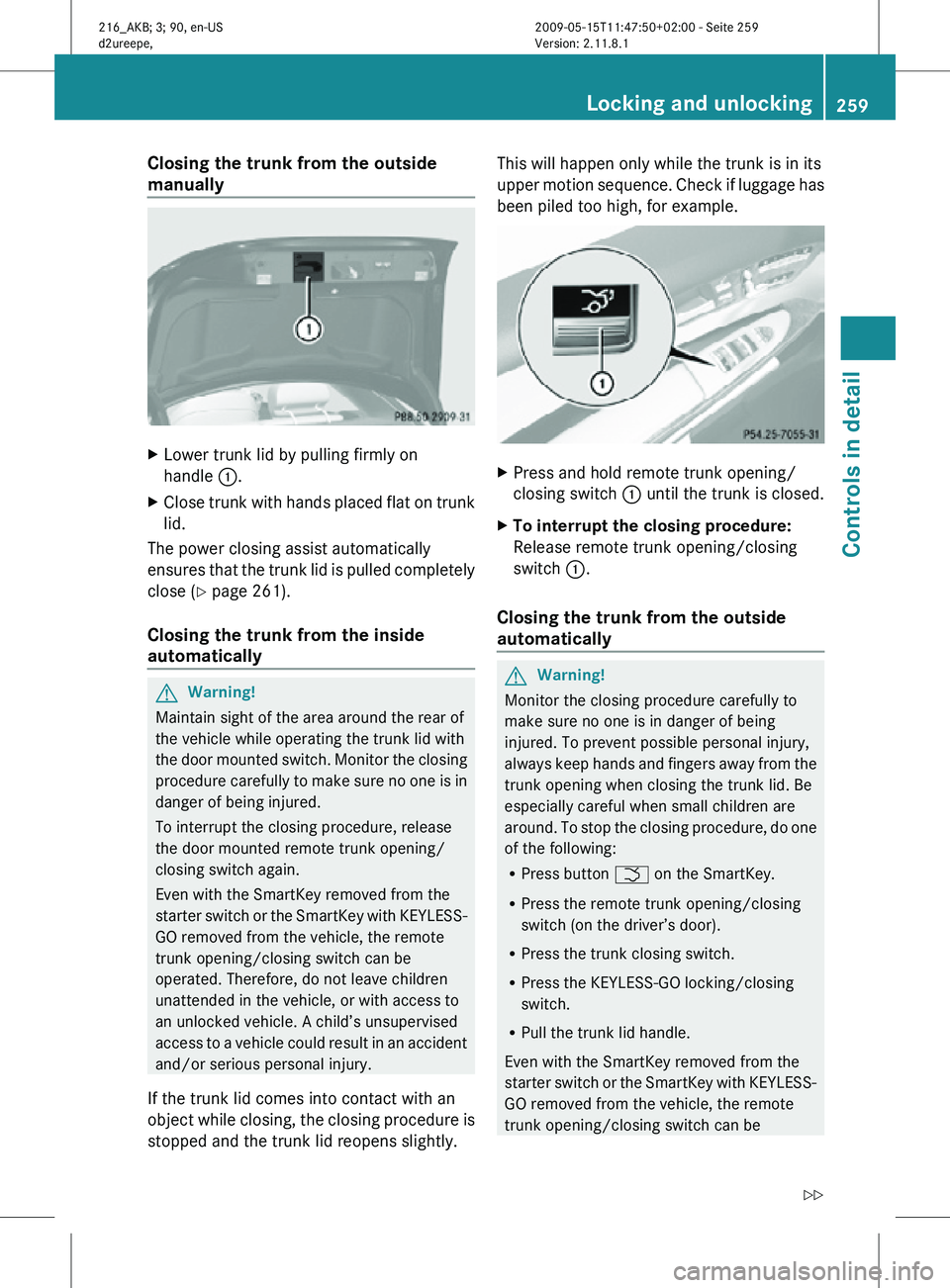
Closing the trunk from the outside
manually
X
Lower trunk lid by pulling firmly on
handle :.
X Close trunk with hands placed flat on trunk
lid.
The power closing assist automatically
ensures that the trunk lid is pulled completely
close ( Y page 261).
Closing the trunk from the inside
automatically G
Warning!
Maintain sight of the area around the rear of
the vehicle while operating the trunk lid with
the door mounted switch. Monitor the closing
procedure carefully to make sure no one is in
danger of being injured.
To interrupt the closing procedure, release
the door mounted remote trunk opening/
closing switch again.
Even with the SmartKey removed from the
starter switch or the SmartKey with KEYLESS-
GO removed from the vehicle, the remote
trunk opening/closing switch can be
operated. Therefore, do not leave children
unattended in the vehicle, or with access to
an unlocked vehicle. A child’s unsupervised
access to a vehicle could result in an accident
and/or serious personal injury.
If the trunk lid comes into contact with an
object while closing, the closing procedure is
stopped and the trunk lid reopens slightly. This will happen only while the trunk is in its
upper motion sequence. Check if luggage has
been piled too high, for example.
X
Press and hold remote trunk opening/
closing switch : until the trunk is closed.
X To interrupt the closing procedure:
Release remote trunk opening/closing
switch :.
Closing the trunk from the outside
automatically G
Warning!
Monitor the closing procedure carefully to
make sure no one is in danger of being
injured. To prevent possible personal injury,
always keep hands and fingers away from the
trunk opening when closing the trunk lid. Be
especially careful when small children are
around. To stop the closing procedure, do one
of the following:
R Press button F on the SmartKey.
R Press the remote trunk opening/closing
switch (on the driver’s door).
R Press the trunk closing switch.
R Press the KEYLESS-GO locking/closing
switch.
R Pull the trunk lid handle.
Even with the SmartKey removed from the
starter switch or the SmartKey with KEYLESS-
GO removed from the vehicle, the remote
trunk opening/closing switch can be Locking and unlocking
259Controls in detail
216_AKB; 3; 90, en-US
d2ureepe, Version: 2.11.8.1 2009-05-15T11:47:50+02:00 - Seite 259 Z
Page 263 of 500

X
Briefly press emergency release
button :.
The emergency release button unlocks and
opens the trunk while the vehicle is standing
still or in motion.
Illumination of the emergency release button:
R The button flashes for 30 minutes after
opening the trunk.
R The button flashes for 60 minutes after
closing the trunk.
The emergency release button does not open
the trunk, if the vehicle battery is discharged
or disconnected. Valet locking
You can lock the trunk separately with the
mechanical key. This denies unauthorized
access to the trunk, e.g. when you valet park
the vehicle.
X Leave only the SmartKey less its
mechanical key with the vehicle. X
Valet locking: Close the trunk.
X Remove the mechanical key from the
SmartKey (Y page 460).
X Insert the mechanical key in the trunk lid
lock.
X Turn the mechanical key clockwise to
position 2 and remove the mechanical
key in that position to lock the trunk.
The trunk remains locked even when the
vehicle is centrally unlocked.
You can then only open the trunk with the
mechanical key.
X Canceling: Insert the mechanical key in
the trunk lid lock.
X Turn the mechanical key counterclockwise
to neutral position 1 and remove the
mechanical key in that position to unlock
the trunk.
You can now open the trunk. Power closing assist for doors and
trunk lid
It is not necessary to slam the door or trunk
lid closed. An electrical power-assisted
mechanism draws doors and trunk lid closed
quietly and automatically once door and trunk
lid has been latched. When the electrical
power-assisted mechanism has stopped,
doors and/or trunk can be reopend. G
Warning!
To prevent possible personal injury, always
keep hands and fingers away from the door or
trunk opening when closing a door or the
trunk lid. Be especially careful when small
children are around.
In case of danger, pull the inside or outside
door handle, or pull the trunk lid handle.
To prevent personal injury, never actuate the
closing assist mechanism by tampering with
the door or trunk lid latch. Locking and unlocking
261Controls in detail
216_AKB; 3; 90, en-US
d2ureepe, Version: 2.11.8.1 2009-05-15T11:47:50+02:00 - Seite 261 Z
Page 264 of 500

G
Warning!
Only drive with the doors closed. Otherwise,
one or more of the doors could open while the
vehicle is in motion, putting you and/or
others at risk. G
Warning!
Make sure the trunk is closed when the engine
is running and while driving. Among other
dangers, deadly carbon monoxide (CO) gases
may enter vehicle interior resulting in
unconsciousness and death.
X Power closing assist for doors: Press the
doors gently past the initial engage position
into the lock.
X Power closing assist for trunk lid: Press
the trunk lid gently into its lock. Starter switch positions
SmartKey
G
Observe Safety notes, see page 51. Starter switch
g
For removing SmartKey
1 Power supply for some electrical
consumers, e.g. wipers
2 Ignition (power supply for all electrical
consumers) and driving position
3 Starting position
When you switch on the ignition, all lamps in
the instrument cluster come on. The high-
beam headlamp indicator lamp and turn
signal indicator lamps will only come on if activated. If a lamp in the instrument cluster
fails to come on when the ignition is switched
on, have it checked and replaced if necessary.
If a lamp in the instrument cluster remains on
after starting the engine or comes on while
driving, refer to “Lamps in instrument cluster”
(Y page 450).
X
Always remove the SmartKey from the
starter switch when the engine is not in
operation.
This will help to prevent accelerated vehicle
battery discharge or a completely
discharged vehicle battery.
If the SmartKey cannot be turned in the
starter switch, the vehicle battery may not be
sufficiently charged.
X Check the vehicle battery and charge it if
necessary ( Y page 471).
or
X Get a jump start (Y page 471).
i If the SmartKey does not belong to the
vehicle, the SmartKey can be turned in the
starter switch. However, the ignition does
not switch on and the engine does not start. KEYLESS-GO
G
Observe Safety notes, see page 51.
Vehicles equipped with the KEYLESS-GO
feature are supplied with a SmartKey with
integrated KEYLESS-GO function and a
removable KEYLESS-GO start/stop button.
The KEYLESS-GO start/stop button must be
inserted in the starter switch and the
SmartKey present in the vehicle.
Pressing the KEYLESS-GO start/stop button
without depressing the brake pedal
corresponds to the various starter switch
positions (Y page 262).
Pressing the KEYLESS-GO start/stop button
with the brake pedal firmly depressed will
start the engine (Y page 285).
The KEYLESS-GO start/stop button can be
pulled out of the starter switch easily. You can 262
Starter switch positionsControls in detail
216_AKB; 3; 90, en-US
d2ureepe,
Version: 2.11.8.1 2009-05-15T11:47:50+02:00 - Seite 262
Page 266 of 500
i
When you now press the KEYLESS-GO
start/stop button once and the driver’s
door is
open, the power supply is switched
off. Seats
Safety notes
G
Warning!
In order to avoid possible loss of vehicle
control the
following must be done before the
vehicle is put into motion:
R seat adjustment
R head restraint adjustment
R steering wheel adjustment
R rear view mirror adjustment
R fastening of seat belts G
Warning!
Do not adjust the driver’s seat while driving.
Adjusting the seat while driving could cause
the driver to lose control of the vehicle.
Never ride in a moving vehicle with the seat
backrest in
an excessively reclined position as
this can be dangerous. You could slide under
the seat belt in a collision. If you slide under
it, the seat belt would apply force at the
abdomen or neck. That could cause serious
or fatal injuries. The seat backrest and seat
belts provide the best restraint when the
wearer is in a position that is as upright as
possible and seat belts are properly
positioned on the body. G
Warning!
Your seat must be adjusted so that you can
correctly fasten your seat belt. Observe the following points:
R
Adjust the
seat backrest until your arms are
slightly angled when holding the steering
wheel.
R Adjust the seat to a comfortable seating
position that still allows you to reach the
accelerator/brake pedal safely. The
position should be as far back as possible
with the driver still able to operate the
controls properly.
R Adjust the head restraint so that it is as
close to the head as possible. The center of
the head restraint must support the back of
the head at eye level.
R Never place hands under the seat or near
any moving parts while a seat is being
adjusted.
Failure to do so could result in an accident
and/or serious personal injury. G
Warning!
The power seats can be operated at any time.
Therefore, do not leave children unattended
in the vehicle, or with access to an unlocked
vehicle. A child’s unsupervised access to a
vehicle could result in an accident and/or
serious personal injury. G
Warning!
According to accident statistics, children are
safer when properly restrained in the rear
seating positions than in the front seating
position. Thus, we strongly recommend that
children be
placed in the rear seats whenever
possible. Regardless of seating position,
children 12 years old and under must be
seated and properly secured in an
appropriately sized infant restraint, toddler
restraint, or booster seat recommended for
the size and weight of the child. For additional
information, see “Children in the vehicle”.
A child’s risk of serious or fatal injuries is
significantly increased if the child restraints
are not properly secured in the vehicle and/ 264
Seats
Controls in detail
216_AKB; 3; 90, en-US
d2ureepe,
Version: 2.11.8.1 2009-05-15T11:47:50+02:00 - Seite 264