ESP MERCEDES-BENZ CL COUPE 2009 User Guide
[x] Cancel search | Manufacturer: MERCEDES-BENZ, Model Year: 2009, Model line: CL COUPE, Model: MERCEDES-BENZ CL COUPE 2009Pages: 421, PDF Size: 10.78 MB
Page 51 of 421
aged or subjected to a load in an accident
checked immediately at a qualified specialist
workshop. X
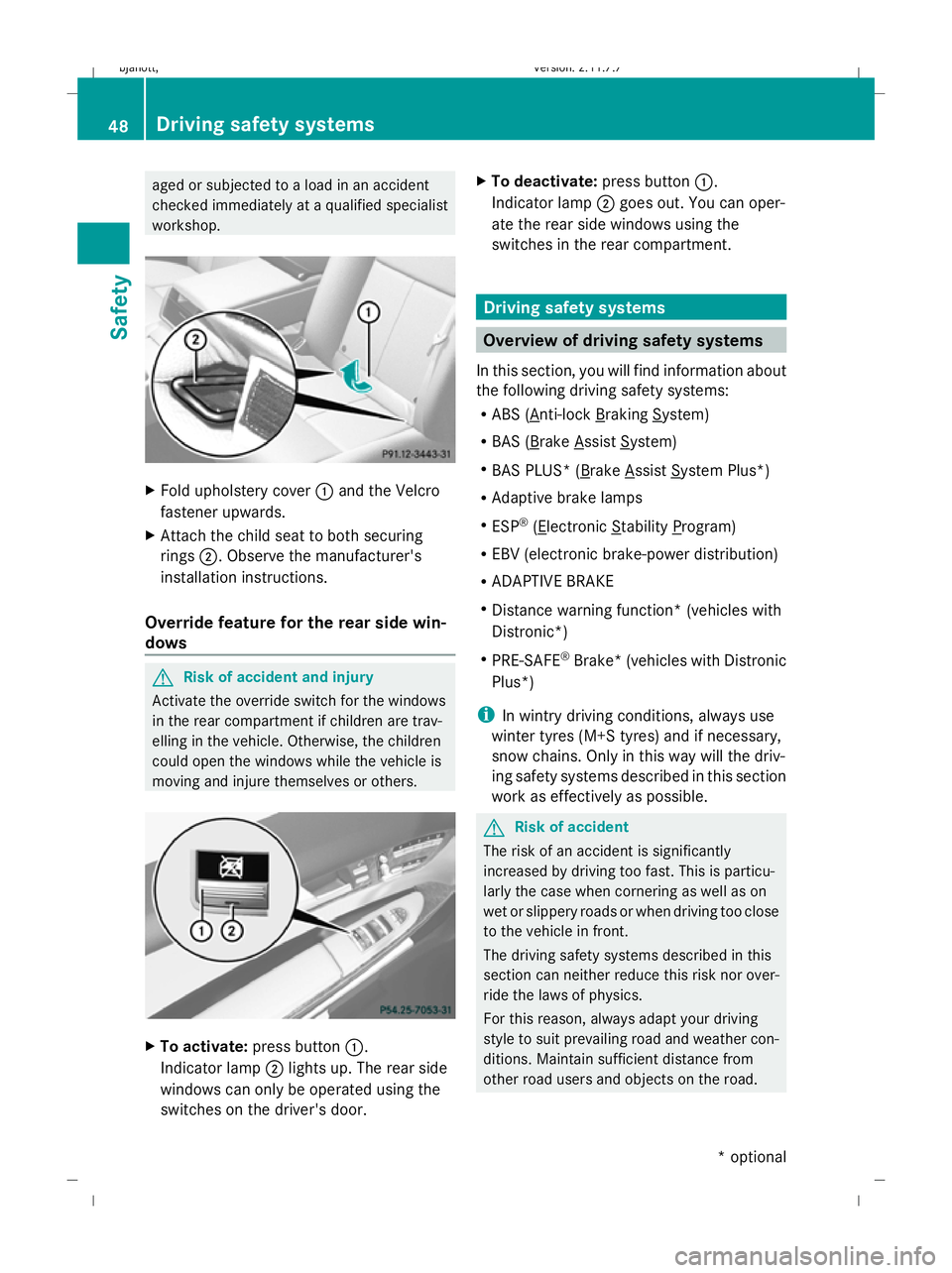
Fold upholstery cover :and the Velcro
fastener upwards.
X Attach the child seat to both securing
rings ;. Observe the manufacturer's
installation instructions.
Override feature for the rear side win-
dows G
Risk of accident and injury
Activate the override switch for the windows
in the rear compartment if children are trav-
elling in the vehicle. Otherwise, the children
could open the windows while the vehicle is
moving and injure themselves or others. X
To activate: press button :.
Indicator lamp ;lights up. The rear side
windows can only be operated using the
switches on the driver's door. X
To deactivate: press button:.
Indicator lamp ;goes out. You can oper-
ate the rear side windows using the
switches in the rear compartment. Driving safety systems
Overview of driving safety systems
In this section, you will find information about
the following driving safety systems:
R ABS ( Anti-lock Braking System)
R BAS ( Brake Assist System)
R BAS PLUS* ( Brake Assist System Plus*)
R Adaptive brake lamps
R ESP ®
( Electronic Stability Program)
R EBV (electronic brake-power distribution)
R ADAPTIVE BRAKE
R Distance warning function* (vehicles with
Distronic*)
R PRE-SAFE ®
Brake* (vehicles with Distronic
Plus*)
i In wintry driving conditions, always use
winter tyres (M+S tyres) and if necessary,
snow chains. Only in this way will the driv-
ing safety systems described in this section
work as effectively as possible. G
Risk of accident
The risk of an accident is significantly
increased by driving too fast. This is particu-
larly the case when cornering as well as on
wet or slippery roads or when driving too close
to the vehicle in front.
The driving safety systems described in this
section can neither reduce this risk nor over-
ride the laws of physics.
For this reason, always adapt your driving
style to suit prevailing road and weather con-
ditions. Maintain sufficient distance from
other road users and objects on the road. 48
Driving safety systemsSafety
* optional
216_AKB; 2; 3, en-GB
bjanott,
Version: 2.11.7.7 2009-02-27T14:54:17+01:00 - Seite 48
Dateiname: 6515230602_buchblock.pdf; erzeugt am 04. Mar 2009 11:14:49; WK
Page 52 of 421
ABS (Anti-lock Braking System)
ABS regulates brake pressure in such a way
that the wheels do not lock when you brake.
This allows you to continue steering the vehi-
cle when braking.
ABS works from a speed of about 8 km/h
upwards, regardless of road-surface condi-
tions. ABS works on slippery surfaces, even
when you only brake gently. G
Risk of accident
Do not depress the brake pedal several times
in quick succession (pumping). Depress the
brake firmly and evenly. Pumping the brake
pedal reduces the braking effect.
Braking If ABS intervenes when braking, you will feel
a pulsing in the brake pedal.
X If ABS intervenes: continue to depress the
brake pedal with force until the braking sit-
uation is over.
X To make a full brake application:
depress the brake pedal with full force. G
Risk of accident
If ABS is faulty, the wheels could lock when
braking. This limits the steerability of the vehi-
cle when braking and the braking distance
may increase.
If ABS is deactivated due to a malfunction,
then BAS, BAS PLUS* and ESP ®
are also
deactivated. There is an increased risk of your
vehicle skidding in certain situations.
You should always adapt your driving style to
suit prevailing road and weather conditions. BAS (Brake Assist)
BAS operates in emergency braking situa-
tions. If you depress the brake pedal quickly,
BAS automatically boosts the braking force,
thus shortening the stopping distance. X
Keep the brake pedal firmly depressed until
the emergency braking situation is over.
ABS prevents the wheels from locking.
The brakes will function as usual once you
release the brake pedal. BAS is deactivated. G
Risk of accident
If BAS has malfunctioned, the braking system
remains available with full brake boosting
effect. However, braking force is not auto-
matically increased in emergency braking sit-
uations and the stopping distance may
increase. BAS PLUS* (Brake Assist Plus)
BAS PLUS provides braking assistance in haz-
ardous situations and uses radar sensor tech-
nology to assess the traffic situation. G
Risk of accident
BAS PLUS is only an aid to assist you when
driving. You are responsible for maintaining a
safe distance from other vehicles, for the vehi-
cle's speed and for braking in good time.
Always pay attention to the traffic conditions.
You may otherwise recognise dangers too
late, cause an accident and injure yourself
and others.
BAS PLUS can detect obstacles that are in the
path of your vehicle for an extended period of
time. Should you approach a detected obsta-
cle quickly, BAS PLUS calculates the braking
force necessary to avoid a rear-end collision.
Should you additionally apply the brakes, BAS
PLUS will automatically increase the braking
force to a level suitable for the traffic condi-
tions.
If BAS PLUS demands particularly high brak-
ing force, PRE-SAFE ®
is activated simultane-
ously.
X Keep the brake pedal depressed until the
emergency braking situation is over.
ABS prevents the wheels from locking. Driving safety systems
49Safety
* optional
216_AKB; 2; 3, en-GB
bjanott
,V ersion: 2.11.7.7
2009-02-27T14:54:17+01:00 - Seite 49 Z
Dateiname: 6515230602_buchblock.pdf; erzeugt am 04. Mar 2009 11:14:49; WK
Page 53 of 421
The brakes will work normally again when:
R you release the brake pedal
R no obstacle is detected in front of your
vehicle
R there is no longer any danger of a rear-end
collision
BAS PLUS is then deactivated.
At speeds up to approximately 70 km/h, BAS
PLUS can also detect stationary obstacles,
for example, stopped or parked vehicles.
Vehicles with COMAND and a navigation sys-
tem*: the radar sensor system is switched off
automatically in the vicinity of radio telescope
facilities (Y page 411).
For BAS PLUS to assist you when driving, the
radar sensor system must be switched on and
operational. You can check this by activating
Distronic Plus* (Y page 235) or via the
"Radar sensor" menu in the on-board com-
puter (Y page 226). G
Risk of accident
Only clearly identified obstacles will initiate
braking assistance by BAS PLUS. In particular,
the detection of obstacles can be restricted if
there is:
R dirt on the sensors or the sensors are cov-
ered
R snow or heavy rain
R interference by other radar sources
R strong radar reflections, for example in
multi-storey garages
BAS PLUS does not react to people or ani-
mals, oncoming vehicles and crossing traffic.
BAS PLUS may not detect narrow vehicles
such as motorcycles and vehicles driving on
a different line.
Following a collision or crash-related damage
to the front end of the vehicle, have the con-
figuration and operation of the radar sensors
checked at a Mercedes-Benz Service Centre.
If BAS PLUS is not available due to a malfunc-
tion in the radar sensor system, the braking system remains available with full brake
boosting effect and BAS. Adaptive brake lamps
i Adaptive brake lamps are only available in
certain countries.
If you brake sharply from a speed of more
than 50 km/h or if braking is assisted by BAS
or BAS PLUS*, the brake lamps flash rapidly.
In this way, traffic travelling behind you is
warned in an even more noticeable manner.
If you brake sharply from a speed of more
than 70 km/h to a standstill, the hazard warn-
ing lamps are activated automatically. If the
brakes are applied again, the brake lamps
light up continuously. The hazard warning
lamps switch off automatically if you travel
faster than 10 km/h. You can also switch off
the hazard warning lamps using the hazard
warning switch button (Y page 196). ESP
®
(Electronic Stability Program)
ESP ®
monitors driving stability and traction,
i.e. power transmission between tyres and
the road surface.
If ESP ®
detects that the vehicle is deviating
from the direction desired by the driver, one
or more wheels are braked to stabilise the
vehicle. If necessary, the engine output is also
modified to keep the vehicle on the desired
course within physical limits. ESP ®
assists
the driver when pulling away on wet or slip-
pery roads. ESP ®
can also stabilise the vehi-
cle when braking.
When ESP ®
intervenes, the ÷warning
lamp flashes in the instrument cluster. G
Risk of accident
If the ÷ warning lamp in the instrument
cluster flashes, proceed as follows: 50
Driving safety systemsSafety
* optional
216_AKB; 2; 3, en-GB
bjanott,
Version: 2.11.7.7 2009-02-27T14:54:17+01:00 - Seite 50
Dateiname: 6515230602_buchblock.pdf; erzeugt am 04. Mar 2009 11:14:50; WK
Page 54 of 421
R
Under no circumstances should you deac-
tivate ESP ®
.
R When pulling away, only depress the accel-
erator pedal as far as is necessary.
R Adapt your driving style to the prevailing
road and weather conditions.
The vehicle may otherwise begin to skid.
If you drive too fast, ESP ®
cannot reduce the
risk of an accident. ESP ®
cannot override the
laws of physics.
! If the vehicle is to be towed with the front
or rear axle raised, the ignition must be
switched off (key in position 0or 1in the
ignition lock). Application of the brakes by
ESP ®
could otherwise destroy the brake
system on the front or rear axle.
! Vehicles with 4MATIC* may not be towed
with the front or rear axle raised.
i Only use wheels with the recommended
tyre sizes. Only then will ESP ®
function
properly.
ETS (Electronic Traction Support) Traction control is part of ESP
®
.
Traction control brakes the drive wheels indi-
vidually if they spin. This enables you to pull
away and accelerate on slippery surfaces, for
example, if the road surface is slippery on one
side.
Traction control remains active when you
deactivate ESP ®
. G
Risk of accident
Traction control cannot reduce the risk of an
accident if you drive too fast. Traction control
cannot override the laws of physics.
Activating/deactivating ESP ®ESP
®
is activated automatically when the
engine is running. It may be best to deactivate ESP
®
in the fol-
lowing situations:
R when using snow chains
R in deep snow
R on sand or gravel G
Risk of accident
Activate ESP ®
as soon as the situations
described above no longer apply. ESP ®
will
otherwise not be able to stabilise the vehicle
if the vehicle starts to skid or a wheel starts
to spin.
If you deactivate ESP ®
:
R ESP ®
no longer improves driving stability.
R engine torque is not limited and the drive
wheels are able to spin. The spinning
wheels produce a cutting effect for better
traction.
R traction control is still activated.
R ESP ®
still provides support when you
brake.
i If ESP ®
is deactivated and one or more
wheels start to spin, the ÷warning lamp
in the instrument cluster flashes. In such
situations, ESP ®
will not stabilise the vehi-
cle.
X To deactivate: (Ypage 224).
The å warning lamp in the instrument
cluster lights up. G
Risk of accident
If the å warning lamp in the instrument
cluster lights up when the engine is running,
ESP ®
is deactivated or is unavailable due to a
malfunction. The risk that your vehicle may
start to skid then increases in certain situa-
tions.
Always adapt your driving style to the prevail-
ing road and weather conditions. Driving safety systems
51Safety
* optional
216_AKB; 2; 3, en-GB
bjanott,
Version: 2.11.7.7 2009-02-27T14:54:17+01:00 - Seite 51 Z
Dateiname: 6515230602_buchblock.pdf; erzeugt am 04. Mar 2009 11:14:50; WK
Page 56 of 421
G
Risk of accident
Pay particular attention to the traffic condi-
tions if the distance warning lamp ·in the
instrument cluster lights up or an intermittent
warning tone sounds. If necessary, brake or
manoeuvre to avoid an obstacle.
In addition, at speeds of around 30 km/h or
more, PRE-SAFE ®
Brake can:
R brake the vehicle gently and automatically
within a speed range of up to around
180 km/h
R trigger preventative passenger protection
measures (PRE-SAFE ®
) G
Risk of accident
PRE-SAFE ®
Brake is only an aid to assist you
when driving. You are responsible for main-
taining a safe distance from other vehicles,
the vehicle's speed and for braking in good
time. Always pay attention to the traffic con-
ditions. Otherwise, you may recognise dan-
gers too late, cause an accident and injure
yourself and others.
With the help of the radar sensor system,
PRE-SAFE ®
Brake can detect obstacles that
are in front of your vehicle for an extended
period of time. If you approach an obstacle
and PRE-SAFE ®
Brake detects a risk of a col-
lision, the system will initially alert you both
visually and acoustically. If you do not brake
or steer, the vehicle will automatically brake
slightly. In the event of an increased risk of a
collision, PRE-SAFE ®
is activated
(Y page 42). G
Risk of accident
Only clearly detected obstacles will trigger a
warning and initiate braking assistance by
PRE-SAFE ®
Brake. In particular, the detection of obstacles may
be restricted if there is:
R
dirt on the sensors or the sensors are cov-
ered
R snow or heavy rain
R interference from other radar sources
R strong radar reflections, for example in
multi-storey car parks
PRE-SAFE ®
Brake does not react to persons,
animals, oncoming vehicles and crossing traf-
fic.
PRE-SAFE ®
Brake may not detect narrow
vehicles such as motorcycles or vehicles driv-
ing on a different line. G
Risk of accident
Depending on the vehicle's speed, PRE-
SAFE ®
Brake will brake your vehicle up to
maximum of 4 m/s 2
. This is equivalent to
approximately 40 % of the maximum braking
power of the vehicle. You must also apply the
brakes yourself to avoid a collision.
In order to maintain the appropriate distance
to the vehicle in front and thus prevent a
crash, you must apply the brakes yourself.
At speeds up to approximately 70 km/h,
PRE-SAFE ®
Brake can also detect stationary
obstacles, for example stopped or parked
vehicles. G
Risk of accident
If, in a critical driving situation, you do not
receive a visual and acoustic warning:
R PRE-SAFE ®
Brake did not detect the risk of
a collision
R PRE-SAFE ®
Brake is deactivated
R PRE-SAFE ®
Brake has failed
You must then brake to avoid a collision. Driving safety systems
53Safety
216_AKB; 2; 3, en-GB
bjanott, Version: 2.11.7.7 2009-02-27T14:54:17+01:00 - Seite 53 Z
Dateiname: 6515230602_buchblock.pdf; erzeugt am 04. Mar 2009 11:14:50; WK
Page 61 of 421
Introduction
Operating safety
G
Risk of accident
Your attention must always be focused on the
traffic conditions.
Only use COMAND or the telephone* when
the road and traffic conditions permit.
Bear in mind that, at a speed of only
50 km/h, your vehicle covers a distance of
nearly 14 m per second. The navigation sys-
tem* will not provide you with information
about stop signs, give-way signs, traffic regu-
lations or road safety features. It is up to you
to pay attention to these while driving the
vehicle. Only enter a new destination when
the vehicle is stationary. G
Risk of accident and injury
Vehicles with BlueHYBRID *: make sure that
you read the "BlueHYBRID" supplement. You
may otherwise fail to detect dangers.
Dear radio user,
This radio can be operated by anyone in
accordance with the relevant EC directive.
The equipment corresponds to current Euro-
pean and harmonised national standards.
This guarantees that the equipment conforms
to the relevant specifications regarding elec-
tromagnetic compatibility.
As a result, interference caused by your
equipment to other electrical/electronic
equipment and interference to your equip-
ment caused by other electrical/electronic
equipment can be largely prevented.
The equipment is approved by the vehicle
manufacturer in accordance with European
Automotive EMC Directive 95/54/EC.
This means that the equipment in your vehicle
is authorised for use according to the given
regulations. The equipment does not require
certification and conforms to the relevant
equipment-specific EMC specifications in accordance with European standards
EN 55013 and EN 55020. Function restrictions when the vehi-
cle is being driven
For safety reasons, some COMAND functions
are restricted or unavailable while the vehicle
is in motion. This will be indicated by
COMAND displaying a message to this effect. Components
You can use COMAND to operate the follow-
ing in your vehicle:
R the audio functions
R the navigation system*
R the telephone* and communication func-
tions (text messages*)
R video DVD and TV*
R various vehicle settings
COMAND consists of:
R the COMAND display/SPLITVIEW*
R the COMAND controller
R the COMAND function buttons
R the telephone keypad
R connections in the glove compartment
(USB, additional USB*, jack plug* and
iPod ®
connection*)
The entertainment system* comprises:
R a remote control* for the front passenger
R wireless headphones* for the front
passenger 58
IntroductionCOMAND
* optional
216_AKB; 2; 3, en-GB
bjanott,
Version: 2.11.7.7 2009-02-27T14:54:17+01:00 - Seite 58
Dateiname: 6515230602_buchblock.pdf; erzeugt am 04. Mar 2009 11:14:52; WK
Page 62 of 421
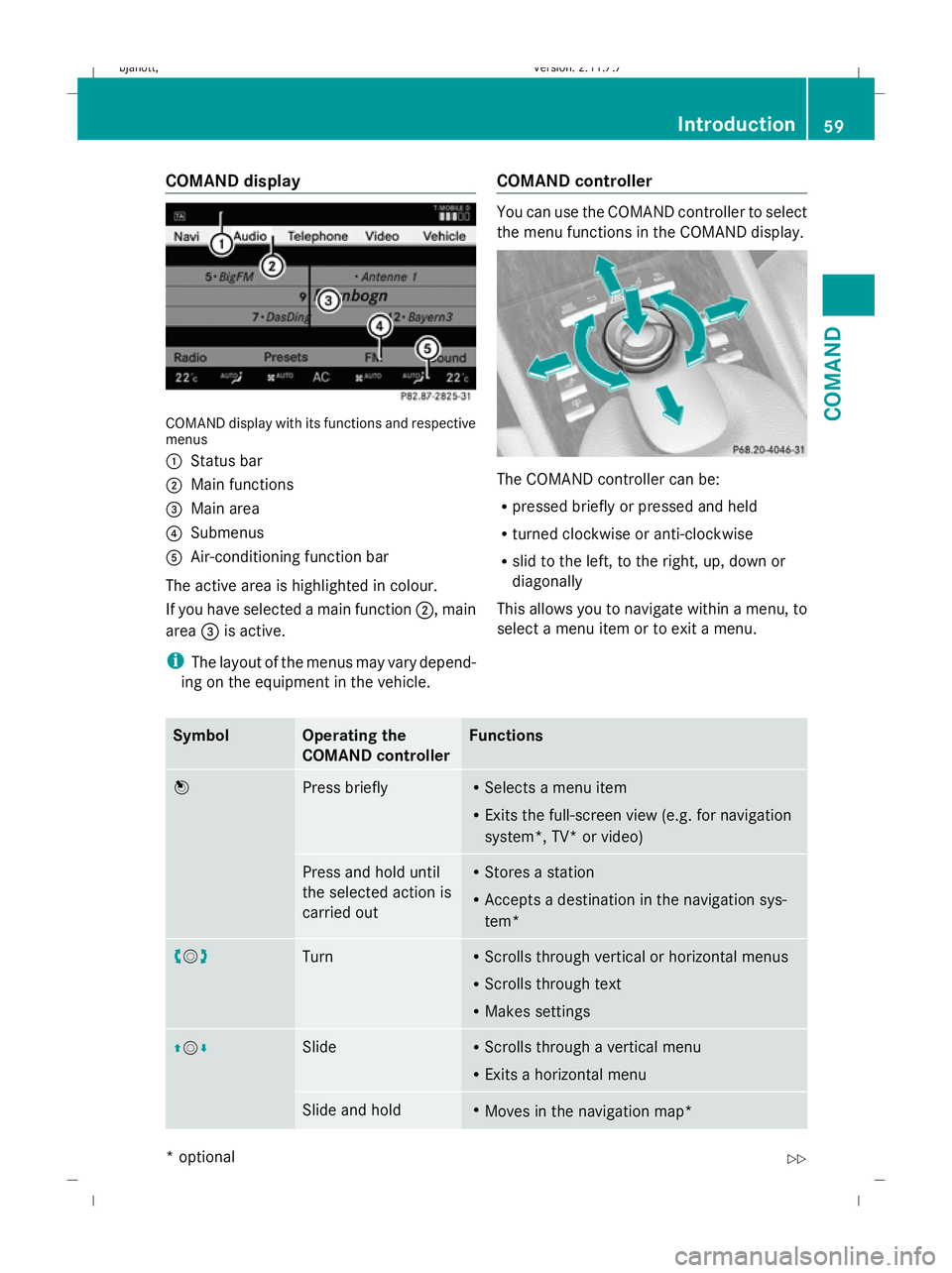
COMAND display
COMAND display with its functions and respective
menus
:
Status bar
; Main functions
= Main area
? Submenus
A Air-conditioning function bar
The active area is highlighted in colour.
If you have selected a main function ;, main
area =is active.
i The layout of the menus may vary depend-
ing on the equipment in the vehicle. COMAND controller You can use the COMAND controller to select
the menu functions in the COMAND display.
The COMAND controller can be:
R
pressed briefly or pressed and held
R turned clockwise or anti-clockwise
R slid to the left, to the right, up, down or
diagonally
This allows you to navigate within a menu, to
select a menu item or to exit a menu. Symbol Operating the
COMAND controller Functions
W
Press briefly R
Selects a menu item
R Exits the full-screen view (e.g. for navigation
system*, TV* or video) Press and hold until
the selected action is
carried out R
Stores a station
R Accepts a destination in the navigation sys-
tem* cVd
Turn R
Scrolls through vertical or horizontal menus
R Scrolls through text
R Makes settings ZVÆ Slide R
Scrolls through a vertical menu
R Exits a horizontal menu Slide and hold R
Moves in the navigation map* Introduction
59COMAND
* optional
216_AKB; 2; 3, en-GB
bjanott
,V ersion: 2.11.7.7
2009-02-27T14:54:17+01:00 - Seite 59 Z
Dateiname: 6515230602_buchblock.pdf; erzeugt am 04. Mar 2009 11:14:52; WK
Page 65 of 421
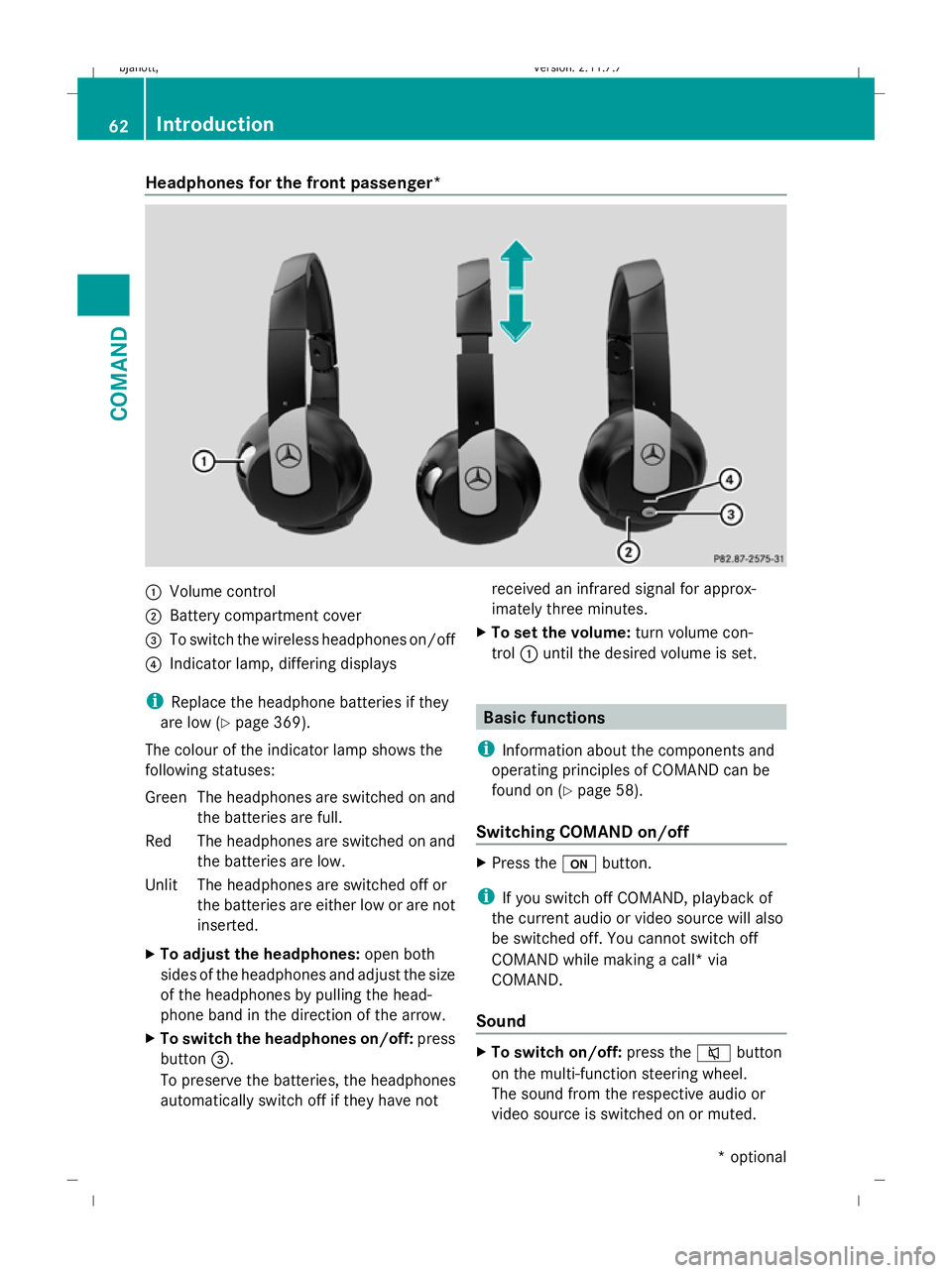
Headphones for the front passenger*
:
Volume control
; Battery compartment cover
= To switch the wireless headphones on/off
? Indicator lamp, differing displays
i Replace the headphone batteries if they
are low (Y page 369).
The colour of the indicator lamp shows the
following statuses:
Gree nThe headphones are switched on and
the batteries are full.
Red The headphones are switched on and the batteries are low.
Unlit The headphones are switched off or the batteries are either low or are not
inserted.
X To adjust the headphones: open both
sides of the headphones and adjust the size
of the headphones by pulling the head-
phone band in the direction of the arrow.
X To switch the headphones on/off: press
button =.
To preserve the batteries, the headphones
automatically switch off if they have not received an infrared signal for approx-
imately three minutes.
X To set the volume: turn volume con-
trol :until the desired volume is set. Basic functions
i Information about the components and
operating principles of COMAND can be
found on (Y page 58).
Switching COMAND on/off X
Press the ubutton.
i If you switch off COMAND, playback of
the current audio or video source will also
be switched off. You cannot switch off
COMAND while making a call* via
COMAND.
Sound X
To switch on/off: press the8button
on the multi-function steering wheel.
The sound from the respective audio or
video source is switched on or muted. 62
IntroductionCOMAND
* optional
216_AKB; 2; 3, en-GB
bjanott,V
ersion: 2.11.7.7
2009-02-27T14:54:17+01:00 - Seite 62
Dateiname: 6515230602_buchblock.pdf; erzeugt am 04. Mar 2009 11:14:54; WK
Page 66 of 421
i
When the audio output is switched off, the
status line will show the 8symbol. If
you switch the audio or video source, the
audio output is automatically activated.
You will still hear traffic announcements
and navigation system announcements*,
even if the sound is muted.
Muting traffic and navigation announce-
ments*
X RDS: press and hold the 8button on
the multi-function steering wheel until the
TA display switches off.
X Navigation announcements: during an
announcement, press the 8button on
the multi-function steering wheel.
i The announcements remain switched
off even if you start a new route guidance
or if COMAND is switched off and on with
the u button. They will be switched on
again under the following conditions: if you
switch COMAND off by removing the key
from the ignition lock and then switch the
ignition back on after more than 3 minutes.
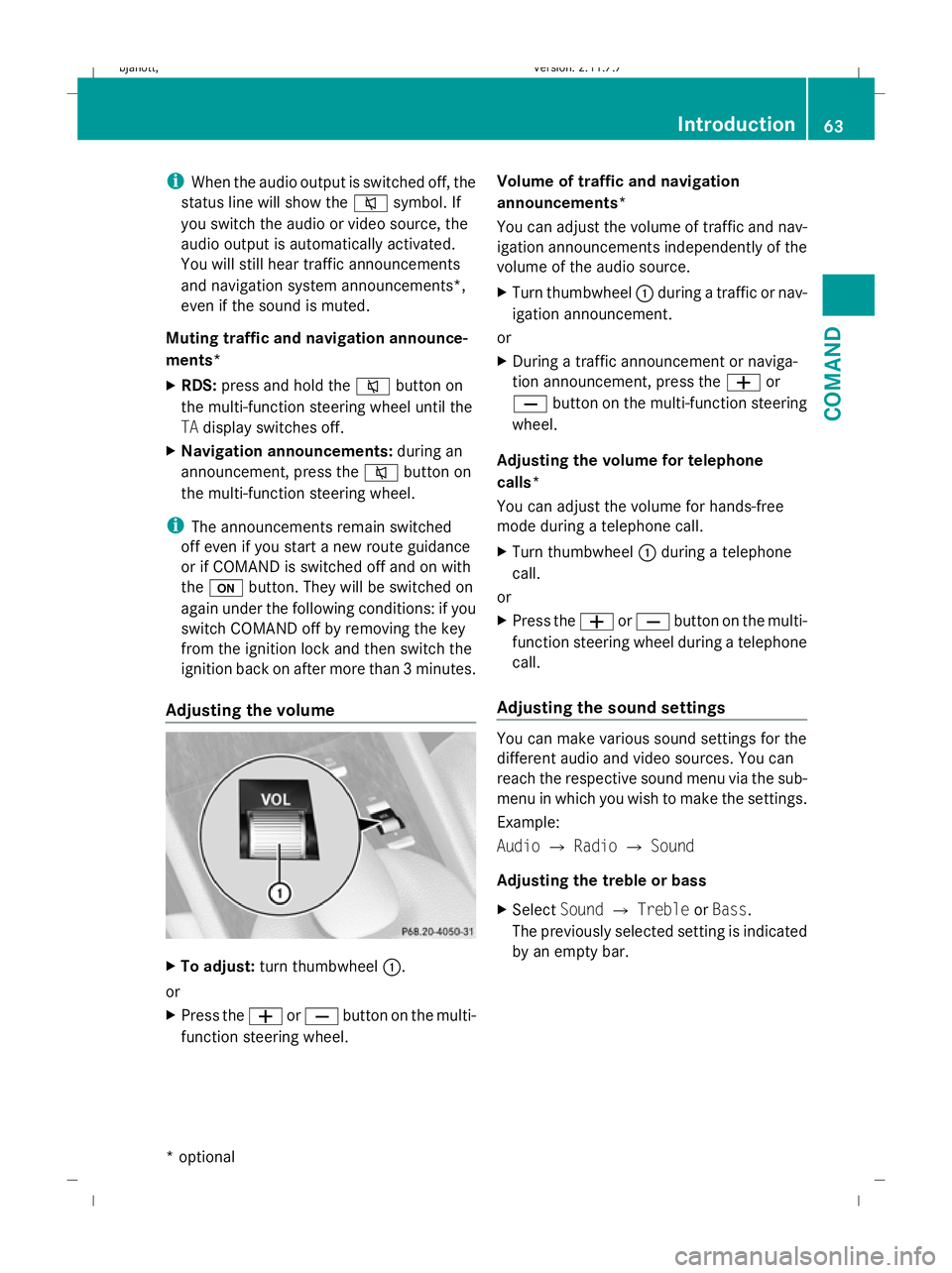
Adjusting the volume X
To adjust: turn thumbwheel :.
or
X Press the WorX button on the multi-
function steering wheel. Volume of traffic and navigation
announcements*
You can adjust the volume of traffic and nav-
igation announcements independently of the
volume of the audio source.
X
Turn thumbwheel :during a traffic or nav-
igation announcement.
or
X During a traffic announcement or naviga-
tion announcement, press the Wor
X button on the multi-function steering
wheel.
Adjusting the volume for telephone
calls*
You can adjust the volume for hands-free
mode during a telephone call.
X Turn thumbwheel :during a telephone
call.
or
X Press the WorX button on the multi-
function steering wheel during a telephone
call.
Adjusting the sound settings You can make various sound settings for the
different audio and video sources. You can
reach the respective sound menu via the sub-
menu in which you wish to make the settings.
Example:
Audio
QRadio QSound
Adjusting the treble or bass
X Select SoundQTreble orBass.
The previously selected setting is indicated
by an empty bar. Introduction
63COMAND
* optional
216_AKB; 2; 3, en-GB
bjanott,
Version: 2.11.7.7 2009-02-27T14:54:17+01:00 - Seite 63 Z
Dateiname: 6515230602_buchblock.pdf; erzeugt am 04. Mar 2009 11:14:54; WK
Page 72 of 421
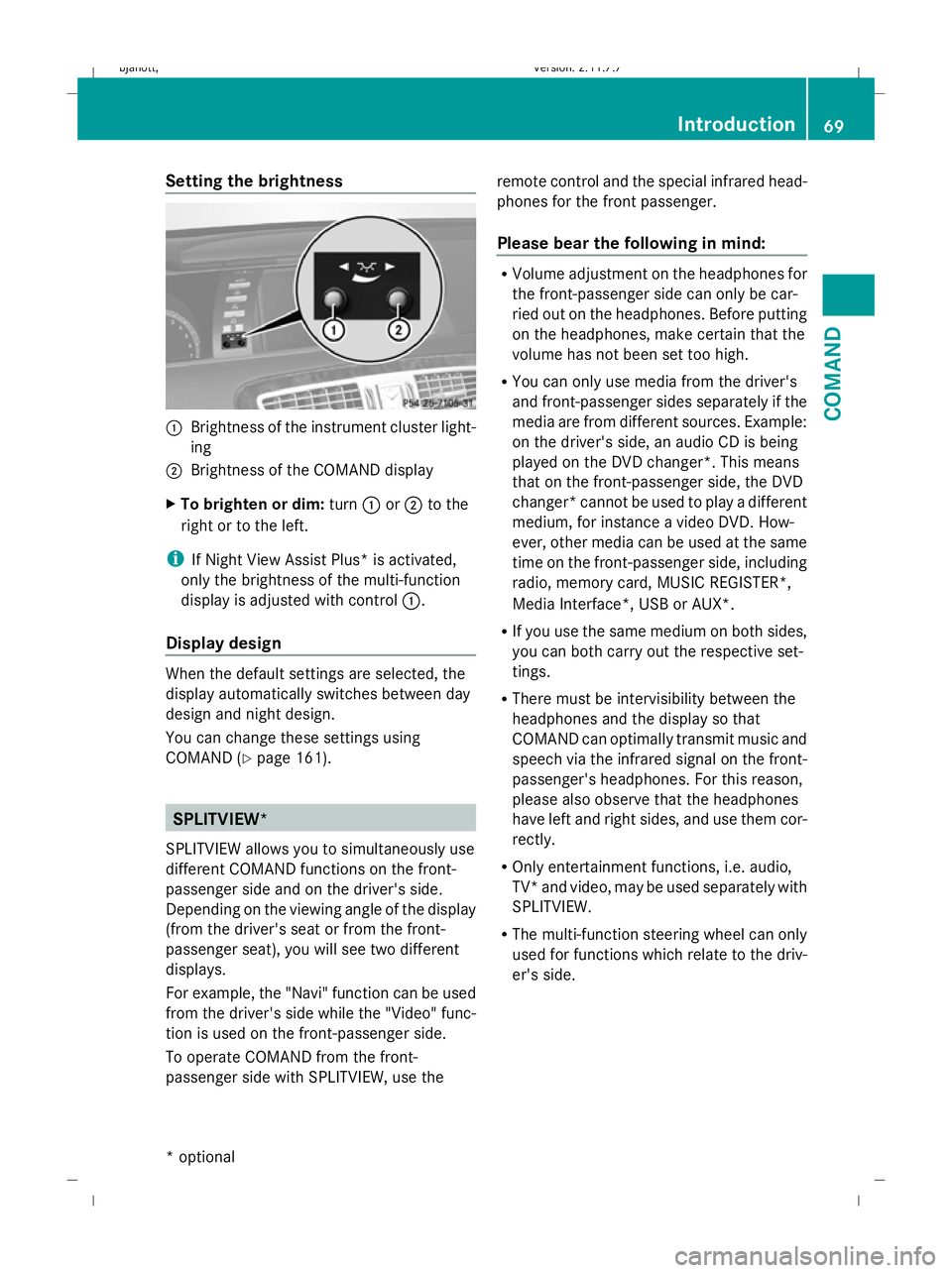
Setting the brightness
:
Brightness of the instrument cluster light-
ing
; Brightness of the COMAND display
X To brighten or dim: turn:or; to the
right or to the left.
i If Night View Assist Plus* is activated,
only the brightness of the multi-function
display is adjusted with control :.
Display design When the default settings are selected, the
display automatically switches between day
design and night design.
You can change these settings using
COMAND (Y
page 161). SPLITVIEW*
SPLITVIEW allows you to simultaneously use
different COMAND functions on the front-
passenger side and on the driver's side.
Depending on the viewing angle of the display
(from the driver's seat or from the front-
passenger seat), you will see two different
displays.
For example, the "Navi" function can be used
from the driver's side while the "Video" func-
tion is used on the front-passenger side.
To operate COMAND from the front-
passenger side with SPLITVIEW, use the remote control and the special infrared head-
phones for the front passenger.
Please bear the following in mind: R
Volume adjustment on the headphones for
the front-passenger side can only be car-
ried out on the headphones. Before putting
on the headphones, make certain that the
volume has not been set too high.
R You can only use media from the driver's
and front-passenger sides separately if the
media are from different sources. Example:
on the driver's side, an audio CD is being
played on the DVD changer*. This means
that on the front-passenger side, the DVD
changer* cannot be used to play a different
medium, for instance a video DVD. How-
ever, other media can be used at the same
time on the front-passenger side, including
radio, memory card, MUSIC REGISTER*,
Media Interface*, USB or AUX*.
R If you use the same medium on both sides,
you can both carry out the respective set-
tings.
R There must be intervisibility between the
headphones and the display so that
COMAND can optimally transmit music and
speech via the infrared signal on the front-
passenger's headphones. For this reason,
please also observe that the headphones
have left and right sides, and use them cor-
rectly.
R Only entertainment functions, i.e. audio,
TV* and video, may be used separately with
SPLITVIEW.
R The multi-function steering wheel can only
used for functions which relate to the driv-
er's side. Introduction
69COMAND
* optional
216_AKB; 2; 3, en-GB
bjanott,V
ersion: 2.11.7.7
2009-02-27T14:54:17+01:00 - Seite 69 Z
Dateiname: 6515230602_buchblock.pdf; erzeugt am 04. Mar 2009 11:14:56; WK