ESP MERCEDES-BENZ CL COUPE 2009 Service Manual
[x] Cancel search | Manufacturer: MERCEDES-BENZ, Model Year: 2009, Model line: CL COUPE, Model: MERCEDES-BENZ CL COUPE 2009Pages: 421, PDF Size: 10.78 MB
Page 135 of 421
jam, for example. If a quicker route is deter-
mined due to a received RDS-TMC traffic
announcement, the navigation system
changes the route. If possible, it will bypass
blockages.
R Short route: COMAND calculates a route
with the shortest possible (minimised) dis-
tance regarding distance and driving time.
X Select NaviQMode:
The mode list appears.
The current setting is indicated by a #dot.
X To make a setting: selectFastest
route orDynamic route orShort
route.
X To exit the menu: slideXVY.
i COMAND calculates a new route if you
change the route type setting with route
guidance active. If you change the route
type setting when route guidance is inac-
tive, COMAND uses the new setting for the
next route guidance.
Setting route options This function allows you to set the following
options for route guidance:
R Avoid motorways
R Avoid toll roads
R Avoid routes requiring special
toll sticker
R Avoid tunnels
R Avoid ferries
R Avoid motorail trains
X Select NaviQMode:
The mode list appears.
The selected option is indicated by a O
tick. It is possible to select more than one
option.
X To activate or deactivate an option:
select the desired option.
The option is selected or deselected,
depending on the previous status. X
To exit the menu: slideXVY.
COMAND will verify whether it can imple-
ment the options if you have selected them
with route guidance active. If it can,
COMAND calculates a new route while
implementing the options selected. If it
cannot, you will see and hear a correspond-
ing message.
X Select OK.
COMAND calculates a new route. Only
those options which can be implemented
are considered. Installing map software
The digital maps generated by the map soft-
ware become outdated in the same way as
conventional road maps. Optimum route
guidance can only be provided by the naviga-
tion system in conjunction with the most up-
to-date map software. Information about new
map software versions can be obtained from
a Mercedes-Benz Service Centre.
You can install new map software, which may
consist of one of more DVDs (depending on
the scope), yourself.
The installation process can take between
10 and 120 minutes, depending on the scope
of the map software. If the radio is switched
on before you start the installation process,
you can still adjust the volume. You can also
use COMAND to operate the automatic air-
conditioning system and to cancel the proc-
ess. Other functions are not operational. If
possible, carry out the installation process
when the vehicle is stationary. The DVD read
speed is higher when the vehicle is stationary
than when it is in motion, so less time is
required. If the starter battery is not suffi-
ciently charged, COMAND may end the proc-
ess automatically, in order to protect the bat-
tery. Therefore, let the engine idle during the
installation process. 132
Navigation system* (introduction)COMAND
* optional
216_AKB; 2; 3, en-GB
bjanott,
Version: 2.11.7.7 2009-02-27T14:54:17+01:00 - Seite 132
Dateiname: 6515230602_buchblock.pdf; erzeugt am 04. Mar 2009 11:15:14; WK
Page 136 of 421
G
Risk of poisoning
Never leave the engine running in enclosed
spaces. The exhaust gases contain carbon
monoxide. Inhaling exhaust fumes consti-
tutes a health hazard and could lead to loss
of consciousness or even death.
Displaying information on the currently
used map version X
Select NaviQMap version.
Notes on handling DVDs R
Only hold DVDs by the edge.
R Handle DVDs carefully to prevent reading
errors.
R Avoid getting scratches, fingerprints and
dust on DVDs.
R Use a commercially-available cleaning
cloth to clean discs. Do not wipe them with
a circular motion, but only in straight lines
from the centre outwards.
R Place DVDs back in their cases after use.
R Protect DVDs from heat and direct sunlight.
Map software copy protection Map software for COMAND is subject to a
charge. The map software has just one acti-
vation code which is usable in one vehicle
only, and is not transferable. You can obtain
the six digit activation code from your
Mercedes-Benz Service Centre. If you have
lost the activation code, or if COMAND does
not accept the activation code that you have
received, ask at your Mercedes-Benz Service
Centre.
Your vehicle is supplied with map software at
the factory. Depending on the country, the
map software for your region is either pre-
installed (Europe/USA), or the map software
is provided on a DVD (all other countries). You
do not require an activation code for the map
software that is provided with your vehicle. If the map software on your vehicle has been
installed at the factory and you wish to rein-
stall it, this also does not necessitate entry of
the activation code.
Installation process X
Insert the map software DVD into the single
DVD drive (Y page 77) or the DVD
changer* (Y page 78).
COMAND checks the DVD and shows a
corresponding message in the display.
The map software is not compatible with
the navigation system
You will see a message that the installation of
the map software is not possible.
X To confirm the message: pressW.
COMAND ejects the DVD.
X Take the DVD out of the slot.
X Insert a DVD which is compatible with the
vehicle’s navigation system.
The map software is not compatible with
the current system software
You will see a message that the system soft-
ware and the map software are not compati-
ble.
X To confirm the message: pressW.
COMAND ejects the DVD.
X Take the DVD out of the slot.
X Have the system software updated at a
Mercedes-Benz Service Centre.
The map software cannot be installed until
the system software has been updated.
Map software compatible with the navi-
gation system and the current system
software
COMAND checks whether the map data on
the DVD is already installed.
Map data is already installed
You will see a message that the map data is
already installed and a prompt will appear
asking you whether you wish to continue with
the installation. Navigation system* (introduction)
133COMAND
* optional
216_AKB; 2; 3, en-GB
bjanott,
Version: 2.11.7.7 2009-02-27T14:54:17+01:00 - Seite 133 Z
Dateiname: 6515230602_buchblock.pdf; erzeugt am 04. Mar 2009 11:15:14; WK
Page 137 of 421
X
Select YesorNo.
If you select Yes, the existing map data is
overwritten.
If you select No, COMAND automatically
ejects the DVD and the installation of the
map software is cancelled.
X Take the DVD out of the slot.
Map data is not yet installed
To compare the map software DVD and the
map software currently installed on
COMAND, the status of the versions is dis-
played. Subsequently a prompt will appear
asking whether you wish to continue with the
map software installation.
X Select YesorNo.
If you select Yes, the map data is installed.
If you select No, COMAND automatically
ejects the DVD and the installation of the
map software is cancelled.
X Take the DVD out of the slot.
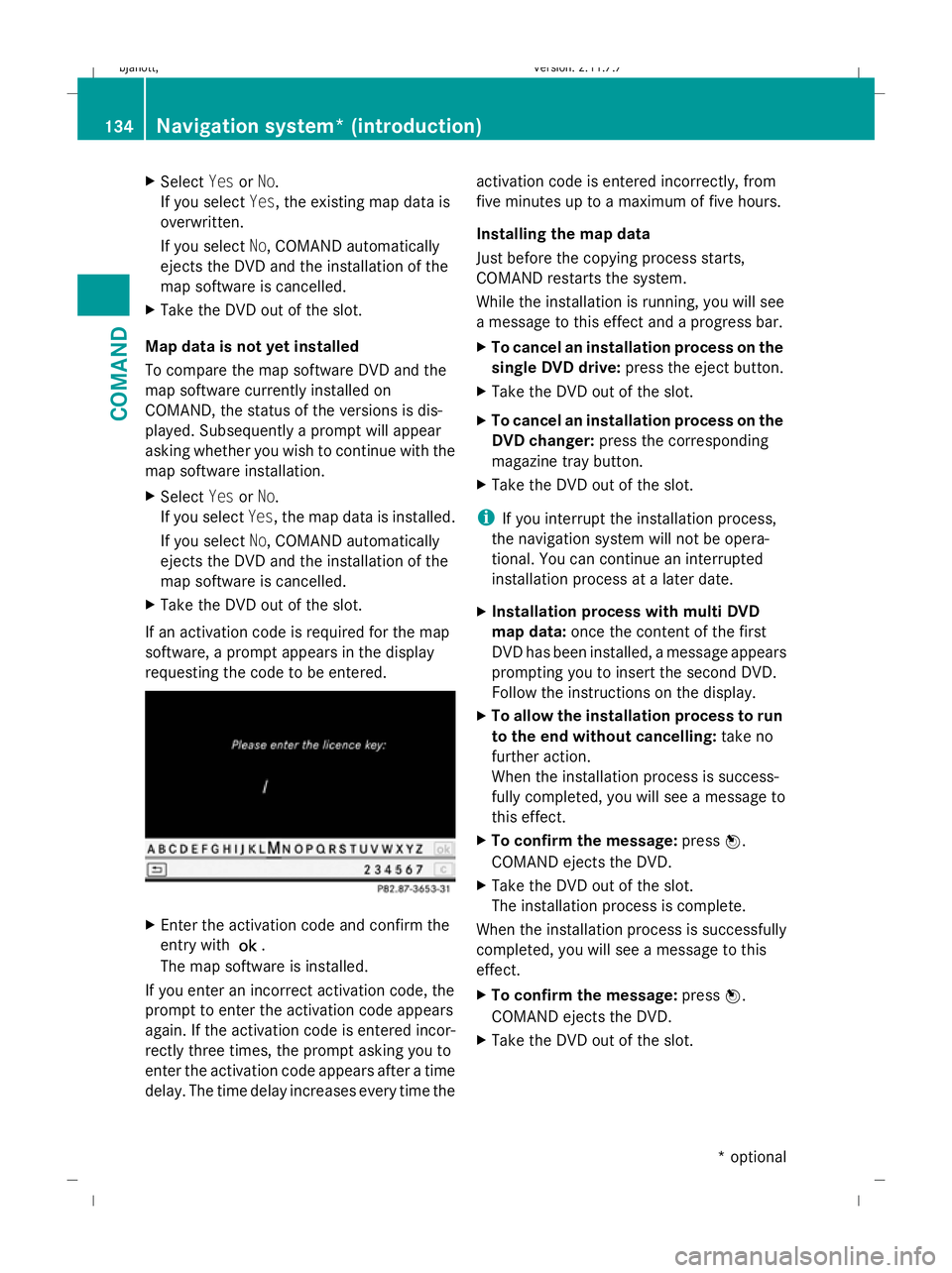
If an activation code is required for the map
software, a prompt appears in the display
requesting the code to be entered. X
Enter the activation code and confirm the
entry with !.
The map software is installed.
If you enter an incorrect activation code, the
prompt to enter the activation code appears
again. If the activation code is entered incor-
rectly three times, the prompt asking you to
enter the activation code appears after a time
delay. The time delay increases every time the activation code is entered incorrectly, from
five minutes up to a maximum of five hours.
Installing the map data
Just before the copying process starts,
COMAND restarts the system.
While the installation is running, you will see
a message to this effect and a progress bar.
X
To cancel an installation process on the
single DVD drive: press the eject button.
X Take the DVD out of the slot.
X To cancel an installation process on the
DVD changer: press the corresponding
magazine tray button.
X Take the DVD out of the slot.
i If you interrupt the installation process,
the navigation system will not be opera-
tional. You can continue an interrupted
installation process at a later date.
X Installation process with multi DVD
map data: once the content of the first
DVD has been installed, a message appears
prompting you to insert the second DVD.
Follow the instructions on the display.
X To allow the installation process to run
to the end without cancelling: take no
further action.
When the installation process is success-
fully completed, you will see a message to
this effect.
X To confirm the message: pressW.
COMAND ejects the DVD.
X Take the DVD out of the slot.
The installation process is complete.
When the installation process is successfully
completed, you will see a message to this
effect.
X To confirm the message: pressW.
COMAND ejects the DVD.
X Take the DVD out of the slot. 134
Navigation system* (introduction)COMAND
* optional
216_AKB; 2; 3, en-GB
bjanott,
Version: 2.11.7.7 2009-02-27T14:54:17+01:00 - Seite 134
Dateiname: 6515230602_buchblock.pdf; erzeugt am 04. Mar 2009 11:15:14; WK
Page 145 of 421
X
To delete an entire entry: selectFon
the lower bar and press and hold Wuntil
the entire entry has been deleted.
X To accept the first list entry: press and
hold Wuntil the address input menu
appears again.
COMAND has automatically accepted the
first list entry and entered it in the address
input menu.
X To cancel an entry: selectBackon the
lower bar and press W.
or
X Press the %button.
Input speller ?disappears if COMAND is
able to unambiguously assign the characters
entered to one junction. The list of junctions
is shown without the input speller. Here you
can make another selection.
i It is also possible to change to the junc-
tion list without the input speller manually
at any time during character input.
X To change manually to the junction list
without the input speller: slideZV.
or
X Select !on the second lowest bar and
press W.
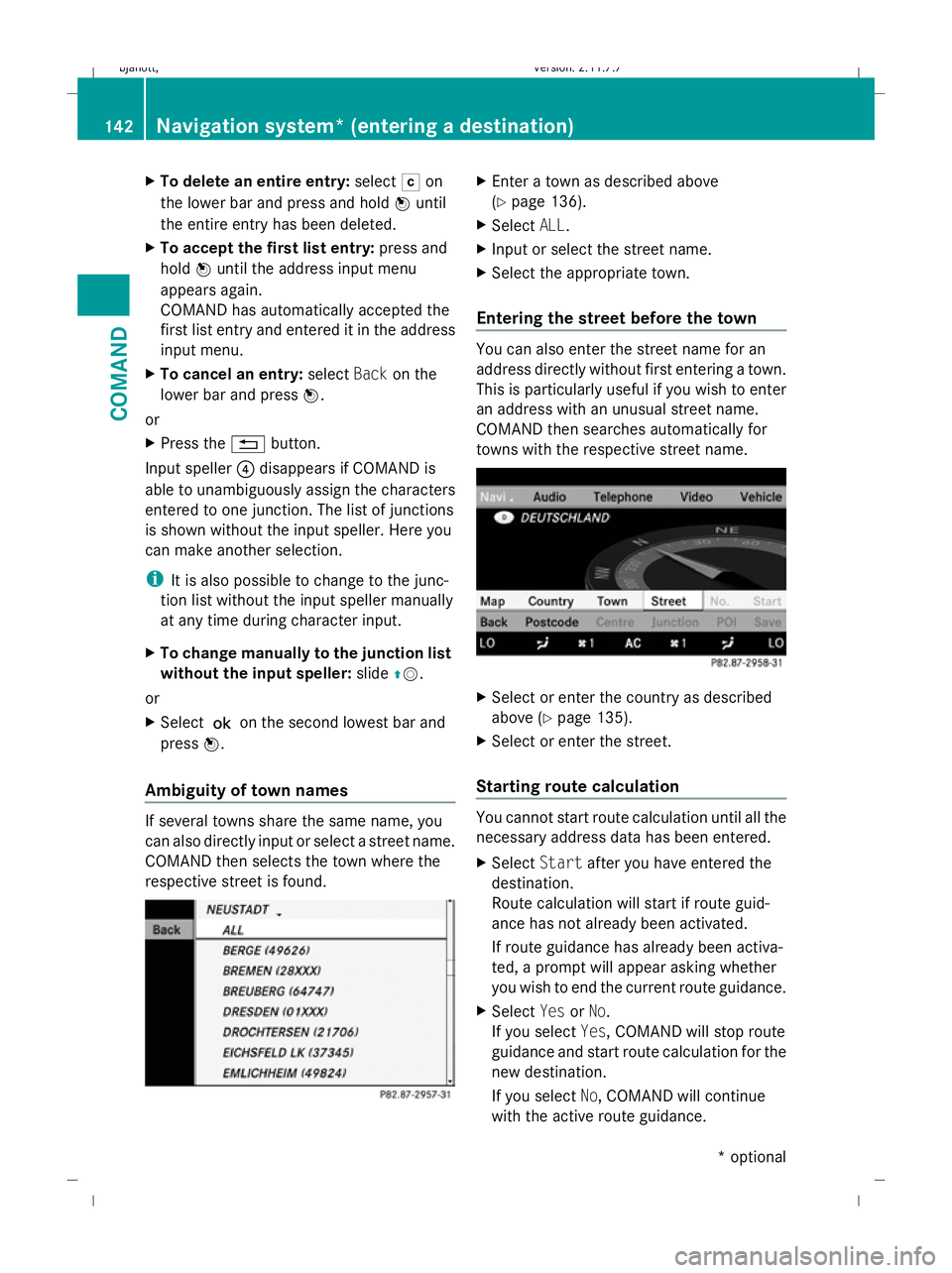
Ambiguity of town names If several towns share the same name, you
can also directly input or select a street name.
COMAND then selects the town where the
respective street is found. X
Enter a town as described above
(Y page 136).
X Select ALL.
X Input or select the street name.
X Select the appropriate town.
Entering the street before the town You can also enter the street name for an
address directly without first entering a town.
This is particularly useful if you wish to enter
an address with an unusual street name.
COMAND then searches automatically for
towns with the respective street name. X
Select or enter the country as described
above (Y page 135).
X Select or enter the street.
Starting route calculation You cannot start route calculation until all the
necessary address data has been entered.
X
Select Startafter you have entered the
destination.
Route calculation will start if route guid-
ance has not already been activated.
If route guidance has already been activa-
ted, a prompt will appear asking whether
you wish to end the current route guidance.
X Select YesorNo.
If you select Yes, COMAND will stop route
guidance and start route calculation for the
new destination.
If you select No, COMAND will continue
with the active route guidance. 142
Navigation system* (entering a destination)COMAND
* optional
216_AKB; 2; 3, en-GB
bjanott,
Version: 2.11.7.7 2009-02-27T14:54:17+01:00 - Seite 142
Dateiname: 6515230602_buchblock.pdf; erzeugt am 04. Mar 2009 11:15:16; WK
Page 146 of 421
While route calculation is in progress, an
arrow will indicate the direction to your
destination. Below this, you will see a cor-
responding message in the display. Once
the route has been calculated, route guid-
ance begins.
Route calculation takes a certain amount
of time. The time depends on the distance
from the destination, for example. COMAND
calculates the route using the digital map
data. The calculated route may differ from the
actual road situation, e.g. due to road works
or incomplete map data. Please make sure
that you observe the notes about the digital
map (Y page 132). Entering a destination from the desti-
nation memory
X Select NaviQDestination QFrom
memory.
The destination memory list appears either
with or without the input speller. Whether
or not the input speller is displayed
depends on the number of entries in the
destination memory.
i The destination memory always contains
an entry named My address. You may wish
to assign your home address to this entry,
for example (Y page 157). Like any other
entry, the My address entry can be selec-
ted using the input speller or from a list. Destination memory list with the input
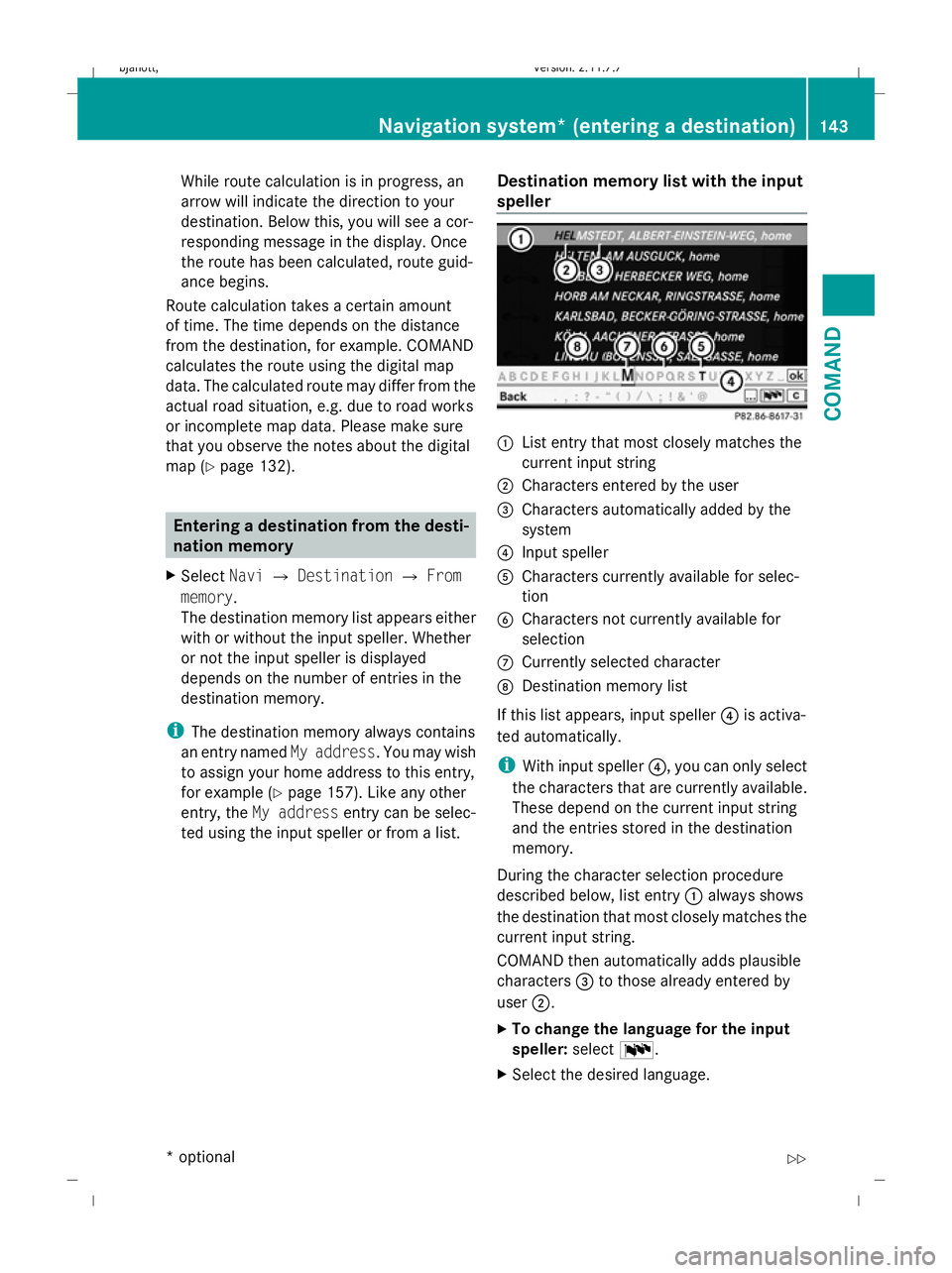
speller :
List entry that most closely matches the
current input string
; Characters entered by the user
= Characters automatically added by the
system
? Input speller
A Characters currently available for selec-
tion
B Characters not currently available for
selection
C Currently selected character
D Destination memory list
If this list appears, input speller ?is activa-
ted automatically.
i With input speller ?, you can only select
the characters that are currently available.
These depend on the current input string
and the entries stored in the destination
memory.
During the character selection procedure
described below, list entry :always shows
the destination that most closely matches the
current input string.
COMAND then automatically adds plausible
characters =to those already entered by
user ;.
X To change the language for the input
speller: selectB.
X Select the desired language. Navigation system* (entering a destination)
143COMAND
* optional
216_AKB; 2; 3, en-GB
bjanott,
Version: 2.11.7.7 2009-02-27T14:54:17+01:00 - Seite 143 Z
Dateiname: 6515230602_buchblock.pdf; erzeugt am 04. Mar 2009 11:15:17; WK
Page 158 of 421
Navigation* (route guidance with
RDS-TMC) Introduction to RDS-TMC
An RDS-TMC radio station transmits free-of-
charge RDS-TMC traffic reports in addition to
the radio programme. COMAND can receive
the RDS-TMC traffic reports and take them
into consideration for dynamic route guid-
ance. Thus, for example, the navigation sys-
tem can guide you around a traffic jam.
In Germany, COMAND uses top-quality traffic
data provided by T-Systems Traffic for the
TMCpro traffic jam warning service. This
information is available nationwide and 24
hours a day. In contrast to the public TMC
service, TMCpro uses reports from public
sources. Moreover, TMCpro utilises exclusive
data from its own automated sensor network
for monitoring traffic conditions. The traffic
announcements which are read over public
radio stations (TA) may differ from TMCpro
traffic announcements. Dynamic route guidance
The Dynamic route is the same type of route
as the Fast route. In addition, COMAND
takes RDS-TMC traffic announcements that
have been received into consideration 23
when calculating the route for dynamic route
guidance. If a quicker route is determined due
to reception of an RDS-TMC traffic announce-
ment, the navigation system changes the
route. If possible, it will bypass blockages.
X To switch on: setDynamic route as the
route type 23
.
Proceed as described in the "Setting the
route type" section (Y page 131).
X To switch off: select a different route type.
i COMAND calculates a new route if you
change the route type setting with route
guidance active. If you change the route
type setting when route guidance is inac- tive, COMAND uses the new setting for the
next route guidance.
If TMCpro is received, this is indicated by the
TMCpro symbol at the lower right in the dis-
play.
If a public TMC service is received, the TMC
symbol appears at the lower right in the dis-
play.
If RDS-TMC reception is not possible, no sym-
bol will appear. RDS-TMC displays on the map
COMAND can show certain traffic incidents
on the map. These displays can be seen on
map scales 50 m (0.05 miles) to 50 km (50
miles).
X To set the map scale: turncVduntil the
desired map scale is set.
Turning clockwise enlarges the map, turn-
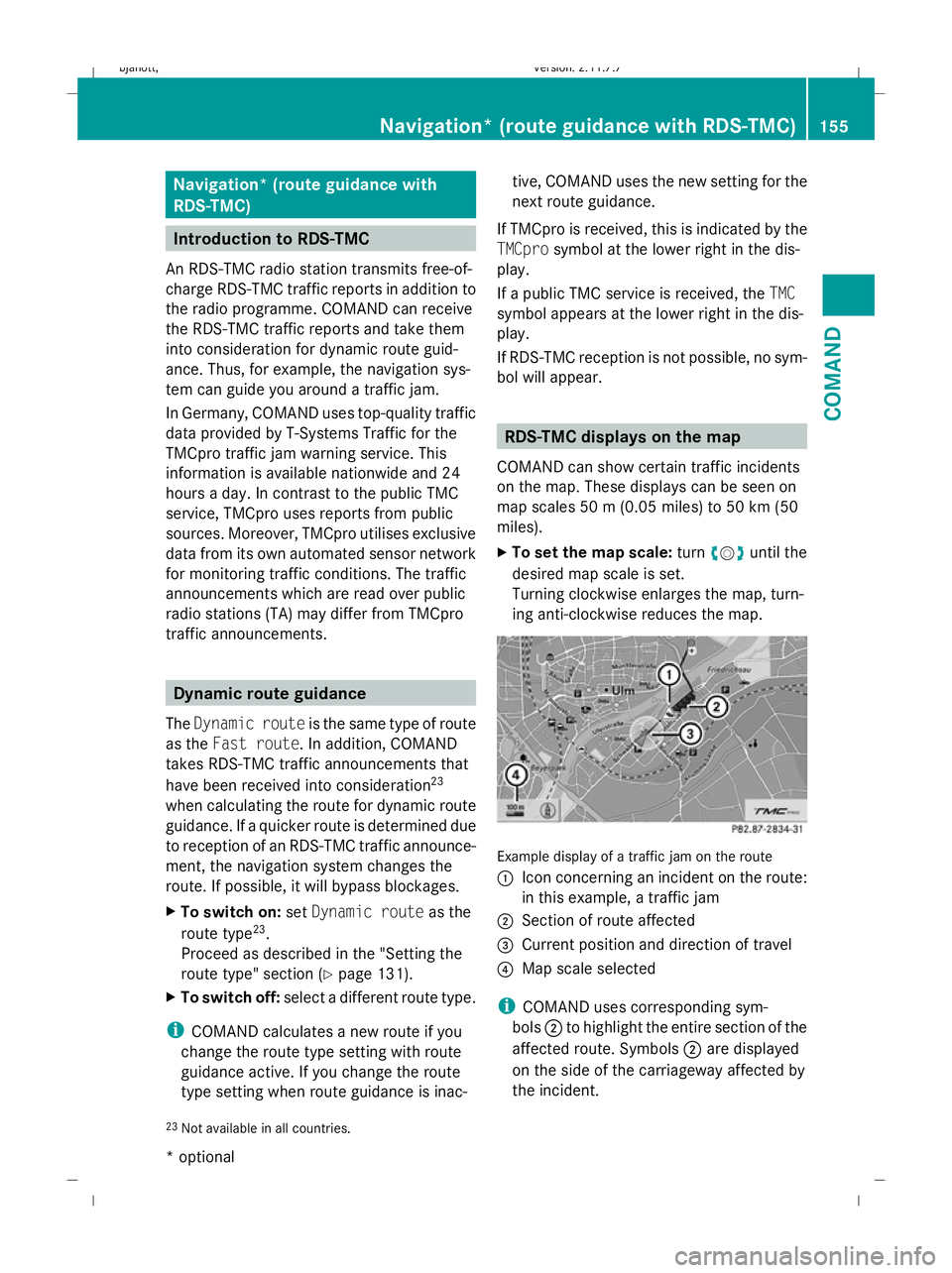
ing anti-clockwise reduces the map. Example display of a traffic jam on the route
:
Icon concerning an incident on the route:
in this example, a traffic jam
; Section of route affected
= Current position and direction of travel
? Map scale selected
i COMAND uses corresponding sym-
bols ;to highlight the entire section of the
affected route. Symbols ;are displayed
on the side of the carriageway affected by
the incident.
23 Not available in all countries. Navigation* (route guidance
with RDS-TMC)155COMAND
* optional
216_AKB; 2; 3, en-GB
bjanott,
Version: 2.11.7.7
2009-02-27T14:54:17+01:00 - Seite 155 Z
Dateiname: 6515230602_buchblock.pdf; erzeugt am 04. Mar 2009 11:15:23; WK
Page 161 of 421
Entering an address manually
X
To assign data to My address for the
first time: selectSave with name.
or
X To edit My address: selectEditQ
Save with name.
In both cases, the address input menu
appears.
X Enter the address. Proceed in the same way
as you would enter a destination as descri-
bed in the "Entering a destination by
address" section (Y page 135).
X Select Saveafter you have entered the
address.
Your address is stored.
Using an address book entry for My
address
X To assign data to My address for the
first time: selectAssign address book
entry.
or
X To edit My address: selectChange Q
Assign to address book entry.
In both cases, the menu for searching for
an address book entry appears.
X Select the desired address book entry. Pro-
ceed as described in the "Calling up con-
tacts/details" section (Y page 120).
i The name of the town and of the street in
the address book entry must be spelled in
the same way as in the destination entry so
that the information matches the data on
the digital map. The country in the address
book can be written as follows so that it
matches the data on the digital map:
R Country name spelled in the language of
that country
R Country name spelled in the language set
as the system language
R Country name as an international coun-
try abbreviation for vehicles (e.g. D for Germany, E for Spain, F for France, I for
Italy, etc.)
X COMAND stores the entry as My address
in the destination memory if the address
data is complete and matches the digital
map data.
If address data is missing or if it does not
match the data on the digital map, a mes-
sage will be displayed informing you that
the address is incomplete.
X To close the message: selectOK.
Depending on which data is missing or does
not correspond with the digital map data, you
must now:
R select a country (Y page 136)
R enter a town (Y page 136)
R enter a street (Y page 138)
R enter a house number (Y page 140)
If the data is complete and it matches the
digital map data, COMAND stores the entry. Storing a destination in the destina-
tion memory
This function also stores the destination in
the address book. COMAND creates an
address book entry that contains the com-
plete, navigable address data. You can then
select this entry in the address book and start
route guidance to the address from there.
After the address has been entered X
Select Saveafter you have entered the
address ( Ypage 135).
During route guidance X
Select Destination QSave destina‐
tion during route guidance.
You can now select storage options. 158
Navigation system* (destination memory)COMAND
* optional
216_AKB; 2; 3, en-GB
bjanott,
Version: 2.11.7.7 2009-02-27T14:54:17+01:00 - Seite 158
Dateiname: 6515230602_buchblock.pdf; erzeugt am 04. Mar 2009 11:15:24; WK
Page 174 of 421
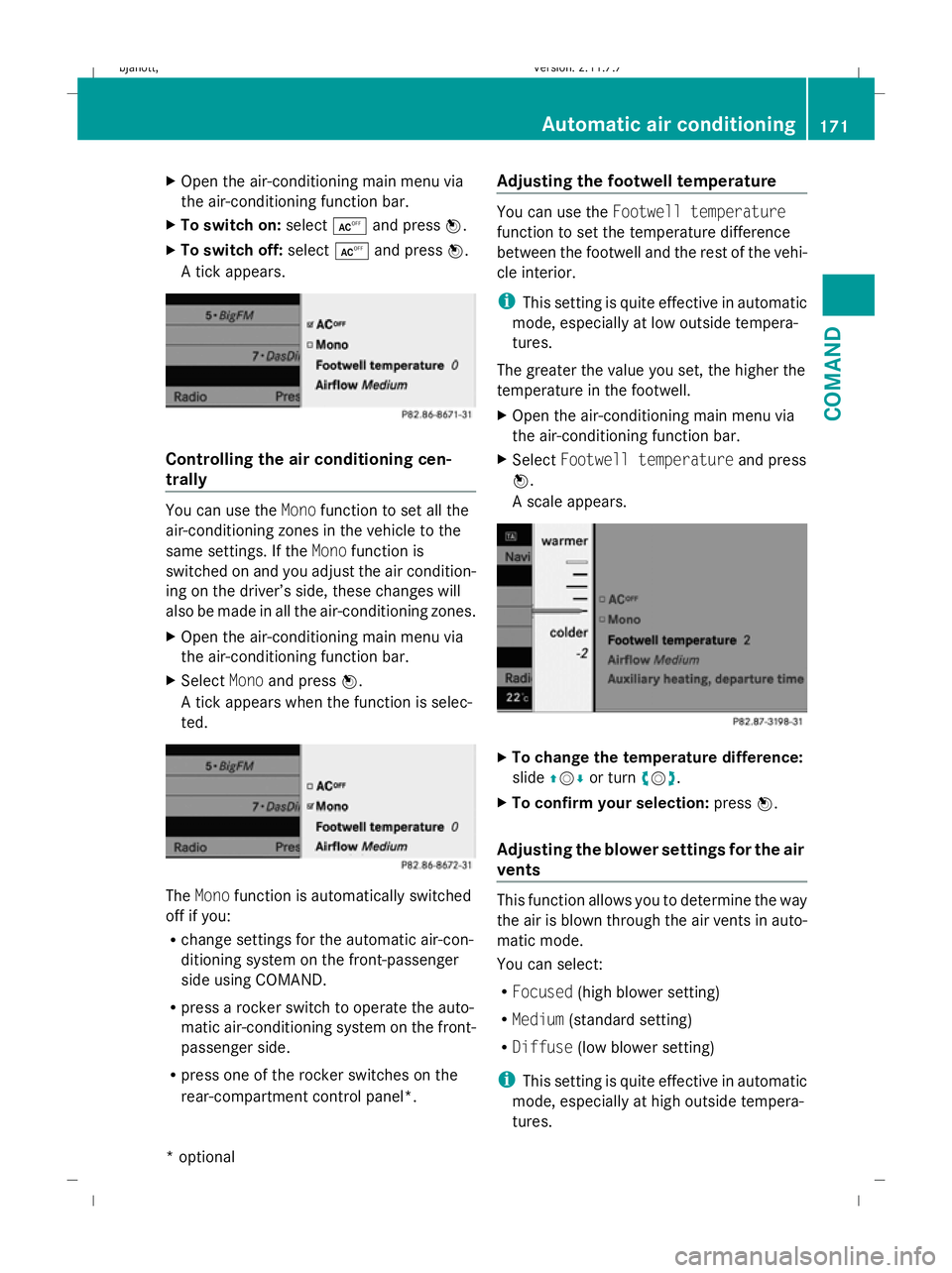
X
Open the air-conditioning main menu via
the air-conditioning function bar.
X To switch on: selectÆand press W.
X To switch off: selectÆand press W.
A tick appears. Controlling the air conditioning cen-
trally
You can use the
Monofunction to set all the
air-conditioning zones in the vehicle to the
same settings. If the Monofunction is
switched on and you adjust the air condition-
ing on the driver’s side, these changes will
also be made in all the air-conditioning zones.
X Open the air-conditioning main menu via
the air-conditioning function bar.
X Select Monoand press W.
A tick appears when the function is selec-
ted. The
Mono function is automatically switched
off if you:
R change settings for the automatic air-con-
ditioning system on the front-passenger
side using COMAND.
R press a rocker switch to operate the auto-
matic air-conditioning system on the front-
passenger side.
R press one of the rocker switches on the
rear-compartment control panel*. Adjusting the footwell temperature You can use the
Footwell temperature
function to set the temperature difference
between the footwell and the rest of the vehi-
cle interior.
i This setting is quite effective in automatic
mode, especially at low outside tempera-
tures.
The greater the value you set, the higher the
temperature in the footwell.
X Open the air-conditioning main menu via
the air-conditioning function bar.
X Select Footwell temperature and press
W.
A scale appears. X
To change the temperature difference:
slide ZVÆ or turn cVd.
X To confirm your selection: pressW.
Adjusting the blower settings for the air
vents This function allows you to determine the way
the air is blown through the air vents in auto-
matic mode.
You can select:
R
Focused (high blower setting)
R Medium (standard setting)
R Diffuse (low blower setting)
i This setting is quite effective in automatic
mode, especially at high outside tempera-
tures. Automatic air conditioning
171COMAND
* optional
216_AKB; 2; 3, en-GB
bjanott,
Version: 2.11.7.7 2009-02-27T14:54:17+01:00 - Seite 171 Z
Dateiname: 6515230602_buchblock.pdf; erzeugt am 04. Mar 2009 11:15:32; WK
Page 185 of 421
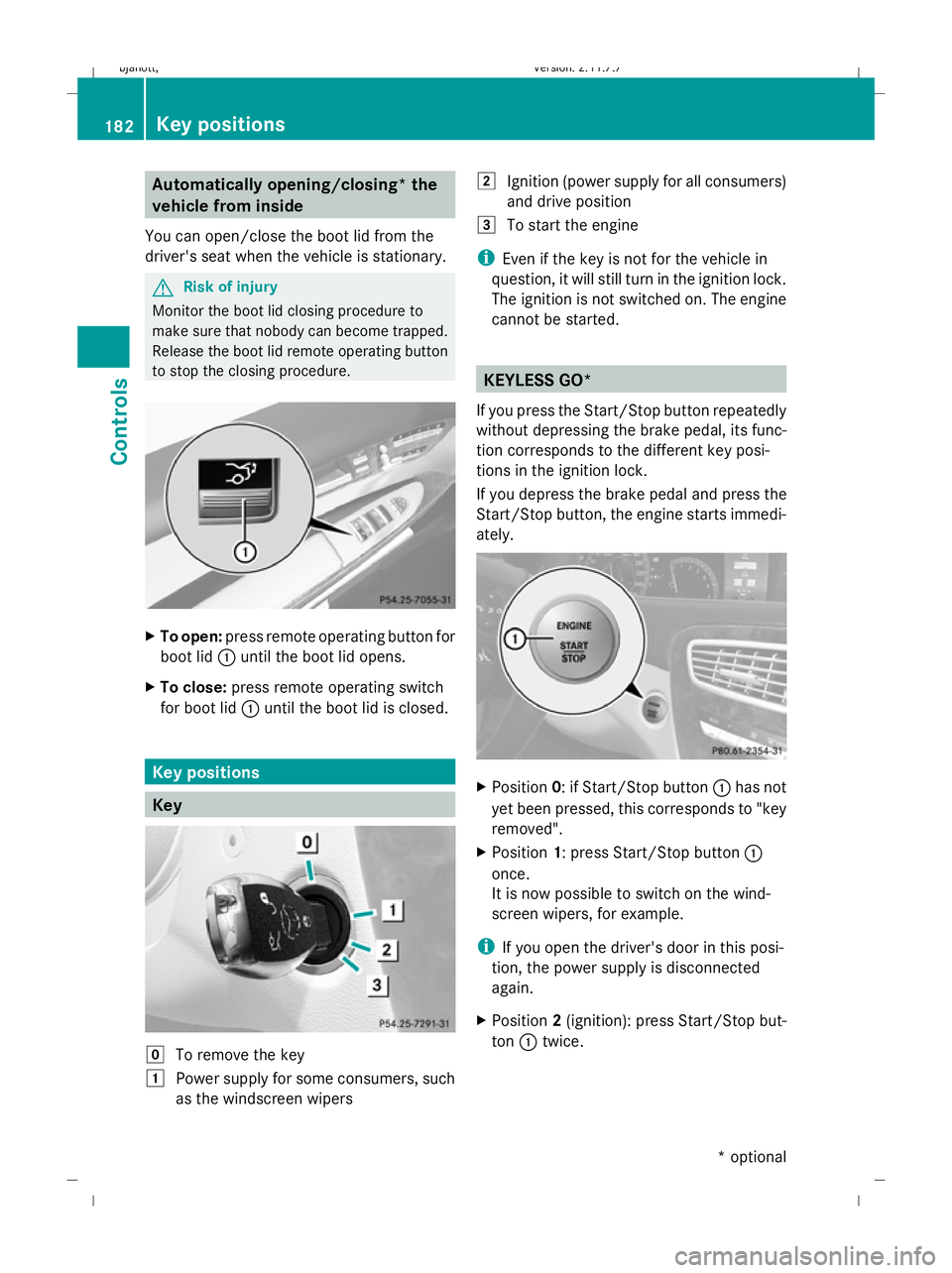
Automatically opening/closing* the
vehicle from inside
You can open/close the boot lid from the
driver's seat when the vehicle is stationary. G
Risk of injury
Monitor the boot lid closing procedure to
make sure that nobody can become trapped.
Release the boot lid remote operating button
to stop the closing procedure. X
To open: press remote operating button for
boot lid :until the boot lid opens.
X To close: press remote operating switch
for boot lid :until the boot lid is closed. Key positions
Key
g
To remove the key
1 Power supply for some consumers, such
as the windscreen wipers 2
Ignition (power supply for all consumers)
and drive position
3 To start the engine
i Even if the key is not for the vehicle in
question, it will still turn in the ignition lock.
The ignition is not switched on. The engine
cannot be started. KEYLESS GO*
If you press the Start/Stop button repeatedly
without depressing the brake pedal, its func-
tion corresponds to the different key posi-
tions in the ignition lock.
If you depress the brake pedal and press the
Start/Stop button, the engine starts immedi-
ately. X
Position 0: if Start/Stop button :has not
yet been pressed, this corresponds to "key
removed".
X Position 1: press Start/Stop button :
once.
It is now possible to switch on the wind-
screen wipers, for example.
i If you open the driver's door in this posi-
tion, the power supply is disconnected
again.
X Position 2(ignition): press Start/Stop but-
ton :twice. 182
Key positionsCont
rols
* option al
216_AKB; 2; 3, en-GB
bjanott
,V ersion: 2.11.7.7
2009-02-27T14:54:17+01:00 - Seite 182
Dateiname: 6515230602_buchblock.pdf; erzeugt am 04. Mar 2009 11:15:38; WK
Page 192 of 421

i
The crash-responsive EASY-EXIT fea-
ture* can only be activated after an acci-
dent if the EASY-ENTRY/EXIT feature is
activated in the on-board computer.
When the crash-responsive EASY-EXIT fea-
ture is triggered in an accident, the steering
wheel column will move upwards irrespec-
tive of the position of the key in the ignition
lock. This makes it easier to exit the vehicle
or rescue the occupants. Mirrors
Exterior mirrors
G
Risk of accident
The exterior mirrors reduce the size of the
image. Objects are actually closer than they
appear. You could misjudge the distance from
vehicles driving behind and cause an acci-
dent, e.g. when changing lane. For this rea-
son, make sure of the actual distance from the
vehicle driving behind by glancing over your
shoulder.
The convex exterior mirrors provide a larger
field of vision.
At low outside temperatures the exterior mir-
rors are heated automatically. Adjusting the exterior mirrors
X
Make sure that the key is in position 1or
2 in the ignition lock.
X Press button 2for the right-hand exterior
mirror or button 4for the left-hand exte-
rior mirror.
The indicator lamp lights up in the button
that has been pressed.
X Press adjustment button 1up, down, to
the right or to the left until the exterior mir-
ror is set in a way which provides you with
a good overview of traffic conditions.
See the "Storing settings" section for more
information (Y page 190).
Folding the exterior mirrors in or out
electrically X
Make sure that the key is in position 1or
2 in the ignition lock.
X Briefly press button 3.
Both exterior mirrors fold in or out.
Folding the exterior mirrors in or out
automatically If the corresponding function is activated in
COMAND (Y
page 165):
R the exterior mirrors fold in automatically as
soon as you lock the vehicle from the out-
side
R the exterior mirrors fold out again automat-
ically as soon as you unlock the vehicle and
then open the driver's or front-passenger
door
i The mirrors do not fold out if they were
folded in manually. Automatic anti-dazzle mirrors
The rear-view mirror and the exterior mirror
on the driver's side automatically go into anti-
dazzle mode if the ignition is switched on and
incident light from headlamps strikes the sen-
sor in the rear-view mirror. Mirrors
189Controls
* optional
216_AKB; 2; 3, en-GB
bjanott,
Version: 2.11.7.7 2009-02-27T14:54:17+01:00 - Seite 189 Z
Dateiname: 6515230602_buchblock.pdf; erzeugt am 04. Mar 2009 11:15:41; WK