display MERCEDES-BENZ CL COUPE 2009 Workshop Manual
[x] Cancel search | Manufacturer: MERCEDES-BENZ, Model Year: 2009, Model line: CL COUPE, Model: MERCEDES-BENZ CL COUPE 2009Pages: 421, PDF Size: 10.78 MB
Page 98 of 421
Switching to the MUSIC REGISTER
From another main mode X
Select Audio.
The system changes to the last active audio
mode.
X Select Audioagain.
The Audio menu appears.
X Select MUSIC REGISTER.
i IfMusic Register was the last mode,
you only need to select Audio.
From audio mode X
Select Audio.
The Audio menu appears.
X Select MUSIC REGISTER.
MUSIC REGISTER is loaded. The MUSIC
REGISTER display appears.
There are no music files:
You see a message to this effect.
X You first need to copy music files to the
MUSIC REGISTER (Y page 95).
There are music files:
You hear the first track in the first folder, or
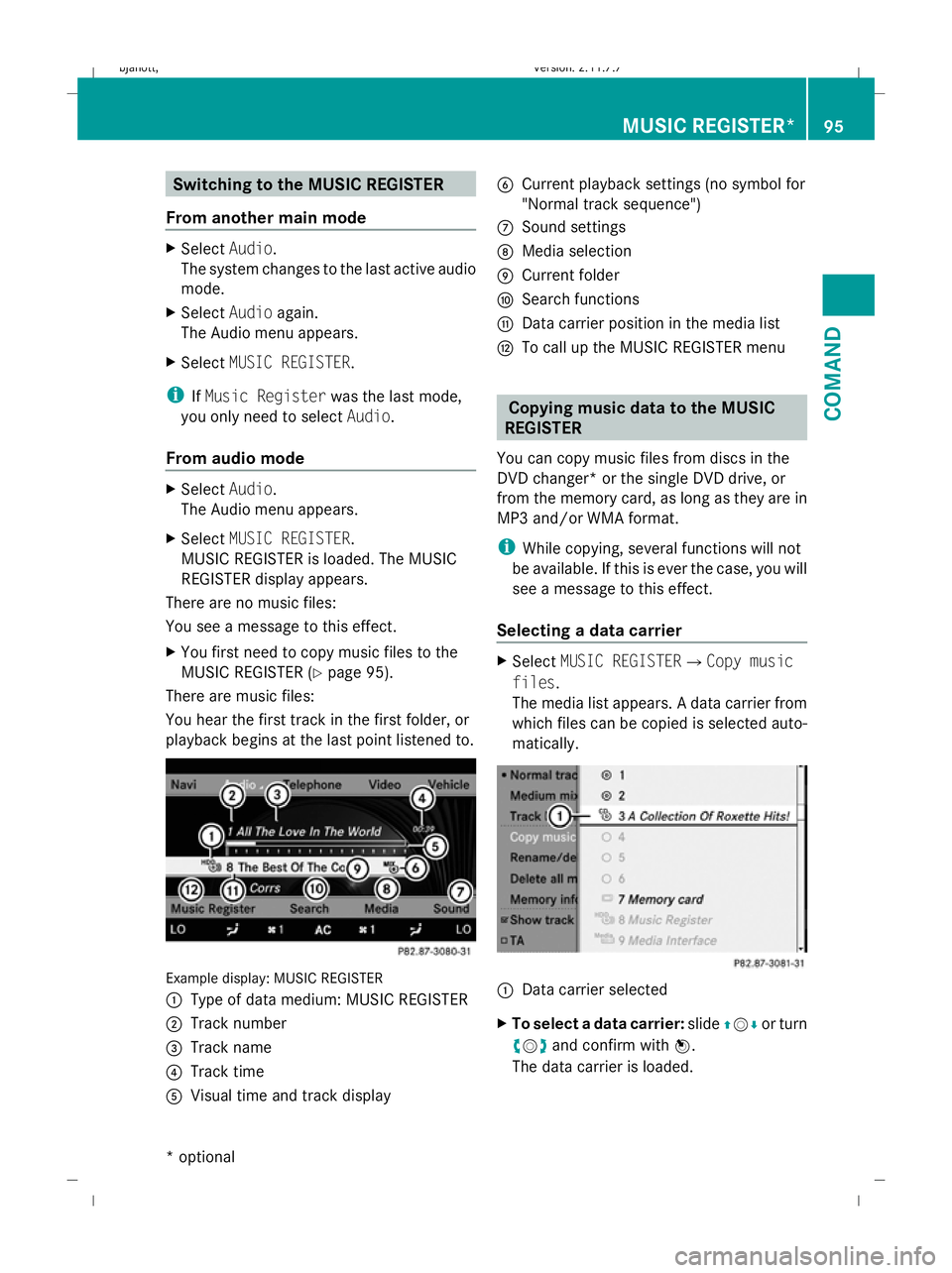
playback begins at the last point listened to. Example display: MUSIC REGISTER
:
Type of data medium: MUSIC REGISTER
; Track number
= Track name
? Track time
A Visual time and track display B
Current playback settings (no symbol for
"Normal track sequence")
C Sound settings
D Media selection
E Current folder
F Search functions
G Data carrier position in the media list
H To call up the MUSIC REGISTER menu Copying music data to the MUSIC
REGISTER
You can copy music files from discs in the
DVD changer* or the single DVD drive, or
from the memory card, as long as they are in
MP3 and/or WMA format.
i While copying, several functions will not
be available. If this is ever the case, you will
see a message to this effect.
Selecting a data carrier X
Select MUSIC REGISTERQCopy music
files.
The media list appears. A data carrier from
which files can be copied is selected auto-
matically. :
Data carrier selected
X To select a data carrier: slideZVÆ or turn
cVd and confirm with W.
The data carrier is loaded. MUSIC REGISTER*
95COMAND
* optional
216_AKB; 2; 3, en-GB
bjanott,
Version: 2.11.7.7 2009-02-27T14:54:17+01:00 - Seite 95 Z
Dateiname: 6515230602_buchblock.pdf; erzeugt am 04. Mar 2009 11:15:03; WK
Page 99 of 421
Selecting music files
X
Select All music files.
This function copies all music files on the
selected data carrier. The symbol in front
of All music files is filled in.
X Select Next.
The copying menu appears.
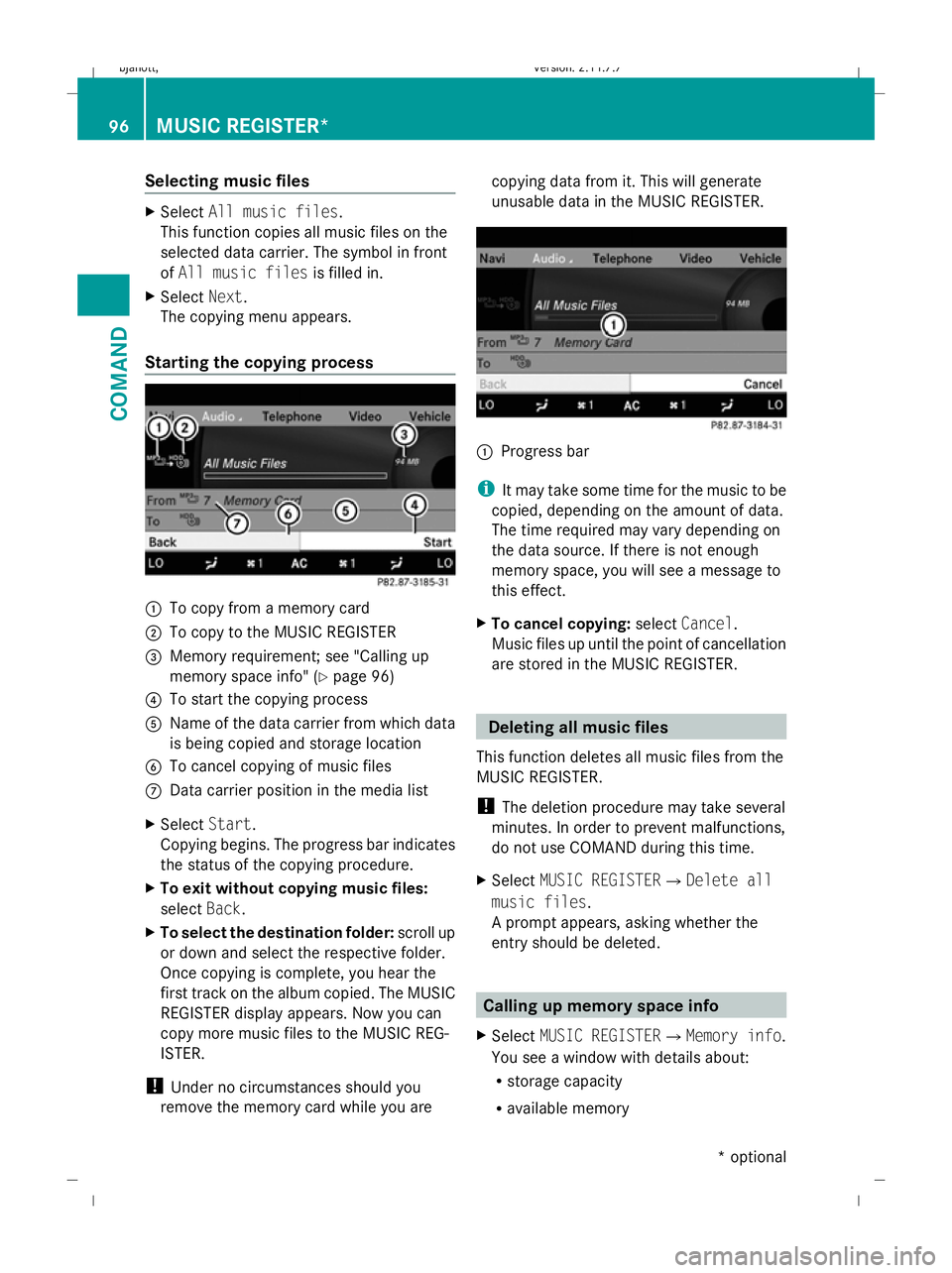
Starting the copying process :
To copy from a memory card
; To copy to the MUSIC REGISTER
= Memory requirement; see "Calling up
memory space info" (Y page 96)
? To start the copying process
A Name of the data carrier from which data
is being copied and storage location
B To cancel copying of music files
C Data carrier position in the media list
X Select Start.
Copying begins. The progress bar indicates
the status of the copying procedure.
X To exit without copying music files:
select Back.
X To select the destination folder: scroll up
or down and select the respective folder.
Once copying is complete, you hear the
first track on the album copied. The MUSIC
REGISTER display appears. Now you can
copy more music files to the MUSIC REG-
ISTER.
! Under no circumstances should you
remove the memory card while you are copying data from it. This will generate
unusable data in the MUSIC REGISTER.
:
Progress bar
i It may take some time for the music to be
copied, depending on the amount of data.
The time required may vary depending on
the data source. If there is not enough
memory space, you will see a message to
this effect.
X To cancel copying: selectCancel.
Music files up until the point of cancellation
are stored in the MUSIC REGISTER. Deleting all music files
This function deletes all music files from the
MUSIC REGISTER.
! The deletion procedure may take several
minutes. In order to prevent malfunctions,
do not use COMAND during this time.
X Select MUSIC REGISTERQDelete all
music files.
A prompt appears, asking whether the
entry should be deleted. Calling up memory space info
X Select MUSIC REGISTERQMemory info.
You see a window with details about:
R storage capacity
R available memory 96
MUSIC REGISTER*COMAND
* optional
216_AKB; 2; 3, en-GB
bjanott,
Version: 2.11.7.7 2009-02-27T14:54:17+01:00 - Seite 96
Dateiname: 6515230602_buchblock.pdf; erzeugt am 04. Mar 2009 11:15:04; WK
Page 100 of 421
R
occupied memory
R content (folders, tracks) Folder functions
You can view the MUSIC REGISTER contents,
modify data and delete it.
Calling up the MUSIC REGISTER X
Select Rename/delete files.
or
X Press Wwhen the display/selection win-
dow is active.
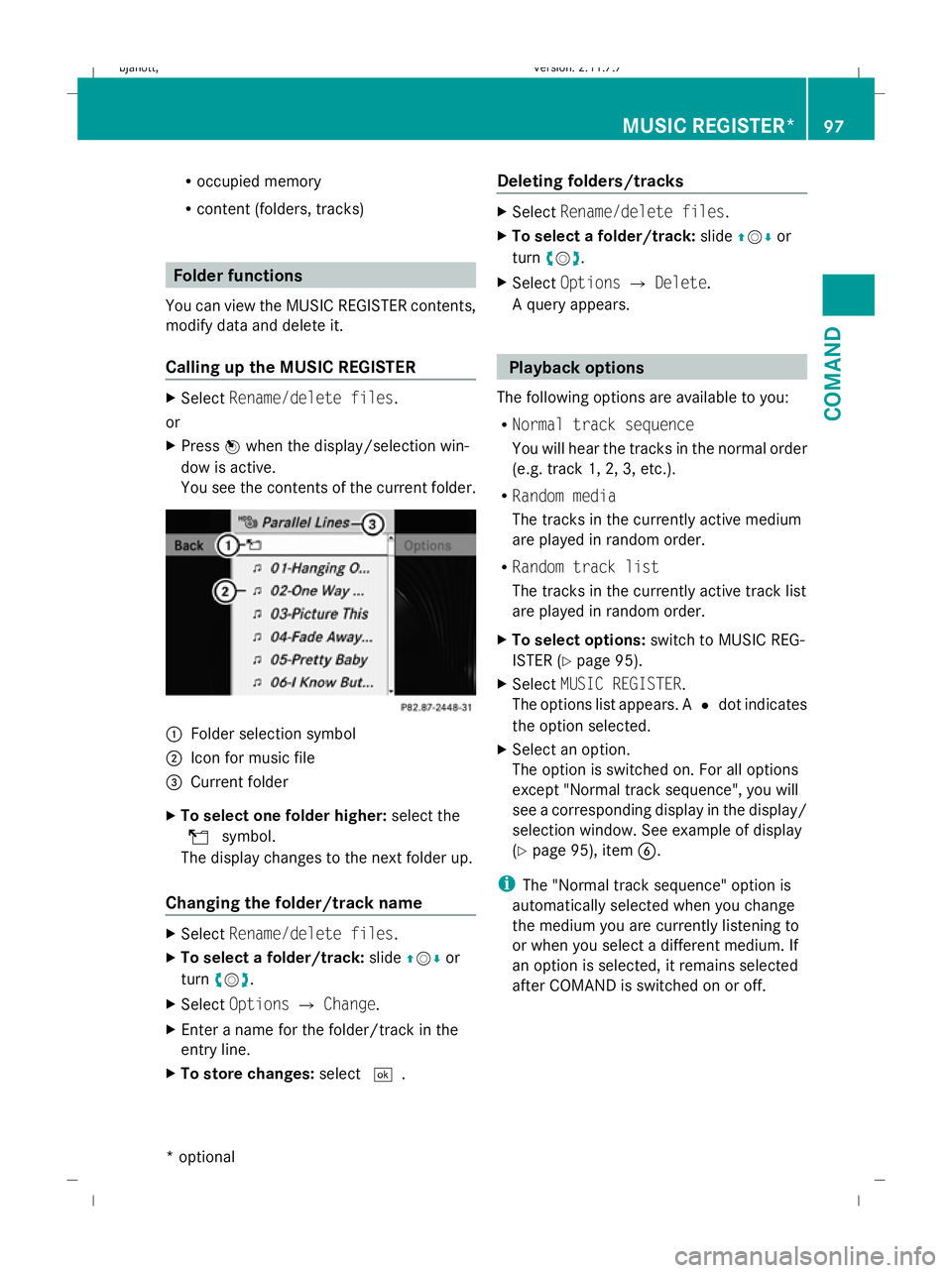
You see the contents of the current folder. :
Folder selection symbol
; Icon for music file
= Current folder
X To select one folder higher: select the
U symbol.
The display changes to the next folder up.
Changing the folder/track name X
Select Rename/delete files.
X To select a folder/track: slideZVÆ or
turn cVd.
X Select Options QChange.
X Enter a name for the folder/track in the
entry line.
X To store changes: select¬. Deleting folders/tracks X
Select Rename/delete files.
X To select a folder/track: slideZVÆ or
turn cVd.
X Select Options QDelete.
A query appears. Playback options
The following options are available to you:
R Normal track sequence
You will hear the tracks in the normal order
(e.g. track 1, 2, 3, etc.).
R Random media
The tracks in the currently active medium
are played in random order.
R Random track list
The tracks in the currently active track list
are played in random order.
X To select options: switch to MUSIC REG-
ISTER (Y page 95).
X Select MUSIC REGISTER.
The options list appears. A #dot indicates
the option selected.
X Select an option.
The option is switched on. For all options
except "Normal track sequence", you will
see a corresponding display in the display/
selection window. See example of display
(Y page 95), item B.
i The "Normal track sequence" option is
automatically selected when you change
the medium you are currently listening to
or when you select a different medium. If
an option is selected, it remains selected
after COMAND is switched on or off. MUSIC REGISTER*
97COMAND
* optional
216_AKB; 2; 3, en-GB
bjanott,
Version: 2.11.7.7 2009-02-27T14:54:17+01:00 - Seite 97 Z
Dateiname: 6515230602_buchblock.pdf; erzeugt am 04. Mar 2009 11:15:04; WK
Page 103 of 421
X
Confirm your entry with W.
COMAND activates the connected device.
You will see a message to this effect. The
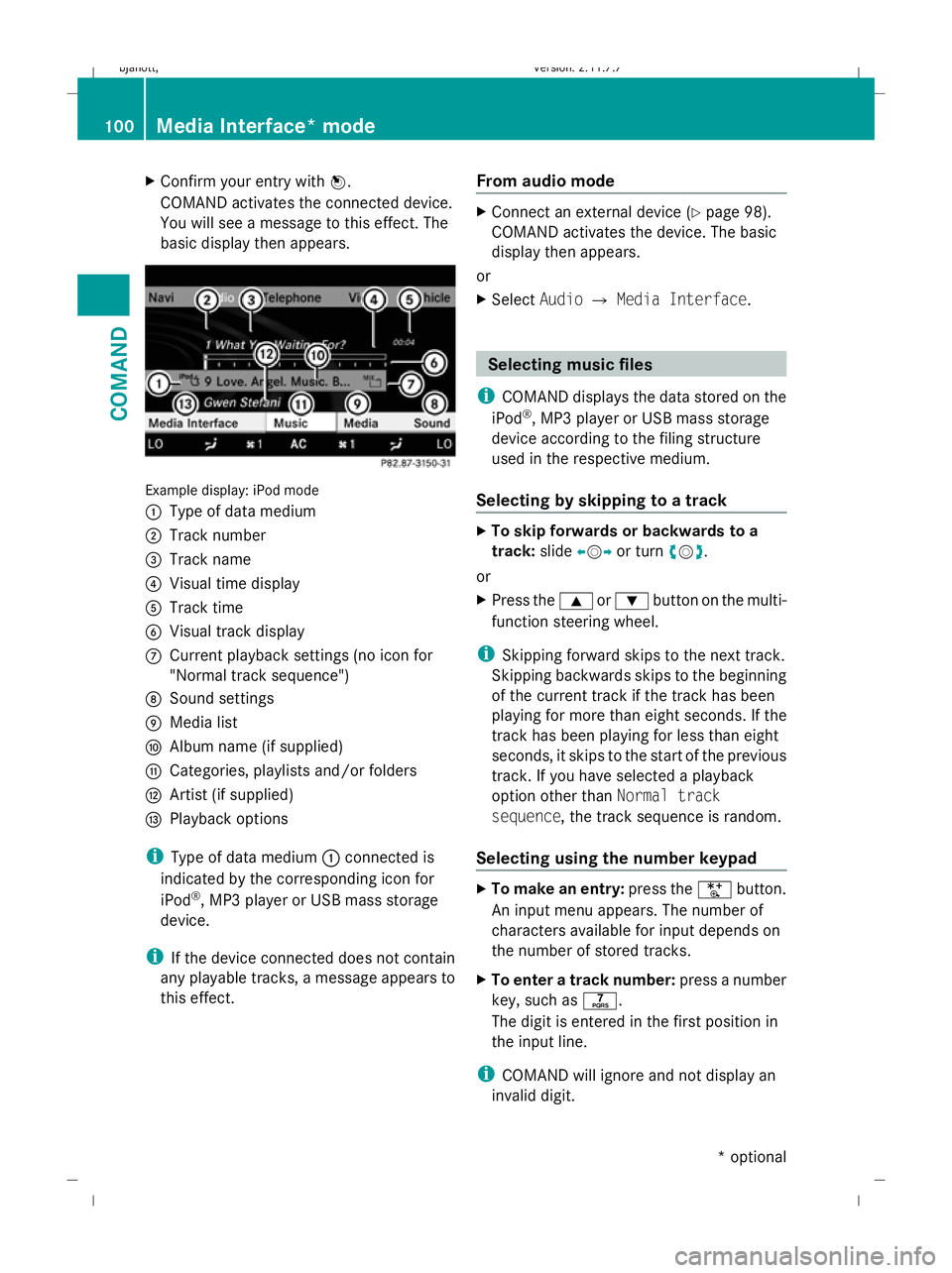
basic display then appears. Example display: iPod mode
:
Type of data medium
; Track number
= Track name
? Visual time display
A Track time
B Visual track display
C Current playback settings (no icon for
"Normal track sequence")
D Sound settings
E Media list
F Album name (if supplied)
G Categories, playlists and/or folders
H Artist (if supplied)
I Playback options
i Type of data medium :connected is
indicated by the corresponding icon for
iPod ®
, MP3 player or USB mass storage
device.
i If the device connected does not contain
any playable tracks, a message appears to
this effect. From audio mode X
Connect an external device (Y page 98).
COMAND activates the device. The basic
display then appears.
or
X Select AudioQMedia Interface . Selecting
music files
i COMAND displays the data stored on the
iPod ®
, MP3 player or USB mass storage
device according to the filing structure
used in the respective medium.
Selecting by skipping to a track X
To skip forwards or backwards to a
track: slideXVY or turn cVd.
or
X Press the 9or: button on the multi-
function steering wheel.
i Skipping forward skips to the next track.
Skipping backwards skips to the beginning
of the current track if the track has been
playing for more than eight seconds. If the
track has been playing for less than eight
seconds, it skips to the start of the previous
track. If you have selected a playback
option other than Normal track
sequence, the track sequence is random.
Selecting using the number keypad X
To make an entry: press theUbutton.
An input menu appears. The number of
characters available for input depends on
the number of stored tracks.
X To enter a track number: press a number
key, such as q.
The digit is entered in the first position in
the input line.
i COMAND will ignore and not display an
invalid digit. 100
Media Interface* modeCOMAND
* optional
216_AKB; 2; 3, en-GB
bjanott
,V ersion: 2.11.7.7
2009-02-27T14:54:17+01:00 - Seite 100
Dateiname: 6515230602_buchblock.pdf; erzeugt am 04. Mar 2009 11:15:05; WK
Page 104 of 421
X
If desired, enter further digits.
X To confirm your entry: pressW.
or
X Press and hold the number key for the last
number of the desired track number.
The selected track is played.
Fast forward/rewind X
If the display/selection window is
active: slideXVY and hold until you reach
the desired position.
i On an iPod ®
, the fast rewind function can
only be used within the currently playing
track. Selecting a category/playlist/folder
iPod ®
and selected MP3 players You can select tracks for an iPod
®
and MP3
player according to categories and folders.
Categories can include:
R Current track list
R Playlists
R Artists
R Albums
R Tracks
R Podcasts
R Genres
R Composers
R Audiobooks
i Some playback categories contain the
All entry. When this entry has been selec-
ted, the entire content of the category
selected will be played.
USB devices For USB mass storage devices, you can select
folders and also playlists (if available). When
playing back from playlists, COMAND can also display the respective album and artist
name (metadata), if these have been uploa-
ded to the system.
Playlists are indicated in the display by a spe-
cial icon. When you open the playlist, the cor-
responding tracks are opened and playback
begins when you select a track.
For USB mass storage devices, you can
choose to display the metadata contained in
the tags of the encoded music data, or to dis-
play the file and directory names during play-
back.
X
To display album and artist name: select
Media Interface QDisplay Meta‐
data.
Selecting a category and opening a
folder X
To open a category list/folder: pressW
when the display/selection window is
active.
or
X Select Music.
You will see the available categories or the
folder content (e.g. other folders).
i The Music menu item is not available until
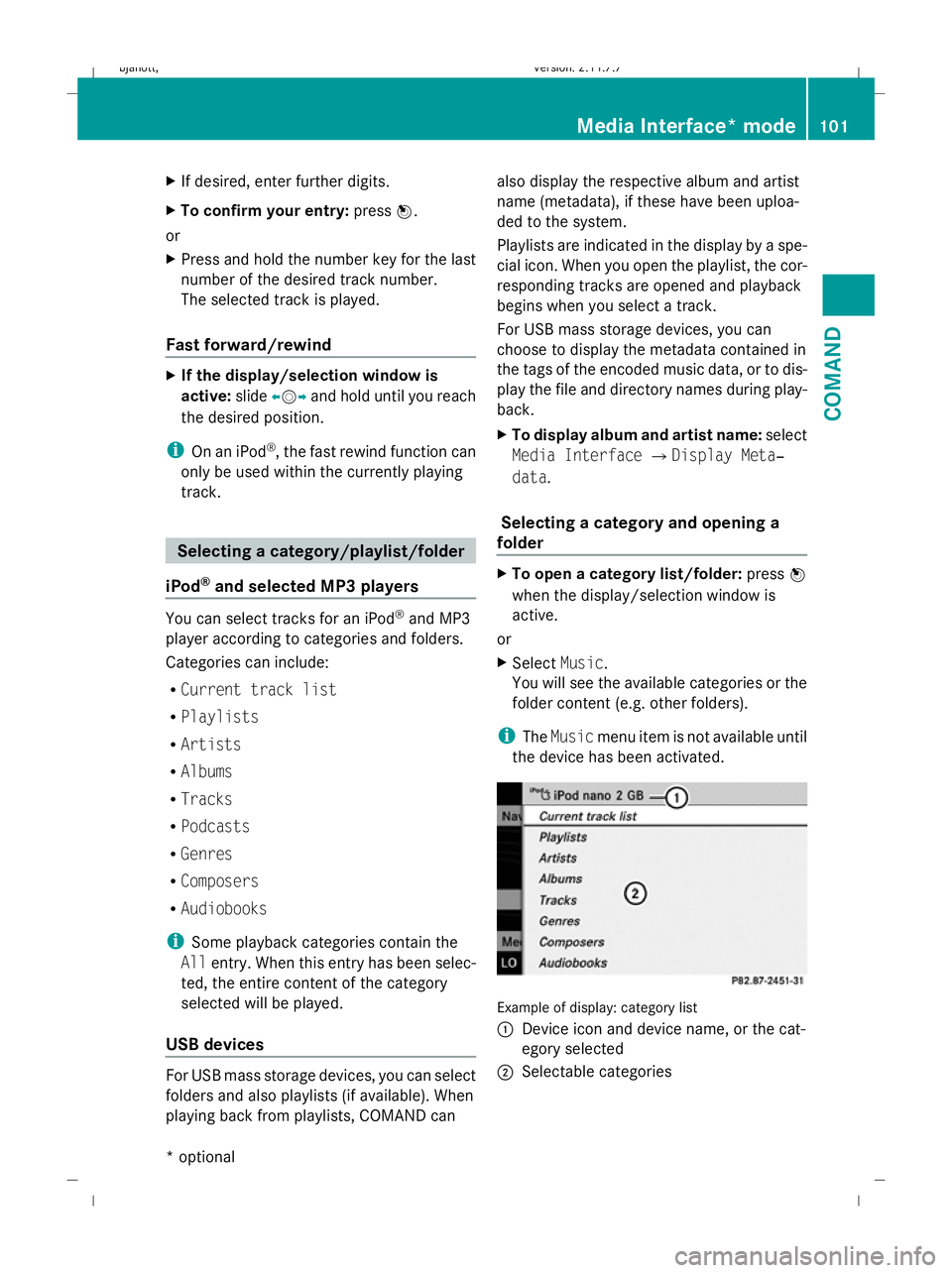
the device has been activated. Example of display: category list
:
Device icon and device name, or the cat-
egory selected
; Selectable categories Media Interface* mode
101COMAND
* optional
216_AKB; 2; 3, en-GB
bjanott,
Version: 2.11.7.7 2009-02-27T14:54:17+01:00 - Seite 101 Z
Dateiname: 6515230602_buchblock.pdf; erzeugt am 04. Mar 2009 11:15:05; WK
Page 105 of 421
X
To select a category/folder: slideZVÆ
or turn cVdand confirm with W.
You will see the content of the selected
category or selected folder.
i If the data still has to be read from the
connected device, you will see the Please
wait... message.
X If necessary, repeat this operating step
until the tracks in the desired folder/album
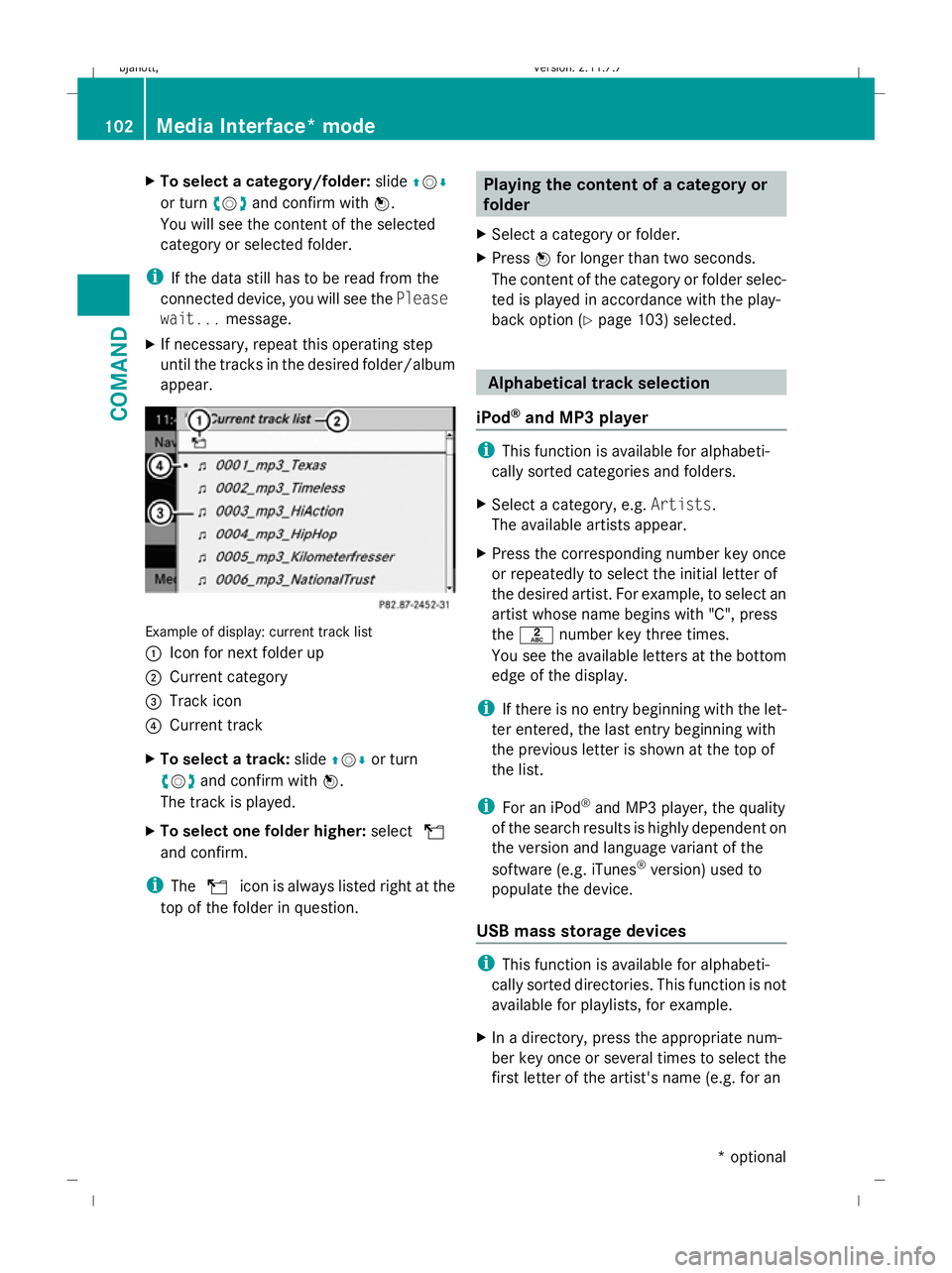
appear. Example of display: current track list
:
Icon for next folder up
; Current category
= Track icon
? Current track
X To select a track: slideZVÆor turn
cV dand confirm with W.
The track is played.
X To select one folder higher: selectU
and confirm.
i The U icon is always listed right at the
top of the folder in question. Playing the content of a category or
folder
X Select a category or folder.
X Press Wfor longer than two seconds.
The content of the category or folder selec-
ted is played in accordance with the play-
back option (Y page 103) selected. Alphabetical track selection
iPod ®
and MP3 player i
This function is available for alphabeti-
cally sorted categories and folders.
X Select a category, e.g. Artists.
The available artists appear.
X Press the corresponding number key once
or repeatedly to select the initial letter of
the desired artist. For example, to select an
artist whose name begins with "C", press
the l number key three times.
You see the available letters at the bottom
edge of the display.
i If there is no entry beginning with the let-
ter entered, the last entry beginning with
the previous letter is shown at the top of
the list.
i For an iPod ®
and MP3 player, the quality
of the search results is highly dependent on
the version and language variant of the
software (e.g. iTunes ®
version) used to
populate the device.
USB mass storage devices i
This function is available for alphabeti-
cally sorted directories. This function is not
available for playlists, for example.
X In a directory, press the appropriate num-
ber key once or several times to select the
first letter of the artist's name (e.g. for an 102
Media Interface* modeCOMAND
* optional
216_AKB; 2; 3, en-GB
bjanott,
Version: 2.11.7.7 2009-02-27T14:54:17+01:00 - Seite 102
Dateiname: 6515230602_buchblock.pdf; erzeugt am 04. Mar 2009 11:15:05; WK
Page 106 of 421
artist beginning with the letter "C", press
number key
lthree times).
You see the available letters at the bottom
edge of the display.
If the directory only contains folders,
COMAND searches for folders. Selecting an active partition (for USB
mass storage devices only)
You can select this function for USB mass
storage devices when the storage device is
partitioned. Up to four partitions (primary or
logical and FAT-formatted) are supported.
i The Windows formatting program sup-
ports FAT partitions of up to 32 GB as
standard.
X Select Media Interface QSelect
active partition . Playback options
The following options are available to you:
R Normal track sequence
The tracks are played in the normal order
(e.g. sorted by number or by title).
R Random tracks
All the tracks on the medium are played in
random order.
R Random categories orRandom folder
(in the case of USB devices when Folder
has been selected):
The tracks in the currently active category
or folder, including any sub-folders, are
played in random order.
X To select a playback option: select
Media Interface in the basic display.
The options list appears. A #dot indicates
the option selected.
X Select an option. Telephone*
Safety notes
G
Risk of accident
Observe the legal requirements of the country
in which you are currently driving regarding
operating mobile communications equipment
in a vehicle.
If it is permitted by law to operate communi-
cations equipment while the vehicle is in
motion, you may only do so when the traffic
situation allows. Otherwise, you could be dis-
tracted from the traffic conditions, cause an
accident and injure yourself and others.
Two-way radios and fax equipment used with-
out low-reflection exterior aerials can inter-
fere with the vehicle's electronics and,
thereby, jeopardise the operating safety of
the vehicle and your safety. Therefore, you
must only use this equipment if it is correctly
connected to a separate, reflection-free, exte-
rior aerial. G
Risk of accident
For reasons of safety, only use hands-free
mode if you use the telephone when driving.
If you use hands-free mode to make a call, you
must continue to drive carefully, close all the
windows and prevent any disruptive noises. General notes
Bluetooth ®
interface and convenience
telephony* COMAND offers you dual-level telephone
functions.
The basic set-up offers you Bluetooth
®
inter-
face telephony when used with a Bluetooth ®
-
capable mobile phone. With suitable mobile
phones, the Bluetooth ®
interface can be used
for the following functions:
R hands-free system
R phone book Telephone*
103COMAND
* optional
216_AKB; 2; 3, en-GB
bjanott
,V ersion: 2.11.7.7
2009-02-27T14:54:17+01:00 - Seite 103 Z
Dateiname: 6515230602_buchblock.pdf; erzeugt am 04. Mar 2009 11:15:05; WK
Page 107 of 421
If your vehicle is equipped with convenience
telephony*, you can buy brackets* for spe-
cific mobile phones at your Mercedes-Benz
Service Centre and have them installed in the
armrest.
Your mobile phone battery* is charged in the
bracket and a connection is made to the vehi-
cle's aerial.
With a suitable mobile telephone, the follow-
ing functions are available when using con-
venience telephony*:
R hands-free system
R phone book
R text message (SMS)
i If your vehicle is equipped with conveni-
ence telephony*, you can also connect a
Bluetooth ®
-capable mobile phone to
COMAND via the Bluetooth ®
interface.
You can obtain more detailed information
about suitable mobile phones and about con-
necting Bluetooth ®
-capable mobile phones
with COMAND from your Mercedes-Benz
Service Centre or on the Internet
(www.mercedes-benz.com).
Calls disconnected while the vehicle is
in motion A call may be disconnected if:
R
there is insufficient GSM network coverage
in certain areas.
R you move from one GSM transmitter/
receiver area (GSM cell) into another and
no channels are free.
Operating options You can operate the phone with the following
devices:
R mobile phone keypad
R COMAND/telephone keypad
R COMAND controller R
multi-function steering wheel
R Linguatronic*
Unless otherwise indicated, the descriptions
and illustrations in this section refer to
COMAND and the telephone keypad. This
also means that to carry out the functions
described here, you must always be in the
"Telephone" menu. The fastest way to access
the "Telephone" menu is to press the S
function button.
LINGUATRONIC* operation is described in
separate operating instructions.
Display of telephone numbers and
names COMAND can display the telephone number
and the name of the caller, e.g. for an incom-
ing call and also in other menus or displays.
For the telephone number to be displayed,
the caller must send their telephone number.
This is also the case for name displays. For
this, the telephone number and the name of
the caller must be stored in the phone book.
Function restrictions You will not be able to use the telephone in
the following situations:
R
when the mobile phone is not switched on
R when the "Bluetooth ®
" function on
COMAND or, when telephoning via the
Bluetooth ®
interface, on the mobile phone,
is switched off
R when using convenience telephony* and
the mobile phone is not yet connected to
the bracket*
XConnect the mobile phone
(Y page 110).
R when the mobile phone is not yet connec-
ted to a network
The telephone automatically tries to
log into a network. If no network is availa-
ble, you will not be able to make a "112" 104
Telephone*COMAND
* optional
216_AKB; 2; 3, en-GB
bjanott,
Version: 2.11.7.7 2009-02-27T14:54:17+01:00 - Seite 104
Dateiname: 6515230602_buchblock.pdf; erzeugt am 04. Mar 2009 11:15:05; WK
Page 110 of 421
i
Not all mobile phones available on the
market are equally suitable. You can obtain
more detailed information about suitable
mobile phones and about connecting Blue-
tooth ®
-capable mobile phones to
COMAND from your Mercedes-Benz
Service Centre or on the Internet
(www.mercedes-benz.com).
To avoid malfunctions, the mobile phone's
rechargeable battery must always be suffi-
ciently charged.
In preparation for telephoning via the Blue-
tooth ®
interface you should check the follow-
ing items on your mobile phone (see the
mobile phone operating instructions):
R Hands-Free Profile
The mobile phone must support Hands-
Free Profile 1.0 or above.
i Certain displays (e.g. the field strength
display or the mobile phone network pro-
vider) appear depending on the supported
version of the Hands-Free Profile.
R Bluetooth ®
visibility
On certain mobile phones, the device itself
must be made "visible" for other devices,
as well as activating the Bluetooth ®
func-
tion.
R Bluetooth ®
device name
Every Bluetooth ®
device has a Bluetooth ®
device name. This device name is freely
definable, but can be identical for all devi-
ces from the same manufacturer. It is a
good idea to choose a personalised name
by which you can identify your mobile
phone clearly.
Connecting a mobile phone X
Switch on the mobile phone and enter the
PIN, if necessary – see the mobile phone
operating instructions. X
Activate the Bluetooth ®
functionality on
the mobile phone – see the mobile phone
operating instructions.
Bluetooth ®
is activated on COMAND as
standard. When the "Bluetooth ®
" function is
switched off on COMAND, the following mes-
sage appears: Bluetooth not activated
in system settings. Switch on Blue-
tooth ®
manually on COMAND (Y page 106).
Registering (authorising) the mobile
phone
Before you use your mobile phone with
COMAND for the first time, you must register
(authorise) it.
You can register more than one mobile
phone. A connection is always established to
the most recently connected mobile phone
within range.
If no connection can be made to the most
recently connected mobile phone, the system
searches for the mobile phone which was
connected before that one.
If you authorise a new mobile phone, it will be
automatically connected 12
.
X Select Data/connections QBlue‐
tooth telephonesQ Update.
COMAND looks for Bluetooth ®
devices
within range and adds them to the Blue-
tooth ®
phone list.
The duration of the search depends on the
number of Bluetooth ®
devices within range
and on the mobile phone characteristics
(Hands-Free-Profile version, any "visibility"
requirements).
12 This function is available if it is supported by the mobile phone. Telephone*
107COMAND
* optional
216_AKB; 2; 3, en-GB
bjanott,
Version: 2.11.7.7 2009-02-27T14:54:17+01:00 - Seite 107 Z
Dateiname: 6515230602_buchblock.pdf; erzeugt am 04. Mar 2009 11:15:06; WK
Page 111 of 421
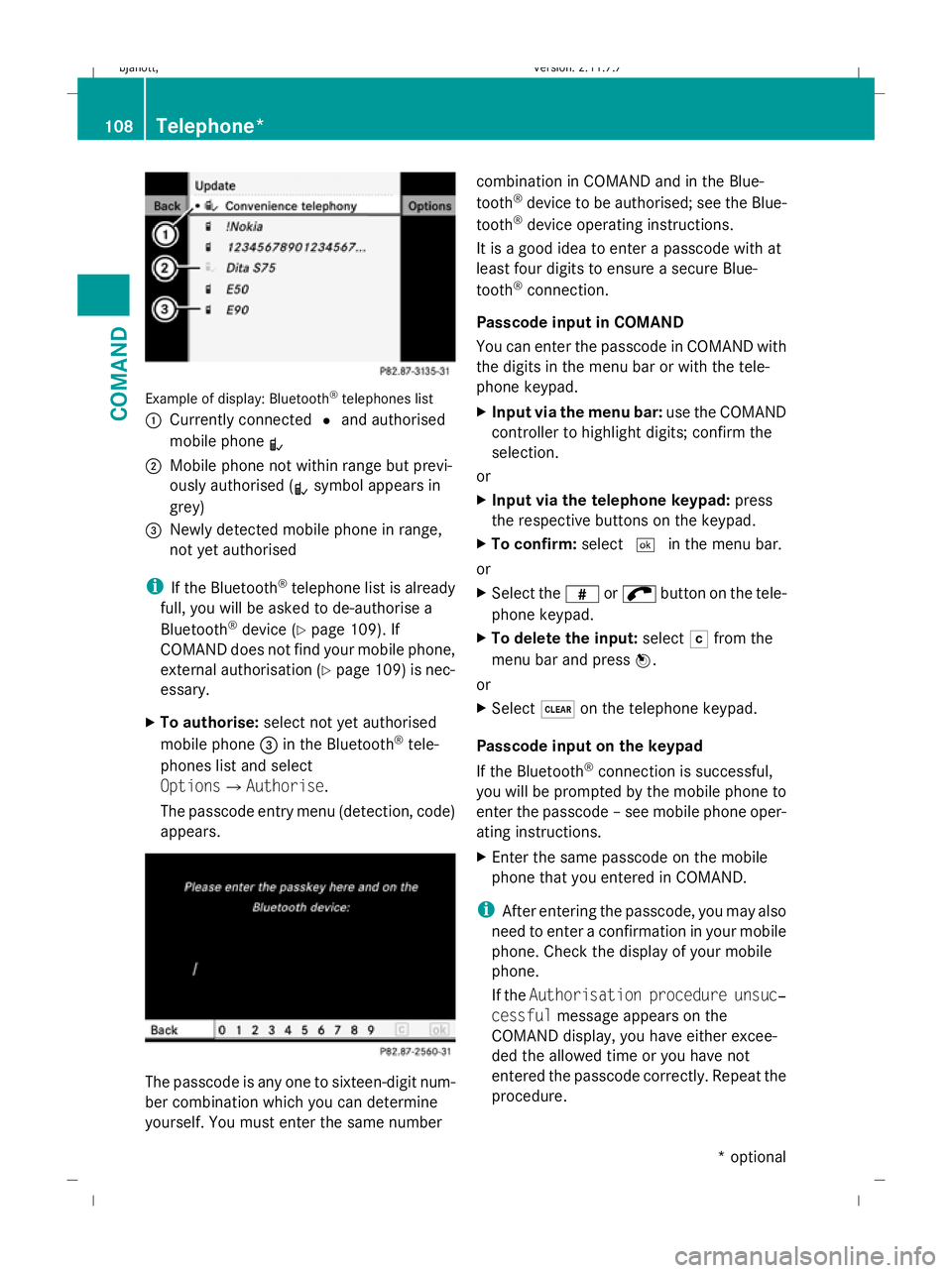
Example of display: Bluetooth
®
telephones list
: Currently connected #and authorised
mobile phone L
; Mobile phone not within range but previ-
ously authorised ( Lsymbol appears in
grey)
= Newly detected mobile phone in range,
not yet authorised
i If the Bluetooth ®
telephone list is already
full, you will be asked to de-authorise a
Bluetooth ®
device (Y page 109). If
COMAND does not find your mobile phone,
external authorisation (Y page 109) is nec-
essary.
X To authorise: select not yet authorised
mobile phone =in the Bluetooth ®
tele-
phones list and select
OptionsQAuthorise.
The passcode entry menu (detection, code)
appears. The passcode is any one to sixteen-digit num-
ber combination which you can determine
yourself. You must enter the same number combination in COMAND and in the Blue-
tooth
®
device to be authorised; see the Blue-
tooth ®
device operating instructions.
It is a good idea to enter a passcode with at
least four digits to ensure a secure Blue-
tooth ®
connection.
Passcode input in COMAND
You can enter the passcode in COMAND with
the digits in the menu bar or with the tele-
phone keypad.
X Input via the menu bar: use the COMAND
controller to highlight digits; confirm the
selection.
or
X Input via the telephone keypad: press
the respective buttons on the keypad.
X To confirm: select¬in the menu bar.
or
X Select the zor; button on the tele-
phone keypad.
X To delete the input: selectFfrom the
menu bar and press W.
or
X Select $on the telephone keypad.
Passcode input on the keypad
If the Bluetooth ®
connection is successful,
you will be prompted by the mobile phone to
enter the passcode – see mobile phone oper-
ating instructions.
X Enter the same passcode on the mobile
phone that you entered in COMAND.
i After entering the passcode, you may also
need to enter a confirmation in your mobile
phone. Check the display of your mobile
phone.
If the Authorisation procedure unsuc‐
cessful message appears on the
COMAND display, you have either excee-
ded the allowed time or you have not
entered the passcode correctly. Repeat the
procedure. 108
Telephone*COMAND
* optional
216_AKB; 2; 3, en-GB
bjanott,
Version: 2.11.7.7 2009-02-27T14:54:17+01:00 - Seite 108
Dateiname: 6515230602_buchblock.pdf; erzeugt am 04. Mar 2009 11:15:06; WK