display MERCEDES-BENZ CL COUPE 2009 Manual PDF
[x] Cancel search | Manufacturer: MERCEDES-BENZ, Model Year: 2009, Model line: CL COUPE, Model: MERCEDES-BENZ CL COUPE 2009Pages: 421, PDF Size: 10.78 MB
Page 124 of 421
Calling up contacts from a list
X
Phone book: select Name.
X Address book: select Data/connections
Q Address book.
X To switch from the input speller to the
list: press ZVuntil the input speller is hid-
den.
or
X Select ¬.
X To call up a contact: slideZVÆ or turn
cVd and push W.
Calling up contacts using the input speller
X Phone book: select Name.
X Address book: select Data/connections
Q Address book.
X To switch from the list to the input
speller: selectBackfrom the list.
or
X Press the %button.
X To select characters: slideZVÆ orXVY
and press W. Repeat this procedure until
COMAND automatically switches over to
the list.
You determine the first letter of the entry
you are looking for with the first character
you enter. If there are similar entries, the
next character which is different will be dis-
played and offered for selection.
i You can also use the telephone number
pad to enter characters.
Displaying contact details
X Select Options QDetails.
The detailed view appears.
X To return to the list: slideXVY until the
list is highlighted. Creating new contacts/changing con-
tacts i
In certain countries, this function is not
available if the vehicle is travelling at more
than approximately 5 km/h. As soon as the
vehicle speed drops below about 3 km/h,
the function is available again.
i You can enter address data directly in the
address book. If you store telephone num-
bers in the phone book, these are saved in
the address book. If you store a navigation
destination*, COMAND creates an address
book entry which includes the complete
navigable address data. X
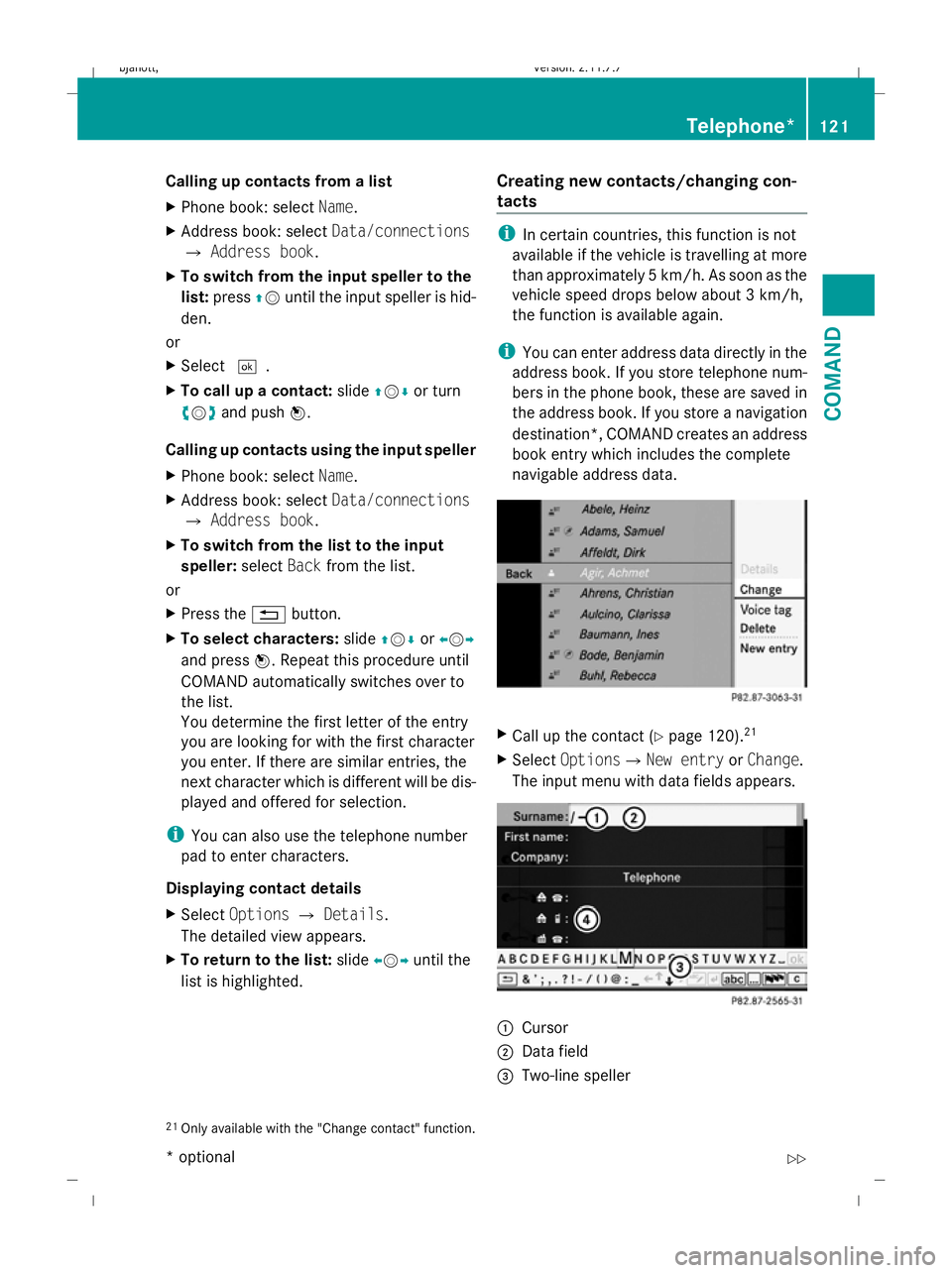
Call up the contact (Y page 120).21
X Select OptionsQNew entry orChange .
The input menu with data fields appears. :
Cursor
; Data field
= Two-line speller
21 Only available with the "Change contact" function. Telephone*
121COMAND
* optional
216_AKB; 2; 3, en-GB
bjanott
,V ersion: 2.11.7.7
2009-02-27T14:54:17+01:00 - Seite 121 Z
Dateiname: 6515230602_buchblock.pdf; erzeugt am 04. Mar 2009 11:15:10; WK
Page 126 of 421
stores the destination with the complete
navigable address data in the address
book.
X Search for an address book entry using the
¤ symbol.
X Display the details about an entry and high-
light the address data field.
X Select OptionsQNavigateQStart.
i You may only select Navigateif the
address data field contains complete, nav-
igable data. This is indicated by the ¤sym-
bol.
Voice tags* i
Voice tags are entered via LINGUA-
TRONIC* – see the separate operating
instructions for LINGUATRONIC*
Adding or changing a voice tag
i You can add one voice tag per address
book entry.
X Search for an address book entry with or
without a voice tag (¦ symbol).
X Select Options QVoice tag QAdd or
Change.
The subsequent operation is voice-control-
led. LINGUATRONIC* guides you through
the menus.
Deleting a voice tag
X Search for an address book entry with a
voice tag.
X Select Options QVoice tag Q
Delete.
A deletion prompt appears. Listening to a voice tag
X
Search for an address book entry with a
voice tag.
X Select Options QVoice tag QLis‐
ten.
You will hear the voice tag. Using call lists
COMAND displays lists of calls received
(including missed calls) and made during
phone operation.
i The respective menu item can only be
selected if calls have already been made or
received in COMAND or if the call lists have
been imported from the telephone.
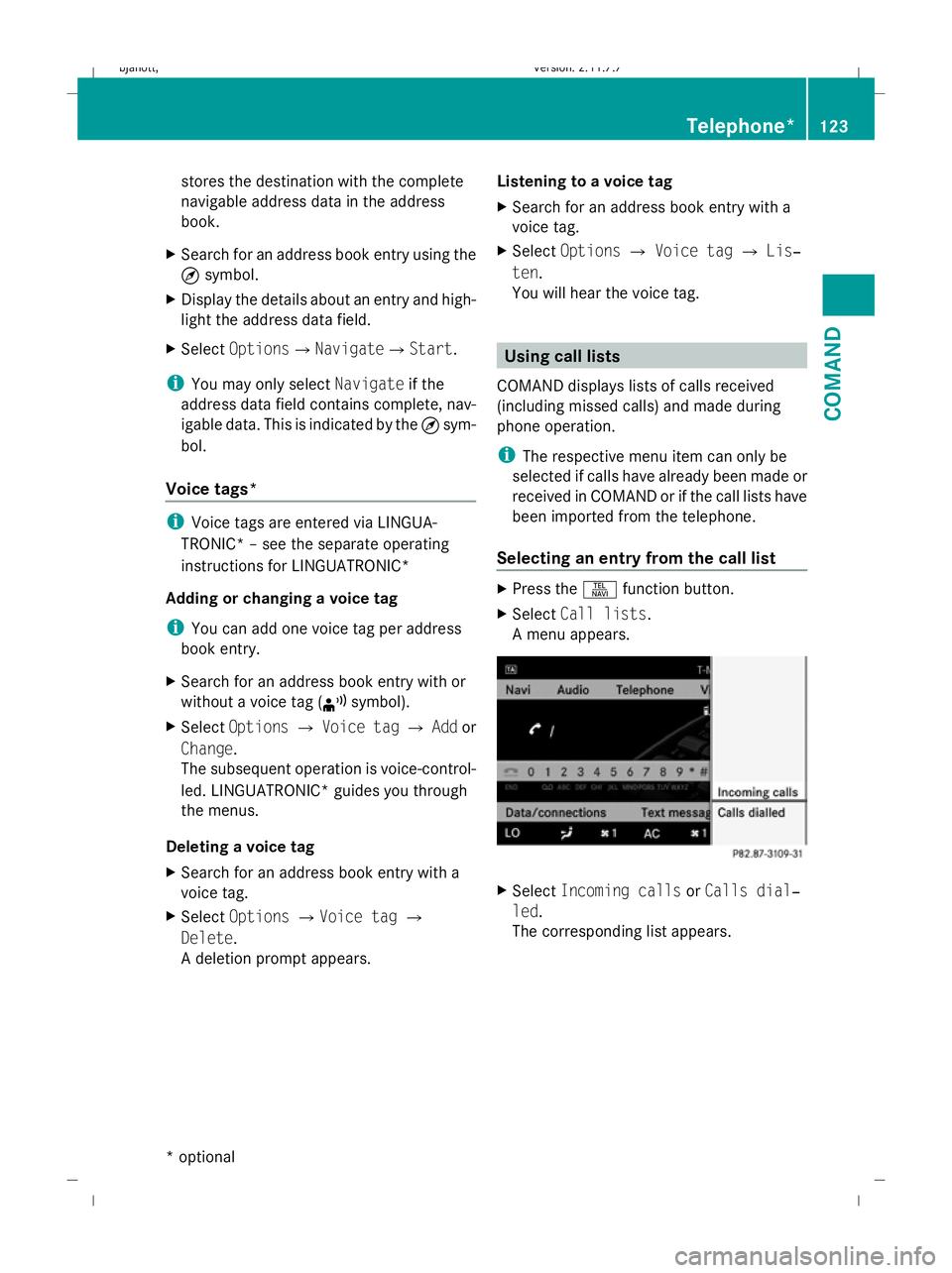
Selecting an entry from the call list X
Press the Sfunction button.
X Select Call lists.
A menu appears. X
Select Incoming calls orCalls dial‐
led.
The corresponding list appears. Telephone*
123COMAND
* optional
216_AKB; 2; 3, en-GB
bjanott,
Version: 2.11.7.7 2009-02-27T14:54:17+01:00 - Seite 123 Z
Dateiname: 6515230602_buchblock.pdf; erzeugt am 04. Mar 2009 11:15:10; WK
Page 127 of 421
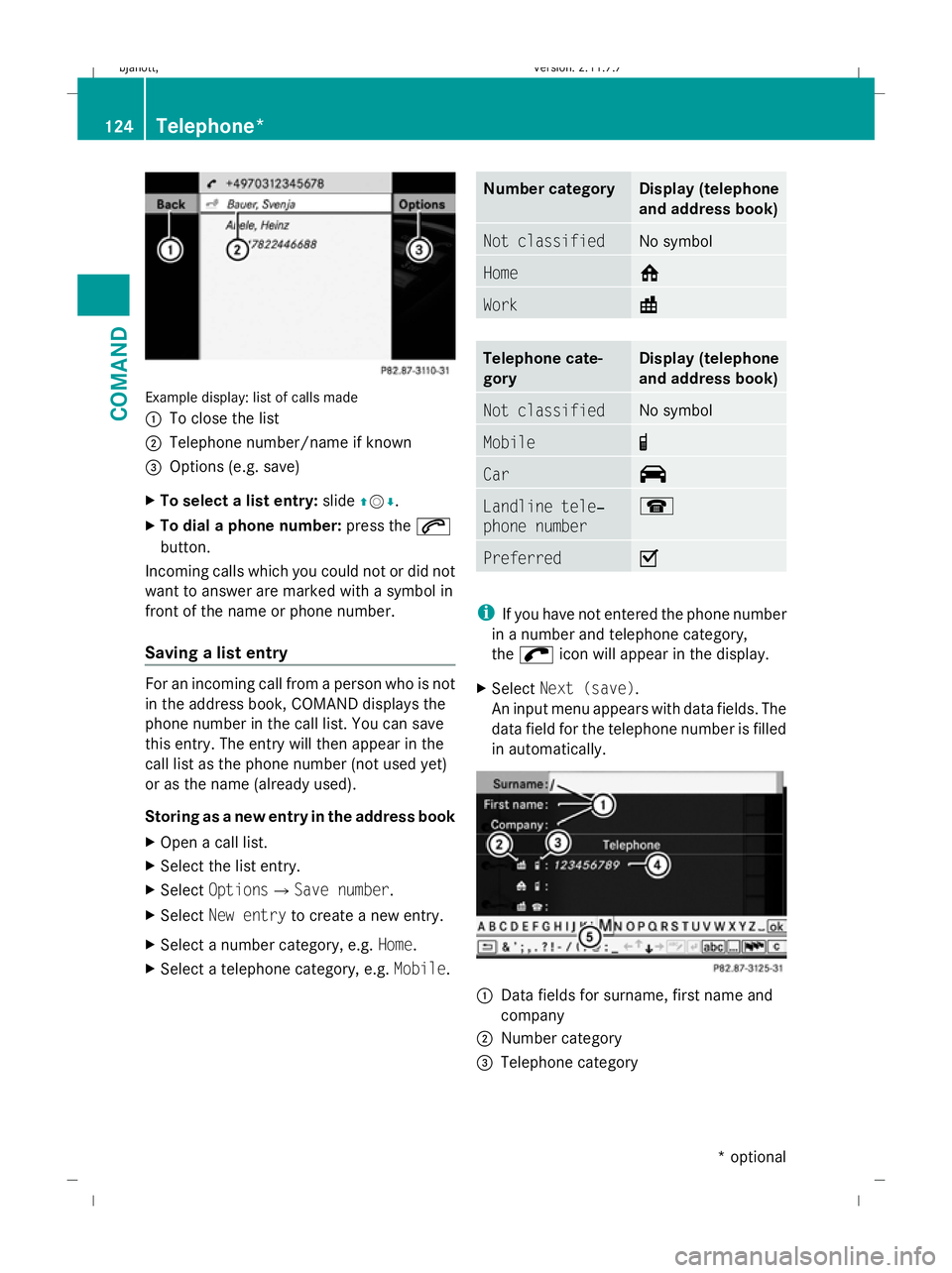
Example display: list of calls made
:
To close the list
; Telephone number/name if known
= Options (e.g. save)
X To select a list entry: slideZVÆ.
X To dial a phone number: press the6
button.
Incoming calls which you could not or did not
want to answer are marked with a symbol in
front of the name or phone number.
Saving a list entry For an incoming call from a person who is not
in the address book, COMAND displays the
phone number in the call list. You can save
this entry. The entry will then appear in the
call list as the phone number (not used yet)
or as the name (already used).
Storing as a new entry in the address book
X Open a call list.
X Select the list entry.
X Select OptionsQSave number .
X Select New entry to create a new entry.
X Select a number category, e.g. Home.
X Select a telephone category, e.g. Mobile. Number category Display (telephone
and address book)
Not classified No symbol
Home 6
Work \
Telephone cate-
gory Display (telephone
and address book)
Not classified No symbol
Mobile ¢
Car ^
Landline tele‐
phone number ¬
Preferred O
i
If you have not entered the phone number
in a number and telephone category,
the ; icon will appear in the display.
X Select Next (save) .
An input menu appears with data fields. The
data field for the telephone number is filled
in automatically. :
Data fields for surname, first name and
company
; Number category
= Telephone category 124
Telephone*COMAND
* optional
216_AKB; 2; 3, en-GB
bjanott,
Version: 2.11.7.7 2009-02-27T14:54:17+01:00 - Seite 124
Dateiname: 6515230602_buchblock.pdf; erzeugt am 04. Mar 2009 11:15:11; WK
Page 128 of 421
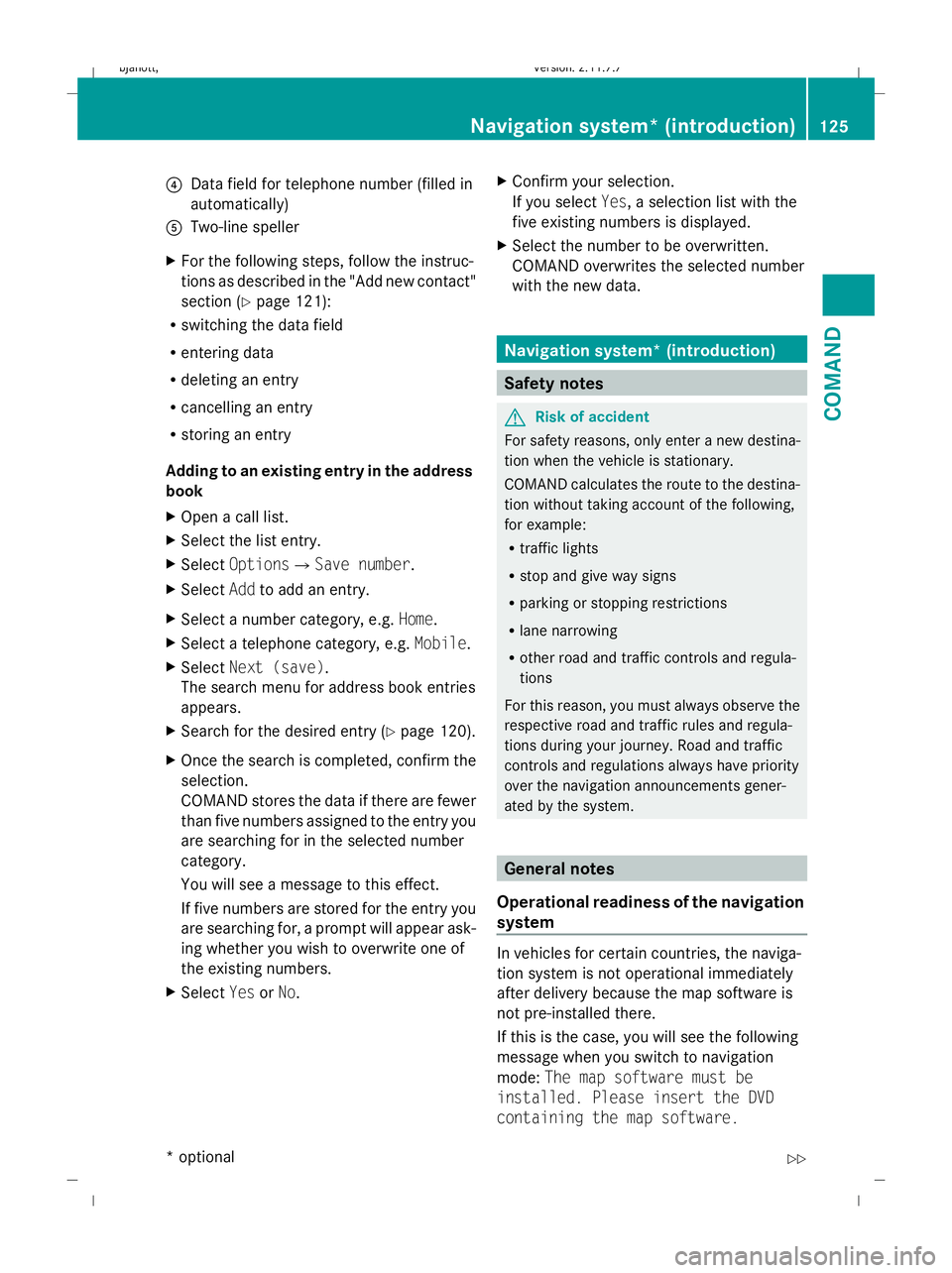
?
Data field for telephone number (filled in
automatically)
A Two-line speller
X For the following steps, follow the instruc-
tions as described in the "Add new contact"
section ( Ypage 121):
R switching the data field
R entering data
R deleting an entry
R cancelling an entry
R storing an entry
Adding to an existing entry in the address
book
X Open a call list.
X Select the list entry.
X Select OptionsQ Save number .
X Select Addto add an entry.
X Select a number category, e.g. Home.
X Select a telephone category, e.g. Mobile.
X Select Next (save) .
The search menu for address book entries
appears.
X Search for the desired entry (Y page 120).
X Once the search is completed, confirm the
selection.
COMAND stores the data if there are fewer
than five numbers assigned to the entry you
are searching for in the selected number
category.
You will see a message to this effect.
If five numbers are stored for the entry you
are searching for, a prompt will appear ask-
ing whether you wish to overwrite one of
the existing numbers.
X Select YesorNo. X
Confirm your selection.
If you select Yes, a selection list with the
five existing numbers is displayed.
X Select the number to be overwritten.
COMAND overwrites the selected number
with the new data. Navigation system* (introduction)
Safety notes
G
Risk of accident
For safety reasons, only enter a new destina-
tion when the vehicle is stationary.
COMAND calculates the route to the destina-
tion without taking account of the following,
for example:
R traffic lights
R stop and give way signs
R parking or stopping restrictions
R lane narrowing
R other road and traffic controls and regula-
tions
For this reason, you must always observe the
respective road and traffic rules and regula-
tions during your journey. Road and traffic
controls and regulations always have priority
over the navigation announcements gener-
ated by the system. General notes
Operational readiness of the navigation
system In vehicles for certain countries, the naviga-
tion system is not operational immediately
after delivery because the map software is
not pre-installed there.
If this is the case, you will see the following
message when you switch to navigation
mode:
The map software must be
installed. Please insert the DVD
containing the map software. Navigation system* (introduction)
125COMAND
* optional
216_AKB; 2; 3, en-GB
bjanott,
Version: 2.11.7.7 2009-02-27T14:54:17+01:00 - Seite 125 Z
Dateiname: 6515230602_buchblock.pdf; erzeugt am 04. Mar 2009 11:15:11; WK
Page 129 of 421
X
To install software: (Ypage 132).
i Do not cancel the installation process. If
you cancel the installation process, the
navigation system will not be operational.
GPS reception Amongst other things, correct functioning of
the navigation system depends on GPS recep-
tion. In certain situations, GPS reception may
be impaired, there may be interference or
there may be no reception at all, e.g. in tun-
nels, in multi-storey car parks or due to snow
on the GPS aerial. Remove any snow from the
GPS aerial. The GPS aerial is on the roof at
the rear.
Route guidance after vehicle transpor-
tation or exiting a multi-storey car park COMAND has to redetermine the position of
the vehicle if the vehicle has been transpor-
ted, e.g.:
R by ferry
R by motorail
R after towing
COMAND may also have to redetermine the
vehicle's position after exiting a multi-storey
car park.
Positioning takes place automatically even
when COMAND is switched off. The duration
will vary from one situation to another.
Route guidance may be restricted as follows
during vehicle positioning:
R navigation announcements, route guid-
ance displays and displayed street names
are not consistent with the actual location
of the vehicle.
R COMAND does not generate navigation
announcements.
R instead of the route guidance display, you
see the Street unknown. display and a
directional arrow. The directional arrow shows the compass heading to the desti-
nation.
When positioning is complete, route guidance
is resumed with navigation announcements
and route guidance displays.
Interrupting the journey during route
guidance i
Interrupting the journey means parking
the vehicle and switching off COMAND.
Continuing the journey means switching
COMAND on again and driving on.
The following applies if you interrupt the jour-
ney during route guidance and continue the
journey later on:
R COMAND resumes route guidance auto-
matically if you continue the journey within
2 hours.
R Route guidance is cancelled if you continue
the journey after more than 2 hours. It will
be necessary to resume the cancelled
route guidance manually.
Hard disk errors COMAND has an integrated hard disk on
which the map software is stored.
If an area of the hard disk has a fault,
COMAND can no longer access the map data
in this area, for example when calculating a
route.
The message: Navigation unavailable.
Please observe the Owner's Manual.
appears.
X To delete the message: switch COMAND
off and then on again.
If you switch the navigation system off/on, it
will be operational again until it has to access
the faulty area of the hard disk again.
The message will then appear again. Consult
a Mercedes-Benz Service Centre. 126
Navigation system* (introduction)COMAND
* optional
216_AKB; 2; 3, en-GB
bjanott,
Version: 2.11.7.7 2009-02-27T14:54:17+01:00 - Seite 126
Dateiname: 6515230602_buchblock.pdf; erzeugt am 04. Mar 2009 11:15:11; WK
Page 130 of 421
Units of measurement
The units of measurement in navigation mode
are identical to those displayed in the instru-
ment cluster. The units of measurement may
only be changed via the instrument cluster.
Input restrictions
On vehicles for certain countries, there is a
restriction on entering data.
The restriction is active above a vehicle speed
of about 5 km/h. The restriction is deactiva-
ted as soon as the vehicle speed drops below
about 3 km/h.
When the restriction is active it is not possible
to enter specific items, e.g. a town or street
name. You will recognise this because certain
menu items cannot be selected.
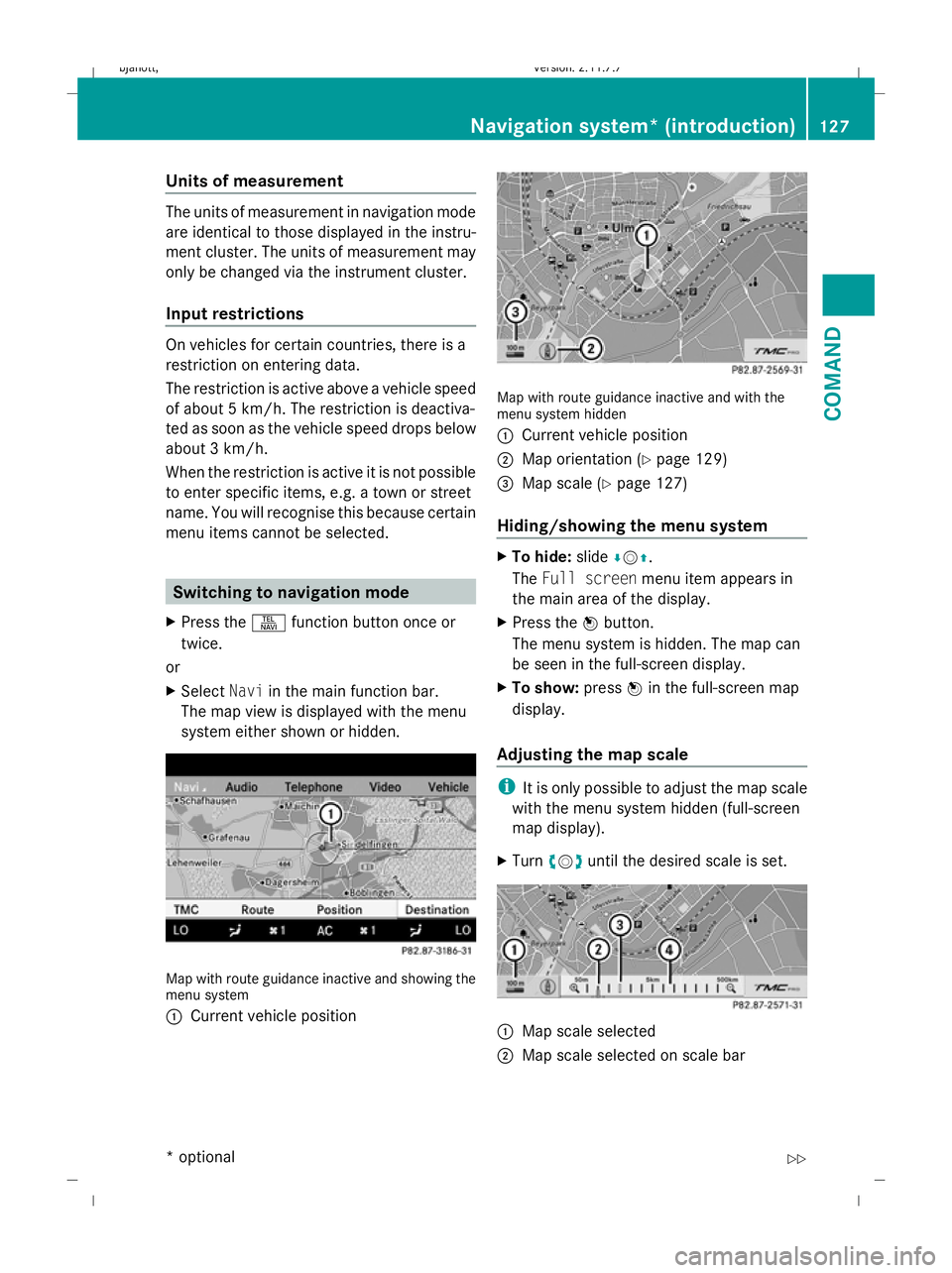
Switching to navigation mode
X Press the Sfunction button once or
twice.
or
X Select Naviin the main function bar.
The map view is displayed with the menu
system either shown or hidden. Map with route guidance inactive and showing the
menu system
:
Current vehicle position Map with route guidance inactive and with the
menu system hidden
:
Current vehicle position
; Map orientation (Y page 129)
= Map scale (Y page 127)
Hiding/showing the menu system X
To hide: slideÆVZ.
The Full screen menu item appears in
the main area of the display.
X Press the Wbutton.
The menu system is hidden. The map can
be seen in the full-screen display.
X To show: pressWin the full-screen map
display.
Adjusting the map scale i
It is only possible to adjust the map scale
with the menu system hidden (full-screen
map display).
X Turn cVd until the desired scale is set. :
Map scale selected
; Map scale selected on scale bar Navigation system* (introduction)
127COMAND
* optional
216_AKB; 2; 3, en-GB
bjanott
,V ersion: 2.11.7.7
2009-02-27T14:54:17+01:00 - Seite 127 Z
Dateiname: 6515230602_buchblock.pdf; erzeugt am 04. Mar 2009 11:15:12; WK
Page 131 of 421
=
Last map scale selected (prior to calling
up the scale bar)
? Scale bar
Storing the current vehicle position as
a destination in the list of previous des-
tinations X
Make sure that the menu system is shown.
X To store: selectPosition QSave
vehicle position.
COMAND stores the current vehicle posi-
tion as a destination in the list of previous
destinations (Y page 160).
Moving the map i
It is only possible to move the map with
the menu system hidden. In certain coun-
tries, it is not possible to move the map
freely if the vehicle is travelling at more
than approximately 5 km/h. As soon as the
vehicle speed drops below about 3 km/h,
it is possible to move the map freely again.
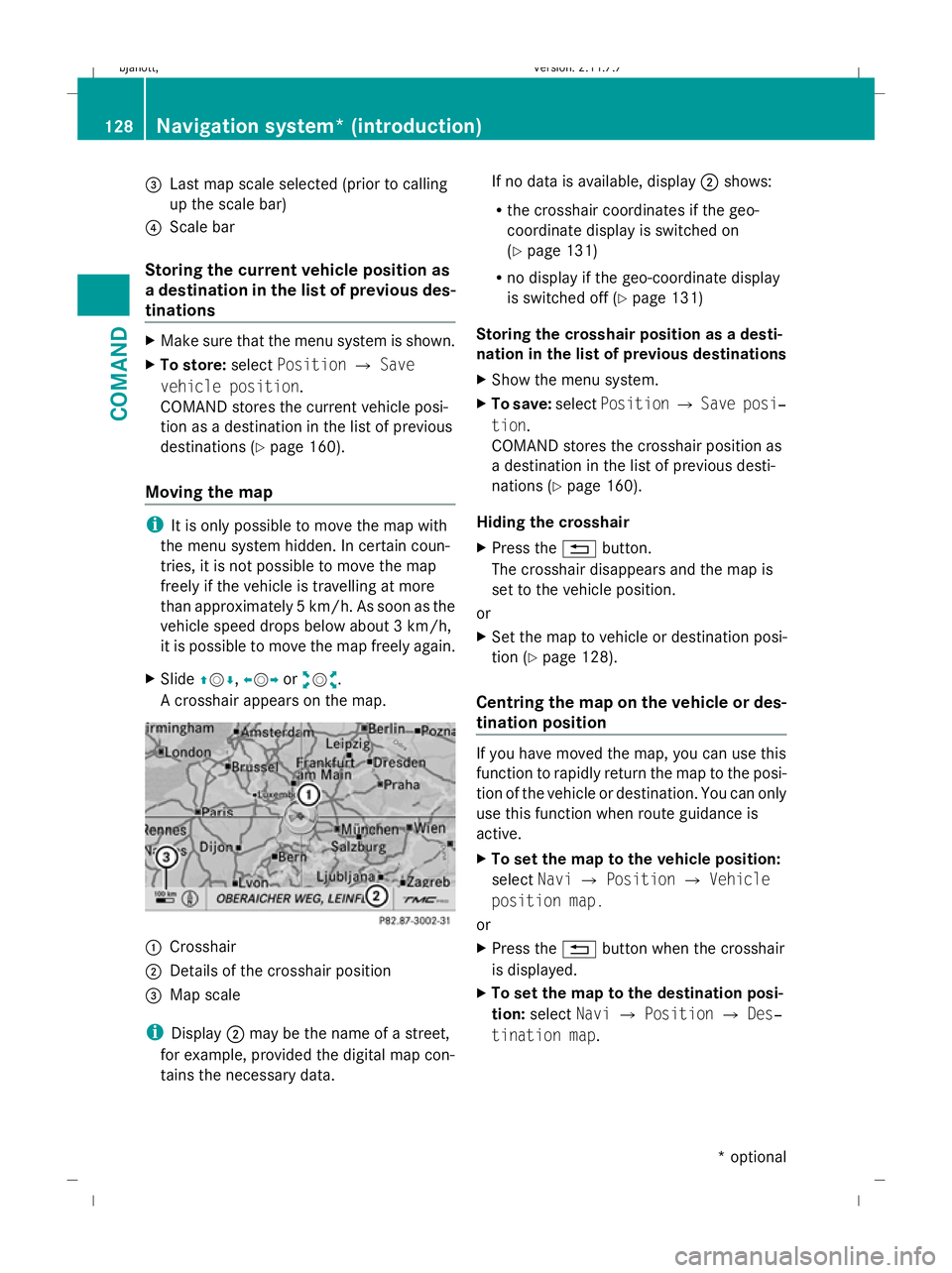
X Slide ZVÆ, XVYoraVb.
A crosshair appears on the map. :
Crosshair
; Details of the crosshair position
= Map scale
i Display ;may be the name of a street,
for example, provided the digital map con-
tains the necessary data. If no data is available, display
;shows:
R the crosshair coordinates if the geo-
coordinate display is switched on
(Y page 131)
R no display if the geo-coordinate display
is switched off (Y page 131)
Storing the crosshair position as a desti-
nation in the list of previous destinations
X Show the menu system.
X To save: selectPosition QSave posi‐
tion.
COMAND stores the crosshair position as
a destination in the list of previous desti-
nations (Y page 160).
Hiding the crosshair
X Press the %button.
The crosshair disappears and the map is
set to the vehicle position.
or
X Set the map to vehicle or destination posi-
tion (Y page 128).
Centring the map on the vehicle or des-
tination position If you have moved the map, you can use this
function to rapidly return the map to the posi-
tion of the vehicle or destination. You can only
use this function when route guidance is
active.
X
To set the map to the vehicle position:
select NaviQPosition QVehicle
position map.
or
X Press the %button when the crosshair
is displayed.
X To set the map to the destination posi-
tion: select NaviQPosition QDes‐
tination map. 128
Navigation system* (introduction)COMAND
* optional
216_AKB; 2; 3, en-GB
bjanott,
Version: 2.11.7.7 2009-02-27T14:54:17+01:00 - Seite 128
Dateiname: 6515230602_buchblock.pdf; erzeugt am 04. Mar 2009 11:15:13; WK
Page 132 of 421
Menu overview
Info (only
with route
guidance
active) TMC Route Position +
+ (only
with route
guidance
active) Destination
Display infor-
mation on
the current
route guid-
ance Calling up
RDS-TMC
traffic
reports R
Calling up
the traffic
jam func-
tion
R Calling up
symbol
info
R Calling up
route info R
Saving
vehicle
position
R Where am
I?
R Centring
the map on
the vehi-
cle's posi-
tion
R Destina-
tion on the
map
R Intermedi-
ate stop on
the map
R Compass Calling up
the current
navigation
announce-
ment R
Entering a
destina-
tion or an
intermedi-
ate stop
R Storing a
destina-
tion Basic settings
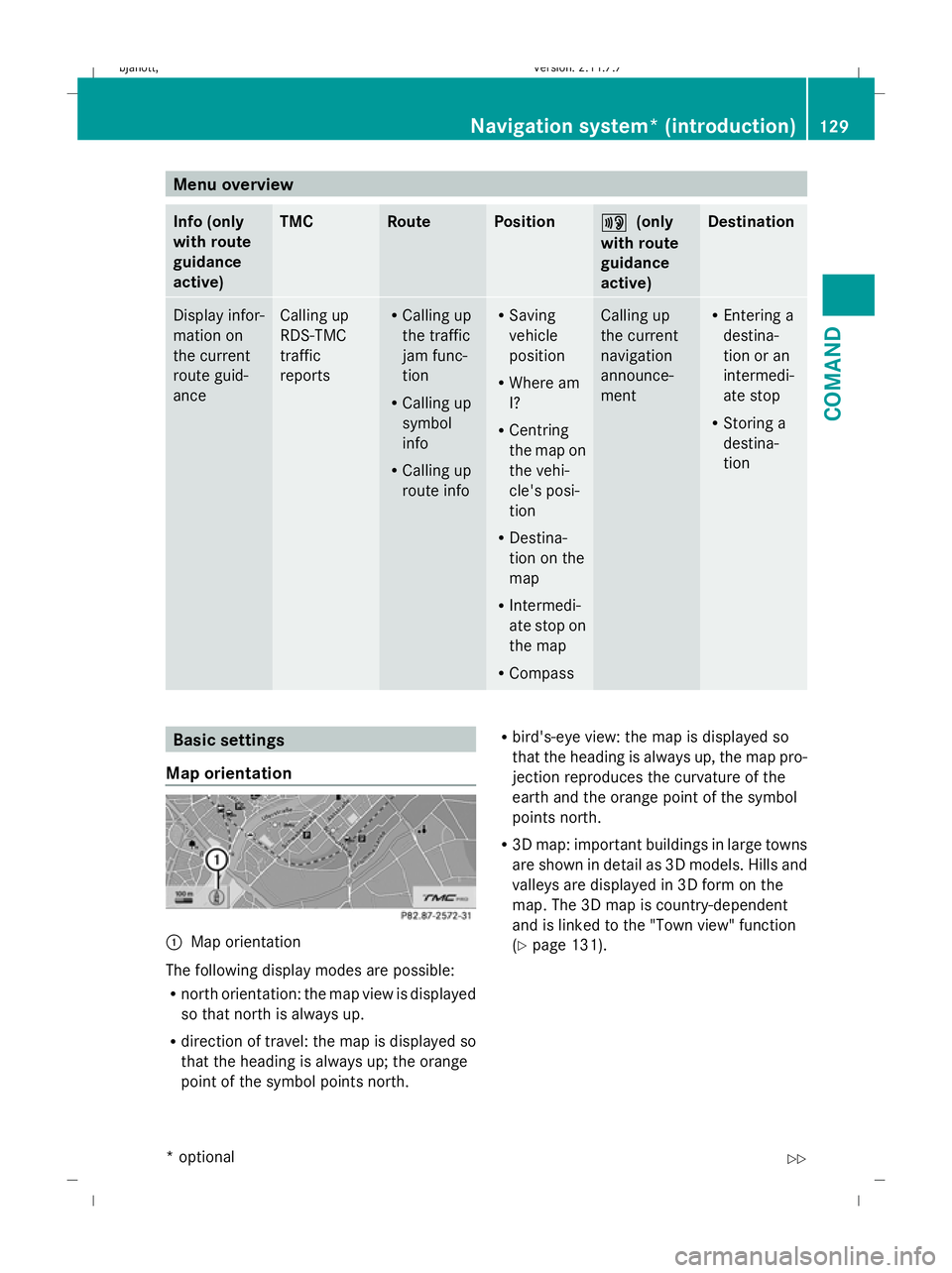
Map orientation :
Map orientation
The following display modes are possible:
R north orientation: the map view is displayed
so that north is always up.
R direction of travel: the map is displayed so
that the heading is always up; the orange
point of the symbol points north. R
bird's-eye view: the map is displayed so
that the heading is always up, the map pro-
jection reproduces the curvature of the
earth and the orange point of the symbol
points north.
R 3D map: important buildings in large towns
are shown in detail as 3D models. Hills and
valleys are displayed in 3D form on the
map. The 3D map is country-dependent
and is linked to the "Town view" function
(Y page 131). Navigation system* (introduction)
129COMAND
* optional
216_AKB; 2; 3, en-GB
bjanott,
Version: 2.11.7.7 2009-02-27T14:54:17+01:00 - Seite 129 Z
Dateiname: 6515230602_buchblock.pdf; erzeugt am 04. Mar 2009 11:15:13; WK
Page 133 of 421
X
To set the map orientation: selectNavi
Q Map display.
The map display list appears. A #dot indi-
cates the current setting.
X Select North orientation, Direction
of travel ,Bird's-eye-view or3-D
map .
X To exit the menu: slideXVY.
Setting special destination symbols You can set the special destinations you wish
to have displayed as symbols on the map.
Special destinations are, for example, filling
stations, hotels, cinemas and restaurants.
The following settings are possible:
R Standard symbols (symbol display deter-
mined by the factory settings)
R Personal symbols (you can determine
the symbols yourself)
R No symbols
X To set: selectNaviQSpecial desti‐
nation symbols on map .
The map display list appears. A #dot indi-
cates the current setting.
X Select Standard symbols orPersonal
symbols orNo symbols.
If you select Personal symbols, the list of
special destinations appears.
X To activate/deactivate the symbol dis-
play: select the respective special destina-
tion.
Depending on their previous status the
symbols are switched on/off. If a tick is
shown, this indicates that the display is
switched on. You can switch on the symbol
displays for more than one special destina-
tion.
i The list shows all symbols that are con-
tained on the digital map across all coun-
tries. However, not all special destinations
are available in all countries. As a result,
certain special destination symbols may not be displayed on the map, even if the
symbol display is switched on.
X To exit the menu: slideXVY.
Selecting text information on the map Below the map shown, COMAND can display
various items of text information:
R time of arrival and distance from destina-
tion
R current street
R geo-coordinates
R none
Arrival time and distance to destination
X To display: selectNaviQText infor‐
mation on map .
The selection list appears. A #dot indi-
cates the current setting.
X Select Arrival time/Distance.
This will switch the display for arrival time
and distance to destination on or off,
depending on the previous setting.
Current street
You can set whether COMAND displays the
street you are currently driving on at the bot-
tom of the map.
X To display: selectNaviQText infor‐
mation on map .
The selection list appears. A #dot indi-
cates the current setting.
X Select Current street .
This will either show or hide the current
street, depending on the previous setting. 130
Navigation system* (introduction)COMAND
* optional
216_AKB; 2; 3, en-GB
bjanott,
Version: 2.11.7.7 2009-02-27T14:54:17+01:00 - Seite 130
Dateiname: 6515230602_buchblock.pdf; erzeugt am 04. Mar 2009 11:15:13; WK
Page 134 of 421
Geo-coordinates
:
Height above sea level
; Geo-coordinate display
= Number of GPS satellites from which
a signal can be received
i There must be sufficient GPS reception
for displays :,;and =to be shown.
Height display :may vary from the actual
value, because the navigation system uses
the GPS signal for the calculation.
Display options with geo-coordinate dis-
play switched on
If the crosshair is displayed on the map view
(map has been moved manually), only display
= is visible. It shows either the geo-coordi-
nates of the crosshair or other data on the
crosshair position, e.g. a street name. The
digital map must contain the relevant data in
order for this other data to be displayed.
i If there is no crosshair on the map view,
displays :,;and =are visible. Dis-
play ;shows the geo-coordinates of the
current vehicle position.
X To switch the geo-coordinate display on
or off: selectNaviQText informa‐
tion on the map.
The selection list appears. A #dot indi-
cates the current setting.
X Select Geo-coordinates.
The geo-coordinate display is switched on
or off, depending on the previous status.
X To exit the menu: slideXVY. Topographical map You can have the map displayed as a topo-
graphical map. Differing heights in the terrain
can then be identified though colour grada-
tions. Colour gradations are available starting
at a scale of 10 km.
X Select Navi.
X Tick the Topographical map menu item.
Town view If you have set the map orientation as a 3D
map (Y
page 129), a large number of towns
can be displayed as 3D town views. :
Hills
; Buildings
= Important buildings
X Select Navi.
X Tick the Town view menu item.
Selecting the route type You can select the following route types:
R
Fastest route: COMAND calculates a
route with the shortest possible (mini-
mised) journey time.
R Dynamic route: same route type as Fast‐
est route. However, COMAND also takes
into consideration any RDS-TMC traffic
announcements 22
that are received for
route guidance. Thus, the navigation sys-
tem is able to guide you around a traffic
22 RDS-TMC and Dynamic route are not available in all countries. Navigation system* (introduction)
131COMAND
* optional
216_AKB; 2; 3, en-GB
bjanott,
Version: 2.11.7.7 2009-02-27T14:54:17+01:00 - Seite 131 Z
Dateiname: 6515230602_buchblock.pdf; erzeugt am 04. Mar 2009 11:15:13; WK