display MERCEDES-BENZ CL COUPE 2009 Manual Online
[x] Cancel search | Manufacturer: MERCEDES-BENZ, Model Year: 2009, Model line: CL COUPE, Model: MERCEDES-BENZ CL COUPE 2009Pages: 421, PDF Size: 10.78 MB
Page 136 of 421
G
Risk of poisoning
Never leave the engine running in enclosed
spaces. The exhaust gases contain carbon
monoxide. Inhaling exhaust fumes consti-
tutes a health hazard and could lead to loss
of consciousness or even death.
Displaying information on the currently
used map version X
Select NaviQMap version.
Notes on handling DVDs R
Only hold DVDs by the edge.
R Handle DVDs carefully to prevent reading
errors.
R Avoid getting scratches, fingerprints and
dust on DVDs.
R Use a commercially-available cleaning
cloth to clean discs. Do not wipe them with
a circular motion, but only in straight lines
from the centre outwards.
R Place DVDs back in their cases after use.
R Protect DVDs from heat and direct sunlight.
Map software copy protection Map software for COMAND is subject to a
charge. The map software has just one acti-
vation code which is usable in one vehicle
only, and is not transferable. You can obtain
the six digit activation code from your
Mercedes-Benz Service Centre. If you have
lost the activation code, or if COMAND does
not accept the activation code that you have
received, ask at your Mercedes-Benz Service
Centre.
Your vehicle is supplied with map software at
the factory. Depending on the country, the
map software for your region is either pre-
installed (Europe/USA), or the map software
is provided on a DVD (all other countries). You
do not require an activation code for the map
software that is provided with your vehicle. If the map software on your vehicle has been
installed at the factory and you wish to rein-
stall it, this also does not necessitate entry of
the activation code.
Installation process X
Insert the map software DVD into the single
DVD drive (Y page 77) or the DVD
changer* (Y page 78).
COMAND checks the DVD and shows a
corresponding message in the display.
The map software is not compatible with
the navigation system
You will see a message that the installation of
the map software is not possible.
X To confirm the message: pressW.
COMAND ejects the DVD.
X Take the DVD out of the slot.
X Insert a DVD which is compatible with the
vehicle’s navigation system.
The map software is not compatible with
the current system software
You will see a message that the system soft-
ware and the map software are not compati-
ble.
X To confirm the message: pressW.
COMAND ejects the DVD.
X Take the DVD out of the slot.
X Have the system software updated at a
Mercedes-Benz Service Centre.
The map software cannot be installed until
the system software has been updated.
Map software compatible with the navi-
gation system and the current system
software
COMAND checks whether the map data on
the DVD is already installed.
Map data is already installed
You will see a message that the map data is
already installed and a prompt will appear
asking you whether you wish to continue with
the installation. Navigation system* (introduction)
133COMAND
* optional
216_AKB; 2; 3, en-GB
bjanott,
Version: 2.11.7.7 2009-02-27T14:54:17+01:00 - Seite 133 Z
Dateiname: 6515230602_buchblock.pdf; erzeugt am 04. Mar 2009 11:15:14; WK
Page 137 of 421
X
Select YesorNo.
If you select Yes, the existing map data is
overwritten.
If you select No, COMAND automatically
ejects the DVD and the installation of the
map software is cancelled.
X Take the DVD out of the slot.
Map data is not yet installed
To compare the map software DVD and the
map software currently installed on
COMAND, the status of the versions is dis-
played. Subsequently a prompt will appear
asking whether you wish to continue with the
map software installation.
X Select YesorNo.
If you select Yes, the map data is installed.
If you select No, COMAND automatically
ejects the DVD and the installation of the
map software is cancelled.
X Take the DVD out of the slot.
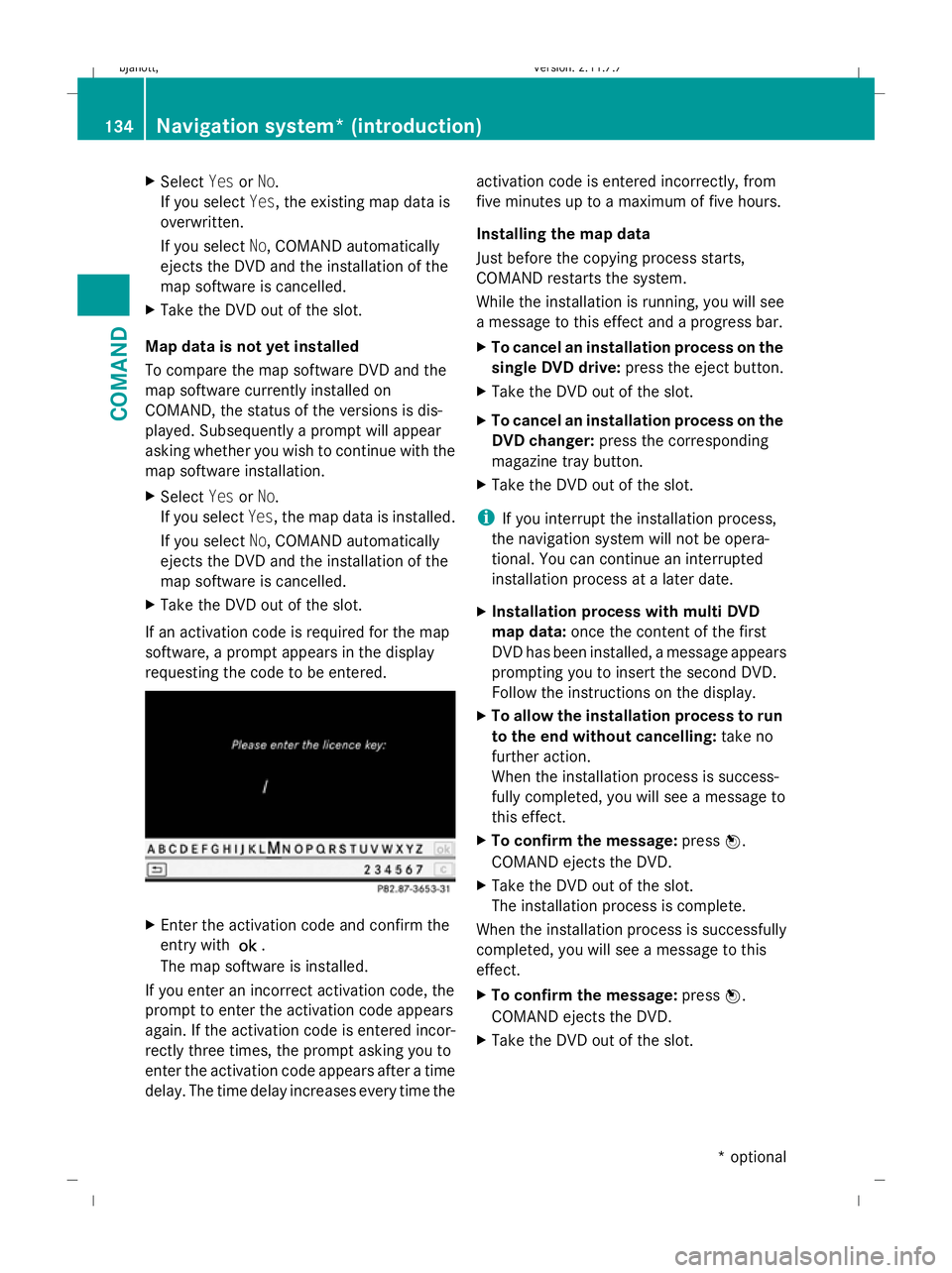
If an activation code is required for the map
software, a prompt appears in the display
requesting the code to be entered. X
Enter the activation code and confirm the
entry with !.
The map software is installed.
If you enter an incorrect activation code, the
prompt to enter the activation code appears
again. If the activation code is entered incor-
rectly three times, the prompt asking you to
enter the activation code appears after a time
delay. The time delay increases every time the activation code is entered incorrectly, from
five minutes up to a maximum of five hours.
Installing the map data
Just before the copying process starts,
COMAND restarts the system.
While the installation is running, you will see
a message to this effect and a progress bar.
X
To cancel an installation process on the
single DVD drive: press the eject button.
X Take the DVD out of the slot.
X To cancel an installation process on the
DVD changer: press the corresponding
magazine tray button.
X Take the DVD out of the slot.
i If you interrupt the installation process,
the navigation system will not be opera-
tional. You can continue an interrupted
installation process at a later date.
X Installation process with multi DVD
map data: once the content of the first
DVD has been installed, a message appears
prompting you to insert the second DVD.
Follow the instructions on the display.
X To allow the installation process to run
to the end without cancelling: take no
further action.
When the installation process is success-
fully completed, you will see a message to
this effect.
X To confirm the message: pressW.
COMAND ejects the DVD.
X Take the DVD out of the slot.
The installation process is complete.
When the installation process is successfully
completed, you will see a message to this
effect.
X To confirm the message: pressW.
COMAND ejects the DVD.
X Take the DVD out of the slot. 134
Navigation system* (introduction)COMAND
* optional
216_AKB; 2; 3, en-GB
bjanott,
Version: 2.11.7.7 2009-02-27T14:54:17+01:00 - Seite 134
Dateiname: 6515230602_buchblock.pdf; erzeugt am 04. Mar 2009 11:15:14; WK
Page 139 of 421
X
Select Country in the address input menu.
The country list appears.
X Select the desired country.
The address input menu appears again. The
country selected is automatically entered.
Entering the town i
You can only enter towns that are stored
on the digital map. Entering a town will
delete a previously entered postcode.
X Select Townin the address input menu.
The list of towns appears either with or
without the input speller. Whether or not
the input speller is displayed depends on
how many towns are available for the coun-
try selected.
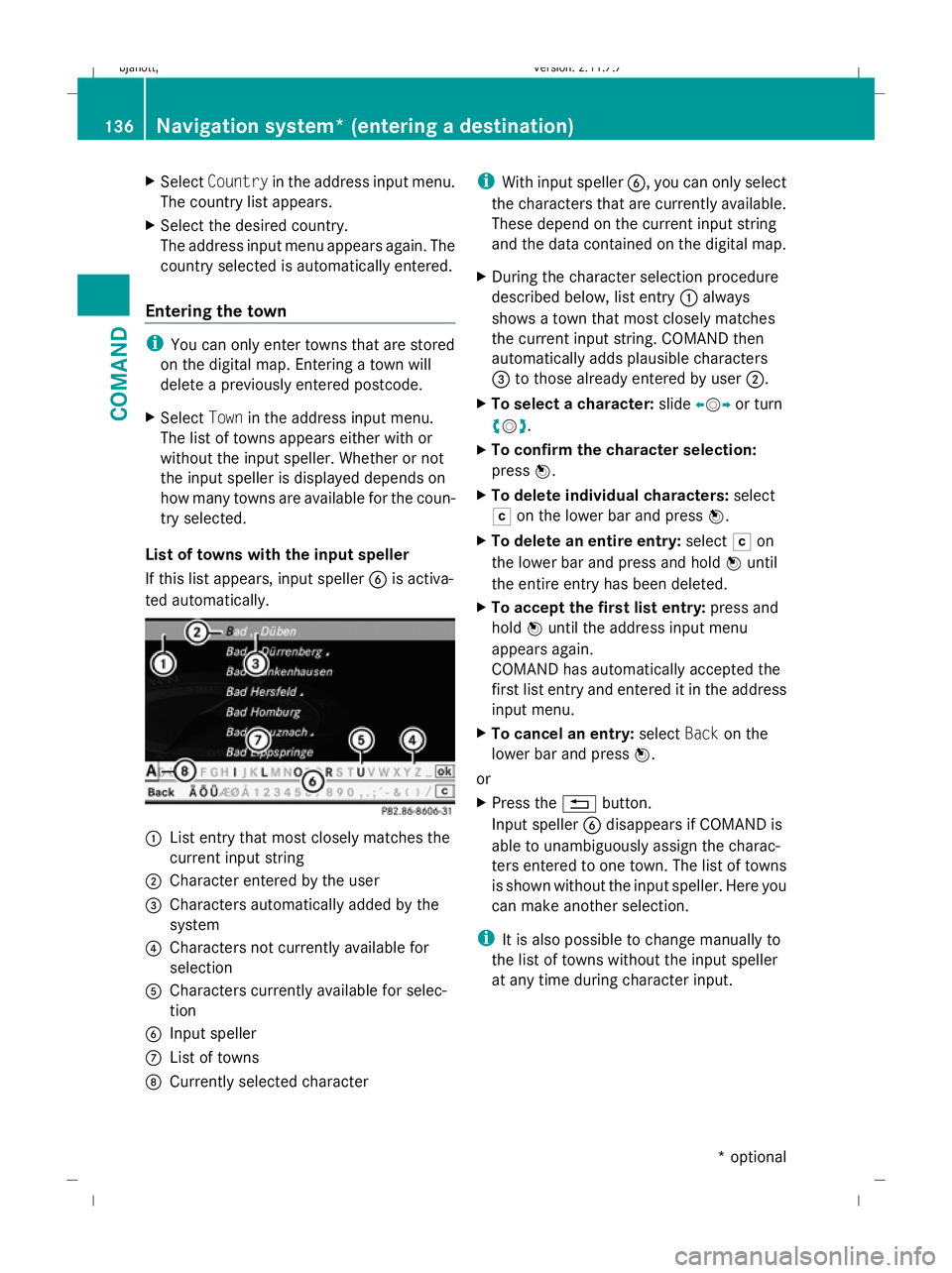
List of towns with the input speller
If this list appears, input speller Bis activa-
ted automatically. :
List entry that most closely matches the
current input string
; Character entered by the user
= Characters automatically added by the
system
? Characters not currently available for
selection
A Characters currently available for selec-
tion
B Input speller
C List of towns
D Currently selected character i
With input speller B, you can only select
the characters that are currently available.
These depend on the current input string
and the data contained on the digital map.
X During the character selection procedure
described below, list entry :always
shows a town that most closely matches
the current input string. COMAND then
automatically adds plausible characters
= to those already entered by user ;.
X To select a character: slideXVY or turn
cVd .
X To confirm the character selection:
press W.
X To delete individual characters: select
F on the lower bar and press W.
X To delete an entire entry: selectFon
the lower bar and press and hold Wuntil
the entire entry has been deleted.
X To accept the first list entry: press and
hold Wuntil the address input menu
appears again.
COMAND has automatically accepted the
first list entry and entered it in the address
input menu.
X To cancel an entry: selectBackon the
lower bar and press W.
or
X Press the %button.
Input speller Bdisappears if COMAND is
able to unambiguously assign the charac-
ters entered to one town. The list of towns
is shown without the input speller. Here you
can make another selection.
i It is also possible to change manually to
the list of towns without the input speller
at any time during character input. 136
Navigation system* (entering a destination)COMAND
* optional
216_AKB; 2; 3, en-GB
bjanott,
Version: 2.11.7.7 2009-02-27T14:54:17+01:00 - Seite 136
Dateiname: 6515230602_buchblock.pdf; erzeugt am 04. Mar 2009 11:15:14; WK
Page 140 of 421
X
To change manually to the list of towns
without the input speller: slideZV.
or
X Select !on the second lowest bar and
press W.
Selecting the current town The "Town" entry is always empty at first
because of the "Street destination"
(Y
page 142) option in the "Address" menu.
You may select the last town name entered
by selecting the last destination from Desti‐
nation QFrom last destinations and
pressing Change.
Inputting Cyrillic characters In Russia, you may choose between Cyrillic
and Latin characters to input destinations. In
order to do this, you must have installed the
map software for Russia.
X To switch between Latin and Cyrillic
fonts: select the psymbol from the
input speller menu.
Entering a postcode i
Entering a postcode will delete a previ-
ously entered town name. You can only
enter postcodes that are stored on the dig-
ital map.
X Select Postcode in the address input
menu.
The postcode list appears either with or
without the input speller. Whether or not
the input speller is displayed depends on
how many postcodes are available for the
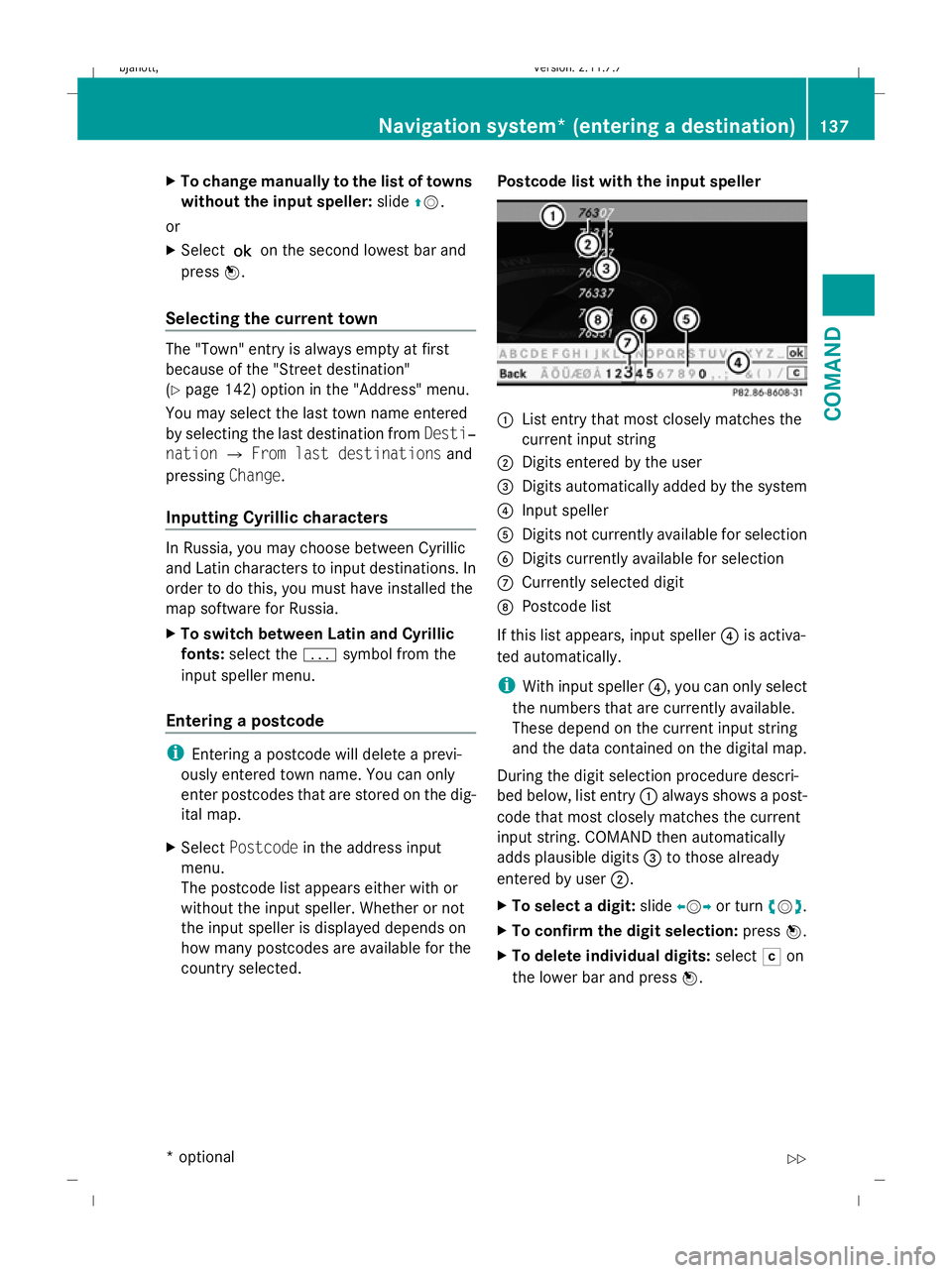
country selected. Postcode list with the input speller :
List entry that most closely matches the
current input string
; Digits entered by the user
= Digits automatically added by the system
? Input speller
A Digits not currently available for selection
B Digits currently available for selection
C Currently selected digit
D Postcode list
If this list appears, input speller ?is activa-
ted automatically.
i With input speller ?, you can only select
the numbers that are currently available.
These depend on the current input string
and the data contained on the digital map.
During the digit selection procedure descri-
bed below, list entry :always shows a post-
code that most closely matches the current
input string. COMAND then automatically
adds plausible digits =to those already
entered by user ;.
X To select a digit: slideXVYor turn cVd.
X To confirm the digit selection: pressW.
X To delete individual digits: selectFon
the lower bar and press W. Navigation system* (entering a destination)
137COMAND
* optional
216_AKB; 2; 3, en-GB
bjanott,
Version: 2.11.7.7 2009-02-27T14:54:17+01:00 - Seite 137 Z
Dateiname: 6515230602_buchblock.pdf; erzeugt am 04. Mar 2009 11:15:15; WK
Page 141 of 421
X
To delete an entire entry: selectFon
the lower bar and press and hold Wuntil
the entire entry has been deleted.
X To accept the first list entry: press and
hold Wuntil the address input menu
appears again.
COMAND has automatically accepted the
first list entry and entered it in the address
input menu.
X To cancel an entry: selectBackon the
lower bar and press W.
or
X Press the %button.
Input speller ?disappears if COMAND is
able to unambiguously assign the characters
entered to one postcode. The list of postco-
des is shown without the input speller. Here
you can make another selection.
It is also possible to change manually to the
postcode list without the input speller at any
time during digit input.
X To change manually to the postcode list
without the input speller: slideZV.
or
X Select !on the second lowest bar and
press W.
Entering a street name i
Entering the name of a street will delete
a previously entered centre name. You can
only enter streets that are stored on the
digital map.
X Select Street in the address input menu.
The street list appears either with or with-
out the input speller. Whether or not the
input speller is displayed depends on how
many street names are available for the
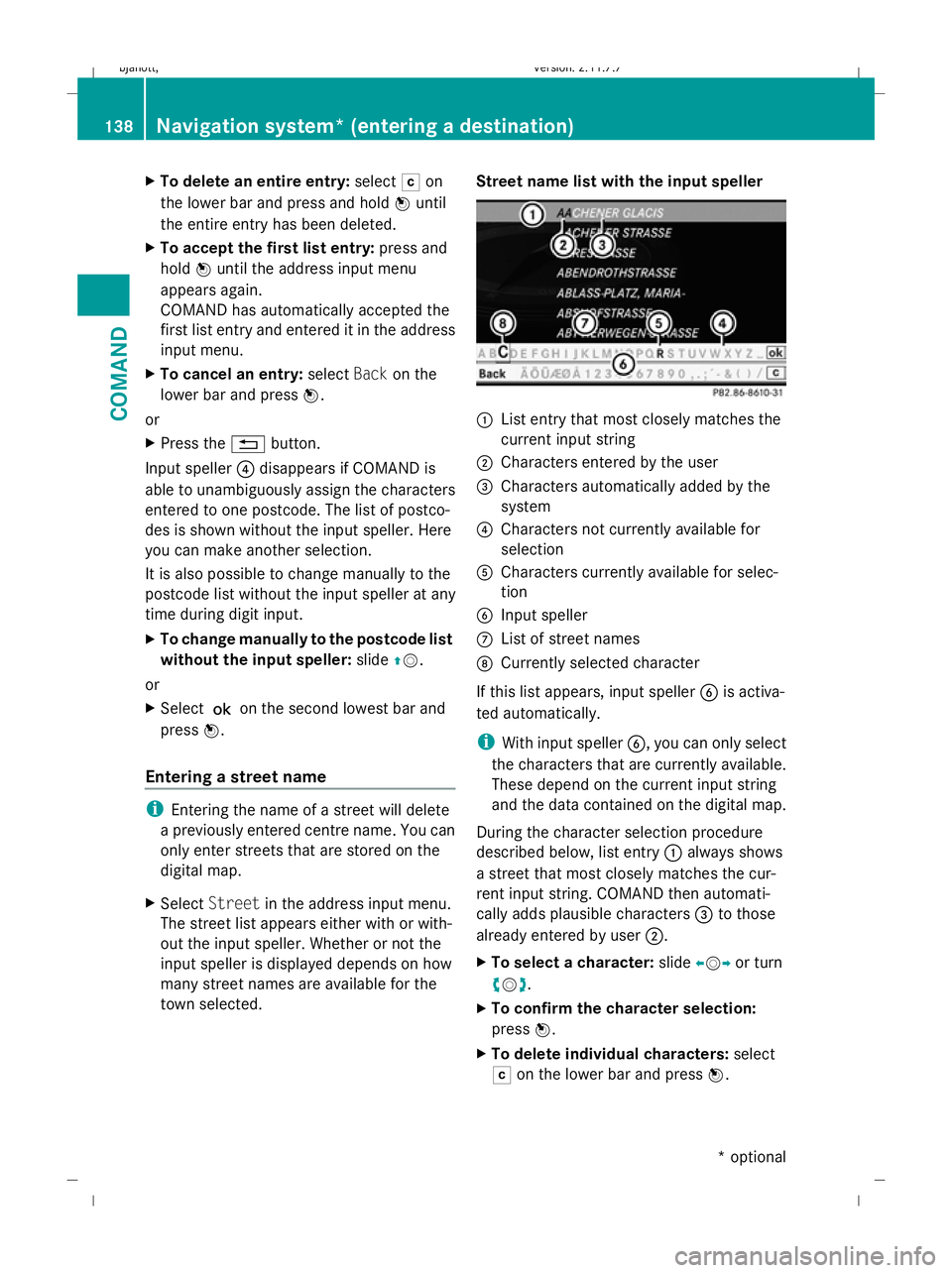
town selected. Street name list with the input speller :
List entry that most closely matches the
current input string
; Characters entered by the user
= Characters automatically added by the
system
? Characters not currently available for
selection
A Characters currently available for selec-
tion
B Input speller
C List of street names
D Currently selected character
If this list appears, input speller Bis activa-
ted automatically.
i With input speller B, you can only select
the characters that are currently available.
These depend on the current input string
and the data contained on the digital map.
During the character selection procedure
described below, list entry :always shows
a street that most closely matches the cur-
rent input string. COMAND then automati-
cally adds plausible characters =to those
already entered by user ;.
X To select a character: slideXVY or turn
cVd .
X To confirm the character selection:
press W.
X To delete individual characters: select
F on the lower bar and press W.138
Navigation system* (entering a destination)COMAND
* optional
216_AKB; 2; 3, en-GB
bjanott,
Version: 2.11.7.7 2009-02-27T14:54:17+01:00 - Seite 138
Dateiname: 6515230602_buchblock.pdf; erzeugt am 04. Mar 2009 11:15:15; WK
Page 142 of 421
X
To delete an entire entry: selectFon
the lower bar and press and hold Wuntil
the entire entry has been deleted.
X To accept the first list entry: press and
hold Wuntil the address input menu
appears again.
COMAND has automatically accepted the
first list entry and entered it in the address
input menu.
X To cancel an entry: selectBackon the
lower bar and press W.
or
X Press the %button.
Input speller Bdisappears if COMAND is
able to unambiguously assign the characters
entered to one street. The list of streets is
shown without the input speller. Here you can
make another selection.
i It is also possible to change manually to
the list of streets without the input speller
at any time during character input.
X To change manually to the list of towns
without the input speller: slideZV.
or
X Select !on the second lowest bar and
press W.
Entering a centre i
You can only enter centres that are stored
on the digital map.
X Select Centre in the address input menu.
The centre list appears either with or with-
out the input speller. Whether or not the
input speller is displayed depends on how
many centres are available in the town
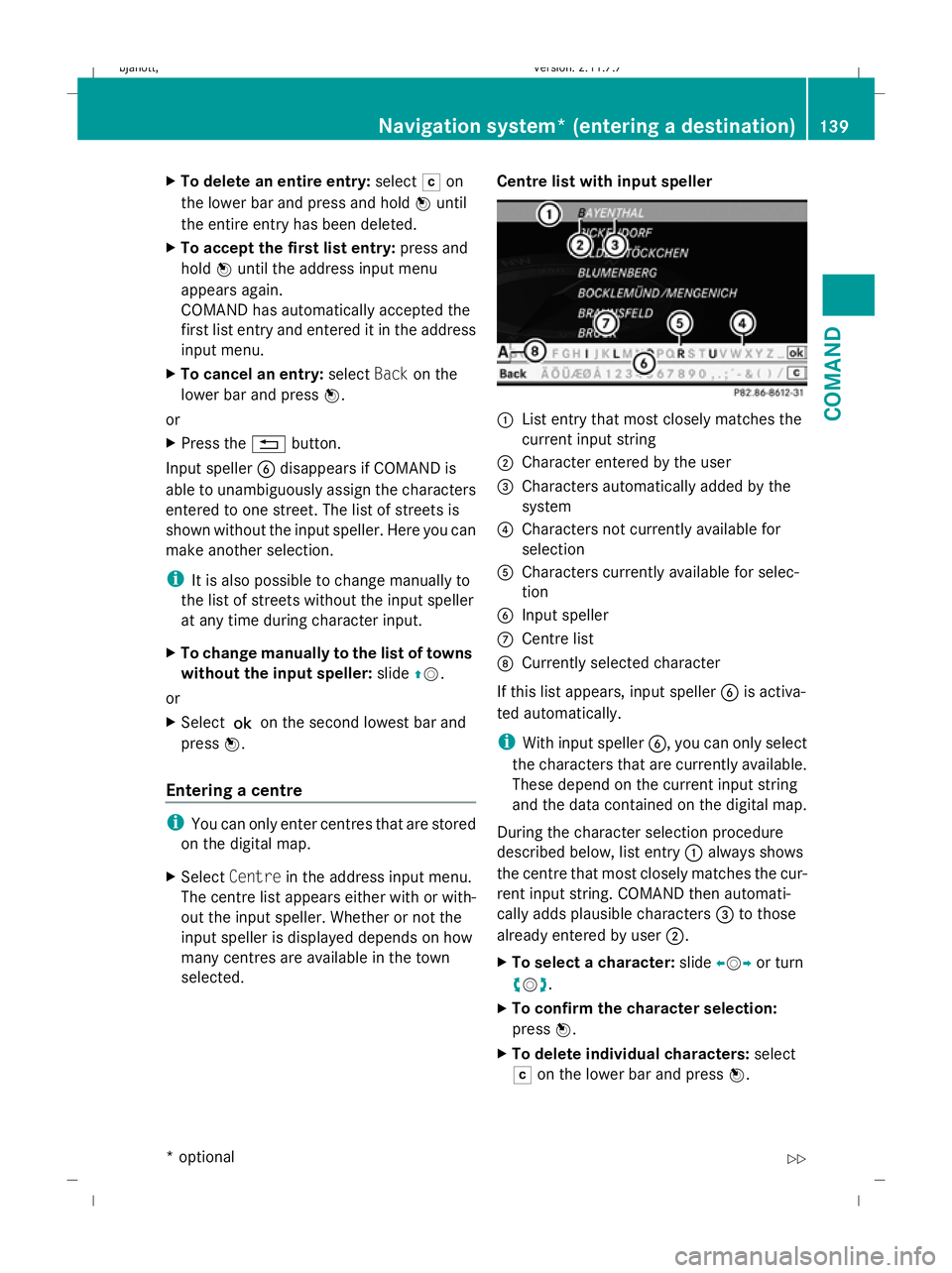
selected. Centre list with input speller :
List entry that most closely matches the
current input string
; Character entered by the user
= Characters automatically added by the
system
? Characters not currently available for
selection
A Characters currently available for selec-
tion
B Input speller
C Centre list
D Currently selected character
If this list appears, input speller Bis activa-
ted automatically.
i With input speller B, you can only select
the characters that are currently available.
These depend on the current input string
and the data contained on the digital map.
During the character selection procedure
described below, list entry :always shows
the centre that most closely matches the cur-
rent input string. COMAND then automati-
cally adds plausible characters =to those
already entered by user ;.
X To select a character: slideXVY or turn
cVd .
X To confirm the character selection:
press W.
X To delete individual characters: select
F on the lower bar and press W. Navigation system* (entering a destination)
139COMAND
* optional
216_AKB; 2; 3, en-GB
bjanott,
Version: 2.11.7.7 2009-02-27T14:54:17+01:00 - Seite 139 Z
Dateiname: 6515230602_buchblock.pdf; erzeugt am 04. Mar 2009 11:15:15; WK
Page 143 of 421
X
To delete an entire entry: selectFon
the lower bar and press and hold Wuntil
the entire entry has been deleted.
X To accept the first list entry: press and
hold Wuntil the address input menu
appears again.
COMAND has automatically accepted the
first list entry and entered it in the address
input menu.
X To cancel an entry: selectBackon the
lower bar and press W.
or
X Press the %button.
Input speller Bdisappears if COMAND is
able to unambiguously assign the characters
entered to one centre. The list of centres is
shown without the input speller. Here you can
make another selection.
i It is also possible to change to the centre
list without the input speller manually at
any time during character input.
X To change manually to the centre list
without the input speller: slideZV.
or
X Select !on the second lowest bar and
press W.
Entering the house number i
It is not possible to enter a house number
until a street has been entered. You can
only enter house numbers that are stored
on the digital map. The digital map does not
contain house numbers for all streets.
X Select No.in the address input menu.
The house number list appears either with or
without the input speller. Whether or not the
input speller is displayed depends on how
many house numbers are available in the
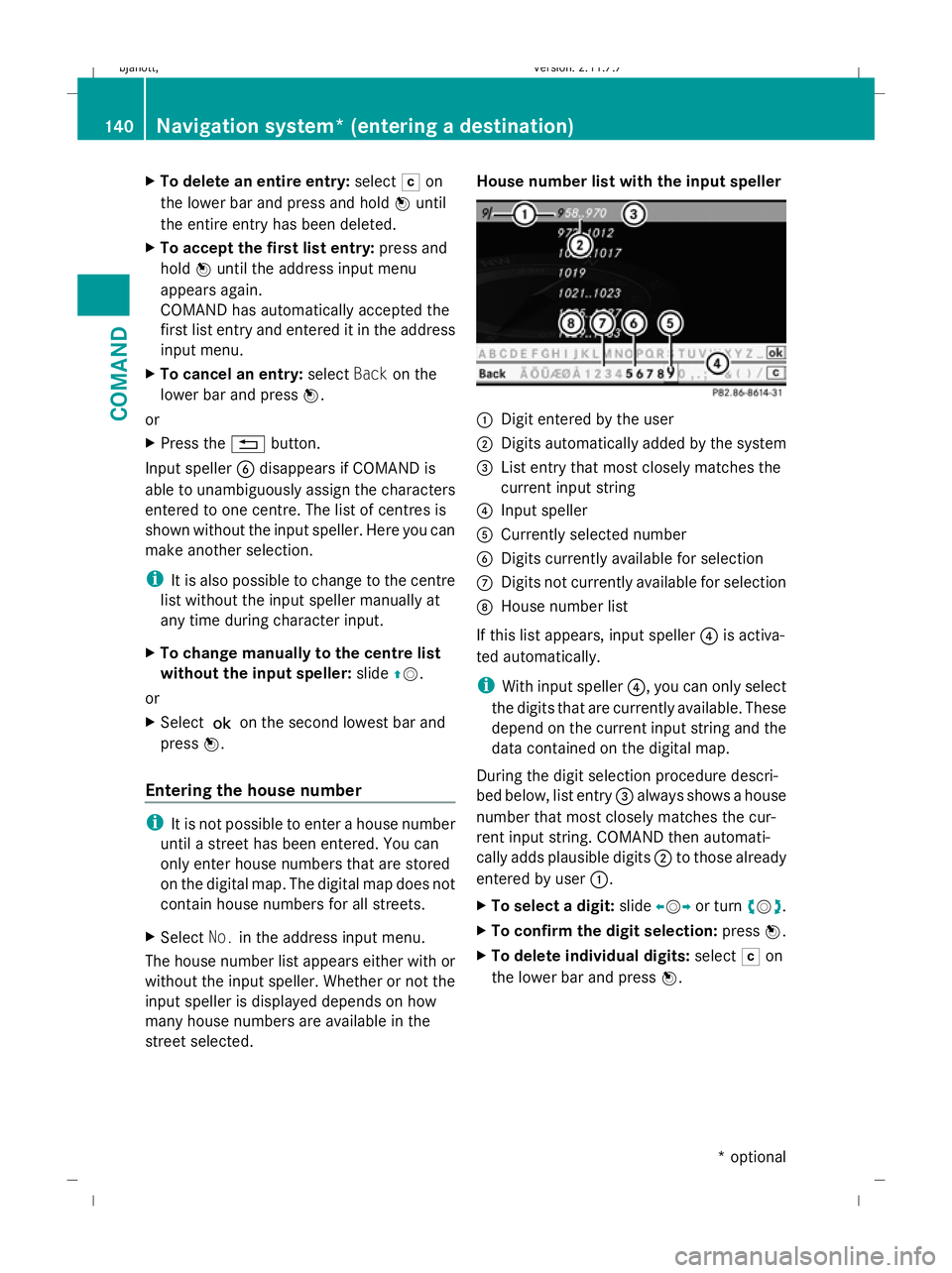
street selected. House number list with the input speller
:
Digit entered by the user
; Digits automatically added by the system
= List entry that most closely matches the
current input string
? Input speller
A Currently selected number
B Digits currently available for selection
C Digits not currently available for selection
D House number list
If this list appears, input speller ?is activa-
ted automatically.
i With input speller ?, you can only select
the digits that are currently available. These
depend on the current input string and the
data contained on the digital map.
During the digit selection procedure descri-
bed below, list entry =always shows a house
number that most closely matches the cur-
rent input string. COMAND then automati-
cally adds plausible digits ;to those already
entered by user :.
X To select a digit: slideXVY or turn cVd.
X To confirm the digit selection: pressW.
X To delete individual digits: selectFon
the lower bar and press W.140
Navigation system* (entering a destination)COMAND
* optional
216_AKB; 2; 3, en-GB
bjanott,
Version: 2.11.7.7 2009-02-27T14:54:17+01:00 - Seite 140
Dateiname: 6515230602_buchblock.pdf; erzeugt am 04. Mar 2009 11:15:16; WK
Page 144 of 421
X
To delete an entire entry: selectFon
the lower bar and press and hold Wuntil
the entire entry has been deleted.
X To accept the first list entry: press and
hold Wuntil the address input menu
appears again.
COMAND has automatically accepted the
first list entry and entered it in the address
input menu.
X To cancel an entry: selectBackon the
lower bar and press W.
or
X Press the %button.
Input speller ?disappears if COMAND is
able to unambiguously assign the characters
entered to one house number. The list of
house numbers is shown without the input
speller. Here you can make another selection.
It is also possible to change to the house
number list without the input speller manually
at any time during number input.
X To change manually to the house num-
ber list without the input speller: slide
ZV.
or
X Select !on the second lowest bar and
press W.
Entering a junction name i
You can only enter junctions that are
stored on the digital map.
X Select Junction in the address input
menu.
The junction list appears either with or with-
out the input speller. Whether or not the
input speller is displayed depends on how
many junctions are available in the street
selected.
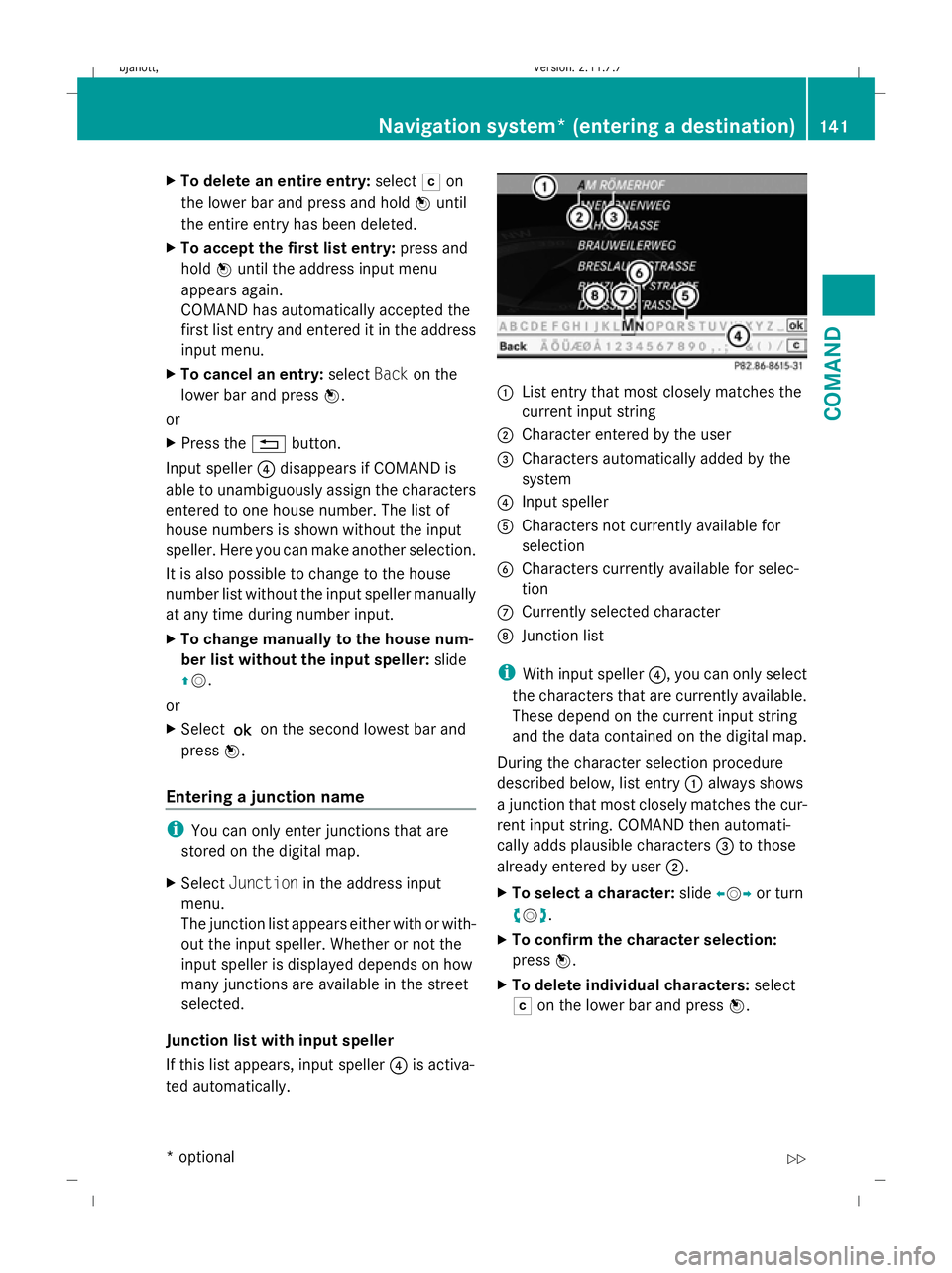
Junction list with input speller
If this list appears, input speller ?is activa-
ted automatically. :
List entry that most closely matches the
current input string
; Character entered by the user
= Characters automatically added by the
system
? Input speller
A Characters not currently available for
selection
B Characters currently available for selec-
tion
C Currently selected character
D Junction list
i With input speller ?, you can only select
the characters that are currently available.
These depend on the current input string
and the data contained on the digital map.
During the character selection procedure
described below, list entry :always shows
a junction that most closely matches the cur-
rent input string. COMAND then automati-
cally adds plausible characters =to those
already entered by user ;.
X To select a character: slideXVY or turn
cVd .
X To confirm the character selection:
press W.
X To delete individual characters: select
F on the lower bar and press W. Navigation system* (entering a destination)
141COMAND
* optional
216_AKB; 2; 3, en-GB
bjanott,
Version: 2.11.7.7 2009-02-27T14:54:17+01:00 - Seite 141 Z
Dateiname: 6515230602_buchblock.pdf; erzeugt am 04. Mar 2009 11:15:16; WK
Page 146 of 421
While route calculation is in progress, an
arrow will indicate the direction to your
destination. Below this, you will see a cor-
responding message in the display. Once
the route has been calculated, route guid-
ance begins.
Route calculation takes a certain amount
of time. The time depends on the distance
from the destination, for example. COMAND
calculates the route using the digital map
data. The calculated route may differ from the
actual road situation, e.g. due to road works
or incomplete map data. Please make sure
that you observe the notes about the digital
map (Y page 132). Entering a destination from the desti-
nation memory
X Select NaviQDestination QFrom
memory.
The destination memory list appears either
with or without the input speller. Whether
or not the input speller is displayed
depends on the number of entries in the
destination memory.
i The destination memory always contains
an entry named My address. You may wish
to assign your home address to this entry,
for example (Y page 157). Like any other
entry, the My address entry can be selec-
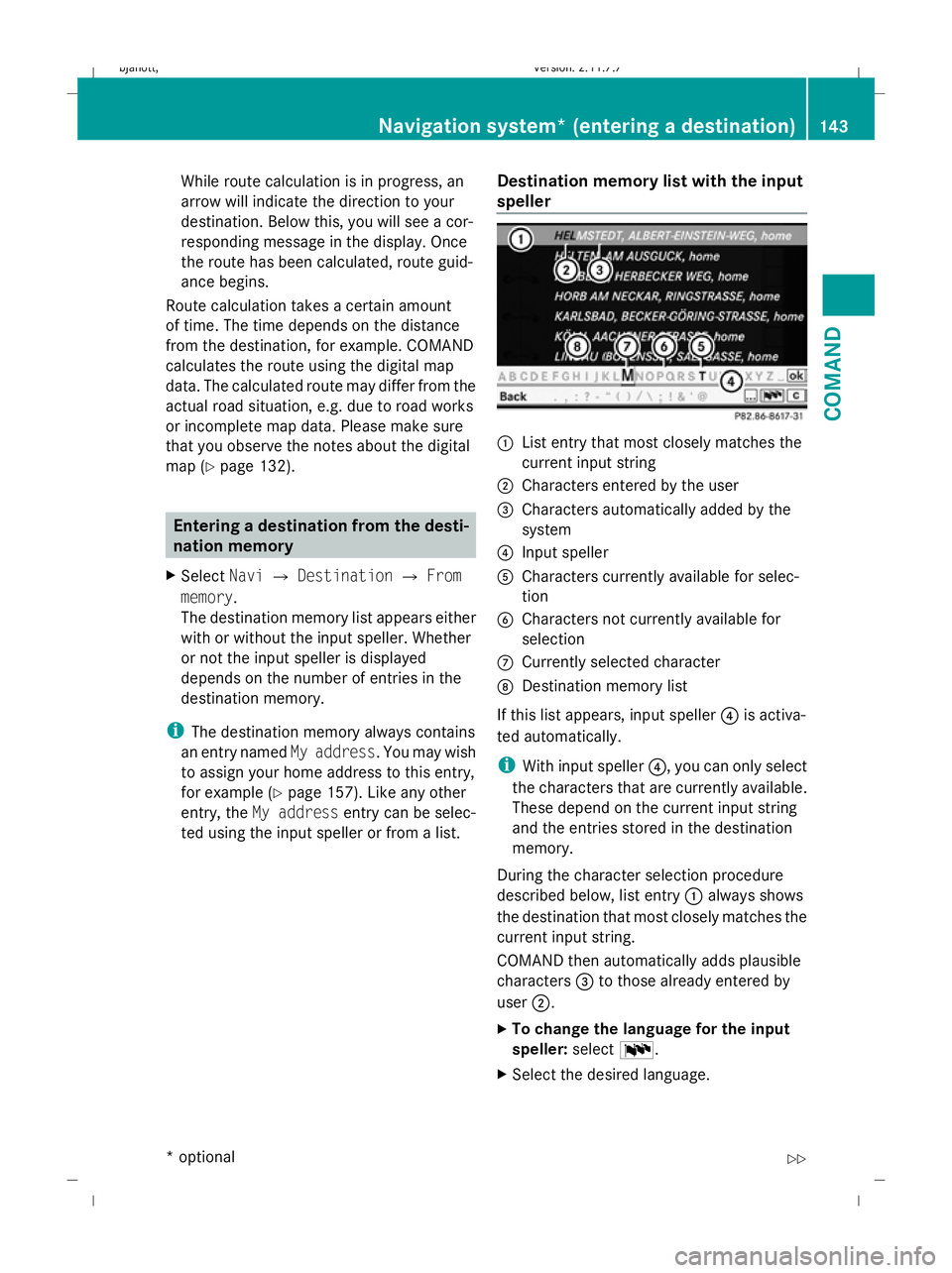
ted using the input speller or from a list. Destination memory list with the input
speller :
List entry that most closely matches the
current input string
; Characters entered by the user
= Characters automatically added by the
system
? Input speller
A Characters currently available for selec-
tion
B Characters not currently available for
selection
C Currently selected character
D Destination memory list
If this list appears, input speller ?is activa-
ted automatically.
i With input speller ?, you can only select
the characters that are currently available.
These depend on the current input string
and the entries stored in the destination
memory.
During the character selection procedure
described below, list entry :always shows
the destination that most closely matches the
current input string.
COMAND then automatically adds plausible
characters =to those already entered by
user ;.
X To change the language for the input
speller: selectB.
X Select the desired language. Navigation system* (entering a destination)
143COMAND
* optional
216_AKB; 2; 3, en-GB
bjanott,
Version: 2.11.7.7 2009-02-27T14:54:17+01:00 - Seite 143 Z
Dateiname: 6515230602_buchblock.pdf; erzeugt am 04. Mar 2009 11:15:17; WK
Page 147 of 421
X
To change the character set for the
input speller: selectC.
Depending on the previous setting, you will
change to letters with special characters or
to numbers with special characters.
X To select a character: slideXVY or turn
cVd .
X To confirm the character selection:
press W.
X To delete individual characters: select
F on the lower bar and press W.
X To delete an entire entry: selectFon
the lower bar and press and hold Wuntil
the entire entry has been deleted.
X To accept the first list entry: press and
hold Wuntil the destination list is displayed
without the input speller.
X To cancel an entry: selectBackon the
lower bar and press W.
or
X Press the %button.
Input speller ?disappears if COMAND is
able to unambiguously assign the characters
entered to one destination. The list of desti-
nations is shown without the input speller.
Here you can make another selection.
i It is also possible to change manually to
the destination memory list without the
input speller at any time during character
input.
X To change manually to the destination
list without the input speller: slideZV.
or
X Select !on the second lowest bar and
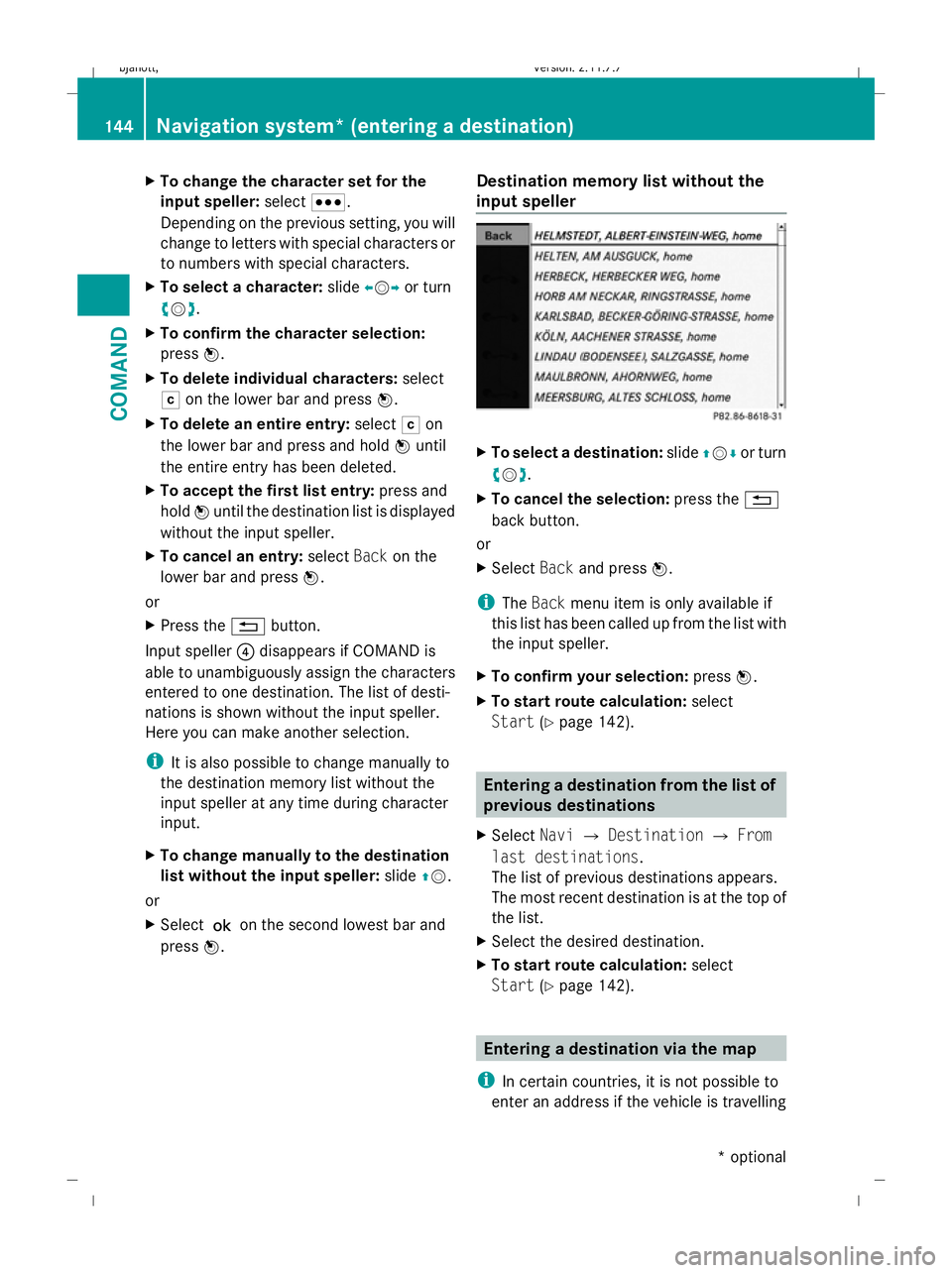
press W. Destination memory list without the
input speller X
To select a destination: slideZVÆ or turn
cVd .
X To cancel the selection: press the%
back button.
or
X Select Backand press W.
i The Back menu item is only available if
this list has been called up from the list with
the input speller.
X To confirm your selection: pressW.
X To start route calculation: select
Start (Ypage 142). Entering a destination from the list of
previous destinations
X Select NaviQDestination QFrom
last destinations .
The list of previous destinations appears.
The most recent destination is at the top of
the list.
X Select the desired destination.
X To start route calculation: select
Start (Ypage 142). Entering a destination via the map
i In certain countries, it is not possible to
enter an address if the vehicle is travelling 144
Navigation system* (entering a destination)COMAND
* optional
216_AKB; 2; 3, en-GB
bjanott,
Version: 2.11.7.7 2009-02-27T14:54:17+01:00 - Seite 144
Dateiname: 6515230602_buchblock.pdf; erzeugt am 04. Mar 2009 11:15:17; WK