steering wheel MERCEDES-BENZ CLS-Class 2014 W218 Service Manual
[x] Cancel search | Manufacturer: MERCEDES-BENZ, Model Year: 2014, Model line: CLS-Class, Model: MERCEDES-BENZ CLS-Class 2014 W218Pages: 382, PDF Size: 5.36 MB
Page 200 of 382
status indicator in the instrument cluster.
When
aparking space has been detected, an
arrow towards the right or the left also
appears. By default, Active Parking Assist
only displays parking spaces on the front-
passenger side. Parking spaces on the
driver's side are displayed as soon as the turn
signal on the driver's side is activated. When
parking on the driver's side, this must remain
switched on until you acknowledge the use of
Active Parking Assist by pressing the 000C
button on the multifunction steering wheel.
i Take note that Active Parking Assist
cannot measure the size of parking spaces
that are at right angles to the direction of
travel. You must decide for yourself
whether the vehicle will fit in the parking
space.
Ap arking spac eisdisplayed while you are
driving past it, and until you are
approximately 50 ft (15 m) away from it.
Parking G
WARNING
Activ eParking Assist merely aids you by
intervening activel yinthesteering .Ifyou do
no tb rak ethere is ariskofana ccident.
Always apply th ebrakes yourself when
maneuverin gand parking.
X Stop th evehicle when th eparking space
symbol shows th edesired parking spac ein
th ei nstrumen tcluster.
X Shift th etransmission to position R.
The Start Par kAssist ?Yes:OKN o: 0002
message appear sinthemultifunction
display. X
To cancel th eprocedure: pressthe
0002 buttonont hemultifunction steering
wheel or pull away.
or
X To park usin gActiv eParking Assist:
pres sthe 000C buttonont he multifunction
steering wheel.
The Park Assist Active Accelerate and Brake Observe Surroundings
message appears in the multifunction
display.
X Let go of the multifunction steering wheel.
X Back up the vehicle, being ready to brake
at all times. When backing up, drive at a
speed below approximately 6mph
(10 km/h). Otherwise Active Parkin gAssist
will be canceled.
i In tight parkin gspaces, you will achieve
the best parkin gresults by backin gupas
far as possible. When doing so, also
observe the PARKTRONI Cmessages.
X Stop as soon as PARKTRONI Csounds the
continuous warning tone, if not before.
Maneuverin gmay be required in tight
parkin gspaces.
The Park Assist Active Select D Observe Surroundings message appears in
the multifunction display.
X Shift the transmission to position Dwhile
the vehicle is stationary.
Active Parkin gAssist immediately steer sin
the other direction.
The Park Assist Active Accelerate and Brake Observ
eSurroundings message appears in the multifunction
display.
i You will achieve the best results by
waiting for the steering procedure to
complet ebefore pulling away.
X Driv eforwards and be ready to brake at all
times.
X Stop as soon as PARKTRONI Csounds the
continuous warning tone, if not before. 198
Driving systemsDriving and parking
Page 203 of 382
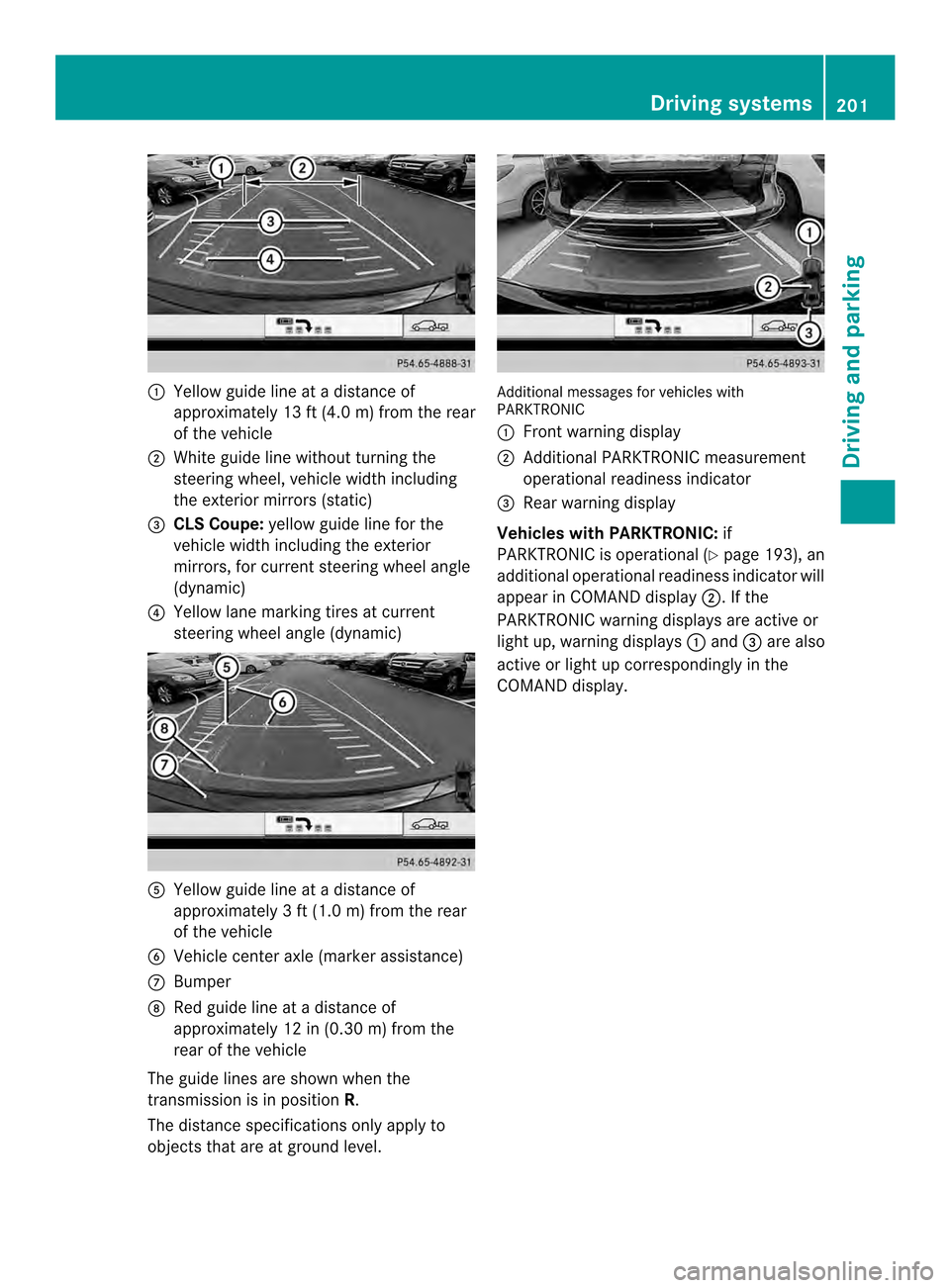
001A
Yellow guide line at adistanc eof
approximately 13 ft (4.0 m) from the rear
of the vehicle
0010 White guide line without turning the
steering wheel, vehicle width including
the exterior mirrors (static)
0024 CLSC oupe: yellow guide line for the
vehicle width including the exterior
mirrors ,for current steering wheel angle
(dynamic)
0021 Yellow lane marking tires at current
steering wheel angl e(dynamic) 001E
Yellow guide line at adistance of
approximately 3ft(1.0 m) from the rear
of the vehicle
0025 Vehicle center axle (marker assistance)
0009 Bumper
0016 Red guide line at adistance of
approximately 12 in (0.30 m) from the
rear of the vehicle
The guide line sare show nwhen the
transmission is in position R.
The distance specifications only apply to
objectst hat are at ground level. Additional messages for vehicles with
PARKTRONIC
001A
Front warning display
0010 Additional PARKTRONIC measurement
operational readiness indicator
0024 Rear warning display
Vehicles with PARKTRONIC: if
PARKTRONIC is operational (Y page 193), an
additional operational readiness indicator will
appearinC OMAND display 0010.Ifthe
PARKTRONIC warning displays are active or
light up, warning displays 001Aand 0024are also
active or light up correspondingly in the
COMAND display. Driving systems
201Driving and parking Z
Page 204 of 382
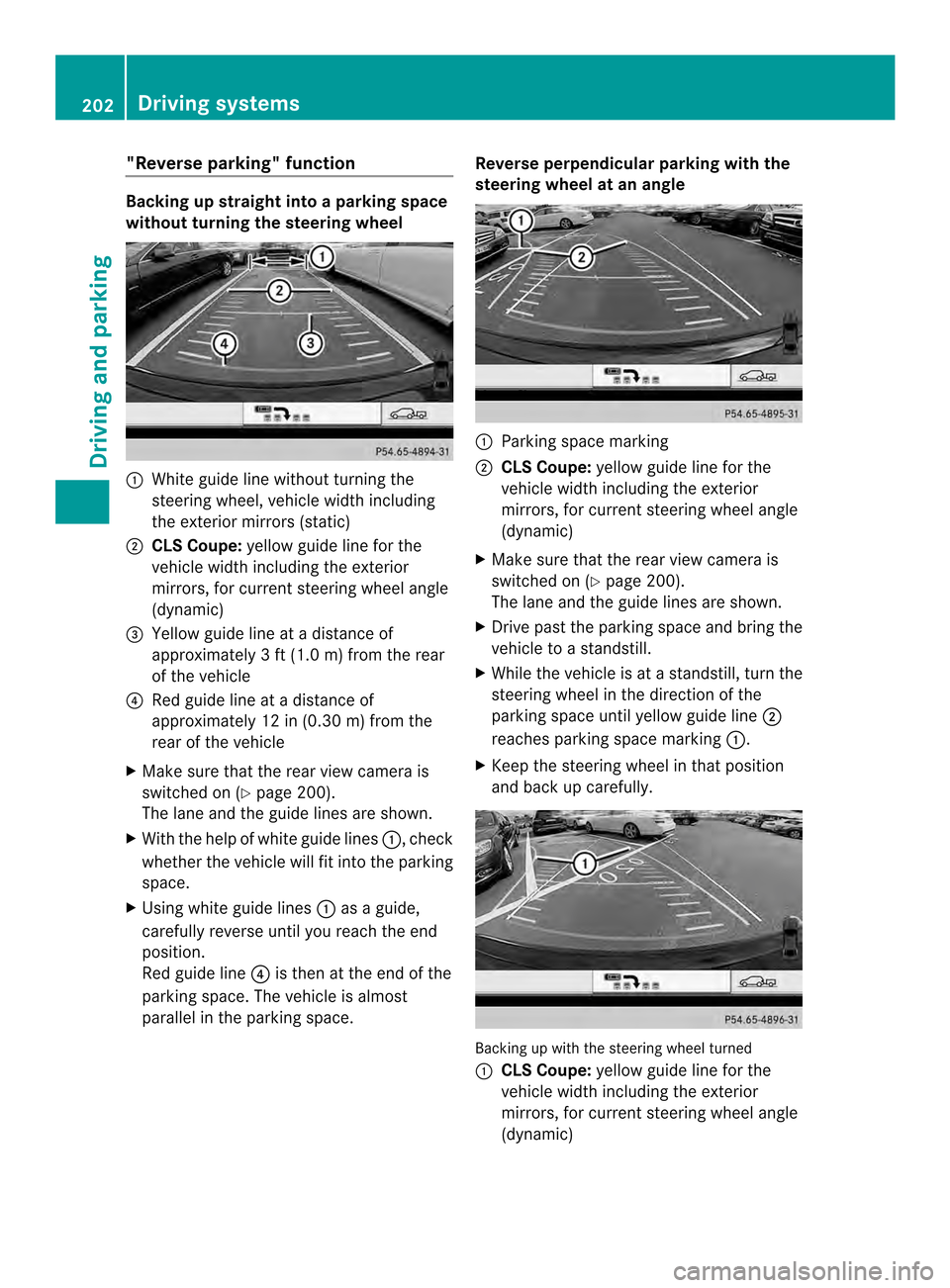
"Reverse parking" function
Backing up straight into
aparking space
without turning the steering wheel 001A
White guide line without turning the
steering wheel, vehicle width including
the exterior mirrors (static)
0010 CLS Coupe: yellow guide line for the
vehicle width including the exterior
mirrors, for current steering wheel angle
(dynamic)
0024 Yellowg uide line at adistance of
approximately 3ft(1.0 m) from the rear
of the vehicle
0021 Red guide line at adistance of
approximately 12 in (0.30 m) from the
rear of the vehicle
X Make sure that the rear view camera is
switched on (Y page 200).
The lane and the guide lines are shown.
X With the help of white guide lines 001A,check
whether the vehicle will fit into the parking
space.
X Using white guide lines 001Aasag uide,
carefully reverse until you reach the end
position.
Red guide line 0021is then at the end of the
parking space. The vehicle is almost
parallel in the parking space. Reverse perpendicular parking with the
steering wheel at an angle
001A
Parking space marking
0010 CLS Coupe: yellow guide line for the
vehicle width including the exterior
mirrors, for current steering wheel angle
(dynamic)
X Make sure that the rear view camera is
switched on (Y page 200).
The lane and the guide lines are shown.
X Drive past the parking space and bring the
vehicle to astandstill.
X While the vehicle is at astandstill, turn the
steering wheel in the direction of the
parking space until yellow guide line 0010
reaches parking space marking 001A.
X Keep the steering wheel in that position
and back up carefully. Backing up with the steering wheel turned
001A
CLS Coupe: yellow guide line for the
vehicle width including the exterior
mirrors, for current steering wheel angle
(dynamic) 202
Driving systemsDriving and parking
Page 205 of 382
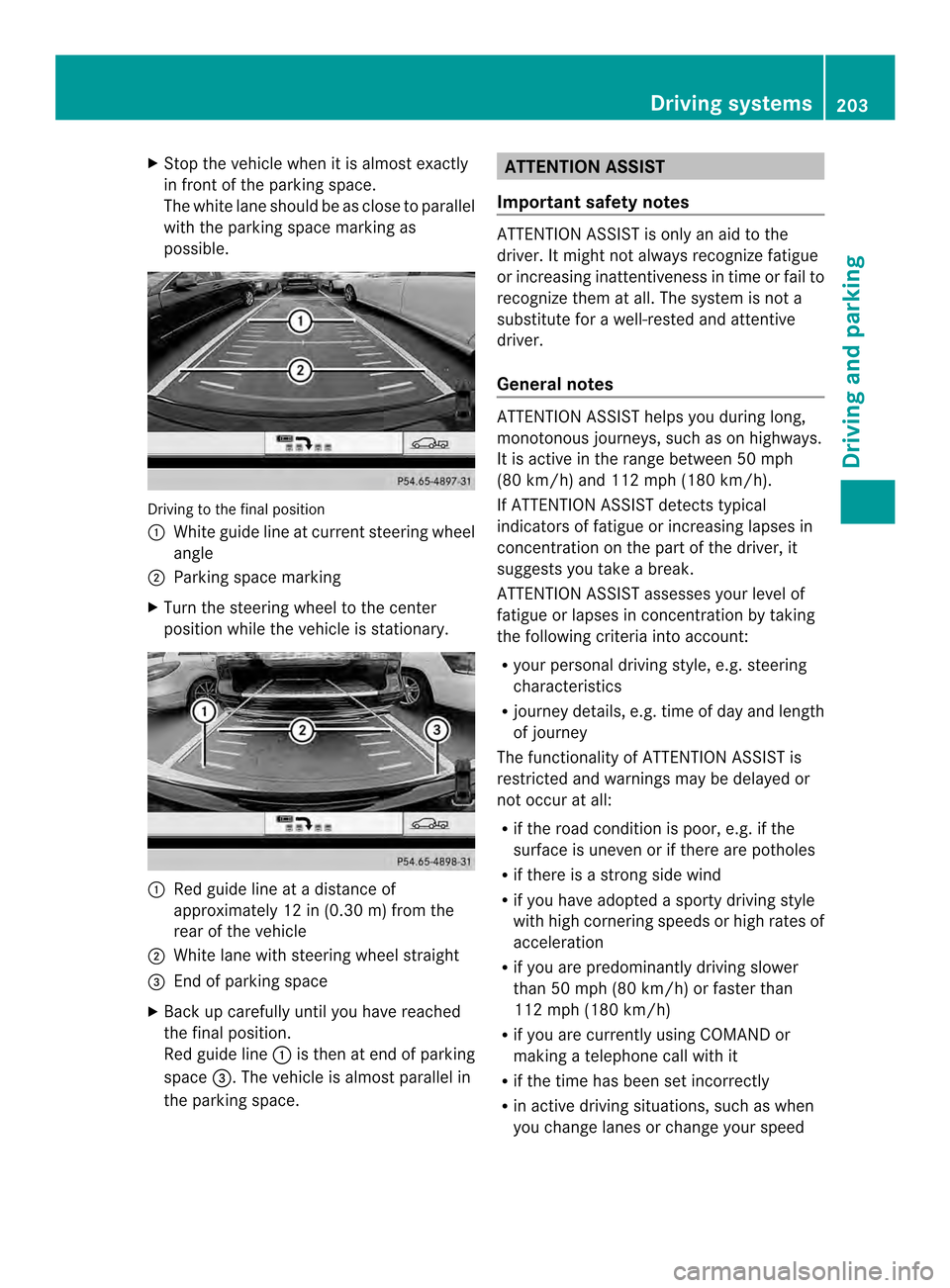
X
Stop the vehicl ewhenitisa lmoste xactly
in front of the parking space.
The white lane shoul dbeasclose to parallel
with the parking space marking as
possible. Driving to the fina
lposition
001A White guid elineatc urrent steering wheel
angle
0010 Parking space marking
X Turn the steering whee ltothe center
positio nwhile the vehicle is stationary. 001A
Red guide line at adistance of
approximately 12 in (0.30 m) from the
rear of the vehicle
0010 White lane with steering wheel straight
0024 End of parking space
X Back up carefully until you have reached
the final position.
Red guide line 001Ais then at end of parking
space 0024.The vehicle is almost parallel in
the parking space. ATTENTION ASSIST
Important safety notes ATTENTION ASSIST is only an aid to the
driver. It might not always recognizef
atigue
or increasing inattentiveness in time or fail to
recognizet hem at all. The system is not a
substitute for awell-rested and attentive
driver.
General notes ATTENTION ASSIST helps you during long,
monotonous journeys, such as on highways.
It is active in the range between 50 mph
(80 km/h) and 112 mph (180 km/h).
If ATTENTION ASSIST detects typical
indicators of fatigue or increasing lapses in
concentration on the part of the driver, it
suggests you take abreak.
ATTENTION ASSIST assesses your level of
fatigue or lapses in concentration by taking
the following criteria into account:
R your personal driving style, e.g. steering
characteristics
R journey details, e.g. time of day and length
of journey
The functionality of ATTENTION ASSIST is
restricted and warnings may be delayed or
not occur at all:
R if the road condition is poor, e.g. if the
surface is uneven or if there are potholes
R if there is astrongs ide wind
R if you have adopted asporty driving style
with high cornering speeds or high rates of
acceleration
R if you are predominantly driving slower
than 50 mph (80 km/h) or faster than
112 mph (180 km/h)
R if you are currently using COMAND or
making atelephone call with it
R if the time has been set incorrectly
R in active driving situations, such as when
you change lanes or change your speed Driving systems
203Driving and parking Z
Page 212 of 382
R
the distance to the vehicl einfront is too
small and the lane markings thu scannot be
detected
R the lane markings change quickly, e.g.
lanes branch off ,cros sone anothe ror
merge
R the road is narrow and winding
R there are strong shadows cast on the lane
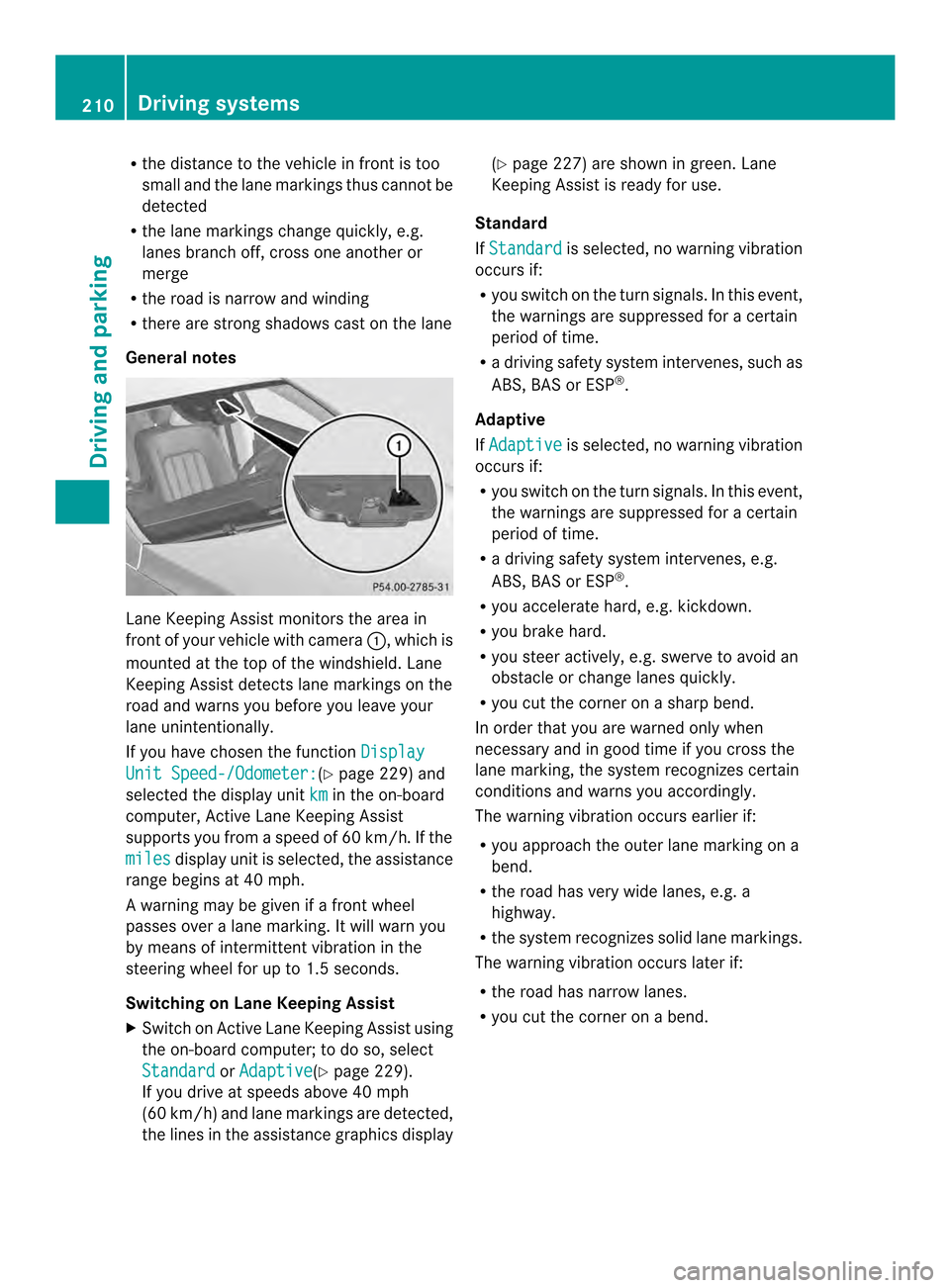
General notes Lane Keeping Assist monitors the area in
front of yourv ehicle with camera 001A,which is
mounted at the top of the windshield. Lane
Keeping Assist detects lane markings on the
road and warns you before you leave your
lane unintentionally.
If you have chosen the function DisplayUnit Speed-/Odometer: (Y
page 229)a nd
selected the display unit km in the on-board
computer, Active Lane Keeping Assist
supports you from aspeed of 60 km/h. If the
miles display unit is selected, the assistance
range begins at 40 mph.
Aw arning may be given if afront wheel
passeso veralane marking. It willw arn you
by means of intermittent vibration in the
steering wheelf or up to 1.5 seconds.
Switching on Lane Keeping Assist
X Switch on Active Lane Keeping Assist using
the on-board computer; to do so, select
Standard or
Adaptive (Y
page 229).
If you drive at speedsa bove 40 mph
(60 km/h) and lane markings are detected,
the lines in the assistance graphics display (Y
page 227) are shown in green. Lane
Keeping Assist is ready for use.
Standard
If Standard is selected, no warning vibration
occurs if:
R you switch on the turn signals. In this event,
the warnings are suppressed for acertain
periodoft ime.
R ad riving safety system intervenes, such as
ABS, BAS or ESP ®
.
Adaptive
If Adaptive is selected, no warning vibration
occurs if:
R you switch on the turn signals. In this event,
the warnings are suppressed for acertain
periodoft ime.
R ad riving safety system intervenes, e.g.
ABS, BAS or ESP ®
.
R you accelerate hard, e.g. kickdown.
R you brake hard.
R you steer actively ,e.g. swerve to avoid an
obstacle or change lanes quickly.
R you cut the corner on asharp bend.
In order that you are warned only when
necessary and in good time if you cross the
lane marking, the system recognizes certain
conditions and warns you accordingly.
The warning vibration occurs earlier if:
R you approach the outer lane marking on a
bend.
R the road has very widel anes, e.g. a
highway.
R the system recognizes solidl ane markings.
The warning vibratio noccurs later if:
R the roa dhasnarro wlanes.
R yo uc ut the corner on abend. 210
Drivin
gsystemsDrivin gand parking
Page 217 of 382
R
the roa disnarrow and winding
R there ar estrong shadows cas tonthe lane
If no vehicle is detected in the adjacent lane
and there are broken lane markings detected,
no lane-correcting brake application is made.
Warning vibration in the steering wheel
Aw arning may be given if afront wheel
passes over alane marking. It will warn you
by means of intermittent vibration in the
steering wheel for up to 1.5 seconds.
Lane-correcting brake application G
WARNING
Al ane-correcting brake application cannot
always bring the vehicle back into the original
lane. There is arisk of an accident.
Always steer, brake or accelerate yourself,
especially if Active Lane Keeping Assist warns
you or makes alane-correcting brake
application. G
WARNING
Active Lane Keeping Assist does not detect
traffic conditionsorr oad users. In very rare
cases, the system may make an inappropriate
brake application, e.g. after intentionally
driving over asolid lane marking. There is a
risk of an accident.
An inappropriate brake application may be
interrupted at any time if you steer slightly in
the opposite direction. Always make sure that
there is sufficient distance on the side for
other traffic or obstacles. If you leave your lane, under certain
circumstances the vehicle will brake briefly
on one side. This is meant to assist you in
bringing the vehicle back to the original lane.
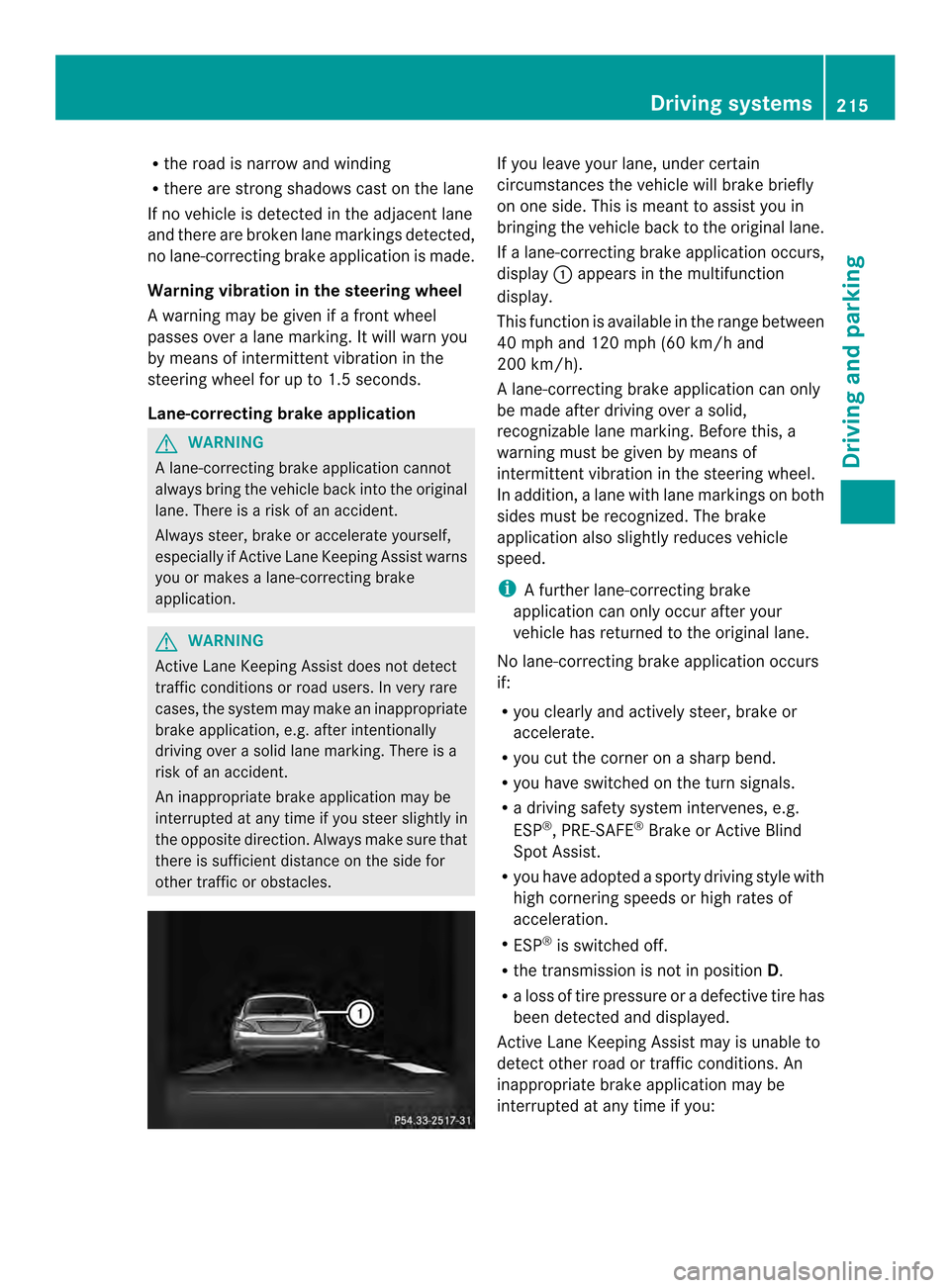
If al ane-correcting brake application occurs,
display 001Aappears in the multifunction
display.
This function is available in the range between
40 mph and 120 mph (60 km/h and
200 km/h).
Al ane-correcting brake application can only
be made after driving over asolid,
recognizable lane marking. Before this, a
warning must be given by means of
intermittent vibration in the steering wheel.
In addition, alane with lane markings on both
sides must be recognized. The brake
application also slightly reduces vehicle
speed.
i Afurther lane-correcting brake
application can only occur after your
vehicle has returned to the original lane.
No lane-correcting brake application occurs
if:
R you clearly and actively steer, brake or
accelerate.
R you cut the corner on asharp bend.
R you have switched on the turn signals.
R ad riving safety system intervenes, e.g.
ESP ®
,P RE-SAFE ®
Brake or Active Blind
Spot Assist.
R you have adopted asporty driving style with
high cornering speeds or high rates of
acceleration.
R ESP ®
is switched off.
R the transmission is not in position D.
R aloss of tire pressure or adefective tire has
been detected and displayed.
Active Lane Keeping Assist may is unable to
detect other road or traffic conditions. An
inappropriate brake application may be
interrupted at any time if you: Driving systems
215Driving and parking Z
Page 222 of 382
Outsid
etemperature display
You should pay special attention to road
conditions when temperatures are around
freezing point.
The outside temperature display is in the
multifunction display (Y page 221).
Changes in the outside temperature are
displayed after ashort delay. Speedometer with segments
The segments in the speedometer indicate
which speed range is available.
R Cruise control activated (Y page 175):
The segments light up from the stored
speed to the maximum speed.
R DISTRONIC PLUS activated (Y page 177):
One or two segments in the set speed
range light up.
R DISTRONIC PLUS detects avehicle in front:
The segments between the speed of the
vehicle in fron tand the stored speed light
up. Operatin
gthe on-board computer
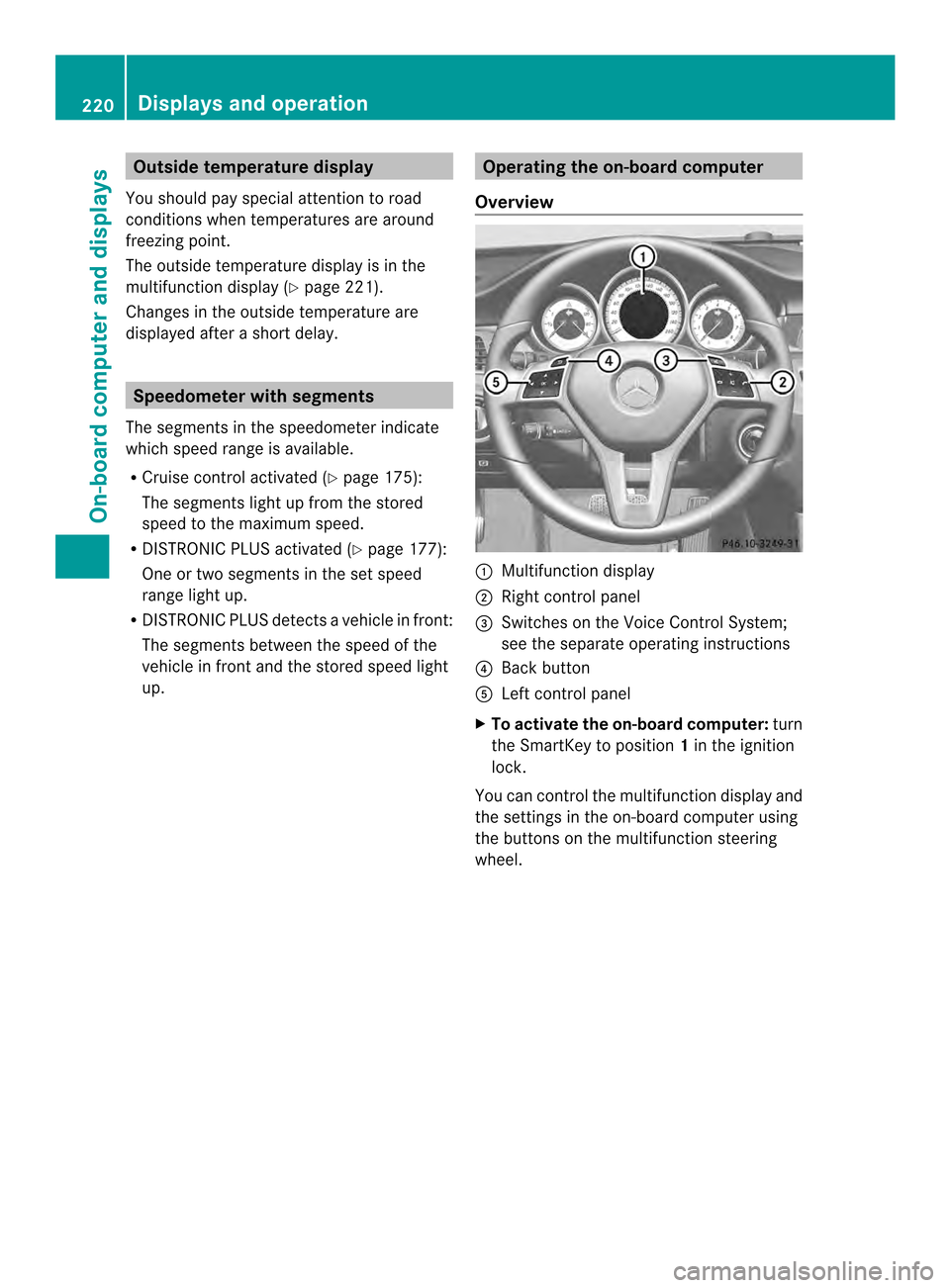
Overview 001A
Multifunctio ndisplay
0010 Right control panel
0024 Switches on the Voic eControl System;
see the separat eoperating instructions
0021 Bac kbutton
001E Left control panel
X To activat ethe on-board computer: turn
the SmartKey to position 1in the ignition
lock.
You can control the multifunction displaya nd
the settings in the on-board computer using
the buttons on the multifunction steering
wheel. 220
Displays and operationOn-board computer and displays
Page 223 of 382
Left control panel
000A
0004 R
Calls up th emenua nd men ubar 0006
0005
Press briefly:
R
Scrolls in lists
R Select sasubmenu or function
R In the Audio menu: selects a
stored station, an audio track or
av ideo scene
R In the Tel (telephone) menu:
switche stothephon ebook and
selects anam eort elephone
number 0006
0005
Press and hold:
R
In the Audio menu: selects the
previous/nex tstation or selects
an audi otrack or avideo scene
using rapi dscrolling
R In the Tel (telephone
)menu:
starts rapi dscrolling if the phone
book is open 000C R
Confirms aselect ion/display
message
R In the Tel (telephone
)menu:
switches to the telephone book
and starts dialing the selected
number
R In the Audio menu
:stops the
statio nsearch functio natthe
desired station Right contro
lpanel 0008 R
Rejects or end sacall
R Exits phone book/redial
memory 0006 R
Makes or accepts acall
R Switche stothe redia lmemory 0008
0009 R
Adjusts the volume 0001 R
Mute Bac
kbutton 0002
Press briefly:
R
Back
R Switche soff the Voice Control
System; se ethe separate
operating instructions
R Hides displa ymessages/calls
up the last Trip menu function
used
R Exits the telephone book/redial
memory 0002
Press and hold:
R
Call supthe standard displa yin
the Trip menu
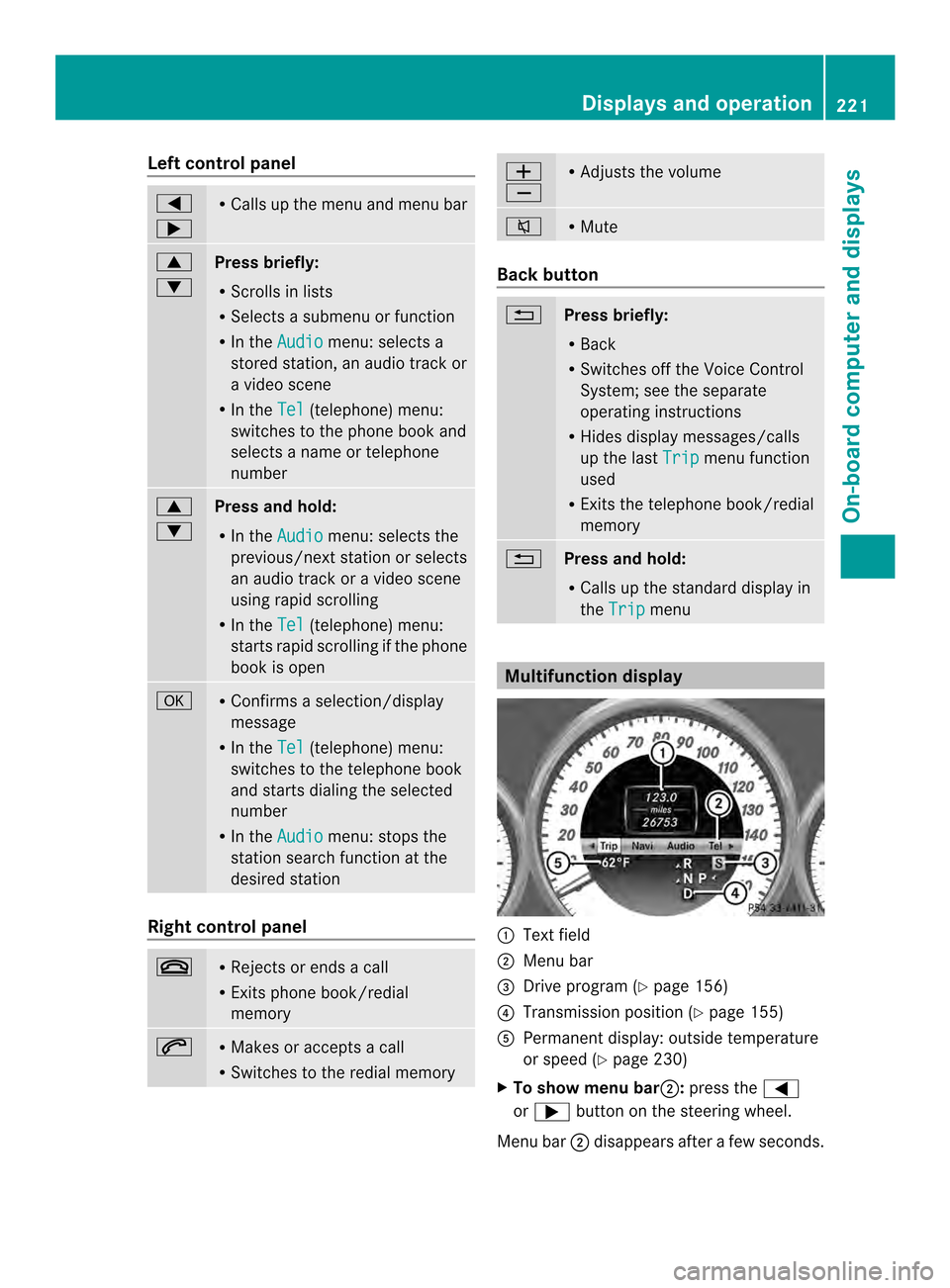
Multifunctio
ndisplay 001A
Text field
0010 Menu bar
0024 Drive progra m(Ypage 156)
0021 Transmission positio n(Ypage 155)
001E Permanent display: outside temperature
or speed (Y page 230)
X To show menu bar 0010:press the 000A
or 0004 button on the steering wheel.
Menu bar 0010disappears after afew seconds. Displays and operation
221On-boardcomputer and displays Z
Page 226 of 382
i
When you reset the values in the "ECO
display" ,the values in the trip computer
"From start "are likewise reset. When you
reset the values in the trip computer "From
start", the values in the "ECO display" are
likewise reset. Navigation system menu
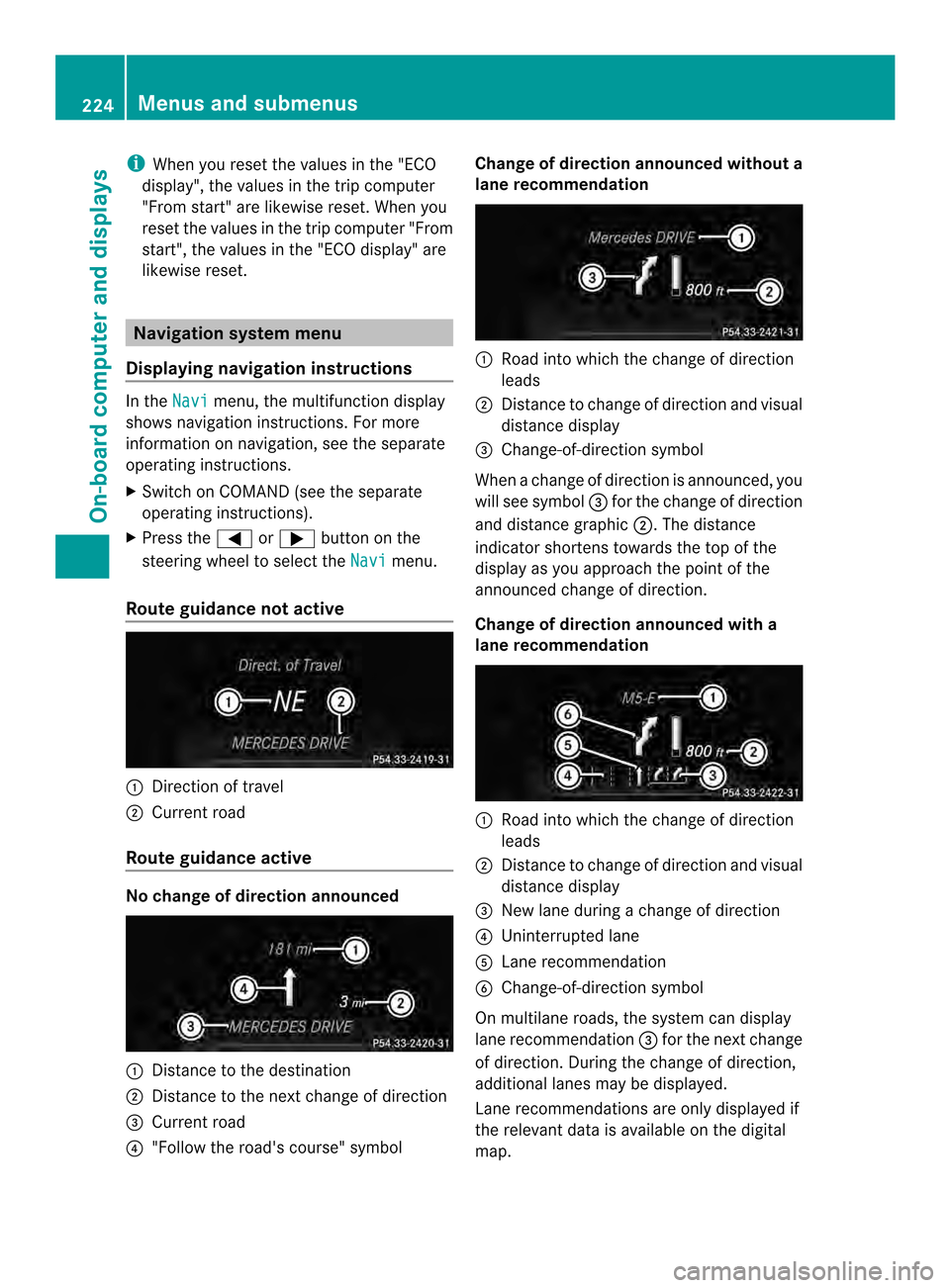
Displaying navigation instructions In the
Navi menu, the multifunction display
shows navigation instructions. For more
information on navigation ,see the separate
operatin ginstructions.
X Switc honC OMAND (see the separate
operatin ginstructions).
X Press the 000Aor0004 button on the
steering wheel to select the Navi menu.
Rout eguidance not active 001A
Direction of travel
0010 Current road
Rout eguidance active No change of direction announced
001A
Distance to the destination
0010 Distance to the nextc hange of direction
0024 Current road
0021 "Follow the road's course" symbol Change of direction announced without a
lane recommendation 001A
Road intow hich the change of direction
leads
0010 Distance to change of direction and visual
distanc edisplay
0024 Change-of-direction symbol
When achange of direction is announced, you
will see symbol 0024for the change of direction
and distanc egraphic 0010.The distance
indicator shortenst owards the top of the
displayasy ou approach the point of the
announced change of direction.
Change of direction announced with a
lane recommendation 001A
Road into which the change of direction
leads
0010 Distancetoc hange of direction and visual
distance display
0024 New lane during achange of direction
0021 Uninterrupted lane
001E Lane recommendation
0025 Change-of-direction symbol
On multilane roads, the system can display
lane recommendation 0024for the next change
of direction. During the change of direction,
additional lanes may be displayed.
Lane recommendations are only displayed if
the relevant data is available on the digital
map. 224
Menus and submenusOn-board computer and displays
Page 227 of 382
Other status indicator
softhe
navigation system R
000D:y ou have reached the destination or an
intermediate destination.
R New Route... or
Calculating Route :
calculating anew route
R Off Map or
Off Road :t
he vehicle position
is outside the area of the digital map (off-
map position).
R No Route :nor
oute could be calculated to
the selected destination. Audio menu
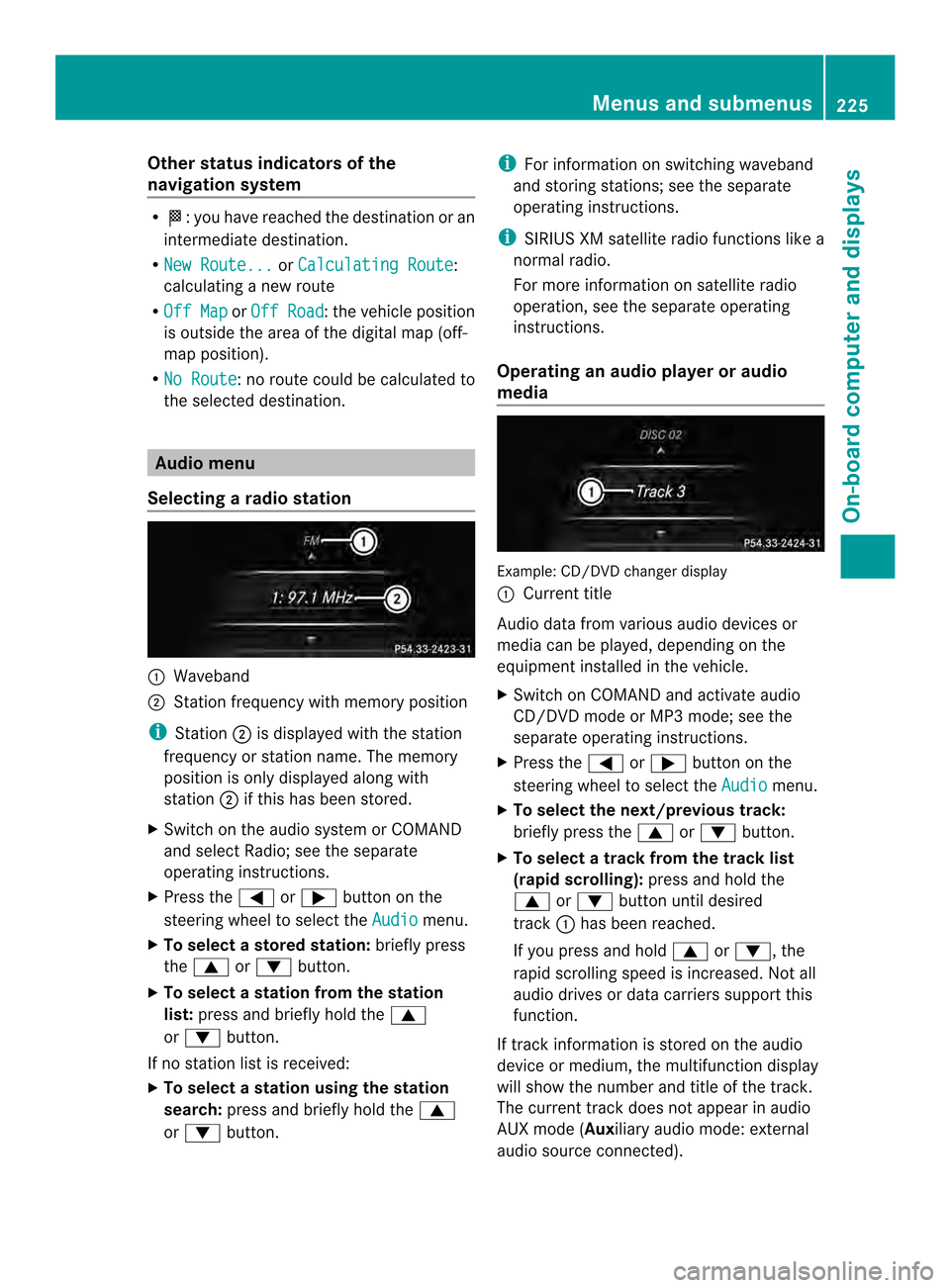
Selecting aradio station 001A
Waveband
0010 Station frequency with memory position
i Station 0010is displayedw itht he station
frequency or statio nname. The memory
position is only displayeda long with
station 0010if this has bee nstored.
X Switch on the audi osystemorC OMAND
and select Radio; see the separate
operating instructions.
X Press the 000Aor0004 button on the
steering wheel to select the Audio menu.
X To select astore dstation: brieflypress
the 0006 or0005 button.
X To select astation from the station
list: press and briefl yholdt he 0006
or 0005 button.
If no statio nlist is received:
X To select astatio nusing the station
search: press and briefl yholdt he 0006
or 0005 button. i
For informatio nonswitchin gwaveband
and storin gstations ;see th eseparate
operatin ginstructions.
i SIRIUS XM satellit eradio function slike a
normal radio.
For mor einformatio nonsatelliteradio
operation, see th eseparate operating
instructions.
Operatin ganaudio player or audio
media Example
:CD/DVD change rdisplay
001A Curren ttitle
Audio data from various audio devices or
media can be played, depending on the
equipmen tinstalled in the vehicle.
X Switch on COMAND and activate audio
CD/DV DmodeorM P3 mode; see the
separate operating instructions.
X Press the 000Aor0004 button on the
steering whee ltoselect the Audio menu.
X To select the next/previous track:
briefl ypress the 0006or0005 button.
X To select atrack from the track list
(rapi dscrolling): press and hold the
0006 or0005 buttonuntil desired
track 001Ahasb eenr eached.
If yo upress and hold 0006or0005,t he
rapi dscrolling speed is increased .Not all
audio drives or data carriers support this
function.
If track information is stored on the audio
device or medium, the multifunction display
will show the number and title of the track.
The current track does not appear in audio
AUX mode (Auxiliary audio mode: external
audio source connected). Menus and submenus
225On-board computer and displays Z