audio MERCEDES-BENZ GLA SUV 2013 User Guide
[x] Cancel search | Manufacturer: MERCEDES-BENZ, Model Year: 2013, Model line: GLA SUV, Model: MERCEDES-BENZ GLA SUV 2013Pages: 401, PDF Size: 11.9 MB
Page 220 of 401
Displays in the Audio/COMAND display
The reversing camera may show a distorted
view of obstacles or show them incorrectly or not at all. Obstacles are not shown by the
reversing camera in the following locations:
R very close to the rear bumper
R under the rear bumper
R in the area immediately above the tailgate
handle
! Objects not at ground level may appear to
be further away than they actually are, e.g.:
R the bumper of a parked vehicle
R the drawbar of a trailer
R the ball coupling of a trailer tow hitch
R the rear section of an HGV
R a slanted post
Use the guidelines only for orientation.
Approach objects no further than the bot-
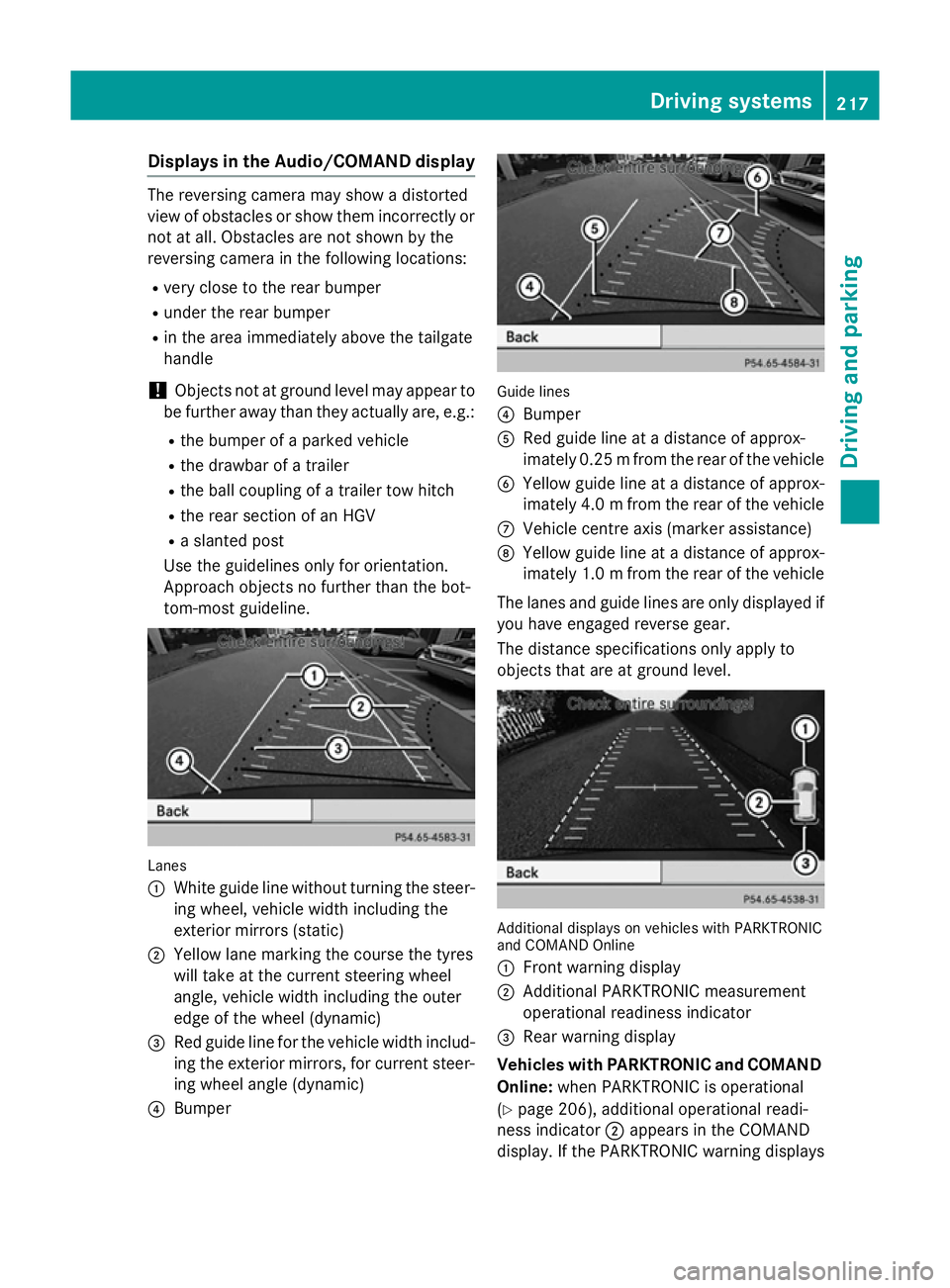
tom-most guideline. Lanes
:
White guide line without turning the steer-
ing wheel, vehicle width including the
exterior mirrors (static)
; Yellow lane marking the course the tyres
will take at the current steering wheel
angle, vehicle width including the outer
edge of the wheel (dynamic)
= Red guide line for the vehicle width includ-
ing the exterior mirrors, for current steer-
ing wheel angle (dynamic)
? Bumper Guide lines
?
Bumper
A Red guide line at a distance of approx-
imately 0.25 mfrom the rear of the vehicle
B Yellow guide line at a distance of approx-
imately 4.0 mfrom the rear of the vehicle
C Vehicle centre axis (marker assistance)
D Yellow guide line at a distance of approx-
imately 1.0 mfrom the rear of the vehicle
The lanes and guide lines are only displayed if
you have engaged reverse gear.
The distance specifications only apply to
objects that are at ground level. Additional displays on vehicles with PARKTRONIC
and COMAND Online
:
Front warning display
; Additional PARKTRONIC measurement
operational readiness indicator
= Rear warning display
Vehicles with PARKTRONIC and COMAND
Online: when PARKTRONIC is operational
(Y page 206), additional operational readi-
ness indicator ;appears in the COMAND
display. If the PARKTRONIC warning displays Driving systems
217Driving and parking Z
Page 221 of 401
are active or light up, warning displays
:and
= are also active or light up correspondingly
in the COMAND display.
"Reverse parking" function X
Make sure that the reversing camera is
activated and the "Reverse parking" func-
tion is selected; see the separate operating instructions for the audio system/
COMAND Online.
The lane and the guide lines are shown.
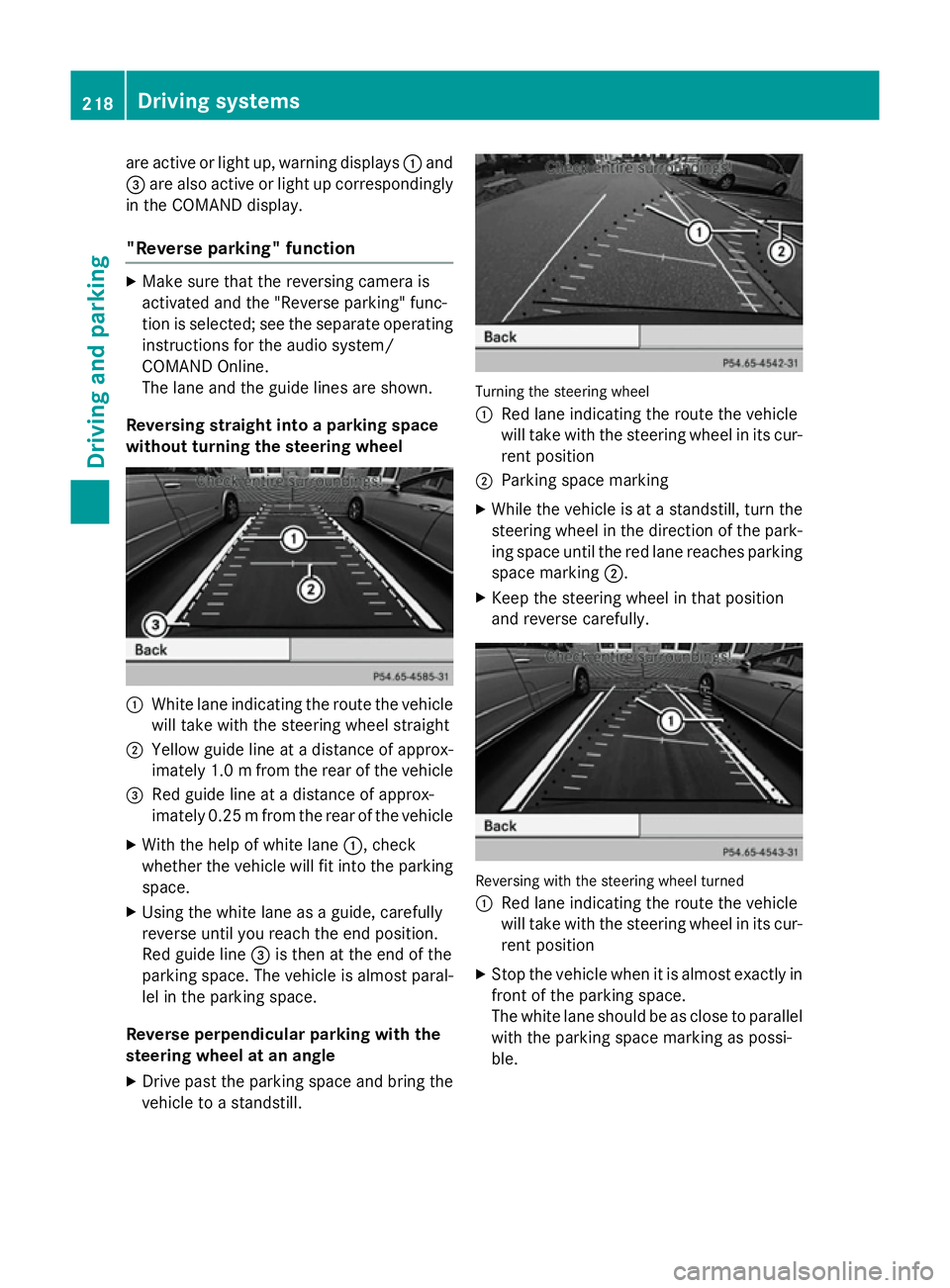
Reversing straight into a parking space
without turning the steering wheel :
White lane indicating the route the vehicle
will take with the steering wheel straight
; Yellow guide line at a distance of approx-
imately 1.0 mfrom the rear of the vehicle
= Red guide line at a distance of approx-
imately 0.25 mfrom the rear of the vehicle
X With the help of white lane :, check
whether the vehicle will fit into the parking space.
X Using the white lane as a guide, carefully
reverse until you reach the end position.
Red guide line =is then at the end of the
parking space. The vehicle is almost paral-
lel in the parking space.
Reverse perpendicular parking with the
steering wheel at an angle
X Drive past the parking space and bring the
vehicle to a standstill. Turning the steering wheel
: Red lane indicating the route the vehicle
will take with the steering wheel in its cur-
rent position
; Parking space marking
X While the vehicle is at a standstill, turn the
steering wheel in the direction of the park-ing space until the red lane reaches parkingspace marking ;.
X Keep the steering wheel in that position
and reverse carefully. Reversing with the steering wheel turned
:
Red lane indicating the route the vehicle
will take with the steering wheel in its cur-
rent position
X Stop the vehicle when it is almost exactly in
front of the parking space.
The white lane should be as close to parallel
with the parking space marking as possi-
ble. 218
Driving systemsDriving and parking
Page 222 of 401
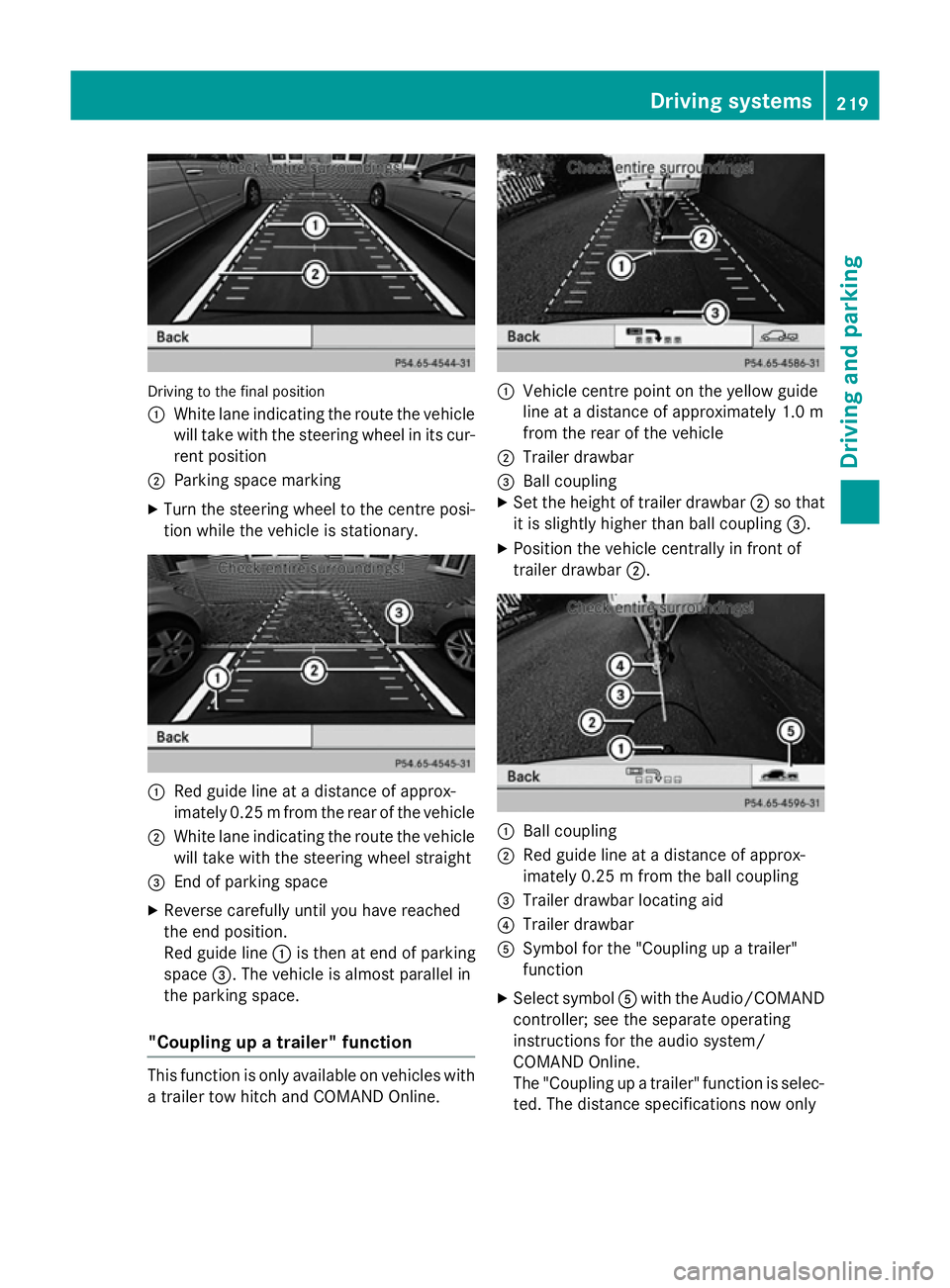
Driving to the final position
:
White lane indicating the route the vehicle
will take with the steering wheel in its cur-
rent position
; Parking space marking
X Turn the steering wheel to the centre posi-
tion while the vehicle is stationary. :
Red guide line at a distance of approx-
imately 0.25 mfrom the rear of the vehicle
; White lane indicating the route the vehicle
will take with the steering wheel straight
= End of parking space
X Reverse carefully until you have reached
the end position.
Red guide line :is then at end of parking
space =. The vehicle is almost parallel in
the parking space.
"Coupling up a trailer" function This function is only available on vehicles with
a trailer tow hitch and COMAND Online. :
Vehicle centre point on the yellow guide
line at a distance of approximately 1.0 m
from the rear of the vehicle
; Trailer drawbar
= Ball coupling
X Set the height of trailer drawbar ;so that
it is slightly higher than ball coupling =.
X Position the vehicle centrally in front of
trailer drawbar ;. :
Ball coupling
; Red guide line at a distance of approx-
imately 0.25 m from the ball coupling
= Trailer drawbar locating aid
? Trailer drawbar
A Symbol for the "Coupling up a trailer"
function
X Select symbol Awith the Audio/COMAND
controller; see the separate operating
instructions for the audio system/
COMAND Online.
The "Coupling up a trailer" function is selec- ted. The distance specifications now only Driving systems
219Driving and parking Z
Page 239 of 401
Left control panel
=
; R
Calls up the menu and menu bar 9
: Press briefly:
R Scrolls through lists
R Selects a submenu or function
R In the Audio Audio menu: selects a
stored station, an audio track or
a video scene
R In the Tel
Tel (telephone) menu:
switches to the phone book and
selects a name or telephone
number 9
: Press and hold:
R In the Audio Audio menu: selects the
previous/next station or selects
an audio track or a video scene
using rapid scrolling
R In the Tel
Tel (telephone) menu:
starts rapid scrolling through the
phone book a R
Confirms selection/display mes-
sage
R In the Tel Tel(Telephone) menu:
switches to the telephone book
and starts dialling the selected
number
R In the Audio Audio menu: stops the
station search function at the
desired station Right control panel
~ R
Rejects or ends a call
R Exits telephone book/redial
memory 6 R
Makes or accepts a call
R Switches to the redial memory W
X R
Adjusts the volume 8 R
Mute Back button
% Press briefly:
R Back
R Switches off LINGUATRONIC,
see the separate operating
instructions
R Hides display messages
R Exits the telephone book/redial
memory % Press and hold:
R Calls up the standard display in
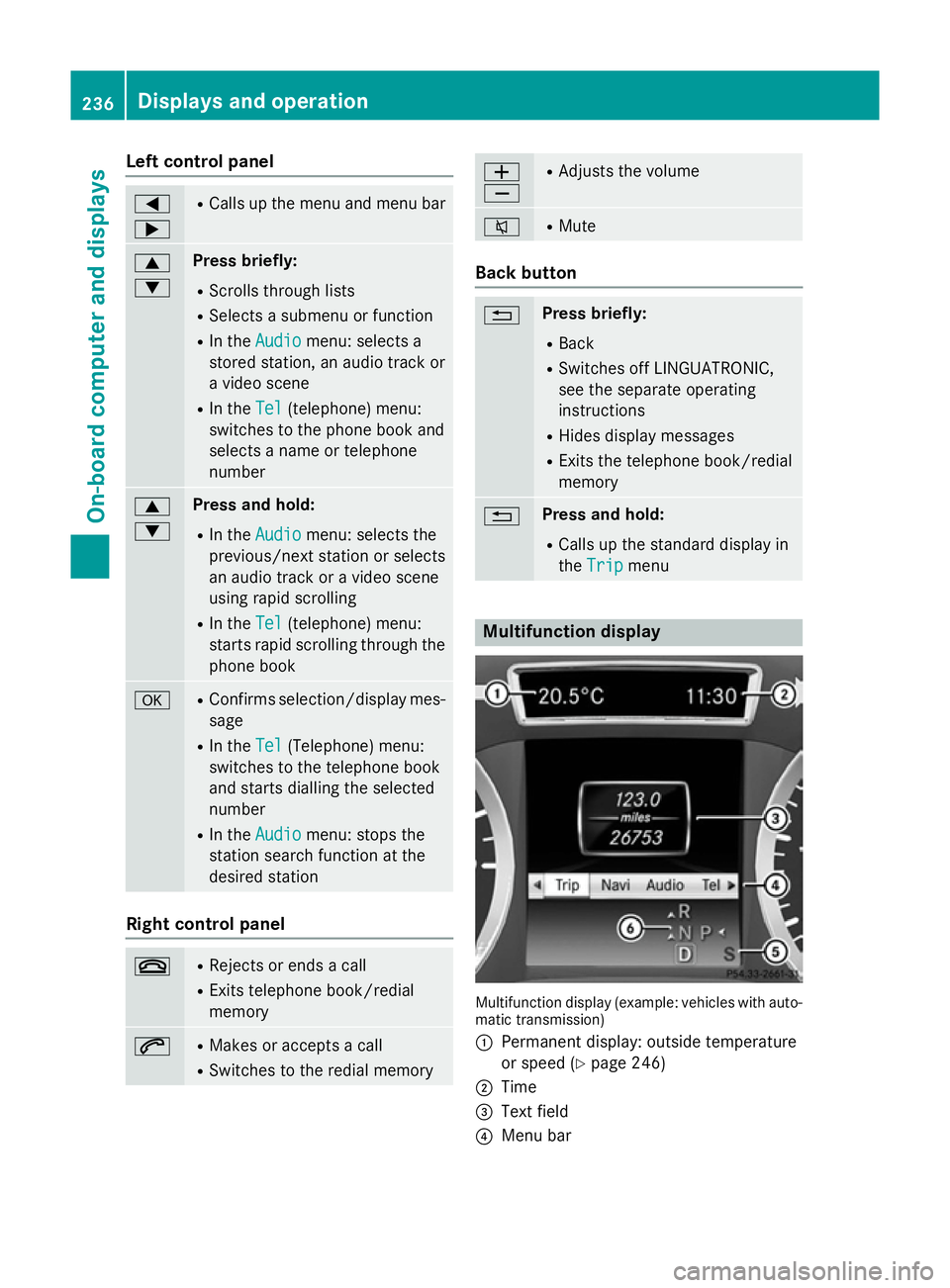
the Trip Trip menu Multifunction display
Multifunction display (example: vehicles with auto-
matic transmission)
: Permanent display: outside temperature
or speed (Y page 246)
; Time
= Text field
? Menu bar 236
Displays and operationOn-board computer and displays
Page 240 of 401
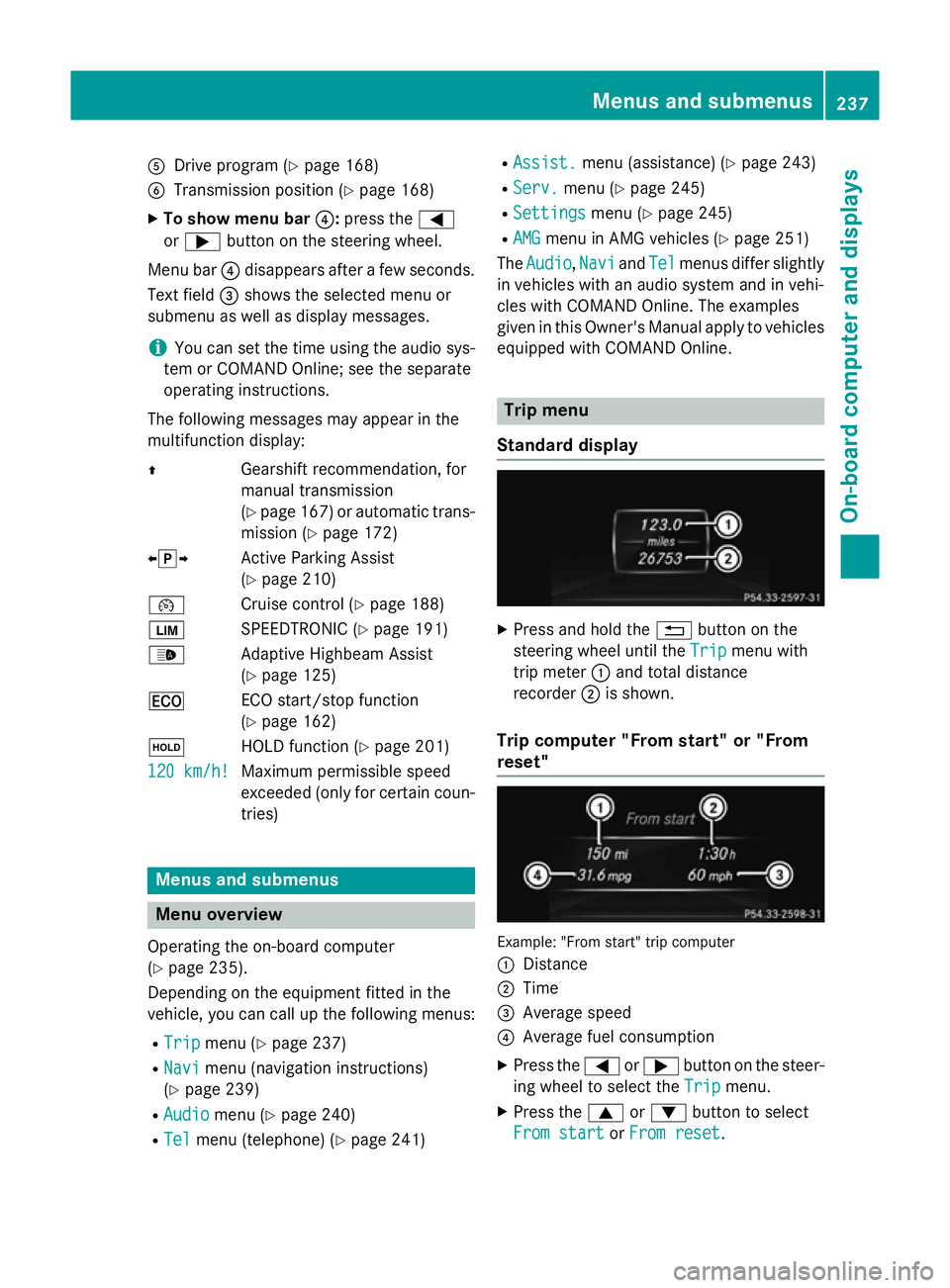
A
Drive program (Y page 168)
B Transmission position (Y page 168)
X To show menu bar ?:press the =
or ; button on the steering wheel.
Menu bar ?disappears after a few seconds.
Text field =shows the selected menu or
submenu as well as display messages.
i You can set the time using the audio sys-
tem or COMAND Online; see the separate
operating instructions.
The following messages may appear in the
multifunction display:
Z Gearshift recommendation, for
manual transmission
(Ypage 167 )or automatic trans-
mission (Y page 172)
XjY Active Parking Assist
(Ypage 210)
¯ Cruise control (Y page 188)
È SPEEDTRONIC (Y page 191)
_ Adaptive Highbeam Assist
(Ypage 125)
¤ ECO start/stop function
(Ypage 162)
ë HOLD function (Y page 201)
120 km/h!
120 km/h! Maximum permissible speed
exceeded (only for certain coun-
tries) Menus and submenus
Menu overview
Operating the on-board computer
(Y page 235).
Depending on the equipment fitted in the
vehicle, you can call up the following menus:
R Trip Trip menu (Y page 237)
R Navi
Navi menu (navigation instructions)
(Y page 239)
R Audio
Audio menu (Y page 240)
R Tel Tel menu (telephone) (Y page 241)R
Assist. Assist. menu (assistance) (Y page 243)
R Serv.
Serv. menu (Y page 245)
R Settings
Settings menu (Ypage 245)
R AMG
AMG menu in AMG vehicles (Y page 251)
The Audio
Audio, Navi
NaviandTel
Tel menus differ slightly
in vehicles with an audio system and in vehi-
cles with COMAND Online. The examples
given in this Owner's Manual apply to vehicles
equipped with COMAND Online. Trip menu
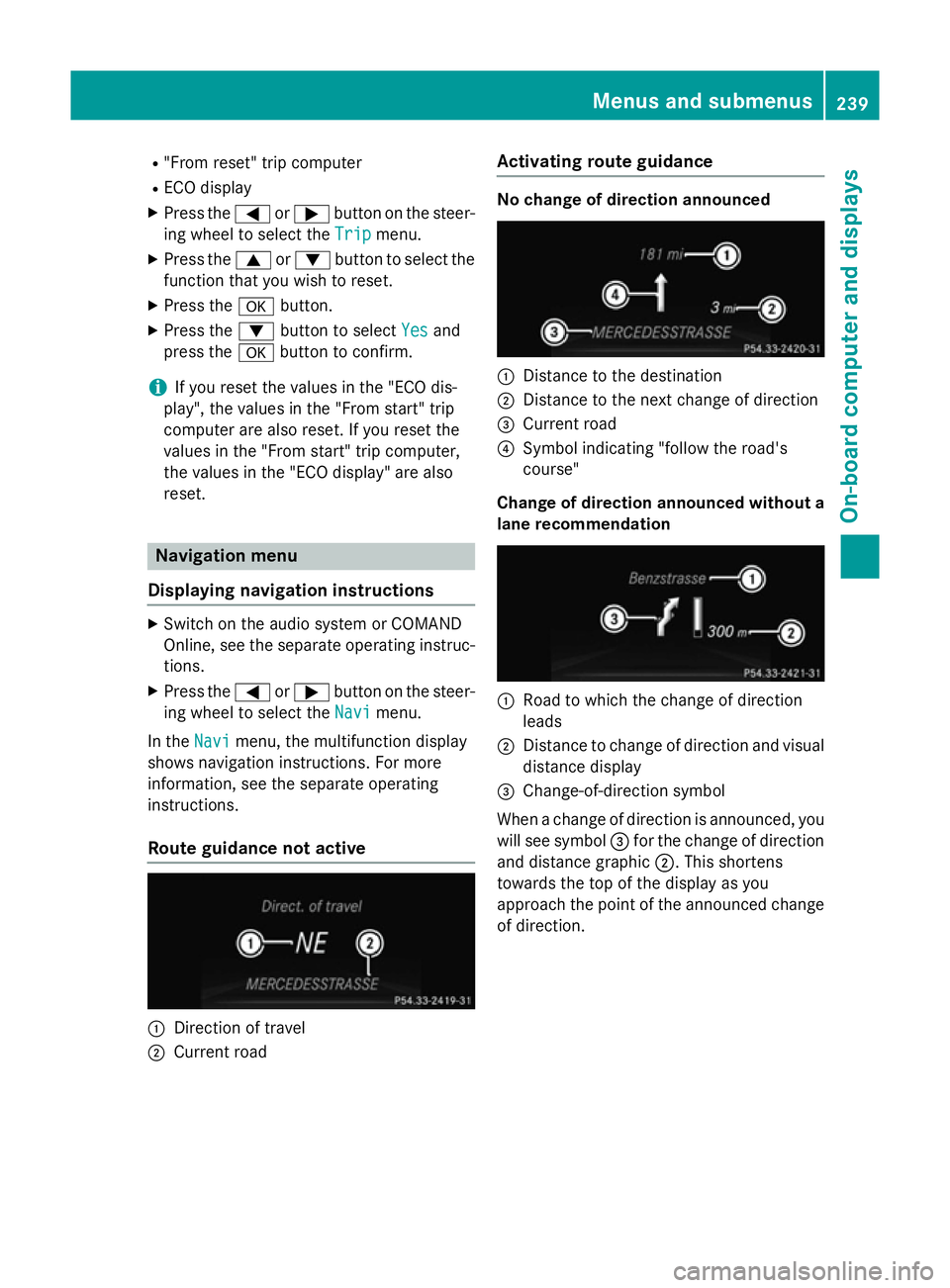
Standard display X
Press and hold the %button on the
steering wheel until the Trip Tripmenu with
trip meter :and total distance
recorder ;is shown.
Trip computer "From start" or "From
reset" Example: "From start" trip computer
:
Distance
; Time
= Average speed
? Average fuel consumption
X Press the =or; button on the steer-
ing wheel to select the Trip Tripmenu.
X Press the 9or: button to select
From start
From start orFrom reset
From reset. Menus and submenus
237On-board computer and displays Z
Page 242 of 401
R
"From reset" trip computer
R ECO display
X Press the =or; button on the steer-
ing wheel to select the Trip
Tripmenu.
X Press the 9or: button to select the
function that you wish to reset.
X Press the abutton.
X Press the :button to select Yes
Yesand
press the abutton to confirm.
i If you reset the values in the "ECO dis-
play", the values in the "From start" trip
computer are also reset. If you reset the
values in the "From start" trip computer,
the values in the "ECO display" are also
reset. Navigation menu
Displaying navigation instructions X
Switch on the audio system or COMAND
Online, see the separate operating instruc-
tions.
X Press the =or; button on the steer-
ing wheel to select the Navi
Navi menu.
In the Navi Navimenu, the multifunction display
shows navigation instructions. For more
information, see the separate operating
instructions.
Route guidance not active :
Direction of travel
; Current road Activating route guidance No change of direction announced
:
Distance to the destination
; Distance to the next change of direction
= Current road
? Symbol indicating "follow the road's
course"
Change of direction announced without a lane recommendation :
Road to which the change of direction
leads
; Distance to change of direction and visual
distance display
= Change-of-direction symbol
When a change of direction is announced, you
will see symbol =for the change of direction
and distance graphic ;. This shortens
towards the top of the display as you
approach the point of the announced change
of direction. Menus and submenus
239On-board computer and displays Z
Page 243 of 401
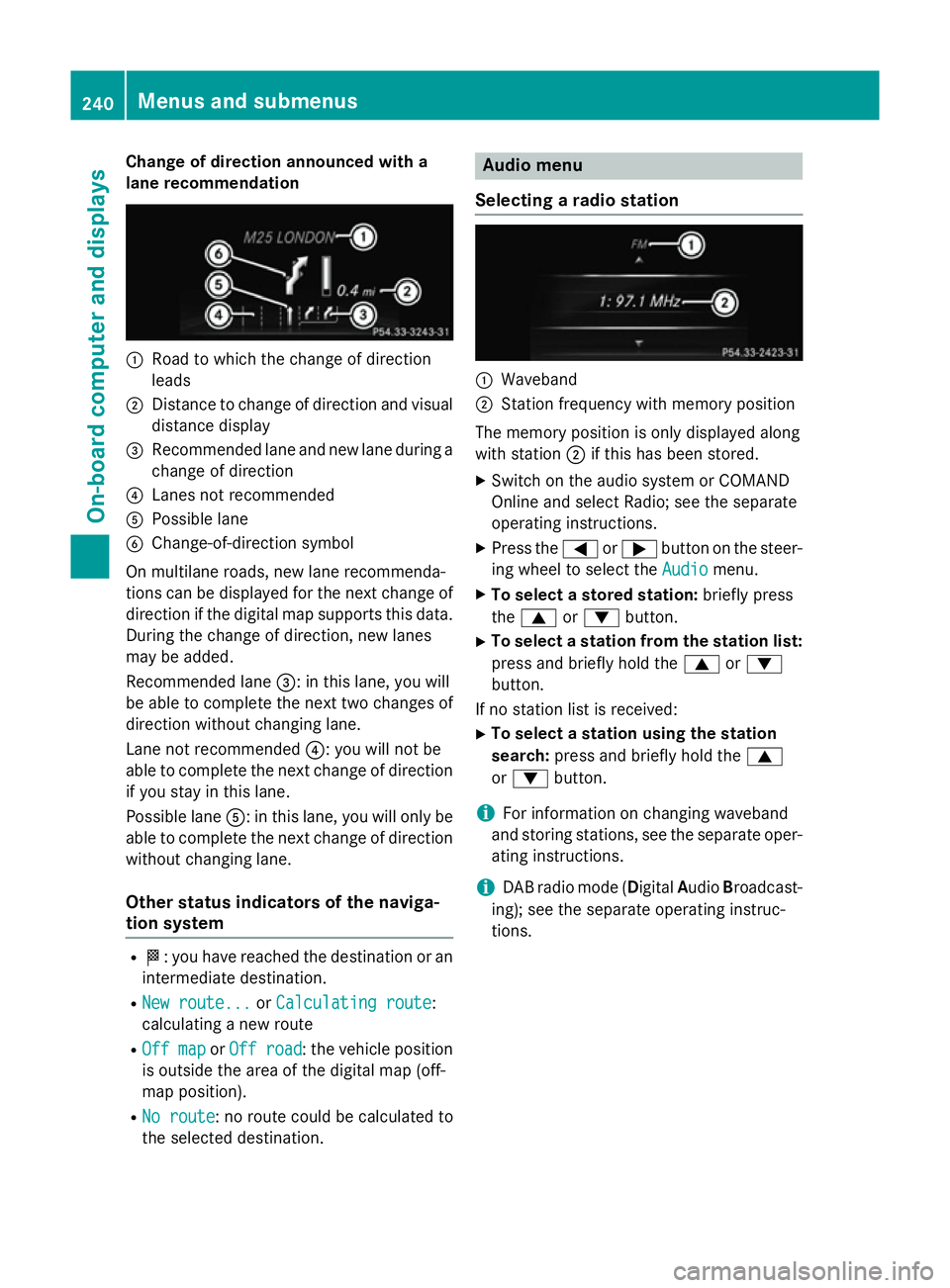
Change of direction announced with a
lane recommendation :
Road to which the change of direction
leads
; Distance to change of direction and visual
distance display
= Recommended lane and new lane during a
change of direction
? Lanes not recommended
A Possible lane
B Change-of-direction symbol
On multilane roads, new lane recommenda-
tions can be displayed for the next change of
direction if the digital map supports this data.
During the change of direction, new lanes
may be added.
Recommended lane =: in this lane, you will
be able to complete the next two changes of
direction without changing lane.
Lane not recommended ?: you will not be
able to complete the next change of direction if you stay in this lane.
Possible lane A: in this lane, you will only be
able to complete the next change of direction
without changing lane.
Other status indicators of the naviga-
tion system R
O: you have reached the destination or an
intermediate destination.
R New route...
New route... orCalculating route Calculating route:
calculating a new route
R Off map
Off map orOff road
Off road : the vehicle position
is outside the area of the digital map (off-
map position).
R No route
No route : no route could be calculated to
the selected destination. Audio menu
Selecting a radio station :
Waveband
; Station frequency with memory position
The memory position is only displayed along
with station ;if this has been stored.
X Switch on the audio system or COMAND
Online and select Radio; see the separate
operating instructions.
X Press the =or; button on the steer-
ing wheel to select the Audio Audiomenu.
X To select a stored station: briefly press
the 9 or: button.
X To select a station from the station list:
press and briefly hold the 9or:
button.
If no station list is received: X To select a station using the station
search: press and briefly hold the 9
or : button.
i For information on changing waveband
and storing stations, see the separate oper-
ating instructions.
i DAB radio mode (Digital
AudioBroadcast-
ing); see the separate operating instruc-
tions. 240
Menus and submenusOn-board computer and displays
Page 244 of 401
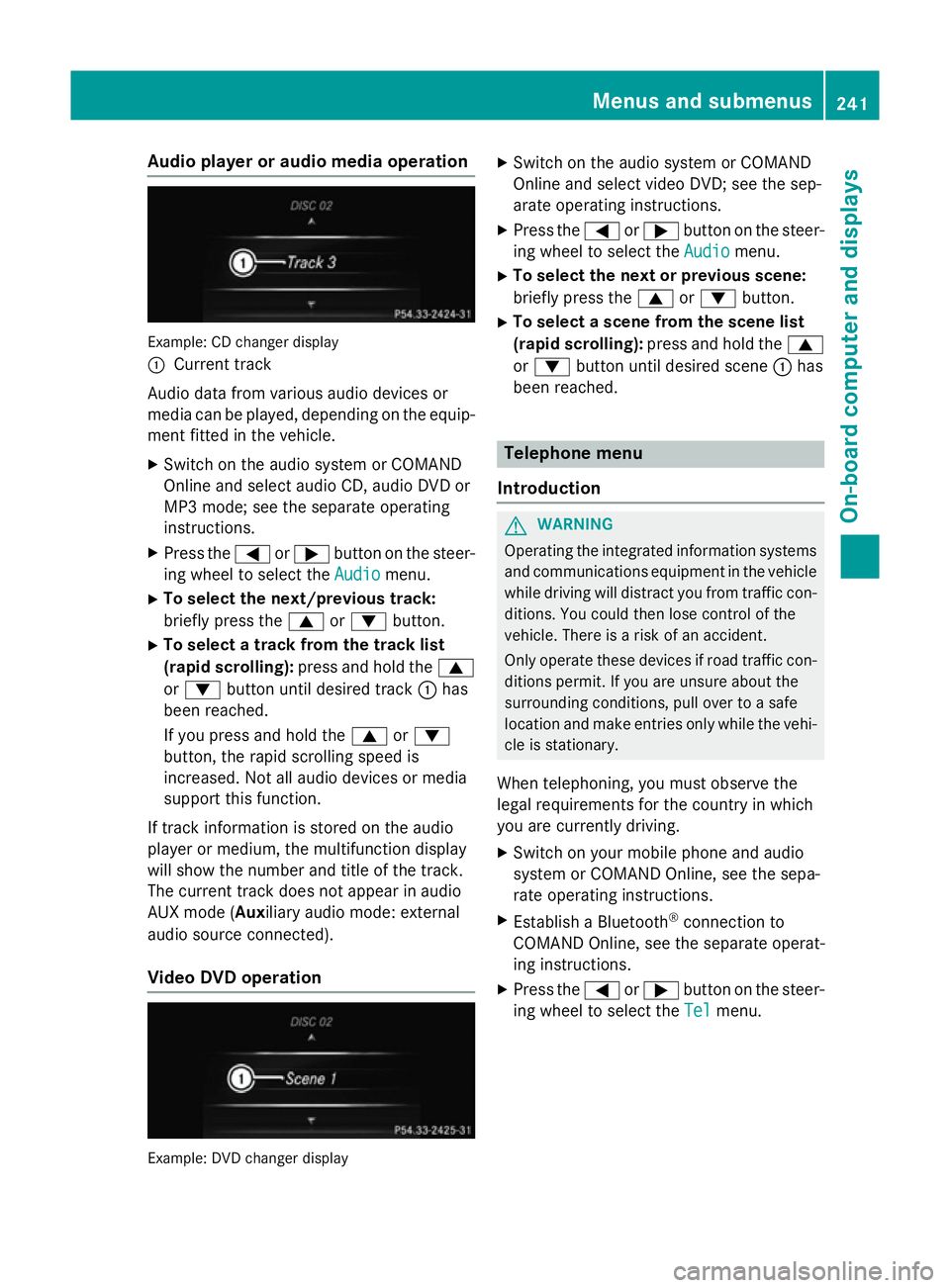
Audio player or audio media operation
Example: CD changer display
:
Current track
Audio data from various audio devices or
media can be played, depending on the equip- ment fitted in the vehicle.
X Switch on the audio system or COMAND
Online and select audio CD, audio DVD or
MP3 mode; see the separate operating
instructions.
X Press the =or; button on the steer-
ing wheel to select the Audio Audiomenu.
X To select the next/previous track:
briefly press the 9or: button.
X To select a track from the track list
(rapid scrolling): press and hold the 9
or : button until desired track :has
been reached.
If you press and hold the 9or:
button, the rapid scrolling speed is
increased. Not all audio devices or media
support this function.
If track information is stored on the audio
player or medium, the multifunction display
will show the number and title of the track.
The current track does not appear in audio
AUX mode ( Auxiliary audio mode: external
audio source connected).
Video DVD operation Example: DVD changer display X
Switch on the audio system or COMAND
Online and select video DVD; see the sep-
arate operating instructions.
X Press the =or; button on the steer-
ing wheel to select the Audio
Audio menu.
X To select the next or previous scene:
briefly press the 9or: button.
X To select a scene from the scene list
(rapid scrolling): press and hold the 9
or : button until desired scene :has
been reached. Telephone menu
Introduction G
WARNING
Operating the integrated information systems and communications equipment in the vehicle
while driving will distract you from traffic con-
ditions. You could then lose control of the
vehicle. There is a risk of an accident.
Only operate these devices if road traffic con-
ditions permit. If you are unsure about the
surrounding conditions, pull over to a safe
location and make entries only while the vehi-
cle is stationary.
When telephoning, you must observe the
legal requirements for the country in which
you are currently driving.
X Switch on your mobile phone and audio
system or COMAND Online, see the sepa-
rate operating instructions.
X Establish a Bluetooth ®
connection to
COMAND Online, see the separate operat-
ing instructions.
X Press the =or; button on the steer-
ing wheel to select the Tel
Tel menu. Menus and sub
menus
241On-board computer and displays Z
Page 305 of 401
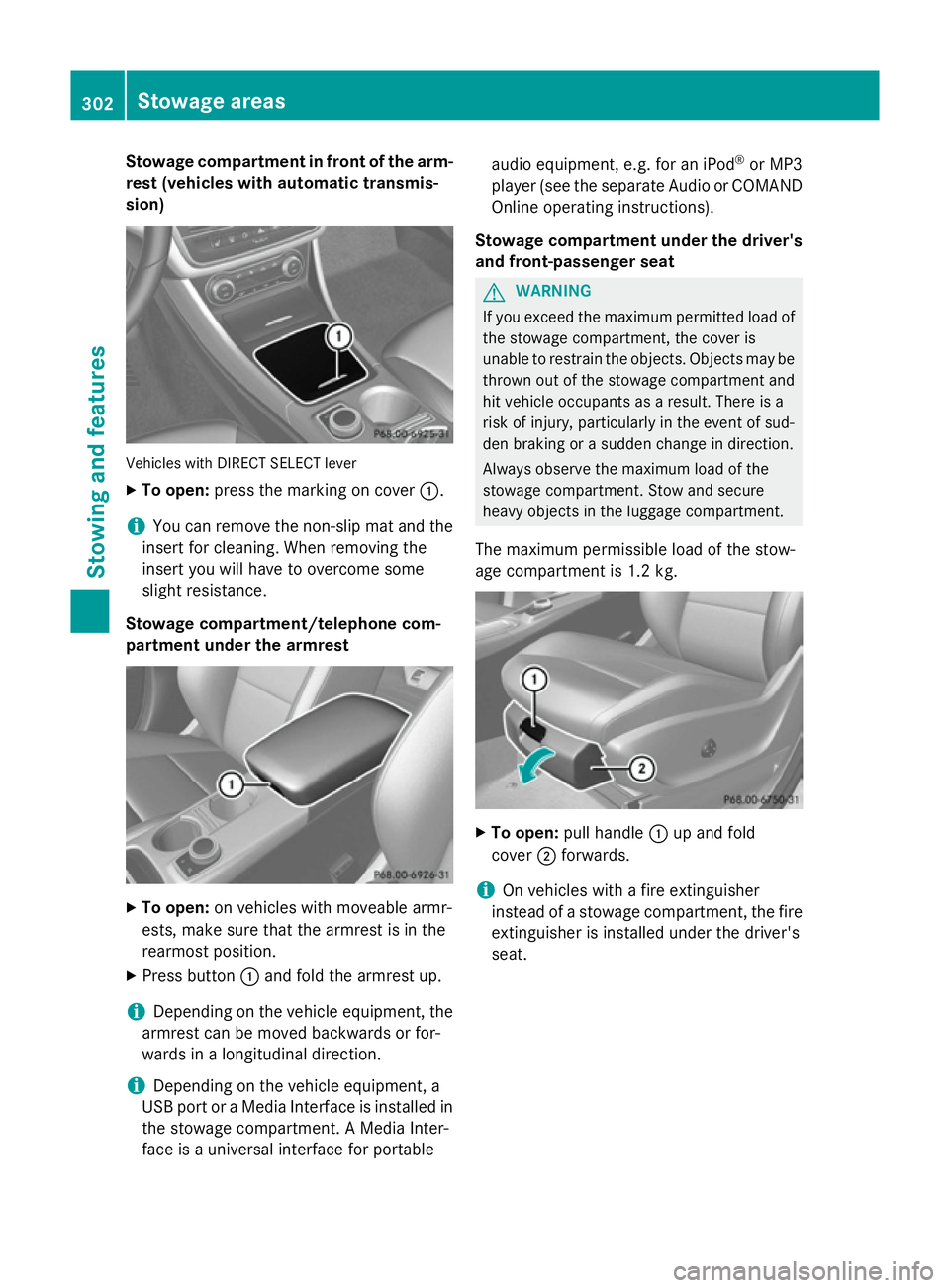
Stowage compartment in front of the arm-
rest (vehicles with automatic transmis-
sion) Vehicles with DIRECT SELECT lever
X To open: press the marking on cover :.
i You can remove the non-slip mat and the
insert for cleaning. When removing the
insert you will have to overcome some
slight resistance.
Stowage compartment/telephone com-
partment under the armrest X
To open: on vehicles with moveable armr-
ests, make sure that the armrest is in the
rearmost position.
X Press button :and fold the armrest up.
i Depending on the vehicle equipment, the
armrest can be moved backwards or for-
wards in a longitudinal direction.
i Depending on the vehicle equipment, a
USB port or a Media Interface is installed in the stowage compartment. A Media Inter-
face is a universal interface for portable audio equipment, e.g. for an iPod
®
or MP3
player (see the separate Audio or COMAND Online operating instructions).
Stowage compartment under the driver's and front-passenger seat G
WARNING
If you exceed the maximum permitted load of the stowage compartment, the cover is
unable to restrain the objects. Objects may be
thrown out of the stowage compartment and
hit vehicle occupants as a result. There is a
risk of injury, particularly in the event of sud-
den braking or a sudden change in direction.
Always observe the maximum load of the
stowage compartment. Stow and secure
heavy objects in the luggage compartment.
The maximum permissible load of the stow-
age compartment is 1.2 kg. X
To open: pull handle :up and fold
cover ;forwards.
i On vehicles with a fire extinguisher
instead of a stowage compartment, the fire
extinguisher is installed under the driver's
seat. 302
Stowage areasStowing and features
Page 315 of 401
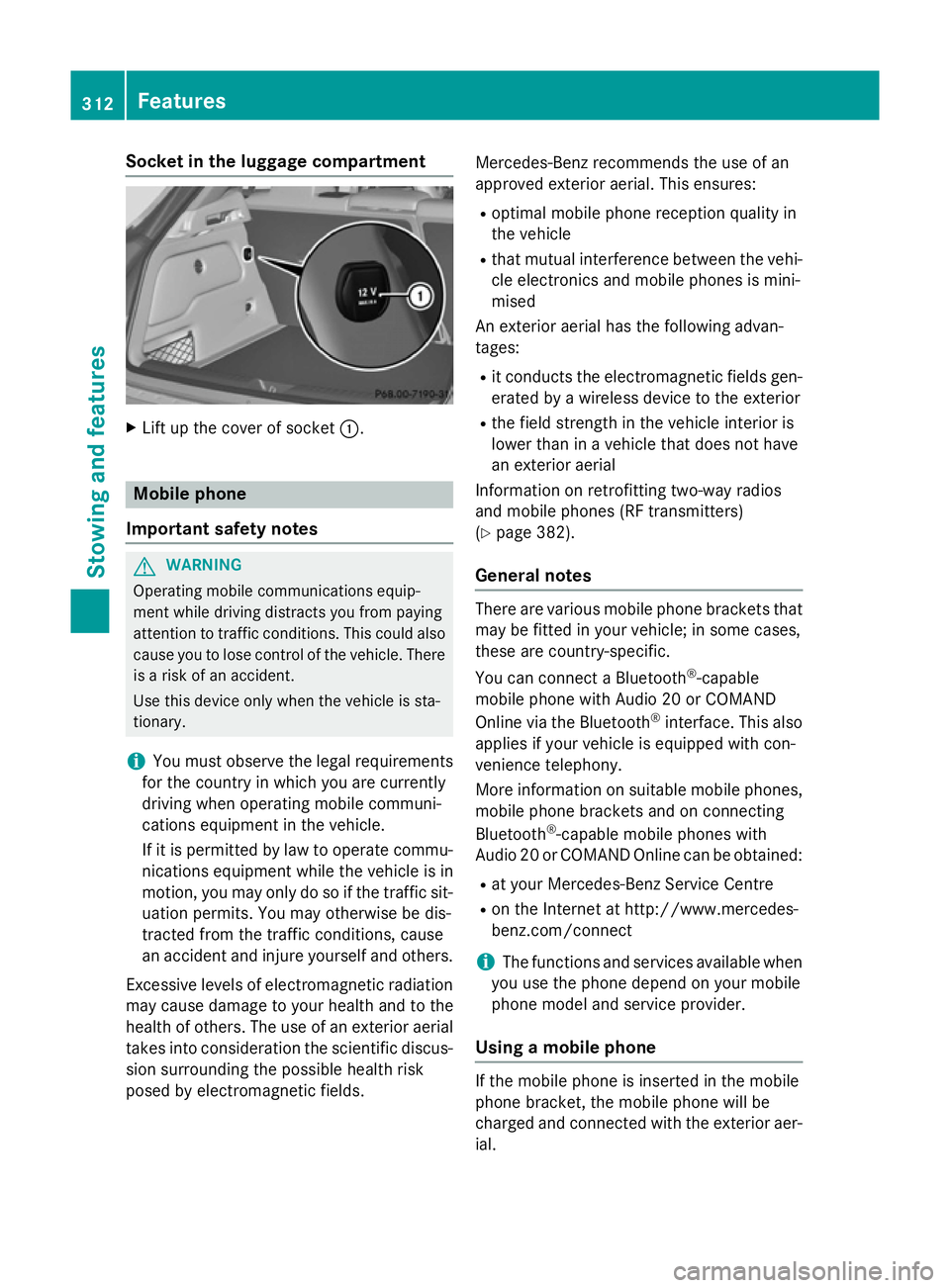
Socket in the luggage compartment
X
Lift up the cover of socket :.Mobile phone
Important safety notes G
WARNING
Operating mobile communications equip-
ment while driving distracts you from paying
attention to traffic conditions. This could also cause you to lose control of the vehicle. There
is a risk of an accident.
Use this device only when the vehicle is sta-
tionary.
i You must observe the legal requirements
for the country in which you are currently
driving when operating mobile communi-
cations equipment in the vehicle.
If it is permitted by law to operate commu-
nications equipment while the vehicle is in
motion, you may only do so if the traffic sit-
uation permits. You may otherwise be dis-
tracted from the traffic conditions, cause
an accident and injure yourself and others.
Excessive levels of electromagnetic radiation
may cause damage to your health and to the
health of others. The use of an exterior aerial takes into consideration the scientific discus-
sion surrounding the possible health risk
posed by electromagnetic fields. Mercedes-Benz recommends the use of an
approved exterior aerial. This ensures:
R optimal mobile phone reception quality in
the vehicle
R that mutual interference between the vehi-
cle electronics and mobile phones is mini-
mised
An exterior aerial has the following advan-
tages:
R it conducts the electromagnetic fields gen-
erated by a wireless device to the exterior
R the field strength in the vehicle interior is
lower than in a vehicle that does not have
an exterior aerial
Information on retrofitting two-way radios
and mobile phones (RF transmitters)
(Y page 382).
General notes There are various mobile phone brackets that
may be fitted in your vehicle; in some cases,
these are country-specific.
You can connect a Bluetooth ®
-capable
mobile phone with Audio 20 or COMAND
Online via the Bluetooth ®
interface. This also
applies if your vehicle is equipped with con-
venience telephony.
More information on suitable mobile phones,
mobile phone brackets and on connecting
Bluetooth ®
-capable mobile phones with
Audio 20 or COMAND Online can be obtained:
R at your Mercedes-Benz Service Centre
R on the Internet at http://www.mercedes-
benz.com/connect
i The functions and services available when
you use the phone depend on your mobile
phone model and service provider.
Using a mobile phone If the mobile phone is inserted in the mobile
phone bracket, the mobile phone will be
charged and connected with the exterior aer-
ial. 312
FeaturesStowing and features