display MERCEDES-BENZ GLC 2019 Repair Manual
[x] Cancel search | Manufacturer: MERCEDES-BENZ, Model Year: 2019, Model line: GLC, Model: MERCEDES-BENZ GLC 2019Pages: 370, PDF Size: 19.55 MB
Page 190 of 370
Do not use the 360° camera in this case. Youcan otherwise injure others or cause damage toobjects or the vehicle.
The guide lines in the multimedia system displayshow the distances to your vehicle. The distan-ces only apply to road level.
In trailer mode, the guide lines are shown at thelevel of the trailer tow hitch.
The camera in the rear area is protected bymeans of a flap. This flap opens when the 360°camera is activated. Observe the notes oncleaning (Ypage 309). For technical reasons,the flap may remain open briefly after the 360°camera has been deactivated.
The field of vision and other functions of thecamera system may be restricted due to addi-tional attachments (e.g. license plate holder,rear bicycle carrier).
On vehicles with height-adjustable chassis,depending on technical conditions, leaving thestandard height can result in:
Rinaccuracies in the guide lines
Rinaccuracies in the display of generatedimages (top view)
Activation conditions
The image from the 360° camera appears if:
Rthe multimedia system is switched on
Rthe360° Camera360° Camerafunction is switched on
If you are driving faster than at a moderatespeed and you turn on the 360° camera, a warn-ing message appears.
The warning message disappears if:
Ryou are again driving at a moderate speed The360° camera is then activated
Rthe message is confirmed with the8but-ton
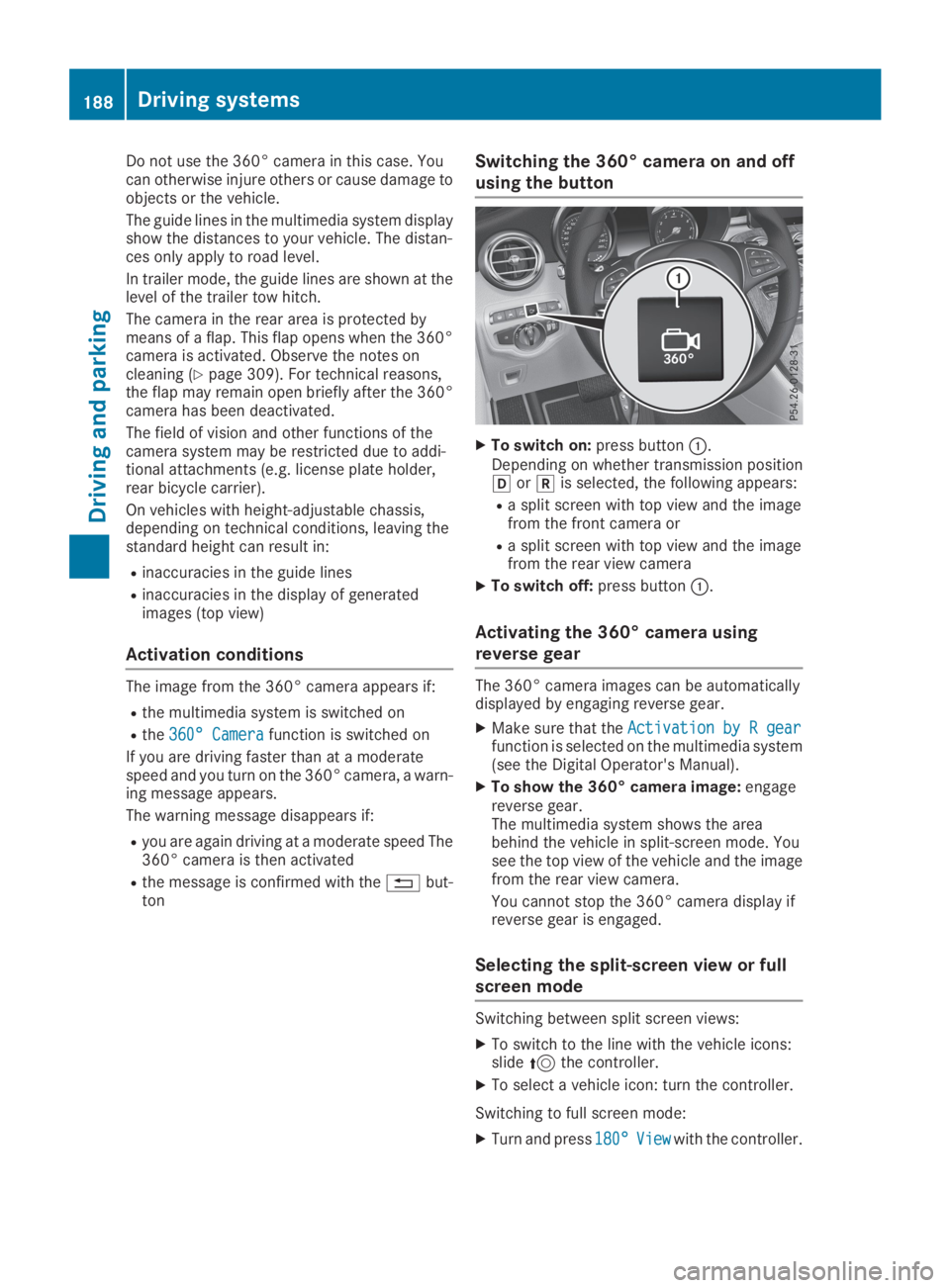
Switching the 360° camera on and off
using the button
XTo switch on:press buttonC.Depending on whether transmission position[or^is selected, the following appears:
Ra split screen with top view and the imagefrom the front camera or
Ra split screen with top view and the imagefrom the rear view camera
XTo switch off:press buttonC.
Activating the 360° camera using
reverse gear
The 360° camera images can be automaticallydisplayed by engaging reverse gear.
XMake sure that theActivation by R gearActivation by R gearfunction is selected on the multimedia system(see the Digital Operator's Manual).
XTo show the 360° camera image:engagereverse gear.The multimedia system shows the areabehind the vehicle in split-screen mode. Yousee the top view of the vehicle and the imagefrom the rear view camera.
You cannot stop the 360° camera display ifreverse gear is engaged.
Selecting the split-screen view or full
screen mode
Switching between split screen views:
XTo switch to the line with the vehicle icons:slide5the controller.
XTo select a vehicle icon: turn the controller.
Switching to full screen mode:
XTurn and press180°180°ViewViewwith the controller.
188Driving systems
Driving an d parking
Page 191 of 370
The full screen option is only available in the fol-lowing views:
RTop view with picture from the rear view cam-era
RTop view with picture from the front camera
Multimedia display
Important safety notes
The camera system may show a distorted viewof obstacles, show them incorrectly or not at all.Obstacles are not shown by the system in thefollowing locations:
Runder the front and rear bumpers
Rvery close to the front and rear bumpers
Rin the area immediately above the tailgatehandle
Rvery close to the exterior mirrors
Rin the transitional areas between the variouscameras in the virtual top view
!Objects not at ground level may appear tobe further away than they actually are, e.g.:
Rthe bumper of a parked vehicle
Rthe drawbar of a trailer
Rthe ball coupling of a trailer tow hitch
Rthe rear section of an HGV
Ra slanted post
Use the guidelines only for orientation.Approach objects no further than the bottom-most guideline.
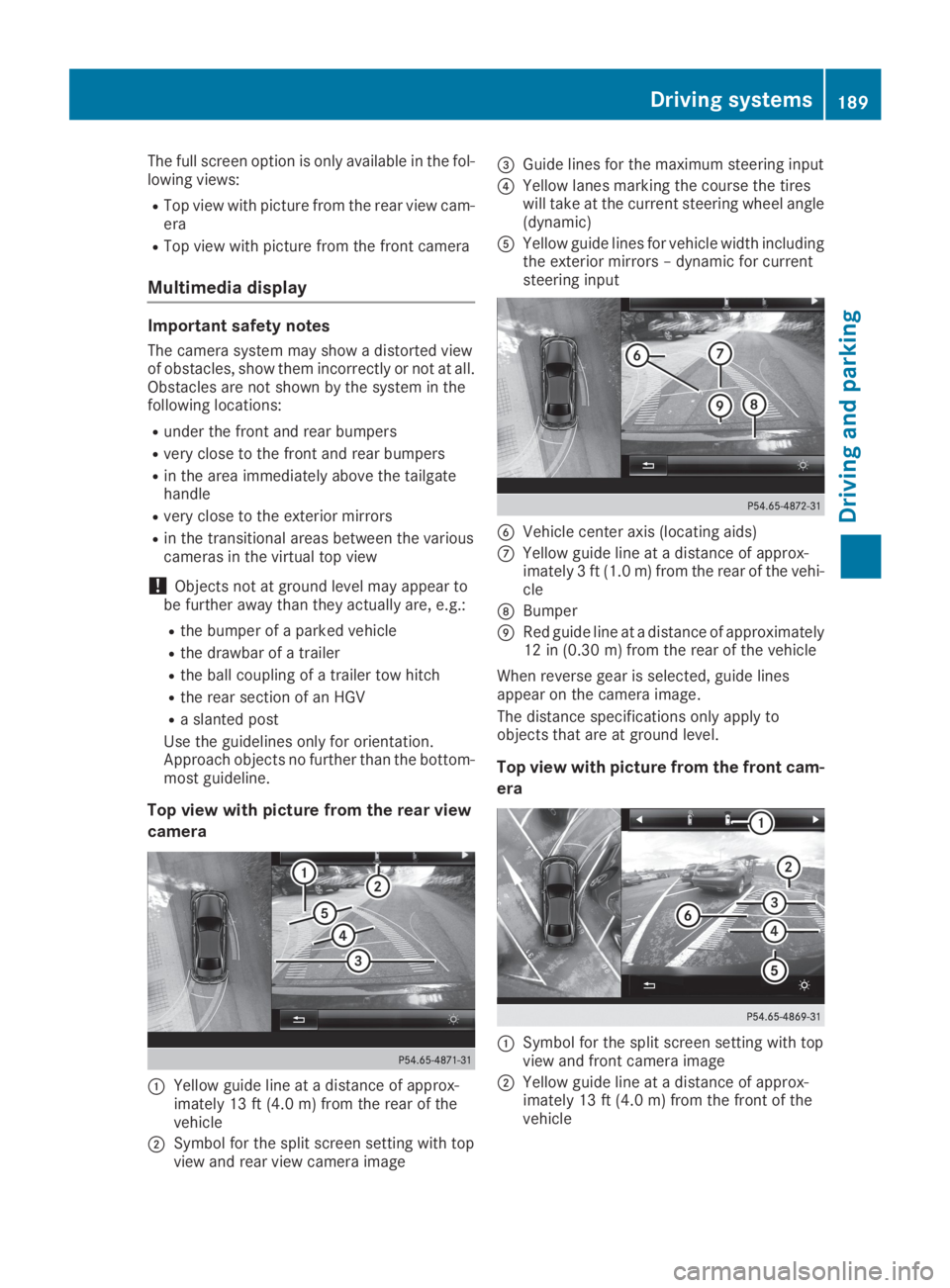
Top view with picture from the rear view
camera
CYellow guide line at a distance of approx-imately 13 ft (4.0 m) from the rear of thevehicle
DSymbol for the split screen setting with topview and rear view camera image
Page 194 of 370
Rif there is a strong side wind
Rif you have adopted a sporty driving style withhigh cornering speeds or high rates of accel-eration
Rif you are predominantly driving at a speedbelow 37 mph (60 km/h) or above 124 mph(200 km/h)
Rif you are driving with Active Steering Assist ofActive Distance Assist DISTRONIC activated
Rif the time has been set incorrectly
Rin active driving situations, such as when youchange lanes or change your speed
The ATTENTION ASSIST tiredness assessmentis deleted and restarted when continuing thejourney, if:
Ryou switch off the engine
Ryou take off your seat belt and open the driv-er's door, e.g. for a change of drivers or totake a break
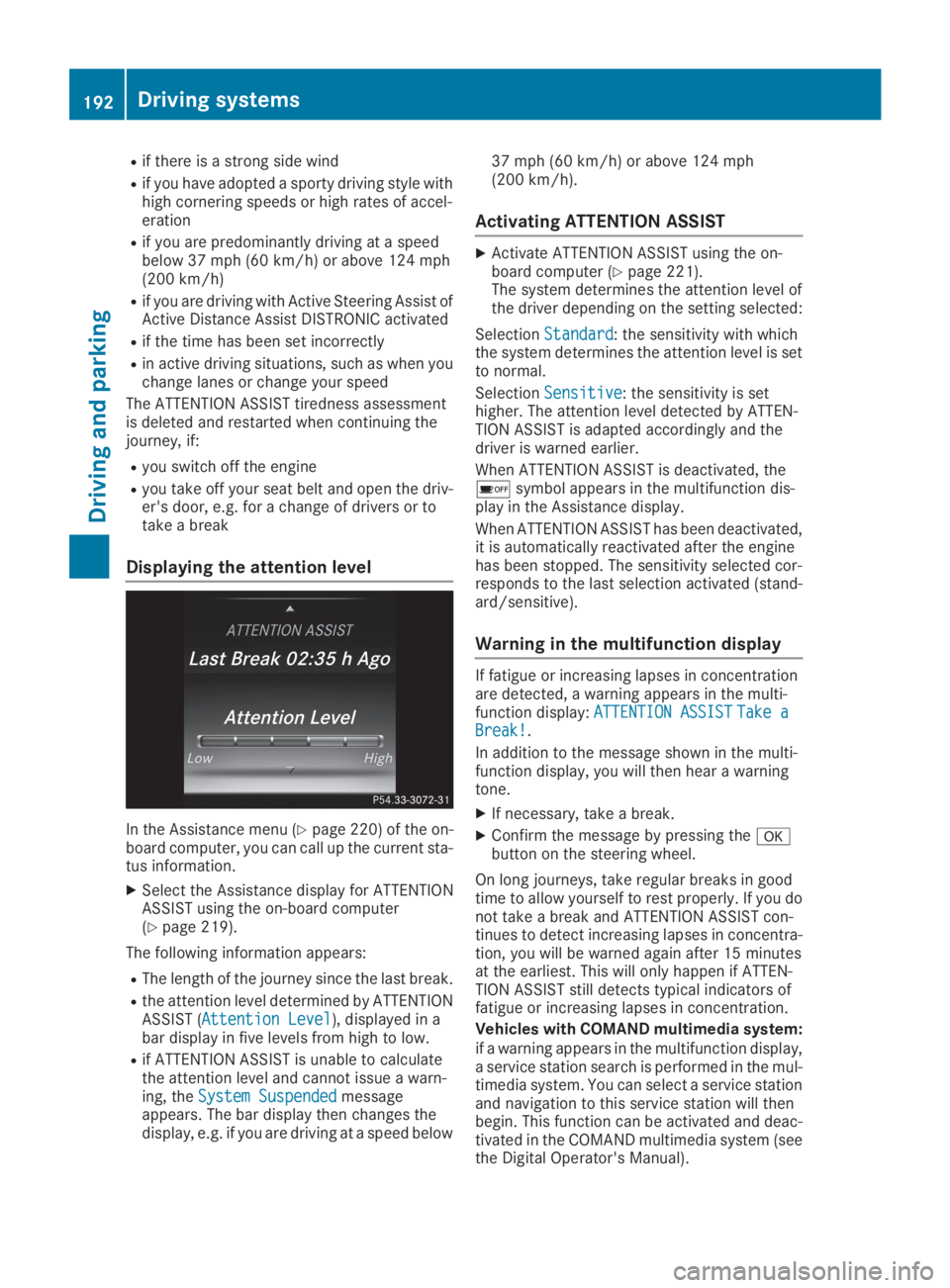
Displaying the attention level
In the Assistance menu (Ypage 220) of the on-board computer, you can call up the current sta-tus information.
XSelect the Assistance display for ATTENTIONASSIST using the on-board computer(Ypage 219).
The following information appears:
RThe length of the journey since the last break.
Rthe attention level determined by ATTENTIONASSIST (Attention LevelAttention Level), displayed in abar display in five levels from high to low.
Rif ATTENTION ASSIST is unable to calculatethe attention level and cannot issue a warn-ing, theSystem SuspendedSystem Suspendedmessageappears. The bar display then changes thedisplay, e.g. if you are driving at a speed below
37 mph (60 km/h) or above 124 mph(200 km/h).
Activating ATTENTION ASSIST
XActivate ATTENTION ASSIST using the on-board computer (Ypage 221).The system determines the attention level ofthe driver depending on the setting selected:
SelectionStandardStandard: the sensitivity with whichthe system determines the attention level is setto normal.
SelectionSensitiveSensitive: the sensitivity is sethigher. The attention level detected by ATTEN-TION ASSIST is adapted accordingly and thedriver is warned earlier.
When ATTENTION ASSIST is deactivated, the
Page 195 of 370
Traffic Sign Assist
General notes
Traffic Sign Assist displays the maximum speedpermitted to the driver in the instrument cluster.The data and general traffic regulations stored inthe navigation system are used to determine thecurrent speed limit.
Traffic Sign Assist is a map-based system, andfor this reason, traffic signs put up temporarily(e.g. near roadworks) are not detected. There isalso no display for changing traffic signs.
Traffic signs with a restriction indicated by anadditional sign (e.g. in wet conditions) are alsoshown.
The sign indicating the end of a restriction onlyappears with the restriction in the instrumentcluster when:
RThe regulation must be observed with therestriction, or
RTraffic Sign Assist is unable to determinewhether the restriction applies
If Traffic Sign Assist is unable to determine amaximum permitted speed from any of the avail-able sources, no speed limit appears in theinstrument cluster either.
Traffic Sign Assist is not available in all coun-tries. In this case, displayCappears in theassistance graphic (Ypage 219).
Important safety notes
Traffic Sign Assist is only an aid and is not alwaysable to correctly display speed limits. Trafficsigns always have priority over the Traffic SignAssist display.
The system may be either functionally impairedor temporarily unavailable if the information inthe digital street map of the navigation system isincorrect or out of date.
Instrument cluster display
Displaying the assistance graphic
XCall up the assistance graphic display func-tion using the on-board computer(Ypage 219).Detected traffic signs appear in the instru-ment cluster.
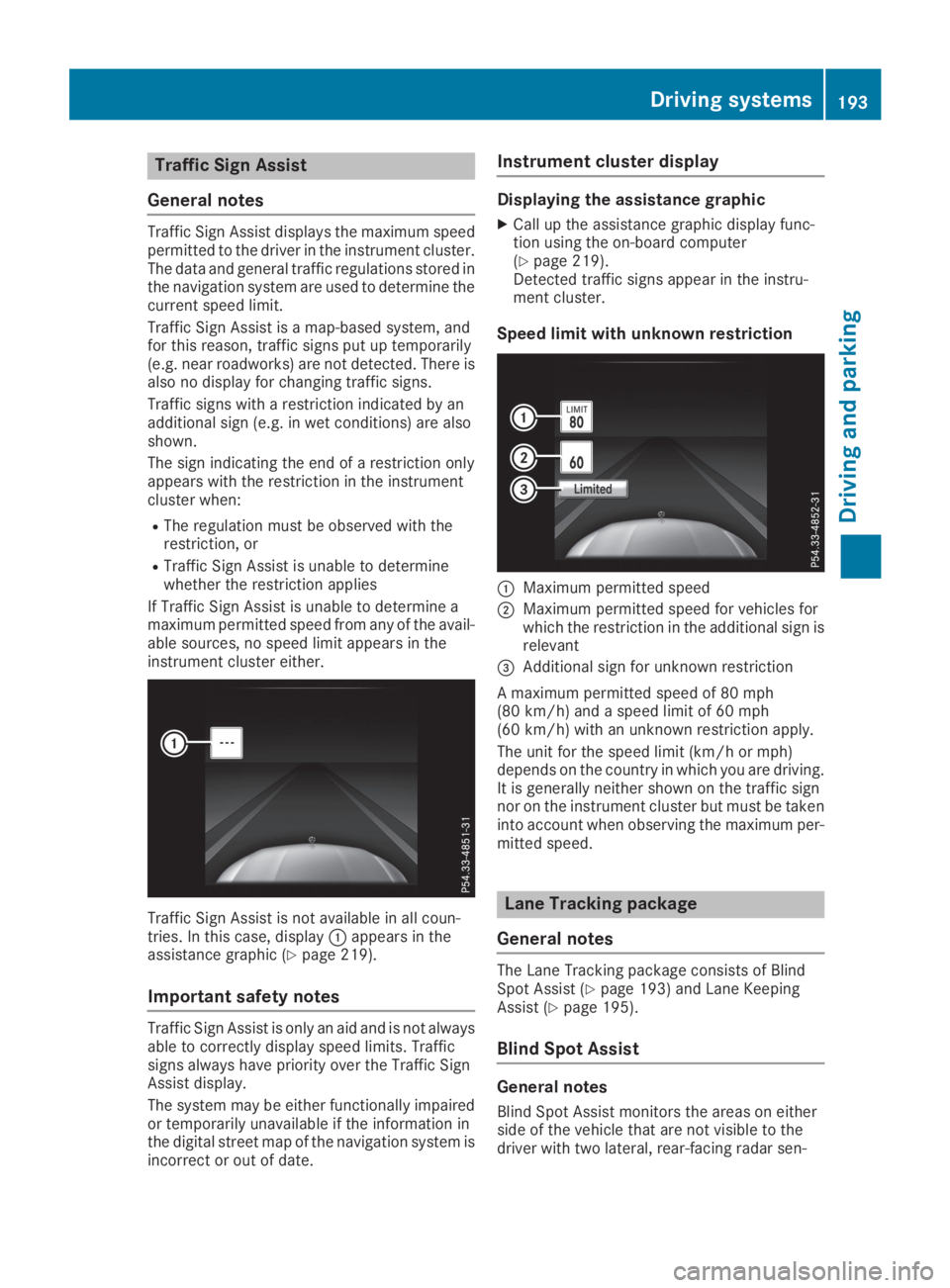
Speed limit with unknown restriction
CMaximum permitted speed
DMaximum permitted speed for vehicles forwhich the restriction in the additional sign isrelevant
Page 197 of 370
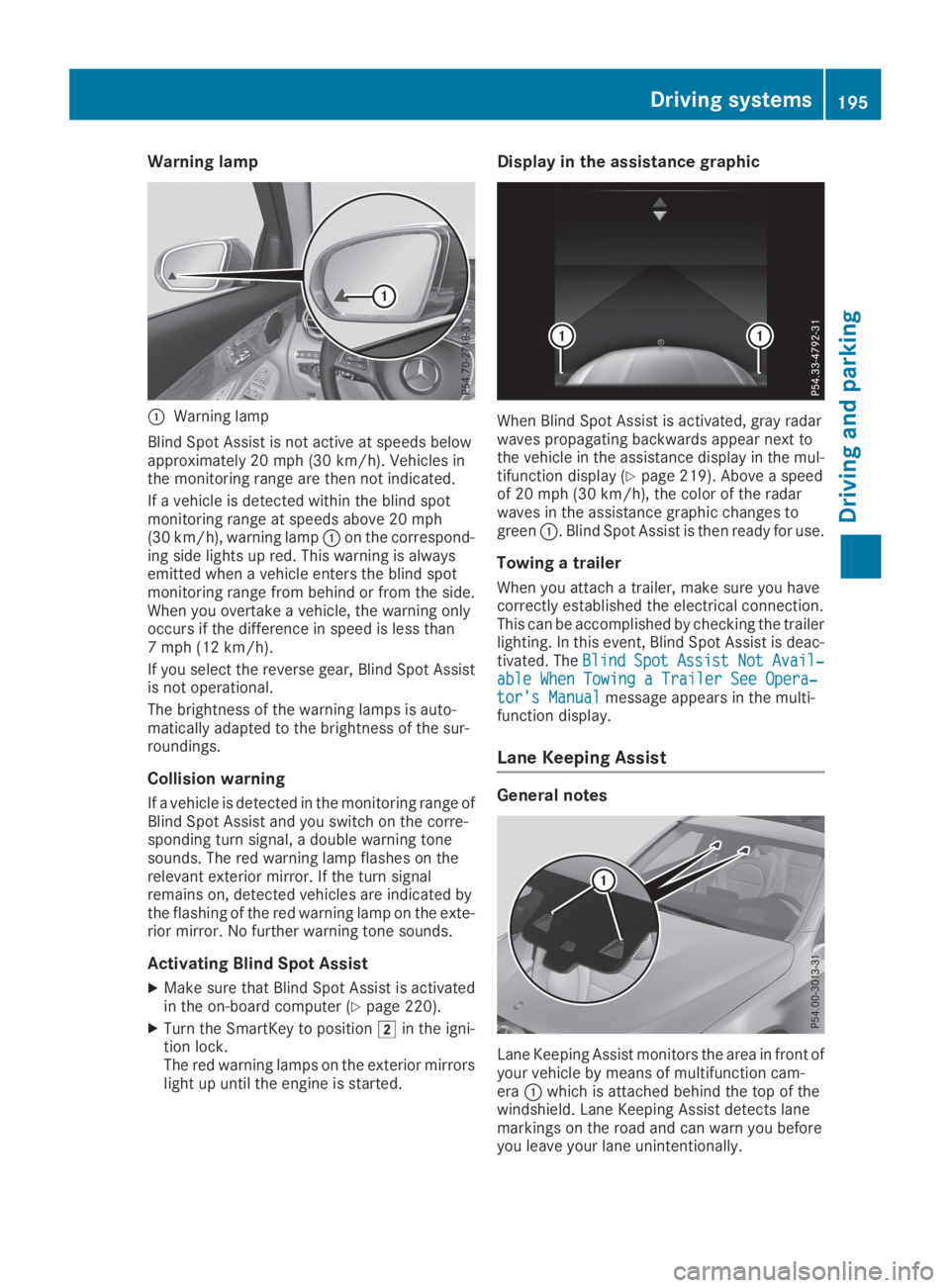
Warning lamp
CWarning lamp
Blind Spot Assist is not active at speeds belowapproximately 20 mph (30 km/h). Vehicles inthe monitoring range are then not indicated.
If a vehicle is detected within the blind spotmonitoring range at speeds above 20 mph(30 km/h), warning lampCon the correspond-ing side lights up red. This warning is alwaysemitted when a vehicle enters the blind spotmonitoring range from behind or from the side.When you overtake a vehicle, the warning onlyoccurs if the difference in speed is less than7 mph (12 km/h).
If you select the reverse gear, Blind Spot Assistis not operational.
The brightness of the warning lamps is auto-matically adapted to the brightness of the sur-roundings.
Collision warning
If a vehicle is detected in the monitoring range ofBlind Spot Assist and you switch on the corre-sponding turn signal, a double warning tonesounds. The red warning lamp flashes on therelevant exterior mirror. If the turn signalremains on, detected vehicles are indicated bythe flashing of the red warning lamp on the exte-rior mirror. No further warning tone sounds.
Activating Blind Spot Assist
XMake sure that Blind Spot Assist is activatedin the on-board computer (Ypage 220).
XTurn the SmartKey to positionHin the igni-tion lock.The red warning lamps on the exterior mirrorslight up until the engine is started.
Display in the assistance graphic
When Blind Spot Assist is activated, gray radarwaves propagating backwards appear next tothe vehicle in the assistance display in the mul-tifunction display (Ypage 219). Above a speedof 20 mph (30 km/h), the color of the radarwaves in the assistance graphic changes togreenC. Blind Spot Assist is then ready for use.
Towing a trailer
When you attach a trailer, make sure you havecorrectly established the electrical connection.This can be accomplished by checking the trailerlighting. In this event, Blind Spot Assist is deac-tivated. TheBlindBlindSpotSpotAssistAssistNotNotAvail‐Avail‐able When Towing a Trailer See Opera‐able When Towing a Trailer See Opera‐tor's Manualtor's Manualmessage appears in the multi-function display.
Lane Keeping Assist
General notes
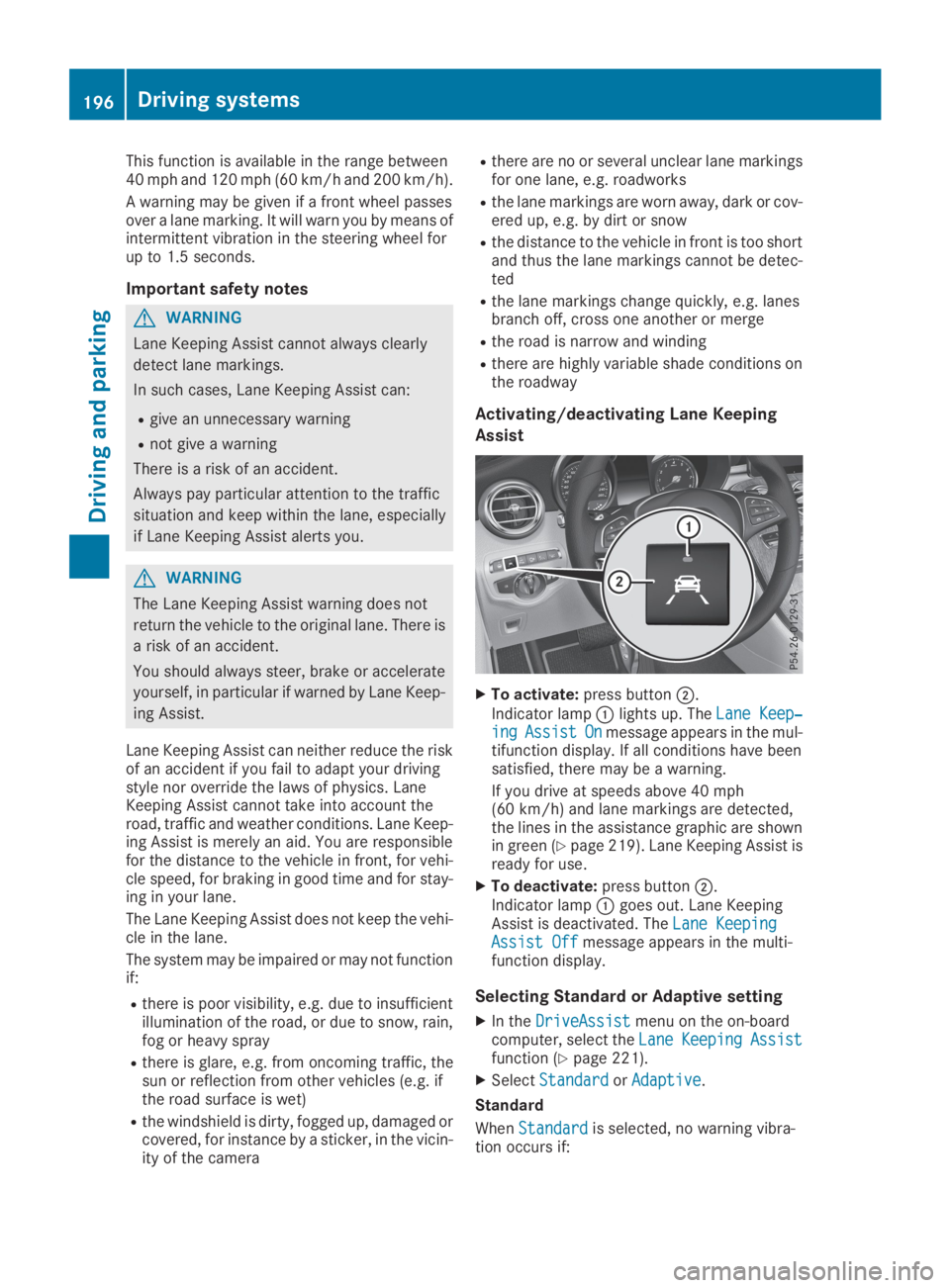
Lane Keeping Assist monitors the area in front ofyour vehicle by means of multifunction cam-eraCwhich is attached behind the top of thewindshield. Lane Keeping Assist detects lanemarkings on the road and can warn you beforeyou leave your lane unintentionally.
Driving systems195
Driving and parking
Z
Page 198 of 370
This function is available in the range between40 mph and 120 mph (60 km/hand 200 km/h).
A warning may be given if a front wheel passesover a lane marking. It will warn you by means ofintermittent vibration in the steering wheel forup to 1.5 seconds.
Important safety notes
GWARNING
Lane Keeping Assist cannot always clearly
detect lane markings.
In such cases, Lane Keeping Assist can:
Rgive an unnecessary warning
Rnot give a warning
There is a risk of an accident.
Always pay particular attention to the traffic
situation and keep within the lane, especially
if Lane Keeping Assist alerts you.
GWARNING
The Lane Keeping Assist warning does not
return the vehicle to the original lane. There is
a risk of an accident.
You should always steer, brake or accelerate
yourself, in particular if warned by Lane Keep-
ing Assist.
Lane Keeping Assist can neither reduce the riskof an accident if you fail to adapt your drivingstyle nor override the laws of physics. LaneKeeping Assist cannot take into account theroad, traffic and weather conditions. Lane Keep-ing Assist is merely an aid. You are responsiblefor the distance to the vehicle in front, for vehi-cle speed, for braking in good time and for stay-ing in your lane.
The Lane Keeping Assist does not keep the vehi-cle in the lane.
The system may be impaired or may not functionif:
Rthere is poor visibility, e.g. due to insufficientillumination of the road, or due to snow, rain,fog or heavy spray
Rthere is glare, e.g. from oncoming traffic, thesun or reflection from other vehicles (e.g. ifthe road surface is wet)
Rthe windshield is dirty, fogged up, damaged orcovered, for instance by a sticker, in the vicin-ity of the camera
Rthere are no or several unclear lane markingsfor one lane, e.g. roadworks
Rthe lane markings are worn away, dark or cov-ered up, e.g. by dirt or snow
Rthe distance to the vehicle in front is too shortand thus the lane markings cannot be detec-ted
Rthe lane markings change quickly, e.g. lanesbranch off, cross one another or merge
Rthe road is narrow and winding
Rthere are highly variable shade conditions onthe roadway
Activating/deactivating Lane Keeping
Assist
XTo activate:press buttonD.
Indicator lampClights up. TheLane Keep‐Lane Keep‐ingingAssistAssistOnOnmessage appears in the mul-tifunction display. If all conditions have beensatisfied, there may be a warning.
If you drive at speeds above 40 mph(60 km/h) and lane markings are detected,the lines in the assistance graphic are shownin green (Ypage 219). Lane Keeping Assist isready for use.
XTo deactivate:press buttonD.Indicator lampCgoes out. Lane KeepingAssist is deactivated. TheLane KeepingLane KeepingAssist OffAssist Offmessage appears in the multi-function display.
Selecting Standard or Adaptive setting
XIn theDriveAssistDriveAssistmenu on the on-boardcomputer, select theLaneLaneKeepingKeepingAssistAssistfunction (Ypage 221).
XSelectStandardStandardorAdaptiveAdaptive.
Standard
WhenStandardStandardis selected, no warning vibra-tion occurs if:
196Driving systems
Driving an d parking
Page 201 of 370
If you select the reverse gear, Active Blind SpotAssist is not operational.
The brightness of the warning lamps is auto-matically adapted to the brightness of the sur-roundings.
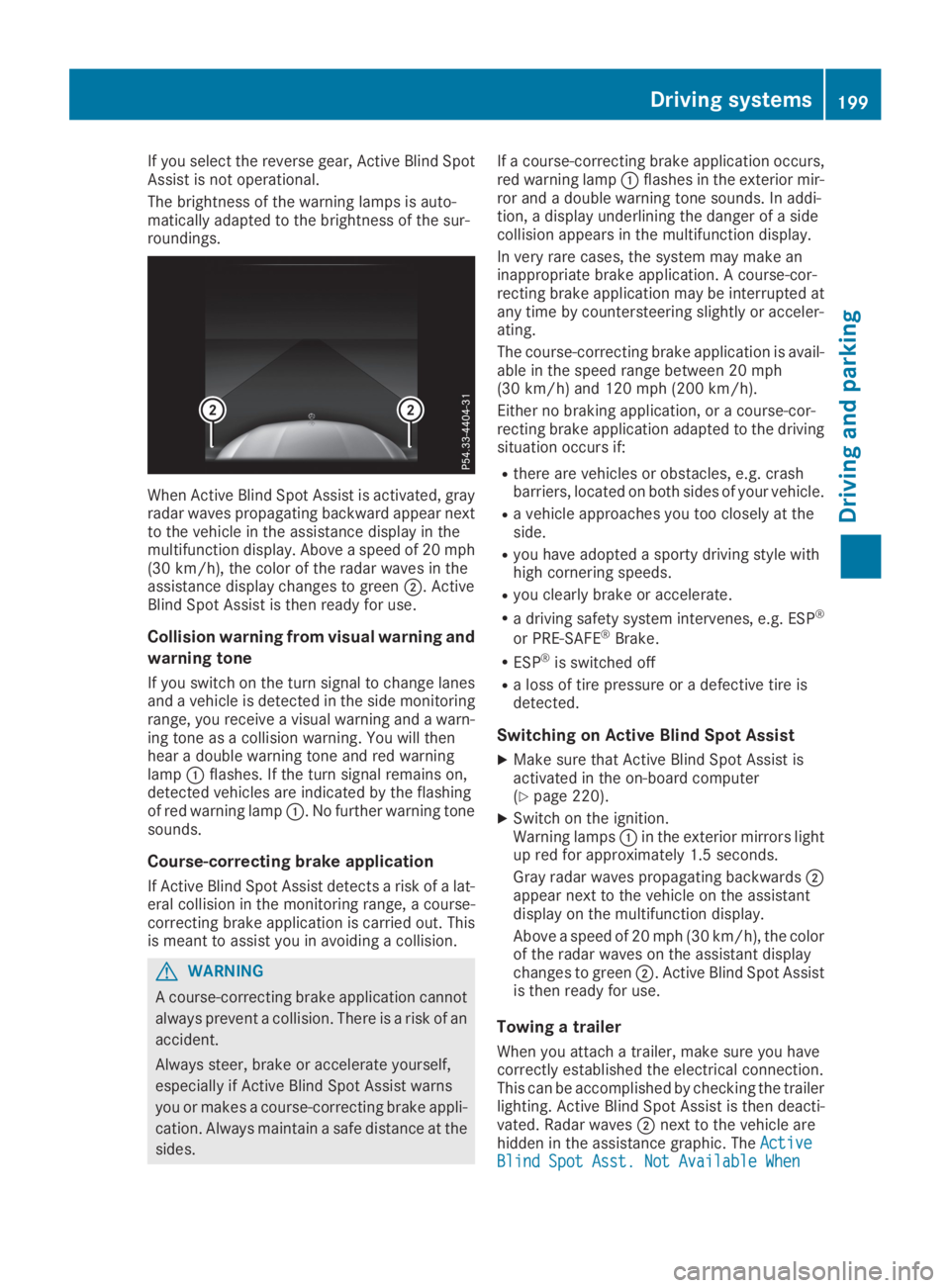
When Active Blind Spot Assist is activated, grayradar waves propagating backward appear nextto the vehicle in the assistance display in themultifunction display. Above a speed of 20 mph(30 km/h), the color of the radar waves in theassistance display changes to greenD. ActiveBlind Spot Assist is then ready for use.
Collision warning from visual warning and
warning tone
If you switch on the turn signal to change lanesand a vehicle is detected in the side monitoringrange, you receive a visual warning and a warn-ing tone as a collision warning. You will thenhear a double warning tone and red warninglampCflashes. If the turn signal remains on,detected vehicles are indicated by the flashingof red warning lampC. No further warning tonesounds.
Course-correcting brake application
If Active Blind Spot Assist detects a risk of a lat-eral collision in the monitoring range, a course-correcting brake application is carried out. Thisis meant to assist you in avoiding a collision.
GWARNING
A course-correcting brake application cannot
always prevent a collision. There is a risk of an
accident.
Always steer, brake or accelerate yourself,
especially if Active Blind Spot Assist warns
you or makes a course-correcting brake appli-
cation. Always maintain a safe distance at the
sides.
If a course-correcting brake application occurs,red warning lampCflashes in the exterior mir-ror and a double warning tone sounds. In addi-tion, a display underlining the danger of a sidecollision appears in the multifunction display.
In very rare cases, the system may make aninappropriate brake application. A course-cor-recting brake application may be interrupted atany time by countersteering slightly or acceler-ating.
The course-correcting brake application is avail-able in the speed range between 20 mph(30 km/h) and 120 mph (200 km/h).
Either no braking application, or a course-cor-recting brake application adapted to the drivingsituation occurs if:
Rthere are vehicles or obstacles, e.g. crashbarriers, located on both sides of your vehicle.
Ra vehicle approaches you too closely at theside.
Ryou have adopted a sporty driving style withhigh cornering speeds.
Ryou clearly brake or accelerate.
Ra driving safety system intervenes, e.g. ESP®
or PRE-SAFE®Brake.
RESP®is switched off
Ra loss of tire pressure or a defective tire isdetected.
Switching on Active Blind Spot Assist
XMake sure that Active Blind Spot Assist isactivated in the on-board computer(Ypage 220).
XSwitch on the ignition.Warning lampsCin the exterior mirrors lightup red for approximately 1.5 seconds.
Gray radar waves propagating backwardsDappear next to the vehicle on the assistantdisplay on the multifunction display.
Above a speed of 20 mph (30 km/h), the colorof the radar waves on the assistant displaychanges to greenD. Active Blind Spot Assistis then ready for use.
Towing a trailer
When you attach a trailer, make sure you havecorrectly established the electrical connection.This can be accomplished by checking the trailerlighting. Active Blind Spot Assist is then deacti-vated. Radar wavesDnext to the vehicle arehidden in the assistance graphic. TheActiveActiveBlind Spot Asst. Not Available WhenBlind Spot Asst. Not Available When
Driving systems199
Driving and parking
Z
Page 202 of 370
TowingTowingaaTrailerTrailerSeeSeeOperator'sOperator'sManualManualmessage appears in the multifunction display.
Active Lane Keeping Assist
General notes
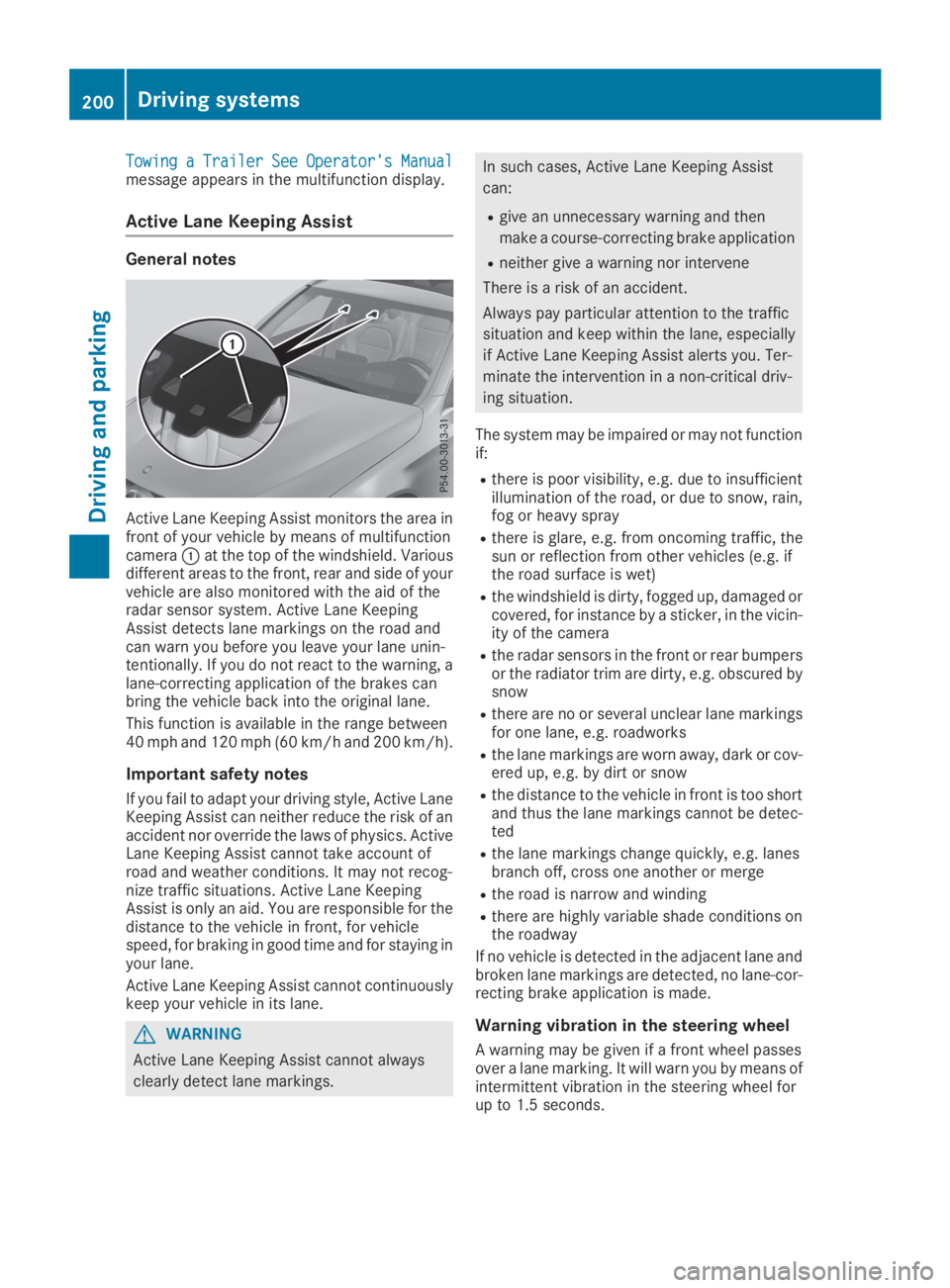
Active Lane Keeping Assist monitors the area infront of your vehicle by means of multifunctioncameraCat the top of the windshield. Variousdifferent areas to the front, rear and side of yourvehicle are also monitored with the aid of theradar sensor system. Active Lane KeepingAssist detects lane markings on the road andcan warn you before you leave your lane unin-tentionally. If you do not react to the warning, alane-correcting application of the brakes canbring the vehicle back into the original lane.
This function is available in the range between40 mph and 120 mph (60 km/h and 200 km/h).
Important safety notes
If you fail to adapt your driving style, Active LaneKeeping Assist can neither reduce the risk of anaccident nor override the laws of physics. ActiveLane Keeping Assist cannot take account ofroad and weather conditions. It may not recog-nize traffic situations. Active Lane KeepingAssist is only an aid. You are responsible for thedistance to the vehicle in front, for vehiclespeed, for braking in good time and for staying inyour lane.
Active Lane Keeping Assist cannot continuouslykeep your vehicle in its lane.
GWARNING
Active Lane Keeping Assist cannot always
clearly detect lane markings.
In such cases, Active Lane Keeping Assist
can:
Rgive an unnecessary warning and then
make a course-correcting brake application
Rneither give a warning nor intervene
There is a risk of an accident.
Always pay particular attention to the traffic
situation and keep within the lane, especially
if Active Lane Keeping Assist alerts you. Ter-
minate the intervention in a non-critical driv-
ing situation.
The system may be impaired or may not functionif:
Rthere is poor visibility, e.g. due to insufficientillumination of the road, or due to snow, rain,fog or heavy spray
Rthere is glare, e.g. from oncoming traffic, thesun or reflection from other vehicles (e.g. ifthe road surface is wet)
Rthe windshield is dirty, fogged up, damaged orcovered, for instance by a sticker, in the vicin-ity of the camera
Rthe radar sensors in the front or rear bumpersor the radiator trim are dirty, e.g. obscured bysnow
Rthere are no or several unclear lane markingsfor one lane, e.g. roadworks
Rthe lane markings are worn away, dark or cov-ered up, e.g. by dirt or snow
Rthe distance to the vehicle in front is too shortand thus the lane markings cannot be detec-ted
Rthe lane markings change quickly, e.g. lanesbranch off, cross one another or merge
Rthe road is narrow and winding
Rthere are highly variable shade conditions onthe roadway
If no vehicle is detected in the adjacent lane andbroken lane markings are detected, no lane-cor-recting brake application is made.
Warning vibration in the steering wheel
A warning may be given if a front wheel passesover a lane marking. It will warn you by means ofintermittent vibration in the steering wheel forup to 1.5 seconds.
200Driving systems
Driving and parking
Page 203 of 370
Lane-correcting brake application
If you leave your lane, under certain circumstan-ces the vehicle will brake briefly on one side.This is meant to assist you in bringing the vehicleback to the original lane.
GWARNING
A lane-correcting brake application cannot
always bring the vehicle back into the original
lane. There is a risk of an accident.
Always steer, brake or accelerate yourself,
especially if Active Lane Keeping Assist warns
you or makes a lane-correcting brake appli-
cation.
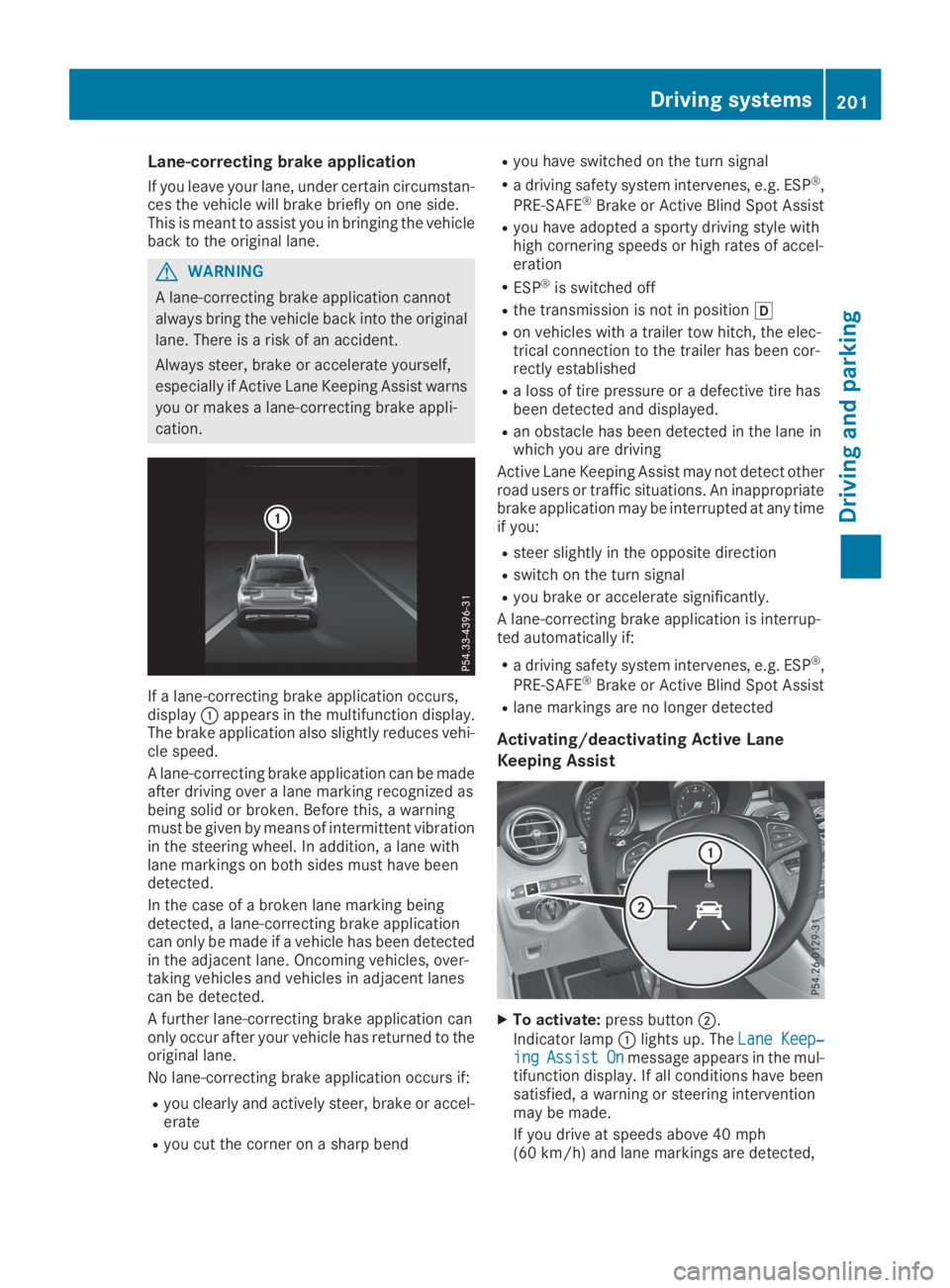
If a lane-correcting brake application occurs,displayCappears in the multifunction display.The brake application also slightly reduces vehi-cle speed.
A lane-correcting brake application can be madeafter driving over a lane marking recognized asbeing solid or broken. Before this, a warningmust be given by means of intermittent vibrationin the steering wheel. In addition, a lane withlane markings on both sides must have beendetected.
In the case of a broken lane marking beingdetected, a lane-correcting brake applicationcan only be made if a vehicle has been detectedin the adjacent lane. Oncoming vehicles, over-taking vehicles and vehicles in adjacent lanescan be detected.
A further lane-correcting brake application canonly occur after your vehicle has returned to theoriginal lane.
No lane-correcting brake application occurs if:
Ryou clearly and actively steer, brake or accel-erate
Ryou cut the corner on a sharp bend
Ryou have switched on the turn signal
Ra driving safety system intervenes, e.g. ESP®,
PRE-SAFE®Brake or Active Blind Spot Assist
Ryou have adopted a sporty driving style withhigh cornering speeds or high rates of accel-eration
RESP®is switched off
Rthe transmission is not in position[
Ron vehicles with a trailer tow hitch, the elec-trical connection to the trailer has been cor-rectly established
Ra loss of tire pressure or a defective tire hasbeen detected and displayed.
Ran obstacle has been detected in the lane inwhich you are driving
Active Lane Keeping Assist may not detect otherroad users or traffic situations. An inappropriatebrake application may be interrupted at any timeif you:
Rsteer slightly in the opposite direction
Rswitch on the turn signal
Ryou brake or accelerate significantly.
A lane-correcting brake application is interrup-ted automatically if:
Ra driving safety system intervenes, e.g. ESP®,
PRE-SAFE®Brake or Active Blind Spot Assist
Rlane markings are no longer detected
Activating/deactivating Active Lane
Keeping Assist
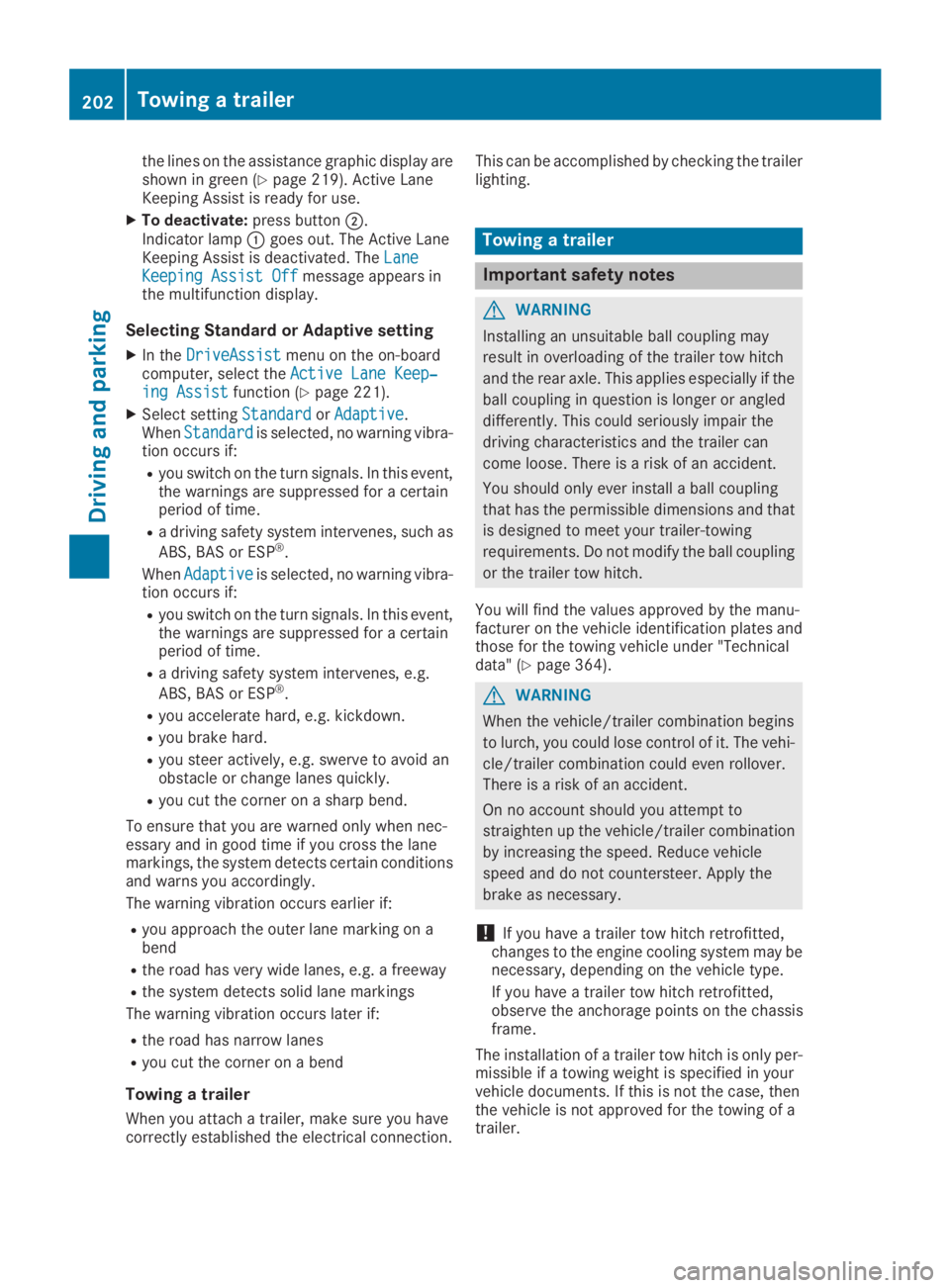
XTo activate:press buttonD.
Indicator lampClights up. TheLane Keep‐Lane Keep‐ingingAssistAssistOnOnmessage appears in the mul-tifunction display. If all conditions have beensatisfied, a warning or steering interventionmay be made.
If you drive at speeds above 40 mph(60 km/h) and lane markings are detected,
Driving systems201
Driving and parking
Z
Page 204 of 370
the lines on the assistance graphic display areshown in green (Ypage 219). Active LaneKeeping Assist is ready for use.
XTo deactivate:press buttonD.Indicator lampCgoes out. The Active LaneKeeping Assist is deactivated. TheLaneLaneKeeping Assist OffKeeping Assist Offmessage appears inthe multifunction display.
Selecting Standard or Adaptive setting
XIn theDriveAssistDriveAssistmenu on the on-boardcomputer, select theActive Lane Keep‐Active Lane Keep‐ing Assisting Assistfunction (Ypage 221).
XSelect settingStandardStandardorAdaptiveAdaptive.WhenStandardStandardis selected, no warning vibra-tion occurs if:
Ryou switch on the turn signals. In this event,the warnings are suppressed for a certainperiod of time.
Ra driving safety system intervenes, such as
ABS, BAS or ESP®.
WhenAdaptiveAdaptiveis selected, no warning vibra-tion occurs if:
Ryou switch on the turn signals. In this event,the warnings are suppressed for a certainperiod of time.
Ra driving safety system intervenes, e.g.
ABS, BAS or ESP®.
Ryou accelerate hard, e.g. kickdown.
Ryou brake hard.
Ryou steer actively, e.g. swerve to avoid anobstacle or change lanes quickly.
Ryou cut the corner on a sharp bend.
To ensure that you are warned only when nec-essary and in good time if you cross the lanemarkings, the system detects certain conditionsand warns you accordingly.
The warning vibration occurs earlier if:
Ryou approach the outer lane marking on abend
Rthe road has very wide lanes, e.g. a freeway
Rthe system detects solid lane markings
The warning vibration occurs later if:
Rthe road has narrow lanes
Ryou cut the corner on a bend
Towing a trailer
When you attach a trailer, make sure you havecorrectly established the electrical connection.
This can be accomplished by checking the trailerlighting.
Towing a trailer
Important safety notes
GWARNING
Installing an unsuitable ball coupling may
result in overloading of the trailer tow hitch
and the rear axle. This applies especially if the
ball coupling in question is longer or angled
differently. This could seriously impair the
driving characteristics and the trailer can
come loose. There is a risk of an accident.
You should only ever install a ball coupling
that has the permissible dimensions and that
is designed to meet your trailer-towing
requirements. Do not modify the ball coupling
or the trailer tow hitch.
You will find the values approved by the manu-facturer on the vehicle identification plates andthose for the towing vehicle under "Technicaldata" (Ypage 364).
GWARNING
When the vehicle/trailer combination begins
to lurch, you could lose control of it. The vehi-
cle/trailer combination could even rollover.
There is a risk of an accident.
On no account should you attempt to
straighten up the vehicle/trailer combination
by increasing the speed. Reduce vehicle
speed and do not countersteer. Apply the
brake as necessary.
!If you have a trailer tow hitch retrofitted,changes to the engine cooling system may benecessary, depending on the vehicle type.
If you have a trailer tow hitch retrofitted,observe the anchorage points on the chassisframe.
The installation of a trailer tow hitch is only per-missible if a towing weight is specified in yourvehicle documents. If this is not the case, thenthe vehicle is not approved for the towing of atrailer.
202Towing a trailer
Driving an d parking