phone MERCEDES-BENZ GLK-Class 2012 X204 Comand Manual
[x] Cancel search | Manufacturer: MERCEDES-BENZ, Model Year: 2012, Model line: GLK-Class, Model: MERCEDES-BENZ GLK-Class 2012 X204Pages: 182, PDF Size: 4.89 MB
Page 24 of 182

X
To callup stan dard display s:rep eated ly
pre ssthe % button untilthe odome ter
and thetrip mete rappear inthe display.
or
X Press andhold the% buttonuntil the
odomet erand thetrip meter appear inthe
display.
X To confirm yourselection: pressthe
a button.
X To confirm themessage: pressthe
a or% button. Menus
andsubm enus
The number ofmenus depends onthe vehicle
equipment . Menu Functions
andsubm enus Navigation Navigation
systemdisplays Audio Select
ingastat ion
Operatin gthe DVD chang er,
memor ycard, MUSIC
REGISTE R,Media Interface
Operatin gvideo DVD Telephone Ac
cept ing/ rejec tingacall
Making /ending acall
Select ingaphone bookentry
Redialing Na
vigat ionsystem menu
Rout eguida nceinactive The
display showstheroad onwhich the
vehicle iscurren tlytrav eling, provided the
digital mapcontains it.
Rout eguida nceactive The
display shows:
R the distan cetothe destin ation
R the distan cetothe nextchange ofdirection R
current street
R the travel direction arrow
If achange ofdirection isimminent ,the
displa yshows:
R the road youwillbeturning onto
R the distance tothe next change ofdirection
and adistance graphic
R aright orleft-t urnarrow
Lane recommen dationsarealso shown inthe
displa y,provided thedigital mapcontains the
necessary data.During achange ofdirection,
the number oflanes mayincrease. Lane
recommen dationsareshown inthe displa yas
a line with anarrow. Audio
menu
Adjust ingthe volume X
Press theW orX button.
Setting thestat ion/c hannel X
Switch onCOMAND (Ypage 31).
X Switch onFM / AM Radio (Y
page 118)or
SatRadio (Y
page 122).
X In the multifunction display,select the
audi omenu withthe= or; button.
X To selec tthe nex t/previo usstation /
chann elfrom thememory: brieflypress
the : or9 button.
X To selectthe nex t/previo usstation /
chann el:press andhold the: or
9 button.
Operating theDVD chang er/memo ry
card/MUS ICREGI STER/Me dia
Inte rface X
Switch onCOMAND (Ypag e31).
X Switch onDisc ,
Memory Card (Y
pag e129), MUSIC 22
Multifunc
tionsteering wheelAtaglan ce
Page 25 of 182

REGISTER (Y
page 137)orMedia Int. (Y
page 141).
X In the multifunction display,select the
audi omenu withthe= or; button.
X To sele ctthe next/previous track:
briefly pressthe: or9 button.
X To search forthe next/previous track:
press andhold the: or9 button.
i When youplay aCD/DVD withtrack
information, thetrack name andnumber
are shown inthe multifunction display.The
track name isdispla yedwhen anMP3 CD
is being played.
Operating videoDVD X
Switch onCOMAND (Ypage 31).
X Switch onDVD-Video (Y
page 151).
X In the multifunction display,select the
audi omenu withthe= or; button.
X To sele ctthe next/previous scene:
briefly pressthe: or9 button. Telephone
menu G
WARNING
A driver's attentiontothe road must always
be his/her primary focuswhendriving. For
your safety andthesafety ofothers, we
recommend thatyoupull over toasafe
location andstop before placing ortaking a
telephone call.Ifyou choose touse themobile
phone whiledriving, pleaseusethehandsfree
device andonly usethemobile phonewhen
weather, road,andtraffic conditions permit.
Some jurisdictions prohibitthedriver from
using acellul armobile phonewhiledriving a
vehicle.
Bear inmind thatataspeed ofjust 30mph
(approxima tely50km/h), yourvehicle is
covering adistance of44 feet (approxima tely
14 m)every second. Operating
thetelephone X
Switch onCOMAND (Ypage 31).
X Cal lup the telephone basicmenu
(Y page 103).
If the telephone hasnotyetbeen authorized,
the Bluetooth Ready message
appearsin
the multifunction display.
If the telephone isswitched onand
authorized, thePhone Ready message
appea rsinthe multifunction display.
Acc epting acall X
Press the6 button.
If the telep hone menu isdis pla yedin the
mul tifunctio ndisplay, thename ornumb erof
the perso ncallin gappear s.
Rej ectin gor end ingacall X
Press the~ button.
Cal linganumbe rfrom thephone book If
you rmobile phone canaccept calls,youcan
search foranumber inthe COMAND phone
book andcallthenumber.
X In the multifunct iondisplay ,select the
phone menuusingthe= or;
button .
The Phone Ready message
appearsinthe
multifunct iondisplay .
X Press the:, 9ora button to
display thephone book.
X Press the: or9 button toselect the
name youwant.
The saved names aresorted alphabe tically.
X An exact phone number exists:pressthe
6 ora button tomake thecall.
The Connecting Call message
andthe
number dialedappear inthe multifunct ion
display .The name alsoappea rsifit is
stored inthe phone book.Thephone
number dialedis stored inthe Calls Dialed call
list(Ypage 109). Multifunction
steeringwheel
23Ataglance Z
Page 26 of 182
The
phone bookentryappears inthe
multifunct iondisplay whenthecall is
conn ected.
X Several phonenumber sexist: pressthe
6 ora button todisplay allthe
phone numbers forthe selected entry.
X Press the: or9 button toselect the
phone number youwant.
X Press the6 ora button tomake the
call.
The Connecting Call message
andthe
number dialedappear inthe multifunct ion
display .The name alsoappea rsifit is
stored inthe phone book.Thephone
number dialedis stored inthe Calls Dialed call
list(Ypage 109).
The phone bookentryappea rsinthe
multifunction displaywhen thecall is
conn ected.
i Ifyou press the: or9 button for
longer thanasecond, theon-board
computer showsthenames inrapid scroll.
Rapi dscroll speeds upafter fourseconds.
It stops whenyourelease thebutton again
or the end ofthe listisreached.
i Ifyou donot want tomake acall, youcan
close thephone bookbypressing the
~ button.
Redialing COMAND
savesthelast phone numbers or
names dialed.
X In the multifunction display,select the
phone menuusingthe= or;
button.
The Phone Ready message
appearsinthe
multifunction display.
X Press the6 button todispla ythe list
with thelast numbers ornames dialed.
X Press the: or9 button toselect a
phone number orname.
X Press the6 ora button tomake the
call. Operat
ingCOMAND Selec
tingamainfunc tion
Ini tial situatio n You
wouldlike toswi tch from navigation
mode (addre ssentry menu) tothe system
settings, forexamp le.
X To switch onnavi gatio nmode: pressthe
g function button.
X To show themenu: pressW the COM AND
controll er.
X Sele ctDesti nation by
sliding VÆand
turning cVdtheCOM AND controll erand
pres sW toconfirm.
X Sele ctAddre ssEntry and
pres sW to
confirm.
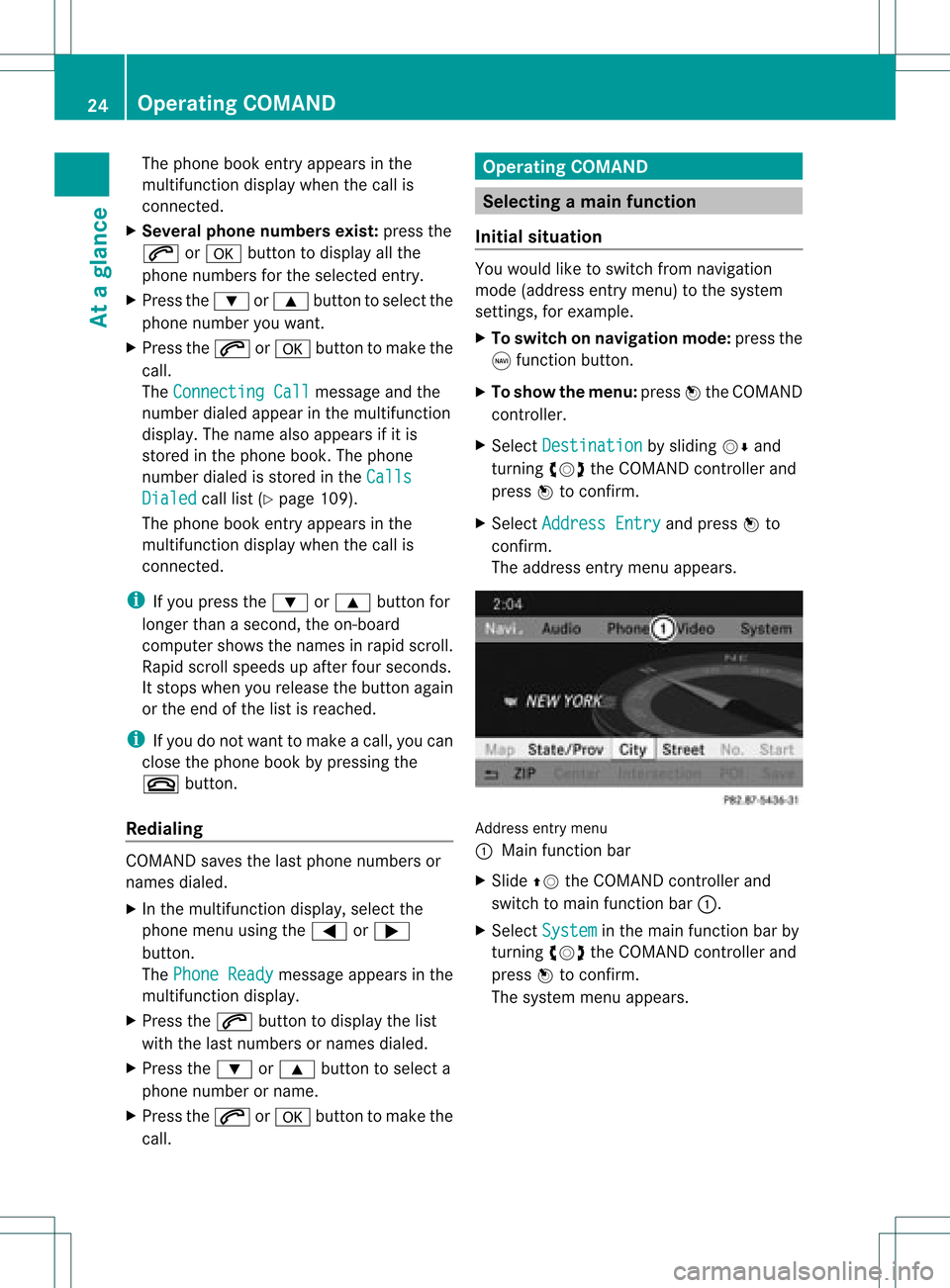
The address entry menu appears. Addre
ssentry menu
: Mai nfunc tion bar
X Sli de ZV theCOMA NDcontrol ler and
swit chtomain function bar :.
X Se lec tSys tem in
themain function bar by
tur nin gcVd theCOMA NDcontrol ler and
pre ssW toconfirm .
The systemmen uappear s. 24
Op
era ting COMAN DAtaglan ce
Page 31 of 182
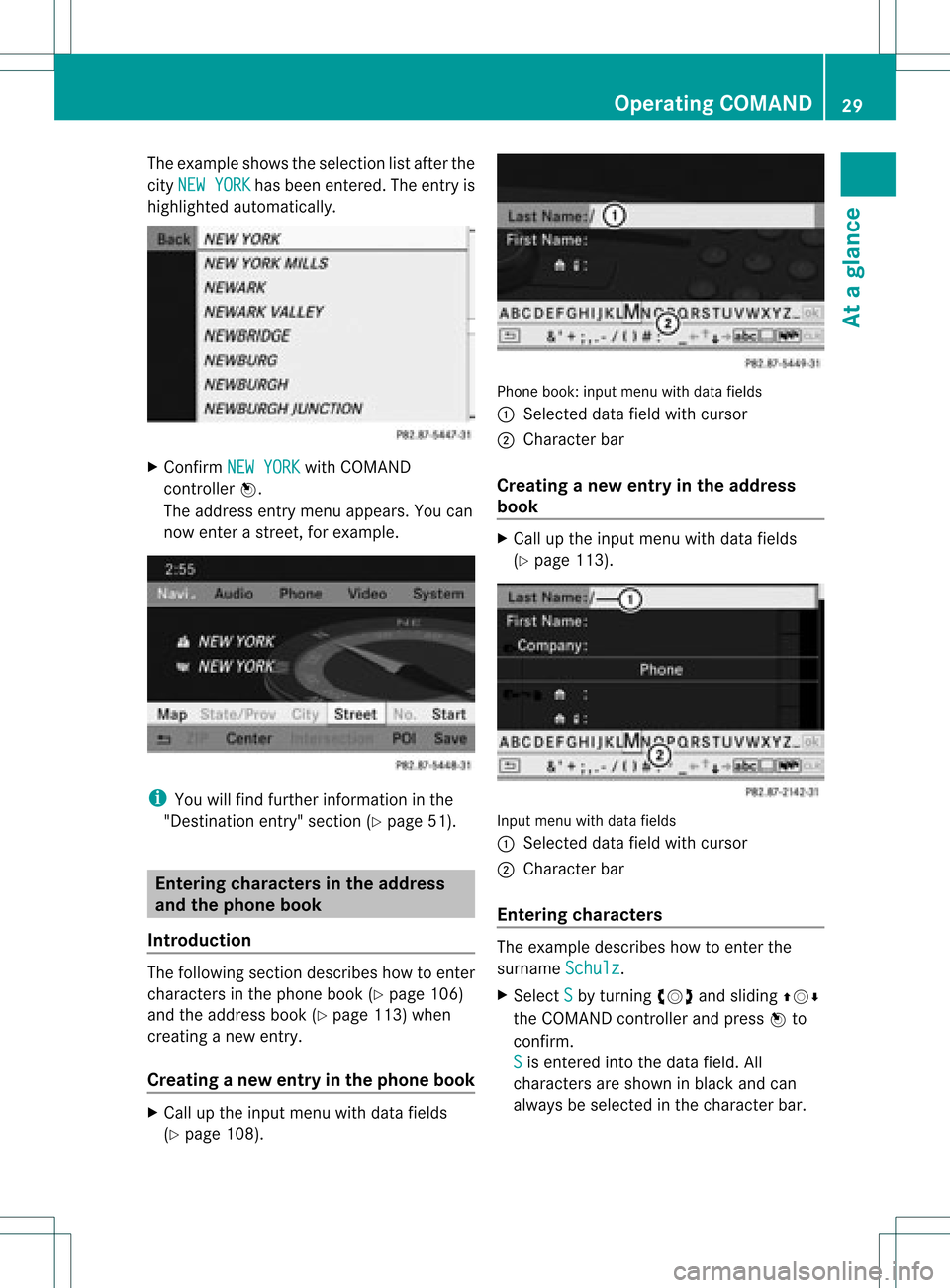
The
example showstheselection listafter the
city NEW YORK has
been entered. Theentryis
highlighted automatically. X
Confirm NEWYORK with
COMAND
cont roller W.
The address entrymenu appears. Youcan
now enterastreet ,for example. i
You willfind further informationinthe
"Destin ationentry" sect ion(Ypage 51). Entering
characters inthe address
and thephone book
Introdu ction The
following sectiondescribes howtoent er
charact ersinthe phone book(Ypage 106)
and theaddress book(Ypage 113)when
creatin ganew entry.
Creating anew entr yint he phone book X
Ca llup the inpu tmenu with data fields
(Y page 108). Phone
book:inputmenu withdata fields
: Select eddata fieldwithcursor
; Character bar
Creat inganew entry inthe address
book X
Call upthe input menu withdata fields
(Y page 113). Input
menu withdata fields
: Select eddata fieldwithcursor
; Character bar
Entering character s The
example describes howtoent erthe
surname Schulz .
X Select S by
turn ingcVd andsliding ZVÆ
the COMAND controller andpress Wto
con firm.
S is
ent ered intothe data field. All
charact ersare shown inblack andcan
alway sbe select edinthe charact erbar. Opera
tingCOMAND
29Ataglance Z
Page 32 of 182
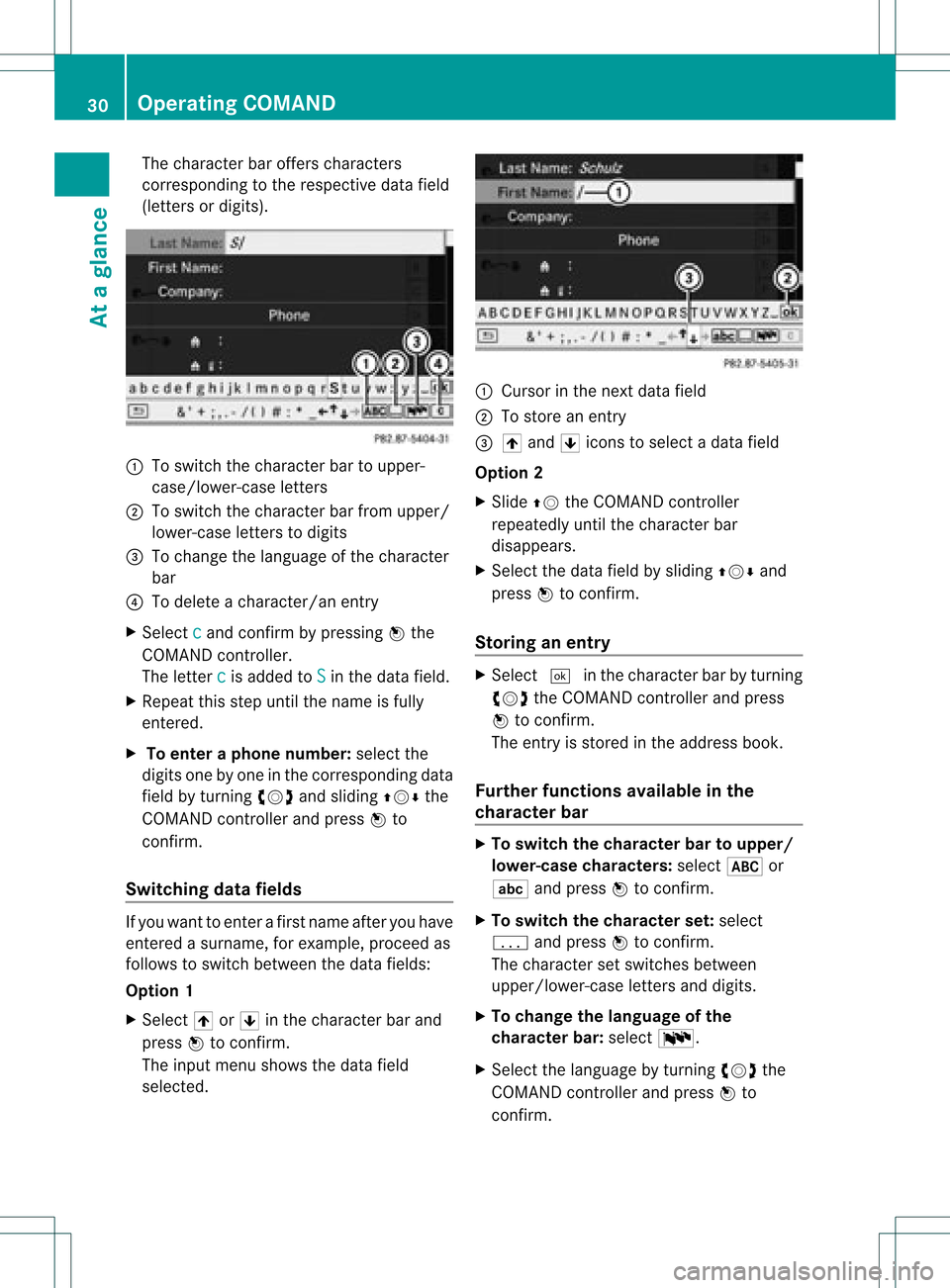
The
charact erbar offers charact ers
correspon dingtothe respect ivedata field
(letters ordigits). :
Toswitch thecharact erbar toupper-
case/lower-c aseletter s
; Toswitch thecharact erbar from upper/
lower-case lettersto digits
= Tochange thelanguage ofthe charact er
bar
? Todelete acharact er/anentry
X Select c and
conf irmbypressing Wthe
COMAND controller.
The letter c is
added toS in
the data field.
X Repeat thisstep until thename isfully
ent ered.
X To enter aphone number :select the
digits onebyone inthe correspon dingdata
field byturnin gcVd andsliding ZVÆthe
COMAND controller andpress Wto
conf irm.
Switching datafields If
you want toent erafirs tname afteryou have
en tered asurn ame, forexample ,pro cee das
foll ows toswit chbet ween thed ata fields:
Opt ion 1
X Sel ect 4or5 inthech arac terbar and
pres sW toconfirm .
The inputmen usho wsthedat afiel d
selec ted. :
Curso rint he next data field
; Tostore anentr y
= 4 and 5icons toselect adata field
Option 2
X Slide ZVtheCOMAND controller
repeatedly untilthecharacter bar
disappe ars.
X Select thedata fieldbysliding ZVÆand
press Wtoconfirm .
Storing anentry X
Select ¬inthe character barbyturning
cVd theCOMAND controller andpress
W toconfirm .
The entryis stored inthe address book.
Furth erfunctions availableinthe
character bar X
To switch thecharacter bartoupper /
lowe r-case character s:select *or
E andpress Wtoconfirm .
X To switch thecharacter set:select
p andpress Wtoconfirm .
The character setswitches between
upper/lower-case lettersanddigits.
X To change thelanguage ofthe
character bar:select B.
X Select thelanguage byturning cVdthe
COMAND controller andpress Wto
confirm . 30
Operat
ingCOMANDAtaglance
Page 33 of 182
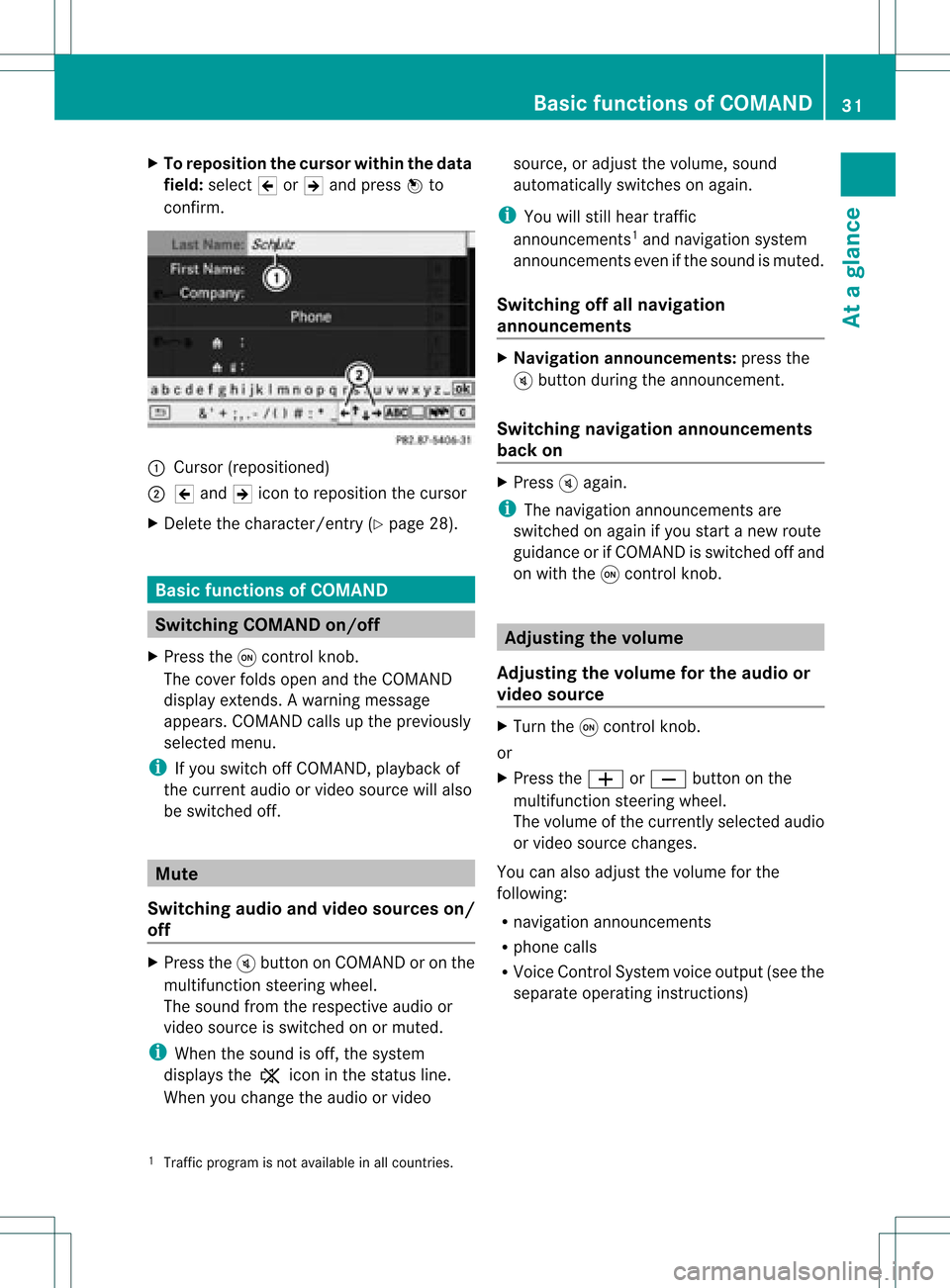
X
To repo sitio nthe curso rwithintheda ta
field: select 2or3 and press Wto
con firm . :
Cursor (reposit ioned)
; 2 and 3icon toreposit ionthe curs or
X Delet ethe charac ter/en try( Ypage 28). Basic
functionsofCOMAND Switching
COMANDon/off
X Press theqcon trolkn ob.
The cover foldsopen andtheCOMAND
display extends. Awarning mes sage
appear s.COMA NDcalls uptheprev iously
selec tedmen u.
i Ifyou switchoff COMA ND,playbac kof
the curre ntaudio or vide os ource willalso
be switched off. Mut
e
Switching audioandvideo sources on/
off X
Press theBbutton onCOMAND oron the
multifunct ionsteerin gwheel.
The sound fromtherespect iveaudio or
video source isswitched onormuted.
i When thesound isoff, thesystem
display sthe , icon inthe status line.
When youchange theaudio orvideo source,
oradjust thevolume, sound
automatically switchesonagain.
i You willstill hear traffic
announc ements1
and navigation system
announc ementseven ifthe sound ismuted.
Switching offallnavigation
announcements X
Navigat ionannouncements: pressthe
B button duringtheannounc ement.
Switching navigation announcements
back on X
Press Bagain.
i The navigation announcementsare
swi tched onaga inifyou start anew route
gui dance orifCOMAND isswi tched offand
on with theqcontrol knob. Adjusting
thevolume
Adjusting thevolume forthe audio or
video source X
Turn theqcontrol knob.
or
X Press theW orX button onthe
multi function steeringwheel.
The volumeofthe currently selected audio
or vide osource changes.
You canalsoadju stthe volu meforthe
foll owi ng:
R naviga tionannouncements
R phone calls
R Voice Control System voiceoutpu t(see the
separate operating instructions)
1 Traffic program isnot availa bleinall countries. Basic
functions ofCOMAND
31Ataglanc e Z
Page 34 of 182
Adj
usting thevolu mefornav igation
ann ounc ements Dur
ing anav igat ionann oun cemen t:
X Turn qtheco ntrol knob.
or
X Pre sstheW orX buttonon the
mult ifunction steer ing whee l.
Adj usting thevolu meforphone calls You
canadjust thevol ume forhan ds-free
mod eduri ngate leph onecall .
X Turn theq control knob.
or
X Pre sstheW orX buttonon the
mult ifunction steer ing whee l. Adj
usting thesoun dsettings
Callin gup thesound menu You
canmak evari ous soun dset tings for the
diff eren taudio andvide osour ces.This mean s
th at itis poss ibletoset mor ebass forradio
mod eth an for audio CDmod e,for example .
You cancalluptheres pec tive soun dmen u
fr om themen uof thedesi redmod e.
The example describeshow tocall upthe
soun dmen uin radio mode.
X Pre sstheó function button.
The radio displayappear s.You willhear the
last stati on played onthelast waveb and. X
Se lec tSou nd by
slidi ngVÆ andturnin g
cVd theCOMA NDcontrol ler and press
W toconfirm .
You cannowset thetreble andbass orthe
balan ceand fade rfor radio mode.
Adjust ingtreble andbass X
Select Treble or
Bass in
the sound menu
by turnin gcVd theCOMAND controller
and press Wtoconf irm.
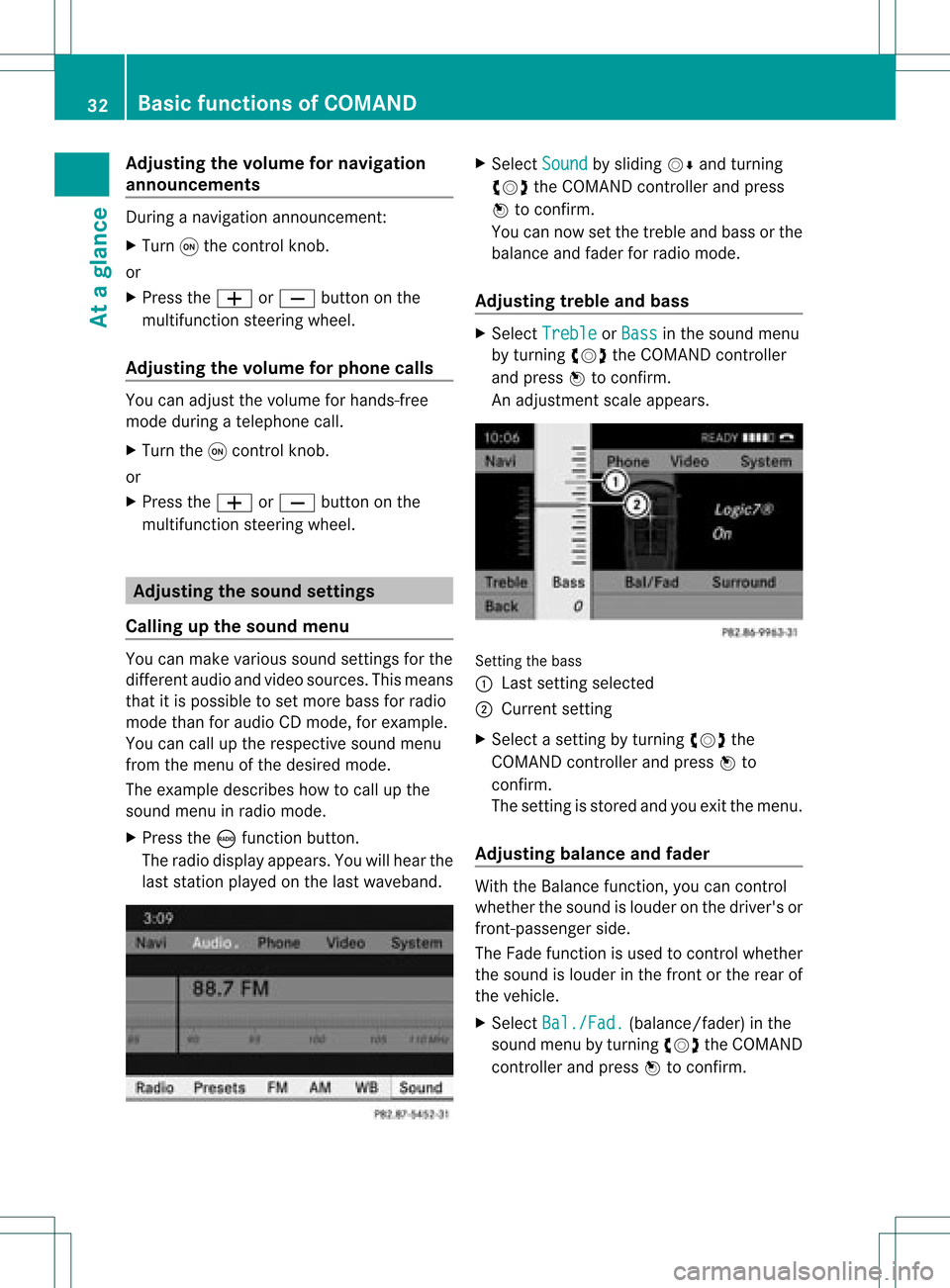
An adjustmen tscal eap pea rs. Setting
thebass
: Lastsett ing select ed
; Current setting
X Select asett ingbyturn ingcVd the
COMAND controller andpress Wto
con firm.
The settingisstor edand youexit themenu.
Adju sting balance andfader With
theBalance function,you can control
whether thesound islouder onthe driver's or
fron t-passenger side.
The Fade function isused tocon trol whether
the sound islouder inthe fron torthe rear of
the vehicle.
X Select Bal./Fad. (bala
nce/ fader) inthe
sound menubyturning cVdtheCOMAND
cont roller andpress Wtoconfirm . 32
Basic
functions ofCOMANDAt aglance
Page 44 of 182
Acti
vating/d eactivating
ind ivid ualization X
Pre sstheS button.
X Se lec tSet tings by
turnin gcVd the
COMA NDcontrol ler and pressW to
co nfirm .
X Se lec tVoi ceControl and
pressW to
co nfirm .
X Se lec tInd ividualizationOn and
press
W toconfirm .
You haveswit ched individ ualiz ation onO
or off ª. Blu
eto oth ®
set tings Gene
ralinf orm ation abou t
Blu eto oth ®
Blue toot h®
tech no logy isthest and ard for
sho rt-rang ewire less datatrans mis sion ofup
to appr oximat ely10met ers.Bluetoo th®
allows, forexam ple,theexchang eof vCards.
Bluet ooth®
is aregis tered trademark of
Bluet oothSpec ialInter est Group (SIG) Inc. Req
uirement sfor aBlu etoot h®
connection
You canconnectmobile phones and
not ebooks toCOMAND.
To do so, the following conditionsneed tobe
met:
R Bluetooth ®
-capable devices,e.g.mobile
phones, needtocomply withacert ain
profile (Ypage 99)inorder tobe
conn ected toCOMAND. EveryBluetooth ®device
hasitsown specific Bluetooth ®
name.
R Bluetooth ®
must beactivated inCOMAND
and onthe respect iveBluetooth ®
device;
see theseparate operating instructions.
R the Bluetooth ®
device mustbe"visible" to
COMAND inorder forCOMAND tofind and
display it.For thesettingprocedures,
please seetheoperating instructions for
the Bluetooth ®
device.
i Once amobile phonehasbeen
conn ected, reception andtrans mission
volume maychange. <00340003001400090016000100140009000E0007002100040005000100030014
0009001600010014B
ingBluetooth ®
X Press theSbutton .
The system menuappears.
X Select Settings by
turnin gcVd the
COMAND controller andpress Wto
conf irm.
X Select Bluetooth and
press Wtoconf irm.
X Select Activate Bluetooth and
press
W toconf irm.
This switches Bluetooth ®
on O oroff ª. Connec
tingBluetooth ®
devices
General information Before
usingyourBluetooth ®
device with
COMAND forthe first time, youwillneed to
conn ectit.
Connect ingcomprises:
R searching foraBluetooth ®
device
R subsequently authorizingit
i You canconn ectuptoten devices to
COMAND.
More detailed informationonsuitable mobile
phones andonconn ectin gBluetooth ®
-
capable mobilephones toCOMAND canbe
found onthe Internet athtt p:// 42
Bluetooth ®
settingsSystem settings
Page 45 of 182
www.m
busa-mo bile. com .Or callth e
Mer cedes -Ben zC ust ome rAssistance Center
at 1-80 0-FOR-ME RCedes(1-800- 367-6372)
(for theUSA) orCustomer Relations at
1-80 0-38 7-0100(for Canada ).
Searching forBluetooth ®
devices X
Act ivate Bluetooth ®
(Y page 42).
X Select Settings in
the system menuby
turning cVdtheCOMAND controller and
press Wtoconfirm.
X Select Bluetooth Phones and
press Wto
confirm.
X Select Update and
press Wtoconfirm.
COMAND searchesforBluetooth ®
devices
within range. Afterashort while,the
Bluetooth ®
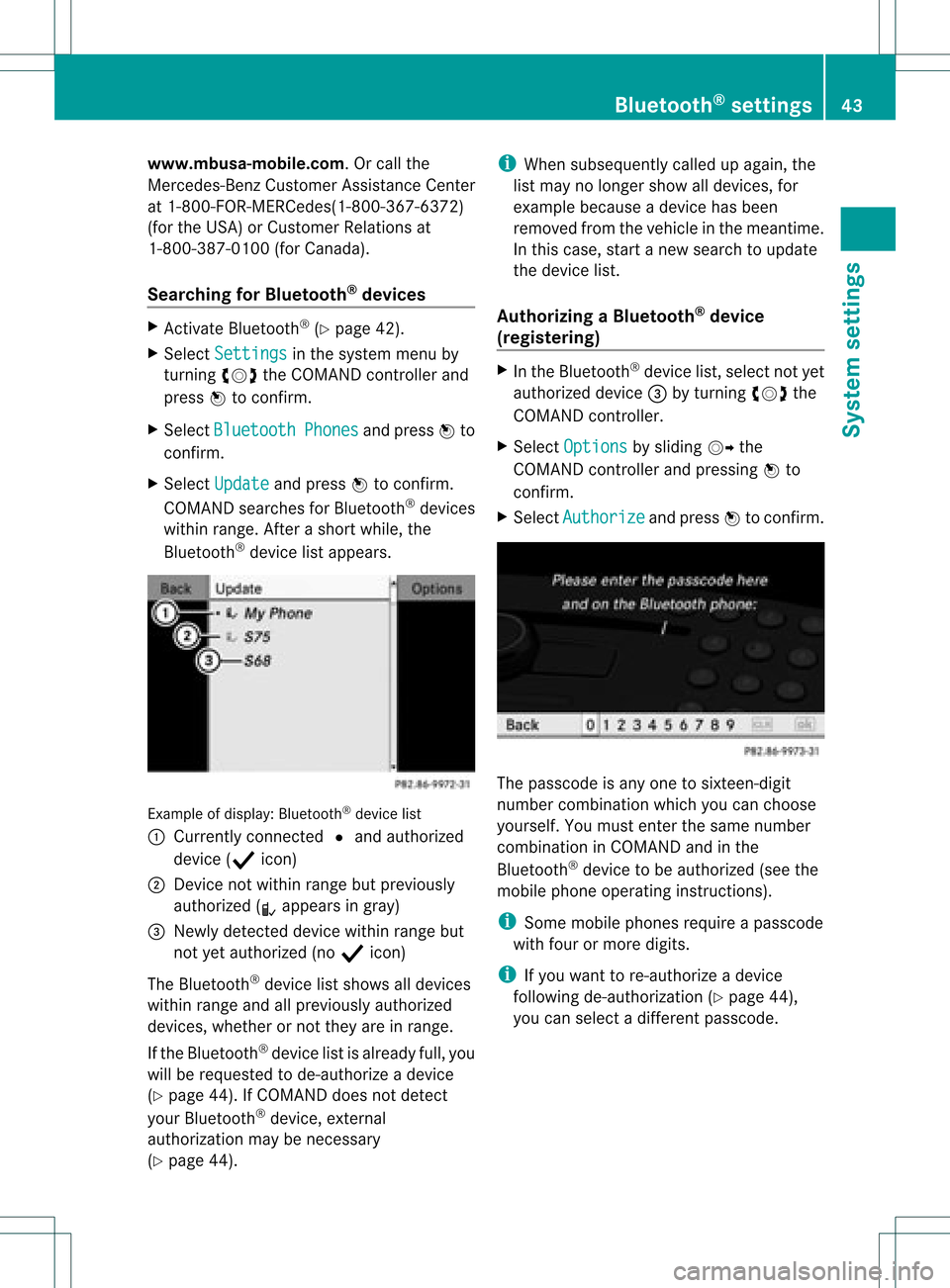
device listappea rs. Example
ofdispla y:Bluetooth ®
device list
: Currently connected #and authorized
device (Yicon)
; Device notwithin rangebutpreviousl y
authorized (Lappea rsingray)
= Newly detected devicewithinrangebut
not yetauthorized (noY icon)
The Bluetooth ®
device listshows alldevices
within rangeandallpreviousl yauthorized
devices, whether ornot they areinrange.
If the Bluetooth ®
device listisalrea dyfull, you
will berequested tode-authorize adevice
(Y page 44).IfCOMAND doesnotdetect
your Bluetooth ®
device, external
authorization maybenecessary
(Y page 44). i
When subsequ entlycalled upagai n,the
list may nolonger showalldevices, for
example becauseadevice hasbeen
removed fromthevehicle inthe meantime.
In this case, startanew search toupda te
the device list.
Authorizing aBluetooth ®
device
(registering) X
In the Bluetooth ®
device list,select notyet
authorized device=byturning cVdthe
COMAND controller.
X Select Options by
sliding VYthe
COMAND controller andpressing Wto
confirm.
X Select Authorize and
press Wtoconfirm. The
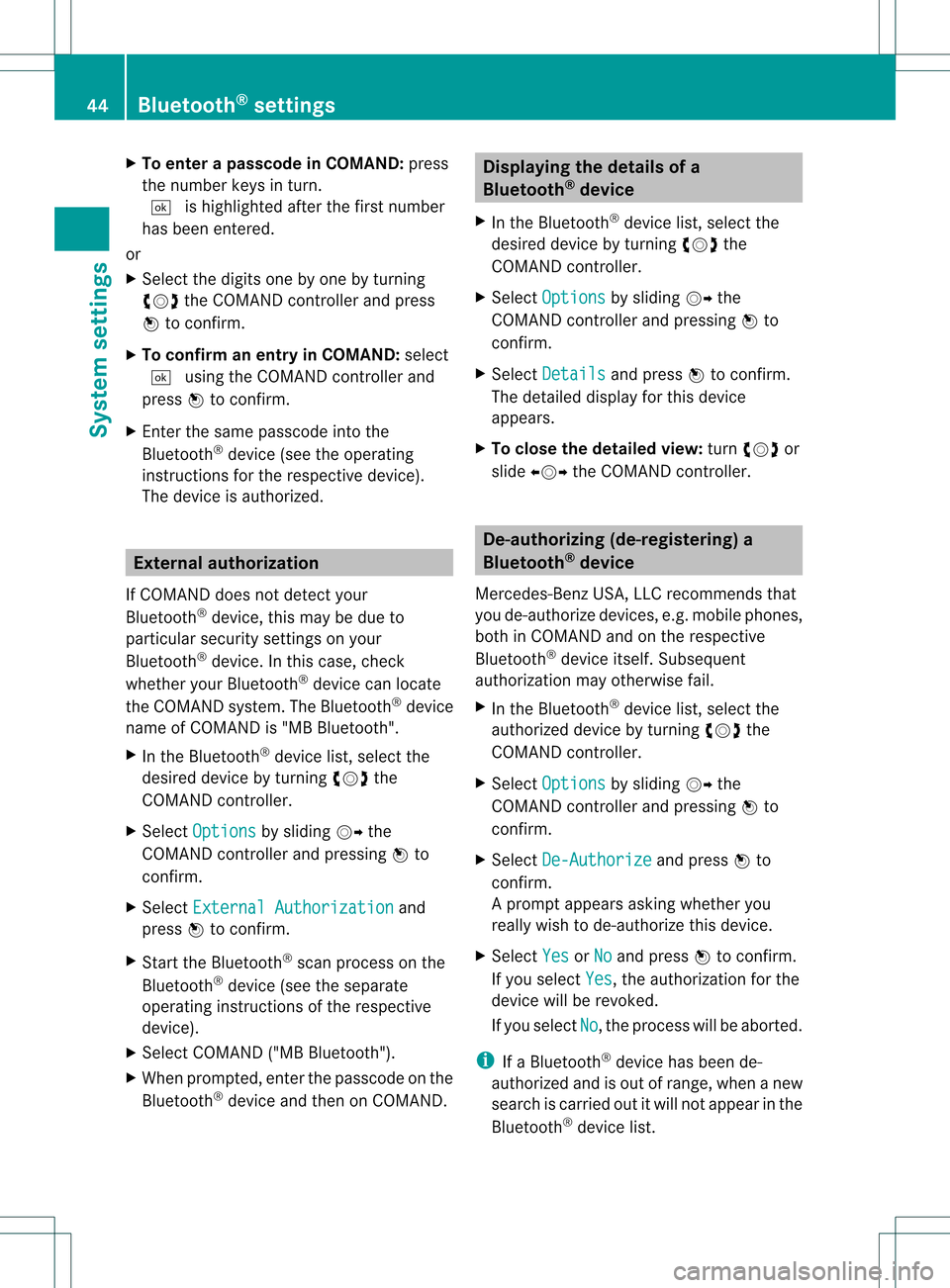
passcode isany one tosixteen- digit
number combination whichyoucan choose
yoursel f.You must enter thesame number
combination inCOMAND andinthe
Bluetooth ®
device tobe authorized (seethe
mobile phoneoperating instructions).
i Some mobile phones requireapasscode
with fourormore digits.
i Ifyou want tore-authorize adevice
followi ngde-authorization (Ypage 44),
you can select adifferent passcode. Bluetooth
®
settings 43System
settings
Page 46 of 182
X
To enter apassc odeinCOMA ND:press
the numbe rkeys inturn.
¬ ishig hlighted afterthefirst numbe r
has beenentere d.
or
X Sel ect the digits one byone byturning
cVd theCOMAND controller and press
W toconfi rm.
X To confi rm anentry inCO MA ND: select
¬ using the COMAND controller and
pre ssW toconfi rm.
X Enter thesame passco deinto the
Blu etoo th®
de vic e(see the opera ting
ins tructio nsfor the respective devic e).
The devic eis au thor ized. Ex
tern alautho rization
If CO MAND does not detect your
Blu etoo th®
de vic e,thi sma ybe duet o
partic ularsecurit ysett ings onyour
Bluetoot h®
device. Inthis case, check
whether yourBluetoot h®
device canlocate
the COMAND system.The Bluetooth ®
device
name ofCOMAND is"MB Bluetooth".
X In the Bluetooth ®
device list,select the
desired devicebyturning cVdthe
COMAND controller.
X Select Options by
sliding VYthe
COMAND controller andpressing Wto
confirm .
X Select External Authorization and
press Wtoconfirm .
X Start theBluetooth ®
scan process onthe
Bluetooth ®
device (seetheseparate
operating instructionsofthe respective
device).
X Select COMAND ("MBBluetooth").
X When prompted, enterthepasscode onthe
Bluetooth ®
device andthen onCOMAND. Displaying
thedetails ofa
Bluetooth ®
device
X In the Bluetooth ®
device list,select the
desired devicebyturning cVdthe
COMAND controller.
X Select Options by
sliding VYthe
COMAND controller andpressing Wto
confirm .
X Select Details and
press Wtoconfirm .
The detailed displayfor this device
appea rs.
X To close thedetailed view:turncVd or
slide XVY theCOMAND controller. De-authoriz
ing(de-registering) a
Bluetooth ®
device
Mercedes-Ben zUSA, LLCrecommen dsthat
you de-authorize devices,e.g.mobile phones,
both inCOMAND andonthe respective
Bluetooth ®
device itself.Subsequent
authorization mayotherwise fail.
X In the Bluetooth ®
device list,select the
authorized devicebyturning cVdthe
COMAND controller.
X Select Options by
sliding VYthe
COMAND controller andpressing Wto
confirm .
X Select De-Authorize and
press Wto
confirm .
Ap rompt appears asking whethe ryou
really wishtode-authorize thisdevice.
X Select Yes or
No and
press Wtoconf irm.
If you select Yes ,
the authorization forthe
device willberevoked.
If you select No ,
the process willbeaborted.
i IfaBluetooth ®
device hasbeen de-
authorized andisout ofrange, whenanew
search iscarried outitwill notappear inthe
Bluetooth ®
device list. 44
Bluetooth ®
settingsSystem settings