button MERCEDES-BENZ GLK-Class 2013 X204 Manual PDF
[x] Cancel search | Manufacturer: MERCEDES-BENZ, Model Year: 2013, Model line: GLK-Class, Model: MERCEDES-BENZ GLK-Class 2013 X204Pages: 378, PDF Size: 5.03 MB
Page 196 of 378
The system analyzes images from the
following cameras:
R rear view camera
R front camera
R two cameras in the exterior rear view
mirrors
The cameras capture the immediate
surroundings of the vehicle. The system
supports you, e.g. when parking or if vision is
restricted at an exit.
The 360° camera images can be shown in full
screen mode or in seven different split-screen
views on the COMAND display .Asplit-screen
view also includes a top view of the vehicle.
This view is calculated from the data supplied
by the installed cameras (virtual camera).
The seven split-screen views are:
R top view and picture from the rear view
camera (130 °viewing angle)
R top view and picture fro mthe front camera
(without displaying the maximum steering
wheel angle)
R top view and enlarged rear view
R top view and enlarged front view
R top view and trailer view (vehicles with
trailer tow hitch)
R top view and pictures from the rearward
facing mirror cameras (rear wheel view)
R top view and pictures from the forward
facing mirror cameras (front wheel view)
i The top view and trailer view are available
for vehicles equipped with a trailer tow
hitch.
When the function is active and you shift the
transmission from position Dor Rto N, you
see the previous view in the COMAND
display. The dynamic guidelines are hidden.
When you change between transmission
positions Dand R, you see the previously
selected front or rear view. Activation conditions The 360° camera image can be displayed if:
R
your vehicle is equipped with a 360°
camera
R COMAND is switched on, see the separate
COMAND operating instructions
R the 360° Camera function is activated
Activating the 360° camera using the
SYS button X
Press and hold the 0003button for longer
than 2seconds, see the separate COMAND
operating instructions.
Depending on whether position Dor Ris
engaged, the following is shown:
R full screen display with the image from
the front camera
R full screen display with the image from
the rear camera
Activating the 360° camer awith
COMAND X
Press the 0003button, see the separate
COMAN Doperating instructions.
X Select System by turning
000C0002000Dthe
COMAND controller and press 000Ato
confirm.
X Select 360° Camera and press
000Ato
confirm.
Depending on whether position Dor Ris
engaged, the following is shown:
R a split scree nwith top view and the
image from the front camera or
R a split screen with top view and the
image from the rear view camera
For further information about the COMAND
Controller, see the separate COMAND
operating instructions. 194
Driving systemsDriving and parking
Page 200 of 378
R
if you have adopted a sporty driving style
with high cornering speeds or high rates of
acceleration
R if you are predominantly driving slower
than 50 mph (80 km/h) or faster than
112 mph (180 km/h)
R if you are currently using COMAND or
making a telephone call with it
R if the time has been set incorrectly
R in active driving situations, such as when
you change lanes or change your speed
Warning and display messages in the
multifunction display X
Activate ATTENTION ASSIST using the on-
board computer (Y page 225).
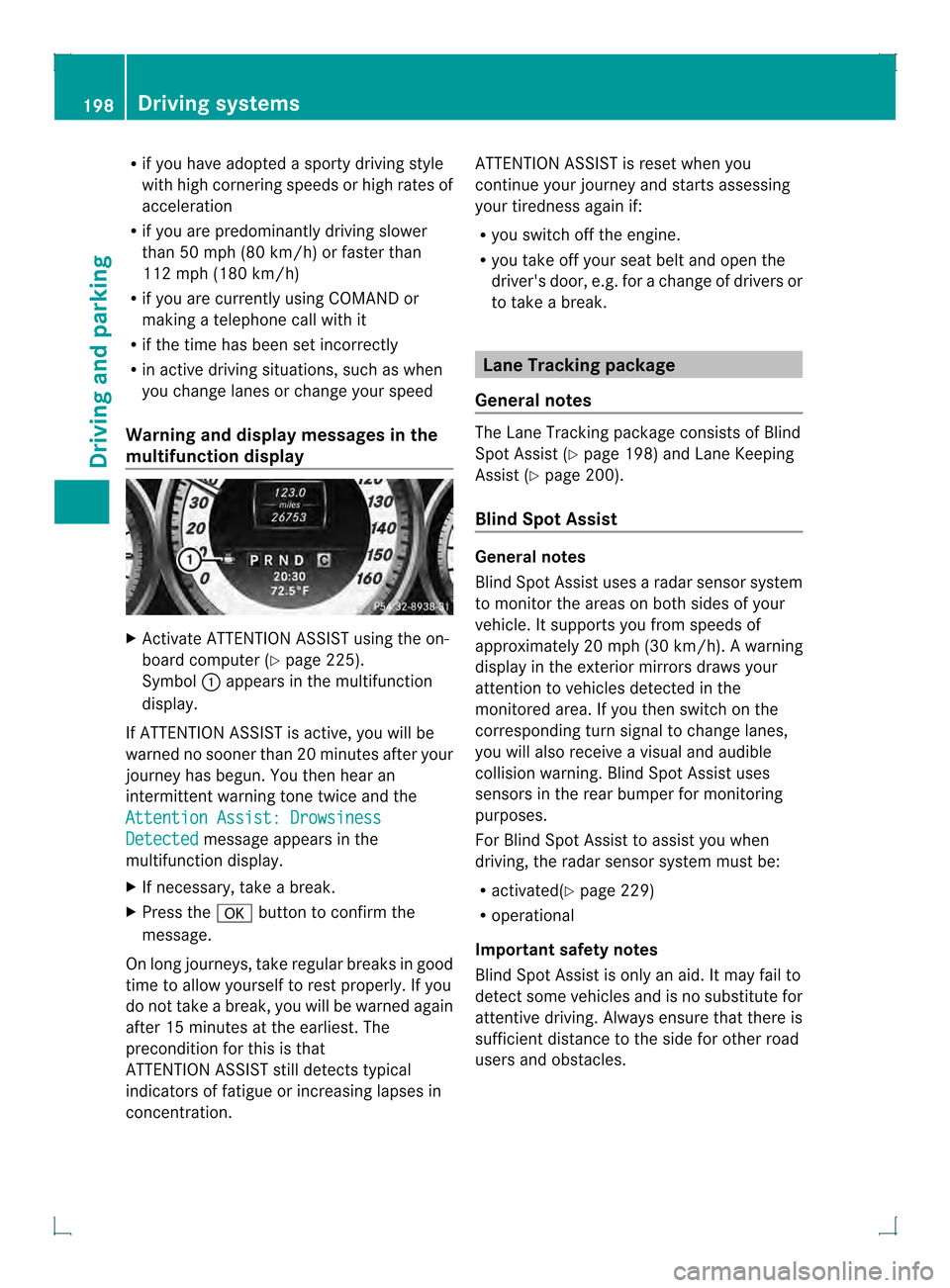
Symbol 0002appears in the multifunction
display.
If ATTENTION ASSIST is active, you will be
warned no sooner than 20 minutes after your
journey has begun. You the nhear an
intermittent warning tonet wice and the
Attention Assist: Drowsiness Detected message appears in the
multifunction display.
X If necessary, take a break.
X Press the 000Bbutton to confirm the
message.
On long journeys, take regular breaks in good
time to allow yourself to rest properly. If you
do not take a break, you will be warned again
after 15 minutes at the earliest. The
preconditio nfor this is that
ATTENTION ASSIST still detects typical
indicators of fatigue or increasing lapses in
concentration. ATTENTION ASSIST is reset when you
continue your journey and starts assessing
your tiredness again if:
R
you switch off the engine.
R you take off your seat belt and open the
driver's door, e.g. for a change of drivers or
to take a break. Lane Tracking package
General notes The Lane Tracking package consists of Blind
Spot Assist (Y
page 198) and Lane Keeping
Assist (Y page 200).
Blind Spot Assist General notes
Blind Spot Assist uses a radar sensor system
to monitor the areas on both sides of your
vehicle. It supports you from speeds of
approximately 20 mph (30 km/h). A warning
display in the exterio rmirrors draws your
attention to vehicles detected in the
monitored area. If you then switch on the
corresponding tur nsignal to change lanes,
you will also receive a visual and audible
collision warning. Blind Spot Assist uses
sensors in the rear bumper for monitoring
purposes.
For Blind Spot Assist to assist you when
driving, the radar sensor system must be:
R activated(Y page 229)
R operational
Important safety notes
Blind Spot Assist is only an aid. It may fail to
detect some vehicles and is no substitute for
attentive driving. Always ensure that there is
sufficien tdistance to the side for other road
users and obstacles. 198
Driving systemsDriving and parking
Page 219 of 378
Outside temperature display
You should pay special attention to road
conditions when temperatures are around
freezing point.
The outside temperature display is in the
multifunction display (Y page 218).
Changes in the outside temperature are
displayed after a short delay. Speedometer with segments
The segments in the speedometer indicate
which speed range is available.
R Cruise control activated (Y page 169):
The segments light up from the stored
speed to the maximum speed.
R DISTRONIC PLUS activated (Y page 171):
One or two segments in the set speed
range light up.
R DISTRONIC PLUS detects avehicle in front:
The segments between the speed of the
vehicle in fron tand the stored speed light
up. Operating the on-board computer
Overview The on-board compute
ris activated as soon
as you turn the SmartKey to position 1in the
ignition lock.
You can control the multifunction display and
the settings in the on-board computer using
the buttons on the multifunction steering
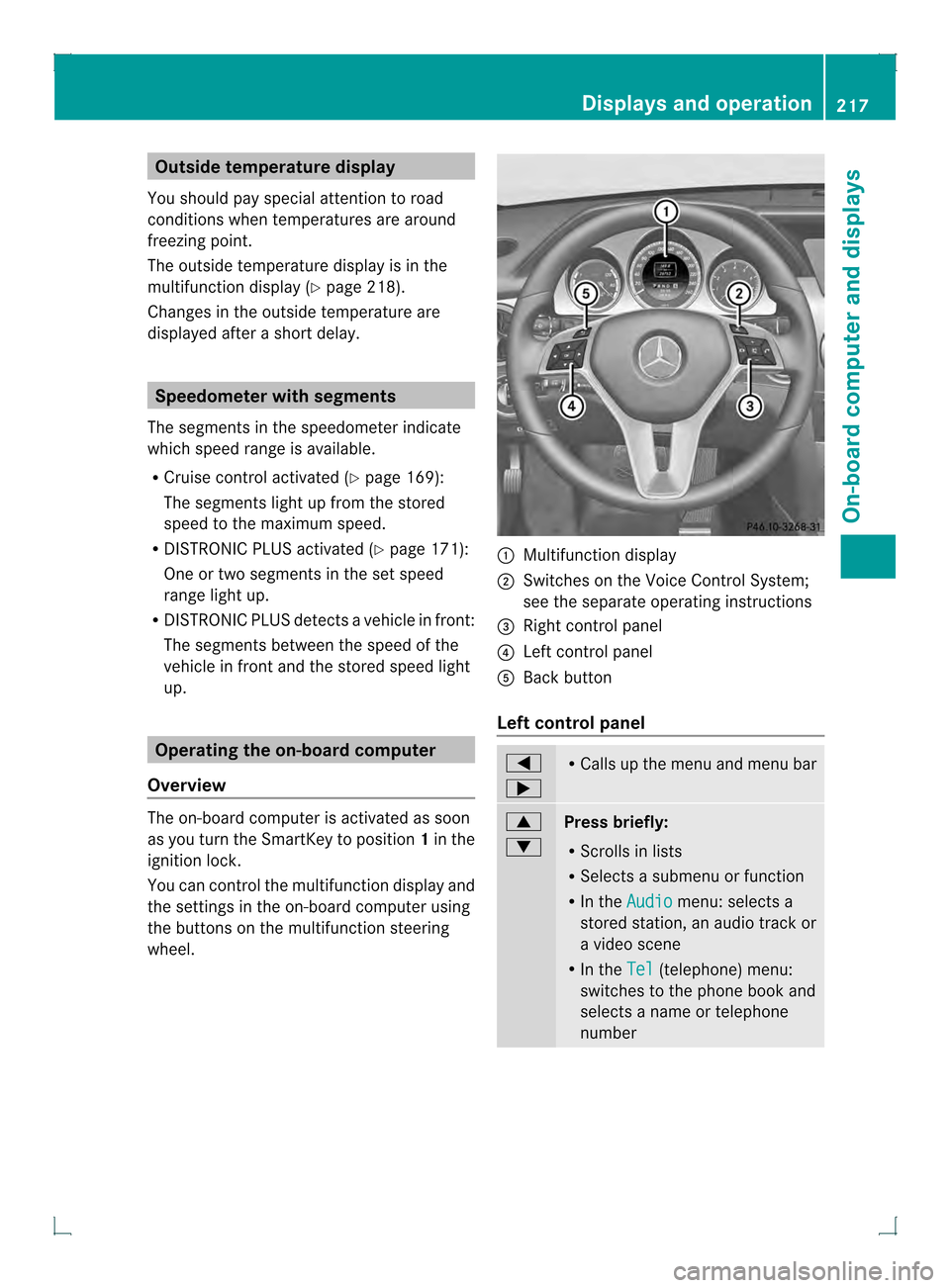
wheel. 0002
Multifunction display
0003 Switches on the Voice Control System;
see the separate operating instructions
0021 Right control panel
0020 Left control panel
001E Back button
Left control panel 0002
0005 R
Calls up the menu and menu bar 0003
0004
Press briefly:
R
Scrolls in lists
R Selects a submenu or function
R In the Audio menu: selects a
stored station, an audio track or
a video scene
R In the Tel (telephone) menu:
switches to the phone book and
selects a name or telephone
number Displays and operation
217On-board computer and displays Z
Page 220 of 378
0003
0004
Press and hold:
R
In the Audio menu: selects the
previous/next station or selects
an audio track or a video scene
using rapid scrolling
R In the Tel (Telephone) menu:
starts rapid scrolling of the
phone book if it is open 000B R
Confirms a selection/display
message
R In the Tel (Telephone) menu:
switches to the telephone book
and starts dialing the selected
number
R In the Audio menu: stops the
station search function at the
desired station Right control panel
000B R
Rejects or ends a call
R Exits phone book/redial
memory 0004 R
Makes or accepts a call
R Switches to the redial memory 0009
000A R
Adjusts the volume 0006 R
Mute Back button
0007
Press briefly:
R
Back
R Switches off the Voice Control
System; see the separate
operating instructions
R Hides display messages/calls
up the last Trip menu function
used
R Exits the telephone book/redial
memory 0007
Press and hold:
R
Calls up the standard display in
the Trip menu
Multifunction display
Values and settings as well as display
messages are shown in the multifunction
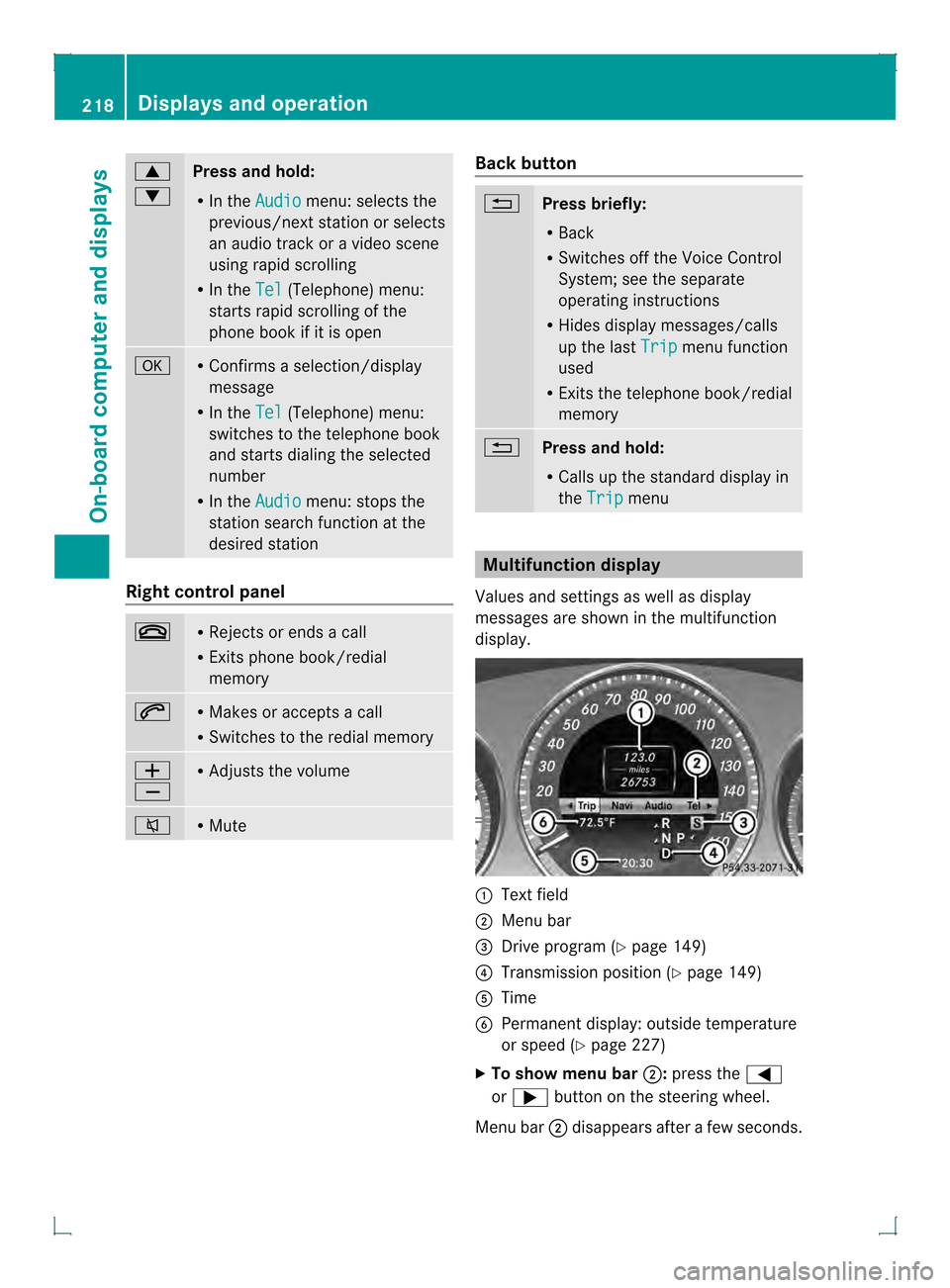
display. 0002
Text field
0003 Menu bar
0021 Drive program (Y page 149)
0020 Transmission position (Y page 149)
001E Time
001F Permanent display:o utside temperature
or speed ( Ypage 227)
X To show menu bar 0003:press the 0002
or 0005 buttonont he steering wheel.
Menu bar 0003disappears after a few seconds. 218
Displays and operationOn-board computer and displays
Page 221 of 378
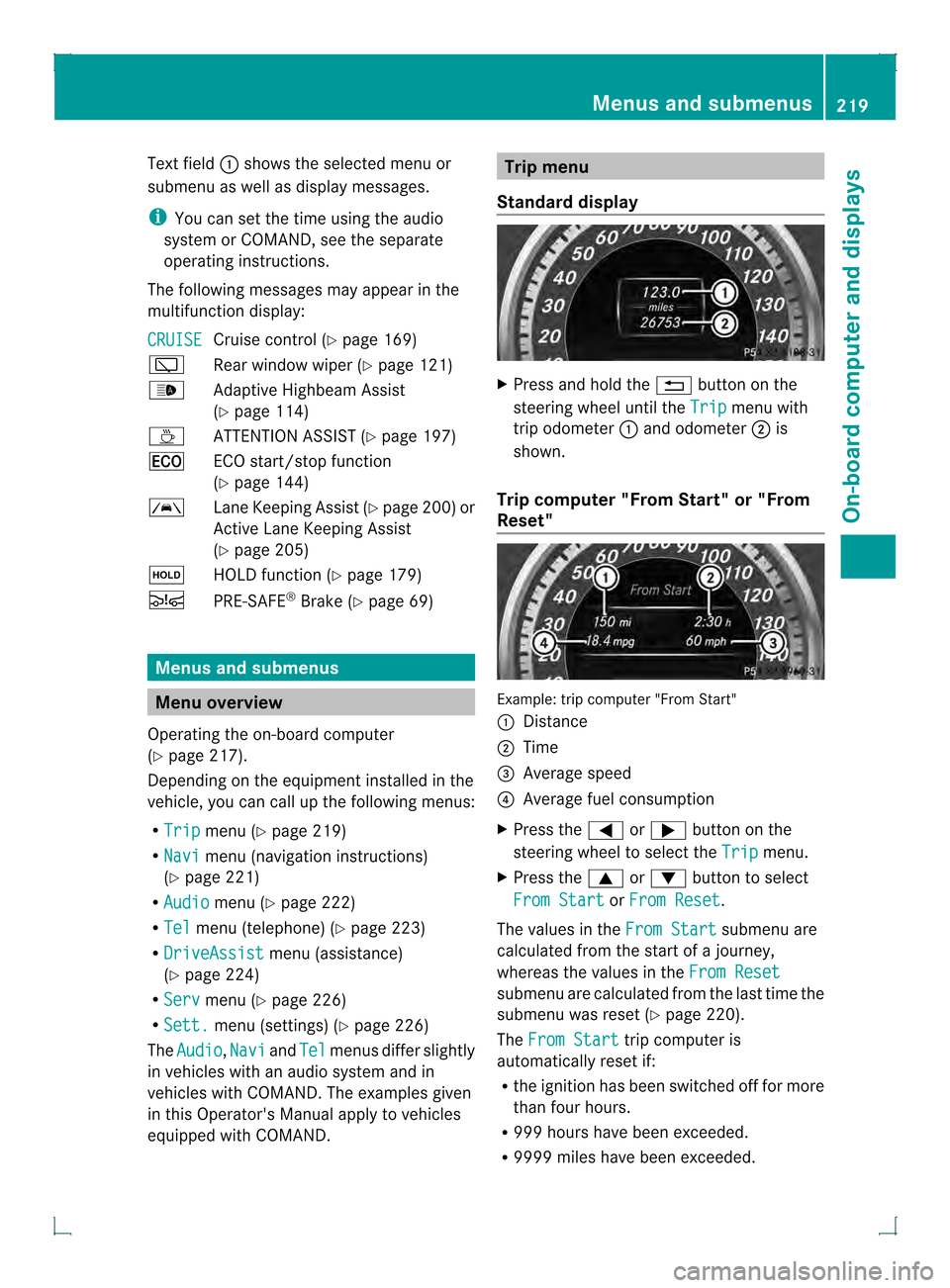
Text field
0002shows the selected menu or
submenu as well as display messages.
i You can set the time using the audio
system or COMAND, see the separate
operating instructions.
The following messages may appear in the
multifunction display:
CRUISE Cruise control (Y
page 169)
0001 Rear window wiper (Y page 121)
0004 Adaptive Highbeam Assist
(Ypage 114)
0003 ATTENTION ASSIST (Y page 197)
000E ECO start/stop function
(Ypage 144)
0001 Lane Keeping Assist (Y page 200) or
Active Lane Keeping Assist
(Y page 205)
0001 HOLD function (Y page 179)
0001 PRE-SAFE ®
Brake (Y page 69) Menus and submenus
Menu overview
Operating the on-board computer
(Y page 217).
Depending on the equipment installed in the
vehicle, you can call up the following menus:
R Trip menu (Y
page 219)
R Navi menu (navigation instructions)
(Y page 221)
R Audio menu (Y
page 222)
R Tel menu (telephone) (Y
page 223)
R DriveAssist menu (assistance)
(Y page 224)
R Serv menu (Y
page 226)
R Sett. menu (settings) (Y
page 226)
The Audio ,
Navi and
Tel menus differ slightly
in vehicles with an audio system and in
vehicles with COMAND .The examples given
in this Operator's Manual apply to vehicles
equipped with COMAND. Trip menu
Standard display X
Press and hold the 0007button on the
steering wheel until the Trip menu with
trip odometer 0002and odometer 0003is
shown.
Trip computer "From Start" or "From
Reset" Example: trip computer "From Start"
0002
Distance
0003 Time
0021 Average speed
0020 Average fuel consumption
X Press the 0002or0005 button on the
steering wheel to select the Trip menu.
X Press the 0003or0004 button to select
From Start or
From Reset .
The values in the From Start submenu are
calculated from the start of a journey,
whereas the values in the From Reset submenu are calculated from the last time the
submenu was reset (Y
page 220).
The From Start trip computer is
automatically reset if:
R the ignition has been switched off for more
than four hours.
R 999 hours have been exceeded.
R 9999 miles have been exceeded. Menus and submenus
219On-board computer and displays Z
Page 222 of 378
The
From Reset trip computer is
automatically reset if the value exceeds
9,999 hours or 99,999 miles.
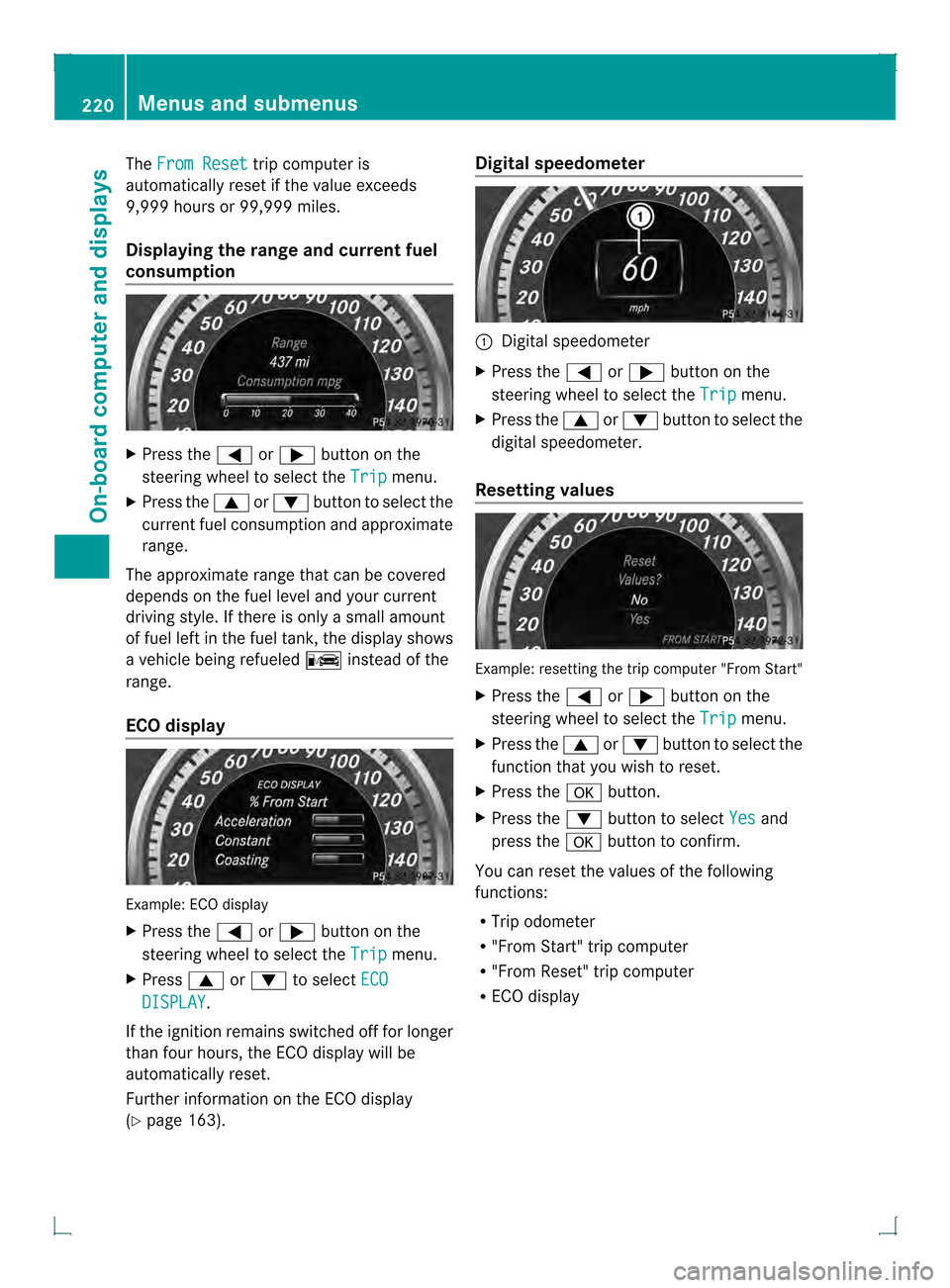
Displaying the range and current fuel
consumption X
Press the 0002or0005 button on the
steering wheel to select the Trip menu.
X Press the 0003or0004 button to select the
curren tfuel consumption and approximate
range.
The approximate range that can be covered
depends on the fuel level and your current
driving style. If there is only a small amount
of fuel left in the fuel tank, the display shows
a vehicle being refueled 0008instead of the
range.
ECO display Example: ECO display
X
Press the 0002or0005 button on the
steering wheel to select the Trip menu.
X Press 0003or0004 to select ECO DISPLAY .
If the ignition remains switched off for longer
than four hours, the ECO display will be
automatically reset.
Further information on the ECO display
(Y page 163). Digital speedometer
0002
Digital speedometer
X Press the 0002or0005 button on the
steering wheel to select the Trip menu.
X Press the 0003or0004 buttonto select the
digital speedometer.
Resetting values Example: resetting the trip computer "From Start"
X
Press the 0002or0005 button on the
steering wheel to select the Trip menu.
X Press the 0003or0004 button to select the
function that you wish to reset.
X Press the 000Bbutton.
X Press the 0004button to select Yes and
press the 000Bbutton to confirm.
You can reset the values of the following
functions:
R Trip odometer
R "From Start" trip computer
R "From Reset" trip computer
R ECO display 220
Menus and submenusOn-board computer and displays
Page 223 of 378
Navigation syste
mmenu
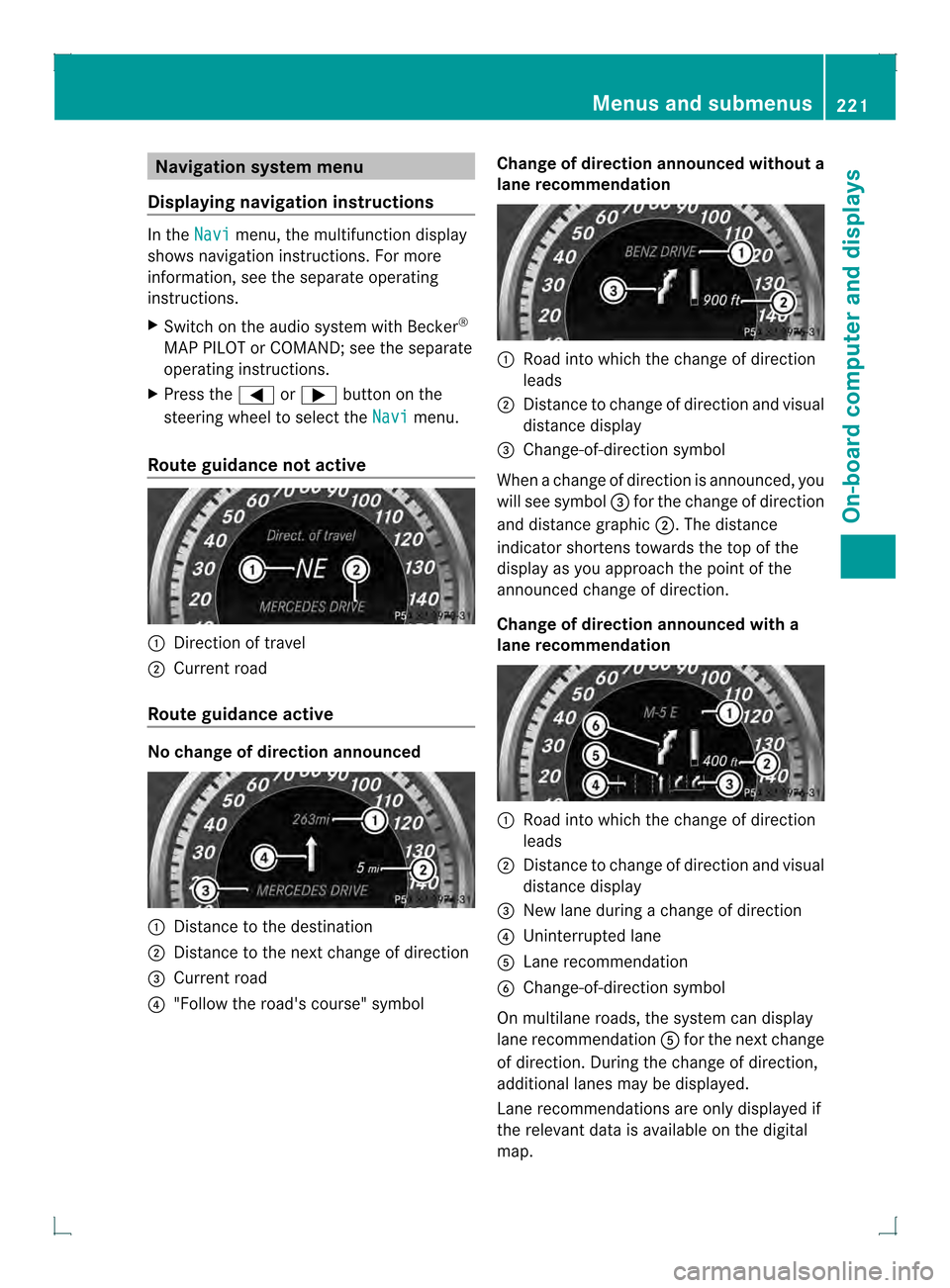
Displaying navigation instructions In the
Navi menu, the multifunction display
shows navigation instructions. For more
information, see the separate operating
instructions.
X Switch on the audio system with Becker ®
MAP PILOT or COMAND; see the separate
operating instructions.
X Press the 0002or0005 button on the
steering wheel to selec tthe Navi menu.
Route guidance not active 0002
Direction of travel
0003 Current road
Route guidance active No change of direction announced
0002
Distance to the destination
0003 Distance to the next change of direction
0021 Current road
0020 "Follow the road's course" symbol Change of direction announced without a
lane recommendation 0002
Road into which the change of direction
leads
0003 Distance to change of direction and visual
distance display
0021 Change-of-direction symbol
When a change of direction is announced, you
will see symbol 0021for the change of direction
and distance graphic 0003.The distance
indicator shortens towards the top of the
display as you approach the point of the
announced change of direction.
Change of direction announced with a
lane recommendation 0002
Road into which the change of direction
leads
0003 Distance to change of direction and visual
distance display
0021 New lane during a change of direction
0020 Uninterrupted lane
001E Lane recommendation
001F Change-of-direction symbol
On multilane roads, the system can display
lane recommendation 001Efor the next change
of direction. During the change of direction,
additional lanes may be displayed.
Lane recommendations are only displayed if
the relevant data is available on the digital
map. Menus and submenus
221On-board computer and displays Z
Page 224 of 378
Other status indicators of the
navigation system R
0001:y ou have reached the destination or an
intermediate destination.
R New Route... or
Calculating Route :
calculating a new route
R Off Map or
Off Mapped Road :t
he vehicle
position is outside the area of the digital
map (off-map position).
R No Route :n
o route could be calculated to
the selected destination. Audio menu
Selecting aradio station i
SIRIUS XM satellite radio functions like a
normal radio.
For more information on satellite radio
operation, see the separate operating
instructions.
i For information on switching waveband
and storing stations; see the separate
operating instructions.
X Switch on the audio system or COMAND
and select Radio (see the separate
operating instructions).
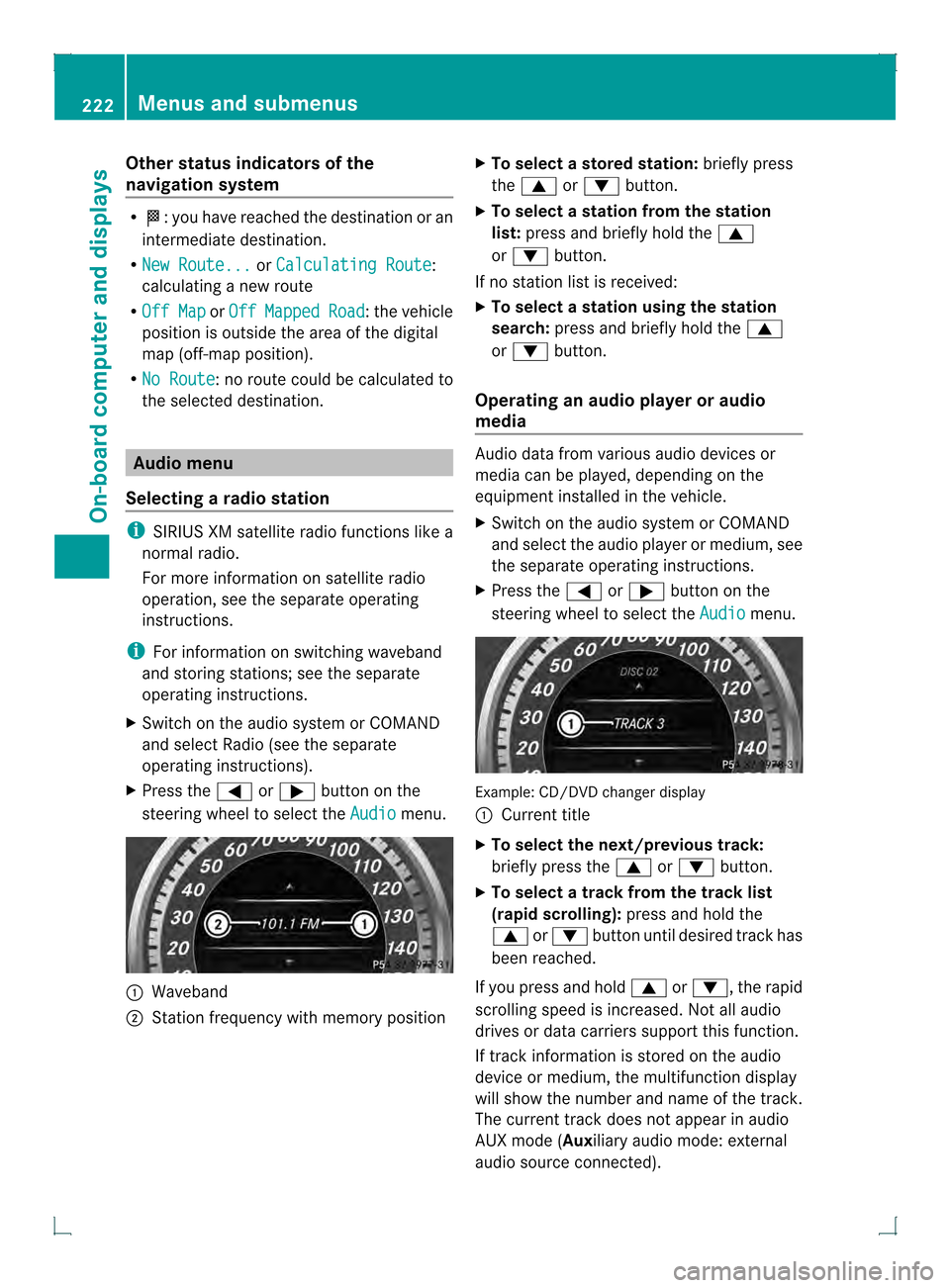
X Press the 0002or0005 button on the
steering wheel to select the Audio menu.
0002
Waveband
0003 Station frequency with memory position X
To selectas toredstation: briefly press
the 0003 or0004 button.
X To select a station from the station
list: press and briefly hold the 0003
or 0004 button.
If no statio nlist is received:
X To select astation using the station
search: press and briefly hold the 0003
or 0004 button.
Operating an audio player or audio
media Audio data from various audi
odevices or
media can be played, depending on the
equipment installed in the vehicle.
X Switch on the audio system or COMAND
and select the audio player or medium, see
the separate operating instructions.
X Press the 0002or0005 button on the
steering wheel to select the Audio menu.
Example: CD/DVD changer display
0002
Current title
X To select the next/previous track:
briefly press the 0003or0004 button.
X To select a track from the track list
(rapid scrolling): press and hold the
0003 or0004 button until desired trac khas
been reached.
If you press and hold 0003or0004, the rapid
scrolling speed is increased. Not all audio
drives or data carriers support this function.
If track information is stored on the audio
device or medium, the multifunction display
will show the number and name of the track.
The curren ttrack does not appear in audio
AUX mode (Auxiliary audio mode: external
audio source connected). 222
Menus and submenusOn-board computer and displays
Page 225 of 378
Video DVD operation
X
Switch on COMAND and select video DVD;
see the separate operating instructions.
X Press the 0002or0005 button on the
steering wheel to select the Audio menu.
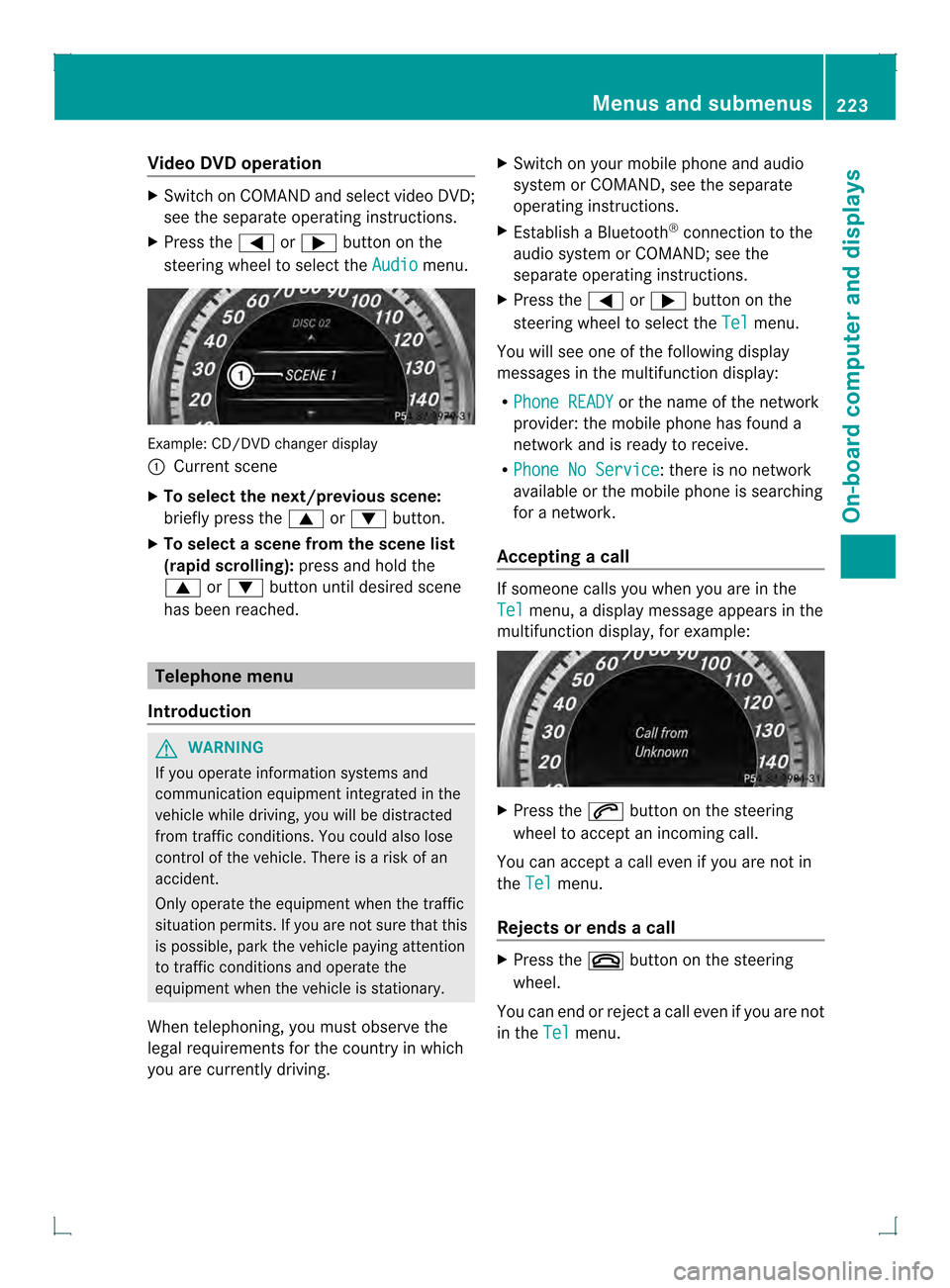
Example
:CD/DVD change rdisplay
0002 Current scene
X To select the next/previou sscene:
briefly press the 0003or0004 button.
X To select ascene from the scene list
(rapid scrolling): press and hold the
0003 or0004 buttonuntil desired scene
has been reached. Telephone menu
Introduction G
WARNING
If you operate informatio nsystems and
communication equipment integrated in the
vehicle while driving, you will be distracted
from traffic conditions. You could also lose
control of the vehicle. There is a risk of an
accident.
Only operate the equipmen twhen the traffic
situation permits. If you are not sure that this
is possible, park the vehicle paying attention
to traffic conditions and operate the
equipment when the vehicle is stationary.
When telephoning, you must observe the
legal requirements for the country in which
you are currently driving. X
Switch on your mobile phone and audio
system or COMAND, see the separate
operating instructions.
X Establish a Bluetooth ®
connection to the
audio system or COMAND; see the
separate operating instructions.
X Press the 0002or0005 button on the
steering wheel to select the Tel menu.
You will see one of the following display
messages in the multifunction display:
R Phone READY or the name of the network
provider: the mobile phone has found a
network and is ready to receive.
R Phone No Service : there is no network
available or the mobile phone is searching
for a network.
Accepting acall If someone calls you whe
nyou are in the
Tel menu, a display message appears in the
multifunction display, for example: X
Press the 0004button on the steering
wheel to accept an incoming call.
You can accept a call even if you are not in
the Tel menu.
Rejects or ends a call X
Press the 000Bbutton on the steering
wheel.
You can end or rejectacall eve nifyou are not
in the Tel menu. Menus and submenus
223On-board computer and displays Z
Page 226 of 378
Dialing a number from the phone book
X
Press the 0002or0005 button on the
steering wheel to selec tthe Tel menu.
X Press the 0003,0004or000B button to
switch to the phone book.
X Press the 0003or0004 button to select the
desired name.
or
X To begin rapid scrolling: press and hold
the 0003 or0004 button for longer than
one second.
Rapid scrolling stops when you release the
button or reach the end of the list.
X If only one telephone number is stored
for a name: press the0004or000B button
to start dialing.
or
X If there is more than one number for a
particular name: press the0004or000B
button to display the numbers.
X Press the 0003or0004 button to select the
number you want to dial.
X Press the 0004or000B button to start
dialing.
or
X To exit the telephone book: press the
000B or0007 button.
Redialing The on-board computer saves the last names
or numbers dialed in the redial memory.
X Press the 0002or0005 button on the
steering wheel to select the Tel menu.
X Press the 0004button to switch to the
redial memory.
X Press the 0003or0004 button to select the
desired name or number.
X Press the 0004or000B button to start
dialing.
or
X If you do not want to make a call: press
the 000B or0007 button. Assistance menu
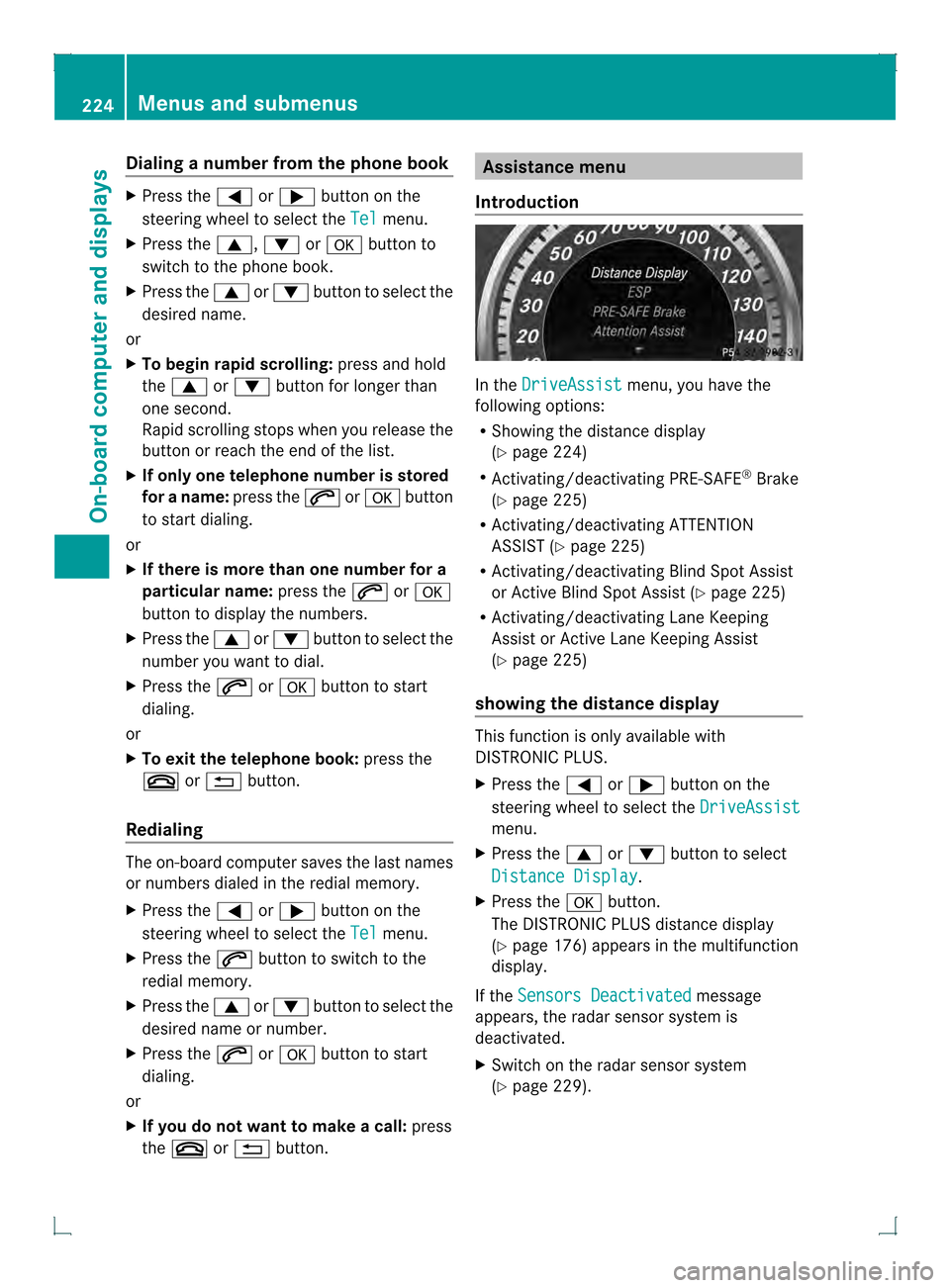
Introduction In the
DriveAssist menu, you have the
following options:
R Showing the distance display
(Y page 224)
R Activating/deactivating PRE-SAFE ®
Brake
(Y page 225)
R Activating/deactivating ATTENTION
ASSIST (Y page 225)
R Activating/deactivating Blind Spot Assist
or Active Blind Spot Assist (Y page 225)
R Activating/deactivating Lane Keeping
Assist or Active Lane Keeping Assist
(Y page 225)
showing the distance display This function is only available with
DISTRONIC PLUS.
X
Press the 0002or0005 button on the
steering wheel to select the DriveAssist menu.
X Press the 0003or0004 button to select
Distance Display .
X Press the 000Bbutton.
The DISTRONIC PLUS distance display
(Y page 176) appears in the multifunction
display.
If the Sensors Deactivated message
appears, the radar sensor system is
deactivated.
X Switch on the radar sensor system
(Y page 229). 224
Menus and submenusOn-board computer and displays