Time MERCEDES-BENZ S-Class 2011 W221 Owner's Manual
[x] Cancel search | Manufacturer: MERCEDES-BENZ, Model Year: 2011, Model line: S-Class, Model: MERCEDES-BENZ S-Class 2011 W221Pages: 524, PDF Size: 22.53 MB
Page 362 of 524
No warning vibration occurs if:
Ryou clearly and actively steer, brake, or
accelerate.
Ryou cut the corner on a sharp bend.
Ra driving safety system intervenes, such as
ABS, BAS or ESP®.
Ryou switch on the turn signals. In this event,
the warnings are suppressed for a certain
period of time.
Lane-correcting brake application
If you leave your lane under certain
circumstances, the vehicle will brake briefly
on one side. This is designed to help you bring
the vehicle back into the original lane.
This function is available in the range between
40 mph and 120 mph (60 km/h and
200 km/h).
A lane-correcting brake application can only
be made after driving over a solid,
recognizable lane marking. You will be
warned beforehand by means of an
intermittent vibration in the steering wheel.
In addition, a lane with lane markings on both
sides must be recognized. The brake
application also slightly reduces driving
speed.
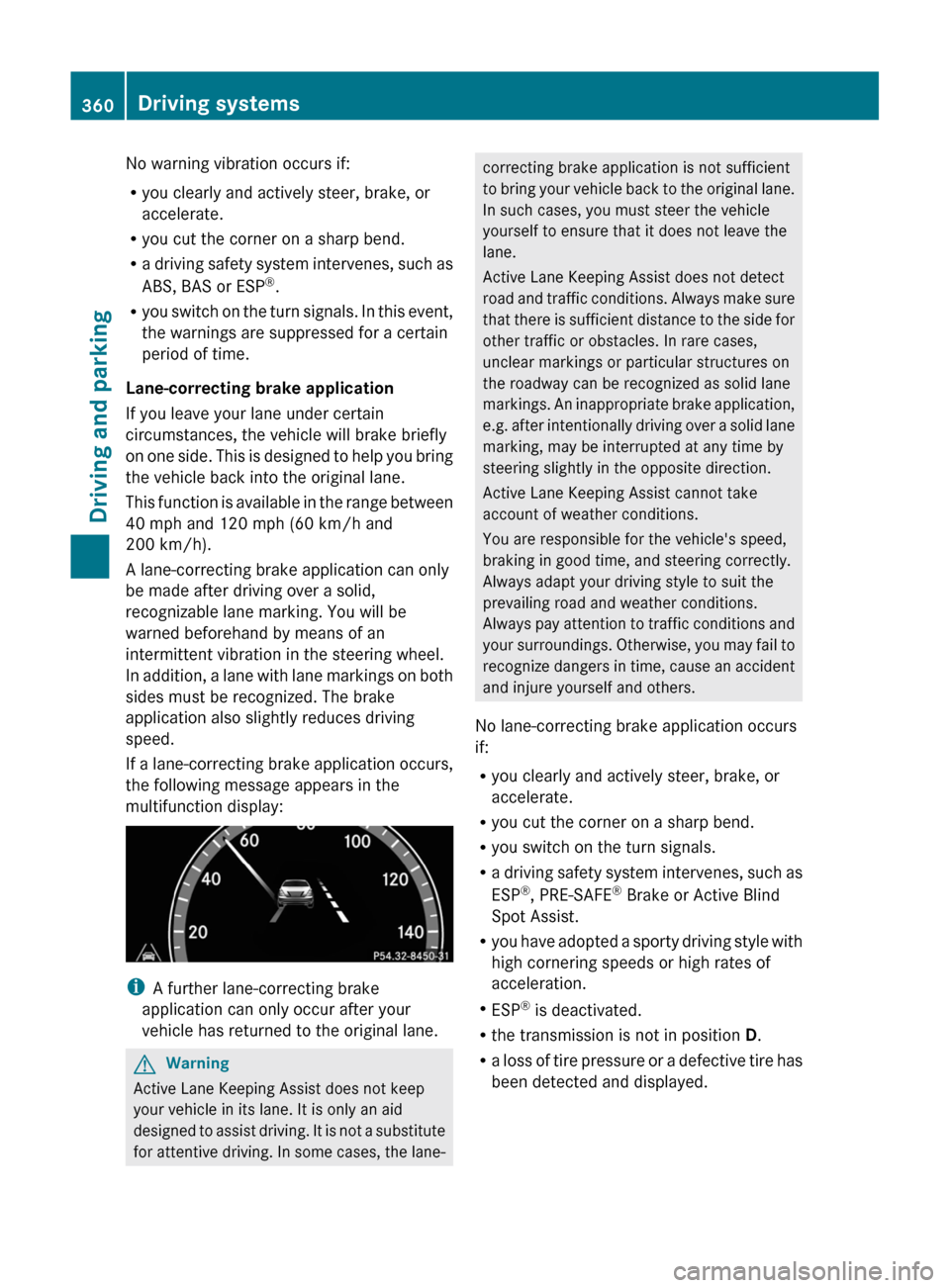
If a lane-correcting brake application occurs,
the following message appears in the
multifunction display:
iA further lane-correcting brake
application can only occur after your
vehicle has returned to the original lane.
GWarning
Active Lane Keeping Assist does not keep
your vehicle in its lane. It is only an aid
designed to assist driving. It is not a substitute
for attentive driving. In some cases, the lane-
correcting brake application is not sufficient
to bring your vehicle back to the original lane.
In such cases, you must steer the vehicle
yourself to ensure that it does not leave the
lane.
Active Lane Keeping Assist does not detect
road and traffic conditions. Always make sure
that there is sufficient distance to the side for
other traffic or obstacles. In rare cases,
unclear markings or particular structures on
the roadway can be recognized as solid lane
markings. An inappropriate brake application,
e.g. after intentionally driving over a solid lane
marking, may be interrupted at any time by
steering slightly in the opposite direction.
Active Lane Keeping Assist cannot take
account of weather conditions.
You are responsible for the vehicle's speed,
braking in good time, and steering correctly.
Always adapt your driving style to suit the
prevailing road and weather conditions.
Always pay attention to traffic conditions and
your surroundings. Otherwise, you may fail to
recognize dangers in time, cause an accident
and injure yourself and others.
No lane-correcting brake application occurs
if:
Ryou clearly and actively steer, brake, or
accelerate.
Ryou cut the corner on a sharp bend.
Ryou switch on the turn signals.
Ra driving safety system intervenes, such as
ESP®, PRE-SAFE® Brake or Active Blind
Spot Assist.
Ryou have adopted a sporty driving style with
high cornering speeds or high rates of
acceleration.
RESP® is deactivated.
Rthe transmission is not in position D.
Ra loss of tire pressure or a defective tire has
been detected and displayed.
360Driving systemsDriving and parking
Page 363 of 524
Active Lane Keeping Assist does not detect
road and traffic conditions. An inappropriate
brake application may be interrupted at any
time if you:
Rsteer slightly in the opposite direction
Ruse a turn signal
Rclearly brake or accelerate
A lane-correcting brake application is
interrupted automatically if:
Ra driving safety system intervenes, such as
ESP®, PRE-SAFE® Brake or Active Blind
Spot Assist
Rlane markings can no longer be recognized
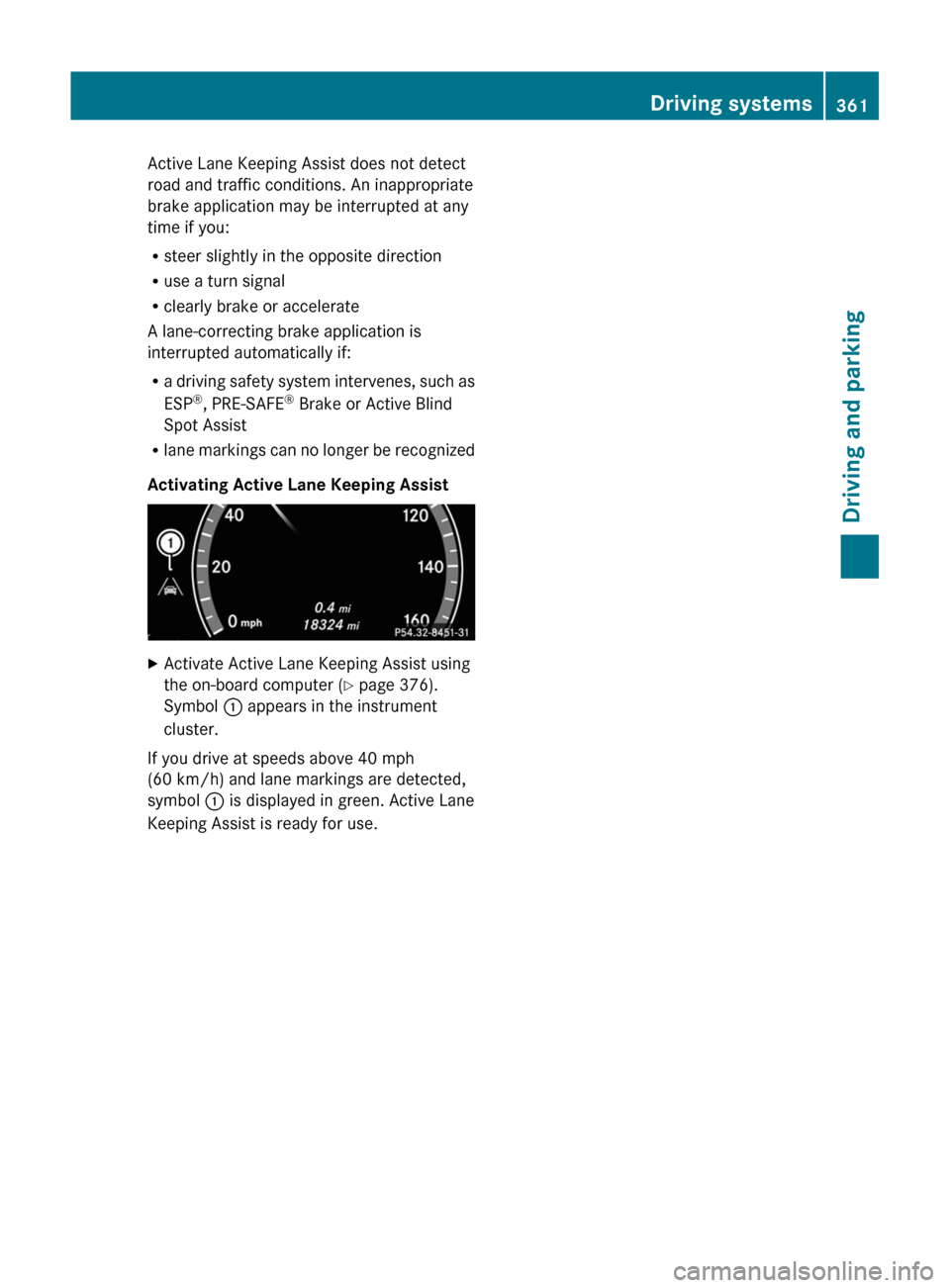
Activating Active Lane Keeping Assist
XActivate Active Lane Keeping Assist using
the on-board computer (Y page 376).
Symbol : appears in the instrument
cluster.
If you drive at speeds above 40 mph
(60 km/h) and lane markings are detected,
symbol : is displayed in green. Active Lane
Keeping Assist is ready for use.
Driving systems361Driving and parkingZ
Page 366 of 524
Vehicle equipment
i This manual describes all the standard
and optional equipment of your vehicle
which was available at the time of
purchase. Country-specific differences are
possible. Bear in mind that your vehicle
may not feature all functions described
here. This also refers to safety-related
systems and functions.
Important safety notes
You will find an illustration of the instrument
cluster in the "At a glance" section
( Y page 32).
GWarning
A driver's attention to the road and traffic
conditions must always be his/her primary
focus when driving.
For your safety and the safety of others,
selecting features through the multifunction
steering wheel should only be done by the
driver when traffic and road conditions permit
it to be done safely.
Bear in mind that at a speed of just 30 mph
(approximately 50 km/h ), your vehicle is
covering a distance of 44 feet (approximately
14 m) every second.
GWarning!
No messages will be displayed if either the
instrument cluster or the multifunction
display is inoperative.
As a result, you will not be able to see
information about your driving conditions,
such as
R speed
R outside temperature
R warning/indicator lamps
R malfunction/warning messages
R failure of any systems
Driving characteristics may be impaired.
If you must continue to drive, do so with added
caution. Contact an authorized Mercedes-
Benz Center as soon as possible.GWarning!
HYBRID vehicles: It is imperative that you read
the HYBRID Supplemental Operating
Instructions included in your vehicle literature
portfolio. You may otherwise not receive all
necessary safety information and warning for
the operation of your vehicle.
GWarning
Malfunction and warning messages are only
indicated for certain systems and are
intentionally not very detailed. The
malfunction and warning messages are
simply a reminder with respect to the
operation of certain systems. They do not
replace the owner's and/or driver's
responsibility to maintain the vehicle's
operating safety. Have all required
maintenance and safety checks performed on
the vehicle. Bring the vehicle to an authorized
Mercedes-Benz Center to address the
malfunction and warning messages.
Displays and operation
Coolant temperature gauge
GWarning
Driving when your engine is overheated can
cause some fluids which may have leaked into
the engine compartment to catch fire. You
could be seriously burned.
Steam from an overheated engine can cause
serious burns which can occur just by opening
the engine hood. Stay away from the engine
if you see or hear steam coming from it.
Stop the vehicle in a safe location away from
other traffic. Turn off the engine, get out of the
vehicle and do not stand near the vehicle until
the engine has cooled down.
364Displays and operationOn-board computer and displays
Page 367 of 524
The coolant temperature gauge is in the
instrument cluster on the left-hand side.
Under normal operating conditions and with
the specified coolant level, the coolant
temperature may rise to 248 ‡ (120 †).
! If the coolant temperature is too high a
display message is shown.
If the coolant temperature rises above
248 ‡(120 †), do not drive any further as
this could damage the engine.
Tachometer
The red band in the tachometer indicates the
engine's overrevving range.
! Do not drive in the overrevving range, as
this could damage the engine.
The fuel supply is interrupted to protect the
engine when the red band is reached.
Outside temperature display
The outside temperature display is in the
multifunction display.
GWarning!
The outside temperature indicator is not
designed to serve as an ice-warning device
and is therefore unsuitable for that purpose.
Indicated temperatures just above the
freezing point do not guarantee that the road
surface is free of ice. The road may still be icy,
especially in wooded areas or on bridges.
Changes in the outside temperature are
displayed after a short delay.
Operating the on-board computer
The on-board computer is activated as soon
as you turn the key to position 2 in the ignition
lock.
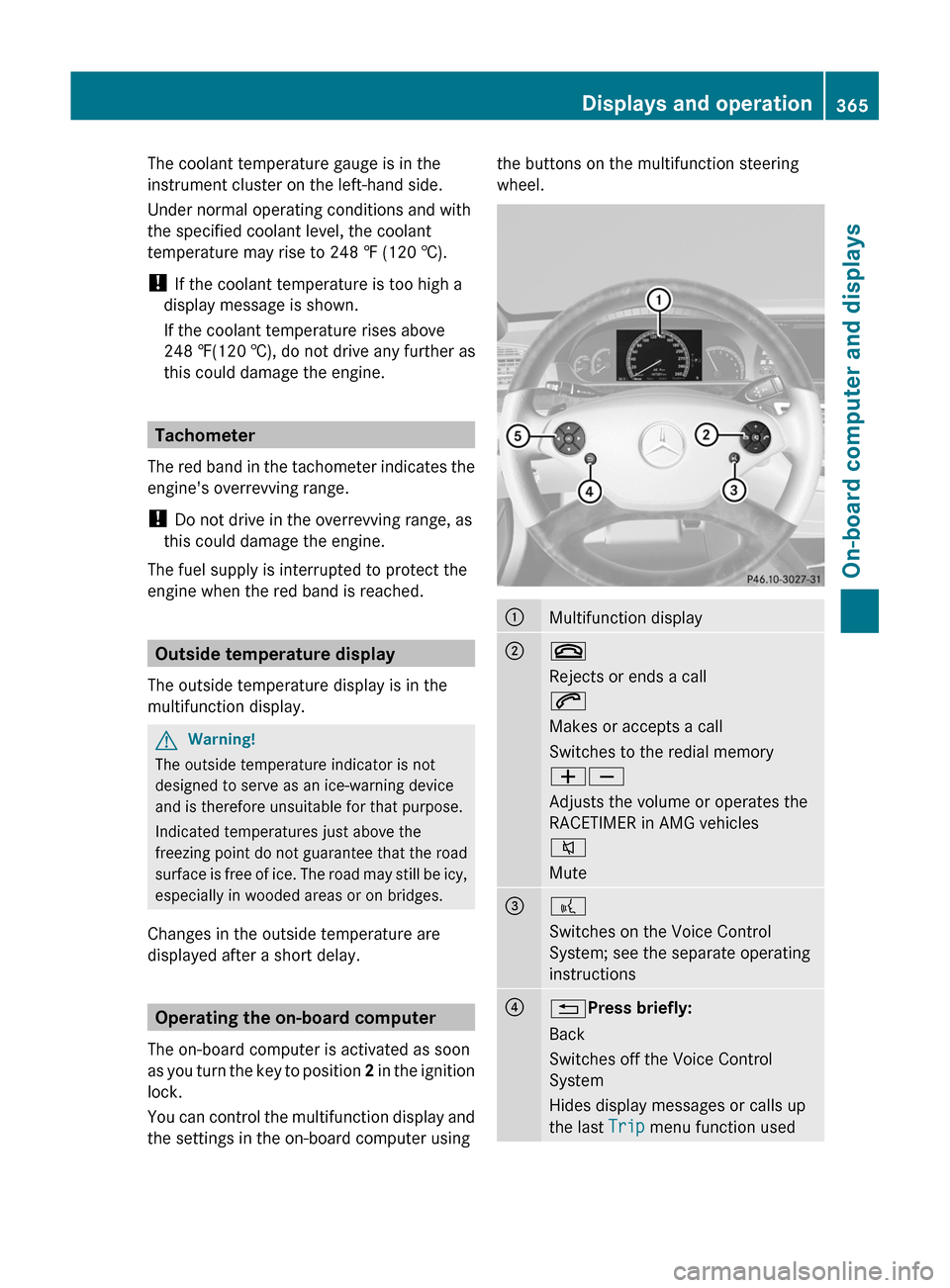
You can control the multifunction display and
the settings in the on-board computer using
the buttons on the multifunction steering
wheel.
:Multifunction display;~
Rejects or ends a call
6
Makes or accepts a call
Switches to the redial memory
WX
Adjusts the volume or operates the
RACETIMER in AMG vehicles
8
Mute
=?
Switches on the Voice Control
System; see the separate operating
instructions
?%Press briefly:
Back
Switches off the Voice Control
System
Hides display messages or calls up
the last Trip menu function used
Displays and operation365On-board computer and displaysZ
Page 370 of 524
Trip menu
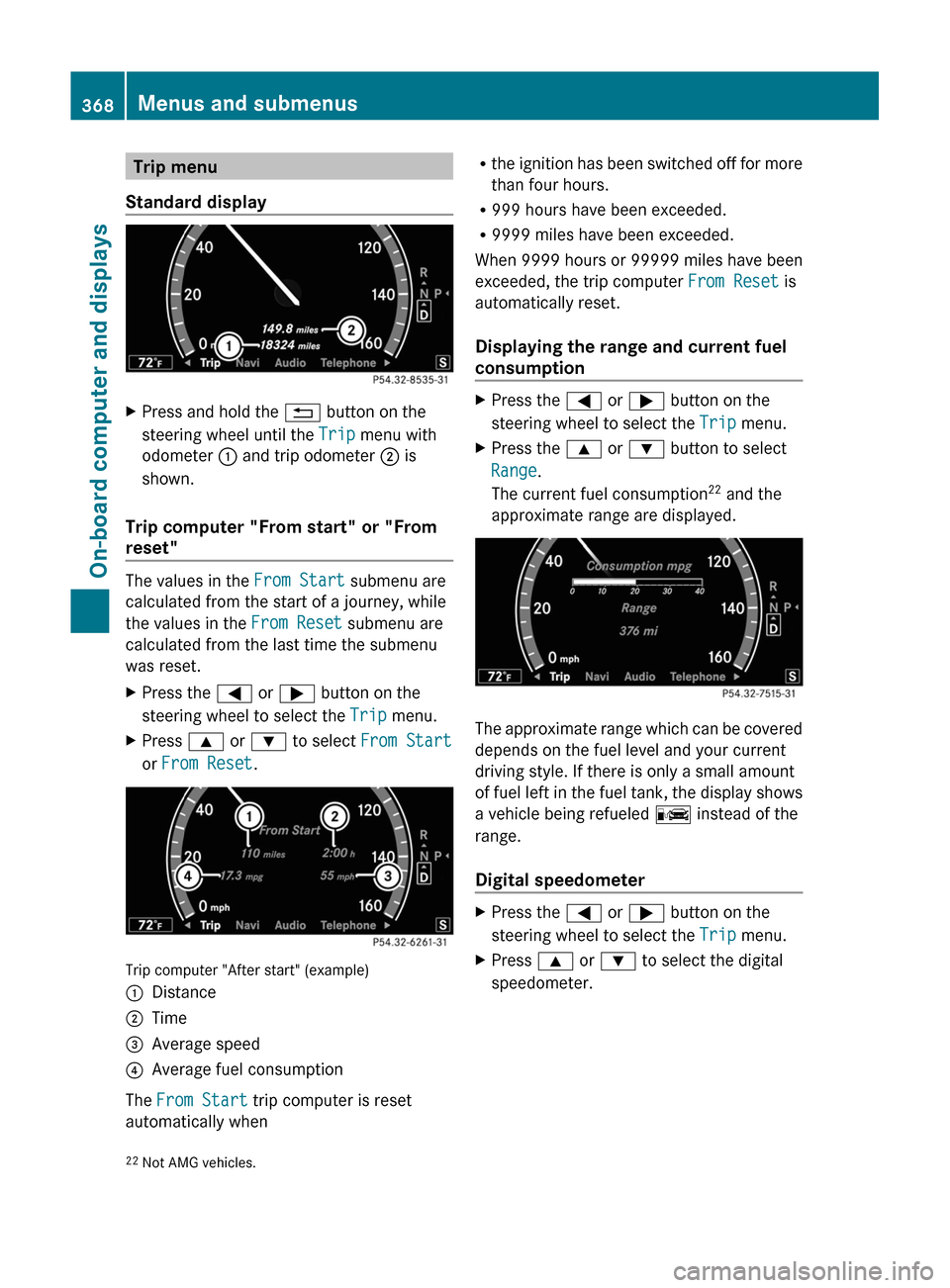
Standard display
XPress and hold the % button on the
steering wheel until the Trip menu with
odometer : and trip odometer ; is
shown.
Trip computer "From start" or "From
reset"
The values in the From Start submenu are
calculated from the start of a journey, while
the values in the From Reset submenu are
calculated from the last time the submenu
was reset.
XPress the = or ; button on the
steering wheel to select the Trip menu.
XPress 9 or : to select From Start
or From Reset.
Trip computer "After start" (example)
:Distance;Time=Average speed?Average fuel consumption
The From Start trip computer is reset
automatically when
Rthe ignition has been switched off for more
than four hours.
R999 hours have been exceeded.
R9999 miles have been exceeded.
When 9999 hours or 99999 miles have been
exceeded, the trip computer From Reset is
automatically reset.
Displaying the range and current fuel
consumption
XPress the = or ; button on the
steering wheel to select the Trip menu.
XPress the 9 or : button to select
Range.
The current fuel consumption22 and the
approximate range are displayed.
The approximate range which can be covered
depends on the fuel level and your current
driving style. If there is only a small amount
of fuel left in the fuel tank, the display shows
a vehicle being refueled C instead of the
range.
Digital speedometer
XPress the = or ; button on the
steering wheel to select the Trip menu.
XPress 9 or : to select the digital
speedometer.22Not AMG vehicles.368Menus and submenusOn-board computer and displays
Page 374 of 524
Upshift indicator up ; indicates that the
engine has reached the overrevving range
when in the manual gearshift program.
Upshift indicator up ; fades out other
messages until you have shifted up.
When the engine oil temperature is below
80 †, the oil temperature is shown in blue.
Avoid driving at full engine output during this
time.
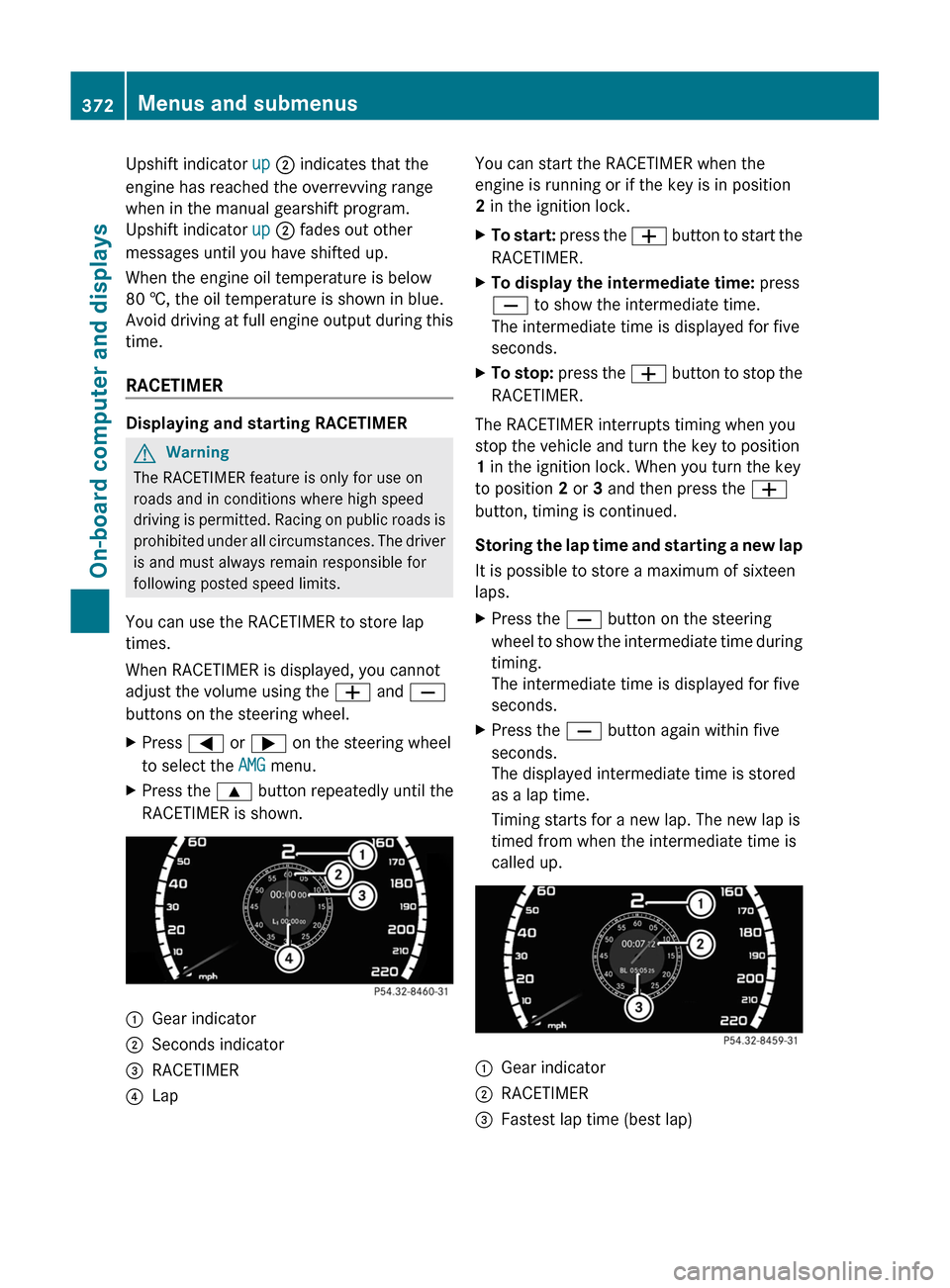
RACETIMER
Displaying and starting RACETIMER
GWarning
The RACETIMER feature is only for use on
roads and in conditions where high speed
driving is permitted. Racing on public roads is
prohibited under all circumstances. The driver
is and must always remain responsible for
following posted speed limits.
You can use the RACETIMER to store lap
times.
When RACETIMER is displayed, you cannot
adjust the volume using the W and X
buttons on the steering wheel.
XPress = or ; on the steering wheel
to select the AMG menu.
XPress the 9 button repeatedly until the
RACETIMER is shown.
:Gear indicator;Seconds indicator=RACETIMER?LapYou can start the RACETIMER when the
engine is running or if the key is in position
2 in the ignition lock.
XTo start: press the W button to start the
RACETIMER.
XTo display the intermediate time: press
X to show the intermediate time.
The intermediate time is displayed for five
seconds.
XTo stop: press the W button to stop the
RACETIMER.
The RACETIMER interrupts timing when you
stop the vehicle and turn the key to position
1 in the ignition lock. When you turn the key
to position 2 or 3 and then press the W
button, timing is continued.
Storing the lap time and starting a new lap
It is possible to store a maximum of sixteen
laps.
XPress the X button on the steering
wheel to show the intermediate time during
timing.
The intermediate time is displayed for five
seconds.
XPress the X button again within five
seconds.
The displayed intermediate time is stored
as a lap time.
Timing starts for a new lap. The new lap is
timed from when the intermediate time is
called up.
:Gear indicator;RACETIMER=Fastest lap time (best lap)372Menus and submenusOn-board computer and displays
Page 375 of 524
Resetting the current lapXPress the W button on the steering
wheel to stop the RACETIMER.
XPress X to reset the lap time to "0”.
Deleting all laps
You cannot delete individual stored laps.
XPress the W button on the steering
wheel to stop the RACETIMER.
XPress and hold the X button for a
minimum of three seconds.
XPress the W button to start the
RACETIMER.
All laps are deleted.
or
XPress the W button on the steering
wheel to stop the RACETIMER.
XPress a.
Reset Race Timer appears in the
multifunction display.
XPress : to select Yes and press a
to confirm.
All laps are deleted.
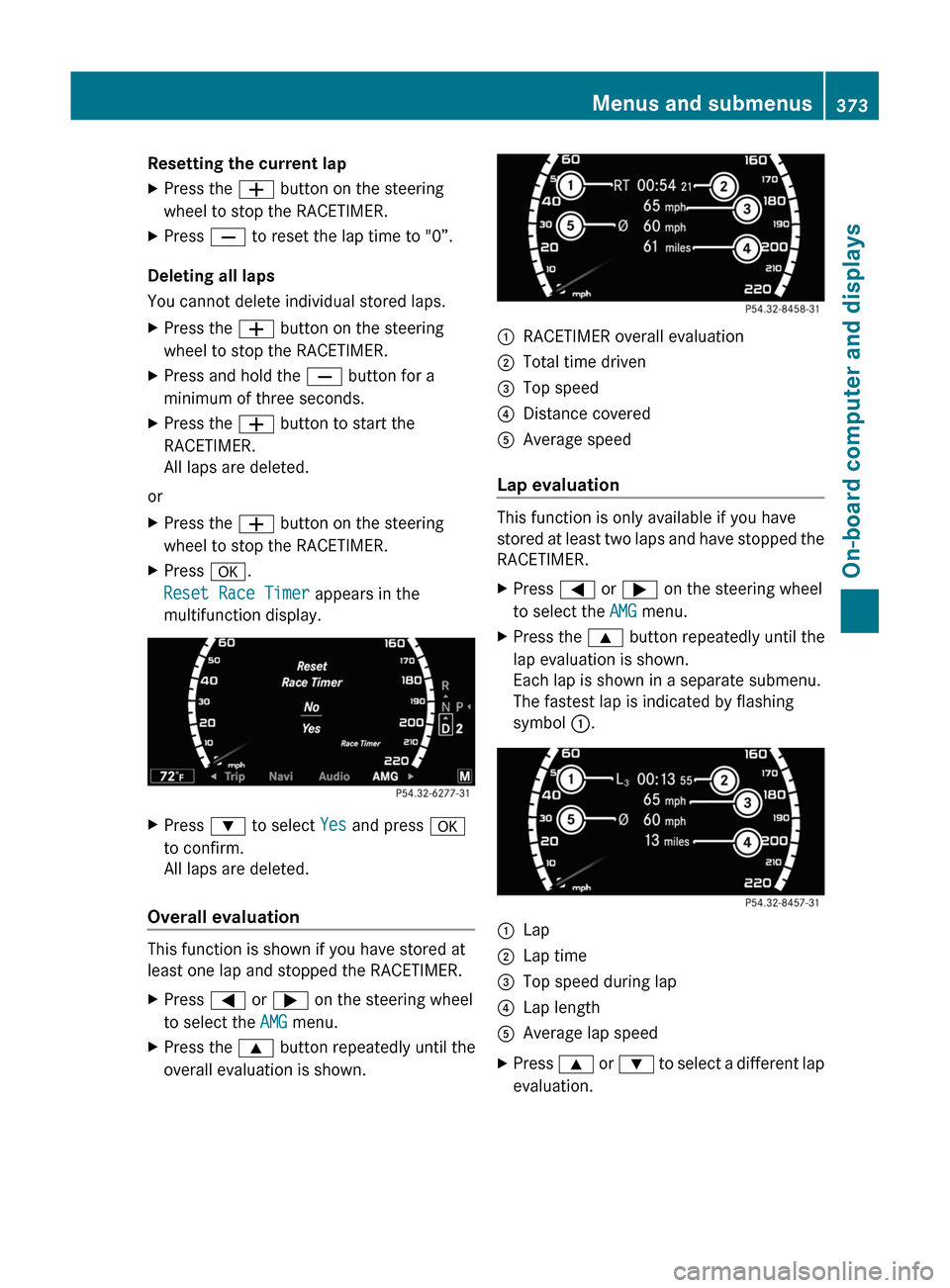
Overall evaluation
This function is shown if you have stored at
least one lap and stopped the RACETIMER.
XPress = or ; on the steering wheel
to select the AMG menu.
XPress the 9 button repeatedly until the
overall evaluation is shown.
:RACETIMER overall evaluation;Total time driven=Top speed?Distance coveredAAverage speed
Lap evaluation
This function is only available if you have
stored at least two laps and have stopped the
RACETIMER.
XPress = or ; on the steering wheel
to select the AMG menu.
XPress the 9 button repeatedly until the
lap evaluation is shown.
Each lap is shown in a separate submenu.
The fastest lap is indicated by flashing
symbol :.
:Lap;Lap time=Top speed during lap?Lap lengthAAverage lap speedXPress 9 or : to select a different lap
evaluation.
Menus and submenus373On-board computer and displaysZ
Page 376 of 524
Telephone menu
Introduction
You can establish a Bluetooth® connection to
COMAND (Y page 192).
GWarning
A driver's attention to the road must always
be his/her primary focus when driving. For
your safety and the safety of others, we
recommend that you pull over to a safe
location and stop before placing or taking a
telephone call. If you choose to use the
telephone while driving, please use the hands-
free device and only use the telephone when
weather, road and traffic conditions permit.
Some jurisdictions prohibit the driver from
using a mobile phone while driving a vehicle.
Bear in mind that at a speed of just 30 mph
(approximately 50 km/h ), your vehicle is
covering a distance of 44 feet (approximately
14 m) every second.
XSwitch on the mobile phone and COMAND
(Y page 131).
XPress the = or ; button on the
steering wheel to select the Telephone
menu.
You will see one of the following display
messages in the multifunction display:
RPhone ready or the name of the network
provider: the mobile phone has found a
network and is ready to receive.
RNo Service: no network is available.
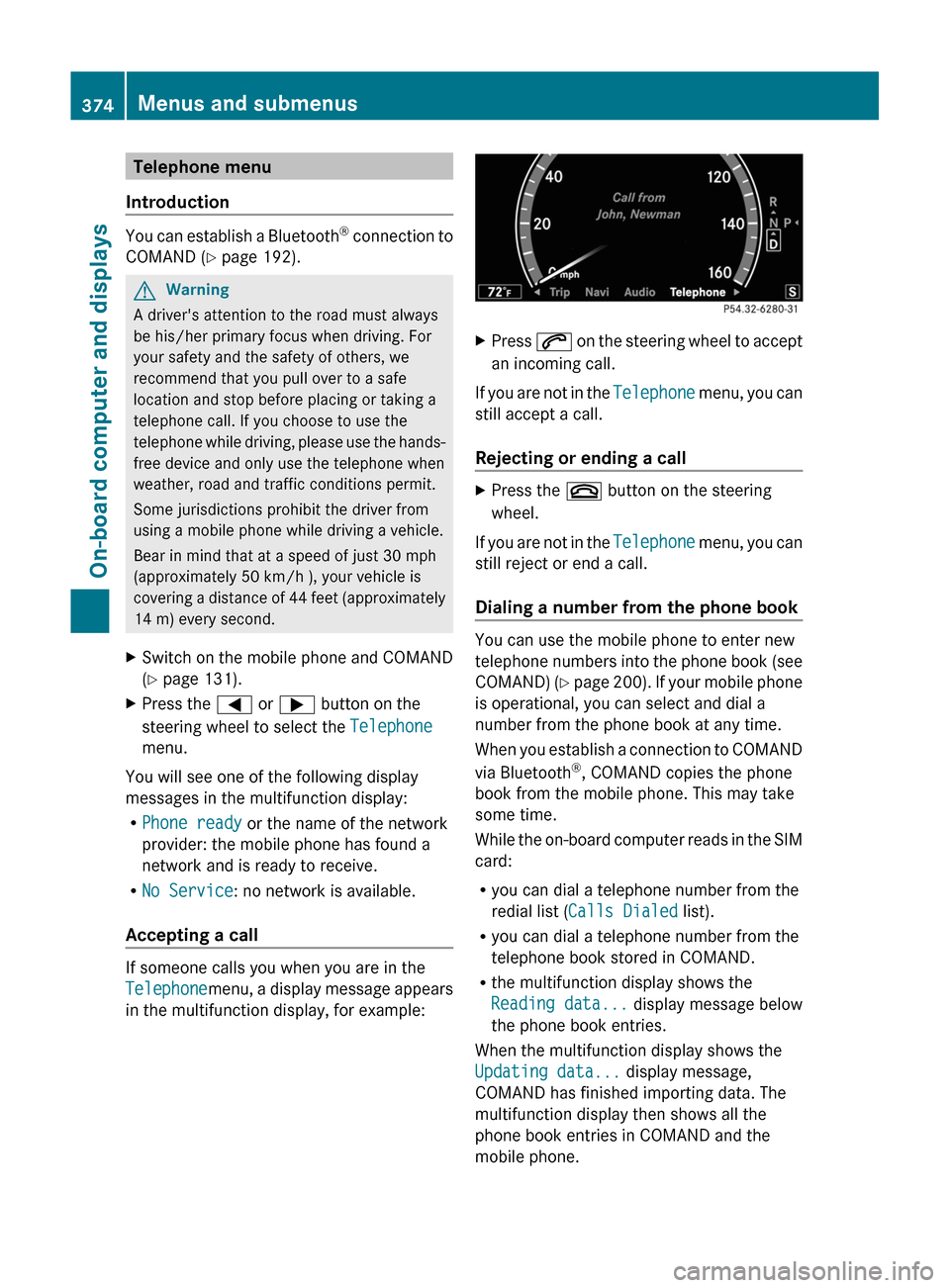
Accepting a call
If someone calls you when you are in the
Telephonemenu, a display message appears
in the multifunction display, for example:
XPress 6 on the steering wheel to accept
an incoming call.
If you are not in the Telephone menu, you can
still accept a call.
Rejecting or ending a call
XPress the ~ button on the steering
wheel.
If you are not in the Telephone menu, you can
still reject or end a call.
Dialing a number from the phone book
You can use the mobile phone to enter new
telephone numbers into the phone book (see
COMAND) (Y page 200). If your mobile phone
is operational, you can select and dial a
number from the phone book at any time.
When you establish a connection to COMAND
via Bluetooth®, COMAND copies the phone
book from the mobile phone. This may take
some time.
While the on-board computer reads in the SIM
card:
Ryou can dial a telephone number from the
redial list (Calls Dialed list).
Ryou can dial a telephone number from the
telephone book stored in COMAND.
Rthe multifunction display shows the
Reading data... display message below
the phone book entries.
When the multifunction display shows the
Updating data... display message,
COMAND has finished importing data. The
multifunction display then shows all the
phone book entries in COMAND and the
mobile phone.
374Menus and submenusOn-board computer and displays
Page 379 of 524
Maintenance menu
In the Service menu you can:
R call up display messages ( Y page 380)
R check the tire pressure electronically
( Y page 487)
R call up the service due date ( Y page 452)
R check the oil level ( Y page 447)
Menu settings
Introduction
In the Settings menu, you have the following
options:
R switching the daytime running lamps on/
off
R switching Adaptive Highbeam Assist on/
off
R showing or hiding the additional
speedometer
R selecting the units for speed and distance
R switching the belt adjustment on/off
R activating/deactivating the radar sensor
system
Switching the daytime running lamps
on/off
This function is not available in Canada.
If you have activated the Day Running
Lights function and the light switch is set to
$ or c , the daytime running lamps are
switched on automatically when the engine is
running.
In the dark, the following also light up:
R the side lamps
R the tail lamps
R the license plate lamp
R the side marker lamp
If you turn the light switch to a different
position, the corresponding lights are
switched on. If you switch off the daytime
running lamps at night, make sure that the
light switch is set to L or c .
The factory setting is Enabled.XPress the = or ; button on the
steering wheel to select the Settings
menu.XPress the 9 or : button to select
Day Running Lights .XPress the a button to confirm.XTo activate/deactivate: press a
again.
Switching Adaptive Highbeam Assist
on/off
XPress the = or ; button on the
steering wheel to select the Settings
menu.XPress the : or 9 button to select
Adapt. High-beam Asst. .XPress the a button to confirm.XTo activate/deactivate: press a
again.
Switching the additional speedometer
on or off
An additional digital speedometer can be
shown in the multifunction display.
Vehicles with a kilometer speedometer: the
digital speedometer has mph units.
Vehicles with a miles speedometer: the digital
speedometer has km/h units.
XPress the = or ; button on the
steering wheel to select the Settings
menu.XPress 9 or : to select Add.
Speedometer .XPress the a button to confirm.XPress the a button to save the setting.
Selecting the unit of measurement for
distance
The Display Unit Speed-/Odometer
function allows you to choose whether
certain displays appear in km/h or mph.
Menus and submenus377On-board computer and displaysZ
Page 380 of 524
The selected unit of measurement for
distance applies to:
R the analog speedometer
R the digital speedometer in the Trip menu
R the odometer and the trip odometer
R the trip computer
R the navigation instruction in the Navi menu
R DISTRONIC PLUS
R ASSYST PLUS service interval display
The digital speedometer shows alternative
speed units ( Y page 377).XPress the = or ; button on the
steering wheel to select the Settings
menu.XPress 9 or : to select Units.XPress the a button to confirm.XPress the a button to save the setting.
The unit switches km/h and mph.
Switching the belt adjustment on/off
Further information on belt adjustment:
( Y page 58).
XPress = or ; on the steering wheel
to select the Settings menu.XPress the 9 or : button to select
Belt Adjustment .XPress the a button to confirm.XTo activate/deactivate: press a
again.
Activating/deactivating the acoustic
locking confirmation
If you activate the Acoustic Lock Feedb.
function, an audible signal sounds when the
vehicle is locked or unlocked. When
unlocking, the signal sounds once. When
locking, it sounds three times.
XPress the = or ; button on the
steering wheel to select the Settings
menu.XPress 9 or : to select Acoustic
Lock Feedb. .XPress the a button to confirm.XTo activate/deactivate: press a
again.
Activating/deactivating the radar
sensor system
The following systems are switched off when
the radar sensor system is deactivated:
R DISTRONIC PLUS ( Y page 325)
R BAS PLUS ( Y page 68)
R PRE-SAFE ®
Brake ( Y page 71)
R Blind Spot Assist ( Y page 352)
R Active Blind Spot Assist ( Y page 356)
i USA only: This device has been approved
by the FCC as a “Vehicular Radar System”.
The radar sensor is intended for use in an
automotive radar system only. Removal,
tampering, or altering of the device will void
any warranties, and is not permitted by the
FCC. Do not tamper with, alter, or use in
any non-approved way.
Any unauthorized modification to this
device could void the user’s authority to
operate the equipment.
i Canada only:
This device complies with RSS-210 of
Industry Canada. Operation is subject to
the following two conditions:
1. This device may not cause interference,
and
2. This device must accept any interference
received, including interference that may
cause undesired operation of the device.
Any unauthorized modification to this
device could void the user’s authority to
operate the equipment.
378Menus and submenusOn-board computer and displays