internet MERCEDES-BENZ S-Class 2014 W222 Comand Manual
[x] Cancel search | Manufacturer: MERCEDES-BENZ, Model Year: 2014, Model line: S-Class, Model: MERCEDES-BENZ S-Class 2014 W222Pages: 278, PDF Size: 6.65 MB
Page 44 of 278
X
Select Help Window
Help Window .
You have switched the help window on
0073 or off 0053.
More information on the Voice Control
System is available in the separate operating
instructions. Individualization
Using individualization, you can fine-tune the
Voice Control System to your own voice. This
will help improve voice recognition (see the
separate operating instructions). WLAN
Overview
Conditions:
To establish a WLAN connection between
COMAND Online and a WLAN-enabled
device, such as a tablet computer or
smartphone:
R WLAN must be activated at COMAND
Online and at the device to be connected.
If COMAND Online is to be used as a WLAN
hotspot:
R COMAND Online must be connected to an
Internet-enabled mobile phone via
Bluetooth ®
or USB.
R The Internet access data for the mobile
phone network provider must be selected
or set for COMAND Online.
R There must be an Internet connection to
COMAND Online. Activating WLAN
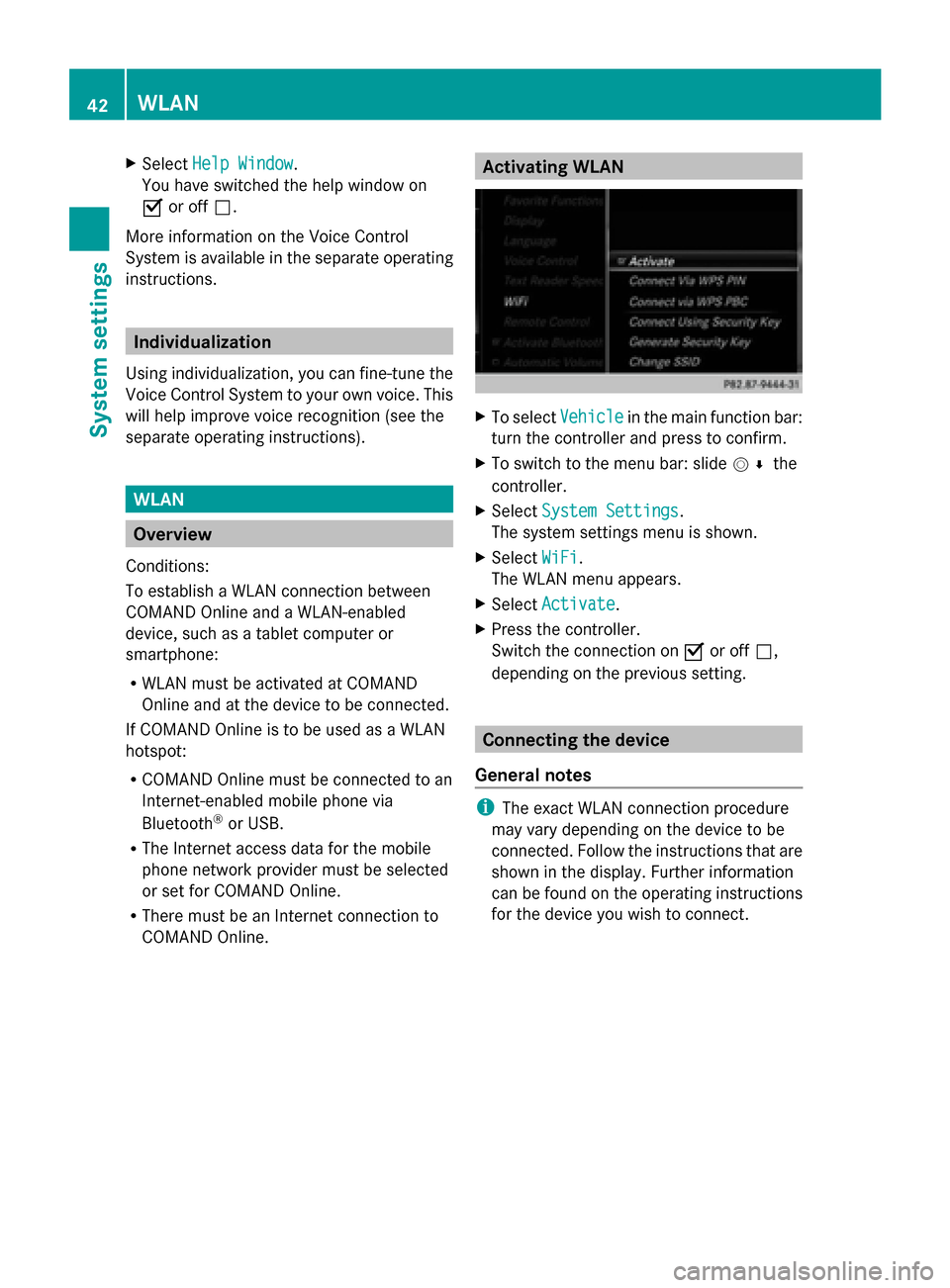
X
To select Vehicle Vehiclein the main function bar:
turn the controller and press to confirm.
X To switch to the menu bar: slide 005200C5the
controller.
X Select System Settings
System Settings.
The system settings menu is shown.
X Select WiFi
WiFi.
The WLAN menu appears.
X Select Activate
Activate.
X Press the controller.
Switch the connection on 0073or off 0053,
depending on the previous setting. Connecting the device
General notes i
The exact WLAN connection procedure
may vary depending on the device to be
connected. Follow the instructions that are
shown in the display. Further information
can be found on the operating instructions
for the device you wish to connect. 42
WLANSystem settings
Page 47 of 278
Bluetooth
®
technology is a standard for
short-range wireless data transmissions up to
approximately 10 meters. You can use
Bluetooth ®
to connect your mobile phone to
COMAND, to use the hands-free system,
establish an Internet connection, listen to
music using Bluetooth ®
Audio or to exchange
vCards, for example.
Bluetooth ®
is a registered trademark of
Bluetooth Special Interest Group (SIG) Inc. Activating/deactivating Bluetooth
®
X Press the 00D4button.
The Vehicle menu appears.
X To select System Settings
System Settings : slide005200C5,
turn and press the controller.
A menu appears.
X To select Activate Bluetooth
Activate Bluetooth: turn and
press the controller.
This switches Bluetooth ®
on 0073 or off 0053. Setting the system language
This function allows you to determine the
language for the menu displays and the
navigation messages. The selected language
affects the characters available for entry.
i The navigation announcements are not
available in all languages. If a language is
not available, the navigation
announcements will be in English.
i When you set the system language, the
language of the Voice Control System will
change accordingly. If it is not supported
by the Voice Control System, English will be
selected.
X Press the 00D4button.
The Vehicle menu appears.
X To select System Settings
System Settings : slide005200C5,
turn and press the controller.
A menu appears. X
To select Language Language : turn and press the
controller.
The list of languages appears. The 003Bdot
indicates the current setting.
X Select the desired language.
COMAND loads the selected language and
sets it. Assigning a favorites button
X Press the 00D4button.
The system menu appears.
X To select System Settings System Settings : slide005200C5
and press the controller.
A menu appears.
X To select Favorite Functions
Favorite Functions: turn and
press the controller.
A menu appears.
X To select Assign Function Assign Function : press the
controller.
The list of predefined functions appears.
X To select the desired function, e.g.
Entertainment Entertainment: turn and press the
controller.
A menu appears.
X Select the desired function, e.g. Play Play
More Like This
More Like This .
A menu with the prompt Please select
Please select
a favorites button:
a favorites button: appears.
X To select the desired button, e.g. 0083:
turn and press the controller.
A message appears stating that the button
has been assigned the selected function.
i A message appears for certain functions,
e.g. Assign station or media source Assign station or media source.
This explains how you can save the desired
station directly using the favorites function
menu in three steps.
i If you are in the favorite functions menu,
you can assign a desired favorites button
by pressing and holding the relevant
number key, e.g. 0089, on the telephone
keypad (Y page 22) until you hear a tone. Assigning a favorites button
45System settings
Page 48 of 278
Overview of all current favorites:
X
Press the 00D4button.
The system menu appears.
X To select System Settings System Settings : slide005200C5
and press the controller.
A menu appears.
X To select Favorite Functions
Favorite Functions: turn and
press the controller.
A menu appears.
X Select Overview of all current
Overview of all current
favorites favorites.
An overview of all the current favorites
appears.
To change the alias:
X Press the 00D4button.
The system menu appears.
X To select System Settings System Settings : slide005200C5
and press the controller.
A menu appears.
X To select Favorite Functions
Favorite Functions: turn and
press the controller.
A menu appears.
X Select Change Alias
Change Alias.
A menu with the prompt Please select Please select
a favorites button:
a favorites button: appears.
X Select the desired favorites, e.g. 0084.
X Enter the desired alias and select 0070.
The alias is changed.
i Up to six characters are available for the
alias. An entry with fewer characters is also
possible.
To call up a favorite:
X Press the 007Dbutton.
You call up the favorites functions menu.
The 007D symbol lights up.
X Press a favorites button, e.g. 0084.
This calls up the predefined function.
X To exit the favorites function menu:
press the 007Dbutton.
The favorite functions menu is closed.
i If you have pressed the 007Dbutton and
do not press any other buttons, the favorites functions menu is exited
automatically after 16 seconds.
To reset favorite(s):
X Press the 00D4button.
The system menu appears.
X To select System Settings
System Settings : slide005200C5
and press the controller.
A menu appears.
X To select Favorite Functions Favorite Functions: turn and
press the controller.
A menu appears.
X Select Reset Favorite(s) Reset Favorite(s).
A menu with the prompt Please select
Please select
a favorites button:
a favorites button: appears.
X Select the desired favorites, e.g. 0086or
Reset All
Reset All.
A prompt appears asking whether you wish
to reset.
X Select Yes YesorNo
No.
If you select Yes
Yes, the favorite is reset to its
pre-installed favorite function.
If you select No No, the process will be
canceled.
You can select the following predefined
functions in a menu, for example:
R Off - Spoken Driving
Off - Spoken Driving
Recommendations On/Off Recommendations On/Off: you can
switch the current driving
recommendations on/off.
R Sound - Sound Menu Sound - Sound Menu : you can call up the
sound settings.
R Apps - Mercedes-Benz Apps
Apps - Mercedes-Benz Apps: you can
call up the apps for online and Internet
functions.
i You can also assign the favorites button
directly from a relevant function, such as in
the address book (Y page 152) or from the
radio menu (Y page 181).46
Assigning a favorites buttonSystem settings
Page 80 of 278
Starting route calculation
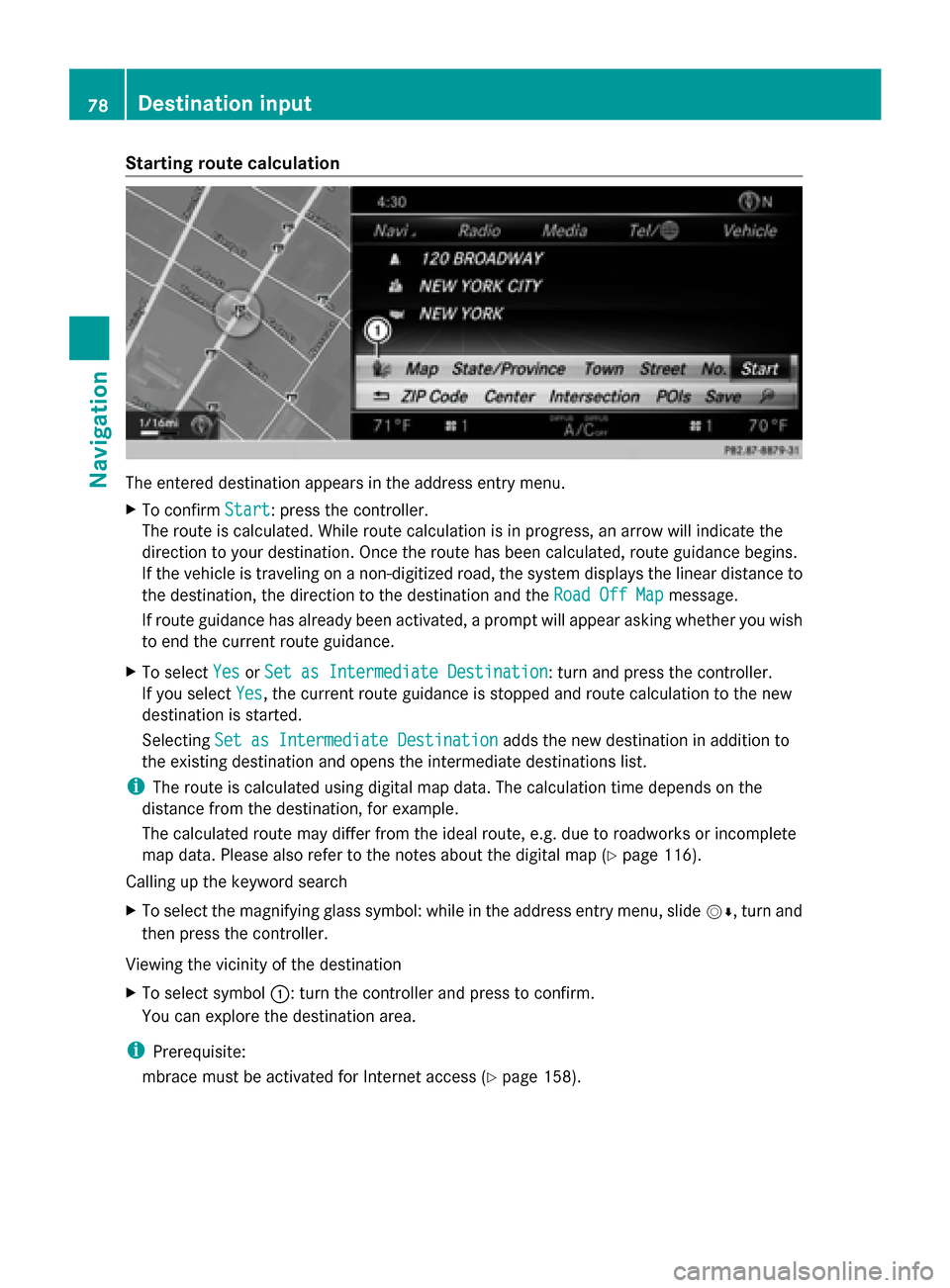
The entered destination appears in the address entry menu.
X To confirm Start
Start: press the controller.
The route is calculated. While route calculation is in progress, an arrow will indicate the
direction to your destination. Once the route has been calculated, route guidance begins.
If the vehicle is traveling on a non-digitized road, the system displays the linear distance to
the destination, the direction to the destination and the Road Off Map
Road Off Map message.
If route guidance has already been activated, a prompt will appear asking whether you wish
to end the current route guidance.
X To select Yes
Yes orSet as Intermediate Destination Set as Intermediate Destination: turn and press the controller.
If you select Yes
Yes, the current route guidance is stopped and route calculation to the new
destination is started.
Selecting Set as Intermediate Destination
Set as Intermediate Destination adds the new destination in addition to
the existing destination and opens the intermediate destinations list.
i The route is calculated using digital map data. The calculation time depends on the
distance from the destination, for example.
The calculated route may differ from the ideal route, e.g. due to roadworks or incomplete
map data. Please also refer to the notes about the digital map (Y page 116).
Calling up the keyword search
X To select the magnifying glass symbol: while in the address entry menu, slide 00520064, turn and
then press the controller.
Viewing the vicinity of the destination
X To select symbol 0043: turn the controller and press to confirm.
You can explore the destination area.
i Prerequisite:
mbrace must be activated for Internet access (Y page 158).78
Destination inputNavigation
Page 82 of 278

Using online search
X
To select Automatic Online Search Automatic Online Search :
turn and press the controller.
The search switches to the online
functions.
i Prerequisite:
mbrace must be activated for Internet
access (Y page 158).
Selecting search options X
To switch to navigation mode: press the
00BE button.
X To show the menu: press the controller.
X To select Destination
Destination: turn and press the
controller.
X Select Keyword Search
Keyword Search .
X To select Search Options Search Options : slide00970052, turn
and press the controller.
X Select Fuzzy Search
Fuzzy Search ,POI Search
POI Search or
Automatic Online Search
Automatic Online Search .
Switch the setting on 0073or off 0053.
Fuzzy search: useful if parts of the address
are incomplete or the spelling is unclear.
POI search: points of interest are taken into
account in the search.
Online search: the search is performed via
the online functions.
Selecting the country X
To switch to navigation mode: press the
00BE button.
X To show the menu: press the controller.
X To select Destination
Destination: turn and press the
controller.
X Select Keyword Search
Keyword Search .
X To select Country Country: slide 00970052, turn and
press the controller.
The alphabetical list of countries is
displayed.
X Select a country: turn and press the
controller. Searching via COMAND Requirement: a mobile phone with a data
package is connected to COMAND
(Y page 124).
X To switch to navigation mode: press the
00BE button.
X To show the menu: press the controller.
X To select Destination Destination: turn and press the
controller.
X Select Keyword Search Keyword Search .
X To select Online Search
Online Search : slide00970052, turn
and press the controller.
The search switches to the online
functions. Selecting a destination from the list of
last destinations
COMAND automatically stores the last 100
destinations.
X To switch to navigation mode: press the
00BE button.
X To show the menu: press the controller.
X To select Destination Destination: turn and press the
controller.
X Select From Previous Destinations
From Previous Destinations .
X Select the destination.
The address entry menu appears, showing
the destination address.
X To start route calculation: selectStart Start. 80
Destination inputNavigation
Page 86 of 278
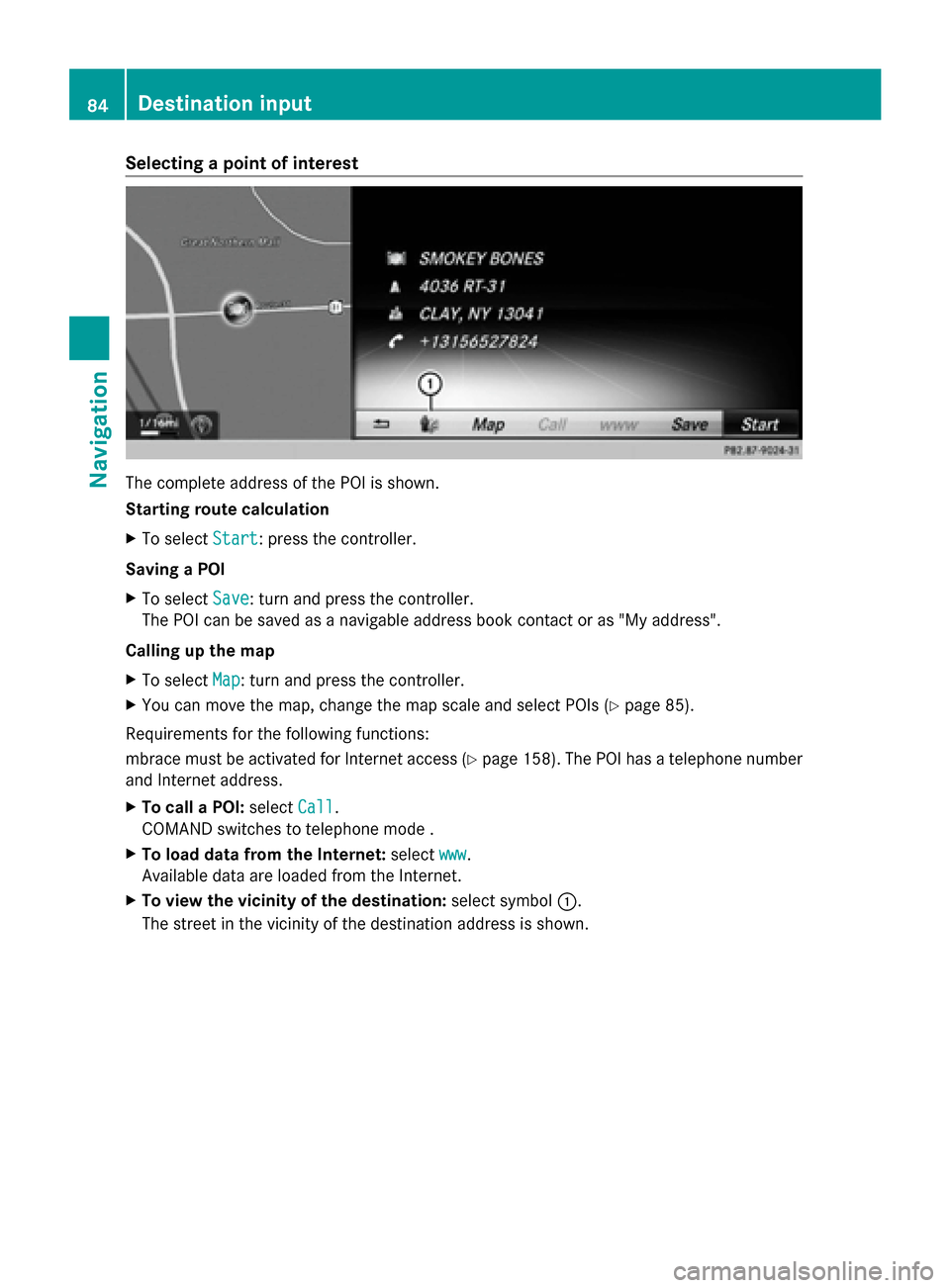
Selecting a point of interest
The complete address of the POI is shown.
Starting route calculation
X To select Start
Start: press the controller.
Saving a POI
X To select Save Save: turn and press the controller.
The POI can be saved as a navigable address book contact or as "My address".
Calling up the map
X To select Map
Map: turn and press the controller.
X You can move the map, change the map scale and select POIs (Y page 85).
Requirements for the following functions:
mbrace must be activated for Internet access (Y page 158). The POI has a telephone number
and Internet address.
X To call a POI: selectCall
Call.
COMAND switches to telephone mode .
X To load data from the Internet: selectwww
www.
Available data are loaded from the Internet.
X To view the vicinity of the destination: select symbol0043.
The street in the vicinity of the destination address is shown. 84
Destination inputNavigation
Page 115 of 278
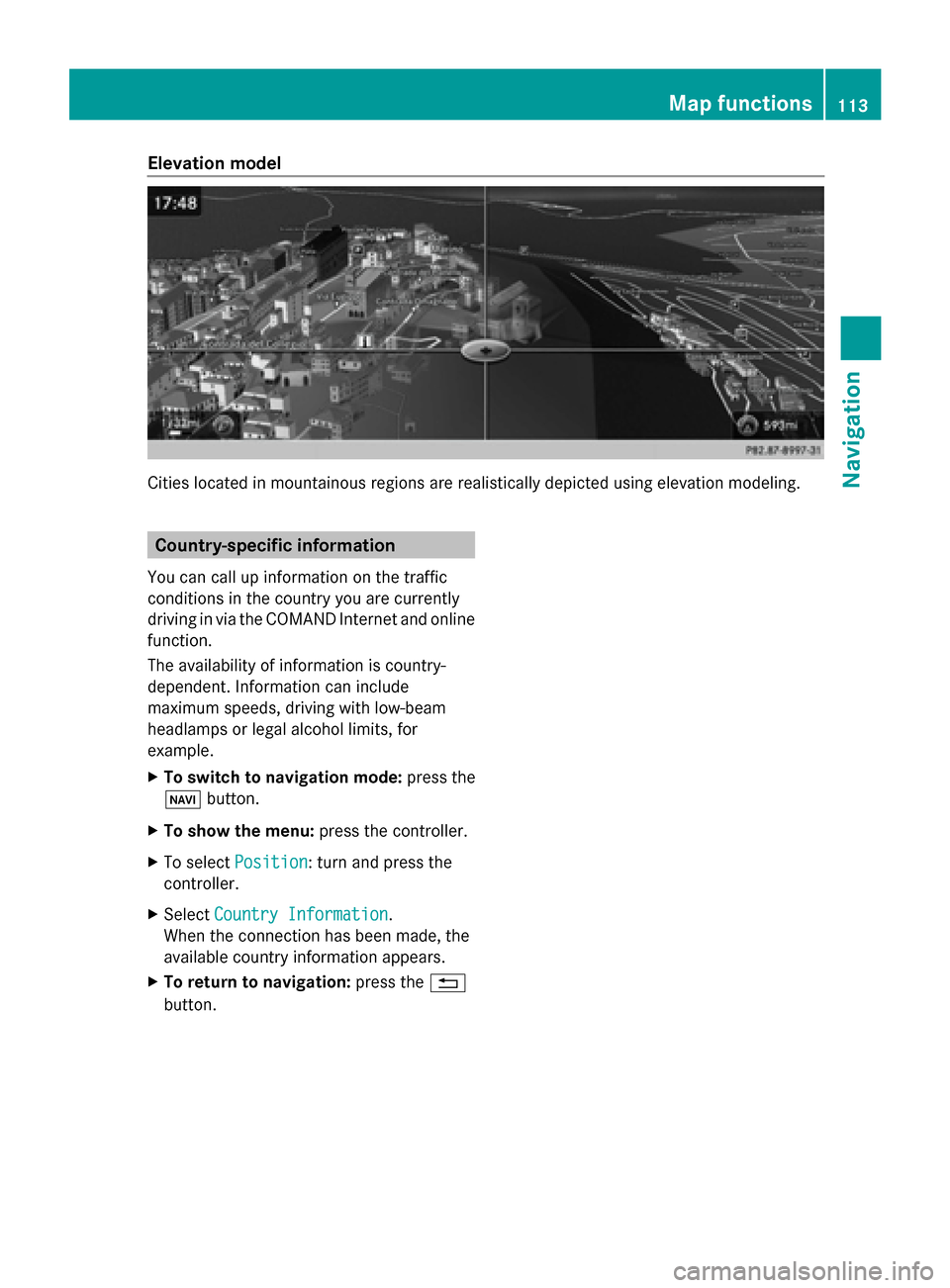
Elevation model
Cities located in mountainous regions are realistically depicted using elevation modeling.
Country-specific information
You can call up information on the traffic
conditions in the country you are currently
driving in via the COMAND Internet and online
function.
The availability of information is country-
dependent. Information can include
maximum speeds, driving with low-beam
headlamps or legal alcohol limits, for
example.
X To switch to navigation mode: press the
00BE button.
X To show the menu: press the controller.
X To select Position
Position: turn and press the
controller.
X Select Country Information
Country Information.
When the connection has been made, the
available country information appears.
X To return to navigation: press the0038
button. Map functions
113Navigation Z
Page 124 of 278
Your COMAND equipment
These operating instructions describe all
standard and optional equipment available
for your COMAND system at the time of
purchase. Country-specific differences are
possible. Please note that your
COMAND system may not be equipped with
all the features described. This also applies to
safety-relevant systems and functions.
Therefore, the equipment on your COMAND
system may differ from that in the
descriptions and illustrations. Should you
have any questions concerning equipment
and operation, please consult an authorized
Mercedes-Benz Center. General notes
Important safety notes
G
WARNING
If you operate mobile communication
equipment while driving, you will be
distracted from traffic conditions. You could
also lose control of the vehicle. There is a risk
of an accident.
Only operate this equipment when the vehicle
is stationary.
If you make a call on your mobile phone while
driving, always use hands-free mode. Only
use the mobile phone when road, weather
and traffic conditions permit. Some
jurisdictions prohibit the driver from using a
mobile phone while driving a vehicle.
Bear in mind that at a speed of only 30 mph
(approximately 50 km/h), the vehicle covers
a distance of 44 feet (approximately 14 m)
per second.
Excessive levels of electromagnetic radiation
may cause damage to your health and the
health of others.
There is scientific discussion surrounding the
possible health risks posed by
electromagnetic fields. You can reduce this
risk by using an exterior antenna. Therefore, only use mobile communication
equipment if it is connected to the exterior
antenna of the vehicle. Introduction
COMAND allows you to use the following
modes of telephony:
R Telephony via the Bluetooth ®
interface
using COMAND
R Business telephony via the Bluetooth ®
interface of the Multi-Seat-Entertainment
System (handset).
i Business telephony is only available if the
vehicle is equipped with a Multi-Seat-
Entertainment System and the business
telephony option.
When connecting Bluetooth ®
-capable mobile
phones with PBAP (Phone BookAccess
Profile), the contacts are automatically
downloaded to COMAND or the Multi-Seat-
Entertainment System.
With a suitable mobile phone, you can use the
hands-free system and receive vCards via the
Bluetooth ®
interface.
You can use the text message and e-mail
functions if the mobile phone supports the
MAP Bluetooth ®
profile ( Message Access
Profile).
You can obtain more detailed information
about suitable mobile phones and about
connecting Bluetooth ®
-capable mobile
phones to COMAND on the Internet at
http://www.mbusa-mobile.com. Or call
the Mercedes-Benz Customer Assistance
center at
1-800-FOR-MERCedes(1-800-367-6372) for
the USA or at 1-800-387-0100 for Canada. 122
General notesTelephone
Page 126 of 278
mobile phone (see the manufacturer's
operating instructions).
The battery of the mobile phone should
always be kept sufficiently charged in order
to prevent malfunctions.
Preparing for telephony via the Bluetooth ®
interface:
R Hands-Free Profile
The mobile phone must support Hands-
Free Profile 1.0 or above.
R Bluetooth ®
visibility
Bluetooth ®
must be activated on the
mobile phone and must be made visible to
other devices (see the manufacturer's
operating instructions).
This visibility is for restricted periods of
time on some mobile phones.
R Bluetooth ®
device name
Every Bluetooth ®
device has its own
Bluetooth ®
device name. This device name
is freely definable, but can be identical for
all devices from the same manufacturer. It
is therefore recommended that you change
this name so that you can easily recognize
your mobile phone (see the manufacturer's
operating instructions).
i Not all mobile phones available on the
market are equally suitable. You can obtain
more detailed information about suitable
mobile phones and about the connection
between the mobile phone and COMAND
on the Internet at
http://www.mbusa-mobile.com.
Or call:
R the Mercedes-Benz Customer
Assistance Center on
1-800-FOR-MERCedes
(1-800-367-6372) (for the USA)
R the Customer Relations Center on
1-800-387-0100 (for Canada)
i Some displays (e.g. the signal strength)
depend on the supported version of the
Hands-Free Profile. Connecting a mobile phone
General information Before using your mobile phone with
COMAND for the first time, you will need to
search (Y
page 124) for the phone and then
authorize it (log in) (Y page 125).
Device-specific information on authorizing
and connecting Bluetooth ®
-capable mobile
phones can be found on the Internet at
http://www.mercedes-benz.com/
connect .
When you authorize a new mobile phone, it is
connected automatically.
You can authorize up to 15 mobile phones.
Only one mobile phone can be connected to
COMAND at any one time.
If the mobile phone supports the PBAP
(Phone BookAccess Profile) and MAP
(Message AccessProfile) profiles, the
following information will be displayed on
COMAND when you connect:
R phone book
R call lists
R the messages (text and e-mail)
Further information on the conditions for
connecting (Y page 123).
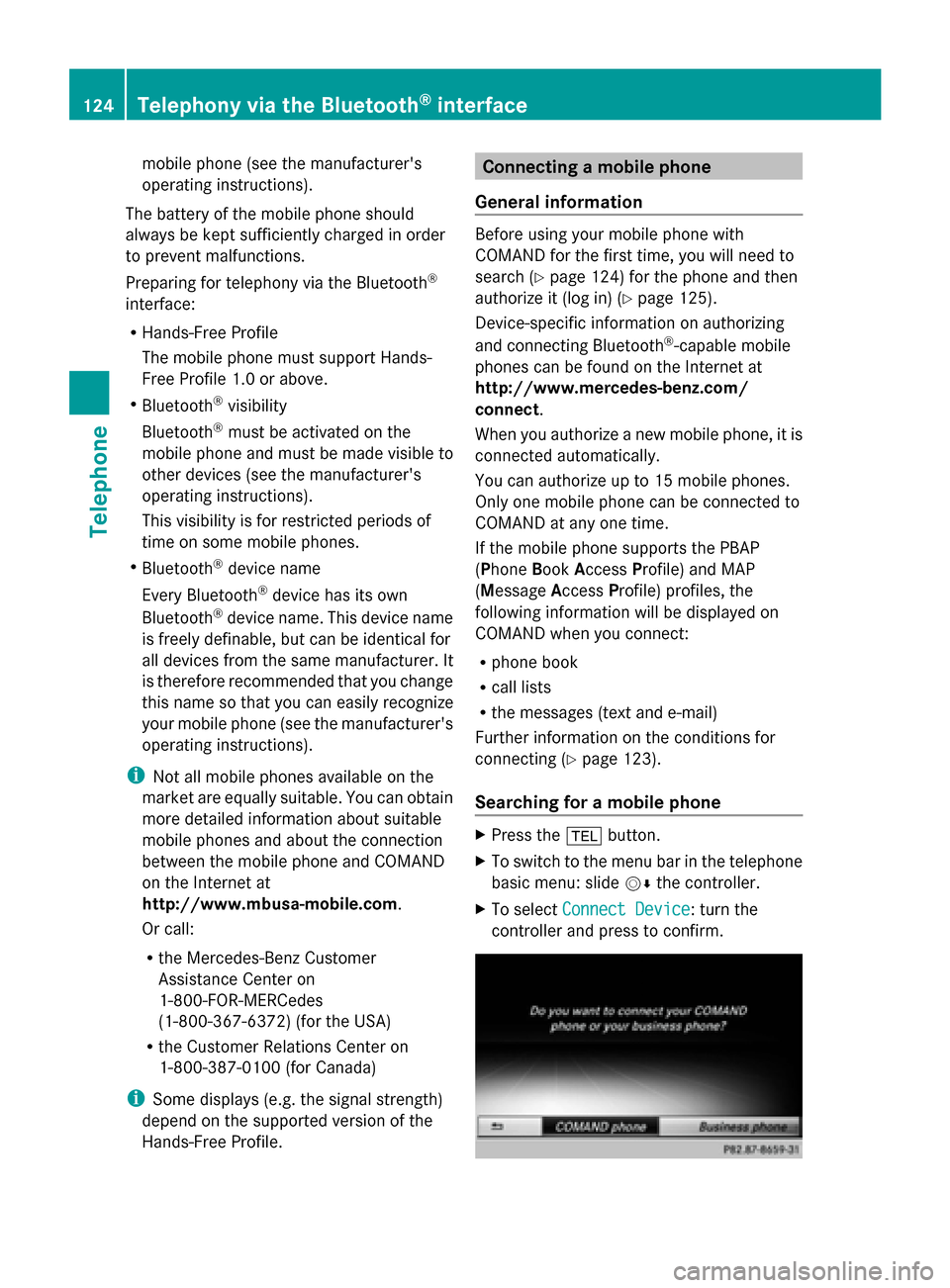
Searching for a mobile phone X
Press the 002Bbutton.
X To switch to the menu bar in the telephone
basic menu: slide 00520064the controller.
X To select Connect Device Connect Device: turn the
controller and press to confirm. 124
Telephony via the Bluetooth ®
interfaceTelephone
Page 144 of 278
Option 1:
X
Hold down one of the number keys for
longer than two seconds.
The telephone basic menu displays the
selected entry. This initiates dialing.
Option 2:
X Call up the telephone basic menu
(Y page 129).
X To switch to the menu bar: slide 00520064the
controller.
X To select Call Lists
Call Lists: turn and press the
controller.
X Select Speed Dial Preset List
Speed Dial Preset List.
The speed dial list appears.
X Select a preset.
The telephone basic menu displays the
selected entry. This initiates dialing. Deleting a speed dial number
Deleting a speed dial preset:
X To select an entry: turn the controller.
X To switch to the menu: slide 00520096the
controller.
X To select Delete Speed Dial Preset
Delete Speed Dial Preset:
turn the controller and press to confirm.
A prompt appears asking whether the
speed dial preset should be deleted.
X Select Yes
Yes orNo No.
If you select Yes
Yes, the speed dial will be
deleted from the speed dial list.
If you select No
No, the process will be
canceled.
Deleting all speed dial presets:
X To select Delete all Speed Dial Delete all Speed Dial
Presets
Presets in the speed dial menu: turn
controller and press to confirm.
You will be asked if you would like to delete
all speed dial presets.
X Select Yes
Yes orNo No.
If you select Yes
Yes, all speed dial presets will
be deleted from the speed dial list. If you select
No
No, the process will be
canceled. Messages (text messages and e-
mails)
Information and requirements
The following conditions must be met in order
to use the message functions (text messages
and e-mails):
R For text messages and e-mails:
The Bluetooth ®
mobile phone supports the
MAP Bluetooth ®
profile (Message Access
Profile).
R For e-mails:
-
The Bluetooth ®
mobile phone
(smartphone) supports the e-mail
function.
- An e-mail account is set up on the mobile
phone (see the mobile phone operating
instructions).
Once the messages have been downloaded
from the phone, COMAND shows the 100
newest text messages and the 100 newest e-
mails.
Any new messages received during the
journey are indicated by COMAND with an
audible signal and the 008Fsymbol. Once you
have read all the messages, the symbol is no
longer displayed. The úmail symbol is
displayed if the mobile phone's message
memory is full. The symbol disappears once
you delete at least one message.
i Not all mobile phones available on the
market are equally suitable. You can obtain
more detailed information about suitable
mobile phones on the Internet at
http://www.mbusa-mobile.com. Or call
the Mercedes-Benz Customer Assistance
Center at 1-800-FOR-MERCedes
(1-800-367-6372 )(for the USA) or
Customer Relations at 1-800-387-0100
(for Canada). 142
Messages (text messages and e-mails)Telephone