internet MERCEDES-BENZ S-Class 2014 W222 Comand Manual
[x] Cancel search | Manufacturer: MERCEDES-BENZ, Model Year: 2014, Model line: S-Class, Model: MERCEDES-BENZ S-Class 2014 W222Pages: 278, PDF Size: 6.65 MB
Page 178 of 278
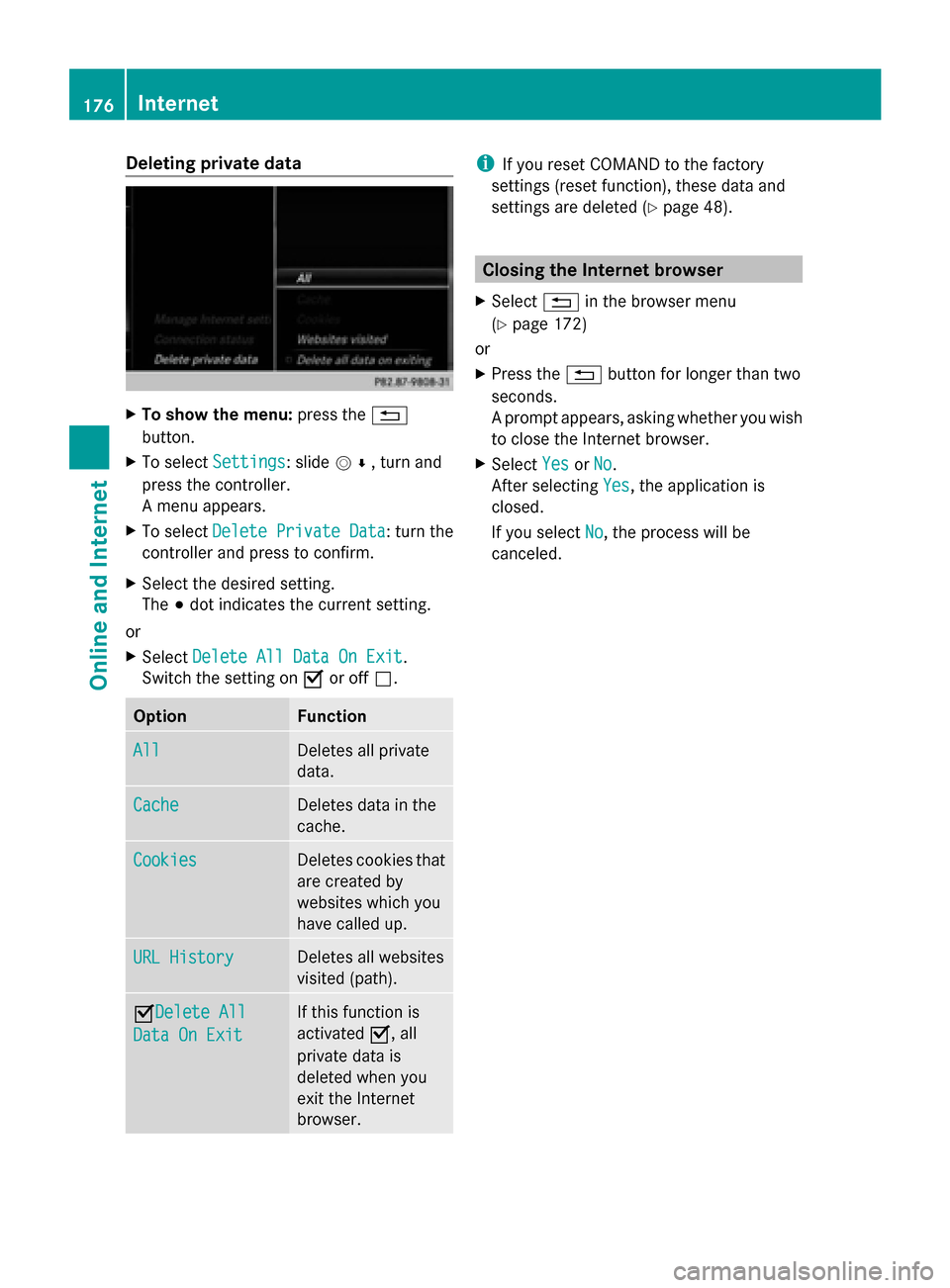
Deleting private data
X
To show the menu: press the0038
button.
X To select Settings
Settings: slide 005200C5, turn and
press the controller.
A menu appears.
X To select Delete Private Data Delete Private Data : turn the
controller and press to confirm.
X Select the desired setting.
The 003Bdot indicates the current setting.
or
X Select Delete All Data On Exit Delete All Data On Exit.
Switch the setting on 0073or off 0053. Option Function
All
All Deletes all private
data.
Cache Cache Deletes data in the
cache.
Cookies Cookies Deletes cookies that
are created by
websites which you
have called up.
URL History URL History Deletes all websites
visited (path).
0073Delete All
Delete All
Data On Exit Data On Exit If this function is
activated
0073, all
private data is
deleted when you
exit the Internet
browser. i
If you reset COMAND to the factory
settings (reset function), these data and
settings are deleted (Y page 48). Closing the Internet browser
X Select 0038in the browser menu
(Y page 172)
or
X Press the 0038button for longer than two
seconds.
A prompt appears, asking whether you wish
to close the Internet browser.
X Select Yes YesorNo
No.
After selecting Yes
Yes, the application is
closed.
If you select No No, the process will be
canceled. 176
InternetOnline and Internet
Page 180 of 278
Radio mode
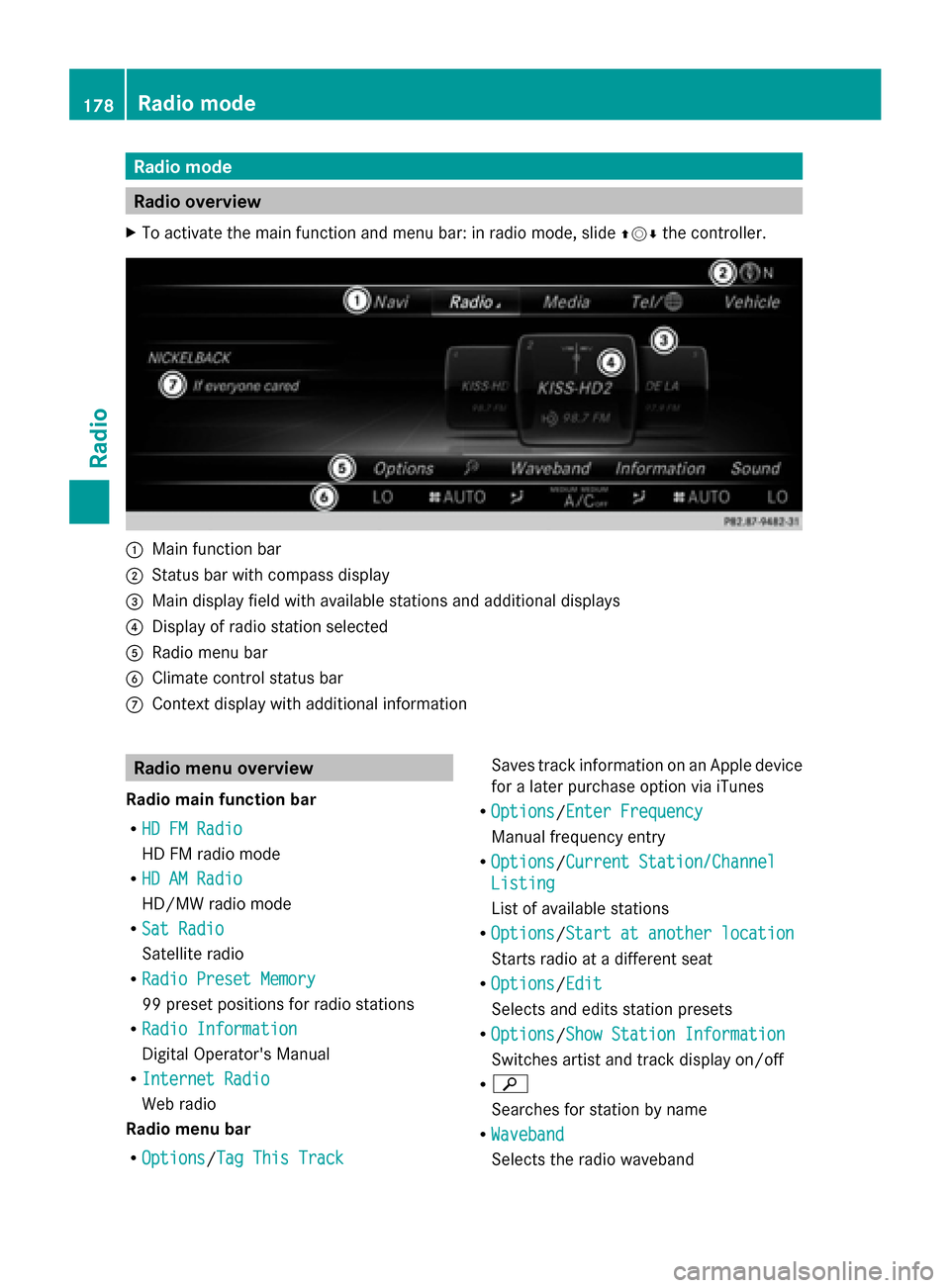
Radio overview
X To activate the main function and menu bar: in radio mode, slide 009700520064the controller. 0043
Main function bar
0044 Status bar with compass display
0087 Main display field with available stations and additional displays
0085 Display of radio station selected
0083 Radio menu bar
0084 Climate control status bar
006B Context display with additional information Radio menu overview
Radio main function bar
R HD FM Radio HD FM Radio
HD FM radio mode
R HD AM Radio HD AM Radio
HD/MW radio mode
R Sat Radio Sat Radio
Satellite radio
R Radio Preset Memory Radio Preset Memory
99 preset positions for radio stations
R Radio Information
Radio Information
Digital Operator's Manual
R Internet Radio Internet Radio
Web radio
Radio menu bar
R Options Options/ Tag This Track
Tag This Track Saves track information on an Apple device
for a later purchase option via iTunes
R Options Options/ Enter Frequency
Enter Frequency
Manual frequency entry
R Options
Options/ Current Station/Channel
Current Station/Channel
Listing
Listing
List of available stations
R Options Options/ Start at another location
Start at another location
Starts radio at a different seat
R Options
Options/ Edit
Edit
Selects and edits station presets
R Options
Options/ Show Station Information
Show Station Information
Switches artist and track display on/off
R 00D3
Searches for station by name
R Waveband Waveband
Selects the radio waveband 178
Radio modeRadio
Page 181 of 278
R
Info
Info
Displays additional information about the
current station/channel (radio text)
R Sound
Sound
Sound settings Switching on HD FM or HD AM radio
mode
Using the function button
X Press the 002Abutton.
The radio display appears.
You will hear the last station played on the
last waveband. Setting the waveband
Using the function button
X
Press the 002Abutton again.
You switch between HD HDFM FMRadio
Radio ,HD
HD AM
AM
Radio
Radio andRadio Station Presets
Radio Station Presets.
Additional setting options:
Using the main function bar
X In radio mode: slide 00970052the controller.
The radio main function bar and menu bar
appear. Radio Radiois active.
X Press the controller.
The menu appears with a selection of HD HD
FM
FM Radio
Radio, HD
HDAM
AMRadio
Radio, Radio
Radio Station
Station
Presets
Presets, Info on Radio
Info on Radio andInternet
Internet
Radio
Radio.
X Turn the controller until the required
waveband is in the center. Using the radio menu bar
X
In radio mode: slide 00520064the controller.
The radio main function bar and menu bar
appear.
X To select the Waveband
Waveband: turn the controller
and press to confirm.
The menu appears with a selection of HD HD
FM
FM Radio
Radio, HD
HDAM
AM Radio
Radio, Radio
Radio Station
Station
Presets
Presets, Info on Radio
Info on Radio andInternet
Internet
Radio
Radio.
X Turn the controller until the required
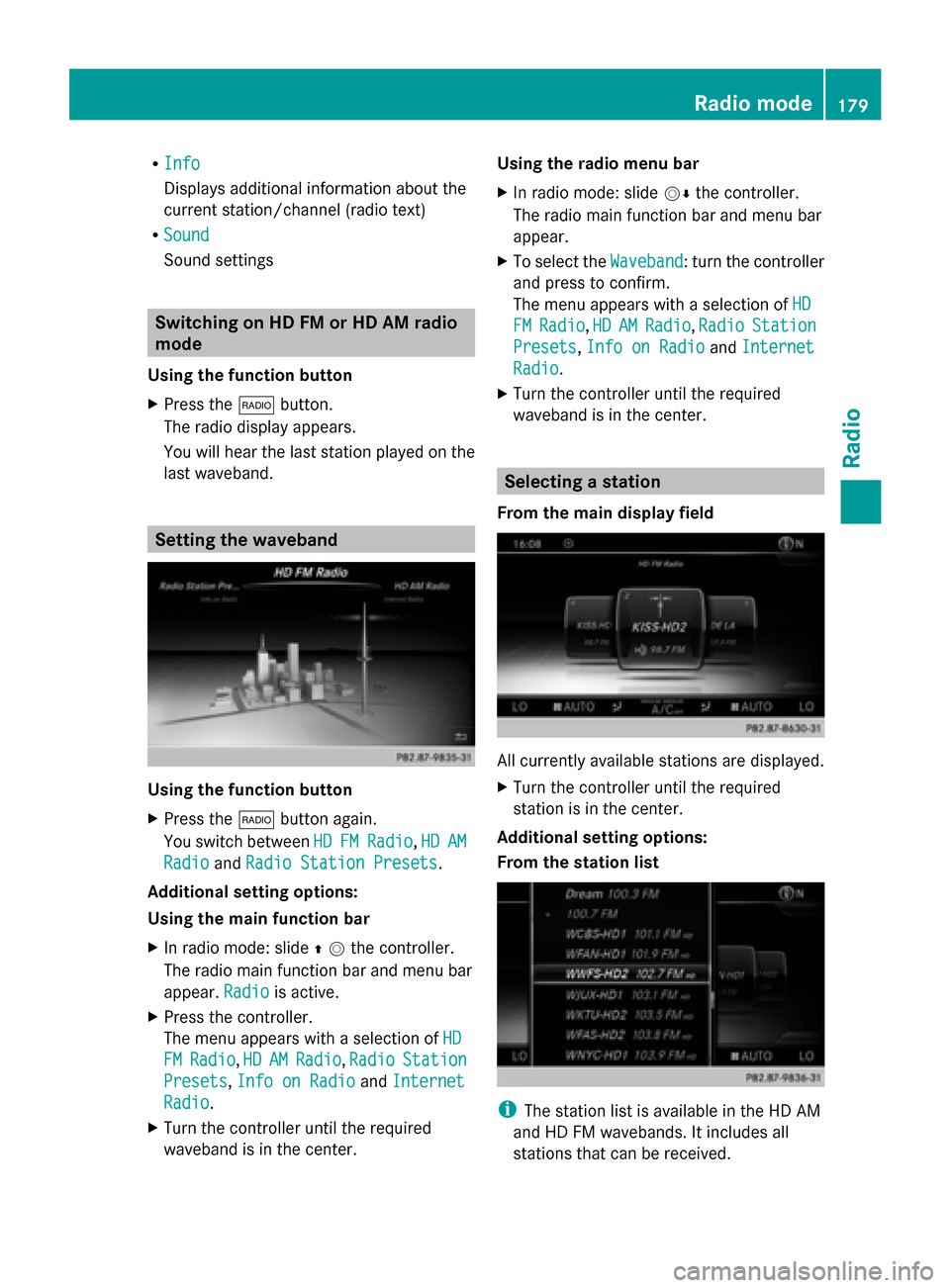
waveband is in the center. Selecting a station
From the main display field All currently available stations are displayed.
X
Turn the controller until the required
station is in the center.
Additional setting options:
From the station list i
The station list is available in the HD AM
and HD FM wavebands. It includes all
stations that can be received. Radio mode
179Radio
Page 200 of 278
X
In media mode, slide 00520064the controller.
The media menu bar is shown.
X To select Search
Search: turn the controller and
press to confirm.
The category list is shown.
X Select a category, e.g. Genres Genres.
Sub-categories appear with the selection of
the main category (depends on the
COMAND default settings and the music
tracks available).
X Select a sub-category, e.g. Blues
Blues.
If the sub-category Blues Bluesincludes music
tracks, these will be shown. Gracenote Media Database
General notes This function is only available in audio CD
mode.
There is a version of
Gracenote® music recognition technology,
Emeryville, California, USA on the COMAND
hard disk. You will recognize this by the logo
in the bottom right-hand corner of certain
audio displays.
If the audio CD does not contain any CD text
information, COMAND can use the
Gracenote ®
Media Database to identify
unknown audio tracks when in audio CD
mode. Internet update of metadata With the option
Update metadata via
Internet, the audio CD meta data that is not
available (e.g. cover, track, album, artist) can
be reloaded to the internal Gracenote
database.
An Internet connection is required for this
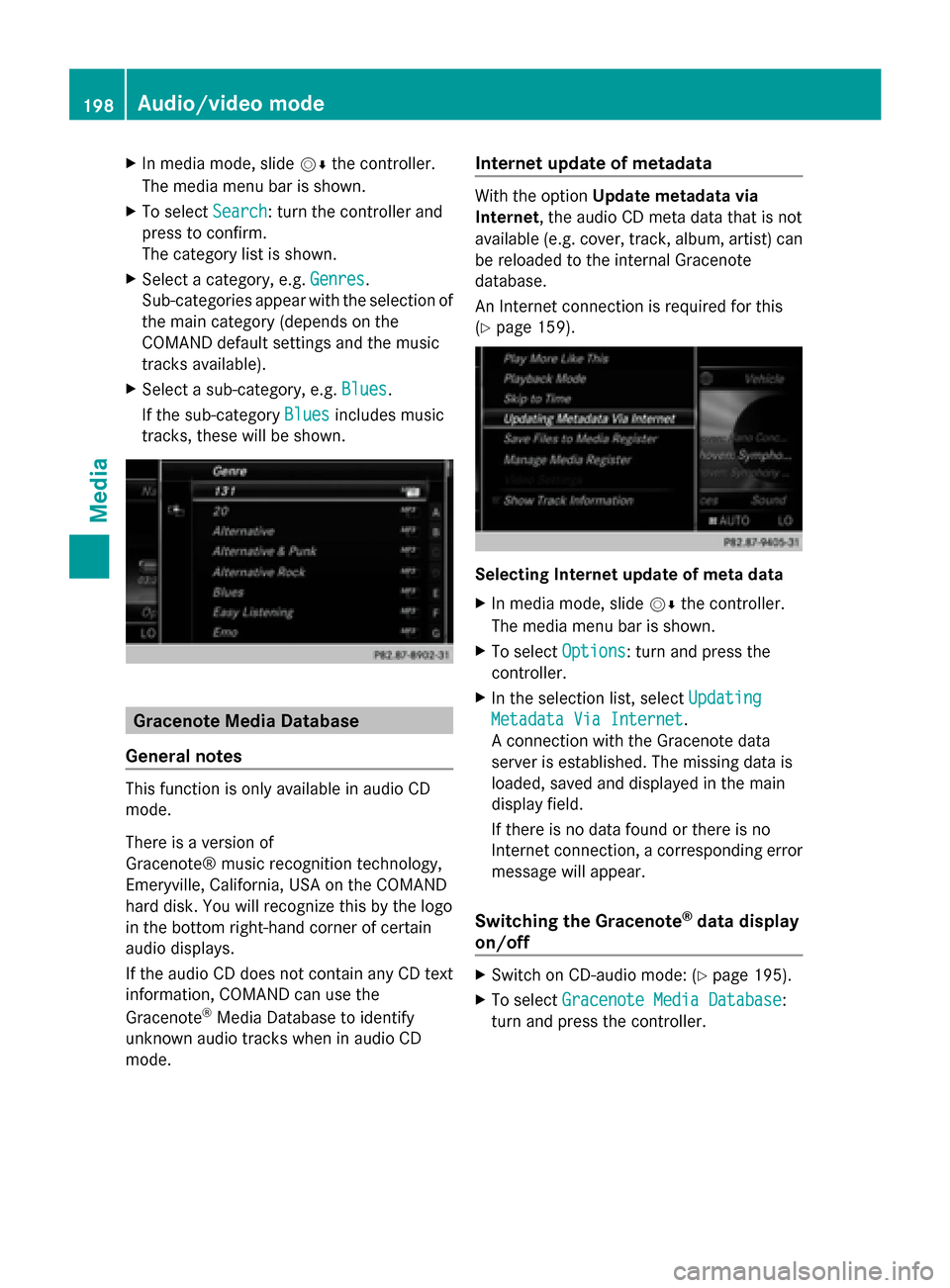
(Y page 159). Selecting Internet update of meta data
X
In media mode, slide 00520064the controller.
The media menu bar is shown.
X To select Options Options: turn and press the
controller.
X In the selection list, select Updating
Updating
Metadata Via Internet
Metadata Via Internet.
A connection with the Gracenote data
server is established. The missing data is
loaded, saved and displayed in the main
display field.
If there is no data found or there is no
Internet connection, a corresponding error
message will appear.
Switching the Gracenote ®
data display
on/off X
Switch on CD-audio mode: (Y page 195).
X To select Gracenote Media Database Gracenote Media Database:
turn and press the controller. 198
Audio/video modeMedia
Page 211 of 278
i
If the mobile phone that is connected only
supports two Bluetooth ®
profiles at the
same time, COMAND functions may
behave as follows:
R when connecting to the Internet,
playback is stopped on the Bluetooth ®
audio device (Y page 159).
R when starting playback on the
Bluetooth ®
audio device, the Internet
connection is ended (Y page 160).Searching for and authorizing a
Bluetooth ®
audio device
Switching to Bluetooth ®
audio mode
X Press the 00FDbutton.
X To select Bluetooth Audio
Bluetooth Audio from the
menu: turn and press the controller.
A menu appears.
If you see the No Bluetooth Audio No Bluetooth Audio
Device Authorized
Device Authorized message, you will
need to authorize the Bluetooth ®
audio
device first.
X To select Options
Options from the Bluetooth ®
audio menu: slide 005200C5and press the
controller.
X To select Bluetooth Audio Devices
Bluetooth Audio Devices:
press the controller.
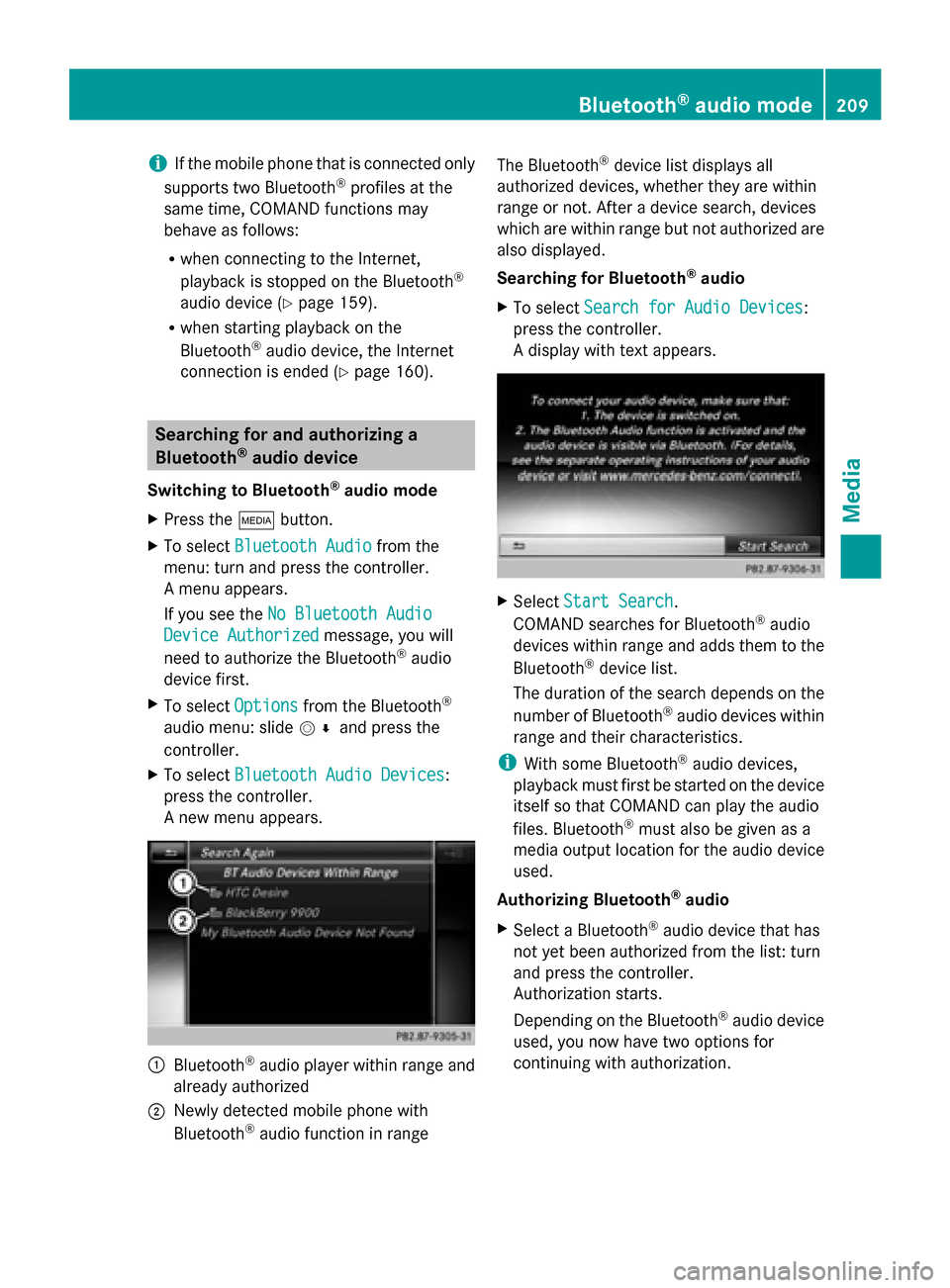
A new menu appears. 0043
Bluetooth ®
audio player within range and
already authorized
0044 Newly detected mobile phone with
Bluetooth ®
audio function in range The Bluetooth
®
device list displays all
authorized devices, whether they are within
range or not. After a device search, devices
which are within range but not authorized are
also displayed.
Searching for Bluetooth ®
audio
X To select Search for Audio Devices
Search for Audio Devices:
press the controller.
A display with text appears. X
Select Start Search Start Search.
COMAND searches for Bluetooth ®
audio
devices within range and adds them to the
Bluetooth ®
device list.
The duration of the search depends on the
number of Bluetooth ®
audio devices within
range and their characteristics.
i With some Bluetooth ®
audio devices,
playback must first be started on the device
itself so that COMAND can play the audio
files. Bluetooth ®
must also be given as a
media output location for the audio device
used.
Authorizing Bluetooth ®
audio
X Select a Bluetooth ®
audio device that has
not yet been authorized from the list: turn
and press the controller.
Authorization starts.
Depending on the Bluetooth ®
audio device
used, you now have two options for
continuing with authorization. Bluetooth
®
audio mode 209Media Z
Page 214 of 278
(see the Bluetooth
®
audio device's
operating instructions). Switching to Bluetooth
®
audio mode
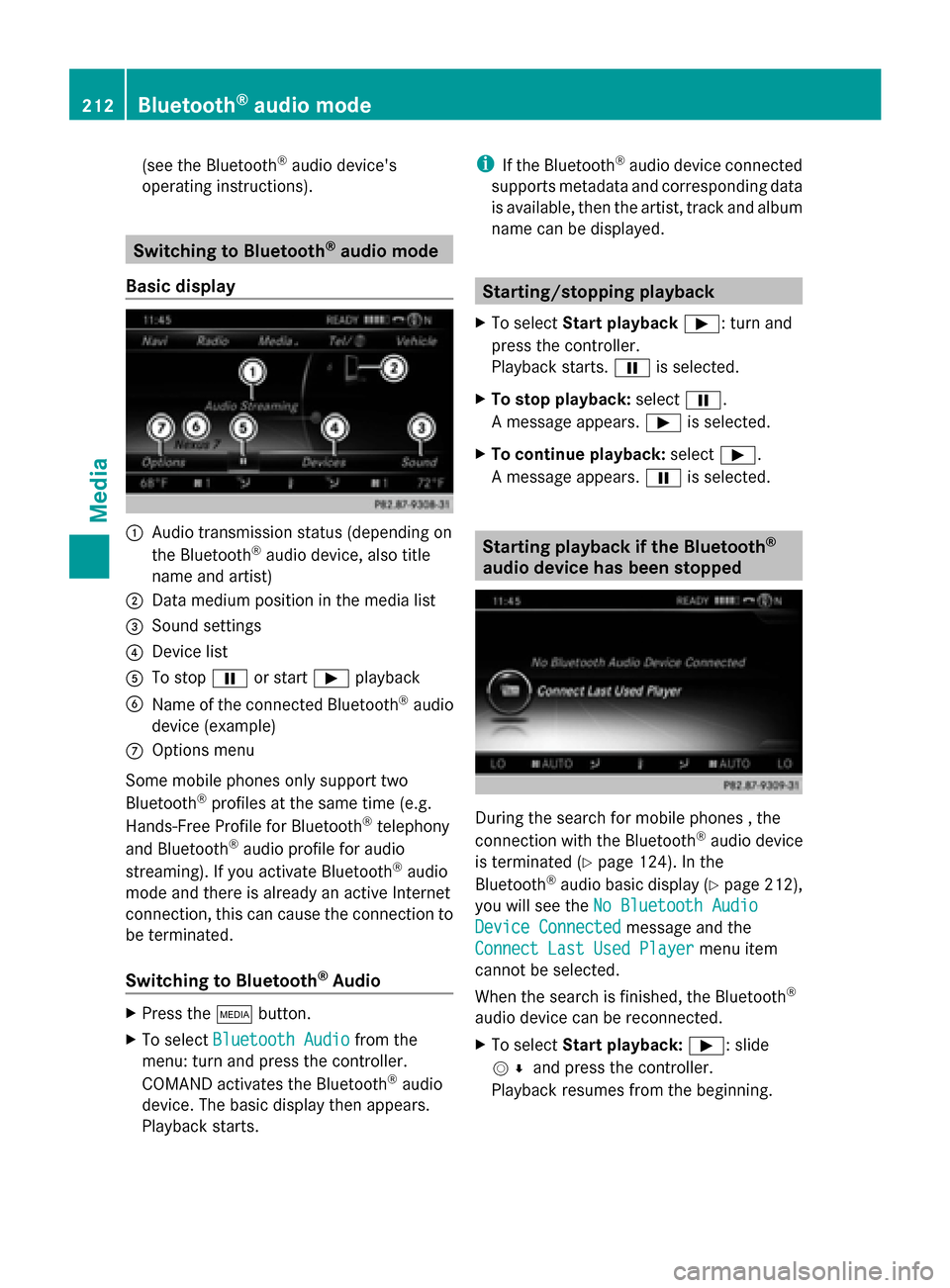
Basic display 0043
Audio transmission status (depending on
the Bluetooth ®
audio device, also title
name and artist)
0044 Data medium position in the media list
0087 Sound settings
0085 Device list
0083 To stop 00CFor start 00D0playback
0084 Name of the connected Bluetooth ®
audio
device (example)
006B Options menu
Some mobile phones only support two
Bluetooth ®
profiles at the same time (e.g.
Hands-Free Profile for Bluetooth ®
telephony
and Bluetooth ®
audio profile for audio
streaming). If you activate Bluetooth ®
audio
mode and there is already an active Internet
connection, this can cause the connection to
be terminated.
Switching to Bluetooth ®
Audio X
Press the 00FDbutton.
X To select Bluetooth Audio Bluetooth Audio from the
menu: turn and press the controller.
COMAND activates the Bluetooth ®
audio
device. The basic display then appears.
Playback starts. i
If the Bluetooth ®
audio device connected
supports metadata and corresponding data
is available, then the artist, track and album
name can be displayed. Starting/stopping playback
X To select Start playback 00D0: turn and
press the controller.
Playback starts. 00CFis selected.
X To stop playback: select00CF.
A message appears. 00D0is selected.
X To continue playback: select00D0.
A message appears. 00CFis selected. Starting playback if the Bluetooth
®
audio device has been stopped During the search for mobile phones , the
connection with the Bluetooth
®
audio device
is terminated (Y page 124). In the
Bluetooth ®
audio basic display (Y page 212),
you will see the No Bluetooth Audio No Bluetooth Audio
Device Connected
Device Connected message and the
Connect Last Used Player
Connect Last Used Player menu item
cannot be selected.
When the search is finished, the Bluetooth ®
audio device can be reconnected.
X To select Start playback: 00D0: slide
005200C5 and press the controller.
Playback resumes from the beginning. 212
Bluetooth ®
audio modeMedia
Page 215 of 278
X
To select Connect Last Used Player
Connect Last Used Player:
press the controller.
Depending on the Bluetooth ®
audio device
used, playback starts immediately or you
must start playback manually.
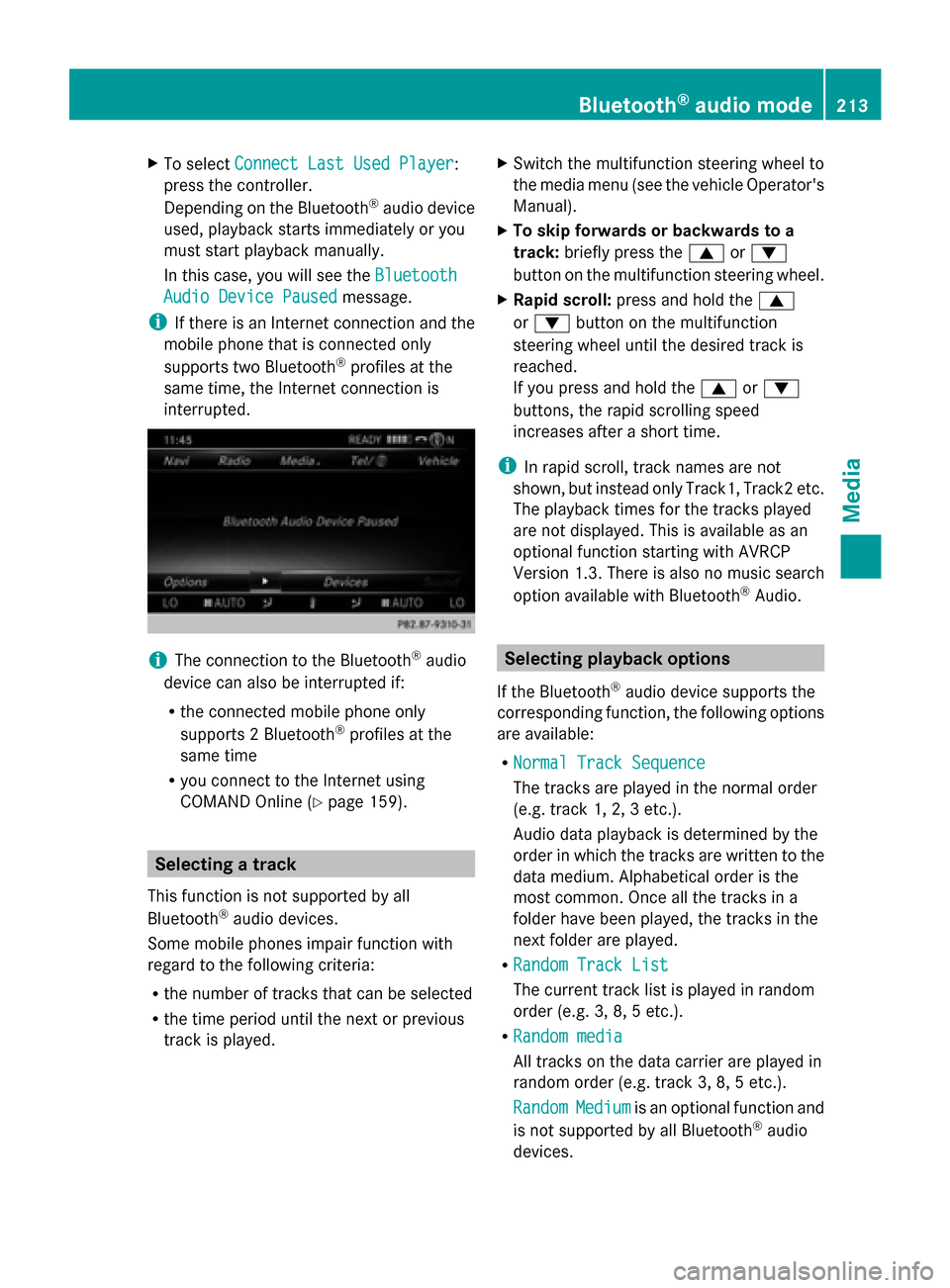
In this case, you will see the Bluetooth
Bluetooth
Audio Device Paused Audio Device Paused message.
i If there is an Internet connection and the
mobile phone that is connected only
supports two Bluetooth ®
profiles at the
same time, the Internet connection is
interrupted. i
The connection to the Bluetooth ®
audio
device can also be interrupted if:
R the connected mobile phone only
supports 2 Bluetooth ®
profiles at the
same time
R you connect to the Internet using
COMAND Online (Y page 159). Selecting a track
This function is not supported by all
Bluetooth ®
audio devices.
Some mobile phones impair function with
regard to the following criteria:
R the number of tracks that can be selected
R the time period until the next or previous
track is played. X
Switch the multifunction steering wheel to
the media menu (see the vehicle Operator's
Manual).
X To skip forwards or backwards to a
track: briefly press the 0063or0064
button on the multifunction steering wheel.
X Rapid scroll: press and hold the 0063
or 0064 button on the multifunction
steering wheel until the desired track is
reached.
If you press and hold the 0063or0064
buttons, the rapid scrolling speed
increases after a short time.
i In rapid scroll, track names are not
shown, but instead only Track1, Track2 etc.
The playback times for the tracks played
are not displayed. This is available as an
optional function starting with AVRCP
Version 1.3. There is also no music search
option available with Bluetooth ®
Audio. Selecting playback options
If the Bluetooth ®
audio device supports the
corresponding function, the following options
are available:
R Normal Track Sequence Normal Track Sequence
The tracks are played in the normal order
(e.g. track 1, 2, 3 etc.).
Audio data playback is determined by the
order in which the tracks are written to the
data medium. Alphabetical order is the
most common. Once all the tracks in a
folder have been played, the tracks in the
next folder are played.
R Random Track List Random Track List
The current track list is played in random
order (e.g. 3, 8, 5 etc.).
R Random media Random media
All tracks on the data carrier are played in
random order (e.g. track 3, 8, 5 etc.).
Random Random Medium
Mediumis an optional function and
is not supported by all Bluetooth ®
audio
devices. Bluetooth
®
audio mode 213Media Z
Page 241 of 278
Your COMAND equipment
................240
Rear Seat Entertainment System
overview ............................................ 240
System settings ................................ 248
Vehicle settings ................................ 250
Navitainment ..................................... 251
Online and Internet functions ..........251
Radio mode ........................................ 252
Media mode ....................................... 252
Audio/video mode ............................253
Video DVD mode ............................... 256
AUX mode .......................................... 260 239Rear Seat Entertainment System
Page 242 of 278
Your COMAND equipment
These operating instructions describe all
standard and optional equipment available
for your COMAND system at the time of
purchase. Country-specific differences are
possible. Please note that your
COMAND system may not be equipped with
all the features described. This also applies to
safety-relevant systems and functions.
Therefore, the equipment on your COMAND
system may differ from that in the
descriptions and illustrations. Should you
have any questions concerning equipment
and operation, please consult an authorized
Mercedes-Benz Center. Rear Seat Entertainment System
overview Important safety notes
G
WARNING
The CD/DVD drive is a class 1 laser product.
If you open the CD/DVD drive housing, you
could be exposed to invisible laser radiation.
This laser radiation could damage your retina.
There is a risk of injury.
Never open the housing. Always have
maintenance and repair work carried out at a
qualified specialist workshop. G
WARNING
If objects such as headphones/headsets or
external audio/video sources are not secured
in the passenger compartment, they can be
flung around and hit vehicle occupants. There
is a risk of injury, for example in the event of
sudden braking or a sudden change in
direction.
Always stow these items or similar objects
carefully so that they cannot be flung around,
for example in a lockable vehicle stowage
compartment. Components
The Rear Seat Entertainment System
includes:
R two screens for the rear behind the front-
seat head restraints
R two remote controls for the rear
compartment
R a CD/DVD drive in the rear compartment
R AUX jacks
R two USB ports
R two sets of cordless headphones General notes
R You can only adjust the volume for the
headphones supplied, directly on the
headphones.
R If media from different sources are used,
they can be used separately from each of
the operating positions. Example: a film
from the DVD drive is played on the rear
right-hand operating position. This means
that another film from the same DVD
cannot be played separately on the rear
left-hand operating position. However, on
the rear left-hand operating position, it is
possible to use the radio, TV, memory card,
MUSIC REGISTER, media interface, USB,
online and Internet functions or AUX.
R If you use the same medium on both sides,
you can both carry out the respective
settings. The "last one wins" principle
applies here, i.e. the last setting activated
is favored.
R The Internet can be used separately at all
operating positions.
R The Internet can only be used if it is set up
and connected via a telephone
(Y page 158). 240
Rea
r Seat Entertainment System overviewRear Seat Entertainment System
Page 253 of 278
X
Changing vehicle settings: select
Vehicle
Vehicle using the 006300590065 buttons
on the remote control and press the 008B
button to confirm.
You will see a menu with the available
vehicle functions.
X Select Vehicle Settings
Vehicle Settings orSeat Seat
Settings
Settings using the buttons 00590065.
X Press button 008Bon the remote control.
Further information on seat settings
(Y page 55).
Further information on panel heating
(Y page 52).
i The panel heating in the rear
compartment is available if the key in the
ignition lock is in position 1or 2. Navitainment
Navigation mode
Navigation functions such as the compass
can be used in the rear compartment.
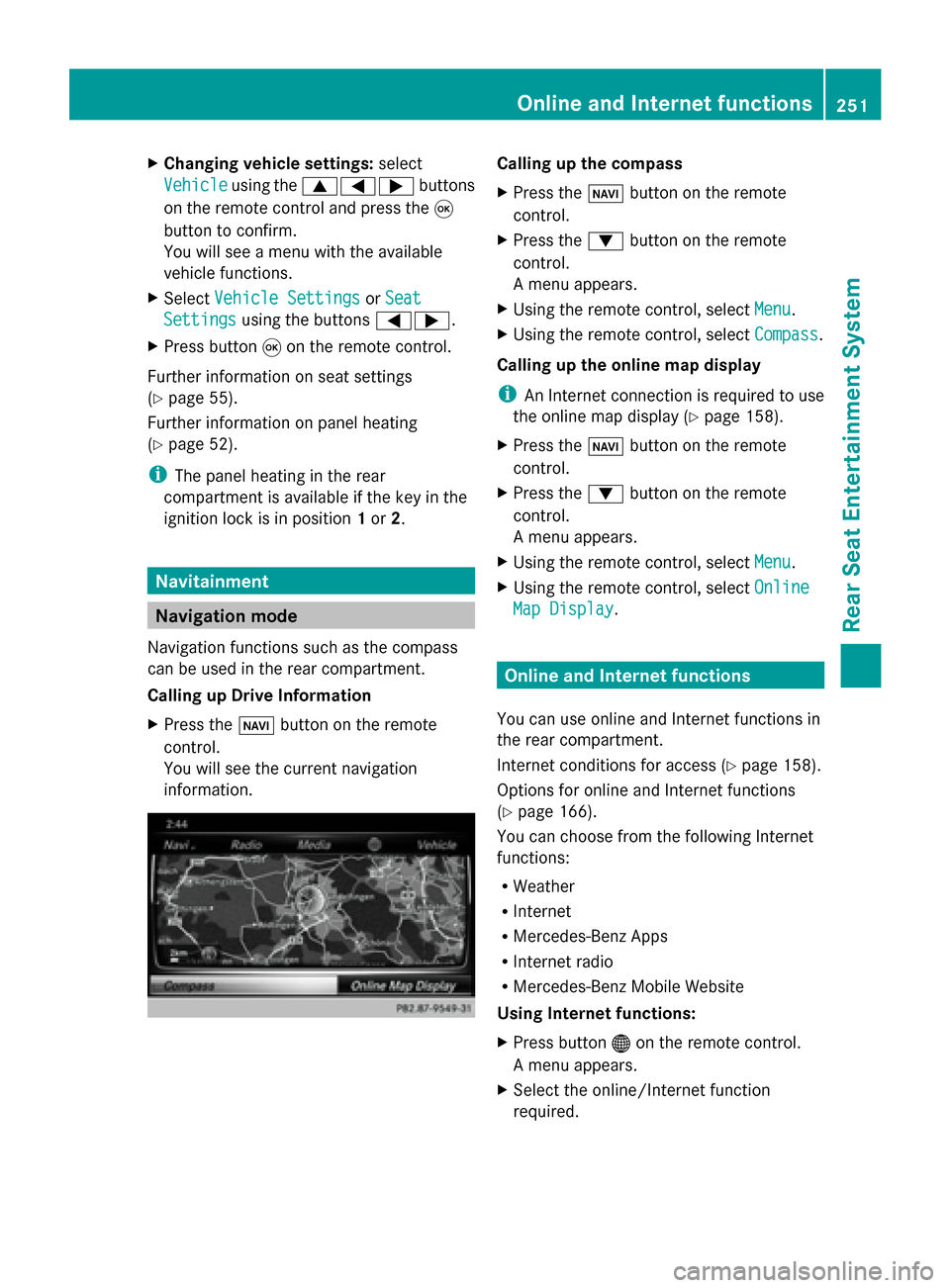
Calling up Drive Information
X Press the 00BEbutton on the remote
control.
You will see the current navigation
information. Calling up the compass
X
Press the 00BEbutton on the remote
control.
X Press the 0064button on the remote
control.
A menu appears.
X Using the remote control, select Menu Menu.
X Using the remote control, select Compass
Compass.
Calling up the online map display
i An Internet connection is required to use
the online map display (Y page 158).
X Press the 00BEbutton on the remote
control.
X Press the 0064button on the remote
control.
A menu appears.
X Using the remote control, select Menu Menu.
X Using the remote control, select Online
Online
Map Display
Map Display. Online and Internet functions
You can use online and Internet functions in
the rear compartment.
Internet conditions for access (Y page 158).
Options for online and Internet functions
(Y page 166).
You can choose from the following Internet
functions:
R Weather
R Internet
R Mercedes-Benz Apps
R Internet radio
R Mercedes-Benz Mobile Website
Using Internet functions:
X Press button 00A7on the remote control.
A menu appears.
X Select the online/Internet function
required. Online and Internet functions
251Rear Seat Entertainment System Z