internet MERCEDES-BENZ S-Class 2014 W222 Comand Manual
[x] Cancel search | Manufacturer: MERCEDES-BENZ, Model Year: 2014, Model line: S-Class, Model: MERCEDES-BENZ S-Class 2014 W222Pages: 278, PDF Size: 6.65 MB
Page 152 of 278
X
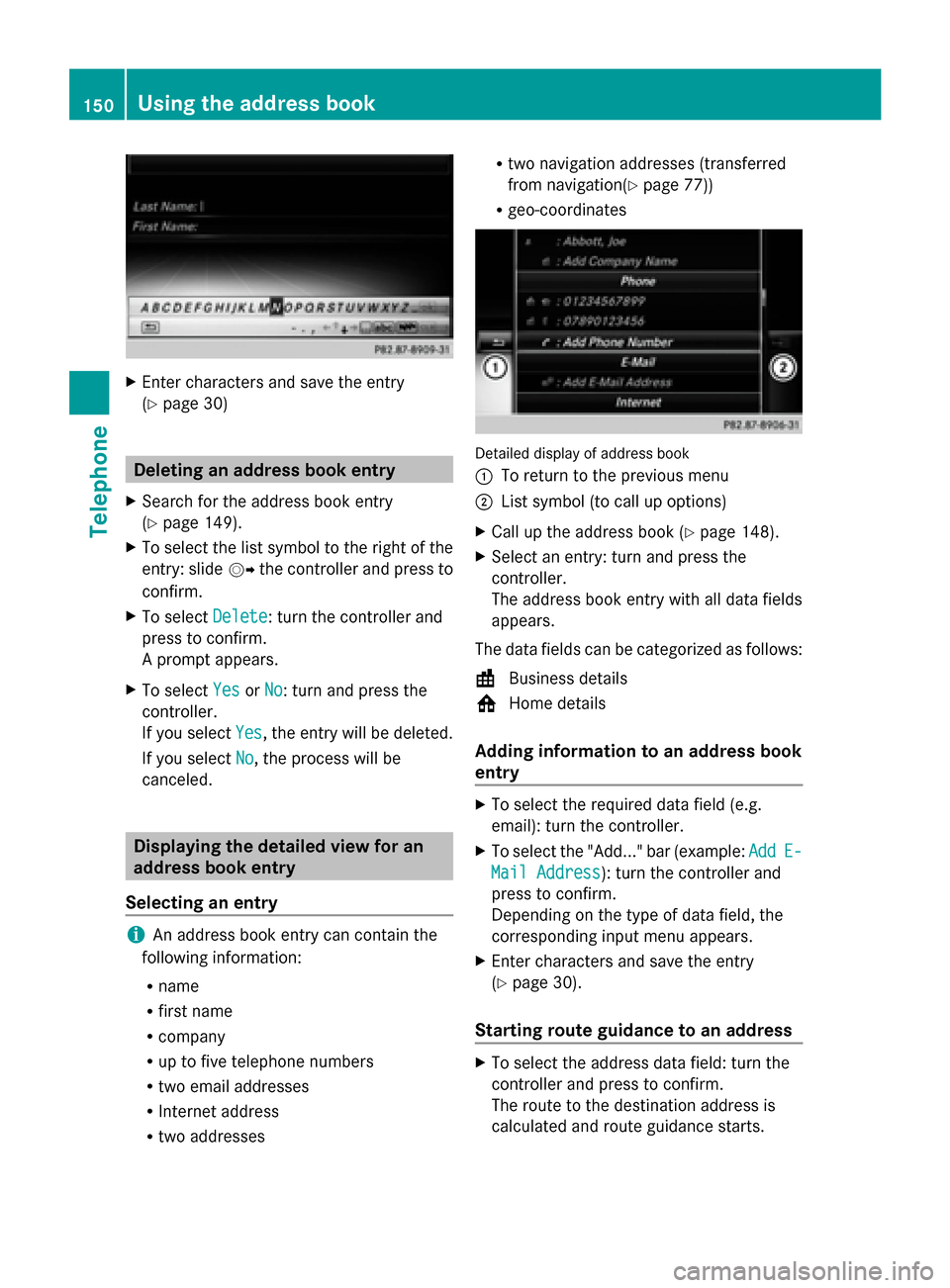
Enter characters and save the entry
(Y page 30) Deleting an address book entry
X Search for the address book entry
(Y page 149).
X To select the list symbol to the right of the
entry: slide 00520096the controller and press to
confirm.
X To select Delete
Delete : turn the controller and
press to confirm.
A prompt appears.
X To select Yes
Yes orNo No: turn and press the
controller.
If you select Yes
Yes , the entry will be deleted.
If you select No
No, the process will be
canceled. Displaying the detailed view for an
address book entry
Selecting an entry i
An address book entry can contain the
following information:
R name
R first name
R company
R up to five telephone numbers
R two email addresses
R Internet address
R two addresses R
two navigation addresses (transferred
from navigation( Ypage 77))
R geo-coordinates Detailed display of address book
0043
To return to the previous menu
0044 List symbol (to call up options)
X Call up the address book (Y page 148).
X Select an entry: turn and press the
controller.
The address book entry with all data fields
appears.
The data fields can be categorized as follows:
\ Business details
0088 Home details
Adding information to an address book
entry X
To select the required data field (e.g.
email): turn the controller.
X To select the "Add..." bar (example: Add AddE-
E-
Mail Address
Mail Address): turn the controller and
press to confirm.
Depending on the type of data field, the
corresponding input menu appears.
X Enter characters and save the entry
(Y page 30).
Starting route guidance to an address X
To select the address data field: turn the
controller and press to confirm.
The route to the destination address is
calculated and route guidance starts. 150
Using the address bookTelephone
Page 159 of 278
Your COMAND equipment
................158
General notes .................................... 158
Establishing/ending the connection 159
Google™ local search .......................161
Destination/route download ...........164
Options .............................................. 166
Mercedes-Benz Apps ........................167
Internet radio .................................... 168
Internet .............................................. 170 157Online and Internet
Page 160 of 278
Your COMAND equipment
These operating instructions describe all
standard and optional equipment available
for your COMAND system at the time of
purchase. Country-specific differences are
possible. Please note that your
COMAND system may not be equipped with
all the features described. This also applies to
safety-relevant systems and functions.
Therefore, the equipment on your COMAND
system may differ from that in the
descriptions and illustrations. Should you
have any questions concerning equipment
and operation, please consult an authorized
Mercedes-Benz Center. General notes
Conditions for access
G
WARNING
If you operate information systems and
communication equipment integrated in the
vehicle while driving, you will be distracted
from traffic conditions. You could also lose
control of the vehicle. There is a risk of an
accident.
Only operate the equipment when the traffic
situation permits. If you are not sure that this
is possible, park the vehicle paying attention
to traffic conditions and operate the
equipment when the vehicle is stationary.
You must observe the legal requirements for
the country in which you are currently driving
when operating COMAND.
The COMAND Online Mercedes-Benz Apps
and Internet access are available via the
Bluetooth ®
interface, the USB interface or via
the data-enabled telephone module with
Bluetooth ®
(SAP profile).
In order to use the functions, the following
conditions are necessary:
R The mobile phone supports at least one of
the Bluetooth ®
profiles DUN (D ial-Up Networking) or PAN
PersonalArea
Network) and is connected to COMAND via
the Bluetooth ®
interface (Y page 124). The
Bluetooth ®
profiles DUN and PAN make the
mobile phone's Internet connection
available to COMAND and the Rear Seat
Entertainment System.
R The mobile phone supports at least one of
the USB classes CDC/ECM (Ethernet
Control Model) or CDC/ACM ( Access
Control Model) and is connected to
COMAND via the USB interface
(Y page 215). The USB classes make the
mobile phone's Internet connection
available to COMAND and the Rear Seat
Entertainment System.
R You need a valid mobile service contract
with a data option, which is used to
calculate the associated connection costs.
i You can obtain more detailed information
about suitable mobile phones on the
Internet at http://www.mercedes-
benz.com/connect or from your
authorized Mercedes-Benz Center.
i If you use incorrect access data,
additional costs may be incurred. This can
happen when you use details that are
different from the contract or details from
another contract/data package.
i The availability of individual Mercedes-
Benz Apps may vary depending on the
country.
i The terms of use are shown when
COMAND is used for the first time and then
once a year thereafter. Only read and
accept the terms of use when the vehicle
is stationary.
i The driver is not permitted to call up
websites while driving and use of the
Mercedes-Benz Apps is restricted. 158
General notesOnline and Internet
Page 161 of 278
To use COMAND Online Mercedes-Benz Apps
and Internet access, the following conditions
must be fulfilled:
R mbrace is activated and operational
R mbrace is activated for COMAND Online
Mercedes-Benz Apps and Internet access
Priority of connections: an emergency call
has the highest priority. When a service call,
e.g. a breakdown service call or the MB Info
Call, is active, an emergency call can still be
initiated.
A service call, on the other hand, has priority
over a current Internet connection. Therefore,
you cannot establish an Internet connection
during a service call.
i The availability of individual COMAND
Mercedes-Benz Apps may vary depending
on the country.
i The terms of use are shown when
COMAND is used for the first time and then
once a year thereafter. Only read and
accept the terms of use when the vehicle
is stationary.
i The driver is not permitted to call up
websites while driving and use of the
Mercedes-Benz Apps is restricted. Establishing/ending the connection
Establishing the connection
Preconditions for establishing a connection
can be found under "General notes"
(Y page 158).
A connection can be established by:
R entering a web address (Y page 170).
R calling up the Mercedes-Benz Mobile
Website (Y page 167).
R calling up a Mercedes-Benz App
(Y page 167).
R calling up a Favorite (Y page 170).
R calling up the Internet radio (Y page 168).Ending the connection
X
Press Cancel Cancel in the connections window. Establishing/ending the connection
159Online and Internet Z
Page 162 of 278
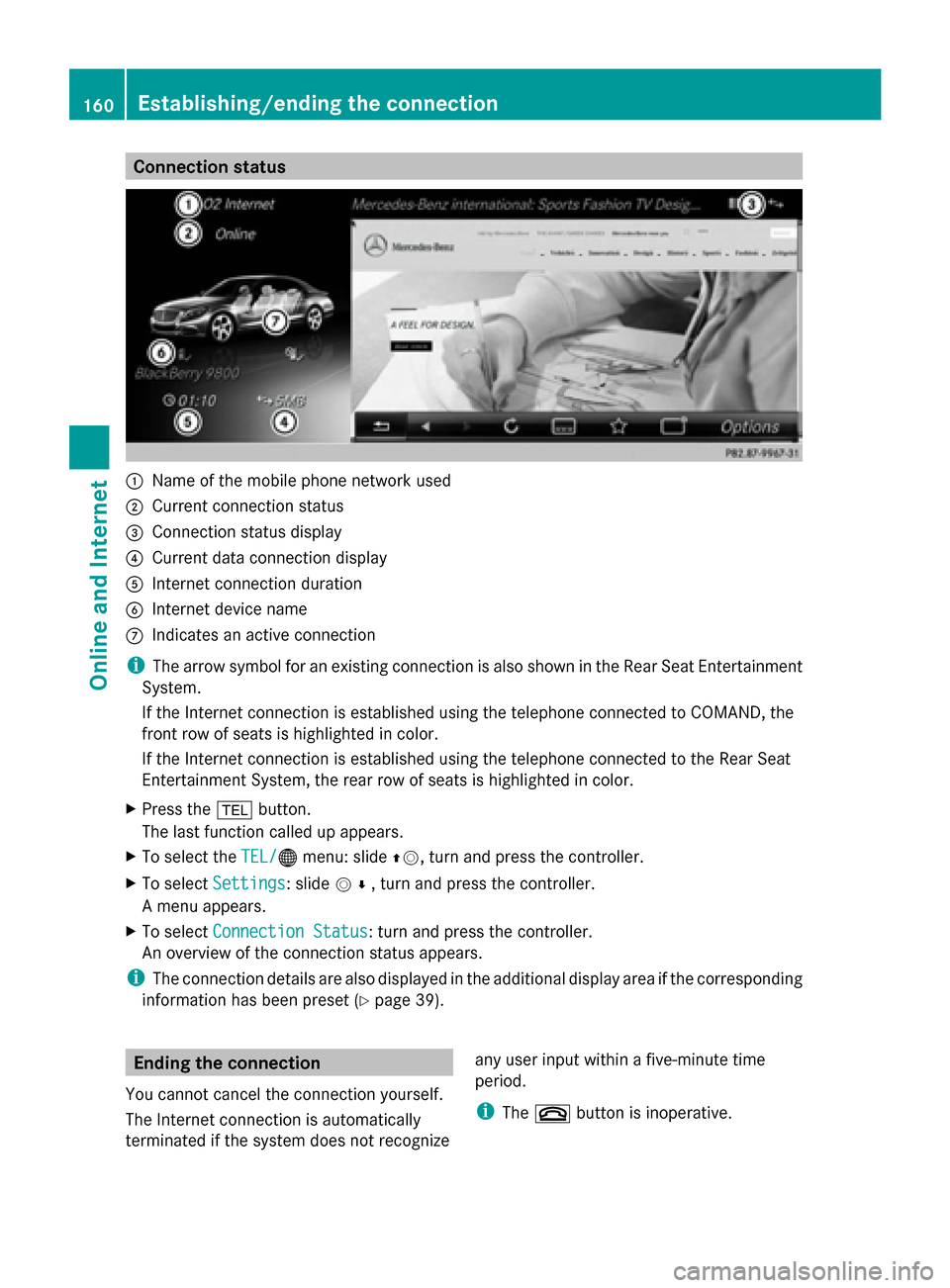
Connection status
0043
Name of the mobile phone network used
0044 Current connection status
0087 Connection status display
0085 Current data connection display
0083 Internet connection duration
0084 Internet device name
006B Indicates an active connection
i The arrow symbol for an existing connection is also shown in the Rear Seat Entertainment
System.
If the Internet connection is established using the telephone connected to COMAND, the
front row of seats is highlighted in color.
If the Internet connection is established using the telephone connected to the Rear Seat
Entertainment System, the rear row of seats is highlighted in color.
X Press the 002Bbutton.
The last function called up appears.
X To select the TEL/
TEL/00A7 menu: slide 00970052, turn and press the controller.
X To select Settings
Settings: slide 005200C5, turn and press the controller.
A menu appears.
X To select Connection Status Connection Status : turn and press the controller.
An overview of the connection status appears.
i The connection details are also displayed in the additional display area if the corresponding
information has been preset (Y page 39).Ending the connection
You cannot cancel the connection yourself.
The Internet connection is automatically
terminated if the system does not recognize any user input within a five-minute time
period.
i
The 0076 button is inoperative. 160
Establishing/ending the connectionOnline and Internet
Page 163 of 278
Automatic disconnection of the
Internet connection after inactivity
If no data is transferred from COMAND for a
specified time, e.g. five minutes, the system
automatically disconnects the Internet
connection. Google™ local search
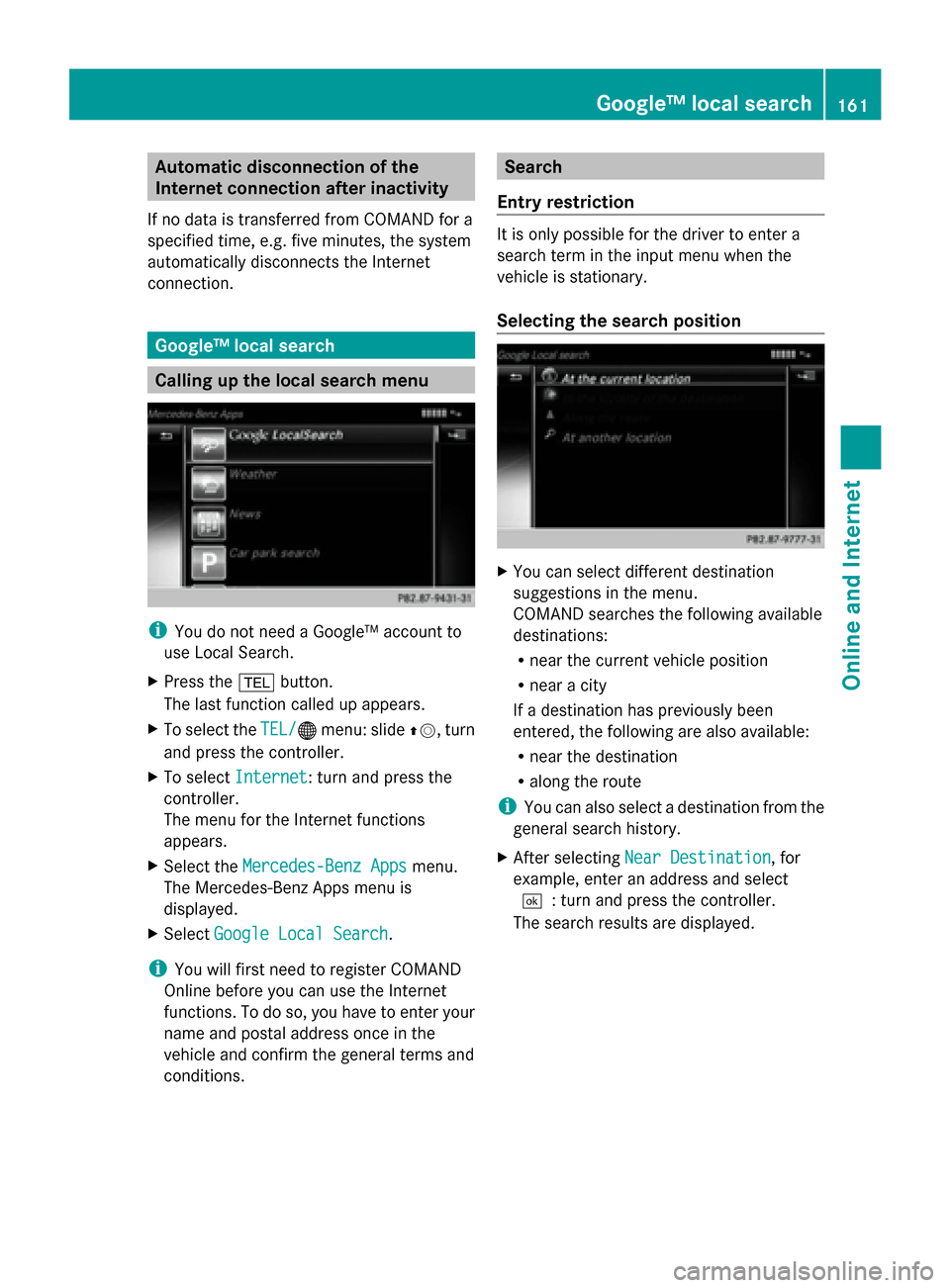
Calling up the local search menu
i
You do not need a Google™ account to
use Local Search.
X Press the 002Bbutton.
The last function called up appears.
X To select the TEL/
TEL/00A7 menu: slide 00970052, turn
and press the controller.
X To select Internet Internet: turn and press the
controller.
The menu for the Internet functions
appears.
X Select the Mercedes-Benz Apps
Mercedes-Benz Apps menu.
The Mercedes-Benz Apps menu is
displayed.
X Select Google Local Search
Google Local Search .
i You will first need to register COMAND
Online before you can use the Internet
functions. To do so, you have to enter your
name and postal address once in the
vehicle and confirm the general terms and
conditions. Search
Entry restriction It is only possible for the driver to enter a
search term in the input menu when the
vehicle is stationary.
Selecting the search position
X
You can select different destination
suggestions in the menu.
COMAND searches the following available
destinations:
R
near the current vehicle position
R near a city
If a destination has previously been
entered, the following are also available:
R near the destination
R along the route
i You can also select a destination from the
general search history.
X After selecting Near Destination Near Destination, for
example, enter an address and select
0054: turn and press the controller.
The search results are displayed. Google™ local search
161Online and Internet Z
Page 164 of 278
Entering a search term
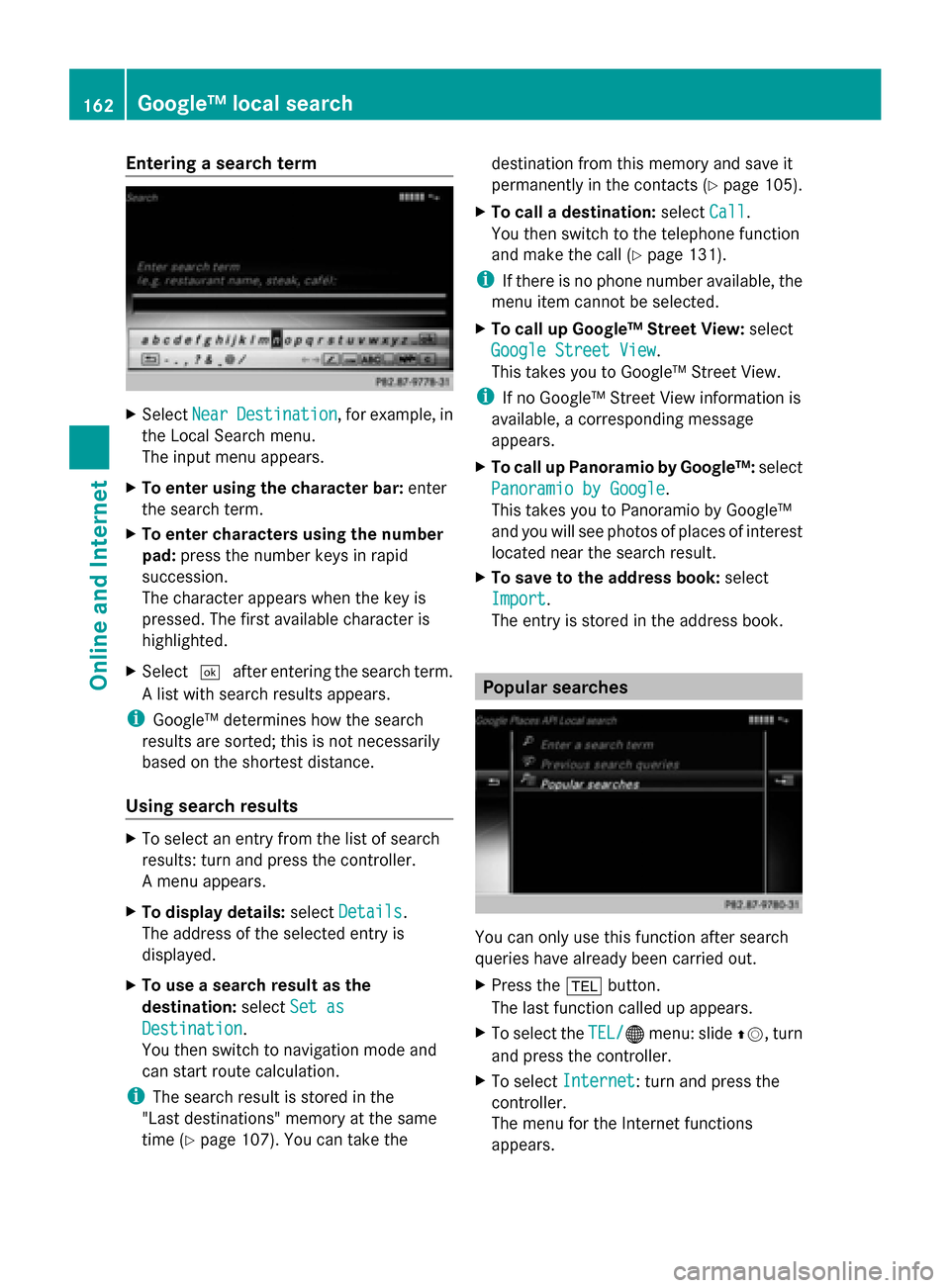
X
Select Near
NearDestination
Destination , for example, in
the Local Search menu.
The input menu appears.
X To enter using the character bar: enter
the search term.
X To enter characters using the number
pad: press the number keys in rapid
succession.
The character appears when the key is
pressed. The first available character is
highlighted.
X Select 0054after entering the search term.
A list with search results appears.
i Google™ determines how the search
results are sorted; this is not necessarily
based on the shortest distance.
Using search results X
To select an entry from the list of search
results: turn and press the controller.
A menu appears.
X To display details: selectDetails
Details.
The address of the selected entry is
displayed.
X To use a search result as the
destination: selectSet as
Set as
Destination Destination.
You then switch to navigation mode and
can start route calculation.
i The search result is stored in the
"Last destinations" memory at the same
time (Y page 107). You can take the destination from this memory and save it
permanently in the contacts (Y
page 105).
X To call a destination: selectCall
Call.
You then switch to the telephone function
and make the call (Y page 131).
i If there is no phone number available, the
menu item cannot be selected.
X To call up Google™ Street View: select
Google Street View Google Street View.
This takes you to Google™ Street View.
i If no Google™ Street View information is
available, a corresponding message
appears.
X To call up Panoramio by Google™: select
Panoramio by Google Panoramio by Google .
This takes you to Panoramio by Google™
and you will see photos of places of interest
located near the search result.
X To save to the address book: select
Import
Import .
The entry is stored in the address book. Popular searches
You can only use this function after search
queries have already been carried out.
X
Press the 002Bbutton.
The last function called up appears.
X To select the TEL/
TEL/00A7 menu: slide 00970052, turn
and press the controller.
X To select Internet Internet: turn and press the
controller.
The menu for the Internet functions
appears. 162
Google™ local searchOnline and Internet
Page 165 of 278
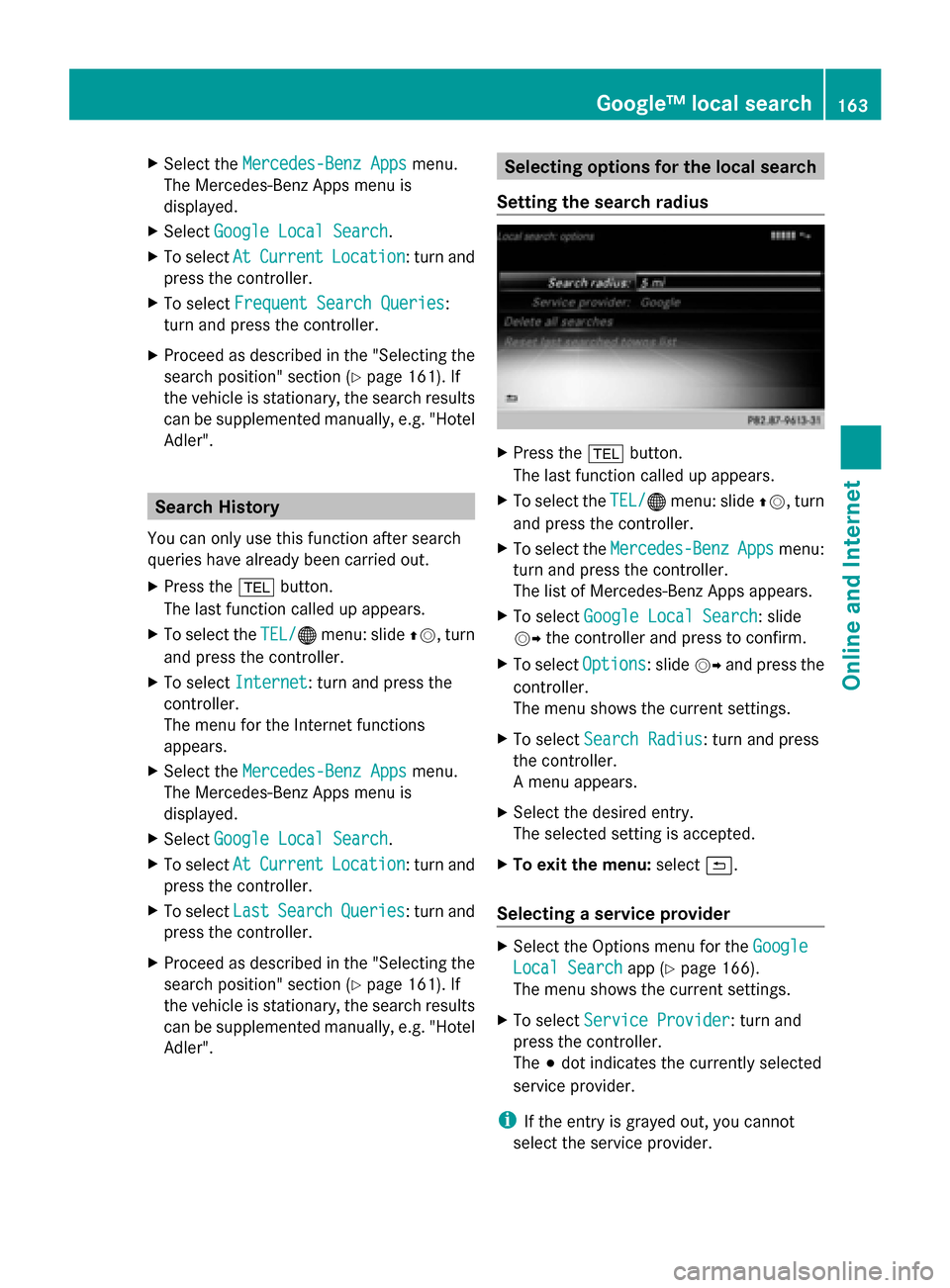
X
Select the Mercedes-Benz Apps
Mercedes-Benz Apps menu.
The Mercedes-Benz Apps menu is
displayed.
X Select Google Local Search
Google Local Search .
X To select At AtCurrent
Current Location
Location : turn and
press the controller.
X To select Frequent Search Queries
Frequent Search Queries:
turn and press the controller.
X Proceed as described in the "Selecting the
search position" section (Y page 161). If
the vehicle is stationary, the search results
can be supplemented manually, e.g. "Hotel
Adler". Search History
You can only use this function after search
queries have already been carried out.
X Press the 002Bbutton.
The last function called up appears.
X To select the TEL/
TEL/00A7 menu: slide 00970052, turn
and press the controller.
X To select Internet Internet: turn and press the
controller.
The menu for the Internet functions
appears.
X Select the Mercedes-Benz Apps
Mercedes-Benz Apps menu.
The Mercedes-Benz Apps menu is
displayed.
X Select Google Local Search
Google Local Search .
X To select At AtCurrent
Current Location
Location : turn and
press the controller.
X To select Last
LastSearch
Search Queries
Queries : turn and
press the controller.
X Proceed as described in the "Selecting the
search position" section (Y page 161). If
the vehicle is stationary, the search results
can be supplemented manually, e.g. "Hotel
Adler". Selecting options for the local search
Setting the search radius X
Press the 002Bbutton.
The last function called up appears.
X To select the TEL/ TEL/00A7menu: slide 00970052, turn
and press the controller.
X To select the Mercedes-Benz
Mercedes-Benz Apps
Appsmenu:
turn and press the controller.
The list of Mercedes-Benz Apps appears.
X To select Google Local Search Google Local Search : slide
00520096 the controller and press to confirm.
X To select Options
Options: slide 00520096and press the
controller.
The menu shows the current settings.
X To select Search Radius
Search Radius : turn and press
the controller.
A menu appears.
X Select the desired entry.
The selected setting is accepted.
X To exit the menu: select0039.
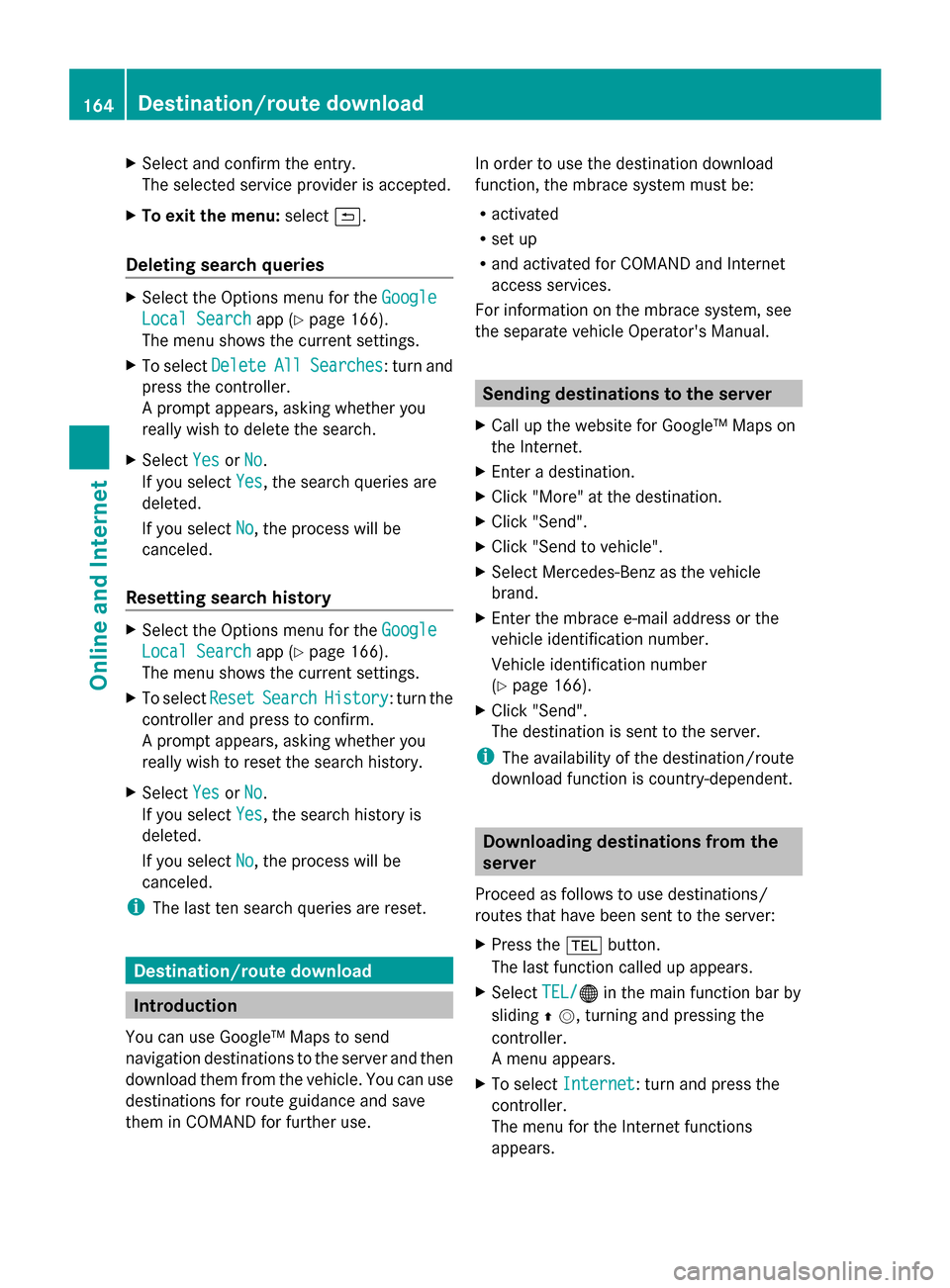
Selecting a service provider X
Select the Options menu for the Google
Google
Local Search Local Search app (Ypage 166).
The menu shows the current settings.
X To select Service Provider
Service Provider: turn and
press the controller.
The 003Bdot indicates the currently selected
service provider.
i If the entry is grayed out, you cannot
select the service provider. Google™ local search
163Online and Internet Z
Page 166 of 278
X
Select and confirm the entry.
The selected service provider is accepted.
X To exit the menu: select0039.
Deleting search queries X
Select the Options menu for the Google
Google
Local Search
Local Search app (Ypage 166).
The menu shows the current settings.
X To select Delete
Delete All AllSearches
Searches : turn and
press the controller.
A prompt appears, asking whether you
really wish to delete the search.
X Select Yes YesorNo
No.
If you select Yes
Yes, the search queries are
deleted.
If you select No
No, the process will be
canceled.
Resetting search history X
Select the Options menu for the Google
Google
Local Search
Local Search app (Ypage 166).
The menu shows the current settings.
X To select Reset
Reset Search Search History
History: turn the
controller and press to confirm.
A prompt appears, asking whether you
really wish to reset the search history.
X Select Yes YesorNo
No.
If you select Yes
Yes, the search history is
deleted.
If you select No
No, the process will be
canceled.
i The last ten search queries are reset. Destination/route download
Introduction
You can use Google™ Maps to send
navigation destinations to the server and then
download them from the vehicle. You can use
destinations for route guidance and save
them in COMAND for further use. In order to use the destination download
function, the mbrace system must be:
R
activated
R set up
R and activated for COMAND and Internet
access services.
For information on the mbrace system, see
the separate vehicle Operator's Manual. Sending destinations to the server
X Call up the website for Google™ Maps on
the Internet.
X Enter a destination.
X Click "More" at the destination.
X Click "Send".
X Click "Send to vehicle".
X Select Mercedes-Benz as the vehicle
brand.
X Enter the mbrace e-mail address or the
vehicle identification number.
Vehicle identification number
(Y page 166).
X Click "Send".
The destination is sent to the server.
i The availability of the destination/route
download function is country-dependent. Downloading destinations from the
server
Proceed as follows to use destinations/
routes that have been sent to the server:
X Press the 002Bbutton.
The last function called up appears.
X Select TEL/ TEL/00A7 in the main function bar by
sliding 00970052, turning and pressing the
controller.
A menu appears.
X To select Internet Internet: turn and press the
controller.
The menu for the Internet functions
appears. 164
Destination/route downloadOnline and Internet
Page 167 of 278
X
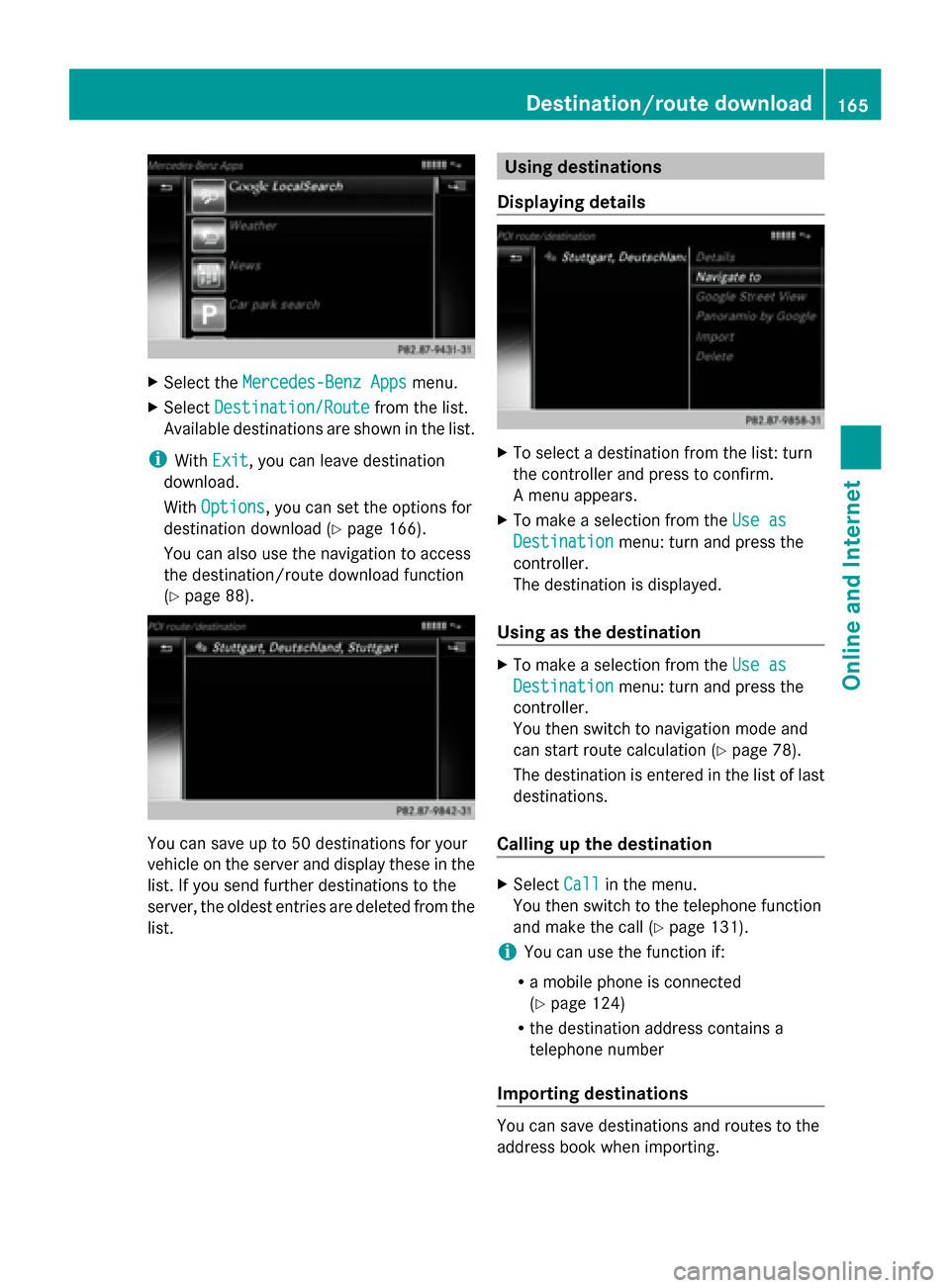
Select the Mercedes-Benz Apps
Mercedes-Benz Apps menu.
X Select Destination/Route
Destination/Route from the list.
Available destinations are shown in the list.
i With Exit
Exit, you can leave destination
download.
With Options
Options, you can set the options for
destination download (Y page 166).
You can also use the navigation to access
the destination/route download function
(Y page 88). You can save up to 50 destinations for your
vehicle on the server and display these in the
list. If you send further destinations to the
server, the oldest entries are deleted from the
list. Using destinations
Displaying details X
To select a destination from the list: turn
the controller and press to confirm.
A menu appears.
X To make a selection from the Use as Use as
Destination
Destination menu: turn and press the
controller.
The destination is displayed.
Using as the destination X
To make a selection from the Use as Use as
Destination
Destination menu: turn and press the
controller.
You then switch to navigation mode and
can start route calculation (Y page 78).
The destination is entered in the list of last
destinations.
Calling up the destination X
Select Call Callin the menu.
You then switch to the telephone function
and make the call (Y page 131).
i You can use the function if:
R a mobile phone is connected
(Y page 124)
R the destination address contains a
telephone number
Importing destinations You can save destinations and routes to the
address book when importing. Destination/route download
165Online and Internet Z