two MERCEDES-BENZ S-Class 2015 W222 Comand Manual
[x] Cancel search | Manufacturer: MERCEDES-BENZ, Model Year: 2015, Model line: S-Class, Model: MERCEDES-BENZ S-Class 2015 W222Pages: 298, PDF Size: 6.39 MB
Page 50 of 298
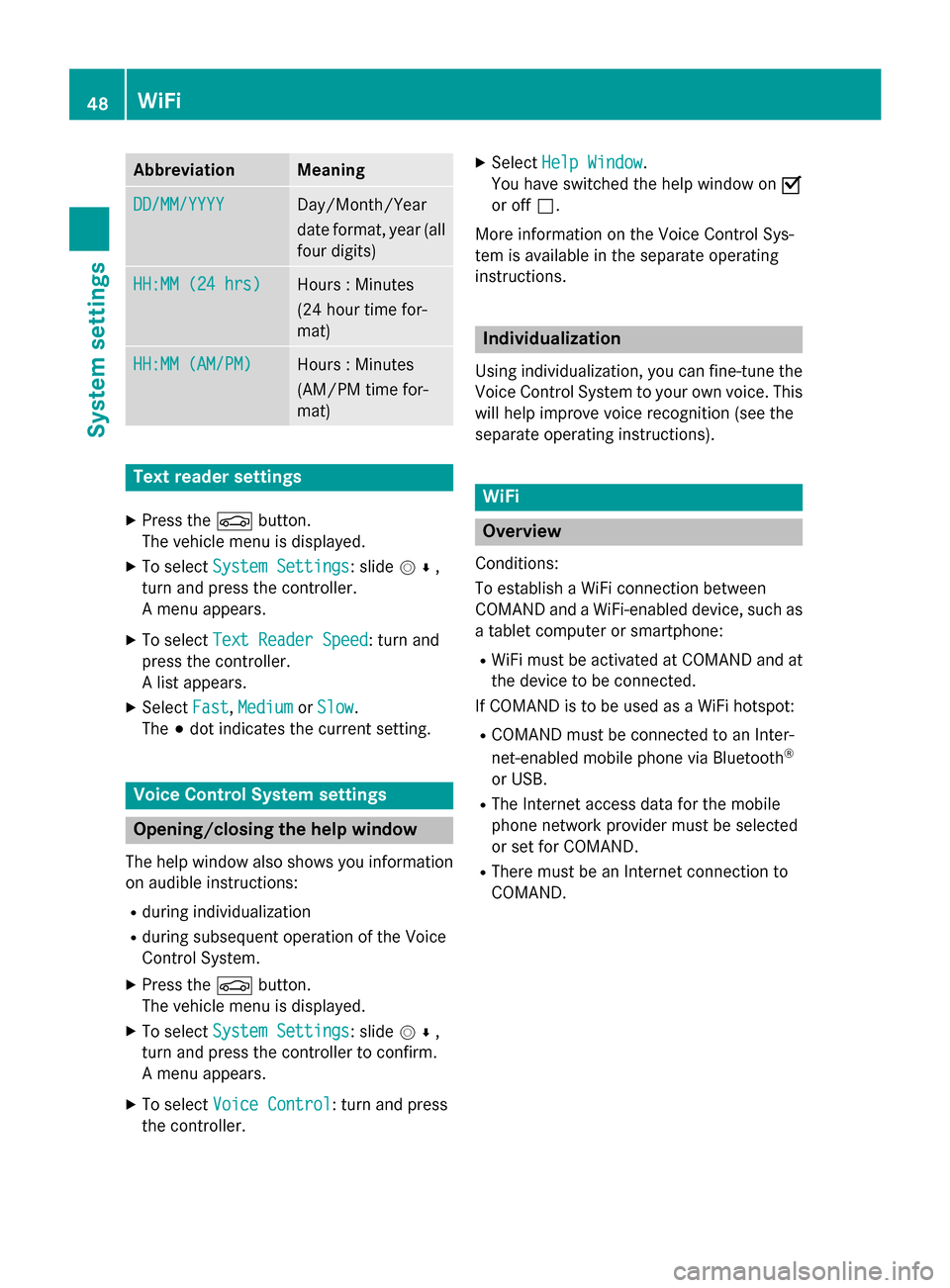
Abbreviation Meaning
DD/MM/YYYY
DD/MM/YYYY Day/Month/Year
date format, year (all
four digits) HH:MM (24 hrs) HH:MM (24 hrs) Hours : Minutes
(24 hour time for-
mat)
HH:MM (AM/PM) HH:MM (AM/PM) Hours : Minutes
(AM/PM time for-
mat)
Text reader settings
X Press the 00D4button.
The vehicle menu is displayed.
X To select System Settings System Settings: slide 005200C5,
turn and press the controller.
A menu appears.
X To select Text Reader Speed Text Reader Speed: turn and
press the controller.
A list appears.
X Select Fast
Fast, Medium Medium orSlow
Slow.
The 003Bdot indicates the current setting. Voice Control System settings
Opening/closing the help window
The help window also shows you information
on audible instructions:
R during individualization
R during subsequent operation of the Voice
Control System.
X Press the 00D4button.
The vehicle menu is displayed.
X To select System Settings
System Settings: slide 005200C5,
turn and press the controller to confirm.
A menu appears.
X To select Voice Control
Voice Control: turn and press
the controller. X
Select Help Window Help Window .
You have switched the help window on 0073
or off 0053.
More information on the Voice Control Sys-
tem is available in the separate operating
instructions. Individualization
Using individualization, you can fine-tune the
Voice Control System to your own voice. This will help improve voice recognition (see the
separate operating instructions). WiFi
Overview
Conditions:
To establish a WiFi connection between
COMAND and a WiFi-enabled device, such as a tablet computer or smartphone:
R WiFi must be activated at COMAND and at
the device to be connected.
If COMAND is to be used as a WiFi hotspot:
R COMAND must be connected to an Inter-
net-enabled mobile phone via Bluetooth ®
or USB.
R The Internet access data for the mobile
phone network provider must be selected
or set for COMAND.
R There must be an Internet connection to
COMAND. 48
WiFiSystem settings
Page 61 of 298
X
To change the brightness value: turn and
press the controller.
X To select a zone: slide 00520096and turn the
controller.
You can find further information in the vehicle
Operator's Manual.
Setting the color i
Once a color is set, it is used for all zones.
The brightness of the color used can be set separately for each zone.
X Call up Vehicle Settings Vehicle Settings (Ypage 58).
X To select Ambient Light: Color
Ambient Light: Color: turn
and press the controller.
The setting element is active.
X To select a color: turn the controller.
You can find further information in the vehicle Operator's Manual.
Switching the display lighting on/off This display lighting adjustment function is
only available if the vehicle is not equipped
with the "Ambient lighting" package.
X Call up Vehicle Settings Vehicle Settings (Ypage 58).
X To select Ambient Light: Display
Ambient Light: Display : turn
the controller and press to confirm.
The function switches on or off, depending on the previous setting.
i The brightness can be changed using the
control between the two displays.
You can find further information on the inter-
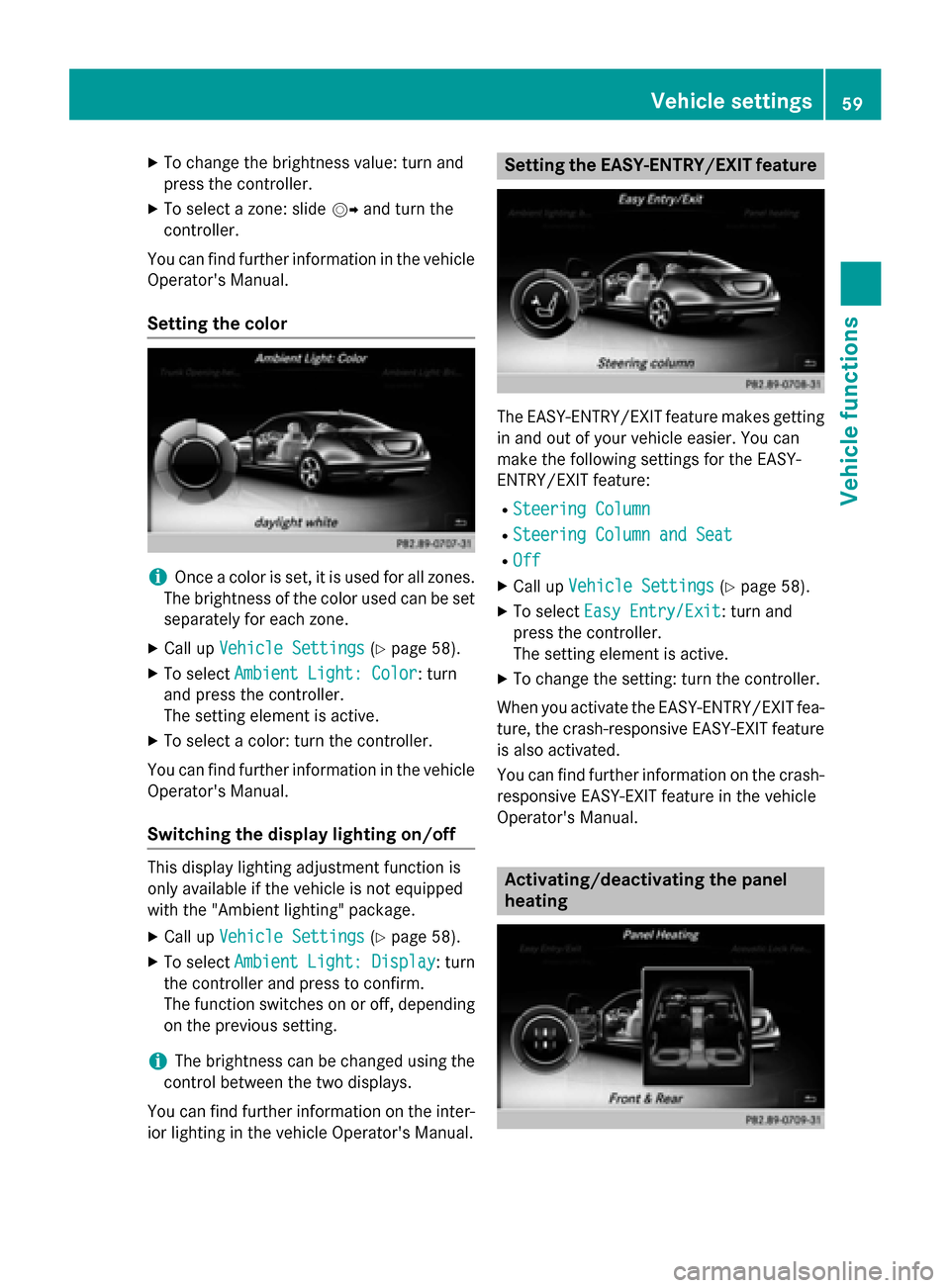
ior lighting in the vehicle Operator's Manual. Setting the EASY-ENTRY/EXIT feature
The EASY-ENTRY/EXIT feature makes getting
in and out of your vehicle easier. You can
make the following settings for the EASY-
ENTRY/EXIT feature:
R Steering Column Steering Column
R Steering Column and Seat
Steering Column and Seat
R Off
Off
X Call up Vehicle Settings
Vehicle Settings (Ypage 58).
X To select Easy Entry/Exit
Easy Entry/Exit : turn and
press the controller.
The setting element is active.
X To change the setting: turn the controller.
When you activate the EASY-ENTRY/EXIT fea- ture, the crash-responsive EASY-EXIT feature
is also activated.
You can find further information on the crash- responsive EASY-EXIT feature in the vehicle
Operator's Manual. Activating/deactivating the panel
heating Vehicle settings
59Vehicle functions
Page 84 of 298
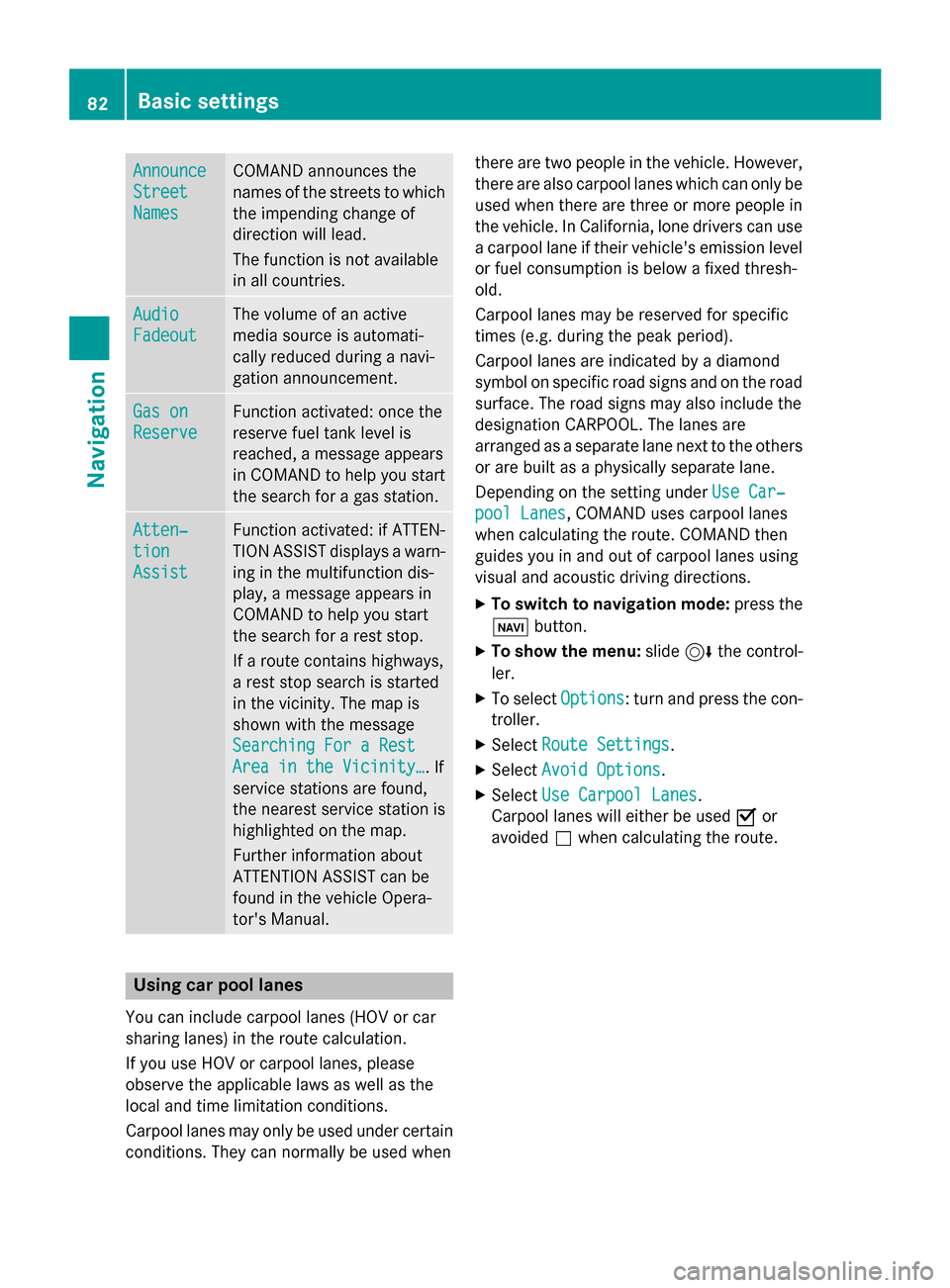
Announce
Announce
Street Street
Names Names COMAND announces the
names of the streets to which the impending change of
direction will lead.
The function is not available
in all countries. Audio Audio
Fadeout Fadeout The volume of an active
media source is automati-
cally reduced during a navi-
gation announcement.
Gas on Gas on
Reserve Reserve Function activated: once the
reserve fuel tank level is
reached, a message appears
in COMAND to help you start the search for a gas station. Atten‐ Atten‐
tion tion
Assist Assist Function activated: if ATTEN-
TION ASSIST displays a warn-
ing in the multifunction dis-
play, a message appears in
COMAND to help you start
the search for a rest stop.
If a route contains highways,
a rest stop search is started
in the vicinity. The map is
shown with the message
Searching For a Rest Searching For a Rest
Area in the Vicinity… Area in the Vicinity…. If
service stations are found,
the nearest service station is
highlighted on the map.
Further information about
ATTENTION ASSIST can be
found in the vehicle Opera-
tor's Manual. Using car pool lanes
You can include carpool lanes (HOV or car
sharing lanes) in the route calculation.
If you use HOV or carpool lanes, please
observe the applicable laws as well as the
local and time limitation conditions.
Carpool lanes may only be used under certain
conditions. They can normally be used when there are two people in the vehicle. However,
there are also carpool lanes which can only be
used when there are three or more people in
the vehicle. In California, lone drivers can use
a carpool lane if their vehicle's emission level or fuel consumption is below a fixed thresh-
old.
Carpool lanes may be reserved for specific
times (e.g. during the peak period).
Carpool lanes are indicated by a diamond
symbol on specific road signs and on the road surface. The road signs may also include the
designation CARPOOL. The lanes are
arranged as a separate lane next to the others
or are built as a physically separate lane.
Depending on the setting under Use Car‐ Use Car‐
pool Lanes
pool Lanes, COMAND uses carpool lanes
when calculating the route. COMAND then
guides you in and out of carpool lanes using
visual and acoustic driving directions.
X To switch to navigation mode: press the
00CB button.
X To show the menu: slide6the control-
ler.
X To select Options Options: turn and press the con-
troller.
X Select Route Settings
Route Settings.
X Select Avoid Options
Avoid Options.
X Select Use Carpool Lanes
Use Carpool Lanes.
Carpool lanes will either be used 0073or
avoided 0053when calculating the route. 82
Basic settingsNavigation
Page 105 of 298
Displays during route guidance
Change of direction Changes of direction have three phases:
R preparation phase
R announcement phase
R change-of-direction phase
Changes in direction are also shown in the multifunction display (see the vehicle Operator's
Manual).
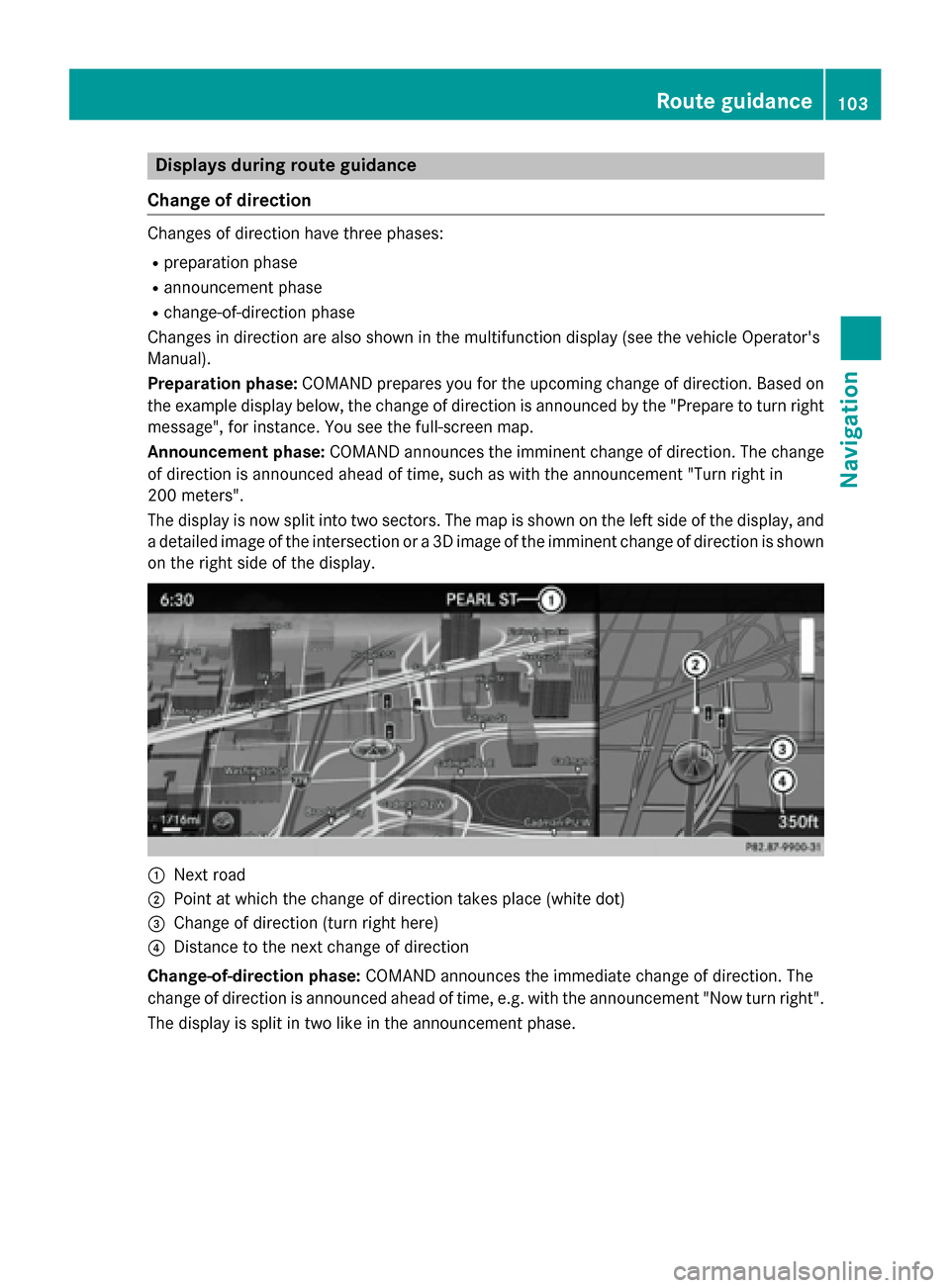
Preparation phase: COMAND prepares you for the upcoming change of direction. Based on
the example display below, the change of direction is announced by the "Prepare to turn right message", for instance. You see the full-screen map.
Announcement phase: COMAND announces the imminent change of direction. The change
of direction is announced ahead of time, such as with the announcement "Turn right in
200 meters".
The display is now split into two sectors. The map is shown on the left side of the display, and
a detailed image of the intersection or a 3D image of the imminent change of direction is shown on the right side of the display. 0043
Next road
0044 Point at which the change of direction takes place (white dot)
0087 Change of direction (turn right here)
0085 Distance to the next change of direction
Change-of-direction phase: COMAND announces the immediate change of direction. The
change of direction is announced ahead of time, e.g. with the announcement "Now turn right".
The display is split in two like in the announcement phase. Route guidance
103Navigation Z
Page 107 of 298
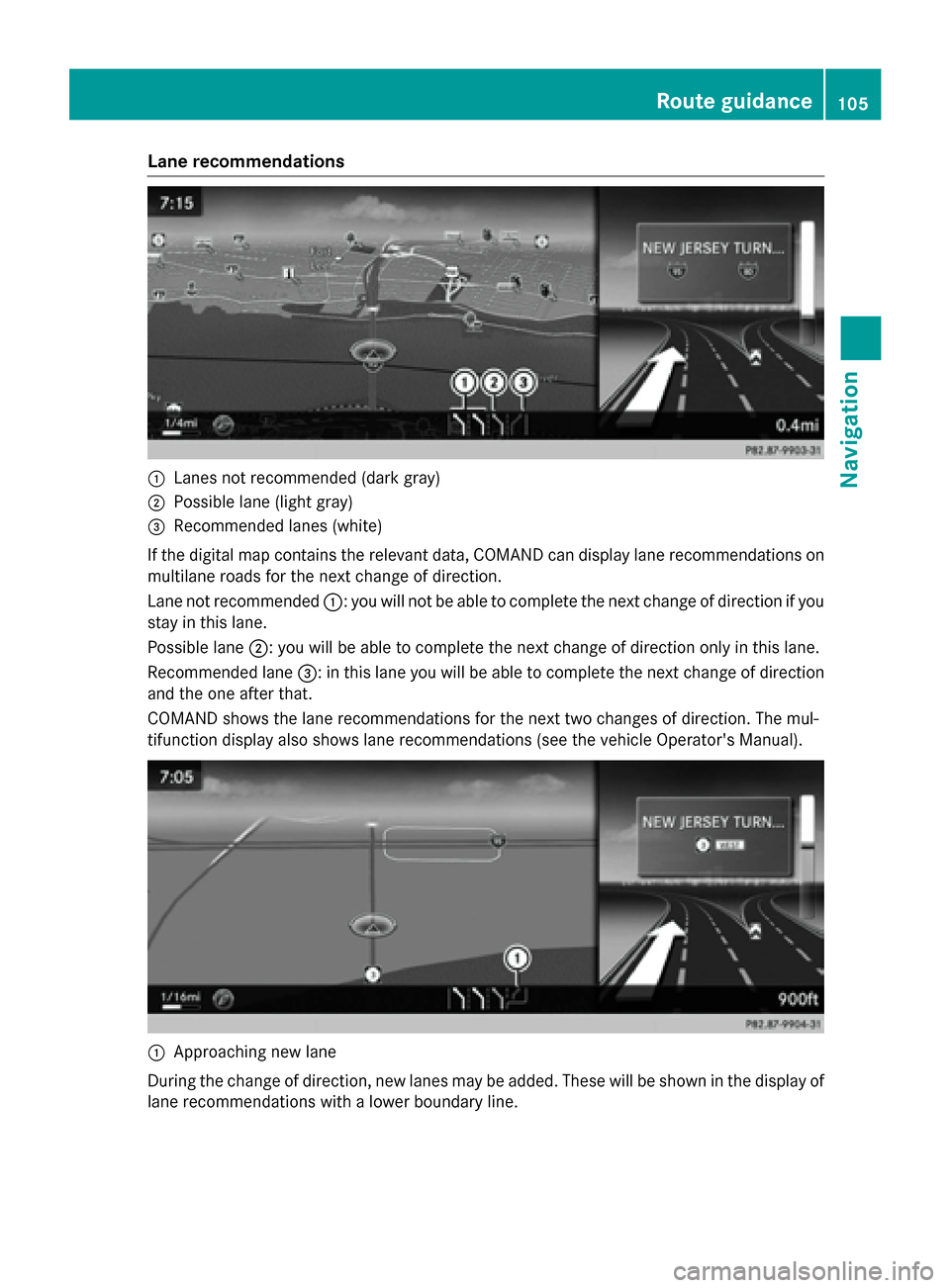
Lane recommendations
0043
Lanes not recommended (dark gray)
0044 Possible lane (light gray)
0087 Recommended lanes (white)
If the digital map contains the relevant data, COMAND can display lane recommendations on multilane roads for the next change of direction.
Lane not recommended 0043: you will not be able to complete the next change of direction if you
stay in this lane.
Possible lane 0044: you will be able to complete the next change of direction only in this lane.
Recommended lane 0087: in this lane you will be able to complete the next change of direction
and the one after that.
COMAND shows the lane recommendations for the next two changes of direction. The mul-
tifunction display also shows lane recommendations (see the vehicle Operator's Manual). 0043
Approaching new lane
During the change of direction, new lanes may be added. These will be shown in the display of
lane recommendations with a lower boundary line. Route guidance
105Navigation Z
Page 120 of 298
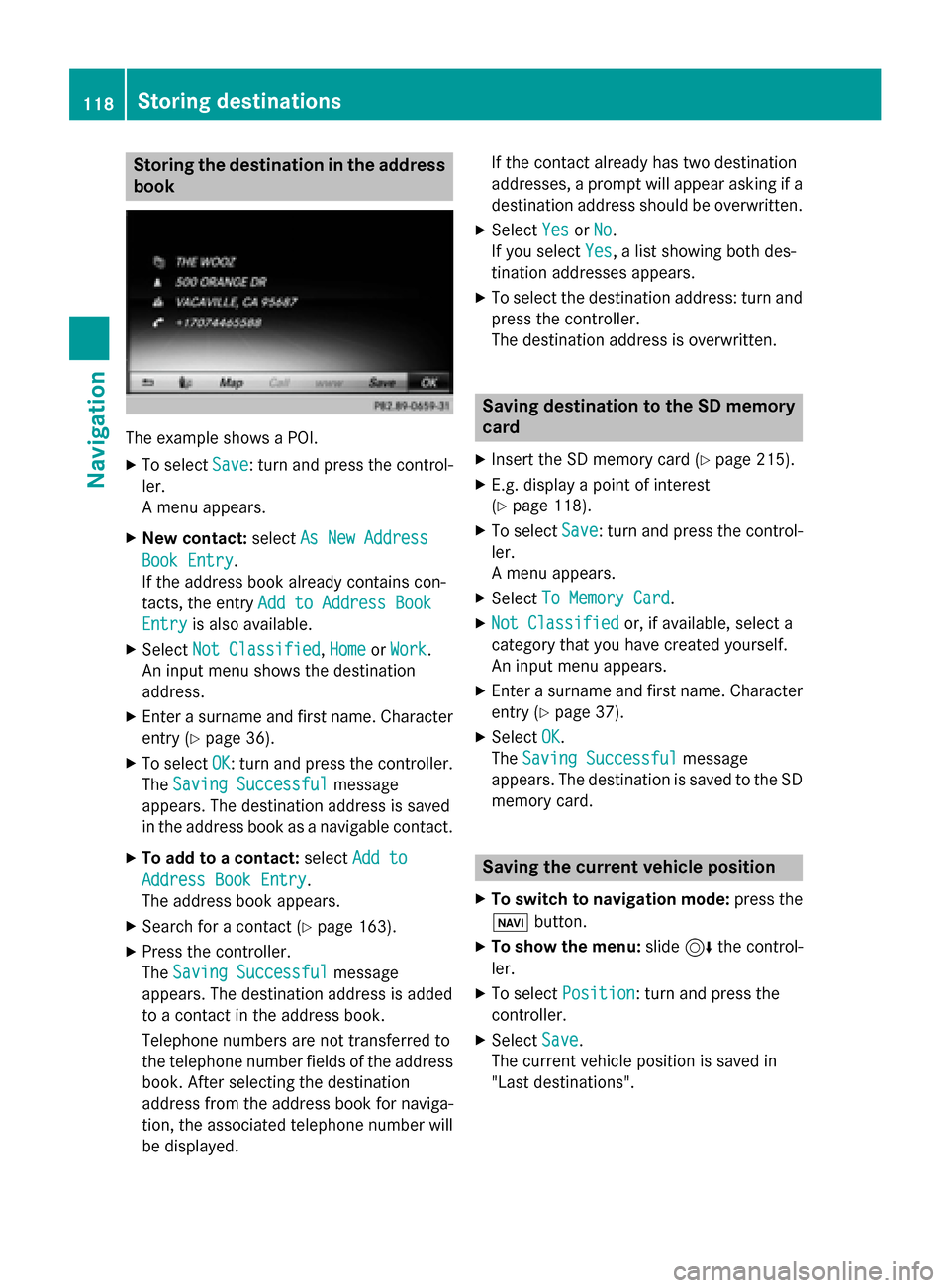
Storing the destination in the address
book The example shows a POI.
X To select Save
Save: turn and press the control-
ler.
A menu appears.
X New contact: selectAs New Address
As New Address
Book Entry Book Entry.
If the address book already contains con-
tacts, the entry Add to Address Book Add to Address Book
Entry
Entry is also available.
X Select Not Classified
Not Classified, Home
HomeorWork
Work.
An input menu shows the destination
address.
X Enter a surname and first name. Character
entry (Y page 36).
X To select OK
OK: turn and press the controller.
The Saving Successful
Saving Successful message
appears. The destination address is saved
in the address book as a navigable contact.
X To add to a contact: selectAdd to
Add to
Address Book Entry
Address Book Entry.
The address book appears.
X Search for a contact (Y page 163).
X Press the controller.
The Saving Successful Saving Successful message
appears. The destination address is added
to a contact in the address book.
Telephone numbers are not transferred to
the telephone number fields of the address book. After selecting the destination
address from the address book for naviga-
tion, the associated telephone number will
be displayed. If the contact already has two destination
addresses, a prompt will appear asking if a destination address should be overwritten.
X Select Yes YesorNo
No.
If you select Yes
Yes, a list showing both des-
tination addresses appears.
X To select the destination address: turn and
press the controller.
The destination address is overwritten. Saving destination to the SD memory
card
X Insert the SD memory card (Y page 215).
X E.g. display a point of interest
(Y page 118).
X To select Save Save: turn and press the control-
ler.
A menu appears.
X Select To Memory Card To Memory Card.
X Not Classified
Not Classified or, if available, select a
category that you have created yourself.
An input menu appears.
X Enter a surname and first name. Character
entry (Y page 37).
X Select OK
OK.
The Saving Successful Saving Successful message
appears. The destination is saved to the SD memory card. Saving the current vehicle position
X To switch to navigation mode: press the
00CB button.
X To show the menu: slide6the control-
ler.
X To select Position
Position: turn and press the
controller.
X Select Save
Save.
The current vehicle position is saved in
"Last destinations". 118
Storing destinationsNavigation
Page 134 of 298
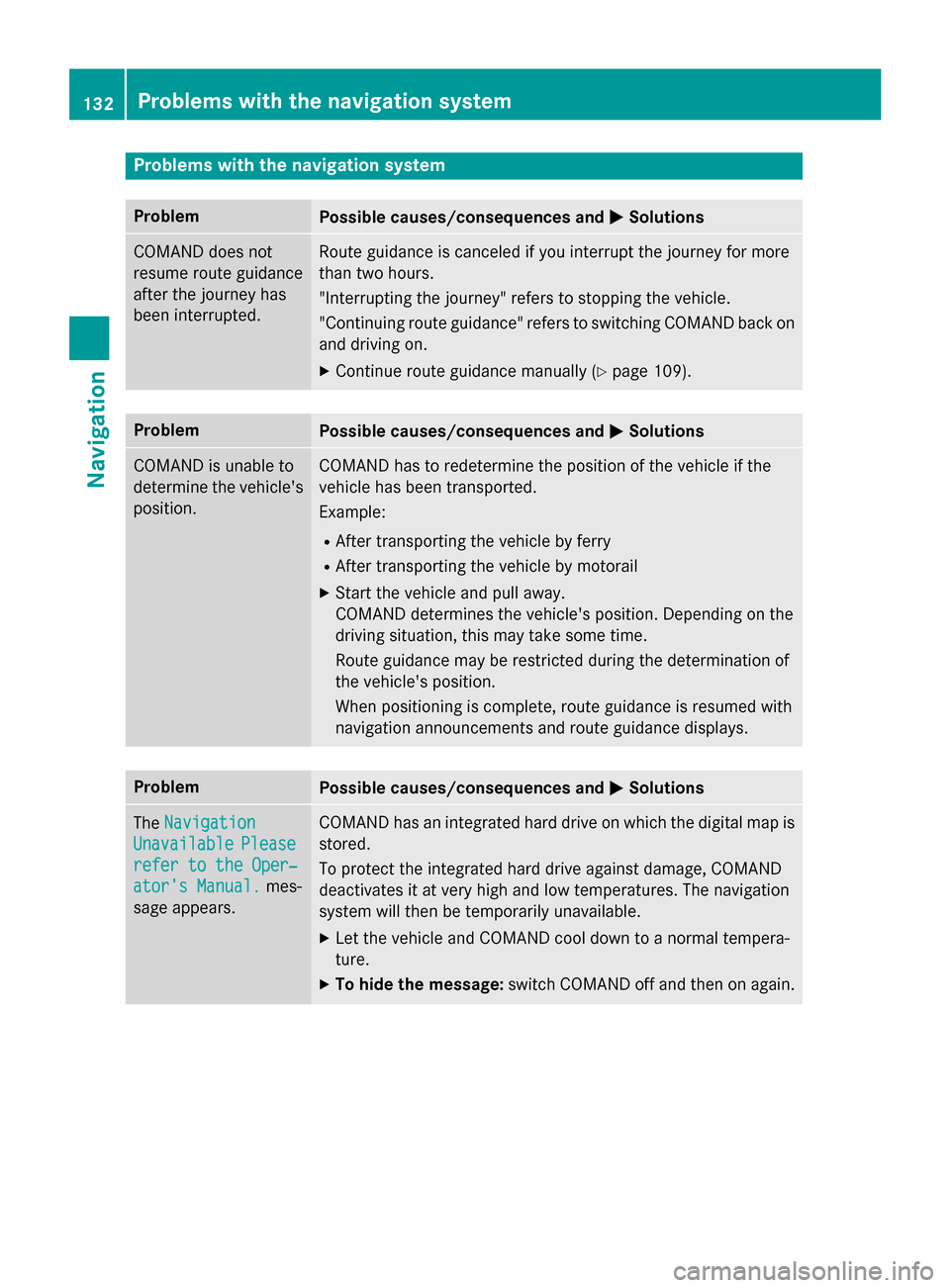
Problems with the navigation system
Problem
Possible causes/consequences and
0050
0050Solutions COMAND does not
resume route guidance
after the journey has
been interrupted. Route guidance is canceled if you interrupt the journey for more
than two hours.
"Interrupting the journey" refers to stopping the vehicle.
"Continuing route guidance" refers to switching COMAND back on
and driving on.
X Continue route guidance manually (Y page 109).Problem
Possible causes/consequences and
0050 0050Solutions COMAND is unable to
determine the vehicle's
position. COMAND has to redetermine the position of the vehicle if the
vehicle has been transported.
Example:
R After transporting the vehicle by ferry
R After transporting the vehicle by motorail
X Start the vehicle and pull away.
COMAND determines the vehicle's position. Depending on the
driving situation, this may take some time.
Route guidance may be restricted during the determination of
the vehicle's position.
When positioning is complete, route guidance is resumed with
navigation announcements and route guidance displays. Problem
Possible causes/consequences and
0050 0050Solutions The
Navigation
Navigation
Unavailable
Unavailable Please
Please
refer to the Oper‐
refer to the Oper‐
ator's Manual. ator's Manual. mes-
sage appears. COMAND has an integrated hard drive on which the digital map is
stored.
To protect the integrated hard drive against damage, COMAND
deactivates it at very high and low temperatures. The navigation
system will then be temporarily unavailable.
X Let the vehicle and COMAND cool down to a normal tempera-
ture.
X To hide the message: switch COMAND off and then on again.132
Problems with the navigation systemNavigation
Page 138 of 298
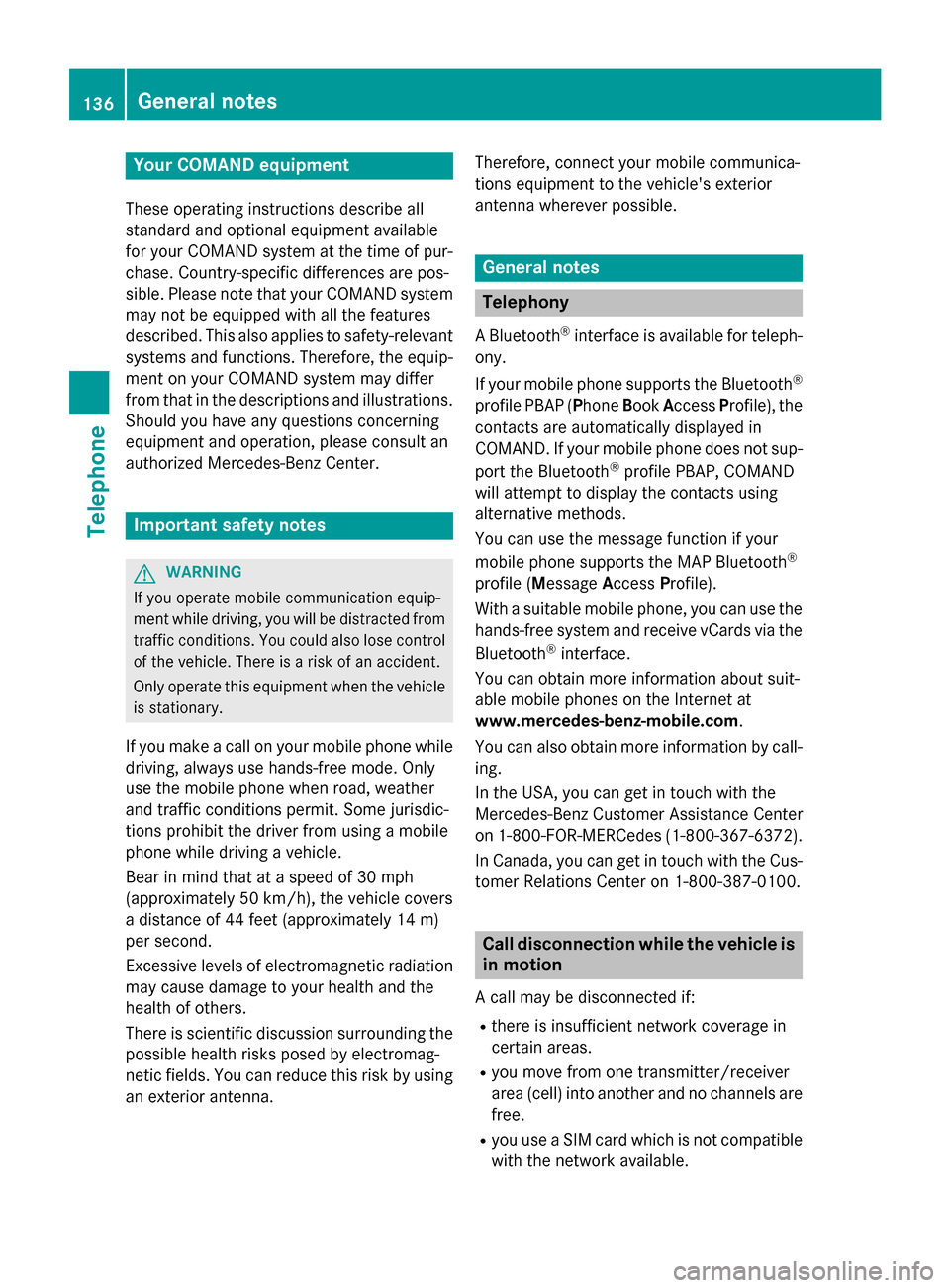
Your COMAND equipment
These operating instructions describe all
standard and optional equipment available
for your COMAND system at the time of pur-
chase. Country-specific differences are pos-
sible. Please note that your COMAND system may not be equipped with all the features
described. This also applies to safety-relevant
systems and functions. Therefore, the equip-
ment on your COMAND system may differ
from that in the descriptions and illustrations. Should you have any questions concerning
equipment and operation, please consult an
authorized Mercedes-Benz Center. Important safety notes
G
WARNING
If you operate mobile communication equip-
ment while driving, you will be distracted from traffic conditions. You could also lose controlof the vehicle. There is a risk of an accident.
Only operate this equipment when the vehicleis stationary.
If you make a call on your mobile phone while
driving, always use hands-free mode. Only
use the mobile phone when road, weather
and traffic conditions permit. Some jurisdic-
tions prohibit the driver from using a mobile
phone while driving a vehicle.
Bear in mind that at a speed of 30 mph
(approximately 50 km/h), the vehicle covers
a distance of 44 feet (approximately 14 m)
per second.
Excessive levels of electromagnetic radiation
may cause damage to your health and the
health of others.
There is scientific discussion surrounding the possible health risks posed by electromag-
netic fields. You can reduce this risk by using
an exterior antenna. Therefore, connect your mobile communica-
tions equipment to the vehicle's exterior
antenna wherever possible. General notes
Telephony
A Bluetooth ®
interface is available for teleph-
ony.
If your mobile phone supports the Bluetooth ®
profile PBAP ( PhoneBookAccess Profile), the
contacts are automatically displayed in
COMAND. If your mobile phone does not sup-
port the Bluetooth ®
profile PBAP, COMAND
will attempt to display the contacts using
alternative methods.
You can use the message function if your
mobile phone supports the MAP Bluetooth ®
profile ( Message AccessProfile).
With a suitable mobile phone, you can use the
hands-free system and receive vCards via the
Bluetooth ®
interface.
You can obtain more information about suit-
able mobile phones on the Internet at
www.mercedes-benz-mobile.com .
You can also obtain more information by call-
ing.
In the USA, you can get in touch with the
Mercedes-Benz Customer Assistance Center
on 1-800-FOR-MERCede s(1-800-367-6372).
In Canada, you can get in touch with the Cus-
tomer Relations Center on 1-800-387-0100. Call disconnection while the vehicle is
in motion
A call may be disconnected if:
R there is insufficient network coverage in
certain areas.
R you move from one transmitter/receiver
area (cell) into another and no channels are
free.
R you use a SIM card which is not compatible
with the network available. 136
General notesTelephone
Page 139 of 298
Operating options
You can operate the telephone by: R using the controller:
turning
sliding 1 or4
pressing
R using the 0061or0076 button on the mul-
tifunction steering wheel
R using the Voice Control System (see the
separate Voice Control System operating
instructions)
Unless stated otherwise, the descriptions and illustrations in this section refer to COMAND. Function restrictions
You may have to wait before using telephony
via COMAND in the following situations:
R when the mobile phone is switched off
R if Bluetooth ®
is switched off on the mobile
phone
R if the mobile phone has not logged on to a
mobile phone network
R if the Bluetooth ®
function is switched off in
COMAND
The telephone automatically tries to log on to
a network. If no network is available, you may not be able to make a " 911" emergency call.
If you attempt to make an outgoing call, the
No Service No Service message will appear for a short
while. "911" emergency call
The following conditions must be fulfilled in
order to make a 911emergency call:
R a valid and operational SIM card is inserted
in the mobile phone
R the mobile phone is switched on
R the PIN has been entered in the mobile
phone R
a mobile phone network is available
R the mobile phone is connected to COMAND
via Bluetooth ®
If you cannot make an emergency call, you
must arrange rescue measures yourself.
To make an emergency call: X Enter the number on COMAND
(Y page 143).
X Press 0061.
The telephone makes the connection.
X Wait until the emergency call center
answers and describe the emergency sit-
uation. Telephone menu
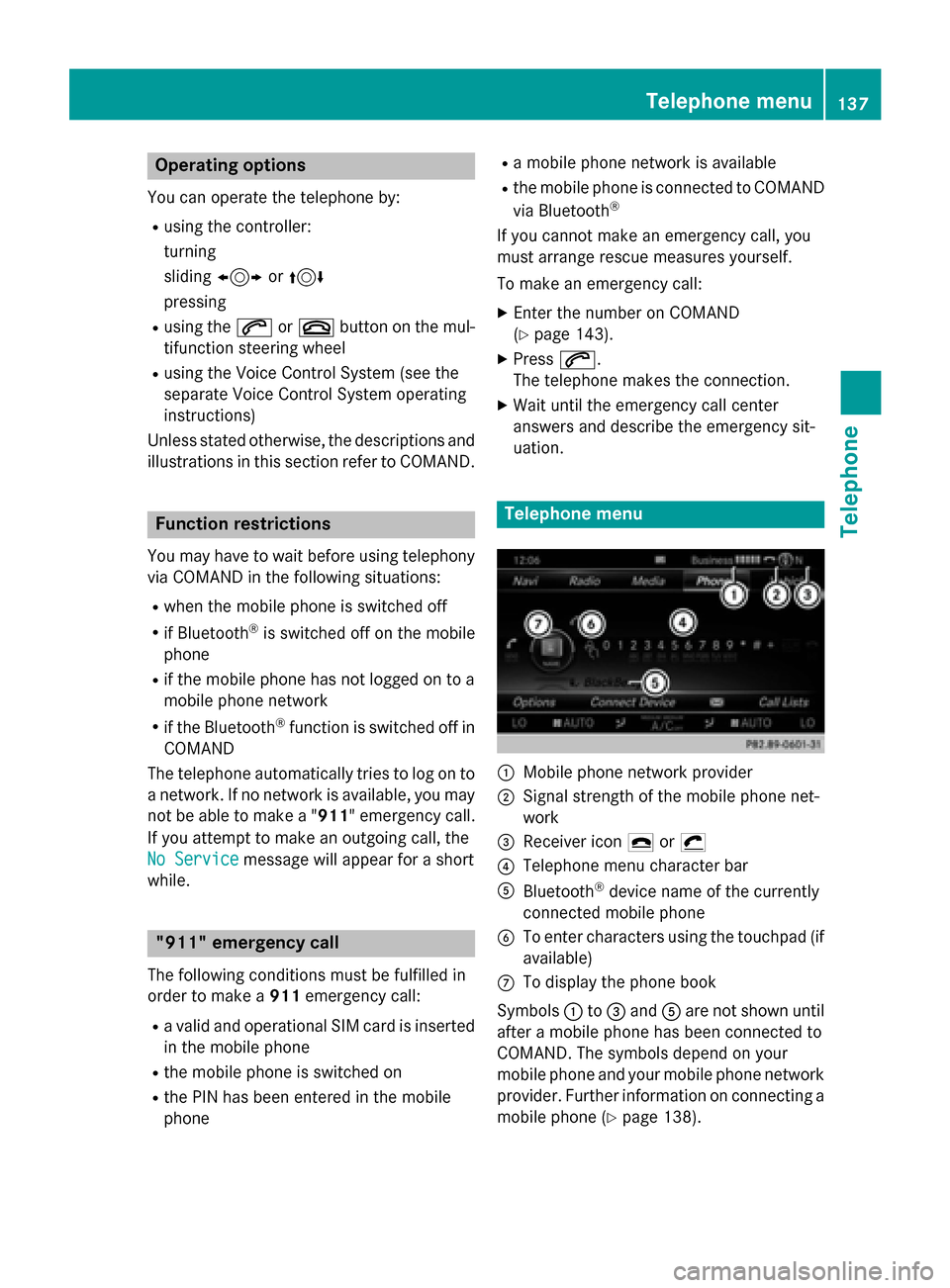
0043
Mobile phone network provider
0044 Signal strength of the mobile phone net-
work
0087 Receiver icon 0071or0075
0085 Telephone menu character bar
0083 Bluetooth ®
device name of the currently
connected mobile phone
0084 To enter characters using the touchpad (if
available)
006B To display the phone book
Symbols 0043to0087 and 0083are not shown until
after a mobile phone has been connected to
COMAND. The symbols depend on your
mobile phone and your mobile phone network provider. Further information on connecting a mobile phone (Y page 138). Telephone menu
137Telephone Z
Page 140 of 298
Symbol
0044shows the current signal strength
of the mobile phone network. If all bars are
filled, you have optimum reception.
If no bars are shown, reception is either very
poor or there is none at all.
i Receiver icon shows whether a call is
active/being connected 0075or not 0071.
Calling up the telephone menu:
X Press 002B.
Showing the menu bar:
X Slide 6the controller.
If the mobile phone connected supports the
MAP Bluetooth ®
profile (Message Access
Profile), the 0083menu item is available. Fur-
ther information on text messages and e-mail
(Y page 155).
If you have an unread text message or e-mail, the 0082 mail symbol is displayed in the sta-
tus bar. The symbol disappears once you have
read the text message or e-mail. The ú
symbol is displayed as soon as the message
memory on the connected mobile phone is
full. The symbol disappears once you delete
at least one message. Connecting/disconnecting a mobile
phone Prerequisites
For telephony via the Bluetooth ®
interface,
you require a Bluetooth ®
-capable mobile
phone. The mobile phone must support
Hands-Free Profile 1.0 or above.
On COMAND
X Activate Bluetooth ®
(Y page 51).
On the mobile phone X Switch on the mobile phone and enter the
PIN when prompted to do so (see the man-
ufacturer's operating instructions).
X Activate Bluetooth ®
and, if necessary,
Bluetooth ®
visibility for other devices (see
the manufacturer's operating instructions). This visibility is for restricted periods of
time on some mobile phones (see the man-
ufacturer's operating instructions).
X Set the Bluetooth ®
device name for the
mobile phone if necessary.
The device names for all of one manufactur-
er's products might be identical. To make it
possible to clearly identify your mobile phone,
change the device name (see the manufac-
turer's operating instructions). The name can be freely selected.
If the mobile phone supports the PBAP
(Phone BookAccess Profile) and MAP
(Message AccessProfile) Bluetooth ®
pro-
files, the following information will be trans-
mitted after you connect:
R Phone book
R Call lists
R Messages
The battery of the mobile phone should
always be kept sufficiently charged in order to prevent malfunctions.
i Not all mobile phones available on the
market are equally suitable. You can obtain more detailed information about suitable
mobile phones and about the connection
between the mobile phone and COMAND
on the Internet at
www.mercedes-benz-mobile.com .
You can also obtain more information by
calling.
In the USA, you can get in touch with the
Mercedes-Benz Customer Assistance
Center on 1-800-FOR-MERCedes
(1-800-367-6372).
In Canada, you can get in touch with the
Customer Relations Center on
1-800-387-0100.
i Some displays (e.g. the signal strength)
depend on the supported version of the
Hands-Free Profile. 138
Connecting/disconnecting a mobile phoneTelephone