esp MERCEDES-BENZ S CLASS 2019 Manual Online
[x] Cancel search | Manufacturer: MERCEDES-BENZ, Model Year: 2019, Model line: S CLASS, Model: MERCEDES-BENZ S CLASS 2019Pages: 578, PDF Size: 23.31 MB
Page 267 of 578
RApplication-specificvoice commandsareonlyavailableforthe active application.
OncetheVoice Control System isstarted anautocue is shown. Apart fromtheavailablevoicecommandsforthe application currently active,this also citesexamplevoice commandsforother applications which are not active. Inthisway,you will befamiliar morequickly withtheavailablevoice commands. The list can be scrol‐led or it can be operatedbyspeech orthe con‐troller/touchpad.
Information onthe language setting
You canchangethe language oftheVoice Con‐trol System viathe system language settings. Ifthe set system language is not supportedbytheVoice Control System, English will be selected.
TheVoice Control System isavailable in English,French,Portuguese and Spanish.
UsingtheVoice Control System effectively
Features of audible help functions
Youreceiveinformation and helpforthefollow‐ingtopics:
ROptimum operation:saythebrief instruc-tionvoice command.
RCurrent application:onthe multifunctionsteering wheel, pressthe£rocker switchup and saytheHelpvoice command.
RContinued dialog:saytheHelpvoice com‐mand during avoice dialog.
RSpecific function:sayvoice commandsforthe desired function, e.g.Help telephone.
Notes on howtoimprovespeechquality
IftheVoice Control System does not understandyou:
Ronly operatetheVoice Control System fromthe driver's seat.
Rsaythevoice commands coherently andclearly, but do notexaggeratethewords.
Ravoid loud noisesthat cause interferencewhile making avoice command entry, e.g.the blower.
Avoicetag inthe address book is notrecog‐nized:
Ronly createsensible address book entries inthe system/mobile phone, e.g. enter sur‐name andfirst name inthe correctfield.
Rdo not use any abbreviations, unnecessaryspaces or specialcharacters.
If astation list entryis notrecognized:
RsaytheRead out station listvoice command.
Essentialvoice commands
Overview of switchvoice commands
Switchvoice commands can be usedtoopencertain applications. Thevoice command selec‐tion can be usedregardless ofthe applicationthat is currently active.
Voice Control System265
Page 277 of 578
Messagevoice commands
Voice commandFunction
Text message to
ReplyToreplytoa message
Forward text messageToforward a message
Overview ofvehiclevoice commands
You can usethevehiclevoice commandstodirectly call upthe corresponding menusforthevehicle settings.
Vehiclevoice commands
Voice commandFunction
Ambient light menuTodisplay ambient light settings
Ambient light "blue"Toswitch ambient lighttoblue
Display and styles menuToshow display settings
Assistance menuTodisplay assistance settings
Voice Control System275
Page 291 of 578
#Confirmchanges whenexitingthe menu.
The date is set automatically via GPS.
Activating/deactivatingvoice amplificationtotherear passenger compartment
RequirementsMercedes-Maybachvehicles andvehicleswith a long wheelbase only
RYourvehicle is equipped withthe Burmester®
surround sound system orthe Burmester®
high-end 3D surround sound system.
RThe ignition is switched on.
RDoors, side windowsandthe panoramaroofwith power tilt/sliding panel are closed.
Multimedia system:
,System.Audio.Voice Amplification
to Rear
The function supports communication betweenthe driver/front passenger andvehicle occu‐pants intherear passenger compartment. Whenvoice amplificationtorear passenger compart‐
ment is activated,the signals picked upbythemicrophone are amplified and played backoverthe speakers intherear passenger compart‐ment, depending uponvehicle noise levels. Anautomatic adjustment occurs based on speakervolume and ambient noise in ordertoimprovespeech intelligibility and maintainthe natural‐ness of speech.
#Activatesor deactivateSthe function.
Connectivity
Switching transmission ofthevehicle posi‐tion on/offMultimedia system:
,System.öConnectivity
#SelectTransmit Vehicle Pos..
#Activatesor deactivateSthe function.
Bluetooth®
Information about Bluetooth®
Bluetooth®technology is astandardfor short-range wireless data transfer uptoapproximately32.8ft(10 m).
You can use Bluetooth®toconnectyour mobilephonetothe multimedia system and usethefol‐lowing functions,forexample:
Rhands-free system with accesstothefollow‐ing options:
-contacts (→page334)
-call lists (→page 336)
-text messages
RInternet connection
Rlisteningtomusic via Bluetooth®audio(→page 364)
Rtransferring business cards (vCards) intothevehicle
Bluetooth®is aregistered trademark of Blue‐tooth Special Interest Group (SIG) Inc.
Multimedia system289
Page 300 of 578
As soon as an updateisavailablefor download,a corresponding message appearsonthe mediadisplay.
You havethefollowing selection options:
RDownload
The update will be downloaded inthe back‐ground.
RDetails
Information aboutthe pending systemupdate is displayed.
RLater
The update can be downloaded manually at alater time (→page 297).
Ifthe download is completed andthe update isreadyfor installation,you will be informed ofthisafterthe next ignition cycle,forexample.
%Parkthevehicle safely in a suitable locationbeforestartingthe installation.
Requirementsforthe installation:
RThe ignition is switched on.
RThe engine is notrunning.
RNotes andwarnings havebeenread andaccepted.
RThe parking brake is applied.
If allrequirements are met,the update will beinstalled. The multimedia system cannotbeoperated whilethe update is being installed andvehicle functions arerestricted.
If errorsshould occur duringthe installation,themultimedia system automatically attemptstorestorethe previousversion. Ifrestoration ofthepreviousversion is not possible, a symbolappears onthe center console display.Pleaseconsult aqualified specialistworkshoptoresolvethe problem.
Reset function
Multimedia system:
,System.Reset
Personal data is deleted,forexample:
RStation presets
RConnected mobile phones
#SelectYes.
If PIN protection is activated, a promptappearsasking ifyou also wishtorestorethistothefac‐torysettings during areset.
#SelectYes.
#Enterthe current PIN.The PIN isreset.
or
#SelectNo.The current PINstaysthe same afterreset‐ting.
%Ifyou haveforgottenyour PIN, an authorizedMercedes-Benz Center can deactivatethePIN protectionforyou.
A promptappears again asking whetheryoureally wishtoreset.
#SelectYes.The multimedia system isresettothefactorysettings.
298Multimedia system
Page 303 of 578
%For more information on pausing or skippingthrough videos, see (→page 358).
If, during an active program, a functionrequire‐ment is no longer met, a corresponding messageappears. The activeprogram is canceled.
Navigation
Switching navigation on
Multimedia system:
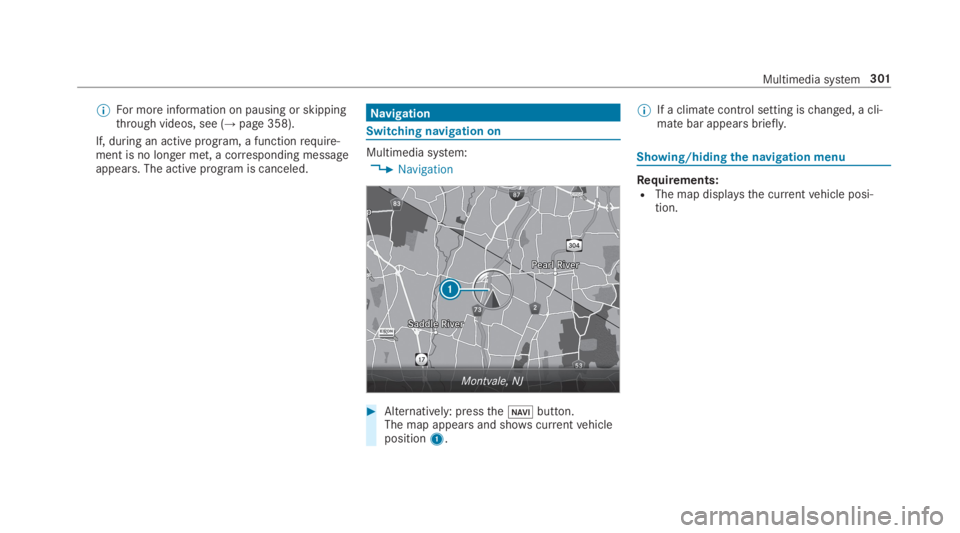
,Navigation
#Alternatively: pressthe
Page 310 of 578
%3wordaddresses from what3words are analternative addressing systemfor multilin‐gualgeoreferencing ofglobal locations witharesolution ofthree meters. Usingthisgrid,locations onthe Earth's surface are includedwhichdo not havea building address suchasstreetand house number,forexample.
The EmpireState Building in NewYorkhasthefollowing language dependent 3wordaddress,forexample:
REnglish:parade.help.bleat
RFrench:commun.verbe.bisquer
RSpanish:suertes.diga.pesca
3wordaddresses are unique, easytoremember and sufficefor mostroutine appli‐cations.
The bidirectional conversion of 3wordaddresses can be carried out here:
Ratthewebsite http://what3words.com
Rinthe what3words apps
Selecting a destination onthe mapMultimedia system:
,Navigation.ZOptions
#SelectMap Menu.
or
#Ifthe map is displayed in full screen mode,pressthe central control element.The map menu appears.#Select "movemap" in map menu2(→page 320).
#Swipe in any direction ontheTouch Controlortouchpad.
or
#Slidethe controller in any direction.The map moves inthe corresponding direc‐tion underthe crosshair. The moreyou moveyourfingerawayfromthestarting positiononthetouchpad,thefasterthe map moves.#Selectthe destination inthe list.The destination address is shown.
Settingthe map orientationto2D or 3D
#HighlightMap Orientation: 2D/3D.
#PresstheTouch Control,thetouchpad orthecontroller.The map will be displayed inthe selectedmap orientation.
Showing traffic messages inthe vicinity ofthe map
#SelectTraffic Messages for the Vicinity.The map appears.#Swipe left orright onthetouchpad.
or
#Slidethe controllertothe left orright.The previous or next traffic incident is high‐lighted onthe map. Information onthe trafficincident is displayed.
%Trafficreports are notavailable in all coun‐tries.
Showing POIs inthe vicinity ofthe map
#SelectPOIs in the Vicinity.
#Swipe left orright onthetouchpad.
or
308Multimedia system
Page 312 of 578
Automatic Traffic Jam Avoidancecan beswitched onsor offSfortheseroute types.IfAutomatic Traffic Jam Avoidanceis switchedon,Ask in the Event of Traffic Jam Avoidancecanbe selected.
TheAutomatic Traffic Jam AvoidanceandAsk inthe Event of Traffic Jam Avoidancesettings arenotavailable ineverycountry.
The settings enablethefollowing:
RAutomatic Traffic Jam Avoidance
Theroute is calculated withthe currently setroute type.
Trafficreports via LiveTraffic Information aretaken into account.
LiveTraffic Information is notavailable in allcountries.
RAsk in the Event of Traffic Jam Avoidance
A promptappears when a newroute is detec‐ted with a shorter journey time based on traf‐ficreports.You can continuetousethe cur‐rentroute or usethe dynamicroute instead.
Selectingroute optionsMultimedia system:
,Navigation.ÀRoute and Posi-
tion.Avoid Options
Avoiding areas
#SelectAreas(→page 323).
Avoiding highways,ferries, motorail trains,tunnels, unpavedroads
#Selectsor deselectSavoid option.
Usingtollroads
#SelectUse Toll Roads.
#SelectCashorElectronic BillingorOff.Theroutetakes into accountroadsthatrequirethe payment of a usagefee (toll).
IfOffis selected,tollroads are nottaken intoaccount.
The selectedroute options cannot always beimplemented. Therefore, aroute may include aferry,for instance,eventhoughtheavoidFerriesoption is enabled. A message appears andyouwill hear a corresponding message.
Using carpool lanes
#SelectNumber of Occupants in the Vehicle.
#Select number.When using carpool lanes, observethe appli‐cable legalrequirements aswell as any con‐ditions pertainingtowhen and where suchlanes may be used. Carpool lanes may onlybe used if certain conditions are met.
Theseroute options are notavailable ineverycountry.
Selecting notificationsMultimedia system:
,Naviga-
tion.ZOptions.Announcements
#Switch an announcement onsor offS.
You canchoose fromthefollowing announce‐ments:
RAnnounce Traffic Warnings
This function is notavailable in all countries.
RAnnounce Street Names
310Multimedia system
Page 323 of 578
• Filtersthe display of POIs inthe vicinityaccordingtoPOI category
5Switchesthe display of personal POI sym‐bols onthe map on or off
6Switches one ofthefollowing displayson oroff depending onthe equipment:
•Weather information
• Satellite map
•Traffic incidents
7Switchesthe traffic map display on or off
The map and satellite images are shown inglobeprojection. This allowsfor arealistic map displayin all map scales. The map uses elevation model‐ing.
Depending onthe map data, important buildingsin manycities are depictedrealistically onthemap in small map scales (e.g. 1/32 mi (20 m),1/16 mi (50 m)). Other buildings are shown asmodels.
%You can setthe unit of measurement ofthemap scale (→page 294).
If online information isavailable, fuel prices andtheavailability of parking spaces in parkinggarages are displayed,forexample.
%Requirements:
RMercedes me connect isavailable.
RYou havea user accountfortheMercedes me portal.
RThe service has been activated at anauthorized Mercedes-Benz Center.
Further information can befound at: http://www.mercedes.me
%The online information is notavailable in allcountries.
IfDisplay in COMANDis activated inTraffic SignAssist (→page240), speed limits andovertakingrestrictions are displayed onthe map.
%Company logos displayed onthe map aretrademarksoftherespective companies andused solelyforthe purpose of indicatingthelocations ofthese companies. The use ofsuch logos onthe map does not indicateapproval of, supportof or advertisingby
these companiesforthe navigation systemitself.
Settingthe map scale
Requirements:RThe map is shown.
Multimedia system:
,Navigation
#Tozoom in:swipe down ontheTouch Con‐trol.
or
#Turnthe controller counter-clockwise.
or
#Movetwofingers apart onthetouchpad.#Tozoom out:swipe up ontheTouch Control.
or
#Turnthe controller clockwise.
or
#Movetwofingerstogether onthetouchpad.
%You can setthe unit of measurement ofthemap scale (→page 294).
Multimedia system321
Page 324 of 578
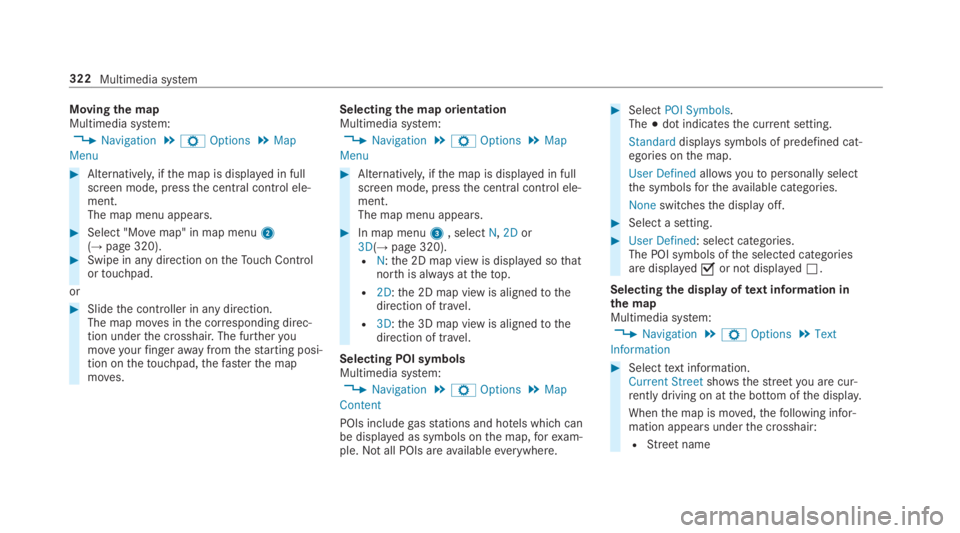
Movingthe mapMultimedia system:
,Navigation.ZOptions.Map
Menu
#Alternatively, ifthe map is displayed in fullscreen mode, pressthe central control ele‐ment.The map menu appears.
#Select "Movemap" in map menu2(→page 320).#Swipe in any direction ontheTouch Controlortouchpad.
or
#Slidethe controller in any direction.The map moves inthe corresponding direc‐tion underthe crosshair. The furtheryoumoveyourfingerawayfromthestarting posi‐tion onthetouchpad,thefasterthe mapmoves.
Selectingthe map orientationMultimedia system:
,Navigation.ZOptions.Map
Menu
#Alternatively, ifthe map is displayed in fullscreen mode, pressthe central control ele‐ment.The map menu appears.
#In map menu3, selectN,2Dor3D(→page 320).RN:the 2D map view is displayed sothatnorth is always atthetop.
R2D:the 2D map view is alignedtothedirection of travel.
R3D:the 3D map view is alignedtothedirection of travel.
Selecting POI symbolsMultimedia system:
,Navigation.ZOptions.Map
Content
POIs includegasstations and hotels which canbe displayed as symbols onthe map,forexam‐ple.Notall POIs areavailableeverywhere.
#SelectPOI Symbols.The;dot indicatesthe current setting.
Standarddisplays symbols of predefined cat‐egories onthe map.
User Definedallowsyoutopersonally selectthe symbolsfortheavailable categories.
Noneswitchesthe display off.
#Select a setting.
#User Defined: select categories.The POI symbols ofthe selected categoriesare displayedsor not displayedS.
Selectingthe display oftext information inthe mapMultimedia system:
,Navigation.ZOptions.Text
Information
#Selecttext information.Current Streetshowsthestreetyou are cur‐rently driving on atthe bottom ofthe display.
Whenthe map is moved,thefollowing infor‐mation appears underthe crosshair:
RStreetname
322Multimedia system
Page 337 of 578
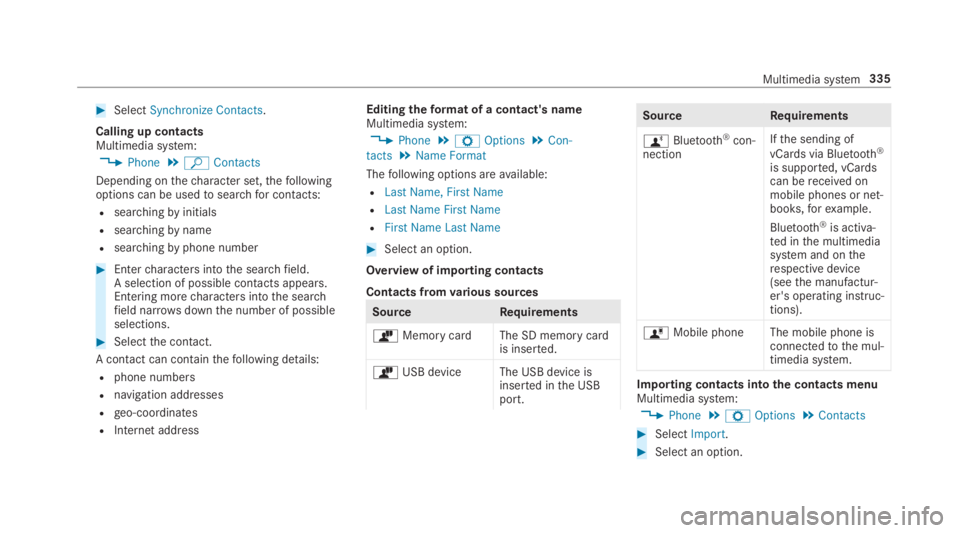
#SelectSynchronize Contacts.
Calling up contactsMultimedia system:
,Phone.ªContacts
Depending onthecharacter set,thefollowingoptions can be usedtosearchfor contacts:
Rsearchingbyinitials
Rsearchingbyname
Rsearchingbyphone number
#Entercharacters intothe searchfield.A selection of possible contacts appears.Entering morecharacters intothe searchfield narrowsdownthe number of possibleselections.
#Selectthe contact.
A contact can containthefollowing details:
Rphone numbers
Rnavigation addresses
Rgeo-coordinates
RInternet address
Editingtheformat of a contact's nameMultimedia system:
,Phone.ZOptions.Con-
tacts.Name Format
Thefollowing options areavailable:
RLast Name, First Name
RLast Name First Name
RFirst Name Last Name
#Select an option.
Overview of importing contacts
Contacts fromvarious sources
SourceRequirements
òMemory cardThe SD memory cardis inserted.
òUSB device The USB device isinserted inthe USBport.
SourceRequirements
ñBluetooth®con‐nection
Ifthe sending of
vCards via Bluetooth®
is supported, vCardscan bereceived onmobile phones or net‐books,forexample.
Bluetooth®is activa‐ted inthe multimediasystem and ontherespective device(seethe manufactur‐er's operating instruc‐tions).
óMobile phone The mobile phone isconnectedtothe mul‐timedia system.
Importing contacts intothe contacts menuMultimedia system:
,Phone.ZOptions.Contacts
#SelectImport.
#Select an option.
Multimedia system335