display message MERCEDES-BENZ S-CLASS SEDAN 2012 Owner's Guide
[x] Cancel search | Manufacturer: MERCEDES-BENZ, Model Year: 2012, Model line: S-CLASS SEDAN, Model: MERCEDES-BENZ S-CLASS SEDAN 2012Pages: 536, PDF Size: 39.39 MB
Page 147 of 536
Switching the screen on/off
If the SmartKey in the ignition lock is in
position 0 or 1 or if the SmartKey is not in the
ignition lock, the rear screens will switch off
after 30 minutes. Before the screens switch
off, they show a message to this effect.
You can switch the screens back on.
However, this will discharge the starter
battery.XPoint the remote control at the rear-
compartment screen which has been
selected for remote operation.XPress button : on the remote control.
The respective rear screen switches on or
off.
i You can only switch the screens on using
the remote control if the ignition is
switched on.
Switching the button lighting on/off
XPress button ; on the remote control.
Depending on the previous status, the
button lighting is switched on or off.
i If you do not use the remote control for
about 15 seconds, the button lighting
switches off automatically.
Switching the sound on/off (corded
headphones only)
XPress button B on the remote control.
The sound is switched on/off.
Selecting a menu/menu item and
confirming your selection
XPress the =;9: buttons to
select the menu/menu item and press the
9 button to confirm.
CD/DVD drive and AUX jacks
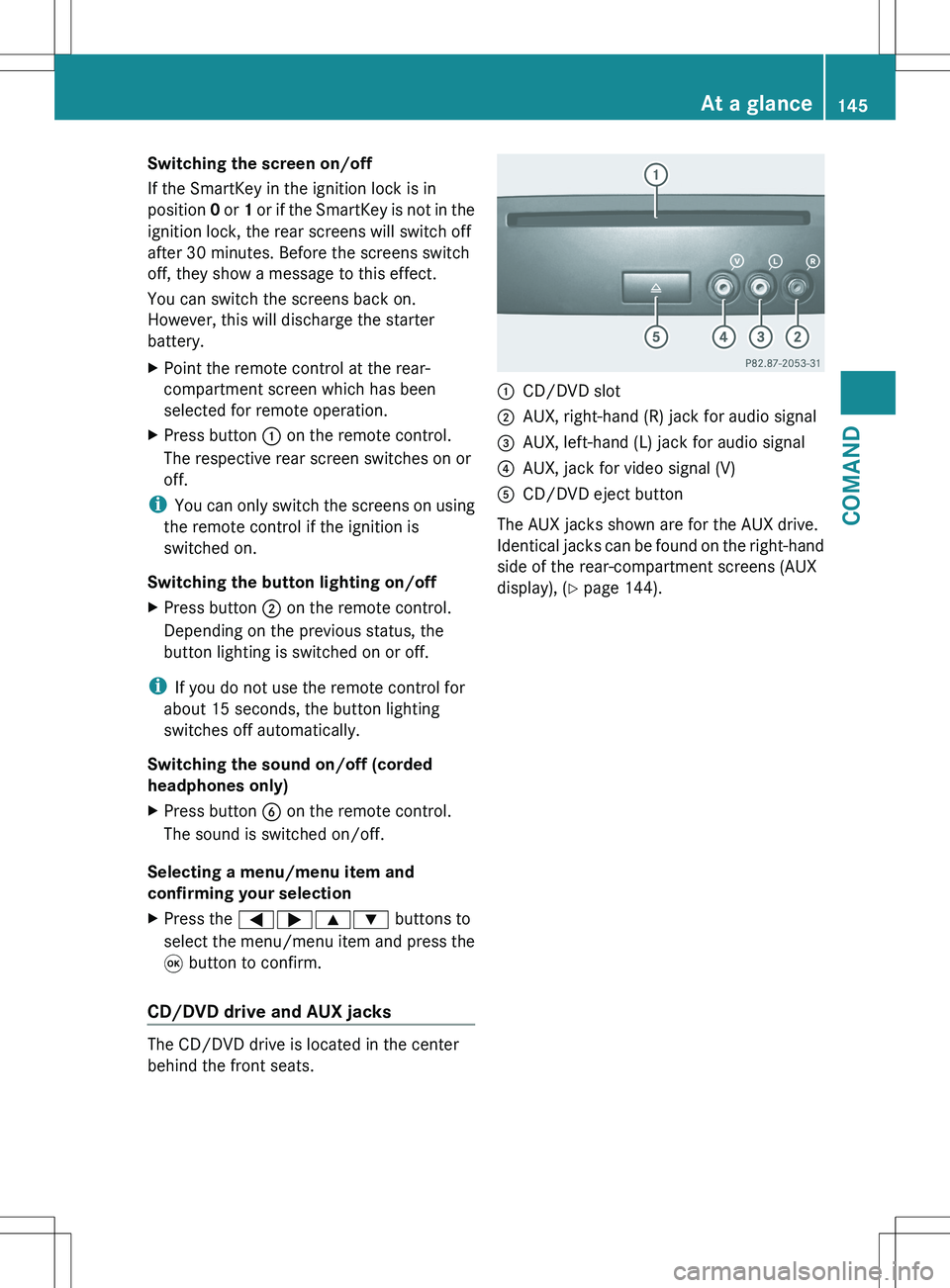
The CD/DVD drive is located in the center
behind the front seats.
:CD/DVD slot;AUX, right-hand (R) jack for audio signal=AUX, left-hand (L) jack for audio signal?AUX, jack for video signal (V)ACD/DVD eject button
The AUX jacks shown are for the AUX drive.
Identical jacks can be found on the right-hand
side of the rear-compartment screens (AUX
display), ( Y page 144).
At a glance145COMANDZ
Page 152 of 536
guides you through the training with spoken
instructions.XSelect Vehicle in the main function bar by
turning cVd the COMAND controller and
press W to confirm.XSelect System by turning cVd the
COMAND controller and press W to
confirm.XSelect Voice Control and press W to
confirm.XSelect Start New Individualization
and press W to confirm.
You see and hear a prompt asking whether
you would like further information.XSelect Yes or No and press W to confirm.
If you select No, the first part of
individualization begins. You will be asked
whether you would like to train digits or
voice commands.
If you select Yes, you will see and hear
information on the individualization
process. The first part of individualization
then begins automatically.XTo close the display: press W the
COMAND controller.
You will be asked whether you would like
to train digits or voice commands.
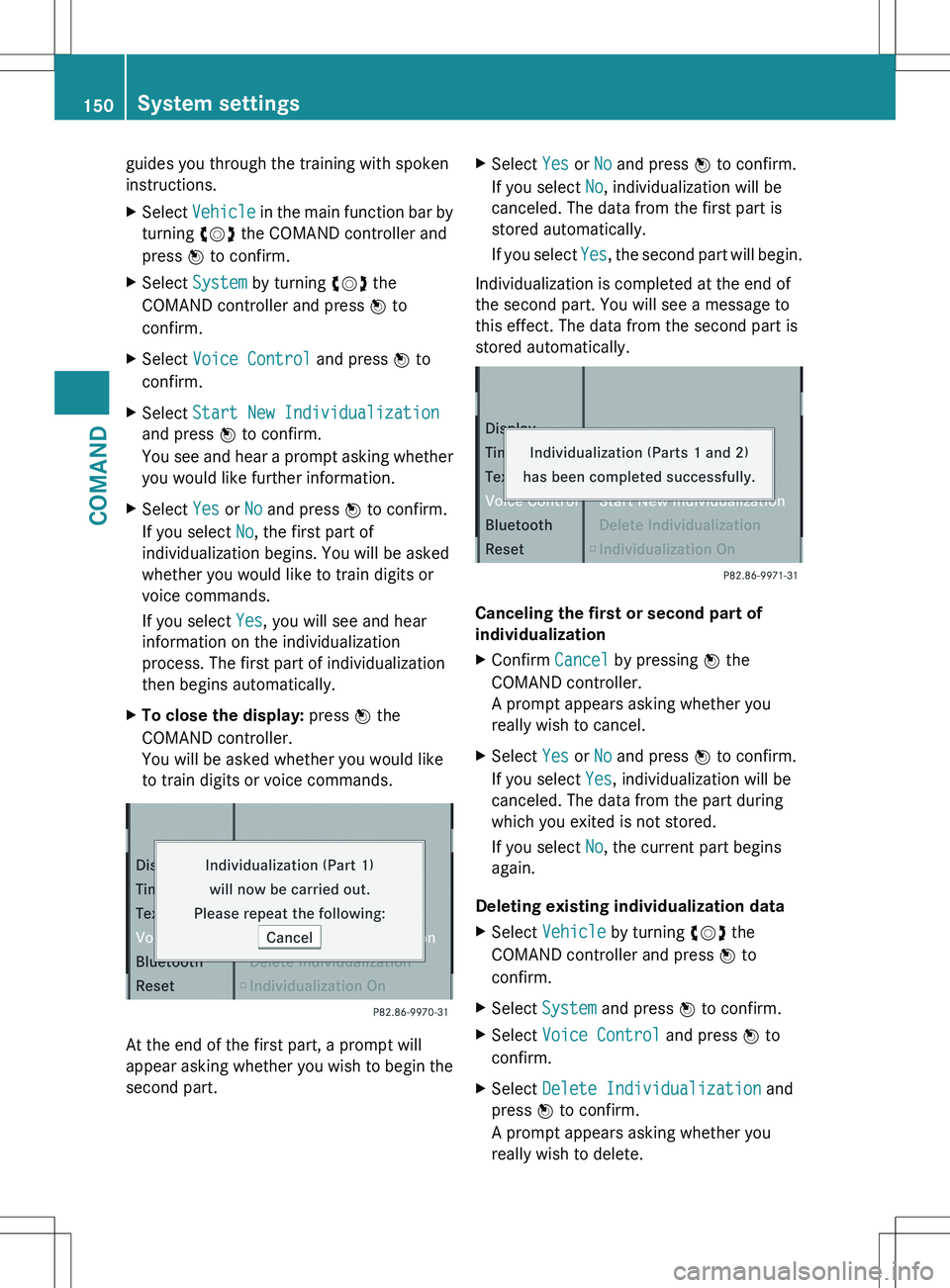
At the end of the first part, a prompt will
appear asking whether you wish to begin the
second part.
XSelect Yes or No and press W to confirm.
If you select No, individualization will be
canceled. The data from the first part is
stored automatically.
If you select Yes, the second part will begin.
Individualization is completed at the end of
the second part. You will see a message to
this effect. The data from the second part is
stored automatically.
Canceling the first or second part of
individualization
XConfirm Cancel by pressing W the
COMAND controller.
A prompt appears asking whether you
really wish to cancel.XSelect Yes or No and press W to confirm.
If you select Yes, individualization will be
canceled. The data from the part during
which you exited is not stored.
If you select No, the current part begins
again.
Deleting existing individualization data
XSelect Vehicle by turning cVd the
COMAND controller and press W to
confirm.XSelect System and press W to confirm.XSelect Voice Control and press W to
confirm.XSelect Delete Individualization and
press W to confirm.
A prompt appears asking whether you
really wish to delete.150System settingsCOMAND
Page 153 of 536
XSelect Yes or No and press W to confirm.
If you select No, the process will be aborted.
If you select Yes, the individualization is
deleted. You will see a message to this
effect.
Bluetooth ®
settings
General information about Bluetooth ®
Bluetooth
®
technology is the standard for
short-range wireless data transmission of up
to approximately 10 meters. Bluetooth ®
allows, for example, the exchange of vCards.
Bluetooth ®
is a registered trademark of
Bluetooth Special Interest Group (SIG) Inc.
Requirements for a Bluetooth ®
connection
You can connect mobile phones and
notebooks to COMAND.
To do so, the following conditions need to be
met:
R Bluetooth ®
-capable devices, e.g. mobile
phones, must comply with a certain profile
in order to be connected to COMAND.
Every Bluetooth ®
device has its own
specific Bluetooth ®
name.
R Bluetooth ®
must be activated in COMAND
and on the respective Bluetooth ®
device;
see the separate operating instructions.
R the Bluetooth ®
device must be "visible" to
COMAND in order for COMAND to find and
display it. For the setting procedures,
please see the operating instructions for
the Bluetooth ®
device.
i Once a mobile phone has been
connected, reception and transmission
volume may change.
Activating/deactivating Bluetooth ®XSelect
Vehicle in the main function bar by
turning cVd the COMAND controller and
press W to confirm.XSelect System by turning cVd the
COMAND controller and press W to
confirm.XSelect Bluetooth by turning cVd the
COMAND controller and press W to
confirm.XSelect Bluetooth activated and press
W to confirm.
This switches Bluetooth ®
on O or off ª.
Connecting Bluetooth ®
devices
General information
Before using your Bluetooth ®
device with
COMAND for the first time, you will need to
connect it.
Connecting comprises:
R searching for a Bluetooth ®
device
R subsequently authorizing it
i A maximum of 15 devices can be available
for selection from the device list.
More detailed information on suitable mobile
phones and on connecting Bluetooth ®
-
capable mobile phones to COMAND can be
found on the Internet at http://
www.mbusa-mobile.com . Or call the
Mercedes-Benz Customer Assistance Center
on 1-800-FOR-MERCedes(1-800-367-6372)
(for the USA) or Customer Relations on
1-800-387-0100 (for Canada).
System settings151COMANDZ
Page 155 of 536
XTo confirm an entry in COMAND: select
¬ using the COMAND controller and
press W to confirm.
or
XSelect SEND on the telephone keypad.XEnter the same passcode into the
Bluetooth ®
device (see the operating
instructions for the respective device).
The device is authorized.
External authorization
If COMAND does not detect your
Bluetooth ®
device, this may be due to
particular security settings on your
Bluetooth ®
device. In this case, you can test
if your Bluetooth ®
device can find COMAND.
The Bluetooth ®
device name of COMAND is
"MB Bluetooth".
XSelect Update .XSelect Options by sliding VY the
COMAND controller and press W to
confirm.XSelect External Authorization and
press W to confirm.XStart the Bluetooth ®
scan process on the
Bluetooth ®
device (see separate operating
instructions of the respective device).XSelect COMAND ("MB Bluetooth").
i The order in which the passkey is entered
depends on the mobile phone.
XEnter the passkey on the Bluetooth ®
device
when prompted.XConfirm the Do you want to authorize
XX? question in COMAND with Yes.XEnter the passkey in COMAND.
Displaying the details of a Bluetooth ®
device
XIn the Bluetooth ®
device list, select the
desired device by turning cVd the
COMAND controller.XSelect Options by sliding VY the
COMAND controller and press W to
confirm.XSelect Details and press W to confirm.
The detailed display for this device
appears.XTo close the detailed view: turn cVd or
slide XVY the COMAND controller.
De-authorizing (de-registering) a
Bluetooth ®
device
Mercedes-Benz USA, LLC recommends de-
authorization in both COMAND and the
Bluetooth ®
device, e.g. the mobile phone.
Subsequent authorization may otherwise fail.
XIn the Bluetooth ®
device list, select the
authorized device by turning cVd the
COMAND controller.XSelect Options by sliding VY the
COMAND controller and press W to
confirm.XSelect De-authorize and press W to
confirm.
A prompt appears asking whether you
really wish to de-authorize this device.XSelect Yes or No and press W to confirm.
If you select Yes, the authorization for the
device will be revoked.
If you select No, the process will be aborted.
i
If a Bluetooth ®
device has been de-
authorized and is out of range, when a new
search is carried out it will not appear in the
Bluetooth ®
device list.
System language settings
This function allows you to determine the
language for the menu displays and the
navigation messages. The selected language
affects the characters available for entry.
When you set the system language, the
language of the Voice Control System will
System settings153COMANDZ
Page 162 of 536
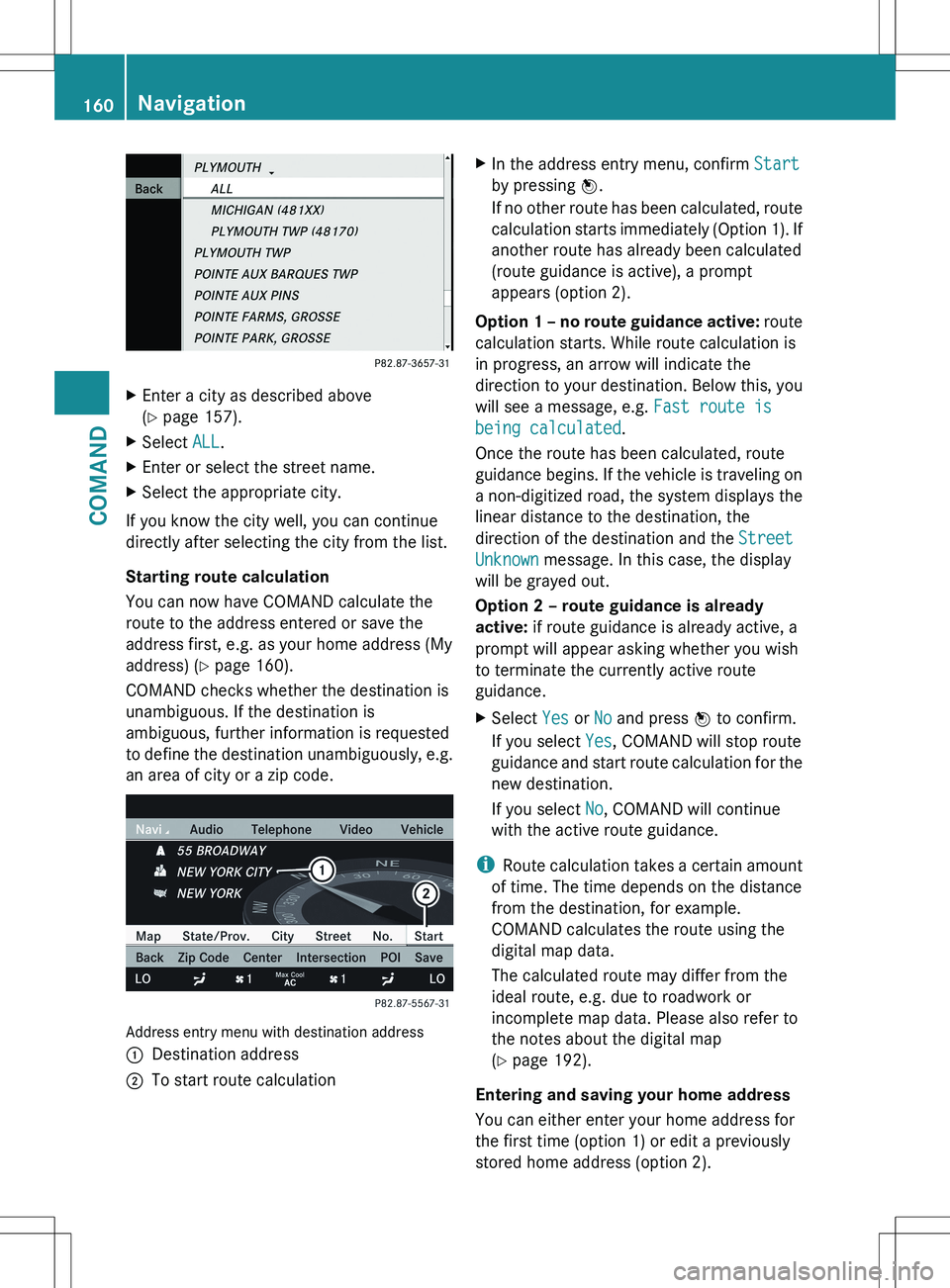
XEnter a city as described above
( Y page 157).XSelect ALL.XEnter or select the street name.XSelect the appropriate city.
If you know the city well, you can continue
directly after selecting the city from the list.
Starting route calculation
You can now have COMAND calculate the
route to the address entered or save the
address first, e.g. as your home address (My
address) ( Y page 160).
COMAND checks whether the destination is
unambiguous. If the destination is
ambiguous, further information is requested
to define the destination unambiguously, e.g.
an area of city or a zip code.
Address entry menu with destination address
:Destination address;To start route calculationXIn the address entry menu, confirm Start
by pressing W.
If no other route has been calculated, route
calculation starts immediately (Option 1). If
another route has already been calculated
(route guidance is active), a prompt
appears (option 2).
Option 1 – no route guidance active: route
calculation starts. While route calculation is
in progress, an arrow will indicate the
direction to your destination. Below this, you
will see a message, e.g. Fast route is
being calculated .
Once the route has been calculated, route
guidance begins. If the vehicle is traveling on
a non-digitized road, the system displays the
linear distance to the destination, the
direction of the destination and the Street
Unknown message. In this case, the display
will be grayed out.
Option 2 – route guidance is already
active: if route guidance is already active, a
prompt will appear asking whether you wish
to terminate the currently active route
guidance.
XSelect Yes or No and press W to confirm.
If you select Yes, COMAND will stop route
guidance and start route calculation for the
new destination.
If you select No, COMAND will continue
with the active route guidance.
i Route calculation takes a certain amount
of time. The time depends on the distance
from the destination, for example.
COMAND calculates the route using the
digital map data.
The calculated route may differ from the
ideal route, e.g. due to roadwork or
incomplete map data. Please also refer to
the notes about the digital map
( Y page 192).
Entering and saving your home address
You can either enter your home address for
the first time (option 1) or edit a previously
stored home address (option 2).
160NavigationCOMAND
Page 167 of 536
Entering an intermediate stop
Introduction
When route guidance is active, you can enter
an intermediate stop. Intermediate stops can
be predefined destinations from the following
categories that COMAND offers for selection:
R Mercedes-Benz Service Center
R Hospital
R Gas Station
R Parking Lot
R Restaurant
However, you can also enter destinations
other than the predefined ones. To do this
select the menu item Other.
You can use the intermediate stop function to
influence route guidance to the main
destination. When you have reached your
intermediate stop, COMAND automatically
recalculates the route to the main
destination.
Entering predefined destinations
XTo activate navigation mode: press the
S function button once or twice.XTo show the menu: press W the COMAND
controller.XSelect Destination in the navigation
system menu bar by turning cVd the
COMAND controller and pressing W to
confirm.XSelect Stopover and press W to confirm.
Option 1: no intermediate stop has been
entered yet.
XSelect a category; see option 2.
Option 2: an intermediate stop has
already been entered.
XSelect Change Stopover and press W to
confirm.XTo select a category: select a category by
turning cVd the COMAND controller and
pressing W to confirm.
COMAND first searches in the selected
category for destinations along the route.
If there are no destinations available there,
COMAND searches for destinations within
a radius of up to 100 km of the vehicle
position.
If COMAND finds destinations, a list
appears on the right-hand side of the
display. The currently selected point of
interest is highlighted on the left-hand side
of the map.
The intermediate stops are listed according
to increasing distance from the current
vehicle position. They are displayed in the
form of a name and their position in relation
to the route and your direction of travel.
If COMAND does not find any destinations,
you will see a message to this effect.
XConfirm OK by pressing W.XSelect a different category.XSelect the intermediate stop by turning
cVd the COMAND controller and pressing
W to confirm.XTo start route calculation: select Start
and press W to confirm.
Entering another destination as an
intermediate stop
XTo activate navigation mode: press the
S function button once or twice.XTo show the menu: press W the COMAND
controller.XSelect Destination in the navigation
system menu bar by turning cVd the
COMAND controller and pressing W to
confirm.XSelect Stopover and press W to confirm.XSelect Other and press W to confirm.Navigation165COMANDZ
Page 173 of 536
e.g. roads closed to through traffic and non-
residents.
R roads that have time restrictions (e.g.
closed on Sundays and public holidays) are
avoided for route guidance.
Change of direction
Introduction
Changes of direction have three phases:
R preparation phase
R announcement phase
R change-of-direction phase
Preparation phase
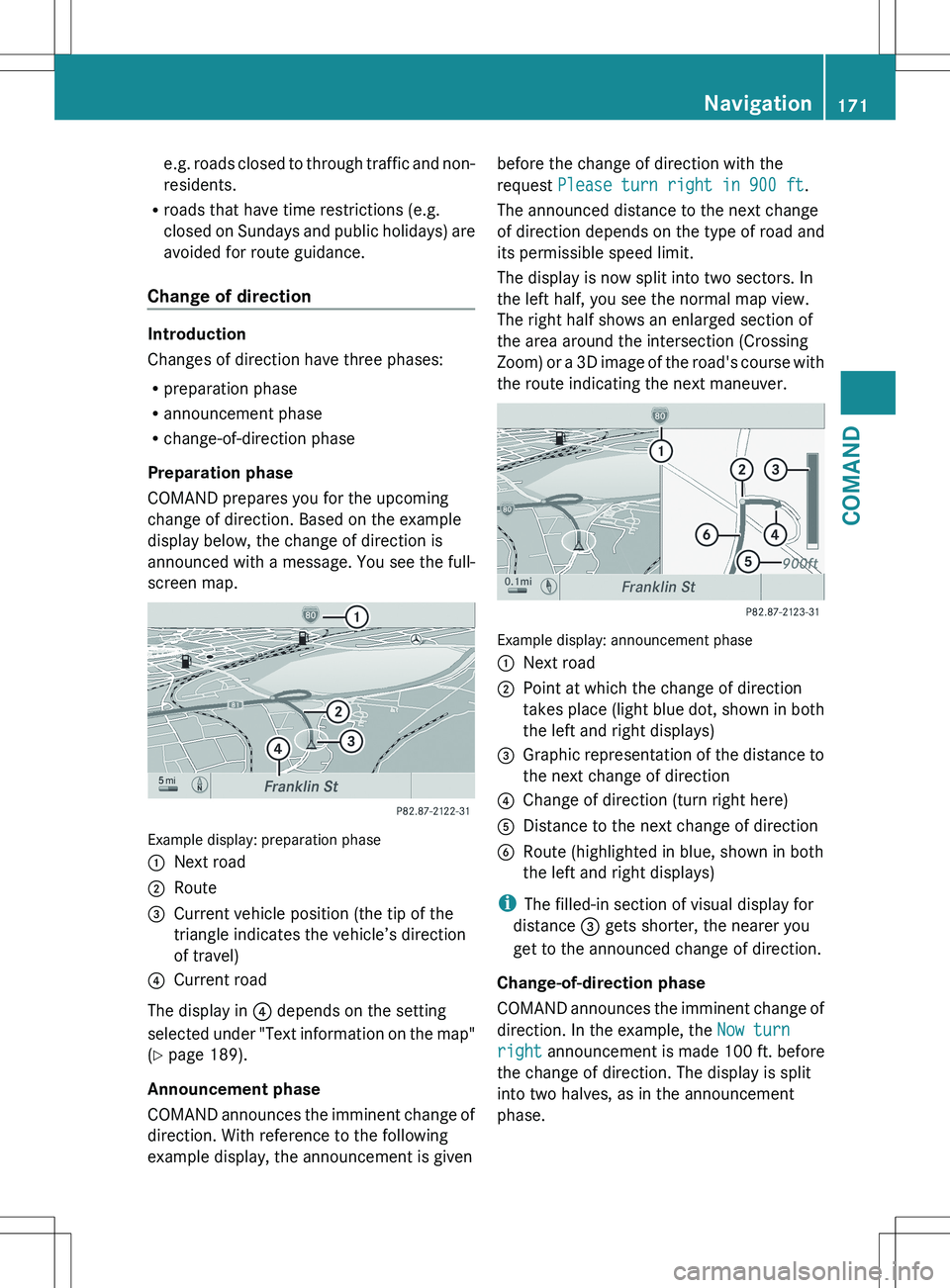
COMAND prepares you for the upcoming
change of direction. Based on the example
display below, the change of direction is
announced with a message. You see the full-
screen map.
Example display: preparation phase
:Next road;Route=Current vehicle position (the tip of the
triangle indicates the vehicle’s direction
of travel)?Current road
The display in ? depends on the setting
selected under "Text information on the map"
( Y page 189).
Announcement phase
COMAND announces the imminent change of
direction. With reference to the following
example display, the announcement is given
before the change of direction with the
request Please turn right in 900 ft .
The announced distance to the next change
of direction depends on the type of road and
its permissible speed limit.
The display is now split into two sectors. In
the left half, you see the normal map view.
The right half shows an enlarged section of
the area around the intersection (Crossing
Zoom) or a 3D image of the road's course with
the route indicating the next maneuver.
Example display: announcement phase
:Next road;Point at which the change of direction
takes place (light blue dot, shown in both
the left and right displays)=Graphic representation of the distance to
the next change of direction?Change of direction (turn right here)ADistance to the next change of directionBRoute (highlighted in blue, shown in both
the left and right displays)
i The filled-in section of visual display for
distance = gets shorter, the nearer you
get to the announced change of direction.
Change-of-direction phase
COMAND announces the imminent change of
direction. In the example, the Now turn
right announcement is made 100 ft. before
the change of direction. The display is split
into two halves, as in the announcement
phase.
Navigation171COMANDZ
Page 176 of 536
XSelect Cancel Route Guidance and press
W to confirm.
Continuing route guidance
XTo activate navigation mode: press the
S function button once or twice.XTo show the menu: press W the COMAND
controller.XSelect Destination in the navigation
system menu bar by turning cVd the
COMAND controller and press W to
confirm.XSelect Continue Route Guidance and
press W to confirm.
COMAND calculates the route.
Destination or area of destination
reached
When you reach your destination, COMAND
displays a checkered flag and route guidance
is automatically ended.
For certain points of interest (e.g. airports),
the Destination Reached display is shown
as well as the checkered flag.
Navigation announcements
Repeating navigation announcements
GWARNING
Navigation announcements are intended to
direct you while driving without diverting your
attention from the road and driving.
Please always use this feature instead of
consulting the map display for directions.
Looking at the icons or map display can
distract you from traffic conditions and
driving, and increase the risk of an accident.
i Audible navigation announcements are
muted during a telephone call.
If you have missed an announcement, you can
call up the current announcement at any
time.
XTo show the menu: press W the COMAND
controller.XIn the navigation menu bar, confirm RPT
with W.
Switching navigation announcements
on/off
XTo switch off: during the announcement,
press the 8 button on the multifunction
steering wheel.
You will briefly see the message: The
driving instructions have been
muted .XTo switch on: press W the COMAND
controller.XIn the + navigation menu bar, press W
to confirm.
i COMAND automatically switches the
navigation announcements back on when:
R you have a new route calculated.
R you start the engine again after having
left the vehicle.
Reducing volume during a navigation
announcement
The volume of an active audio or video source
can be automatically reduced during a
navigation announcement.
XSelect Navi in the main function bar by
sliding ZV and turning cVd the COMAND
controller and press W to confirm.XSelect Audio Fadeout and press W to
confirm.
The function is switched on O or off ª,
depending on the previous status.
Setting the volume manually
XSet the volume during a navigation
announcement.
or
XIn the map display when the menu is
shown, select + and adjust the volume.174NavigationCOMAND
Page 177 of 536
Avoiding a section of the route blocked
by a traffic jam
This function blocks a section of the route
ahead of you. You can set the length of the
blocked route section. If possible, COMAND
calculates a detour around the blocked
section of the route.
XTo activate navigation mode: press the
S function button once or twice.XTo show the menu: press W the COMAND
controller.XSelect Route in the navigation system
menu bar by turning cVd the COMAND
controller and press W to confirm.XSelect Detour and press W to confirm.XTo block a section of the route: select
More or Less repeatedly and confirm using
W until the desired section has been
selected.
i The total length of the section that can be
blocked is defined by the digital map. The
menu items are available accordingly.
XTo start route calculation: select Start
and press W to confirm.XTo delete the blocked section: select
Delete while the message is shown and
press W to confirm.
COMAND calculates the route without the
block.
Selecting an alternative route
With the "Alternative route" function, routes
other than the original one can be calculated.
XTo activate navigation mode: press the
S function button once or twice.XTo show the menu: press W the COMAND
controller.XSelect Route in the navigation system
menu bar by turning cVd the COMAND
controller and press W to confirm.XSelect Alternative Route and press W
to confirm.
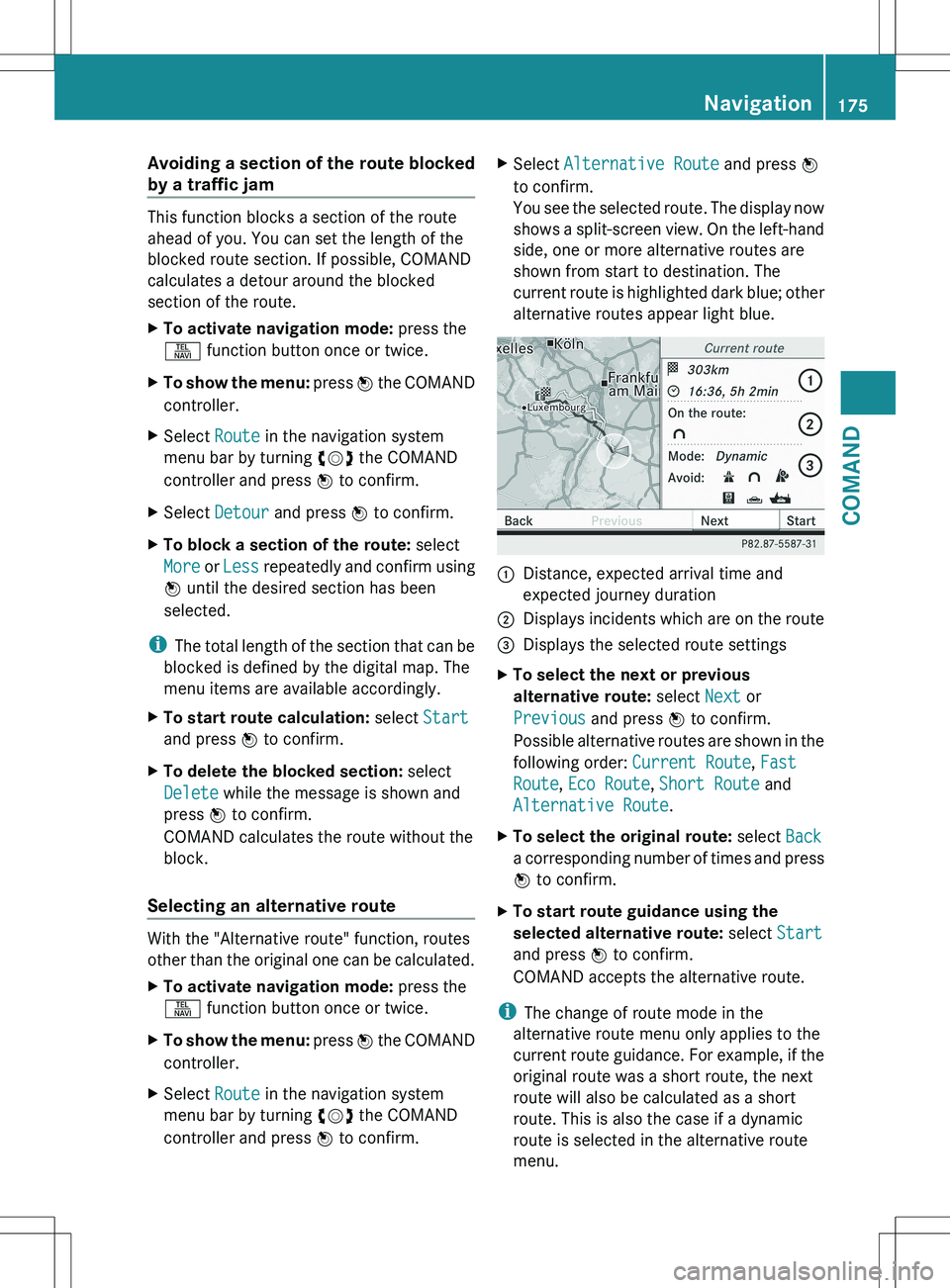
You see the selected route. The display now
shows a split-screen view. On the left-hand
side, one or more alternative routes are
shown from start to destination. The
current route is highlighted dark blue; other
alternative routes appear light blue.:Distance, expected arrival time and
expected journey duration;Displays incidents which are on the route=Displays the selected route settingsXTo select the next or previous
alternative route: select Next or
Previous and press W to confirm.
Possible alternative routes are shown in the
following order: Current Route, Fast
Route , Eco Route , Short Route and
Alternative Route .XTo select the original route: select Back
a corresponding number of times and press
W to confirm.XTo start route guidance using the
selected alternative route: select Start
and press W to confirm.
COMAND accepts the alternative route.
i The change of route mode in the
alternative route menu only applies to the
current route guidance. For example, if the
original route was a short route, the next
route will also be calculated as a short
route. This is also the case if a dynamic
route is selected in the alternative route
menu.
Navigation175COMANDZ
Page 180 of 536
destination :. You will hear the
announcement: "Please follow the arrow on
the display".
Route guidance from an off-road location
to a destination
If the vehicle position is within the area
covered by the digital map, but the map does
not contain any information about that
location, the vehicle is in an off-road location.
COMAND is also able to guide you to a
destination even from an off-road location.
At the start of the route guidance, you will see
the Street unknown message, an arrow and
the distance to the destination. The direction
arrow shows the linear direction to the actual
destination.
The continuous blue line on the map starts at
the street which you left last.
As soon as the vehicle is back on a road
known to the system, route guidance
continues in the usual way.
Off-road during route guidance
Due to roadworks, for example, there may be
differences between the data on the digital
map and the actual course of the road.
In such cases, the system will temporarily be
unable to locate the vehicle position on the
digital map and thus considers the vehicle to
be in an off-road position.
In the display, you will see the Street
unknown message, an arrow and the distance
to the destination. The arrow shows the
compass heading to the last road you were
driving on.
As soon as the system can assign the vehicle
position to the map again, route guidance
continues in the usual way.
Route guidance on roads that are not
completely digitalized
COMAND attempts to avoid roads that have
not been completely digitalized. If the
vehicle's position or the destination is located
in an area that has not been completelydigitalized, then no active route guidance is
performed. Instead, the map shows a dashed
route along the roads and the target direction
is shown with an arrow. You hear the
announcement: "You will enter an area,
where turn-by-turn guidance can not be
provided. Please follow the arrow on the
display". Once these roads have been left,
regular route guidance is resumed.
Traffic reports
Prerequisite
i The SatRadio mode described below
requires optional satellite radio equipment
and a subscription to SIRIUS XM Satellite
Radio Traffic Message Service. Further
details on SatRadio are available in the
"SatRadio" section ( Y page 221).
COMAND can receive traffic reports via
SatRadio and incorporate them in the
navigation system. Traffic messages and map
symbols can then be shown in the COMAND
display.
COMAND uses high quality traffic data.
Nevertheless, there may be differences
between the traffic reports received and the
actual road and traffic conditions.
Switching traffic reports on/off
XTo switch on: set the route type to
Dynamic Route 7
(Y page 156).XTo switch off: select the Fast Route or
Short Route route type (Y page 156).
i
COMAND calculates a new route if you
change the route type setting with route
guidance active. If you change the route
type setting when route guidance is
inactive, COMAND uses the new setting for
the next route guidance.
7 Traffic reports are not available in all countries.178NavigationCOMAND