navigation system MERCEDES-BENZ SLS AMG 2011 User Guide
[x] Cancel search | Manufacturer: MERCEDES-BENZ, Model Year: 2011, Model line: SLS AMG, Model: MERCEDES-BENZ SLS AMG 2011Pages: 436, PDF Size: 17.73 MB
Page 26 of 436
U
Uniform Tire Quality Grading
Standards .................................. 339, 346
Units Selecting speedometer display
mode ............................................. 283
Units of measurement, navigation .. 103
Unleaded gasoline, premium ........... 427
Unlocking the vehicle Manually ........................................ 398
SmartKey ....................................... 236
Updating Gracenote ®
Media
Database ............................................ 188
Updating map software .................... 100
Upholstery, cleaning ......................... 359
USB devices connecting to ................................. 192
playback options ............................ 197
playlists and folders .......................195
selecting active partition ...............197
selecting tracks .....................195, 196
Useful features .................................. 306
V
Valet locking ...................................... 241
Vehicle Battery ........................................... 410
Care ............................................... 354
Control system .............................. 272
Identification Number (VIN) ...........420
Locking/unlocking ........................236
Modifications and alterations,
Operating safety .............................. 28
Towing ........................................... 415
Unlocking/locking manually ..........398
Vehicle dimensions
see Vehicle specification
Vehicle Identification Number
(VIN) ................................................... 420
Vehicle jack see Jack
Vehicle lighting .................................. 249
Vehicle loading Load limit ....................................... 335
Terminology ................................... 345
Vehicle location (current)
displaying ...................................... 110
GPS reception ................................ 103
moving map to ............................... 107
saving in Last Destinations ....106, 147
Vehicle maximum load on the tire ... 347
Vehicle specification SLS AMG (197) .............................. 421
Vehicle status message memory .... 282
Vehicle tool kit .................................. 362
Vehicle washing see Vehicle care
Vehicle weights
see Vehicle specification
Video .................................................. 198
control menu, displaying/hiding ....201
handling and care of discs .............199
interactive content ........................205
operating DVD menu .....................203
picture settings .............................. 203
voice control with .......................... 230
Video Aux (auxiliary)
main system .................................. 205
Voice control ..................................... 206
canceling the dialog .......................208
command list ................................. 225
creating voice names .....................219
general operation .......................... 207
help function .................................. 232
interrupting the dialog ...................208
operating safety ............................. 206
starting the dialog ..........................208
switching help screen on or off ........95
troubleshooting ............................. 231
with address book .........166, 218, 231
with DVD changer ..........................224
with external equipment (Aux) .......225
with navigation .............................. 212
with phone ..................................... 209
with radio and satellite radio .........221
Voice Control
delete name ................................... 220
find address ................................... 217
Individualization ............................... 95
Settings ........................................... 95
Voice mail, voice control for ............ 211
Voice names, creating ...................... 21924IndexBA 197 USA, CA Edition A 2011; 1; 27, en-UShereepeVersion: 3.0.3.52010-03-24T15:31:10+01:00 - Seite 24
Page 27 of 436
Volume (loudness)COMAND ......................................... 89
external audio sources ..........197, 206
mobile phones ............................... 151
muting COMAND ............................. 89
navigation announcements ......89, 137
phone calls ...................................... 89
voice command ............................. 208
W
Warning sounds Driver’s or passenger’s seat belt .....55
Electronic parking brake ................372
Parktronic system ..........................296
Seat belt telltale ............................ 391
Warranty coverage ............................ 420
Washer and headlamp cleaning
system ................................................ 429
Washer fluid Messages in the multifunction
display ........................................... 380
Mixing ratio .................................... 429
Refilling .......................................... 325
Washing the vehicle .......................... 354
Wear pattern (tires) .......................... 340
Weights (vehicle) see Vehicle specification
Wheel
Changing ....................................... 405
Removing ....................................... 407
Tightening torque ........................... 409
Wheels, sizes ..................................... 422
Wheels, Tires and .............................. 326
Windows see Power windows
Windows, cleaning ............................ 358
Windshield Cleaning wiper blades .................... 358
Defogging ...................................... 303
Washer fluid ................................... 429
Wipers ........................................... 253
Windshield wipers
Replacing wiper blades ..................400
Winter driving
Instructions .................................... 348
Snow chains .................................. 347
Tires ............................................... 347
Winter tires ....................... 347, 422, 424
Wipers Notes ............................................. 253
Problems with ................................ 255
Windshield wipers ..........................253
Z
ZAGAT ®
Rating Service ..................... 131
Zip code of destination, selecting .... 117
Index25BA 197 USA, CA Edition A 2011; 1; 27, en-UShereepeVersion: 3.0.3.52010-03-24T15:31:10+01:00 - Seite 25
Page 71 of 436
Introduction ......................................... 70
At a glance ........................................... 72
System Settings .................................. 92
Navigation (Introduction) ...................99
Navigation (Destination Input) ........114
Navigation (POI Input) ......................126
Navigation (Route Guidance) ...........132
Navigation (Traffic Messages) .........139
Navigation (Destination Memory) ...143
Navigation (Last Destinations) ........147
Telephone .......................................... 147
Audio .................................................. 168
Video .................................................. 198
Voice Control ..................................... 20669COMAND APSBA 197 USA, CA Edition A 2011; 1; 27, en-UShereepeVersion: 3.0.3.52010-03-24T15:31:10+01:00 - Seite 69
Page 72 of 436
Introduction
Where to Find it
This operator's manual has been designed to
help you use your COMAND control unit in all
situations. Since not all models have the
same standard equipment, your COMAND
system equipment may deviate from some
descriptions and illustrations.
At a Glance
Here you will find an overview of the
components of COMAND. Then you will find
examples illustrating how to operate
COMAND and information on the basic
functions. If you are operating a COMAND for
the first time or have rented the vehicle, you
should first read this chapter.
System Settings
Here you will find all the important
information regarding the system settings of
the COMAND.
Navigation
Here you will find detailed information
regarding the following topics:
R Setting options for the map display and the
route calculation
R Destination input
R Search & Send
R POI input
R Route guidance
R Traffic information
R Destination memory
Telephone
The telephone functions are described here.
You will also find information on the address
book.
Audio
Here you will find all information regarding
the audio function and its Radio, SatRadio,
CD-audio/DVD audio/MP3, Music Register,
Media Interface and Audio Aux modes.
Video
Here you will find all information regarding
the video system.
Voice Control
Here you will find information about operating
several COMAND functions via Voice Control.
Indexes
Content and keyword indexes are intended to
help you find information quickly.
Symbols
Trademarks ®
:
R Bluetooth ®
is a registered trademark of
Bluetooth SIG Inc.
R Microsoft ®
is a registered trademark of
Microsoft Corporation in the United States
and other countries
R SIRIUS and related marks are trademarks
of SIRIUS Satellite Radio Inc.
R Windows media ®
is a registered trademark
of Microsoft Corporation in the United
States and other countries
You will find the following symbols in these
operating instructions:
GWarning!
Warning notices draw your attention to
hazards that may endanger your health or life,
or the health or life of others.
! Highlights hazards that may result in
damage to your COMAND.
i Helpful hints or further information you
may find useful.
70IntroductionCOMAND APS
BA 197 USA, CA Edition A 2011; 1; 27, en-UShereepeVersion: 3.0.3.52010-03-24T15:31:10+01:00 - Seite 70
Page 73 of 436
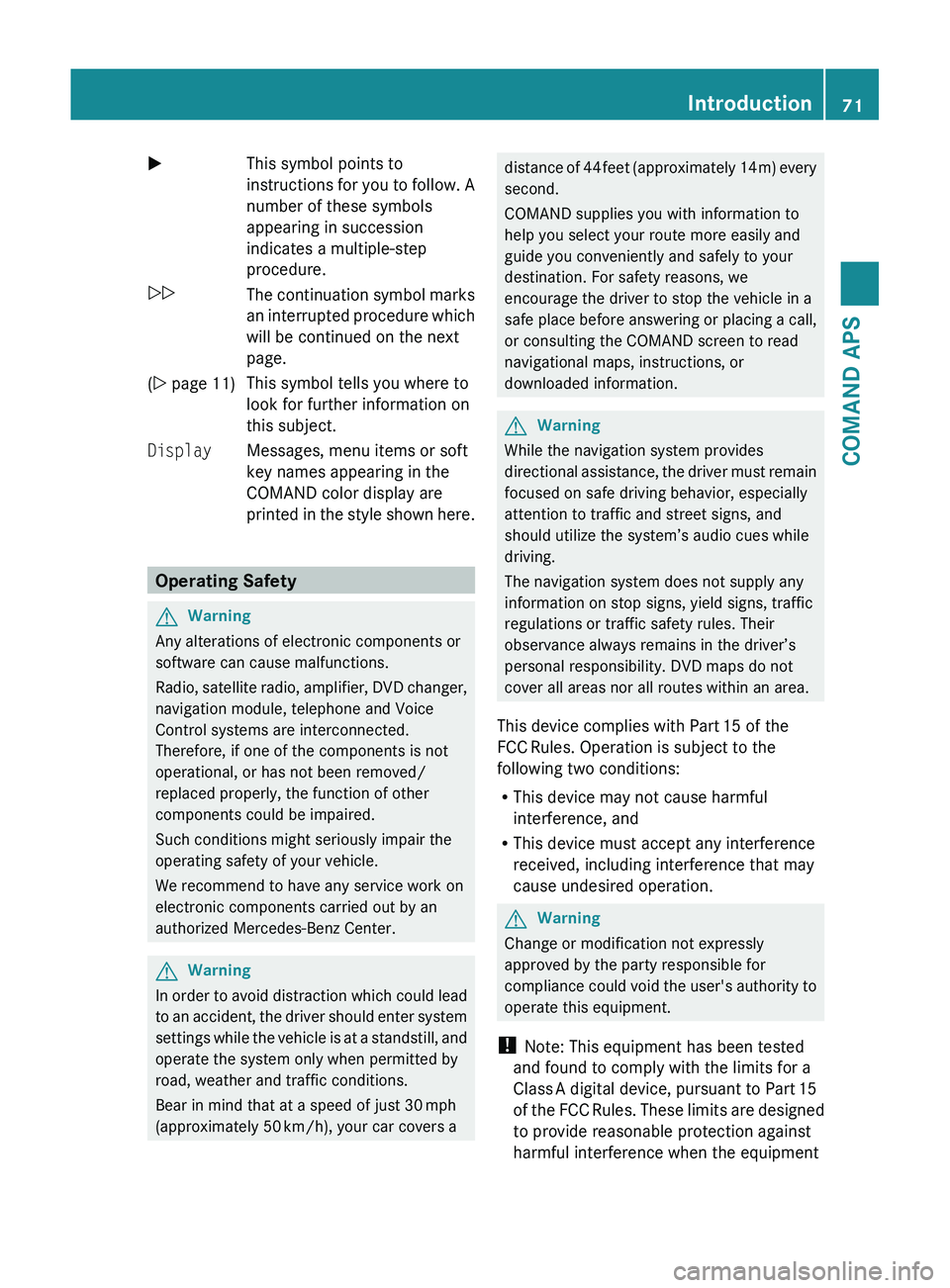
XThis symbol points to
instructions for you to follow. A
number of these symbols
appearing in succession
indicates a multiple-step
procedure.0052The continuation symbol marks
an interrupted procedure which
will be continued on the next
page.( Y page 11)This symbol tells you where to
look for further information on
this subject.DisplayMessages, menu items or soft
key names appearing in the
COMAND color display are
printed in the style shown here.
Operating Safety
GWarning
Any alterations of electronic components or
software can cause malfunctions.
Radio, satellite radio, amplifier, DVD changer,
navigation module, telephone and Voice
Control systems are interconnected.
Therefore, if one of the components is not
operational, or has not been removed/
replaced properly, the function of other
components could be impaired.
Such conditions might seriously impair the
operating safety of your vehicle.
We recommend to have any service work on
electronic components carried out by an
authorized Mercedes-Benz Center.
GWarning
In order to avoid distraction which could lead
to an accident, the driver should enter system
settings while the vehicle is at a standstill, and
operate the system only when permitted by
road, weather and traffic conditions.
Bear in mind that at a speed of just 30 mph
(approximately 50 km/h), your car covers a
distance of 44 feet (approximately 14 m) every
second.
COMAND supplies you with information to
help you select your route more easily and
guide you conveniently and safely to your
destination. For safety reasons, we
encourage the driver to stop the vehicle in a
safe place before answering or placing a call,
or consulting the COMAND screen to read
navigational maps, instructions, or
downloaded information.GWarning
While the navigation system provides
directional assistance, the driver must remain
focused on safe driving behavior, especially
attention to traffic and street signs, and
should utilize the system’s audio cues while
driving.
The navigation system does not supply any
information on stop signs, yield signs, traffic
regulations or traffic safety rules. Their
observance always remains in the driver’s
personal responsibility. DVD maps do not
cover all areas nor all routes within an area.
This device complies with Part 15 of the
FCC Rules. Operation is subject to the
following two conditions:
R This device may not cause harmful
interference, and
R This device must accept any interference
received, including interference that may
cause undesired operation.
GWarning
Change or modification not expressly
approved by the party responsible for
compliance could void the user's authority to
operate this equipment.
! Note: This equipment has been tested
and found to comply with the limits for a
Class A digital device, pursuant to Part 15
of the FCC Rules. These limits are designed
to provide reasonable protection against
harmful interference when the equipment
Introduction71COMAND APSBA 197 USA, CA Edition A 2011; 1; 27, en-UShereepeVersion: 3.0.3.52010-03-24T15:31:10+01:00 - Seite 71Z
Page 75 of 436
Components of COMAND
COMAND comprises:
Rthe COMAND display
Rthe COMAND control unit with DVD
changer
Rthe COMAND controller with the Back and
Clear button
You can use COMAND to operate the
following main functions:
Rthe navigation system
Rthe audio function with the radio, SatRadio,
disc (CD audio, DVD audio or MP3 mode),
PCMCIA memory card (MP3 mode), Music
Register and Audio Aux modes
Rthe telephone and the address book
function
RDVD Video
Rsystems settings
You can call up the main functions:
Rusing the corresponding function buttons
Rusing the main function line in the
COMAND display
COMAND Display
iDo not touch the COMAND display. The
display has a very sensitive high-gloss
surface; there is a risk of scratching. Should
the display need cleaning, use a mild
cleaning agent and a soft, antistatic, lint-
free cloth. Commercially available alcohol
and ammonia-free TFT or LCD cleaners are
recommended.
The COMAND display shows the function
currently selected and its associated menus.
The COMAND display is divided into several
areas.
The radio display is shown in the example.
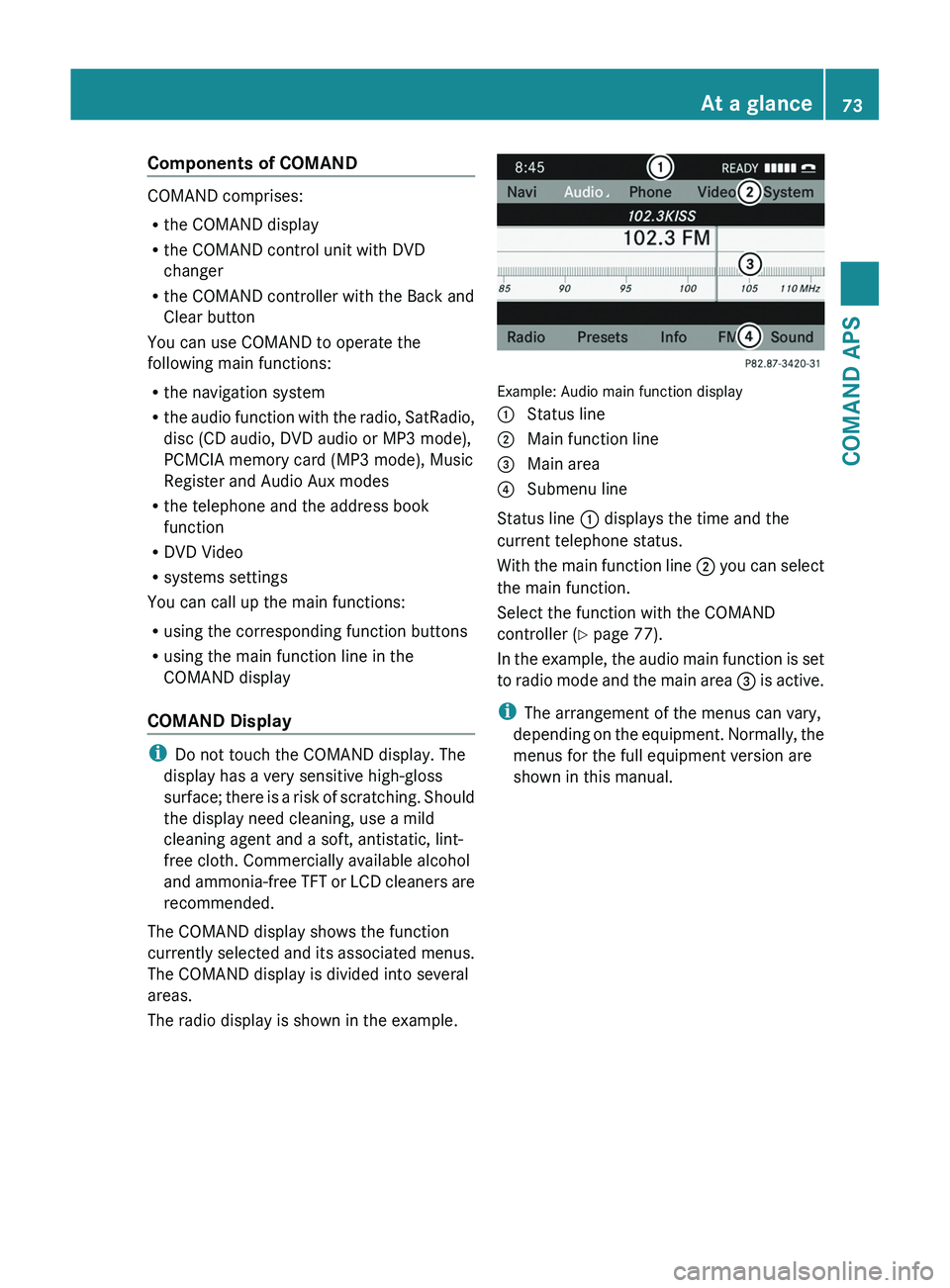
Example: Audio main function display
1 Status line2 Main function line3 Main area4 Submenu line
Status line 1 displays the time and the
current telephone status.
With the main function line 2 you can select
the main function.
Select the function with the COMAND
controller (Y page 77).
In the example, the audio main function is set
to radio mode and the main area 3 is active.
iThe arrangement of the menus can vary,
depending on the equipment. Normally, the
menus for the full equipment version are
shown in this manual.
At a glance73COMAND APSBA 197 USA, CA Edition A 2011; 1; 27, en-UShereepeVersion: 3.0.3.52010-03-24T15:31:10+01:00 - Seite 73Z
Page 80 of 436
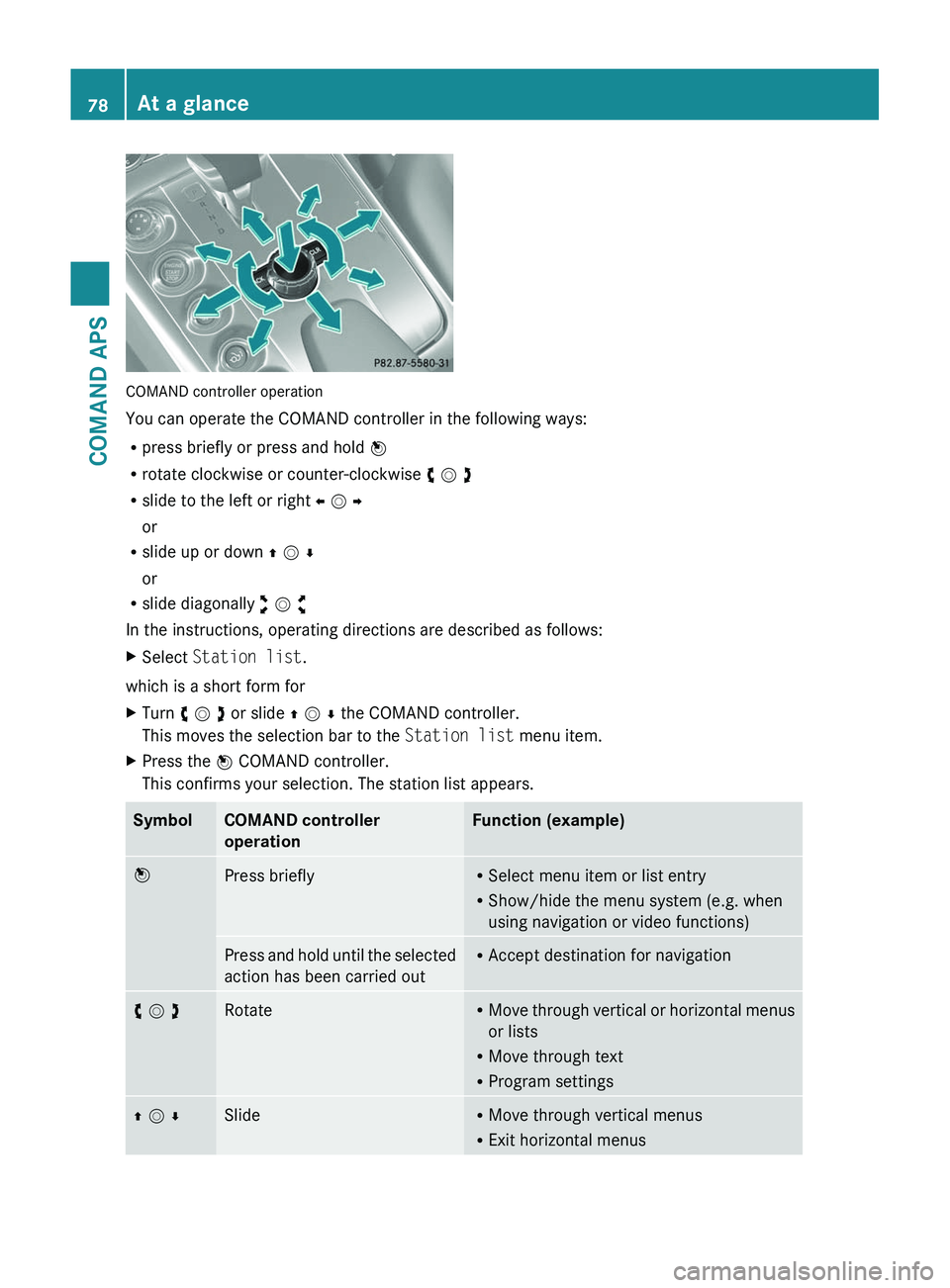
COMAND controller operation
You can operate the COMAND controller in the following ways:
Rpress briefly or press and hold n
Rrotate clockwise or counter-clockwise y m z
Rslide to the left or right o m p
or
Rslide up or down q m r
or
Rslide diagonally w m x
In the instructions, operating directions are described as follows:
XSelect Station list.
which is a short form for
XTurn y m z or slide q m r the COMAND controller.
This moves the selection bar to the Station list menu item.
XPress the n COMAND controller.
This confirms your selection. The station list appears.
SymbolCOMAND controller
operation
Function (example)nPress brieflyRSelect menu item or list entry
RShow/hide the menu system (e.g. when
using navigation or video functions)
Press and hold until the selected
action has been carried out
RAccept destination for navigationy m zRotateRMove through vertical or horizontal menus
or lists
RMove through text
RProgram settings
q m rSlideRMove through vertical menus
RExit horizontal menus
78At a glanceCOMAND APS
BA 197 USA, CA Edition A 2011; 1; 27, en-UShereepeVersion: 3.0.3.52010-03-24T15:31:10+01:00 - Seite 78
Page 91 of 436
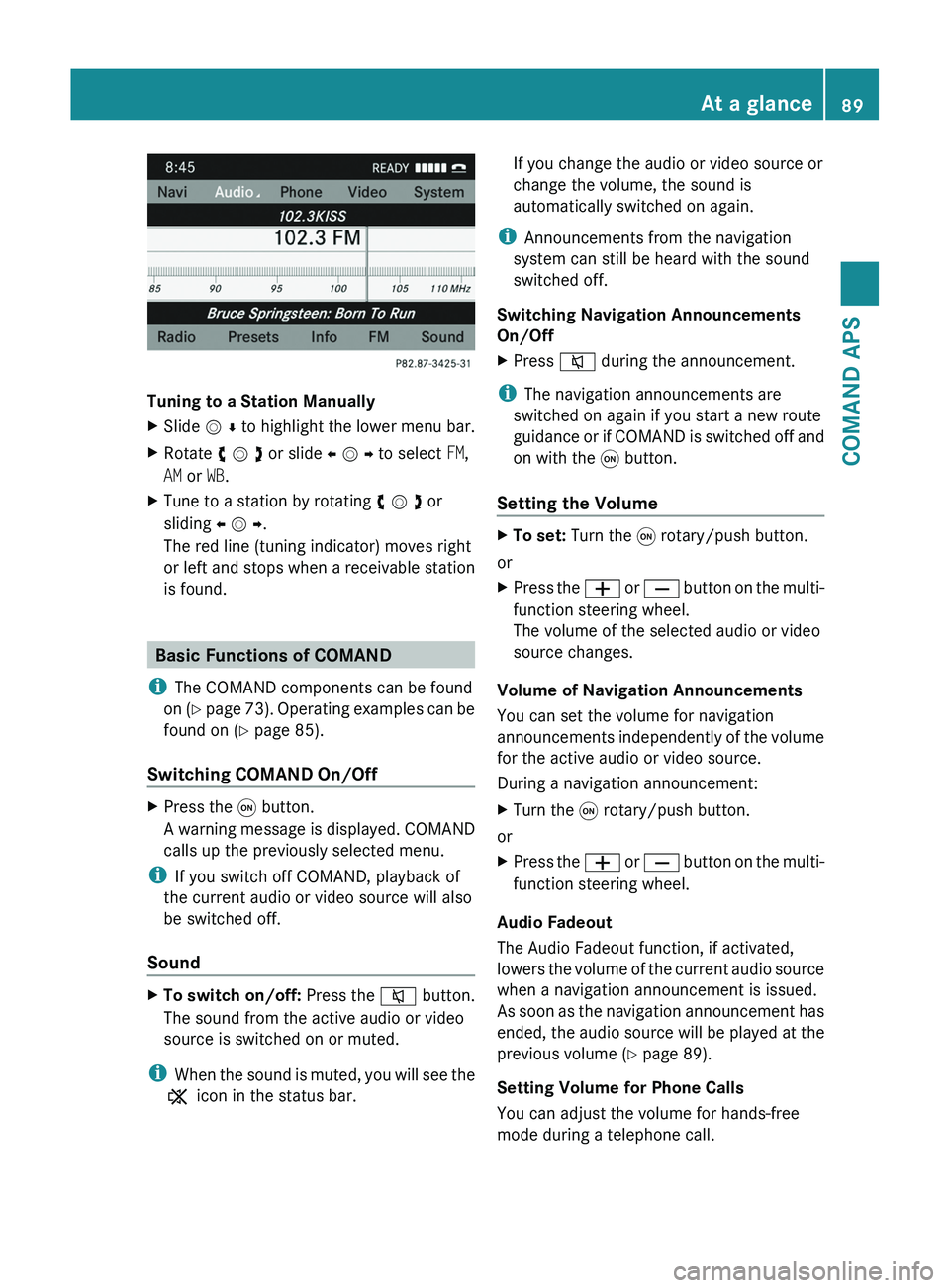
Tuning to a Station Manually
XSlide m r to highlight the lower menu bar.XRotate y m z or slide o m p to select FM,
AM or WB.
XTune to a station by rotating y m z or
sliding o m p.
The red line (tuning indicator) moves right
or left and stops when a receivable station
is found.
Basic Functions of COMAND
iThe COMAND components can be found
on (Y page 73). Operating examples can be
found on (Y page 85).
Switching COMAND On/Off
XPress the \000C button.
A warning message is displayed. COMAND
calls up the previously selected menu.
iIf you switch off COMAND, playback of
the current audio or video source will also
be switched off.
Sound
XTo switch on/off: Press the \000l button.
The sound from the active audio or video
source is switched on or muted.
iWhen the sound is muted, you will see the
X icon in the status bar.
If you change the audio or video source or
change the volume, the sound is
automatically switched on again.
iAnnouncements from the navigation
system can still be heard with the sound
switched off.
Switching Navigation Announcements
On/Off
XPress \000l during the announcement.
iThe navigation announcements are
switched on again if you start a new route
guidance or if COMAND is switched off and
on with the \000C button.
Setting the Volume
XTo set: Turn the \000C rotary/push button.
or
XPress the \000Z or \000[ button on the multi-
function steering wheel.
The volume of the selected audio or video
source changes.
Volume of Navigation Announcements
You can set the volume for navigation
announcements independently of the volume
for the active audio or video source.
During a navigation announcement:
XTurn the \000C rotary/push button.
or
XPress the \000Z or \000[ button on the multi-
function steering wheel.
Audio Fadeout
The Audio Fadeout function, if activated,
lowers the volume of the current audio source
when a navigation announcement is issued.
As soon as the navigation announcement has
ended, the audio source will be played at the
previous volume (Y page 89).
Setting Volume for Phone Calls
You can adjust the volume for hands-free
mode during a telephone call.
At a glance89COMAND APSBA 197 USA, CA Edition A 2011; 1; 27, en-UShereepeVersion: 3.0.3.52010-03-24T15:31:10+01:00 - Seite 89Z
Page 95 of 436
SettingsDisplay OffDisplay
(Y page 93)
Time (Y page 93)
Text reader speed
(Y page 94)
Voice
Control(Y page
95)
Setting the language
(Y page 99)
Bluetooth®
(Y page 96)
Rear View Camera
(Y page 99)
Reset COMAND
(Y page 99)
iUse this function
to delete your
personal data,
e.g. before selling
your vehicle.
Display Settings
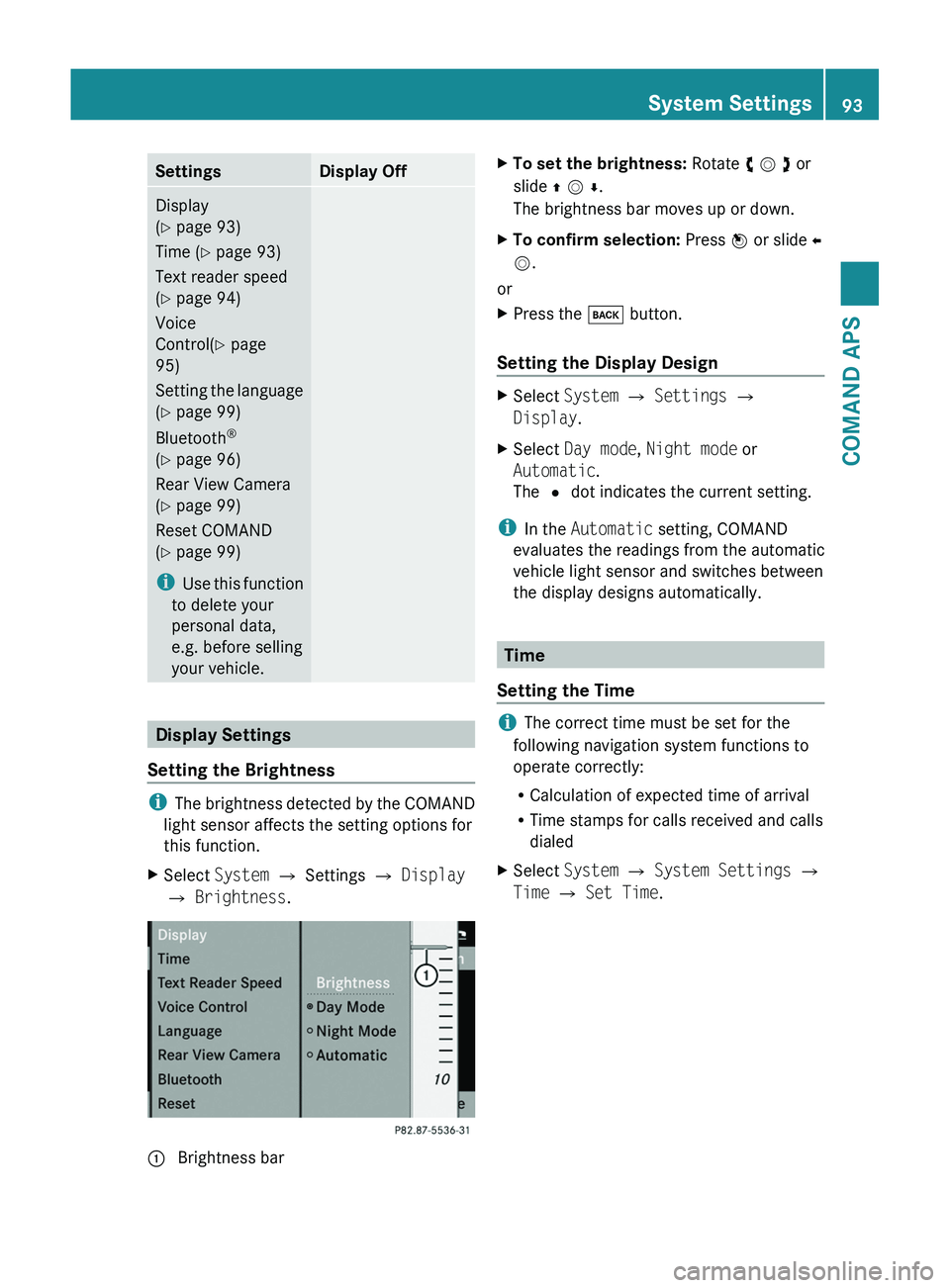
Setting the Brightness
iThe brightness detected by the COMAND
light sensor affects the setting options for
this function.
XSelect System £ Settings £ Display
£ Brightness.
1 Brightness barXTo set the brightness: Rotate y m z or
slide q m r.
The brightness bar moves up or down.
XTo confirm selection: Press n or slide o
m.
or
XPress the \000= button.
Setting the Display Design
XSelect System £ Settings £
Display.
XSelect Day mode, Night mode or
Automatic.
The R dot indicates the current setting.
iIn the Automatic setting, COMAND
evaluates the readings from the automatic
vehicle light sensor and switches between
the display designs automatically.
Time
Setting the Time
iThe correct time must be set for the
following navigation system functions to
operate correctly:
RCalculation of expected time of arrival
RTime stamps for calls received and calls
dialed
XSelect System £ System Settings £
Time £ Set Time.
System Settings93COMAND APSBA 197 USA, CA Edition A 2011; 1; 27, en-UShereepeVersion: 3.0.3.52010-03-24T15:31:10+01:00 - Seite 93Z
Page 96 of 436
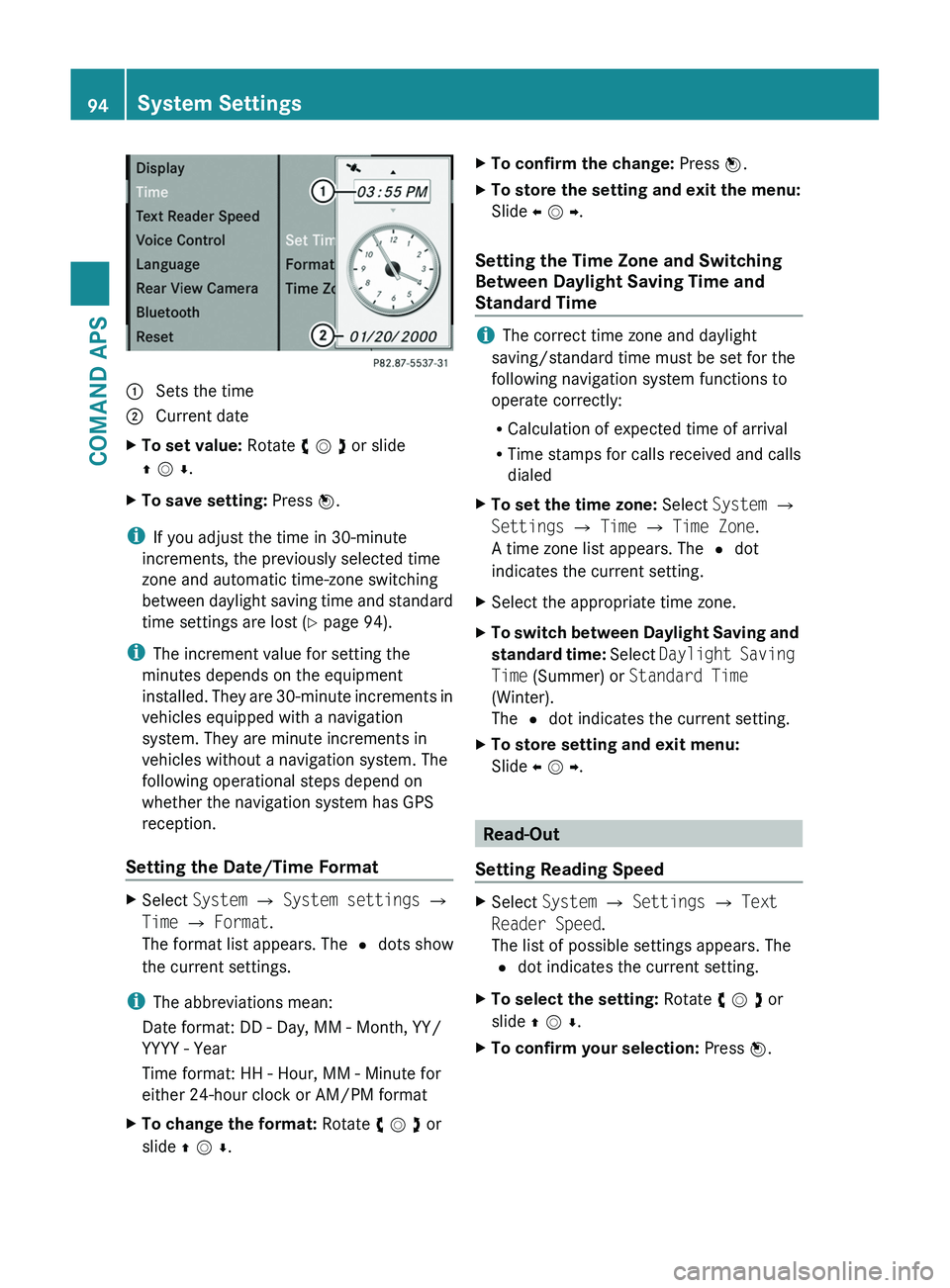
1 Sets the time2 Current dateXTo set value: Rotate y m z or slide
q m r.
XTo save setting: Press n.
iIf you adjust the time in 30-minute
increments, the previously selected time
zone and automatic time-zone switching
between daylight saving time and standard
time settings are lost (Y page 94).
iThe increment value for setting the
minutes depends on the equipment
installed. They are 30-minute increments in
vehicles equipped with a navigation
system. They are minute increments in
vehicles without a navigation system. The
following operational steps depend on
whether the navigation system has GPS
reception.
Setting the Date/Time Format
XSelect System £ System settings £
Time £ Format.
The format list appears. The R dots show
the current settings.
iThe abbreviations mean:
Date format: DD - Day, MM - Month, YY/
YYYY - Year
Time format: HH - Hour, MM - Minute for
either 24-hour clock or AM/PM format
XTo change the format: Rotate y m z or
slide q m r.
XTo confirm the change: Press n.XTo store the setting and exit the menu:
Slide o m p.
Setting the Time Zone and Switching
Between Daylight Saving Time and
Standard Time
iThe correct time zone and daylight
saving/standard time must be set for the
following navigation system functions to
operate correctly:
RCalculation of expected time of arrival
RTime stamps for calls received and calls
dialed
XTo set the time zone: Select System £
Settings £ Time £ Time Zone.
A time zone list appears. The R dot
indicates the current setting.
XSelect the appropriate time zone.XTo switch between Daylight Saving and
standard time: Select Daylight Saving
Time (Summer) or Standard Time
(Winter).
The R dot indicates the current setting.
XTo store setting and exit menu:
Slide o m p.
Read-Out
Setting Reading Speed
XSelect System £ Settings £ Text
Reader Speed.
The list of possible settings appears. The
R dot indicates the current setting.
XTo select the setting: Rotate y m z or
slide q m r.
XTo confirm your selection: Press n.94System SettingsCOMAND APS
BA 197 USA, CA Edition A 2011; 1; 27, en-UShereepeVersion: 3.0.3.52010-03-24T15:31:10+01:00 - Seite 94