navigation system MERCEDES-BENZ SLS AMG 2011 Workshop Manual
[x] Cancel search | Manufacturer: MERCEDES-BENZ, Model Year: 2011, Model line: SLS AMG, Model: MERCEDES-BENZ SLS AMG 2011Pages: 436, PDF Size: 17.73 MB
Page 147 of 436
XSelect Yes or No.
If you select Yes, COMAND overwrites the
destination. You will see a message and
then the address menu with the selected
address. Start is highlighted
automatically.
If you select No, the list will reappear.
Selecting Home Address for Route
Guidance
iIf the My Address (¤ icon) entry already
contains data that can be used for
navigation, you can select it for route
guidance. If not, then first assign a
destination to this entry (Y page 143).
XIf necessary, switch to navigation mode
and display the menu system
(Y page 106).
XSelect Destination £ From Memory.
You will see a list with or without predictive
speller depending on how many entries
exist in the address book.
XDestination memory with predictive
speller: Slide q m repeatedly until the list
appears without the predictive speller.
or
XSelect d at the bottom right in the
predictive speller.
XDestination memory list without input
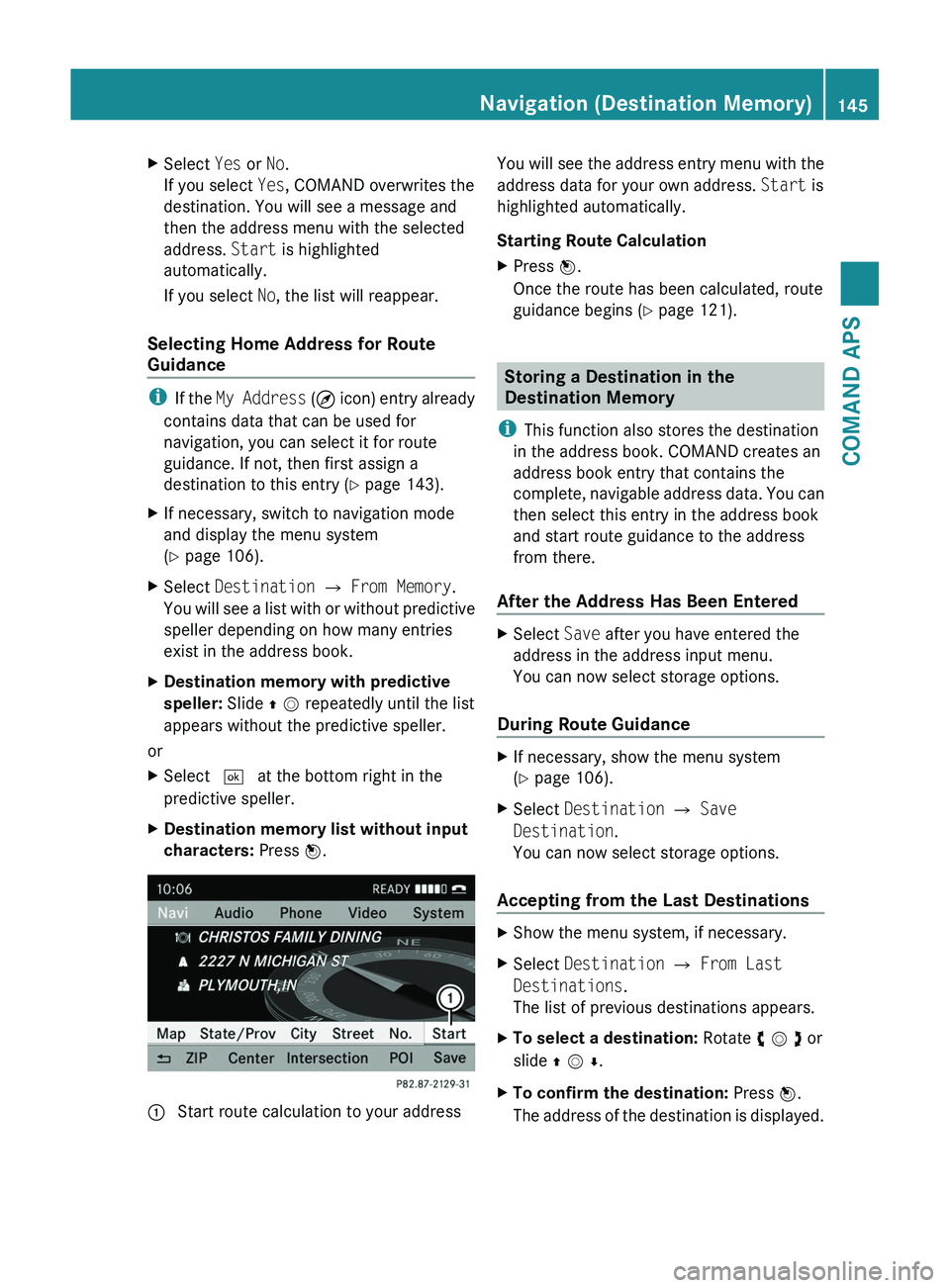
characters: Press n.1 Start route calculation to your addressYou will see the address entry menu with the
address data for your own address. Start is
highlighted automatically.
Starting Route Calculation
XPress n.
Once the route has been calculated, route
guidance begins (Y page 121).
Storing a Destination in the
Destination Memory
iThis function also stores the destination
in the address book. COMAND creates an
address book entry that contains the
complete, navigable address data. You can
then select this entry in the address book
and start route guidance to the address
from there.
After the Address Has Been Entered
XSelect Save after you have entered the
address in the address input menu.
You can now select storage options.
During Route Guidance
XIf necessary, show the menu system
(Y page 106).
XSelect Destination £ Save
Destination.
You can now select storage options.
Accepting from the Last Destinations
XShow the menu system, if necessary.XSelect Destination £ From Last
Destinations.
The list of previous destinations appears.
XTo select a destination: Rotate y m z or
slide q m r.
XTo confirm the destination: Press n.
The address of the destination is displayed.
Navigation (Destination Memory)145COMAND APSBA 197 USA, CA Edition A 2011; 1; 27, en-UShereepeVersion: 3.0.3.52010-03-24T15:31:10+01:00 - Seite 145Z
Page 148 of 436
XSelect Save.
You can now select memory options.
Selecting Memory Options
Saving Destination Without Name
XSelect Save Without Name.
COMAND stores the destination in the
destination memory and uses the address
as the destination name.
or
XSelect Save as My Address.
COMAND stores the destination in the
destination memory as My Address.
If the selected address book entry already
contains address data that can be used for
navigation (¤ icon), a prompt will appear
asking whether you wish to overwrite the
existing data.
XSelect Yes or No.
After selecting Yes, the Saving
Procedure Successful message
appears; selecting No cancels the
procedure.
Saving Destination With Name
XSelect Save With Name.XSelect the category desired, e.g. Home.
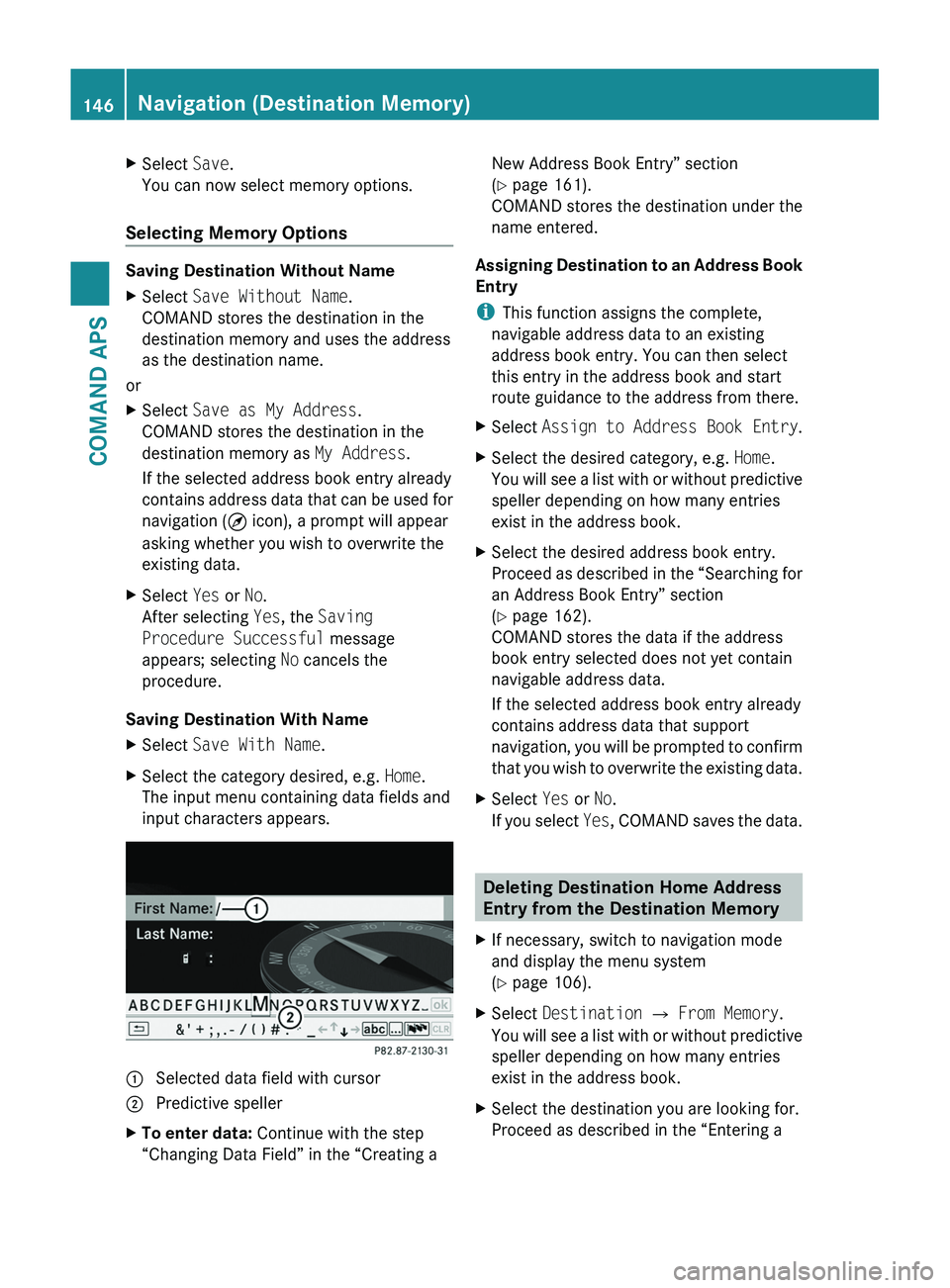
The input menu containing data fields and
input characters appears.
1 Selected data field with cursor2 Predictive spellerXTo enter data: Continue with the step
“Changing Data Field” in the “Creating a
New Address Book Entry” section
(Y page 161).
COMAND stores the destination under the
name entered.
Assigning Destination to an Address Book
Entry
iThis function assigns the complete,
navigable address data to an existing
address book entry. You can then select
this entry in the address book and start
route guidance to the address from there.
XSelect Assign to Address Book Entry.XSelect the desired category, e.g. Home.
You will see a list with or without predictive
speller depending on how many entries
exist in the address book.
XSelect the desired address book entry.
Proceed as described in the “Searching for
an Address Book Entry” section
(Y page 162).
COMAND stores the data if the address
book entry selected does not yet contain
navigable address data.
If the selected address book entry already
contains address data that support
navigation, you will be prompted to confirm
that you wish to overwrite the existing data.
XSelect Yes or No.
If you select Yes, COMAND saves the data.
Deleting Destination Home Address
Entry from the Destination Memory
XIf necessary, switch to navigation mode
and display the menu system
(Y page 106).
XSelect Destination £ From Memory.
You will see a list with or without predictive
speller depending on how many entries
exist in the address book.
XSelect the destination you are looking for.
Proceed as described in the “Entering a
146Navigation (Destination Memory)COMAND APS
BA 197 USA, CA Edition A 2011; 1; 27, en-UShereepeVersion: 3.0.3.52010-03-24T15:31:10+01:00 - Seite 146
Page 149 of 436
Destination from the Destination Memory”
section ( Y page 122).XSelect Options £ Delete .
A prompt appears asking whether you wish
to delete the destination.XSelect Yes or No.
If you select Yes, COMAND deletes the
destination. You see a corresponding
message.
i If the address data, which supports
navigation, for the destination to be deleted
has also been assigned to an address book
entry, COMAND deletes this data there,
too. If the corresponding address book
entry does not contain any other data, e.g.
phone numbers, COMAND deletes the
entire address book entry.
Navigation (Last Destinations)
i COMAND automatically saves the last
destinations used for the last route
calculation. If the memory is full, COMAND
deletes the oldest destination. You can also
save a destination from the last
destinations to the destination memory.
Here it is saved permanently.
Saving a Destination Permanently in
the Destination Memory
XProceed as described in the “Entering
Destination from the Last Destinations”
section ( Y page 123).
Saving the Vehicle Position in the List
of Last Destinations
XIf necessary, switch to navigation mode
and display the menu system
( Y page 105).XSelect Position £ Save Vehicle
Position .
COMAND saves the current vehicle
position as a destination in the list of last
destinations.
Saving the Crosshair Position in the
List of Last Destinations
i A crosshair appears on the map if you
have moved the map manually. You can
store the crosshair position as a
destination in the list of last destinations.
XIf necessary, display the menu system:
Press n.XSelect Position £ Save Crosshair
Position .
COMAND saves the crosshair position as a
destination in the list of last destinations.
Deleting One of the Last Destinations
XIf necessary, switch to navigation mode
and display the menu system
( Y page 105).XSelect Destination £ From Last
Destinations .
The list of last destinations appears.XSelect the desired destination.XSelect Options £ Delete .
A query appears.XSelect Yes or No.
If you select Yes, COMAND deletes the
destination. You see a corresponding
message.
Telephone
Safety Precautions
GWarning
A driver's attention to the road must always
be his/her primary focus when driving. For
Telephone147COMAND APSBA 197 USA, CA Edition A 2011; 1; 27, en-UShereepeVersion: 3.0.3.52010-03-24T15:31:10+01:00 - Seite 147Z
Page 165 of 436
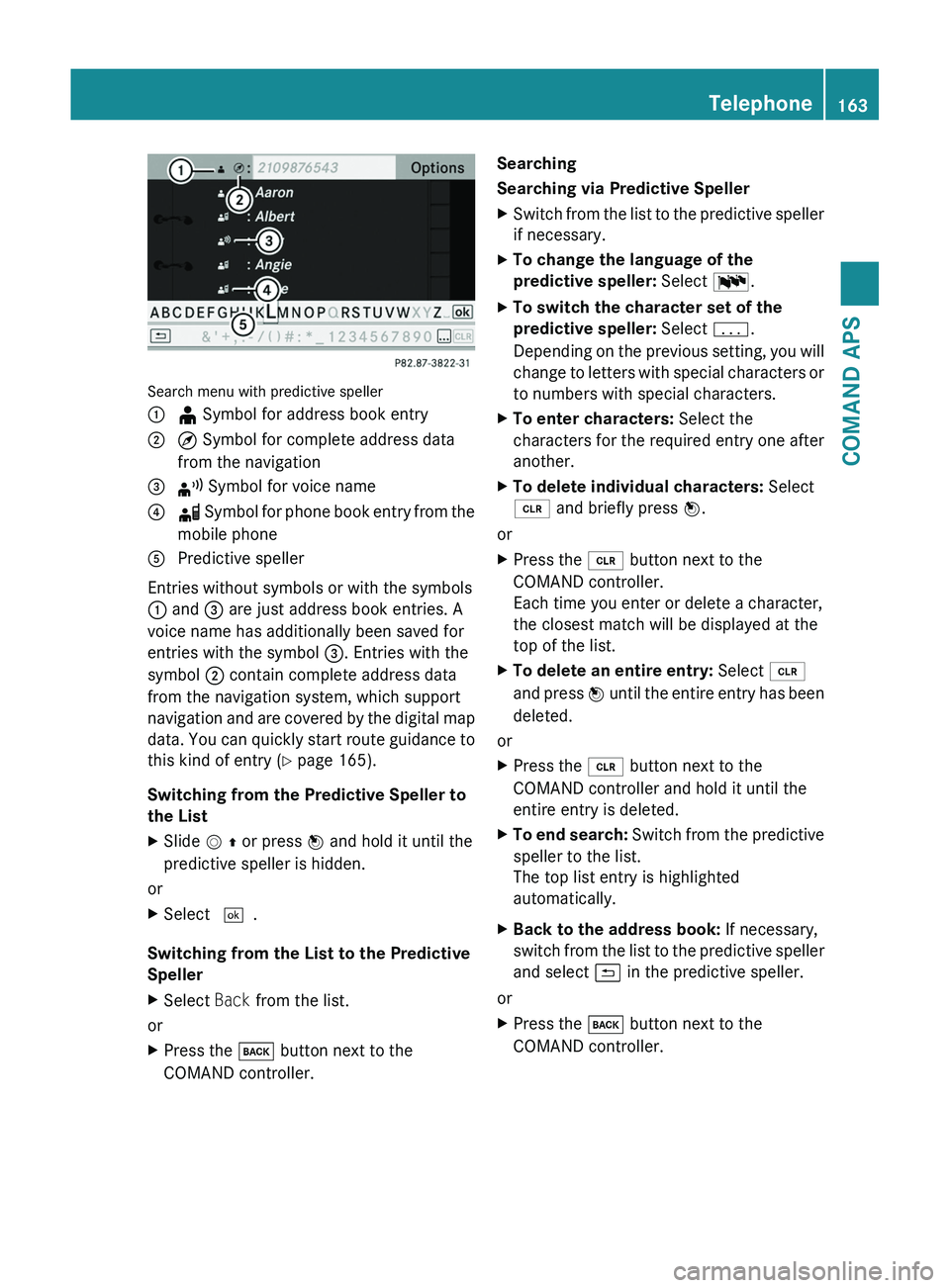
Search menu with predictive speller
1 ¥ Symbol for address book entry2 ¤ Symbol for complete address data
from the navigation
3 ¦ Symbol for voice name4 å Symbol for phone book entry from the
mobile phone
5 Predictive speller
Entries without symbols or with the symbols
1 and 3 are just address book entries. A
voice name has additionally been saved for
entries with the symbol 3. Entries with the
symbol 2 contain complete address data
from the navigation system, which support
navigation and are covered by the digital map
data. You can quickly start route guidance to
this kind of entry (Y page 165).
Switching from the Predictive Speller to
the List
XSlide m q or press n and hold it until the
predictive speller is hidden.
or
XSelect d.
Switching from the List to the Predictive
Speller
XSelect Back from the list.
or
XPress the \000= button next to the
COMAND controller.
Searching
Searching via Predictive Speller
XSwitch from the list to the predictive speller
if necessary.
XTo change the language of the
predictive speller: Select !.
XTo switch the character set of the
predictive speller: Select k.
Depending on the previous setting, you will
change to letters with special characters or
to numbers with special characters.
XTo enter characters: Select the
characters for the required entry one after
another.
XTo delete individual characters: Select
õ and briefly press n.
or
XPress the \000
Page 168 of 436
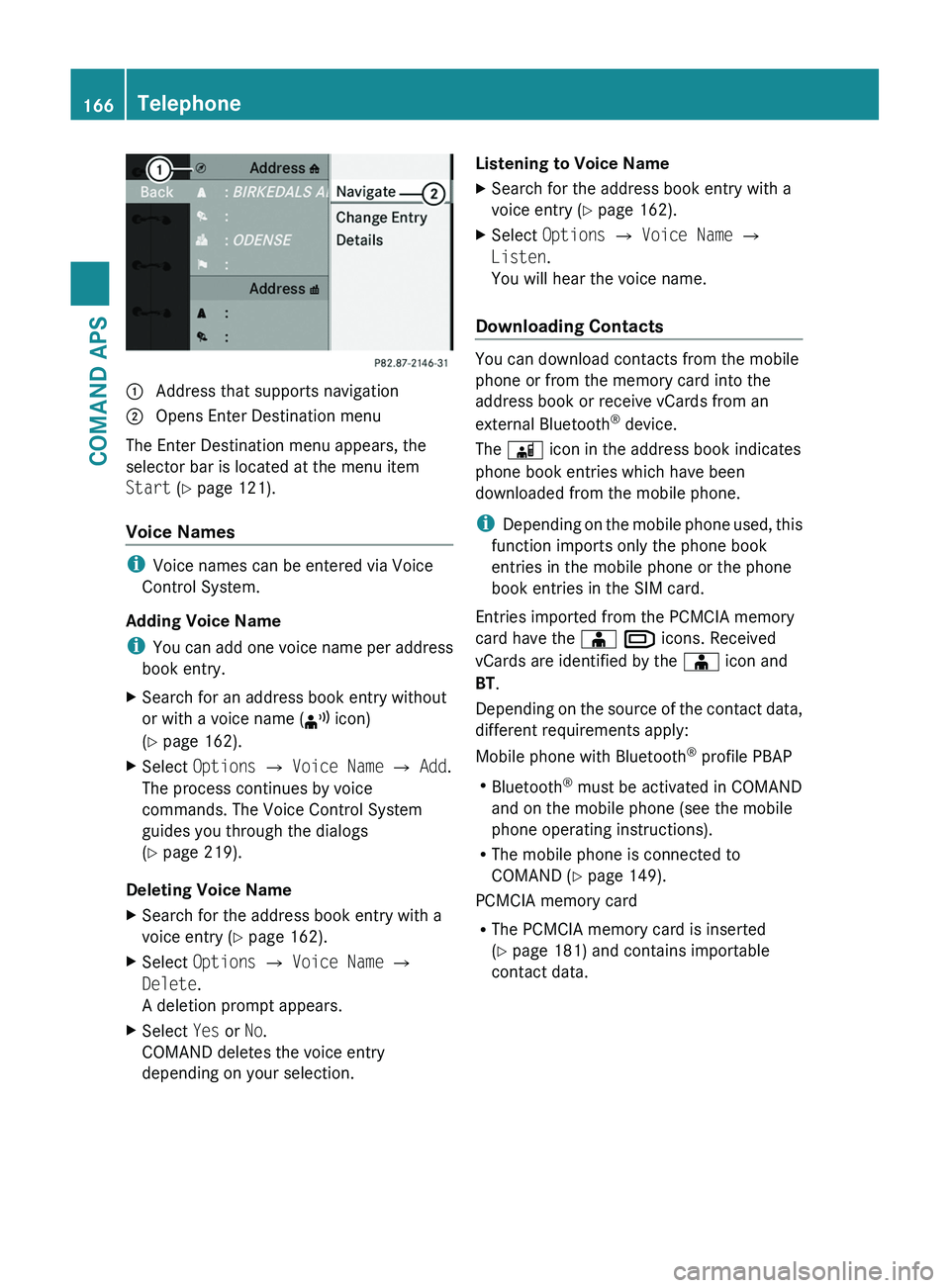
1 Address that supports navigation2 Opens Enter Destination menu
The Enter Destination menu appears, the
selector bar is located at the menu item
Start (Y page 121).
Voice Names
iVoice names can be entered via Voice
Control System.
Adding Voice Name
iYou can add one voice name per address
book entry.
XSearch for an address book entry without
or with a voice name (¦ icon)
(Y page 162).
XSelect Options £ Voice Name £ Add.
The process continues by voice
commands. The Voice Control System
guides you through the dialogs
(Y page 219).
Deleting Voice Name
XSearch for the address book entry with a
voice entry (Y page 162).
XSelect Options £ Voice Name £
Delete.
A deletion prompt appears.
XSelect Yes or No.
COMAND deletes the voice entry
depending on your selection.
Listening to Voice NameXSearch for the address book entry with a
voice entry (Y page 162).
XSelect Options £ Voice Name £
Listen.
You will hear the voice name.
Downloading Contacts
You can download contacts from the mobile
phone or from the memory card into the
address book or receive vCards from an
external Bluetooth® device.
The \000
Page 200 of 436
Switching to Audio Aux Mode
From Another Main Function
XSelect Audio £ Audio £ Aux in the
audio menu display.
iIf the last mode was audio Aux mode, you
only need to select Audio.
Within the Audio Function
XSelect Audio £ Aux.
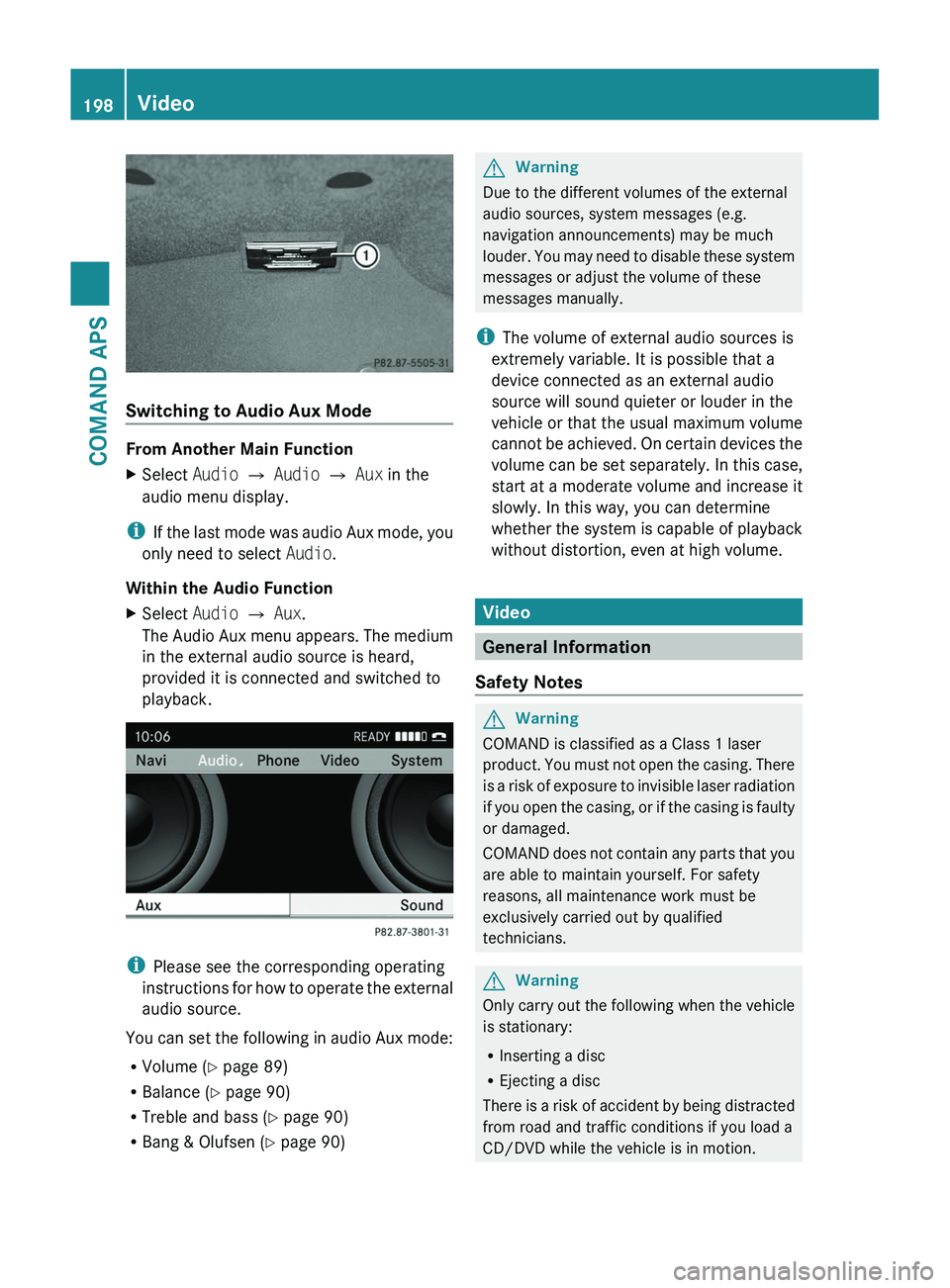
The Audio Aux menu appears. The medium
in the external audio source is heard,
provided it is connected and switched to
playback.
iPlease see the corresponding operating
instructions for how to operate the external
audio source.
You can set the following in audio Aux mode:
RVolume (Y page 89)
RBalance (Y page 90)
RTreble and bass (Y page 90)
RBang & Olufsen (Y page 90)
GWarning
Due to the different volumes of the external
audio sources, system messages (e.g.
navigation announcements) may be much
louder. You may need to disable these system
messages or adjust the volume of these
messages manually.
iThe volume of external audio sources is
extremely variable. It is possible that a
device connected as an external audio
source will sound quieter or louder in the
vehicle or that the usual maximum volume
cannot be achieved. On certain devices the
volume can be set separately. In this case,
start at a moderate volume and increase it
slowly. In this way, you can determine
whether the system is capable of playback
without distortion, even at high volume.
Video
General Information
Safety Notes
GWarning
COMAND is classified as a Class 1 laser
product. You must not open the casing. There
is a risk of exposure to invisible laser radiation
if you open the casing, or if the casing is faulty
or damaged.
COMAND does not contain any parts that you
are able to maintain yourself. For safety
reasons, all maintenance work must be
exclusively carried out by qualified
technicians.
GWarning
Only carry out the following when the vehicle
is stationary:
RInserting a disc
REjecting a disc
There is a risk of accident by being distracted
from road and traffic conditions if you load a
CD/DVD while the vehicle is in motion.
198VideoCOMAND APS
BA 197 USA, CA Edition A 2011; 1; 27, en-UShereepeVersion: 3.0.3.52010-03-24T15:31:10+01:00 - Seite 198
Page 208 of 436
iIn vehicles equipped with a rear view
camera, the Video Aux connection cannot
be used for external video sources.
Switching to Video Aux
From Another Main Function
XSelect Video £ Video £ Video Aux
iIf Video Aux mode was active last, you
only need to select Video.
Within the Video Function
XSelect Video £ Video Aux
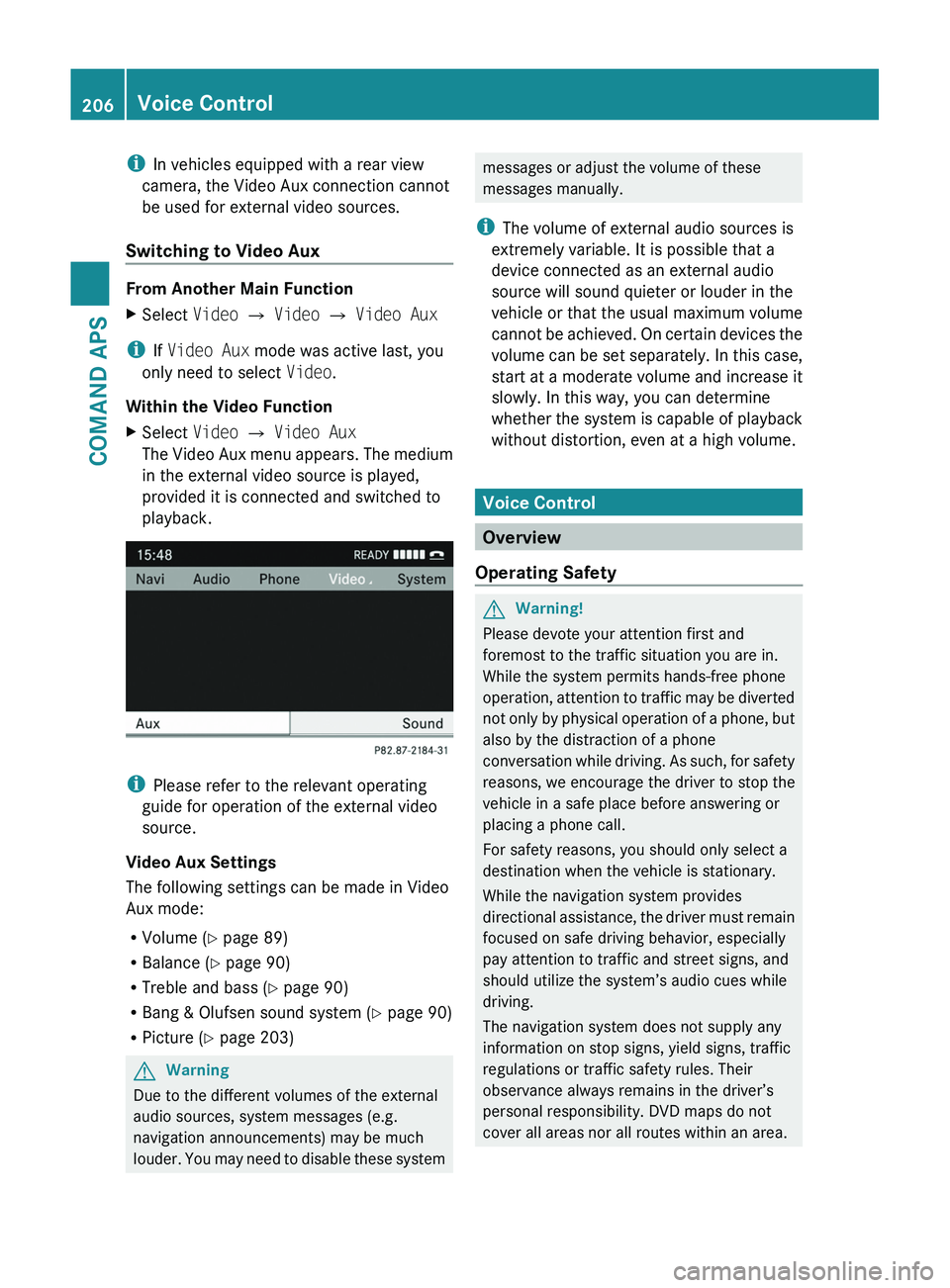
The Video Aux menu appears. The medium
in the external video source is played,
provided it is connected and switched to
playback.
iPlease refer to the relevant operating
guide for operation of the external video
source.
Video Aux Settings
The following settings can be made in Video
Aux mode:
RVolume (Y page 89)
RBalance (Y page 90)
RTreble and bass (Y page 90)
RBang & Olufsen sound system (Y page 90)
RPicture (Y page 203)
GWarning
Due to the different volumes of the external
audio sources, system messages (e.g.
navigation announcements) may be much
louder. You may need to disable these system
messages or adjust the volume of these
messages manually.
iThe volume of external audio sources is
extremely variable. It is possible that a
device connected as an external audio
source will sound quieter or louder in the
vehicle or that the usual maximum volume
cannot be achieved. On certain devices the
volume can be set separately. In this case,
start at a moderate volume and increase it
slowly. In this way, you can determine
whether the system is capable of playback
without distortion, even at a high volume.
Voice Control
Overview
Operating Safety
GWarning!
Please devote your attention first and
foremost to the traffic situation you are in.
While the system permits hands-free phone
operation, attention to traffic may be diverted
not only by physical operation of a phone, but
also by the distraction of a phone
conversation while driving. As such, for safety
reasons, we encourage the driver to stop the
vehicle in a safe place before answering or
placing a phone call.
For safety reasons, you should only select a
destination when the vehicle is stationary.
While the navigation system provides
directional assistance, the driver must remain
focused on safe driving behavior, especially
pay attention to traffic and street signs, and
should utilize the system’s audio cues while
driving.
The navigation system does not supply any
information on stop signs, yield signs, traffic
regulations or traffic safety rules. Their
observance always remains in the driver’s
personal responsibility. DVD maps do not
cover all areas nor all routes within an area.
206Voice ControlCOMAND APS
BA 197 USA, CA Edition A 2011; 1; 27, en-UShereepeVersion: 3.0.3.52010-03-24T15:31:10+01:00 - Seite 206
Page 209 of 436
Traffic regulations always have priority over
any route recommendations given.
Bear in mind that at a speed of just 30 mph
(approximately 50 km/h), your vehicle is
covering a distance of 44 feet (approximately
14 m) every second.GWarning
Navigation announcements are intended to
direct you while driving without diverting your
attention from the road and driving.
Please always use this feature instead of
consulting the map display for directions.
Consulting the symbols or map display for
directions may cause you to divert your
attention from driving and increase your risk
of an accident.
GWarning!
Please do not use the Voice Control System
in an emergency, as the tone of your voice
may change in a stressful situation. This could
cause a delay in completing your phone call
in a timely manner. This could distract you in
an emergency situation and cause you to be
involved in an accident.
Vehicle Equipment
i This Operator’s Manual describes all
features, standard or optional, potentially
available for your vehicle at the time of
purchase. Please be aware that your
vehicle might not be equipped with all
features described in this manual.
Symbols Only Used in this Chapter
The following symbols indicate:
sthat you have to say somethingtthat there is a voice output from the
voice controluthat the system shows information on
the display.Usage
You can use the voice control system to
operate the following systems depending on
the equipment in your vehicle:
R Phone
R Navigation
R Address book
R Audio (radio, satellite radio, DVD changer,
memory card, music register, media
interface)
Say the commands without pausing between
individual words. If you enter a command that
does not exist or is incorrect, the voice
control system asks you for a new command
with Please repeat or Please repeat
your entry! . The voice control confirms
important commands to you and gives you
instructions in the event of incorrect entries.
Command Types
Voice control distinguishes between the
following types of command:
R Global commands:
These are commands which can be called
up at any time (e.g. help, navigation or
phone commands).
R Local commands:
These are commands which are only
available for the active application (e.g.
“Save”).
Active Application
The local commands refer to the application
currently shown on the display and to the
audio source you are currently listening to.
For example, if you are listening to the radio
while the navigation application is active on
the display, you can operate both
applications using voice control.
Voice Control207COMAND APSBA 197 USA, CA Edition A 2011; 1; 27, en-UShereepeVersion: 3.0.3.52010-03-24T15:31:10+01:00 - Seite 207Z
Page 211 of 436
XPress the 005A or 005B button.
The volume increases or decreases during
voice output.
or
XSet the volume for the voice output on the
volume control for COMAND.
Display Messages
The audible help function can be
supplemented by visual help on the display
( Y page 95). If the help function is switched
on, the most important commands that are
currently possible appear in the display when
you start the dialog.
In the address book and navigation system, a
selection list is shown in the display if voice
control requires additional information from
you.
Entering Numbers
R Digits from “zero” to “nine” are permitted.
R Say the phone number in groups of three
to five digits.
Spell
R The letters of the alphabet and the numbers
0 to 9 are permitted.
R Say the letters in groups of five to seven
letters.
R Say each individual letter clearly.
i Using individualization, you can fine-tune
voice control to your own voice and thus
improve voice recognition. The process of
individualization is described in chapter
“System Settings” ( Y page 95).
i If you use individualization, it may impair
recognition of other users. Switch off
individualization if it makes recognition of
other users worse.
PhoneGWarning
Some jurisdictions prohibit the driver from
using a cellular telephone while driving.
Whether or not prohibited by law, for safety
reasons, the driver should not use the cellular
telephone while the vehicle is in motion. Stop
the vehicle in a safe location before placing or
answering a call.
If you nonetheless choose to use the mobile
phone while driving, please use the handsfree
feature and be sure to pay attention to the
traffic situation at all times. Use the mobile
phone only when road, weather and traffic
conditions permit. Otherwise, you may not be
able to observe traffic conditions and could
endanger yourself and others.
Bear in mind that at a speed of just 30 mph
(approximately 50 km/h), your vehicle is
covering a distance of 44 feet (approximately
14 m) every second.
Operation
You can use voice control to:
R place a call by using your voice to input a
phone number
R store names and numbers in the address
book
R dial a number from the address book
R dial a number from the received calls or
latest calls list
R listen to the phone book
R retrieve and manage your voice mail and
recorded announcement services
R redial
Voice control recognizes whether:
R your phone is switched on
R your phone is connected via Bluetooth ®
R the car phone is registered with the
relevant mobile phone network
R it is possible to dial
If it is not possible to dial, voice control issues
a message to this effect.
Voice Control209COMAND APSBA 197 USA, CA Edition A 2011; 1; 27, en-UShereepeVersion: 3.0.3.52010-03-24T15:31:10+01:00 - Seite 209Z
Page 214 of 436
NavigationGWarning!
For safety reasons, you should only select a
destination when the vehicle is stationary.
While the navigation system provides
directional assistance, the driver must remain
focused on safe driving behavior, especially
pay attention to traffic and street signs, and
should utilize the system’s audio cues while
driving.
The navigation system does not supply any
information on stop signs, yield signs, traffic
regulations or traffic safety rules. Their
observance always remains in the driver’s
personal responsibility. DVD maps do not
cover all areas nor all routes within an area.
Traffic regulations always have priority over
any route recommendations given. Bear in
mind that at a speed of just 30 mph
(approximately 50 km/h), your vehicle is
covering a distance of 44 feet (approximately
14 m) every second.
During route guidance, you will not receive
information on:
R traffic lights
R stop and yield signs
R parking or stopping zones
R one-way streets
R narrow bridges
R other traffic regulation data
You should therefore always strictly observe
traffic regulations while driving. Drive
carefully and always obey traffic laws and
road signs, even if they contradict navigation
system instructions.
GWarning!
Please do not use the Voice Control System
in an emergency, as the tone of your voice
may change in a stressful situation. This could
cause a delay in completing your phone call
in a timely manner. This could distract you in
an emergency situation and cause you to be
involved in an accident.
Operation
You can use voice control to:
R enter a state
R enter a province
R enter a city
R enter a district (center)
R enter a street
R enter an intersection
R enter a house number
R enter an entire address
R enter a zip code
R find address
R enter a point of interest
R select one of your previous destinations
R call up route information
R store a destination
R display the map
R enlarge/reduce the size of the map
R listen to the destination memory
R start and stop route guidance
R switch the guidance instructions on and off
XTo select the navigation application press
the 0062 button on the multifunction
steering wheel.XGive the “Navigation” command.XPress the 0062 button.XGive one of the navigation commands
explained below.
Commands
You cannot start the route guidance until all
the necessary address data has been
entered.
“Help Navigation”/“Help”
Using the “Help navigation” command, you
can have all the essential commands for the
navigation system read out.
212Voice ControlCOMAND APS
BA 197 USA, CA Edition A 2011; 1; 27, en-UShereepeVersion: 3.0.3.52010-03-24T15:31:10+01:00 - Seite 212