navigation system MERCEDES-BENZ SLS AMG 2011 Repair Manual
[x] Cancel search | Manufacturer: MERCEDES-BENZ, Model Year: 2011, Model line: SLS AMG, Model: MERCEDES-BENZ SLS AMG 2011Pages: 436, PDF Size: 17.73 MB
Page 215 of 436
Entering an Address
iIf voice control fails to recognize your
entry, it is advisable to spell the name of
the town and street. Spell names of towns
and streets when abroad.
The system guides you completely through
the dialog to route guidance. As soon as a
valid address is entered (at least the town),
you can use the “Start route guidance”
command to start the route guidance.
“Enter state”/“Enter province”
You can use the “Enter state”/“Enter
province” command to change the state or
province setting of the navigation system.
Example of dialog:
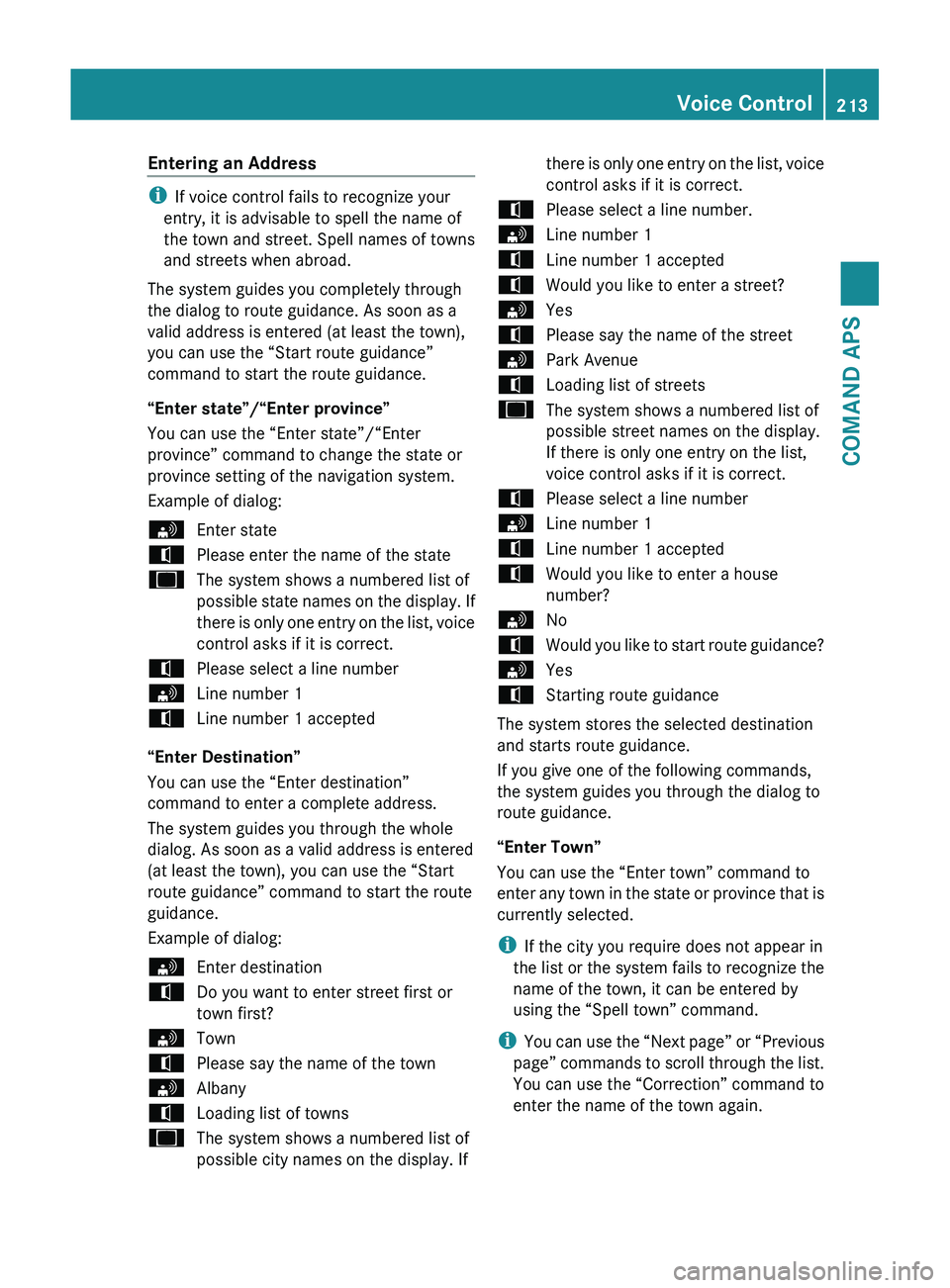
sEnter statetPlease enter the name of the stateuThe system shows a numbered list of
possible state names on the display. If
there is only one entry on the list, voice
control asks if it is correct.tPlease select a line numbersLine number 1tLine number 1 accepted
“Enter Destination”
You can use the “Enter destination”
command to enter a complete address.
The system guides you through the whole
dialog. As soon as a valid address is entered
(at least the town), you can use the “Start
route guidance” command to start the route
guidance.
Example of dialog:
sEnter destinationtDo you want to enter street first or
town first?sTowntPlease say the name of the townsAlbanytLoading list of townsuThe system shows a numbered list of
possible city names on the display. Ifthere is only one entry on the list, voice
control asks if it is correct.tPlease select a line number.sLine number 1tLine number 1 acceptedtWould you like to enter a street?sYestPlease say the name of the streetsPark AvenuetLoading list of streetsuThe system shows a numbered list of
possible street names on the display.
If there is only one entry on the list,
voice control asks if it is correct.tPlease select a line numbersLine number 1tLine number 1 acceptedtWould you like to enter a house
number?sNotWould you like to start route guidance?sYestStarting route guidance
The system stores the selected destination
and starts route guidance.
If you give one of the following commands,
the system guides you through the dialog to
route guidance.
“Enter Town”
You can use the “Enter town” command to
enter any town in the state or province that is
currently selected.
i If the city you require does not appear in
the list or the system fails to recognize the
name of the town, it can be entered by
using the “Spell town” command.
i You can use the “Next page” or “Previous
page” commands to scroll through the list.
You can use the “Correction” command to
enter the name of the town again.
Voice Control213COMAND APSBA 197 USA, CA Edition A 2011; 1; 27, en-UShereepeVersion: 3.0.3.52010-03-24T15:31:10+01:00 - Seite 213Z
Page 218 of 436
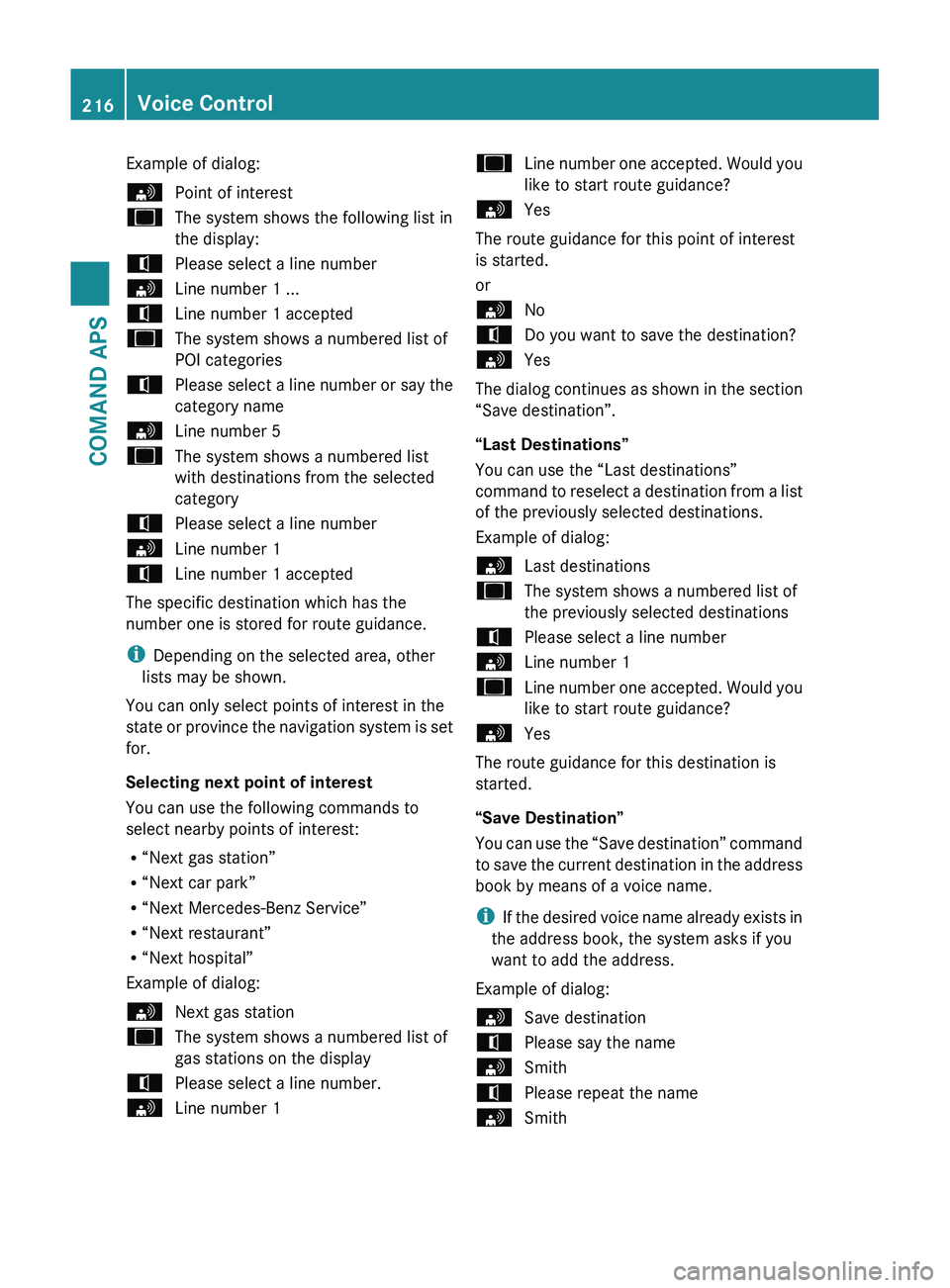
Example of dialog:sPoint of interestuThe system shows the following list in
the display:tPlease select a line numbersLine number 1 ...tLine number 1 accepteduThe system shows a numbered list of
POI categoriestPlease select a line number or say the
category namesLine number 5uThe system shows a numbered list
with destinations from the selected
categorytPlease select a line numbersLine number 1tLine number 1 accepted
The specific destination which has the
number one is stored for route guidance.
i Depending on the selected area, other
lists may be shown.
You can only select points of interest in the
state or province the navigation system is set
for.
Selecting next point of interest
You can use the following commands to
select nearby points of interest:
R “Next gas station”
R “Next car park”
R “Next Mercedes-Benz Service”
R “Next restaurant”
R “Next hospital”
Example of dialog:
sNext gas stationuThe system shows a numbered list of
gas stations on the displaytPlease select a line number.sLine number 1uLine number one accepted. Would you
like to start route guidance?sYes
The route guidance for this point of interest
is started.
or
sNotDo you want to save the destination?sYes
The dialog continues as shown in the section
“Save destination”.
“Last Destinations”
You can use the “Last destinations”
command to reselect a destination from a list
of the previously selected destinations.
Example of dialog:
sLast destinationsuThe system shows a numbered list of
the previously selected destinationstPlease select a line numbersLine number 1uLine number one accepted. Would you
like to start route guidance?sYes
The route guidance for this destination is
started.
“Save Destination”
You can use the “Save destination” command
to save the current destination in the address
book by means of a voice name.
i If the desired voice name already exists in
the address book, the system asks if you
want to add the address.
Example of dialog:
sSave destinationtPlease say the namesSmithtPlease repeat the namesSmith216Voice ControlCOMAND APS
BA 197 USA, CA Edition A 2011; 1; 27, en-UShereepeVersion: 3.0.3.52010-03-24T15:31:10+01:00 - Seite 216
Page 227 of 436
“DVD Video”
With the “DVD video” command, you can start
a Video DVD on the COMAND system.
“Music Register”
With the “Music register” command, you can
change to the internal music register (hard
disk) of COMAND.
“Media Interface”
With the “Media interface” command, you
can change to the external device that is
connected to the media interface of
COMAND.
External Equipment (Aux)
“Audio Aux”
You can use the “Audio Aux” command to
activate the Aux input.
Command List
In the Command list section, you will find all
the main commands for operating voice
control. The commands available to you
depend on the vehicle’s equipment.
i Some functions have several voice
commands to facilitate operation. These
are grouped together between the
separator lines in the list and can be used
interchangeably.
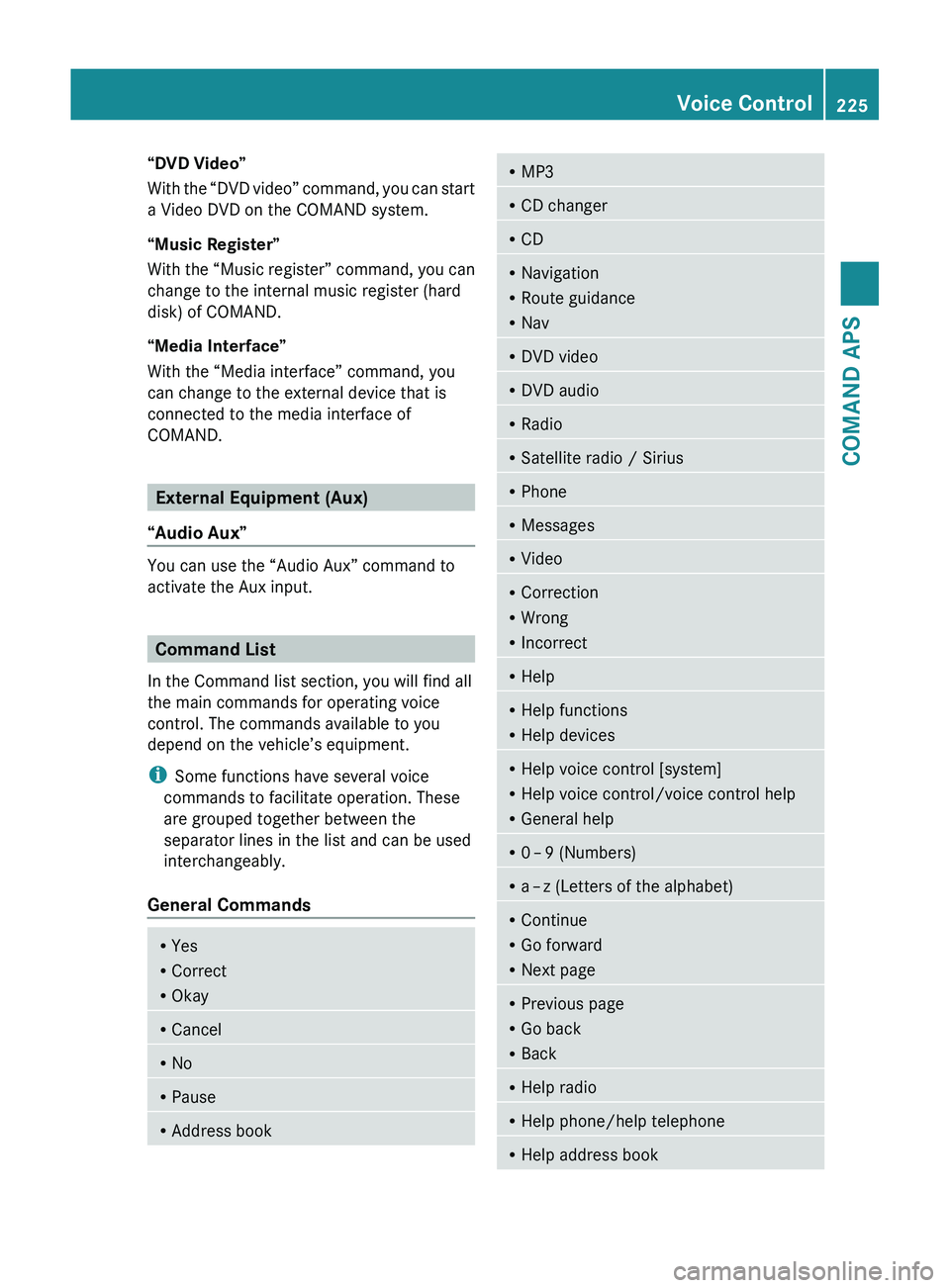
General Commands
R Yes
R Correct
R OkayRCancelRNoRPauseRAddress bookRMP3RCD changerRCDRNavigation
R Route guidance
R NavRDVD videoRDVD audioRRadioRSatellite radio / SiriusRPhoneRMessagesRVideoRCorrection
R Wrong
R IncorrectRHelpRHelp functions
R Help devicesRHelp voice control [system]
R Help voice control/voice control help
R General helpR0 – 9 (Numbers)R
a – z (Letters of the alphabet)R
Continue
R Go forward
R Next pageRPrevious page
R Go back
R BackRHelp radioRHelp phone/help telephoneRHelp address bookVoice Control225COMAND APSBA 197 USA, CA Edition A 2011; 1; 27, en-UShereepeVersion: 3.0.3.52010-03-24T15:31:10+01:00 - Seite 225Z
Page 279 of 436
XPress button 003D to select Yes.XPress button 0064 to confirm.
Remaining driving range
XPress button 0040 or 003E to select the
Trip menu.XPress button 003D or 003C to select the
estimated remaining driving range.
Note that the values are calculated based
on the current fuel tank level and the
current driving style. Make sure to refuel in
time.
If only very little fuel is left in the tank, a
vehicle at the fuel pump 00AA appears
instead of the estimated remaining driving
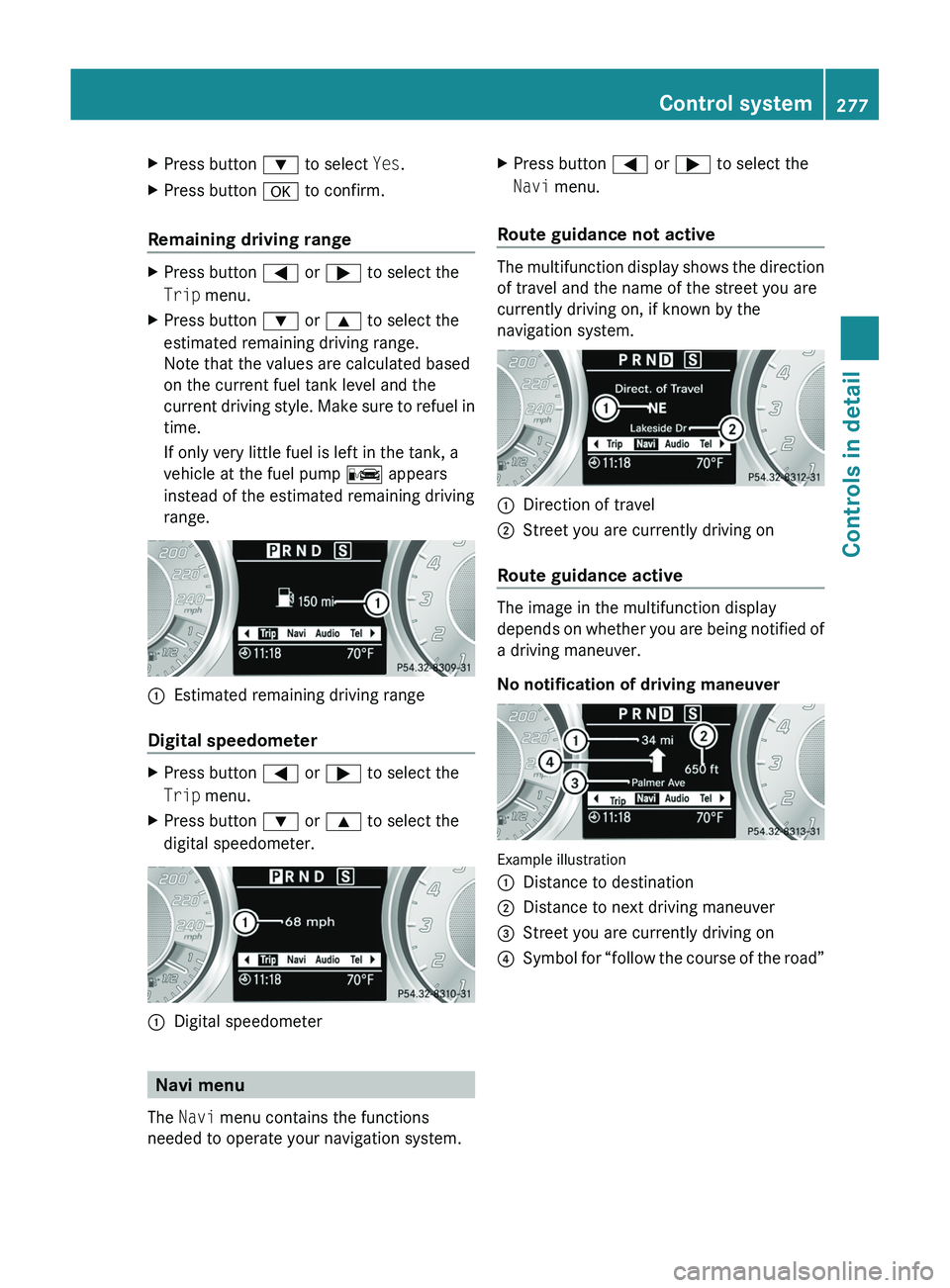
range.0046Estimated remaining driving range
Digital speedometer
XPress button 0040 or 003E to select the
Trip menu.XPress button 003D or 003C to select the
digital speedometer.0046Digital speedometer
Navi menu
The Navi menu contains the functions
needed to operate your navigation system.
XPress button 0040 or 003E to select the
Navi menu.
Route guidance not active
The multifunction display shows the direction
of travel and the name of the street you are
currently driving on, if known by the
navigation system.
0046Direction of travel0047Street you are currently driving on
Route guidance active
The image in the multifunction display
depends on whether you are being notified of
a driving maneuver.
No notification of driving maneuver
Example illustration
0046Distance to destination0047Distance to next driving maneuver008AStreet you are currently driving on0088Symbol for “follow the course of the road”Control system277Controls in detailBA 197 USA, CA Edition A 2011; 1; 27, en-UShereepeVersion: 3.0.3.52010-03-24T15:31:10+01:00 - Seite 277Z
Page 280 of 436
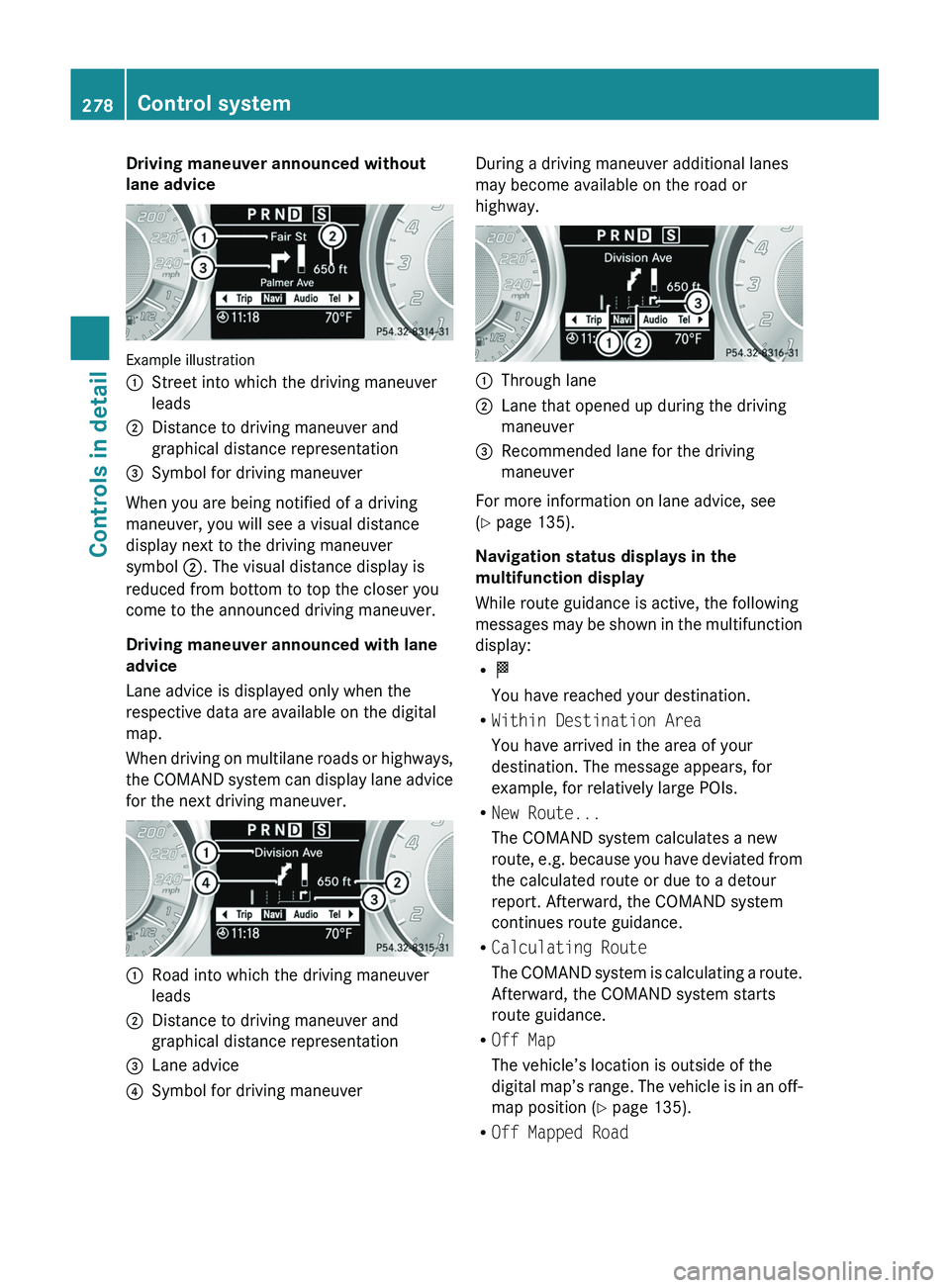
Driving maneuver announced without
lane advice
Example illustration
0046Street into which the driving maneuver
leads0047Distance to driving maneuver and
graphical distance representation008ASymbol for driving maneuver
When you are being notified of a driving
maneuver, you will see a visual distance
display next to the driving maneuver
symbol 0047. The visual distance display is
reduced from bottom to top the closer you
come to the announced driving maneuver.
Driving maneuver announced with lane
advice
Lane advice is displayed only when the
respective data are available on the digital
map.
When driving on multilane roads or highways,
the COMAND system can display lane advice
for the next driving maneuver.
0046Road into which the driving maneuver
leads0047Distance to driving maneuver and
graphical distance representation008ALane advice0088Symbol for driving maneuverDuring a driving maneuver additional lanes
may become available on the road or
highway.0046Through lane0047Lane that opened up during the driving
maneuver008ARecommended lane for the driving
maneuver
For more information on lane advice, see
( Y page 135).
Navigation status displays in the
multifunction display
While route guidance is active, the following
messages may be shown in the multifunction
display:
R 0054
You have reached your destination.
R Within Destination Area
You have arrived in the area of your
destination. The message appears, for
example, for relatively large POIs.
R New Route...
The COMAND system calculates a new
route, e.g. because you have deviated from
the calculated route or due to a detour
report. Afterward, the COMAND system
continues route guidance.
R Calculating Route
The COMAND system is calculating a route.
Afterward, the COMAND system starts
route guidance.
R Off Map
The vehicle’s location is outside of the
digital map’s range. The vehicle is in an off-
map position ( Y page 135).
R Off Mapped Road
278Control systemControls in detail
BA 197 USA, CA Edition A 2011; 1; 27, en-UShereepeVersion: 3.0.3.52010-03-24T15:31:10+01:00 - Seite 278
Page 286 of 436
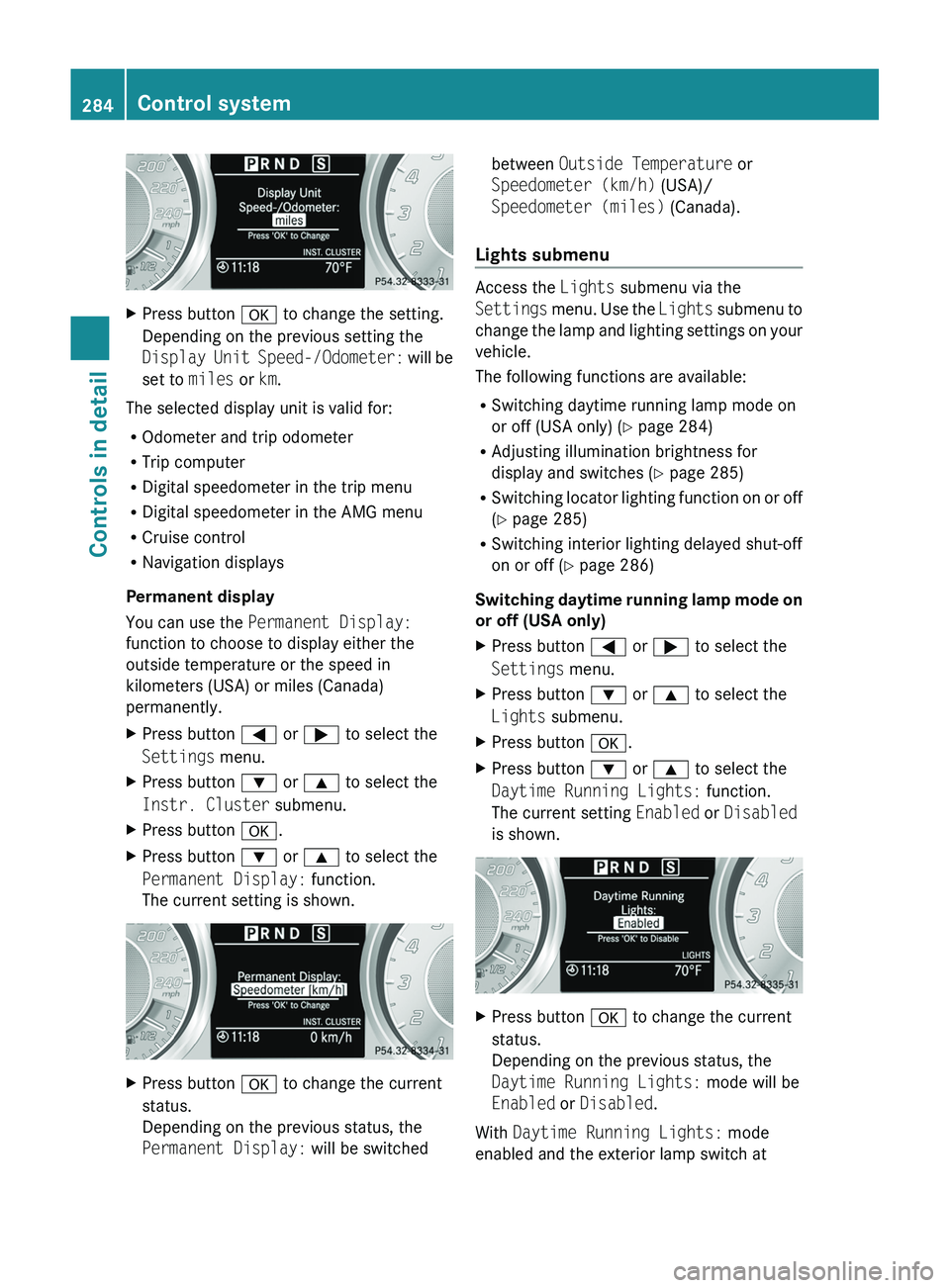
XPress button 0064 to change the setting.
Depending on the previous setting the
Display Unit Speed-/Odometer: will be
set to miles or km.
The selected display unit is valid for:
R Odometer and trip odometer
R Trip computer
R Digital speedometer in the trip menu
R Digital speedometer in the AMG menu
R Cruise control
R Navigation displays
Permanent display
You can use the Permanent Display:
function to choose to display either the
outside temperature or the speed in
kilometers (USA) or miles (Canada)
permanently.
XPress button 0040 or 003E to select the
Settings menu.XPress button 003D or 003C to select the
Instr. Cluster submenu.XPress button 0064.XPress button 003D or 003C to select the
Permanent Display: function.
The current setting is shown.XPress button 0064 to change the current
status.
Depending on the previous status, the
Permanent Display: will be switchedbetween Outside Temperature or
Speedometer (km/h) (USA)/
Speedometer (miles) (Canada).
Lights submenu
Access the Lights submenu via the
Settings menu. Use the Lights submenu to
change the lamp and lighting settings on your
vehicle.
The following functions are available:
R Switching daytime running lamp mode on
or off (USA only) ( Y page 284)
R Adjusting illumination brightness for
display and switches ( Y page 285)
R Switching locator lighting function on or off
( Y page 285)
R Switching interior lighting delayed shut-off
on or off ( Y page 286)
Switching daytime running lamp mode on
or off (USA only)
XPress button 0040 or 003E to select the
Settings menu.XPress button 003D or 003C to select the
Lights submenu.XPress button 0064.XPress button 003D or 003C to select the
Daytime Running Lights: function.
The current setting Enabled or Disabled
is shown.XPress button 0064 to change the current
status.
Depending on the previous status, the
Daytime Running Lights: mode will be
Enabled or Disabled .
With Daytime Running Lights: mode
enabled and the exterior lamp switch at
284Control systemControls in detail
BA 197 USA, CA Edition A 2011; 1; 27, en-UShereepeVersion: 3.0.3.52010-03-24T15:31:10+01:00 - Seite 284
Page 313 of 436
XTerminating calls: Press button 007F on
the multifunction steering wheel.
or
XPress the respective button for ending a
telephone call on the COMAND system.
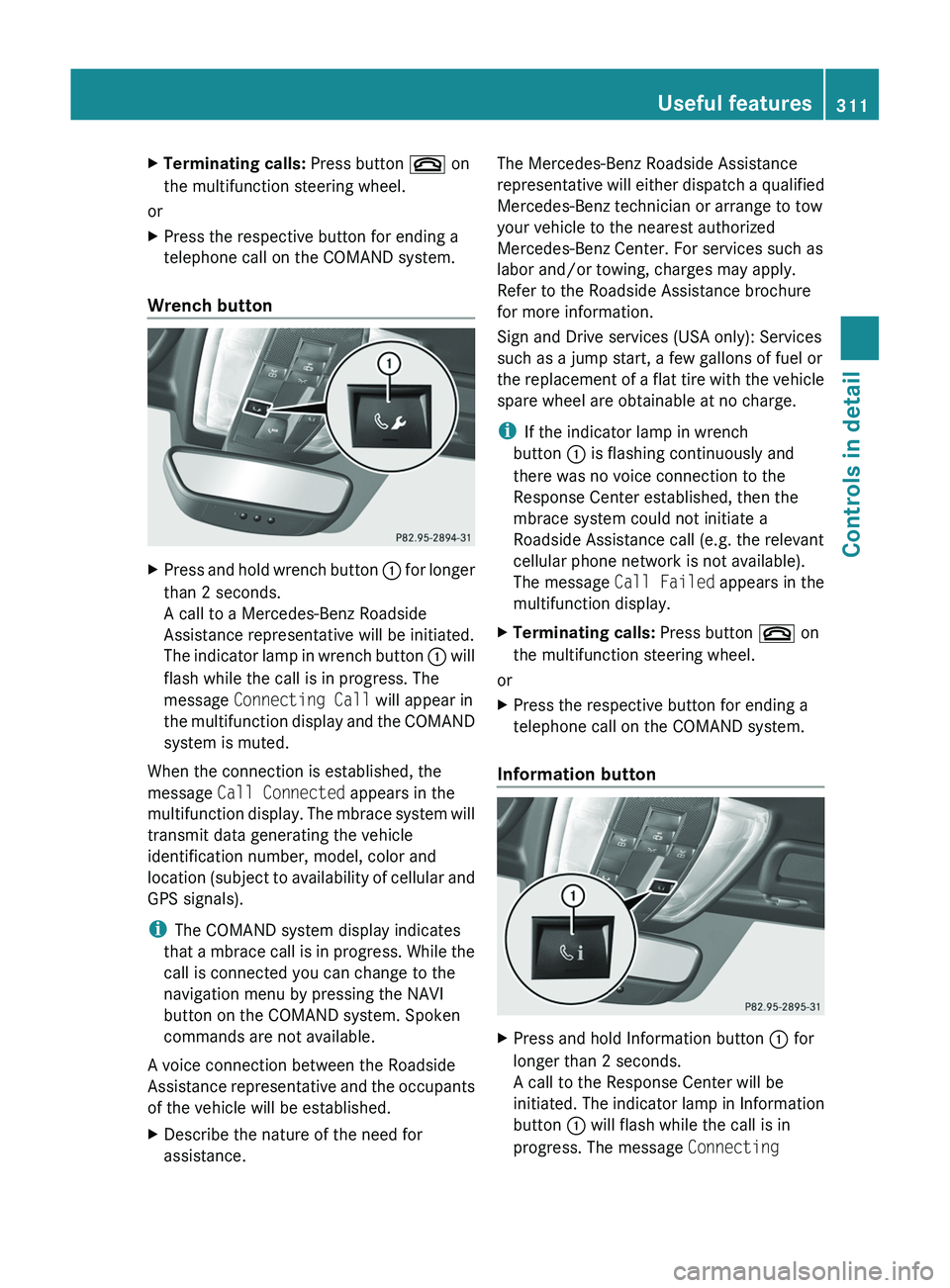
Wrench button
XPress and hold wrench button 0046 for longer
than 2 seconds.
A call to a Mercedes-Benz Roadside
Assistance representative will be initiated.
The indicator lamp in wrench button 0046 will
flash while the call is in progress. The
message Connecting Call will appear in
the multifunction display and the COMAND
system is muted.
When the connection is established, the
message Call Connected appears in the
multifunction display. The mbrace system will
transmit data generating the vehicle
identification number, model, color and
location (subject to availability of cellular and
GPS signals).
i The COMAND system display indicates
that a mbrace call is in progress. While the
call is connected you can change to the
navigation menu by pressing the NAVI
button on the COMAND system. Spoken
commands are not available.
A voice connection between the Roadside
Assistance representative and the occupants
of the vehicle will be established.
XDescribe the nature of the need for
assistance.The Mercedes-Benz Roadside Assistance
representative will either dispatch a qualified
Mercedes-Benz technician or arrange to tow
your vehicle to the nearest authorized
Mercedes-Benz Center. For services such as
labor and/or towing, charges may apply.
Refer to the Roadside Assistance brochure
for more information.
Sign and Drive services (USA only): Services
such as a jump start, a few gallons of fuel or
the replacement of a flat tire with the vehicle
spare wheel are obtainable at no charge.
i If the indicator lamp in wrench
button 0046 is flashing continuously and
there was no voice connection to the
Response Center established, then the
mbrace system could not initiate a
Roadside Assistance call (e.g. the relevant
cellular phone network is not available).
The message Call Failed appears in the
multifunction display.XTerminating calls: Press button 007F on
the multifunction steering wheel.
or
XPress the respective button for ending a
telephone call on the COMAND system.
Information button
XPress and hold Information button 0046 for
longer than 2 seconds.
A call to the Response Center will be
initiated. The indicator lamp in Information
button 0046 will flash while the call is in
progress. The message Connecting Useful features311Controls in detailBA 197 USA, CA Edition A 2011; 1; 27, en-UShereepeVersion: 3.0.3.52010-03-24T15:31:10+01:00 - Seite 311Z
Page 314 of 436
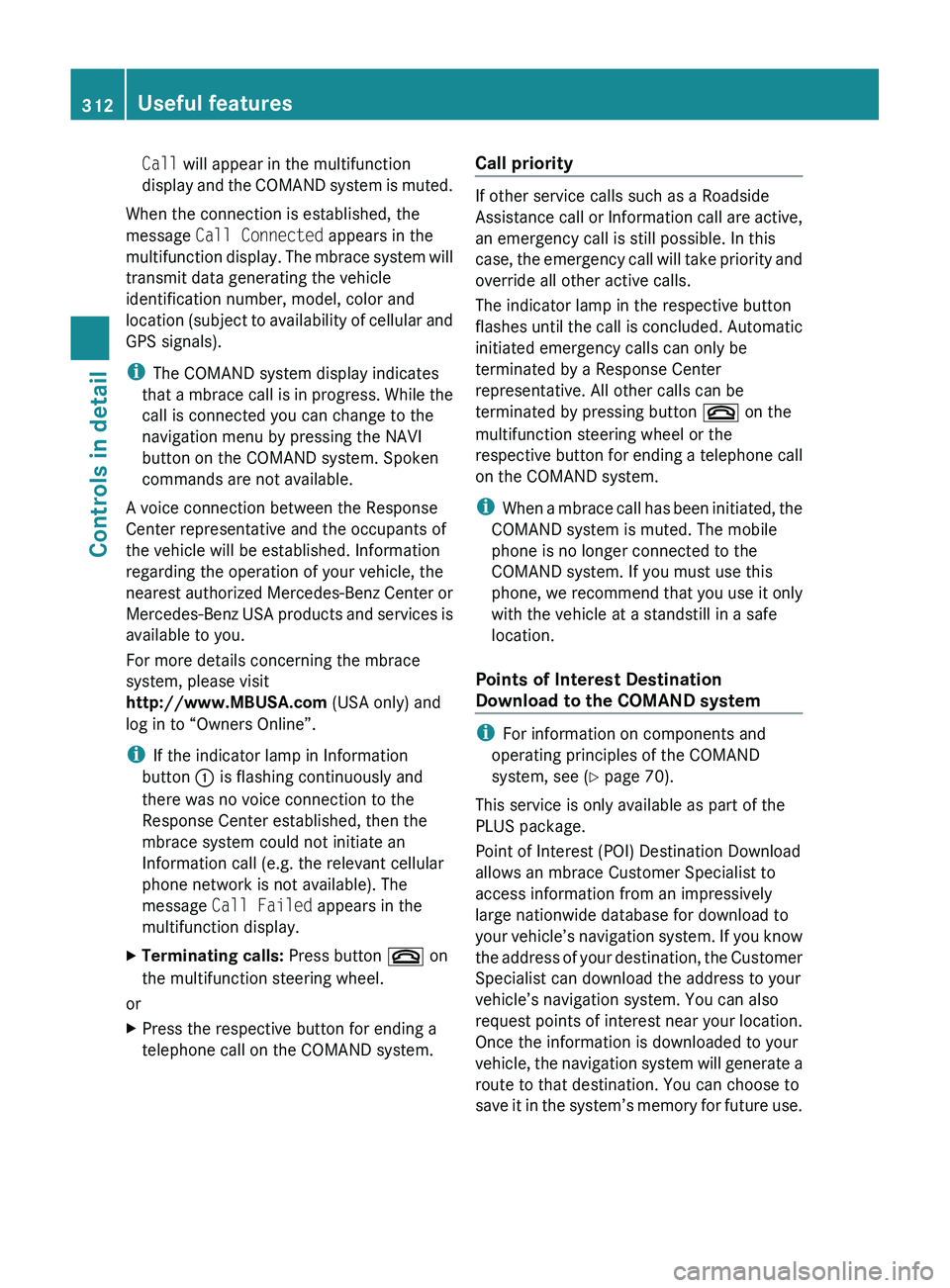
Call will appear in the multifunction
display and the COMAND system is muted.
When the connection is established, the
message Call Connected appears in the
multifunction display. The mbrace system will
transmit data generating the vehicle
identification number, model, color and
location (subject to availability of cellular and
GPS signals).
i The COMAND system display indicates
that a mbrace call is in progress. While the
call is connected you can change to the
navigation menu by pressing the NAVI
button on the COMAND system. Spoken
commands are not available.
A voice connection between the Response
Center representative and the occupants of
the vehicle will be established. Information
regarding the operation of your vehicle, the
nearest authorized Mercedes-Benz Center or
Mercedes-Benz USA products and services is
available to you.
For more details concerning the mbrace
system, please visit
http://www.MBUSA.com (USA only) and
log in to “Owners Online”.
i If the indicator lamp in Information
button 0046 is flashing continuously and
there was no voice connection to the
Response Center established, then the
mbrace system could not initiate an
Information call (e.g. the relevant cellular
phone network is not available). The
message Call Failed appears in the
multifunction display.
XTerminating calls: Press button 007F on
the multifunction steering wheel.
or
XPress the respective button for ending a
telephone call on the COMAND system.Call priority
If other service calls such as a Roadside
Assistance call or Information call are active,
an emergency call is still possible. In this
case, the emergency call will take priority and
override all other active calls.
The indicator lamp in the respective button
flashes until the call is concluded. Automatic
initiated emergency calls can only be
terminated by a Response Center
representative. All other calls can be
terminated by pressing button 007F on the
multifunction steering wheel or the
respective button for ending a telephone call
on the COMAND system.
i When a mbrace call has been initiated, the
COMAND system is muted. The mobile
phone is no longer connected to the
COMAND system. If you must use this
phone, we recommend that you use it only
with the vehicle at a standstill in a safe
location.
Points of Interest Destination
Download to the COMAND system
i For information on components and
operating principles of the COMAND
system, see ( Y page 70).
This service is only available as part of the
PLUS package.
Point of Interest (POI) Destination Download
allows an mbrace Customer Specialist to
access information from an impressively
large nationwide database for download to
your vehicle’s navigation system. If you know
the address of your destination, the Customer
Specialist can download the address to your
vehicle’s navigation system. You can also
request points of interest near your location.
Once the information is downloaded to your
vehicle, the navigation system will generate a
route to that destination. You can choose to
save it in the system’s memory for future use.
312Useful featuresControls in detail
BA 197 USA, CA Edition A 2011; 1; 27, en-UShereepeVersion: 3.0.3.52010-03-24T15:31:10+01:00 - Seite 312
Page 315 of 436
Route Assistance
This service is only available as part of the
PLUS package.
With the Route Assistance service you get
professional, reliable guidance from an
mbrace Customer Specialist without leaving
your vehicle.
Using your current location and intended
destination, a Customer Specialist can find
the best route and provide turn-by-turn
directions, giving you the reassurance of live
assistance in times of need. Route Assistance
is available at the touch of a button, even if
your vehicle is not equipped with a COMAND
navigation system.
Search & Send
“Search & Send” is a navigation destination
address entry service. For more information
on “Search & Send”, see ( Y page 125).
Remote door lock
If you have forgotten to lock your vehicle and
are no longer near it, you can have it locked
remotely through the Response Center.
The vehicle can be remotely locked within
four days after the ignition has been switched
off.
XContact Response Center at
866-990-9007 (USA only) or
1-888-923-8367 (Canada only).
You will be asked to provide your Personal
Identification Number (PIN).
When you are inside your vehicle the next
time and switch on the ignition, the message
Tele Aid Doors Locked Remotely will
appear on the multifunction display.
i The remote door lock feature is available
if the relevant cellular phone network is
available and data connection is possible.
Stolen Vehicle Recovery Services
In the event your vehicle was stolen:
XReport the incident to the police.
The police will issue a numbered incident
report.XPass this number on to the Response
Center along with your Personal
Identification Number (PIN).
The Response Center will then attempt to
covertly contact the vehicle’s mbrace
system. Once the vehicle is located, the
Response Center will contact the local law
enforcement and you. The vehicle’s
location will only be provided to law
enforcement.
i If the anti-theft alarm stays on for more
than 30 seconds, the mbrace system will
notify the Response Center automatically.
Garage door opener
The integrated remote control can operate up
to three separately controlled devices
compatible with HomeLink ®
or some other
systems.
GWarning!
Before programming the integrated remote
control to a garage door opener or gate
operator, make sure people and objects are
out of the way of the device to prevent
potential harm or damage. When
programming a garage door opener, the door
moves up or down. When programming a gate
operator, the gate opens or closes.
Do not use the integrated remote control with
any garage door opener that lacks safety stop
and reverse features as required by U.S.
federal safety standards (this includes any
garage door opener model manufactured
before April 1, 1982). A garage door that
cannot detect an object - signaling the door
to stop and reverse - does not meet current
U.S. federal safety standards.
Useful features313Controls in detailBA 197 USA, CA Edition A 2011; 1; 27, en-UShereepeVersion: 3.0.3.52010-03-24T15:31:10+01:00 - Seite 313Z