navigation system MERCEDES-BENZ SLS AMG 2011 Owner's Guide
[x] Cancel search | Manufacturer: MERCEDES-BENZ, Model Year: 2011, Model line: SLS AMG, Model: MERCEDES-BENZ SLS AMG 2011Pages: 436, PDF Size: 17.73 MB
Page 113 of 436
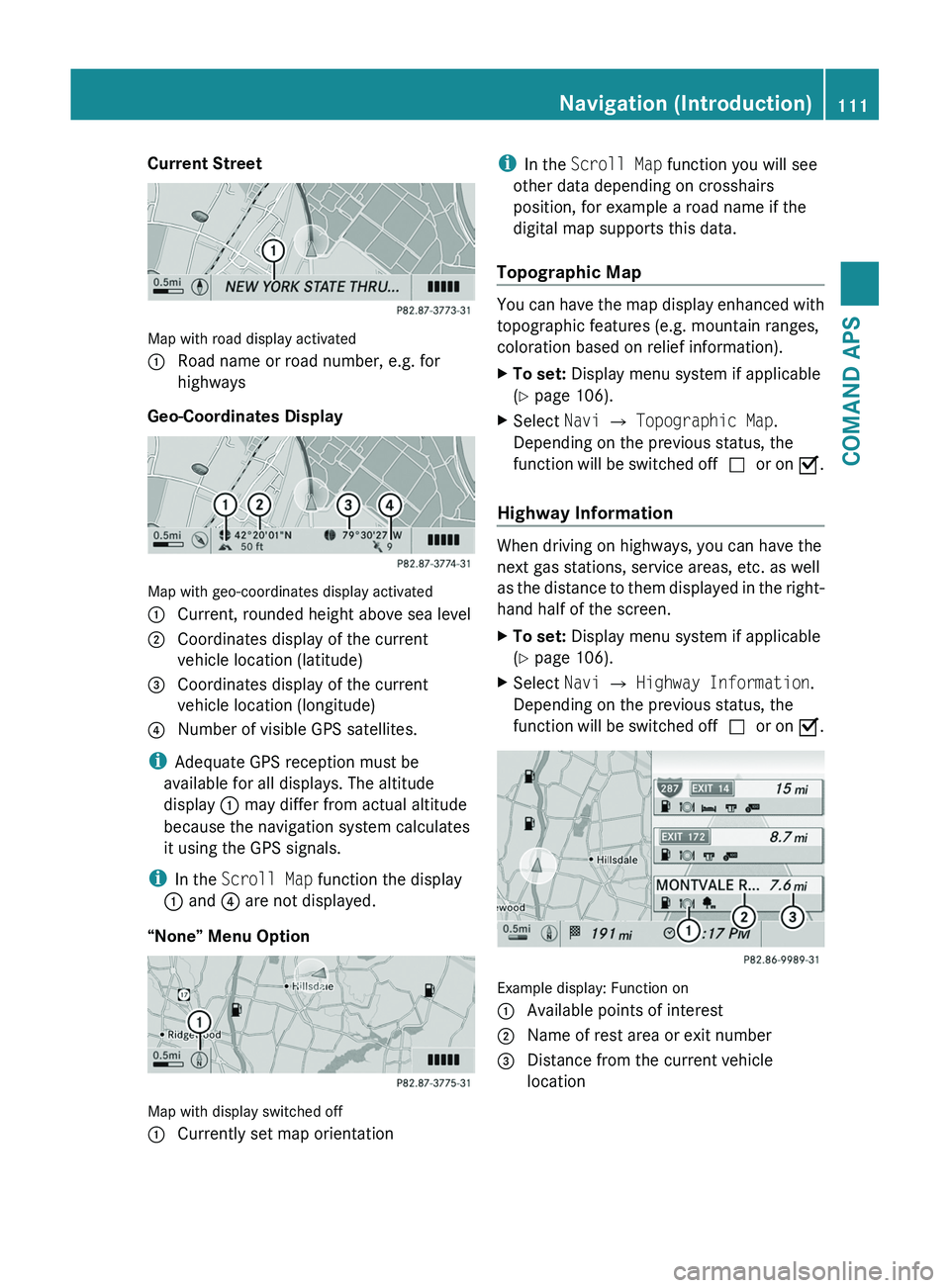
Current Street
Map with road display activated
1 Road name or road number, e.g. for
highways
Geo-Coordinates Display
Map with geo-coordinates display activated
1 Current, rounded height above sea level2 Coordinates display of the current
vehicle location (latitude)
3 Coordinates display of the current
vehicle location (longitude)
4 Number of visible GPS satellites.
iAdequate GPS reception must be
available for all displays. The altitude
display 1 may differ from actual altitude
because the navigation system calculates
it using the GPS signals.
iIn the Scroll Map function the display
1 and 4 are not displayed.
“None” Menu Option
Map with display switched off
1 Currently set map orientationiIn the Scroll Map function you will see
other data depending on crosshairs
position, for example a road name if the
digital map supports this data.
Topographic Map
You can have the map display enhanced with
topographic features (e.g. mountain ranges,
coloration based on relief information).
XTo set: Display menu system if applicable
(Y page 106).
XSelect Navi £ Topographic Map.
Depending on the previous status, the
function will be switched offcor on Ç.
Highway Information
When driving on highways, you can have the
next gas stations, service areas, etc. as well
as the distance to them displayed in the right-
hand half of the screen.
XTo set: Display menu system if applicable
(Y page 106).
XSelect Navi £ Highway Information.
Depending on the previous status, the
function will be switched offcor on Ç.
Example display: Function on
1 Available points of interest2 Name of rest area or exit number3 Distance from the current vehicle
location
Navigation (Introduction)111COMAND APSBA 197 USA, CA Edition A 2011; 1; 27, en-UShereepeVersion: 3.0.3.52010-03-24T15:31:10+01:00 - Seite 111Z
Page 114 of 436
Read Traffic Messages Automatically
You can choose whether the traffic messages
relevant for the route are read automatically
or whether you have to start the reading
manually using the Traffic submenu.
XTo set: Display menu system if applicable
(Y page 106).
XSelect Navi £ Read Traffic
Messages Automatically.
Depending on the previous status, the
function will be switched offcor on Ç.
Audio Fadeout
The Audio Fadeout function, if activated,
lowers the volume of the current audio source
when a navigation announcement is issued.
As soon as the navigation announcement has
ended, the audio source will be played with
the previous volume.
XTo activate: Display menu system if
applicable (Y page 106).
XSelect Navi £ Audio Fadeout.
Depending on the previous status, the
function will be switched offcor on Ç.
Block Area
You can define an area within the map display
that is not to be used by the system in
calculating a route, if possible.
iThe calculated route may include a
blocked area if the destination is within a
blocked area or if the destination can only
be reached using roads that lead through a
blocked area. Highways cannot be blocked.
XTo set, change or delete: Display menu
system if applicable (Y page 106).
XSelect Navi £ Block Area.
If no areas were previously set, the map
display appears ready to select an area. If
areas were previously set, the blocked area
list appears.
XTo set the map scale: Rotate y m z.X To scroll the map: Slide q m r, o m p or
w m x.
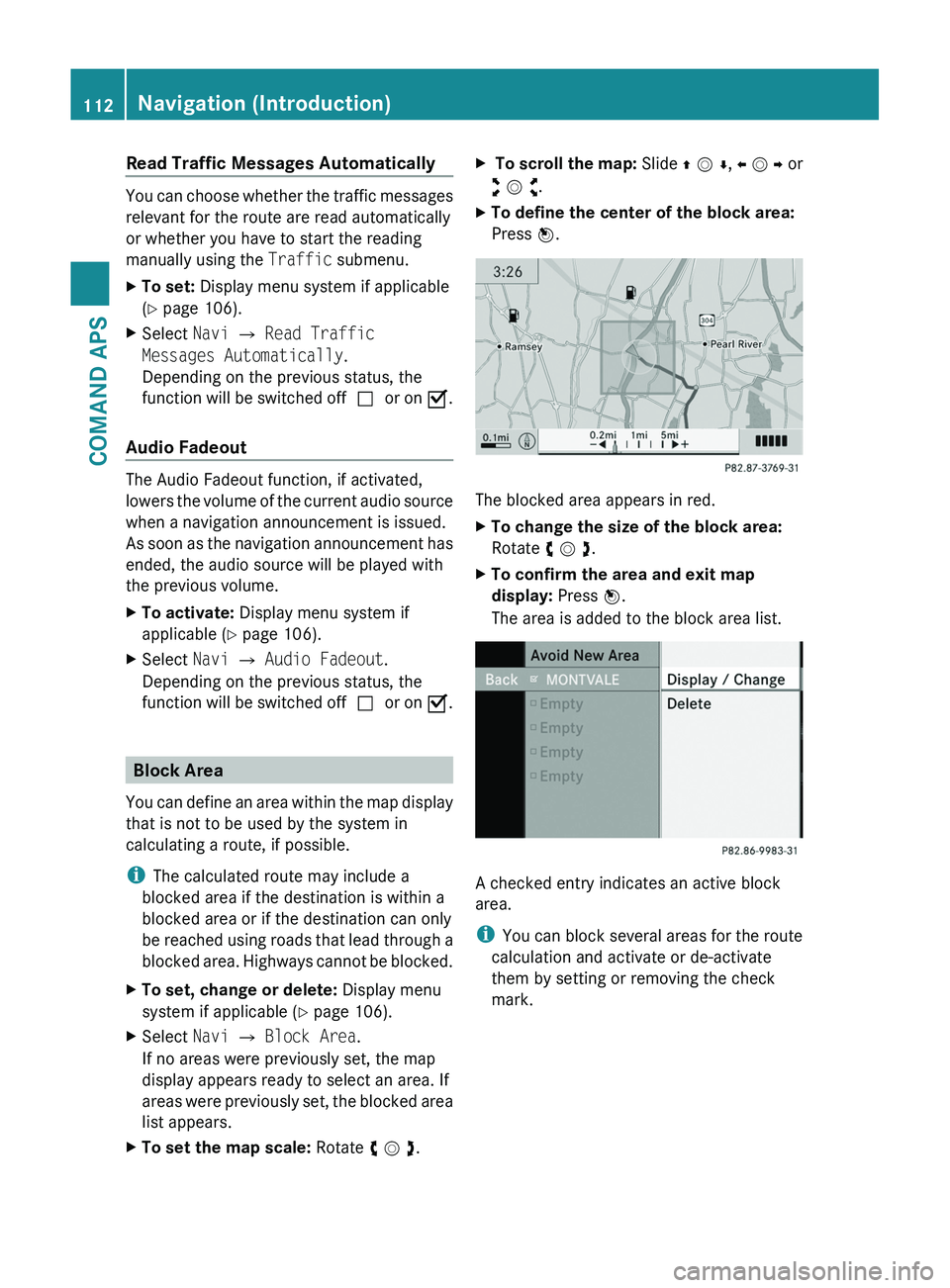
XTo define the center of the block area:
Press n.
The blocked area appears in red.
XTo change the size of the block area:
Rotate y m z.
XTo confirm the area and exit map
display: Press n.
The area is added to the block area list.
A checked entry indicates an active block
area.
iYou can block several areas for the route
calculation and activate or de-activate
them by setting or removing the check
mark.
112Navigation (Introduction)COMAND APS
BA 197 USA, CA Edition A 2011; 1; 27, en-UShereepeVersion: 3.0.3.52010-03-24T15:31:10+01:00 - Seite 112
Page 115 of 436
Displaying and Changing an Existing
Block Area
XTo select the area you want to display
or change: Slide q m r.
XSelect Options £ Display/Change.
The map display appears with the block
area marked red.
XTo set the map scale: Rotate y m z.X To scroll the map: Slide q m r, o m p or
w m x.
XTo define the center of the block area:
Press n.
XTo set the desired size of the block area:
Rotate y m z.
XTo confirm the area and exit map
display: Press n.
XHide menu system if applicable
(Y page 106).
Defining a New Block Area
XSelect Options £ Avoid New Area
The map is displayed.
XTo set the map scale: Rotate y m z.XRotate y m z until the desired size of the
new block area is set.
XSlide q m r, o m p or w m x to shift the
new block area to the desired region.
XTo confirm the area and exit map
display: Press n.
XHide menu system if applicable
(Y page 106).
Deleting a Block Area
XTo select the area you want to delete:
Slide q m r.
XSelect Options £ Delete.
You will be prompted to confirm that you
wish to delete the block area.
XSelect Yes or No.
If you select Yes COMAND deletes the
entry.
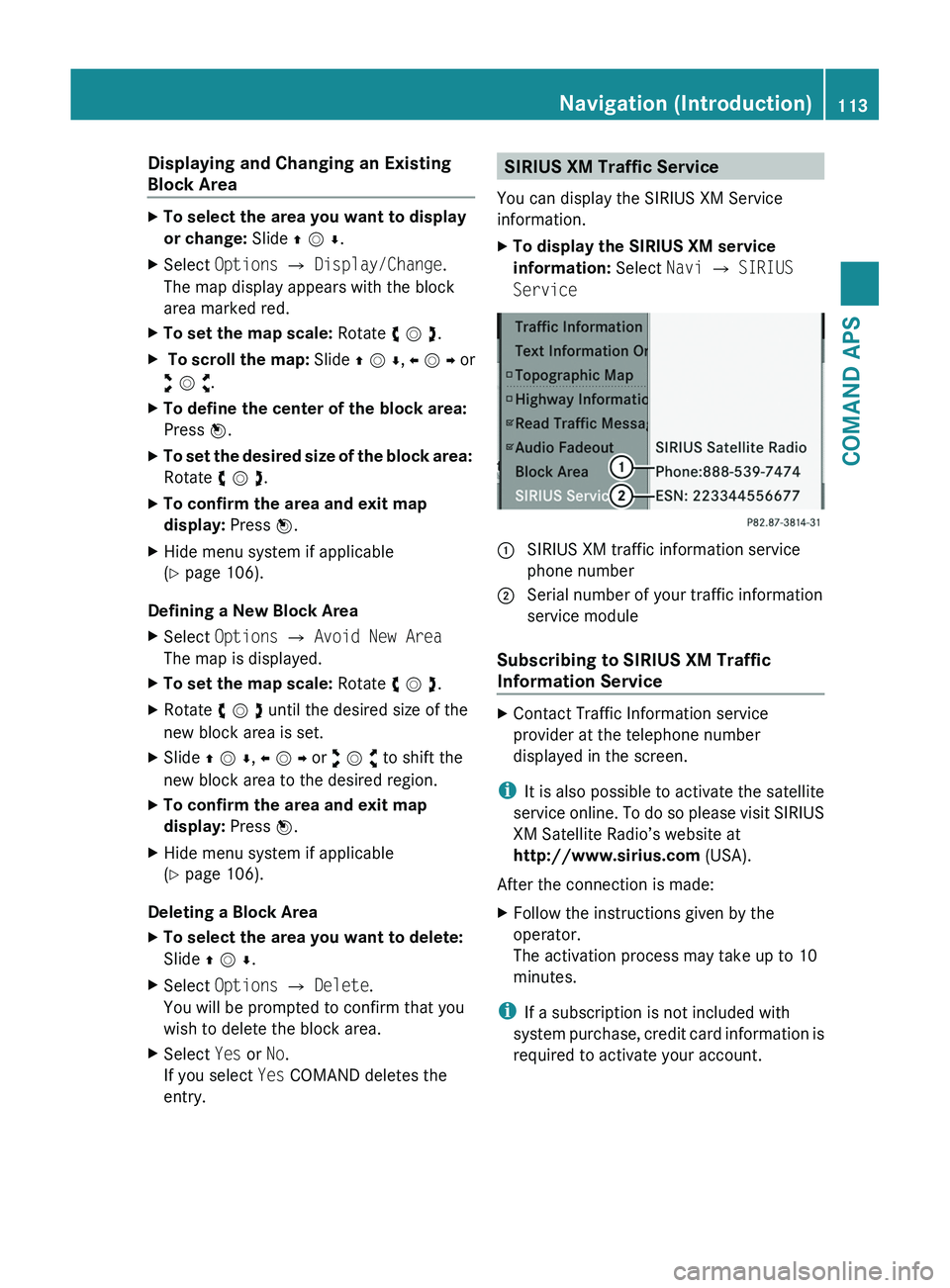
SIRIUS XM Traffic Service
You can display the SIRIUS XM Service
information.
XTo display the SIRIUS XM service
information: Select Navi £ SIRIUS
Service
\000F SIRIUS XM traffic information service
phone number
\000G Serial number of your traffic information
service module
Subscribing to SIRIUS XM Traffic
Information Service
XContact Traffic Information service
provider at the telephone number
displayed in the screen.
iIt is also possible to activate the satellite
service online. To do so please visit SIRIUS
XM Satellite Radio’s website at
http://www.sirius.com (USA).
After the connection is made:
XFollow the instructions given by the
operator.
The activation process may take up to 10
minutes.
iIf a subscription is not included with
system purchase, credit card information is
required to activate your account.
Navigation (Introduction)113COMAND APSBA 197 USA, CA Edition A 2011; 1; 27, en-UShereepeVersion: 3.0.3.52010-03-24T15:31:10+01:00 - Seite 113Z
Page 116 of 436
Navigation (Destination Input)
Introduction to Destination Input
GWarning!
For safety reasons, only enter a new
destination when the vehicle is stationary.
iIt is possible to enter a destination
regardless of whether route guidance is
active or inactive.
The following destination entry options are
available:
REntering a destination via the address
(Y page 114)
REntering a destination from the destination
memory (Y page 122)
REntering a destination from the last
destinations (Y page 123)
REntering a POI (Y page 126)
REntering a destination via the map
(Y page 123)
REntering a stopover destination
(Y page 124)
REntering a destination via “Search & Send”
(Y page 125)
Entering a Destination via the
Address
iIn some countries it is not possible to
enter addresses at vehicle speeds above
approx. 3 mph. The function becomes
available again as soon as the speed falls
below approx. 2 mph.
The following options are available for
entering a destination via an address:
REntering state/province, city/zip code and
street
REntering state/province, city and city
center
REntering state/province, city/zip code and
street and house number
REntering state/province, city/zip code and
street and junction
REntering street, state/province, city/zip
code and house number
Route calculation can then be started
(Y page 121).
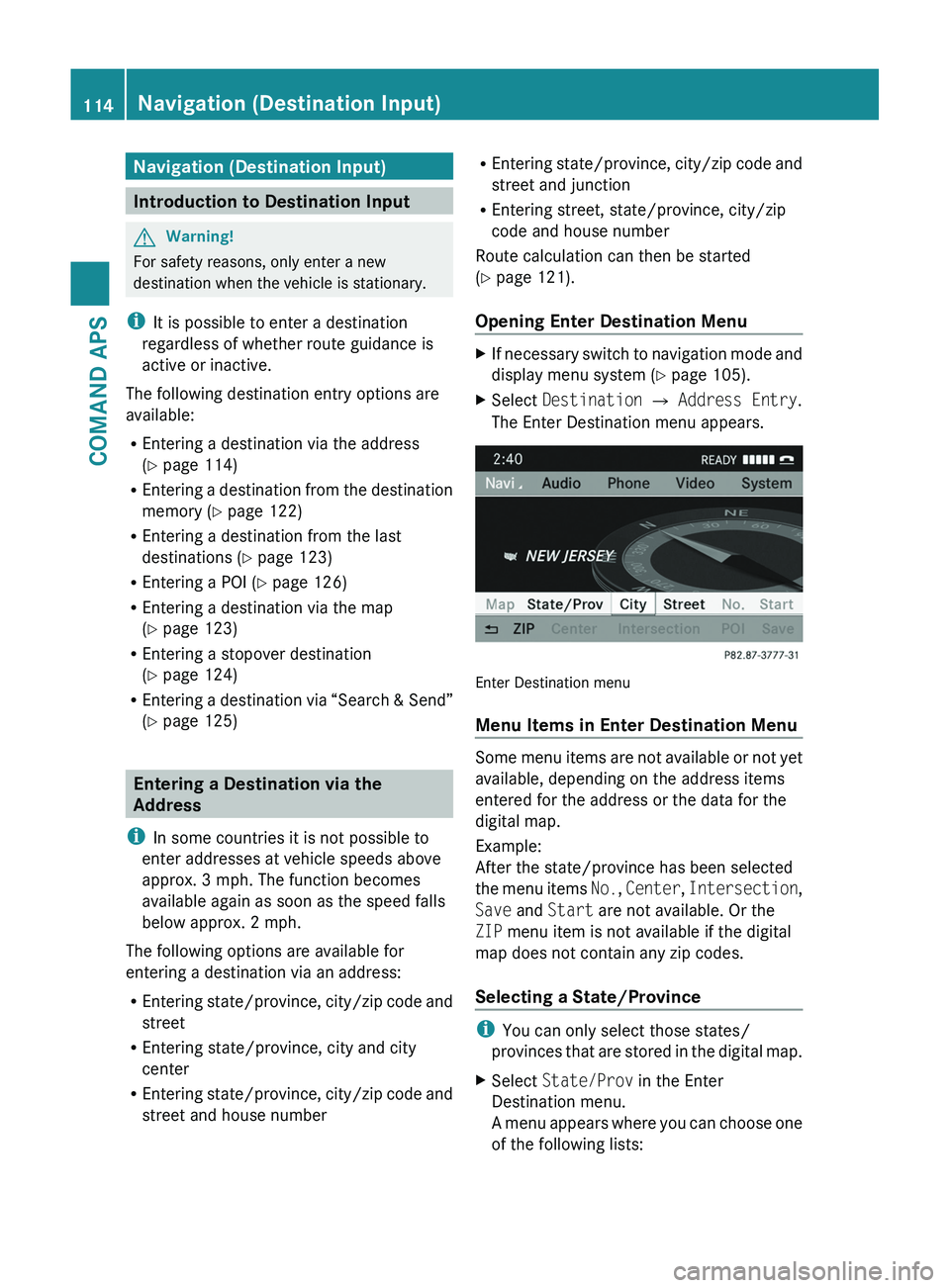
Opening Enter Destination Menu
XIf necessary switch to navigation mode and
display menu system (Y page 105).
XSelect Destination £ Address Entry.
The Enter Destination menu appears.
Enter Destination menu
Menu Items in Enter Destination Menu
Some menu items are not available or not yet
available, depending on the address items
entered for the address or the data for the
digital map.
Example:
After the state/province has been selected
the menu items No., Center, Intersection,
Save and Start are not available. Or the
ZIP menu item is not available if the digital
map does not contain any zip codes.
Selecting a State/Province
iYou can only select those states/
provinces that are stored in the digital map.
XSelect State/Prov in the Enter
Destination menu.
A menu appears where you can choose one
of the following lists:
114Navigation (Destination Input)COMAND APS
BA 197 USA, CA Edition A 2011; 1; 27, en-UShereepeVersion: 3.0.3.52010-03-24T15:31:10+01:00 - Seite 114
Page 117 of 436
RLast States/Provinces
RStates (U.S.A.) or
RProvinces (Canada).
XTo select a list: Rotate y m z or slide
q m r.
XPress n.
The selected state/province list appears.
XTo selected a state/province: Rotate
y m z or slide q m r.
XPress n.
The Enter Destination menu appears again.
The selected state/province has been
entered automatically.
Entering a City
iYou can only enter those cities that are
stored in the digital map. Any zip code that
has already been entered is deleted when
a city is entered.
XIn the Enter Destination menu, select
City.
The city list is displayed with or without
predictive speller. The display of the
predictive speller depends on how many
cities are available for the selected state/
province.
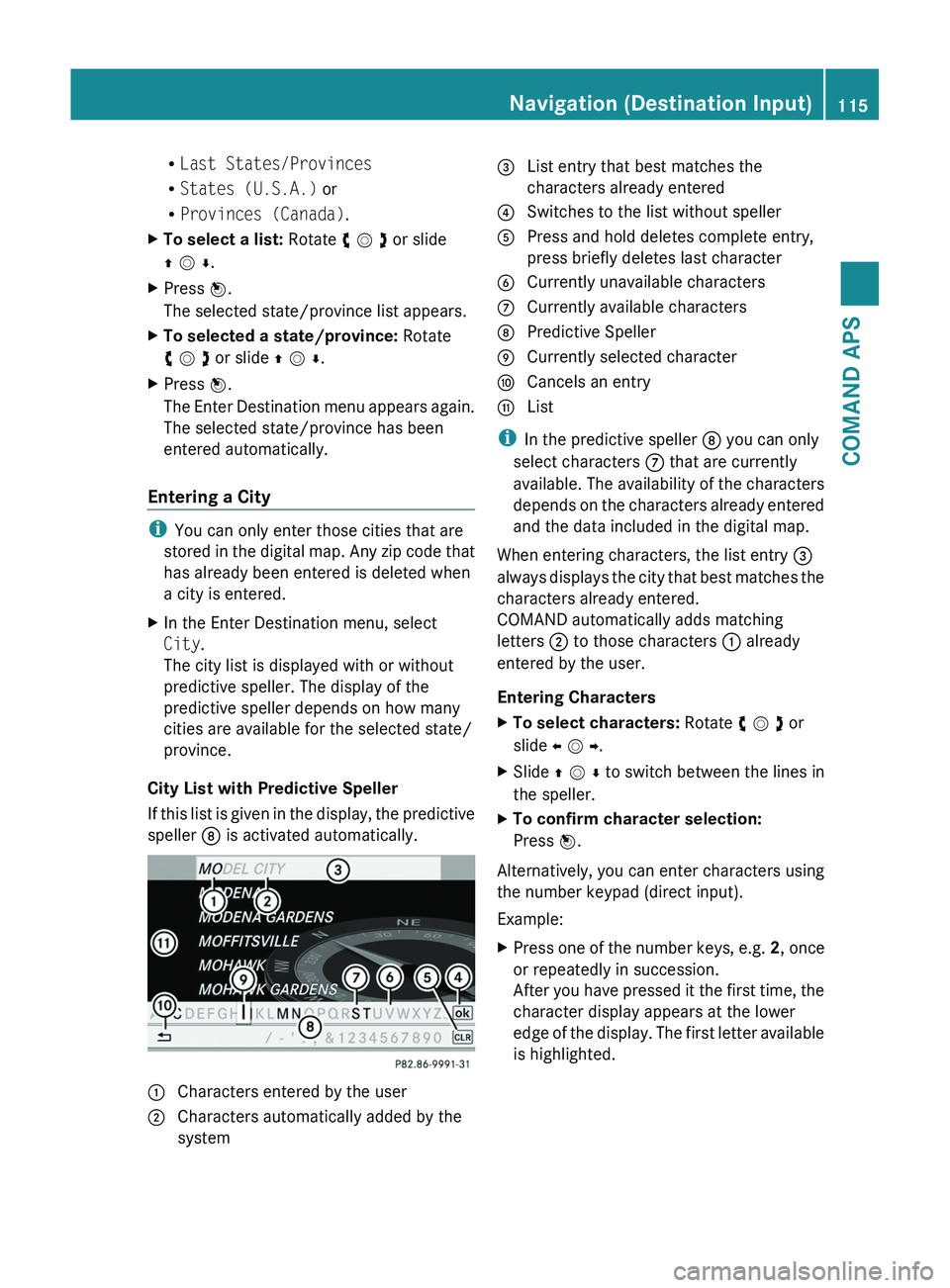
City List with Predictive Speller
If this list is given in the display, the predictive
speller 8 is activated automatically.
1 Characters entered by the user2 Characters automatically added by the
system
3 List entry that best matches the
characters already entered
4 Switches to the list without speller5 Press and hold deletes complete entry,
press briefly deletes last character
6 Currently unavailable characters7 Currently available characters8 Predictive Speller9 Currently selected charactera Cancels an entryb List
iIn the predictive speller 8 you can only
select characters 7 that are currently
available. The availability of the characters
depends on the characters already entered
and the data included in the digital map.
When entering characters, the list entry 3
always displays the city that best matches the
characters already entered.
COMAND automatically adds matching
letters 2 to those characters 1 already
entered by the user.
Entering Characters
XTo select characters: Rotate y m z or
slide o m p.
XSlide q m r to switch between the lines in
the speller.
XTo confirm character selection:
Press n.
Alternatively, you can enter characters using
the number keypad (direct input).
Example:
XPress one of the number keys, e.g. 2, once
or repeatedly in succession.
After you have pressed it the first time, the
character display appears at the lower
edge of the display. The first letter available
is highlighted.
Navigation (Destination Input)115COMAND APSBA 197 USA, CA Edition A 2011; 1; 27, en-UShereepeVersion: 3.0.3.52010-03-24T15:31:10+01:00 - Seite 115Z
Page 119 of 436
province/region) on the towns. The \000L
symbol then switches to \000N.
If no other options exist, the Enter Destination
menu appears again in the display.
COMAND has accepted the selected city and
entered it automatically in the Enter
Destination menu.
Entering a Zip Code
iYou can only enter those zip codes that
are stored in the digital map. For some
countries it is not possible to enter any zip
code.
XIn the Enter Destination menu select ZIP.
The zip code list is displayed with or without
predictive speller (Y page 115). The display
of the predictive speller depends on how
many zip codes are available for the
selected state/province.
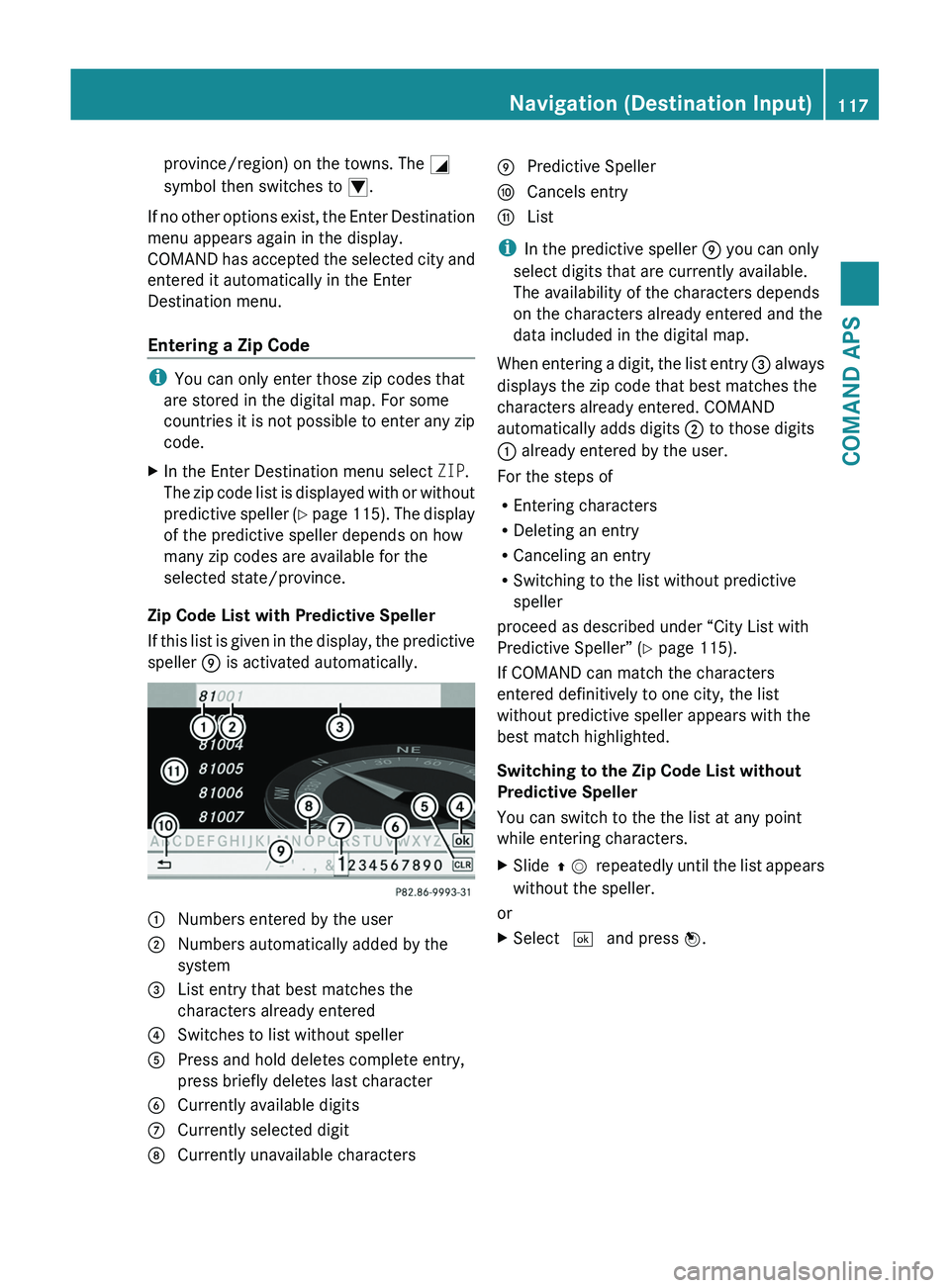
Zip Code List with Predictive Speller
If this list is given in the display, the predictive
speller 9 is activated automatically.
1 Numbers entered by the user2 Numbers automatically added by the
system
3 List entry that best matches the
characters already entered
4 Switches to list without speller5 Press and hold deletes complete entry,
press briefly deletes last character
6 Currently available digits7 Currently selected digit8 Currently unavailable characters9 Predictive Spellera Cancels entryb List
iIn the predictive speller 9 you can only
select digits that are currently available.
The availability of the characters depends
on the characters already entered and the
data included in the digital map.
When entering a digit, the list entry 3 always
displays the zip code that best matches the
characters already entered. COMAND
automatically adds digits 2 to those digits
1 already entered by the user.
For the steps of
REntering characters
RDeleting an entry
RCanceling an entry
RSwitching to the list without predictive
speller
proceed as described under “City List with
Predictive Speller” (Y page 115).
If COMAND can match the characters
entered definitively to one city, the list
without predictive speller appears with the
best match highlighted.
Switching to the Zip Code List without
Predictive Speller
You can switch to the the list at any point
while entering characters.
XSlide q m repeatedly until the list appears
without the speller.
or
XSelect d and press n.Navigation (Destination Input)117COMAND APSBA 197 USA, CA Edition A 2011; 1; 27, en-UShereepeVersion: 3.0.3.52010-03-24T15:31:10+01:00 - Seite 117Z
Page 124 of 436
Entering a Destination from the
Destination Memory
XIf necessary switch to navigation mode and
display menu system (Y page 105).
XSelect Destination £ From Memory.
The destination memory list with or without
predictive speller is displayed. The display
of the predictive speller depends on how
many entries exist in the destination
memory (Y page 123).
iThere is always an entry in the destination
memory with the name My Address. You
can assign your home address, for
example, to this entry and select it for route
guidance (Y page 145). This entry is at the
top of the list in the destination memory.
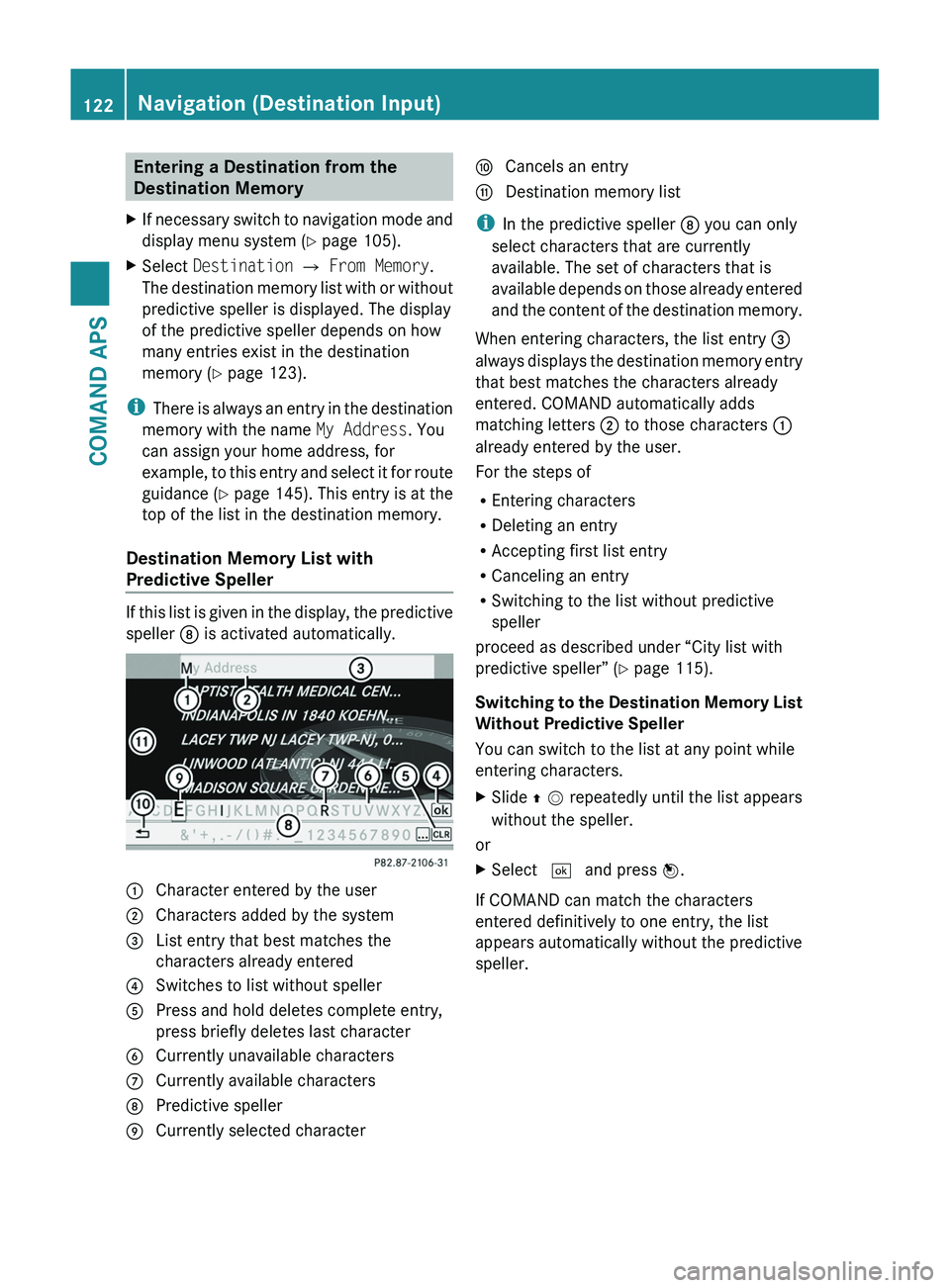
Destination Memory List with
Predictive Speller
If this list is given in the display, the predictive
speller 8 is activated automatically.
1 Character entered by the user2 Characters added by the system3 List entry that best matches the
characters already entered
4 Switches to list without speller5 Press and hold deletes complete entry,
press briefly deletes last character
6 Currently unavailable characters7 Currently available characters8 Predictive speller9 Currently selected charactera Cancels an entryb Destination memory list
iIn the predictive speller 8 you can only
select characters that are currently
available. The set of characters that is
available depends on those already entered
and the content of the destination memory.
When entering characters, the list entry 3
always displays the destination memory entry
that best matches the characters already
entered. COMAND automatically adds
matching letters 2 to those characters 1
already entered by the user.
For the steps of
REntering characters
RDeleting an entry
RAccepting first list entry
RCanceling an entry
RSwitching to the list without predictive
speller
proceed as described under “City list with
predictive speller” (Y page 115).
Switching to the Destination Memory List
Without Predictive Speller
You can switch to the list at any point while
entering characters.
XSlide q m repeatedly until the list appears
without the speller.
or
XSelect d and press n.
If COMAND can match the characters
entered definitively to one entry, the list
appears automatically without the predictive
speller.
122Navigation (Destination Input)COMAND APS
BA 197 USA, CA Edition A 2011; 1; 27, en-UShereepeVersion: 3.0.3.52010-03-24T15:31:10+01:00 - Seite 122
Page 125 of 436
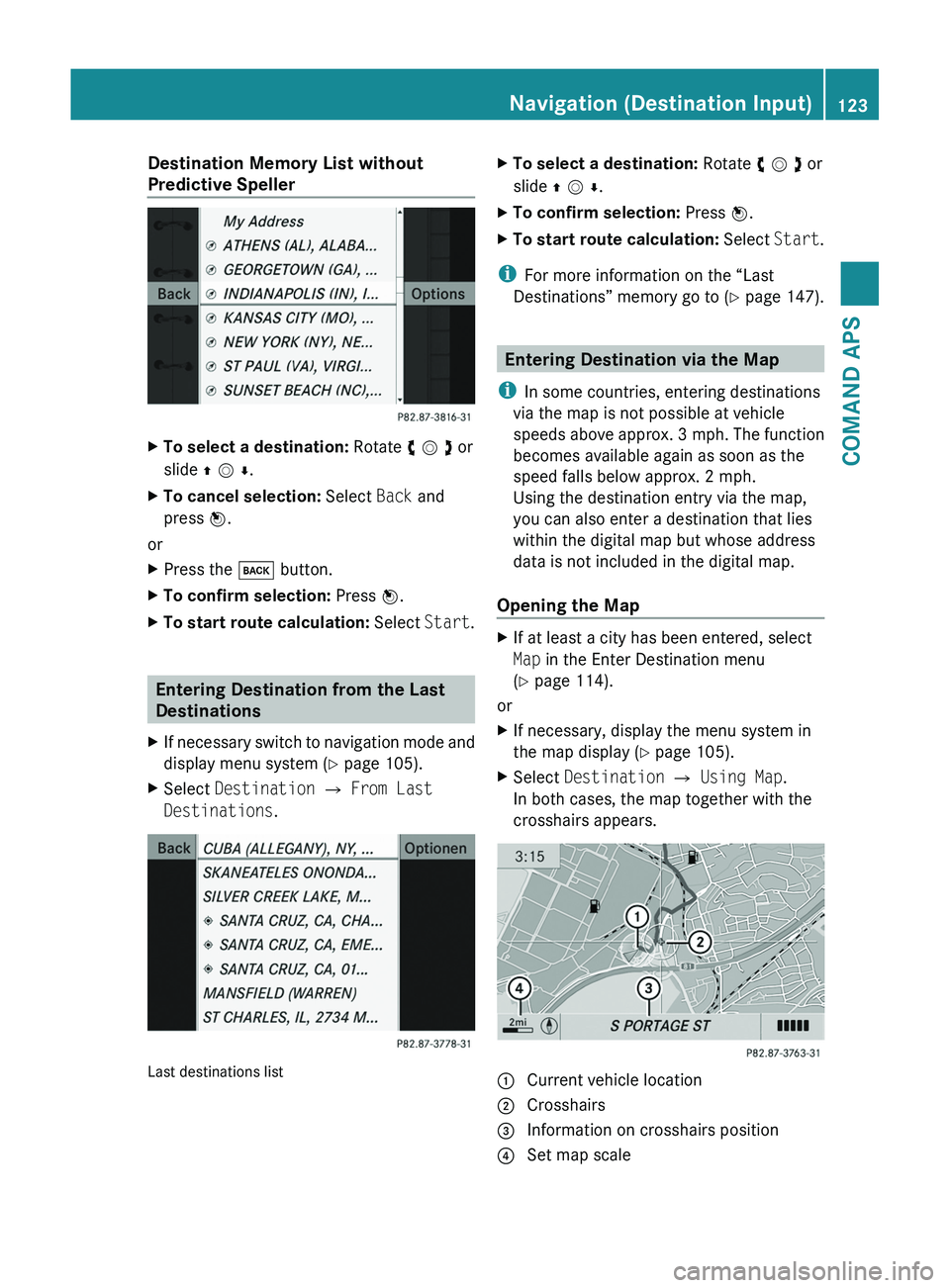
Destination Memory List without
Predictive Speller
XTo select a destination: Rotate y m z or
slide q m r.
XTo cancel selection: Select Back and
press n.
or
XPress the \000= button.XTo confirm selection: Press n.XTo start route calculation: Select Start.
Entering Destination from the Last
Destinations
XIf necessary switch to navigation mode and
display menu system (Y page 105).
XSelect Destination £ From Last
Destinations.
Last destinations list
XTo select a destination: Rotate y m z or
slide q m r.
XTo confirm selection: Press n.XTo start route calculation: Select Start.
iFor more information on the “Last
Destinations” memory go to (Y page 147).
Entering Destination via the Map
iIn some countries, entering destinations
via the map is not possible at vehicle
speeds above approx. 3 mph. The function
becomes available again as soon as the
speed falls below approx. 2 mph.
Using the destination entry via the map,
you can also enter a destination that lies
within the digital map but whose address
data is not included in the digital map.
Opening the Map
XIf at least a city has been entered, select
Map in the Enter Destination menu
(Y page 114).
or
XIf necessary, display the menu system in
the map display (Y page 105).
XSelect Destination £ Using Map.
In both cases, the map together with the
crosshairs appears.
1 Current vehicle location2 Crosshairs3 Information on crosshairs position4 Set map scaleNavigation (Destination Input)123COMAND APSBA 197 USA, CA Edition A 2011; 1; 27, en-UShereepeVersion: 3.0.3.52010-03-24T15:31:10+01:00 - Seite 123Z
Page 126 of 436
iThe display 3 depends on the settings
selected in “Text information On Map”
(Y page 110). It may display the current
road if corresponding data is available in
the digital map. Or it displays the geo-
coordinates position of the crosshairs if
Geo-coordinates display is activated.
Moving the Map and Selecting a
Destination
XTo move the map: Slide q m r, o m p or
w m x.
XTo set the map scale: Rotate y m z.
Rotating clockwise makes the map smaller,
rotating counterclockwise enlarges it.
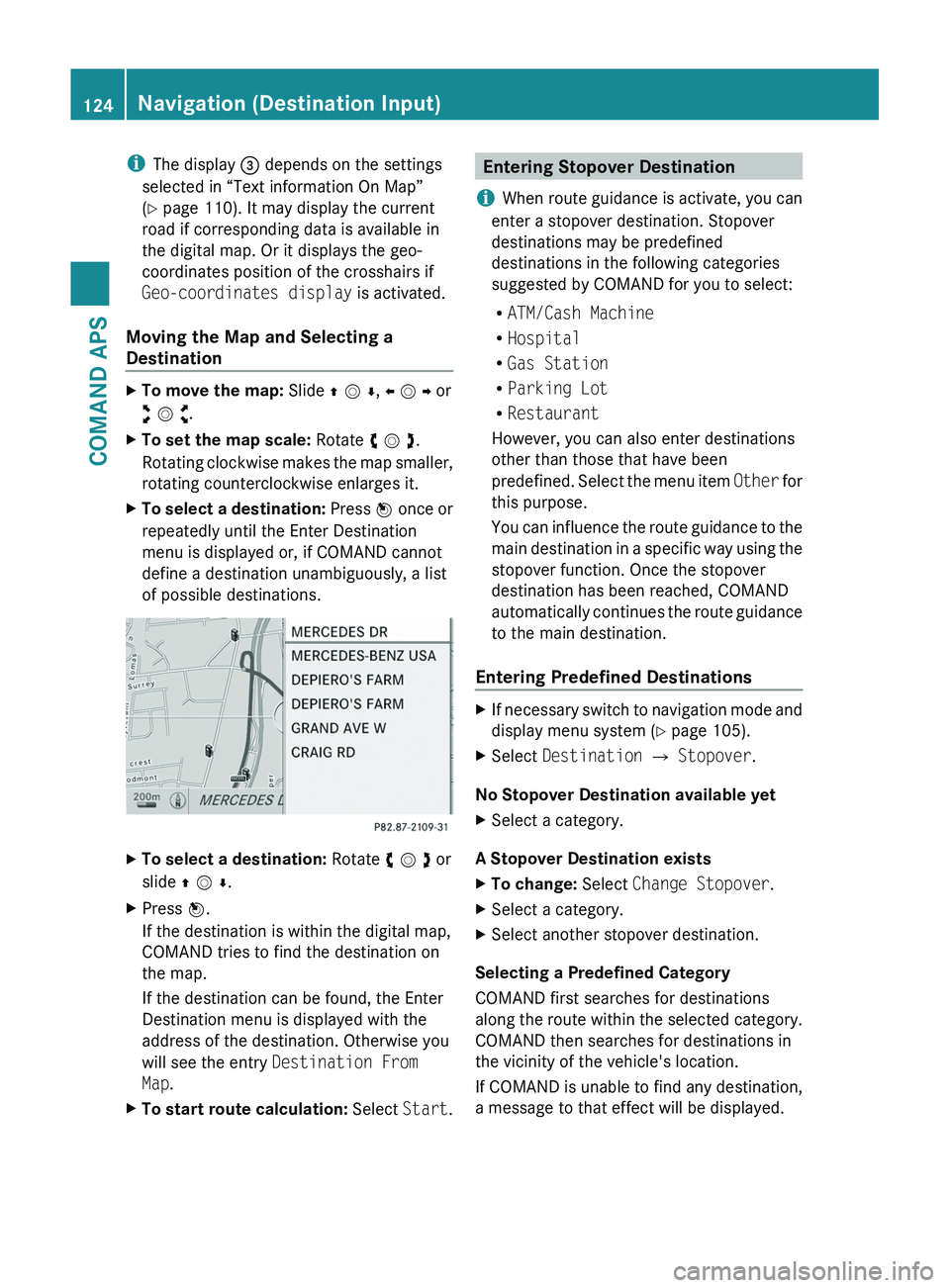
XTo select a destination: Press n once or
repeatedly until the Enter Destination
menu is displayed or, if COMAND cannot
define a destination unambiguously, a list
of possible destinations.
XTo select a destination: Rotate y m z or
slide q m r.
XPress n.
If the destination is within the digital map,
COMAND tries to find the destination on
the map.
If the destination can be found, the Enter
Destination menu is displayed with the
address of the destination. Otherwise you
will see the entry Destination From
Map.
XTo start route calculation: Select Start.Entering Stopover Destination
iWhen route guidance is activate, you can
enter a stopover destination. Stopover
destinations may be predefined
destinations in the following categories
suggested by COMAND for you to select:
RATM/Cash Machine
RHospital
RGas Station
RParking Lot
RRestaurant
However, you can also enter destinations
other than those that have been
predefined. Select the menu item Other for
this purpose.
You can influence the route guidance to the
main destination in a specific way using the
stopover function. Once the stopover
destination has been reached, COMAND
automatically continues the route guidance
to the main destination.
Entering Predefined Destinations
XIf necessary switch to navigation mode and
display menu system (Y page 105).
XSelect Destination £ Stopover.
No Stopover Destination available yet
XSelect a category.
A Stopover Destination exists
XTo change: Select Change Stopover.XSelect a category.XSelect another stopover destination.
Selecting a Predefined Category
COMAND first searches for destinations
along the route within the selected category.
COMAND then searches for destinations in
the vicinity of the vehicle's location.
If COMAND is unable to find any destination,
a message to that effect will be displayed.
124Navigation (Destination Input)COMAND APS
BA 197 USA, CA Edition A 2011; 1; 27, en-UShereepeVersion: 3.0.3.52010-03-24T15:31:10+01:00 - Seite 124
Page 127 of 436
XSelect OK.XIf necessary, select another category.
If COMAND finds destinations, a list is
displayed in the right-hand part of the
screen. Here you will find the stopover
destinations in the selected category.
The list shows
R Name
R Information on the location of the stopover
destination in relation to the direction of
travel and the
R Current distance to the stopover
destination.
XTo choose a destination: Rotate y m z or
slide q m r .XTo select a destination: Press n.
The Enter Destination menu appears and
displays the address of the destination.XTo cancel a selection: Select Back.XTo start route calculation: Select Start.
Entering Another Destination as
Stopover Destination
XIf necessary, switch to navigation mode
and display menu system ( Y page 105).XSelect Destination £ Stopover .XTo enter: Select OTHER.
Choose from:
R Address Entry
R From Memory
R From Last Destination
R From POIsXSelect a menu item.
The rest of the destination entry will vary
depending on the selection made:
For the Address Entry option see:
Entering a destination via address
( Y page 114).
For the From Memory option see:
Entering a destination from the destination
memory ( Y page 122).
For the From Last Destination option see:
Entering a destination from the last
destinations ( Y page 123).
For the From POIs option see:
Entering a POI ( Y page 126).XTo start route calculation: Select Start.
Deleting Stopover Destination
An existing stopover destination can be
deleted.
XSwitch to navigation mode if necessary.XSelect Destination £ Stopover £
Delete Stopover .
COMAND deletes the stopover destination
and recalculates the route to the main
destination.
Mbrace
i The mbrace system is called Tele Aid in
Canada.
Search & Send
i In order to utilize Search & Send your
vehicle must be equipped with mbrace,
navigation, and an active mbrace
subscription.
“Search & Send” is a navigation destination
address entry service. A destination address
located using Google Maps ®
can be delivered
via mbrace directly to the navigation system
in your vehicle.
Specify and Send a Destination Address
i Please refer to any specific instructions
provided on Google's website regarding
entering or sending an address. The
websites function differently and are
subject to change.
XGo to http://maps.google.com and enter
a destination address in the address entry
field.XLocate and click on "Send". A dialog box
appears.Navigation (Destination Input)125COMAND APSBA 197 USA, CA Edition A 2011; 1; 27, en-UShereepeVersion: 3.0.3.52010-03-24T15:31:10+01:00 - Seite 125Z