navigation system MERCEDES-BENZ SLS AMG 2011 Service Manual
[x] Cancel search | Manufacturer: MERCEDES-BENZ, Model Year: 2011, Model line: SLS AMG, Model: MERCEDES-BENZ SLS AMG 2011Pages: 436, PDF Size: 17.73 MB
Page 129 of 436
Entering a POI in the Vicinity of the
LocationXIn the map display with the menu system
displayed, select Destination £ From
POIs £ Current Position .XContinue by selecting the POI category
( Y page 127).
Entering a POI in the Vicinity of a
Specific Location
i Using this option you will get a list of
alphabetically sorted POIs that belong to
the city entered.
Option 1
XIn the map display with the menu system
displayed, select Destination £ From
POIs £ Other City .XIf necessary proceed as described under
“Selecting a State/Province”
( Y page 114).XTo enter a city: Select City.
The city input menu appears.XProceed as described in the “Entering a
City” section ( Y page 115).XAfter entering the city, continue by
selecting the POI category ( Y page 127).
Option 2
XEnter an address in the Enter Destination
menu ( Y page 114).XSelect POI.XContinue by selecting the POI category
( Y page 127).
Entering POIs via Name Search
i This function gives you access to all POIs
that are available in the digital map.
XIn the map display with the menu system
displayed ( Y page 105), selectDestination £ From POIs £ Search
By Name .
This displays a list of all POIs in the digital
map and the predictive speller.XContinue as described in the “POI List with
Predictive Speller” section ( Y page 130).
Entering a POI via Phone Number
Search
i This function gives you access to all POIs
in the digital map stored with a phone
number.
XIn the map display with the menu system
displayed ( Y page 105), select
Destination £ From POIs £ Search
By Phone Number .
This displays a list of all POIs in the digital
map sorted by phone number and the
predictive speller.XContinue as described in the “POI List with
Predictive Speller” section ( Y page 130).
Choosing a POI Category
The categories and POIs available depend on
the area for which you wish to enter the POI.
R POI in local area of destination:
Alphabetically sorted categories and POIs
sorted by distance in the vicinity of the
destination location are available.
R POI in the vicinity of the location:
Alphabetically sorted categories and POIs
sorted by distance in the vicinity of the
vehicle location are available.
R POI in a particular city:
If you have only entered the country and the
city, alphabetically sorted categories and
alphabetically sorted POIs within the city
limits are available.
If you have entered more than the country
and the city, alphabetically sorted
categories and POIs sorted by distance in
Navigation (POI Input)127COMAND APSBA 197 USA, CA Edition A 2011; 1; 27, en-UShereepeVersion: 3.0.3.52010-03-24T15:31:10+01:00 - Seite 127Z
Page 134 of 436
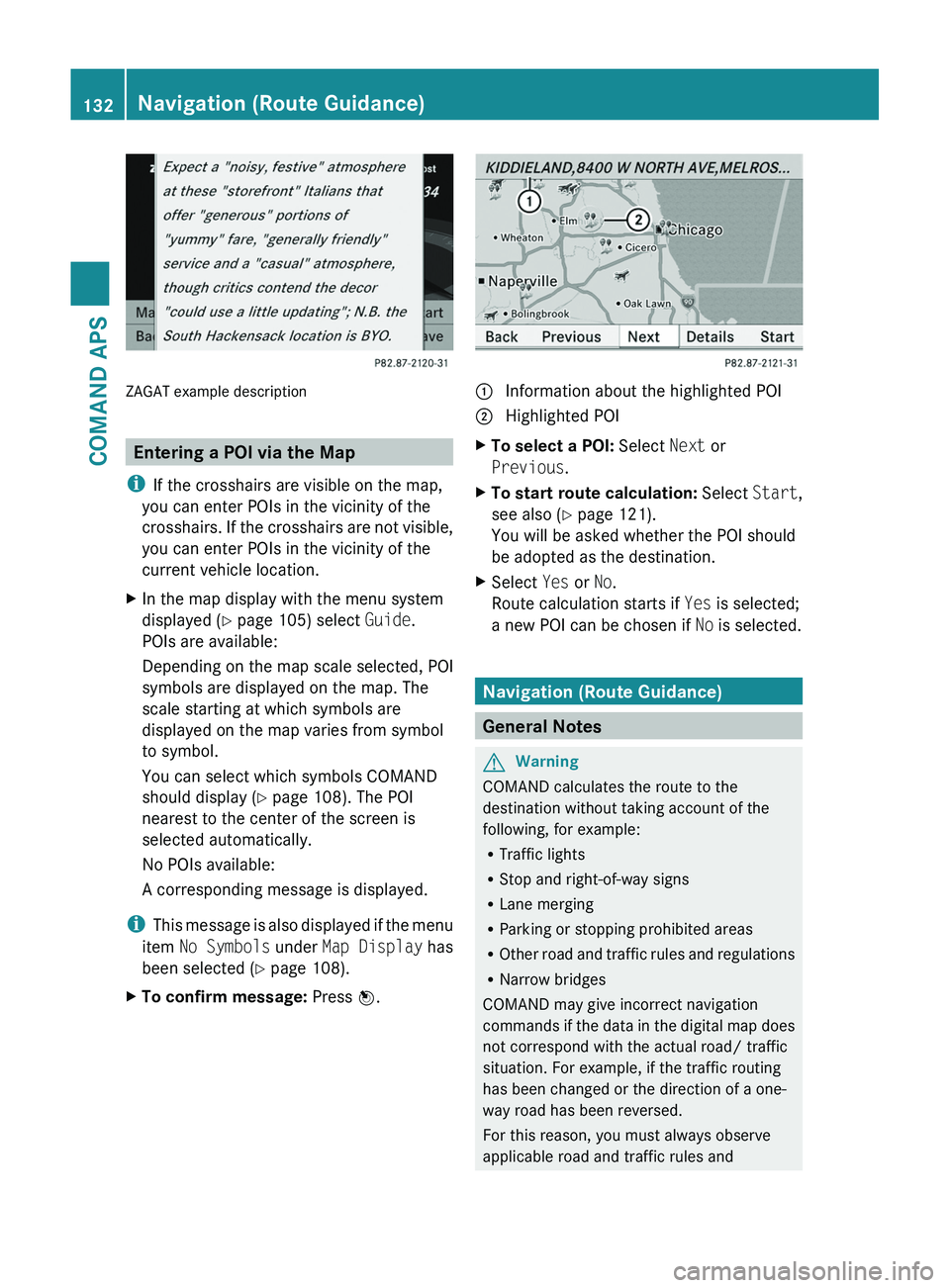
ZAGAT example description
Entering a POI via the Map
iIf the crosshairs are visible on the map,
you can enter POIs in the vicinity of the
crosshairs. If the crosshairs are not visible,
you can enter POIs in the vicinity of the
current vehicle location.
XIn the map display with the menu system
displayed (Y page 105) select Guide.
POIs are available:
Depending on the map scale selected, POI
symbols are displayed on the map. The
scale starting at which symbols are
displayed on the map varies from symbol
to symbol.
You can select which symbols COMAND
should display (Y page 108). The POI
nearest to the center of the screen is
selected automatically.
No POIs available:
A corresponding message is displayed.
iThis message is also displayed if the menu
item No Symbols under Map Display has
been selected (Y page 108).
XTo confirm message: Press n.1 Information about the highlighted POI2 Highlighted POIXTo select a POI: Select Next or
Previous.
XTo start route calculation: Select Start,
see also (Y page 121).
You will be asked whether the POI should
be adopted as the destination.
XSelect Yes or No.
Route calculation starts if Yes is selected;
a new POI can be chosen if No is selected.
Navigation (Route Guidance)
General Notes
GWarning
COMAND calculates the route to the
destination without taking account of the
following, for example:
RTraffic lights
RStop and right-of-way signs
RLane merging
RParking or stopping prohibited areas
ROther road and traffic rules and regulations
RNarrow bridges
COMAND may give incorrect navigation
commands if the data in the digital map does
not correspond with the actual road/ traffic
situation. For example, if the traffic routing
has been changed or the direction of a one-
way road has been reversed.
For this reason, you must always observe
applicable road and traffic rules and
132Navigation (Route Guidance)COMAND APS
BA 197 USA, CA Edition A 2011; 1; 27, en-UShereepeVersion: 3.0.3.52010-03-24T15:31:10+01:00 - Seite 132
Page 135 of 436
regulations during your journey. Road and
traffic rules and regulations always have
priority over the navigation commands
generated by the system.
COMAND guides you to the destination by
means of driving recommendations in the
form of navigation announcements or route
guidance displays.
iThe route guidance displays only appear
if the display has been switched to
navigation mode.
If, for some reason, you do not follow the
navigation announcements or if you leave the
calculated route, COMAND automatically
calculates a new route to the destination.
If the map data contains corresponding
information during route guidance, COMAND
tries to avoid roads with limited passability,
e.g. roads that are blocked for through-traffic
and are for residents only.
Driving Maneuver
Driving maneuvers are given in three phases:
RPreparation phase
RAnnouncement phase
RManeuver phase
Preparation Phase
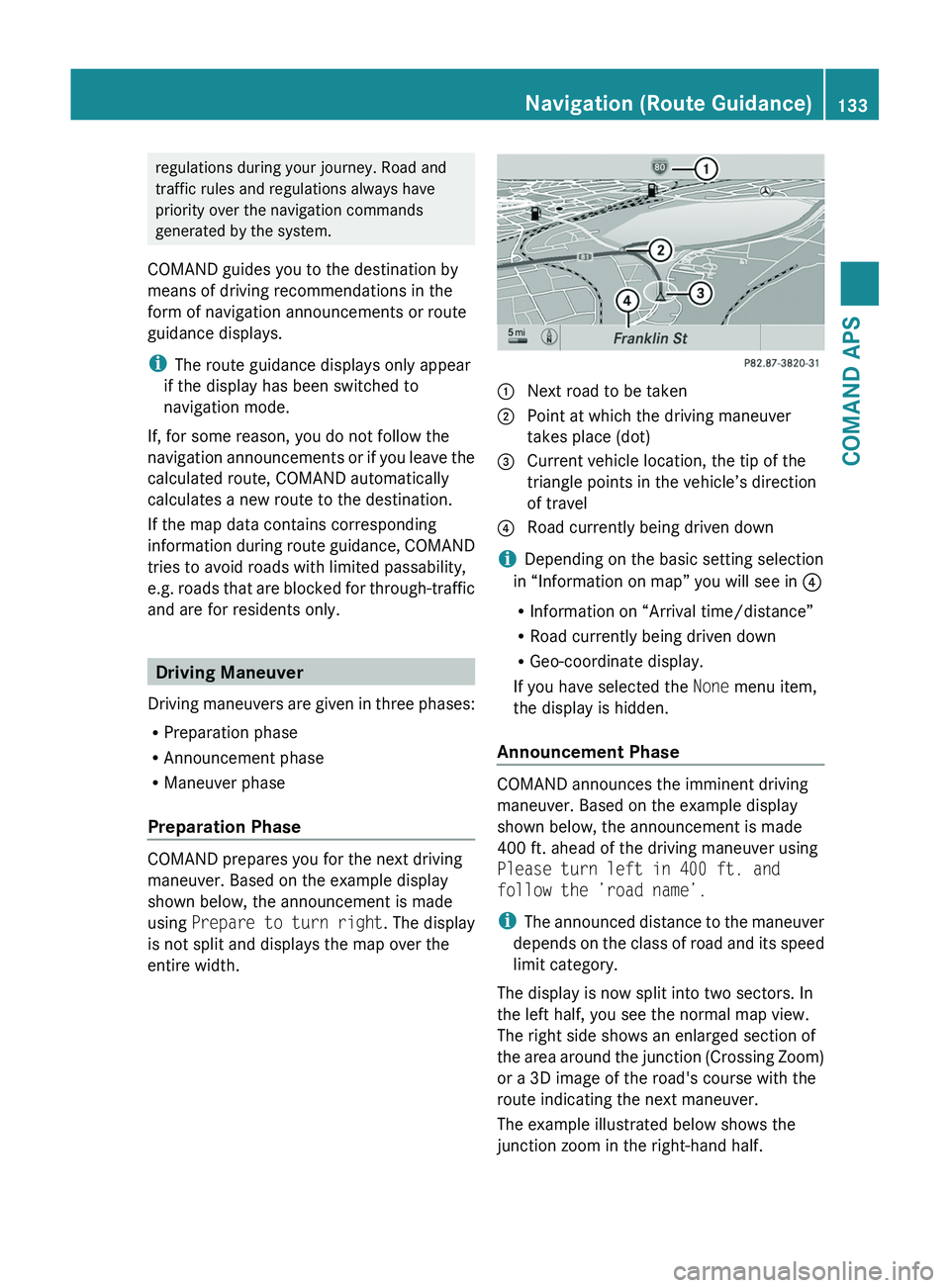
COMAND prepares you for the next driving
maneuver. Based on the example display
shown below, the announcement is made
using Prepare to turn right. The display
is not split and displays the map over the
entire width.
1 Next road to be taken2 Point at which the driving maneuver
takes place (dot)
3 Current vehicle location, the tip of the
triangle points in the vehicle’s direction
of travel
4 Road currently being driven down
iDepending on the basic setting selection
in “Information on map” you will see in 4
RInformation on “Arrival time/distance”
RRoad currently being driven down
RGeo-coordinate display.
If you have selected the None menu item,
the display is hidden.
Announcement Phase
COMAND announces the imminent driving
maneuver. Based on the example display
shown below, the announcement is made
400 ft. ahead of the driving maneuver using
Please turn left in 400 ft. and
follow the ’road name’.
iThe announced distance to the maneuver
depends on the class of road and its speed
limit category.
The display is now split into two sectors. In
the left half, you see the normal map view.
The right side shows an enlarged section of
the area around the junction (Crossing Zoom)
or a 3D image of the road's course with the
route indicating the next maneuver.
The example illustrated below shows the
junction zoom in the right-hand half.
Navigation (Route Guidance)133COMAND APSBA 197 USA, CA Edition A 2011; 1; 27, en-UShereepeVersion: 3.0.3.52010-03-24T15:31:10+01:00 - Seite 133Z
Page 137 of 436
Traffic Lane Recommendations
On multi-lane roads, COMAND may display
traffic lane recommendations. For this there
must be corresponding data available on the
digital map.
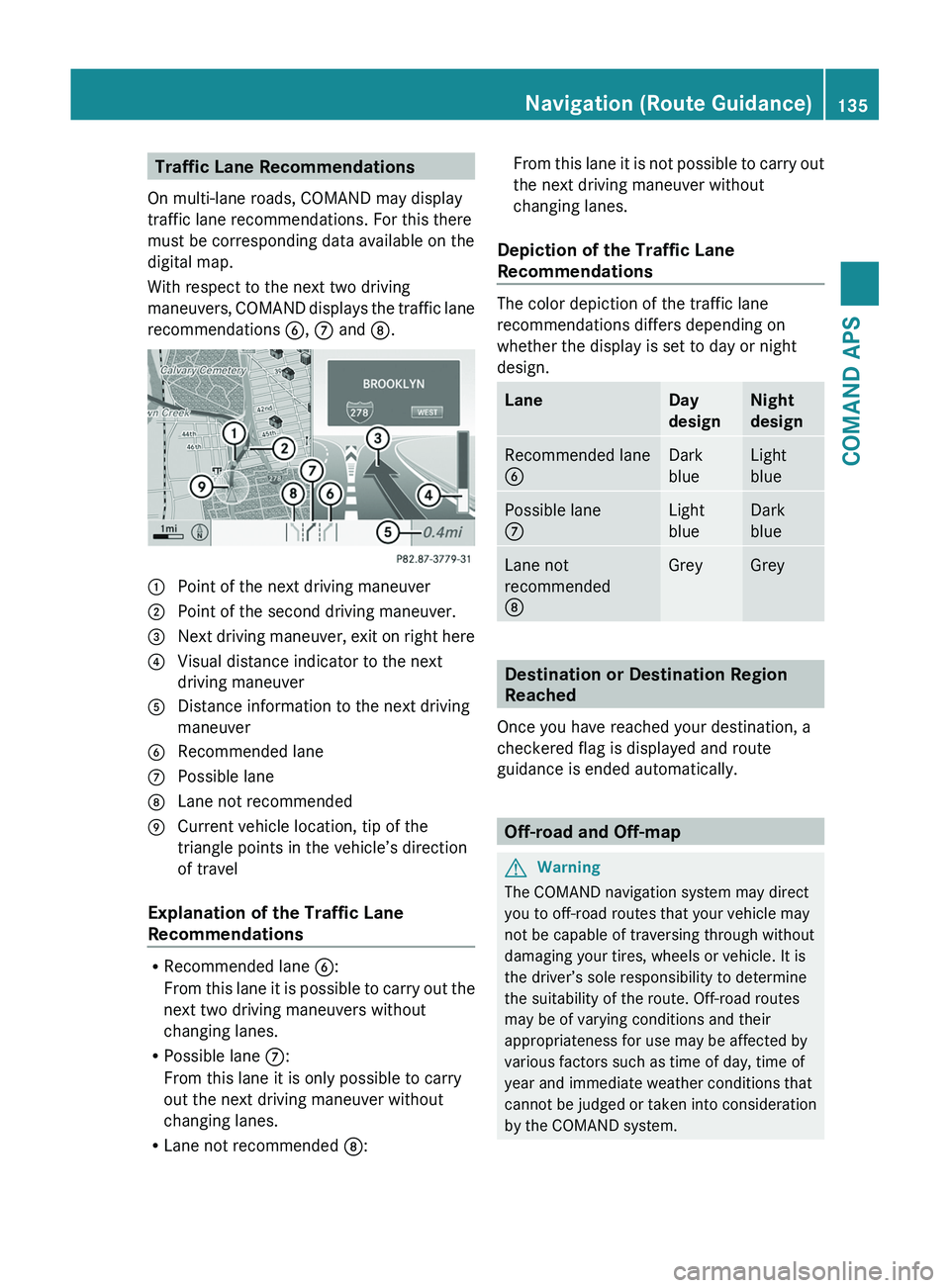
With respect to the next two driving
maneuvers, COMAND displays the traffic lane
recommendations 6, 7 and 8.
1 Point of the next driving maneuver2 Point of the second driving maneuver.3 Next driving maneuver, exit on right here4 Visual distance indicator to the next
driving maneuver
5 Distance information to the next driving
maneuver
6 Recommended lane7 Possible lane8 Lane not recommended9 Current vehicle location, tip of the
triangle points in the vehicle’s direction
of travel
Explanation of the Traffic Lane
Recommendations
RRecommended lane 6:
From this lane it is possible to carry out the
next two driving maneuvers without
changing lanes.
RPossible lane 7:
From this lane it is only possible to carry
out the next driving maneuver without
changing lanes.
RLane not recommended 8:
From this lane it is not possible to carry out
the next driving maneuver without
changing lanes.
Depiction of the Traffic Lane
Recommendations
The color depiction of the traffic lane
recommendations differs depending on
whether the display is set to day or night
design.
LaneDay
design
Night
design
Recommended lane
6
Dark
blue
Light
blue
Possible lane
7
Light
blue
Dark
blue
Lane not
recommended
8
GreyGrey
Destination or Destination Region
Reached
Once you have reached your destination, a
checkered flag is displayed and route
guidance is ended automatically.
Off-road and Off-map
GWarning
The COMAND navigation system may direct
you to off-road routes that your vehicle may
not be capable of traversing through without
damaging your tires, wheels or vehicle. It is
the driver’s sole responsibility to determine
the suitability of the route. Off-road routes
may be of varying conditions and their
appropriateness for use may be affected by
various factors such as time of day, time of
year and immediate weather conditions that
cannot be judged or taken into consideration
by the COMAND system.
Navigation (Route Guidance)135COMAND APSBA 197 USA, CA Edition A 2011; 1; 27, en-UShereepeVersion: 3.0.3.52010-03-24T15:31:10+01:00 - Seite 135Z
Page 138 of 436
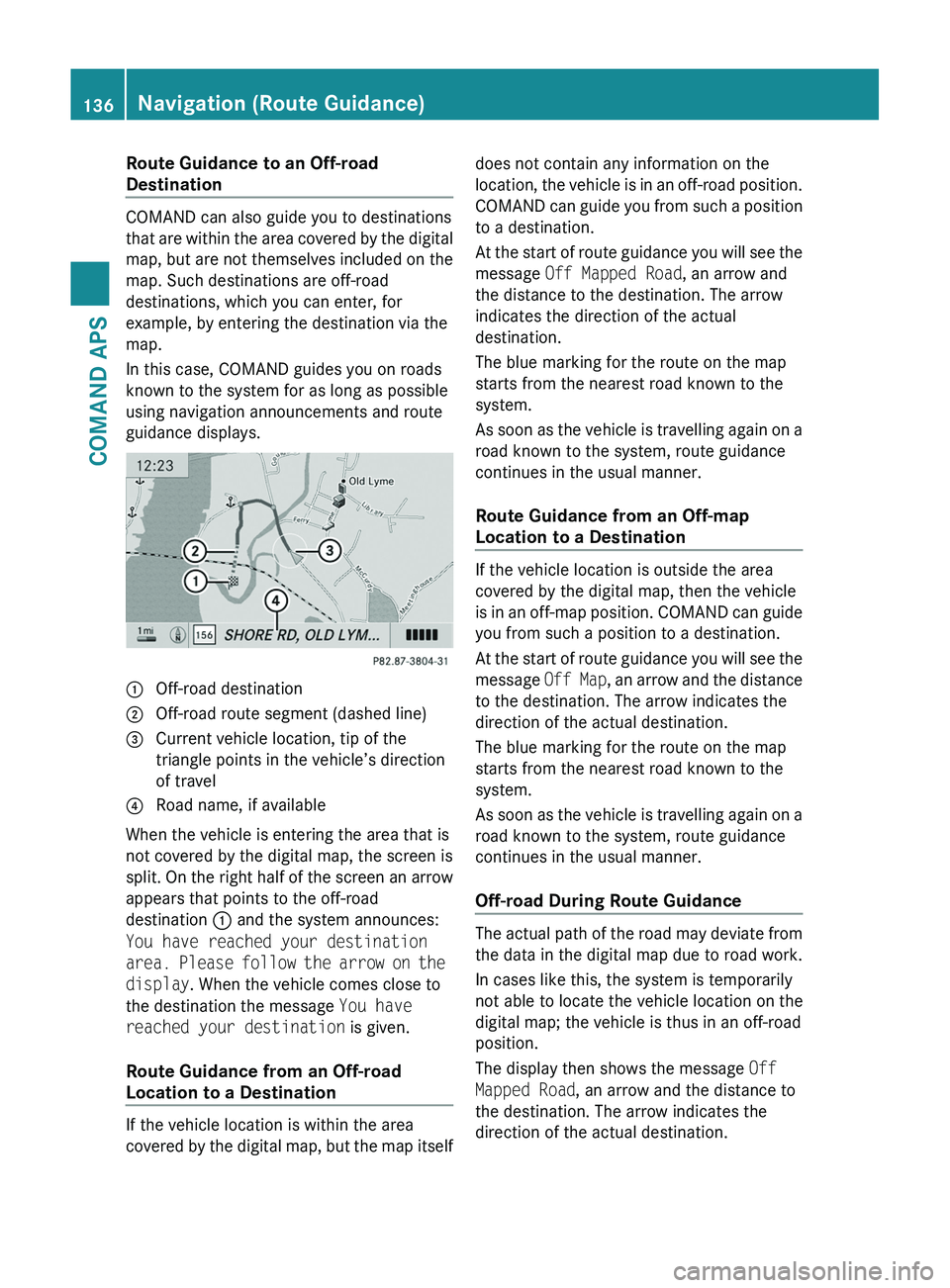
Route Guidance to an Off-road
Destination
COMAND can also guide you to destinations
that are within the area covered by the digital
map, but are not themselves included on the
map. Such destinations are off-road
destinations, which you can enter, for
example, by entering the destination via the
map.
In this case, COMAND guides you on roads
known to the system for as long as possible
using navigation announcements and route
guidance displays.
1 Off-road destination2 Off-road route segment (dashed line)3 Current vehicle location, tip of the
triangle points in the vehicle’s direction
of travel
4 Road name, if available
When the vehicle is entering the area that is
not covered by the digital map, the screen is
split. On the right half of the screen an arrow
appears that points to the off-road
destination 1 and the system announces:
You have reached your destination
area. Please follow the arrow on the
display. When the vehicle comes close to
the destination the message You have
reached your destination is given.
Route Guidance from an Off-road
Location to a Destination
If the vehicle location is within the area
covered by the digital map, but the map itself
does not contain any information on the
location, the vehicle is in an off-road position.
COMAND can guide you from such a position
to a destination.
At the start of route guidance you will see the
message Off Mapped Road, an arrow and
the distance to the destination. The arrow
indicates the direction of the actual
destination.
The blue marking for the route on the map
starts from the nearest road known to the
system.
As soon as the vehicle is travelling again on a
road known to the system, route guidance
continues in the usual manner.
Route Guidance from an Off-map
Location to a Destination
If the vehicle location is outside the area
covered by the digital map, then the vehicle
is in an off-map position. COMAND can guide
you from such a position to a destination.
At the start of route guidance you will see the
message Off Map, an arrow and the distance
to the destination. The arrow indicates the
direction of the actual destination.
The blue marking for the route on the map
starts from the nearest road known to the
system.
As soon as the vehicle is travelling again on a
road known to the system, route guidance
continues in the usual manner.
Off-road During Route Guidance
The actual path of the road may deviate from
the data in the digital map due to road work.
In cases like this, the system is temporarily
not able to locate the vehicle location on the
digital map; the vehicle is thus in an off-road
position.
The display then shows the message Off
Mapped Road, an arrow and the distance to
the destination. The arrow indicates the
direction of the actual destination.
136Navigation (Route Guidance)COMAND APS
BA 197 USA, CA Edition A 2011; 1; 27, en-UShereepeVersion: 3.0.3.52010-03-24T15:31:10+01:00 - Seite 136
Page 139 of 436
As soon as the vehicle location is found again,
route guidance continues in the usual
manner.
Navigation Announcements
GWarning
Navigation announcements are intended to
direct you while driving without diverting your
attention from the road and driving.
Please always use this feature instead of
consulting the map display for directions.
Consulting the symbols or map display for
directions may cause you to divert your
attention from driving and increase your risk
of an accident.
i During an active telephone call, the
navigation announcements are
suppressed.
If you have missed an announcement, you can
call up the current announcement at any
time.
XTo request current announcement: In
map view with the menu system
( Y page 106) displayed, select RPT.XTo switch off navigation
announcements: During the
announcement, press the 007B button.
You will briefly see the message: The
driving instructions have been
muted .XTo switch navigation announcements
back on manually: In map view with the
menu system ( Y page 106) displayed,
select RPT.
or
XStart a new route calculation
( Y page 121).
or
XIf COMAND is switched on again or the
engine is restarted.XTo set the volume of the
announcements: Set the volume during
the automatic announcement ( Y page 89).
or
XCall up an announcement manually by
selecting RPT in map view with the menu
system displayed.XAdjust the volume.
Audio Fadeout
The Audio Fadeout function, if activated,
lowers the volume of the current audio source
when a navigation announcement is issued.
As soon as the navigation announcement has
ended, the audio source will be played with
the previous volume ( Y page 89).
Canceling Route Guidance
XIn the map display with the menu system
displayed ( Y page 106) select
Destination £ Cancel Route
Guidance .
Resuming Route Guidance
XSelect Destination £ Continue
Route Guidance in map view with the
menu system displayed.
COMAND calculates the route.
Detour Function
i The Detour function blocks a route
segment ahead. You can set the length of
the block. COMAND calculates a detour
route if possible.
XSelect Route £ Detour in map view with
the menu system displayed.Navigation (Route Guidance)137COMAND APSBA 197 USA, CA Edition A 2011; 1; 27, en-UShereepeVersion: 3.0.3.52010-03-24T15:31:10+01:00 - Seite 137Z
Page 140 of 436
XTo set the length of block: Select
Longer or Shorter repeatedly until the
required length is set.
The blocked segment is highlighted in red/
white on the map. Shown at the top of the
display is the length of the blocked
segment and the route segment to which
the block goes.XTo cancel the function: Select Back.XTo start route calculation: Select Start,
see also ( Y page 121).XTo delete block: In map view with the
menu system displayed, select Route £
Detour £ Delete .
Alternative Route
i You can have other routes calculated for
the original route guidance using the
Alternative Route function.
XIn the map display with the menu system
displayed ( Y page 106) select Route £
Alternative Route .
The display is split into two halves. On the
left is the map, which displays one or more
alternative routes between the start and
the destination. The current route is
highlighted in dark blue, other alternative
routes are light blue (day mode). If the
display is in night mode, the representation
is inverse.
The right side of the display shows
information on the active alternative route,
e.g. length of the segment and the
estimated time of arrival.XTo select next or previous alternative
route: Select Next or Previous .
The selected route is now highlighted in
dark blue.XTo return to the original route guidance:
Select Back.XTo start route guidance with the
selected alternative route guidance:
Select Start.Route Browser
i The route browser provides an overview
of the route. You can move along the route
segment by segment using the route
browser and view information and details
about the route segments.XIn the map display with the menu system
displayed, select Route £ Route
Browser .
The route browser is in the display.
The top of the display shows information on
the highlighted route segment, e.g. the
road name or number and the segment
length of the road to be driven.
The highlighted route segment is identified
on the map by its white color and red edge.XTo display next or previous route
segment: Select Next or Previous .XTo enlarge or reduce the map display:
Select ; or :.XTo close route browser: Select Back.
Displaying Destination Information
XIn the map display with the menu system
( Y page 106) shown, select Route £
Destination Information .
The destination information is given in the
display.138Navigation (Route Guidance)COMAND APS
BA 197 USA, CA Edition A 2011; 1; 27, en-UShereepeVersion: 3.0.3.52010-03-24T15:31:10+01:00 - Seite 138
Page 141 of 436
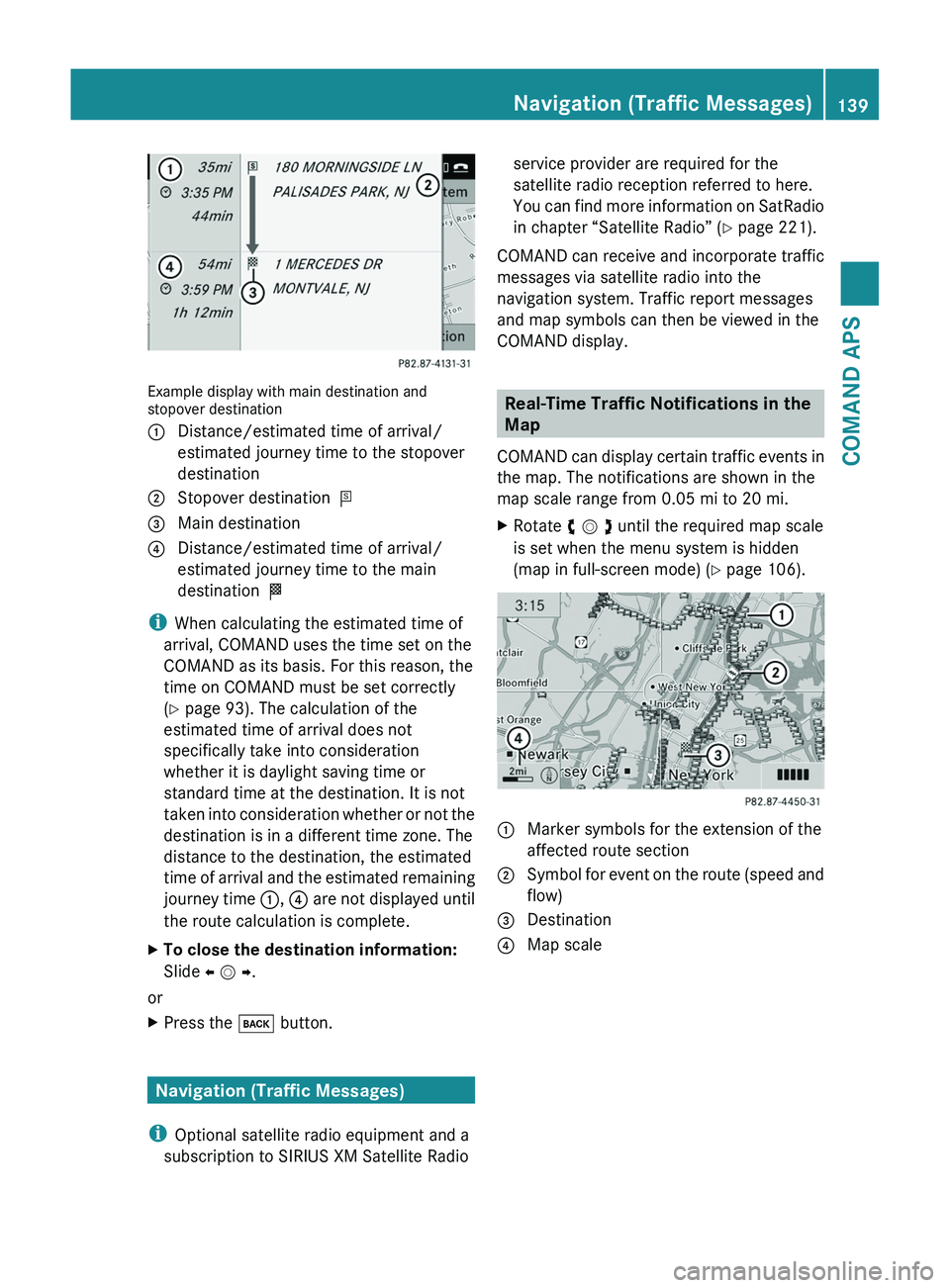
Example display with main destination andstopover destination
1 Distance/estimated time of arrival/
estimated journey time to the stopover
destination
2 Stopover destination =3 Main destination4 Distance/estimated time of arrival/
estimated journey time to the main
destination <
iWhen calculating the estimated time of
arrival, COMAND uses the time set on the
COMAND as its basis. For this reason, the
time on COMAND must be set correctly
(Y page 93). The calculation of the
estimated time of arrival does not
specifically take into consideration
whether it is daylight saving time or
standard time at the destination. It is not
taken into consideration whether or not the
destination is in a different time zone. The
distance to the destination, the estimated
time of arrival and the estimated remaining
journey time 1, 4 are not displayed until
the route calculation is complete.
XTo close the destination information:
Slide o m p.
or
XPress the \000= button.
Navigation (Traffic Messages)
iOptional satellite radio equipment and a
subscription to SIRIUS XM Satellite Radio
service provider are required for the
satellite radio reception referred to here.
You can find more information on SatRadio
in chapter “Satellite Radio” (Y page 221).
COMAND can receive and incorporate traffic
messages via satellite radio into the
navigation system. Traffic report messages
and map symbols can then be viewed in the
COMAND display.
Real-Time Traffic Notifications in the
Map
COMAND can display certain traffic events in
the map. The notifications are shown in the
map scale range from 0.05 mi to 20 mi.
XRotate y m z until the required map scale
is set when the menu system is hidden
(map in full-screen mode) (Y page 106).
1 Marker symbols for the extension of the
affected route section
2 Symbol for event on the route (speed and
flow)
3 Destination4 Map scaleNavigation (Traffic Messages)139COMAND APSBA 197 USA, CA Edition A 2011; 1; 27, en-UShereepeVersion: 3.0.3.52010-03-24T15:31:10+01:00 - Seite 139Z
Page 143 of 436
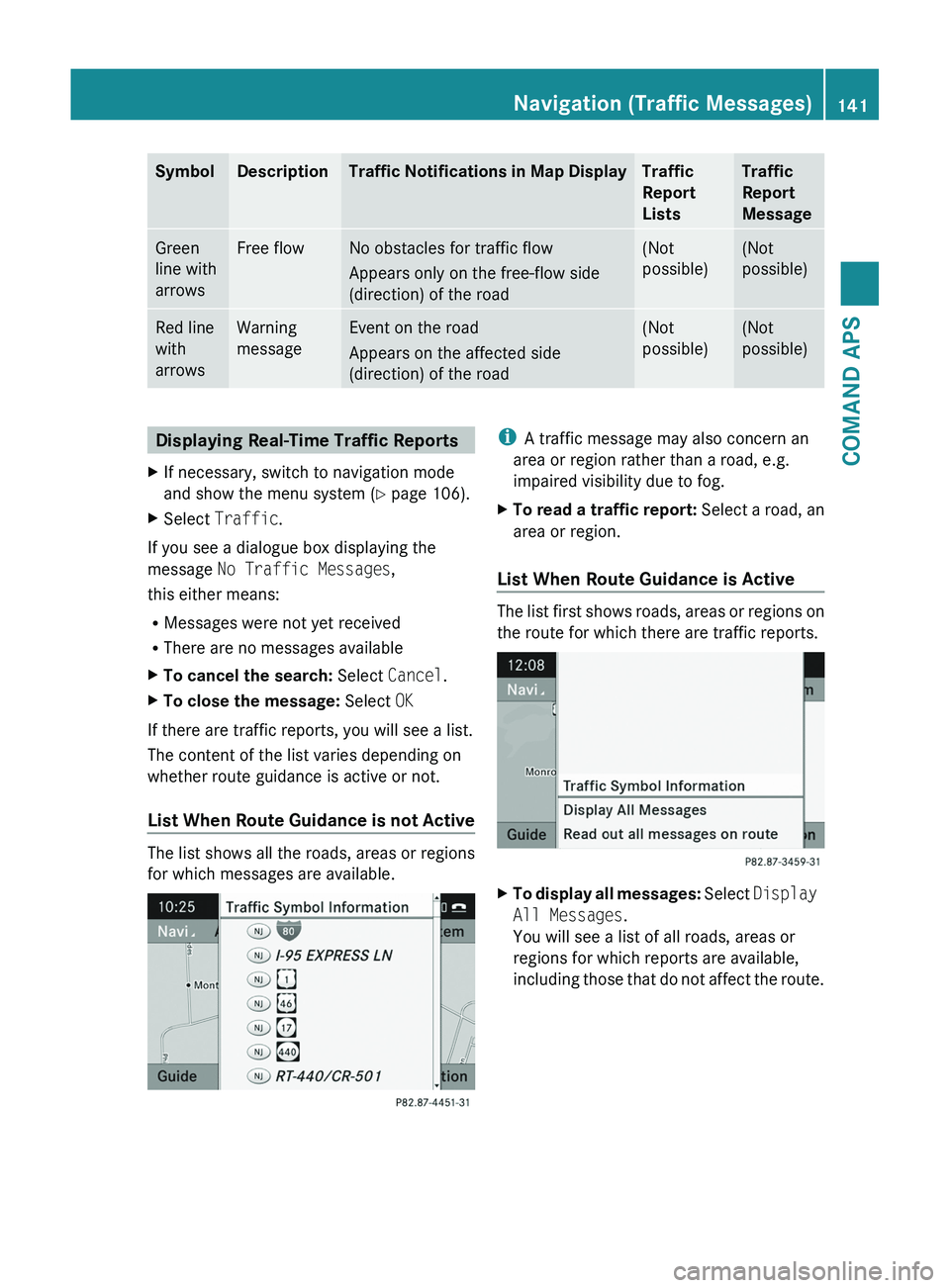
SymbolDescriptionTraffic Notifications in Map DisplayTraffic
Report
Lists
Traffic
Report
Message
Green
line with
arrows
Free flowNo obstacles for traffic flow
Appears only on the free-flow side
(direction) of the road
(Not
possible)
(Not
possible)
Red line
with
arrows
Warning
message
Event on the road
Appears on the affected side
(direction) of the road
(Not
possible)
(Not
possible)Displaying Real-Time Traffic ReportsXIf necessary, switch to navigation mode
and show the menu system (Y page 106).
XSelect Traffic.
If you see a dialogue box displaying the
message No Traffic Messages,
this either means:
RMessages were not yet received
RThere are no messages available
XTo cancel the search: Select Cancel.XTo close the message: Select OK
If there are traffic reports, you will see a list.
The content of the list varies depending on
whether route guidance is active or not.
List When Route Guidance is not Active
The list shows all the roads, areas or regions
for which messages are available.
iA traffic message may also concern an
area or region rather than a road, e.g.
impaired visibility due to fog.
XTo read a traffic report: Select a road, an
area or region.
List When Route Guidance is Active
The list first shows roads, areas or regions on
the route for which there are traffic reports.
XTo display all messages: Select Display
All Messages.
You will see a list of all roads, areas or
regions for which reports are available,
including those that do not affect the route.
Navigation (Traffic Messages)141COMAND APSBA 197 USA, CA Edition A 2011; 1; 27, en-UShereepeVersion: 3.0.3.52010-03-24T15:31:10+01:00 - Seite 141Z
Page 145 of 436
Read-aloud Function
The read-aloud function is only available
when route guidance is active. It can read out
traffic reports on the route. You can set the
language (Y page 99) and the read-aloud
speed (Y page 94).
If the automatic reading function of traffic
messages is activated, incoming traffic
messages are read aloud automatically
(Y page 112).
XIf necessary, switch to navigation mode
and show the menu system (Y page 106).
XSelect Traffic £ Read out all
messages on route.
COMAND reads out the messages in
sequence.
iThe Messages on the Route menu item
has no function if there are no messages
relating to the route.
XTo cancel read-out of current message:
Select Cancel Read-aloud Function.
or
XPress the F button.
COMAND reads the current message aloud
and then ends the read-aloud function.
Dynamic Rerouting
COMAND can recalculate the route by taking
into account traffic messages received along
the route.
You can set the options for dynamic rerouting
in the Navi menu (Y page 107).
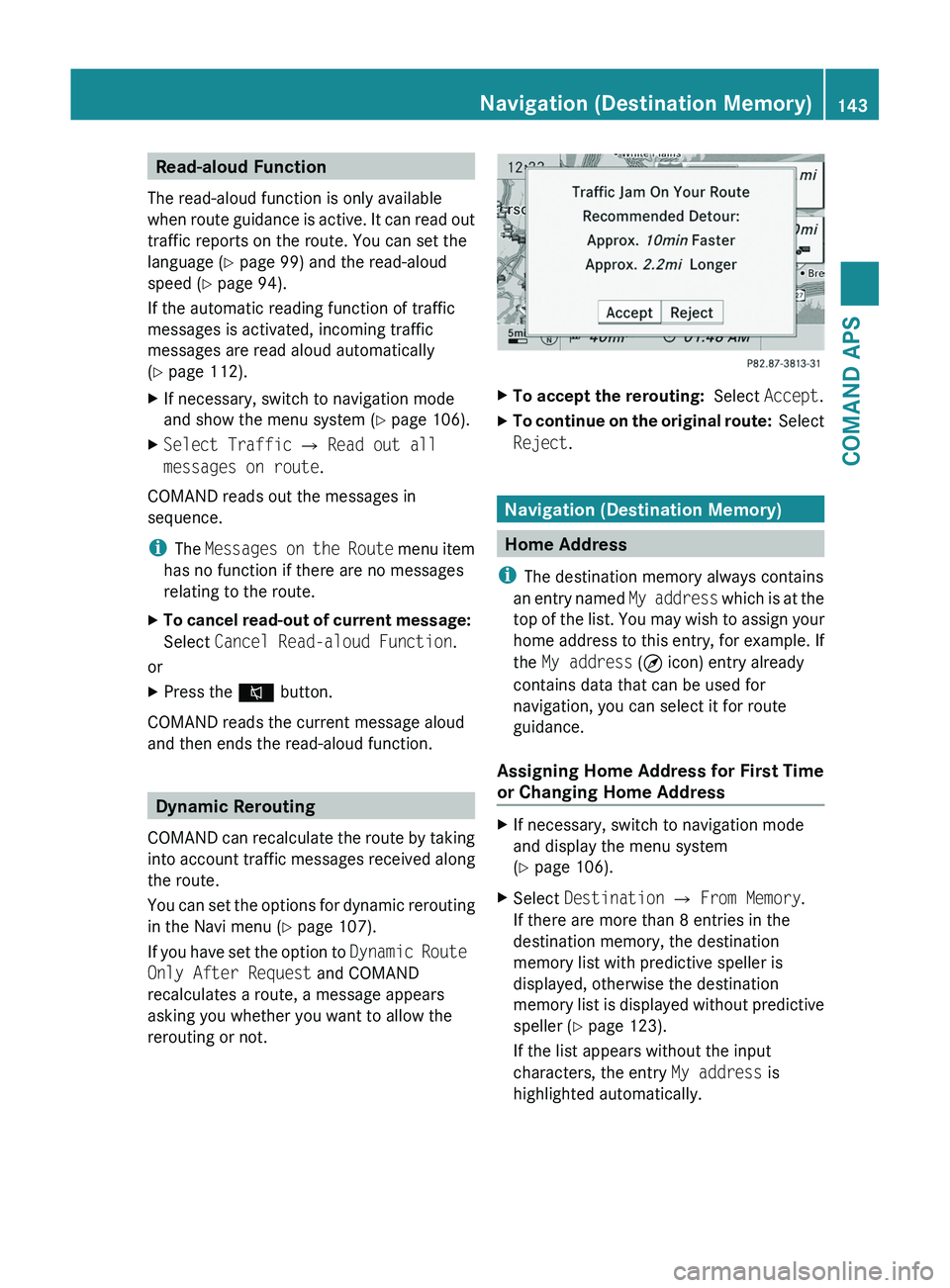
If you have set the option to Dynamic Route
Only After Request and COMAND
recalculates a route, a message appears
asking you whether you want to allow the
rerouting or not.
XTo accept the rerouting: Select Accept.XTo continue on the original route: Select
Reject.
Navigation (Destination Memory)
Home Address
iThe destination memory always contains
an entry named My address which is at the
top of the list. You may wish to assign your
home address to this entry, for example. If
the My address (¤ icon) entry already
contains data that can be used for
navigation, you can select it for route
guidance.
Assigning Home Address for First Time
or Changing Home Address
XIf necessary, switch to navigation mode
and display the menu system
(Y page 106).
XSelect Destination £ From Memory.
If there are more than 8 entries in the
destination memory, the destination
memory list with predictive speller is
displayed, otherwise the destination
memory list is displayed without predictive
speller (Y page 123).
If the list appears without the input
characters, the entry My address is
highlighted automatically.
Navigation (Destination Memory)143COMAND APSBA 197 USA, CA Edition A 2011; 1; 27, en-UShereepeVersion: 3.0.3.52010-03-24T15:31:10+01:00 - Seite 143Z