display MERCEDES-BENZ SLS COUPE 2010 Owner's Manual
[x] Cancel search | Manufacturer: MERCEDES-BENZ, Model Year: 2010, Model line: SLS COUPE, Model: MERCEDES-BENZ SLS COUPE 2010Pages: 361, PDF Size: 6.32 MB
Page 57 of 361
At
ag lance Operating safety
G
Risk of accident
Your attention must always be focused on the
traffic conditions.
Only use COMAN Dorthe telephone when the
road and traffic conditions permit.
Bear in mind that, at a speed of only
50 km/h, your vehicle covers a distance of
nearly 14 mper second. The navigation sys-
tem will not provide you with information
about stop signs, give-way signs, traffic regu-
lations or road safety features. It is up to you
to pay attention to these while driving the
vehicle. Only enter a new destination when
the vehicle is stationary.
This radio can be operated by anyone in
accordance with the relevant EC directive.
The equipment corresponds to curren tEuro-
pean and harmonised national standards.
This guarantees that the equipmen tconforms
to the relevant specifications regarding elec-
tromagnetic compatibility.
As a result, interference caused by your
equipment to other electrical/electronic
equipment and interference to your equip-
ment caused by other electrical/electronic
equipment can be largely prevented.
The equipment is approved by the vehicle
manufacturer in accordance with European
Automotive EMC Directive 95/54/EC. This
means that the equipment in your vehicle is
authorised for use accordin gto the given reg-
ulations. The equipment does not require cer-
tification
The equipment conforms to the relevant
equipment-specific EMC specifications in
accordance with the following European
standards:
EN 55013
EN 55020 Correct use Observe the following information when using
COMAND:
R
the safety notes in this manual
R national road traffic regulations
i Improper work on electronic components
or other systems (such as radio, DVD
changer*) and their software may result in
malfunction or failure. Even systems that
have not been modified could be affected
because the electronic systems are con-
nected. Electronics malfunctions can seri-
ously compromise the operational safety of
your vehicle.
i Only have work on or changes to elec-
tronic components carried out at a quali-
fied specialist workshop which has the nec-
essary specialist knowledge and tools to
carry out the work. Daimler recommends
that you use a Mercedes-Benz Service
Centre for this purpose. In particular, work
relevant to safety or on safety-related sys-
tems must be carried out at a qualified spe-
cialist workshop.
Function restrictions while the vehicle
is in motion For safety reasons, some COMAND functions
are restricted or unavailable while the vehicle
is in motion
.You will notice this, for example,
because you will either not be able to select
certain menu items or because COMAND will
display a message to that effect. 54
At
ag lanceCOMAND APS
*optional
BA 197 ECE RE 2010/6a; 1; 2, en-GB
sabbaeu
Version: 3.0.3.6 2010-05-07T14:19:43+02:00 - Seite 54
Page 58 of 361
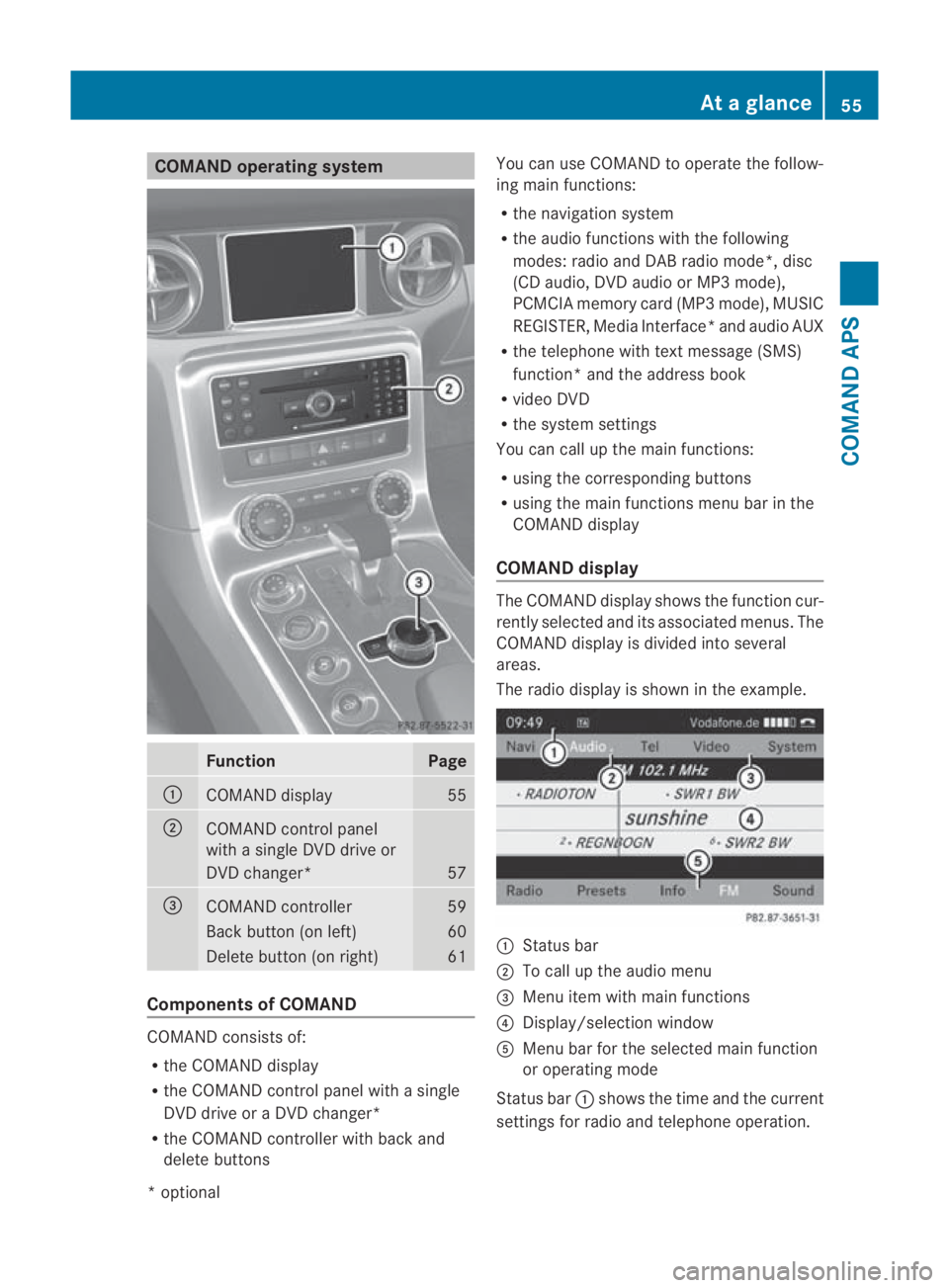
COMAND operating system
Function Page
0001
COMAND display 55
0002
COMAND control panel
with a single DV
Ddrive or
DVD changer* 57
0015
COMAND controller 59
Back button (on left) 60
Delete button (on right) 61
Components of COMAND
COMAND consists of:
R
the COMAND display
R the COMAND control panel with a single
DVD drive or a DVD changer*
R the COMAND controller with back and
delete buttons You can use COMAND to operate the follow-
ing main functions:
R the navigation system
R the audio functions with the following
modes :radio and DA Bradio mode*, disc
(CD audio, DV Daudio or MP3 mode),
PCMCI Amemory card (MP3 mode), MUSIC
REGISTER, Media Interface* and audio AUX
R the telephone with textm essage (SMS)
function *and the address book
R video DVD
R the system settings
You can call up the main functions:
R using the corresponding buttons
R using the main functions menu bar in the
COMAND display
COMAND display The COMAND display shows the functio
ncur-
rently selected and its associated menus. The
COMAND display is divided int oseveral
areas.
The radio display is shown in the example. 0001
Status bar
0002 To call up the audio menu
0015 Menu item with main functions
0014 Display/selection window
0012 Menu bar for the selected main function
or operating mode
Status bar 0001shows the time and the current
settings for radio and telephone operation. At
ag lance
55COMAND APS
*optional
BA 197 ECE RE 2010/6a; 1; 2, en-GB
sabbaeu Version: 3.0.3.6 2010-05-07T14:19:43+02:00 - Seite 55 Z
Page 59 of 361
Small triangle
0002indicates tha tthe audio
menu can be called up (Y page 157).
You can call up the desired main function
from menu bar 0015.
Select the function with the COMAND con-
troller (Y page 59).
In the example, the Audio main function is set
to radio mode and display/selection win-
dow 0014is active.
i The layout of the menus may vary depend-
ing on the equipment in the vehicle. The
menus for a fully equipped vehicle are
shown in these operating instructions. 56
At
ag lanceCOMAND APS
BA 197 ECE RE 2010/6a; 1; 2, en-GB
sabbaeu Version: 3.0.3.6 2010-05-07T14:19:43+02:00 - Seite56
Page 60 of 361
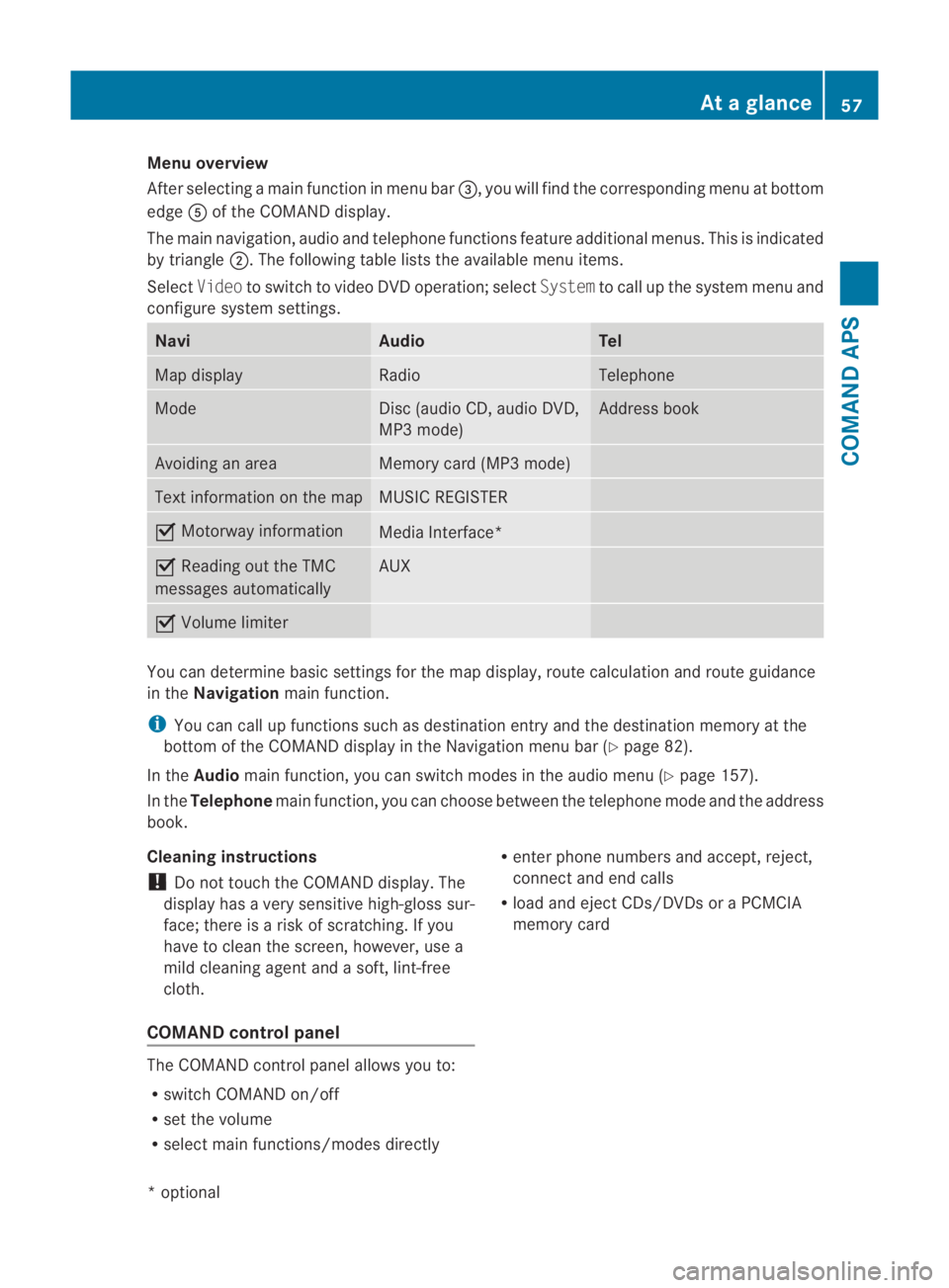
Menu overview
After selecting a main function in menu bar
0015, you will find the corresponding menu at bottom
edge 0012of the COMAND display.
The main navigation, audio and telephone functions feature additional menus. This is indicated
by triangle 0002.The following table lists the available menu items.
Select Videoto switch to video DVD operation; select Systemto call up the system menu and
configure system settings. Navi Audio Tel
Map display Radio Telephone
Mode Disc (audio CD, audio DVD,
MP3 mode) Address book
Avoiding an area Memory card (MP3 mode)
Text information on the map MUSIC REGISTER
0019
Motorway information Media Interface*
0019
Reading out the TMC
messages automatically AUX
0019
Volume limiter You can determine basic settings for the map display, route calculation and route guidance
in the
Navigation main function.
i You can call up functions such as destination entry and the destination memory at the
bottom of the COMAND display in the Navigation menu bar (Y page 82).
In the Audio main function, you can switch modes in the audiom enu (Ypage 157).
In the Telephone main function, you can choose between the telephone mode and the address
book.
Cleaning instructions
! Do not touch the COMAND display. The
display has a very sensitive high-gloss sur-
face; there is a risk of scratching. If you
have to clean the screen, however, use a
mild cleaning agent and a soft, lint-free
cloth.
COMAND control panel The COMAND control panel allows you to:
R
switch COMAND on/off
R set the volume
R select main functions/modes directly R
enter phone numbers and accept, reject,
connect and end calls
R load and ejec tCDs/DVDs or a PCMCIA
memory card At
ag lance
57COMAND APS
*optional
BA 197 ECE RE 2010/6a; 1; 2, en-GB
sabbaeu
Version: 3.0.3.6 2010-05-07T14:19:43+02:00 - Seite 57 Z
Page 62 of 361
Function Page
000E
Selects a statio
nusing the
station search function 162
Rewind 176,
194 Selects the previous track 176
000F
PIN confirmation (conveni-
ence telephony*)
133
Accepts a call 144
Dials a number 144
Redials 145
Accepts a waiting call 146
0010
Calls up the system menu 71
0011
Calls up the telephone
basic menu:
• Bluetooth
®
interface tel-
ephony 132
• Convenience telephony*
133 Function Page
0016
Rejects a call 144
Ends an active call 146
Rejects a waiting call 146
0017
Mute 67
Switches the hands-free
microphone on/off
146
Cancels the text message*
read-aloud function
148
Switches off the traffic and
navigation announcements
67
0018
Switches to navigation
mode
82
To show the menu 83
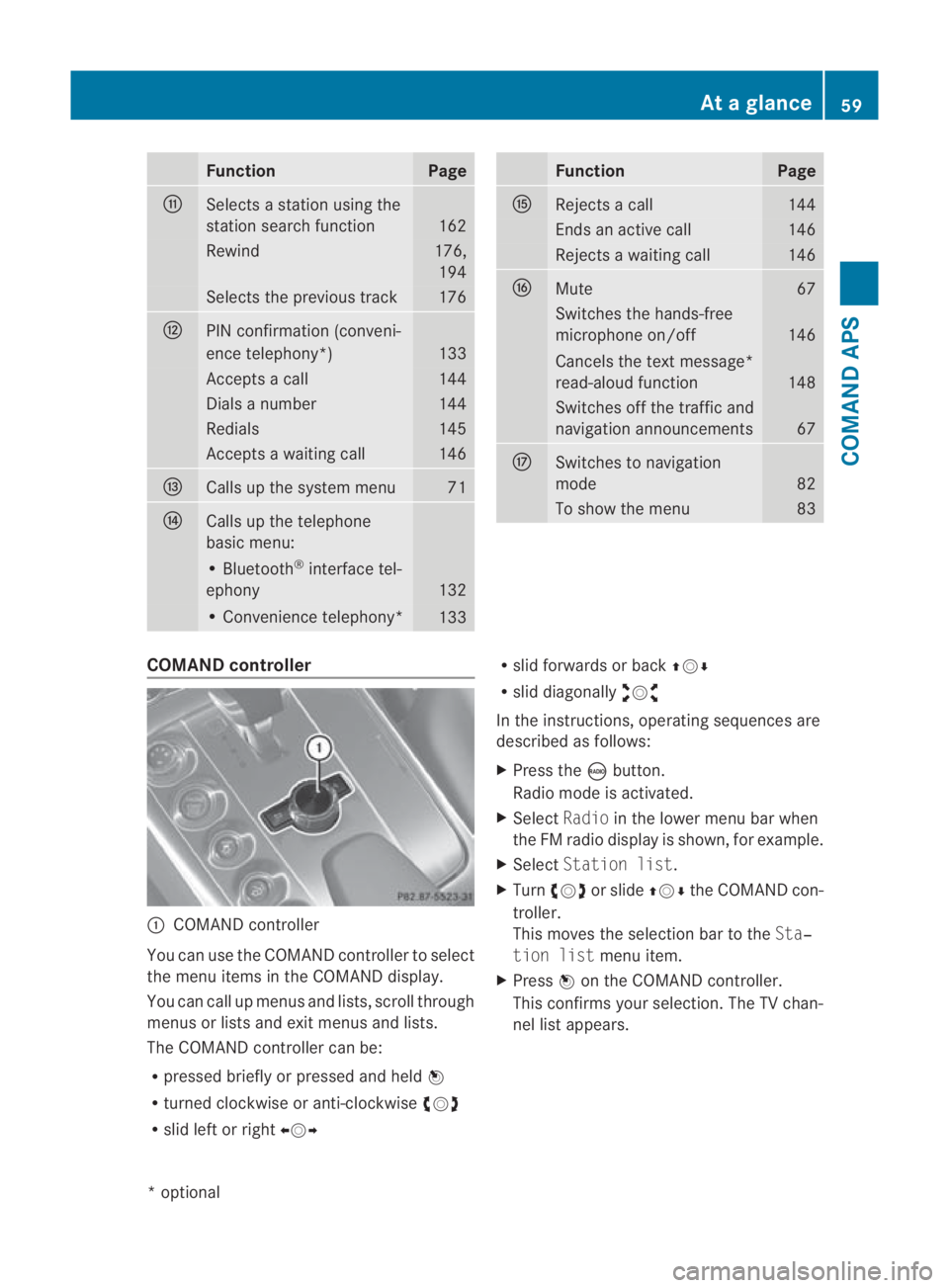
COMAND controller
0001
COMAND controller
You can use the COMAND controller to select
the menu items in the COMAND display.
You can call up menus and lists, scroll through
menus or lists and exit menus and lists.
The COMAND controller can be:
R pressed briefly or pressed and held 0017
R turned clockwise or anti-clockwise 002800130029
R slid left or right 002B0013002C R
slid forwards or back 001F0013000D
R slid diagonally 002A00130027
In the instructions, operating sequences are
described as follows:
X Press the 0006button.
Radio mode is activated.
X Select Radioin the lower menu bar when
the FM radio display is shown, for example.
X Select Station list.
X Turn 002800130029 or slide 001F0013000Dthe COMAND con-
troller.
This moves the selection bar to the Sta‐
tion list menu item.
X Press 0017on the COMAND controller.
This confirms your selection. The TV chan-
nel list appears. At
ag lance
59COMAND APS
*optional
BA 197 ECE RE 2010/6a; 1; 2, en-GB
sabbaeu Version: 3.0.3.6 2010-05-07T14:19:43+02:00 - Seite 59 Z
Page 63 of 361
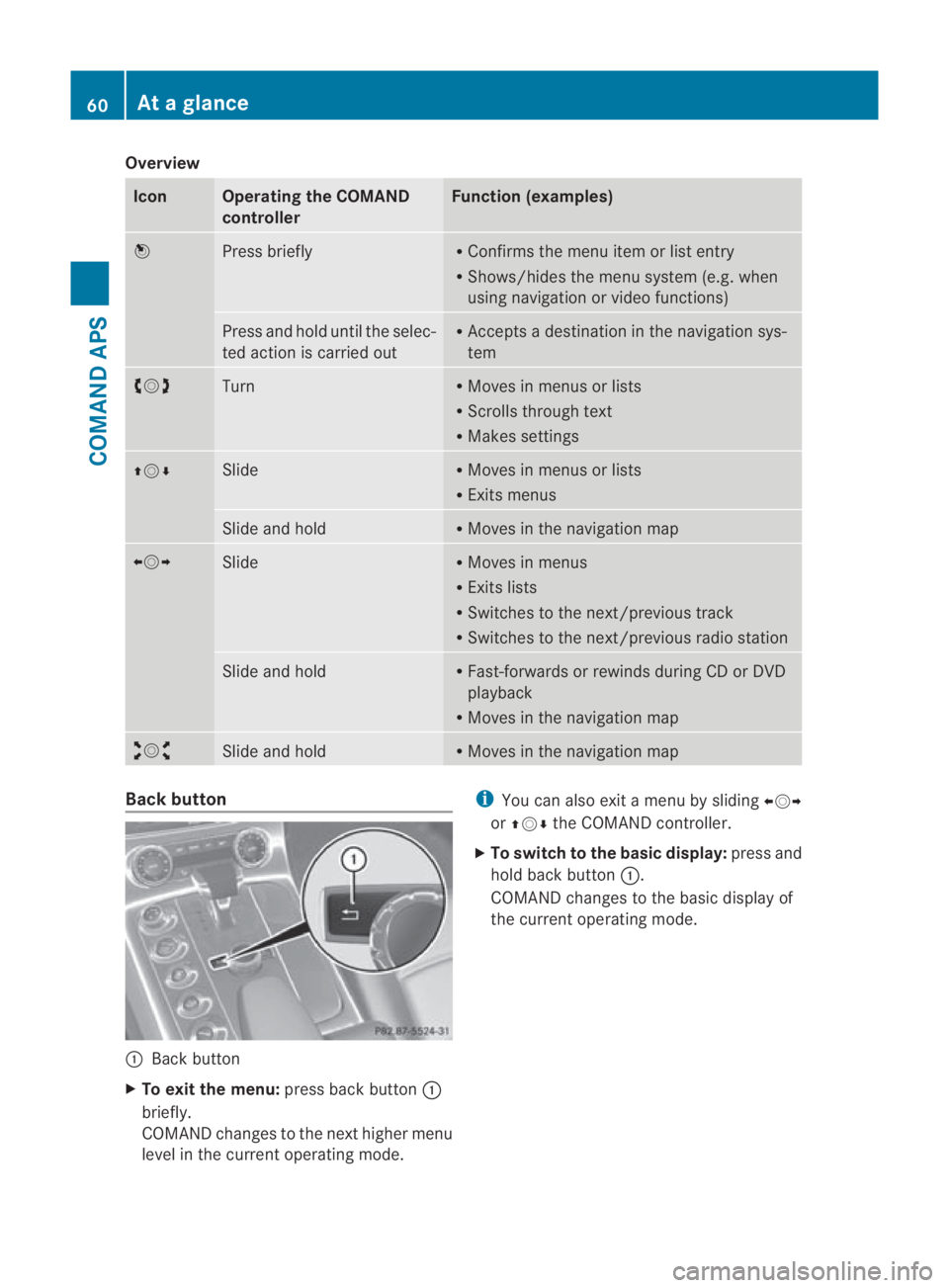
Overview
Icon Operating the COMAND
controller Function (examples)
0017
Press briefly R
Confirms the menu item or list entry
R Shows/hides the menu system (e.g. when
using navigation or video functions) Press and hold until the selec-
ted action is carried out R
Accepts a destination in the navigation sys-
tem 002800130029
Turn R
Moves in menus or lists
R Scrolls through text
R Makes settings 001F0013000D Slide R
Moves in menus or lists
R Exits menus Slide and hold R
Moves in the navigation map 002B0013002C
Slide R
Moves in menus
R Exits lists
R Switches to the next/previous track
R Switches to the next/previous radio station Slide and hold R
Fast-forwards or rewinds during CD or DVD
playback
R Moves in the navigation map 002A00130027
Slide and hold R
Moves in the navigation map Back button
0001
Back button
X To exit the menu: press back button0001
briefly.
COMAND changes to the nexth igher menu
level in the current operating mode. i
You can also exit a men uby sliding 002B0013002C
or 001F0013000D the COMAND controller.
X To switch to the basic display: press and
hold bac kbutton 0001.
COMAND changes to the basic display of
the curren toperating mode. 60
At
ag lanceCOMAND APS
BA 197 ECE RE 2010/6a; 1; 2, en-GB
sabbaeu Version: 3.0.3.6 2010-05-07T14:19:43+02:00 - Seite60
Page 65 of 361
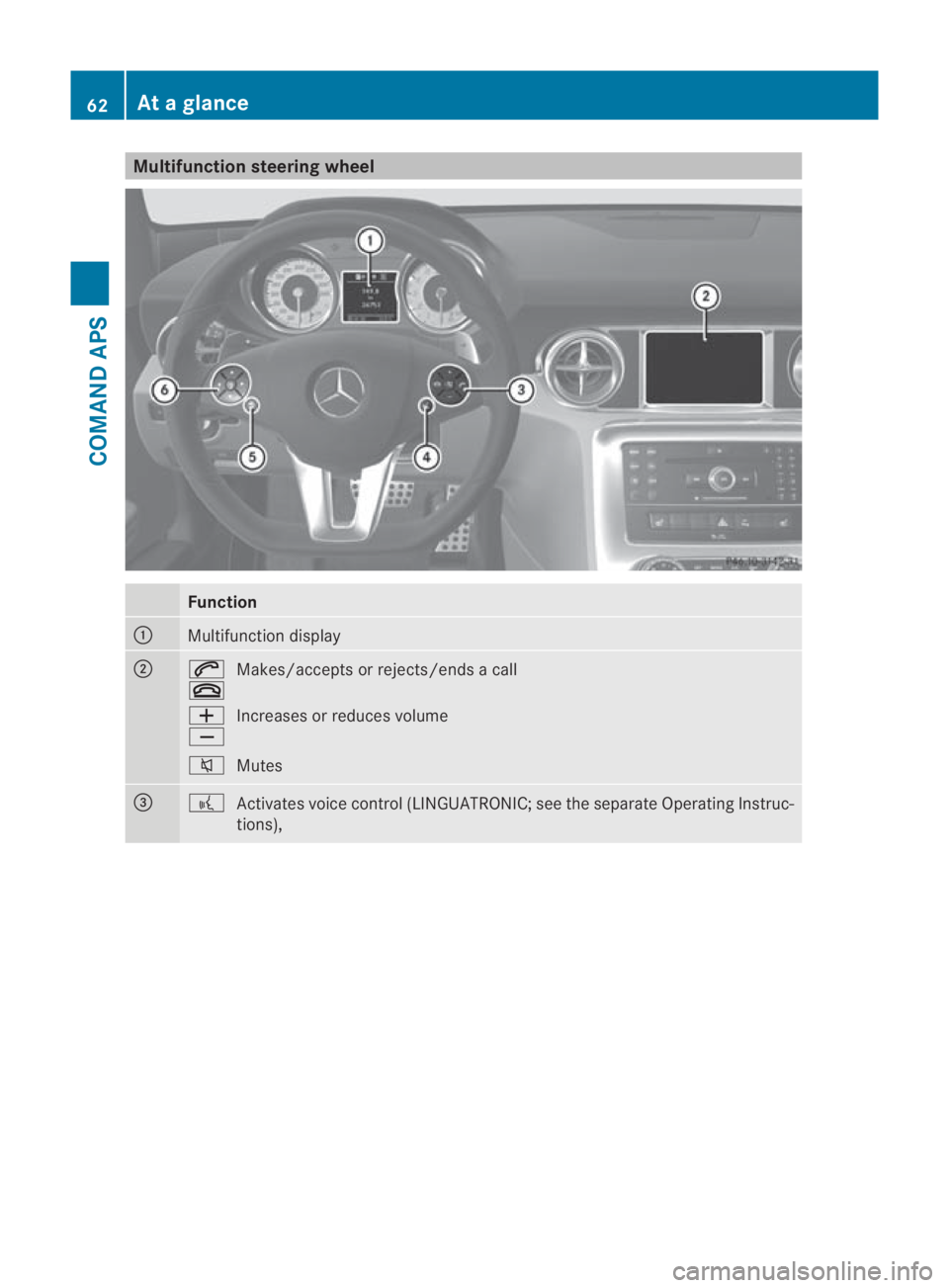
Multifunction steering wheel
Function
0001
Multifunction display
0002
001C
0015
Makes/accepts or rejects/ends a call
0005
0009 Increases or reduces volume
001E Mutes 0015
0012
Activates voice control (LINGUATRONIC; see the separate Operating Instruc-
tions), 62
At
ag lanceCOMAND APS
BA 197 ECE RE 2010/6a; 1; 2, en-GB
sabbaeu Version: 3.0.3.6 2010-05-07T14:19:43+02:00 - Seite62
Page 66 of 361
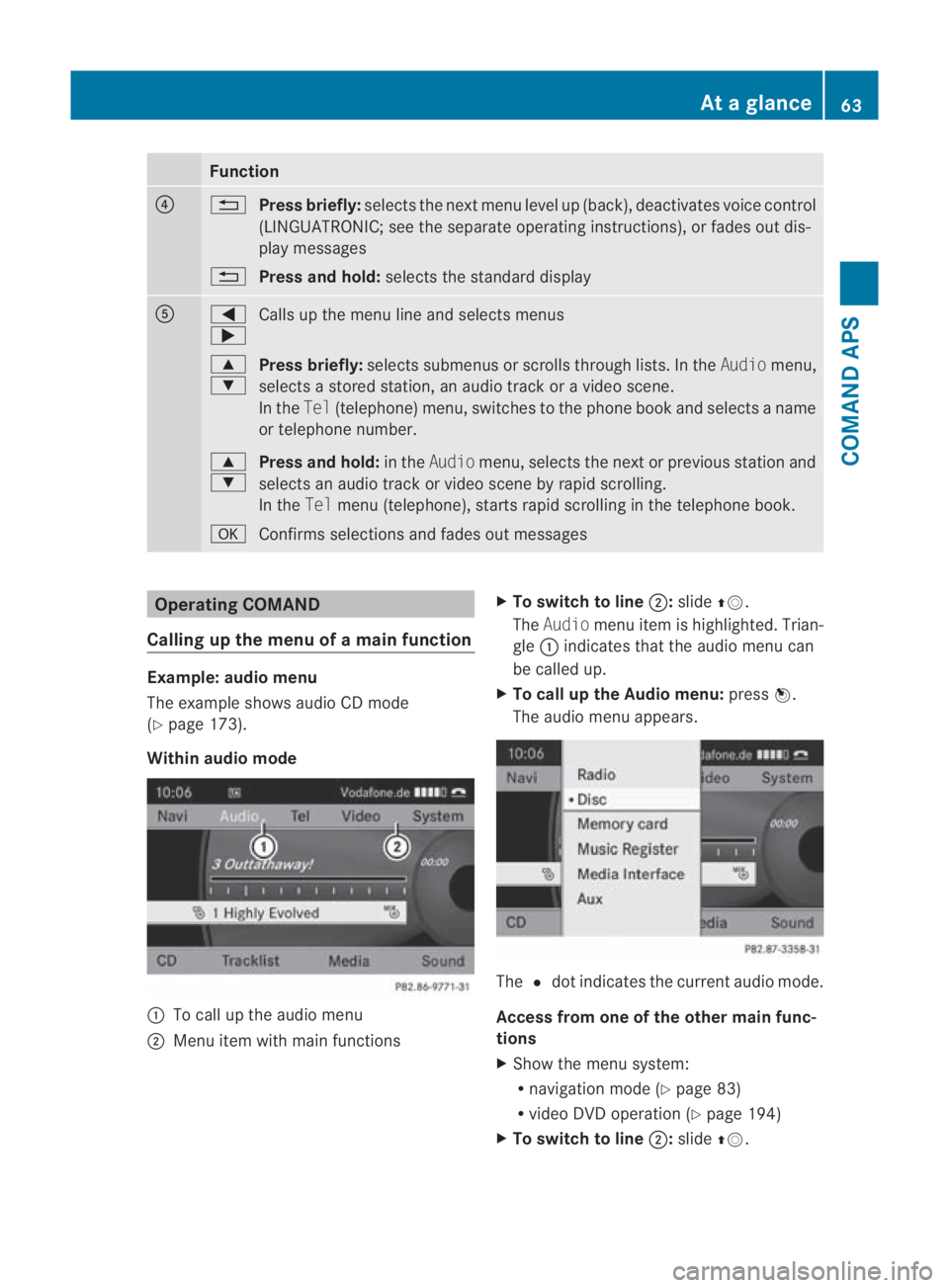
Function
0014
0001
Press briefly: selects the next men ulevel up (back), deactivates voice control
(LINGUATRONIC; see the separate operating instructions), or fades out dis-
play messages
0001 Press and hold: selects the standard display 0012
0008
000E
Calls up the menu line and selects menus
000F
000C Press briefly:
selects submenus or scrolls through lists. In the Audiomenu,
selects a stored station, an audio trac koravideoscene.
In the Tel(telephone) menu, switches to the phone boo kand selects a name
or telephone number.
000F
000C Press and hold:
in theAudio menu, selects the next or previous statio nand
selects an audio trac korvideo scene by rapid scrolling.
In the Telmenu (telephone), start srapid scrolling in the telephone book.
000A Confirms selections and fade sout messages Operating COMAND
Calling up the menu of a main function Example: audio menu
The example shows audio CD mode
(Y page 173).
Within audio mode 0001
To call up the audio menu
0002 Menu item with main functions X
To switch to line 0002:slide 001F0013.
The Audio menu item is highlighted. Trian-
gle 0001indicates that the audio menu can
be called up.
X To call up the Audio menu: press0017.
The audio menu appears. The
0023dot indicates the curren taudio mode.
Access from one of the other main func-
tions
X Show the menu system:
R
navigation mode (Y page 83)
R video DV Doperation (Y page 194)
X To switch to line 0002:slide 001F0013. At
ag lance
63COMAND APS
BA 197 ECE RE 2010/6a; 1; 2, en-GB
sabbaeu Version: 3.0.3.6 2010-05-07T14:19:43+02:00 - Seite63 Z
Page 67 of 361
X
To call up the audio menu: turn002800130029 or
slide 002B0013002C untilAudio is highlighted.
X Press 0017.
You can see the basi cdisplay of the current
audio operating mode.
X Proceed as described under "Within the
audio function".
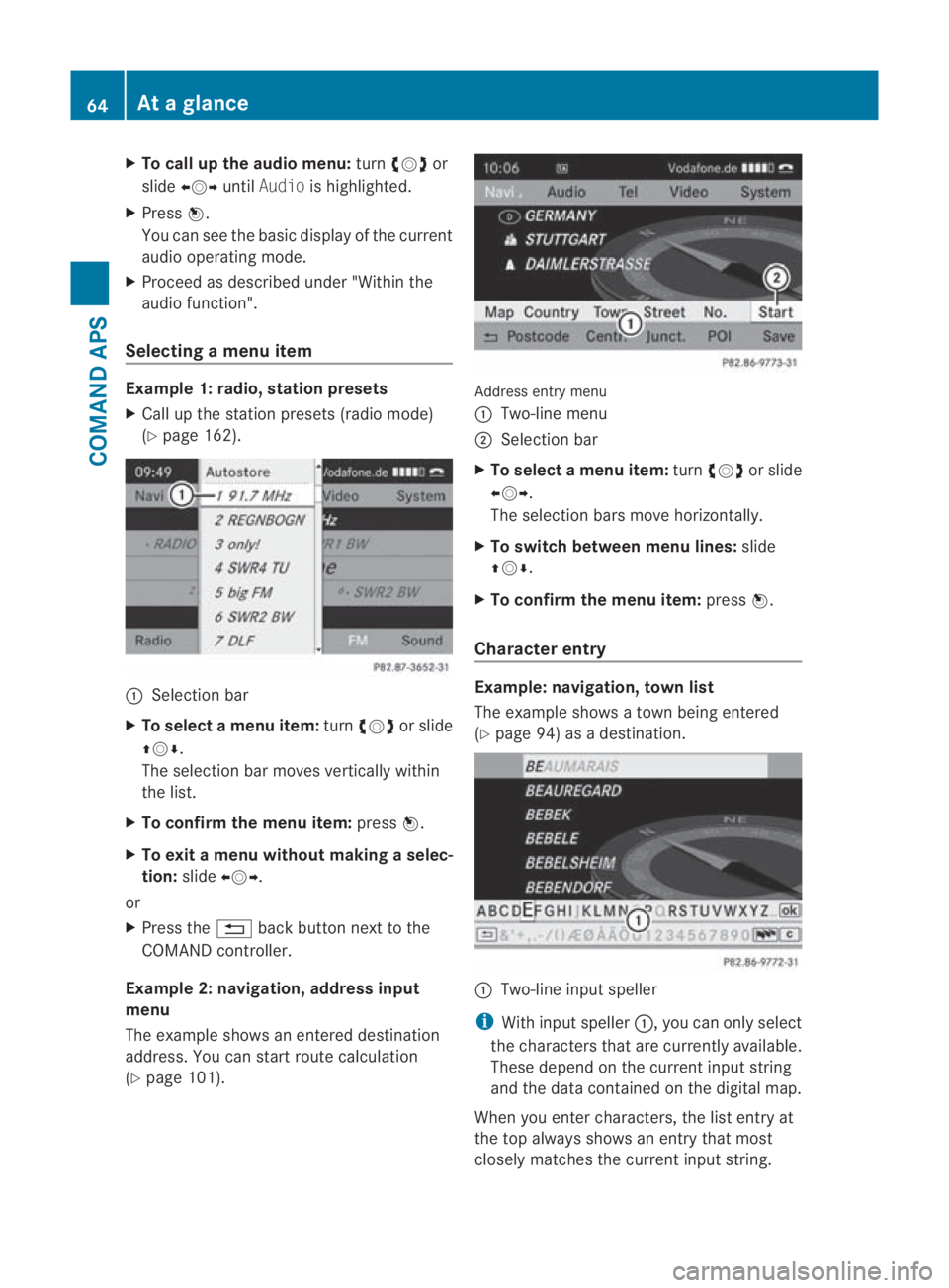
Selecting amenu item Example 1: radio, station presets
X Call up the statio npresets (radio mode)
(Y page 162). 0001
Selection bar
X To selectam enu item:turn002800130029 or slide
001F0013000D .
The selectio nbar moves vertically within
the list.
X To confirm the menu item: press0017.
X To exit a menu without making a selec-
tion: slide002B0013002C.
or
X Press the 0001back button next to the
COMAND controller.
Example 2: navigation, address input
menu
The example shows an entered destination
address. You can start route calculation
(Y page 101). Address entry menu
0001 Two-line menu
0002 Selection bar
X To select amenu item: turn002800130029 or slide
002B0013002C .
The selectio nbars move horizontally.
X To switch between men ulines: slide
001F0013000D.
X To confirm the menu item: press0017.
Character entry Example: navigation, town list
The example shows a town being entered
(Y
page 94) as a destination. 0001
Two-line input speller
i With input speller 0001, you can only select
the characters that are currently available.
These depend on the current input string
and the data contained on the digital map.
When you enter characters, the list entry at
the top always shows an entry that most
closely matches the current input string. 64
At
ag lanceCOMAND APS
BA 197 ECE RE 2010/6a; 1; 2, en-GB
sabbaeu Version: 3.0.3.6 2010-05-07T14:19:43+02:00 - Seite64
Page 68 of 361
COMAND then automatically adds plausible
characters to those alread
yentered by the
user.
Entering characters
X To select a character: turn002800130029 or slide
002B0013002C .
X Slide 001F0013000D to change lines in the speller.
X To confirm the character selection:
press 0017.
It is possible, in some cases:
X To change the character set for the
input speller: select0014.
Deleting an entry
X To delete asingle character: select0004at
the bottom right-hand side of the speller
and press 0017.
or
X Press the 0013button next to the
COMAND controller.
X To delete an entry: select0004and press
and hold 0017until the entry has been
deleted.
or
X Press the 0013button next to the
COMAN Dcontroller and hold it until the
entire entry is deleted.
Cancelling an entry
X Select 0002at the bottom left in the speller
and press 0017.
or
X Press the 0001back button next to the
COMAND controller.
The address entry menu appears.
Accepting the first list entry
X Press and hold 0017until the address input
menu appears.
The accepted list entry is shown there.
or If COMAND is able to unambiguously assign
the characters entered to one town, the
address entry menu automatically shows the
selected list entry.
Switching to the list without input speller
If there are several entries for a town or if the
name is stored several times, then
0005is
highlighted in the speller.
X Press 0017.
You can switch to the list at any point during
character entry.
X Slide 001F0013repeatedly until the list without
speller is shown.
or
X Select 0005and press 0017.
COMAND completes the entry as soon as
it can be clearly identified. If this is the
case, the view does not switch to the list
and the system displays the address entry
menu.
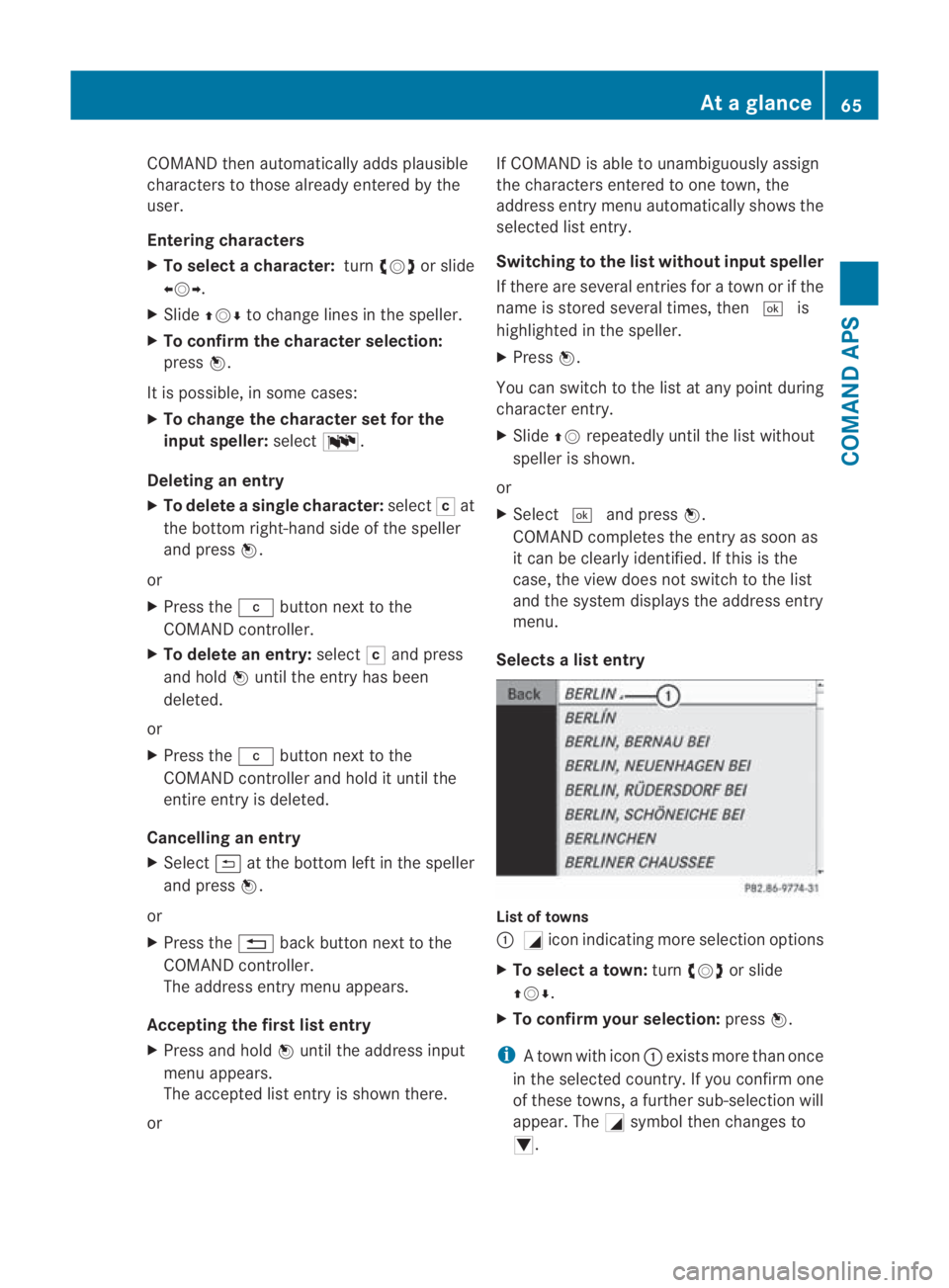
Selects alist entry List of towns
0001
0005icon indicating more selection options
X To select atown: turn002800130029 or slide
001F0013000D .
X To confir myour selection: press0017.
i Atown with icon 0001exists more than once
in the selected country. If you confirm one
of these towns, a further sub-selection will
appear. The 0005symbol then changes to
0006. At
ag lance
65COMAND APS
BA 197 ECE RE 2010/6a; 1; 2, en-GB
sabbaeu Version: 3.0.3.6 2010-05-07T14:19:43+02:00 - Seite65 Z