light MERCEDES-BENZ SLS COUPE 2010 Repair Manual
[x] Cancel search | Manufacturer: MERCEDES-BENZ, Model Year: 2010, Model line: SLS COUPE, Model: MERCEDES-BENZ SLS COUPE 2010Pages: 361, PDF Size: 6.32 MB
Page 187 of 361
You can connec
tthe following data carriers
to COMAND via the Media Interface:
R iPod ®
R USB devices
i iPod ®
is a registered trademark of Apple
Inc., Cupertino, California, USA.
For further information refer to the "Connect-
ing external devices" section (Y page 184).
Supported iPod ®
variants
The following are examples of supported
iPod ®
variants:
R iPod ®
mini
R iPod ®
nano
R iPod ®
classic
R iPod ®
touch
Supported USB devices
The following USB devices are supported:
R USB sticks (flash memory)
R USB hard drives (1-inch, 1.8-inch and 2.5-
inch drives) with a starting/continuous cur-
rent of up to 800 mA (a separate power
supply may be required in some cases)
R selected MP3 players
i The Media Interface supports USB stor-
age media of "USB Device Subclass 6".
Information concerning USB Device Sub-
class 6is available from the equipment
manufacturer.
Supported data formats (USB devices)
The following data formats are supported:
R MP3: CBR, VBR (up to 320 kbit/s)
R WMA: CBR, VBR (up to 320 kbit/s)
Characteristics of USB devices
R If possible, store only music data on the
USB device so that the start-up time is not
extended unnecessarily.
R Up to eight directory levels with up to 1,000
tracks per directory are supported. R
Do not use a USB extension cable or an
adapter. These may impair functionality.
R A background search of the USB device is
performed and any playlists found are
shown in a separate category in addition to
the folders. Initialisation of larger USB
mass storage devices containing a high
number of files may take several minutes.
i DRM (Digital Rights Management) protec-
ted files are not supported by the Media
Interface.
Connecting external devices To connect external devices to the Media
Interface, device-specific adapter cables are
required. These are included in the Media
Interface scope of delivery.
For further details and a list of supported
devices, contact a Mercedes-Benz Service
Centre or visit http://www.mercedes-
benz.com/connect .Then follow the instruc-
tions in the "Media Interface" section.
You will find the connection sockets in the
glove compartment.
Never connect more than one device. Other-
wise, you will be unable to use the external
equipment. Please consult a Mercedes-Benz
Service Centre for further information.
i Do not leave external devices in the vehi-
cle. At extreme temperatures, e.g. in direct
sunlight or extremely low outside temper-
atures, it cannot be guaranteed that they
will function correctly (see operating
instructions for the respective device).
Mercedes-Ben zaccepts no liability for
damage to external devices. 184
AudioCOMAND APS
BA 197 ECE RE 2010/6a; 1; 2, en-GB
sabbaeu
Version: 3.0.3.6 2010-05-07T14:19:43+02:00 - Seite 184
Page 188 of 361
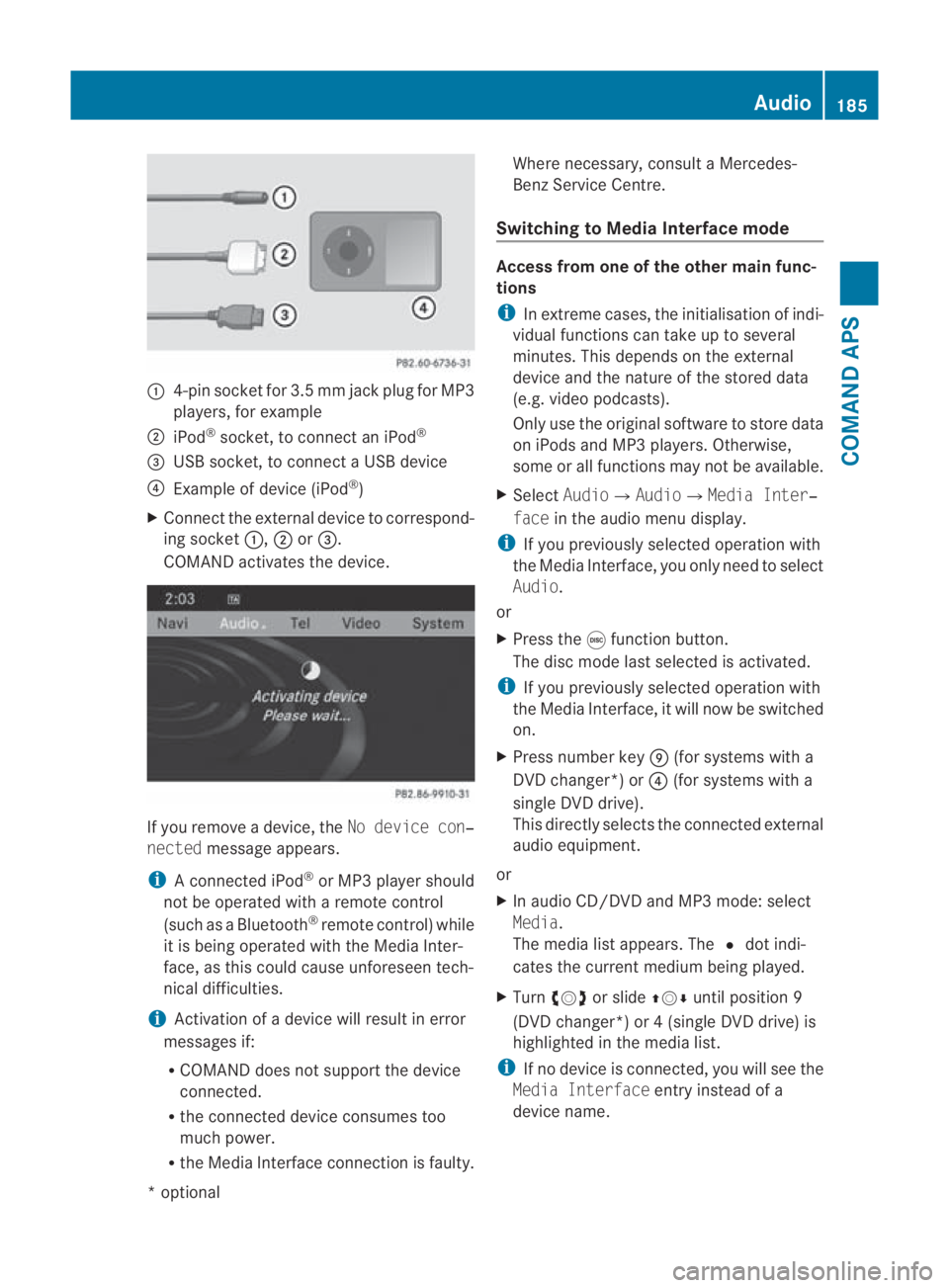
0001
4-pin socket for 3.5 mm jack plu gfor MP3
players, for example
0002 iPod ®
socket, to connect an iPod ®
0015 USB socket, to connect aUSB device
0014 Example of device (iPod ®
)
X Connect the external device to correspond-
ing socket 0001,0002or0015.
COMAND activates the device. If you remove a device, the
No device con‐
nected message appears.
i A connected iPod ®
or MP3 player should
not be operated with a remote control
(such as a Bluetooth ®
remote control) while
it is being operated with the Media Inter-
face, as this could cause unforeseen tech-
nical difficulties.
i Activation of a device will resul tinerror
messages if:
R COMAND does not support the device
connected.
R the connected device consumes too
much power.
R the Media Interface connection is faulty. Where necessary, consult a Mercedes-
Benz Service Centre.
Switching to Media Interface mode Access from one of the other main func-
tions
i
In extreme cases, the initialisation of indi-
vidual functions can take up to several
minutes. This depends on the external
device and the nature of the stored data
(e.g. video podcasts).
Only use the original software to store data
on iPods and MP3 players .Otherwise,
some or all functions may not be available.
X Select Audio0004 Audio0004Media Inter‐
face in the audio menu display.
i If you previously selected operatio nwith
the Media Interface, you only need to select
Audio.
or
X Press the 000Efunction button.
The disc mode last selected is activated.
i If you previously selected operation with
the Media Interface, it will now be switched
on.
X Press number key 000C(for systems with a
DVD changer*) or 0014(for systems with a
single DV Ddrive).
This directly selects the connected external
audio equipment.
or
X In audio CD/DVD and MP3 mode: select
Media.
The media list appears. The 0023dot indi-
cates the current medium being played.
X Turn 002800130029 or slide 001F0013000Duntil position 9
(DVD changer*) or 4 (single DVD drive) is
highlighted in the media list.
i If no device is connected, you will see the
Media Interface entry instead of a
device name. Audio
185COMAND APS
*optional
BA 197 ECE RE 2010/6a; 1; 2, en-GB
sabbaeu
Version: 3.0.3.6 2010-05-07T14:19:43+02:00 - Seite 185 Z
Page 194 of 361
Notes on discs
i
There may be playback problems when
playing copied discs .There are a large vari-
ety of discs, DVD authoring software, writ-
ing software and writers available. This vari-
ety means that there is no guarantee that
the system will be able to play discs that
you have copied yourself.
! Do not affix stickers or labels to the discs,
as they could peel off and damage
COMAND. Stickers can cause the disc to
bend, which can result in read errors and
disc recognition problems.
! COMAND is designed to accommodate
discs which comply with the EN 60908
standard. You can therefore only use discs
with a maximum thickness of 1.3 mm.
If you insert thicker discs, e.g. those that
contain data on both sides (DVD on one
side and audio data on the other), they can-
not be ejected and can damage COMAND.
Use round discs with a diameter of 12 cm.
Do not use discs with a diameter of 8 cm,
even with an adapter.
Notes on handling discs R
Only hold discs by the edge.
R Handle discs carefully to prevent playback
problems.
R Avoid getting scratches, fingerprints and
dust on discs.
R Clean discs from time to time with a com-
mercially available cleaning cloth. When
cleaning CDs, you should wipe in straight
lines from the centre outwards rather than
in a circular motion.
R Only use a pen specifically made for label-
ling discs.
R Place discs back in their cases after use.
R Protect discs from heat and direct sunlight. DVD playback conditions It is possible to buy video DVDs which do not
conform to current standards.
Such DVDs may have picture, sound or other
playback problems. COMAND can play back
video DVDs produced according to the fol-
lowing standards:
R
region code 2orregion code 0(no region
code)
i If you insert a video DVD with a different
regio ncode, you will see a message to this
effect.
R PAL or NTSC TV standard
You will generally find the relevant details
either on the DVD itself or on the DVD case.
i COMAND is set to region code 2 at the
factory. This setting can be changed at a
Mercedes-Benz Service Centre. This will
allow you to play video DVDs with a differ-
ent region code, provided that they are pro-
duced in accordance with the PAL or NTSC
TV standard. The region code can be
changed a maximum of five times.
Background video mode If another main function is active, such as
navigation, you can use the
0001or0002
button to carry out the following functions in
video DVD mode:
R select a scene/chapter
R fast forward or rewind
Aw indow shows information about the selec-
ted function.
Function restrictions Depending on the DVD, it is possible that cer-
tain functions or actions will be temporarily
blocked or may not function at all. As soon as
you try to activate these functions or actions,
you will see the
0008symbol in the display. Video
191COMAND APS
BA 197 ECE RE 2010/6a; 1; 2, en-GB
sabbaeu Version: 3.0.3.6 2010-05-07T14:19:43+02:00 - Seite191 Z
Page 197 of 361
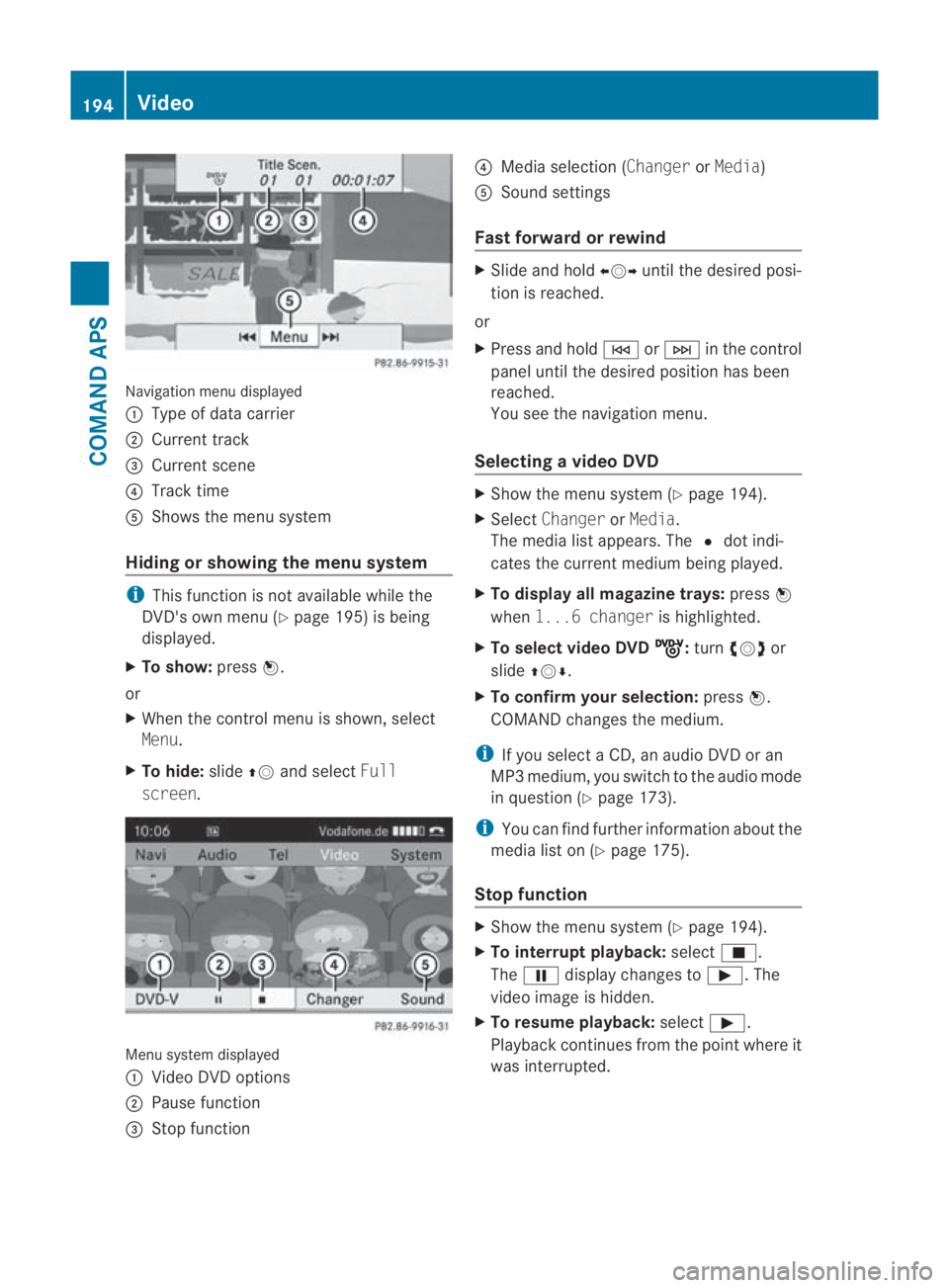
Navigation menu displayed
0001
Type of data carrier
0002 Current track
0015 Current scene
0014 Track time
0012 Shows the menu system
Hiding or showing the menu system i
This function is not available while the
DVD's own menu (Y page 195) is being
displayed.
X To show: press0017.
or
X When the control menu is shown, select
Menu.
X To hide: slide001F0013and select Full
screen. Menu system displayed
0001
Video DVD options
0002 Pause function
0015 Stop function 0014
Media selection (Changer orMedia)
0012 Sound settings
Fast forward or rewind X
Slide and hold 002B0013002Cuntil the desired posi-
tion is reached.
or
X Press and hold 0001or0002 in the control
panel until the desired position has been
reached.
You see the navigatio nmenu.
Selecting avideo DVD X
Show the menu syste m(Ypage 194).
X Select Changer orMedia.
The media list appears. The 0023dot indi-
cates the curren tmedium being played.
X To display all magazine trays: press0017
when 1...6 changer is highlighted.
X To select video DVD ý :
turn 002800130029 or
slide 001F0013000D.
X To confirm your selection: press0017.
COMAND changes the medium.
i If you select a CD, an audio DVD or an
MP3 medium, you switch to the audio mode
in question (Y page 173).
i You can find further information about the
media list on (Y page 175).
Stop function X
Show the menu system (Y page 194).
X To interrupt playback: select0010.
The 0007 display changes to 000D.The
video image is hidden.
X To resume playback: select000D.
Playback continues from the point where it
was interrupted. 194
VideoCOMAND APS
BA 197 ECE RE 2010/6a; 1; 2, en-GB
sabbaeu
Version: 3.0.3.6 2010-05-07T14:19:43+02:00 - Seite 194
Page 200 of 361
X
To save the setting: press0017.
X To exit a menu: slide002B0013002C.
Subtitles and camera angle i
These functions are not available on all
DVDs. The numbe rofsubtitle languages
and camera angles available depends on
the content of the DVD. It is possible that
the settings may also be accessed in the
DVD menu (Y page 195).
X Show the menu system (Y page 194).
X Select DVD-V0004 DVD functions .
X Select Subtitles orCamera angle.
In both cases, a menu appears. The 0023dot
in front of an entry indicates the current
setting.
X To change the setting: turn002800130029 or slide
001F0013000D until the desired setting is reached.
X To save the setting: press0017.
X To exit the menu: press0017.
Interactive content DVDs can contain interactive content (e.g. a
video game). In a vide ogame, you may be able
to influence events by selecting and trigger-
ing actions. The type and number of actions
depend on the DVD.
X To select an action: slide001F0013000D or002B0013002C .
X To trigger an action: press0017.
A menu appears and the first entry,
Select , is highlighted.
X Press 0017. Video
197COMAND APS
BA 197 ECE RE 2010/6a; 1; 2, en-GB
sabbaeu Version: 3.0.3.6
2010-05-07T14:19:43+02:00 - Seite 197 Z
Page 202 of 361
Doors
.................................................. 200
Opening/closing the boot ................201
Key positions .................................... 202
Seats .................................................. 203
Steering wheel .................................. 206
Mirrors ............................................... 207
Memory functions* ...........................210
Seat belts ........................................... 210
Lights ................................................. 214
Windscreen wipers ...........................217
Side windows .................................... 218
Driving and parking ..........................220
AMG SPEEDSHIFT DCT 7-speed
sports transmission .........................223
Instrument cluster ............................229
On-board computer ..........................230
Driving systems ................................ 243
Climate control ................................. 251
Loading and stowing ........................257
Features ............................................. 259 199Controls
BA 197 ECE RE 2010/6a; 1; 2, en-GB
sabbaeu
Version: 3.0.3.6 2010-05-07T14:19:43+02:00 - Seite 199
Page 203 of 361
Doors
Opening/closing from the outside
G
Risk of accident
If children are lef tunsupervised in the vehicle,
they could:
R open a door from inside the vehicle at any
time, eve nifithas been locked
R start the vehicle using akey which has been
left in the vehicle
R release the parking brake
They could thereby endanger themselves and
others. Never leave children unsupervised in
the vehicle. Always take the key with you
when leaving the vehicle, even if you are only
leaving it for a short time.
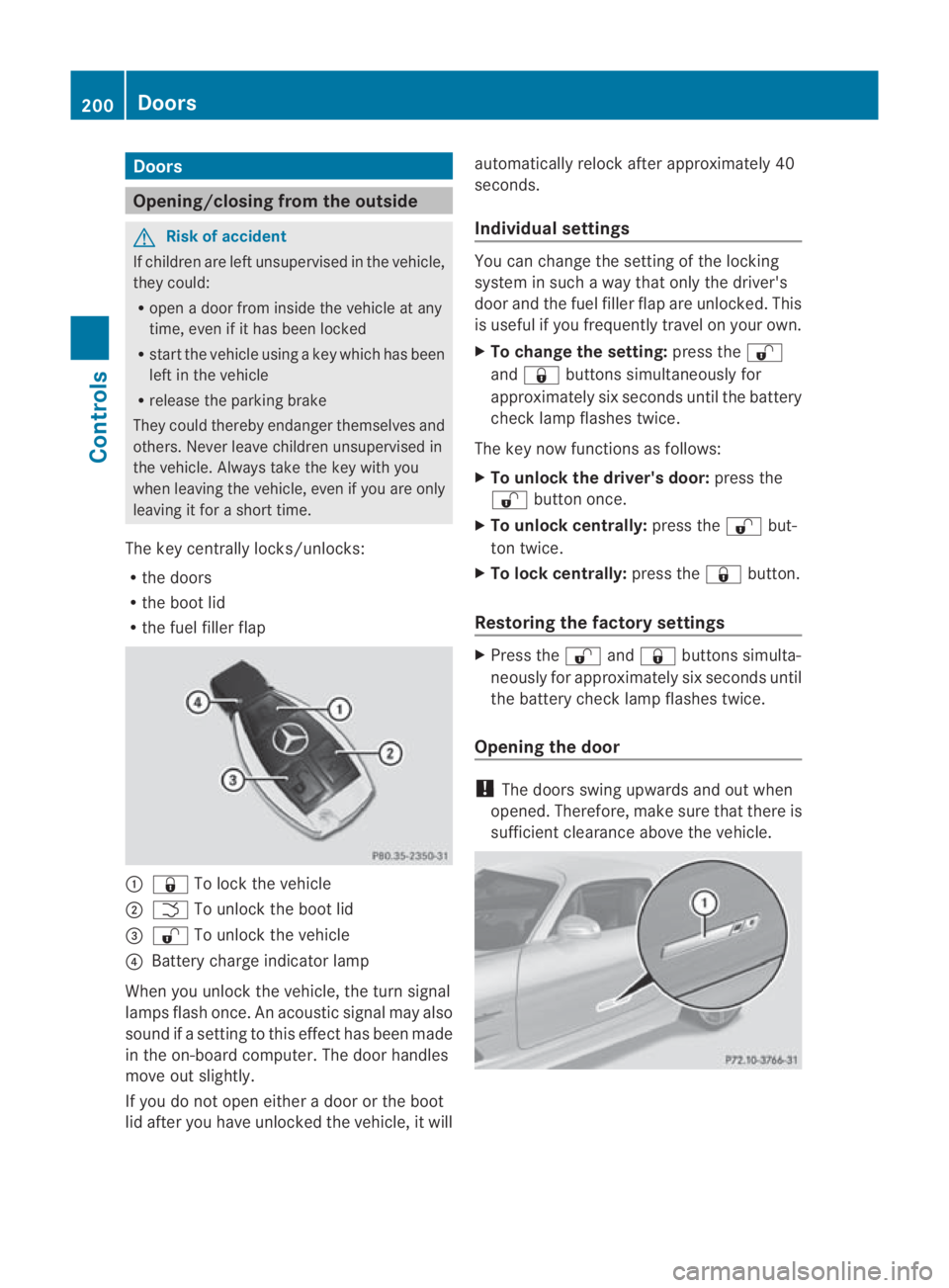
The key centrally locks/unlocks:
R the doors
R the boot lid
R the fuel filler flap 0001
0009 To lock the vehicle
0002 0002 To unlock the boot lid
0015 000B To unlock the vehicle
0014 Battery charge indicator lamp
When you unlock the vehicle, the turn signal
lamps flash once. An acoustic signal may also
sound if a setting to this effec thas been made
in the on-board computer. The door handles
move out slightly.
If you do no topen either a door or the boot
lid after you have unlocked the vehicle, it will automatically relock after approximately 40
seconds.
Individual settings You can change the setting of the locking
system in such a way that only the driver's
door and the fuel filler flap are unlocked. This
is useful if you frequently travel on your own.
X To change the setting: press the000B
and 0009 buttons simultaneously for
approximately six seconds until the battery
chec klamp flashes twice.
The key now functions as follows:
X To unlock the driver's door: press the
000B button once.
X To unlock centrally: press the000Bbut-
ton twice.
X To lock centrally: press the0009button.
Restoring the factory settings X
Press the 000Band0009 buttons simulta-
neously for approximately six seconds until
the battery check lamp flashes twice.
Opening the door !
The doors swing upwards and out when
opened. Therefore, make sure that there is
sufficient clearance above the vehicle. 200
DoorsControls
BA 197 ECE RE 2010/6a; 1; 2, en-GB
sabbaeu
Version: 3.0.3.6
2010-05-07T14:19:43+02:00 - Seite 200
Page 204 of 361
X
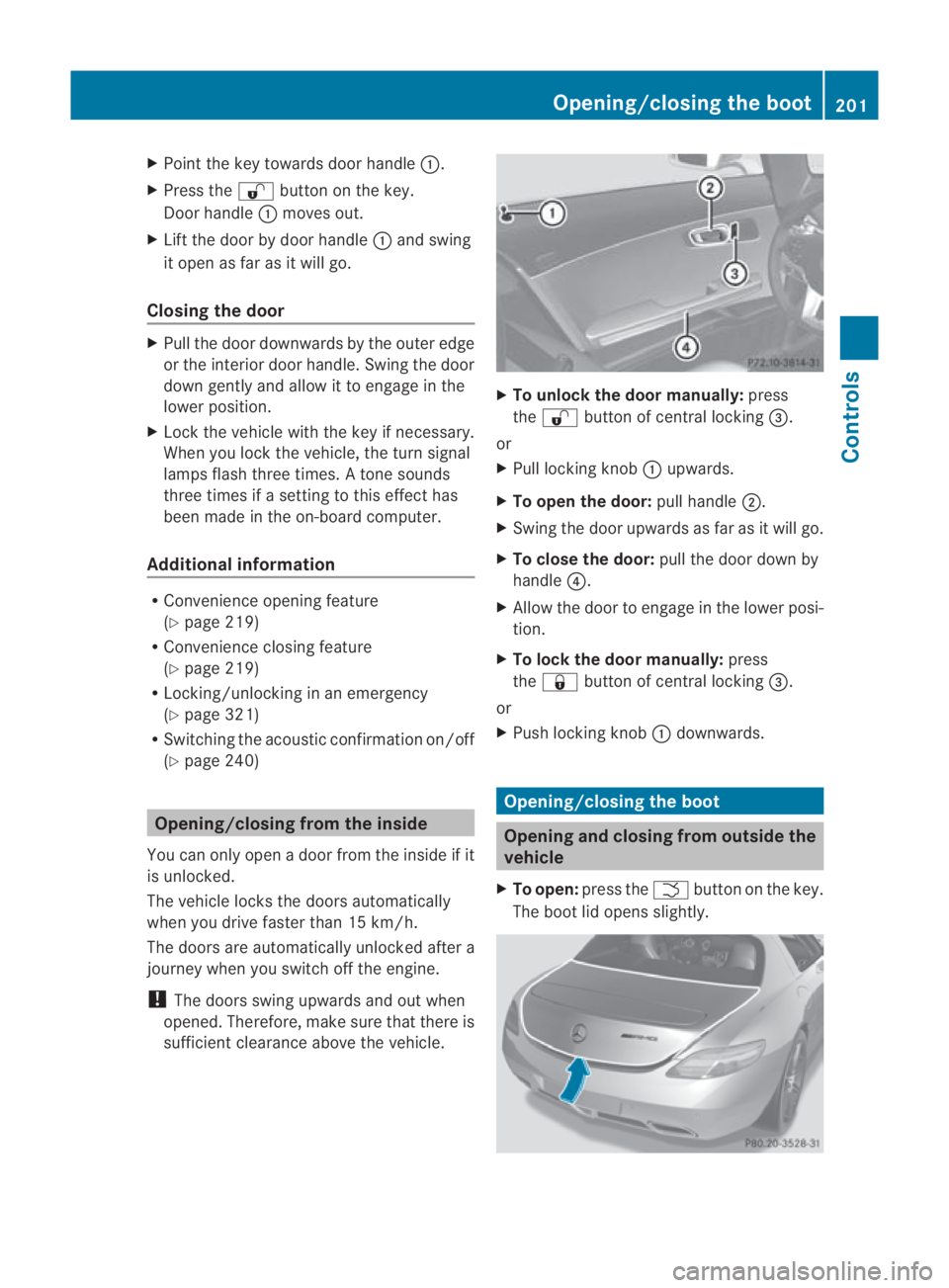
Point the key towards door handle 0001.
X Press the 000Bbutton on the key.
Door handle 0001moves out.
X Lift the door by door handle 0001and swing
it open as far as it will go.
Closing the door X
Pull the door downwards by the outer edge
or the interior door handle. Swing the door
down gently and allow it to engage in the
lower position.
X Lock the vehicle with the key if necessary.
When you lock the vehicle, the turn signal
lamps flash three times. Atone sounds
three times if a setting to this effect has
been made in the on-board computer.
Additional information R
Convenience opening feature
(Y page 219)
R Convenience closing feature
(Y page 219)
R Locking/unlocking in an emergency
(Y page 321)
R Switching the acoustic confirmation on/off
(Y page 240) Opening/closing from the inside
You can only open a door from the inside if it
is unlocked.
The vehicle locks the doors automatically
when you drive faster than 15 km/h.
The doors are automatically unlocked after a
journey when you switch off the engine.
! The doors swing upwards and out when
opened. Therefore, make sure that there is
sufficient clearance above the vehicle. X
To unlock the door manually: press
the 000B button of central locking 0015.
or
X Pull locking knob 0001upwards.
X To open the door: pull handle0002.
X Swing the door upwards as far as it will go.
X To close the door: pull the door down by
handle 0014.
X Allow the door to engage in the lower posi-
tion.
X To lock the door manually: press
the 0009 button of central locking 0015.
or
X Push locking knob 0001downwards. Opening/closing the boot
Opening and closing from outside the
vehicle
X To open: press the 0002button on the key.
The boot lid opens slightly. Opening/closing the boot
201Controls
BA 197 ECE RE 2010/6a; 1; 2, en-GB
sabbaeu Version: 3.0.3.6 2010-05-07T14:19:43+02:00 - Seite 201 Z
Page 205 of 361
X
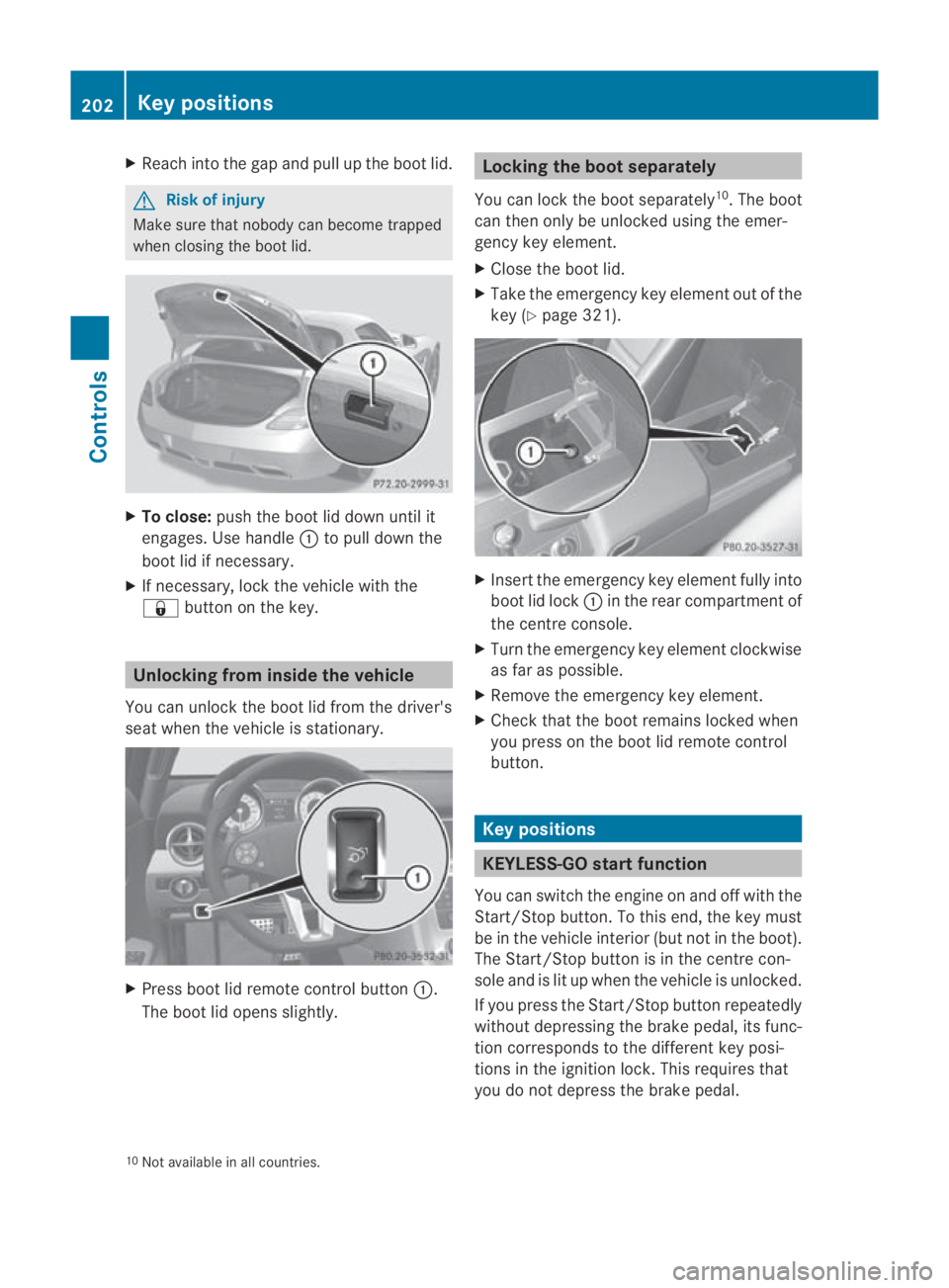
Reach into the gap and pull up the boo tlid. G
Risk of injury
Make sure that nobody can become trapped
when closing the boot lid. X
To close: push the boot lid down until it
engages. Use handle 0001to pull down the
boot lid if necessary.
X If necessary, lock the vehicle with the
0009 button on the key. Unlocking from inside the vehicle
You can unlock the boot lid from the driver's
seat when the vehicle is stationary. X
Press boot lid remote control button 0001.
The boot lid opens slightly. Locking the boot separately
You can lock the boot separately 10
.T he boot
can then only be unlocked using the emer-
gency key element.
X Close the boot lid.
X Take the emergency key element out of the
key (Y page 321). X
Insert the emergency key element fully into
boot lid lock 0001in the rear compartment of
the centre console.
X Turn the emergency key element clockwise
as far as possible.
X Remove the emergency key element.
X Check that the boot remains locked when
you press on the boot lid remote control
button. Key positions
KEYLESS-GO startf
unction
You can switch the engine on and off with the
Start/Stop button. To this end, the key must
be in the vehicle interio r(but not in the boot).
The Start/Stop button is in the centre con-
sole and is lit up when the vehicle is unlocked.
If you press the Start/Stop button repeatedly
without depressing the brake pedal, its func-
tion corresponds to the differen tkey posi-
tions in the ignition lock. This requires that
you do not depress the brake pedal.
10 Not available in all countries. 202
Key positionsControls
BA 197 ECE RE 2010/6a; 1; 2, en-GB
sabbaeu
Version: 3.0.3.6 2010-05-07T14:19:43+02:00 - Seite 202
Page 209 of 361
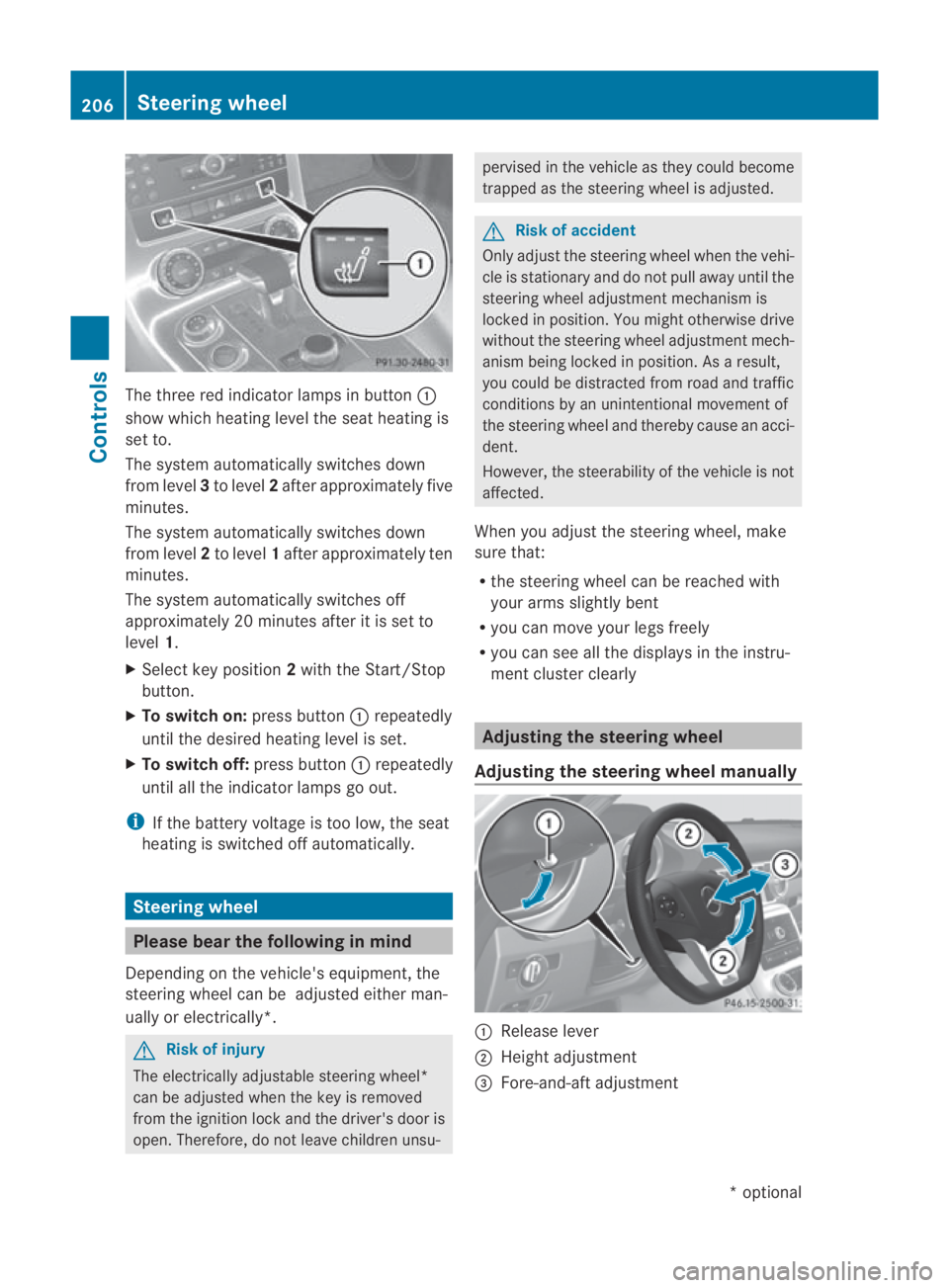
The three red indicator lamps in button
0001
show which heating level the seat heating is
set to.
The system automatically switches down
from level 3to level 2after approximately five
minutes.
The system automatically switches down
from level 2to level 1after approximately ten
minutes.
The system automatically switches off
approximately 20 minutes after it is set to
level 1.
X Select key position 2with the Start/Stop
button.
X To switch on: press button0001repeatedly
until the desired heating level is set.
X To switch off: press button0001repeatedly
until all the indicator lamps go out.
i If the battery voltage is too low, the seat
heating is switched off automatically. Steering wheel
Please bear the following in mind
Depending on the vehicle's equipment, the
steering wheel can be adjusted either man-
ually or electrically*. G
Risk of injury
The electrically adjustable steering wheel*
can be adjusted whe nthe key is removed
from the ignition lock and the driver's door is
open. Therefore, do not leave children unsu- pervised in the vehicle as they could become
trapped as the steering wheel is adjusted.
G
Risk of accident
Only adjust the steering wheel when the vehi-
cle is stationary and do not pull away until the
steering wheel adjustment mechanism is
locked in position. You might otherwise drive
without the steering wheel adjustment mech-
anism being locked in position. As a result,
you could be distracted from road and traffic
conditions by an unintentional movement of
the steering wheel and thereby cause an acci-
dent.
However, the steerability of the vehicle is not
affected.
When you adjust the steering wheel, make
sure that:
R the steering wheel can be reached with
your arms slightly bent
R you can move your legs freely
R you can see all the displays in the instru-
ment cluster clearly Adjusting the steering wheel
Adjusting the steering wheel manually 0001
Release lever
0002 Height adjustment
0015 Fore-and-aft adjustment 206
Steering wheelControls
*o
ptional
BA 197 ECE RE 2010/6a; 1; 2, en-GB
sabbaeu
Version: 3.0.3.6 2010-05-07T14:19:43+02:00 - Seite 206