light MERCEDES-BENZ SLS COUPE 2010 Service Manual
[x] Cancel search | Manufacturer: MERCEDES-BENZ, Model Year: 2010, Model line: SLS COUPE, Model: MERCEDES-BENZ SLS COUPE 2010Pages: 361, PDF Size: 6.32 MB
Page 128 of 361
0001
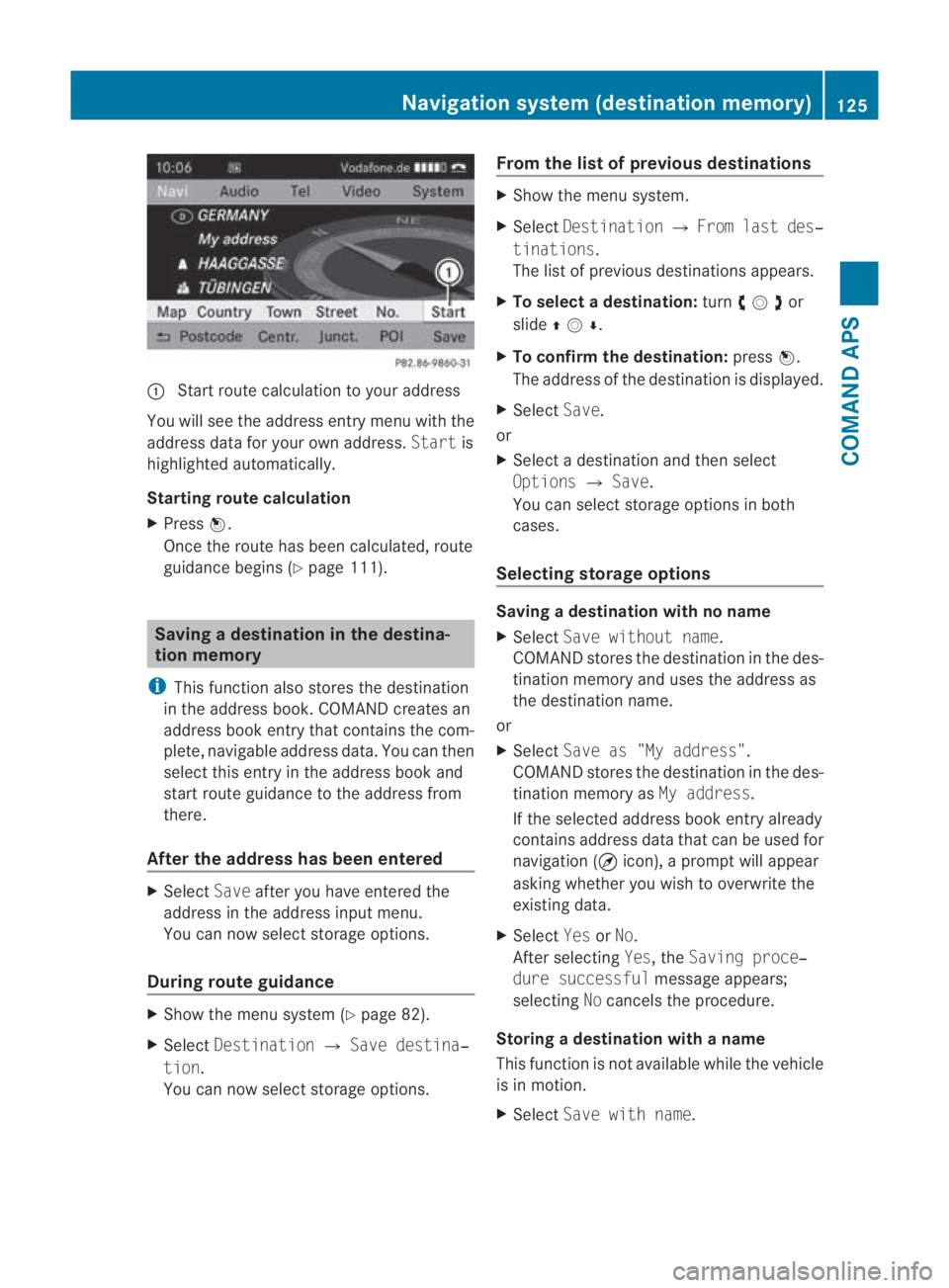
Start route calculation to your address
You will see the address entry menu with the
address data for your ow naddress. Startis
highlighted automatically.
Starting route calculation
X Press 0017.
Once the route has been calculated, route
guidance begins (Y page 111). Saving
adestination in th edestina-
tion memory
i This function also stores the destination
in the address book .COMAND creates an
address book entry that contains the com-
plete, navigable address data. You can then
select this entry in the address book and
start route guidance to the address from
there.
After the address has been entered X
Select Saveafter you have entered the
address in the address input menu.
You can now select storage options.
During route guidance X
Show the menu system (Y page 82).
X Select Destination 0004Save destina‐
tion.
You can now select storage options. From the list of previous destinations X
Show the menu system.
X Select Destination 0004From last des‐
tinations.
The list of previous destinations appears.
X To select adestination: turn002800130029or
slide 001F0013000D .
X To confirm the destination: press0017.
The address of the destination is displayed.
X Select Save.
or
X Select a destination and then select
Options 0004Save.
You can select storage options in both
cases.
Selecting storage options Saving
adestination with no name
X Select Save without name.
COMAND stores the destination in the des-
tinatio nmemory and uses the address as
the destination name.
or
X Select Save as "My address".
COMAND stores the destination in the des-
tination memory as My address.
If the selected address book entry already
contains address data that can be used for
navigation (¤ icon), a prompt will appear
asking whether you wish to overwrite the
existing data.
X Select YesorNo.
After selecting Yes, theSaving proce‐
dure successful message appears;
selecting Nocancels the procedure.
Storing a destination with a name
This function is not available while the vehicle
is in motion.
X Select Save with name. Navigation system (destination memory)
125COMAND APS
BA 197 ECE RE 2010/6a; 1; 2, en-GB
sabbaeu Version: 3.0.3.6 2010-05-07T14:19:43+02:00 - Seite 125 Z
Page 141 of 361
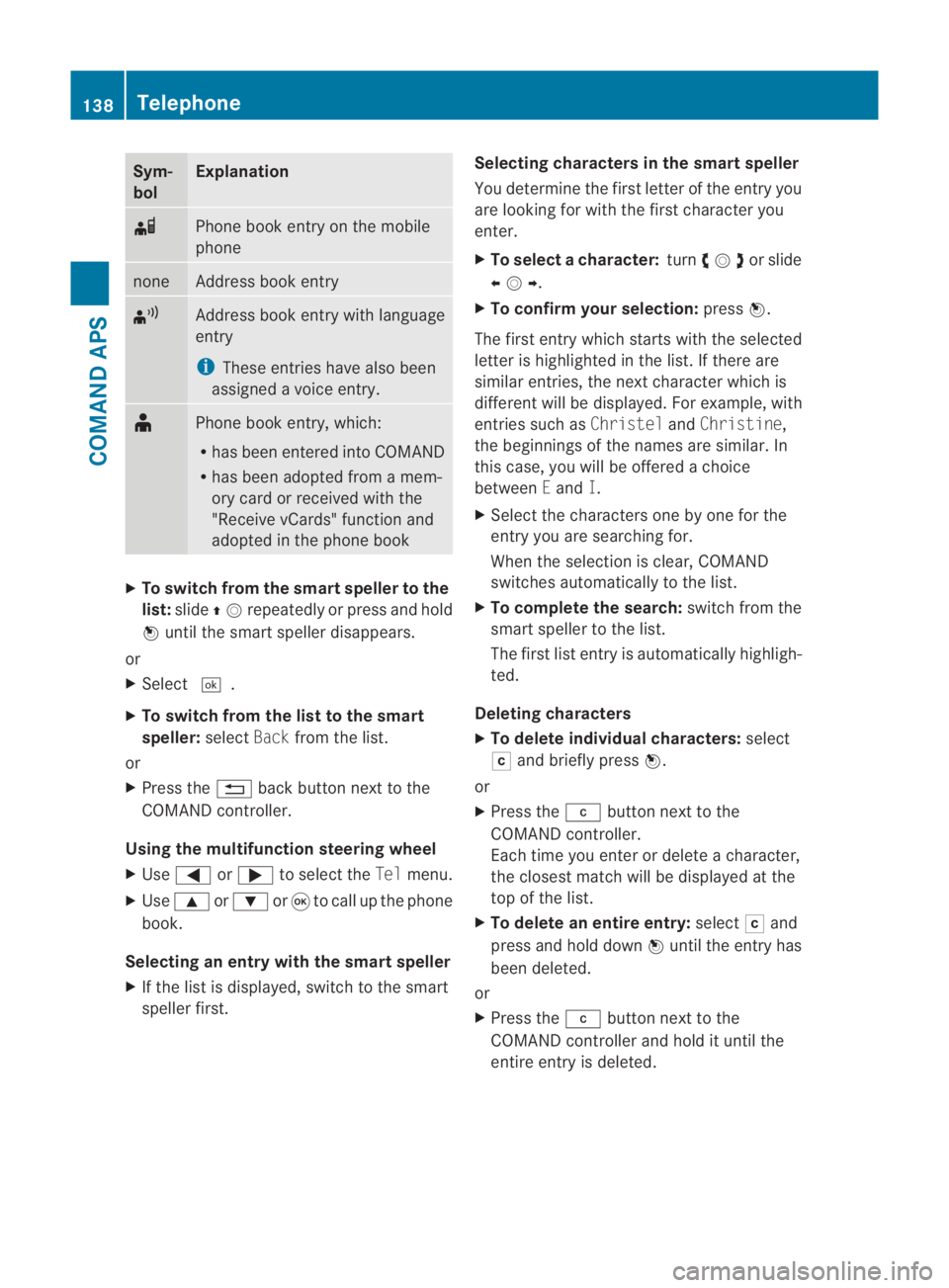
Sym-
bol Explanation
000F
Phone book entry on the mobile
phone
none Address book entry
¦
Address book entry with language
entry
i
These entries have also been
assigned a voice entry. ¥
Phone book entry, which:
R
has been entered into COMAND
R has been adopted from a mem-
ory card or received with the
"Receive vCards" function and
adopted in the phone book X
To switch from the smart speller to the
list: slide 001F0013repeatedly or press and hold
0017 until the smart speller disappears.
or
X Select 0005.
X To switch from the list to the smart
speller: selectBackfrom the list.
or
X Press the 0001back button next to the
COMAND controller.
Using the multifunction steering wheel
X Use 0008 or000E to select the Telmenu.
X Use 000F or000C or0020 to call up the phone
book.
Selecting an entry with the smart speller
X If the list is displayed, switch to the smart
speller first. Selecting characters in the smart speller
You determine the first letter of the entry you
are looking for with the first character you
enter.
X
To select a character: turn002800130029or slide
002B0013002C .
X To confirm your selection: press0017.
The first entry which starts with the selected
letter is highlighted in the list. If there are
similar entries, the next character which is
different will be displayed .For example, with
entries such as ChristelandChristine,
the beginnings of the names are similar. In
this case, you will be offered a choice
between Eand I.
X Select the characters one by one for the
entry you are searching for.
When the selection is clear, COMAND
switches automatically to the list.
X To complete the search: switch from the
smart speller to the list.
The first list entry is automatically highligh-
ted.
Deleting characters
X To delete individual characters: select
0004 and briefly press 0017.
or
X Press the 0013button next to the
COMAND controller.
Each time you enter or delete a character,
the closest match will be displayed at the
top of the list.
X To delete an entire entry: select0004and
press and hold down 0017until the entry has
been deleted.
or
X Press the 0013button next to the
COMAND controller and hold it until the
entire entry is deleted. 138
TelephoneCOMAND APS
BA 197 ECE RE 2010/6a; 1; 2, en-GB
sabbaeu
Version: 3.0.3.6 2010-05-07T14:19:43+02:00 - Seite 138
Page 142 of 361
Changing the smar
tspelle rlanguage
X Select 0014.
X Select the desired language.
Changing the smart speller character set
X Select 0001.
Depending on the previous setting, you will
change to letters with numbers or with spe-
cial characters.
Selecting an entry directly from the list
X If the lis tis displayed, switch to the smart
speller first.
X Turn 002800130029or slide 001F0013000Duntil the desired
entry is highlighted.
X To confirm you rselection: press0017.
Using the multifunction steering wheel
X Use 0008 or000E to selec tthe Tel menu.
X Use 000F or000C or0020 to call up the phone
book.
X Press the 000For000C button or press and
hold 0020until the desired entryi s highligh-
ted.
i If you press the 000For000C button for
longer than a second, the on-board com-
puter shows the names in rapid scroll.
Rapid scroll speeds up after four seconds.
It stops when you release the button again
or the end of the list is reached.
Selecting sub-entries
You can tell that an entry has several tele-
phone numbers by the 0005icon.
X Select a phone book entry with the 0005icon
and press 0017.
The sub-entries appear. The 0005icon
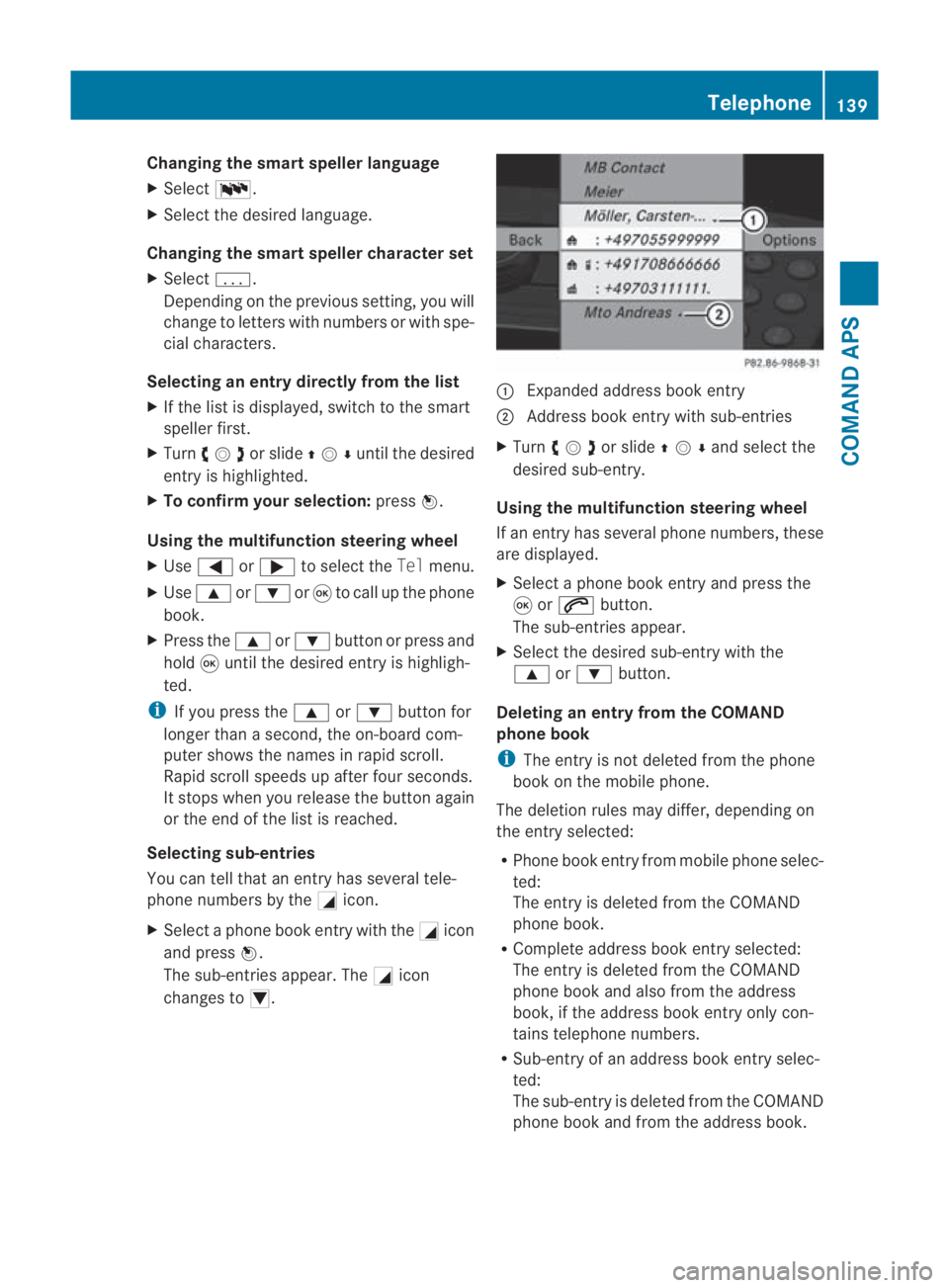
changes to 0006. 0001
Expanded address book entry
0002 Address book entry with sub-entries
X Turn 002800130029or slide 001F0013000Dand selec tthe
desired sub-entry.
Using the multifunction steering wheel
If an entry has several phone numbers, these
are displayed.
X Select a phone book entry and press the
0020 or001C button.
The sub-entries appear.
X Select the desired sub-entry with the
000F or000C button.
Deleting an entry from the COMAND
phone book
i The entry is not deleted from the phone
book on the mobile phone.
The deletion rules may differ, depending on
the entry selected:
R Phone book entry from mobile phone selec-
ted:
The entry is deleted from the COMAND
phone book.
R Complete address book entry selected:
The entry is deleted from the COMAND
phone book and also from the address
book, if the address book entry only con-
tains telephone numbers.
R Sub-entry of an address book entry selec-
ted:
The sub-entry is deleted from the COMAND
phone book and from the address book. Telephone
139COMAND APS
BA 197 ECE RE 2010/6a; 1; 2, en-GB
sabbaeu Version: 3.0.3.6 2010-05-07T14:19:43+02:00 - Seite 139 Z
Page 143 of 361
X
Select an entry from the list.
X Select Options 0004Delete .
Ap rompt appears, asking whethe rthe
entry should be deleted.
X Select YesorNo.
Yes is selected: the entryi s deleted in
accordance with the rules described above.
Displaying details about an entry
COMAND can also show a shortened entry in
full.
X Select an entry from the list.
X Select Options0004Details.
The detailed view appears.
X To close the detailed display: slide002B
0013002C repeatedly until the entry is highlighted
again.
or
X Press the 0001button next to the
COMAND controller.
Creating anew phone book entry The entry is created in the phone book and in
the address book.
X Select Options 0004New entry in the
COMAND phone book.
X Select a number category, e.g. Home.
X Select a telephone category, e.g. Mobile.
X Select Save.
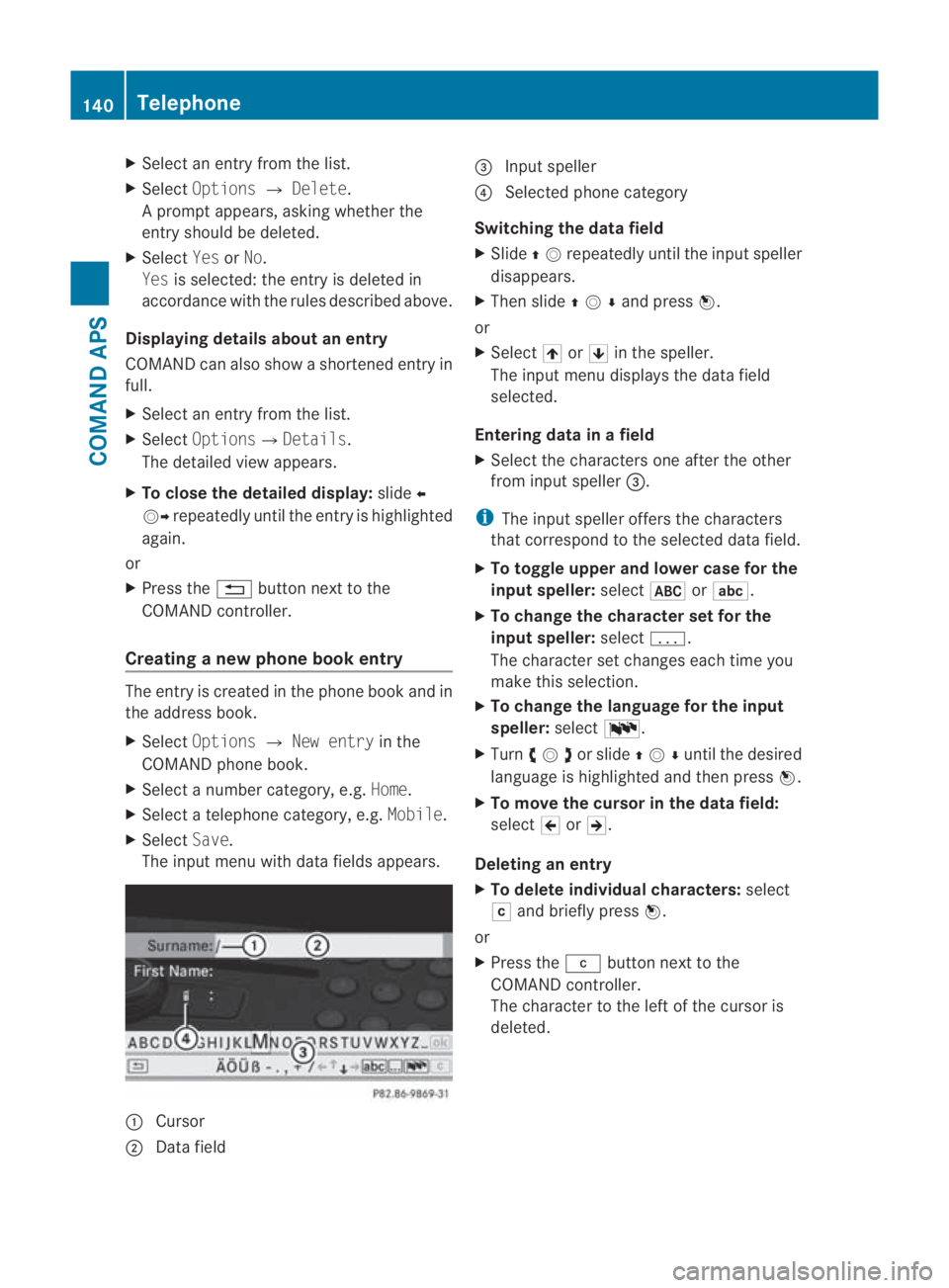
The input menu with data fields appears. 0001
Cursor
0002 Data field 0015
Input speller
0014 Selected phone category
Switching the data field
X Slide 001F0013repeatedly until the inpu tspeller
disappears.
X Then slide 001F0013000Dand press 0017.
or
X Select 001Aor001B in the speller.
The input menu displays the data field
selected.
Entering data in a field
X Select the characters one after the other
from input speller 0015.
i The input speller offers th echaracters
that correspond to the selected data field.
X To toggle upper and lower case for the
input speller: select0024or0003.
X To change the character set for the
input speller: select0001.
The character set changes each time you
make this selection.
X To change the language for the input
speller: select0014.
X Turn 002800130029or slide 001F0013000Duntil the desired
language is highlighted and then press 0017.
X To move the cursor in the data field:
select 0018or0019.
Deleting an entry
X To delete individual characters: select
0004 and briefly press 0017.
or
X Press the 0013button next to the
COMAND controller.
The character to the left of the cursor is
deleted. 140
TelephoneCOMAND APS
BA 197 ECE RE 2010/6a; 1; 2, en-GB
sabbaeu
Version: 3.0.3.6
2010-05-07T14:19:43+02:00 - Seite 140
Page 146 of 361
X
Select Call lists 0004Delete call
lists from the telephone basic menu.
Aq uery appears asking if all call lists are to
be deleted.
X Select YesorNo.
The call lists will either be deleted or not,
depending on your selection.
Displaying details about a list entry COMAND can also show a shortened list entry
in full.
X
Select the list entry.
X Select Options0004Details .
The detailed view appears.
X To get back to the list: slide002B0013002Cuntil
the list is highlighted.
or
X Press the 0001back button next to the
COMAND controller.
Storing a list entry which has not yet
been stored Fo
rincoming calls from a perso nwho is not
in the address book, COMAND displays the
phone number in the call list. You can save
this entry.
Storing as anew entr yin the address book
X Select the list entry.
X Select Options 0004Save 0004New entry.
i Save has no function if the selected list
entry is already stored in the address book.
X Select a number category, e.g. Home.
X Select a telephone category, e.g. Mobile.Number category Display (telephone
and address book)
Not classified °
Home 001E
Work \ Telephone cate-
gory Display (telephone
and address book)
Not classified °
Mobile ¢
Car ^
X
Select Save.
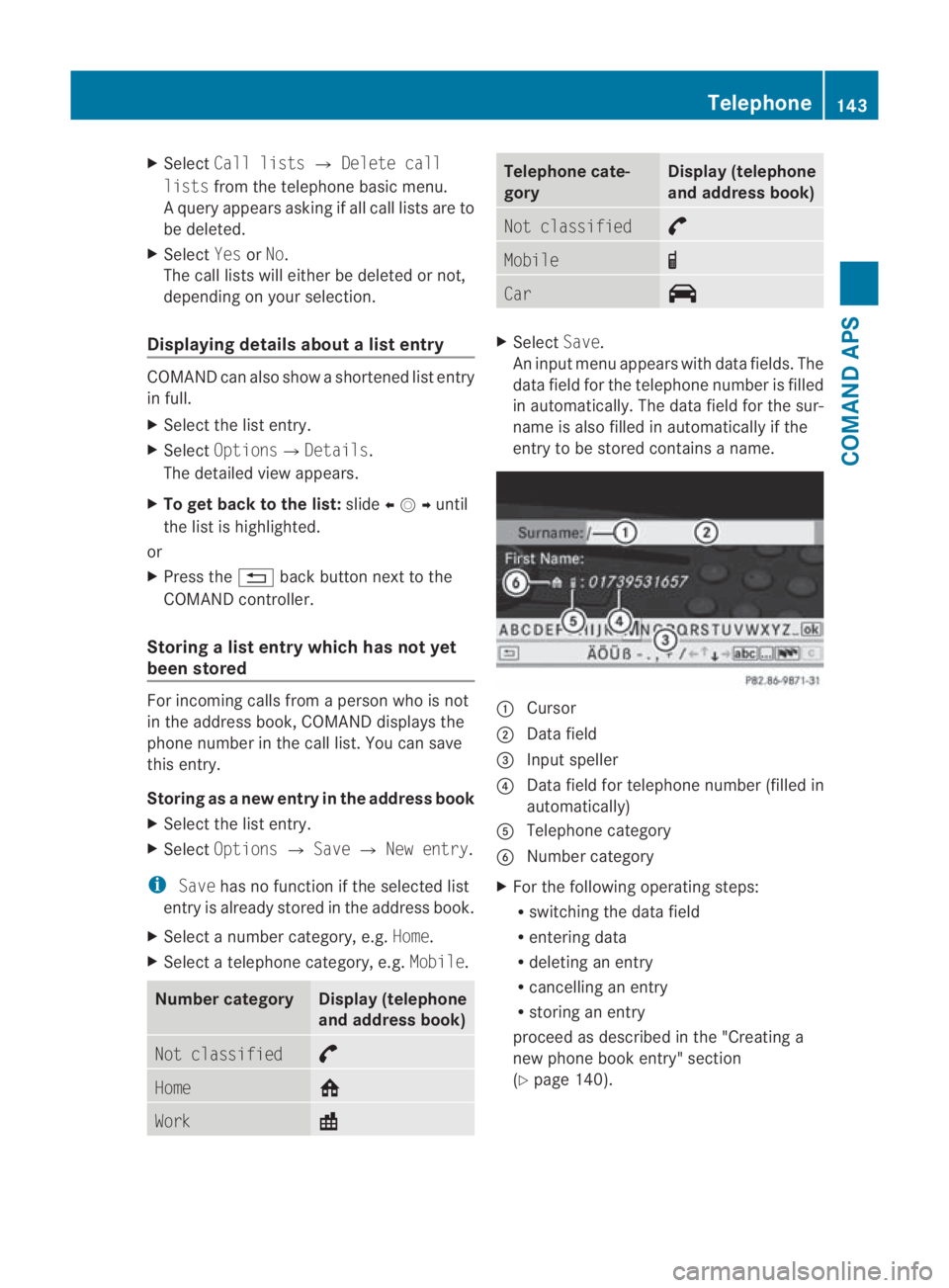
An input menu appears with data fields. The
data field for the telephone number is filled
in automatically. The data field for the sur-
name is also filled in automatically if the
entry to be stored contains a name. 0001
Cursor
0002 Data field
0015 Input speller
0014 Data field for telephone number (filled in
automatically)
0012 Telephone category
0013 Number category
X For the following operatin gsteps:
R switching the data field
R entering data
R deleting an entry
R cancelling an entry
R storing an entry
proceed as described in the "Creating a
new phone book entry" section
(Y page 140). Telephone
143COMANDAPS
BA 197 ECE RE 2010/6a; 1; 2, en-GB
sabbaeuV ersion: 3.0.3.6
2010-05-07T14:19:43+02:00 - Seite 143 Z
Page 150 of 361
Tex
tmessage (convenience teleph-
ony*)
Tex tmessage (SMS) functions The following text message functions are
available:
R receive
R read
R manage
The following conditions must be fulfilled in
orde rto use the functions:
R the mobile phone is inserted in the
bracket *and switched on
R the PIN has been entered.
R the mobile phone is logged into a mobile
phone network.
Whe nthe mobile phone is connected, the 30
most recent text messages which are cur-
rently stored on the phone are loaded to the
COMAND's text message (SMS) inbox and
displayed.
i COMAND does not load the most recent
text messages:
This may occur in exceptional circumstan-
ces, for example when using certain mobile
phone brackets* and when the mobile
phone inbox holds many text messages.
When the mobile phone is connected to
COMAND via the bracket*, newly received
text messages are displayed in COMAND's
text message inbox. An audible signal can
also be heard and the 0022symbol appears.
Displaying the text message (SMS)
inbox X
Press the 0008function button.
X Select SMS.
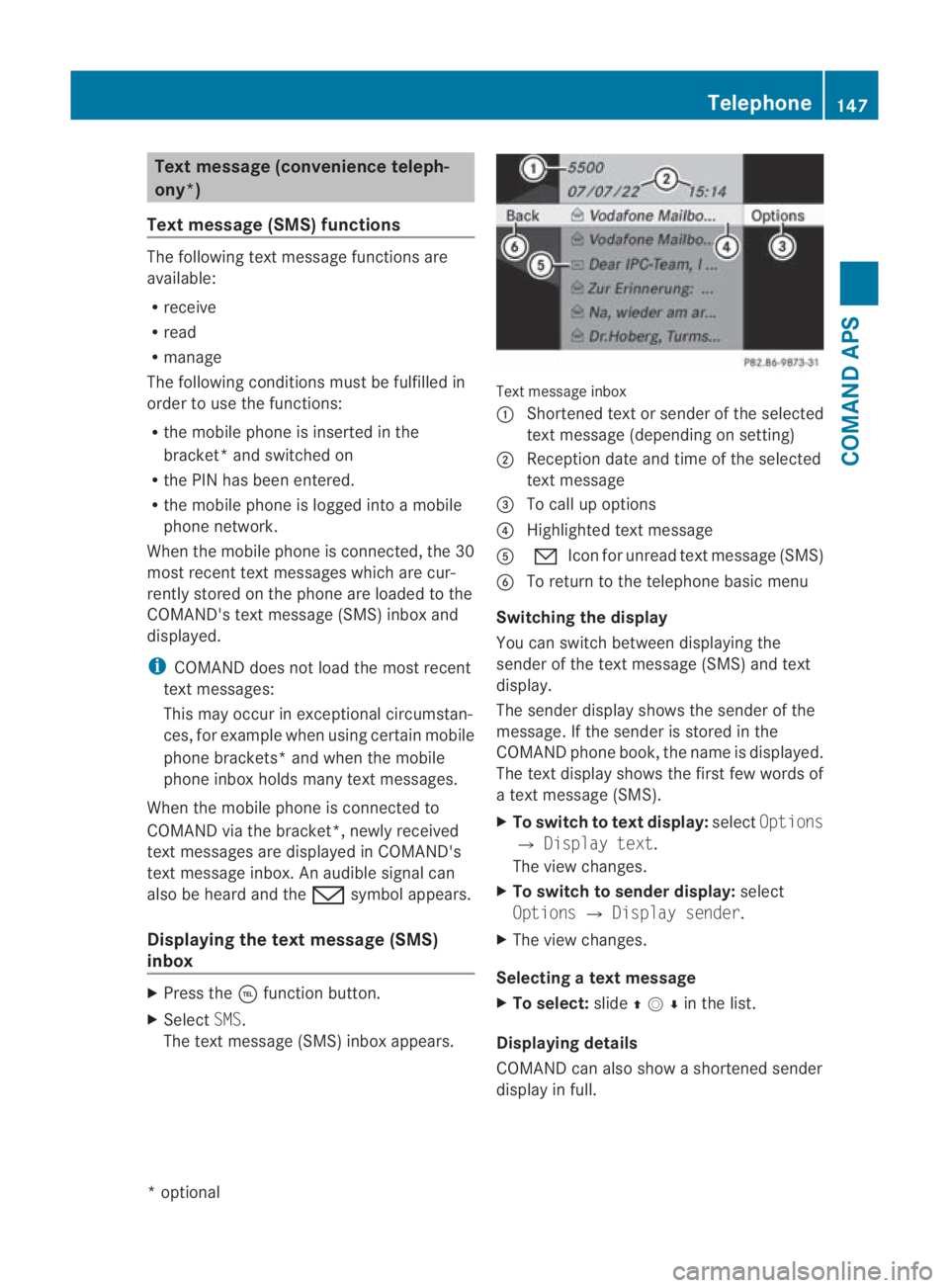
The text message (SMS) inbox appears. Text message inbox
0001
Shortened text or sender of the selected
text message (depending on setting)
0002 Reception date and time of the selected
text message
0015 To call up options
0014 Highlighted text message
0012 001C Icon for unread text message (SMS)
0013 To return to the telephone basic menu
Switching the display
You can switch between displaying the
sender of the text message (SMS) and text
display.
The sender display shows the sender of the
message. If the sender is stored in the
COMAND phone book, the name is displayed.
The text display shows the first few words of
a text message (SMS).
X To switch to text display: selectOptions
0004 Display text.
The view changes.
X To switch to sender display: select
Options 0004Display sender.
X The view changes.
Selecting atext message
X To select: slide001F0013000Din the list.
Displaying details
COMAND can also show a shortened sender
display in full. Telephone
147COMAND APS
*optional
BA 197 ECE RE 2010/6a; 1; 2, en-GB
sabbaeu
Version: 3.0.3.6 2010-05-07T14:19:43+02:00 - Seite 147 Z
Page 151 of 361
X
Select a text message (SMS) from the list.
X Select Options0004Details .
The detailed view appears.
X To close the detailed display: slide
002B0013002C .
or
X Press the 0001back button on the
COMAND controller.
Returning to the telephone basic menu
X Select Back.
Reading atext message X
Select a text message (SMS) from the text
message (SMS) inbo xand press 0017.
The text message appears.
X To scroll through the display or select
telephone numbers in the text: turn
002800130029or slide 001F0013000D.
The display scrolls up or down line by line,
or skips to the next or previous telephone
number and automatically highlights it.
X To return to the list: press0017and select
Back.
Listening to atext message (SMS)
i You can set the language (Y page 78)and
the speed of the read-aloud function
(Y page 73).
X While the text message (SMS) is displayed,
press 0017and select Read aloud.
COMAND reads ou tthe text message.
X To cancel the read-aloud function: press
the 000Bbutton.
or
X Press 0017and select Cancel read-aloud
function. Managing text messages Calling
atext message sender
X While the tex tmessage (SMS) is displayed,
press 0017and select Call sender.
The telephone makes the call to the sender.
Calling telephone numbers in the text
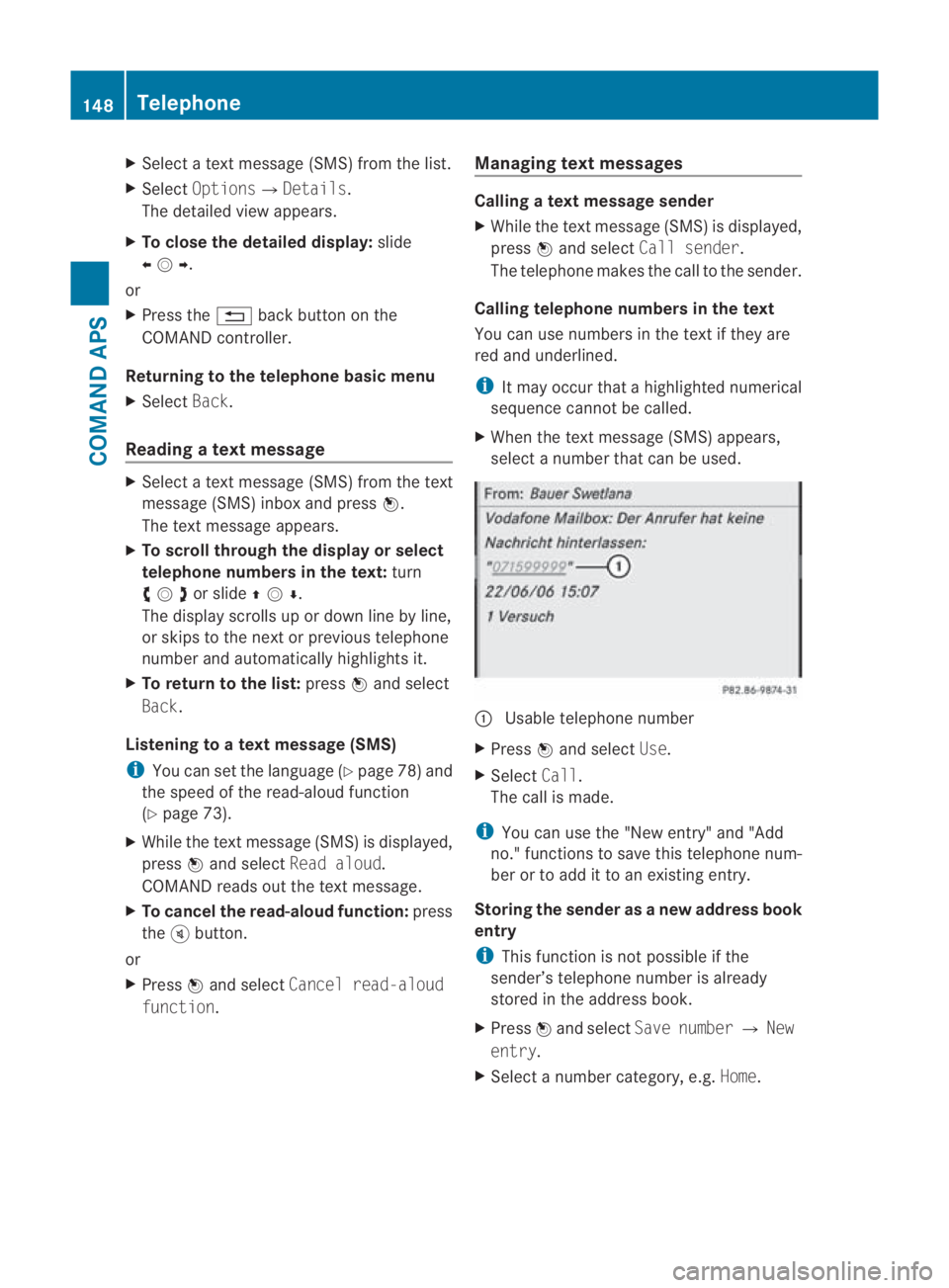
You can use numbers in the text if they are
red and underlined.
i It may occur that ahighlighted numerical
sequence cannot be called.
X When the tex tmessage (SMS) appears,
select a number that can be used. 0001
Usable telephone number
X Press 0017and select Use.
X Select Call.
The call is made.
i You can use the "New entry" and "Add
no." functions to save this telephone num-
ber or to add it to an existing entry.
Storing the sender as anew address book
entry
i This function is not possible if the
sender’s telephone number is already
stored in the address book.
X Press 0017and select Save number 0004New
entry.
X Select a number category, e.g. Home.148
TelephoneCOMAND APS
BA 197 ECE RE 2010/6a; 1; 2, en-GB
sabbae uV ersion: 3.0.3.6
2010-05-07T14:19:43+02:00 - Seite 148
Page 155 of 361
X
To change the character set for the
input speller: select0001.
The character set changes each time you
make this selection.
X To change the language for the input
speller: select0014.
X Turn 002800130029or slide 001F0013000Duntil the desired
language is highlighted and then press 0017.
X To move the cursor in the data field:
select 0018or0019.
Deleting
X To delete individual characters: select
0004 and briefly press 0017.
or
X Press the 0013button next to the
COMAND controller.
The character to the left of the cursor is
deleted.
X To delete an entire entry: select0004and
press and hold the 0017butto nuntil the entire
entry has been deleted.
or
X Press the 0013button next to the
COMAND controller and hold it until the
entire entry is deleted.
Cancelling an entry
X Select 0002.
If one of the data fields contains new data,
a prompt will appear asking whethe ryou
wish to store the entry.
X Select YesorNo.
The entry will either be stored or not,
depending on your selection.
Storing an entry
X Select 0005.
The address book displays the entry. Searching for an address book entry X
Call up the address book (Y page 149) and
select Search.
If there are more than eight entries, the
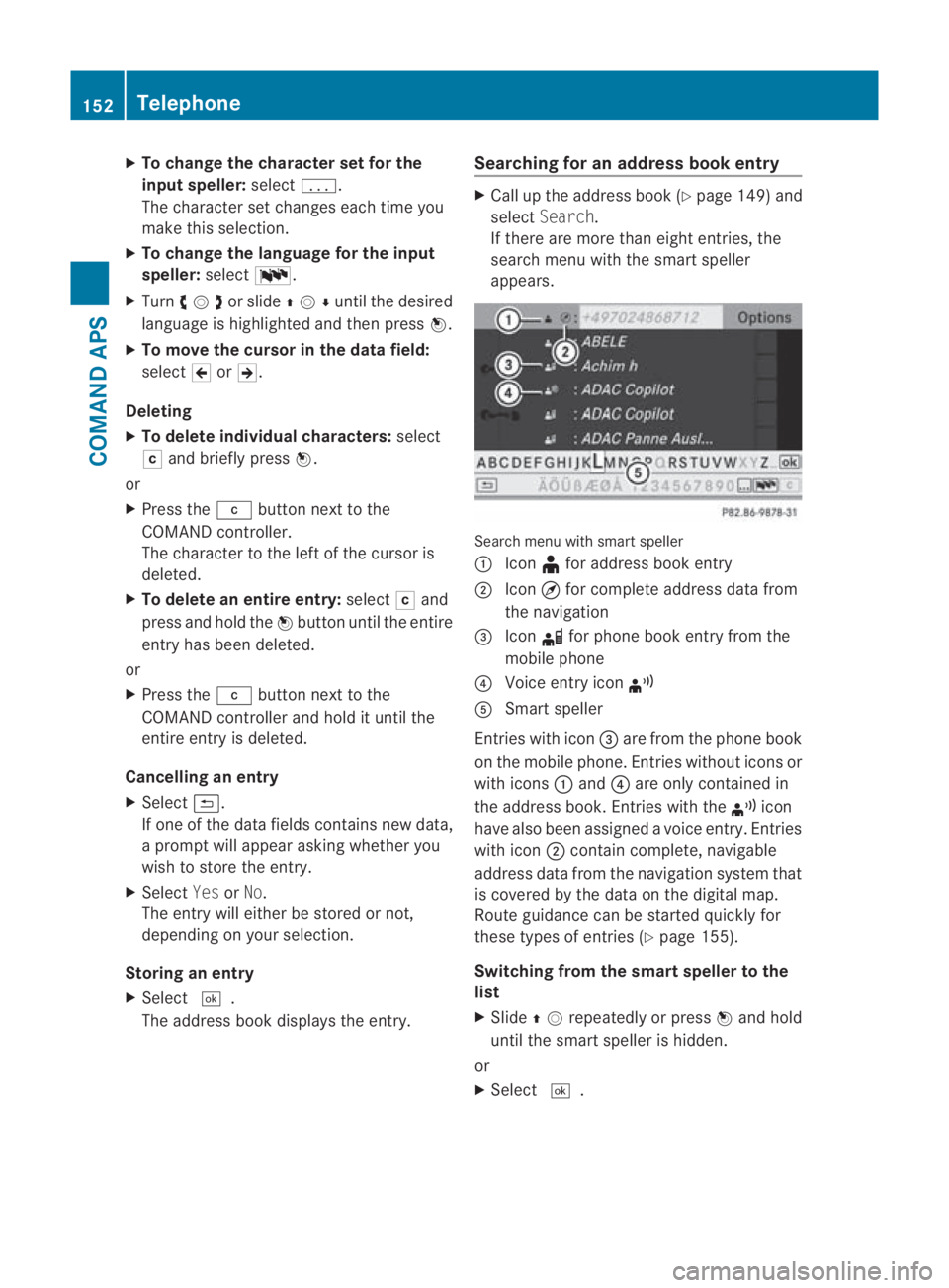
search menu with the smart speller
appears. Search menu with smart speller
0001
Icon ¥for address book entry
0002 Icon ¤for complete address data from
the navigation
0015 Icon 000Ffor phone book entry from the
mobile phone
0014 Voice entry icon ¦
0012 Smart speller
Entries with icon 0015are from the phone book
on the mobile phone. Entries without icons or
with icons 0001and 0014are only contained in
the address book. Entries with the ¦icon
have also been assigned a voice entry. Entries
with icon 0002contain complete, navigable
address data from the navigation system that
is covered by the data on the digital map.
Route guidance can be started quickly for
these types of entries (Y page 155).
Switching from the smart speller to the
list
X Slide 001F0013repeatedly or press 0017and hold
until the smart speller is hidden.
or
X Select 0005. 152
TelephoneCOMAND APS
BA 197 ECE RE 2010/6a; 1; 2, en-GB
sabbaeu Version: 3.0.3.6 2010-05-07T14:19:43+02:00 - Seite 152
Page 156 of 361
Switching from the list to the smart
speller
X
Select Backfrom the list.
or
X Press the 0001back button next to the
COMAND controller.
Searching
Searching with the smart speller
X If the list is displayed, switch to the smart
speller first.
X To change the language for the smart
speller: select0014.
X To change the character set for the
smart speller: select0001.
Depending on the previous setting, you will
change to letters with special characters or
to numbers with special characters.
X Entering characters: select the charac-
ters for the required entry one after the
other or enter them using the number keys
on the number keypad.
X To delete individual characters: select
0004 and briefly press 0017.
or
X Press the 0013button next to the
COMAND controller.
Each time you enter or delete a character,
the closest match will be displayed at the
top of the list.
X To delete an entire entry: select0004and
press and hold down 0017until the entry has
been deleted.
or
X Press the 0013button next to the
COMAND controller and hold it until the
entire entry is deleted.
X To complete the search: switch from the
smart speller to the list.
The entry at the top of the list is automati-
cally highlighted. X
To return to the address book: if neces-
sary, switch from the list to the smart
speller and select 0002in the smart speller.
or
X Press the 0001back button next to the
COMAND controller.
Searching using the list
X Switch to the list when the smart speller is
displayed (Y page 152).
X Turn 002800130029or slide 001F0013000Duntil the desired
entry is highlighted in th elist.
Deleting an entry X
Search for the desired entry (Y page 152).
X Select Options 0004Delete.
or
X Select Delete fromt he address book
(Y page 149).
Ad eletion prompt appears.
X Select YesorNo.
The entry will either be deleted or not,
depending on your selection.
i The phone book entry from the mobile
phone is deleted from the COMAND
address book but not from the mobile
phone.
Displaying details about an address
book entry X
Switch from the smart speller to the list
(Y page 152).
or
X Select an address book entry from the
address book (Y page 149).
X Press 0017.
The detailed view appears. Telephone
153COMAND APS
BA 197 ECE RE 2010/6a; 1; 2, en-GB
sabbaeu Version: 3.0.3.6 2010-05-07T14:19:43+02:00 - Seite 153 Z
Page 157 of 361
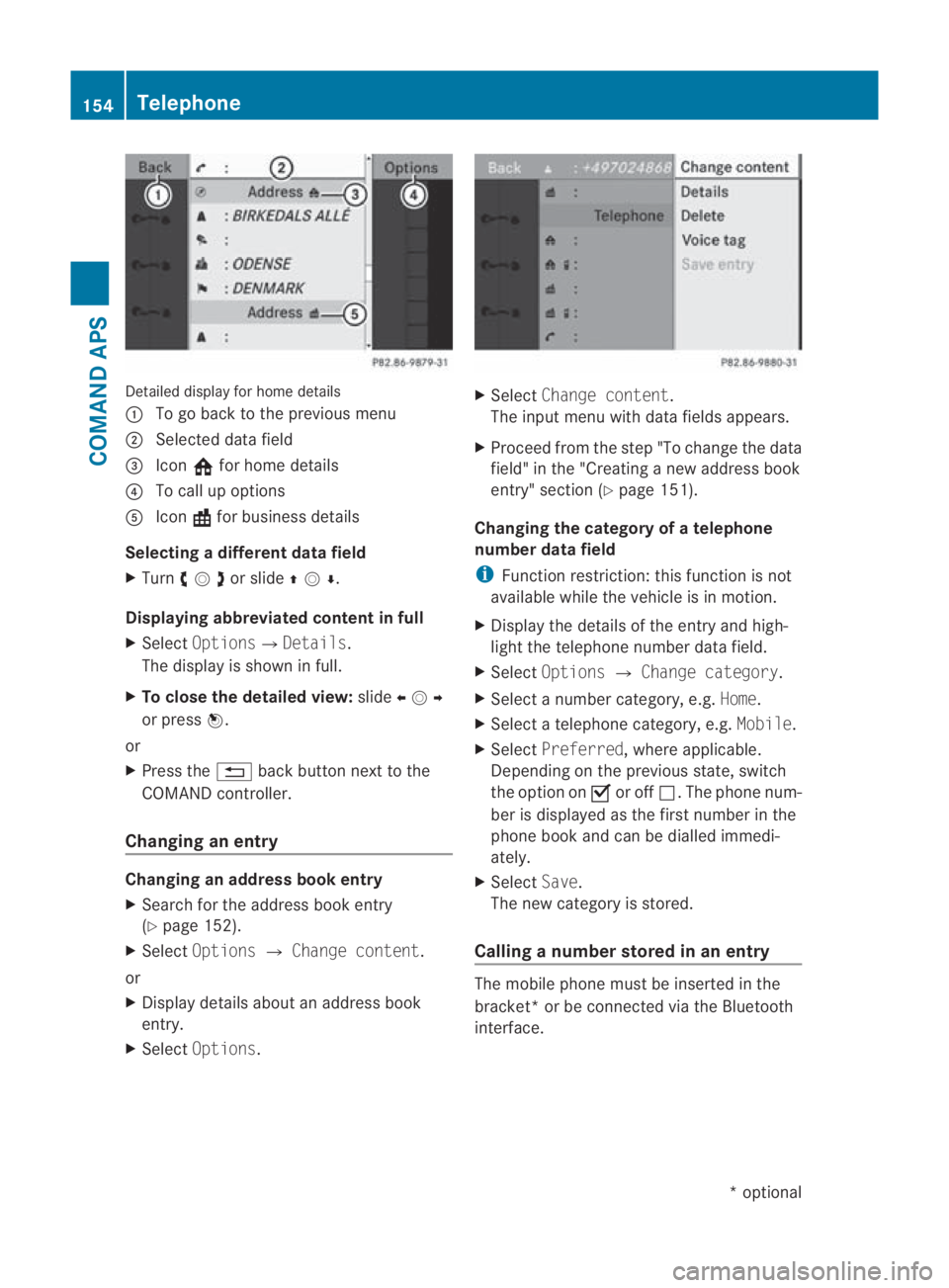
Detailed display for home details
0001
To go back to the previous menu
0002 Selected data field
0015 Icon 001Efor home details
0014 To call up options
0012 Icon \for business details
Selecting a different data field
X Turn 002800130029or slide 001F0013000D.
Displaying abbreviate dconten tin full
X Select Options0004 Details.
The display is shown in full.
X To close the detailed view: slide002B0013002C
or press 0017.
or
X Press the 0001back button next to the
COMAND controller.
Changing an entry Changing an address book entry
X
Search for the address book entry
(Y page 152).
X Select Options 0004Change content.
or
X Display details about an address book
entry.
X Select Options. X
Select Change content.
The input menu with data fields appears.
X Proceed from the step "To change the data
field" in the "Creating anew address book
entry" section (Y page 151).
Changing the category of a telephone
number data field
i Function restriction: this function is not
available while the vehicle is in motion.
X Display the details of the entry and high-
light the telephone number data field.
X Select Options 0004Change category.
X Select a number category, e.g. Home.
X Select a telephone category, e.g. Mobile.
X Select Preferred, where applicable.
Depending on the previous state, switch
the option on 0019or off 0004.The phone num-
ber is displayed as the first number in the
phone book and can be dialled immedi-
ately.
X Select Save.
The new category is stored.
Calling a number stored in an entry The mobile phone must be inserted in the
bracket* or be connected via the Bluetooth
interface.154
TelephoneCOMAND APS
*o
ptional
BA 197 ECE RE 2010/6a; 1; 2, en-GB
sabbaeu
Version: 3.0.3.6 2010-05-07T14:19:43+02:00 - Seite 154