light MERCEDES-BENZ SLS COUPE 2010 Owner's Manual
[x] Cancel search | Manufacturer: MERCEDES-BENZ, Model Year: 2010, Model line: SLS COUPE, Model: MERCEDES-BENZ SLS COUPE 2010Pages: 361, PDF Size: 6.32 MB
Page 67 of 361
X
To call up the audio menu: turn002800130029 or
slide 002B0013002C untilAudio is highlighted.
X Press 0017.
You can see the basi cdisplay of the current
audio operating mode.
X Proceed as described under "Within the
audio function".
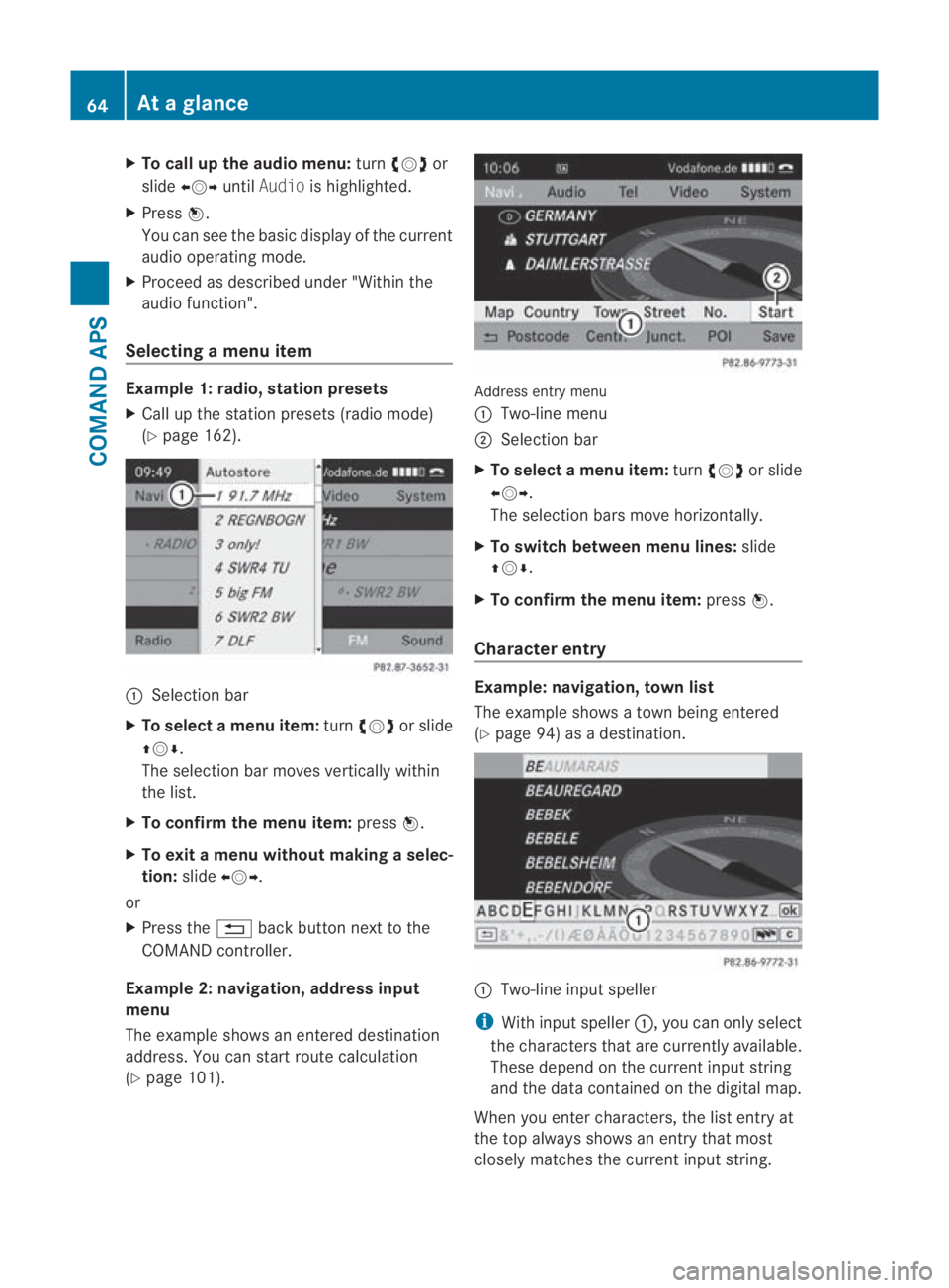
Selecting amenu item Example 1: radio, station presets
X Call up the statio npresets (radio mode)
(Y page 162). 0001
Selection bar
X To selectam enu item:turn002800130029 or slide
001F0013000D .
The selectio nbar moves vertically within
the list.
X To confirm the menu item: press0017.
X To exit a menu without making a selec-
tion: slide002B0013002C.
or
X Press the 0001back button next to the
COMAND controller.
Example 2: navigation, address input
menu
The example shows an entered destination
address. You can start route calculation
(Y page 101). Address entry menu
0001 Two-line menu
0002 Selection bar
X To select amenu item: turn002800130029 or slide
002B0013002C .
The selectio nbars move horizontally.
X To switch between men ulines: slide
001F0013000D.
X To confirm the menu item: press0017.
Character entry Example: navigation, town list
The example shows a town being entered
(Y
page 94) as a destination. 0001
Two-line input speller
i With input speller 0001, you can only select
the characters that are currently available.
These depend on the current input string
and the data contained on the digital map.
When you enter characters, the list entry at
the top always shows an entry that most
closely matches the current input string. 64
At
ag lanceCOMAND APS
BA 197 ECE RE 2010/6a; 1; 2, en-GB
sabbaeu Version: 3.0.3.6 2010-05-07T14:19:43+02:00 - Seite64
Page 68 of 361
COMAND then automatically adds plausible
characters to those alread
yentered by the
user.
Entering characters
X To select a character: turn002800130029 or slide
002B0013002C .
X Slide 001F0013000D to change lines in the speller.
X To confirm the character selection:
press 0017.
It is possible, in some cases:
X To change the character set for the
input speller: select0014.
Deleting an entry
X To delete asingle character: select0004at
the bottom right-hand side of the speller
and press 0017.
or
X Press the 0013button next to the
COMAND controller.
X To delete an entry: select0004and press
and hold 0017until the entry has been
deleted.
or
X Press the 0013button next to the
COMAN Dcontroller and hold it until the
entire entry is deleted.
Cancelling an entry
X Select 0002at the bottom left in the speller
and press 0017.
or
X Press the 0001back button next to the
COMAND controller.
The address entry menu appears.
Accepting the first list entry
X Press and hold 0017until the address input
menu appears.
The accepted list entry is shown there.
or If COMAND is able to unambiguously assign
the characters entered to one town, the
address entry menu automatically shows the
selected list entry.
Switching to the list without input speller
If there are several entries for a town or if the
name is stored several times, then
0005is
highlighted in the speller.
X Press 0017.
You can switch to the list at any point during
character entry.
X Slide 001F0013repeatedly until the list without
speller is shown.
or
X Select 0005and press 0017.
COMAND completes the entry as soon as
it can be clearly identified. If this is the
case, the view does not switch to the list
and the system displays the address entry
menu.
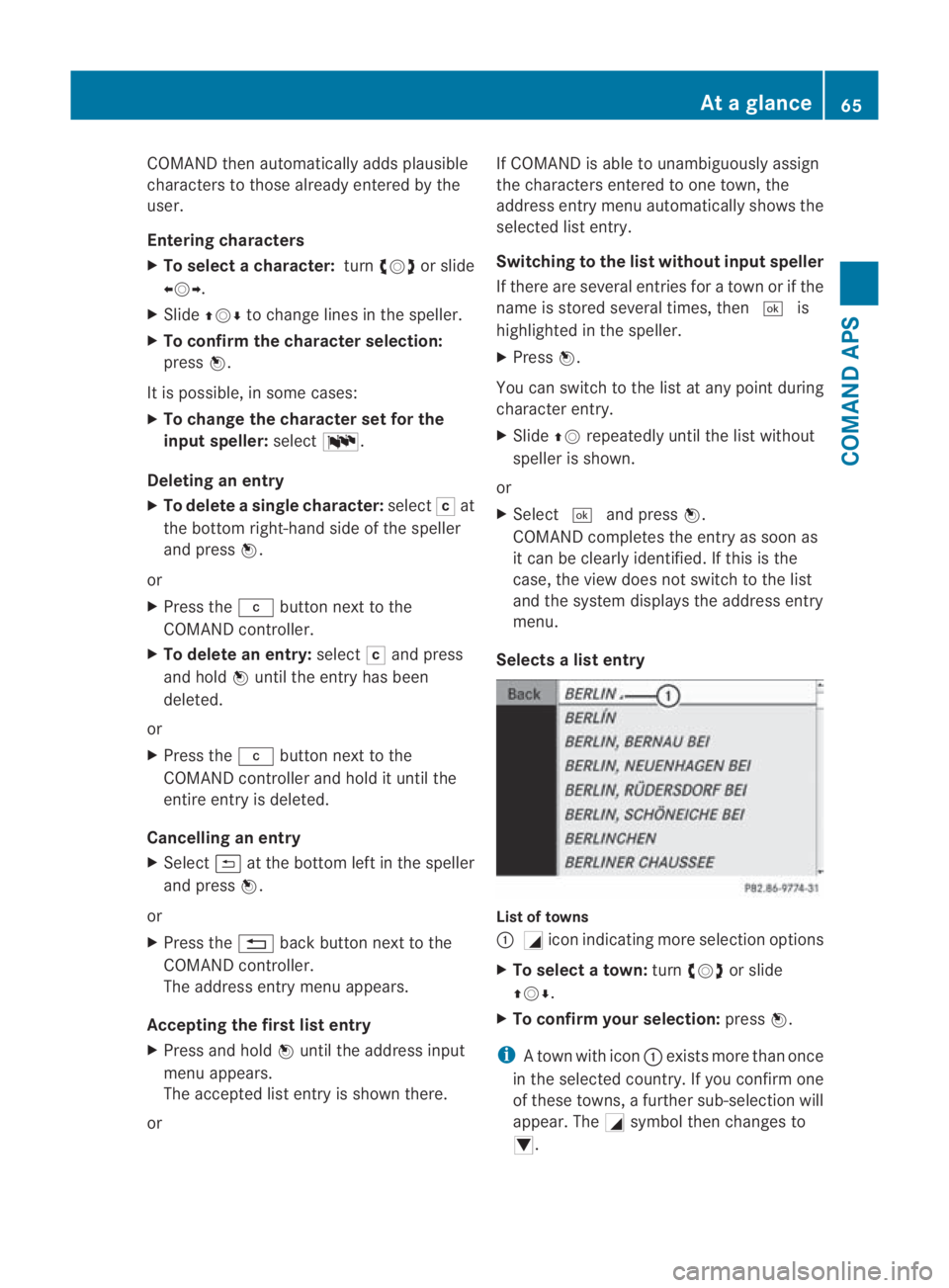
Selects alist entry List of towns
0001
0005icon indicating more selection options
X To select atown: turn002800130029 or slide
001F0013000D .
X To confir myour selection: press0017.
i Atown with icon 0001exists more than once
in the selected country. If you confirm one
of these towns, a further sub-selection will
appear. The 0005symbol then changes to
0006. At
ag lance
65COMAND APS
BA 197 ECE RE 2010/6a; 1; 2, en-GB
sabbaeu Version: 3.0.3.6 2010-05-07T14:19:43+02:00 - Seite65 Z
Page 69 of 361
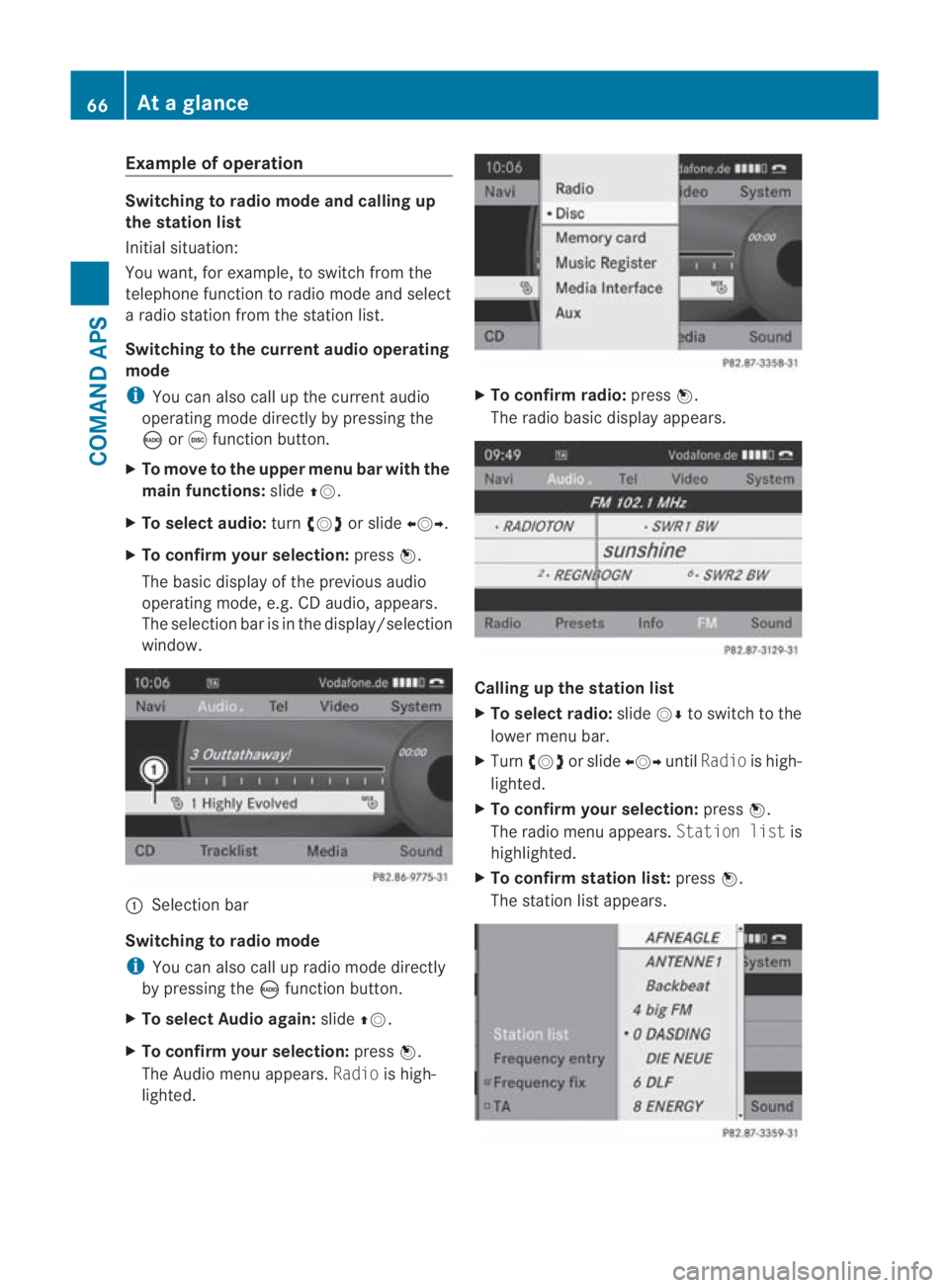
Example of operation
Switching to radio mode and calling up
the station list
Initial situation:
You want, for example, to switch from the
telephone function to radio mode and select
a radio statio nfrom the station list.
Switching to the current audio operating
mode
i You can also call up the current audio
operating mode directly by pressing the
0006 or000E function button.
X To move to the upper menu bar with the
main functions: slide001F0013.
X To selecta udio:turn002800130029 or slide 002B0013002C.
X To confirm your selection: press0017.
The basic display of the previous audio
operating mode, e.g. CD audio, appears.
The selection bar is in the display/selection
window. 0001
Selectio nbar
Switching to radio mode
i You can also call up radio mode directly
by pressing the 0006function button.
X To select Audio again: slide001F0013.
X To confir myour selection: press0017.
The Audio menu appears. Radiois high-
lighted. X
To confirm radio: press0017.
The radio basic display appears. Calling up the station list
X
To select radio: slide0013000Dto switch to the
lower menu bar.
X Turn 002800130029 or slide 002B0013002CuntilRadio is high-
lighted.
X To confir myour selection: press0017.
The radio menu appears. Station listis
highlighted.
X To confir mstation list: press0017.
The statio nlist appears. 66
At
ag lanceCOMAND APS
BA 197 ECE RE 2010/6a; 1; 2, en-GB
sabbaeu Version: 3.0.3.6 2010-05-07T14:19:43+02:00 - Seite66
Page 72 of 361
Dolby
®
Digital DTS™
MLP™
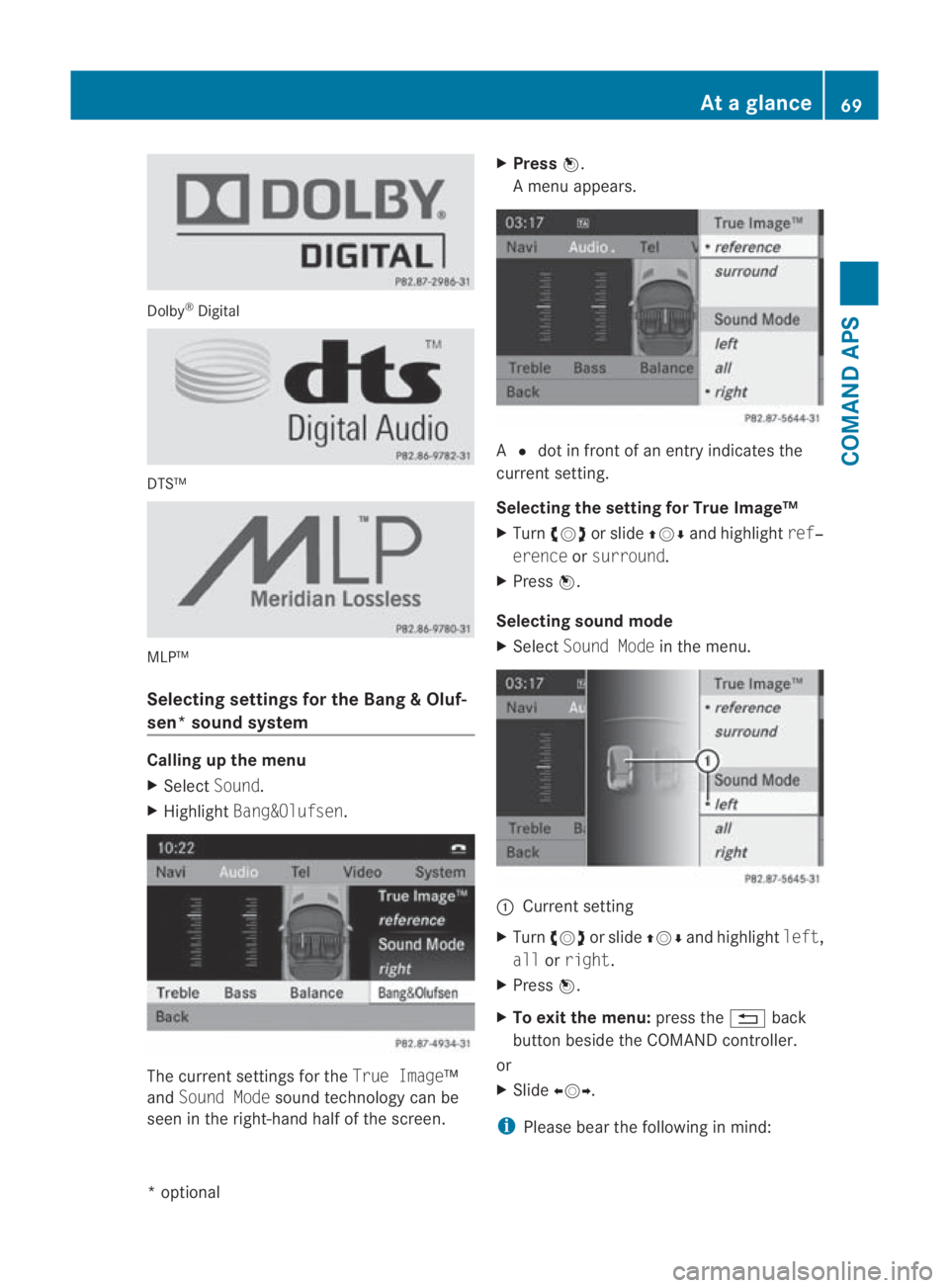
Selecting settings fo
rthe Bang &Oluf-
sen* sound system Calling up the menu
X
Select Sound.
X Highlight Bang&Olufsen . The current settings for the
True Image™
and Sound Mode sound technology can be
seen in the right-hand half of the screen. X
Press 0017.
Am enu appears. A
0023 dot in front of an entry indicates the
current setting.
Selecting the setting for True Image™
X Turn 002800130029 or slide 001F0013000Dand highlight ref‐
erence orsurround.
X Press 0017.
Selecting sound mode
X Select Sound Mode in the menu. 0001
Current setting
X Turn 002800130029 or slide 001F0013000Dand highlight left,
all orright.
X Press 0017.
X To exit the menu: press the0001back
button beside the COMAND controller.
or
X Slide 002B0013002C.
i Please bear the following in mind: At
ag lance
69COMAND APS
*optional
BA 197 ECE RE 2010/6a; 1; 2, en-GB
sabbaeu
Version: 3.0.3.6 2010-05-07T14:19:43+02:00 - Seite 69 Z
Page 75 of 361
Display settings
Setting the brightness i
The brightness detected by the COMAND
ligh tsensor affects the setting options for
this function.
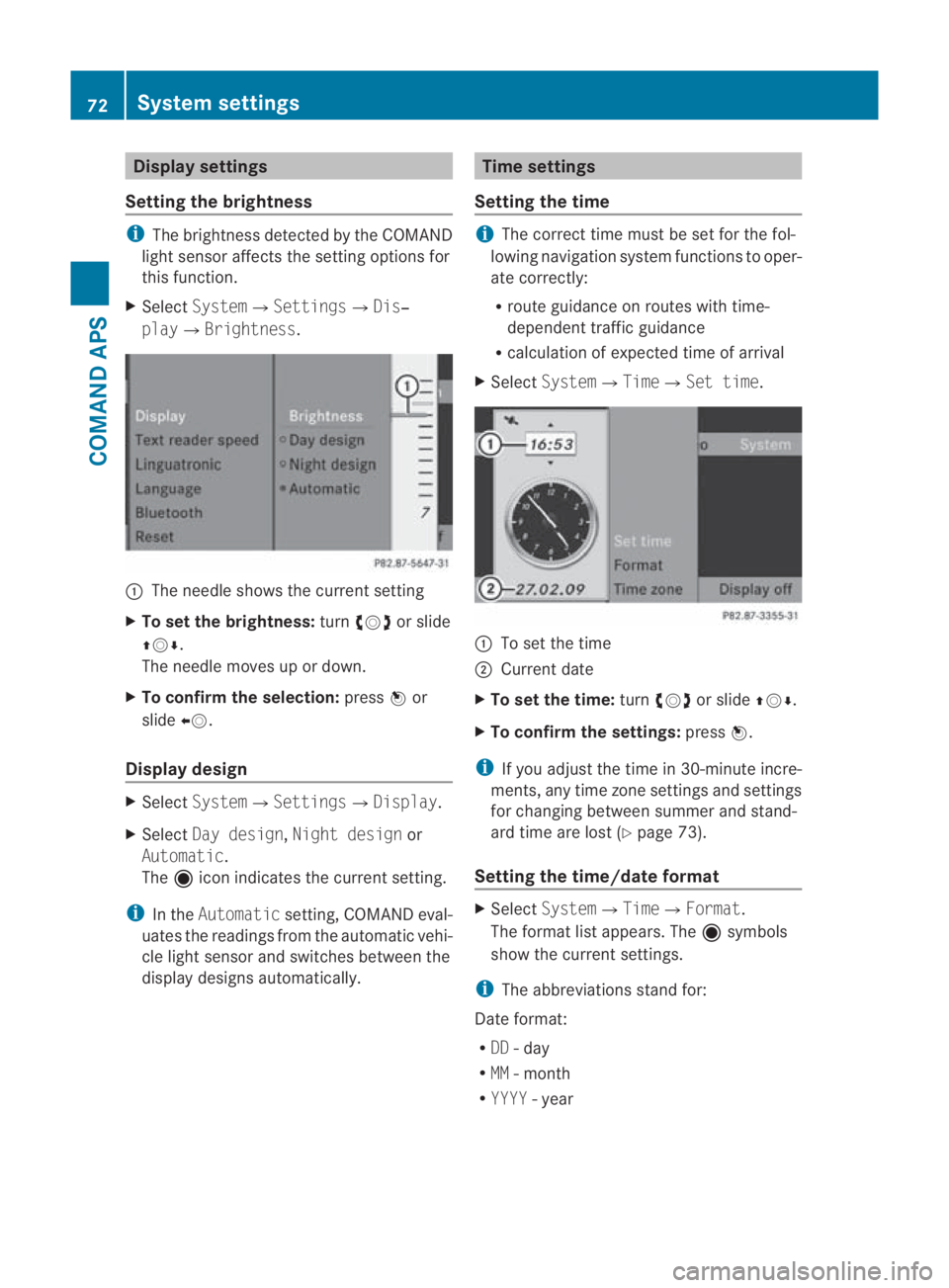
X Select System0004 Settings0004Dis‐
play0004Brightness. 0001
The needle shows the curren tsetting
X To set the brightness: turn002800130029 or slide
001F0013000D.
The needle moves up or down.
X To confirm the selection: press0017or
slide 002B0013.
Display design X
Select System0004 Settings0004Display.
X Select Day design, Night design or
Automatic.
The äicon indicates the current setting.
i In the Automatic setting, COMAND eval-
uates the readings from the automatic vehi-
cle light sensor and switches between the
display designs automatically. Time settings
Setting the time i
The correct time must be set for the fol-
lowing navigation system functions to oper-
ate correctly:
R route guidance on routes with time-
dependen ttraffic guidance
R calculation of expected time of arrival
X Select System0004Time0004Set time. 0001
To set the time
0002 Current date
X To set the time: turn002800130029 or slide 001F0013000D.
X To confirm the settings: press0017.
i If you adjust the time in 30-minute incre-
ments, any time zone settings and settings
for changing between summe rand stand-
ard time are lost (Y page 73).
Setting the time/date format X
Select System 0004Time0004 Format.
The format list appears. The äsymbols
show the current settings.
i The abbreviations stand for:
Date format:
R DD - day
R MM - month
R YYYY -year 72
System settingsCOMAND APS
BA 197 ECE RE 2010/6a; 1; 2, en-GB
sabbaeu
Version: 3.0.3.6 2010-05-07T14:19:43+02:00 - Seite 72
Page 81 of 361
X
Select COMAND ("MB Bluetooth").
X Whe nprompted, enter the passkey on the
Bluetooth ®
device and then on COMAND. System language settings
This function allows you to determine the lan-
guage for the menu displays and the naviga-
tion messages. The language selection
affects the inpu toptions in the editing and
smart speller.
X Select System 0004Settings0004Language .
The list of languages appears. The 0023dot
indicates the current setting.
X To select alanguage: turn002800130029 or slide
001F0013000D.
The selection moves up and down.
X To confirm the language selection: press
0017.
COMAND loads the selected language and
sets it.
i The language selection affects the input
options in the editing and smart speller.
i If you change the system language, the
language for LINGUATRONIC will be also be
changed. If the selected language is not
supported by LINGUATRONIC, "English"
will be selected.
X To cancel language selection: slide
002B0013002C. Reset
i You can reset COMAND to the factory
settings. This includes the deletion of all of
you rpersonal data.
Personal data can include the following:
R phone numbers
R address book entries
R music files in the MUSIC REGISTER
R entries in the destination memory
R station presets Resetting is recommended before selling or
transferring ownership of your vehicle, for
example.
X
Select System0004 Settings0004Reset .
Ap rompt appears asking whethe ryou wish
to reset.
X Select YesorNo.
If you select Yes, a prompt will appear again
asking whether you really wish to reset.
X Select YesorNo.
If you select Yes, a message will be shown.
COMAND is reset and restarted. Navigation system (introduction)
Safety notes
G
Risk of accident
For safety reasons, only enter a new destina-
tion when the vehicle is stationary. You may
otherwise be distracted from the traffic con-
ditions, cause an accident and injure yourself
and others.
COMAND calculates the route to the destina-
tion without taking account of the following,
for example:
R traffic lights
R stop and give way signs
R parking or stopping restrictions
R lane narrowing
R other road and traffic rules and regulations
COMAND may give incorrect driving recom-
mendations if the data on the digital map does
not correspond to the actual conditions. For
example, a route may have been diverted or
the direction of a one-way street may have
changed.
For this reason, you must always observe the
respective road and traffic rules and regula-
tions during your journey. Road and traffic
rules and regulations always have priority
over system driving recommendations. 78
Navigation system (introduction)COMAND APS
BA 197 ECE RE 2010/6a; 1; 2, en-GB
sabbaeu
Version: 3.0.3.6 2010-05-07T14:19:43+02:00 - Seite 78
Page 93 of 361
conventional road maps. Optimal route guid-
ance can only be provided by the navigation
system in conjunction with the most up-to-
date map software.
Information about new map software ver-
sions can be obtained from a Mercedes-Benz
Service Centre.
You can have your map software updated
there with a DVD, or you can update it your-
self.
Notes on handling DVDs R
Only hold discs by the edge.
R Handle discs carefully to prevent read
errors.
R Avoid getting scratches, fingerprints and
dust on discs.
R Use a commercially available cleaning cloth
to clean discs. Do not wipe them with a cir-
cular motion, bu tonly in straight lines from
the centre outwards.
R Place discs back in thei rcases after use.
R Protect discs from heat and direct sunlight.
Updating process The process consists of th
efollowing steps:
R insert the DVD into the single DVD drive or
the DVD changer*.
R then, the updating process begins.
i The update process can take between
60 and 150 minutes, depending on the size
of the map software. All functions which do
not require access to the single DVD drive,
the DVD changer* or the COMAND hard
drive are still operational.
If possible, carry out the update when the
vehicle is stationary. This way you require
less time for the update process, as the
DVD read speed is faster when the vehicle
is stationary.
If you perform the update when the engine
is switched off and the starter battery does
not have enough charge, COMAND may
switch off automatically during the process in order to preserve the battery. If this
occurs, restart the update with the engine
running. G
Risk of poisoning
Never run the engine in an enclosed space.
The exhaust fumes contain poisonous carbon
monoxide. Inhaling exhaust fumes is hazard-
ous to your health and can lead to loss of con-
sciousness and death.
i You can interrupt the update process and
recommence later. If you interrupt the
update process, the navigation system will
not be operational.
Inserting aDVD into the single DVD
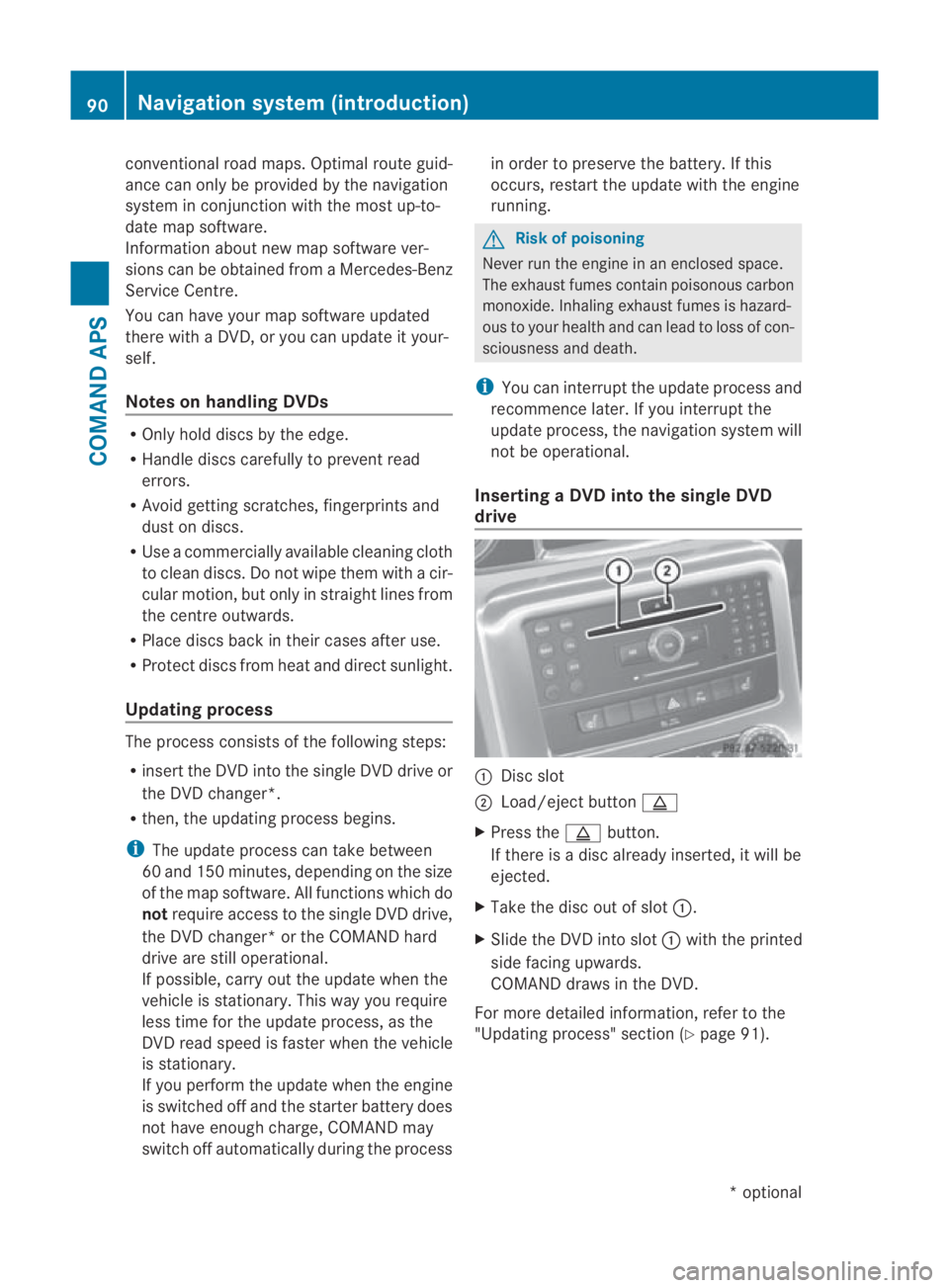
drive 0001
Disc slot
0002 Load/eject button 0017
X Press the 0017button.
If there is a disc already inserted, it will be
ejected.
X Take the disc ou tofslot0001.
X Slide the DV Dinto slot 0001with the printed
side facing upwards.
COMAND draws in the DVD.
For more detailed information, refer to the
"Updating process" sectio n(Ypage 91). 90
Navigation system (introduction)COMAND APS
*o
ptional
BA 197 ECE RE 2010/6a; 1; 2, en-GB
sabbaeu
Version: 3.0.3.6 2010-05-07T14:19:43+02:00 - Seite 90
Page 98 of 361
X
To confirm the character selection:
press 0017.
It is possible, in some cases:
X To change the character set for the
input speller: select0014.
Deleting an entry
X To delete single characters: select0004on
the bottom right-hand side of the speller
and press 0017.
or
X Press the 0013button next to the
COMAND controller.
X To delete an entire entry: select0004and
press and hold down 0017until the entire
entry has been deleted.
or
X Press and hold down the 0013button until
the entire entry is deleted.
Cancelling an entry
X Select the 0002iconont he left-hand side in
the speller and press 0017.
or
X Press the 0001back button next to the
COMAND controller.
The address input menu appears.
Accepting the first list entry
X Press and hold 0017until the address input
menu appears.
The accepted list entry appears.
i If COMAND is able to unambiguously
assign the characters entered to one town,
the address entry menu automatically
shows the selected list entry.
Changing to the town list without the
input speller
If there are several entries for a town or if the
name is stored several times, then 0005is
highlighted in the speller.
X Press 0017. It is also possible to change to the list at any
time during character input.
X
Slide 001F0013repeatedly until the list is dis-
played without the speller.
or
X Select 0005and press 0017.
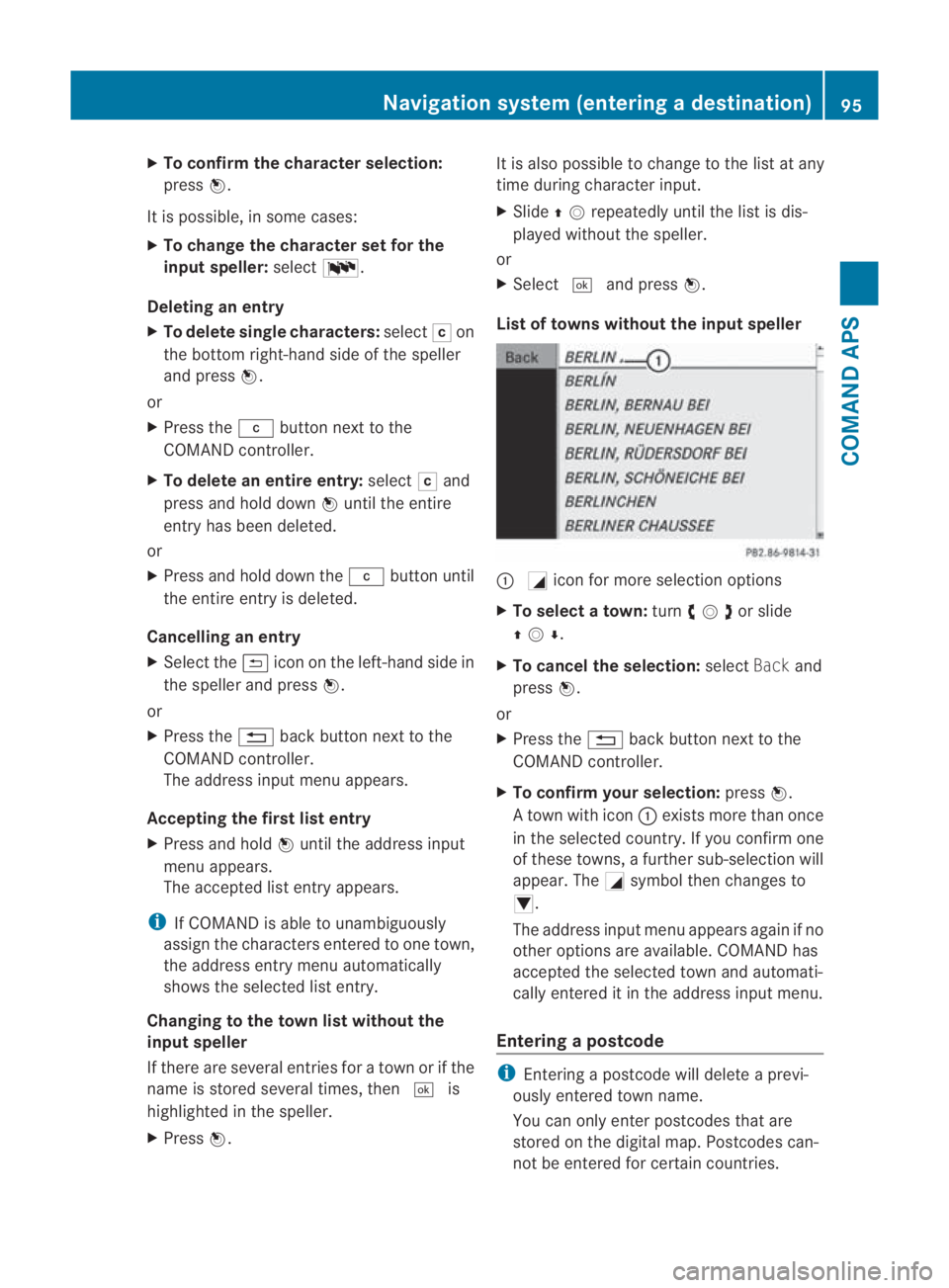
Listoft owns without the inpu tspeller 0001
0005icon for more selection options
X To select atown: turn002800130029or slide
001F0013000D .
X To cancel the selection: selectBackand
press 0017.
or
X Press the 0001back button next to the
COMAND controller.
X To confirm your selection: press0017.
At own with icon 0001exists more than once
in the selected country. If you confirm one
of these towns, a further sub-selection will
appear. The 0005symbol then changes to
0006.
The address input menu appears again if no
other options are available. COMAND has
accepted the selected town and automati-
cally entered it in the address input menu.
Entering apostcode i
Entering a postcode will delete a previ-
ously entered town name.
You can only enter postcodes that are
stored on the digital map. Postcodes can-
not be entered for certain countries. Navigation system (entering
adestination)
95COMAND APS
BA 197 ECE RE 2010/6a; 1; 2, en-GB
sabbaeu Version: 3.0.3.6
2010-05-07T14:19:43+02:00 - Seite 95 Z
Page 105 of 361
0001
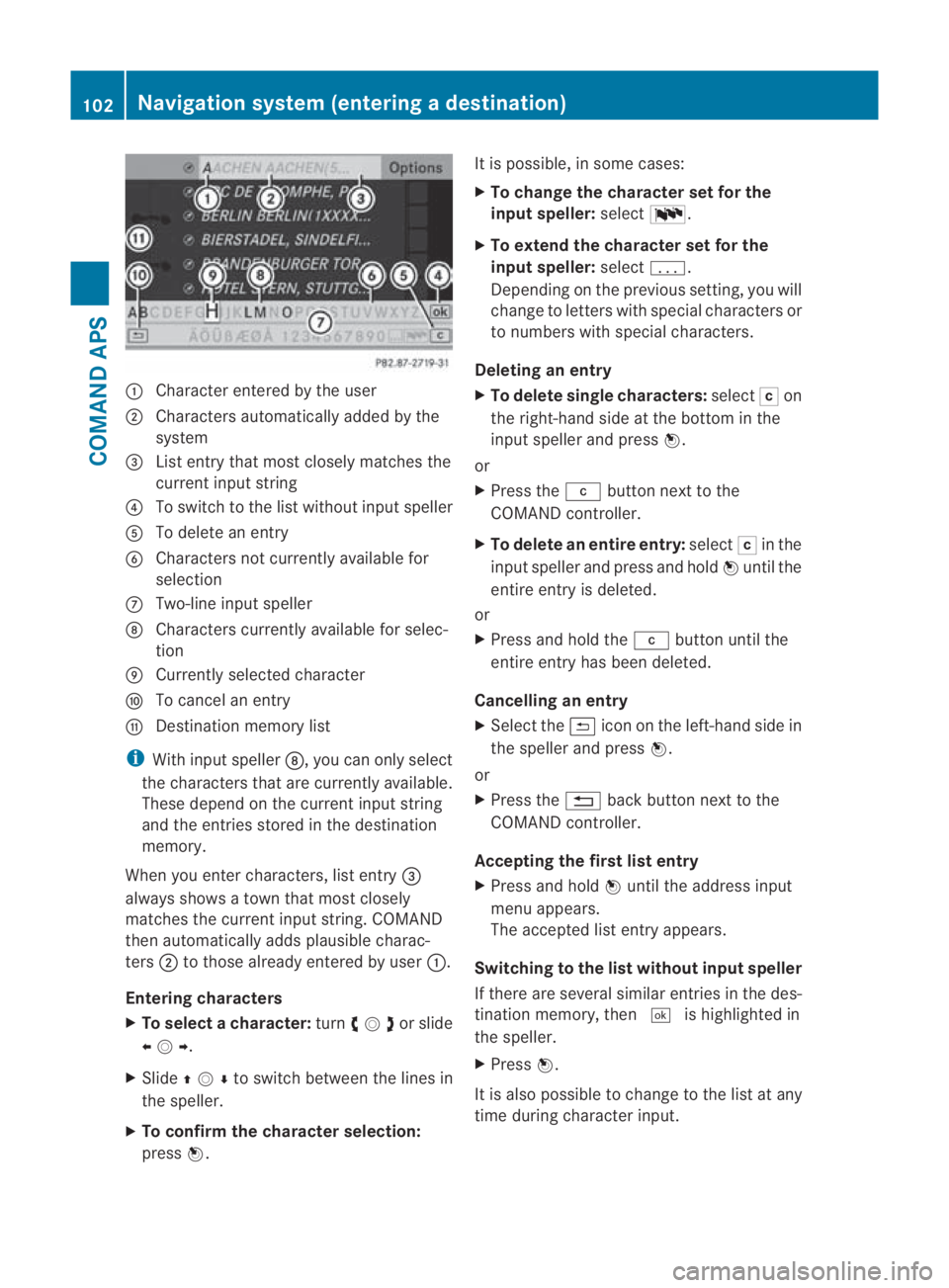
Characte rentered by the user
0002 Characters automatically added by the
system
0015 List entry that most closely matches the
current input string
0014 To switch to the list withou tinpu tspeller
0012 To delete an entry
0013 Characters not currently available for
selection
000A Two-line input speller
000B Characters currently available for selec-
tion
000C Currently selected character
000D To cancel an entry
000E Destination memory list
i With input speller 000B, you can only select
the characters that are currently available.
These depend on the curren tinpu tstring
and the entries stored in the destination
memory.
When you ente rcharacters, list entry 0015
always shows a town that most closely
matches the current input string. COMAND
then automatically adds plausible charac-
ters 0002to those already entered by user 0001.
Entering characters
X To selectac haracter:turn002800130029or slide
002B0013002C .
X Slide 001F0013000D to switch between the lines in
the speller.
X To confirm the character selection:
press 0017. It is possible, in some cases:
X
To change the character set for the
input speller: select0014.
X To extend the character set for the
input speller: select0001.
Depending on the previous setting, you will
change to letters with special characters or
to numbers with special characters.
Deleting an entry
X To delete single characters: select0004on
the right-hand side at the bottom in the
input spelle rand press 0017.
or
X Press the 0013button next to the
COMAND controller.
X To delete an entire entry: select0004in the
input speller and press and hold 0017until the
entire entry is deleted.
or
X Press and hold the 0013button until the
entire entry has been deleted.
Cancelling an entry
X Select the 0002iconont he left-hand side in
the speller and press 0017.
or
X Press the 0001back button next to the
COMAND controller.
Accepting the first list entry
X Press and hold 0017until the address input
menu appears.
The accepted list entry appears.
Switching to the list without input speller
If there are several similar entries in the des-
tination memory, then 0005is highlighted in
the speller.
X Press 0017.
It is also possible to change to the list at any
time during character input. 102
Navigation system (entering
adestination)COMAND APS
BA 197 ECE RE 2010/6a; 1; 2, en-GB
sabbaeu Version: 3.0.3.6
2010-05-07T14:19:43+02:00 - Seite 102
Page 108 of 361
Selecting
acategory
COMAND first searches in the selected cate-
gory for destinations along the route .Ifthere
are no destinations available there, COMAND
searches for destinations in an area around
the vehicle position.
If COMAND does not find any destinations,
you will see a message to this effect.
X Select OK.
X If necessary, select another category.
If COMAND finds destinations, a list
appears on the right-hand side of the dis-
play.
Here the intermediate stops of the selected
category are listed, increasing in distance
from the current vehicle position.
The list shows:
R
name
R details on intermediate stop position in
regard to direction of travel
R current distance to the intermediate stop
i For intermediate stops that are not loca-
ted along the calculated route, the linear
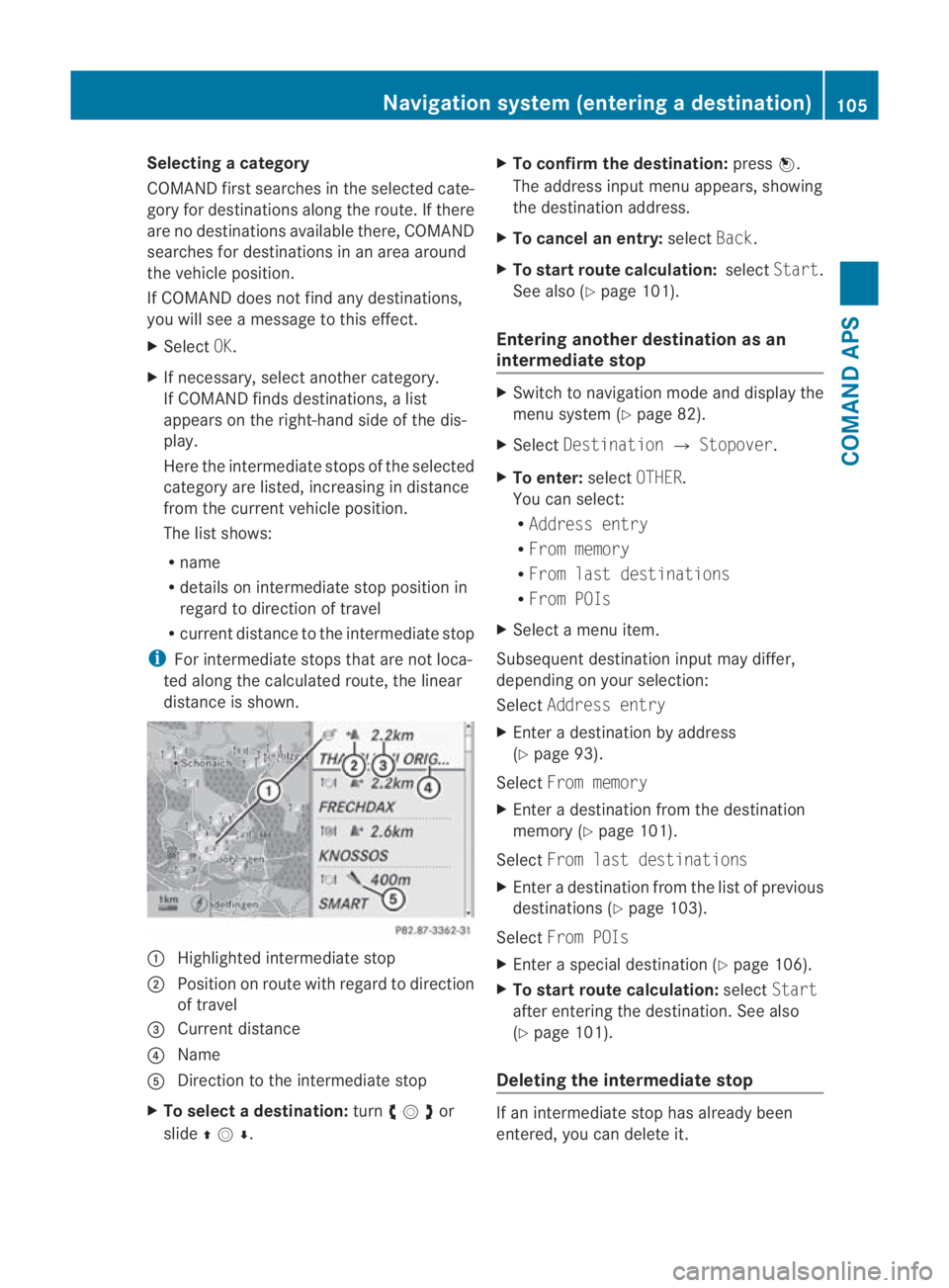
distance is shown. 0001
Highlighted intermediate stop
0002 Position on route with regard to direction
of travel
0015 Current distance
0014 Name
0012 Direction to the intermediate stop
X To selectad estination:turn002800130029or
slide 001F0013000D . X
To confirm the destination: press0017.
The address input menu appears, showing
the destination address.
X To cancel an entry: selectBack.
X To start route calculation: selectStart.
See also (Y page 101).
Entering another destinatio nas an
intermediate stop X
Switch to navigation mode and display the
menu system (Y page 82).
X Select Destination 0004Stopover .
X To enter: selectOTHER.
You can select:
R Address entry
R From memory
R From last destinations
R From POIs
X Select a menu item.
Subsequent destination input may differ,
depending on your selection:
Select Address entry
X Enter a destination by address
(Y page 93).
Select From memory
X Enter a destination from the destination
memory (Y page 101).
Select From last destinations
X Enter a destination from the list of previous
destinations (Y page 103).
Select From POIs
X Enter a special destination (Y page 106).
X To start route calculation: selectStart
after entering the destination. See also
(Y page 101).
Deleting the intermediate stop If an intermediate stop has already been
entered, you can delete it.Navigation system (entering
adestination)
105COMAND APS
BA 197 ECE RE 2010/6a; 1; 2, en-GB
sabbaeu Version: 3.0.3.6
2010-05-07T14:19:43+02:00 - Seite 105 Z