light MERCEDES-BENZ SLS COUPE 2010 Owner's Guide
[x] Cancel search | Manufacturer: MERCEDES-BENZ, Model Year: 2010, Model line: SLS COUPE, Model: MERCEDES-BENZ SLS COUPE 2010Pages: 361, PDF Size: 6.32 MB
Page 114 of 361
Depending on the map scale selected, spe-
cial destination icons appear on the map.
The scale at which the icons are displayed
on the map varies according to the icon.
You can select the icons tha tCOMAND will
display (Y page 85).
No special destinations are available:
You will see a message to this effect.
i You also see this message if you have
selected the No symbols menu item under
"Map display".
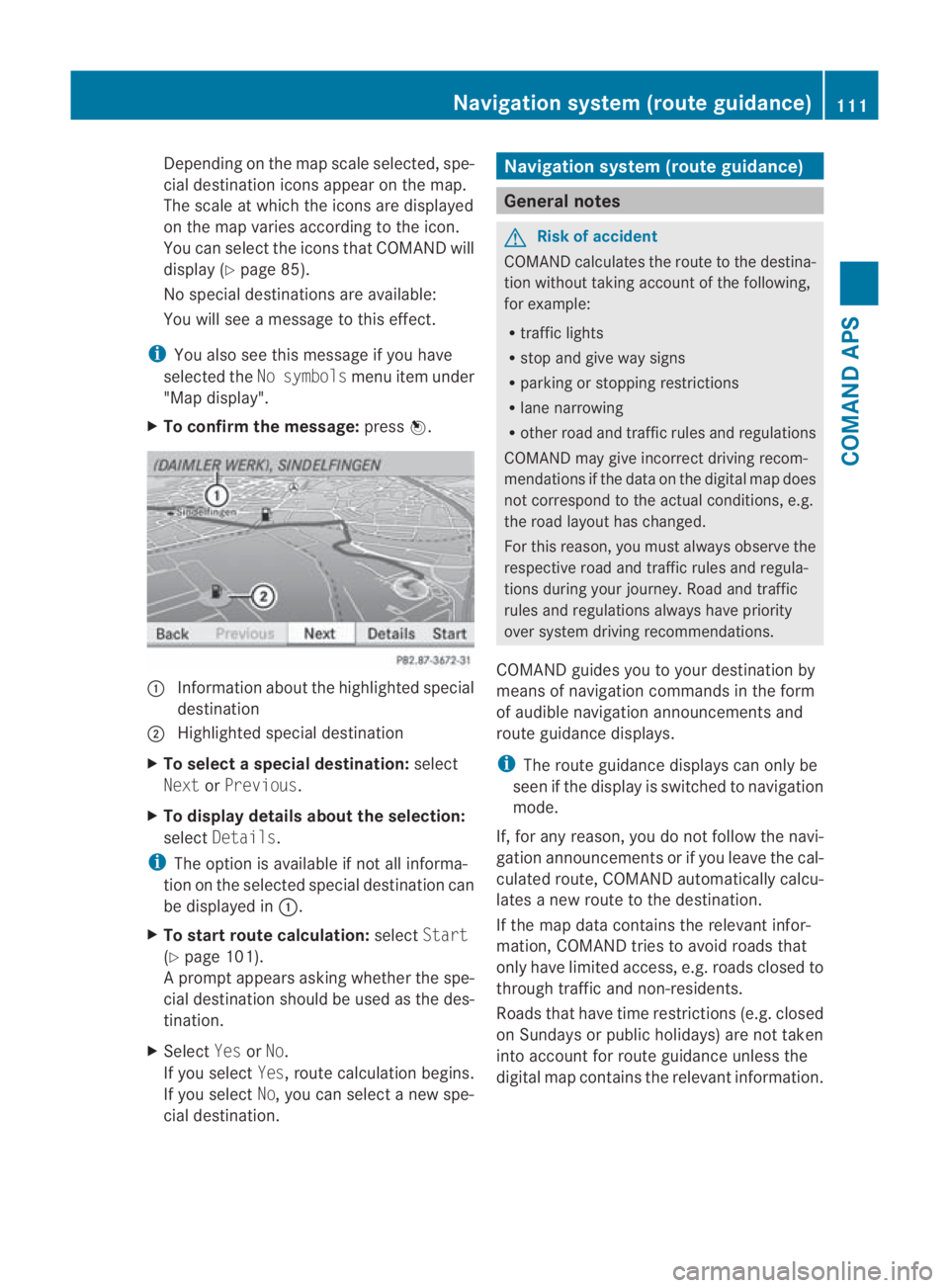
X To confirm the message: press0017. 0001
Information aboutt he highlighted special
destination
0002 Highlighted special destination
X To selectas pecial destination: select
Next orPrevious .
X To display details about the selection:
select Details.
i The option is available if not all informa-
tion on the selected special destination can
be displayed in 0001.
X To start route calculation: selectStart
(Y page 101).
Ap rompt appears asking whethe rthe spe-
cial destination should be used as the des-
tination.
X Select YesorNo.
If you select Yes, route calculation begins.
If you select No, you can select a new spe-
cial destination. Navigation system (route guidance)
General notes
G
Risk of accident
COMAND calculates the route to the destina-
tion without taking account of the following,
for example:
R traffic lights
R stop and give way signs
R parking or stopping restrictions
R lane narrowing
R other road and traffic rules and regulations
COMAND may give incorrect driving recom-
mendations if the data on the digital map does
not correspond to the actual conditions, e.g.
the road layouth as changed.
For this reason, you must always observe the
respective road and traffic rules and regula-
tions during your journey. Road and traffic
rules and regulations always have priority
ove rsystem driving recommendations.
COMAND guides you to your destination by
means of navigation commands in the form
of audible navigation announcements and
route guidance displays.
i The route guidance displays can only be
see nift he display is switched to navigation
mode.
If, for any reason, you do not follow the navi-
gation announcements or if you leave the cal-
culated route, COMAND automatically calcu-
lates a new route to the destination.
If the map data contains the relevant infor-
mation, COMAND tries to avoid roads that
only have limited access, e.g. roads closed to
through traffic and non-residents.
Roads that have time restrictions (e.g. closed
on Sundays or publich olidays) are not taken
into account for route guidance unless the
digital map contains the relevant information. Navigation system (route guidance)
111COMAND APS
BA 197 ECE RE 2010/6a; 1; 2, en-GB
sabbaeu Version: 3.0.3.6 2010-05-07T14:19:43+02:00 - Seite 111 Z
Page 115 of 361
Changing direction
Changes of direction have three phases:
R preparation phase
R announcemen tphase
R change-of-direction phase
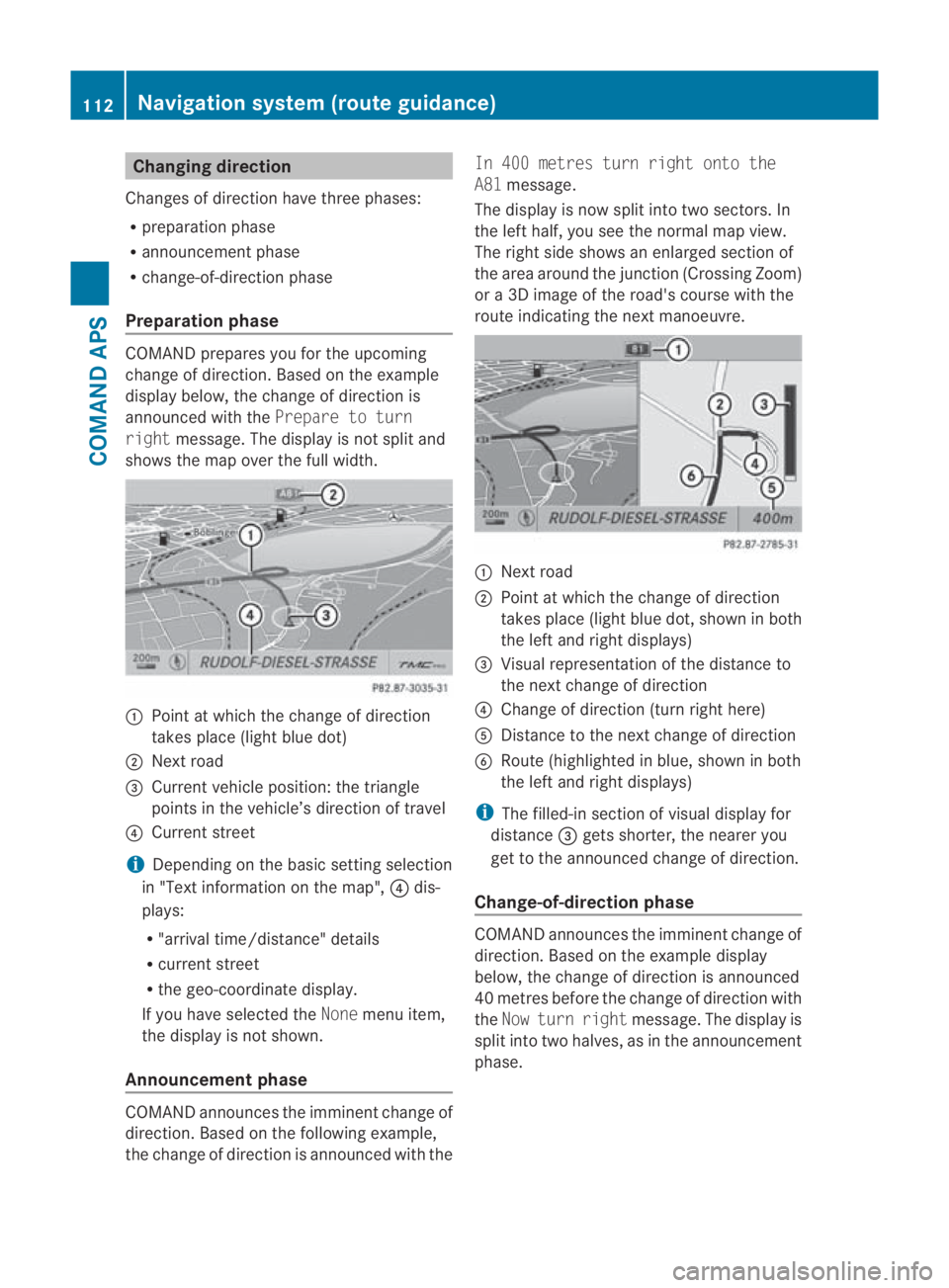
Preparation phase COMAND prepares you for the upcoming
change of direction. Based on the example
display below, the change of direction is
announced with the Prepare to turn
right message. The display is not split and
shows the map over the full width. 0001
Point at which the change of direction
takes place (light blue dot)
0002 Next road
0015 Current vehicle position: the triangle
points in the vehicle’s direction of travel
0014 Current street
i Depending on the basic setting selection
in "Text information on the map", 0014dis-
plays:
R "arrival time/distance" details
R current street
R the geo-coordinate display.
If you have selected the Nonemenu item,
the display is not shown.
Announcement phase COMAND announces the imminent change of
direction. Based on the following example,
the change of direction is announced with the In 400 metres turn right onto the
A81
message.
The display is now split into two sectors. In
the left half, you see the normal map view.
The right side shows an enlarged section of
the area around the junction (Crossing Zoom)
or a 3D image of the road's course with the
route indicating the next manoeuvre. 0001
Next road
0002 Point at which the change of direction
takes place (light blue dot, shown in both
the left and right displays)
0015 Visual representation of the distance to
the next change of direction
0014 Change of direction (turn right here)
0012 Distance to the next change of direction
0013 Route (highlighted in blue, shown in both
the left and right displays)
i The filled-in section of visual display for
distance 0015gets shorter, the nearer you
get to the announced change of direction.
Change-of-direction phase COMAND announces the imminent change of
direction. Based on the example display
below, the change of direction is announced
40 metres before the change of direction with
the
Now turn right message. The display is
split into two halves, as in the announcement
phase. 112
Navigation system (route guidance)COMAND APS
BA 197 ECE RE 2010/6a; 1; 2, en-GB
sabbaeu
Version: 3.0.3.6 2010-05-07T14:19:43+02:00 - Seite 112
Page 116 of 361
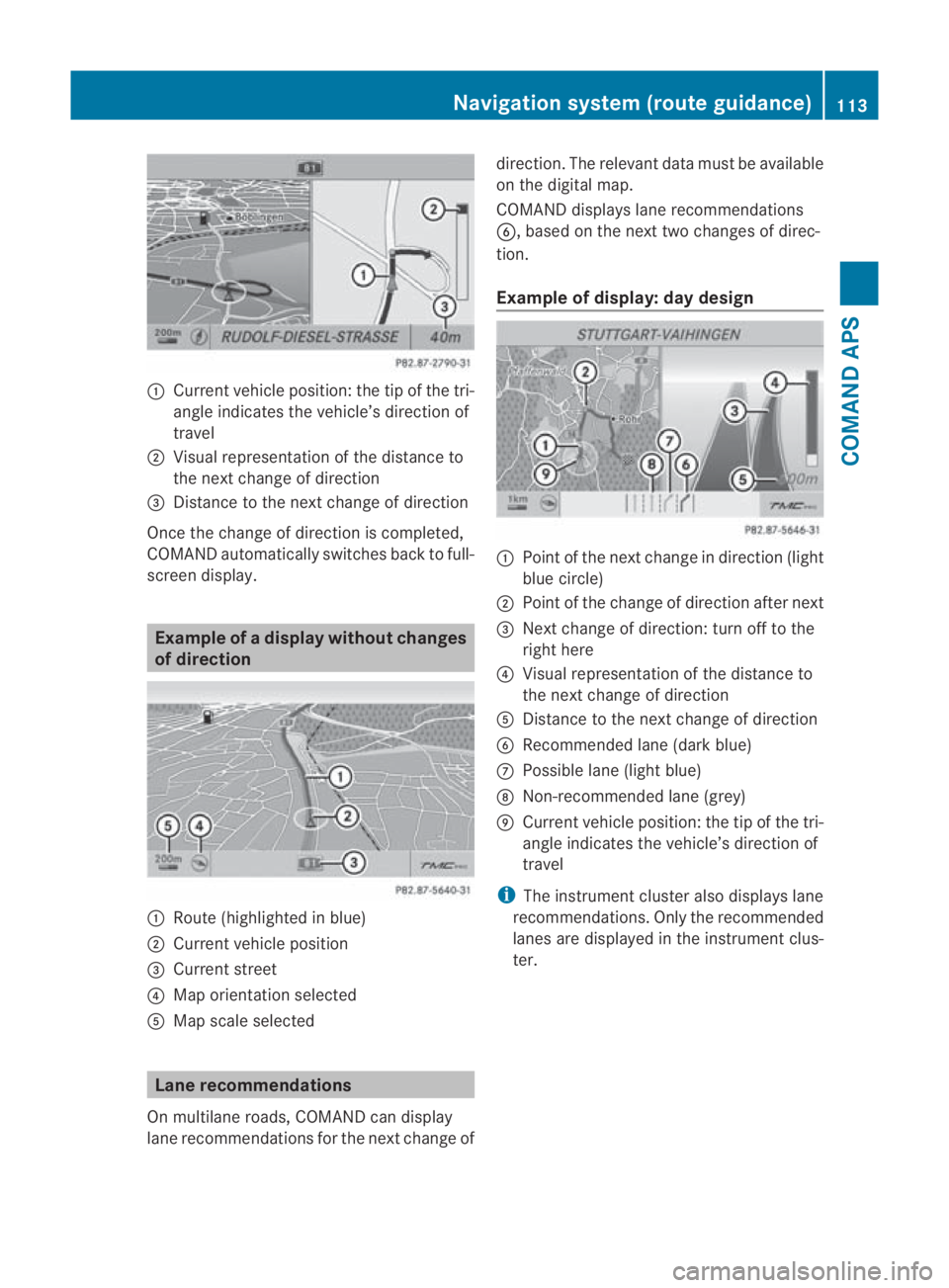
0001
Curren tvehicle position :the tip of the tri-
angle indicates the vehicle’s direction of
travel
0002 Visual representation of the distance to
the next change of direction
0015 Distance to the next change of direction
Once the change of direction is completed,
COMAND automatically switches back to full-
screen display. Example of
adispla ywithout changes
of direction 0001
Route (highlighted in blue)
0002 Curren tvehicle position
0015 Current street
0014 Map orientation selected
0012 Map scale selected Lane recommendations
On multilane roads, COMAND can display
lane recommendations for the nextc hange ofdirection. The relevant data must be available
on the digital map.
COMAND displays lane recommendations
0013, based on the next two changes of direc-
tion.
Example of display: day design
0001
Point of the next change in direction (light
blue circle)
0002 Point of the change of direction after next
0015 Next change of direction: turn off to the
right here
0014 Visual representation of the distance to
the next change of direction
0012 Distance to the next change of direction
0013 Recommended lane (dark blue)
000A Possible lane (light blue)
000B Non-recommended lane (grey)
000C Current vehicle position: the tip of the tri-
angle indicates the vehicle’s direction of
travel
i The instrumentc luster also displays lane
recommendations .Only the recommended
lanes are displayed in the instrument clus-
ter. Navigation system (route guidance)
113COMAND APS
BA 197 ECE RE 2010/6a; 1; 2, en-GB
sabbaeuV ersion: 3.0.3.6
2010-05-07T14:19:43+02:00 - Seite 113 Z
Page 117 of 361
Display an
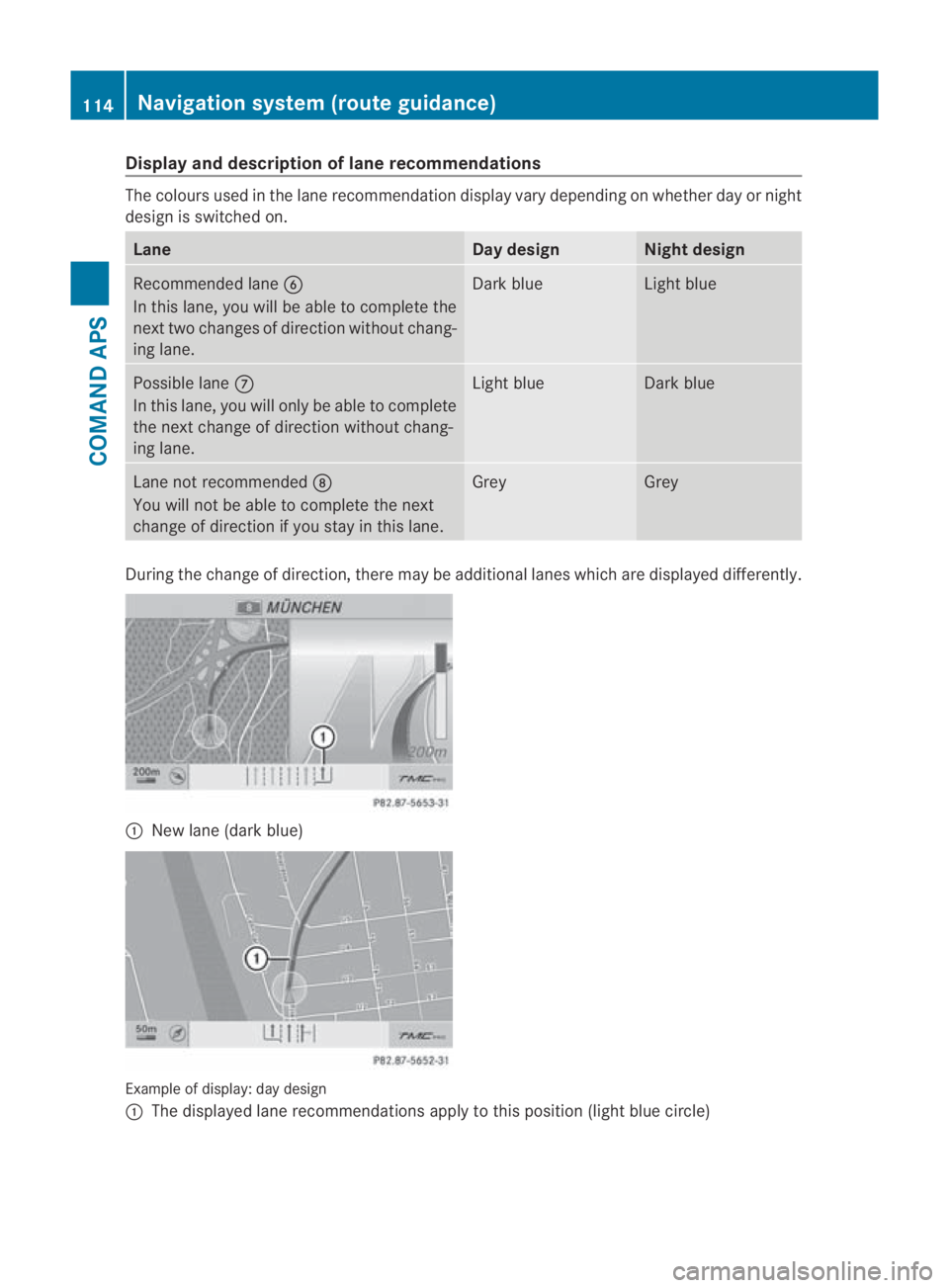
ddescription of lane recommendations The colours used in the lane recommendatio
ndisplay vary depending on whether day or night
design is switched on. Lane Day design Nigh
tdesign Recommended lane
0013
In this lane, you will be able to complete the
nex ttwo changes of directio nwithout chang-
ing lane. Dar
kblue Light blue
Possible lane
000A
In this lane, you will only be able to complete
the nex tchange of direction without chang-
ing lane. Light blue Dark blue
Lane not recommended
000B
You will not be able to complete the next
change of direction if you stay in this lane. Grey Grey
During the change of direction, there may be additional lanes which are displayed differently.
0001
New lane (dark blue) Example of display:d
ay design
0001 The displayed lane recommendations apply to this position (light blue circle) 114
Navigation system (route guidance)COMAND APS
BA 197 ECE RE 2010/6a; 1; 2, en-GB
sabbae
uV ersion: 3.0.3.6
2010-05-07T14:19:43+02:00 - Seite 114
Page 119 of 361
message, a directio
narrow and the distance
to the destination or to the intermediate stop,
if this was configured (Y page 104). The direc-
tional arrow shows the linea rdirection of the
destination. The distance and the estimated
arrival time are displayed in grey in this case.
The route is highlighted blue, starting from
the last recognised street the vehicle was on
before it left the map.
As soon as the vehicle is back on a digitised
road, the distance to the destination appears,
based on the calculated route. Route guid-
ance continues in the usual way.
Route guidance from an off-map loca-
tion to adestination If the vehicle position is outside the area cov-
ered by the digital map, then the vehicle is in
an off-map location. COMAND is also able to
guide you to a destination even from such a
location.
At the start of route guidance you will see the
Off road message, a directio narrow and the
linea rdistance to the destination or to the
intermediate stop, if this has been config-
ured. The arrow shows the compass heading
to the road left last.
The route is highlighted blue fro mthe nearest
road known to the system.
As soon as the vehicle is back on a road
known to the system, route guidance contin-
ues in the usual way.
Off-road during route guidance Due to roadworks, for example, there may be
differences between the data on the digital
map and the actual course of the road.
In such cases, the system will temporarily be
unable to locate the vehicle position on the
digital map and thus considers the vehicle to
be in an off-road position.
You will see the Off roadmessage in the
display, a direction arrow and the distance to
the destination or to the intermediate stop, if
this was configured. As soon as the system can assign the vehicle
position to the map again, route guidance
continues in the usual way. Navigation announcements
i Audible navigation announcements are
muted during a telephone call.
If you have missed an announcement, you can
call up the current announcement at any
time.
X To call up the current announcement:
select 0025in the map display with the menu
system (Y page 83) shown.
X To switch off navigation announce-
ments: during the announcement, press
and hold the 000Bbutton.
You will briefly see the message: The
guidance instructions have been
muted.
X To switch navigation announcements
on again manually: select0025in the map
display with menu system displayed.
or
X Start a new route calculation
(Y page 101).
or
X Switch COMAND on again or start the
engine.
i COMAND switches the navigation
announcements on automatically if it
receives RDS-TMC traffic announcements
during dynamic route guidance
(Y page 119) and starts recalculating the
route.
X To adjust the volume of the announce-
ments: adjust the volume during the auto-
matic announcement (Y page 67).
or
X Call up an announcemen tmanually using
Navi00040025 and adjust the volume.116
Navigation system (route guidance)COMAND APS
BA 197 ECE RE 2010/6a; 1; 2, en-GB
sabbaeu
Version: 3.0.3.6
2010-05-07T14:19:43+02:00 - Seite 116
Page 120 of 361
Reducing volume during
anavigation
announcement The volume of an active radio of video source
can be automatically reduced during a navi-
gation announcement.
X To activate/deactivate the audio fade-
out: select Navi0004 Audio fadeout.
The function is switched on 0019or off 0004,
depending on the previous status.
Setting the volume manually
X Set the volume during a navigation
announcement.
or
X In the map display with the menu system
shown, select 0025and set the volume. Traffic jam function
i The traffic jam function avoids a blocked
sectio nofthe route ahead of you. You can
set the length of the blocked route section.
If possible, COMAND calculates a detour
around the blocked section of the route.
X Select Route0004Detour in map view with
the menu system displayed.
X To block a section of the route: select
Longer orShorter repeatedly until the
desired length has been set.
i The total length of the section that can be
blocked is defined by the digital map. The
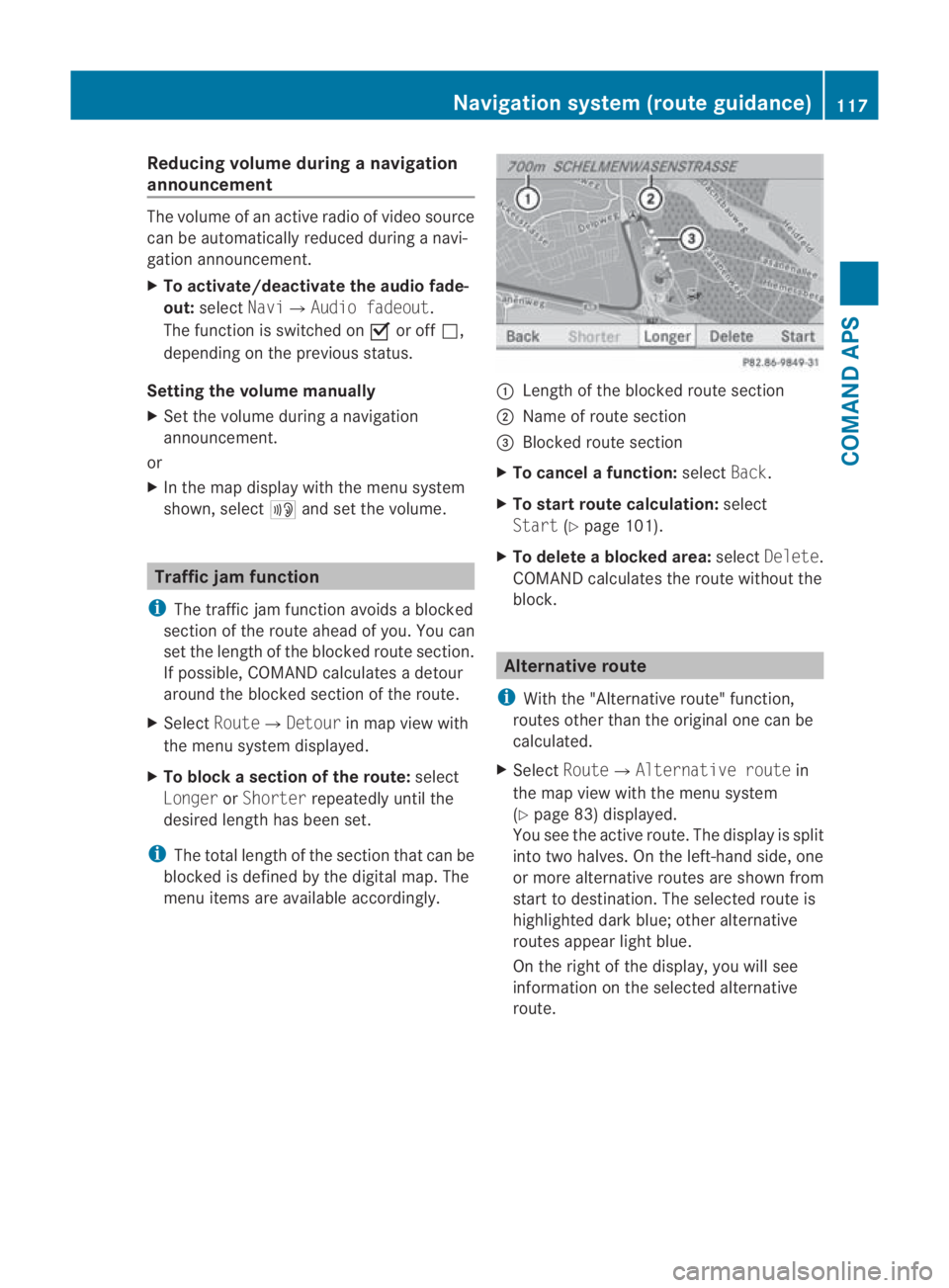
menu items are available accordingly. 0001
Length of the blocked route section
0002 Name of route section
0015 Blocked route section
X To cancel afunction: selectBack.
X To start route calculation: select
Start (Ypage 101).
X To delete a blocked area: selectDelete .
COMAND calculates the route without the
block. Alternative route
i With the "Alternative route" function,
routes other than the original one can be
calculated.
X Select Route0004 Alternative route in
the map view with the menu system
(Y page 83) displayed.
You see the active route. The display is split
into two halves. On the left-hand side, one
or more alternative routes are show nfrom
start to destination. The selected route is
highlighted dark blue; other alternative
routes appear light blue.
On the right of the display, you will see
information on the selected alternative
route. Navigation system (route guidance)
117COMAND APS
BA 197 ECE RE 2010/6a; 1; 2, en-GB
sabbaeu Version: 3.0.3.6
2010-05-07T14:19:43+02:00 - Seite 117 Z
Page 122 of 361
and view informatio
nand details about
each sectio nofthe route.
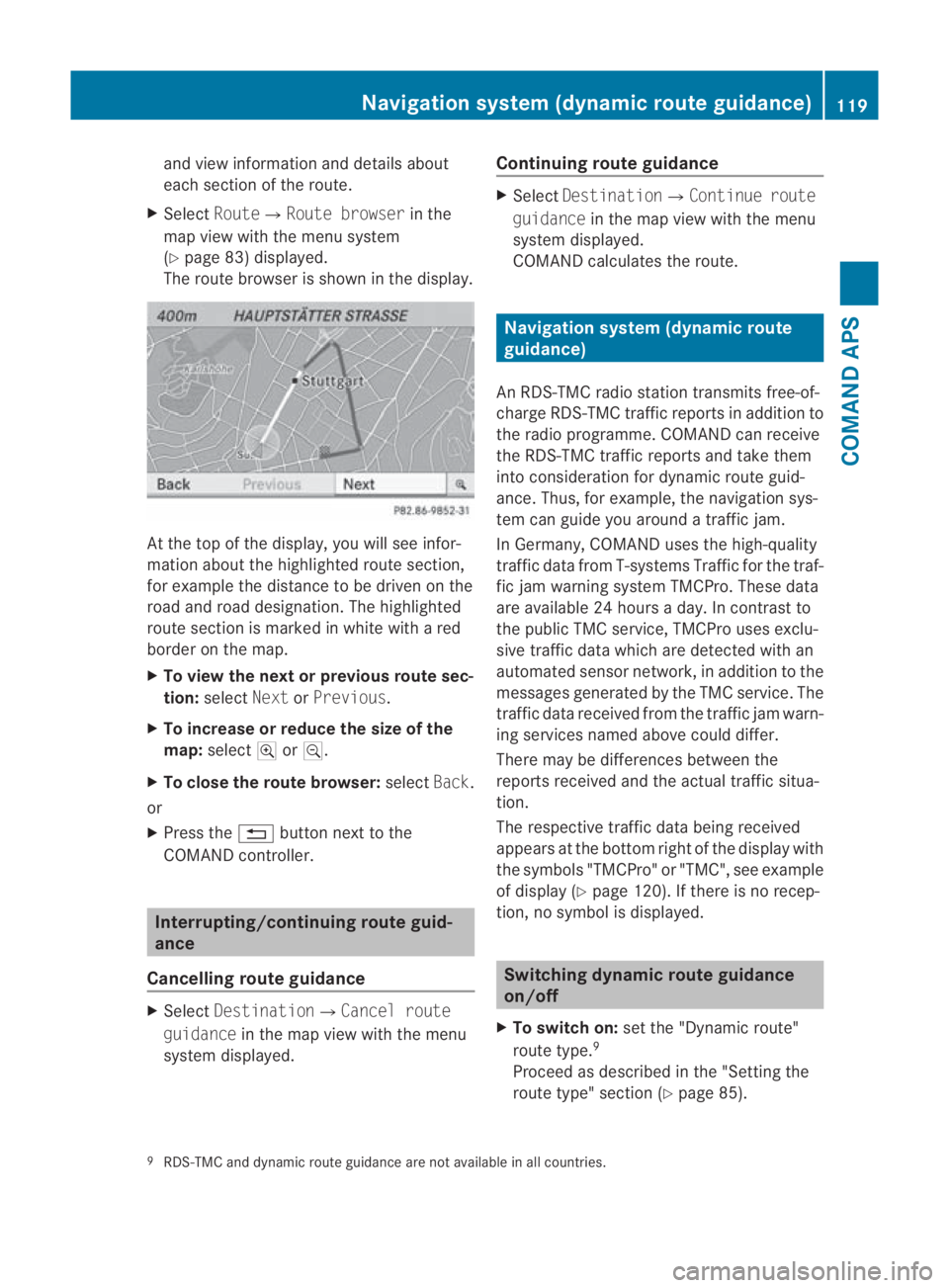
X Select Route0004Route browser in the
map view with the menu system
(Y page 83) displayed.
The route browser is shown in the display. At the top of the display, you will see infor-
mation about the highlighted route section,
for example the distance to be driven on the
road and road designation. The highlighted
route section is marked in white with a red
border on the map.
X To view the next or previous route sec-
tion: select NextorPrevious.
X To increase or reduce the size of the
map: select 000Aor0009.
X To close the route browser: selectBack.
or
X Press the 0001button next to the
COMAND controller. Interrupting/continuing route guid-
ance
Cancelling route guidance X
Select Destination0004Cancel route
guidance in the map view with the menu
system displayed. Continuing route guidance X
Select Destination0004Continue route
guidance in the map view with the menu
system displayed.
COMAND calculates the route. Navigation system (dynamic route
guidance)
An RDS-TMC radio station transmits free-of-
charge RDS-TMC traffic reports in addition to
the radio programme. COMAND can receive
the RDS-TMC traffic reports and take them
into consideration for dynamic route guid-
ance. Thus, for example, the navigation sys-
tem can guide you around a traffic jam.
In Germany, COMAND uses the high-quality
traffic data from T-systems Traffic for the traf-
fic jam warning system TMCPro. These data
are available 24 hours a day. In contrast to
the publicT MC service, TMCPro uses exclu-
sive traffic data which are detected with an
automated sensor network, in addition to the
messages generated by the TMC service. The
traffic data received from the traffic jam warn-
ing services named above could differ.
There may be differences between the
reports received and the actual traffic situa-
tion.
The respective traffic data being received
appears at the bottom right of the display with
the symbols "TMCPro" or "TMC", see example
of display (Y page 120). If there is no recep-
tion, no symbol is displayed. Switching dynamic route guidance
on/off
X To switch on: set the "Dynamic route"
route type. 9
Proceed as described in the "Setting the
route type" section (Y page 85).
9 RDS-TMC and dynamic route guidance are not available in all countries. Navigation system (dynamic route guidance)
119COMAND APS
BA 197 ECE RE 2010/6a; 1; 2, en-GB
sabbaeu Version: 3.0.3.6 2010-05-07T14:19:43+02:00 - Seite 119 Z
Page 123 of 361
X
To switch off: set theFast route or
Short route route type.
Proceed as described in the "Setting the
route type" section.
i COMAND calculates a new route if you
change the route type setting with route
guidance active. If you change the route
type setting when route guidance is inac-
tive, COMAND uses the new setting for the
next route guidance. RDS-TMC displays on the map
COMAND can show certain traffic incidents
on the map. These displays can be see non
map scales from 50 m (0.05 miles) up to
20 km (20 miles).
X To set the map scale: turn002800130029until the
desired map scale is set.
Turning clockwise zooms out from the map,
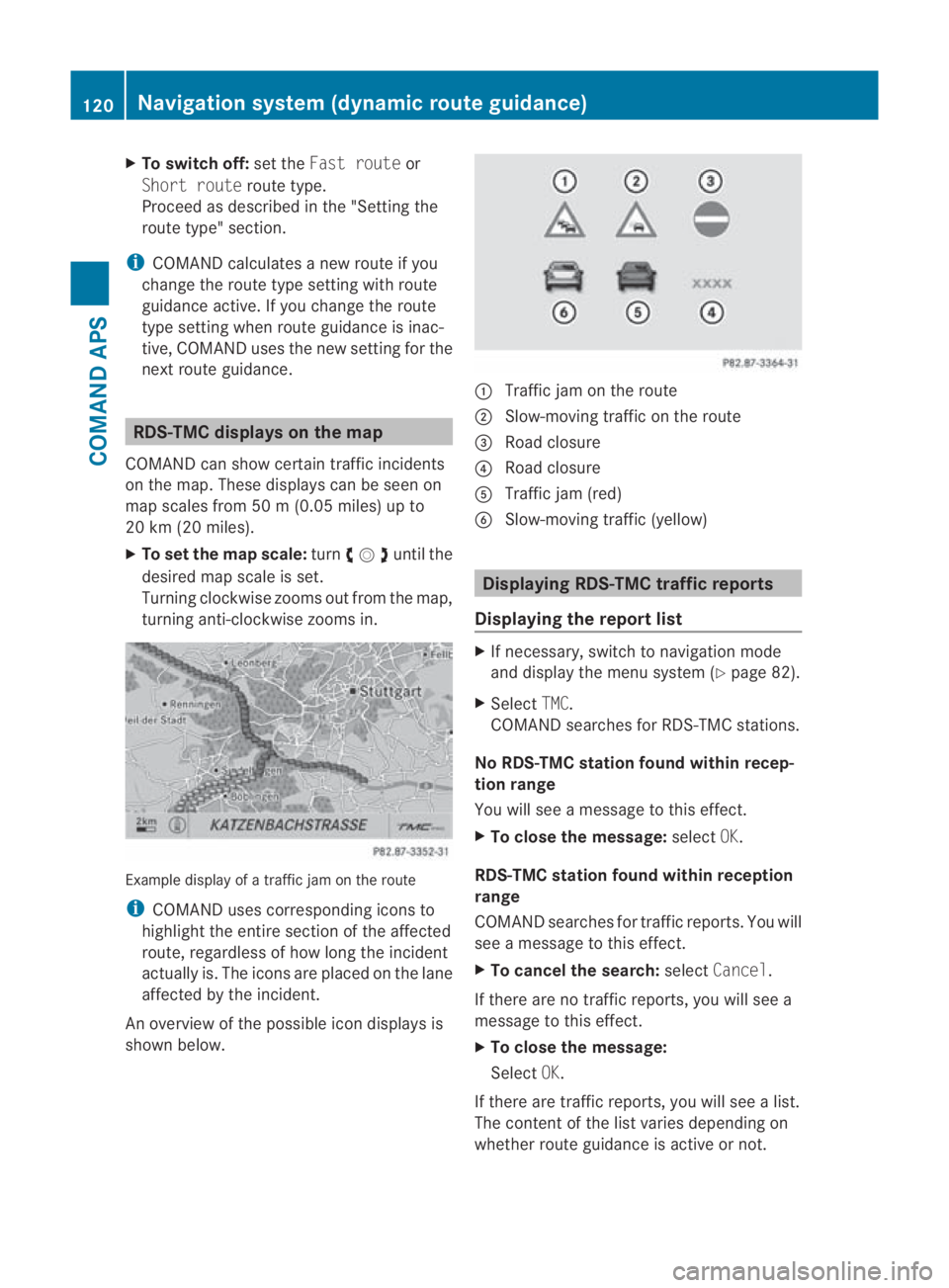
turning anti-clockwise zooms in. Example display of a traffic jam on the route
i COMAND uses corresponding icons to
highlight the entire section of the affected
route, regardless of how lon gthe incident
actually is. The icons are placed on the lane
affected by the incident.
An overview of the possible icon displays is
shown below. 0001
Traffic jam on the route
0002 Slow-moving traffic on the route
0015 Road closure
0014 Road closure
0012 Traffic jam (red)
0013 Slow-moving traffic (yellow) Displaying RDS-TMC traffic reports
Displaying the report list X
If necessary, switch to navigation mode
and display the menu system (Y page 82).
X Select TMC.
COMAND searches for RDS-TMC stations.
No RDS-TMC station found within recep-
tion range
You will see a message to this effect.
X To close the message: selectOK.
RDS-TMC station found within reception
range
COMAND searches for traffic reports. You will
see a message to this effect.
X To cancel the search: selectCancel.
If there are no traffic reports, you will see a
message to this effect.
X To close the message:
Select OK.
If there are traffic reports, you will see a list.
The content of the list varies depending on
whether route guidance is active or not. 120
Navigation system (dynamic route guidance)COMAND APS
BA 197 ECE RE 2010/6a; 1; 2, en-GB
sabbaeu
Version: 3.0.3.6 2010-05-07T14:19:43+02:00 - Seite 120
Page 126 of 361
Automatic read-aloud function
You can have the TMC traffic reports along
the route read aloud automatically.
Announcements will be made as you
approach traffic incidents.
X To activate/deactivate the function:
select Navi0004Read TMC traffic mes‐
sages automatically.
The function is switched on 0019or off 0004
depending on the previous status. Navigation system (destination mem-
ory) My address
i The destination memory always contains
an entry named My addresswhich is at the
top of the list .You may wish to assign your
home address to this entry, for example. If
the My address (¤icon) entry already
contains data that can be used for naviga-
tion, you can select it for route guidance.
Assigning dataf or the first time/editing
My address X
Switch to navigation mode and display the
menu system (Y page 82).
X Select Destination 0004From memory .
If more than eight entries are listed in the
destination memory, the destination list
appears with the input speller; otherwise,
the destination list appears without the
input speller.
If the list appears without the input speller,
the My address entry is highlighted auto-
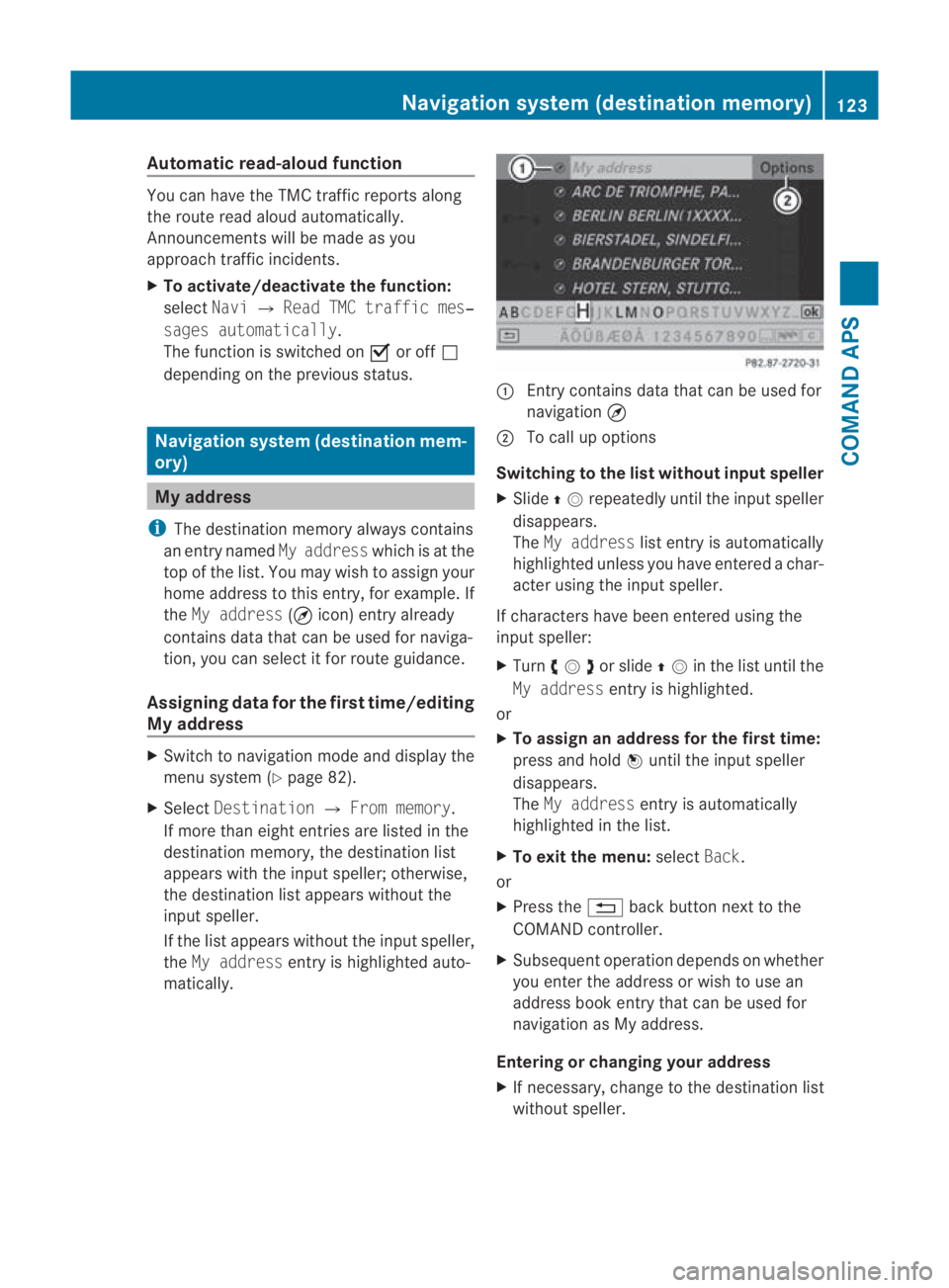
matically. 0001
Entry contains data that can be used for
navigation ¤
0002 To call up options
Switching to the list without input speller
X Slide 001F0013repeatedly until the inpu tspeller
disappears.
The My address list entry is automatically
highlighted unless you have entered a char-
acter using the input speller.
If characters have been entered using the
input speller:
X Turn 002800130029or slide 001F0013in the list until the
My address entry is highlighted.
or
X To assign an address for the first time:
press and hold 0017until the input speller
disappears.
The My address entry is automatically
highlighted in the list.
X To exit the menu: selectBack.
or
X Press the 0001back button next to the
COMAND controller.
X Subsequent operation depends on whether
you enter the address or wish to use an
address book entry that can be used for
navigation as My address.
Entering or changing your address
X If necessary, change to the destination list
without speller. Navigation system (destination memory)
123COMAND APS
BA 197 ECE RE 2010/6a; 1; 2, en-GB
sabbaeu Version: 3.0.3.6 2010-05-07T14:19:43+02:00 - Seite123 Z
Page 127 of 361
X
To enter the address for the first time:
press 0017and select New entry.
X To change the address: selectOptions
0004 New entry.
In both cases, the address input menu
appears.
X Enter the address. Proceed in the same way
as you would ente radestination as descri-
bed in the "Entering adestination by
address" section (Y page 93).
X Select Saveafter you have entered the
address.
COMAND then stores the entry. You will
see a message and then the address menu
with the selected address. Startis high-
lighted automatically.
Using an address book entry for My
address
X If necessary, change to the destination list
without input speller (Y page 123).
X To assign an address for the first time:
press 0017and select Assign to address
book entry.
X Select HomeorWork.
X To edit My address: selectOptions 0004
Assign to address book entry.
X Select HomeorWork.
In both cases, you will see either a list or,
for more than eight address book entries,
the search menu with the smart speller.
X Select the desired address book entry. Pro-
ceed as described in the "Searching for an
address book entry" section
(Y page 152).
i Information on how to link address book
entries with navigation data can be found
in "Assigning a destination to an address
book entry" (Y page 126).
X To confirm your selection: press0017.
An address is assigned for the first time:
COMAND stores the entry. You will see a
message and then the address menu with the selected address.
Startis highlighted
automatically.
The address is changed:
Ap rompt appears, asking if you really wish
to overwrite My address.
X Select YesorNo.
If you select Yes, COMAND overwrites the
destination. You will see a message and
then the address menu with the selected
address. Startis highlighted automati-
cally.
If you select No, the list will reappear.
Selecting My address for route guid-
ance i
If the My address (¤icon) entry already
contains data that can be used for naviga-
tion, you can select it for route guidance. If
not, then first assign adestination to this
entry (Y page 123).
X Switch to navigation mode and display the
menu system (Y page 82).
X Select Destination 0004From memory.
If more than eight entries are listed in the
destination memory, the destination list
appears with the input speller; otherwise,
the destination list appears without the
input speller.
X Destination memory with input
speller: slide001F0013repeatedly until the list
appears without the inpu tspeller.
or
X Select 0005on the bottom right in the input
speller.
X Destination memory list without input
speller: press0017. 124
Navigation system (destination memory)COMAND APS
BA 197 ECE RE 2010/6a; 1; 2, en-GB
sabbaeu
Version: 3.0.3.6 2010-05-07T14:19:43+02:00 - Seite 124