lock MERCEDES-BENZ SPRINTER 2015 MY15 Operator’s Manual
[x] Cancel search | Manufacturer: MERCEDES-BENZ, Model Year: 2015, Model line: SPRINTER, Model: MERCEDES-BENZ SPRINTER 2015Pages: 334, PDF Size: 5.94 MB
Page 169 of 334
The
Lane Keep. Assist Deactivated
Lane Keep. Assist Deactivated
message appears in the display and the
00B0 indicator lamp in the instrument clus-
ter flashes and then lights up continuously.
Lane Keeping Assist is deactivated.
X To activate: press thejbutton in the
center console again (Y page 37).
On vehicles without steering wheel but-
tons:
ON ON flashes briefly in the display and the
00B0 indicator lamp in the instrument clus-
ter flashes and then goes out.
On vehicles with steering wheel but-
tons:
The Lane Lane Keep.
Keep. Assist
Assist Activated
Activated mes-
sage appears in the display and the 00B0
indicator lamp in the instrument cluster
flashes and then goes out.
Lane Keeping Assist is activated.
A Lane Keeping Assist warning is suppressed if:
R a driving safety system intervenes, such as
ABS, BAS or ESP ®
.
R you have set the turn signal and a lane
change is detected. In this case, the warn-
ings are suppressed for a certain period of
time.
R you accelerate hard, e.g. kickdown on vehi-
cles with an automatic transmission.
R you brake hard.
R you steer actively, e.g. swerve to avoid an
obstacle or change lane quickly.
R you cut the corner on a sharp bend.
In order that you are warned only when nec-
essary and in good time if you cross the lane marking, the system recognizes certain con-
ditions and warns you accordingly.
Lane Keeping Assist warns you earlier if:
R you approach the outer lane marking on a
bend.
R the road has very wide lanes, e.g. a free-
way.
R the system recognizes solid lane markings. Warnings are given later if:
R the road has narrow lanes.
R you cut the corner on a bend. PARKTRONIC
General notes PARKTRONIC is an electronic parking aid. The
system is equipped with ultrasonic sensors inthe front and rear bumpers to monitor the
area around your vehicle. PARKTRONIC indi-
cates visually and audibly the distance
between your vehicle and an object.
Your vehicle features two separate sound
emitters with different frequencies for the
warning tones. The warning ranges in front of
and behind the vehicle are indicated by dif-
ferent warning tones.
PARKTRONIC is activated automatically when you:
R turn the key to position 2in the ignition lock
R release the parking brake and
R move the selector lever to D,Nor R
PARKTRONIC is deactivated at speeds above
11 mph (18 km/h) . PARKTRONIC is reactiva-
ted at speeds below 10 mph (16 km/h).
Important safety notes PARKTRONIC is only an aid. It cannot replace
your own awareness of the immediate sur-
roundings. You are responsible for safe
maneuvering, parking and pulling away. Whenmaneuvering, parking and pulling away, make
sure that there are no persons, animals or
objects in the maneuvering area.
! Pay particular attention to obstacles
above or below the sensors when parking,
such as flower pots or trailer towbars.
PARKTRONIC does not recognize such
objects when they are in the immediate
vicinity of the vehicle. You could damage
the vehicle or objects. Driving systems
167Driving and parking Z
Page 173 of 334
Problems with PARKTRONIC
Problem
Possible causes/consequences and
0050
0050Solutions Only the red segments
in the PARKTRONIC
warning displays are lit.
A warning tone also
sounds for approx-
imately 2 seconds.
PARKTRONIC is deacti-
vated after approx-
imately 20 seconds.
The indicator lamp of
the 0069 button lights
up and the red seg-
ments in the
PARKTRONIC warning
display go out. PARKTRONIC has malfunctioned and has switched itself off.
X If problems persist, have PARKTRONIC checked at a qualified
specialist workshop. The PARKTRONIC
warning displays
implausible distances.
For example, all the
segments may be lit
even though there is no
obstacle present. The PARKTRONIC sensors are dirty or iced up.
X Clean the PARKTRONIC sensors (Y page 268).
X Turn the key to position 2again in the ignition lock. The license plate or other parts attached near the sensors may not
be secured correctly.
X Check the license plate and attachment parts near the sensors
for correct seating. An external radio or ultrasonic source may be causing interfer-
ence.
X Check PARKTRONIC functions in a different location. Rear view camera
Important safety notes !
Objects that are not at ground level
appear further away than they actually are, for example:
R the bumper of the vehicle parked behind
R the drawbar of a trailer
R the ball coupling of a trailer tow hitch
R the tail-end of a truck
R slanted posts Only use the image from the rear view cam-
era as a guide. You may otherwise damageyour vehicle and/or the object.
The rear view camera is only an aid. It cannot
replace your own awareness of the immedi-
ate surroundings. You are responsible for
safe maneuvering, parking and pulling away.
When maneuvering, parking and pulling away, make sure that there are no persons, animals
or objects in the maneuvering area.
The rear view camera is a visual parking aid.
Information on operation can be found in the
separate Audio 15 supplement. Driving systems
171Driving and parking Z
Page 177 of 334
is case, use a trailer with a height-adjusta-
ble trailer drawbar.
Driving tips The maximum permissible speed for vehicle/
trailer combination depends on the type of
trailer. Before setting off, check the vehicle
documents of the your trailer to find out the
permissible maximum speed. Observe the
legally prescribed maximum speed for vehi-
cle/trailer combinations in the relevant coun-
try, state or Canadian province.
When towing a trailer, your vehicle's handling
characteristics will be different in comparison to when driving without a trailer and it will
consume more fuel.
On long, steep downhill slopes you must
select shift range 3,2or 1in good time.
i This also applies if cruise control is acti-
vated.
This enables you to utilize the engine's brak-
ing effect and you do not need to brake so
heavily to keep the correct speed, which pro-
tects the brake system and prevents the
brakes from overheating and wearing too
quickly. If you need to brake additionally, to
not depress the brake pedal constantly, but
periodically.
Driving tips If the trailer begins to swing from side to side:
X Do not accelerate.
X Do not counter-steer.
X Brake if necessary.
i You can reduce the risk of the trailer
swinging and rocking by retrofitting anti-
roll bars or trailer stability programs. More information is available from your author-
ized Sprinter Dealer.
R Maintain a greater distance than you would
when driving without towing a trailer.
R Avoid sudden braking. Apply the brakes
gently at first to allow the trailer brake to overrun. Then, increase the brake force
quickly.
R The figures for the gradient climbing capa-
bilities from a standstill refer to sea level.
When driving in mountainous areas, note
that the power output of the engine, and
with it its gradient climbing capability,
decrease with increasing altitude. Coupling up a trailer
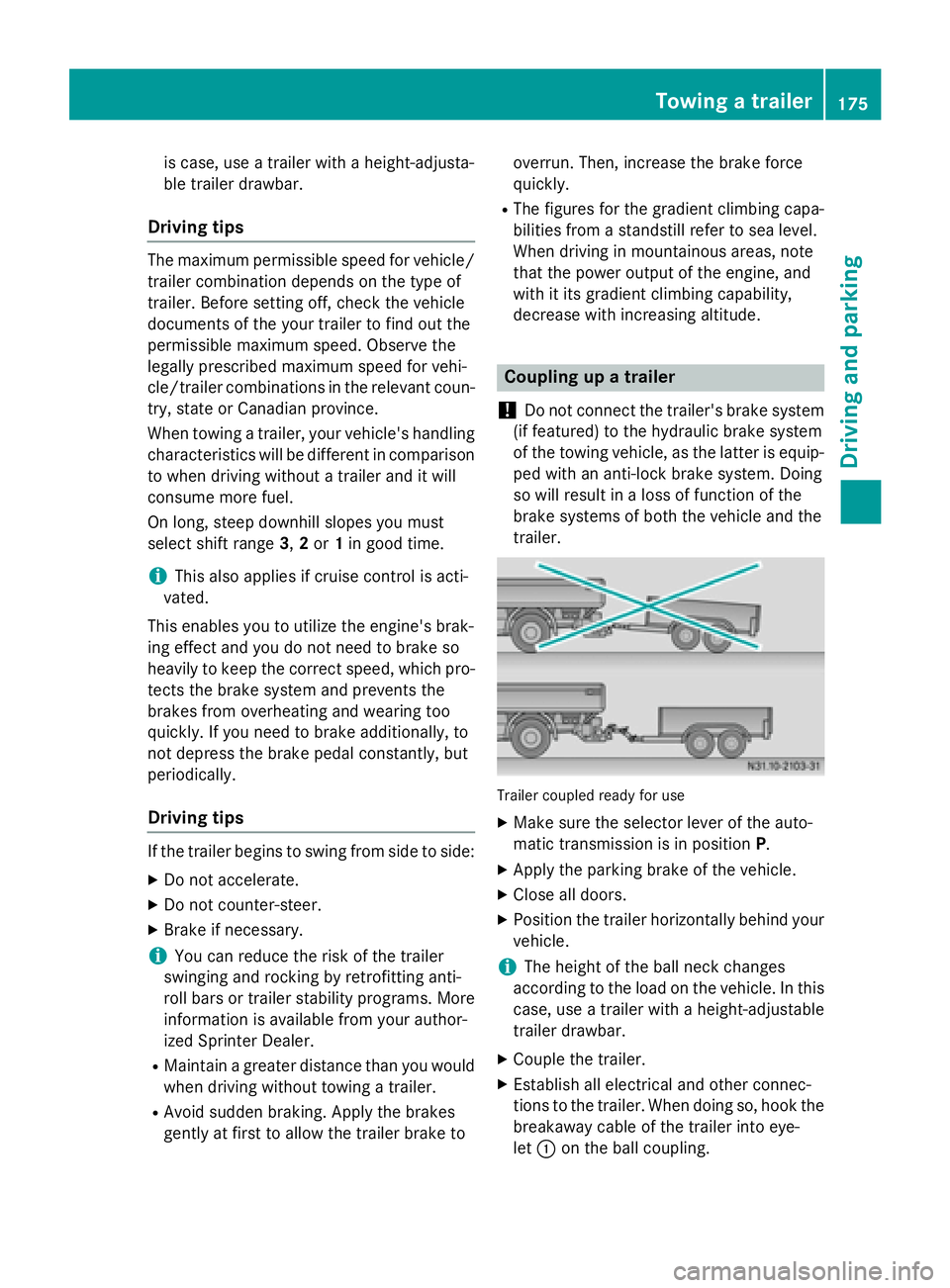
! Do not connect the trailer's brake system
(if featured) to the hydraulic brake system
of the towing vehicle, as the latter is equip- ped with an anti-lock brake system. Doing
so will result in a loss of function of the
brake systems of both the vehicle and the
trailer. Trailer coupled ready for use
X Make sure the selector lever of the auto-
matic transmission is in position P.
X Apply the parking brake of the vehicle.
X Close all doors.
X Position the trailer horizontally behind your
vehicle.
i The height of the ball neck changes
according to the load on the vehicle. In this
case, use a trailer with a height-adjustable
trailer drawbar.
X Couple the trailer.
X Establish all electrical and other connec-
tions to the trailer. When doing so, hook the
breakaway cable of the trailer into eye-
let 0043 on the ball coupling. Towing a trailer
175Driving and parking Z
Page 183 of 334
The display in the instrument cluster is acti-
vated when you:
R open the driver's door
R turn the key to position 2in the ignition lock
R press the 0045reset button
R switch on the lights
The display switches off automatically after
approximately 30 seconds if:
R the key is in position 0in the ignition lock.
R the vehicle lighting is not switched on. Instrument lighting
When the lights are switched on, you can
adjust the brightness of the instrument clus-
ter lighting using the 0074and 0075buttons.
X To brighten: press the0074button.
X To dim: press the 0075button.
i Vehicles with automatic headlamp mode:
the instrument lighting also adapts to auto-
matic headlamp mode. Tachometer
! Do not drive in the overrevving range, as
this could damage the engine. H
Environmental note
Avoid driving at high engine speeds. This
unnecessarily increases the fuel consumption of your vehicle and harms the environment asa result of increased emissions.
The red band in the tachometer indicates the engine's overrevving range.
To protect the engine, the fuel supply is inter-
rupted when the red band is reached. Outside temperature
You should pay special attention to road con-
ditions when temperatures are around the
freezing point. On vehicles without steering wheel buttons
(Y page 182) and on vehicles with steering
wheel buttons (Y page 187), the outside tem-
perature display is in the display.
Changes in the outside temperature are dis-
played after a short delay. Speedometer
The speed can also be shown in the display.
You can find information on the digital speed-
ometer for vehicles without steering wheel
buttons under (Y page 182) and for vehicles
with steering wheel buttons under
(Y page 187).
i In some countries, a warning sounds
when the vehicle reaches the maximum
speed limit, e.g. at 75 mph (120 km/h). Trip odometer
X To reset: make sure that the display is
showing the trip odometer if you have a
vehicle with steering wheel buttons
(Y page 187).
X Press and hold the 0045reset button until the
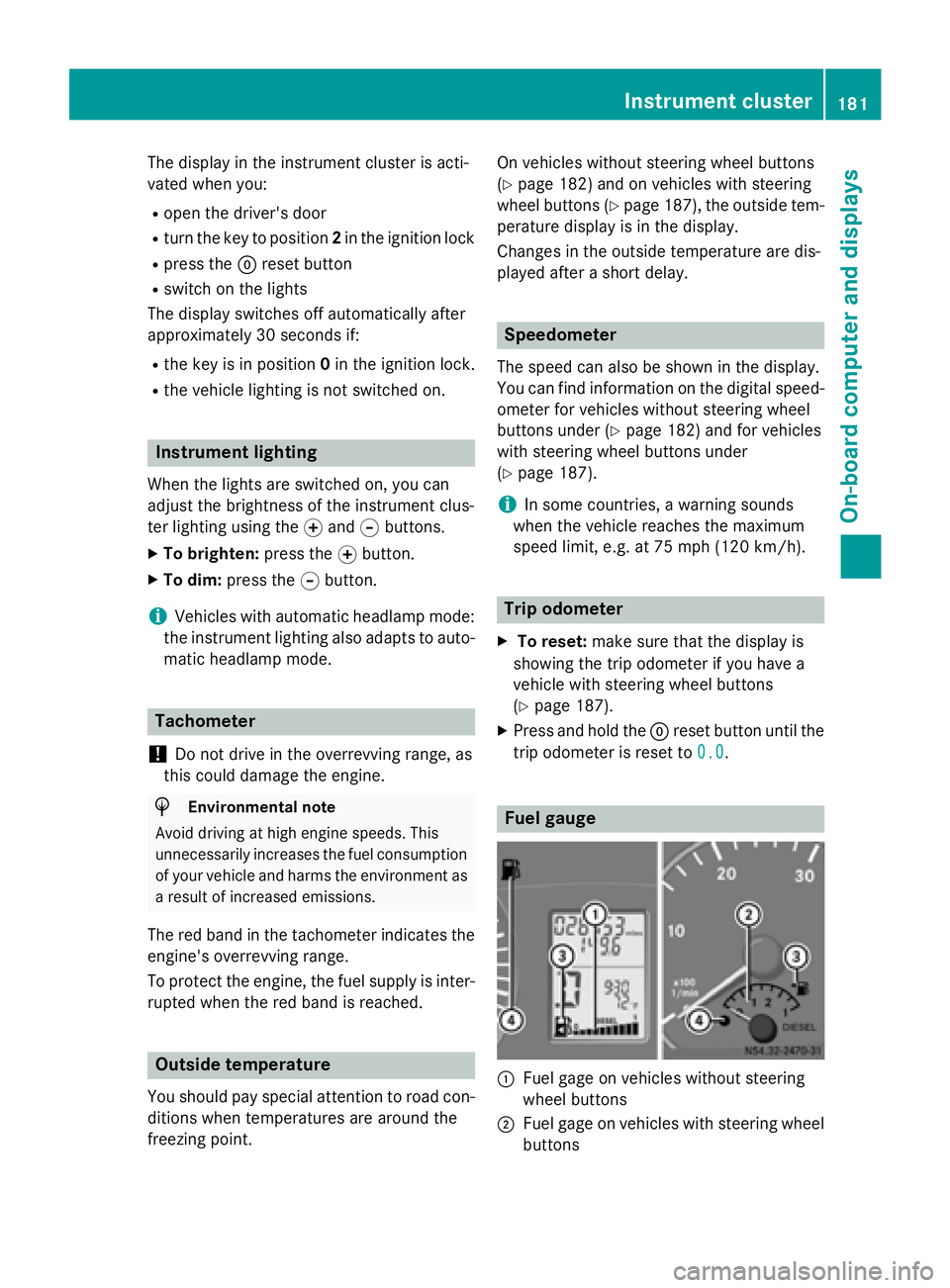
trip odometer is reset to 0.0 0.0. Fuel gauge
0043
Fuel gage on vehicles without steering
wheel buttons
0044 Fuel gage on vehicles with steering wheel
buttons Instrument cluster
181On-board computer and displays Z
Page 184 of 334
0087
Fuel filler flap location indicator 007F: the
fuel filler flap is on the left-hand side. Fuel filler flap location indicator 0080: the fuel
filler flap is on the right-hand side
0085 Reserve fuel warning lamp (Y page 224)DEF gauge
Vehicles without steering wheel but-
tons If the supply of DEF is less than 1.5 US gal
(5.5 l), the 00E2indicator lamp lights up and
the 0099 dEF Chk
dEF Chk display message appears.
If the supply of DEF falls below the reserve
range of 0.8 US gal (3.0 l), the 00E2indicator
lamp lights up and the 0099StArtS RExx StArtS RExx
display message appears. In the display, xx
xx
corresponds to the number of possible
remaining engine starts (16 16to0
0).
When the number of remaining engine starts
is 0
0 the engine management prevents the
vehicle being driven at a speed exceeding
5 mph (8 km/h). The multifunction display
shows the StArtS IdLE
StArtS IdLE message and you
hear a warning tone sequence.
Further information on DEF consumption can be found in the "Service products and filling
capacity" section (Y page 320).
Vehicles with steering wheel buttons If the supply of DEF is less than 1.5 US gal
(5.5 l), the Check Diesel Exhaust Fluid
Check Diesel Exhaust Fluid
See
See Operator's
Operator's Manual
Manualmessage is shown
in the display.
If the DEF supply falls below the reserve range
of 0.8 US ga l(3.0 l), the 00E2XX starts XX starts
remaining
remaining message is displayed. In the dis-
play, XX
XXcorresponds to the number of possi-
ble remaining engine starts (16 16to0
0).
When the number of remaining engine starts
is 0
0 the engine management prevents the
vehicle from being driven at a speed exceed- ing 5 mph (8 km/h). The multifunction display
shows the Idle Mode
Idle Mode message and you hear
a warning tone sequence. Further information on DEF consumption can
be found in the "Service products and filling
capacity" section (Y page 320). On-board computer (vehicles without
steering wheel buttons)
Operating the on-board computer
General notes The on-board computer is activated as soon
as you turn the key to position 1in the ignition
lock.
The on-board computer shows vehicle infor-
mation and settings in the display.
You can control the display and the settings in the on-board computer using the adjustment
buttons on the instrument cluster.
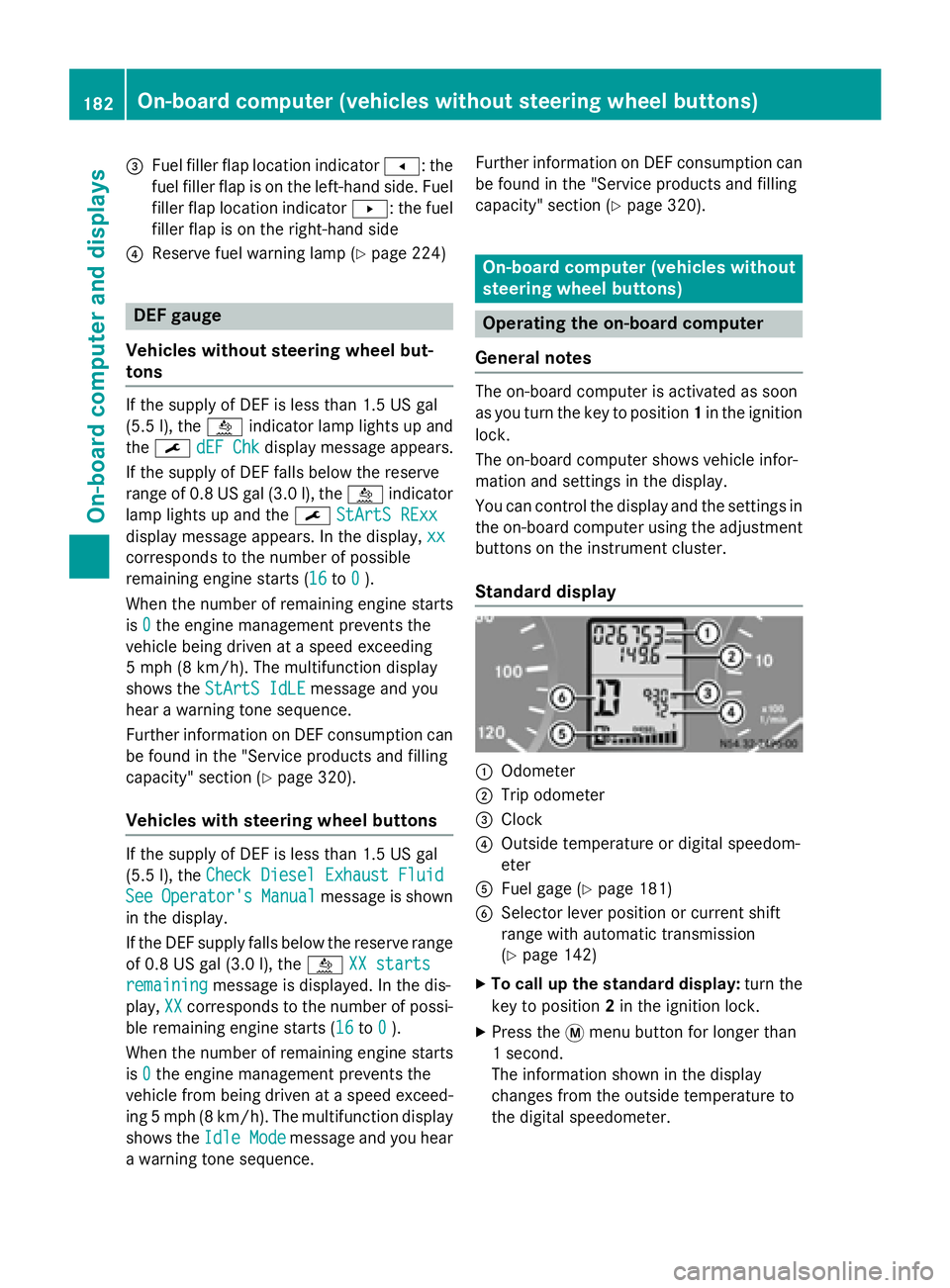
Standard display 0043
Odometer
0044 Trip odometer
0087 Clock
0085 Outside temperature or digital speedom-
eter
0083 Fuel gage (Y page 181)
0084 Selector lever position or current shift
range with automatic transmission
(Ypage 142)
X To call up the standard display: turn the
key to position 2in the ignition lock.
X Press the 0079menu button for longer than
1 second.
The information shown in the display
changes from the outside temperature to
the digital speedometer. 182
On-board computer (vehicles without steering wheel buttons)On-board computer and displays
Page 185 of 334
Menus in the on-board computer
Overview If you wish to exit a menu and go to the stand-
ard display:
X Press the 0079menu button for longer than
1 second.
or
X Do not press any button for 10 seconds.
The display accepts the changed settings.
Using the 0074,0075,0079or0045 adjustment but-
tons, you can select the following functions:
R Calling up the service due date
(Y page 258)
R Checking the oil level (Y page 250)
R Checking the DEF supply (Y page 182)
R Preselecting/setting the auxiliary heating
switch-on time (Y page 124)
R Tire pressure monitor (Y page 291)
R Setting the time (Y page 183)
R Activating/deactivating Highbeam Assist
(Y page 192)
R Setting the daytime running lamps
(Y page 92)
Setting the time X
Turn the key to position 2in the ignition
lock.
X Press the 0079menu button repeatedly until
the hours figure flashes.
X Press the 0074or0075 button to set the hour.
X Press the 0045reset button.
The minute display flashes.
X Press the 0074or0075 button to set the minute.
i If you keep the
0074or0075 button pressed,
the value will change continuously. Activating/deactivating Highbeam
Assist X
Turn the key to position 2in the ignition
lock.
X Press the 0079menu button repeatedly until
the 00CE indicator lamp flashes and the on on
or OFF
OFF message appears in the display.
X Use the 0074or0075 button to switch High-
beam Assist on/off.
Switching the daytime running lamps
on/off If you switch the daytime running lamps
on on,
the daytime running lamps will automatically
light up when the engine is running.
For safety reasons, it is only possible to
change this setting when the vehicle is sta-
tionary. The factory setting is on onin countries
in which daytime running lamp mode or day-
time running lamps are mandatory.
X Turn the key to position 2in the ignition
lock.
X Press the 0079menu button repeatedly until
the 0058 indicator lamp flashes and the on on
or OFF
OFF message appears in the display.
X Press the 0074or0075 button to activate or
deactivate the daytime running lamps.
i USA only:
If you turn the light switch to 0060or0058,
the corresponding light switches on. If you
turn the light switch to 0058, the daytime
running lamps remain switched on.
Canada only:
If you turn the light switch to 0058, the low-
beam headlamps switch on. If you turn the light switch to 0060or0058, the daytime
running lamps remain switched on. On-board computer (vehicles without steering wheel buttons)
183On-board computer and displays Z
Page 186 of 334
On-board computer (vehicles with
steering wheel buttons) Operating the on-board computer
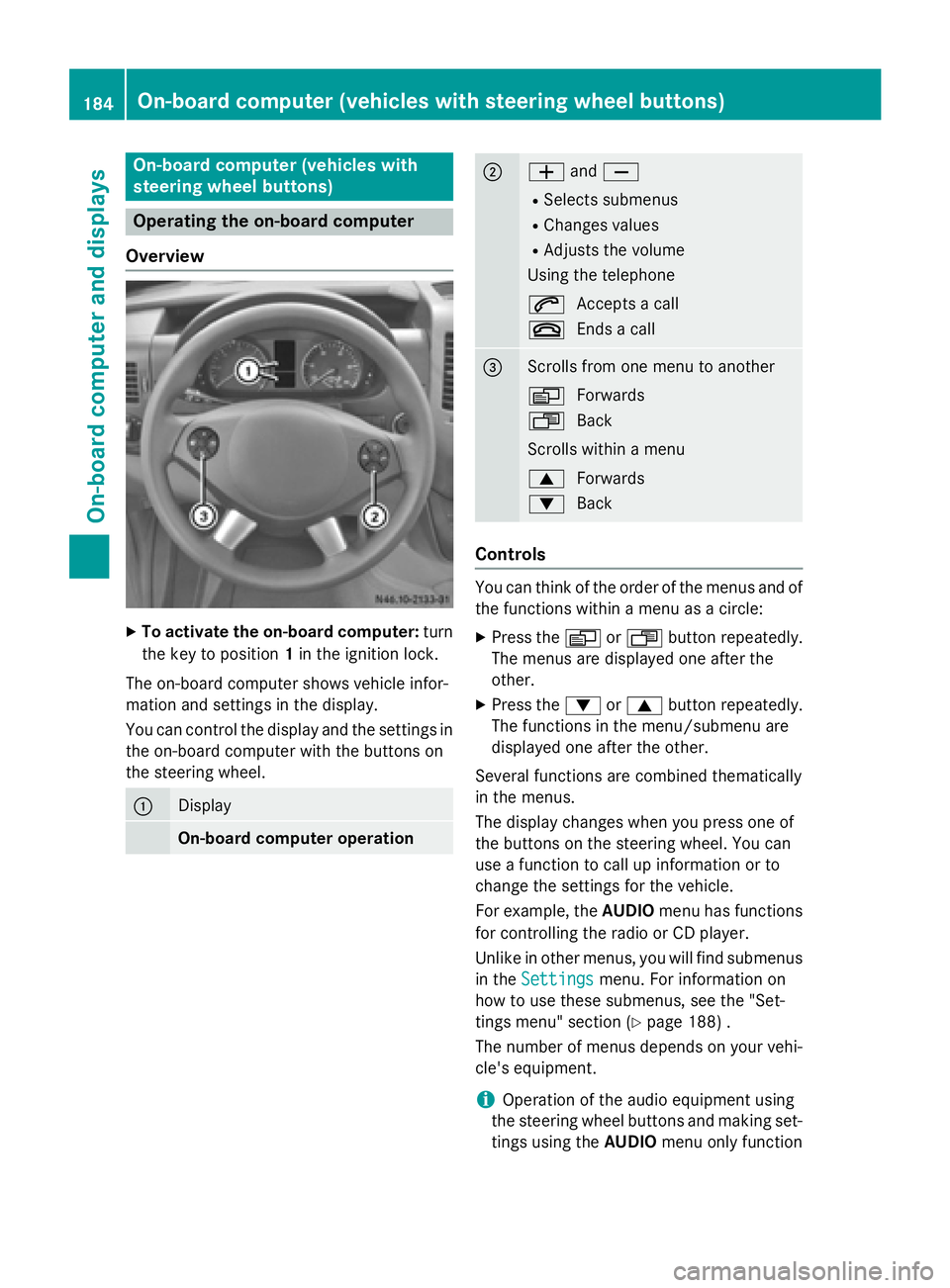
Overview X
To activate the on-board computer: turn
the key to position 1in the ignition lock.
The on-board computer shows vehicle infor-
mation and settings in the display.
You can control the display and the settings in the on-board computer with the buttons on
the steering wheel. 0043
Display
On-board computer operation 0044
0081
and0082
R Selects submenus
R Changes values
R Adjusts the volume
Using the telephone
0061 Accepts a call
0076 Ends a call 0087
Scrolls from one menu to another
0080
Forwards
007F Back
Scrolls within a menu
0063 Forwards
0064 Back Controls
You can think of the order of the menus and of
the functions within a menu as a circle:
X Press the 0080or007F button repeatedly.
The menus are displayed one after the
other.
X Press the 0064or0063 button repeatedly.
The functions in the menu/submenu are
displayed one after the other.
Several functions are combined thematically
in the menus.
The display changes when you press one of
the buttons on the steering wheel. You can
use a function to call up information or to
change the settings for the vehicle.
For example, the AUDIOmenu has functions
for controlling the radio or CD player.
Unlike in other menus, you will find submenus
in the Settings
Settings menu. For information on
how to use these submenus, see the "Set-
tings menu" section (Y page 188) .
The number of menus depends on your vehi-
cle's equipment.
i Operation of the audio equipment using
the steering wheel buttons and making set-
tings using the AUDIOmenu only function 184
On-board computer (vehicles with steering wheel buttons)On-board computer and displays
Page 189 of 334
R
Displaying the trip odometer and odometer
(standard display) (Y page 187)
R Displaying the coolant temperature
(Y page 187)
R Calling up the service due date
(Y page 258)
R Tire pressure monitor (Y page 291)
R Checking the oil level (Y page 250)
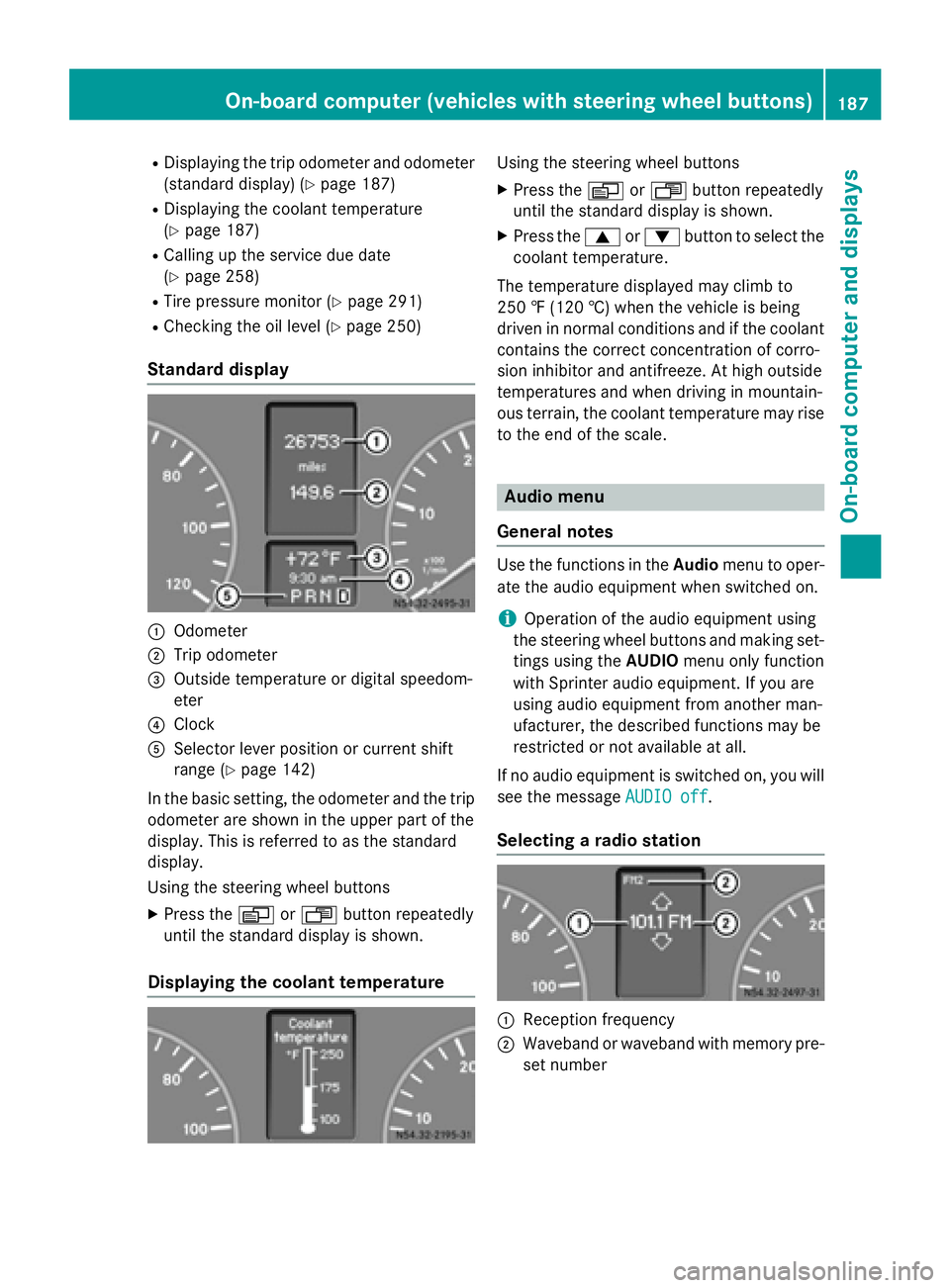
Standard display 0043
Odometer
0044 Trip odometer
0087 Outside temperature or digital speedom-
eter
0085 Clock
0083 Selector lever position or current shift
range (Y page 142)
In the basic setting, the odometer and the trip
odometer are shown in the upper part of the
display. This is referred to as the standard
display.
Using the steering wheel buttons
X Press the 0080or007F button repeatedly
until the standard display is shown.
Displaying the coolant temperature Using the steering wheel buttons
X Press the 0080or007F button repeatedly
until the standard display is shown.
X Press the 0063or0064 button to select the
coolant temperature.
The temperature displayed may climb to
250 ‡ (120 †) when the vehicle is being
driven in normal conditions and if the coolant
contains the correct concentration of corro-
sion inhibitor and antifreeze. At high outside
temperatures and when driving in mountain-
ous terrain, the coolant temperature may rise
to the end of the scale. Audio menu
General notes Use the functions in the
Audiomenu to oper-
ate the audio equipment when switched on.
i Operation of the audio equipment using
the steering wheel buttons and making set-
tings using the AUDIOmenu only function
with Sprinter audio equipment. If you are
using audio equipment from another man-
ufacturer, the described functions may be
restricted or not available at all.
If no audio equipment is switched on, you will
see the message AUDIO off AUDIO off.
Selecting a radio station 0043
Reception frequency
0044 Waveband or waveband with memory pre-
set number On-board computer (vehicles
with steering wheel buttons)
187On-board computer and displays Z
Page 193 of 334
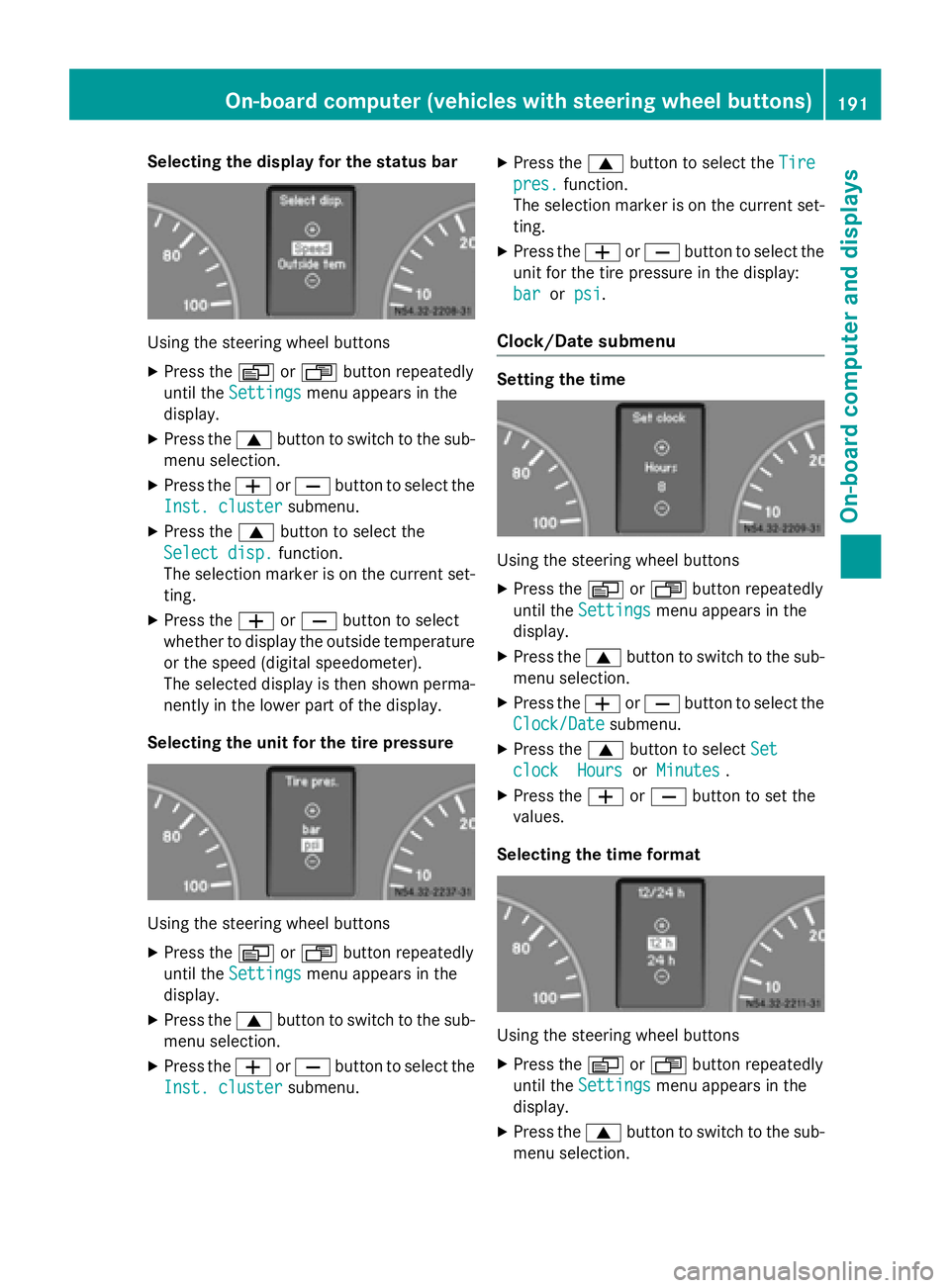
Selecting the display for the status bar
Using the steering wheel buttons
X Press the 0080or007F button repeatedly
until the Settings
Settings menu appears in the
display.
X Press the 0063button to switch to the sub-
menu selection.
X Press the 0081or0082 button to select the
Inst. cluster
Inst. cluster submenu.
X Press the 0063button to select the
Select disp.
Select disp. function.
The selection marker is on the current set-
ting.
X Press the 0081or0082 button to select
whether to display the outside temperature or the speed (digital speedometer).
The selected display is then shown perma-
nently in the lower part of the display.
Selecting the unit for the tire pressure Using the steering wheel buttons
X Press the 0080or007F button repeatedly
until the Settings Settings menu appears in the
display.
X Press the 0063button to switch to the sub-
menu selection.
X Press the 0081or0082 button to select the
Inst. cluster Inst. cluster submenu. X
Press the 0063button to select the Tire Tire
pres. pres. function.
The selection marker is on the current set-
ting.
X Press the 0081or0082 button to select the
unit for the tire pressure in the display:
bar
bar orpsi
psi.
Clock/Date submenu Setting the time
Using the steering wheel buttons
X Press the 0080or007F button repeatedly
until the Settings
Settings menu appears in the
display.
X Press the 0063button to switch to the sub-
menu selection.
X Press the 0081or0082 button to select the
Clock/Date
Clock/Date submenu.
X Press the 0063button to select Set
Set
clock
clock Hours
HoursorMinutes
Minutes .
X Press the 0081or0082 button to set the
values.
Selecting the time format Using the steering wheel buttons
X Press the 0080or007F button repeatedly
until the Settings
Settings menu appears in the
display.
X Press the 0063button to switch to the sub-
menu selection. On-board computer (vehicles with steering wheel buttons)
191On-board computer and displays Z
Page 194 of 334
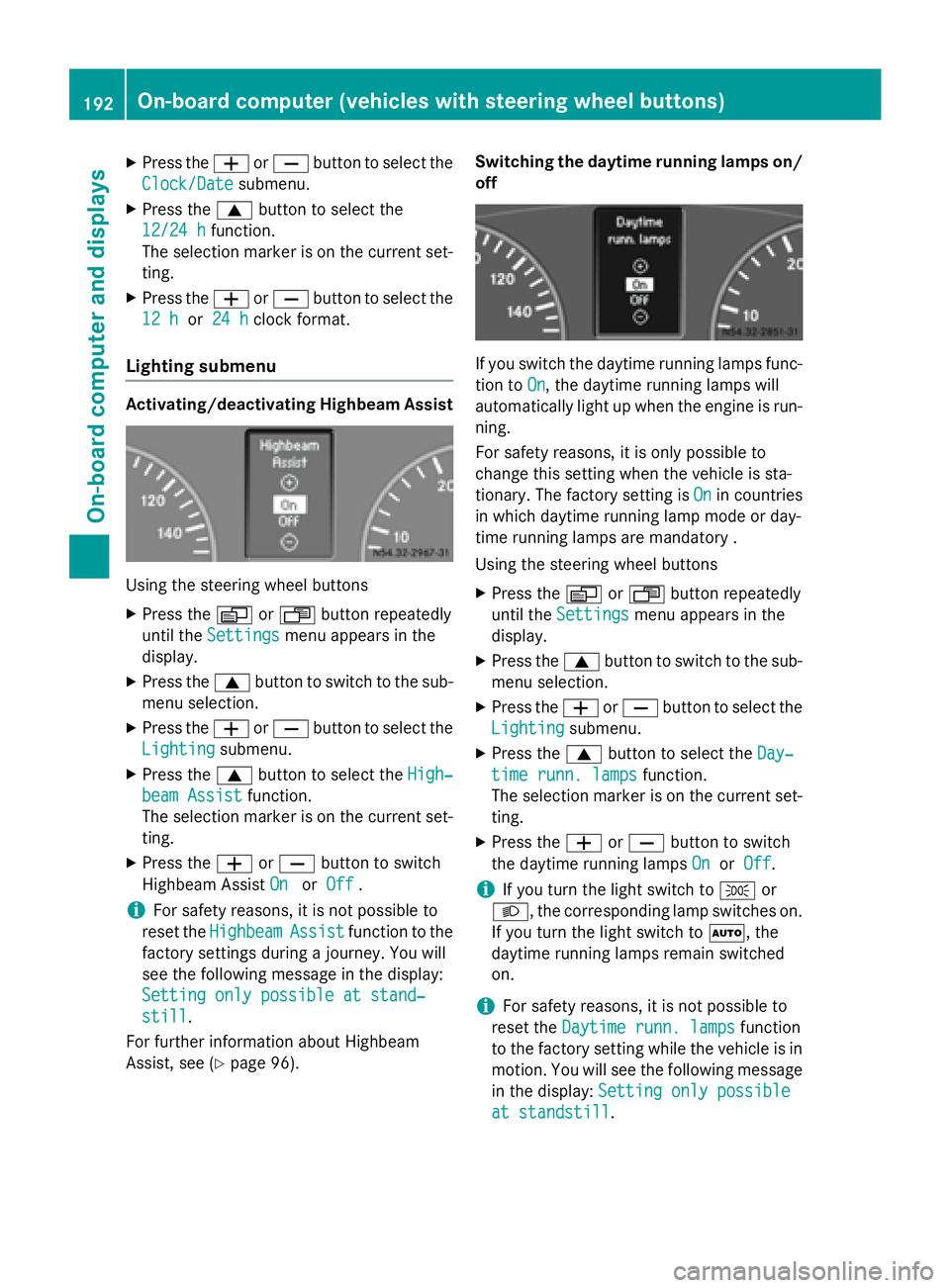
X
Press the 0081or0082 button to select the
Clock/Date
Clock/Date submenu.
X Press the 0063button to select the
12/24 h
12/24 h function.
The selection marker is on the current set-
ting.
X Press the 0081or0082 button to select the
12 h
12 h or24 h
24 h clock format.
Lighting submenu Activating/deactivating Highbeam Assist
Using the steering wheel buttons
X Press the 0080or007F button repeatedly
until the Settings
Settings menu appears in the
display.
X Press the 0063button to switch to the sub-
menu selection.
X Press the 0081or0082 button to select the
Lighting
Lighting submenu.
X Press the 0063button to select the High‐
High‐
beam Assist
beam Assist function.
The selection marker is on the current set-
ting.
X Press the 0081or0082 button to switch
Highbeam Assist On
OnorOff
Off .
i For safety reasons, it is not possible to
reset the Highbeam
Highbeam Assist
Assistfunction to the
factory settings during a journey. You will
see the following message in the display:
Setting only possible at stand‐
Setting only possible at stand‐
still still.
For further information about Highbeam
Assist, see (Y page 96). Switching the daytime running lamps on/
off If you switch the daytime running lamps func-
tion to On
On, the daytime running lamps will
automatically light up when the engine is run- ning.
For safety reasons, it is only possible to
change this setting when the vehicle is sta-
tionary. The factory setting is On Onin countries
in which daytime running lamp mode or day-
time running lamps are mandatory .
Using the steering wheel buttons
X Press the 0080or007F button repeatedly
until the Settings Settings menu appears in the
display.
X Press the 0063button to switch to the sub-
menu selection.
X Press the 0081or0082 button to select the
Lighting
Lighting submenu.
X Press the 0063button to select the Day‐
Day‐
time runn. lamps
time runn. lamps function.
The selection marker is on the current set- ting.
X Press the 0081or0082 button to switch
the daytime running lamps On
OnorOff
Off.
i If you turn the light switch to
0060or
0058, the corresponding lamp switches on. If you turn the light switch to 0058, the
daytime running lamps remain switched
on.
i For safety reasons, it is not possible to
reset the Daytime runn. lamps Daytime runn. lamps function
to the factory setting while the vehicle is in
motion. You will see the following message
in the display: Setting only possible
Setting only possible
at standstill
at standstill. 192
On-board computer (vehicles with steering wheel buttons)On-board computer and displays