phone MERCEDES-BENZ SPRINTER 2020 MY20 with 7” screen
[x] Cancel search | Manufacturer: MERCEDES-BENZ, Model Year: 2020, Model line: SPRINTER, Model: MERCEDES-BENZ SPRINTER 2020Pages: 348, PDF Size: 5.84 MB
Page 187 of 348
Overvie
wand operation Overvie
wofthe MBUX multi media sy stem &
WARNING Risk of distraction from infor‐
mation sy stems and communications
equipment
If yo uo perat einformation and communica‐
tio ne quipment integ ratedint hevehicle when
driving, youw ill be distracted from thet raffic
situation. This could also cause youtol ose
control of thev ehicle. #
Onlyoperat ethis equipment when the
traf fics ituation permits. #
Ifyo uc anno tbes ureoft his,stop the
ve hicle whils tpaying attention toroad
and traf ficc onditions and ope rate the
equipment wit hthe vehicle stationar y. Yo
um usto bse rvet he legal requirements fort he
countr yinwhich youa recur rentl yd riving when
ope rating them ultimedia sy stem.
MBUX stands forM ercedes-Benz User Experi‐
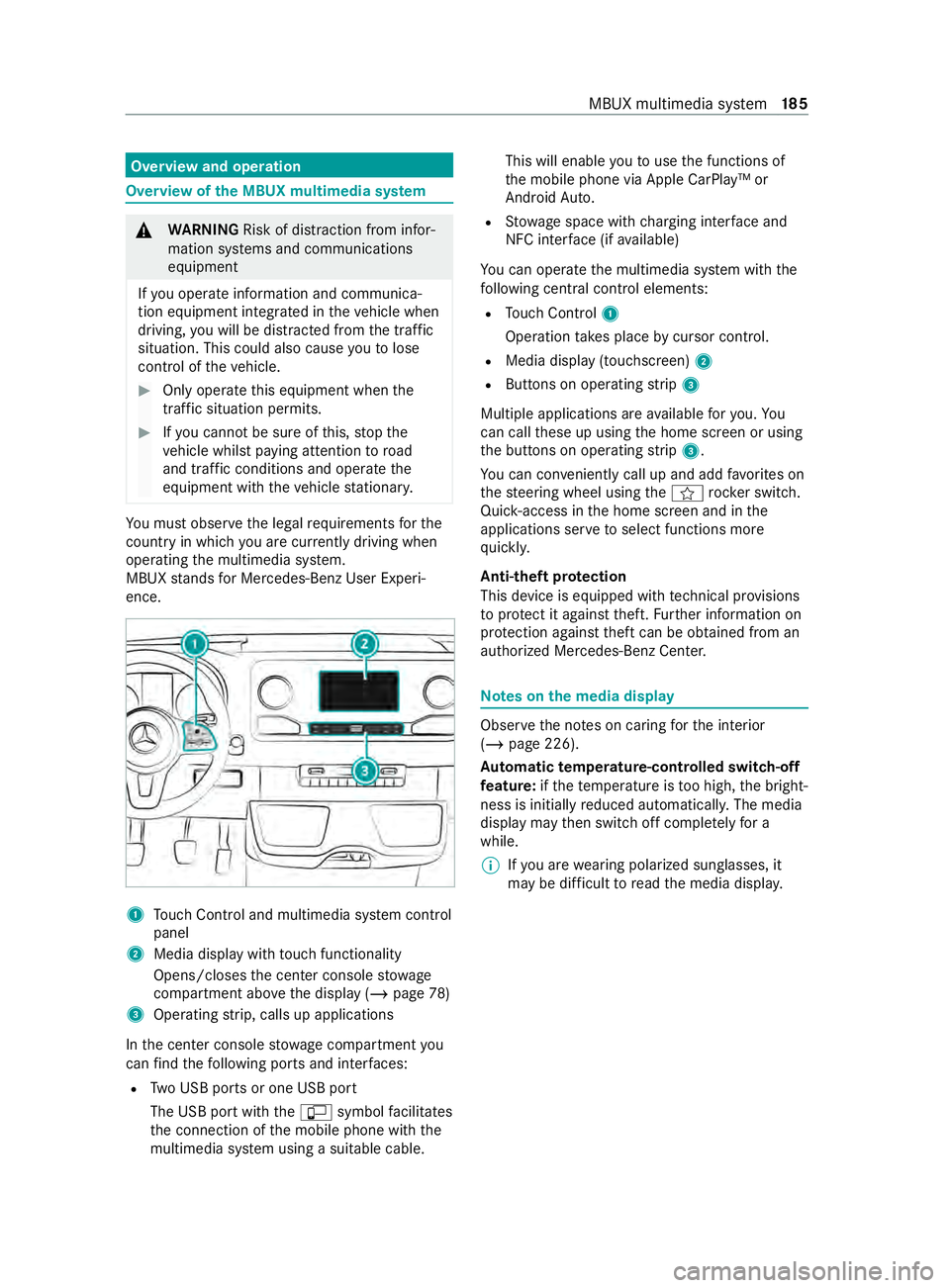
ence. 1
Touc hC ontrol and multimedia sy stem cont rol
panel
2 Media displa ywitht ouc hfunctionality
Opens/closes thec enter console stowage
compartment abo vethed ispla y(/pag e78)
3 Operating strip, calls up applications
In thec enter console stowagec ompartment you
can find thef ollowing ports and inter faces:
R TwoU SB ports or one USB port
The USB por twitht he ç symbol facilitates
th ec onnection of them obile phone wit hthe
multimedia sy stem using asuitable cable. This will enable
youtou sethef unctions of
th em obile phone via Apple CarPlay™ or
Android Auto.
R Stow ages pac ewithc harging inter face and
NFC inter face (i favailable)
Yo uc an operat ethe multimedia sy stem wit hthe
fo llowing central control elements:
R Touc hC ontrol 1
Operatio ntakes plac ebycursor control.
R Media displa y(touchscreen) 2
R Button sonoperating strip 3
Multiple applications ar eavailable fory ou. Yo u
can cal lthese up using theh ome screen or using
th eb uttons on operating strip 3.
Yo uc an con veniently cal lupand ad dfavo rite son
th es teering wheel using thef rock er switch.
Quic k-access in theh ome screen and in the
applications ser vetoselect functions more
qu ickl y.
Anti-thef tprotection
This devic eisequipped wit htechnical pr ovisions
to protect it agains ttheft. Further information on
pr otection agains tthef tcan be obtained from an
authorized Mercedes-Benz Center. Note
sont he media display Obser
vethen otes on caring fort he interior
(/ page226).
Au tomatic temperature-cont rolled switch-off
fe ature: ifth et emperatur eistoo high, theb right‐
ness is initiall yreduced automaticall y.The media
displa ymaythen switc hoffcomple tely fora
while.
% If
yo ua rewe aring polarize dsunglasses ,it
ma ybed ifficul ttor eadthem edia displa y. MBUX multimedia sy
stem 18 5
Page 188 of 348
Home screen
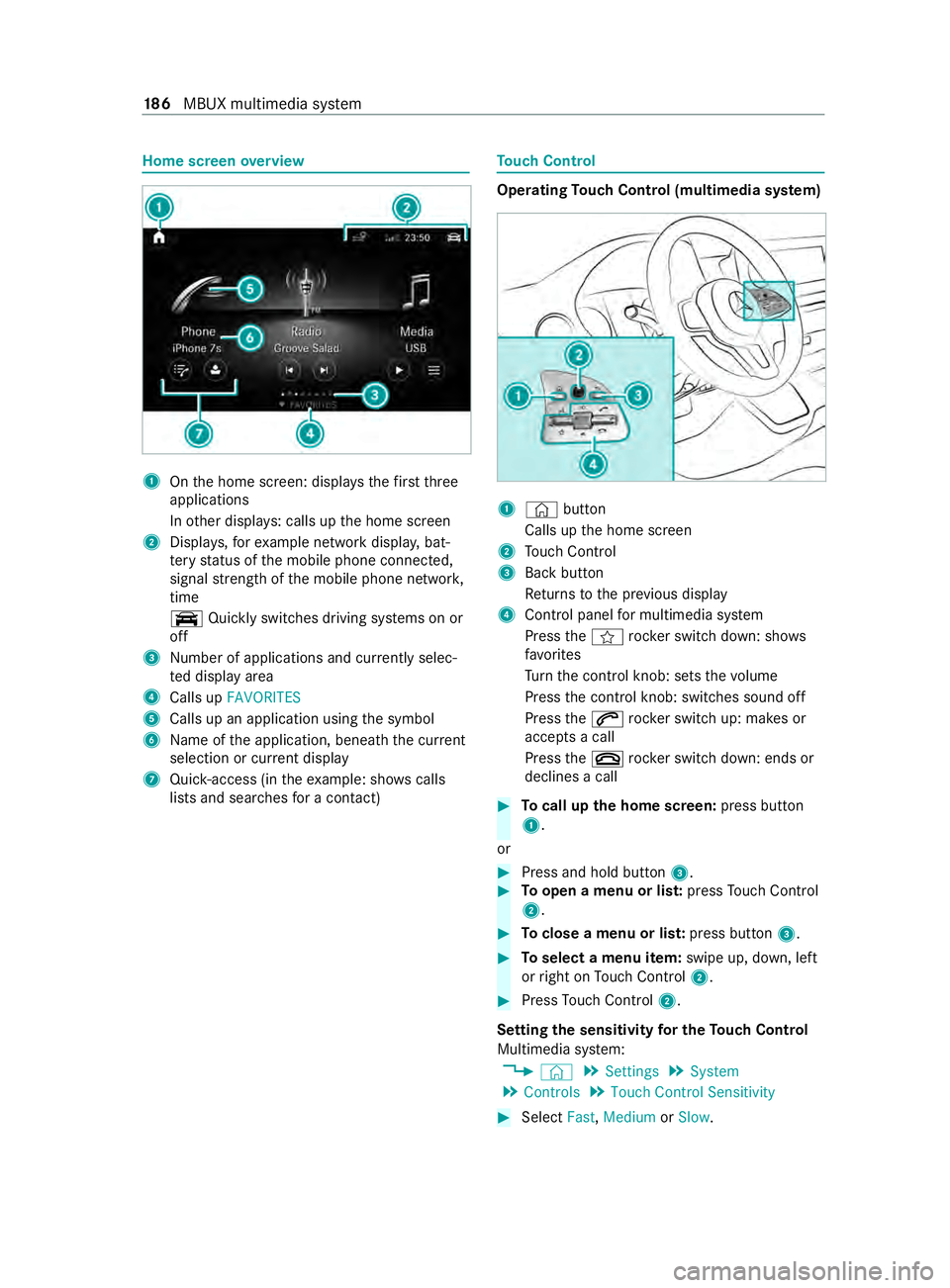
overview 1
Ontheh ome screen: displa ys thefirst three
applications
In other displa ys:c alls up theh ome screen
2 Displa ys,for example networ kdispla y,bat‐
te ry status of them obile phone connected,
signal stre ngt hoft he mobile phone networ k,
time
y Quicklyswitches driving sy stems on or
off
3 Numb er of applications and cur rently selec‐
te dd ispla yarea
4 Calls up FAVORITES
5 Calls up an application using thes ymbol
6 Name of thea pplication, beneat hthe cur rent
selection or cur rent displ ay
7 Quick-access (i nthe example: sho wscalls
li st sa nd sear ches forac ontact) To
uc hC ontrol Operating
Touc hC ontrol (multimedi asystem) 1
© button
Calls up theh ome screen
2 Touc hC ontrol
3 Backbutton
Re turns tothep reviou sdisplay
4 Cont rolp anel form ultimedia sy stem
Press thef rocker switc hdown: sho ws
fa vo rites
Tu rn thec ont rolk no b: sets thev olume
Press thec ont rolk no b: switches sound off
Press the0061 rocker switc hup: makes or
accepts acall
Press the0076 rocker switc hdown: ends or
declines acall #
Tocall up theh om escreen: press button
1.
or #
Press and hold button 3. #
Toopen amenu or lis t:press Touc hC ontrol
2. #
Toclose amenuorl ist: press button 3. #
Toselect amenu item: swipe up, down, left
or right on Touc hC ontrol 2. #
Press Touc hC ontrol 2.
Setting thes ensitivit yfor th eTouc hControl
Multimedi asystem:
4 © 5
Settings 5
System
5 Controls 5
Touch Control Sensitivity #
Select Fast,Medium orSlow . 18 6
MBUX multimedia sy stem
Page 189 of 348
Switching acoustic operating
feedba ckfor
th eT ouc hControl on/off
Multimedi asystem:
4 © 5
Settings 5
System
5 Controls
The function is suppor tedbyt he selection in a
list. #
Select Acoustic Operating Feedback. #
Set Normal, LoudorOff.
If th ef unction is activated youw ill hear a
clickin gsoun dwhen sc rolling in alist. When
th eb eginnin gorend ofthel istisr eached you
will hear ano ther clicking sound. To
uchscreen Operating
thet ouchsc reen
Re quirements:
R Forthe map functions: an iPhone®
is con‐
nected via Apple CarPl ay™ora mobile phone
is connected via Android Autowit hthe multi‐
media sy stem.
R Anavigation application is available on the
mobil ephone.
Ta pping #
Toselect amenu item or entr y:tapona
symbol or an ent ry. #
Toincrease them apscale: tapt wice
qu ickl ywitho nefinger. #
Toreduce the map scale: tapw itht wo fin‐
ge rs. #
Toenter character swiththek eyboard: tap
on abutton.
Single-finger swipe #
Tonavigat einmenus:swipe up, down, left
or right.
To uching, holding and moving #
Tosetthe volume on ascale: touc ht he
to uchsc reen and mo vethef inger tothel eftor
ri ght.
To uching and holding #
Tocall up aglobal menu in thea pplica‐
tions: touc ht he touchsc reen and hold until
the OPTIONS menu appears. Setting acoustic operation
feedba ckfort he
to uchscreen
Multimedi asystem:
4 © 5
Settings 5
System
5 Controls 5
Touch Control Sensitivity
The function is suppor tedbyt he selection in a
list. #
Select Acoustic Operating Feedback. #
Set Normal, LoudorOff.
If th ef unction is activated youw ill hear a
clickin gsoun dwhen sc rolling in alist. When
th eb eginnin gorend ofthel istisr eached you
will hear ano ther clicking sound. Applications
Calling up applications
Using buttons on
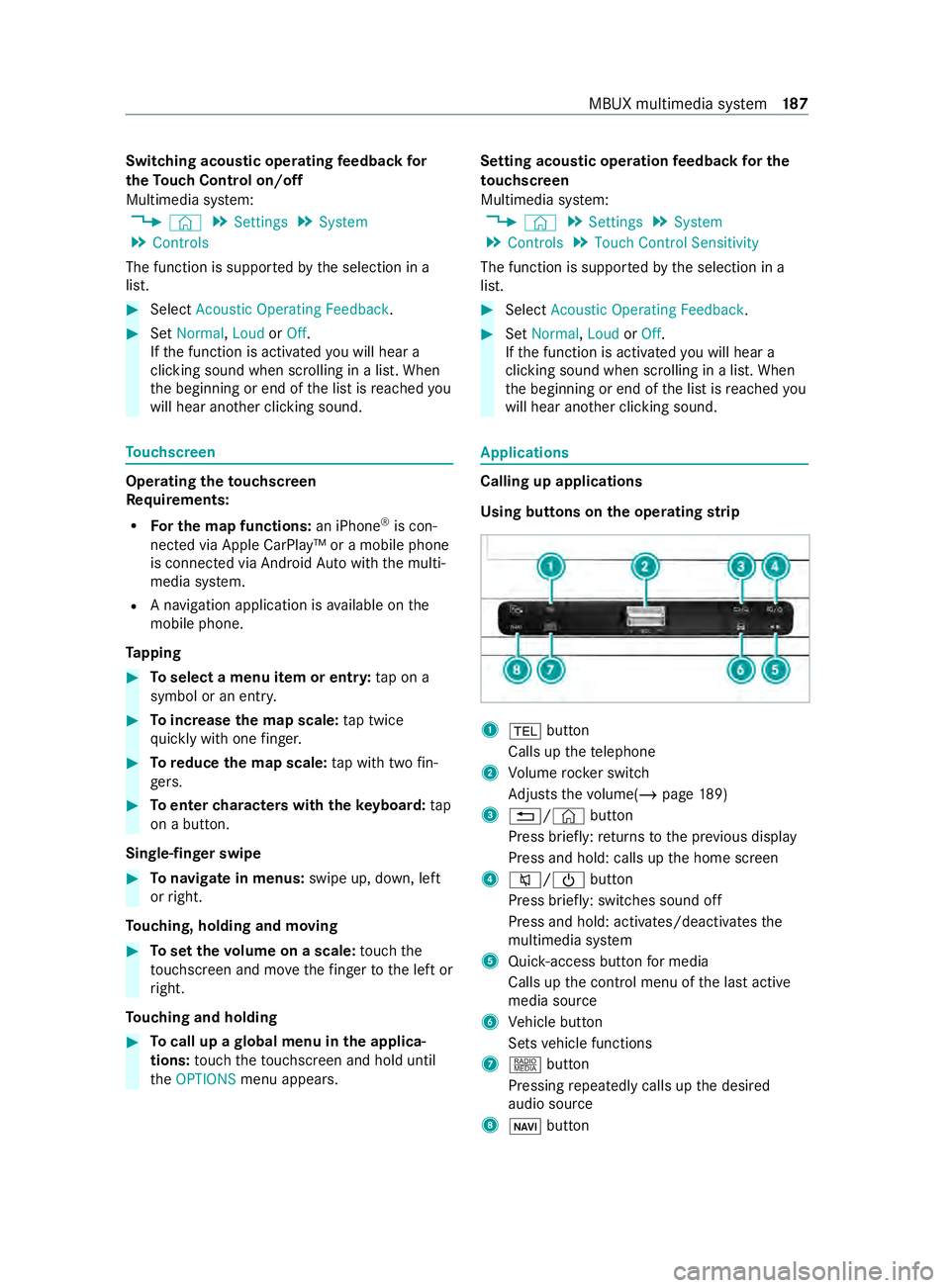
theo perating strip 1
002B button
Calls up thet elephone
2 Volume rocker switch
Ad justs thev olume(/ page189)
3 0038/© button
Press brief ly:r eturns tothep reviou sdisplay
Press and hold: calls up theh ome screen
4 0063/00D0 button
Press brief ly:s witches sound off
Press and hold: acti vates/deactivates the
multimedia sy stem
5 Quic k-access button form edia
Calls up thec ont rolm enuoft he las tactive
media source
6 Vehicle button
Sets vehicle functions
7 | button
Pressing repeatedl ycalls up thed esired
audio source
8 00CB button MBUX multimedia sy
stem 187
Page 190 of 348
Calls up navigation
Re
quiremen t:them obile phone is connected
to them ultimedia sy stem via theU SB port
ç using asuitable cable. ViaA pple Car‐
Play™ or Android Autothen avigation applica‐
tion of them obile phone can be used. #
Toaccess stations and music trac ks
qu ickl y:press button 5.
The control menu appear sfor thea udio
source that wa slasts elected. #
Swipe tothel eftorr ight.
Ra dio: thep reviou sorn exts tatio niss et.
Media source: thep reviou sort he next music
tra ck is selec ted. #
Tohide thec ontrol menu: press button5.
Using theh om escreen
The home screen is shown in them edia display
when yous tart thev ehicle. #
Select thea pplication byswiping and tapping.
or #
In an ydispla y:press the© button on the
To uc hC ontrol.
or #
Tapont he© symbol on thet ouchscreen.
The applications ar edispla yed. #
Select thea pplication byswiping and tapping.
Changing thea rrangemen tofapplications on
th eh om escreen #
Call up theh ome screen #
Touc ha nd hold an applicatio nonthe
to uchsc reen until symbols appear. #
Tapon0059or 0065and mo vethea pplica‐
tion in them enu. #
Tapon00FB . Switching
thes ound on/off On
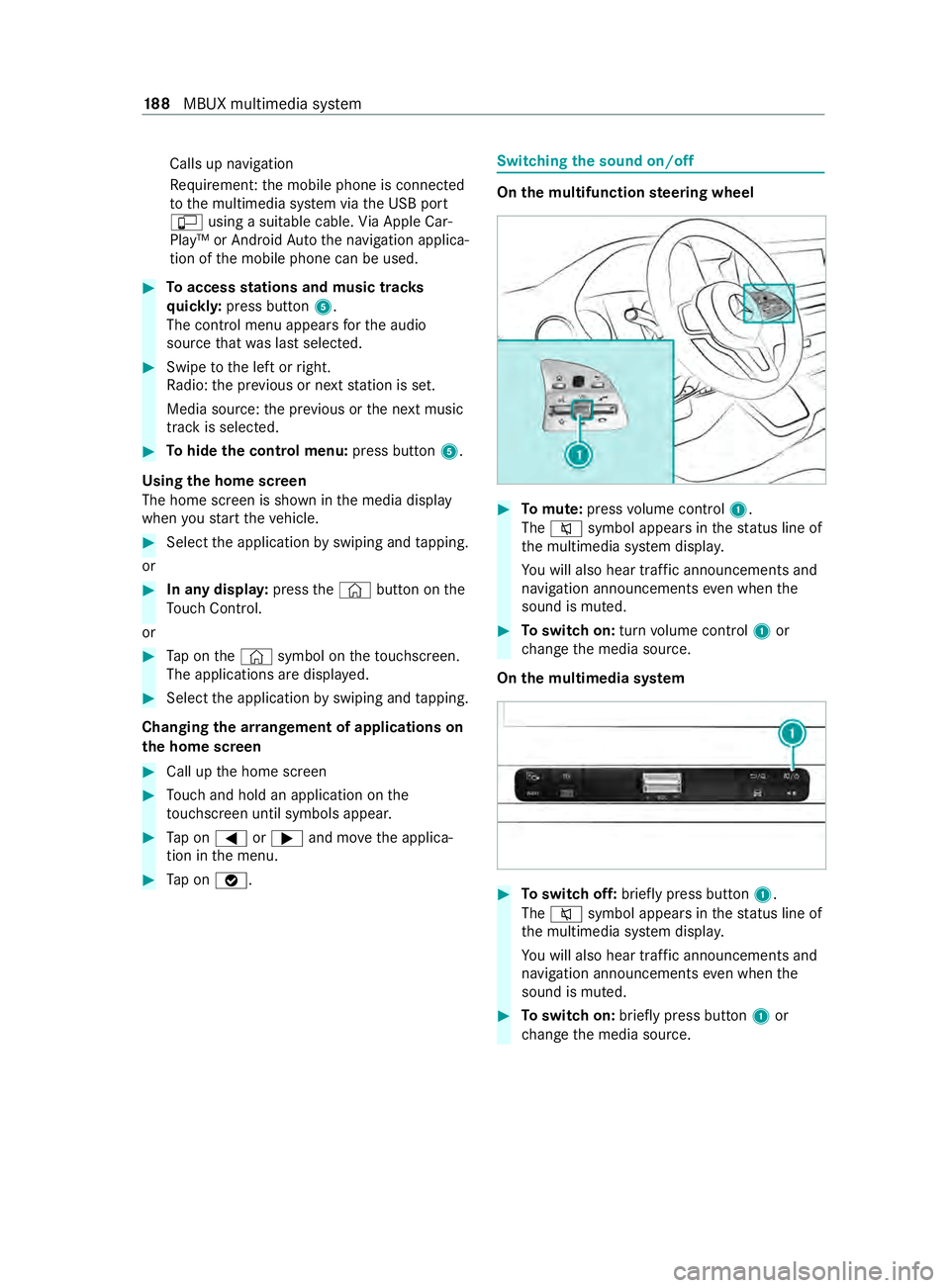
them ultifunction steering wheel #
Tomute: pressvolume control 1.
The 0063 symbol appear sinthestatus line of
th em ultimedia sy stem displa y.
Yo uw ill also hear traf fica nnouncements and
navigation announcements even when the
sound is muted. #
Toswitc hon:tur nv olume control 1or
ch ang ethe media source.
On them ultimedia sy stem #
Toswitc hoff:briefly press button 1.
The 0063 symbol appear sinthestatus line of
th em ultimedia sy stem displa y.
Yo uw ill also hear traf fica nnouncements and
navigation announcements even when the
sound is muted. #
Toswitc hon:brief lypress button 1or
ch ang ethe media source. 18 8
MBUX multimedia sy stem
Page 191 of 348
Ad
justin gthe volume On
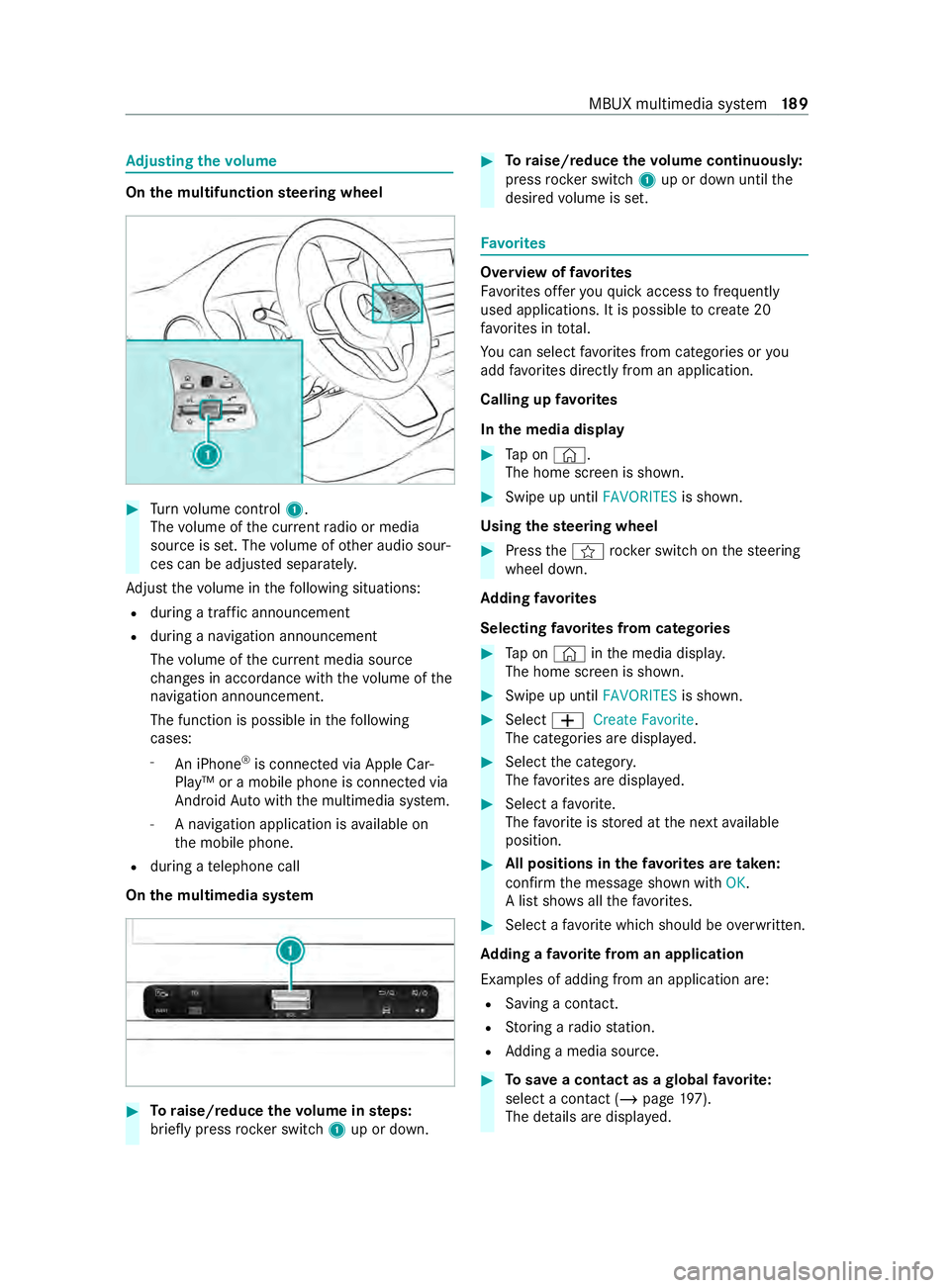
them ultifunction steering wheel #
Turn volume control 1.
The volume of thec urrent radio or media
source is set. The volume of other audio sour‐
ces can be adjus teds eparately.
Ad jus tthe volume in thef ollowing situations:
R during atraf fica nnouncement
R during anavigation announcement
The volume of thec urrent media sou rce
ch anges in accordanc ewitht he volume of the
navigation announcement.
The function is possible in thef ollowing
cases:
- An iPhone ®
is connec tedv ia Apple Car‐
Play™ or amobile phone is connected via
Android Autowit hthe multimedia sy stem.
- Anavigation application is available on
th em obile phone.
R during atelephone call
On them ultimedia sy stem #
Toraise/reduce thev olume in steps:
brief lypress rocker switch 1up or down. #
Toraise/reduce thev olume continuousl y:
press rocker switch 1up or down until the
desired volume is set. Favo
rites Overvie
woffavorites
Favo rite so ffer youq uicka ccess tofrequently
used applications. It is possible tocrea te20
fa vo rite sint otal.
Yo uc an selec tfavo rite sf romc ategories or you
add favo rite sd irectl yfromana pplication.
Calling up favo rites
In them edia display #
Tapon© .
The home screen is shown. #
Swipe up until FAVORITESis shown.
Using thes teering wheel #
Press thef rocker switc honthesteering
wheel down.
Ad ding favo rites
Selecting favo rite sf romc ategories #
Tapon©in them edia displa y.
The home screen is shown. #
Swipe up until FAVORITESis shown. #
Select 0081Create Favorite .
The categories ar edispla yed. #
Select thec ategor y.
The favo rite sa redispla yed. #
Select afavo rite.
The favo rite isstored at then exta vailable
position. #
All position sinthefavo rite sa retaken:
confir mthe messag eshown with OK.
Al ists hows allthef avo rite s. #
Select afavo rite whic hshould be overwritten.
Ad ding afavorit efromana pplication
Examples of adding from an application are: R Saving acontact.
R Storing aradio station.
R Adding amedia source. #
Tosave ac ontac tasag lobalfavo rite:
select acontact (/ page 197).
Th ed etails ar edispla yed. MBUX multimedia sy
stem 18 9
Page 192 of 348
#
Press on aphone number until theOPTIONS
menu is shown. #
Select Save as Favorite.
The contact is added as afavo rite. #
Tosto rearadio station as aglobal favo r‐
ite: setar adio statio n(/ pag e205). #
Press on ther adio statio nuntil the OPTIONS
menu is shown. #
Select Save as Favorite.
The radio statio nisa dded as afavo rite.
Re naming favo rites #
Tapon©in them edia displa y.
The home screen is shown. #
Swipe up until FAVORITESis shown. #
Press on afavo rite until theOPTIONS menu is
shown. #
Select Rename . #
Ente rthe name. #
Select OK.
Moving favo rites
Moving favo rite sint hefavo rite sm enu #
Tapon©in them edia displa y.
The home screen is shown. #
Swipe up until FAVORITESis shown. #
Press on afavo rite until theOPTIONS menu is
shown. #
Select Move. #
Movethef avo rite to then ew position. #
Tapon00FB .
Deleting favo rites #
Tapon©in them edia displa y.
The home screen is shown. #
Swipe up until FAVORITESis shown. #
Press on afavo rite until theOPTIONS menu is
shown. #
Select Delete. #
Select Yes. Entering
characters Using
thec haracter input function &
WARNING Risk of distraction from infor‐
mation sy stems and communications
equipment
If yo uo perat einformation and communica‐
tio ne quipment integ ratedint hevehicle when
driving, youw ill be distracted from thet raffic
situation. This could also cause youtol ose
control of thev ehicle. #
Onlyoperat ethis equipment when the
traf fics ituation permits. #
Ifyo uc anno tbes ureoft his,stop the
ve hicle whils tpaying attention toroad
and traf ficc onditions and ope rate the
equipment wit hthe vehicle stationar y. Yo
um usto bse rvet he legal requirements fort he
countr yinwhich youa recur rentl yd riving when
ope rating them ultimedia sy stem.
Character entry can be carried out wit hthese
contro lelements:
R Touc hC ontrol
R Touchsc reen (media display)
Character entry take sp lace bycursor control
whe nusing theT ouc hControl.
Character input can be star tedw ithac ontrol ele‐
ment and resumed wit hanother. #
When thek eyboar diss hown, en tert he char‐
acter sont he contro lelemen tbyswiping and
pressing or bytapping (touchscreen).
or #
Writet he character on thet ouchscreen.
Examples of character ent ry:
R Renaming afavo rite
R Entering atelephone number 19 0
MBUX multimedia sy stem
Page 195 of 348
Ac
tivating/deactivatin gWi-Fi
Multimedia sy stem:
4 © 5
Settings 5
System
5 Wi-Fi &Bluetooth #
Switch Wi-Fion or off.
If Wi-Fi is deactivated, communication via Wi-
Fi to all devices is inter rupte d. Sy
stem language Note
sont he system language
This function allo wsyoutod etermine thel an‐
guag efor them enu displa ys.T he selected lan‐
guag eaffects thec haracter savailable fore ntr y.
Setting thes ysteml anguage
Multimedia sy stem:
4 © 5
Settings 5
System
5 Language #
Setthe language. Setting
thed istance unit Multimedia sy
stem:
4 © 5
System 5
Units #
Select kmormi. #
Inthem ultifunction displa yofthe Instrument
Displa y,switc hthe Additional Speedometer
displa yon. Re
setting them ultimedia sy stem (rese tfunc‐
tion) Multimedia sy
stem:
4 © 5
Settings 5
System 5
Reset
Pe rsonal dat aisdeleted, fore xamp le:
R Statio npresets
R Connected mobile phones
Aq uer yappear sagain asking if thes ystem
should reall yber eset. #
Select Yes.
If PIN pr otection is activated, apromp tappears
asking if youa lso wish torestor et his tothef ac‐
to ry settings during areset. #
Select Yes. #
Enter thec urrent PIN.
The PIN is reset.
or #
Select No.
The cur rent PIN stay st he same af terr eset‐
ting.
% If
yo uh ave forg otteny our PIN ,anauthorized
Mercedes-Ben zCenter can deactivat ethe
PIN pr otection fory ou.
Ap romp tappear sagain asking whe ther you
re all yw ish toreset. #
Select Yes.
The multimedia sy stem is rese ttot hefactory
settings.
Re setting using abutton #
Press bo th the002Band\ buttons at the
same time until them ultimedia sy stem
re starts (at leas t15seconds).
The multimedia sy stem is restar ted. No data
is dele tedd uring this process. Ve
hicl einformation Displaying
vehicl edata Multimedi
asystem:
4 © 5
Info #
Select Vehicle .
The vehicle dat aisdisplayed. Displaying engine data
Multimedia sy
stem:
4 © 5
Info #
Select Engine.
The engine dat aisdisplayed.
% The
values fore ngine outpu tand engine tor‐
qu em aydeviat efromt he nominal values.
Items that can influenc ethis are, fore xam‐
ple:
R Engin espeed
R Sea le vel
R Fuel grade
R Outside temp erature Calling up
thef uel consum ption indicator Multimedia sy
stem:
4 © 5
Info #
Select Consumption .
Ad ispla ywithc urrent and average consu mp‐
tio nf igures is displa yed. MBUX multimedia sy
stem 19 3
Page 196 of 348
Te
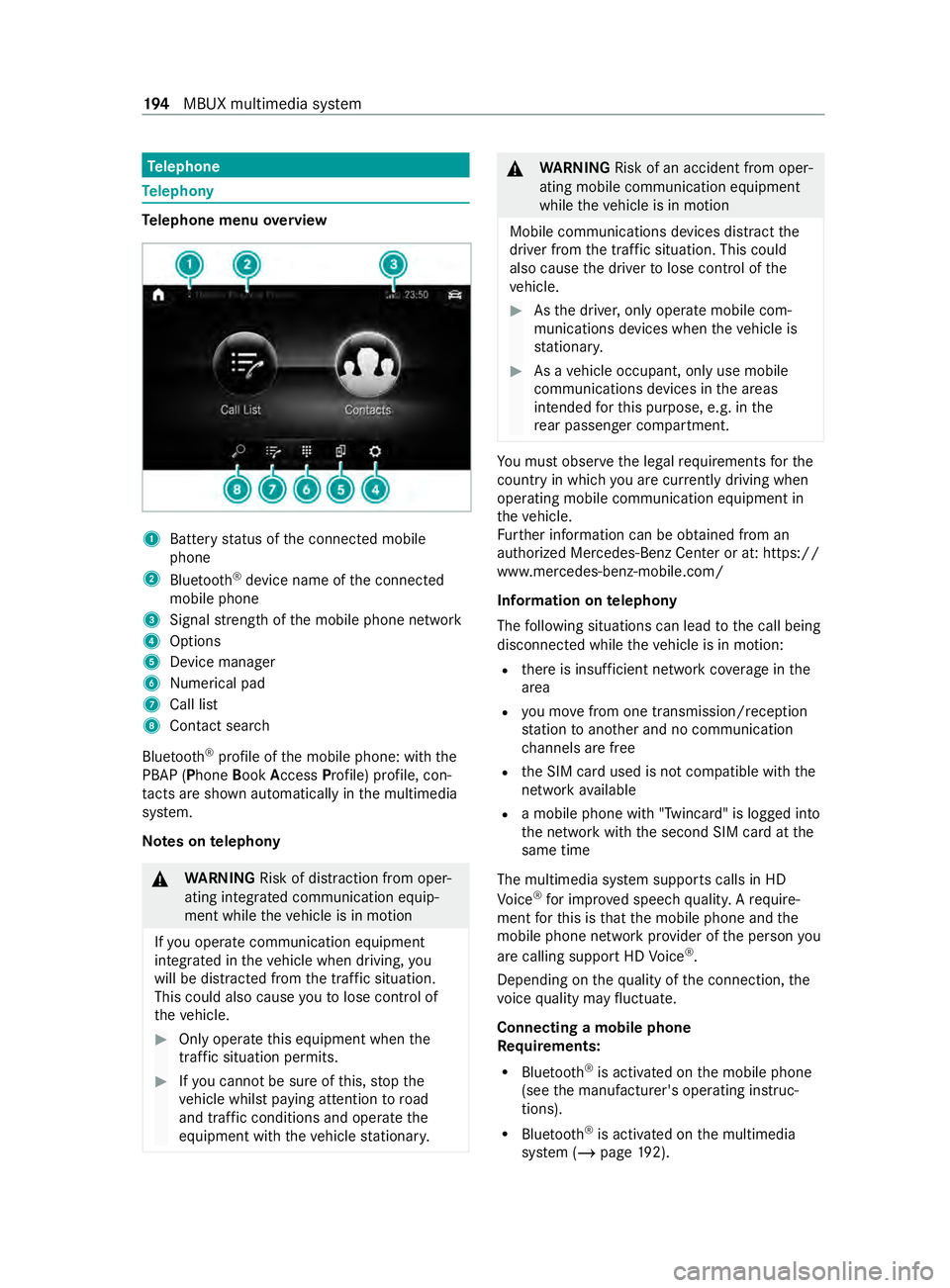
lephone Te
lephony Te
lephone menu overview 1
Batter ystatus of thec onnected mobile
phone
2 Blue tooth ®
device name of thec onnected
mobile phone
3 Signal stre ngt hoft he mobile phone network
4 Options
5 Device manager
6 Numerical pad
7 Call list
8 Contact sear ch
Blu etoo th®
profile of them obile phone: wit hthe
PBAP (Phone BookAccess Profile) profile, con‐
ta cts ar eshown au tomatically in them ultimedia
sy stem.
Note sont elephony &
WARNING Risk of distraction from oper‐
ating integrated communication equip‐
ment while thev ehicle is in motion
If yo uo perat ecommunication equipment
integ ratedint hevehicle when driving, you
will be distracted from thet raffic situation.
This could also cause youtol ose control of
th ev ehicle. #
Onlyoperat ethis equipment when the
traf fics ituation permits. #
Ifyo uc anno tbes ureoft his,stop the
ve hicle whils tpaying attention toroad
and traf ficc onditions and ope rate the
equipment wit hthe vehicle stationar y. &
WARNING Risk of an accident from oper‐
ating mobile communication equipment
while thev ehicle is in motion
Mobile communication sdevices distract the
driver from thet raffic situation .Thisc ould
also cause thed rive rtol ose control of the
ve hicle. #
Asthed rive r,onl yoperat emobile com‐
munications devices when thev ehicle is
st ationar y. #
Asavehicle occupant, onl yuse mobile
communication sdevices in thea reas
intended fort his purpose, e.g. in the
re ar passenger compartment. Yo
um usto bse rvet he legal requirements fort he
countr yinwhich youa recur rentl yd riving when
ope rating mobil ecommunication equipment in
th ev ehicle.
Fu rther information can be obtained from an
authorized Mercedes-BenzC enter or at:https://
www.mercedes-benz-mobile.com/
Information on telephony
The following situations can lead tothec all being
disconnected while thev ehicle is in motion:
R ther eisi nsufficient networ kcove rage inthe
area
R youm ovef romo ne transmission/reception
st atio ntoa nother and no communication
ch annels ar efree
R theS IM car dused is no tcompatible wit hthe
networ kavailable
R amobile phon ewith" Twincard" is logged into
th en etwo rkwit hthe second SIM car datthe
same time
The multimedia sy stem supports calls in HD
Vo ice ®
fori mp rove ds peec hquality .Arequire‐
ment fort his is that them obile phone and the
mobil ephone networ kprovide roft he person you
ar ec allin gsuppor tHDV oice®
.
Depending on theq uality of thec onnection ,the
vo ice quality ma yfluctuate.
Connecting amobile phone
Re quirements:
R Blue tooth ®
is activated on them obile phone
(see them anufacturer's operating instruc‐
tions).
R Blue tooth ®
is activated on them ultimedia
sy stem (/ page192). 194
MBUX multimedia sy stem
Page 197 of 348
Multimedia sy
stem:
4 © 5
Phone
Sear ching foram obilephone #
Select í. #
Select Connect New Device.
Connectin gamobilephone (authorization
using Secur eSimpl ePairing) #
Select amobile phone. #
Acode is displa yedint he multimedia sy stem
and on them obile phone. #
Ifth ec odes match: confirm thec ode on the
mobil ephone.
% Fo
ro lde rm obil ephone models, enter aone
to sixteen-digit number code on them obile
phone and on them ultimedia sy stem for
authorization.
% Up
to15 mobil ephones can be authorized on
th em ultimedia sy stem.
Auth orized mobile phones ar ereconnec ted
au tomatical ly.
% The connected mobile phone can also be
used as Blue
tooth®
audio equipment
(/ page203).
Re placing amobile phone
Multimedia sy stem:
4 © 5
Phone #
Select í. #
Noauthorized mobil ephone available:
select Connect New Device .#
Select amobile phone. #
Newlya uthorized mobile phone: confirm
th en umber code on them obile phone.
Switching mobile phones #
Select an authorized mobile phone.
The selected mobile phone is connected to
th em ultimedia sy stem.
% ForiPhone ®
:y ou can switc hbetwe en the
Apple CarPl ay®
and Blue tooth®
equipment
connection variants.
De-authorizin gamobile phone
Multimedi asystem:
4 © 5
Phone #
Select í. #
Select 0062inthel ine of them obile phone. #
Select Deauthorize . Information on
NearField Communication
(NFC)
NFC enable sshort- rang ew ireles sdatat ransfer
or (re)connection of amobile phon ewitht he mul‐
timedia sy stem.
Fu rther information can be obtained at :https://
www.mercedes-benz-mobile.com/
Using them obil ephone wit hNear Field Com‐
munication (NFC)
Re quirements:
R NFC is activated on them obile phone (see
th em anufacturer's operating instructions)
R The mobile phone's screen is switched on
and unloc ked( see them anufacturer's operat‐
ing instructions) #
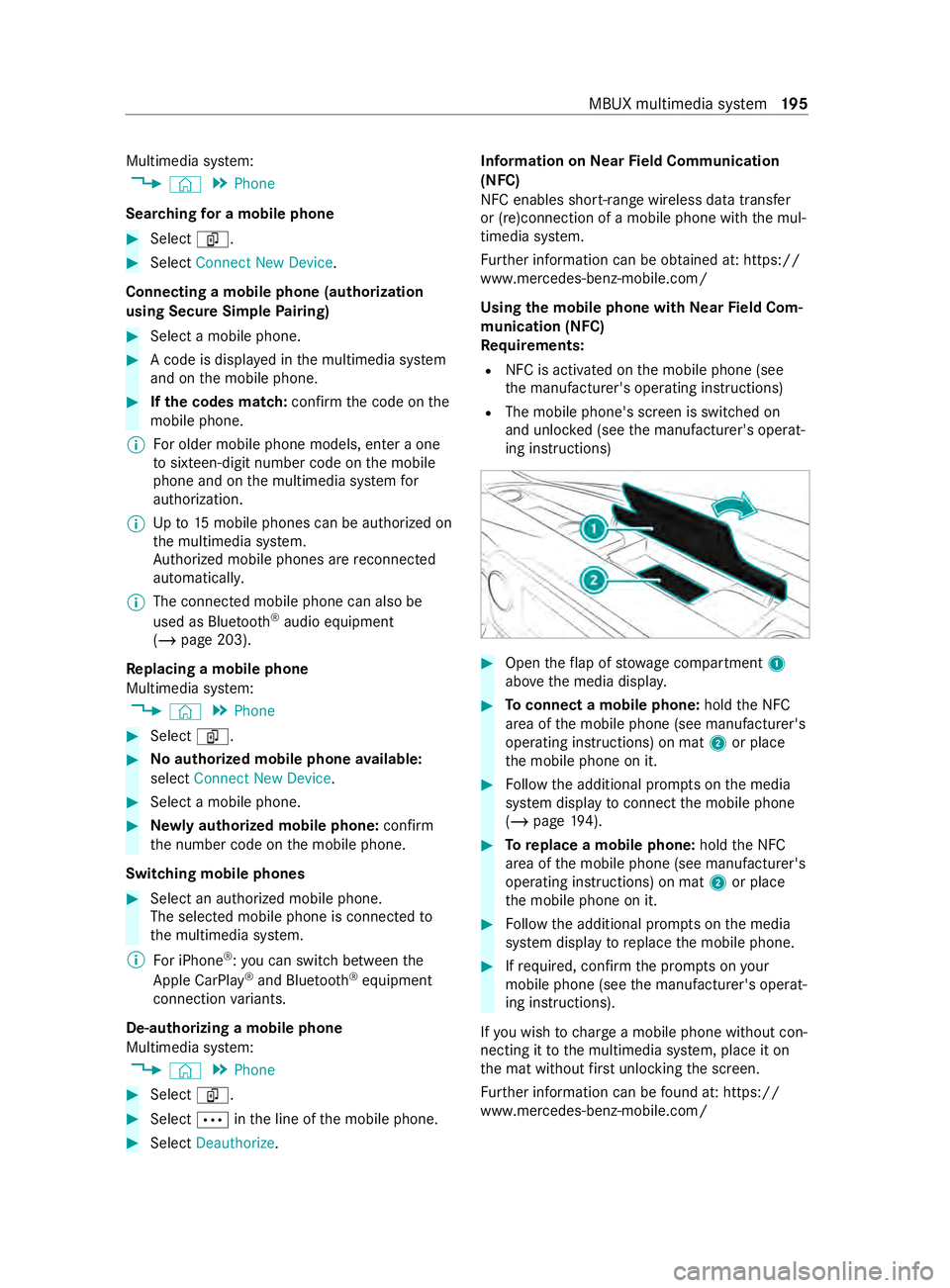
Open thef lap of stowagec ompartment 1
abo vethem edia displa y. #
Toconnect amobile phone: holdtheN FC
area of them obile phone (see manufacturer's
operating instructions) on mat 2or place
th em obile phone on it. #
Followt he additional prom ptsont he media
sy stem displa ytoconnect them obile phone
(/ page194). #
Toreplac eam obile phone: holdthe NFC
area of them obile phone (see manufacturer's
operating instructions) on mat 2or place
th em obile phone on it. #
Followt he additional prom ptsont he media
sy stem displa ytoreplace them obile phone. #
Ifre qu ired, con firm thep romp ts on your
mobile phon e(see them anufacturer's operat‐
ing instructions).
If yo uw ish tocharge am obile phon ewithout con‐
nectin gittot he multimedia sy stem, place it on
th em at without firs tu nlocking thes creen.
Fu rther information can be found at :https://
www.mercedes-benz-mobile.com/ MBU
Xmultimedia sy stem 19 5
Page 198 of 348
Setting
ther eception and transmission vol‐
ume
Re quirements:
R Am obile phone is connec ted( /pag e194).
Multimedi asystem:
4 © 5
Phone
This function ensures optimal languag equality. #
Select í. #
Select 0062inthel ine of them obile phone. #
Select Reception Volume andTransmission
Volume. #
Setthe volume.
Fu rther information on ther ecommended recep‐
tion and transmission volume: https://
www.me rcedes-benz-mobile.com/
St arting/ stopping mobile phon evoice recog‐
nition
Re quirements:
R The mobile phone in thef oreground is con‐
nected wit hthe multimedia sy stem
(/ page194).
St arting mobil ephone voice recognition #
Press and hold the£ button on them ulti‐
function steering wheel form oret han one
second.
Yo uc an use mobile phon evoice recognition.
St opping mobil ephone voice recognition #
Press the0063 or0076 button on them ulti‐
function steering wheel.
% If
am obile phone is connected via Smart‐
phone Integration, thev oice recognition of
th is mobile phon eisstarted or stopped. Calls
Te
lephone operation
Multimedia sy stem:
4 © 5
Phone
Making acall byentering then umbers #
Select _. #
Enteran umber. #
Select R.
The call is made.
Ac ceptin gacall #
Select RAccept. Re
jectin gacall #
Select kReject.
Endin gacall #
Select k.
Ac tivatin gfunctions durin gacall
The following function sareavailable during acall:
k EndC all
m Microphone Off
_ Numeric Keypad (showtos endDTMF
to nes)
h Transfe rtoPhone (ana ctive cal linh ands-
free mode is transfer redo vertot hetele‐
phone) #
Selec tafunction.
Putting an activ ecall on hold #
Tapont he contact or thec all.
The call will be put on hold.
% The call on hold can be ended an
ytime or re-
activated bytapping again.
Conducting calls wit hseve ralp articipants
Re quirements:
R Ther eisana ctivecall (/ page196).
R Ano ther call is being made.
Switching between calls #
Select thec ontact.
The selected call is active. The other call is on
hold.
Ac tivatin gacallonh old #
Select thec ontact of thec all on hold.
Ending an activ ecall #
Select kEndCall.
% On some mobile phones,
thec all on hold is
activated as soon as thea ctiv ecall is ended.
Ac cepting/rejecting awaiting call
Re quirements:
R Ther eisana ctivecall (/ page196).
If yo ur ecei veac allw hile al ready in acall, am es‐
sag eisd isplayed.
Depending on them obile phone and mobile net‐
wo rkoperator youw ill hear acall-waitin gsound. #
Select RAccept.
The incomin gcall is active. 19 6
MBUX multimedia sy stem