check MITSUBISHI OUTLANDER 2014 3.G MMCS Manual
[x] Cancel search | Manufacturer: MITSUBISHI, Model Year: 2014, Model line: OUTLANDER, Model: MITSUBISHI OUTLANDER 2014 3.GPages: 226, PDF Size: 31.21 MB
Page 165 of 226
Voice Control 165
INFO/SETTINGS Voice Operation
Voice Operation
Voice Control
You can perform telephone, audio,
navigation, and other operations by voice
command.
There are two types of voice control
functions: the function from this product
and the function used in a Bluetooth
® 2.0
interface.
1Press the “SPEECH” key on
the steering wheel. After you
hear the “beep”, say “Voice
commands”.
→“Steering Remote Control Switch Operation”(P82)
The telop and guide screen is displayed.
When speaking, use the details displayed
on the guide screen as reference.
ADVICE
• You can check the usage for voice
control, a list of voice commands, etc.
→ “Check the Voice Control Help” (P194)
• The voice control function cannot be
used right after the navigation starts up.
Please wait for a while before using.
• Depending on the status of the
navigation, voice control may not be
possible.
• Depending on the combination of devices
and modes, voice commands may not be
recognized.
• The guide screen will be displayed while
the vehicle is moving. You can choose
to not display the guide screen.
→“Voice
control settings” (P212)
• If you use other functions during voice
command (including during phone
dialing), the operation by voice command
will be canceled.
NOTE
The voice control function may have
difficulty in some environments and with
the way some people speak.
The followings will help you make the best
use of the voice control function.
• Speak loud and clear. This makes voice
recognition easier.
• When making a call, avoid saying things
such as “uh”, “um, uh”, “aah”, etc. These
may be mistaken for other words.
• Close the windows. Noise from the
outside can cause recognition mistakes.
• Ask everyone else in the vehicle to
please be quiet while you voice-dial a
call. The voices of others in the vehicle
can cause recognition mistakes.
• Words are sometimes mistaken for other
words with a similar pronunciation.
• If there is too much ambient noise,
recognition mistakes may occur.
Example: Driving through a tunnel,
driving with chains on the tires
• Strong air flow from the air conditioner
or heater may make recognition more
difficult.
• In the following cases, voice commands
are not accepted.
- Speaking too slow (too fast)
- Speaking too loud (too softly)
- Not saying anything or pronunciation is
unclear
- Spoke before the “beep”
• The system cannot recognize voice data
that is not recorded.
Page 172 of 226
172 Navigation Function Operation
Checking and Changing the
Route
Confirmation and editing of created routes
and basic operations are done through voice
control.
ADVICE
• You cannot do this operation without
setting a destination.
Changing Route Search
Conditions
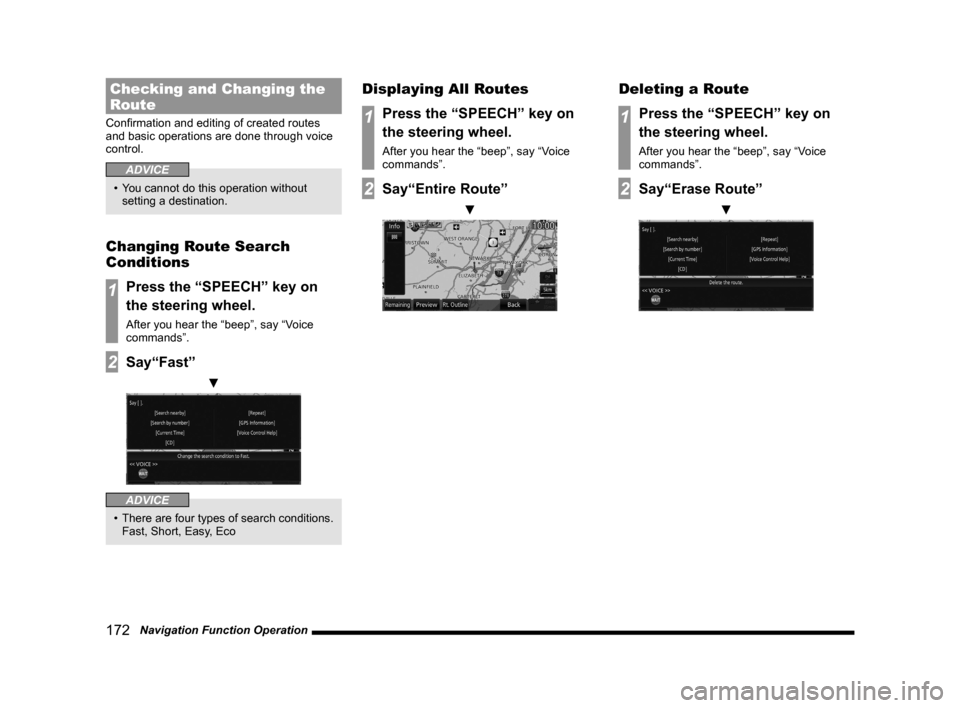
1Press the “SPEECH” key on
the steering wheel.
After you hear the “beep”, say “Voice
commands”.
2Say“Fast”
▼
ADVICE
• There are four types of search conditions.
Fast, Short, Easy, Eco
Displaying All Routes
1Press the “SPEECH” key on
the steering wheel.
After you hear the “beep”, say “Voice
commands”.
2Say“Entire Route”
▼
Deleting a Route
1Press the “SPEECH” key on
the steering wheel.
After you hear the “beep”, say “Voice
commands”.
2Say“Erase Route”
▼
Page 182 of 226
182 List of Audio Commands
Character Size Character Size
Font size
Letter size
Motorway
Simplified Map
Automatic
Display Motorway Simplified Map
Automatic Display
Freeway Simplified Map
Automatic Display
Show simplified freeway map
automatically
Automatically show simple
freeway map
Automatically view simple
freeway map
Current Street
Name Current Street Name
Display Current Street name
Address Book
Names Address Book Names
Display Address Book entry
Lane Information Lane Information
Lane Info
Lane description
Route Tracking Route Tracking
Searched Route Searched Route
Route searched
Search route
Checked route
AV Icon AV Icon
AV image
AV pictureMobile Phone
IconMobile Phone Icon
Telephone Icon
Phone image
Phone picture
Speed Indicator Speed Indicator
Speed gauge
Change 3D point
of view Change 3D point of view
Switch to 3D point of view
Switch overhead view angle
Change overhead view angle
Switch to 3D perspective
Change to 3D perspective
Switch to 3D view
Route Priority Route Priority
Route priority setting
Minimize
Freeways Minimize Freeways
Minimize Freeways setting
Minimize Toll
Roads Minimize Toll Roads
Minimize Toll Roads setting
Minimize Ferries Minimize Ferries
Minimize Ferries setting
Avoid Selected
Areas Avoid Selected Areas
Avoid Selected Areas setting
Travel Time Travel Time
Avoid Time Restricted Roads
setting
Time/Distance
Remaining Time/Distance Remaining
Time/Distance Remaining
Display settingRoute Guidance
FrequencyRoute Guidance Frequency
Set Route Guidance
Frequency
Route guidance frequency
settings
Route guide settings
POI Icons on
Guidance Map POI Icons on Guidance Map
Display POI icons on
guidance map
Cur ve Guidance Curve Guidance
Edit Address
Book Entries Edit Address Book Entries
Register or edit Address
Book entries
Edit My Home Edit My Home
Register or edit Home
position
Avoid Area List Avoid Area List
Register or edit Areas to
Avoid
Edit My
Categories Edit My Categories
Set or register frequently
used categories
Guidance Voice
Volume Guidance Voice Volume
Guidance volume setting
Beep Sound
Volume Beep Sound Volume
Beep sound volume setting
Sensor
Calibration Sensor Calibration
Dynamic Route
Guidance Dynamic Route Guidance
Settings for execution of
alternative route search by
RTT traffic messages
Page 188 of 226
188 List of Audio Commands
COFFEE SHOP
COFFEE SHOP COFFEE SHOP
CARIBOU
COFFEE CARIBOU COFFEE
COFFEE TIME COFFEE TIME
DUNKIN'
DONUTS DUNKIN' DONUTS
HONEY DEW
DONUTS HONEY DEW DONUTS
PEET'S COFFEE
& TEA PEET'S COFFEE & TEA
SECOND CUP SECOND CUP
SHIPLEY
DONUTS SHIPLEY DONUTS
STARBUCKS STARBUCKS
THE COFFEE
BEAN & TEA
LEAF THE COFFEE BEAN and
TEA LEAF
TIM HORTONS TIM HORTONS
FAST FOOD
FAST FOODFAST FOOD
AUNTIE ANNE'S AUNTIE ANNE'S
BACK YARD
BURGERS BACK YARD BURGERS
BOJANGLES' BOJANGLES'
BURGER KING BURGER KING
CARL'S JR CARL'S JR
CHECKERS CHECKERS
CHICKEN
EXPRESS CHICKEN EXPRESS
CHICK-FIL-A CHICK-FIL-A
CHURCH'S
CHICKEN CHURCH'S CHICKEN
CROWN FRIED
CHICKEN CROWN FRIED CHICKEN
CULVER'S CULVER'S
FIVE GUYS
BURGERS AND
FRIES FIVE GUYS BURGERS AND
FRIES
FUDDRUCKERS FUDDRUCKERS
HARDEE'S HARDEE'S
HARVEY'S HARVEY'S
IN-N-OUT
BURGER IN-N-OUT BURGER
JACK IN THE BOXJACK IN THE BOX
JAMBA JUICE JAMBA JUICE
JOHNNY
ROCKETS JOHNNY ROCKETS
KFC KFC
KRYSTAL KRYSTAL
MCDONALD'S MCDONALD'S
MRS FIELDSMRS FIELDS
ORANGE JULIUS ORANGE JULIUS
POPEYES POPEYES
RALLY'S RALLY'S
SMOOTHIE KING SMOOTHIE KING
STEAK N SHAKE STEAK N SHAKE
SURF CITY
SQUEEZE SURF CITY SQUEEZE
SWISS CHALET SWISS CHALET
TCBY TCBY
TROPICAL
SMOOTHIE CAFE TROPICAL SMOOTHIE
CAFE
WENDY'S WENDY'S
WHATABURGER WHATABURGER
WHITE CASTLE WHITE CASTLE
ZAXBY'S ZAXBY'S
SHOPPING
BOATINGBOATING
BOOK STORE BOOK STORE
CLOTHING
STORE CLOTHING STORE
COMP &
SOFTWARE COMPUTER and
SOFTWARE
COMPUTER
SOFTWARE
CONVENIENCE
STORE CONVENIENCE STORE
DEPARTMENT
STORE DEPARTMENT STORE
Page 190 of 226
190 List of Audio Commands
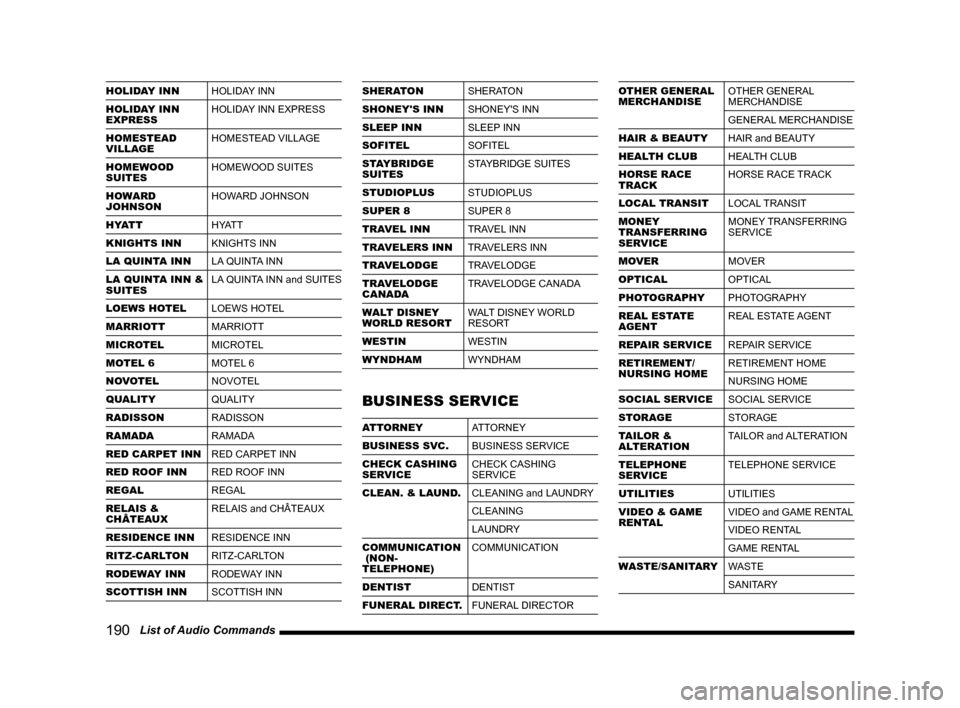
HOLIDAY INN HOLIDAY INN
HOLIDAY INN
EXPRESS HOLIDAY INN EXPRESS
HOMESTEAD
VILLAGE HOMESTEAD VILLAGE
HOMEWOOD
SUITES HOMEWOOD SUITES
HOWARD
JOHNSON HOWARD JOHNSON
HYATT H YAT T
KNIGHTS INN KNIGHTS INN
LA QUINTA INN LA QUINTA INN
LA QUINTA INN &
SUITES LA QUINTA INN and SUITES
LOEWS HOTEL LOEWS HOTEL
MARRIOTT MARRIOTT
MICROTEL MICROTEL
MOTEL 6 MOTEL 6
NOVOTEL NOVOTEL
QUALITY QUALITY
RADISSON RADISSON
RAMADA RAMADA
RED CARPET INN RED CARPET INN
RED ROOF INN RED ROOF INN
REGAL REGAL
RELAIS &
CHÂTEAUX RELAIS and CHÂTEAUX
RESIDENCE INN RESIDENCE INN
RITZ-CARLTON RITZ-CARLTON
RODEWAY INN RODEWAY INN
SCOTTISH INN SCOTTISH INNSHERATONSHERATON
SHONEY'S INN SHONEY'S INN
SLEEP INN SLEEP INN
SOFITEL SOFITEL
STAYBRIDGE
SUITES STAYBRIDGE SUITES
STUDIOPLUS STUDIOPLUS
SUPER 8 SUPER 8
TRAVEL INN TRAVEL INN
TRAVELERS INN TRAVELERS INN
TRAVELODGE TRAVELODGE
TRAVELODGE
CANADA TRAVELODGE CANADA
WALT DISNEY
WORLD RESORT WALT DISNEY WORLD
RESORT
WESTIN WESTIN
WYNDHAM WYNDHAM
BUSINESS SERVICE
ATTORNEY ATTORNEY
BUSINESS SVC. BUSINESS SERVICE
CHECK CASHING
SERVICE CHECK CASHING
SERVICE
CLEAN. & LAUND. CLEANING and LAUNDRY
CLEANING
LAUNDRY
COMMUNICATION
(NON-
TELEPHONE) COMMUNICATION
DENTIST DENTIST
FUNERAL DIRECT. FUNERAL DIRECTOR
OTHER GENERAL
MERCHANDISEOTHER GENERAL
MERCHANDISE
GENERAL MERCHANDISE
HAIR & BEAUTY HAIR and BEAUTY
HEALTH CLUB HEALTH CLUB
HORSE RACE
TRACK HORSE RACE TRACK
LOCAL TRANSIT LOCAL TRANSIT
MONEY
TRANSFERRING
SERVICE MONEY TRANSFERRING
SERVICE
MOVER MOVER
OPTICAL OPTICAL
PHOTOGRAPHY PHOTOGRAPHY
REAL ESTATE
AGENT REAL ESTATE AGENT
REPAIR SERVICE REPAIR SERVICE
RETIREMENT/
NURSING HOME RETIREMENT HOME
NURSING HOME
SOCIAL SERVICE SOCIAL SERVICE
STORAGE STORAGE
TAILOR &
ALTERATION TAILOR and ALTERATION
TELEPHONE
SERVICE TELEPHONE SERVICE
UTILITIES UTILITIES
VIDEO & GAME
RENTAL VIDEO and GAME RENTAL
VIDEO RENTAL
GAME RENTAL
WASTE/SANITARY WASTE
SANITARY
Page 194 of 226
194 Check the Voice Control Help
Check the Voice
Control Help
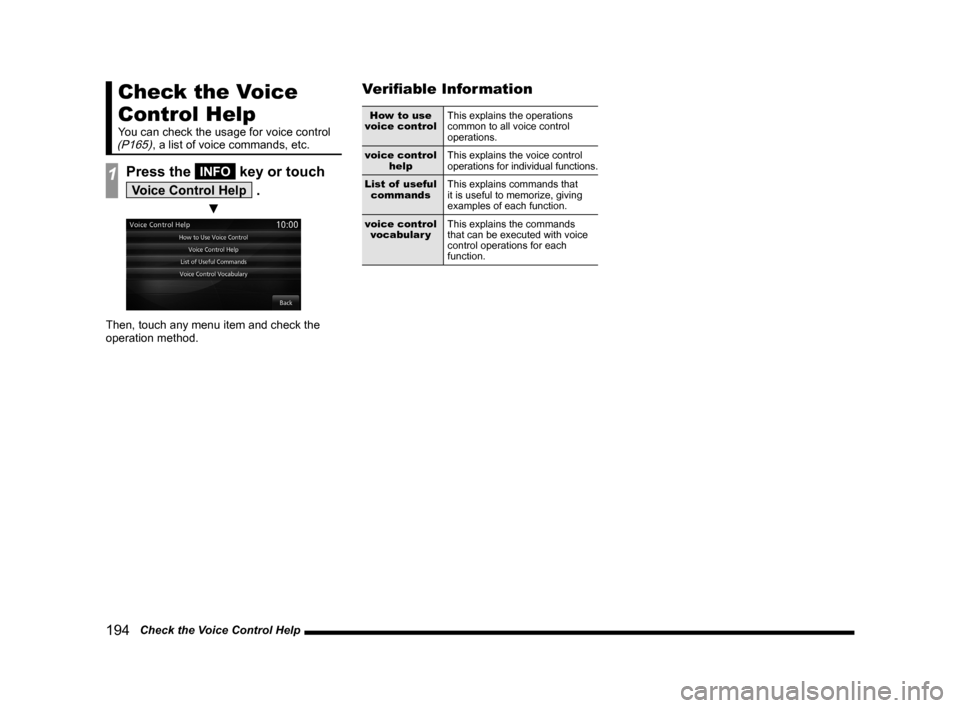
You can check the usage for voice control (P165), a list of voice commands, etc.
1Press the INFO key or touch
Voice Control Help .
▼
Then, touch any menu item and check the
operation method.
Verifiable Information
How to use
voice control This explains the operations
common to all voice control
operations.
voice control help This explains the voice control
operations for individual functions.
List of useful commands This explains commands that
it is useful to memorize, giving
examples of each function.
voice control vocabular y This explains the commands
that can be executed with voice
control operations for each
function.
Page 195 of 226
Navi Settings 195
INFO/SETTINGS SETTINGS
SETTINGS
Navi Settings
This changes the settings concerning
navigation.
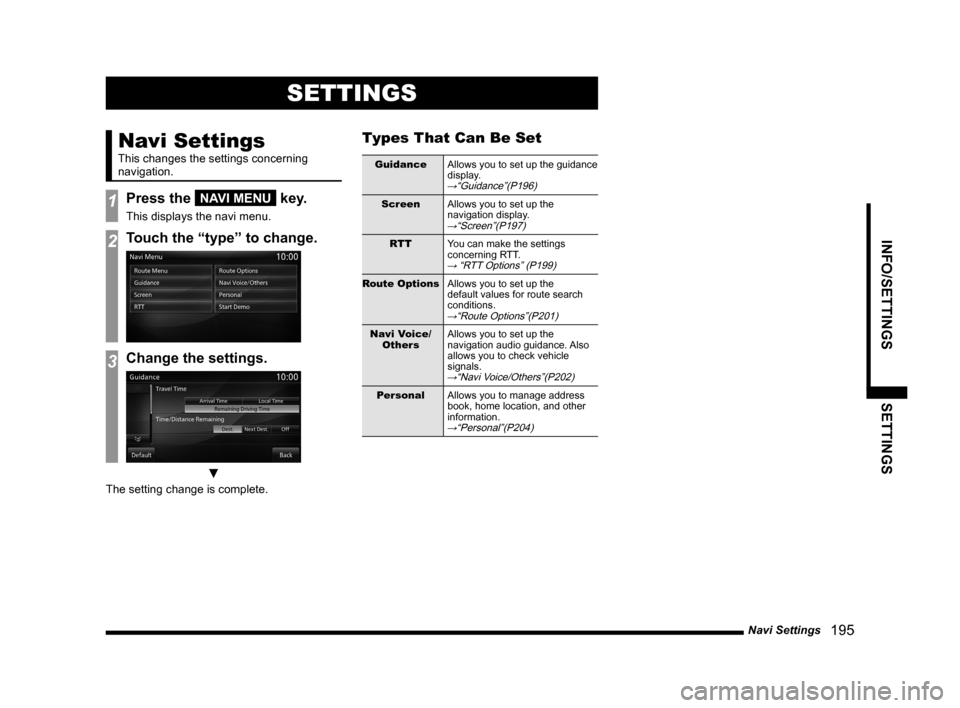
1Press the NAVI MENU key.
This displays the navi menu.
2Touch the “type” to change.
3Change the settings.
▼
The setting change is complete.
Types That Can Be Set
GuidanceAllows you to set up the guidance
display.
→“Guidance”(P196)
ScreenAllows you to set up the
navigation display.
→“Screen”(P197)
RTTYou can make the settings
concerning RTT.
→ “RTT Options” (P199)
Route Options Allows you to set up the
default values for route search
conditions.
→“Route Options”(P201)
Navi Voice/
Others Allows you to set up the
navigation audio guidance. Also
allows you to check vehicle
signals.
→“Navi Voice/Others”(P202)
Personal
Allows you to manage address
book, home location, and other
information.
→“Personal”(P204)
Page 200 of 226
200 Navi Settings
RTT Sur veillance Map
Displays the registered area using “Registering
the RTT Surveillance Map” (P78).
1Press the NAVI MENU key.
This displays the navi menu.
2Touch RTT .
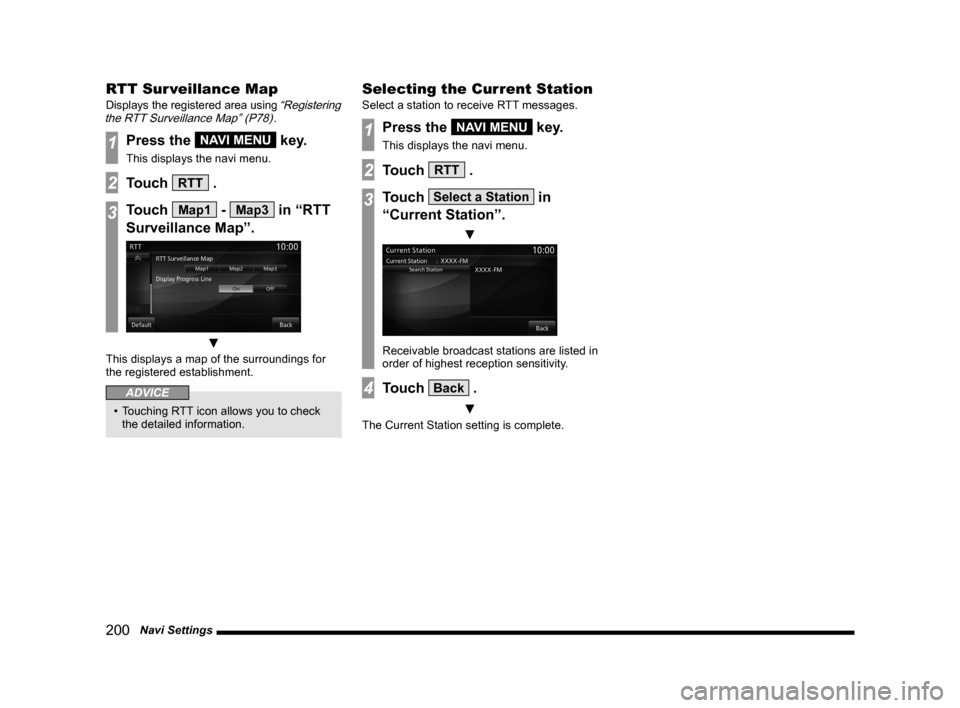
3Touch Map1 - Map3 in “RTT
Surveillance Map”.
▼
This displays a map of the surroundings for
the registered establishment.
ADVICE
• Touching RTT icon allows you to check
the detailed information.
Selecting the Current Station
Select a station to receive RTT messages.
1Press the NAVI MENU key.
This displays the navi menu.
2Touch RTT .
3Touch Select a Station in
“Current Station”.
▼
Receivable broadcast stations are listed in
order of highest reception sensitivity.
4Touch Back .
▼
The Current Station setting is complete.
Page 203 of 226

Navi Settings 203
INFO/SETTINGS SETTINGS
Sensor Calibration
The levels for the speed sensor and gyro sensor are raises through autom\
atic learning. When a
tire is replaced, it is necessary to erase the speed learning data and r\
elearn it.
1Press the NAVI MENU key.
This displays the navi menu.
2Touch Navi Voice/Others .
3Touch Enter in “Sensor
Calibration”.
▼
This displays the sensor correction status
screen.
4Touch Erase in “Speed” or
“Gyro”.
5Touch Ye s .
▼
The sensor learning data deletion is complete.
Then, check “Precision of Your Car's Location
and Automatic Correction”(P203) and correct.
CAUTION
• Deleted data cannot be restored. Precision of Your Car's Location and
Automatic Correction
•
When sensor learning data has been
deleted, you can drive at a constant speed
for a while some place with a good view
and make left and right turns at junctions
to speed up the speed and gyro automatic
learning.
• When you drive at a constant speed on a
straight road with good GPS reception, the
automatic speed correction operates and
when you repeatedly turn left and right at
junctions, the gyro automatic correction
operates. The operation of the automatic
speed and gyro learning gradually improves
the precision of your car's location.
ADVICE
• In some cases, you may need to drive
a few hours before the precision of
your car's location stabilizes. Driving
somewhere with a good view, such as a
freeway, makes it easier for the automatic
correction to work.
Page 219 of 226

Troubleshooting 219
Other
Other
Troubleshooting
Please check these items if a message appears on the screen, or if you t\
hink something is not working properly.
If This Message Appears...
A message is displayed on the screen of this product according to the sit\
uation.
Navigation Functions
Message CauseResponse
End of map coverage area. The map was scrolled to an area for which there is no
map data.Scroll the map back to where there is data.
Scale will be changed. The centre of your car and cursor was moved from a
location with a scale being set to a location without it.
Or returned to a location where the scale is set.-
No POI found. A POI search was performed, but there is no POI in
this product that matches the specified information.Search using different conditions.
The programme cannot be written to the map card.
Check the map card that is in the map slot. The map card is in the “Lock” state and cannot be
written.Take out the map card and unlock the “Lock”.
Map data cannot be read.
Check the map card that is in the map slot. Map data cannot be read from the map card.
If the system does not recover after a few minutes, stop
your vehicle in a safe location, then check if the MAP
card is properly inserted.
→“SD Cards”(P14)If this does not fix the problem, consult with your dealer.
Restore the map card system program using the
program disc. Consult with your dealer.
→“If This Product Does Not Start Up”(P224)
No map card is inserted into the map slot.Insert the map card.→“Insert an SD Card”(P15)
The map card has malfunctioned for some reason.Consult with your dealer.