ad blue MITSUBISHI OUTLANDER SPORT 2014 3.G Owners Manual
[x] Cancel search | Manufacturer: MITSUBISHI, Model Year: 2014, Model line: OUTLANDER SPORT, Model: MITSUBISHI OUTLANDER SPORT 2014 3.GPages: 388, PDF Size: 20.04 MB
Page 44 of 388

MITSUBISHI Remote Control*
Charging 3-19
3
•Due to the characteristics of radio waves,communication speed tends to decrease asthe communication distance increases. Useyour wireless LAN devi
ce at a short dis-
tance from the vehicle for better response.•When a microwave oven or ISM (indus-trial, scientific and medical) equipment isbeing used, the communication speed andrange of wireless
LAN devices may
decrease. Use your wireless LAN deviceaway from these appliances and equipment.•If a wireless LAN de
vice and Bluetooth
(registered trademark of Bluetooth SIG,Inc.) are used simultaneously, the commu-nication speed and range of each devicemay decrease. Use your wireless LANdevice away from Bluetooth devices.
zWireless LAN de
vices may not communicate
with the vehicle, or may not operate nor-mally or stably in the following environmentor situations. Check th
at the device can com-
municate with your vehicle before use.•There is an obstructi
on such as a concrete
or metal wall between the vehicle and wire-less LAN device.•The vehicle is surrounded by tall vehiclesin a parking lot.•There are facilities nearby that emit strongradio waves, such as a TV tower, trans-former substation, br
oadcasting station or
airport.NOTE
•There is a communication device such as amobile phone or radio, or an electric devicesuch as a personal computer near the wire-less LAN device.•The wireless
LAN device is in contact with
or covered by a metal object.•The battery of the wireless LAN device hasrun down.
zThe MITSUBISHI Remote Control cannotbe used under the following conditions:•The wireless LAN device is turned off.•The MITSUBISHI Re
mote Control appli-
cation software is not installed.•The MITSUBISHI Re
mote Control appli-
cation software is not running.•The wireless LAN devi
ce is not registered
on the vehicle or it is not connected to thevehicle.•The wireless LAN devi
ce is out of the com-
munication range.•The wireless
LAN device is
connected to
other wirele
ss LAN device.
•The wireless LAN devi
ce has failed, or its
battery has run out.
zSome charging facilities have a timer func-tion that turns the power on or off at a spe-cific time of the day. When charging at afacility with a timer function, make sure thatthe charging timer is set within the timeperiod when the power in the charging facil-ity is on.NOTE
zThe auxiliary battery is automatically andperiodically charged using electrical powerstored in the drive battery.zWhile the remote climate control is operatingor the charging, the cooling fan or air condi-tioner compressor may start operating and itssound may be heard.
This is normal.
zThe remote climate control operates in itsown mode based on the mode selected on thewireless LAN device,
regardless of the
switch setting of the vehicle’s air condi-tioner.zAir conditioning perform
ance may deterio-
rate or the remaining quantity of the drivebattery may decrease under the followingconditions:•In extremely hot weather.•In hot sunshine.•In extremely cold weather.zIf the remote climate control is started duringcharging, the time until full charge mayextend or the charging rate may decrease.zWhen the remaining quantity of the drivebattery is decreased, the remote climate con-trol does not operate
or it may stop on the
way.NOTE
BK0203201EN.book 19 ページ 2013年11月19日 火曜日 午前11時50分
Page 123 of 388
Multi information display6-14 Instruments and controls
6
E00537500025
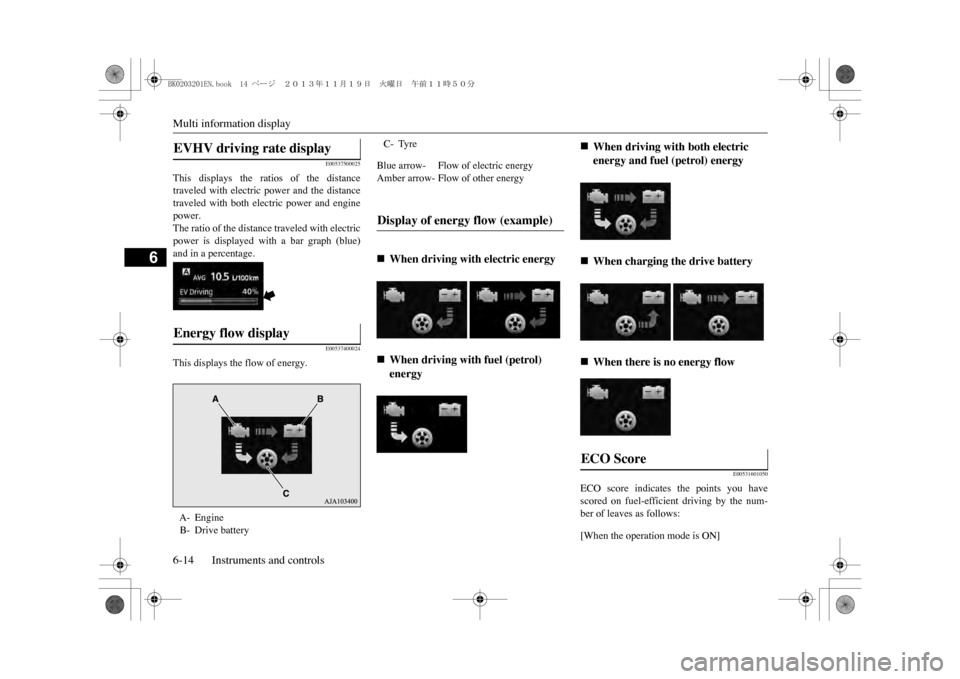
This displays the ratios of the distancetraveled with electric power and the distancetraveled with both electric power and enginepower.The ratio of the distance traveled with electricpower is displayed with a bar graph (blue)and in a percentage.
E00537400024
This displays the flow of energy.
E00531601050
ECO score indicates the points you havescored on fuel-efficient driving by the num-ber of leaves as follows:[When the operation mode is ON]
EVHV driving rate display Energy flow display A- EngineB- Drive battery
C- TyreBlue arrow- Flow of electric energyAmber arrow- Flow of other energyDisplay of energy flow (example)
Page 127 of 388
Multi information display6-18 Instruments and controls
6
3. Press and hold the multi information dis-play switch for about 2 seconds or more toswitch in from °C to °F, or from °F to °C.The setting is changed to the selected tem-perature unit.
E00523201741
The language of the multi information displaycan be switched.
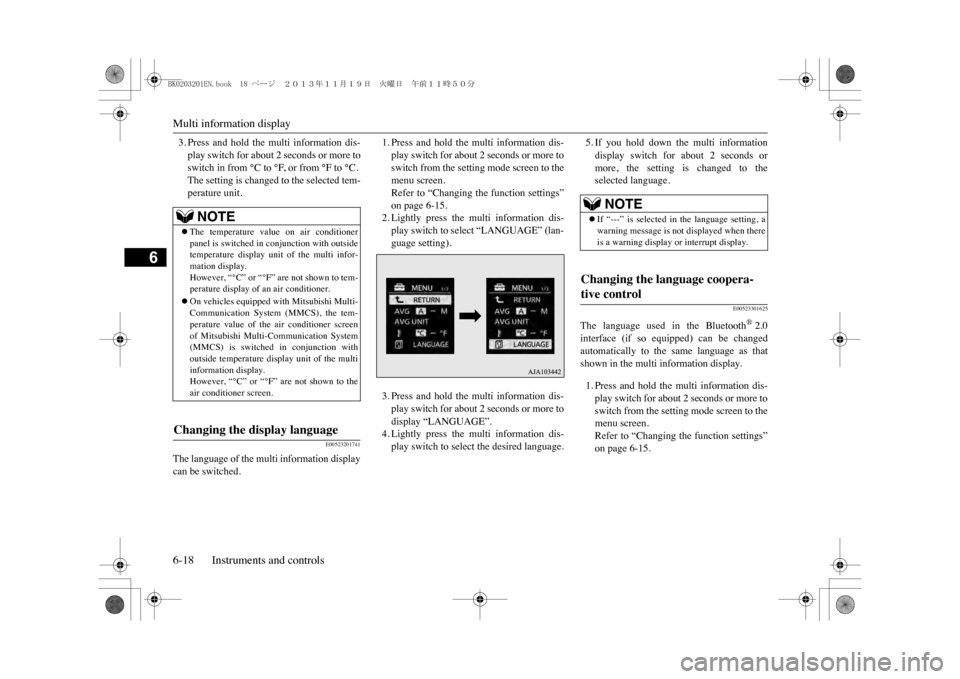
1. Press and hold the multi information dis-play switch for about 2 seconds or more toswitch from the setting mode screen to themenu screen.Refer to “Changing the function settings”on page 6-15.2. Lightly press the multi information dis-play switch to select “LANGUAGE” (lan-guage setting).3. Press and hold the multi information dis-play switch for about 2 seconds or more todisplay “LANGUAGE”.4. Lightly press the multi information dis-play switch to select the desired language.
5. If you hold down the multi informationdisplay switch for about 2 seconds ormore, the setting is changed to theselected language.
E00523301625
The language used in the Bluetooth
®2.0
interface (if so equipped) can be changedautomatically to the same language as thatshown in the multi information display.1. Press and hold the multi information dis-play switch for about 2 seconds or more toswitch from the setting mode screen to themenu screen.Refer to “Changing the function settings”on page 6-15.
NOTE
zThe temperature value on air conditionerpanel is switched in
conjunction with outside
temperature display unit of the multi infor-mation display.However, “°C” or “°F” are not shown to tem-perature display of an air conditioner.zOn vehicles equipped
with Mitsubishi Multi-
Communication System (MMCS), the tem-perature value of the air conditioner screenof Mitsubishi Multi-Communication System(MMCS) is switched
in conjunction with
outside temperature display unit of the multiinformation display.However, “°C” or “°F” are not shown to theair conditioner screen.
Changing the display language
NOTE
zIf “---” is selected in the language setting, awarning message is not
displayed when there
is a warning display or interrupt display.
Changing the language coopera-tive control
BK0203201EN.book 18 ページ 2013年11月19日 火曜日 午前11時50分
Page 128 of 388
Multi information display
Instruments and controls 6-19
6
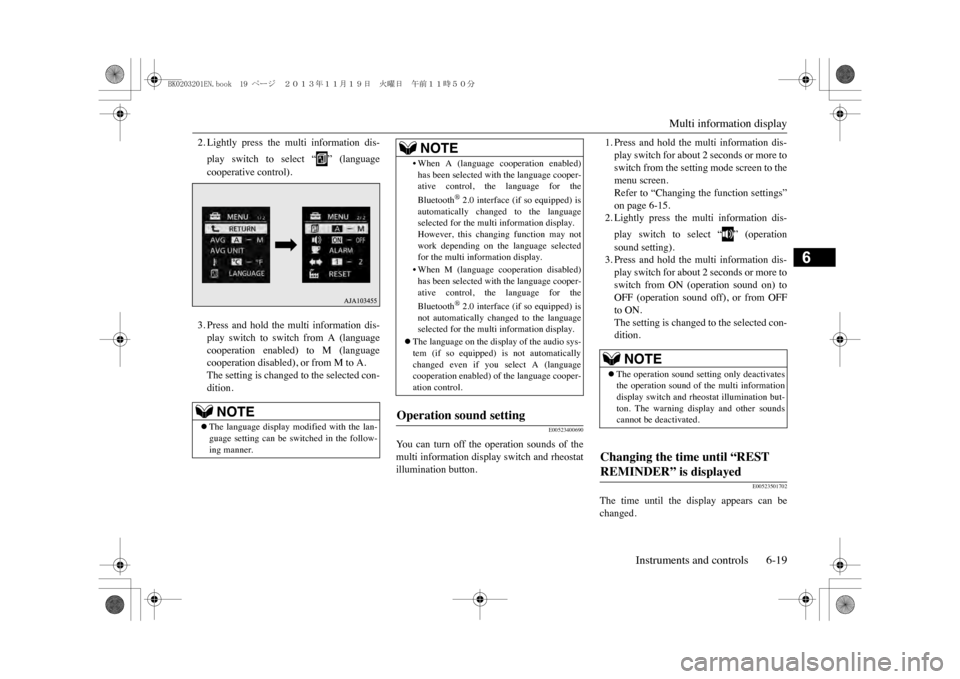
2. Lightly press the multi information dis-play switch to select “ ” (languagecooperative control).3. Press and hold the multi information dis-play switch to switch from A (languagecooperation enabled) to M (languagecooperation disabled), or from M to A.The setting is changed to the selected con-dition.
E00523400690
Yo u c a n t u r n o f f t h e o p e r a t i o n s o u n d s o f t h emulti information display switch and rheostatillumination button.
1. Press and hold the multi information dis-play switch for about 2 seconds or more toswitch from the setting mode screen to themenu screen.Refer to “Changing the function settings”on page 6-15.2. Lightly press the multi information dis-play switch to select “ ” (operationsound setting).3. Press and hold the multi information dis-play switch for about 2 seconds or more toswitch from ON (operation sound on) toOFF (operation sound off), or from OFFto ON.The setting is changed to the selected con-dition.
E00523501702
The time until the display appears can bechanged.
NOTE
zThe language display modified with the lan-guage setting can be switched in the follow-ing manner.
•When A (language
cooperation enabled)
has been selected with the language cooper-ative control, the language for theBluetooth
®2.0 interface (if so equipped) is
automatically changed to the languageselected for the multi information display.However, this changing function may notwork depending on the language selectedfor the multi information display.•When M (language c
ooperation disabled)
has been selected with the language cooper-ative control, the language for theBluetooth
®2.0 interface (if so equipped) is
not automatically changed to the languageselected for the multi information display.
zThe language on the disp
lay of the audio sys-
tem (if so equipped) is not automaticallychanged even if you
select A (language
cooperation enabled) of
the language cooper-
ation control.
Operation sound setting
NOTE
NOTE
zThe operation sound setting only deactivatesthe operation sound of the multi informationdisplay switch and rheostat illumination but-ton. The warning di
splay and other sounds
cannot be deactivated.
Changing the time until “REST REMINDER” is displayed
BK0203201EN.book 19 ページ 2013年11月19日 火曜日 午前11時50分
Page 173 of 388
Power switch7-10 Starting and driving
7
E00631801079
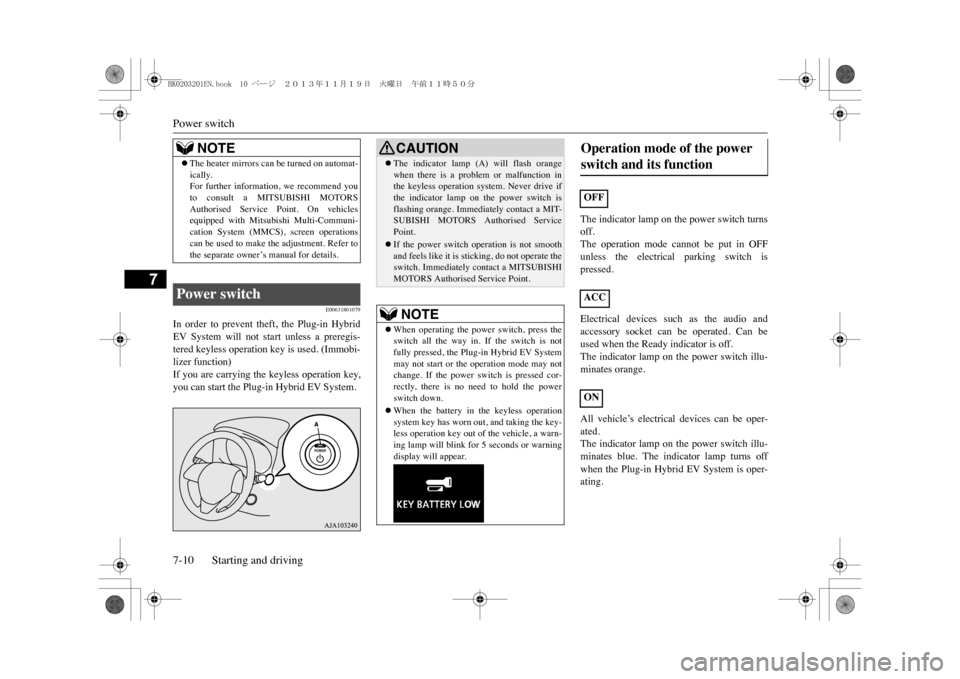
In order to prevent theft, the Plug-in HybridEV System will not start unless a preregis-tered keyless operation key is used. (Immobi-lizer function)If you are carrying the keyless operation key,you can start the Plug-in Hybrid EV System.
The indicator lamp on the power switch turnsoff.The operation mode cannot be put in OFFunless the electrical parking switch ispressed.Electrical devices such as the audio andaccessory socket can be operated. Can beused when the Ready indicator is off.The indicator lamp on the power switch illu-minates orange.All vehicle’s electrical devices can be oper-ated.The indicator lamp on the power switch illu-minates blue. The indicator lamp turns offwhen the Plug-in Hybrid EV System is oper-ating.
NOTE
zThe heater mirrors can be turned on automat-ically.For further information, we recommend youto consult a MITSUBISHI MOTORSAuthorised Service Point. On vehiclesequipped with Mitsubishi Multi-Communi-cation System (MMCS), screen operationscan be used to make the adjustment. Refer tothe separate owner’s manual for details.
Power switch
CAUTIONzThe indicator lamp (A) will flash orangewhen there is a problem or malfunction inthe keyless operation system. Never drive ifthe indicator lamp on the power switch isflashing orange. Immedi
ately contact a MIT-
SUBISHI MOTORS Authorised ServicePoint.zIf the power switch operation is not smoothand feels like it is stic
king, do not operate the
switch. Immediately contact a MITSUBISHIMOTORS Authorised Service Point.NOTE
zWhen operating the power
switch, press the
switch all the way in. If the switch is notfully pressed, the Plug-
in Hybrid EV System
may not start or the operation mode may notchange. If the power
switch is pressed cor-
rectly, there is no n
eed to hold the power
switch down.zWhen the battery in the keyless operationsystem key has worn
out, and taking the key-
less operation key out of the vehicle, a warn-ing lamp will blink fo
r 5 seconds or warning
display will appear.
Operation mode of the power switch and its function OFFACCON
BK0203201EN.book 10 ページ 2013年11月19日 火曜日 午前11時50分
Page 238 of 388
8
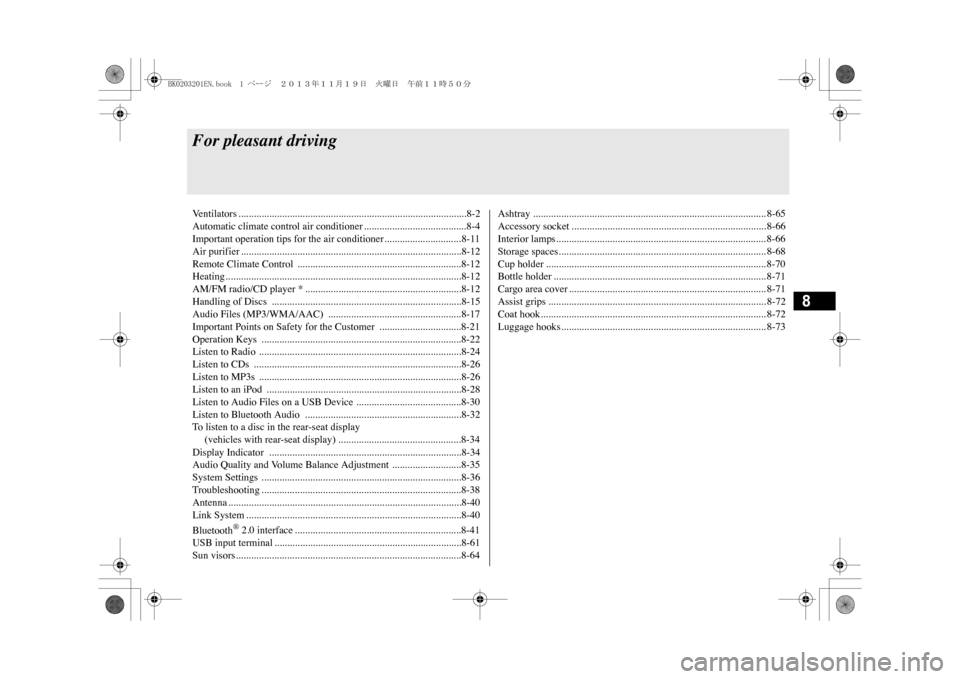
For pleasant drivingVe n t i l a t o r s . . . . . . . . . . . . . . . . . . . . . . . . . . . . . . . . . . . . . . . . . . . . . . . . . . . . . . . . . . . . . . . . . . . . . . . . . . . . . . . . . . . . . . . . . 8 - 2Automatic climate control air conditioner ........................................8-4Important operation tips for the air conditioner.............................. 8-11Air purifier ......................................................................................8-12Remote Climate Control ................................................................8-12Heating............................................................................................8-12AM/FM radio/CD player * .............................................................8-12Handling of Discs ..........................................................................8-15Audio Files (MP3/WMA/AAC) ....................................................8-17Important Points on Safety for the Customer ................................8-21Operation Keys ..............................................................................8-22Listen to Radio ...............................................................................8-24Listen to CDs .................................................................................8-26Listen to MP3s ...............................................................................8-26Listen to an iPod ............................................................................8-28Listen to Audio Files on a USB Device .........................................8-30Listen to Bluetooth Audio .............................................................8-32To l i s t e n t o a d i s c i n t h e r e a r - s e a t d i s p l a y (vehicles with rear-seat display) ................................................8-34Display Indicator ...........................................................................8-34Audio Quality and Volume Balance Adjustment ...........................8-35System Settings ..............................................................................8-36Troubleshooting .............................................................................. 8-38Antenna ...........................................................................................8-40Link System ....................................................................................8-40Bluetooth
® 2.0 interface .................................................................8-41
USB input terminal .........................................................................8-61Sun visors........................................................................................8-64
Ashtray ........................................................................................... 8-65Accessory socket ............................................................................ 8-66Interior lamps.................................................................................. 8-66Storage spaces................................................................................. 8-68Cup holder ...................................................................................... 8-70Bottle holder ................................................................................... 8-71Cargo area cover ............................................................................. 8-71Assist grips ..................................................................................... 8-72Coat hook........................................................................................ 8-72Luggage hooks................................................................................ 8-73
BK0203201EN.book 1 ページ 2013年11月19日 火曜日 午前11時50分
Page 260 of 388
Operation Keys
For pleasant driving 8-23
8
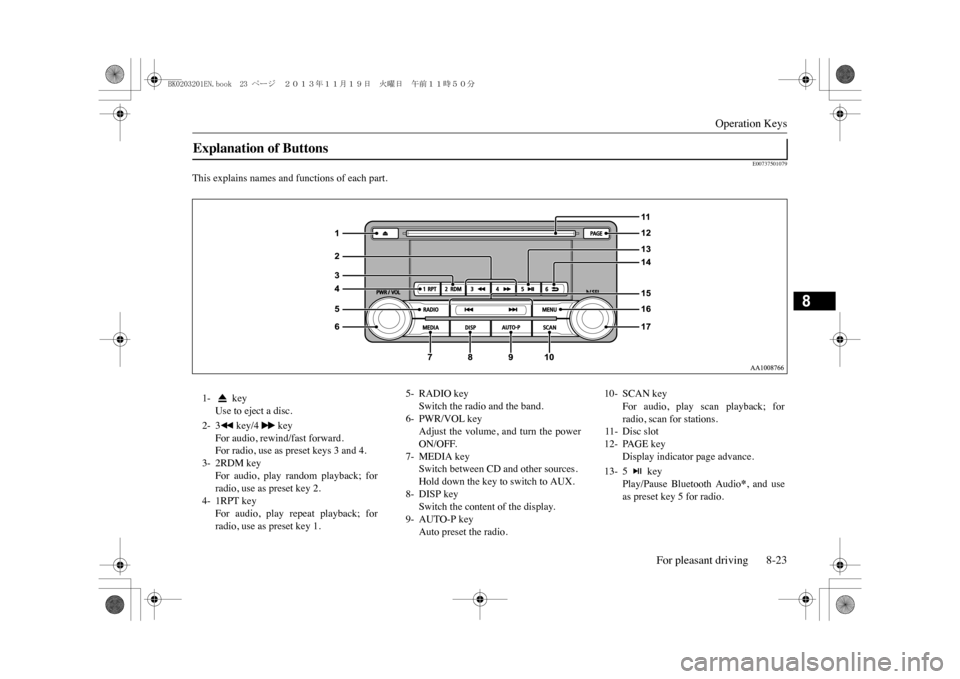
E00737501079
This explains names and functions of each part.Explanation of Buttons 1- key
Use to eject a disc.
2- 3 key/4 key
For audio, rewind/fast forward.For radio, use as preset keys 3 and 4.
3- 2RDM key
For audio, play random playback; forradio, use as preset key 2.
4- 1RPT key
For audio, play repeat playback; forradio, use as preset key 1.
5- RADIO key
Switch the radio and the band.
6- PWR/VOL key
Adjust the volume, and turn the powerON/OFF.
7- MEDIA key
Switch between CD and other sources.Hold down the key to switch to AUX.
8- DISP key
Switch the content of the display.
9- AUTO-P key
Auto preset the radio.
10- SCAN key
For audio, play scan playback; forradio, scan for stations.
11- Disc slot12- PAGE key
Display indicator page advance.
13- 5 key
Play/Pause Bluetooth Audio
*, and use
as preset key 5 for radio.
BK0203201EN.book 23 ページ 2013年11月19日 火曜日 午前11時50分
Page 261 of 388
Listen to Radio8-24 For pleasant driving
8
E00737601155
E00737700029
This explains how to listen to AM and FMradio broadcasts.Press the RADIO key to switch the band.Switch between AM and FM bands.The selected band is indicated on the display.
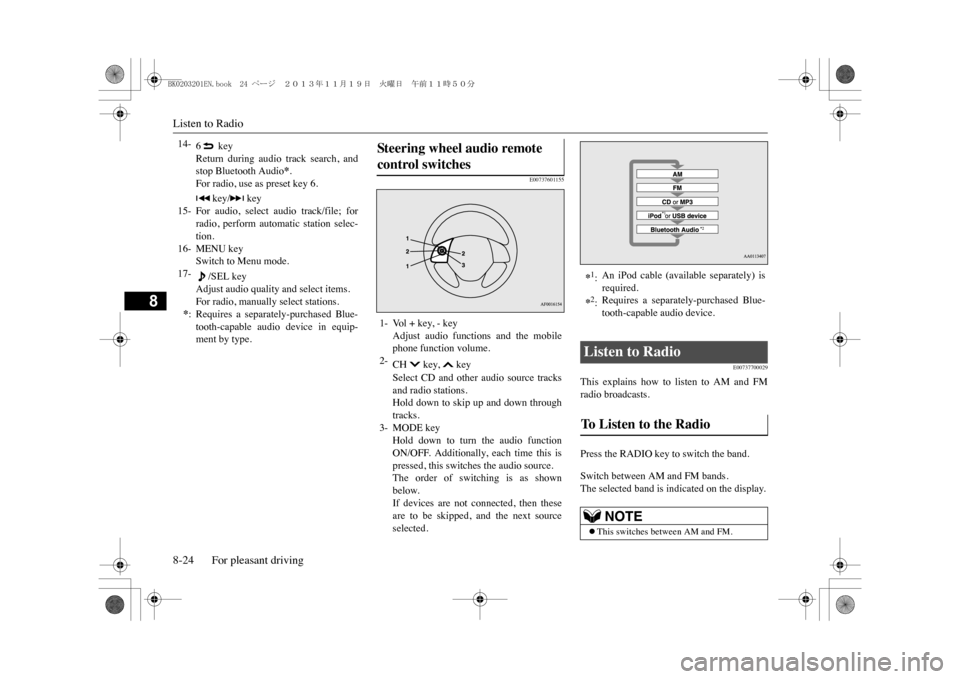
14-
6 keyReturn during audio track search, andstop Bluetooth Audio
*.
For radio, use as preset key 6.
15-
key/ key
For audio, select audio track/file; forradio, perform automatic station selec-tion.
16- MENU key
Switch to Menu mode.
17-
/SEL key
Adjust audio quality and select items.For radio, manually select stations.
*:Requires a separately-purchased Blue-tooth-capable audio device in equip-ment by type.
Ste er in g wheel audio remot e control switches 1- Vol + key, - key
Adjust audio functions and the mobilephone function volume.
2-
CH key, keySelect CD and other audio source tracksand radio stations.Hold down to skip up and down throughtracks.
3- MODE key
Hold down to turn the audio functionON/OFF. Additionally, each time this ispressed, this switches the audio source.The order of switching is as shownbelow.If devices are not connected, then theseare to be skipped, and the next sourceselected.
*1:An iPod cable (available separately) isrequired.
*2:Requires a separately-purchased Blue-tooth-capable audio device.
Listen to Radio To Listen to the Radio
NOTE
zThis switches between AM and FM.
BK0203201EN.book 24 ページ 2013年11月19日 火曜日 午前11時50分
Page 266 of 388
Listen to an iPod
For pleasant driving 8-29
8
Press the MEDIA key to set the iPod as thesource.The selected source is indicated on the dis-play.Press the key or key to select thetrack.This enables selection of the next or previoustrack.
Hold down the 3 key or the 4 key.Fast forward/rewind is possible.Repeat playback and shuffle playback arepossible.Press the 1RPT key.Repeat playback of the track currently beingplayed.Press the 2RDM key.Play tracks in the category currently beingplayed in a random order.
Hold down the 2RDM key.Play back the album in a random order(tracks in any order on the album).Search categories or track names, and select atrack.1. Turn the /SEL key to select the cate-gory.2. Press the /SEL key. Categories ortracks within the selected category aredisplayed.3. Turn the /SEL key to select the cate-gory or track.
zOperate the iPod/iPhone
while connected to
this product.zIf the iPod/iPhone
is connected via Bluetooth
as a Bluetooth-capable audio device, then donot connect the iPod
/iPhone using an iPod
cable. Connection using both methods willresult in erroneous operation.zIf an iPod/iPhone does not operate correctly,then remove the iPod/iPhone from the prod-uct, reset, then reconnect.
Play iPod Select the Track (File)
NOTE
Fast Forward or Rewind Switch Playback Mode Repeat Playback (RPT)
NOTE
zPressing again will cancel.
Shuffle Playback (RDM)
NOTE
zPressing again will cancel.
Album Shuffle Playback
NOTE
zPressing again will cancel.
Search Tracks
BK0203201EN.book 29 ページ 2013年11月19日 火曜日 午前11時50分
Page 269 of 388
Listen to Bluetooth Audio8-32 For pleasant driving
8
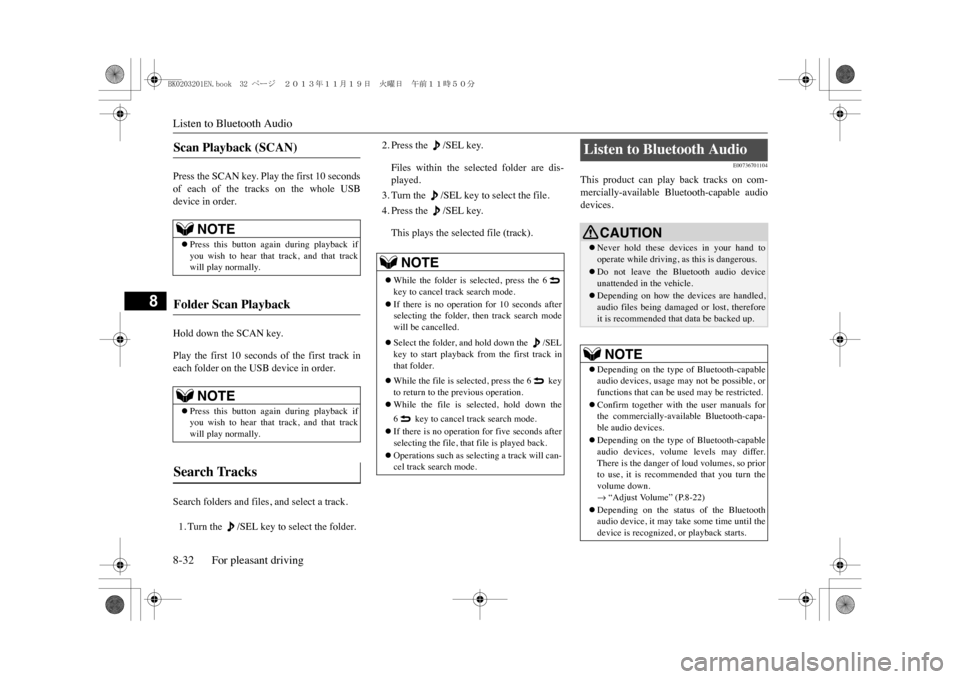
Press the SCAN key. Play the first 10 secondsof each of the tracks on the whole USBdevice in order.Hold down the SCAN key.Play the first 10 seconds of the first track ineach folder on the USB device in order.Search folders and files, and select a track.1. Turn the /SEL key to select the folder.
2. Press the /SEL key.Files within the selected folder are dis-played.3. Turn the /SEL key to select the file.4. Press the /SEL key.This plays the selected file (track).
E00736701104
This product can play back tracks on com-mercially-available Bluetooth-capable audiodevices.
Scan Playback (SCAN)
NOTE
zPress this button again during playback ifyou wish to hear that track, and that trackwill play normally.
Folder Scan Playback
NOTE
zPress this button again during playback ifyou wish to hear that track, and that trackwill play normally.
Search Tracks
NOTE
zWhile the folder is selected, press the 6key to cancel track search mode.zIf there is no operation for 10 seconds afterselecting the folder, th
en track search mode
will be cancelled.zSelect the folder, and hold down the /SELkey to start playback from the first track inthat folder.zWhile the file is selected, press the 6 keyto return to the previous operation.zWhile the file is selected, hold down the6 key to cancel track search mode.zIf there is no operation for five seconds afterselecting the file, that file is played back.zOperations such as selecting a track will can-cel track search mode.
Listen to Bluetooth Audio
CAUTIONzNever hold these devices in your hand tooperate while driving, as this is dangerous.zDo not leave the Bl
uetooth audio device
unattended in the vehicle.zDepending on how the devices are handled,audio files being damaged or lost, thereforeit is recommended that data be backed up.NOTE
zDepending on the type
of Bluetooth-capable
audio devices, usage ma
y not be possible, or
functions that can be us
ed may be restricted.
zConfirm together with
the user manuals for
the commercially-available Bluetooth-capa-ble audio devices.zDepending on the type
of Bluetooth-capable
audio devices, volume levels may differ.There is the danger of loud volumes, so priorto use, it is recommended that you turn thevolume down.m “Adjust Volume” (P.8-22)
zDepending on the status
of the Bluetooth
audio device, it may take some time until thedevice is recognized, or playback starts.
BK0203201EN.book 32 ページ 2013年11月19日 火曜日 午前11時50分