navigation system NISSAN GT-R 2011 Owner's Manual
[x] Cancel search | Manufacturer: NISSAN, Model Year: 2011, Model line: GT-R, Model: NISSAN GT-R 2011Pages: 312, PDF Size: 13.07 MB
Page 62 of 312
Black plate (60,1)
Model "R35-N" EDITED: 2009/ 10/ 30
to the selected location and starts calculat-
ing a route.
INFO:
Even after setting a destination, the location of
the destination can be adjusted, the route can
be stored, etc.“PROCEDURES AFTER SETTING DES-
TINATION” page 2-43Setting by voice command
1. Push <
>located on the steering wheel.
2. After the tone sounds, speak a command.
To set the destination from the Address Book:
“Navigation” “Address Book” (Standard Mode)
“Address book” (Alternate Command Mode)
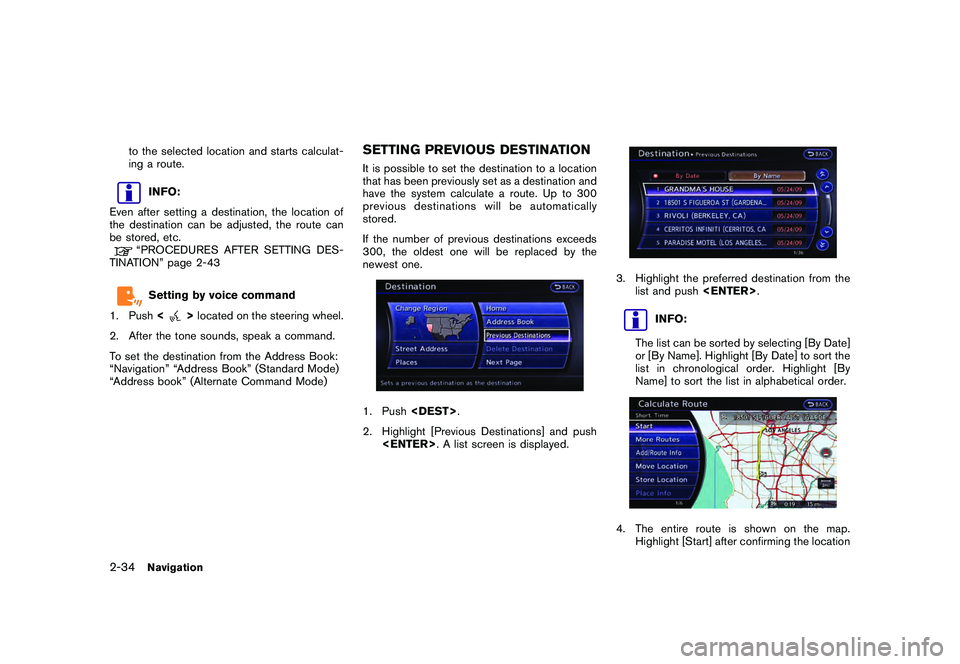
SETTING PREVIOUS DESTINATIONIt is possible to set the destination to a location
that has been previously set as a destination and
have the system calculate a route. Up to 300
previous destinations will be automatically
stored.
If the number of previous destinations exceeds
300, the oldest one will be replaced by the
newest one.1. Push
2. Highlight [Previous Destinations] and push
3. Highlight the preferred destination from the
list and push
INFO:
The list can be sorted by selecting [By Date]
or [By Name]. Highlight [By Date] to sort the
list in chronological order. Highlight [By
Name] to sort the list in alphabetical order.
4. The entire route is shown on the map. Highlight [Start] after confirming the location
2-34
Navigation
Page 63 of 312
Black plate (61,1)
Model "R35-N" EDITED: 2009/ 10/ 30
of the displayed destination, and push
to the selected location and starts calculat-
ing a route.
INFO:
Even after setting a destination, the location of
the destination can be adjusted, the route can
be stored, etc.“PROCEDURES AFTER SETTING DES-
TINATION” page 2-43Setting by voice command
1. Push <
>located on the steering wheel.
2. After the tone sounds, speak a command.
To display the previous destinations list:
“Navigation” “Previous Destinations” (Standard
Mode)
“Previous Destinations” (Alternate Command
Mode)
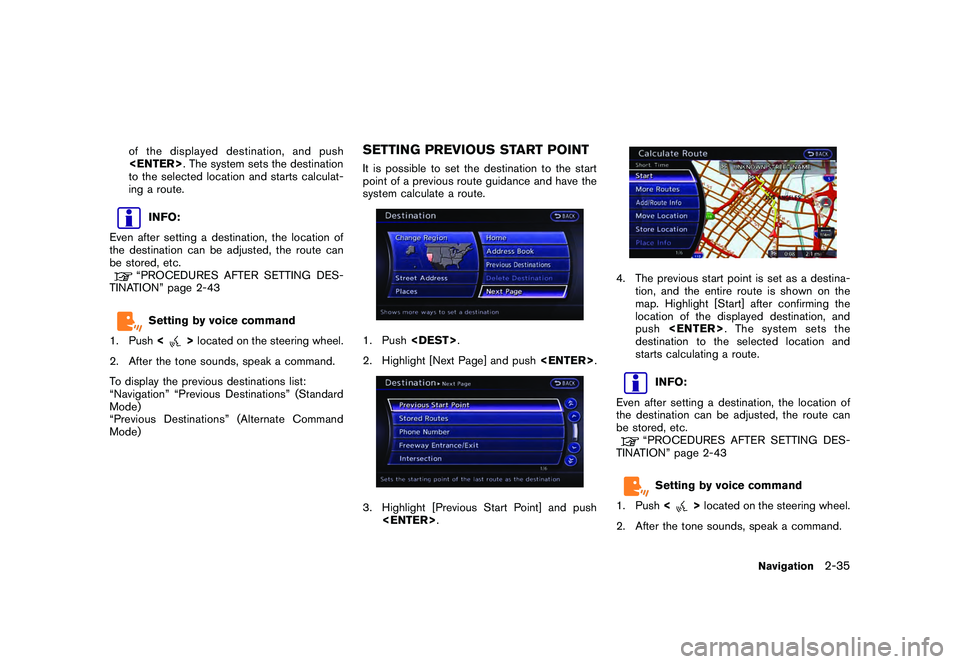
SETTING PREVIOUS START POINTIt is possible to set the destination to the start
point of a previous route guidance and have the
system calculate a route.1. Push
2. Highlight [Next Page] and push
4. The previous start point is set as a destina-
tion, and the entire route is shown on the
map. Highlight [Start] after confirming the
location of the displayed destination, and
push
destination to the selected location and
starts calculating a route.
INFO:
Even after setting a destination, the location of
the destination can be adjusted, the route can
be stored, etc.“PROCEDURES AFTER SETTING DES-
TINATION” page 2-43Setting by voice command
1. Push <
>located on the steering wheel.
2. After the tone sounds, speak a command.
Navigation
2-35
Page 64 of 312
Black plate (62,1)
Model "R35-N" EDITED: 2009/ 10/ 30
To set a previous start point as the destination:
“Previous Start Point” (Alternate Command
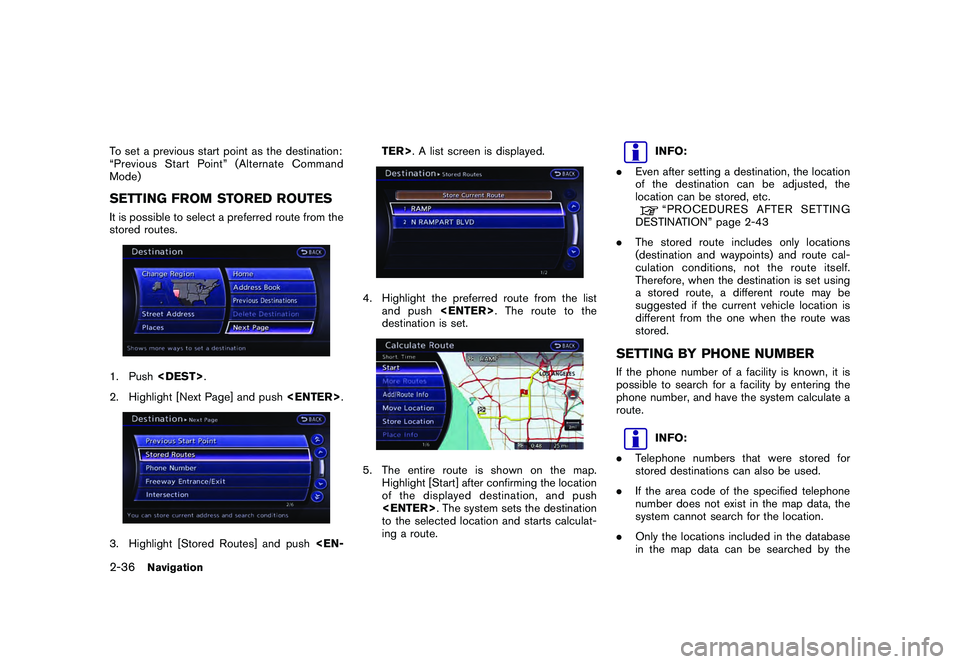
Mode)SETTING FROM STORED ROUTESIt is possible to select a preferred route from the
stored routes.1. Push
2. Highlight [Next Page] and push
4. Highlight the preferred route from the list
and push
destination is set.5. The entire route is shown on the map. Highlight [Start] after confirming the location
of the displayed dest ination, and push
to the selected location and starts calculat-
ing a route.
INFO:
. Even after setting a destination, the location
of the destination can be adjusted, the
location can be stored, etc.“PROCEDURES AFTER SETTING
DESTINATION” page 2-43
. The stored route includes only locations
(destination and waypoints) and route cal-
culation conditions, not the route itself.
Therefore, when the destination is set using
a stored route, a different route may be
suggested if the current vehicle location is
different from the one when the route was
stored.
SETTING BY PHONE NUMBERIf the phone number of a facility is known, it is
possible to search for a facility by entering the
phone number, and have the system calculate a
route.
INFO:
. Telephone numbers that were stored for
stored destinations can also be used.
. If the area code of the specified telephone
number does not exist in the map data, the
system cannot search for the location.
. Only the locations included in the database
in the map data can be searched by the
2-36
Navigation
Page 65 of 312
![NISSAN GT-R 2011 Owners Manual Black plate (63,1)
Model "R35-N" EDITED: 2009/ 10/ 30
phone number. Residential phone numbers
cannot be used to search for a location.
1. Push<DEST>.
2. Highlight [Next Page] and push <ENTER>.3. Highl](/img/5/58175/w960_58175-64.png "NISSAN GT-R 2011 Owners Manual Black plate (63,1)
Model \"R35-N\" EDITED: 2009/ 10/ 30
phone number. Residential phone numbers
cannot be used to search for a location.
1. Push<DEST>.
2. Highlight [Next Page] and push <ENTER>.3. Highl")
Black plate (63,1)
Model "R35-N" EDITED: 2009/ 10/ 30
phone number. Residential phone numbers
cannot be used to search for a location.
1. Push
2. Highlight [Next Page] and push
is displayed.
4. Enter the telephone number including the area code.
5. After finishing the entry, highlight [List] and push
“NUMBER INPUT SCREEN” page 1-
17
6. A list screen is displayed if there are two or more search results. Highlight the preferred
destination from the list and push
and the location is displayed, and the system
starts calculating.
7. The entire route is shown on the map.
Highlight [Start] after confirming the location
of the displayed dest ination, and push
to the selected location and starts calculat-
ing a route.
INFO:
Even after setting a destination, the location of
the destination can be adjusted, the route can
be stored, etc.“PROCEDURES AFTER SETTING DES-
TINATION” page 2-43
Navigation
2-37
Page 66 of 312
Black plate (64,1)
Model "R35-N" EDITED: 2009/ 10/ 30
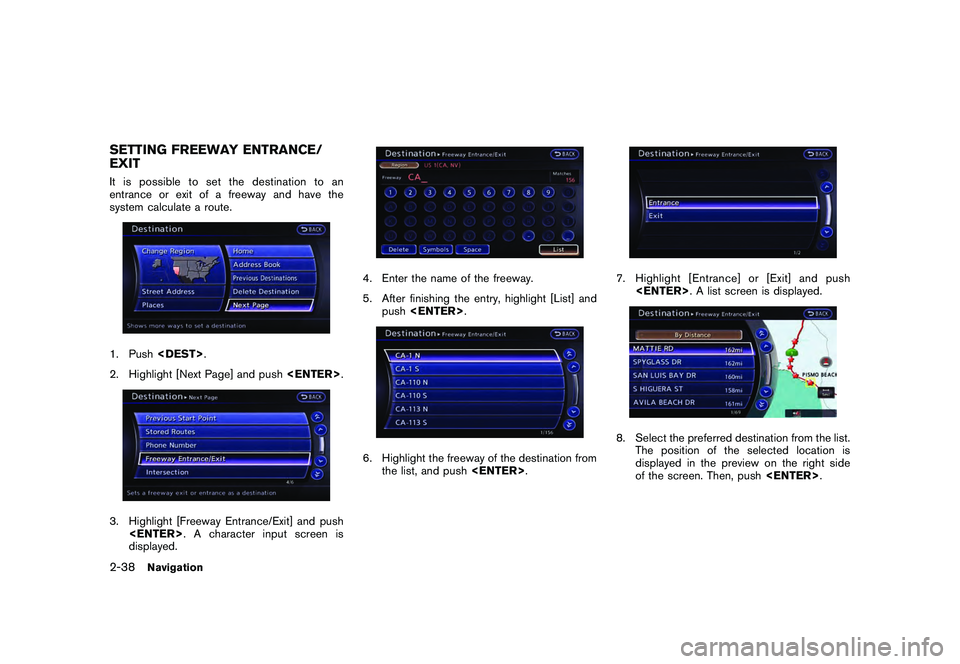
SETTING FREEWAY ENTRANCE/
EXITIt is possible to set the destination to an
entrance or exit of a freeway and have the
system calculate a route.1. Push
2. Highlight [Next Page] and push
displayed.
4. Enter the name of the freeway.
5. After finishing the entry, highlight [List] and
push
the list, and push
7. Highlight [Entrance] or [Exit] and push
The position of the selected location is
displayed in the preview on the right side
of the screen. Then, push
2-38
Navigation
Page 67 of 312
![NISSAN GT-R 2011 Owners Manual Black plate (65,1)
Model "R35-N" EDITED: 2009/ 10/ 30
INFO:
Select [By Distance] to sort the list by the
nearest distance.
9. The entire route is shown on the map. Highlight [Start] after confirming t](/img/5/58175/w960_58175-66.png "NISSAN GT-R 2011 Owners Manual Black plate (65,1)
Model \"R35-N\" EDITED: 2009/ 10/ 30
INFO:
Select [By Distance] to sort the list by the
nearest distance.
9. The entire route is shown on the map. Highlight [Start] after confirming t")
Black plate (65,1)
Model "R35-N" EDITED: 2009/ 10/ 30
INFO:
Select [By Distance] to sort the list by the
nearest distance.
9. The entire route is shown on the map. Highlight [Start] after confirming the location
of the displayed dest ination, and push
to the selected location and starts calculat-
ing a route.
INFO:
Even after setting a destination, the location of
the destination can be adjusted, the route can
be stored, etc.“PROCEDURES AFTER SETTING DES-
TINATION” page 2-43
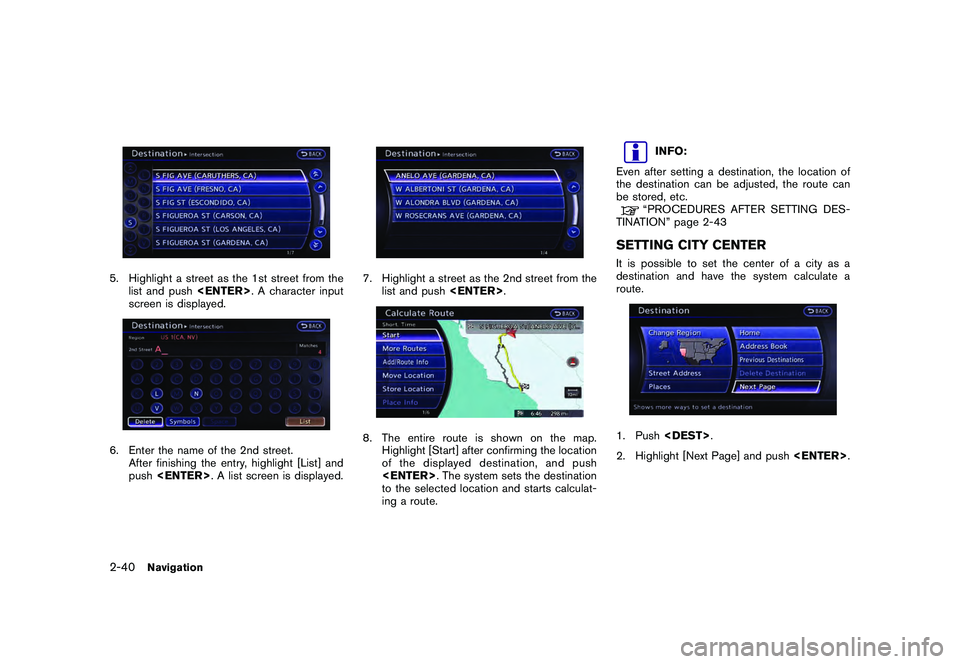
SETTING INTERSECTIONIt is possible to set an intersection of any two
streets as the destination and have the system
calculate a route.1. Push
2. Highlight [Next Page] and push
3. Highlight [Intersection] and push
played.4. Enter the name of the 1st street.
After finishing the entry, highlight [List] and
push
Navigation
2-39
Page 68 of 312
Black plate (66,1)
Model "R35-N" EDITED: 2009/ 10/ 30
5. Highlight a street as the 1st street from thelist and push
screen is displayed.6. Enter the name of the 2nd street. After finishing the entry, highlight [List] and
push
7. Highlight a street as the 2nd street from the
list and push
Highlight [Start] after confirming the location
of the displayed dest ination, and push
to the selected location and starts calculat-
ing a route.
INFO:
Even after setting a destination, the location of
the destination can be adjusted, the route can
be stored, etc.“PROCEDURES AFTER SETTING DES-
TINATION” page 2-43
SETTING CITY CENTERIt is possible to set the center of a city as a
destination and have the system calculate a
route.1. Push
2. Highlight [Next Page] and push
2-40
Navigation
Page 69 of 312
![NISSAN GT-R 2011 Owners Manual Black plate (67,1)
Model "R35-N" EDITED: 2009/ 10/ 30
3. Highlight [City Center] and push<EN-
TER>. A character input screen is dis-
played.4. Enter the name of the city, highlight [List]
and push <EN](/img/5/58175/w960_58175-68.png "NISSAN GT-R 2011 Owners Manual Black plate (67,1)
Model \"R35-N\" EDITED: 2009/ 10/ 30
3. Highlight [City Center] and push<EN-
TER>. A character input screen is dis-
played.4. Enter the name of the city, highlight [List]
and push <EN")
Black plate (67,1)
Model "R35-N" EDITED: 2009/ 10/ 30
3. Highlight [City Center] and push
played.4. Enter the name of the city, highlight [List]
and push
displayed.
INFO:
Highlight [Last 5 Cities] and push
as destinations.
5. Highlight the preferred destination from the list and push
selected location is displayed in the preview
on the right side of the screen.
INFO:
Select [By Distance] to sort the list by the
nearest distance.
6. The selected destination is displayed at the center of the map. Highlight [Start] after
confirming the location of the displayed
destination, and push
The system sets the destination to the
selected location and starts calculating a
route.
Navigation
2-41
Page 70 of 312

Black plate (68,1)
Model "R35-N" EDITED: 2009/ 10/ 30
INFO:
Even after setting a destination, the location
of the destination can be adjusted, the route
can be stored, etc.“PROCEDURES AFTER SETTING
DESTINATION” page 2-43
SETTING POINT ON MAPIt is possible to set a location scrolled to on the
map as the destination and have the system
calculate a route.1. Scroll the map, place the cross pointer over the preferred location, and push
INFO:
. The map scale should be adjusted to
search for a location more effectively.
. The point on the blinking road where the
center of the cross pointer is located can be set as a destination.
2. Highlight [New Dest.] and push
INFO:
For the items other than [New Dest.], refer to
“Map menu screen”.“Scrolled location map screen” page
2-19
3. The system sets the destination to the selected location and starts calculating a route.
INFO:
If a point on a freeway is set as the destination, a
confirmation message is displayed.
DELETE DESTINATIONIt is possible to delete a destination and all
waypoints that have already been set.1. Press
2-42
Navigation
Page 71 of 312
![NISSAN GT-R 2011 Owners Manual Black plate (69,1)
Model "R35-N" EDITED: 2009/ 10/ 30
2. Select [Delete Destination] and press<EN-
TER>.3. A confirmation message is displayed. Select [Yes] and press <ENTER>.
The destination and the](/img/5/58175/w960_58175-70.png "NISSAN GT-R 2011 Owners Manual Black plate (69,1)
Model \"R35-N\" EDITED: 2009/ 10/ 30
2. Select [Delete Destination] and press<EN-
TER>.3. A confirmation message is displayed. Select [Yes] and press <ENTER>.
The destination and the")
Black plate (69,1)
Model "R35-N" EDITED: 2009/ 10/ 30
2. Select [Delete Destination] and press
The destination and the waypoints are
deleted.
INFO:
The deleted destination and waypoints are not
able to be reactivated.Setting by voice command
1. Push <
>on the steering wheel.
2. After the tone sounds, speak a command.
To delete a destination and all waypoints:
“Delete Destination” (Alternate Command
Mode)
PROCEDURES AFTER SETTING
DESTINATIONAfter performing a route search, the route
guidance can be immediately started. Also, it is
possible to confirm or change a route.Available items after setting destination
. [Start]:
Starts route guidance to the selected
destination.
“Starting route guidance” page 2-44
. [More Routes]:
Displays 3 alternative routes.“Selecting route” page 2-44 .
[Add/Route Info]:
Displays the route information. A destination
or a waypoint can also be added.
“Confirming route” page 2-45
. [Move Location]:
Displays a map screen. The location of the
destination can be adjusted.“Moving location of destination” page
2-46
. [Store Location]:
Stores the location in the Address Book.“Storing location” page 2-47
. [Place Info]:
Displays information about the facility that
has been set as the destination, if it is
included in the map data.“Viewing information about searched
location” page 2-47INFO:
. If no operations have been performed on the
system for several seconds, [Start] is auto-
matically selected, and the system starts
route guidance.
. When using waypoints, [More Routes] is
disabled. After the route is started, push
Route] to change the route between each
waypoint.
Navigation
2-43
ROUTE GUIDANCE