low NISSAN GT-R 2013 R35 Multi Function Display Owners Manual
[x] Cancel search | Manufacturer: NISSAN, Model Year: 2013, Model line: GT-R, Model: NISSAN GT-R 2013 R35Pages: 315, PDF Size: 6.96 MB
Page 307 of 315
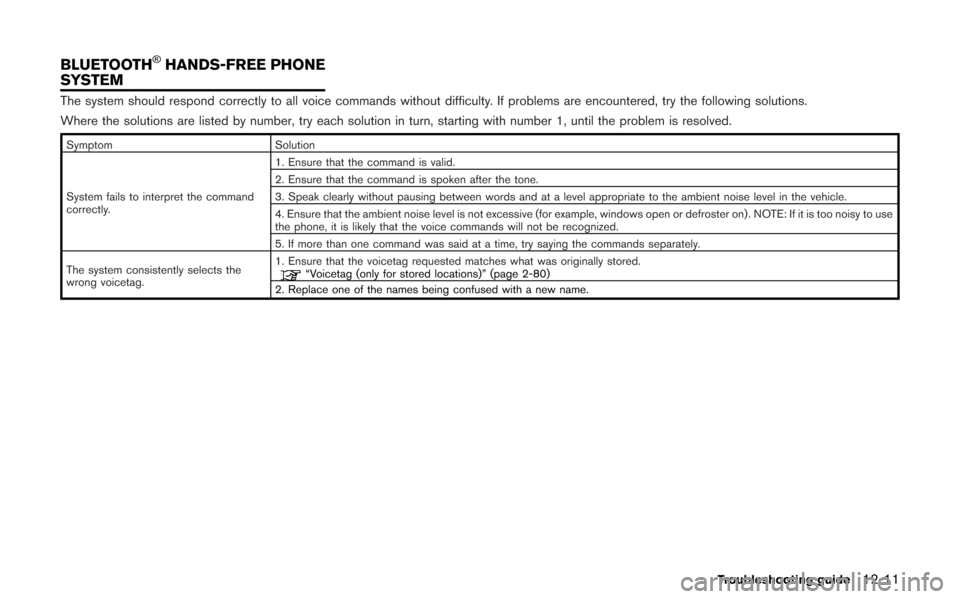
The system should respond correctly to all voice commands without difficulty. If problems are encountered, try the following solutions.
Where the solutions are listed by number, try each solution in turn, starting with number 1, until the problem is resolved.
SymptomSolution
System fails to interpret the command
correctly. 1. Ensure that the command is valid.
2. Ensure that the command is spoken after the tone.
3. Speak clearly without pausing between words and at a level appropriate to the ambient noise level in the vehicle.
4. Ensure that the ambient noise level is not excessive (for example, windows open or defroster on) . NOTE: If it is too noisy to use
the phone, it is likely that the voice commands will not be recognized.
5. If more than one command was said at a time, try saying the commands separately.
The system consistently selects the
wrong voicetag. 1. Ensure that the voicetag requested matches what was originally stored.
“Voicetag (only for stored locations)” (page 2-80)
2. Replace one of the names being confused with a new name.
Troubleshooting guide12-11
BLUETOOTH®HANDS-FREE PHONE
SYSTEM
Page 308 of 315
12-12Troubleshooting guide
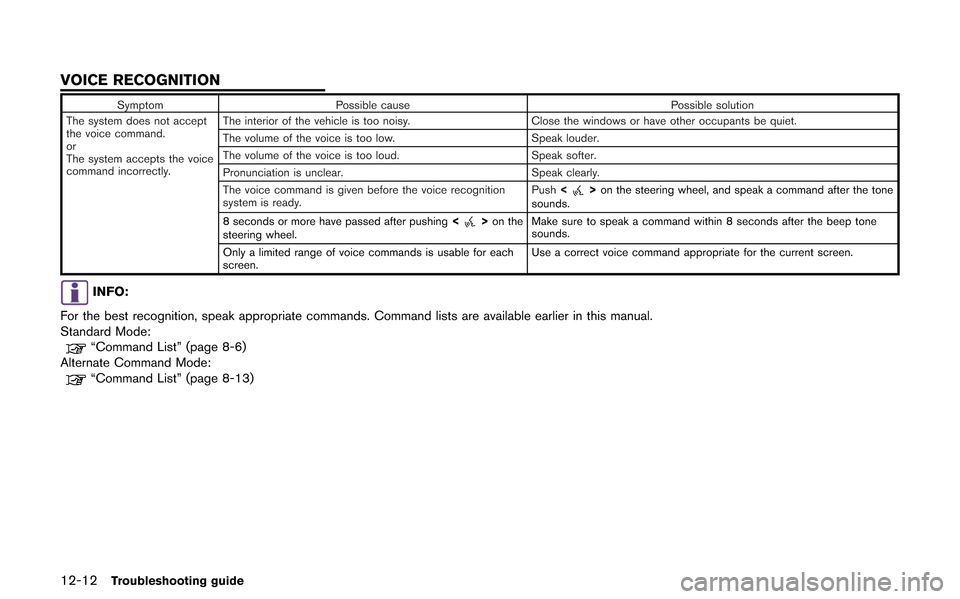
SymptomPossible cause Possible solution
The system does not accept
the voice command.
or
The system accepts the voice
command incorrectly. The interior of the vehicle is too noisy.
Close the windows or have other occupants be quiet.
The volume of the voice is too low. Speak louder.
The volume of the voice is too loud. Speak softer.
Pronunciation is unclear. Speak clearly.
The voice command is given before the voice recognition
system is ready. Push
<
>on the steering wheel, and speak a command after the tone
sounds.
8 seconds or more have passed after pushing <
>on the
steering wheel. Make sure to speak a command within 8 seconds after the beep tone
sounds.
Only a limited range of voice commands is usable for each
screen. Use a correct voice command appropriate for the current screen.
INFO:
For the best recognition, speak appropriate commands. Command lists are available earlier in this manual.
Standard Mode:
“Command List” (page 8-6)
Alternate Command Mode:
“Command List” (page 8-13)
VOICE RECOGNITION
Page 311 of 315
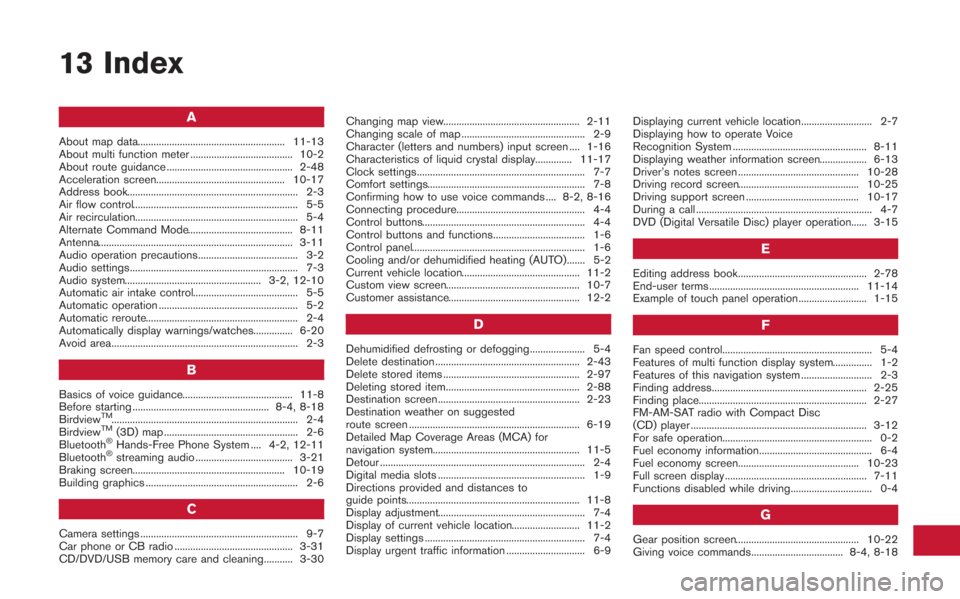
13 Index
A
About map data........................................................ 11-13
About multi function meter ....................................... 10-2
About route guidance ................................................ 2-48
Acceleration screen................................................. 10-17
Address book................................................................. 2-3
Air flow control............................................................... 5-5
Air recirculation.............................................................. 5-4
Alternate Command Mode........................................ 8-11
Antenna.......................................................................... 3-11
Audio operation precautions...................................... 3-2
Audio settings................................................................ 7-3
Audio system.................................................... 3-2, 12-10
Automatic air intake control........................................ 5-5
Automatic operation ..................................................... 5-2
Automatic reroute.......................................................... 2-4
Automatically display warnings/watches............... 6-20
Avoid area....................................................................... 2-3
B
Basics of voice guidance.......................................... 11-8
Before starting .................................................... 8-4, 8-18
Birdview
TM....................................................................... 2-4
BirdviewTM(3D) map ................................................... 2-6
Bluetooth®Hands-Free Phone System .... 4-2, 12-11
Bluetooth®streaming audio ..................................... 3-21
Braking screen.......................................................... 10-19
Building graphics .......................................................... 2-6
C
Camera settings ............................................................ 9-7
Car phone or CB radio ............................................. 3-31
CD/DVD/USB memory care and cleaning........... 3-30 Changing map view.................................................... 2-11
Changing scale of map ............................................... 2-9
Character (letters and numbers) input screen .... 1-16
Characteristics of liquid crystal display.............. 11-17
Clock settings................................................................ 7-7
Comfort settings............................................................ 7-8
Confirming how to use voice commands .... 8-2, 8-16
Connecting procedure................................................. 4-4
Control buttons.............................................................. 4-4
Control buttons and functions................................... 1-6
Control panel.................................................................. 1-6
Cooling and/or dehumidified heating (AUTO)....... 5-2
Current vehicle location............................................. 11-2
Custom view screen................................................... 10-7
Customer assistance.................................................. 12-2
D
Dehumidified defrosting or defogging..................... 5-4
Delete destination ....................................................... 2-43
Delete stored items .................................................... 2-97
Deleting stored item................................................... 2-88
Destination screen...................................................... 2-23
Destination weather on suggested
route screen ................................................................. 6-19
Detailed Map Coverage Areas (MCA) for
navigation system........................................................ 11-5
Detour .............................................................................. 2-4
Digital media slots ........................................................ 1-9
Directions provided and distances to
guide points.................................................................. 11-8
Display adjustment........................................................ 7-4
Display of current vehicle location.......................... 11-2
Display settings ............................................................. 7-4
Display urgent traffic information .............................. 6-9
Displaying current vehicle location........................... 2-7
Displaying how to operate Voice
Recognition System ................................................... 8-11
Displaying weather information screen.................. 6-13
Driver’s notes screen .............................................. 10-28
Driving record screen.............................................. 10-25
Driving support screen ........................................... 10-17
During a call ................................................................... 4-7
DVD (Digital Versatile Disc) player operation...... 3-15
E
Editing address book................................................. 2-78
End-user terms ......................................................... 11-14
Example of touch panel operation.......................... 1-15
F
Fan speed control......................................................... 5-4
Features of multi function display system............... 1-2
Features of this navigation system ........................... 2-3
Finding address........................................................... 2-25
Finding place................................................................ 2-27
FM-AM-SAT radio with Compact Disc
(CD) player ................................................................... 3-12
For safe operation......................................................... 0-2
Fuel economy information........................................... 6-4
Fuel economy screen.............................................. 10-23
Full screen display ...................................................... 7-11
Functions disabled while driving............................... 0-4
G
Gear position screen............................................... 10-22
Giving voice commands................................... 8-4, 8-18