set NISSAN GT-R 2015 R35 Multi Function Display Owners Manual
[x] Cancel search | Manufacturer: NISSAN, Model Year: 2015, Model line: GT-R, Model: NISSAN GT-R 2015 R35Pages: 298, PDF Size: 11.39 MB
Page 276 of 298
Terms and conditions
Personal Use Only.You agree to use this Data
together with Nissan Automotive Products for
the solely personal, non-commercial purposes
for which you were licensed, and not for service
bureau, timesharing or other similar purposes.
Accordingly, but subject to the restrictions set
forth in the following paragraphs, you may copy
this Data only as necessary for your personal
use to (i) view it, and (ii) save it, provided that
you do not remove any copyright notices that
appear and do not modify the Data in any way.
You agree not to otherwise reproduce, copy,
modify, decompile, disassemble or reverse
engineer any portion of this Data, and may not
transfer or distribute it in any form, for any
purpose, except to the extent permitted by
mandatory laws. Multi-disc sets may only be
transferred or sold as a complete set as
provided by HITACHI and not as a subset
thereof.
Restrictions. Except where you have been
specifically licensed to do so by HITACHI, and
without limiting the preceding paragraph, you
may not (a) use this Data with any products,
systems, or applications installed or otherwise
connected to or in communication with vehicles,
capable of vehicle navigation, positioning, dis-
patch, real time route guidance, fleet manage- ment or similar applications; or (b) with or in
communication with any positioning devices or
any mobile or wireless-connected electronic or
computer devices, including without limitation
cellular phones, palmtop and handheld compu-
ters, pagers, and personal digital assistants or
PDAs.
Warning.
The Data may contain inaccurate or
incomplete information due to the passage of
time, changing circumstances, sources used
and the nature of collecting comprehensive
geographic data, any of which may lead to
incorrect results.
No Warranty. This Data is provided to you “as
is,” and you agree to use it at your own risk.
HITACHI and its licensors (and their licensors
and suppliers) make no guarantees, representa-
tions or warranties of any kind, express or
implied, arising by law or otherwise, including
but not limited to, content, quality, accuracy,
completeness, effectiveness, reliability, fitness
for a particular purpose, usefulness, use or
results to be obtained from this Data, or that the
Data or server will be uninterrupted or error-free.
Disclaimer of Warranty: HITACHI AND ITS
LICENSORS (INCLUDING THEIR LICENSORS
AND SUPPLIERS) DISCLAIM ANY WARRAN-
TIES, EXPRESS OR IMPLIED, OF QUALITY,
PERFORMANCE, MERCHANTABILITY, FIT- NESS FOR A PARTICULAR PURPOSE OR
NONINFRINGEMENT. Some States, Territories
and Countries do not allow certain warranty
exclusions, so to that extent the above exclusion
may not apply to you.
Disclaimer of Liability:
HITACHI AND ITS
LICENSORS (INCLUDING THEIR LICENSORS
AND SUPPLIERS) SHALL NOT BE LIABLE TO
YOU: IN RESPECT OF ANY CLAIM, DEMAND
OR ACTION, IRRESPECTIVE OF THE NATURE
OF THE CAUSE OF THE CLAIM, DEMAND OR
ACTION ALLEGING ANY LOSS, INJURY OR
DAMAGES, DIRECT OR INDIRECT, WHICH
MAY RESULT FROM THE USE OR POSSES-
SION OF THE INFORMATION; OR FOR ANY
LOSS OF PROFIT, REVENUE, CONTRACTS
OR SAVINGS, OR ANY OTHER DIRECT,
INDIRECT, INCIDENTAL, SPECIAL OR CON-
SEQUENTIAL DAMAGES ARISING OUT OF
YOUR USE OF OR INABILITY TO USE THIS
INFORMATION, ANY DEFECT IN THE INFOR-
MATION, OR THE BREACH OF THESE
TERMS OR CONDITIONS, WHETHER IN AN
ACTION IN CONTRACT OR TORT OR BASED
ON A WARRANTY, EVEN IF HITACHI OR ITS
LICENSORS HAVE BEEN ADVISED OF THE
POSSIBILITY OF SUCH DAMAGES. Some
States, Territories and Countries do not allow
certain liability exclusions or damages limita-
tions, so to that extent the above may not apply
General system information11-15
Page 282 of 298
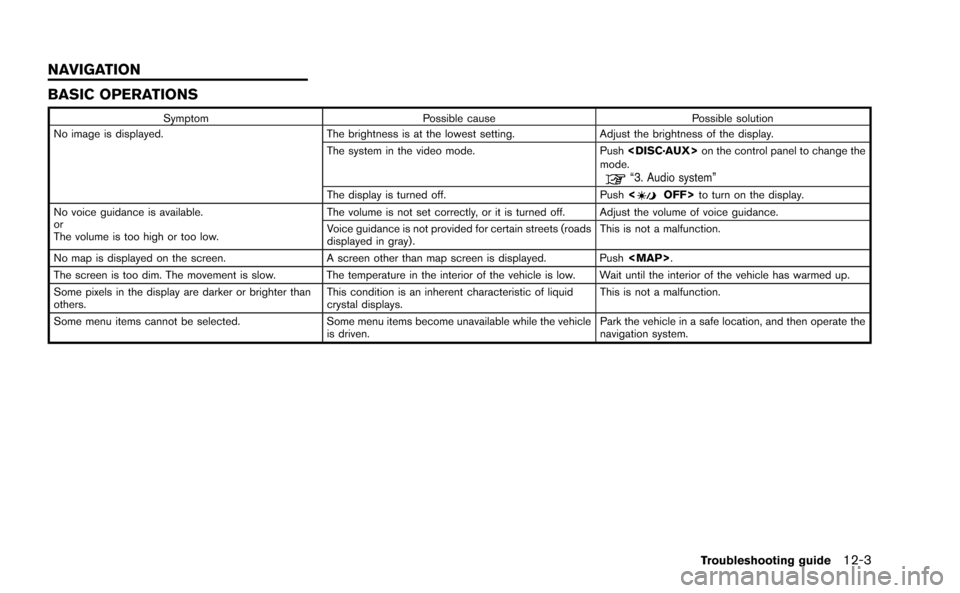
BASIC OPERATIONS
SymptomPossible cause Possible solution
No image is displayed. The brightness is at the lowest setting.Adjust the brightness of the display.
The system in the video mode. Push
mode.
“3. Audio system”
The display is turned off. Push
No voice guidance is available.
or
The volume is too high or too low. The volume is not set correctly, or it is turned off. Adjust the volume of voice guidance.
Voice guidance is not provided for certain streets (roads
displayed in gray).
This is not a malfunction.
No map is displayed on the screen. A screen other than map screen is displayed. Push
Page 283 of 298
12-4Troubleshooting guide
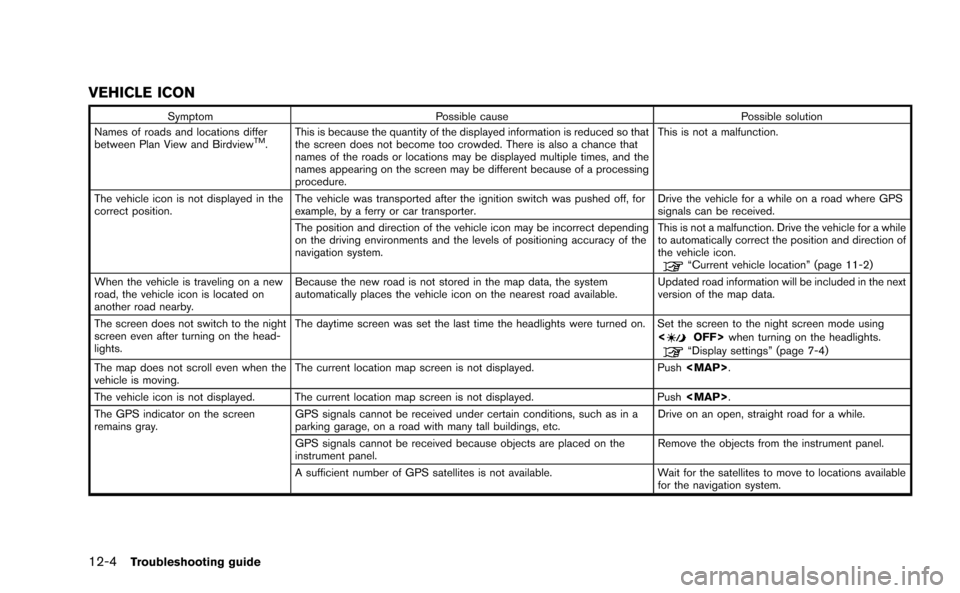
VEHICLE ICON
SymptomPossible cause Possible solution
Names of roads and locations differ
between Plan View and Birdview
TM. This is because the quantity of the displayed information is reduced so that
the screen does not become too crowded. There is also a chance that
names of the roads or locations may be displayed multiple times, and the
names appearing on the screen may be different because of a processing
procedure. This is not a malfunction.
The vehicle icon is not displayed in the
correct position. The vehicle was transported after the ignition switch was pushed off, for
example, by a ferry or car transporter. Drive the vehicle for a while on a road where GPS
signals can be received.
The position and direction of the vehicle icon may be incorrect depending
on the driving environments and the levels of positioning accuracy of the
navigation system. This is not a malfunction. Drive the vehicle for a while
to automatically correct the position and direction of
the vehicle icon.
“Current vehicle location” (page 11-2)
When the vehicle is traveling on a new
road, the vehicle icon is located on
another road nearby. Because the new road is not stored in the map data, the system
automatically places the vehicle icon on the nearest road available.
Updated road information will be included in the next
version of the map data.
The screen does not switch to the night
screen even after turning on the head-
lights. The daytime screen was set the last time the headlights were turned on. Set the screen to the night screen mode using
<
OFF>when turning on the headlights.“Display settings” (page 7-4)
The map does not scroll even when the
vehicle is moving. The current location map screen is not displayed.
Push
Page 285 of 298
12-6Troubleshooting guide
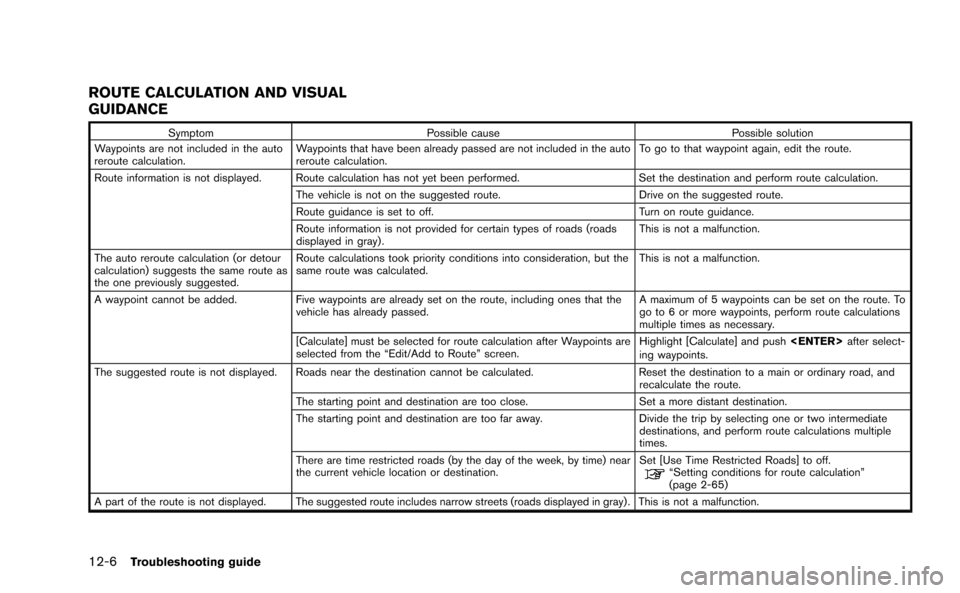
ROUTE CALCULATION AND VISUAL
GUIDANCE
SymptomPossible cause Possible solution
Waypoints are not included in the auto
reroute calculation. Waypoints that have been already passed are not included in the auto
reroute calculation. To go to that waypoint again, edit the route.
Route information is not displayed. Route calculation has not yet been performed. Set the destination and perform route calculation.
The vehicle is not on the suggested route. Drive on the suggested route.
Route guidance is set to off. Turn on route guidance.
Route information is not provided for certain types of roads (roads
displayed in gray) . This is not a malfunction.
The auto reroute calculation (or detour
calculation) suggests the same route as
the one previously suggested. Route calculations took priority conditions into consideration, but the
same route was calculated.
This is not a malfunction.
A waypoint cannot be added. Five waypoints are already set on the route, including ones that the
vehicle has already passed. A maximum of 5 waypoints can be set on the route. To
go to 6 or more waypoints, perform route calculations
multiple times as necessary.
[Calculate] must be selected for route calculation after Waypoints are
selected from the “Edit/Add to Route” screen. Highlight [Calculate] and push
ing waypoints.
The suggested route is not displayed. Roads near the destination cannot be calculated. Reset the destination to a main or ordinary road, and
recalculate the route.
The starting point and destination are too close. Set a more distant destination.
The starting point and destination are too far away. Divide the trip by selecting one or two intermediate
destinations, and perform route calculations multiple
times.
There are time restricted roads (by the day of the week, by time) near
the current vehicle location or destination. Set [Use Time Restricted Roads] to off.
“Setting conditions for route calculation”
(page 2-65)
A part of the route is not displayed. The suggested route includes narrow streets (roads displayed in gray) . This is not a malfunction.
Page 286 of 298

SymptomPossible cause Possible solution
The part of the route that the vehicle has
already passed is deleted. A route is managed by sections between waypoints. If the vehicle
passed the first waypoint, the section between the starting point and
the waypoint is deleted (it may not be deleted depending on the area) . This is not a malfunction.
An indirect route is suggested. If there are restrictions (such as one-way streets) on roads close to the starting point or destination, the system may suggest an indirect route. Adjust the location of the starting point or destination.
The system may suggest an indirect route because route calculation
does not take into consideration some areas such as narrow streets
(gray roads) . Reset the destination to a main or ordinary road, and
recalculate the route.
The landmark information does not
correspond to the actual information. This may be caused by insufficient or incorrect map data.
Updated information will be included in the next version
of the map data.
The suggested route does not exactly
connect to the starting point, waypoints,
or destination. There is no data for route calculation closer to these locations. Set the starting point, waypoints and destination on a
main road, and perform route calculation.
Troubleshooting guide12-7
Page 287 of 298
12-8Troubleshooting guide
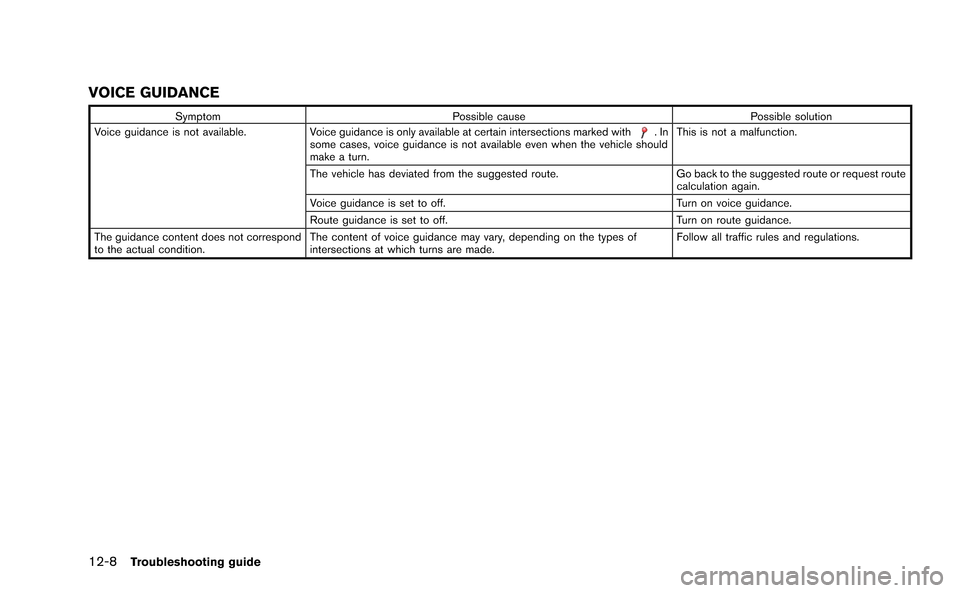
VOICE GUIDANCE
SymptomPossible cause Possible solution
Voice guidance is not available. Voice guidance is only available at certain intersections marked with.In
some cases, voice guidance is not available even when the vehicle should
make a turn. This is not a malfunction.
The vehicle has deviated from the suggested route. Go back to the suggested route or request route
calculation again.
Voice guidance is set to off. Turn on voice guidance.
Route guidance is set to off. Turn on route guidance.
The guidance content does not correspond
to the actual condition. The content of voice guidance may vary, depending on the types of
intersections at which turns are made. Follow all traffic rules and regulations.
Page 288 of 298
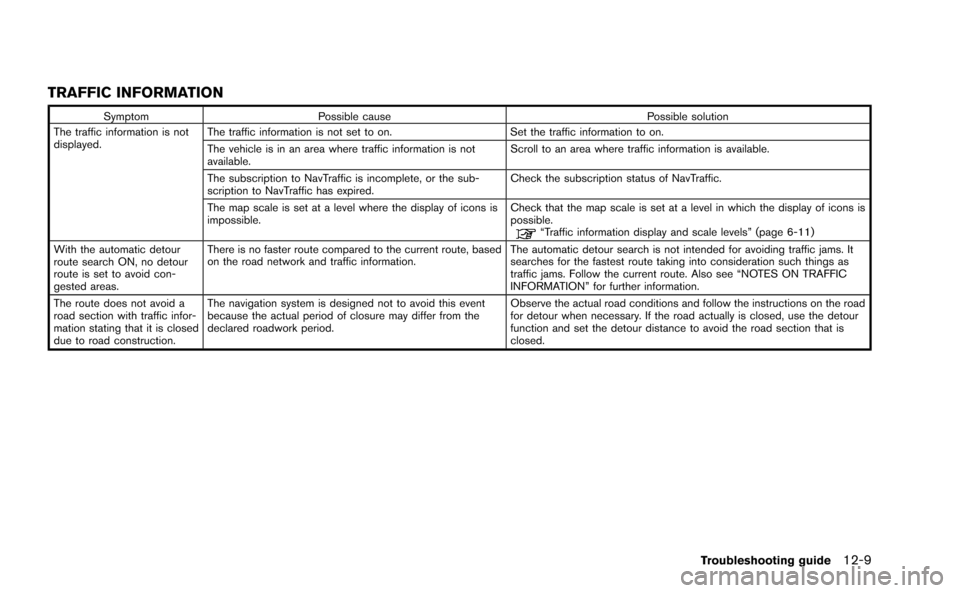
TRAFFIC INFORMATION
SymptomPossible cause Possible solution
The traffic information is not
displayed. The traffic information is not set to on.
Set the traffic information to on.
The vehicle is in an area where traffic information is not
available. Scroll to an area where traffic information is available.
The subscription to NavTraffic is incomplete, or the sub-
scription to NavTraffic has expired. Check the subscription status of NavTraffic.
The map scale is set at a level where the display of icons is
impossible. Check that the map scale is set at a level in which the display of icons is
possible.
“Traffic information display and scale levels” (page 6-11)
With the automatic detour
route search ON, no detour
route is set to avoid con-
gested areas. There is no faster route compared to the current route, based
on the road network and traffic information.
The automatic detour search is not intended for avoiding traffic jams. It
searches for the fastest route taking into consideration such things as
traffic jams. Follow the current route. Also see “NOTES ON TRAFFIC
INFORMATION” for further information.
The route does not avoid a
road section with traffic infor-
mation stating that it is closed
due to road construction. The navigation system is designed not to avoid this event
because the actual period of closure may differ from the
declared roadwork period.
Observe the actual road conditions and follow the instructions on the road
for detour when necessary. If the road actually is closed, use the detour
function and set the detour distance to avoid the road section that is
closed.
Troubleshooting guide12-9
Page 289 of 298
12-10Troubleshooting guide
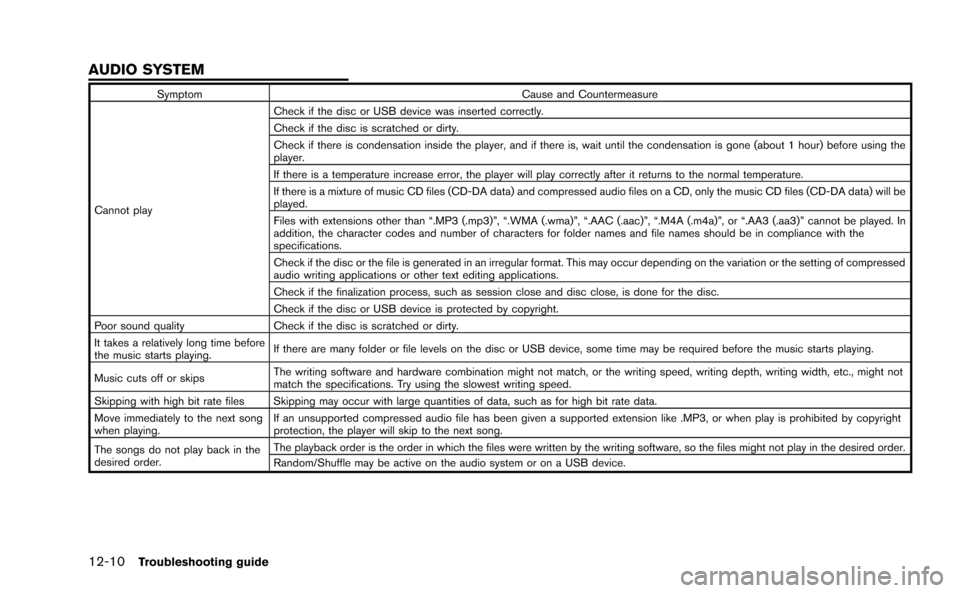
SymptomCause and Countermeasure
Cannot play Check if the disc or USB device was inserted correctly.
Check if the disc is scratched or dirty.
Check if there is condensation inside the player, and if there is, wait until the condensation is gone (about 1 hour) before using the
player.
If there is a temperature increase error, the player will play correctly after it returns to the normal temperature.
If there is a mixture of music CD files (CD-DA data) and compressed audio files on a CD, only the music CD files (CD-DA data) will be
played.
Files with extensions other than “.MP3 (.mp3)”, “.WMA (.wma)”, “.AAC (.aac)”, “.M4A (.m4a)”, or “.AA3 (.aa3)” cannot be played. In
addition, the character codes and number of characters for folder names and file names should be in compliance with the
specifications.
Check if the disc or the file is generated in an irregular format. This may occur depending on the variation or the setting of compressed
audio writing applications or other text editing applications.
Check if the finalization process, such as session close and disc close, is done for the disc.
Check if the disc or USB device is protected by copyright.
Poor sound quality Check if the disc is scratched or dirty.
It takes a relatively long time before
the music starts playing. If there are many folder or file levels on the disc or USB device, some time may be required before the music starts playing.
Music cuts off or skips The writing software and hardware combination might not match, or the writing speed, writing depth, writing width, etc., might not
match the specifications. Try using the slowest writing speed.
Skipping with high bit rate files Skipping may occur with large quantities of data, such as for high bit rate data.
Move immediately to the next song
when playing. If an unsupported compressed audio file has been given a supported extension like .MP3, or when play is prohibited by copyright
protection, the player will skip to the next song.
The songs do not play back in the
desired order. The playback order is the order in which the files were written by the writing software, so the files might not play in the desired order.
Random/Shuffle may be active on the audio system or on a USB device.
AUDIO SYSTEM
Page 292 of 298
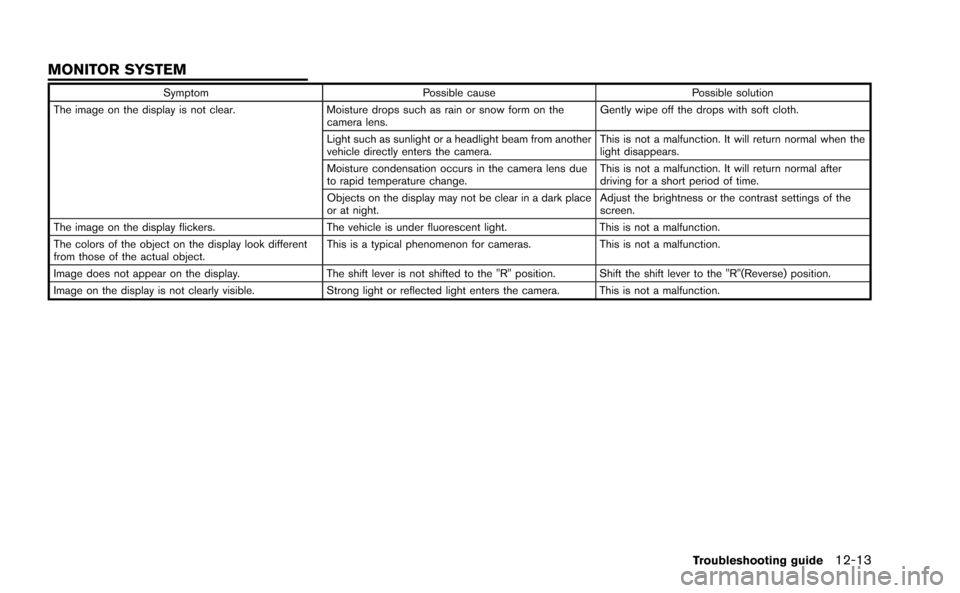
SymptomPossible cause Possible solution
The image on the display is not clear. Moisture drops such as rain or snow form on the
camera lens. Gently wipe off the drops with soft cloth.
Light such as sunlight or a headlight beam from another
vehicle directly enters the camera. This is not a malfunction. It will return normal when the
light disappears.
Moisture condensation occurs in the camera lens due
to rapid temperature change. This is not a malfunction. It will return normal after
driving for a short period of time.
Objects on the display may not be clear in a dark place
or at night. Adjust the brightness or the contrast settings of the
screen.
The image on the display flickers. The vehicle is under fluorescent light.This is not a malfunction.
The colors of the object on the display look different
from those of the actual object. This is a typical phenomenon for cameras.
This is not a malfunction.
Image does not appear on the display. The shift lever is not shifted to the "R" position. Shift the shift lever to the "R"(Reverse) position.
Image on the display is not clearly visible. Strong light or reflected light enters the camera. This is not a malfunction.
Troubleshooting guide12-13
MONITOR SYSTEM
Page 294 of 298
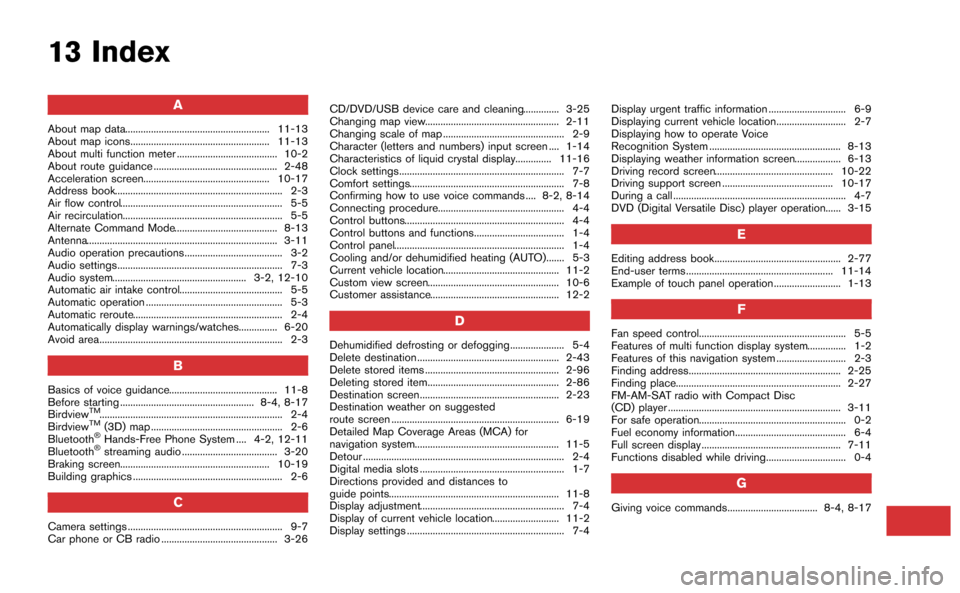
13 Index
A
About map data........................................................ 11-13
About map icons...................................................... 11-13
About multi function meter ....................................... 10-2
About route guidance ................................................ 2-48
Acceleration screen................................................. 10-17
Address book................................................................. 2-3
Air flow control............................................................... 5-5
Air recirculation.............................................................. 5-5
Alternate Command Mode........................................ 8-13
Antenna.......................................................................... 3-11
Audio operation precautions...................................... 3-2
Audio settings................................................................ 7-3
Audio system.................................................... 3-2, 12-10
Automatic air intake control........................................ 5-5
Automatic operation ..................................................... 5-3
Automatic reroute.......................................................... 2-4
Automatically display warnings/watches............... 6-20
Avoid area....................................................................... 2-3
B
Basics of voice guidance.......................................... 11-8
Before starting .................................................... 8-4, 8-17
Birdview
TM....................................................................... 2-4
BirdviewTM(3D) map ................................................... 2-6
Bluetooth®Hands-Free Phone System .... 4-2, 12-11
Bluetooth®streaming audio ..................................... 3-20
Braking screen.......................................................... 10-19
Building graphics .......................................................... 2-6
C
Camera settings ............................................................ 9-7
Car phone or CB radio ............................................. 3-26 CD/DVD/USB device care and cleaning.............. 3-25
Changing map view.................................................... 2-11
Changing scale of map ............................................... 2-9
Character (letters and numbers) input screen .... 1-14
Characteristics of liquid crystal display.............. 11-16
Clock settings................................................................ 7-7
Comfort settings............................................................ 7-8
Confirming how to use voice commands .... 8-2, 8-14
Connecting procedure................................................. 4-4
Control buttons.............................................................. 4-4
Control buttons and functions................................... 1-4
Control panel.................................................................. 1-4
Cooling and/or dehumidified heating (AUTO)....... 5-3
Current vehicle location............................................. 11-2
Custom view screen................................................... 10-6
Customer assistance.................................................. 12-2
D
Dehumidified defrosting or defogging..................... 5-4
Delete destination ....................................................... 2-43
Delete stored items .................................................... 2-96
Deleting stored item................................................... 2-86
Destination screen...................................................... 2-23
Destination weather on suggested
route screen ................................................................. 6-19
Detailed Map Coverage Areas (MCA) for
navigation system........................................................ 11-5
Detour .............................................................................. 2-4
Digital media slots ........................................................ 1-7
Directions provided and distances to
guide points.................................................................. 11-8
Display adjustment........................................................ 7-4
Display of current vehicle location.......................... 11-2
Display settings ............................................................. 7-4
Display urgent traffic information .............................. 6-9
Displaying current vehicle location........................... 2-7
Displaying how to operate Voice
Recognition System ................................................... 8-13
Displaying weather information screen.................. 6-13
Driving record screen.............................................. 10-22
Driving support screen ........................................... 10-17
During a call ................................................................... 4-7
DVD (Digital Versatile Disc) player operation...... 3-15
E
Editing address book................................................. 2-77
End-user terms ......................................................... 11-14
Example of touch panel operation.......................... 1-13
F
Fan speed control......................................................... 5-5
Features of multi function display system............... 1-2
Features of this navigation system ........................... 2-3
Finding address........................................................... 2-25
Finding place................................................................ 2-27
FM-AM-SAT radio with Compact Disc
(CD) player ................................................................... 3-11
For safe operation......................................................... 0-2
Fuel economy information........................................... 6-4
Full screen display ...................................................... 7-11
Functions disabled while driving............................... 0-4
G
Giving voice commands................................... 8-4, 8-17