set NISSAN GT-R 2015 R35 Multi Function Display Owners Manual
[x] Cancel search | Manufacturer: NISSAN, Model Year: 2015, Model line: GT-R, Model: NISSAN GT-R 2015 R35Pages: 298, PDF Size: 11.39 MB
Page 237 of 298
10-2Multi function meter
The multi function meter allows you to see the
vehicle status and the results of driving opera-
tion.
SAFETY NOTES
For your driving safety please read the following
warnings.
WARNING
.Use the information from the multi
function meter strictly as a refer-
ence to make your driving more
comfortable. The readings are not
meant to prevent accidents caused
by reckless driving or poor driving
conditions (due to weather, road
condition, etc.) . Always obey all
traffic regulations and posted speed
limits.
. Operating the multi function meter
while driving can lead to a crash
resulting in serious injuries or
death. Always park the vehicle in a
safe place before operating the dis-
play screen.
. Look at the display screen only
briefly while driving. Keep your eyes
on the road. Inattentive driving may
lead to a crash resulting in serious injuries or death.
INFO:
. The information displayed on the multi
function meter is for reference purposes
only. Due to road conditions and tempera-
ture, the information displayed by the system
may vary from actual driving conditions.
. You can select the units that the multi
function meter displays.
“Language and unit settings”
(page 7-8)
MULTI FUNCTION METER LIST
The following information can be displayed on
the multi function meter.
Performance and vehicle informa-
tion
The driver can select up to six different meters to
be displayed.
WARNING
Use the information from the multi
function meter strictly as a reference
to make your driving more comfortable.
The readings are not meant to prevent
accidents caused by reckless driving or
poor driving conditions (due to weather,
road condition, etc.) . Always obey all
traffic regulations and posted speed
limits.
ABOUT MULTI FUNCTION METER
Page 243 of 298
10-8Multi function meter
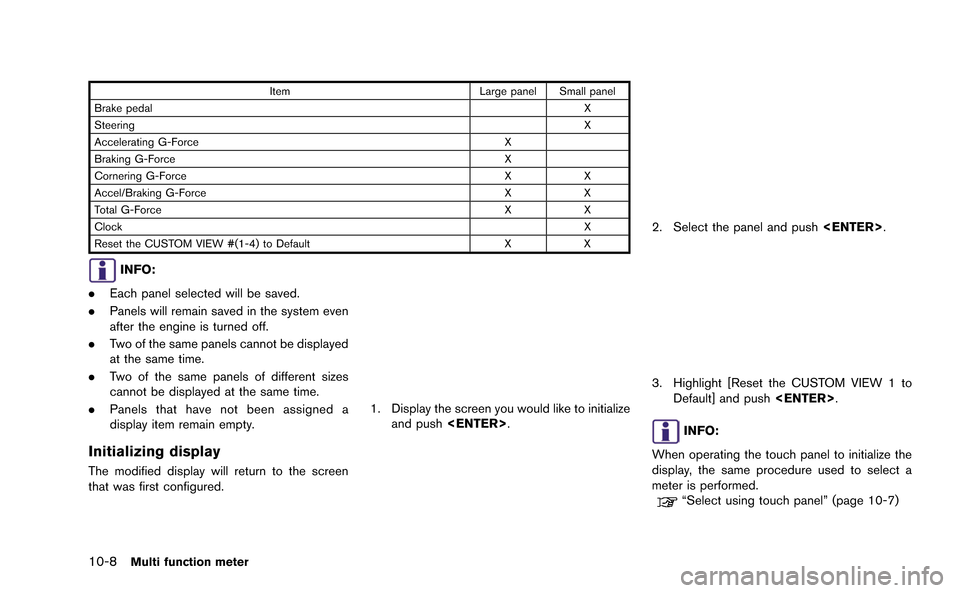
ItemLarge panel Small panel
Brake pedal X
Steering X
Accelerating G-Force X
Braking G-Force X
Cornering G-Force XX
Accel/Braking G-Force XX
Total G-Force XX
Clock X
Reset the CUSTOM VIEW #(1-4) to Default XX
INFO:
. Each panel selected will be saved.
. Panels will remain saved in the system even
after the engine is turned off.
. Two of the same panels cannot be displayed
at the same time.
. Two of the same panels of different sizes
cannot be displayed at the same time.
. Panels that have not been assigned a
display item remain empty.
Initializing display
The modified display will return to the screen
that was first configured.
1. Display the screen you would like to initialize
and push
2. Select the panel and push
3. Highlight [Reset the CUSTOM VIEW 1 to
Default] and push
INFO:
When operating the touch panel to initialize the
display, the same procedure used to select a
meter is performed.
“Select using touch panel” (page 10-7)
Page 252 of 298
INFO:
. The displayed clock time is set by the GPS
system.
. The clock time may not be displayed on the
screen when the system is not receiving a
GPS signal, even when the system is set to
display the time.
. You can choose to display the clock in the
12-hour/24-hour format.
“Clock settings” (page 7-7)
ACCELERATION SCREEN
The acceleration screen displays the results of
how the vehicle behaves based on the manner in
which you operate the vehicle. The information
displayed is for confirmation purposes. The
results of how you use the accelerator pedal
can be displayed as an acceleration g-force
timeline. You can use this information to improve
your operation of the accelerator pedal.
WARNING
.Use the information from the multi
function meter strictly as a refer-
ence to make your driving more
comfortable. The readings are not
meant to prevent accidents caused
by reckless driving or poor driving
conditions (due to weather, road
condition, etc.) . Always obey all
traffic regulations and posted speed
limits.
. Red zone readings are configured to
function only as a guide for smooth
driving. The readings are not in-
tended to prevent accidents caused
by reckless driving.
How to view screen
&1ACCEL G (timeline graph):
Displays the acceleration exerted on the vehicle.
The vertical readout illustrates the progress of
acceleration and the horizontal readout tracks the
acceleration timeline of the past 20 seconds.
&2Red zone display:
The color of the graph will change when the
vehicle accelerates beyond a preset level of g-
force.
&3G-meter:
Displays the g-force currently being exerted on
the vehicle.
&41BOOST:
Displays the engine charger pressure.
&5ACCEL PEDAL:
Displays the accelerator pedal position.
Multi function meter10-17
DRIVING SUPPORT SCREEN
Page 254 of 298
BRAKING SCREEN
The braking screen displays the results of how
the vehicle behaves based on the manner in
which the driver operates the vehicle. The
information displayed is for confirmation pur-
poses. The results of how the brake pedal is
used are displayed as a timeline of g-force
exerted on the vehicle during deceleration. Use
the information to improve your operation of the
brake pedal.
WARNING
.Use the information from the multi
function meter strictly as a refer-
ence to make your driving more
comfortable. The readings are not
meant to prevent accidents caused
by reckless driving or poor driving
conditions (due to weather, road
condition, etc.) . Always obey all
traffic regulations and posted speed
limits.
. Red zone readings are configured to
function only as a guide for smooth
driving. The readings are not in-
tended to prevent accidents caused
by reckless driving.
How to view the screen
&1BRAKE G (timeline graph):
Displays the deceleration of the g-force being
exerted on the vehicle. The vertical readout
illustrates the progress of deceleration and the
horizontal readout tracks the deceleration time-
line of the past 20 seconds.
&2Red zone display:
The color of the graph will change when the level
of g-force exerted on the vehicle while decelerat-
ing exceeds a preset level.
&3G-meter:
Displays the g-force currently being exerted due
on the vehicle due to deceleration.
&4SPEED:
Displays the current driving speed.
&5BRAKE PEDAL:
Displays the brake pedal position.
INFO:
. The reading that the brake meter displays
when the pedal is being depressed may
vary, depending on the vehicle speed and
road conditions. The brake meter may not
display a reading of “100%” even when the
brake is being fully depressed. This is not a
malfunction.
. This panel only displays acceleration infor-
mation when the vehicle is decelerating. It
does not display any acceleration informa-
tion when the vehicle is accelerating.
. Due to the slope of a road, this meter may
register g-force even when the vehicle is
stopped. This is not a malfunction.
. When the VDC or the ABS is activated, a
mark will appear on the far left side of the
panel (large panel only) .
. The scale of the readout is adjusted auto-
matically to accommodate readings that
exceed the upper limit of the meter.
Multi function meter10-19
Page 256 of 298
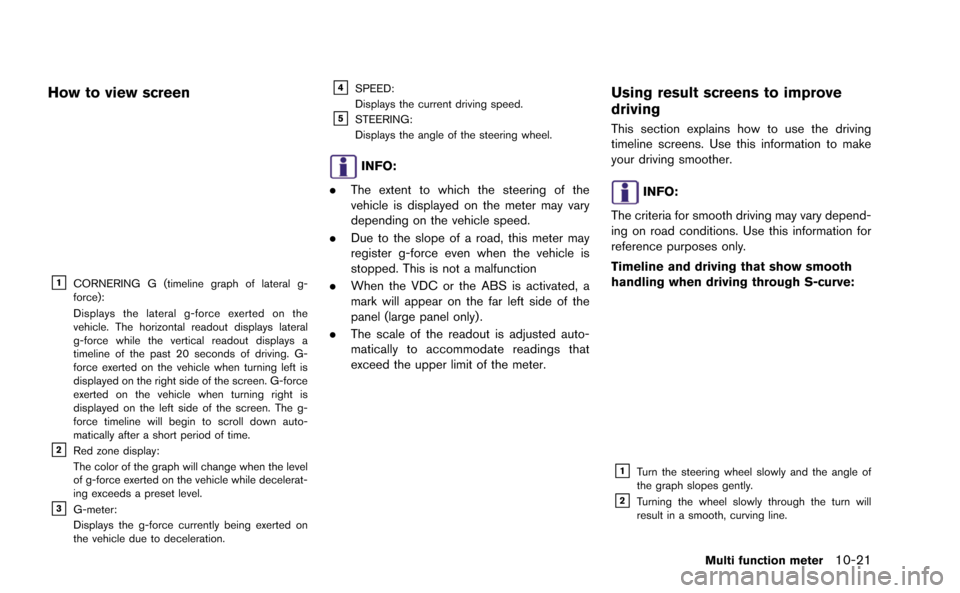
How to view screen
&1CORNERING G (timeline graph of lateral g-
force):
Displays the lateral g-force exerted on the
vehicle. The horizontal readout displays lateral
g-force while the vertical readout displays a
timeline of the past 20 seconds of driving. G-
force exerted on the vehicle when turning left is
displayed on the right side of the screen. G-force
exerted on the vehicle when turning right is
displayed on the left side of the screen. The g-
force timeline will begin to scroll down auto-
matically after a short period of time.
&2Red zone display:
The color of the graph will change when the level
of g-force exerted on the vehicle while decelerat-
ing exceeds a preset level.
&3G-meter:
Displays the g-force currently being exerted on
the vehicle due to deceleration.
&4SPEED:
Displays the current driving speed.
&5STEERING:
Displays the angle of the steering wheel.
INFO:
. The extent to which the steering of the
vehicle is displayed on the meter may vary
depending on the vehicle speed.
. Due to the slope of a road, this meter may
register g-force even when the vehicle is
stopped. This is not a malfunction
. When the VDC or the ABS is activated, a
mark will appear on the far left side of the
panel (large panel only) .
. The scale of the readout is adjusted auto-
matically to accommodate readings that
exceed the upper limit of the meter.
Using result screens to improve
driving
This section explains how to use the driving
timeline screens. Use this information to make
your driving smoother.
INFO:
The criteria for smooth driving may vary depend-
ing on road conditions. Use this information for
reference purposes only.
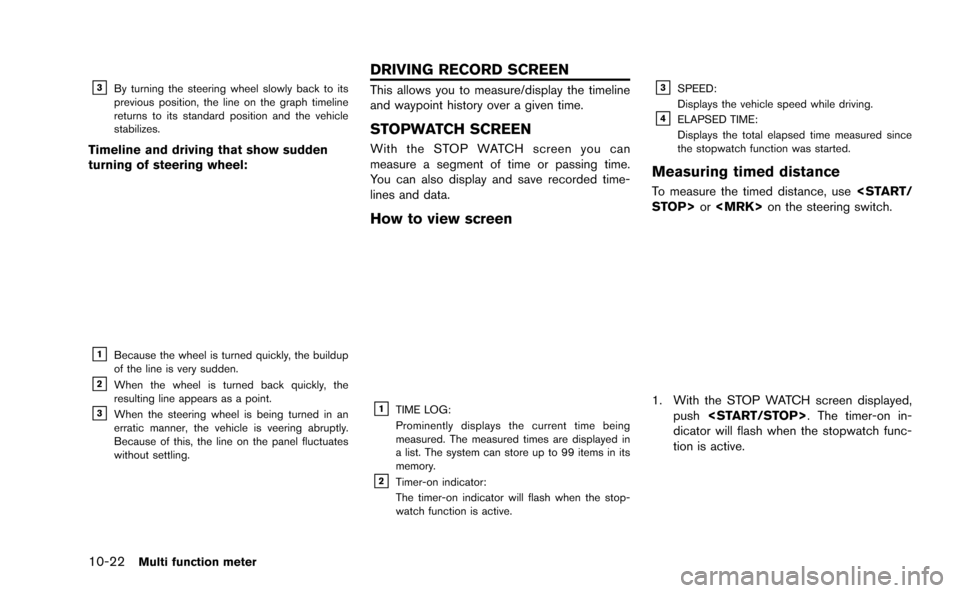
Timeline and driving that show smooth
handling when driving through S-curve:
&1Turn the steering wheel slowly and the angle of
the graph slopes gently.
&2Turning the wheel slowly through the turn will
result in a smooth, curving line.
Multi function meter10-21
Page 257 of 298
10-22Multi function meter
&3By turning the steering wheel slowly back to its
previous position, the line on the graph timeline
returns to its standard position and the vehicle
stabilizes.
Timeline and driving that show sudden
turning of steering wheel:
&1Because the wheel is turned quickly, the buildup
of the line is very sudden.
&2When the wheel is turned back quickly, the
resulting line appears as a point.
&3When the steering wheel is being turned in an
erratic manner, the vehicle is veering abruptly.
Because of this, the line on the panel fluctuates
without settling.
This allows you to measure/display the timeline
and waypoint history over a given time.
STOPWATCH SCREEN
With the STOP WATCH screen you can
measure a segment of time or passing time.
You can also display and save recorded time-
lines and data.
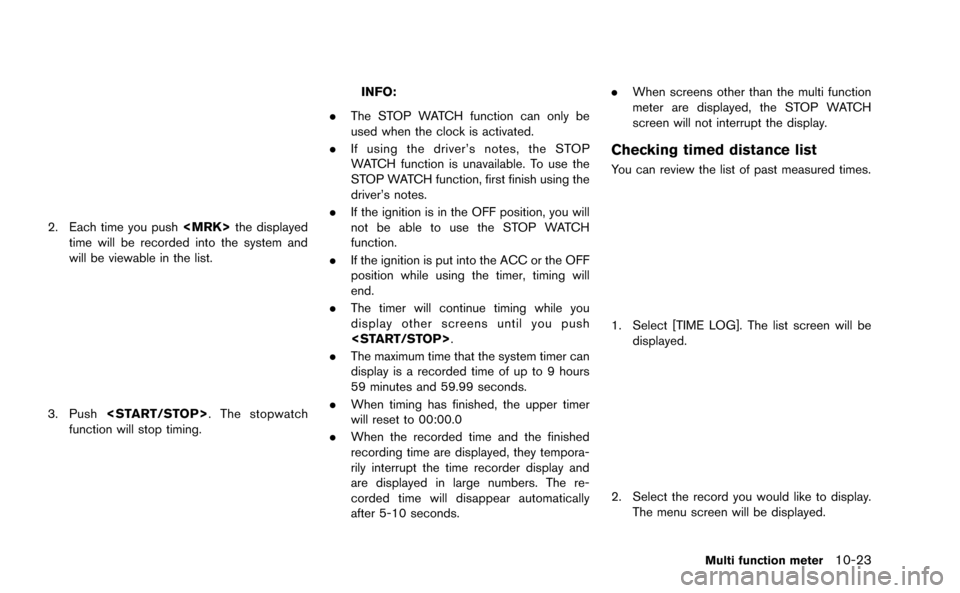
How to view screen
&1TIME LOG:
Prominently displays the current time being
measured. The measured times are displayed in
a list. The system can store up to 99 items in its
memory.
&2Timer-on indicator:
The timer-on indicator will flash when the stop-
watch function is active.
&3SPEED:
Displays the vehicle speed while driving.
&4ELAPSED TIME:
Displays the total elapsed time measured since
the stopwatch function was started.
Measuring timed distance
To measure the timed distance, use
1. With the STOP WATCH screen displayed,
push
dicator will flash when the stopwatch func-
tion is active.
DRIVING RECORD SCREEN
Page 258 of 298
2. Each time you push
time will be recorded into the system and
will be viewable in the list.
3. Push
function will stop timing.
INFO:
. The STOP WATCH function can only be
used when the clock is activated.
. If using the driver’s notes, the STOP
WATCH function is unavailable. To use the
STOP WATCH function, first finish using the
driver’s notes.
. If the ignition is in the OFF position, you will
not be able to use the STOP WATCH
function.
. If the ignition is put into the ACC or the OFF
position while using the timer, timing will
end.
. The timer will continue timing while you
display other screens until you push
. The maximum time that the system timer can
display is a recorded time of up to 9 hours
59 minutes and 59.99 seconds.
. When timing has finished, the upper timer
will reset to 00:00.0
. When the recorded time and the finished
recording time are displayed, they tempora-
rily interrupt the time recorder display and
are displayed in large numbers. The re-
corded time will disappear automatically
after 5-10 seconds. .
When screens other than the multi function
meter are displayed, the STOP WATCH
screen will not interrupt the display.
Checking timed distance list
You can review the list of past measured times.
1. Select [TIME LOG]. The list screen will be
displayed.
2. Select the record you would like to display.
The menu screen will be displayed.
Multi function meter10-23
Page 267 of 298
11-6General system information
WHEN GRAY ROAD IS DISPLAYED
ON MAP
.When you are driving on a road displayed in
gray after the vehicle has deviated from the
suggested route during route guidance,
automatic rerouting may not start immedi-
ately.
. The navigation system does not provide
route guidance for roads displayed in dark
green. Therefore, if the destination is set on
a road displayed in dark green, the enlarged
map display will return to the ordinary map
screen at some point on a suggested route
that is near the destination. Also, voice
guidance will stop at some point on a
suggested route that is near the destination.
. Places information and street names near
roads displayed in gray may not be con-
tained in the map data.
.There may be cases that carpool lanes are
included on a suggested route when the
automatic rerouting function is activated,
even if the “Use Time Restricted Roads” is
turned off.
“Setting conditions for route calcula-
tion” (page 2-65)
. The navigation system does not provide
route guidance for roads displayed in dark
green.
. If the destination is set on a dark green road,
the enlarged map display will switch to the
ordinary map screen at some point and
suggest a route that is near the destination.
The distance and direction to the endpoint
of the suggested route will be displayed in
the lower right corner of the screen. Also, at
this time, voice guidance will announce,
“The route to the destination includes roads
through incomplete map areas. Voice gui-
dance will not be provided in these areas”.
When approaching the endpoint of the
suggested route, voice guidance will an-
nounce, “Entering the road with incomplete
map data. Use the direction arrow and
distance information to proceed to your
destination.”
To reach the destination, refer to the map
screen. Always follow actual roads and regulations and drive safely.
. The suggested route may not be the short-
est, nor are other circumstances such as
traffic jams considered.
. Because of the inevitable difference in road
conditions and circumstances between the
time you use this system and the time the
information was produced for the map data,
there may be discrepancies in roads and
regulations. In such cases, follow the actual
information available.
. During route calculation, the map will not
scroll, however the vehicle icon will move
with the actual vehicle’s movement.
. During route calculation, buttons such as
Page 268 of 298
— If one section between waypoints cannotbe calculated, none of the route will be
displayed.
— The route may not connect completely at some waypoints.
— The route may require a U-turn close to some waypoints.
. Route calculation may not be completed in
the following cases.
— If there is no main road within a range of
1.5 miles (2.5 km) from the vehicle, a
message saying so will appear on the
screen. Try recalculating when the vehi-
cle is closer to a main road.
— If there is no main road within a range of 1.5 miles (2.5 km) from the destination or
waypoint, a message saying so will
appear on the screen. Try setting the
location closer to a main road.
— If the vehicle is too close to the destina- tion or if there are no roads to the
destination, a message saying so will
appear on the screen.
— If it is impossible to reach the destination or waypoints because of traffic regula-
tions, etc. — If the only route to reach the destination
or waypoints is extremely complicated.
— If the destination, current vehicle position or waypoint is within the “Avoid Area”.
— If a part of the route is included in the “Avoid Area”.
. The following may occur when the route is
displayed.
— If you calculate a route on a main road,
the starting point of the route may not
exactly match the current vehicle loca-
tion.
— The endpoint of the route may not exactly match the destination.
— If you calculate a route on a main road, the system may display a route from
another main road. This may be because
the position of the vehicle icon is not
accurate. In this case, park the vehicle in
a safe location and reset the vehicle icon,
or continue driving to see if the position
of the vehicle icon is automatically
adjusted before recalculating the route.
— There are cases in which the system shows an indirect route to reach the
destination or waypoints, if you set them
from stored or facility information. In
order to correct this, you must be careful
about the traffic direction, especially when lanes with different travel directions
are shown separately, such as inter-
changes and service areas.
— This system makes no distinction be- tween limited traffic control and total
control (blockage) . It may show an
indirect route even if the road is usable.
— Even if the freeway preference is set to OFF, a route that uses the freeway may
be suggested.
— Even if the ferry preference is set to OFF, a route that uses a ferry line may be
suggested.
— Ferry lines, excluding those that are only for pedestrians, bicycles and motor-
cycles, are stored in this system. Take
into consideration the travel time required
and operational condition before decid-
ing whether to use them or not.
General system information11-7
Page 269 of 298
11-8General system information
INFO:
The system will only announce street names
when the system language is set to English.
Street names are not announced when the
system is set to Franc¸ ais (French).
BASICS OF VOICE GUIDANCE
Voice guidance announces which direction to
turn when approaching an intersection in which
a turn is necessary.
NOTICE
. There may be some cases in which
voice guidance and actual road
conditions do not correspond. This
may occur because of discrepancies
between the actual road and the
information on the map data, or it is
due to the vehicle’s speed.
. In case voice guidance does not
correspond to the actual road con-
ditions, follow the information ob-
tained from traffic signs or notices
on the road.
. Route guidance provided by the
navigation system does not take
carpool lane driving into considera- tion, especially when carpool lanes
are separated from other road
lanes.
DIRECTIONS PROVIDED AND DIS-
TANCES TO GUIDE POINTS
Directions will differ, depending on the road
type.
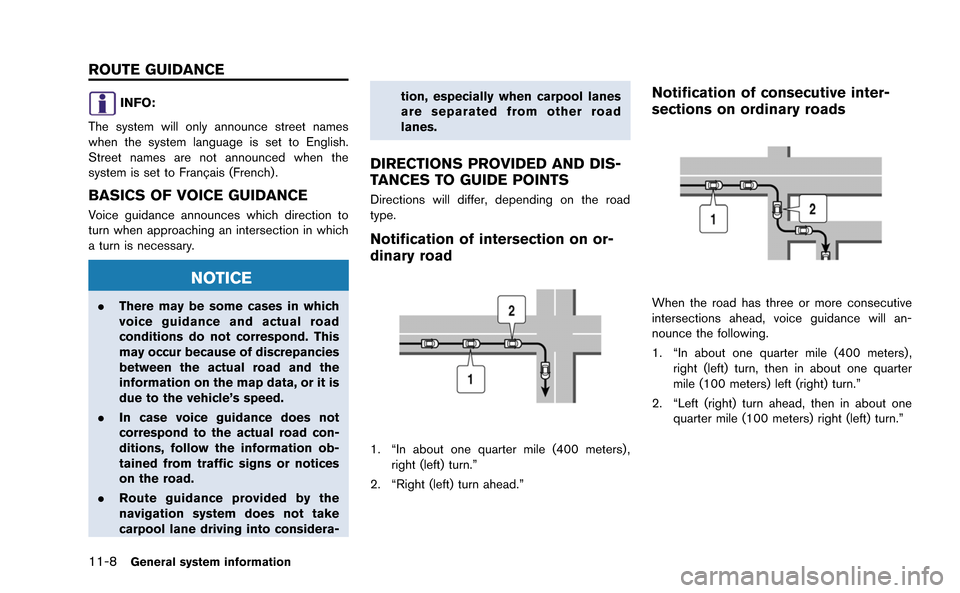
Notification of intersection on or-
dinary road
1. “In about one quarter mile (400 meters) ,
right (left) turn.”
2. “Right (left) turn ahead.”
Notification of consecutive inter-
sections on ordinary roads
When the road has three or more consecutive
intersections ahead, voice guidance will an-
nounce the following.
1. “In about one quarter mile (400 meters) , right (left) turn, then in about one quarter
mile (100 meters) left (right) turn.”
2. “Left (right) turn ahead, then in about one quarter mile (100 meters) right (left) turn.”
ROUTE GUIDANCE