set NISSAN GT-R 2015 R35 Multi Function Display Owners Manual
[x] Cancel search | Manufacturer: NISSAN, Model Year: 2015, Model line: GT-R, Model: NISSAN GT-R 2015 R35Pages: 298, PDF Size: 11.39 MB
Page 195 of 298
![NISSAN GT-R 2015 R35 Multi Function Display Owners Manual 7-8Other settings
This key does not appear on the display until the
ignition switch is pushed to the ON position.
1. Push<SETTING>.
2. Highlight [Comfort] and push <ENTER>.
3. Highlight the preferred](/img/5/423/w960_423-194.png "NISSAN GT-R 2015 R35 Multi Function Display Owners Manual 7-8Other settings
This key does not appear on the display until the
ignition switch is pushed to the ON position.
1. Push<SETTING>.
2. Highlight [Comfort] and push <ENTER>.
3. Highlight the preferred")
7-8Other settings
This key does not appear on the display until the
ignition switch is pushed to the ON position.
1. Push
2. Highlight [Comfort] and push
3. Highlight the preferred setting item and push
selected item illuminates.
4. After setting, push
to apply the setting.
5. Push
screen. Push
Page 196 of 298
![NISSAN GT-R 2015 R35 Multi Function Display Owners Manual 5. Highlight the preferred setting item andpush <ENTER>. The indicator light of the
selected item illuminates.
Available languages
.[English]
.[Franc¸ ais]
.[Espan ˜
ol]
NOTICE
Do not change the ign](/img/5/423/w960_423-195.png "NISSAN GT-R 2015 R35 Multi Function Display Owners Manual 5. Highlight the preferred setting item andpush <ENTER>. The indicator light of the
selected item illuminates.
Available languages
.[English]
.[Franc¸ ais]
.[Espan ˜
ol]
NOTICE
Do not change the ign")
5. Highlight the preferred setting item andpush
selected item illuminates.
Available languages
.[English]
.[Franc¸ ais]
.[Espan ˜
ol]
NOTICE
Do not change the ignition switch
position while changing the language.
Doing so may cause a system malfunc-
tion.
UNIT SETTINGS
1. Push
2. Highlight [Others] and push
3. Highlight [Language & Units] and push
4. Highlight [Select Units] and push
5. Highlight the preferred unit and push
unit illuminates.
Available units
.US:
mile, MPH, 8F, MPG
.Metric:
km, km/h, 8C, L/100 km
6. Push
screen. Push
Page 197 of 298
![NISSAN GT-R 2015 R35 Multi Function Display Owners Manual 7-10Other settings
UNIT SETTINGS (Tire Pressure)
1. Push<SETTING>.
2. Highlight [Others] and push <ENTER>.
3. Highlight [Language/Units] and push <ENTER>.
4. Highlight [Select Units (Tire Pressure)] a](/img/5/423/w960_423-196.png "NISSAN GT-R 2015 R35 Multi Function Display Owners Manual 7-10Other settings
UNIT SETTINGS (Tire Pressure)
1. Push<SETTING>.
2. Highlight [Others] and push <ENTER>.
3. Highlight [Language/Units] and push <ENTER>.
4. Highlight [Select Units (Tire Pressure)] a")
7-10Other settings
UNIT SETTINGS (Tire Pressure)
1. Push
2. Highlight [Others] and push
3. Highlight [Language/Units] and push
4. Highlight [Select Units (Tire Pressure)] andpush
5. Highlight the preferred unit and push
unit illuminates.
Available units
.psi
.kPa
6. Push
screen.
The image files in the USB device will be
displayed.
1. Press
2. Select [Others] and press
3. Select [Image Viewer] and press
The image of the selected file is displayed on the
right side of the screen.
When a number of folders are included in the
USB device, select a folder from the list and
push
IMAGE VIEWER
Page 198 of 298
![NISSAN GT-R 2015 R35 Multi Function Display Owners Manual FULL SCREEN DISPLAY
The full screen display will appear when select-
ing [Full Screen Display] and press<ENTER>.
To operate the Image Viewer or to change the
settings, select the desired key.
.
(Start](/img/5/423/w960_423-197.png "NISSAN GT-R 2015 R35 Multi Function Display Owners Manual FULL SCREEN DISPLAY
The full screen display will appear when select-
ing [Full Screen Display] and press<ENTER>.
To operate the Image Viewer or to change the
settings, select the desired key.
.
(Start")
FULL SCREEN DISPLAY
The full screen display will appear when select-
ing [Full Screen Display] and press
To operate the Image Viewer or to change the
settings, select the desired key.
.
(Start)
Select “
” and push
playing the slideshow.
.
(Stop)
Select “
” and push
the slideshow.
.
(Next)
Select “
” and push
display the next file.
.
(Previous)
Select “
” and push
display the previous file.
SETTING THE IMAGE VIEWER
The Image Viewer setting display will appear
when selecting [Settings] on the full screen
display and pushing
settings are available for the full screen display.
. Slideshow Speed
Choose [Slideshow Speed] and push
select the changing time from 5, 10, 30,
60 seconds or “No Auto Change”. .
Slideshow Order
Choose [Slideshow Order] and push
select “Random” or “Order List”.
Operating tips
.Only files that meet the following conditions
will be displayed.
— File format: JPEG (“.jpg” or “.jpeg”)
— File size: 2 MB or less
— Display size: 1,536 62,048 pixels or
less
. If an electronic device (such as a digital
camera) is directly connected to the vehicle
using a USB cable, no image will be
displayed on the screen.
. If the file name is too long, some file names
may not be entirely displayed.
Other settings7-11
Page 199 of 298

7-12Other settings
MEMO
Page 200 of 298

8 Voice recognition
NISSAN Voice Recognition .................................................... 8-2
Standard mode........................................................................\
... 8-2Confirming how to use voice commands ...................... 8-2
Using Voice Recognition System .................................... 8-4
Before starting ...................................................................... 8-4
Giving voice commands ..................................................... 8-4
Voice command examples ................................................. 8-9
Alternate Command Mode ................................................... 8-13 Displaying how to operate Voice
Recognition System ......................................................... 8-13 Confirming how to use voice commands ................. 8-14
Using Voice Recognition System ............................... 8-17
Before starting ................................................................. 8-17
Giving voice commands ................................................ 8-17
System feedback announcement modes ................. 8-22
Setting alternate command mode .............................. 8-22
Speaker adaptation ........................................................ 8-22
Voice command examples ............................................ 8-24
Page 201 of 298
8-2Voice recognition
NISSAN Voice Recognition allows hands-free
operation of the navigation system and other
systems equipped on this vehicle, in one of two
modes, Standard Mode or Alternate Command
Mode. Standard Mode allows the operation of
Navigation, Phone, Audio, Information and Help.
The commands that are available are always
shown on the display and announced by the
system. To perform operations, simply follow the
prompts given by the system. In Standard Mode,
hands-free operation of Change map view,
Route selection and Bluetooth Audio, etc. is
not available through Voice Recognition.
Alternate Command Mode allows advanced
operations. When this mode is active, an
expanded list of commands can be spoken after
pushing<
>, and the voice command menu
prompts are turned off. Note that in this mode
the recognition success rate may be affected
because the number of available commands and
ways of speaking each command are increased.
Otherwise, it is recommended that Alternate
Command Mode be turned OFF and Standard
Mode be used for the best recognition perfor-
mance.
“Alternate Command Mode” (page 8-13)
INFO:
. To improve recognition success when Alter-
nate Command Mode is active, try using the
Speaker Adaptation function available in that
mode.
“Speaker adaptation” (page 8-22)
Otherwise, it is recommended that Alternate
Command Mode be turned OFF and Stan-
dard Mode be used for the best recognition
performance.
. For the voice commands for the audio,
phone and other systems, refer to the
vehicle Owner’s Manual. The following sec-
tions refer only to the navigation, phone and
information systems.
. If the air conditioner is set to “Auto”, the fan
speed is automatically lowered so that
commands can be recognized more easily.
CONFIRMING HOW TO USE VOICE
COMMANDS
When operating the voice recognition system
for the first time or if help is preferred to use the
system, the User Guide can be displayed.
It is possible to confirm how to use voice
commands by accessing a simplified User
Guide, which contains basic instructions and
tutorials for several voice commands.
Basic operation
1. Push
2. Highlight [Others] and push
3. Highlight [Voice Recognition] and push
4. Highlight [User Guide] and push
NISSAN VOICE RECOGNITION STANDARD MODE
Page 205 of 298
8-6Voice recognition
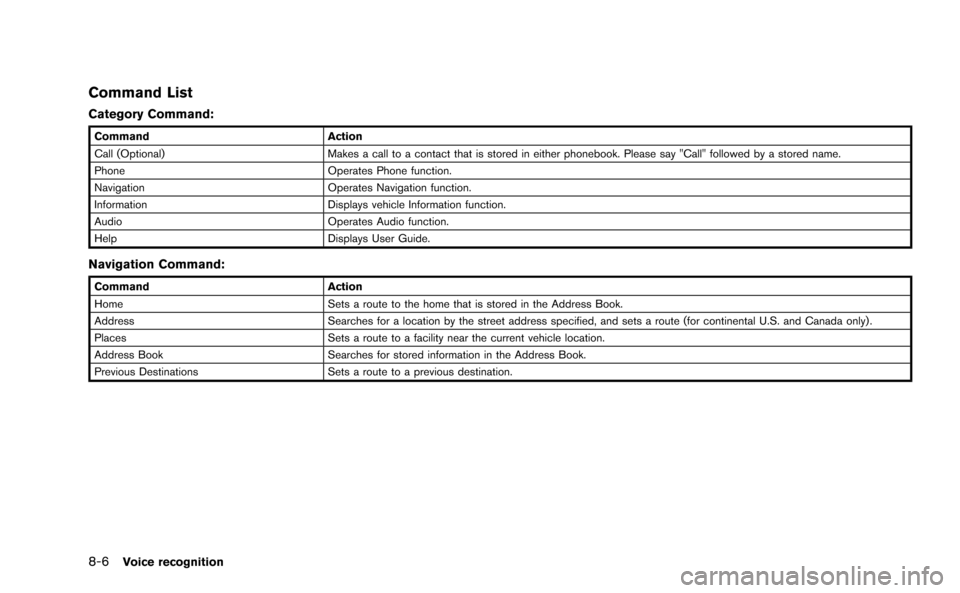
Command List
Category Command:
CommandAction
Call (Optional) Makes a call to a contact that is stored in either phonebook. Please say "Call" followed by a stored name.
Phone Operates Phone function.
Navigation Operates Navigation function.
Information Displays vehicle Information function.
Audio Operates Audio function.
Help Displays User Guide.
Navigation Command:
CommandAction
Home Sets a route to the home that is stored in the Address Book.
Address Searches for a location by the street address specified, and sets a route (for continental U.S. and Canada only) .
Places Sets a route to a facility near the current vehicle location.
Address Book Searches for stored information in the Address Book.
Previous Destinations Sets a route to a previous destination.
Page 210 of 298
7. The system makes a call to 011-81-111-222-333.
INFO:
Any digit input format is available in the
International Number input process.
Example 3: Setting destination by
street address
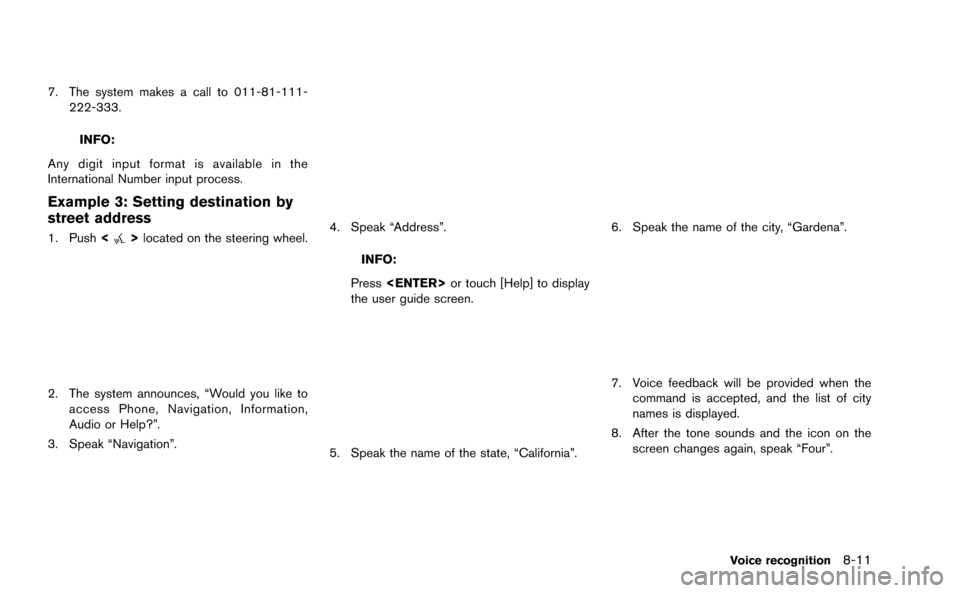
1. Push <>located on the steering wheel.
2. The system announces, “Would you like to
access Phone, Navigation, Information,
Audio or Help?”.
3. Speak “Navigation”.
4. Speak “Address”.
INFO:
Press
the user guide screen.
5. Speak the name of the state, “California”.
6. Speak the name of the city, “Gardena”.
7. Voice feedback will be provided when the command is accepted, and the list of city
names is displayed.
8. After the tone sounds and the icon on the screen changes again, speak “Four”.
Voice recognition8-11
Page 212 of 298
The following section is applicable when Alter-
nate Command Mode is active.
“Setting alternate command mode”
(page 8-22)
When Alternate Command Mode is active, an
expanded list of commands can be used after
pushing <
>. In this mode, available com-
mands are not fully shown on the display or
prompted. Review the expanded command list,
available when this mode is active. See exam-
ples of Alternate Command Mode screens.
Otherwise, it is recommended that Alternate
Command Mode be turned OFF and Standard
Mode be used for the best recognition perfor-
mance.
“Confirming voice commands”
(page 8-13)
DISPLAYING HOW TO OPERATE
VOICE RECOGNITION SYSTEM
When operating the voice recognition system
for the first time or if help is preferred to use the
system, the Command List (available only in
Alternate Command Mode) or the User Guide
are available.
Basic operation
1. Push
2. Highlight [Others] and push
3. Highlight [Voice Recognition] and push
4. Highlight the preferred item and push
.
[Command List]:
A list of voice commands that the system
can accept is displayed.
. [User Guide]:
A simplified operation manual of the voice
recognition system can be displayed and
how to use the voice commands can be
confirmed.
INFO:
The Command List feature is only available when
Alternate Command Mode is active.
Confirming voice commands
When controlling the system by voice com-
mands for the first time or if an appropriate voice
command is unknown, confirm using the voice
command lists.
The following information describes how to
display the navigation command list and the
help list. For information about the operations of
other functions, refer to the vehicle Owner’s
Manual.
Voice recognition8-13
ALTERNATE COMMAND MODE